



Is Your PC Overheating? How to Check CPU & GPU Temperature
Overheating can slow down your PC, crash games, and damage key components. Checking CPU and GPU temperature helps spot heat issues early, compare readings with safe ranges, and choose the right fix, from cleaning vents to upgrading cooling fans, coolers, processors, or graphics cards for smoother everyday performance and overall stability.
Is your laptop sounding like it’s about to take off? Or does your PC randomly slow down, crash, or shut itself off? Yeah, that’s usually not a vibe. It could mean your system is overheating.
Doing a quick check CPU GPU temperature laptop test can help you spot heat issues before they turn into expensive damage. Whether you game, edit videos, stream, or just multitask like a boss, keeping an eye on your processor’s and graphics cards temperature is a smart move.
Here’s how to check both easily.
Signs Your PC or Laptop is Overheating
Your device usually gives you clues before things get serious. Watch out for:
- Loud fans running non-stop
- Sudden lag or freezing
- Games crashing or stuttering
- Hot air blasting from vents
- Laptop base feeling too hot
- Random shutdowns or restarts
- Slow performance during basic tasks
If this sounds familiar, it’s time for a CPU and GPU temperature check.
What is a Safe CPU and GPU Temperature?
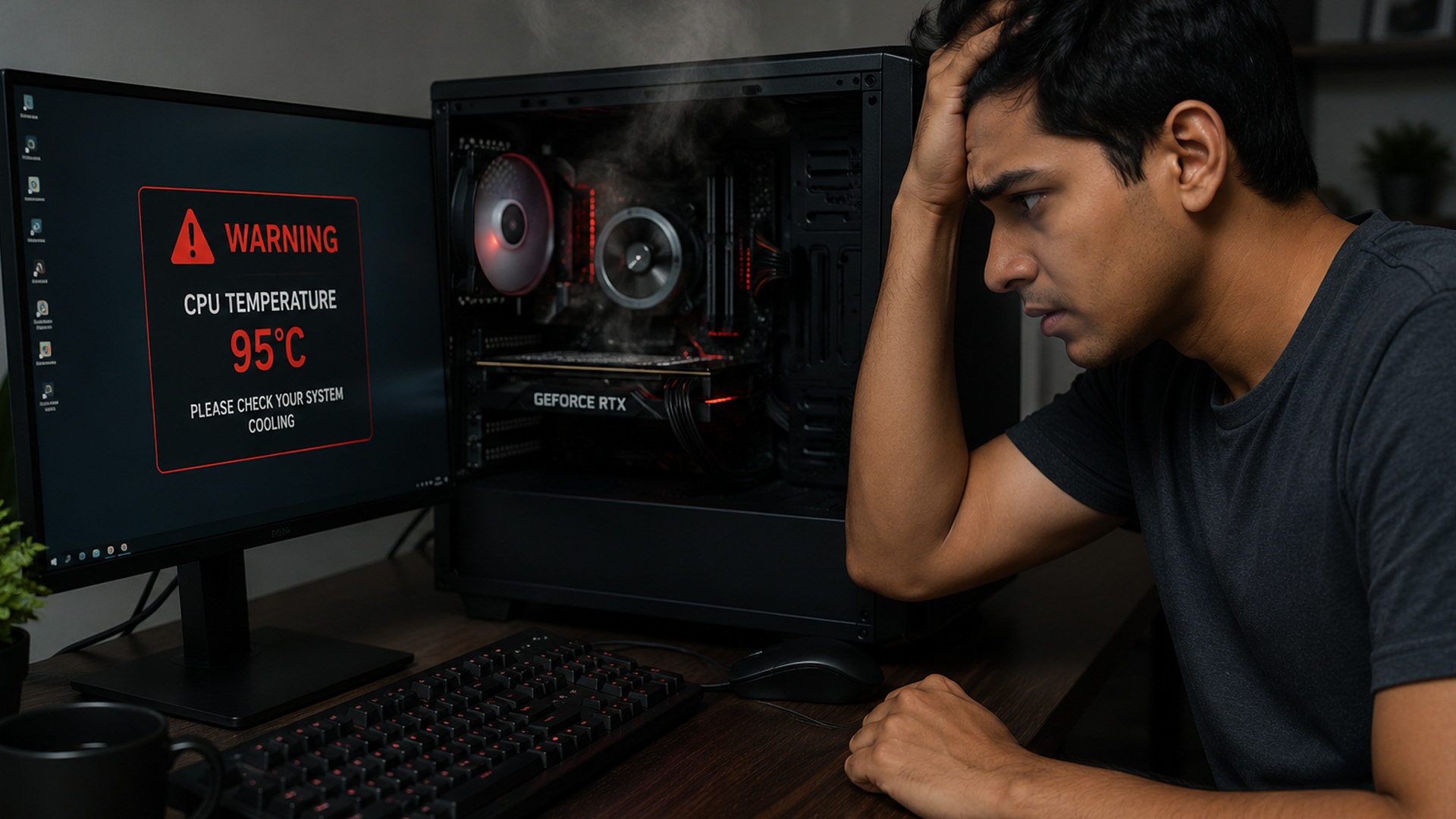
For most PCs and laptops, your CPU should sit around 30°C to 50°C when idle. During gaming, editing, or heavy work, 70°C to 85°C is usually normal. But if your processor keeps hitting 90°C or higher, that’s a red flag.
For GPUs, things can run a bit hotter. A normal graphics chip temperature under load is often around 60°C to 85°C. If it keeps going near or above 90°C, your cooling setup needs attention.
Basically, warm is fine. Toasty 24/7? Not fine.
Furthermore, it’s useful to understand basic laptop specs like CPU, RAM, GPU, and storage, as each part affects speed, heat, and overall performance.
How to Check CPU Temperature on Windows
Wondering how to check your main processor’s temperature? Windows does not always show CPU temps directly, so you’ll need BIOS or a monitoring tool.
Method 1: Check CPU Temperature in BIOS
This is the old-school way.
- Restart your PC or laptop.
- Press the BIOS key, usually F2, Delete, or Esc.
- Look for Hardware Monitor, PC Health, or System Status.
- Find the CPU temperature reading.
This works for a quick check CPU temperature task, but it does not show real-time temps while gaming or working.
Method 2: Use CPU Temperature Monitoring Software
For proper CPU temperature monitoring, use tools like:
- Core Temp
- HWMonitor
- HWiNFO
- MSI Afterburner
- Open Hardware Monitor
These tools show real-time processor’s temperature, fan speed, voltage, and more. Super useful if your laptop heats up during games, editing, or long work sessions. If your system still feels slow even after a temperature check, running CPU and RAM performance stress tests can help you see whether heat or hardware load is causing the issue.
How to Check GPU Temperature on Windows
Now let’s talk about how to check GPU temperature. Your GPU handles graphics, gaming, video editing, and visual-heavy tasks, so it can get hot fast.
Method 1: Use Task Manager
Windows makes this pretty easy.
- Press Ctrl + Shift + Esc.
- Open Task Manager.
- Go to the Performance tab.
- Click GPU.
- Check the GPU temperature reading.
This is one of the quickest ways to check integrated graphics temperature without installing anything. Just note that not every system shows GPU temperature in Task Manager. Graphics card temperature can vary depending on your graphics setup, so knowing the difference between integrated and dedicated GPUs can help you understand why some laptops run hotter than others.
Method 2: Use GPU Monitoring Tools

For a deeper GPU temperature check, try:
- MSI Afterburner
- GPU-Z
- HWMonitor
- HWiNFO
- AMD Software
- NVIDIA App
These tools are great if you want to know how to check temperature of GPU while gaming or running heavy apps. If you’re using or upgrading to AMD graphics cards, monitoring video processor’s temperature helps you keep performance stable and avoid overheating.
How to Check Temperature of GPU and CPU Together
Want to check CPU GPU temperature in one place? Use a full pc heat monitor tool. The best options include:
- HWMonitor
- HWiNFO
- MSI Afterburner
- Speccy
- Open Hardware Monitor
These apps show your CPU and GPU temperature, fan speeds, and system health in one dashboard.
This is the easiest answer to how to check temperature of GPU and CPU, especially for laptops where heat builds up quickly. If you’ve been searching “CPU temperature how to check” or “how to check laptop GPU temperature,” these tools are your best bet.
Why Do CPU and GPU Temperatures Get Too High?
Your PC does not overheat for no reason. Common causes include:
- Dust blocking vents and fans
- Poor airflow inside the case
- Old thermal paste
- Weak or broken fans
- Heavy gaming or editing workloads
- Overclocking
- Blocked laptop vents
- Ageing cooling hardware
Powerful computer processors, graphics cards, and other PC components naturally create heat. That’s normal. The problem starts when your cooling system can’t keep up. Processor performance also depends on how your CPU is built, so it helps to understand the difference between CPU clock speed and cores before upgrading.
How to Reduce CPU and GPU Temperature
Good news: you can lower temperatures without doing anything too complicated.
Try these quick fixes:
- Clean dust from vents and fans
- Keep your laptop on a hard, flat surface
- Don’t block air vents
- Close background apps
- Update graphics and chipset drivers
- Lower game graphics settings
- Improve airflow in your PC case
- Replace old thermal paste
- Upgrade your PC cooling fans
- Use better computer coolers
For laptops, even a cooling pad can help. For desktops, better airflow and stronger fans can make a big difference.
When Should You Worry?

You should take overheating seriously if your CPU or GPU stays hot even when idle. Constant loud fans, shutdowns, lag, or temperatures above 90°C are signs something is wrong.
Regular CPU and GPU temperature check habits can save your device from long-term damage. Think of it like checking your car’s engine light, but for your PC.

Final Thoughts
Learning how to check main processor’s temperature and how to check GPU temperature is simple, but it can seriously protect your laptop or desktop. Use a reliable pc heat monitor, keep your system clean, and upgrade cooling parts when needed. Your PC will run smoother, cooler, and last longer.
Need better cooling or upgrades? Explore Laptop Outlet’s range of PC components, processors, cooling fans, computer coolers, and AMD graphics cards to keep your setup chill.

Got Questions?
Why is my CPU temperature high when idle?
Your CPU may run hot at idle because of background apps, dust buildup, poor airflow, old thermal paste, or malware. Check Task Manager to see what’s using CPU power.
What is GPU hotspot temperature?
GPU hotspot temperature is the hottest point on your graphics card, not the average GPU temperature. It is usually higher than the main GPU core reading.
What is thermal throttling?
Thermal throttling happens when your CPU or GPU slows itself down to avoid overheating. This can cause lag, FPS drops, and slower performance.
What is the difference between CPU core temp and CPU package temp?
CPU core temp shows individual core temperatures. CPU package temp shows the overall processor temperature, including multiple sensors across the chip.
Do laptops run hotter than desktop PCs?
Yes. Laptops usually run hotter because they have smaller cooling systems and less airflow. Gaming laptops can reach higher temperatures during heavy use.
Related Articles


Last Updated: December 31, 2025
There’s a certain kind of satisfaction that comes with starting 2026 with a faster, cooler, cleaner PC setup. Maybe you’re planning a full build. Maybe you’re simply trying to fix the two things that quietly ruin daily performance—slow storage and noisy cooling. Either way, the New Year PC components & accessories season is when upgrades feel both exciting and sensible: you can refresh your system without committing to an entirely new machine.
If you’re shopping at Laptop Outlet, it’s worth starting by simply browsing and filtering the wider sale selection, think of it as your “big picture” view, so you can spot bundle-worthy deals across categories. It’s the fastest way to explore New Year tech discounts while keeping an eye on the parts you actually need.
The “smart upgrade order” for 2026 (what to buy first)
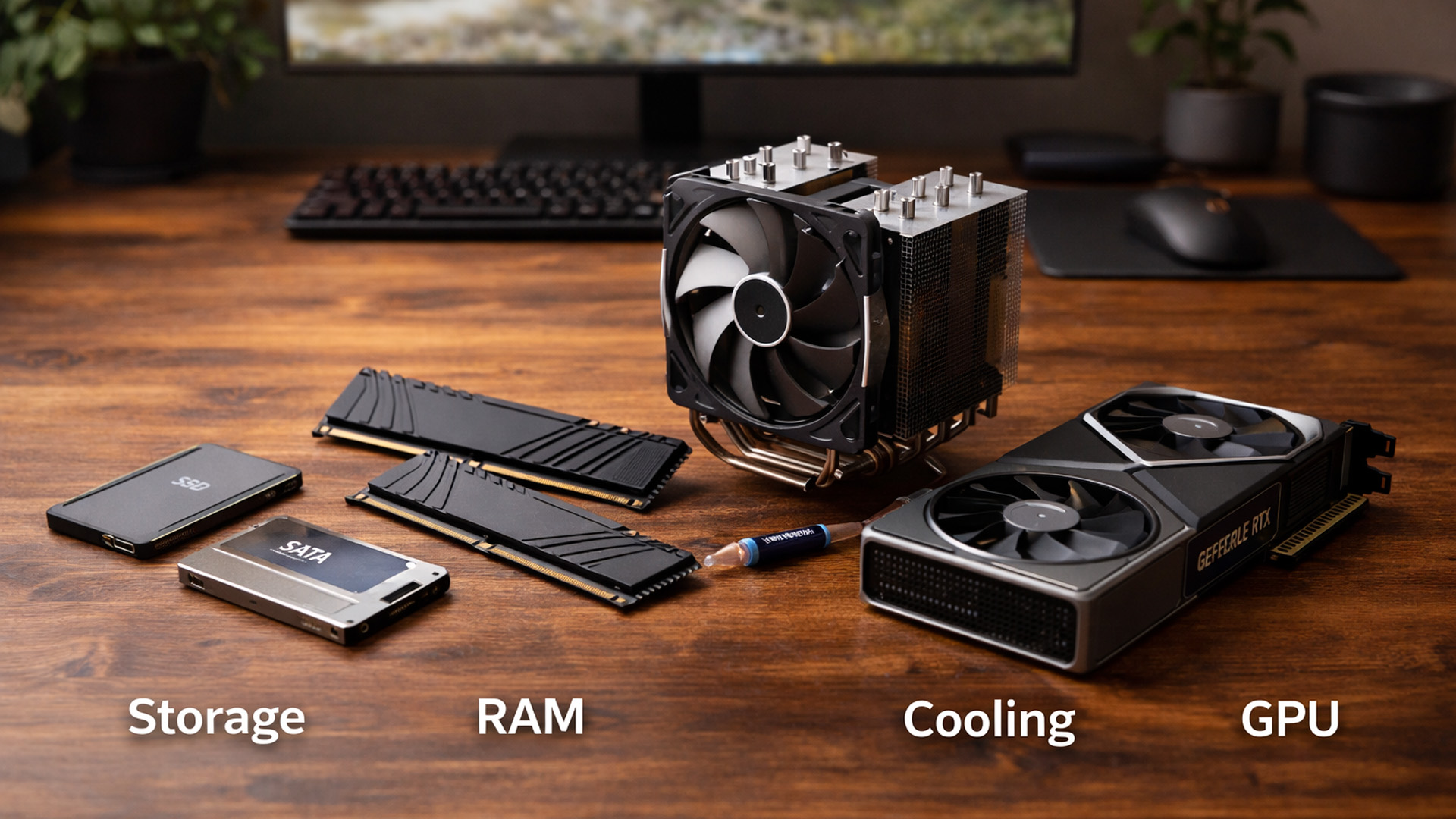
When you’re surrounded by deals, it’s easy to buy what looks exciting rather than what fixes your bottlenecks. A better approach is to upgrade in the order you’ll actually notice:
Last Updated: April 28, 2026
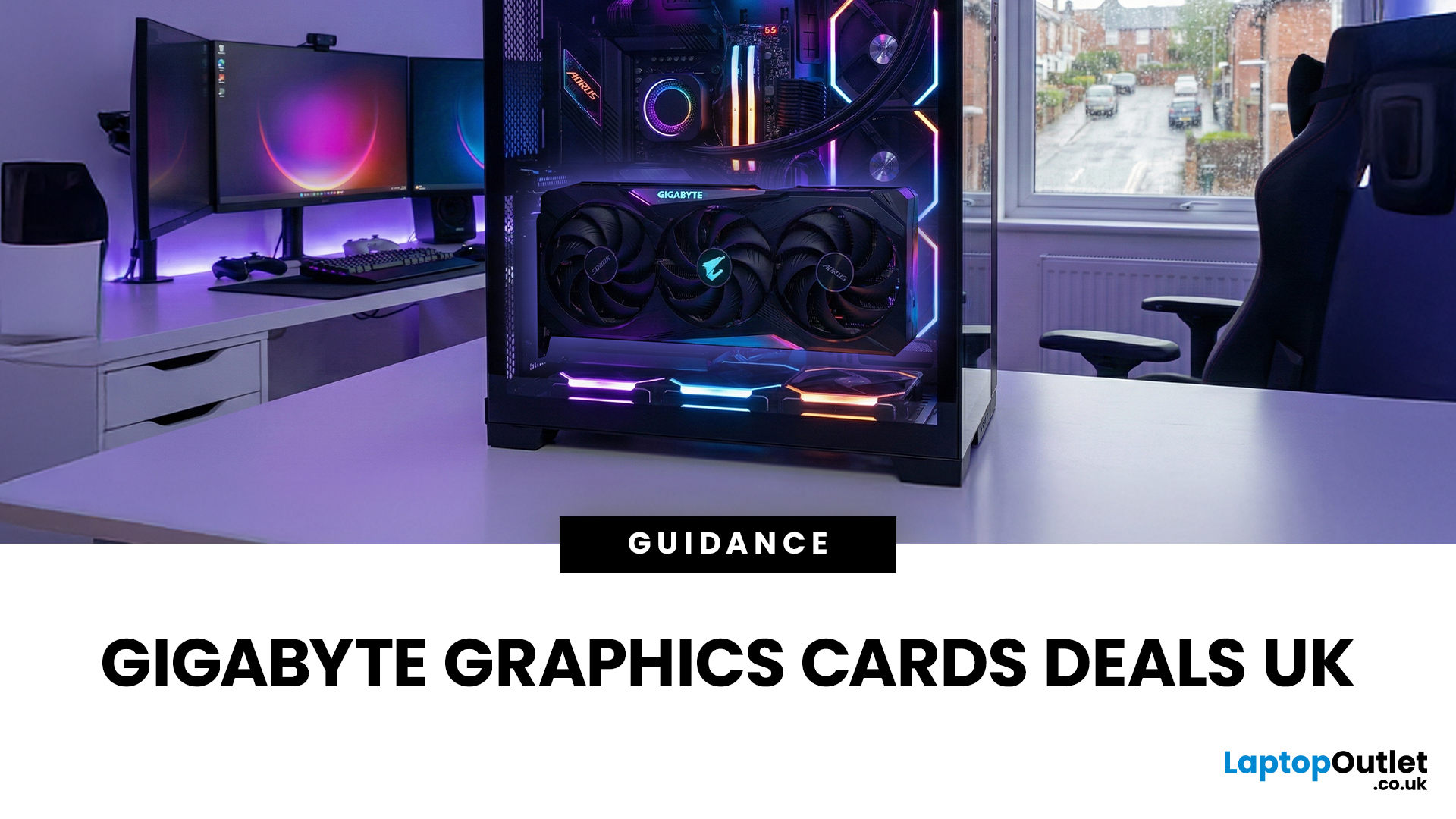
When it comes to upgrading your gaming PC or building a reliable high-performance setup, Gigabyte graphics cards are one of the suitable choices for gamers and creators. Known for strong performance, efficient cooling and excellent value, Gigabyte GPUs are designed to handle everything from everyday gaming to demanding creative tasks. Whether you’re aiming for smooth gameplay, detailed visuals or future-ready performance, there’s a Gigabyte graphics card to suit your needs and budget.
What Makes Gigabyte Gaming Graphics Cards Ideal for Modern Gaming?
Modern games demand more from hardware than ever before. Gigabyte has responded with GPUs that deliver high frame rates, detailed visuals and smooth gameplay across popular titles.
Performance that Keeps Up with New Games
From competitive esports titles to AAA blockbusters, Gigabyte gaming graphics cards are built to handle demanding workloads. Features such as ray tracing, DLSS (on NVIDIA models) and high memory bandwidth ensure consistent
Last Updated: May 22, 2026
A laptop usually overheats because of blocked airflow, dust, heavy apps, dried thermal paste, charging heat, or a faulty fan. To cool it down fast, place it on a hard surface, close demanding programs, clean the vents, switch to Balanced mode, and let it rest. If it keeps overheating or shutting down, it may need internal cleaning, thermal paste replacement, or repair.
Your coffee could be hot, but it doesn't work for a laptop to be honest. A little warmth is normal during gaming, charging, video calls, or heavy work, but if your laptop is overheating, slowing down, shutting off, or making loud fan noise, something needs fixing. This guide explains the fastest laptop overheating fix, why your laptop is running hot, and how to cool it down before the problem gets worse.
First, Is Your Laptop Actually Overheating?
Before you panic, it is important to know the difference between a laptop that is simply warm and a laptop that is truly overheating.
Laptops are compact machines. The processor,
Last Updated: August 20, 2026
Last Updated: June 10, 2026
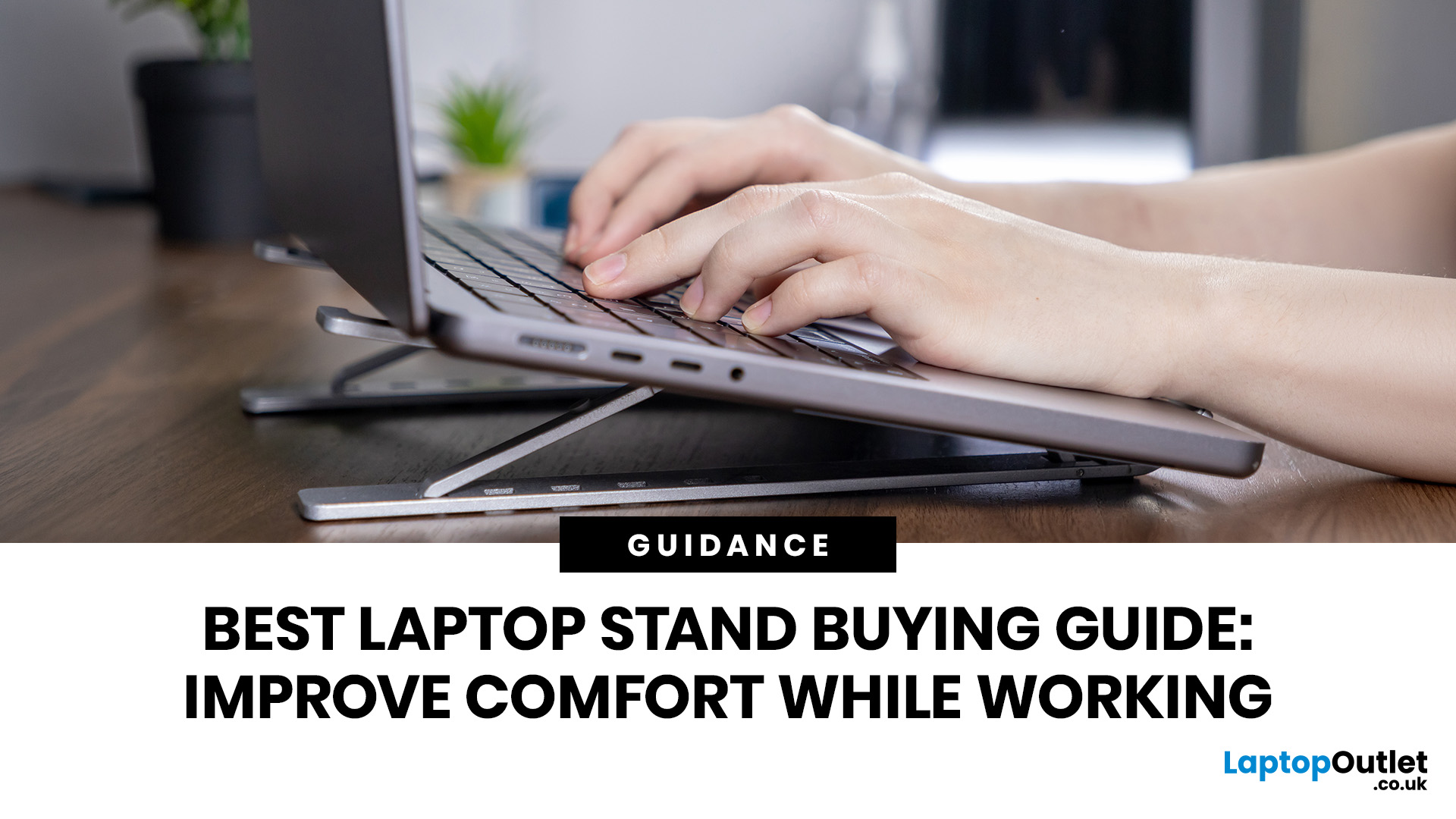
Looking for the best laptop stands UK buyers can choose for better comfort and posture? A good laptop stand raises your screen to a more natural viewing height, helping reduce neck strain, improve desk setup and make long working hours more comfortable. This guide explains how to choose the right laptop stand for desk use, adjustable setups, bed or couch working, travel, standing desks and dual-screen workstations.
A laptop is convenient, portable and easy to use anywhere, but it is not always the most comfortable device for long working hours. When your laptop sits flat on a desk, bed or couch, the screen is usually too low, which can make you bend your neck, hunch your shoulders and sit in an awkward position.
That is where a good laptop stand can make a big difference. Whether you need a laptop stand for desk use, an adjustable laptop stand for flexible working, a portable laptop stand for travel or a laptop table for bed, the right setup can help you work more comfortably every day.
Published: June 04, 2026
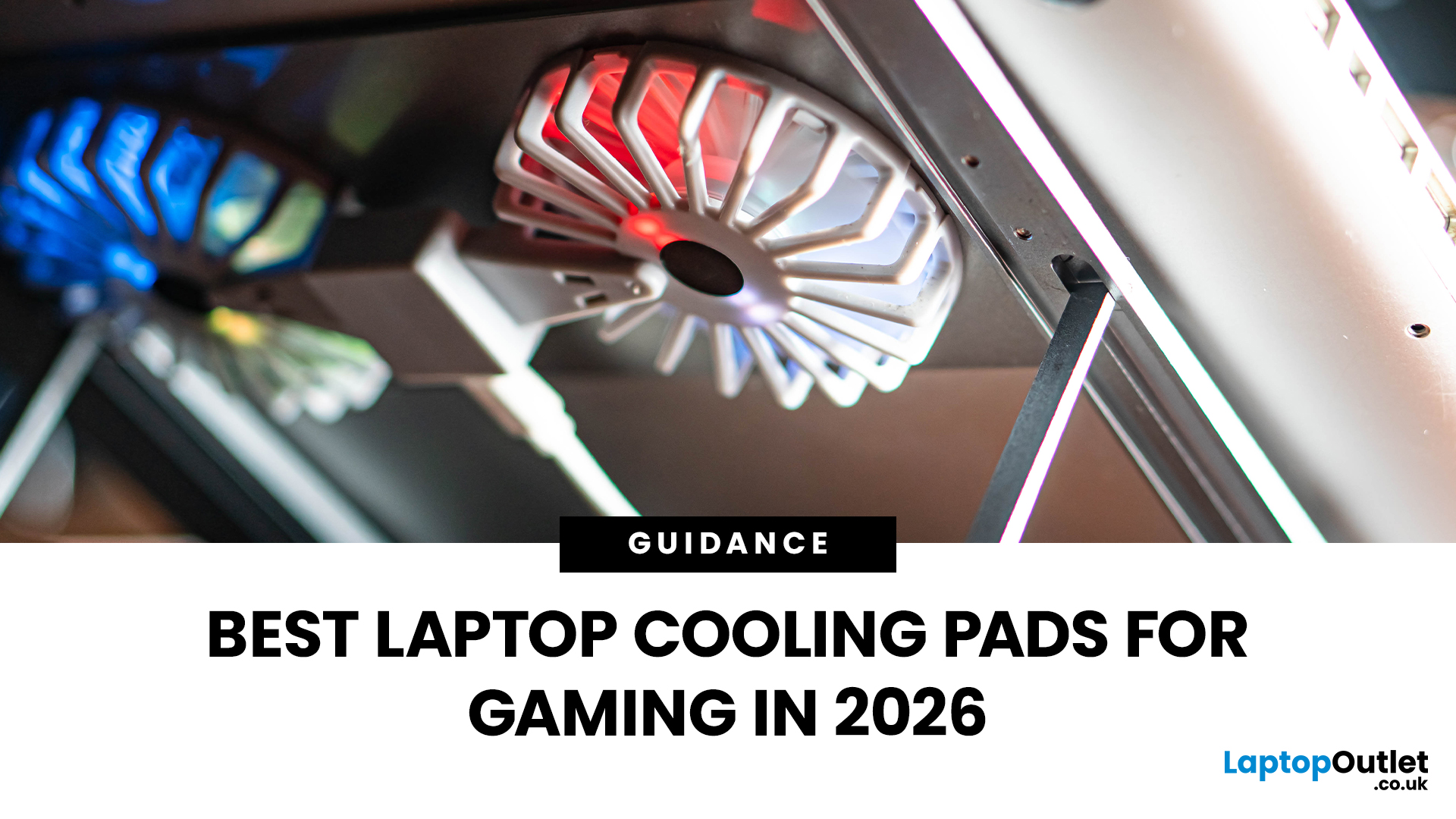
Gaming laptops are built to push frames, load heavy worlds, and keep up with long sessions. But when temperatures climb, performance can take a hit. That is where the right cooling setup matters.
A gaming laptop cooling pad can help improve airflow around your laptop, raise it into a better position, and reduce heat build-up during long gaming sessions. For more advanced setups, PC builders may also look at liquid coolers, CPU coolers, and performance cooling fans to keep gaming rigs running cooler and more consistently.
In this guide, we break down the Best laptop cooling pads UK shoppers should look for in 2026, what features actually matter, and the top cooling picks to upgrade your gaming space.
Why Laptop Cooling Matters for Gaming
Gaming pushes your laptop harder than everyday browsing or streaming. The CPU and GPU work together to deliver smooth frame rates, detailed graphics, and fast response times. More power means more heat.
When your laptop gets too hot, it may reduce performance

Last Updated: July 07, 2026
Laptops are powerful enough to handle work, study, streaming, gaming and creative tasks, but the right accessories can make a big difference to how comfortable and productive your setup feels. From keyboards and monitors to laptop bags, hubs and stands, choosing the best accessories helps you get more from your device every day.
| The best laptop accessories in 2026 are the ones that make your device more comfortable, productive, portable and easier to use every day. Essential picks include a wireless keyboard and mouse, external monitor, USB-C hub, laptop stand, protective sleeve, mouse pad, webcam, headphones, cooling pad and external storage. Whether you use your laptop for work, study, gaming or travel, the right accessories can turn a basic setup into a more efficient workspace. |
In 2026, laptop users are not just looking for basic add-ons. They want accessories that improve posture, speed up multitasking, protect their devices and create a cleaner desk setup. Whether you are building
Last Updated: June 18, 2026
For most buyers in 2026, the best laptop specs are a modern Intel Core Ultra 5/7 or AMD Ryzen AI 5/7 processor, 16GB RAM, 512GB SSD storage, and integrated graphics. Choose 32GB RAM, 1TB storage, and a dedicated GPU if you edit videos, create content, play demanding games, or use professional software.
Buying a new laptop in 2026 can feel confusing, especially when every product page is packed with technical words, numbers, and abbreviations. This processors & specs explained guide breaks everything down in plain English so you can understand what matters before you spend your money.
For most buyers, the four most important laptop components are the CPU, RAM, GPU, and storage. Once you understand these, it becomes much easier to compare models, avoid overspending, and choose a laptop that actually suits your daily needs.
What are Laptop Specs and Why Do They Matter?
Understanding laptop specifications becomes important. Specs affect:
- How fast your laptop feels when opening apps.
- How many
Published: June 11, 2026
Choosing the right gaming desktop can be the difference between smooth, immersive gameplay and a system that struggles within a year. This gaming PC buying guide explains the key components that affect gaming performance, future-proofing, and value for money, so you can buy with confidence rather than guessing from confusing spec sheets.
A good gaming PC is not just about the most expensive graphics card. It is about balance. The CPU, GPU, RAM, storage, cooling, power supply, motherboard, and case all work together. Whether you play competitive esports, cinematic single-player titles, open-world RPGs, racing games or VR, understanding the right configuration helps you avoid overspending and choose a desktop that lasts.
This article is designed as a practical gaming PC specs guide for beginners, but it also includes up-to-date 2026 advice for buyers comparing modern RTX, Radeon, Intel, and AMD-powered systems.
Why Buy a Gaming Desktop PC?
A gaming desktop PC remains one of the best choices
Last Updated: August 17, 2026
ARM processors are reshaping the laptop and tablet market in 2026, offering faster performance, longer battery life and cooler, quieter designs. Apple Silicon and Snapdragon are two leading ARM platforms, but they serve slightly different users. Apple Silicon is known for strong MacBook performance and excellent energy efficiency, while Snapdragon brings ARM power to modern Windows laptops and tablets.
ARM processors laptops are no longer niche devices. In 2026, they are a serious choice for students, remote workers, business users, and creators who want slim designs, long battery life and fast everyday performance. This guide offers ARM processors explained in plain English, then compares Apple Silicon and Snapdragon, the two most visible ARM platforms in laptops and tablets. Buyers usually care about four things: speed, battery life, app compatibility, and long-term value. That is where the Snapdragon vs Apple Silicon debate becomes important.

