



How to Update Drivers on Windows 10 & 11 (Complete Guide)

Your laptop is acting weird, and now you are wondering if it is a driver's problem.
Maybe your Wi-Fi keeps dropping. Maybe your Bluetooth headphones refuse to connect. Maybe your sound has vanished, your printer is ghosting you, or your graphics suddenly look like your laptop is running on low battery and bad vibes.
This is usually the moment people search “how to update drivers” or “update drivers Windows” and hope the answer is not a 40-step tech maze.
Good news: updating drivers on Windows 10 and Windows 11 is not as scary as it sounds. In most cases, Windows can handle driver updates automatically through Windows Update, and Microsoft says drivers act like translators between Windows and your devices, helping your operating system and apps communicate with your hardware.
This guide will show you how to update drivers safely, how to check if drivers are up to date, when to use Device Manager, when to visit the manufacturer’s website, and when driver problems may be a sign, your laptop is simply getting old.
Let’s fix the chaos.
What Are Windows Drivers?
Windows drivers are small pieces of software that help Windows talk to your laptop hardware.
Your laptop has loads of hardware inside it: graphics, audio, Wi-Fi, Bluetooth, keyboard, touchpad, webcam, USB ports, printer connections, and more. Windows cannot magically control all of these on its own. It needs drivers to understand what each device is and how it should work.
- Think of a driver like a translator.
- Windows says, “Play sound.”
- Your audio driver tells the speakers what to do.
- Windows says, “Connect to Wi-Fi.”
- Your network driver helps the Wi-Fi adapter understand the request.
- Windows says, “Run this game smoothly.”
- Your graphics driver helps the GPU show everything properly.
When a driver is missing, outdated, corrupted, or incompatible, the device may stop working or start behaving like it has joined a drama club. Sometimes performance drops are not just driver-related but linked to overheating issues in laptops.
Do You Really Need to Update Drivers?
Not always.
If your laptop is working perfectly, you do not need to hunt for driver updates every day. Windows Update usually installs important and recommended hardware drivers automatically, and Microsoft says Windows Update is the best way to get driver updates for most hardware devices.
But you may need to update drivers if something is clearly wrong.
You should check for driver updates when:
- Your sound stops working
- Wi-Fi keeps disconnecting
- Bluetooth devices will not pair
- Your screen flickers or looks strange
- Games crash or lag more than usual
- Your webcam is missing from apps
- A printer is not responding
- Your touchpad or keyboard behaves oddly
- Device Manager shows a yellow warning icon
- Windows says a driver is unavailable, missing, or outdated
Basically, do not update drivers just because you are bored. Update them when there is a reason.
And if your laptop is constantly struggling even after updates, it may be worth comparing newer options. You can always browse our laptop collection to see whether repairing, updating, or upgrading makes more sense for your setup.
The Safest Ways to Update Drivers on Windows
There are three safe ways to update drivers on Windows 10 and Windows 11:
- Windows Update
- Device Manager
- Your laptop or hardware manufacturer’s official website
That is, it. That is the trusted trio.
Avoid random “free driver updater” pop-ups or sketchy websites promising to fix everything in one click. Some device driver update software can be unnecessary, push paid upgrades, or install the wrong drivers. If you do use any driver tool, stick to official tools from trusted brands such as Intel, NVIDIA, AMD, HP, Dell, Lenovo, ASUS, or Microsoft.
Most users should start with Windows Update first. It is the easiest and safest method.
How to Update Drivers on Windows 11
If you want to update drivers in Windows 11 style, start with Windows Update.
Method 1: Use Windows Update
- Click Start
- Open Settings
- Select Windows Update
- Click Check for updates
- Install any available updates
- Restart your laptop if Windows asks you to
To check optional driver updates:
- Go to Settings
- Select Windows Update
- Click Advanced options
- Open Optional updates
- Expand Driver updates
- Select relevant updates
- Click Download & install
This is the best first step because Windows chooses compatible drivers for your system.
Method 2: Use Device Manager
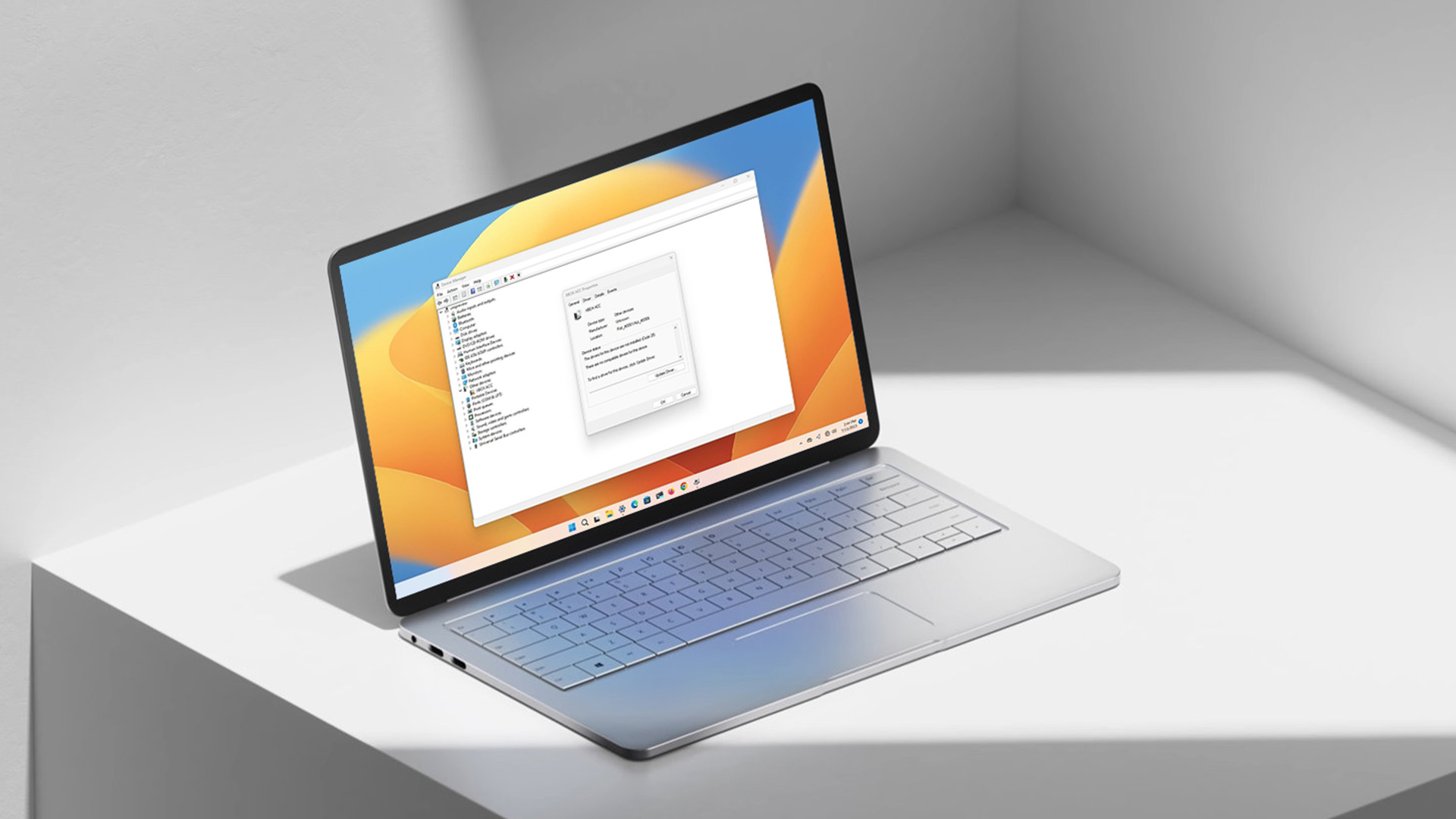
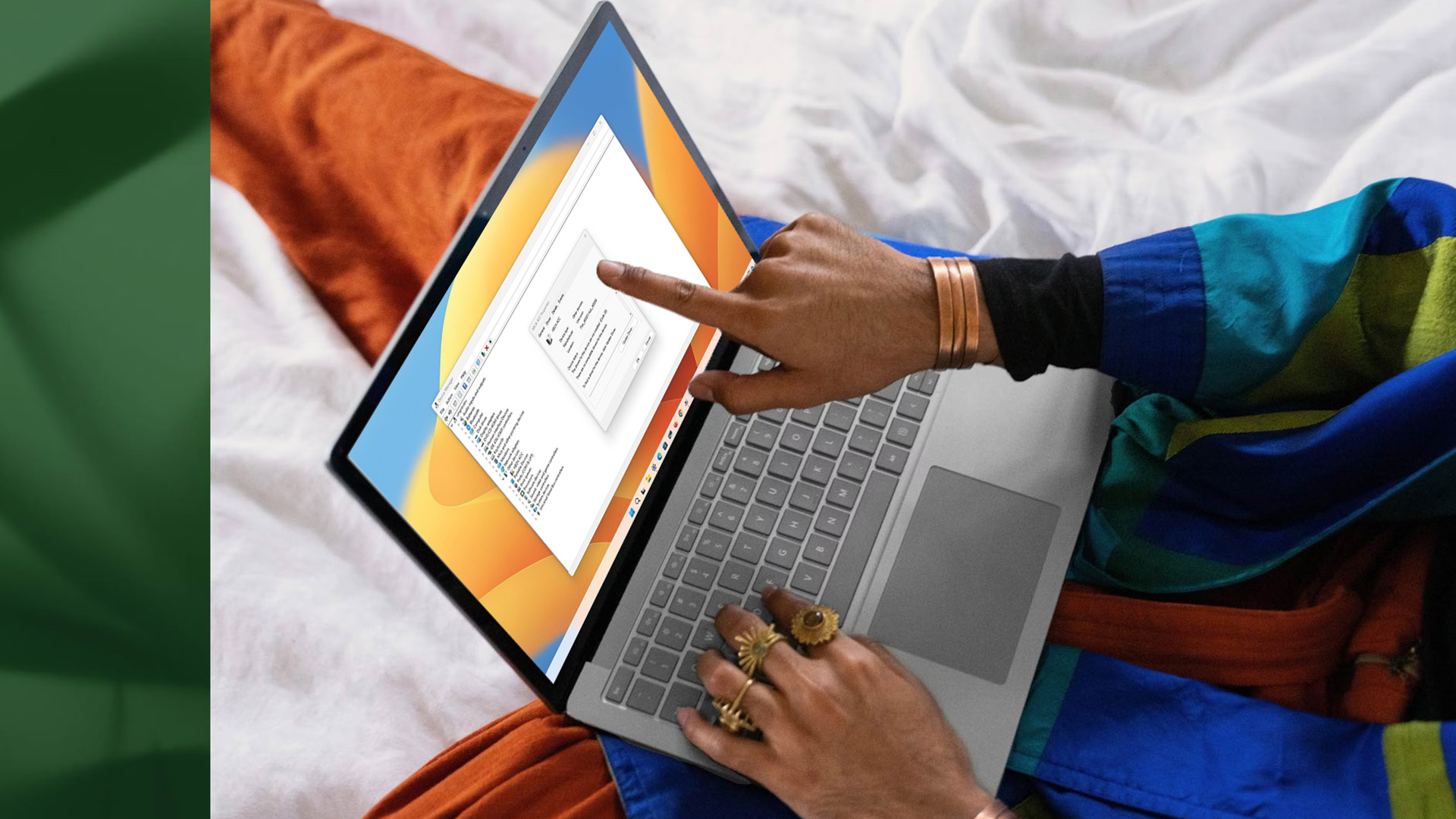
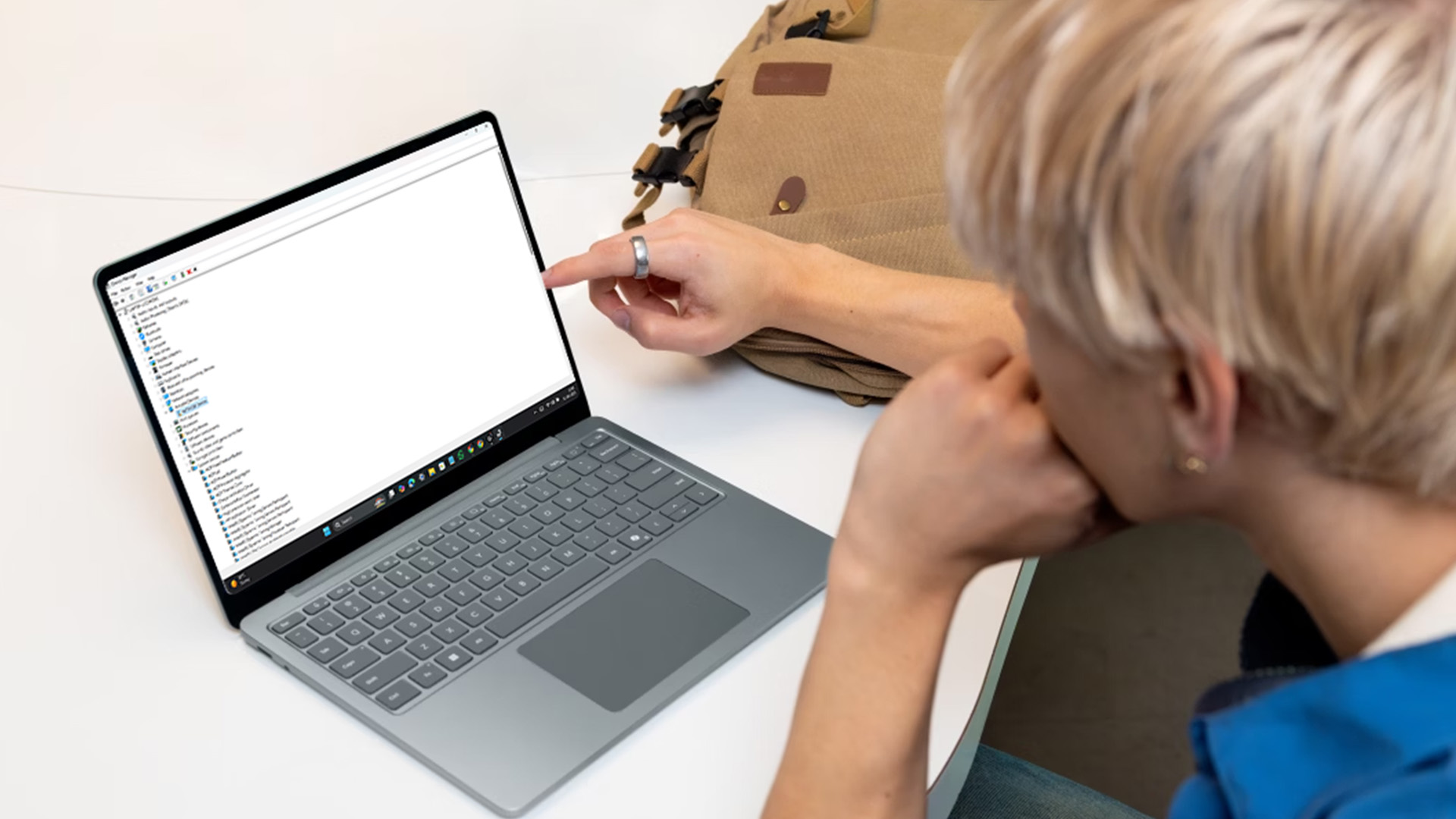
Device Manager is useful when one specific thing is broken, like audio, Bluetooth, graphics, or Wi-Fi.
- Right-click the Start button
- Select Device Manager
- Find the device category
- Right-click the device
- Select Update driver
- Click Search automatically for drivers
- Follow the instructions
- Restart your laptop
Microsoft’s Device Manager guidance confirms that users can update or reinstall drivers through Device Manager in Windows.
Use this when you know which device is causing the problem.
For example, if Bluetooth is broken, expand Bluetooth. If there is no sound, expand Sound, video and game controllers. If your display is acting up, check Display adapters. ( Display issues are not always driver-related and may require laptop screen repair or replacement.)
How to Update Drivers on Windows 10
If you want to update drivers on Windows 10, the process is very similar. The menu layout just looks slightly different.
Method 1: Use Windows Update
- Click Start
- Open Settings
- Go to Update & Security
- Select Windows Update
- Click Check for updates
- Download and install available updates
- Restart your laptop
Microsoft’s Windows update guidance says Windows 10 users can go to Settings > Update & Security > Windows Update and select Check for updates.
Method 2: Use Device Manager
- Click Start
- Search Device Manager
- Open it
- Expand the device category
- Right-click the device
- Choose Update driver
- Select Search automatically for drivers
- Restart after installation
This is especially useful for device drivers Windows 10 users still rely on, such as audio, display, Wi-Fi, Bluetooth, printer, and USB drivers.
One important note: Windows 10 support ended on 14th October 2025. Microsoft says Windows 10 PCs still work, but free software updates from Windows Update, technical assistance, and security fixes are no longer provided after that date.
So yes, you can still update many Windows 10 drivers, but if your laptop supports Windows 11, upgrading is the better long-term move. If you are staying on Windows 10 for now, you can explore best Windows 10 laptops for everyday use to compare devices that suit basic home, study, and office tasks.
How to Update Graphics Drivers
Graphics drivers matter a lot. They affect your display, videos, games, creative apps, external monitors, and sometimes even battery performance.
You may need to update your graphics driver if:
- Games are lagging or crashing
- Your screen flickers
- External monitors are not detected
- Video playback is glitchy
- Creative software is running badly
- Windows looks stretched or blurry
To update graphics drivers:
- Open Device Manager
- Expand Display adapters
- Right-click your graphics card
- Select Update driver
- Choose Search automatically for drivers
For gaming laptops or creative laptops, also check the official graphics provider:
- Intel graphics: Intel support tools or laptop brand website
- NVIDIA graphics: NVIDIA app or official NVIDIA driver page
- AMD graphics: AMD Software or official AMD driver page
If you edit videos, design graphics, render projects, or use Adobe-style creative apps, driver updates can improve stability. But hardware matters too. If your laptop still struggles after updates, newer laptops for content creation may give you better graphics, colour accuracy, RAM, and processing power.
How to Update Audio Drivers
Audio problems are one of the most common reasons people search how to update drivers on Windows.
Signs your audio driver may need attention:
- No sound from speakers
- Headphones not detected
- Microphone not working
- Crackling audio
- Audio stops after a Windows update
- Video calls have no input or output sound
To update your audio driver:
- Open Device Manager
- Expand Sound, video and game controllers
- Right-click your audio device
- Select Update driver
- Click Search automatically for drivers
- Restart your laptop
If that does not work, Microsoft recommends getting the latest audio driver from the device manufacturer, especially when generic drivers do not solve the issue.
For office users, audio drivers matter more than people realise. Bad audio can ruin video meetings, online interviews, webinars, and client calls. If your current laptop keeps creating problems during work, modern laptops for office work can offer better webcams, microphones, speakers, and Windows 11 compatibility.
How to Update Wi-Fi and Bluetooth Drivers
Wi-Fi and Bluetooth driver issues are annoying because they make your laptop feel broken even when it is not.
Check these drivers if:
- Wi-Fi keeps disconnecting
- Internet speed is slower than usual
- Bluetooth headphones will not connect
- Mouse or keyboard disconnects randomly
- Your laptop cannot find wireless networks
- Bluetooth has disappeared from Settings
To update Wi-Fi drivers:
- Open Device Manager
- Expand Network adapters
- Right-click your Wi-Fi adapter
- Click Update driver
- Select Search automatically for drivers
- Restart your laptop
To update Bluetooth drivers:
- Open Device Manager
- Expand Bluetooth
- Right-click your Bluetooth adapter
- Select Update driver
- Choose Search automatically for drivers
- Restart your PC
Microsoft’s Bluetooth guidance gives the same core process: open Device Manager, expand Bluetooth, right-click the adapter, select Update driver, search automatically, then restart after the update.
If Windows says the best driver is already installed, but the problem continues, check your laptop brand support page. Windows may not always have the latest manufacturer-specific version.
Pro Tip: If updates don’t help, it might be worth cleaning your laptop fans and vents to improve airflow.”
How to Update Printer Drivers
Printer drivers are their own special kind of stress. If your printer says, “driver unavailable,” refuses to print, print blank pages, or disappear from Windows. Updating the printer driver may help.
Start with Windows Update first. Microsoft says the recommended method to download, install, and update printer drivers is using Windows Update.
You can also:
- Open Settings
- Go to Bluetooth & devices
- Select Printers & scanners
- Choose your printer
- Remove and re-add the printer if needed
For branded printers, visit the official HP, Canon, Epson, Brother, or manufacturer support page and download the correct driver for your exact printer model.
Do not download printer drivers from random file sharing sites. That is how a simple print job turns into a cybersecurity side quest.
How to Check If Drivers Are Up to Date
Wondering how to check if drivers are up to date before downloading anything? Do this:
Check through Windows Update
- Open Settings
- Go to Windows Update
- Click Check for updates
- Review optional driver updates if available
If Windows finds nothing, your main system drivers are likely fine.
Check through Device Manager
- Open Device Manager
- Right-click the device
- Select Properties
- Open the Driver tab
- Check the driver date and version
You can compare this with the latest driver listed on your laptop manufacturer’s official support page.
Check through official brand tools
Some laptop brands provide support apps that scan your device and suggest approved updates. These are safer than random device driver update software because they are made for your specific laptop model.
This matters more on premium laptops, gaming laptops, and performance machines. If you like strong performance and reliable compatibility, you may also want to compare the best Intel laptops, especially if your current laptop is too old to keep up with modern Windows features.
How to Reinstall a Driver
Sometimes updating does not work because the driver is corrupted. In that case, reinstalling can help.
To reinstall a driver:
- Open Device Manager
- Right-click the problem device
- Select Uninstall device
- Confirm the uninstall
- Restart your laptop
- Windows will try to reinstall the driver automatically
Microsoft’s support page explains that Device Manager can be used to reinstall drivers as well as update them. This can be useful for audio, Bluetooth, webcam, Wi-Fi issues, keyboard and mouse.
Just be careful with network drivers. If you uninstall your Wi-Fi driver and Windows does not reinstall it correctly, you may need Ethernet, USB tethering, or another device to download the correct driver.
How to Roll Back a Driver
Sometimes a new driver causes the problem instead of fixing it. Very rude, but it happens.
If your laptop started acting weird right after a driver update, roll it back.
- Open Device Manager
- Right-click the device
- Select Properties
- Open the Driver tab
- Click Roll Back Driver
- Choose a reason
- Restart your laptop
Use rollback when:
- Audio breaks after an update
- Wi-Fi gets worse
- Graphics performance drops
- Games start crashing
- Bluetooth stops working
- External monitors stop connecting
The goal is not always to have the newest driver. The goal is to have a driver that works best with your laptop.
Should You Use Device Driver Update Software?
Usually, no.
Most users do not need a third-party device driver to update software. Windows Update, Device Manager, and official manufacturer websites are safer.
Random driver updater tools can:
- Suggest unnecessary updates
- Install the wrong driver
- Push paid subscriptions
- Add unwanted software
- Create more problems than they fix
The exception is official software from trusted hardware brands. For example, graphics tools from Intel, NVIDIA, or AMD can be useful if you game, edit videos, or use graphics-heavy apps. For everyday users, keep it simple. Windows Update first. Device Manager second. Manufacturer website third. Before making major changes, it’s smart to understand basic data recovery options.
What If Updating Drivers Does Not Fix the Problem?
If you update drivers and the issue is still there, the problem may not be the driver.
It could be:
- Faulty hardware
- Loose internal connection
- Windows system corruption
- Malware
- Low storage
- Old BIOS or firmware
- Failing battery
- Ageing laptop components
- Unsupported Windows version
This is where you need to be honest with yourself. If your laptop is old, slow, unsupported, and constantly throwing driver errors, you might not have a driver's problem. You might have an upgrade problem.
For users moving forward from Windows 10, top-rated Windows 11 notebooks can offer better security support, newer hardware, and smoother compatibility with current apps.
And if you want something more future-ready, laptops with AI features are becoming a smart option for people who want stronger productivity, smarter performance, and modern Windows experiences.

Final Thoughts: Keep Your Drivers Updated, But Do It Safely
Learning how to update device drivers is one of those tech skills that saves you from panic later.
If your laptop has sound issues, Wi-Fi problems, Bluetooth glitches, printer errors, display bugs, or gaming crashes, driver updates are one of the first things to check.
The safest order is simple:
- Use Windows Update
- Check optional updates
- Use Device Manager
- Visit the official manufacturer website
- Avoid random driver updater apps
- Restart after updates
- Roll back if the new driver causes issues
For most people, that is enough. But if your laptop keeps having driver issues, cannot move smoothly to Windows 11, or feel slow even after updates, it may be time to stop patching the problem and start planning your next device.
Because sometimes the right update is a driver's update. And sometimes the right update is the laptop itself.

FAQs
How do you update drivers on Windows?
The easiest way is through Windows Update. Go to Settings > Windows Update > Check for updates. You can also use Device Manager to update a specific device driver.
How do I update drivers Windows 10?
Go to Start > Settings > Update & Security > Windows Update > Check for updates. You can also open Device Manager, right-click a device, and select Update driver.
How do I update drivers Windows 11?
Go to Start > Settings > Windows Update > Check for updates. For optional driver updates, open Advanced options > Optional updates > Driver updates.
How do I update drivers for laptop Windows devices?
Use Windows Update first, then Device Manager, then your laptop brand’s official support website. Search using your exact laptop model number for the most accurate drivers.
Do Windows drivers update automatically?
Yes, many Windows drivers update automatically through Windows Update. Microsoft says Windows can automatically download and install driver updates to keep devices secure and up to date.
Should I use device driver update software?
Usually, no. Windows Update, Device Manager, and official manufacturer tools are safer. Avoid unknown third-party driver updater apps.
How do I know if my drivers are up to date?
Check Windows Update, review optional driver updates, and compare driver versions in Device Manager with the latest version on your manufacturer’s official support page.
Can updating drivers improve laptop performance?
Yes, especially graphics, chipset, Wi-Fi, Bluetooth, and audio drivers. But if your laptop is old or underpowered, driver updates may only help a little.
Can a driver update cause problems?
Yes, occasionally. If a new driver causes issues, use Device Manager > Properties > Driver > Roll Back Driver to return to the previous version.
Do I still need Windows 10 drivers after support ended?
Yes, Windows 10 devices may still need drivers to function properly. However, Microsoft ended Windows 10 support on 14th October 2025, so Windows 11 is the better long-term option where supported.
| Read More |
| Why Your Laptop Is Overheating (How to Fix it Fast) |
| How to Clean Laptop Fans and Vents: Easy DIY Methods |
| Laptop Screen Repair: How Much it Costs and When to Replace? |
Related Articles

Last Updated: December 18, 2025
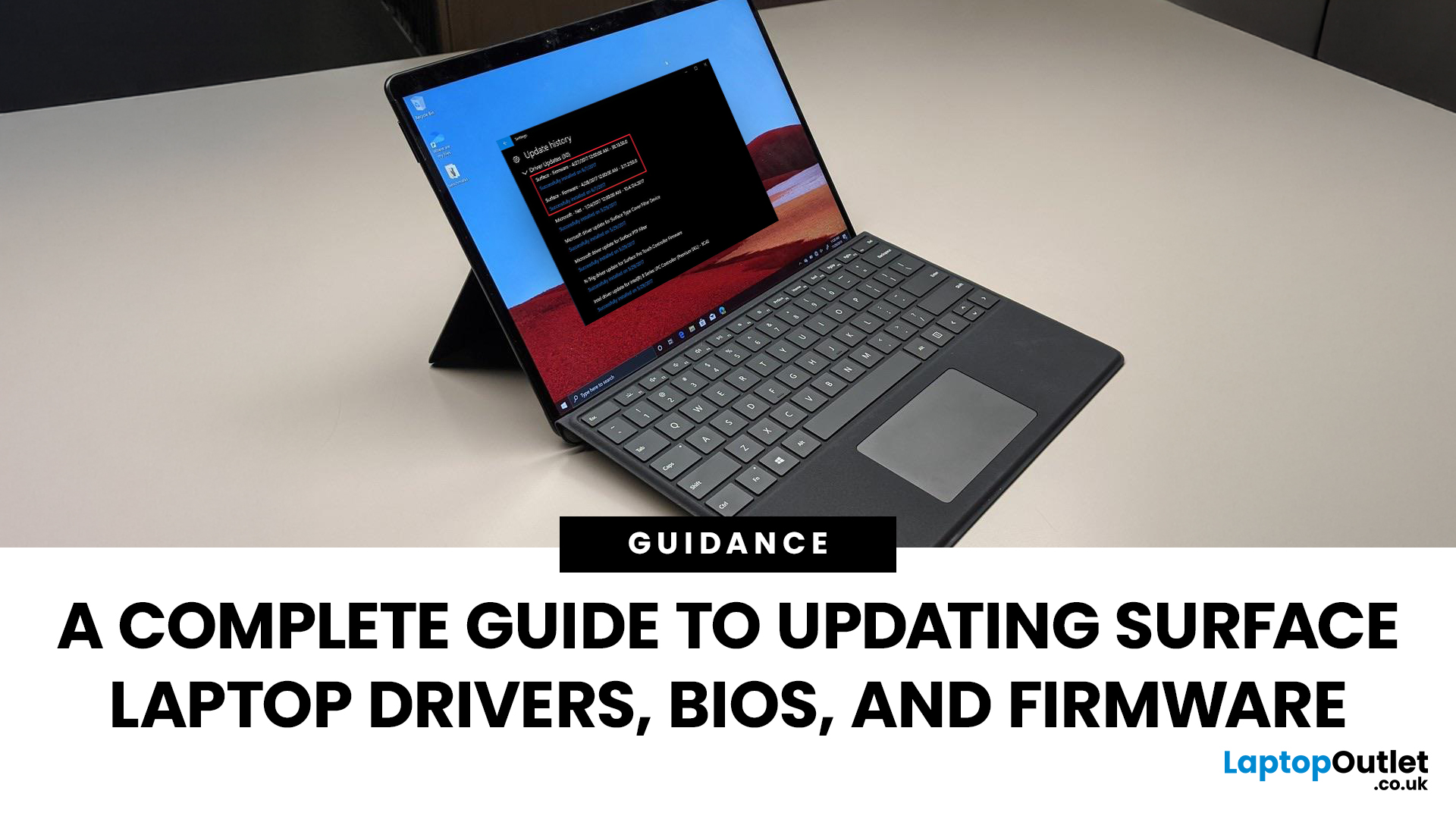
If you own a Microsoft Surface device - be it a Surface Laptop, Surface Pro, or another model, you’ll want it running smoothly, securely, and reliably. That means keeping its drivers, firmware, and BIOS up to date. Outdated drivers can cause performance drops, security vulnerabilities, and compatibility issues; meanwhile, the firmware/BIOS is the backbone that helps your hardware and OS work together.
This guide will take you through a full Surface update walkthrough: how to update Surface laptop drivers, Surface firmware installation, Surface BIOS update steps, Surface driver compatibility, and handling common update issues. At the end, you’ll feel confident in maintaining your device’s health and performance.
Step 1: Prepare Your Surface for Updating
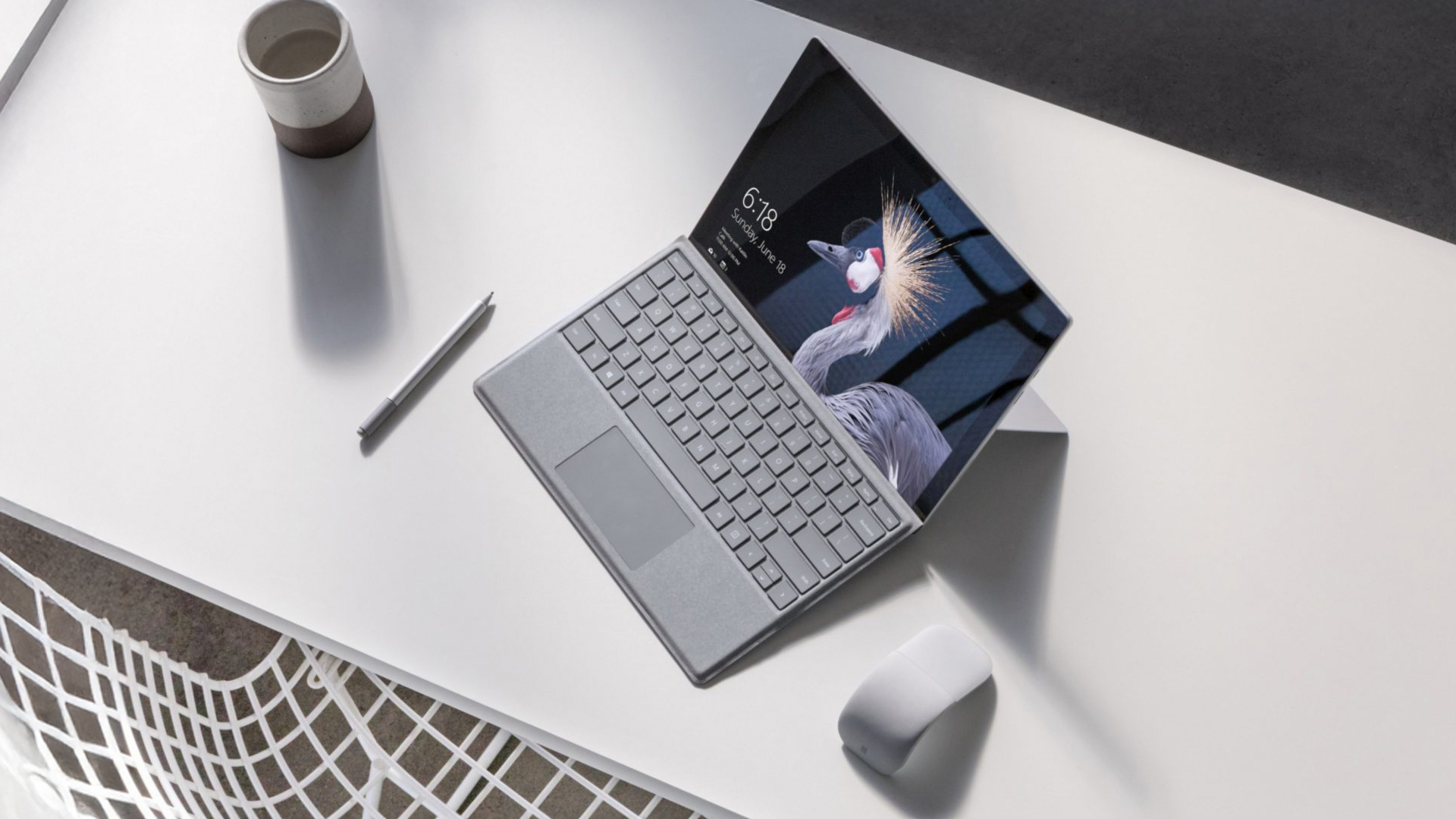
Before doing anything, prep your device so updates go smoothly.
- Make sure your Surface is plugged into power. Updates (especially firmware/BIOS) can fail disastrously if battery dies mid-way.
- Charge the battery to at least 40% before starting.
Last Updated: October 08, 2025
If you’ve ever owned an ASUS laptop - whether it’s a VivoBook for uni work, a TUF machine for gaming, or a Zephyrus for serious creative projects - you’ll know that things don’t always run perfectly forever. Over time, you might notice your battery draining faster, your fans spinning louder, or a game stuttering that used to run smoothly. Nine times out of ten, that’s down to drivers or firmware needing an update.
Updating drivers and the BIOS isn’t glamorous, but it’s one of the most effective ways to keep your ASUS laptop running at its best. The latest drivers squash bugs, improve compatibility with Windows 11, and even unlock new features. A BIOS update can go further still, ironing out stability issues, boosting performance, and extending hardware lifespan.
The good news? ASUS gives you proper tools like MyASUS, Armoury Crate, EZ Flash, and WinFlash, which make updates far less intimidating than they sound. Whether you’re rocking an ASUS VivoBook, TU F, or Zephyrus, this walkthrough
Last Updated: October 15, 2025
If you still rely on a Windows 10 laptop, you're standing right on a deadline. Support for Windows 10 ends on 14 October 2025, which means no more free security updates or bug fixes via Windows Update. Your machine will continue to run, but it will steadily become more exposed online. Microsoft's own guidance is straightforward: "move to Windows 11 on supported hardware or consider a managed path to extend security while you transition".
Below,we have compiled a practical guide on Windows 11 vs. Windows 10 laptops, comparing their performance, gaming, security, features, and hardware requirements.
A Quick Verdict If You're a Busy Reader!

- If your laptop meets Windows 11 requirements, upgrade and carry on. You'll gain modern security defaults (TPM 2.0, virtualisation-based protections), ongoing feature updates (25H2/24H2), and gaming tech like Auto HDR and DirectStorage without changing your hardware.
- If your laptop is too old for Windows 11, you can subscribe to the Extended Security

Last Updated: November 04, 2025
In today’s connected world, security is a top priority, especially for businesses handling sensitive data and remote workflows. Microsoft’s latest operating system brings advanced protection designed for the modern workforce. Windows 11 security features deliver multiple layers of defence, offering a robust shield against cyber threats, ransomware, and data breaches.
Compared to its predecessor, Windows 11 vs Windows 10 security shows clear improvements in encryption, authentication, and hardware-based protection. Whether you’re an enterprise leader or a small business owner, investing in Windows 11 laptops with advanced security ensures your data, devices, and users remain protected, wherever work happens.
What Makes Windows 11 the Most Secure OS Yet
Enhanced Hardware-Based Protection
Windows 11 is built for zero-trust security, meaning protection starts from the chip level. All certified Windows 11 business laptops include:
- Trusted Platform Module (TPM) 2.0 – A secure crypto-processor

Published: October 15, 2025
So, you’ve just cracked open a shiny new Windows 11 laptop, maybe something sleek from ASUS or one of the new-gen ultrabooks from the Windows 11 laptop range and you’re ready to dive in.
But before you start downloading Spotify, Chrome, or every game-on-game pass, let’s get one thing straight: Windows 11 runs beautifully… when it’s set up properly.
Out of the box, most laptops are loaded with trialware, telemetry, and services you’ll never use, all quietly eating battery and slowing things down. The good news? You can sort it all out in under an hour with the right steps.
This isn’t one of those “just click next” guides. This is your no-fluff, Gen Z-approved, tech-expert walkthrough, from the first boot to a fully optimised, smooth, private, and battery-efficient setup.
Let’s go.
First Boot: Don’t Just Click Next — Be Smarter Than Setup
The Windows 11 first boot is full of small traps. Microsoft really wants you to sign into a Microsoft Account, connect to Wi-Fi, and enable every cloud

Published: October 15, 2025
When it comes to choosing your next laptop, the debate between Windows 11 and macOS remains one of the most important decisions. Both operating systems offer sleek design, advanced performance, and productivity features, but they cater to very different kinds of users. Whether you’re a student, professional, or gamer, knowing how Windows 11 vs macOS comparison stacks up can help you find the right fit for your workflow.
In this guide, we’ll compare Windows 11 and macOS across key areas, including productivity, performance, gaming, user interface, and security, so you can decide which OS works best for your everyday needs.
Windows 11 vs macOS: Overview
Windows 11, released in 2021 and continuously updated through 2025, represents Microsoft’s vision of a modern, intelligent, and AI-integrated operating system. macOS, on the other hand, continues Apple’s tradition of seamless integration with its ecosystem, known for its stability and clean design.
Both systems focus on user experience,
Published: October 21, 2025
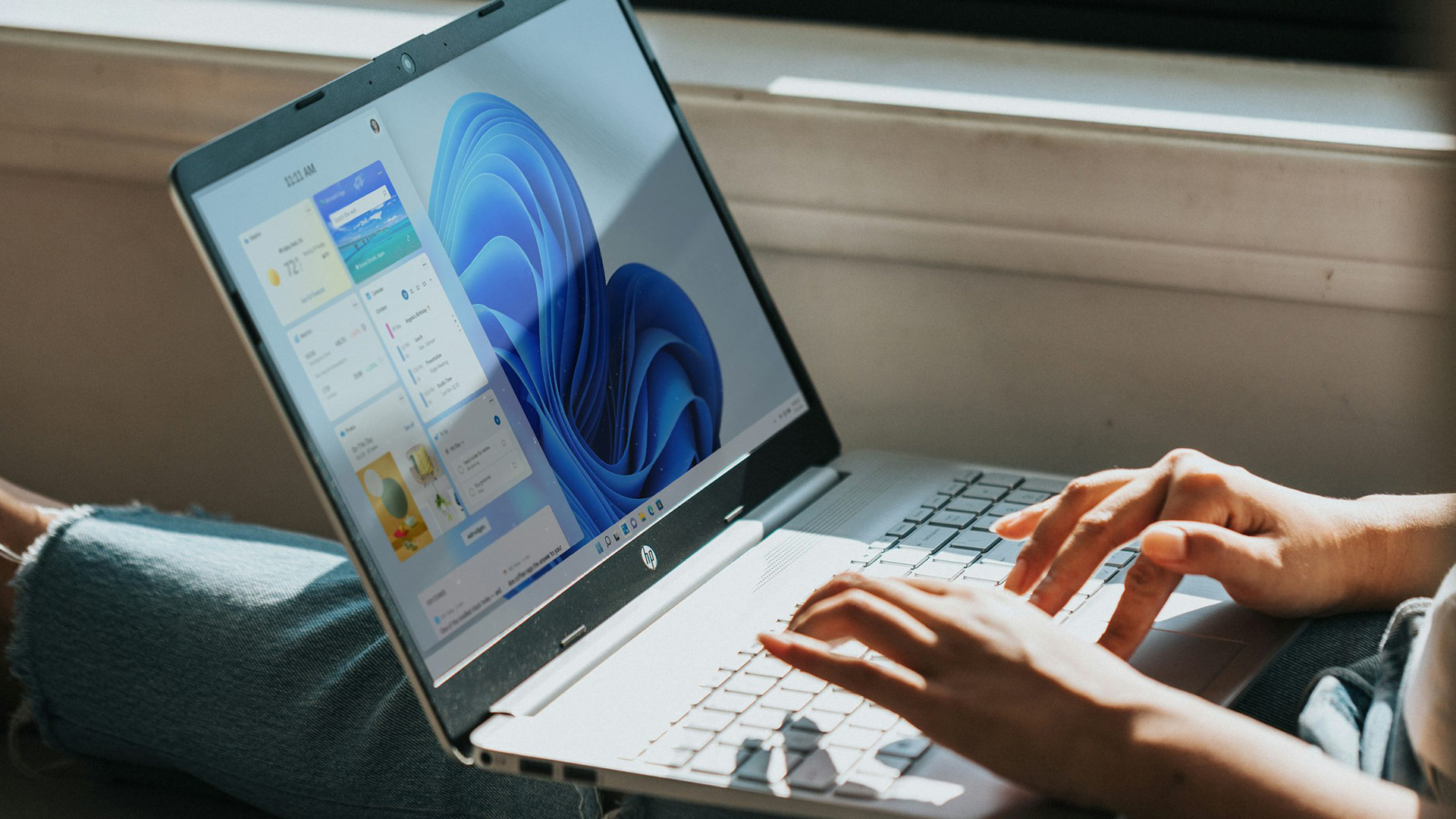
Simple ways to boost speed, improve battery life, and keep your Windows 11 laptop running smoothly.
Windows 11 has brought a modern, elegant design and a range of improvements that make computing smoother, smarter, and more secure. However, even the best laptops can slow down over time if not maintained properly. Whether the laptop is brand new or has been used for a while, a few clever Windows 11 laptop performance tweaks can make a big difference to speed, responsiveness, and battery life.
Thinking about upgrading but not sure if Windows 11 is really worth it? Find out how it compares to Windows 10 in terms of speed, features and everyday performance in our full breakdown on Windows 11 vs Windows 11 laptop.
This guide covers easy, practical Windows 11 laptop tips to help you speed up your laptop and keep it performing at its best.
Why Laptop Performance Slows Down
Over time, laptops may take longer to boot, apps can lag, and multitasking can feel sluggish. This is usually caused by
Last Updated: September 02, 2026
Last Updated: July 06, 2026
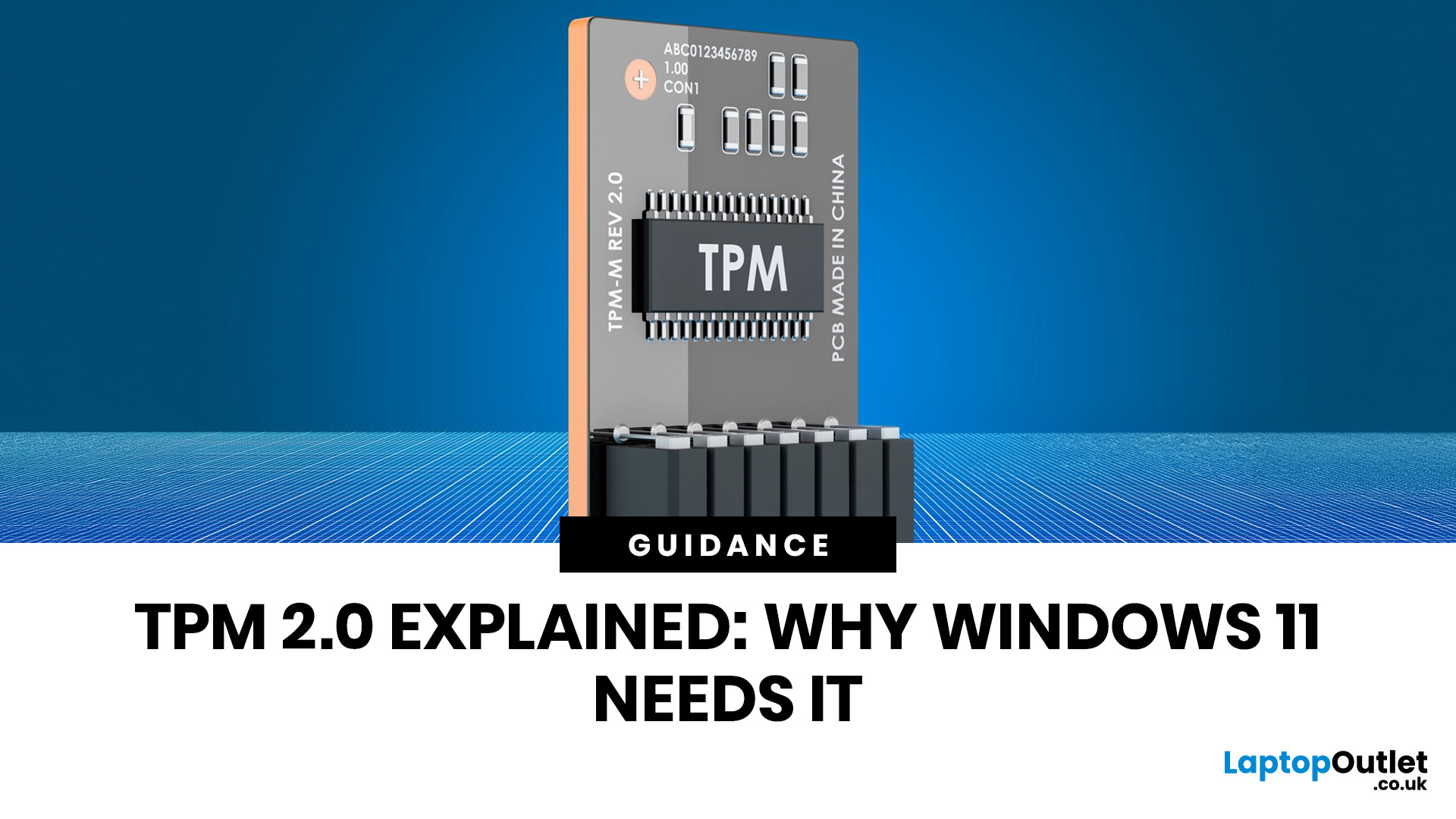
You go to upgrade your PC, everything seems fine, and then Windows 11 drops the digital equivalent of “not you, mate” with a message about TPM 2.0. Suddenly you are searching TPM 2.0 Windows 11, opening BIOS menus you have not touched since the Stone Age, and wondering if your laptop has secretly become ancient overnight. Microsoft’s official Windows 11 minimum requirements still include TPM 2.0, plus UEFI firmware and Secure Boot capability, so this is not some random pop-up glitch. It is part of the platform’s baseline security setup.
If you have been asking what is TPM in computer, do I need TPM for Windows 11, or why this tiny bit of hardware suddenly matters so much, this guide breaks it down in plain English. No jargon soup, no lecture mode, just what TPM is, what it does, why Windows 11 wants it, and what to do if your PC says TPM is missing or disabled.
| Quick answer: TPM 2.0 is a security component built into many modern PCs. It stores cryptographic keys, helps verify system integrity |
Last Updated: July 06, 2026
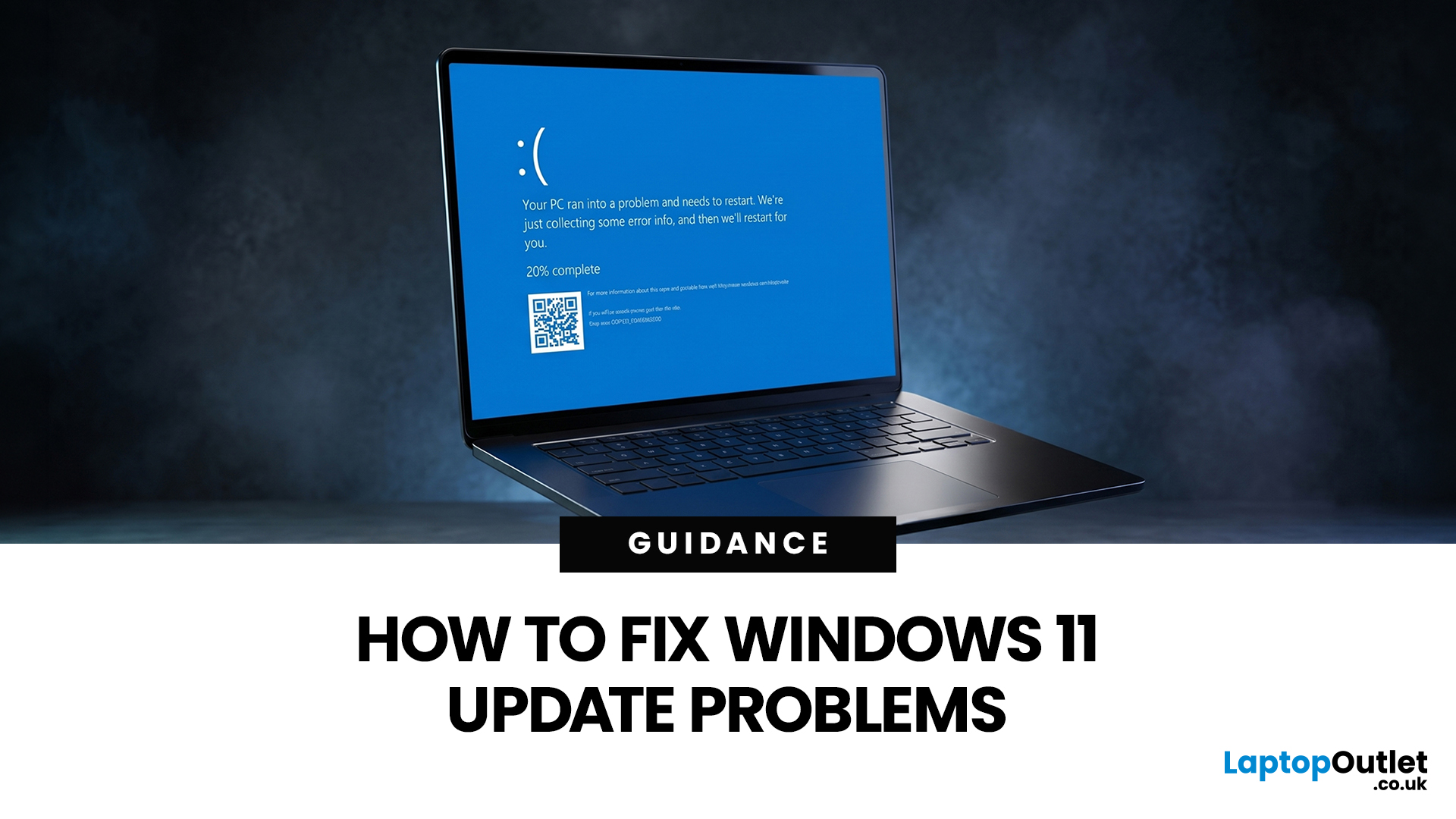
If your PC has decided that today is the day it will freeze at 61%, throw out a random error code, or restart at the worst possible time, you are very much not alone. Windows 11 update issues are one of those annoyingly common problems that can feel dramatic in the moment, but a lot of them are fixable with the right steps.
The good news is that most Windows 11 update problems usually come down to a handful of familiar causes: not enough storage, damaged update files, a disabled service, app conflicts, or a known issue that Microsoft is already tracking. Microsoft’s own support guidance still points users first to the built-in Windows Update troubleshooter and its broader update troubleshooting flow, which is usually the fastest place to start.
Why Windows 11 update fails in the first place
Let’s keep it real: when a Windows 11 update failed message pops up, it does not tell you much. The actual cause is usually one of these:
A Windows 11 update stuck during download or install can be linked

