



LG Monitors Buying Guide 2026: UltraGear vs UltraWide vs UltraFine vs OLED
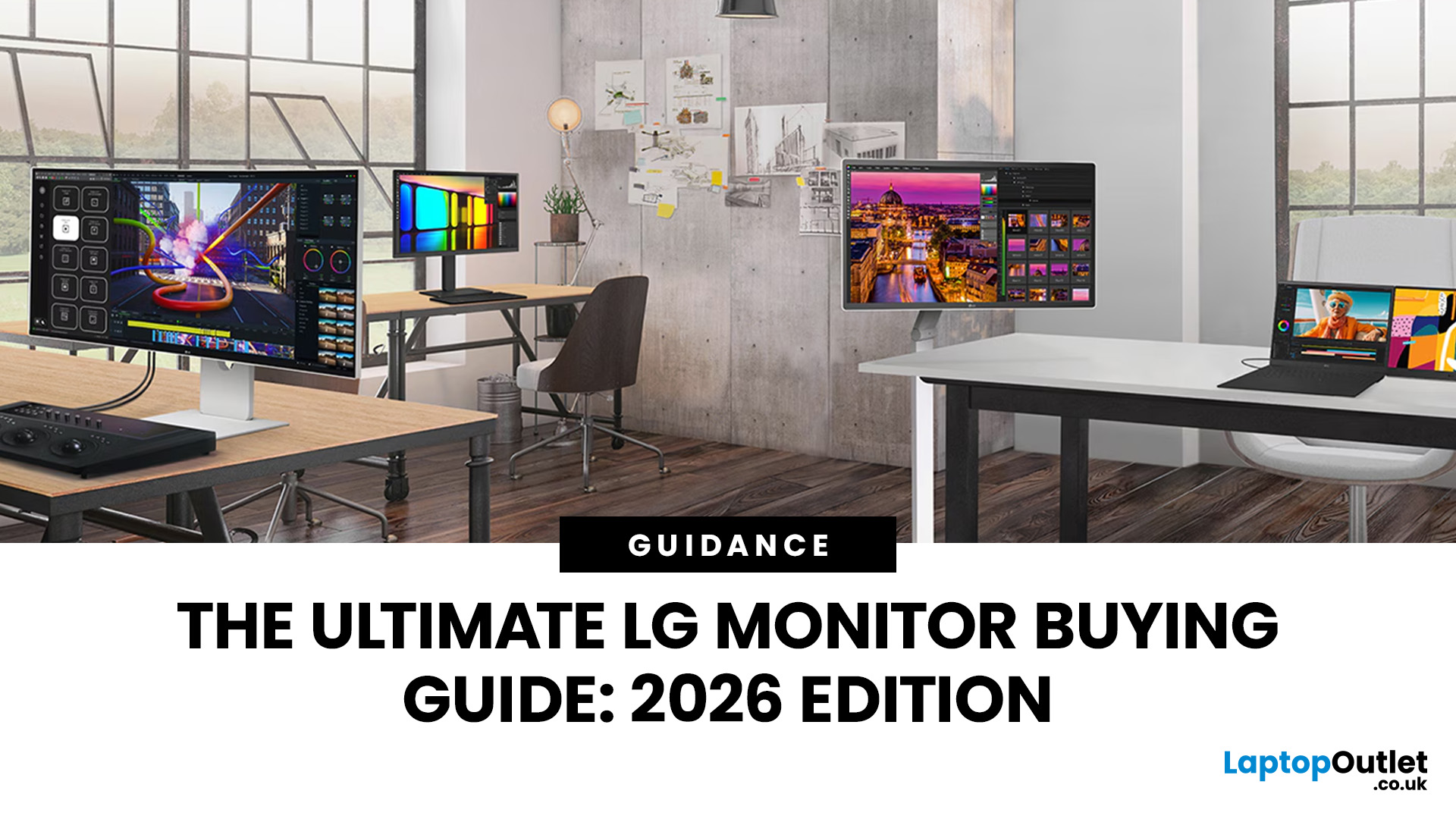
Choosing a new monitor is not always straightforward. With so many screen sizes, panel types, and resolution options on the market, it is easy to get lost before you even reach a shortlist. This LG monitors buying guide cuts through all of that.
It walks you through every major LG screen series, explains the specs that actually matter, and helps you find the right display for your needs and budget. Whether you are gaming, working from home, editing photos, or simply upgrading a tired old screen, LG has a monitor built for the job. Let’s get started.
Why Choose an LG Monitor in 2026?
LG is one of the few brands that designs and manufactures its own display panels. That matters because it gives LG direct control over colour accuracy, panel quality, and how quickly new technology reaches the market.
Whether you need a budget-friendly Full HD screen or a professional-grade OLED display, LG offers a broad, well-priced range. They continue to lead with innovations like Nano IPS for vivid detail and high-refresh-rate OLEDs for near-perfect contrast.
Beyond performance, LG prioritises your well-being. Most models feature TUV Rheinland-certified eye-care technology, including flicker-safe panels and blue light filters to reduce strain during long sessions. With sturdy ergonomic stands and future-ready connectivity (like USB-C and DisplayPort 2.1), an LG monitor is a reliable, high-performance investment for any setup.
LG Monitor Series Explained: LG UltraGear vs UltraWide vs UltraFine
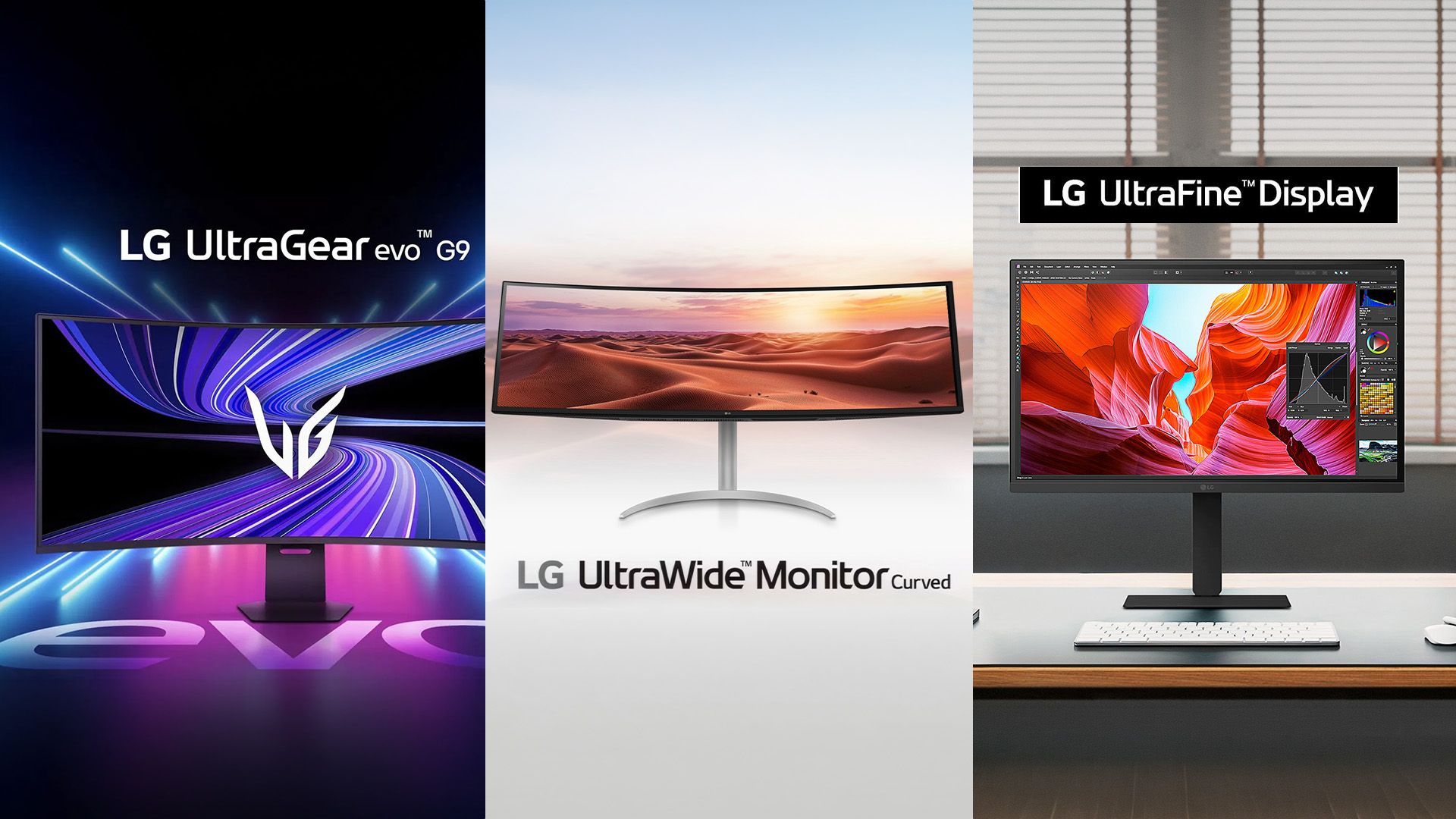
LG organises its monitors into distinct product lines, each designed with a specific type of user in mind. Understanding what each series offers is the first step in narrowing down your options.
Here is a breakdown of the four main LG monitor ranges and what makes each one different.
LG UltraGear Gaming Monitors
UltraGear is LG's dedicated gaming monitor range. These monitors focus on fast refresh rates, low response times, and smooth motion handling. You will find models starting at 144Hz and going up to 240Hz or beyond, with IPS, Nano IPS, and OLED panel options available across the range.
Most UltraGear screens support NVIDIA G-Sync Compatible or AMD FreeSync Premium, which eliminates screen tearing during fast gameplay. The design is bold, with angular styling and RGB lighting on select models. If gaming performance is your priority, this is the range to start with.
For a deeper look, read the LG UltraGear gaming guide.
LG UltraWide & DualUp Monitors for Professionals
LG UltraWide productivity monitor uses a 21:9 or wider aspect ratio, giving you significantly more horizontal screen space than a standard 16:9 display. This makes them popular for multitasking, coding, video editing timelines, and financial work where having multiple panels visible at once is important.
LG also offers the DualUp, a unique 16:18 monitor designed to replace a dual-screen setup in a single, taller display. Both lines are excellent if you want more working space without adding a second monitor to your desk.
Find out more in the LG UltraWide & DualUp productivity guide.
LG UltraFine & UltraFine Evo for Creators
The UltraFine series is built for creative professionals. These monitors offer high resolutions, wide colour gamuts, and factory colour calibration, making them well-suited for photo editing, video colour grading, and graphic design work.
The UltraFine Evo takes things further with improved panel uniformity and better HDR performance. Both series frequently support USB-C or Thunderbolt connectivity, which is useful for Mac and laptop users who want a clean, single-cable setup at their desk.
For full details, read our LG UltraFine & UltraFine Evo for creators guide.
LG OLED and Nano IPS Displays
LG OLED monitors deliver true blacks, infinite contrast, and incredibly fast pixel response times. Because each pixel produces its own light, there is no backlight bleed or glow that you sometimes see on IPS screens. The result is a display with outstanding depth and visual clarity.
Nano IPS is LG's enhanced IPS technology that adds nano-sized particles to the backlight, widening the colour spectrum and improving colour accuracy at wider viewing angles. Both technologies sit above standard IPS in terms of performance and are worth considering if colour quality or contrast is a priority.
Step 1 - Define Your Main Use Case
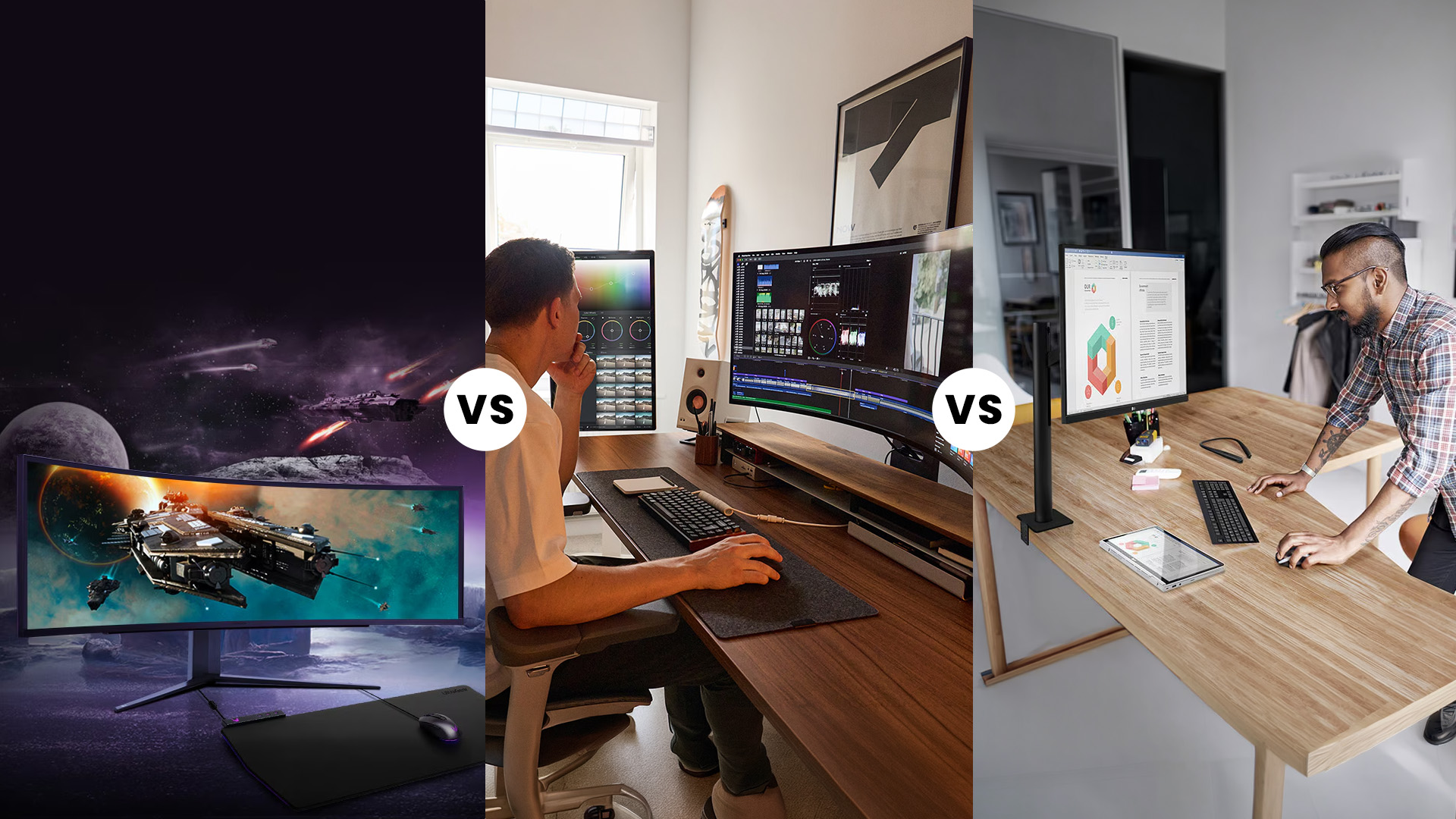
Before looking at specifications, it is worth knowing what you actually need the monitor for. Buying on specs alone often leads to poor value or the wrong fit for your daily routine.
The four main use cases covered below cover the most common needs, from casual home browsing to professional colour work.
Everyday Home Use & Streaming
For casual browsing, streaming, and everyday computing, a 24-inch to 27-inch Full HD or QHD IPS monitor is more than capable. Look for good colour reproduction and an anti-glare coating to reduce reflections in brighter rooms.
You do not need high refresh rates or professional colour calibration for general home use. That lets you put your budget towards a larger screen size or a better resolution instead.
Home Office & Hybrid Work
If you work from home, productivity and long-session comfort matter most. A QHD screen or 4K monitor in the 27-inch to 32-inch range gives you enough screen space to keep multiple windows open side by side without constantly switching tabs.
USB-C connectivity is particularly useful if you use a laptop, as it allows both charging and display output through a single cable. Good ergonomic adjustment, including height and tilt, helps keep your posture comfortable during long working days.
Gaming and Esports
Gamers need a monitor that can keep up with fast-paced action. For competitive play, prioritise refresh rate (144Hz minimum, 240Hz ideal) and response time (1ms or lower). Panel type matters here too.
IPS panels offer the best balance of speed and colour quality for most gamers. OLED panels are the fastest available but sit at a higher price point. For more casual gaming, a 144Hz IPS panel at 1080p or 1440p is an excellent starting point that does not break the budget.
Design, Photo, and Video Work
Creative work demands accurate colour above everything else. Look for a monitor that covers at least 99% sRGB, and ideally offers wide gamut coverage such as DCI-P3 or Adobe RGB, depending on your workflow.
Resolution matters too. An LG 4K monitor gives you more pixels to work with when reviewing fine detail in images or footage. Factory calibration is a big bonus, as it removes the need for extensive manual colour profiling straight out of the box.
Step 2 - Choose Size, Resolution & Aspect Ratio
Once you know your use case, you can match it to the right screen size, resolution, and shape. These three factors work together closely, so it helps to think of them as a package rather than separate decisions.
Getting this combination right makes a big difference to how comfortable and productive the monitor feels in real daily use.
24-27 Inch vs 32 Inch vs Ultrawide
A 24-inch monitor suits tight desks or secondary screen setups well. A 27-inch screen is the most popular all-rounder. It is large enough for productivity and comfortable for gaming without taking over your workspace. A 32-inch display gives you a more immersive experience for creative work or home entertainment.
Ultrawide monitors in the 34-inch to 49-inch range effectively replace a dual-monitor setup and are particularly useful for video editing, spreadsheets, and coding. Before going ultrawide, check that your desk is deep enough to keep the screen at a comfortable viewing distance.
You can explore the full selection of widescreen / ultrawide monitors to compare options.
Full HD vs QHD vs 4K vs 5K/6K
Full HD (1920x1080) is sharp and clear at 24 inches but can appear soft on larger screens. QHD (2560x1440) is the sweet spot for gaming and productivity at 27 inches, offering noticeably more detail without needing a high-end GPU to drive it.
4K (3840x2160) delivers outstanding clarity for creative and professional work, particularly at 27 inches or above. 5K and 6K resolutions appear mainly in the UltraFine range and are aimed at Mac users and high-end creative workflows where pixel density makes a visible difference.
16:9 vs 21:9 vs 32:9
The standard 16:9 ratio suits most users, from gaming to office work, and is compatible with virtually all content. The 21:9 ultrawide ratio adds useful horizontal space without drastically changing your setup or requiring much desk width adjustment.
The 32:9 super-ultrawide essentially replaces two 16:9 monitors placed side by side. It is ideal for immersive gaming or for professionals working across multiple applications at once. Before committing, check that your graphics card can drive the higher resolution comfortably at your target refresh rate.
Browse curved monitors for a more immersive viewing experience across widescreen sizes.
Step 3 - Panel Technology & Key Features
Panel technology is often overlooked but it has a significant impact on your everyday experience. It affects colour accuracy, contrast levels, brightness consistency, and how fast the screen responds to changes on screen.
Knowing the difference between the main panel types helps you match the right screen to your specific priorities.
OLED vs IPS vs Nano IPS
IPS panels offer accurate colours, wide viewing angles, and consistent brightness across the screen. They are a reliable choice for most users and form the backbone of the majority of LG monitors on the market.
Nano IPS improves on standard IPS by widening the colour gamut and reducing colour shift at wider angles. OLED goes furthest, offering pixel-level contrast with true blacks and extremely fast response times. The trade-off with OLED is a higher price and the need to be mindful of static content burn-in over time, though LG includes built-in safeguards to reduce this risk considerably.
Read the detailed LG OLED vs IPS vs Nano IPS comparison guide for a full breakdown.
Refresh Rate, Response Time & Sync Tech
Refresh rate is measured in hertz (Hz) and tells you how many frames the monitor can display per second. Higher is better for gaming, and the difference between 60Hz and 144Hz is immediately noticeable in motion-heavy content.
Response time is how quickly a pixel can change colour. Lower is better, as it reduces motion blur in fast scenes. Sync technology such as AMD FreeSync Premium or NVIDIA G-Sync Compatible matches the monitor's refresh rate to your GPU output, eliminating tearing and stuttering even when frame rates vary.
HDR Support and Colour Coverage
HDR (High Dynamic Range) expands the range of brightness and colour that a monitor can display. Not all HDR certification is equal. DisplayHDR 400 is entry level, while DisplayHDR 600 and above delivers noticeably richer highlights and shadows in supported content.
For colour coverage, sRGB covers the standard web and office workload well. DCI-P3 is used in cinema and covers a wider range that suits video professionals. Adobe RGB covers a similarly wide range with different emphasis, suited to print-focused creative work. Choose the colour space that matches your actual workflow.
Step 4 - Ports, Ergonomics & Eye-Care
Good connectivity and ergonomics are easy to overlook during the buying process but they matter enormously in day-to-day use. The right ports keep your desk tidy and your setup flexible as your devices change over time.
Eye-care features are equally important, especially if you spend many hours in front of a screen each day.
HDMI, DisplayPort, USB-C, Thunderbolt
Most LG monitors include at least one HDMI port and one DisplayPort. HDMI 2.0 or 2.1 is needed for 4K at high refresh rates, so check the version carefully when buying for a gaming or 4K setup. DisplayPort 1.4 handles 4K at 144Hz without issue.
USB-C with DisplayPort Alt Mode is ideal for laptops, providing both video output and data transfer over a single cable. Thunderbolt 4, found on premium UltraFine models, adds even faster data transfer and daisy-chaining support for connected peripherals. A built-in USB hub on the monitor also helps reduce cable clutter on your desk.
Height, Tilt, Pivot & VESA
A good ergonomic stand adjusts in multiple directions. Height adjustment lets you align the screen with your eye level, which reduces neck strain over time. Tilt and swivel allow fine-tuning based on your seating position and monitor placement.
Pivot rotation lets you turn the screen to portrait mode, which is useful for reading long documents or working with vertical code files. Most LG monitors for work and gaming also support VESA mounting, so you can attach them to a monitor arm if you prefer that setup for a cleaner desk arrangement.
Reader Modes, Blue Light Reduction & Flicker-Safe
LG includes eye-care features across nearly all its monitors. Reader mode adjusts the colour temperature to reduce harsh blue light, making text easier on the eyes during long reading or study sessions. This is a small feature that makes a noticeable difference over time.
Flicker-safe technology eliminates the invisible screen flicker that can cause headaches and eye fatigue during extended use. Some models also include an on-screen colour filter to support accessibility needs. These features are especially valuable for students and office workers who spend several hours each day in front of a screen.
Recommended LG Monitors by User Type
Now that you have worked through the key buying criteria, here are some specific LG monitors worth considering based on how you plan to use them.
Each recommendation is chosen to offer strong value and the right balance of features for its intended user type.
Students and Home Workers
For students and home workers, the balance of price, quality, and usability matters most. Here are three reliable picks.
- The LG 24U411B-B is a compact 23.8-inch Full HD IPS monitor with a 120Hz refresh rate, HDR10 and 99% sRGB coverage. It is a practical choice for study, everyday office work, browsing and streaming on a smaller desk.
- The LG 27U511SA-W is a 27-inch Full HD IPS Smart Monitor with webOS, built-in streaming services and speakers. Its 100Hz refresh rate and smart features make it useful for study, home working and entertainment without relying on a connected PC for streaming.
- The LG 32MR50C-B is a 31.5-inch Full HD curved VA monitor with a 100Hz refresh rate and AMD FreeSync. Its larger screen and strong VA contrast make it well suited to everyday home computing, streaming and mixed work-and-entertainment setups.
Casual and Competitive Gamers
LG's UltraGear range covers everything from entry-level gaming to high-refresh esports setups. These picks hit different price points while delivering real performance.
- The LG UltraGear G5 25G523B-B is a compact 24.4-inch Full HD IPS gaming monitor with a 200Hz refresh rate and 1ms response time. FreeSync Premium and G-SYNC compatibility make it a strong entry point for fast-paced competitive gaming.
- The LG UltraGear 27GS85Q-B is a 27-inch QHD Nano IPS gaming monitor with a 180Hz refresh rate that can be overclocked to 200Hz and a 1ms response time. It combines sharper QHD detail with high-refresh performance for both competitive and visually detailed games.
- The LG UltraGear 32GS60QC-B is a 32-inch QHD curved gaming monitor. The curved display enhances immersion, and its fast panel keeps up with demanding titles comfortably.
Creators and Visual Professionals
For those working in design, photography, or video production, colour accuracy and resolution are not optional extras. These three monitors deliver both.
- The LG 32UR500K-B is a 32-inch 4K monitor with HDR10 support. It covers 90% DCI-P3, making it a reliable and accessible choice for colour-critical workflows.
- The LG UltraFine Ergo 32UN880K-B is a 32-inch 4K IPS monitor with an innovative ergo stand that clamps directly onto your desk. It delivers accurate colour output and exceptional flexibility for creative workflows.
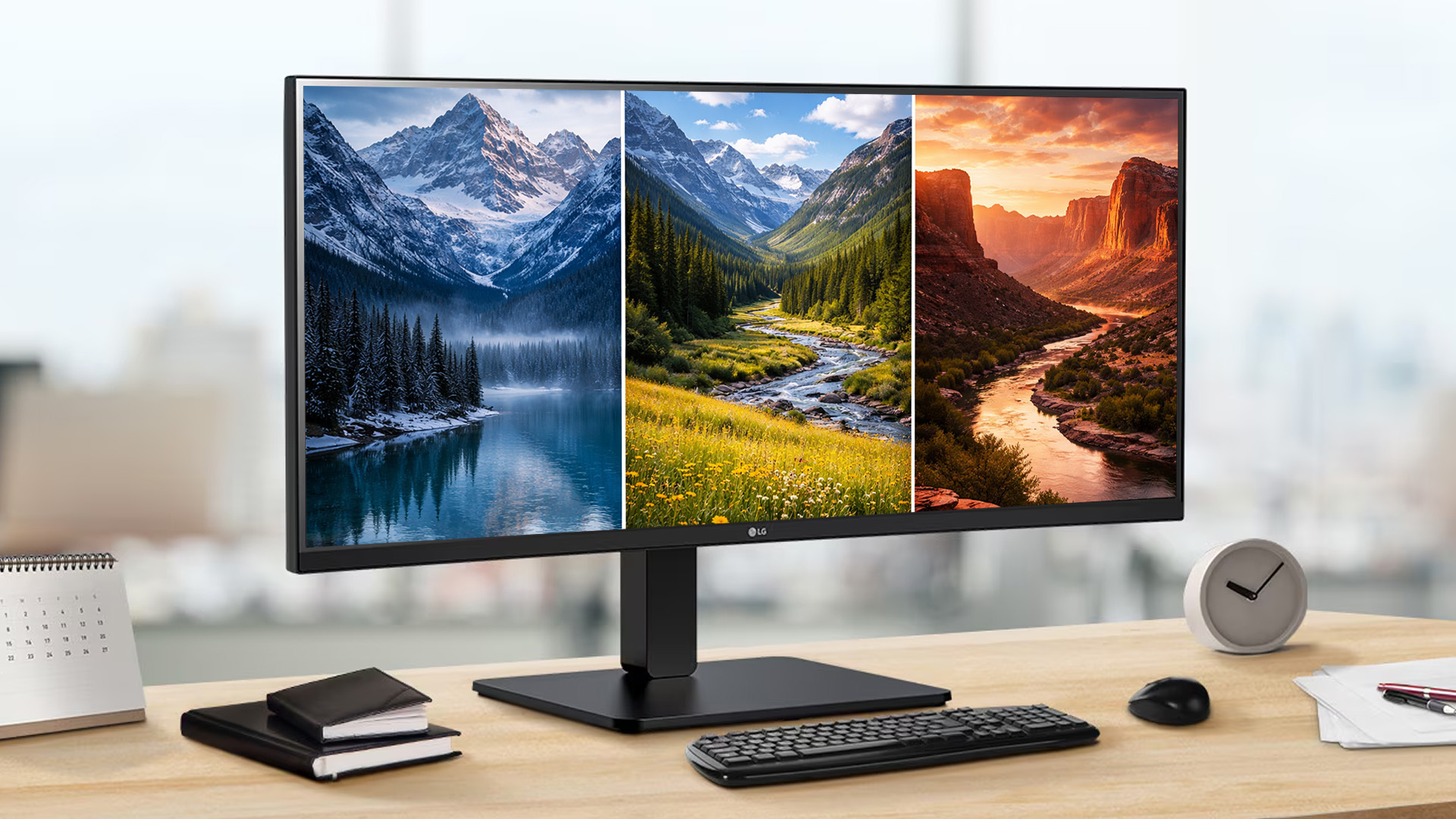
- The LG 34BA75QE-B is a 34-inch QHD ultrawide monitor. Its wide screen is ideal for video editors, photographers managing large asset libraries, or anyone juggling multiple applications at once.

Finding Your Perfect LG Match
Choosing the right screen comes down to matching it to how you actually use it. This LG monitors buying guide breaks it down simply:
- For gaming, the UltraGear series brings speed and smooth visuals.
- For productivity, UltraWide and DualUp monitors offer more screen real estate without requiring a second display.
- For creative work, UltraFine and OLED panels deliver the colour accuracy that professionals rely on.
- And for everyday home use, LG's standard IPS and MyView range covers all the basics with great reliability.
Start with your use case, then work through size, resolution, panel type, and connectivity in that order. It makes the decision much clearer. Whether you are after a compact screen for a student desk or a high-end OLED for a creative studio, there is an LG monitor for you.
Browse the complete range of all monitors at Laptop Outlet, or view LG displays specifically to find the right screen for your needs and budget.

A Few Things You Might Be Thinking...
What is the difference between LG UltraGear, UltraWide, UltraFine and standard LG monitors?
Each series targets a different user. UltraGear is for gaming, UltraWide for productivity, UltraFine for creative professionals, and standard LG monitors suit everyday home use.
Which LG monitor size is best for a typical home office desk?
A 27-inch monitor is the most practical choice. It offers enough working space for multitasking without dominating your desk, and suits most common desk depths.
Do I need a 4K LG monitor for everyday work and study?
Not necessarily. QHD at 27 inches is sharp and comfortable for daily tasks. 4K becomes more beneficial for detailed creative work or when using a 32-inch or larger screen.
Is an LG OLED monitor suitable for both gaming and productivity?
Yes. LG OLED monitors offer fast response times for gaming and excellent colour accuracy for creative work, making them highly capable for both uses in one screen.
How do I decide between an ultrawide LG monitor and a standard 16:9 screen?
If you regularly use multiple windows or applications side by side, an ultrawide makes clear sense. For single-app focused tasks, a standard 16:9 screen is perfectly adequate.
What refresh rate should I look for in an LG gaming monitor?
144Hz is a solid starting point for most gamers. Competitive esports players benefit from 240Hz or higher for the smoothest possible motion and quickest input response.
Related Articles

Last Updated: August 11, 2026
Creating a home workspace that actually makes you want to sit down and get things done starts with one key upgrade: your monitor. Whether you’re fully remote, juggling hybrid life, or deep into study mode, choosing the best BenQ monitor for home office use can seriously level up your focus, comfort and overall productivity.
Let’s be honest! Squinting at a tiny laptop screen for eight hours straight isn’t the vibe. You need space. You need clarity. You need something that doesn’t leave your eyes feeling fried by 4 pm. From compact Full HD screens that fit neatly on smaller desks to powerful 4K displays that handle heavy multitasking like a pro, there’s something for every type of workflow. So if you’re scrolling through BenQ monitors for home office and wondering which one deserves desk space, you’re in the right place.
What Makes a Good Home Office Monitor?
Not all monitors are created equal. A display designed for gaming or entertainment won’t always offer the same comfort and practical
Last Updated: April 14, 2026
If you’ve been shopping for a competitive gaming display, you’ve probably noticed that BenQ 240Hz gaming monitors are becoming the new standard for serious players. But with so many options available, the big question remains:
Is 240Hz worth it — or is 144Hz still enough?
In this guide, we’ll break down what ultra-high refresh rates change in gameplay, compare 144Hz vs 240Hz BenQ monitor performance, and help you decide whether a BenQ high refresh ZOWIE monitor or a BenQ MOBIUZ high refresh monitor is the right upgrade for you.
Quick Answer — Is 240Hz Worth it?
So, is 240Hz worth it?
For many gamers, the answer is:
- Yes, if you play competitive FPS titles and want the smoothest, fastest response possible
- Maybe, if you play a mix of casual and competitive games
- Not necessarily, if you mostly play single-player or cinematic titles
A jump from 144Hz to 240Hz delivers:
- Smoother motion
- Reduced input delay
- Clearer tracking in fast-paced shooters
That’s why high refresh BenQ gaming monitors are
Last Updated: April 14, 2026
When you spend hours each day working across spreadsheets, dashboards, documents, or lines of code, your monitor becomes more than just a screen. It becomes the centre of your workflow. The right display can make work feel smoother, reduce fatigue, and help you stay focused for longer.
That’s exactly where BenQ productivity monitors stand out. Designed with knowledge workers, developers, and multitaskers in mind, BenQ offers a range of displays built for modern professional demands. Whether you need pixel-perfect clarity, extra-wide space for multiple apps, or coding-specific features, there’s a BenQ option tailored to the way you work.
Why Productivity-Focused Monitors Matter for Knowledge Work
A standard office monitor can get the job done, but knowledge work has evolved. Today’s workflows often involve multiple applications running side by side, detailed content review, long hours of screen time, and constant context switching. That’s why choosing the right monitor is no longer just
Last Updated: September 24, 2026
AOC monitors have quietly become one of the biggest go-to choices in 2026, whether you’re building a clean home office setup, upgrading your gaming station, or just wanting a solid screen that doesn’t destroy your budget. The brand covers everything from simple everyday displays to seriously high-performance esports-level monitors under AGON PRO. In this guide, we’ll break down the full AOC monitor family, explain what each series is actually made for, and help you figure out which models fit your lifestyle best: work, study, gaming, or all three. If you’re looking for value, comfort, and modern features, AOC is definitely worth knowing.
Meet the AOC Monitor Family: AOC, AOC Gaming, AGON & AGON PRO
AOC isn’t just one type of monitor; it’s more like a full lineup of screen “personalities,” each built for different people and setups. In 2026, AOC monitors cover everything from budget-friendly everyday displays to elite esports-level gaming machines.
The main difference comes down to performance,
Last Updated: March 13, 2026
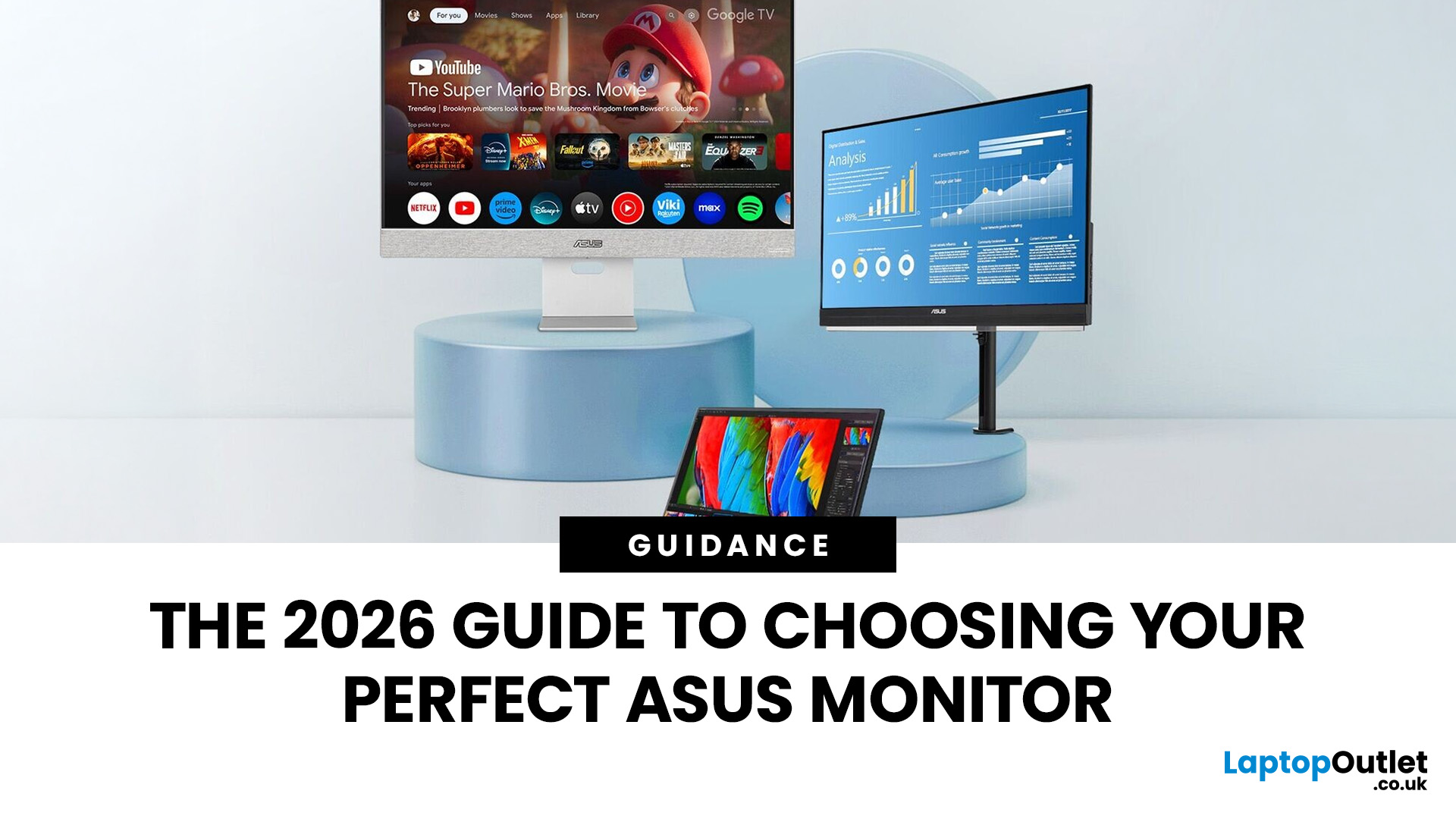
Choosing the right display in 2026 is about more than just resolution. It is about how a screen fits into your specific lifestyle. ASUS has remained a global leader by creating distinct lanes for every type of user. Whether you are a competitive gamer, a high-end designer, or a remote professional, understanding the core ASUS monitors uses is the first step to a perfect setup.
In this ASUS monitors 2026 guide, we look at how the brand has evolved its technology. From the staggering motion clarity of the latest OLEDs to the sustainable, eye-friendly designs of their business line, ASUS continues to set the benchmark for quality and reliability.
Why ASUS Monitors Are So Popular in 2026
The popularity of ASUS monitors stems from their ability to innovate within niche categories. ASUS does not just make "screens"; they build tools.
In 2026, the brand has focused heavily on "Dual-Mode" technology. This allows a single screen to switch between ultra-high resolution for work and extreme refresh

Last Updated: August 28, 2026
Working from home and studying online have become the norm in 2026, which means your monitor is no longer just a screen, it is where you spend hours reading, writing, video calling and multitasking. A good home office display needs to deliver sharp text, comfortable viewing and reliable eye-care features without costing a fortune.
That is why AOC has become one of the most popular brands for affordable productivity setups. Whether you need a cheap AOC 27 inch monitor for essays and coursework or a larger QHD screen for full-time remote work, there are plenty of options designed for comfort and clarity.
In this guide, we break down the best AOC monitor for home office and study, including budget picks, eye-care displays and refurbished bargains.
What Makes a Good Home Office Monitor?
Choosing the best AOC monitor for home office use starts with understanding what actually improves comfort and productivity. Unlike gaming displays, office monitors are about clarity, screen space and reducing
Last Updated: August 28, 2026
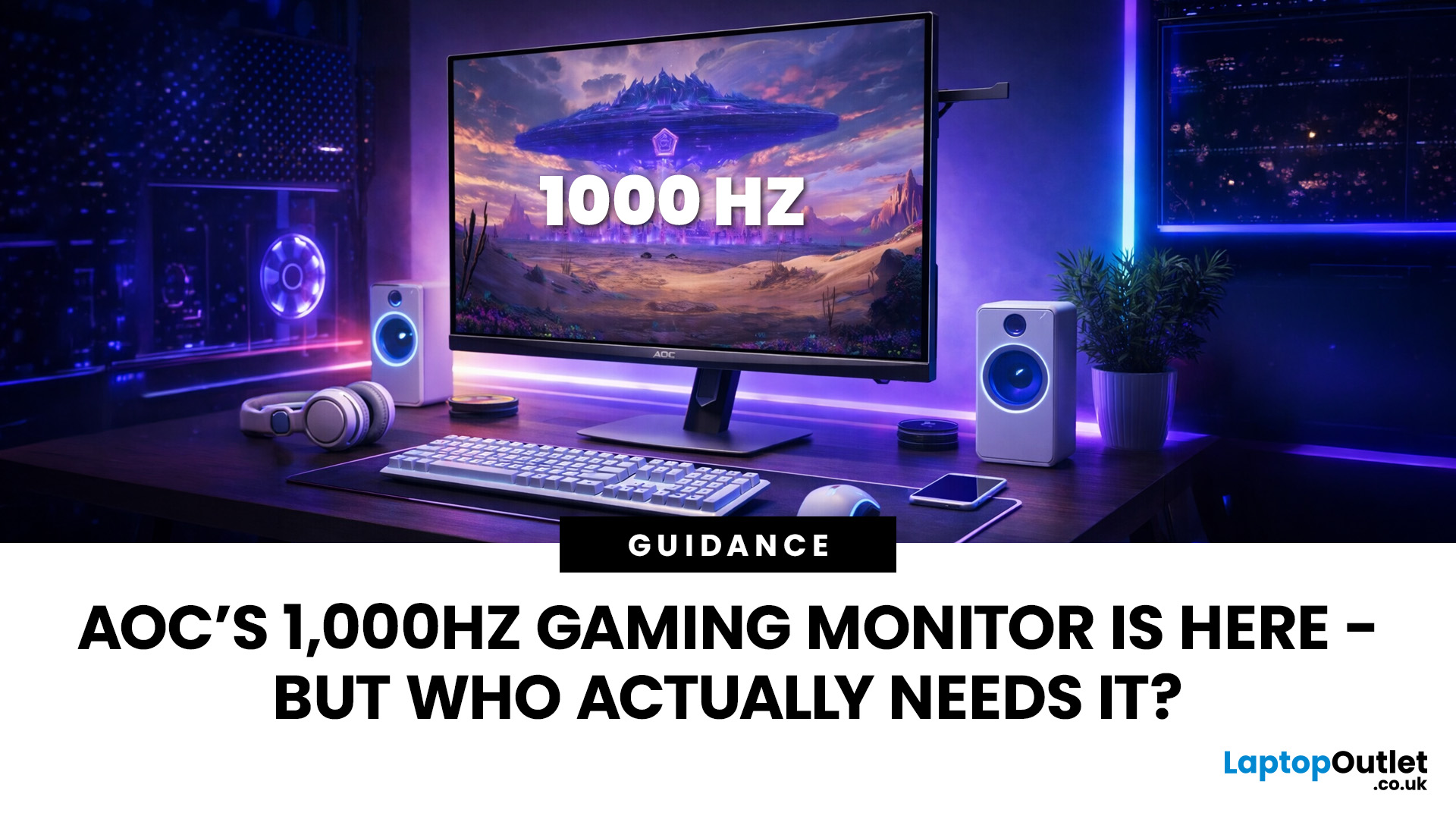
Gaming monitors have moved from 144Hz to 240Hz, then 360Hz and 500Hz in just a few years. Now AOC is pushing even further with its new AOC 1000Hz gaming monitor, the AGON PRO AGP277QK. At 1000Hz, the screen refreshes 1000 times per second, cutting frame time to just 1 millisecond. That is half the frame time of 500Hz and one quarter of 240Hz.
AOC’s new dual-mode 1000Hz monitor can switch between 500Hz at QHD and 1000Hz at a lower resolution, targeting elite competitive players. But who actually benefits from refresh rates this extreme, and should most gamers even consider waiting for it?
What AOC’s 1,000Hz Dual-Mode Monitors Actually Are
The AOC 1000Hz gaming monitor, known as the AOC AGON PRO AGP277QK, is part of a new wave of next-gen AOC AGON PRO monitors focused purely on competitive performance. It introduces a dual-mode 1000Hz monitor design, meaning it can operate at two different refresh rate and resolution combinations.
In its standard mode, the panel runs at QHD resolution with
Last Updated: August 28, 2026
Choosing the right gaming monitor depends on factors like refresh rate, resolution, panel type, response time, and HDR support.
AOC offers gaming monitors across every budget, making it hard to know which one is right for you.
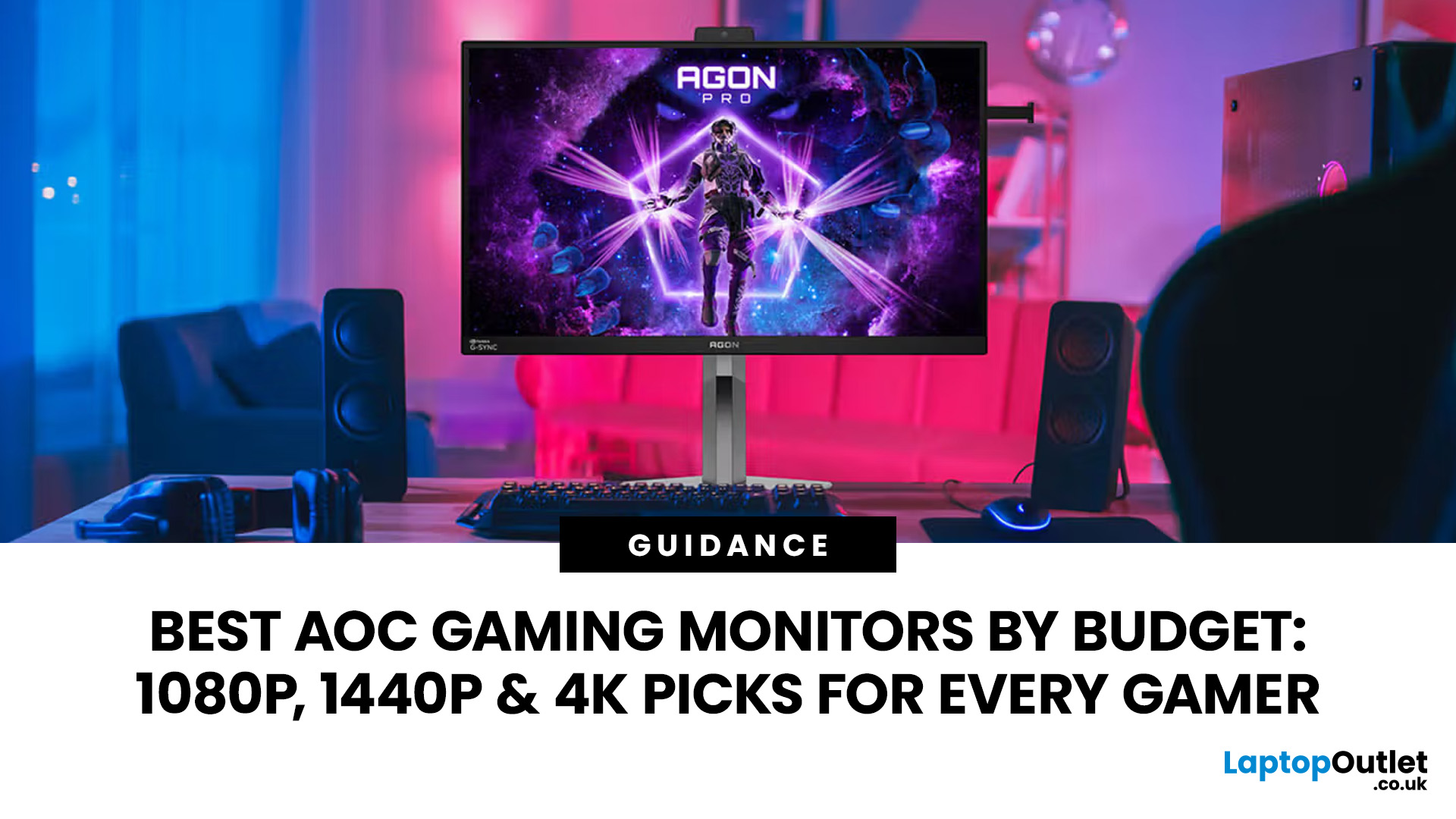
This guide highlights the best AOC gaming monitors by budget and helps you choose between 1080p, 1440p, and 4K options based on your gaming needs.
How to Choose an AOC Gaming Monitor for Your Budget
Before looking at specific recommendations, it's important to understand what you're paying for.
Resolution Matters More Than Most Gamers
Last Updated: August 25, 2026
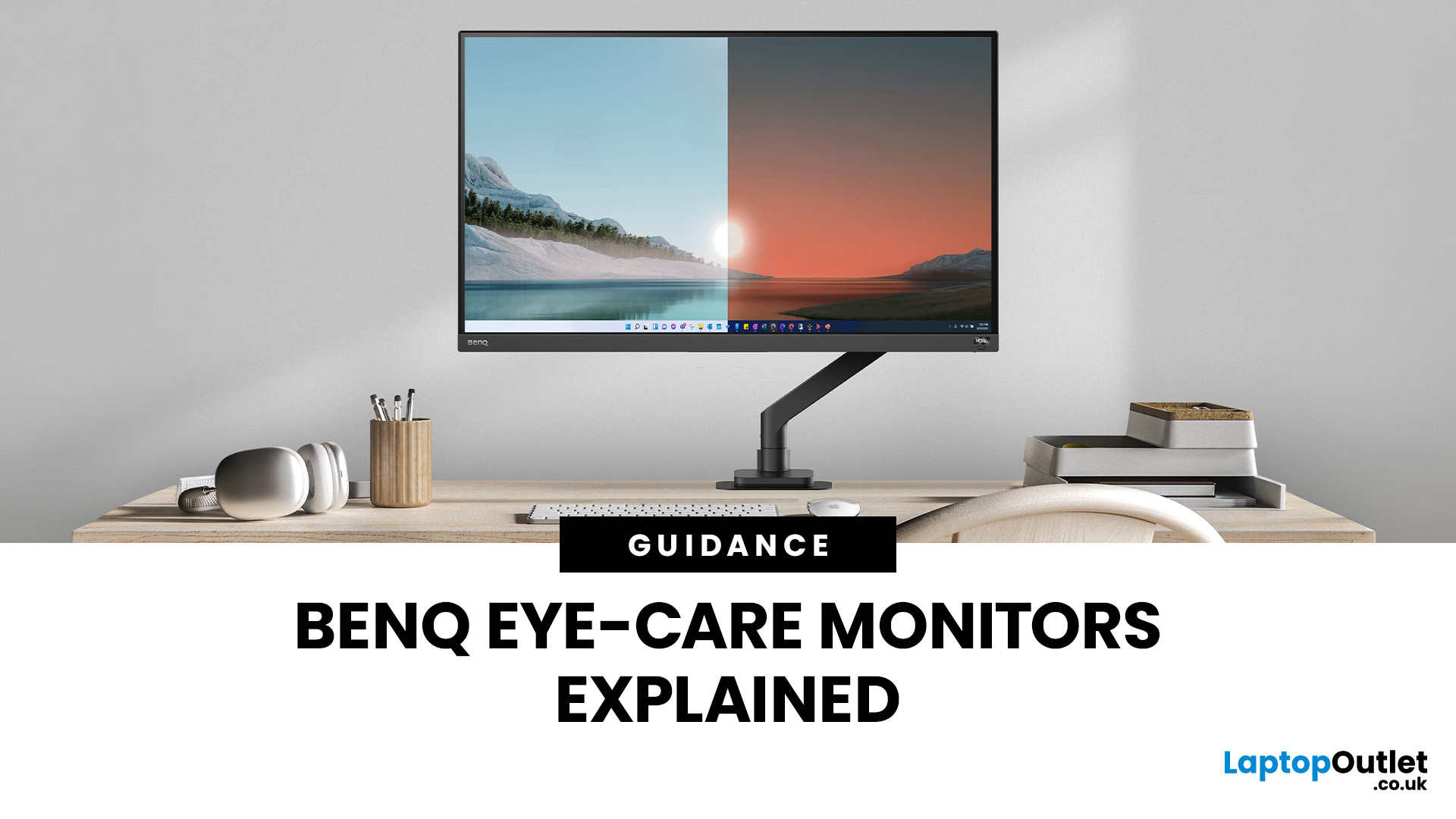
If you spend hours a day on a screen, you’ve probably felt it: tired eyes, headaches, dryness or that slightly gritty end-of-day sensation. While no monitor can solve every cause of screen-related discomfort, BenQ Eye-Care monitors include features designed to make longer sessions more comfortable by managing brightness, reducing flicker and giving you control over blue-heavy light, particularly for evening use.
What BenQ Eye-Care Means: Features and What They’re For
Several BenQ monitor ranges include comfort-focused tools under the Eye-Care umbrella. The exact feature set varies by model, but the typical options include:
- BenQ Brightness Intelligence, sometimes called Brightness Intelligence Plus or B.I.+, to adjust the screen according to your surroundings and displayed content
- Visual Optimizer, the newer name for B.I.+ on supported BenQ monitors, which can adapt brightness and colour temperature
- BenQ Low Blue Light or Low Blue Light Plus modes to reduce blue-heavy light output
- BenQ
Last Updated: March 13, 2026
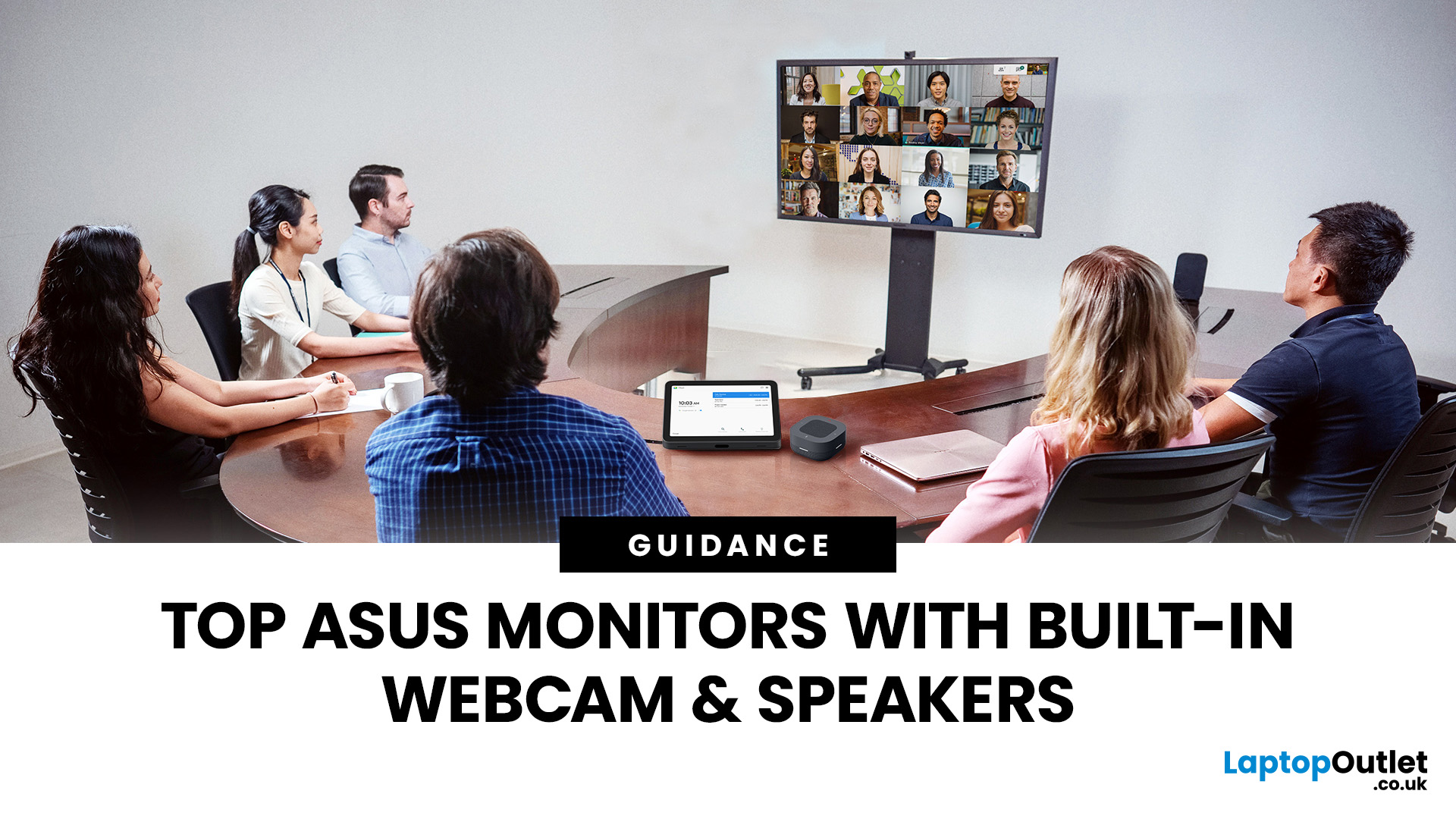
Choosing the right ASUS monitor with a webcam can significantly simplify how modern meeting rooms operate. As hybrid work becomes the norm, businesses are looking for cleaner, more efficient conferencing setups that don’t rely on multiple external peripherals. An integrated solution that combines display, camera, microphone, and speakers into one device makes deployment faster and more cost-effective. For small meeting spaces and huddle rooms in particular, an ASUS business monitor with speakers and a built-in webcam offers a practical alternative to a full conferencing kit.
What to Know About Microsoft Teams Rooms Compatibility
It’s important to clarify how an ASUS monitor with webcam fits into a Microsoft Teams Rooms environment.
Microsoft Teams Rooms (MTR) systems are typically powered by a dedicated PC or collaboration bar. The monitor itself is not the Teams Rooms system, instead, it acts as the display and USB conferencing endpoint. When paired with a Teams-enabled PC, many ASUS

