



BenQ Eye-Care Monitors Explained: Features & Benefits
If you spend hours a day on a screen, you’ve probably felt it: tired eyes, headaches, dryness or that slightly gritty end-of-day sensation. While no monitor can solve every cause of screen-related discomfort, BenQ Eye-Care monitors include features designed to make longer sessions more comfortable by managing brightness, reducing flicker and giving you control over blue-heavy light, particularly for evening use.
What BenQ Eye-Care Means: Features and What They’re For
Several BenQ monitor ranges include comfort-focused tools under the Eye-Care umbrella. The exact feature set varies by model, but the typical options include:
- BenQ Brightness Intelligence, sometimes called Brightness Intelligence Plus or B.I.+, to adjust the screen according to your surroundings and displayed content
- Visual Optimizer, the newer name for B.I.+ on supported BenQ monitors, which can adapt brightness and colour temperature
- BenQ Low Blue Light or Low Blue Light Plus modes to reduce blue-heavy light output
- BenQ Flicker-Free technology to provide a steadier backlight during extended viewing
- Model-dependent features such as anti-glare coatings, Reading or ePaper modes, Eye-CareU reminders and ergonomic adjustments
On newer compatible BenQ monitors, Visual Optimizer, Low Blue Light and Flicker-Free technology may be grouped under Triple Eye Protection.
Who Benefits Most?
- Office and study users: Long reading sessions, spreadsheets, writing and video calls
- Late-night users: Coding, studying or browsing in lower room lighting
- Casual gamers: Users who want comfort features alongside smooth everyday performance
- People sensitive to brightness changes or flicker: Particularly when working in changing room lighting
Why Eye-Care Technology Matters on Modern Monitors
Screen discomfort usually has more than one cause. Long periods of close focus, reduced blinking, glare, poor ergonomics and a screen that is much brighter or darker than the surrounding room can all make extended computer use less comfortable.
Blue light should be considered separately. Blue light from digital displays has not been shown to be a primary cause of digital eye discomfort or screen-related eye damage. However, blue-heavy light in the evening can affect the body’s natural sleep-wake cycle, which is why some users prefer a warmer screen later in the day.
The main practical factors worth addressing include:
- Brightness mismatch: A screen that is much brighter or darker than the room
- Glare: Reflections from windows, desk lamps or overhead lighting
- Extended focus: Reduced blinking can contribute to dry or tired eyes
- Poor ergonomics: Incorrect viewing distance, posture or screen height
- Night-time use: A warmer display may be preferable when using a monitor late in the evening
Eye-Care features are therefore best treated as part of a comfortable overall setup rather than a complete solution on their own.
BenQ Brightness Intelligence, B.I.+ and Visual Optimizer
How BenQ Automatic Brightness Works
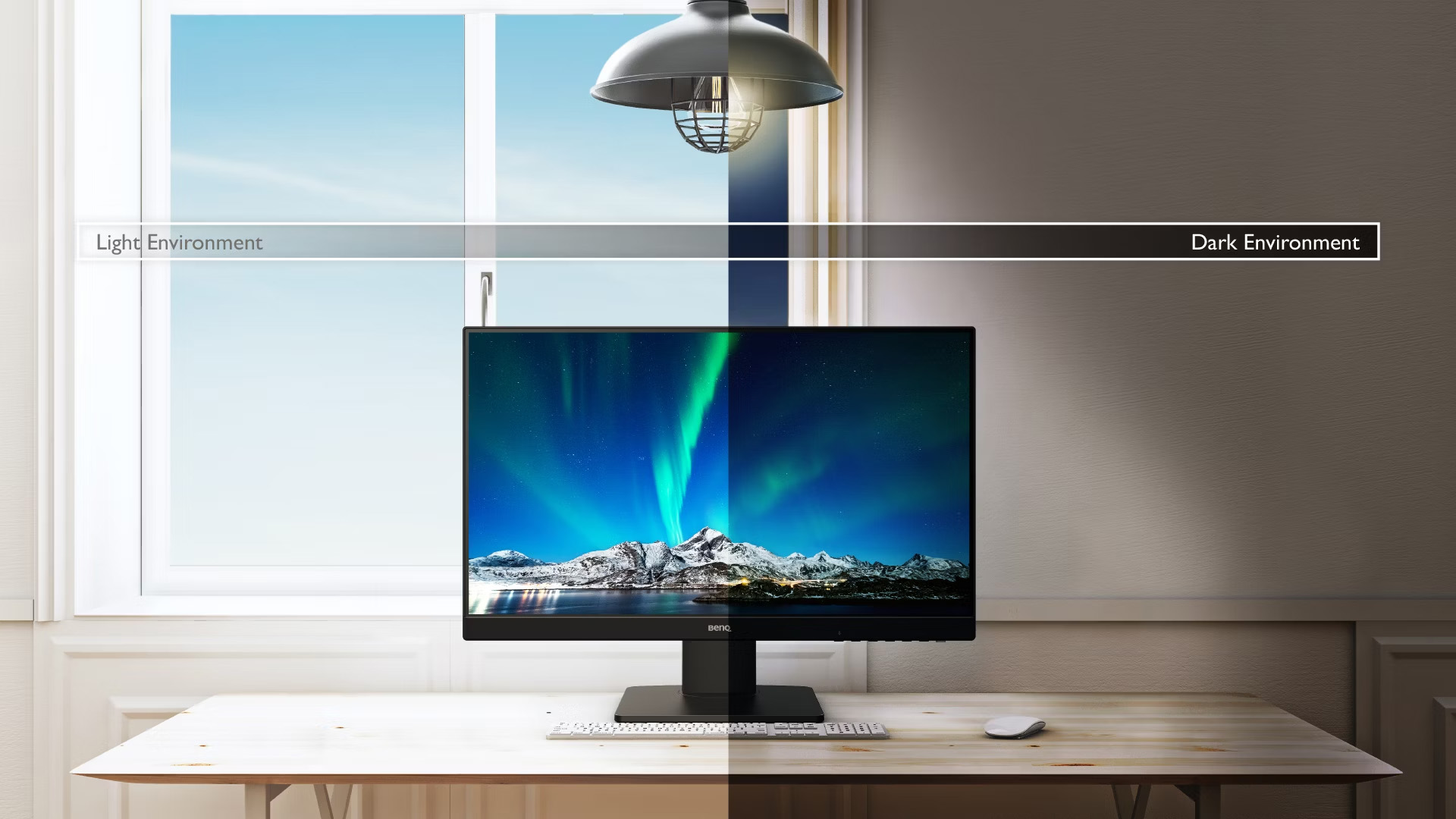
BenQ Brightness Intelligence uses a built-in sensor to detect changes in your viewing environment and adjust the display accordingly. It can consider ambient lighting and displayed content, helping prevent the monitor from remaining unnecessarily bright when room conditions change.
B.I.+ is a more advanced version that can also take colour temperature into account. On newer compatible BenQ monitors, this functionality is called Visual Optimizer, or V.O.
The exact technology depends on the model. Some monitors continue to use Brightness Intelligence or B.I. Gen2, while newer models such as the GW2490C and GW2790C use Visual Optimizer.
What It’s Good For
- Working throughout the day as natural light changes
- Switching between bright webpages and darker documents
- Keeping screen brightness better matched to changing room conditions
- Avoiding the habit of setting brightness too high and leaving it there
When You Might Turn It Down or Off
- Colour-critical design, photography or video work where you need a consistent reference
- Tasks where automatic brightness changes become distracting
- Situations where you have already configured the monitor for a fixed lighting environment
Tip: If your monitor provides adjustable Brightness Intelligence, B.I.+ or Visual Optimizer settings, start with a moderate level rather than immediately using the strongest setting.
How to Adjust Brightness on a BenQ Monitor
The exact controls vary between BenQ models, but you can normally adjust brightness manually through the monitor’s on-screen display or use automatic Eye-Care controls on supported models.
Adjust Brightness Manually
- Press the monitor’s control button or joystick to open the on-screen display.
- Open the main Menu and locate the brightness control.
- Increase or decrease the brightness while viewing the type of content you normally use.
- Aim for a level that looks comfortably balanced with the surrounding room rather than automatically choosing maximum brightness.
Some picture or Eye-Care modes control brightness automatically, so available settings can vary depending on your monitor and selected mode.
Use Brightness Intelligence or Visual Optimizer
If your BenQ monitor includes Brightness Intelligence, enabling the feature allows its built-in sensor to respond automatically to your viewing conditions.
Newer compatible monitors such as the GW2490C and GW2790C use Visual Optimizer. On supported models, pressing the V.O. hotkey opens the Visual Optimizer controls.
You can then choose between options such as:
- Auto Brightness
- Auto Colour Temperature + Auto Brightness
If you prefer a fixed brightness level, return to the monitor menu and adjust brightness manually.
Adjust Brightness With Display Pilot 2
Compatible BenQ monitors can also work with Display Pilot 2, which provides software-based access to supported display controls.
Compatibility and available functions vary by monitor. On supported Mac setups, Display Pilot 2 can also allow monitor brightness to be adjusted through keyboard controls.
There is no single brightness percentage that is ideal for every room. Start at a comfortable level, compare the screen with your surrounding lighting and make small adjustments until bright backgrounds no longer feel excessively intense.
BenQ Low Blue Light: What It Does and When to Use It
Blue light is a normal part of visible light. BenQ Low Blue Light modes reduce blue-heavy output from the monitor, usually by adjusting the display spectrum or colour characteristics.
These modes can be useful if you prefer a warmer-looking screen, particularly during evening or night-time use. However, Low Blue Light should be treated as a viewing-comfort feature rather than a proven treatment for digital eye strain or protection against screen-related eye damage.
When to Use It
- Evening or night-time use
- Reading-heavy tasks such as articles, PDFs and coursework
- Longer sessions where you prefer a warmer display
- Situations where perfect colour accuracy is not essential
When to Avoid or Reduce It
- Photo or video editing where accurate colour is important
- Print preparation and colour-sensitive design work
- Product or retail work where accurate colour matching matters
Practical approach: Keep Low Blue Light off or at a mild level during normal daytime work if you need neutral colours, then increase it in the evening if you prefer a warmer appearance.
BenQ Flicker-Free Backlighting and Visual Comfort
What Flicker Is in Simple Terms
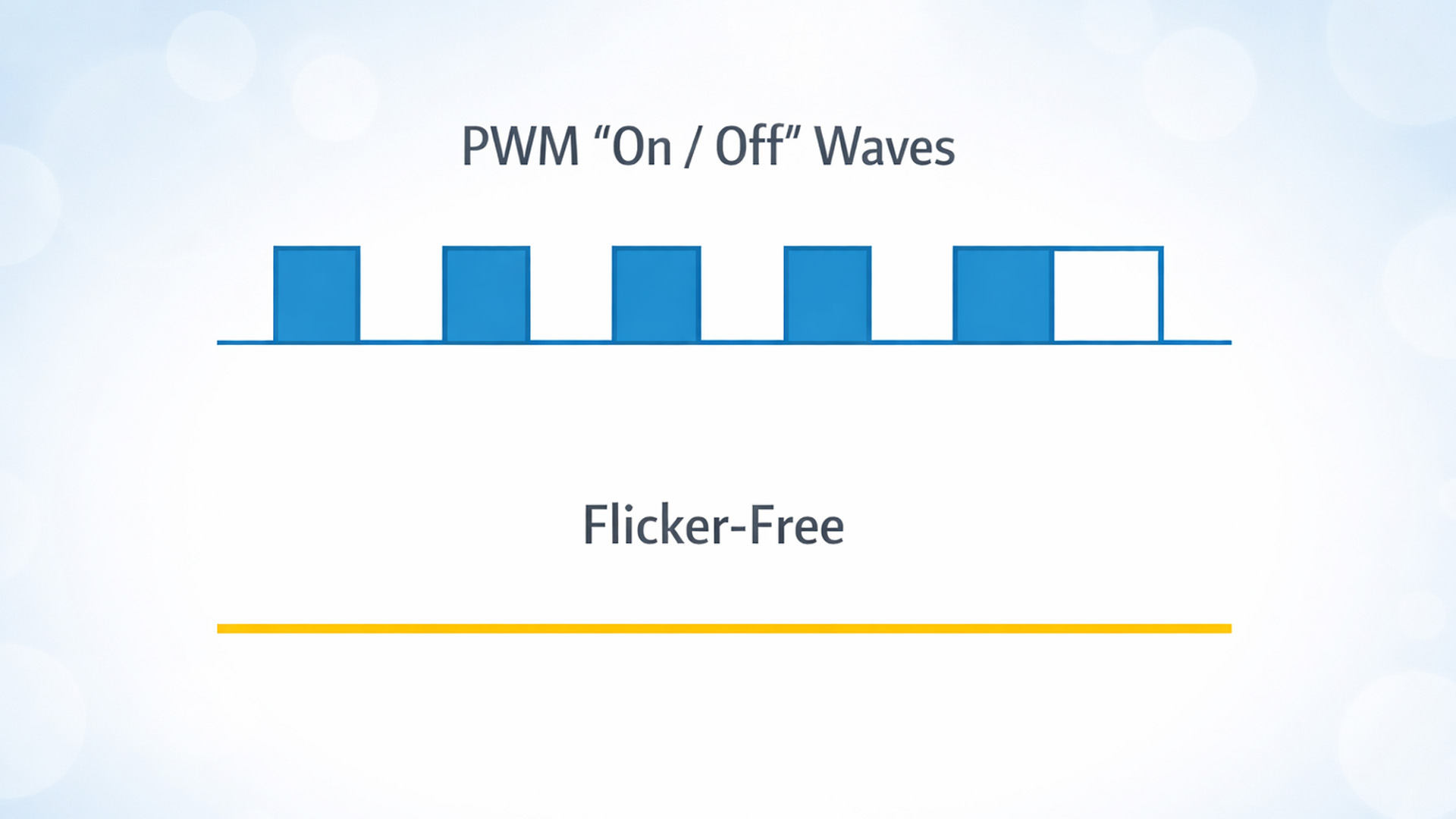
Some displays regulate brightness in ways that can create rapid backlight fluctuations. These changes may not always be consciously visible, but a steadier backlight can make prolonged viewing more comfortable for some users.
BenQ Flicker-Free technology is designed to minimise this flicker component across supported brightness levels.
Who May Notice the Difference Most?
- People who find some displays uncomfortable during longer sessions
- Users working for extended periods at lower screen brightness
- Anyone moving from an older display with more noticeable backlight flicker
Flicker-Free technology is still only one part of a comfortable setup. It cannot correct glare, dry eyes, poor posture or inappropriate viewing distance.
Trade-Offs and Limitations Worth Knowing
Eye-Care features can be useful, but they are not a substitute for sensible screen habits and ergonomics.
Low Blue Light Trade-Offs
- Stronger settings may create warmer-looking whites
- Colour can become less neutral
- Higher filter levels may be unsuitable for colour-sensitive creative work
Brightness Intelligence and Visual Optimizer Trade-Offs
- Automatic brightness changes can be distracting if you prefer a fixed display
- They are not ideal when you need a consistent brightness reference for colour work
Flicker-Free Limitations
- It does not address dryness caused by reduced blinking
- It cannot correct glare or poor desk positioning
- It will not resolve every possible cause of headaches or eye discomfort
Think of BenQ Eye-Care modes as comfort tools that work best alongside good setup and viewing habits.
Step-by-Step Setup: Best Baseline Comfort
Use this quick setup to get the most from your BenQ Eye-Care monitor.
1. Set Your Viewing Position
- Position the top of the screen at or slightly below eye level
- Sit roughly an arm’s length away, then adjust according to screen size and text scaling
2. Fix Glare First
- Turn the monitor slightly away from windows if reflections are visible
- Avoid strong lighting directly behind you or reflected across the display
3. Set a Comfortable Baseline Brightness
- In a typical indoor room, a lower brightness than the factory default may feel more comfortable
- Aim to match the monitor reasonably closely with the surrounding room rather than setting it as bright as possible
4. Enable Brightness Intelligence or Visual Optimizer
- Enable Brightness Intelligence, B.I.+ or Visual Optimizer if your monitor supports it
- Start with a moderate automatic setting
- If automatic changes become distracting, reduce the level or return to manual brightness for that task
5. Choose Your Low Blue Light Setting
- Day: Off or low, particularly for colour-sensitive work
- Evening: Low or medium if you prefer a warmer display
- Night: Increase it only as much as feels comfortable rather than automatically choosing the strongest setting
6. Avoid Excessive Double Filtering
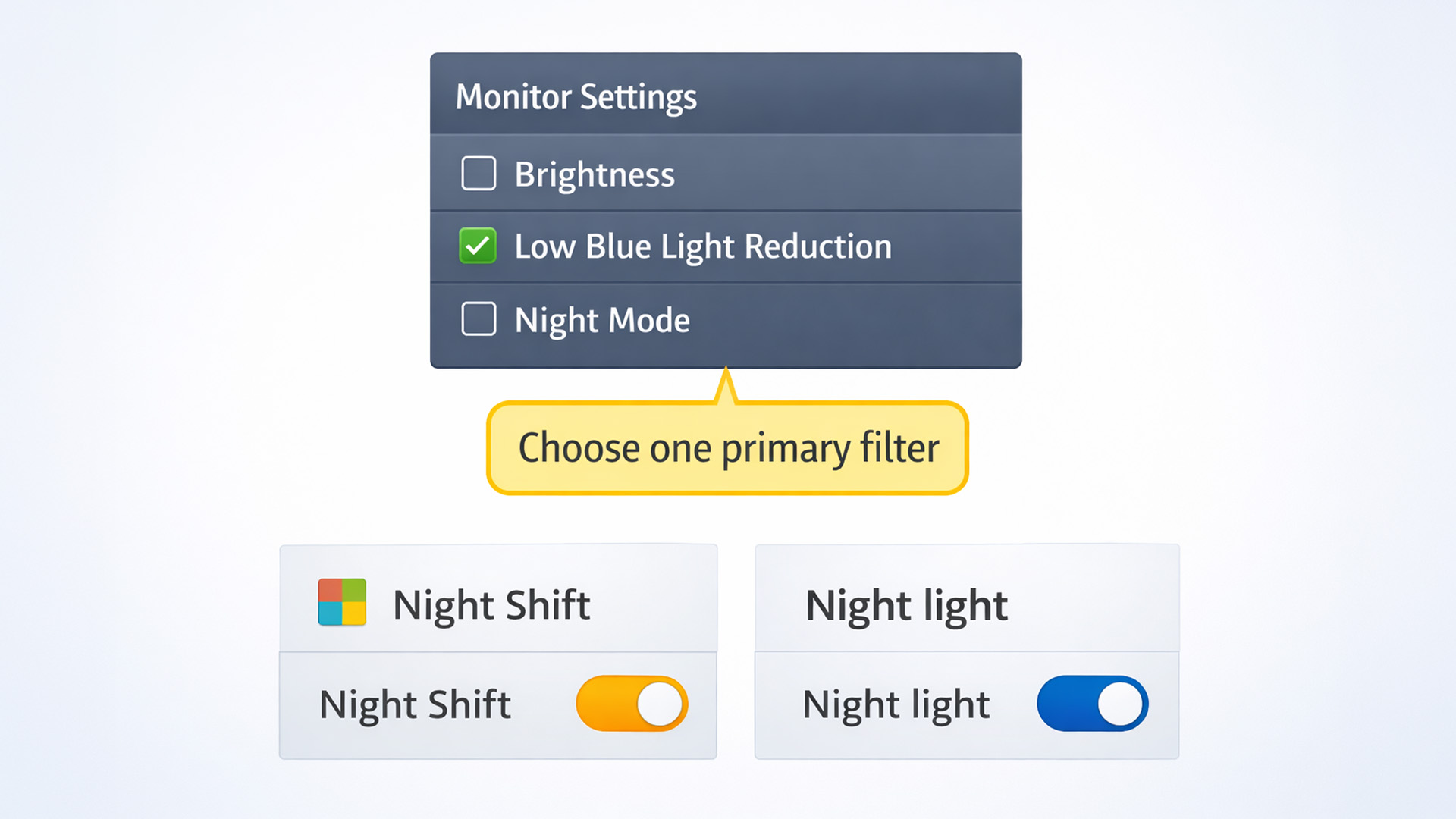
If you use a strong Low Blue Light setting on the monitor together with Windows Night Light or macOS Night Shift, the image may become excessively warm.
Choose one as the main adjustment and keep the other mild if needed.
7. Save Profiles if Supported
Useful presets could include:
- Day Work
- Night Reading
- Gaming
New to the brand and not sure where to start? Our BenQ monitors explained overview covers the main series and what they are best suited to in 2026.
Recommended Settings for Work, Study and Gaming
These are useful starting points rather than fixed rules. Adjust them according to your room lighting, monitor and personal preference.
Work: Email, Spreadsheets and Documents
- Brightness Intelligence / Visual Optimizer: On at a moderate level if supported
- Low Blue Light: Off or low during the day; optional mild setting in the evening
- Flicker-Free: Normally active automatically on supported models
- Extra: Increase text scaling where needed and position the monitor to minimise glare
Study: Reading, Research and Long PDFs
- Brightness Intelligence / Visual Optimizer: On at a moderate level if supported
- Low Blue Light: Low or medium according to preference
- Mode ideas: Reading or ePaper modes where available
- Extra: Avoid using a very bright screen in an otherwise dark room
Gaming: Casual to Competitive
- Brightness Intelligence / Visual Optimizer: Optional, as some players prefer consistent brightness
- Low Blue Light: Off or low if colour and contrast cues are important
- Extra: Prioritise refresh rate, response settings and adaptive sync first, then add comfort settings where useful
Unsure what to buy for your gaming setup? Our guide to BenQ gaming monitors for console vs PC breaks down the best 1080p, 1440p and 4K options.
Comfort Habits Beyond the Monitor
Even with BenQ Eye-Care features enabled, your overall setup and screen habits still matter.
Useful habits include:
- Follow the 20-20-20 approach by regularly looking away from the display at something farther away
- Blink regularly, particularly when reading or concentrating for long periods
- Increase text scaling rather than leaning towards the screen or squinting
- Match screen brightness reasonably closely to your surrounding room
- Position lamps and windows to minimise distracting glare
- Adjust monitor height and viewing distance to maintain a comfortable posture
- Take regular breaks during long work, study or gaming sessions
How to Choose a BenQ Eye-Care Monitor: Specs to Consider
BenQ Eye-Care functionality appears across different ranges, so it is more useful to choose according to your screen requirements and use case than to chase a single feature or model.
Display Basics
Size and resolution:
- A 23.8-inch or 24-inch Full HD monitor is practical for general work, study and smaller desks
- A 27-inch Full HD monitor provides a larger physical viewing area
- A 27-inch QHD monitor offers sharper text and additional usable workspace if resolution is a priority
Panel type: IPS panels are widely used across BenQ productivity monitors because they provide consistent viewing angles and suit general office, study and entertainment use.
Comfort and Usability
Look for the Eye-Care features that matter for the way you work:
- Brightness Intelligence, B.I.+ or Visual Optimizer
- Low Blue Light or Low Blue Light Plus
- Flicker-Free technology
- Anti-glare screen finish
- Reading or ePaper modes where available
- Eye-CareU support where available
Not every BenQ Eye-Care monitor includes every feature, so check the individual model rather than assuming the complete feature set is standard.
Ergonomics and Connectivity
- Height adjustment: Particularly useful if you work at the monitor for several hours a day
- Tilt, swivel and pivot: Helpful for adapting the display to your desk position
- USB-C: Useful for compatible laptop setups where you want display connectivity through fewer cables
- USB-C Power Delivery: Available on selected models for charging compatible laptops while connected
- Built-in speakers: Convenient for calls and everyday audio
- VESA mounting: Useful if you prefer a monitor arm or wall-mounted setup
Quick Picking Guide
- Everyday home or office: Prioritise practical Eye-Care features and the right screen size
- Students: Look for anti-glare, comfortable reading modes and a size that suits the available desk space
- Hybrid workers: Prioritise USB-C, power delivery where needed and an adjustable stand
- Gaming-first users: Choose the refresh rate and gaming performance you require first, then consider Eye-Care features as additional comfort tools
|
Best For |
Size / Resolution |
Eye-Care Priorities |
Useful Extras |
What to Consider |
|
Office and admin |
24–27-inch / Full HD–QHD |
Automatic brightness, Low Blue Light, Flicker-Free |
Height adjustment, USB |
Comfort and posture |
|
Study and reading |
24–27-inch |
Low Blue Light, ePaper or reading modes |
Anti-glare, reminders |
Comfortable text viewing |
|
Laptop workspace |
24–27-inch / Full HD–QHD |
Eye-Care features for extended work |
USB-C, power delivery, height adjustment |
Cleaner desk setup |
|
Gaming and general use |
24–27-inch / higher refresh rate |
Flicker-Free, optional mild Low Blue Light |
Adaptive sync, higher refresh rate |
Prioritise gaming performance first |
If you’re building a productivity setup, take a look at our picks for the best BenQ monitors for home office and study, including Eye-Care comfort features, USB-C, and hybrid work essentials.
Best BenQ Eye-Care Monitors to Consider
The following BenQ models provide a range of Eye-Care, connectivity and ergonomic options for different types of users.
1. BenQ BL3290QT
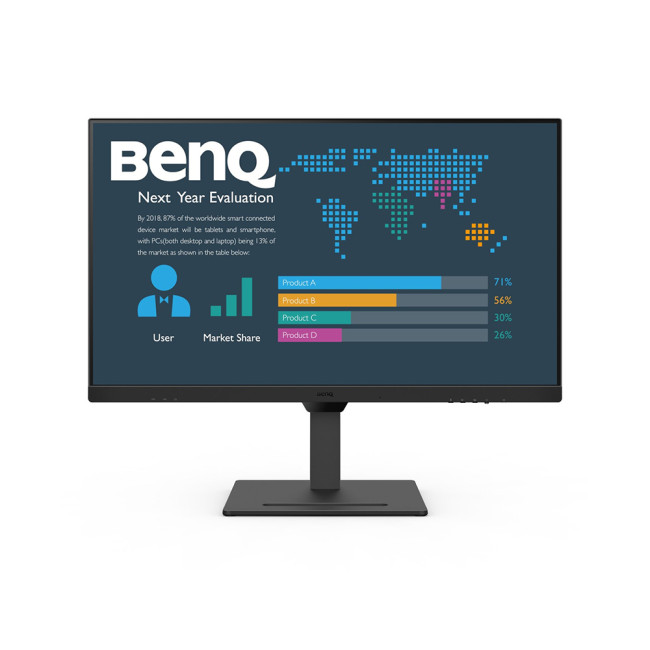
The BenQ BL3290QT is a 31.5-inch QHD IPS business monitor designed for multitasking, spreadsheets and productivity-heavy workloads. Its larger, sharper display provides more room for managing multiple windows and detailed documents.
It combines Brightness Intelligence Gen2, Low Blue Light Plus and Flicker-Free technology with an ergonomic stand offering height, tilt, swivel and pivot adjustment. USB-C with up to 65W Power Delivery also supports cleaner compatible laptop setups, making it a strong option for hybrid workers.
2. BenQ GW2491

The BenQ GW2491 uses the familiar 23.8-inch Full HD format that works well for everyday desks without taking up excessive space. Its IPS panel provides consistent viewing angles, while the 100Hz refresh rate makes scrolling, browsing and general desktop movement smoother than a traditional 60Hz monitor.
It is a straightforward option for writing, browsing, coursework and everyday entertainment. Low Blue Light Plus, Flicker-Free technology and ePaper mode provide useful options when you want to adjust the display for longer reading sessions.
3. BenQ GW2486TC
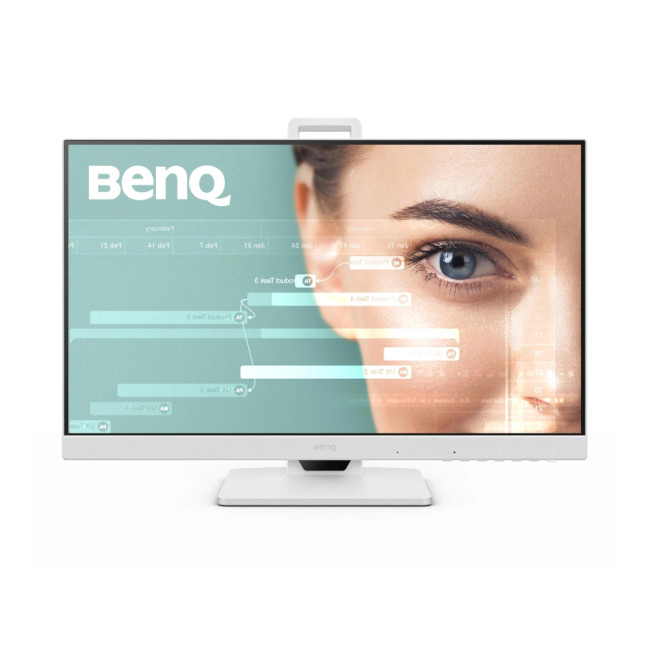
The BenQ GW2486TC is particularly well suited to laptop users who want a tidy and ergonomic workspace. Its 23.8-inch Full HD IPS panel and 100Hz refresh rate handle everyday productivity comfortably, while USB-C with up to 65W Power Delivery can simplify compatible laptop setups.
It also combines Brightness Intelligence, Low Blue Light Plus and Flicker-Free technology with a height-adjustable stand. Tilt, swivel and pivot adjustment provide additional flexibility, making it a useful option for hybrid workers who spend long periods at their desks.
4. BenQ GW2790TC
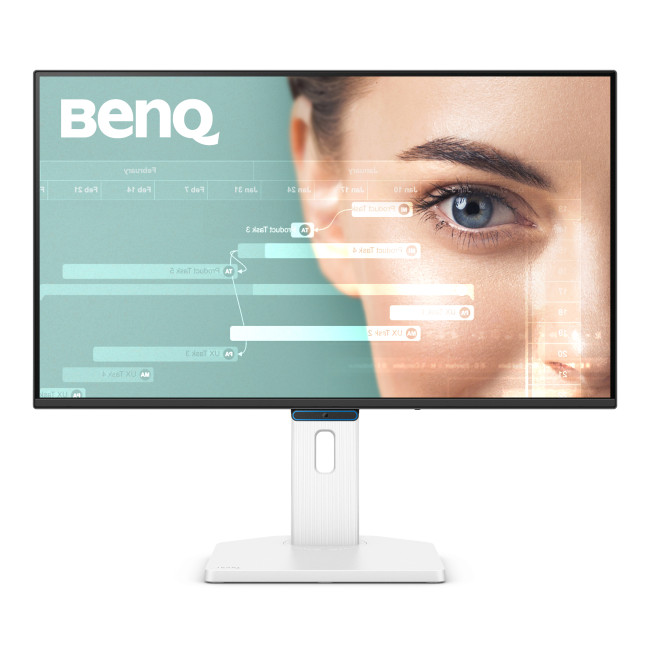
The BenQ GW2790TC combines a larger 27-inch Full HD IPS panel with a 144Hz refresh rate, USB-C connectivity and an ergonomic stand. It is a practical choice for users who want more physical screen space for documents and multitasking without giving up desk adjustability.
Its newer Eye-Care features include Visual Optimizer, Low Blue Light and Flicker-Free technology, while height, tilt, swivel and pivot adjustments make it easier to position the monitor comfortably.
USB-C also makes it particularly useful for laptop-based home-office and hybrid-work setups.
If you’re trying to keep costs down, check out our round-up of the best budget BenQ 27-inch monitors under £200 for work, study and casual gaming.

Eye-Care That Fits the Way You Work
BenQ Eye-Care monitors combine practical display-comfort tools such as Brightness Intelligence or Visual Optimizer, Low Blue Light and Flicker-Free technology.
These features are most useful when paired with sensible screen brightness, reduced glare, appropriate viewing distance, regular breaks and a comfortable desk setup.
Low Blue Light should be treated as an optional viewing feature rather than a solution for digital eye strain. For most users, getting brightness, ergonomics and screen habits right will make a bigger practical difference.
If you’re ready to compare models, explore the latest BenQ monitors range at Laptop Outlet to find the right screen size, connectivity, refresh rate and Eye-Care features for your setup.

In Case You Were Wondering...
Do Low Blue Light Modes Actually Reduce Eye Strain?
Low Blue Light modes can make a display feel more comfortable to some users, particularly if they prefer a warmer screen in the evening. However, blue light itself is not considered a primary cause of digital eye discomfort. Correct brightness, reduced glare, regular breaks and normal blinking habits are generally more important.
Is Blue Light the Same as Brightness?
No. Brightness refers to the overall amount of light produced by the screen, while blue light is part of the visible light spectrum. A display can therefore be relatively dim while still appearing cool or blue, or bright while using a warmer colour temperature.
Should I Use BenQ Brightness Intelligence All the Time?
It can be useful for general productivity and rooms where lighting changes throughout the day. For colour-sensitive work or situations where you need a consistent reference, fixed brightness and colour settings may be preferable.
Can I Use BenQ Low Blue Light and Windows Nig#ht Light Together?
Yes, but using strong settings on both at the same time can make the display excessively warm. It is generally better to use one as the main adjustment and keep the other at a mild level if required.
Will Flicker-Free Technology Fix Headaches?
Not necessarily. Flicker-Free technology can remove one possible source of display discomfort, but headaches can have many causes, including lighting, posture, extended close focus and uncorrected vision. If headaches or other symptoms regularly persist, seek advice from a qualified healthcare or eye-care professional.
Related Articles

Last Updated: August 12, 2026
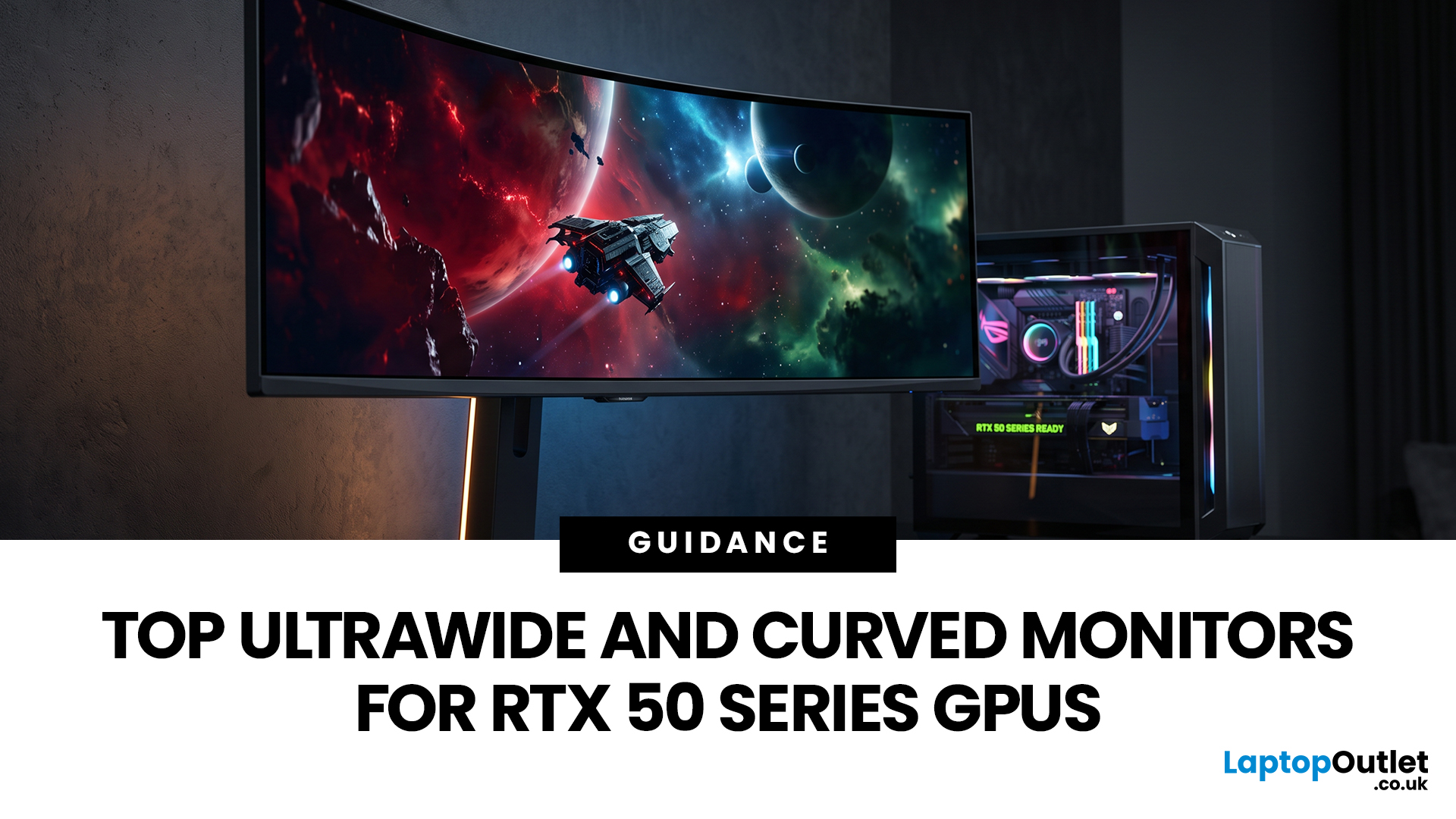
Picking a monitor for an RTX 50 Series GPU isn’t just about chasing the highest refresh rate, it’s about getting the right vibe for your setup. Think resolution, panel type and aspect ratio that actually match how you game, how powerful your RTX 5080 or RTX 5070 Ti is, and how much space you’ve got on your desk.
If you’re on an RTX 5080, a massive 49-inch 5120 × 1440 ultrawide hits different for immersive racing, sim and open-world gameplay. The RTX 5070 Ti feels right at home on a 34-inch 3440 × 1440 ultrawide, while a compact QHD curved monitor is perfect if you want smooth, high-refresh gaming on a budget.
Quick Comparison
| Best For | Monitor | Screen and Resolution | Refresh Rate | Panel | Main Strength | Consider Before Buying |
| RTX 5080 | Philips Evnia 49M2C8900 | 48.9-inch, 5120 × 1440, 32:9 | 240Hz | QD-OLED | Maximum immersion with OLED picture quality | Requires substantial desk space and strong GPU performance |
| RTX 5070 Ti | AOC G4 CU34G4Z | 34-inch, 3440 × 1440, 21:9 | 240Hz | Fast VA | Strong balance of speed, |
Last Updated: October 26, 2026
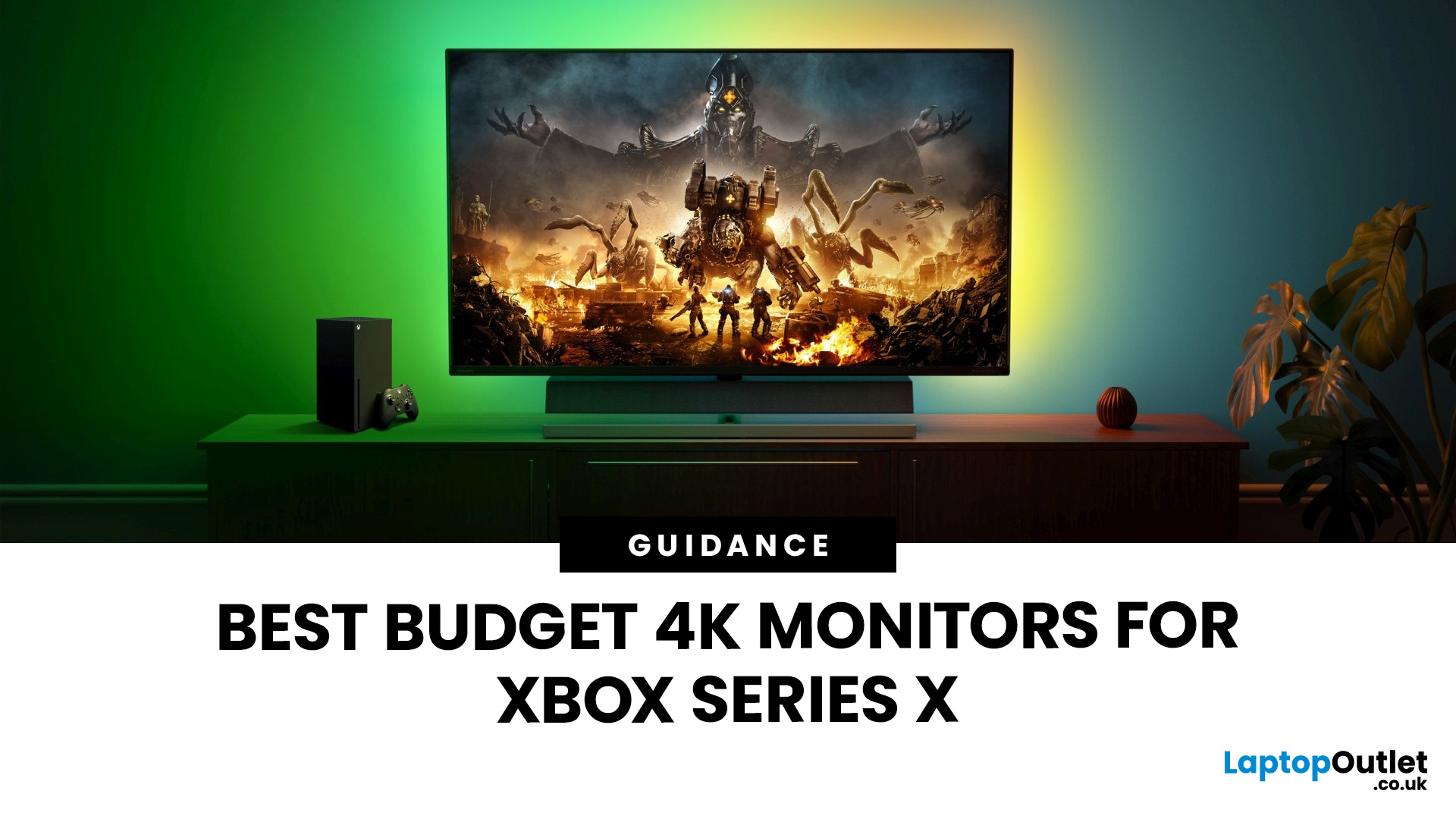
If you're looking to unlock true next-gen performance on your Xbox Series X without stretching your budget, you’re in the right place. The console is capable of extraordinary visuals, which includes from razor-sharp 4K resolution and buttery-smooth 120Hz gameplay to HDR brilliance and ultra-low latency. But to experience these features properly, you need the right display. That’s why we’ve curated a detailed guide to the best budget-friendly 4K monitors for Xbox Series X, helping you choose a display that enhances every moment of your gaming while keeping your wallet happy.
Why a 4K Monitor is Ideal for Xbox Series X
The Xbox Series X was built for 4K gaming. While you can play on lower resolutions, a monitor that fully supports the console’s capabilities will significantly improve your experience. Here’s why a 4K monitor for next-gen consoles is the perfect match:
True 4K Resolution
With a 4K monitor, you get four times the pixel density of 1080p, giving you:
- Sharper textures
- Improved

Last Updated: August 28, 2026
Gaming has changed forever. If you are still using an old LCD screen, you are missing out on the best visuals possible. In 2026, the best OLED gaming monitors have become the gold standard for every serious player. Whether you want a competitive edge in shooters or deep immersion in RPGs, OLED is the answer.
But why is everyone switching? It comes down to speed and colour. OLED panels offer near-instant response times. They also provide "true blacks" that no other screen can match. In this guide, we will look at the top OLED gaming screens available. We will also explain what to look for so you can find the perfect match for your PC or console.
1. AOC Gaming Q27G41ZDF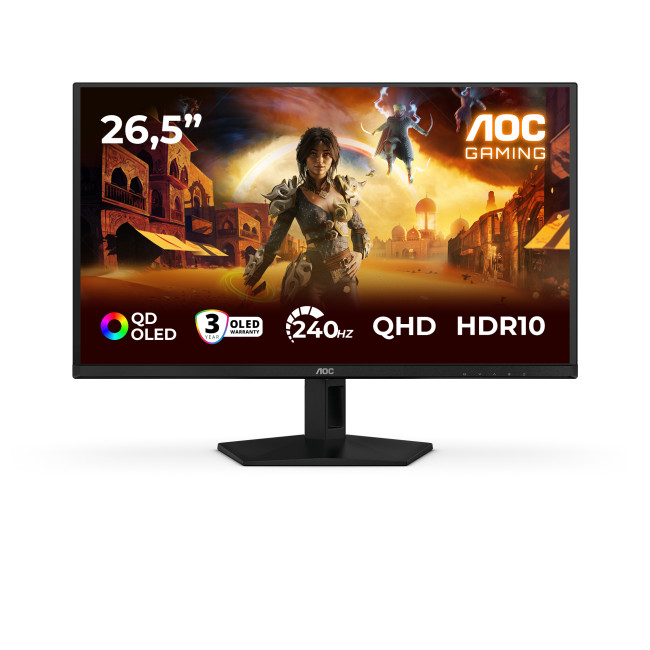
Key Specifications:
- Screen Size: 26.5-inch
- Panel Type: QD OLED
- Resolution: 2560 x 1440 (QHD)
- Refresh Rate: 240Hz
- Response Time: 0.03ms
- Aspect Ratio: 16:9
- Screen Shape: Flat
- Sync Technology: G-SYNC Compatible, Adaptive Sync
- Low Blue Light Technology: Yes
- HDR Standards: HDR10
Last Updated: August 28, 2026
Gaming has changed rapidly over the last few years. In 2026, players demand more than just a clear picture. They want fluid movement, deep colours, and hardware that looks as good as the game itself. This is where Philips Evnia monitors come into play.
The Evnia range was designed to break the "typical gamer" stereotype. These screens combine high-end performance with a sleek, modern aesthetic. Whether you are a competitive esports player or a casual console gamer, there is a model tailored for you.
Finding the right display can be tricky. You have to balance refresh rates, resolution, and panel types. In this guide, we break down the five best Philips monitors for gaming to help you level up your setup.
1. Philips Evnia 24M2N3201A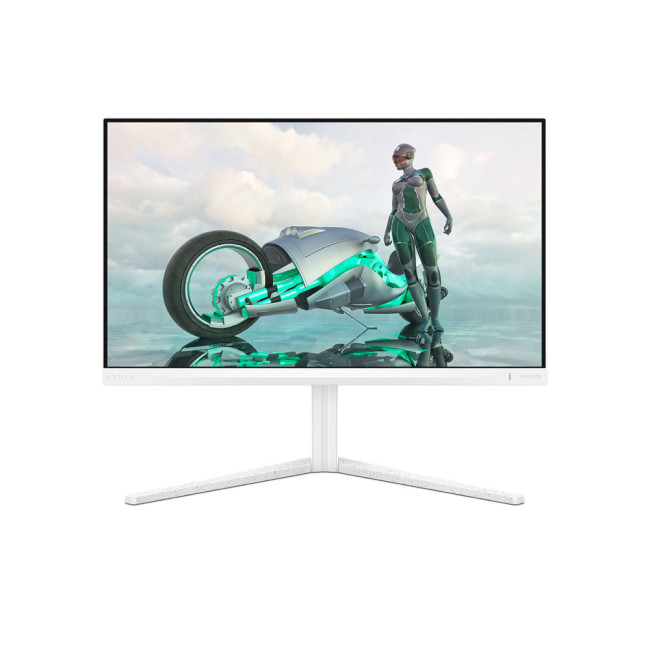
Key Specifications:
- Screen Size: 23.8 Inches
- Panel Type: Fast IPS
- Resolution: Full HD (1920 x 1080)
- Refresh Rate: 180Hz
- Response Time: 1ms (GtG)
- Aspect Ratio: 16:9
- Screen Shape: Flat
- Connectivity: 2x HDMI 2.0, 1x DisplayPort 1.4
- Features: Adaptive Sync,
Last Updated: December 31, 2025
Upgrading your display is one of the smartest ways to refresh your setup for the year ahead. A better monitor can make work feel smoother, games look sharper, and day-to-day browsing far more comfortable, without needing a whole new PC. The good news? You don’t have to pay full retail to get a premium panel. Choosing refurbished is a practical way to access higher specs (4K, OLED, high refresh rates, USB-C portability) for less, while keeping perfectly usable tech in circulation for longer. That’s especially true during New Year promotions, when clearance pricing and seasonal offers often collide. You’ll see everything from portable screens for hybrid work to big-format displays built for entertainment and collaborative spaces.
Classroom-Ready 4K Touch: Refurbished BenQ Education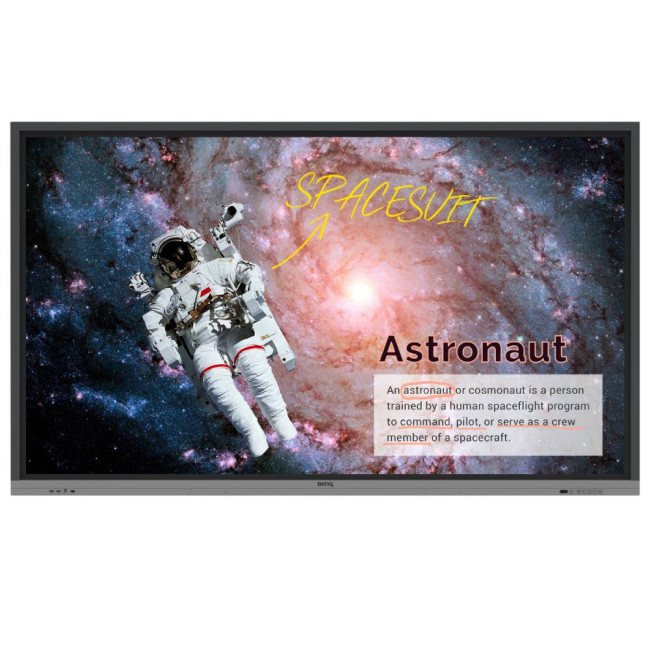
If you’re upgrading a classroom, meeting room, training space, or collaborative studio, the BenQ RE8601 is a standout. At 86 inches with 4K clarity and interactive touch, it’s built for hands-on presentations,
Last Updated: October 26, 2026
If your setup is still running on an older 60–75Hz display (or a basic office screen), 2026 is the year to change that. The jump to a modern gaming monitor can be instantly noticeable: smoother camera movement, clearer motion in fast fights, and a more responsive “feel” when you aim, flick, track, or even just pan across open-world scenery. That’s why New Year gaming monitor deals are such a popular time to upgrade, stock is refreshed, prices tend to be competitive, and you can often find the exact spec combination you’ve been waiting for without paying peak-season prices.
Laptop Outlet makes this easier because there’s a wide range of gaming monitors in one place, so you can compare size, resolution, refresh rate and panel tech without bouncing between stores. A good starting point is the main gaming monitors category (it’s perfect for filtering by what matters most). And if you’re shopping across more than just monitors, it’s also worth keeping an eye on the wider promotions to save big
Last Updated: October 26, 2026
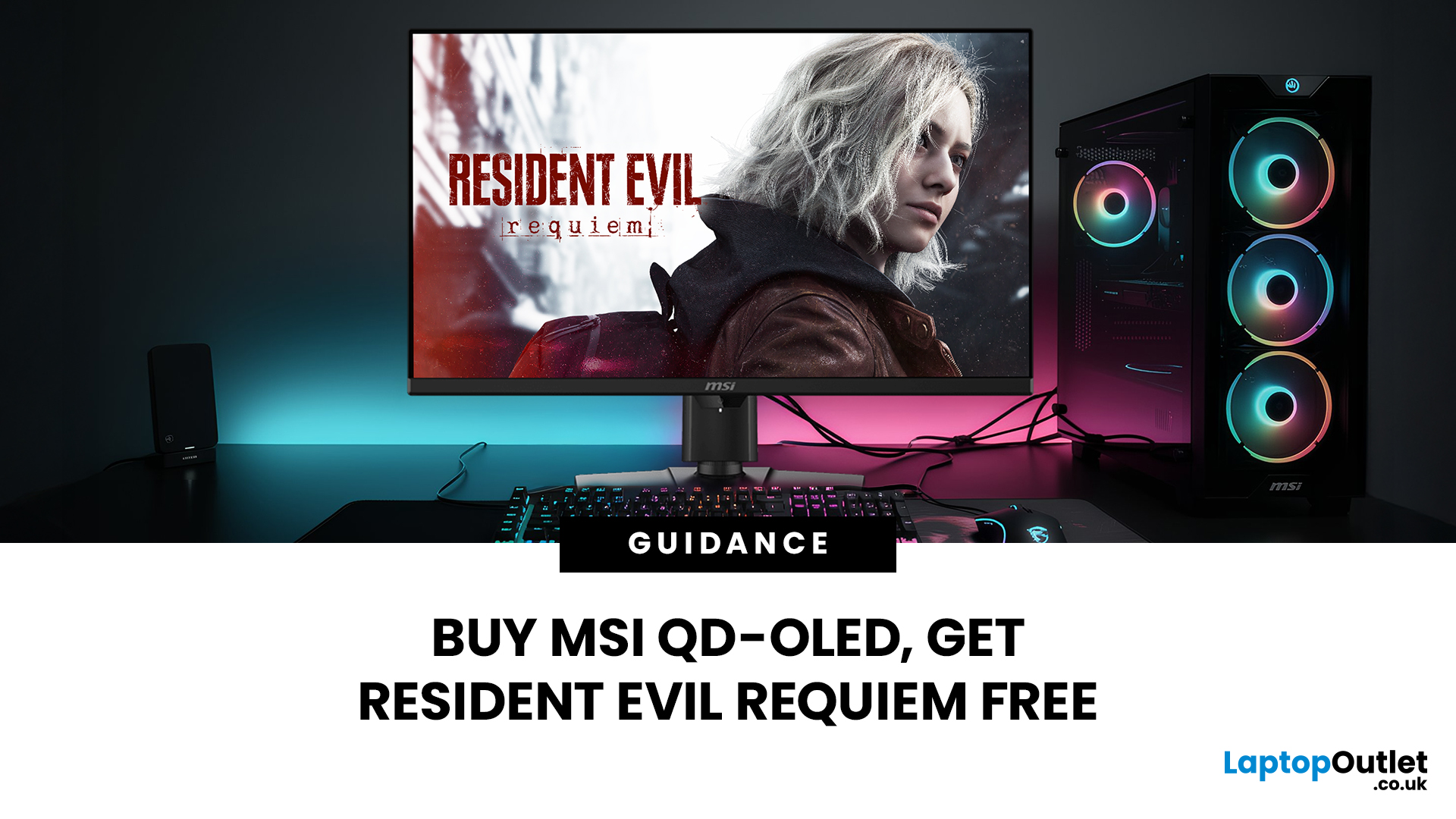
Gaming is about to get a whole lot better. If you are looking for a screen upgrade, now is the perfect time. MSI is currently offering a deal that is hard to ignore. When you buy a selected MSI QD-OLED monitor, you can get Resident Evil Requiem free.
This latest title usually costs £51.99. However, for a limited time, you can add it to your library without spending an extra penny. Combining the terrifying visuals of Resident Evil with the ground-breaking technology of QD-OLED is a match made in heaven.
In this guide, we will look at the best MSI gaming monitors included in this deal.
Why This Gaming Deal Matters
Gaming hardware is expensive. Getting a £51.99 game for free helps offset the cost of your new screen. But beyond the money, it is about the experience. MSI QD-OLED monitors are currently the pinnacle of display technology.
They offer:
- Perfect Blacks: No "halo" effect around bright objects.
- Vivid Colours: Quantum Dots provide a wider colour gamut.
- Instant Response: 0.03 ms is
Last Updated: June 15, 2026
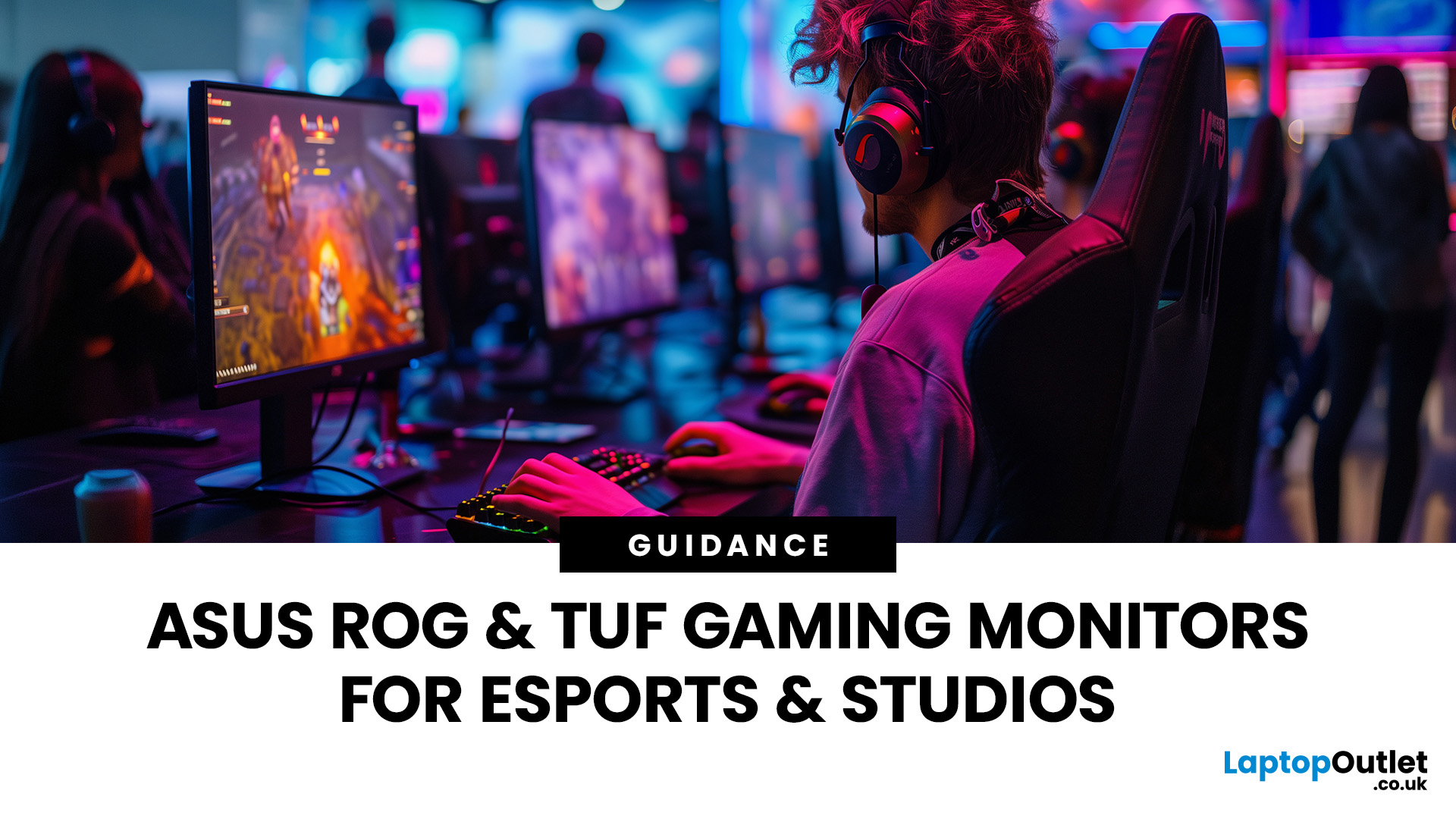
If you run an esports arena, gaming cafe, university esports lab, or content studio, your monitor choice is not a background decision. It directly affects performance, player satisfaction, brand perception, and long-term ROI. Competitive players notice the refresh rate instantly. Streamers notice colour accuracy. Venue owners notice durability. And everyone notices screen quality.
That’s why ASUS gaming monitors have become a staple across esports stages and gaming venues in the UK. From ultra-premium ASUS ROG gaming monitors built for tournament environments to scalable ASUS TUF gaming monitor options designed for multi-station rollouts, ASUS covers every level of competitive deployment.
If you're building or upgrading a gaming business, here’s what you need to know.
Why Esports & Gaming Businesses Choose ASUS
A single hardware issue during a tournament can damage a reputation fast. ASUS has built a strong position in esports by delivering consistency under pressure.
Brand Reputation
Last Updated: March 13, 2026
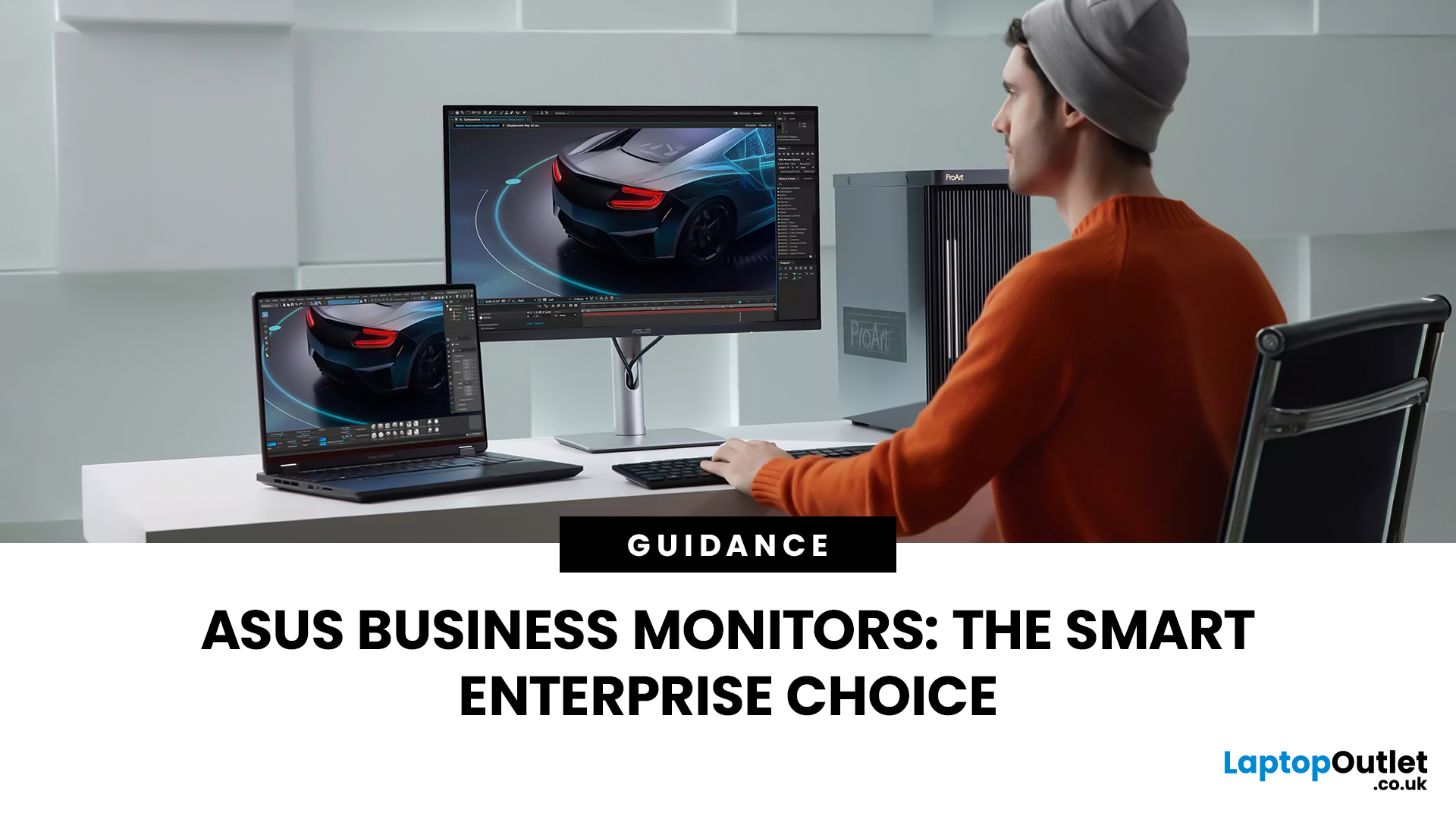
Modern workplaces are more screen-based than ever and in the UK, the average office employee now spends over 6 hours a day looking at a monitor. For businesses, that makes display choice more than just a tech detail; it’s a productivity and wellbeing decision.
The right ASUS business monitors can improve workflow efficiency, reduce eye strain, and support hybrid teams with flexible connectivity like USB-C docking. Whether you’re equipping a corporate office, a call centre, or a growing enterprise rolling out hundreds of workstations, choosing the right monitor spec matters.
In this buying framework, we’ll break down what UK organisations should prioritise, from screen size and ergonomics to ASUS Eye Care features, bulk purchasing, and the best monitor options for business use in 2026.
Why ASUS Monitors Work Well for Modern Workplaces

In today’s business environment, monitors are no longer just office accessories, they’re core productivity tools. From finance teams working across spreadsheets
Last Updated: March 13, 2026
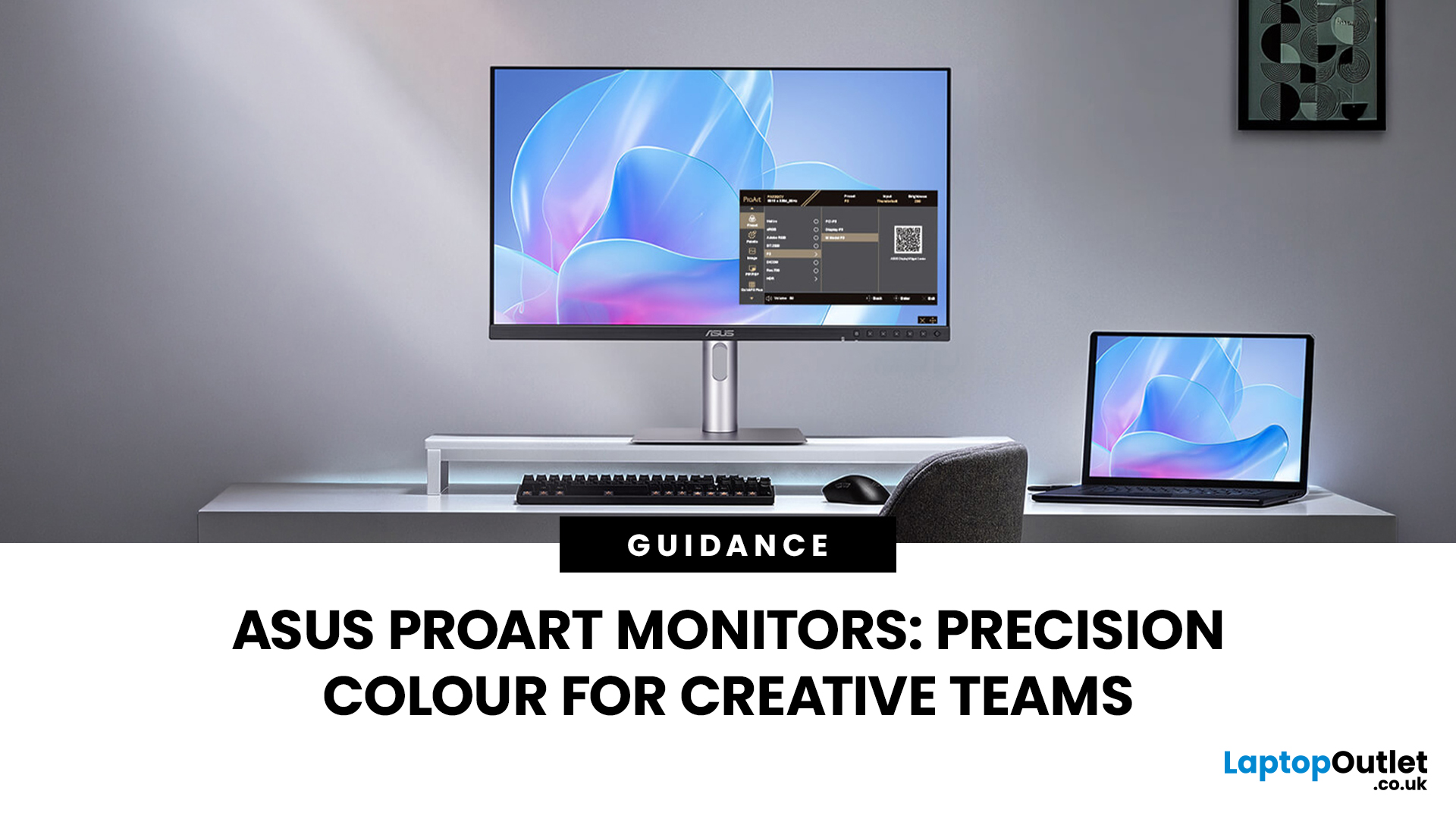
Creative work is more colour-critical than ever and studies show the average designer spends over 7 hours a day staring at a screen. That means your monitor isn’t just a display… it’s basically your studio. If colours are even slightly off, edits don’t match, prints come out wrong, and client work gets messy fast.
That’s where ASUS ProArt monitors come in. Built specifically for creators, they deliver factory-calibrated accuracy, wide colour coverage, and crisp 4K detail that makes photo editing, graphic design, and video workflows feel effortless. Whether you’re running a creative agency, an in-house design team, or a full studio setup, ProArt screens help you work with confidence, not guesswork.
Let’s break down what makes them worth it.
What Creative Teams Need from a Monitor
Not all monitors are built the same and creative teams feel that difference immediately. A standard office screen might be fine for spreadsheets, but when you’re adjusting skin tones, matching brand colours, or

