



All-in-One Printer Troubleshooting Guide: Common Issues and Fixes
If your printer is acting up, the short answer is this: most all in one printer problems are fixable without replacing the whole machine. The fastest wins usually come from checking the connection, clearing the print queue, confirming the right printer is selected, inspecting paper loading, and running the built-in cleaning or alignment tools before assuming the hardware has failed. Microsoft, Brother, Epson, Canon, and HP all point users toward those same basics first, which is a strong sign that the smartest troubleshooting is usually methodical, not dramatic.
That is exactly what this guide is here to do. Instead of giving you random fixes with no logic behind them, this article breaks down the most common all-in-one printer issues, shows what each symptom usually means, and explains the best way to fix it. So, whether your machine is offline, feeding paper badly, refusing to scan, printing faded documents, or suddenly producing blank pages like it has given up on communication, this guide will help you with practical multifunction printer troubleshooting and real-world printer problems and solutions.
Why all-in-one printer issues happen so often
All-in-one printers are convenient because they combine printing, scanning, and copying into one device, but that also means more moving parts, more settings, and more ways for something small to knock the whole setup off balance. A single machine may be juggling Wi-Fi, local drivers, scanner software, paper feed rollers, print-head or toner delivery, and queue management all at once. So, when the printer stops cooperating, the visible problem is not always the actual cause. A printer that looks dead may just be offline. A printer that looks like it has run out of ink may really have clogged nozzles or the wrong paper settings. A high-quality scanners that seems broken may only need the correct driver or network permission.
That is why good multifunction printer troubleshooting starts by identifying the category of the fault first. Is the issue related to connection, paper handling, print quality, or scanning? Once you know that, it becomes much easier to fix all in one printer problems without wasting time, ink, or patience. Epson's support hub separates printer issues into areas like general printing problems, maintenance, and quality faults, while Microsoft's current Windows support does the same with offline errors, queue issues, print quality, and printer recognition problems.
Common all-in-one printer issues at a glance
|
Problem |
What it usually means |
First thing to check |
|---|---|---|
|
Printer offline |
Wi-Fi, USB, or queue issue |
Restart printer and verify connection |
|
Blank pages |
Ink flow or cartridge issue |
Nozzle check, ink levels, cartridge fit |
|
Faded prints |
Low supplies or clogged nozzles |
Cleaning cycle and print settings |
|
Blurry prints |
Paper mismatch or alignment issue |
Media settings and alignment |
|
Smudged prints |
Dirty paper path or unsuitable media |
Internal cleaning and paper type |
|
Scanner not working |
Driver, network, or permissions issue |
Scanner software and network path |
Start here: fix the easy stuff first
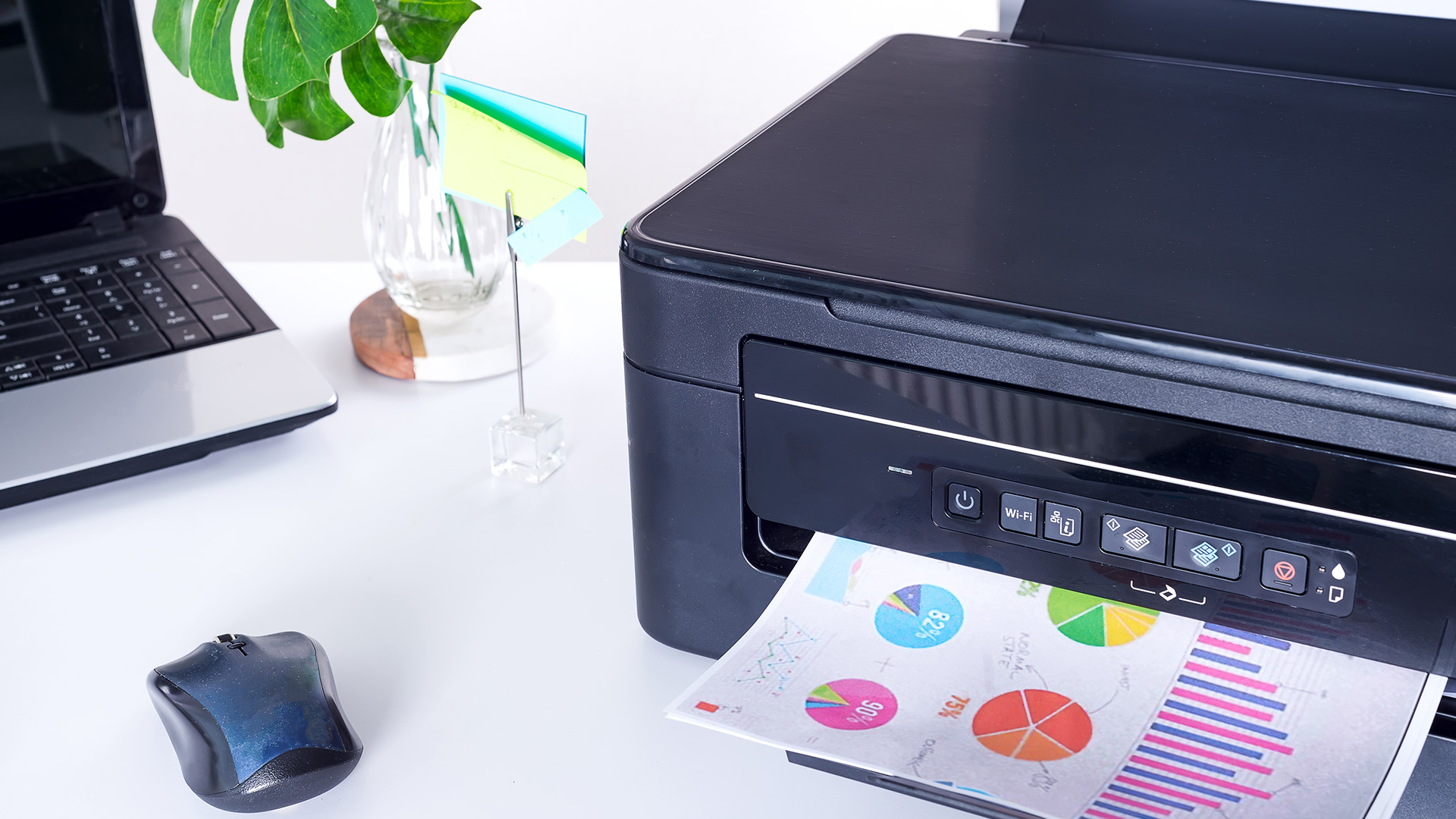
Before going deeper, do the quick checks that solve a surprising number of all-in-one printers not working complaints. Turn the printer off, unplug it, wait around 30 seconds, then reconnect and power it back on. Microsoft recommends restarting the printer early in the process because it can clear temporary faults and reset the connection state. If you are printing over Wi-Fi, make sure the printer is still connected to the same network as your laptop or PC. If you are using USB, make sure the cable is firmly connected and test another port if needed.
Next, check whether the printer is paused, marked offline, or buried under stuck print jobs. Brother's support guidance recommends clearing pending jobs, making sure “Use Printer Offline” is not enabled, and setting the intended printer as the default device. These are small fixes, but they often resolve jobs that appear to vanish into nowhere.
If the machine has a screen, read the error message before opening anything. A lot of users for the office or the home printers go straight to random troubleshooting when the display is already pointing to the real problem. Paper jam, low ink, offline, or scanner communication messages usually tell you which path to follow next.
Fast checks when an all-in-one printer is not working
- Restart the printer
- Restart your laptop or PC
- Confirm the printer is on the same network
- Make sure it is not paused or offline
- Clear stuck print jobs
- Check that the correct printer is selected
- Print a test page
All-in-one printer not working? Focus on connection and drivers
When an all-in-one printer not working issue appears, the cause is often connection or software rather than hardware failure. Microsoft's current Windows guidance for offline and connection problems recommends checking the network connection, running the built-in troubleshooter, removing and re-adding the printer, and reinstalling the printer if needed. It also has separate troubleshooting for “printer not found” and related recognition problems, which shows how often the problem is communication rather than the printer itself.
Brother's official support adds another useful step: verify that the active driver on your system is actually the right one and that it is set as default. If the wrong driver is selected, the printer can look unavailable even when it is connected just fine. That is one of the most common invisible causes behind fix all in one printer issues quickly searches.
If the printer still refuses to respond, update or reinstall the drivers. Epson's support hub recommends downloading the latest model-specific drivers and software from the manufacturer because updated packages can resolve printing and communication faults, especially after operating-system changes or network resets.
So, if you are wondering how to fix an all-in-one printer that looks fully unresponsive, start with this order: restart it, verify the connection, clear the queue, confirm the right printer is selected, and reinstall the driver only after those steps. That sequence solves a lot of everyday printer problems and solutions without any hardware repair at all.
Paper jams and feed errors: solve the real cause, not just the stuck sheet
Paper jams are one of the most common all in one printer problems, but the visible jam is often only part of the issue. Brother's paper-jam guidance says to remove the jammed paper carefully, check for scraps left inside, confirm the paper guides are adjusted correctly, avoid overloading the tray, and clean the pick-up rollers if dust has built up. It also notes that the printer display often tells you where the jam is, which is more useful than opening random covers and hoping for the best.
Repeated jams often point to setup rather than bad luck. If the paper is curled, damp, overloaded, or poorly aligned, the same fault can keep coming back. That is why one of the best ways to fix all-in-one printer issues is to check the tray setup and paper condition before assuming anything mechanical is broken. Clean, flat paper and properly adjusted guides make a bigger difference than people expect.
Paper jam troubleshooting steps
- Read the error message on the printer display
- Open the correct tray or access panel
- Remove the paper gently without tearing it
- Check for small scraps left inside
- Re-align the paper guides
- Reload clean, flat paper
- Run a test print
All-in-one printer printing blank pages
An all-in-one printer printing blank pages is one of the most confusing faults because the machine still sounds like it is working. The paper feeds through, the print job finishes, and yet the result is a completely empty sheet or a page with barely visible marks. Epson says one of the first things to do is run a nozzle check, because faint or missing output can indicate clogged print-head nozzles. If the pattern is broken, a print-head cleaning cycle is the next step.
Canon's print-quality guidance adds a few more checks: confirm that the cartridge is installed properly, make sure the paper is loaded on the correct printable side, and review whether the paper type settings match what is actually in the tray. HP's support for blank-page printing also describes this problem as pages printing fully blank, partly blank, or with very little ink, which lines up with the same root causes: ink delivery, cartridge setup, and print quality settings.
So if you need to fix all in one printer problems involving blank pages, use this order: check supplies, run a nozzle or test print, clean the print head if needed, confirm cartridge installation, and verify the paper and print settings. It is one of the clearest examples of why structured printer problems and solutions work better than guessing.
Why blank pages happen
- Low or empty ink / toner
- Clogged print-head nozzles
- Cartridge not seated properly
- Wrong paper side or paper settings
- Ink flow problem after long inactivity
All-in-one printer faded prints
If your documents look weak, patchy, or washed out, you are likely dealing with all-in-one printer faded prints. Epson's official guidance for faint printouts recommends a nozzle check, print-head cleaning, checking ink levels, confirming the paper type setting, and aligning the print head if necessary. It also notes that more intensive cleaning cycles use more ink, so standard cleaning should come first.
Microsoft's current print-quality help adds that faded or streaked prints can also be caused by incorrect printer settings, outdated drivers, low supplies, or paper/resolution mismatches. That matters because faded output is not always a supply problem. Sometimes the printer is functioning, but the settings are working against the job you are trying to print.
The best way to fix all in one printer issues quickly here is to check supplies, run the standard maintenance tools, and make sure the print mode and paper settings match the actual document. If the output improves after cleaning or alignment, the issue was maintenance. If it stays faint and supplies are low, cartridge or toner replacement becomes the logical next step.
All-in-one printer blurry prints
All-in-one printer blurry prints usually point to a settings mismatch, alignment issue, or unsuitable paper rather than a dead printer. Microsoft says blurry, faded, or streaked output can result from incorrect settings, old drivers, low ink or toner, or mismatched paper type and resolution. Canon also notes that loading paper on the wrong printable side or using the wrong settings can reduce print quality and make output look unclear.
That means the fix is often surprisingly practical. Check that the selected media type matches the paper in the tray, confirm the print-quality setting is appropriate for the job, and run alignment tools if the printer offers them. Many users assume blur means “hardware failure,” when in reality it is one of the most fixable all-in-one printer issues once the setup is corrected.
All-in-one printer smudged prints
All-in-one printer smudged prints are usually about contact and contamination. Canon's support says smudged output or scratched print surfaces can be caused by inappropriate paper, the environment, or internal staining. It recommends confirming the paper and print quality settings, using suitable media, and cleaning the printer internally when necessary. Some Canon models also allow users to increase ink drying wait time or use image-quality adjustments when smudging keeps happening.
Epson likewise points users toward cleaning and maintenance when quality problems continue, especially when the paper path may be contributing to dirty or inconsistent output. So if your pages look marked rather than faint, the real job is not “more ink.” It is usually better paper choice, more drying time, or cleaning the inside of the printer.
Print quality comparison table
|
Print issue |
What it looks like |
Likely cause |
Quick fix |
|---|---|---|---|
|
Blank pages |
No text or image at all |
Clogged nozzles or empty supply |
Nozzle check and head cleaning |
|
Faded prints |
Weak text or pale colour |
Low ink / clogged nozzles / poor settings |
Clean, align, check supplies |
|
Blurry prints |
Soft or unclear output |
Paper mismatch or alignment issue |
Correct media settings and align |
|
Smudged prints |
Marks, streaks, or dirty edges |
Dirty paper path or wrong media |
Internal cleaning and better paper |
Scanner not working on an all-in-one printer
Printing and scanning often fail for different reasons, which is why a machine can print perfectly but refuse to scan. Brother's network-scanning support says to confirm the scanner driver is installed, verify the correct scanner appears in the software, and check that the device's IP address and network setup are correct. If the scanner driver is missing, Brother recommends installing the full driver and software package.
Brother also notes that if the machine still cannot scan after the standard checks, reinstalling the Brother software and drivers may be necessary. That makes scanning issues one of the clearest examples of a problem that looks like hardware but is often software, network, or permissions related.
So, if scanning is your main issue, the best path is this: confirm the printer can still print, verify the scanner software sees the device, check the network path, and reinstall the full software package if needed. That is often the fastest way to fix all in one printer issues quickly without touching the hardware at all.
Scanner troubleshooting panel
- Confirm the printer can still print normally
- Open the scanning app and check the selected device
- Make sure the scanner driver is installed
- Verify the printer's IP / network connection
- Review firewall or local network permissions
- Reinstall the full software package if needed
How to fix an all in one printer: the smartest order to follow
One of the biggest reasons troubleshooting feels exhausting is that people do the right steps in the wrong order. They replace ink before checking whether the nozzles are clogged. They reinstall drivers before confirming the printer is simply offline. They keep clearing jams without looking at the paper guides or roller dust.
A better sequence looks like this: restart the printer, verify the connection, clear the queue, confirm the right printer is selected, read any status message, inspect the paper path, run a test page or nozzle check, then use cleaning, alignment, or software reinstallation only if the earlier steps do not solve it. That approach lines up closely with the official support flow from Microsoft, Brother, Epson, Canon, and HP.
This is the real answer to how to fix an all in one printer without wasting money. Most faults are easier to solve when you match the symptom to the right category first, then move through the fix in a calm order.
Troubleshooting flowchart
Is the printer turning on?
- No: Check power cable and plug
- Yes: Continue
Is it offline or not found?
- Yes: Check Wi-Fi / USB / driver / queue
- No: Continue
Is paper feeding properly?
- No: Clear jam, recheck guides, clean rollers
- Yes: Continue
Is print quality poor?
- Yes: Run test page, nozzle check, cleaning, alignment
- No: Continue
Is printing fine but scanning failing?
- Yes: Check scanner software, driver, and network permissions
When it makes sense to replace the printer instead
Not every problem should turn into an endless repair project. If the printer keeps going offline, jams repeatedly even with correct loading, produces poor print quality after maintenance, and struggles with both printing and scanning despite updated drivers, the issue may no longer be a quick fix. That is not a single support-page rule so much as a practical conclusion from the official troubleshooting flows: when the standard steps no longer solve recurring faults, long-term reliability becomes the real problem.
That is the point where it makes sense to shop all-in-one printers rather than keep forcing a machine that is costing you time every week. If you print high volumes, work with teams, or need dependable everyday output, it may be smarter to compare printers for office use. If your printing needs are lighter, affordable home printers may offer better value with less stress. And if scanning is a key part of your workflow, it is worth comparing high-quality scanners too, especially for paperwork-heavy setups. If you are still weighing features, budgets, and print volumes, it also helps to explore printer options more broadly or keep this article bookmarked as your guide to all-in-one printers when comparing models.
Repair or replace decision chart
|
Situation |
Keep troubleshooting |
Consider replacement |
|---|---|---|
|
One-off offline issue |
Yes |
No |
|
Occasional paper jam |
Yes |
No |
|
Quality improves after cleaning |
Yes |
No |
|
Scanner issue fixed by reinstalling software |
Yes |
No |
|
Frequent repeated jams |
Maybe |
Yes |
|
Persistent blank or faded pages after maintenance |
Maybe |
Yes |
|
Ongoing driver and connection issues |
Maybe |
Yes |
|
Multiple functions failing together |
No |
Yes |

Final thoughts
Most all in one printer problems are not as mysterious as they first seem. They usually come back to the same core areas: connection, consumables, paper handling, maintenance, and software. Once you identify which one you are dealing with, the fix becomes much more straightforward. Microsoft, Brother, Epson, Canon, and HP all point users toward that same practical pattern: start simple, follow the symptom, and only escalate when the easy fixes have been ruled out.
So, if you are trying to fix all in one printer issues, the best move is not panic. It is process. Restart the printer, check the connection, confirm the driver, clear the queue, inspect the paper path, and use the built-in maintenance tools before assuming the printer is done. That is still the fastest way to solve every day all-in-one printer issues and the most practical answer to how to fix an all in one printer without turning a small fault into a bigger one.

Common Question People Ask
Why is my all-in-one printer not working?
This can happen because of connection issues, driver problems, paper jams, or low ink and toner levels.
Why is my all-in-one printer printing blank pages?
Blank pages are often caused by clogged print heads, empty cartridges, or incorrect print settings.
How do I fix faded or blurry prints?
Check ink or toner levels, clean the print head, align the printer, and make sure the correct paper settings are selected.
Why does my all-in-one printer keep going offline?
This usually happens because of unstable Wi-Fi, outdated drivers, or incorrect printer settings on your computer.
When should I replace my all-in-one printer?
If it has repeated faults, poor print quality after troubleshooting, and frequent connection or scanning issues, replacement may be the better option.
| Read More: |
| Everything You Need To Know About All-in-One Printers |
| All-in-One Printer Setup Guide: How to Install and Configure Easily |
| How to Maintain an All-in-One Printer for Long-Term Use |
Related Articles

Last Updated: April 22, 2026
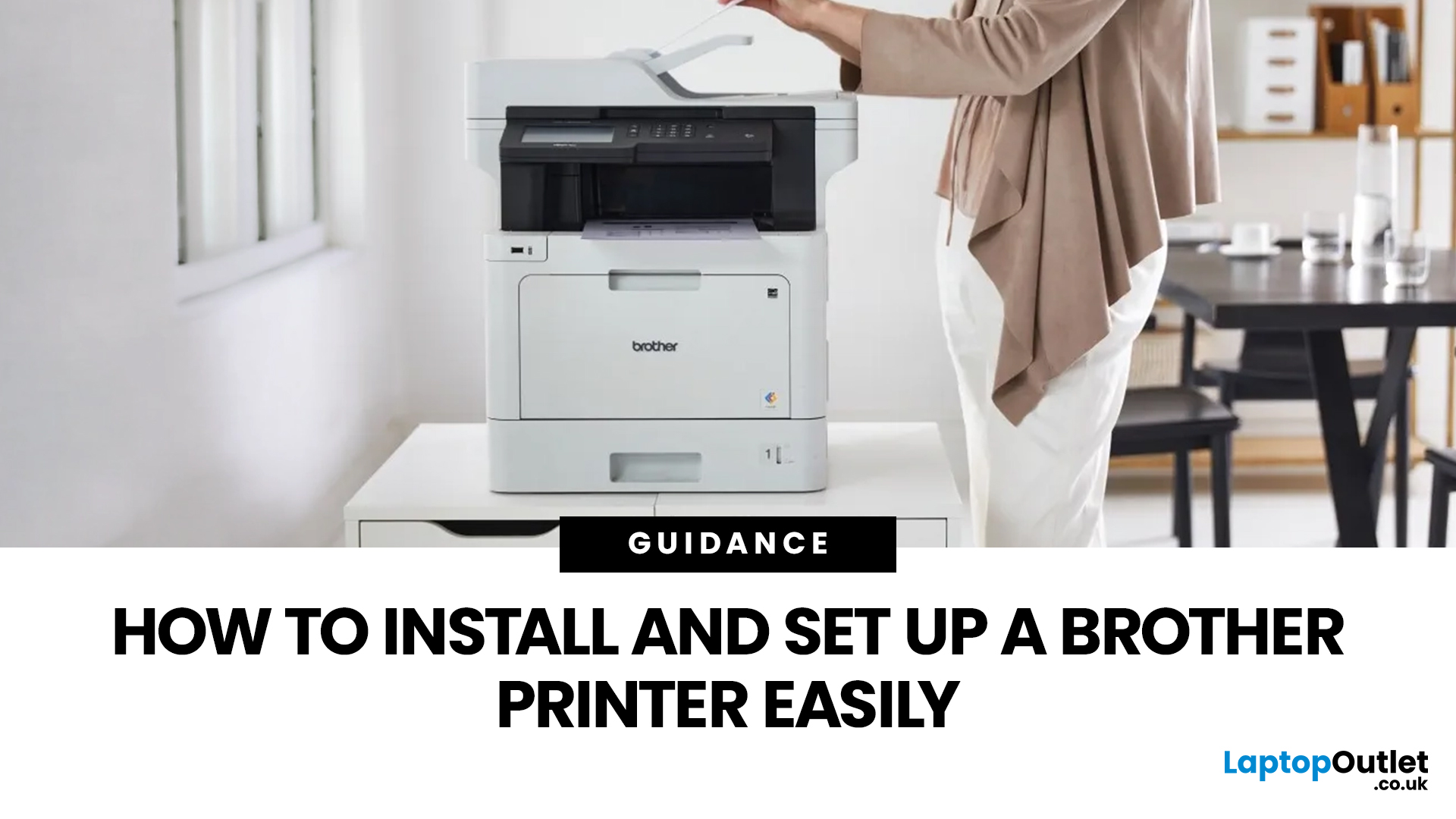
Setting up a new printer should be simple, but for many users, it can quickly become confusing. From installing toner to connecting to Wi-Fi and downloading drivers, even small steps can feel overwhelming if you are not sure what to do first.
This guide is designed to make Brother printer setup straightforward and stress-free. Whether you are installing a printer for the first time, replacing an old device, or setting up a wireless connection in a home or office environment, this step-by-step guide will walk you through everything you need to know.
By the end of this guide, you will have your Brother printer fully installed, connected, and ready to use.
Before You Start: What You Need for Brother Printer Setup
Before jumping into the installation process, it helps to prepare everything in advance. This avoids interruptions and makes the setup process much smoother.
You will typically need:
- Your Brother printer
- Power cable
- Ink cartridges or toner (included with most models)
- Paper for testing
Last Updated: April 22, 2026
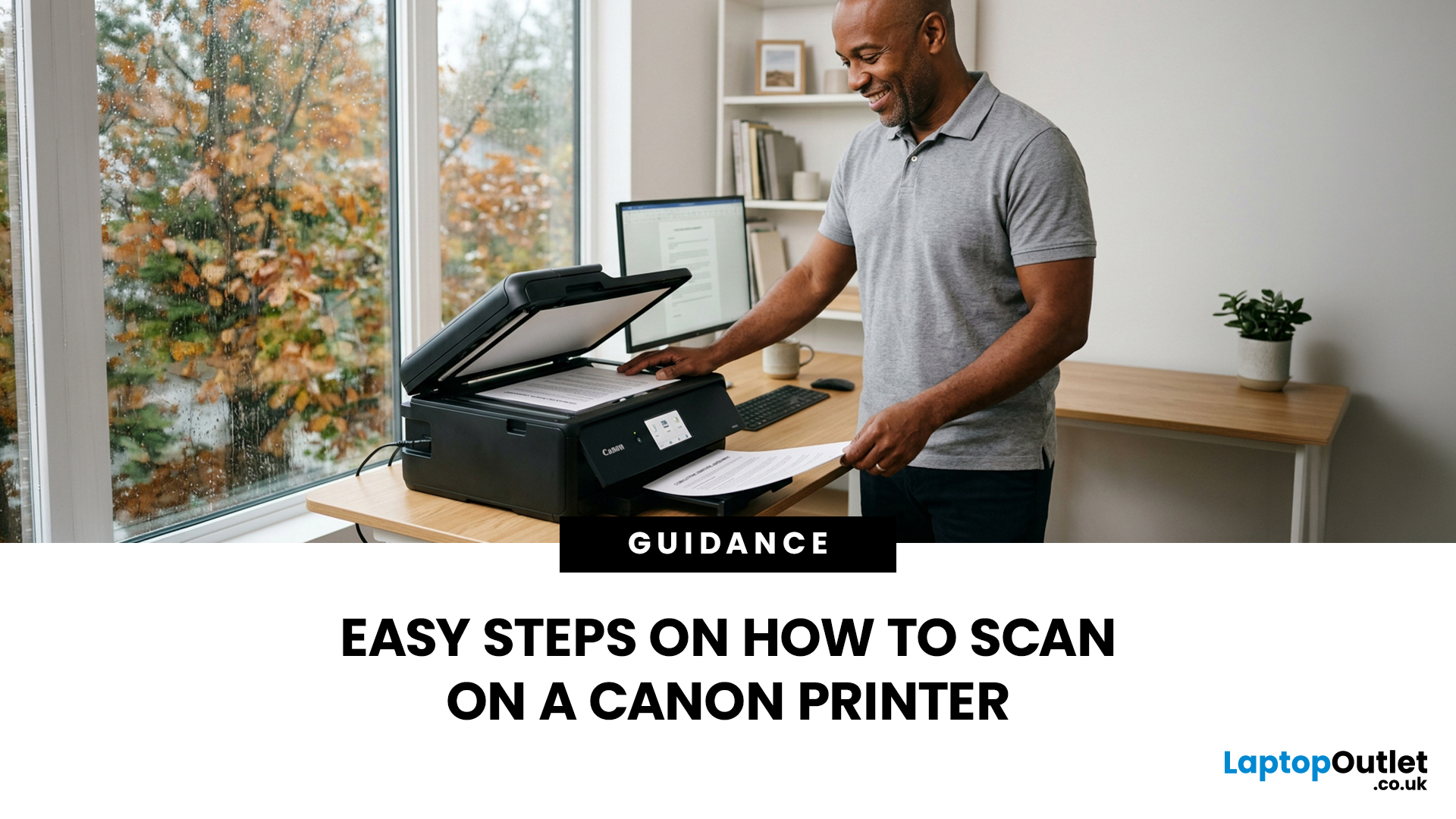
Canon makes some of the most popular multipurpose printers on the market, and for good reason. They're reliable, straightforward to use, and the scanning function is genuinely one of the better ones you'll find on a home or office printer. But if you've never used it before, staring at the control panel wondering where to start is a perfectly normal experience.
This guide covers everything you need to know to scan a document on a Canon printer, whether you're on Windows, Mac, or going straight from the printer itself. No fluff, just the steps that actually work.
Get These Things Sorted Before You Start
You don't need much to get going, but skipping these checks is how people end up wasting twenty minutes troubleshooting something obvious.
Make sure your Canon printer is switched on and connected to your computer, either by USB or over Wi-Fi. If it's a wireless connection, both your printer and computer need to be on the same network. Also confirm that your Canon drivers are installed.
Last Updated: April 22, 2026
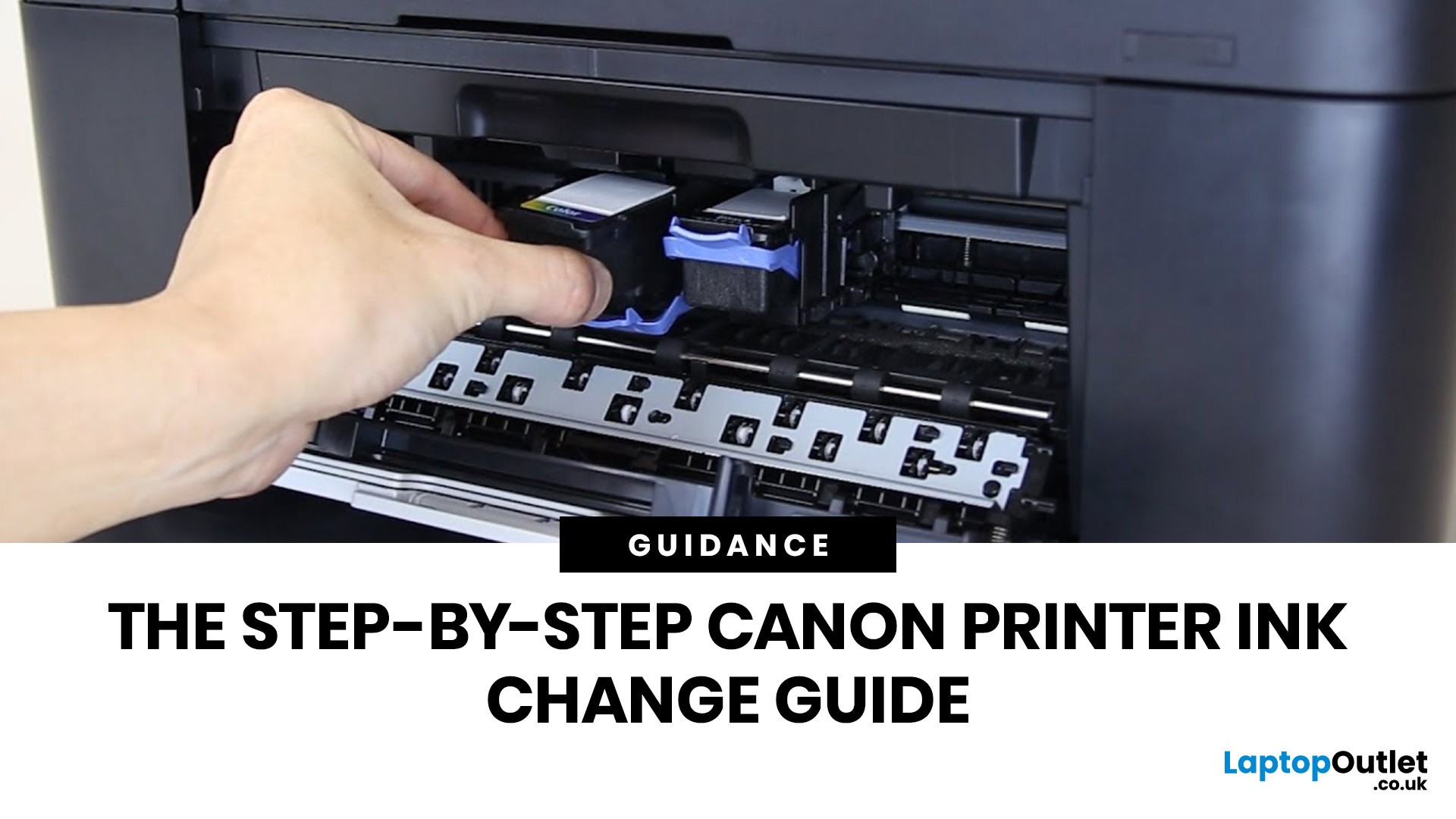
Running out of ink at the wrong moment is genuinely frustrating. Knowing how to change ink in a Canon printer quickly and confidently means less downtime, less wasted paper, and no panicked Googling mid-print.
Canon makes some of the most reliable inkjet printers on the market, and replacing the ink is one of those tasks that feels daunting the first time but becomes routine very quickly. This guide covers everything from the tools you need to the steps themselves, plus tips on cartridge costs, common mistakes, and what to do if problems persist after installation.
What You Need Before You Start
Before diving into the steps, it's worth taking a moment to get everything in order. A well-prepared workspace makes a Canon printer cartridge change much smoother and avoids unnecessary mess or confusion.
Here's what to have ready:
- The correct replacement cartridge for your specific Canon model
- A clean, flat surface to work on
- A tissue or lint-free cloth for any small drips
Always check your
Last Updated: April 22, 2026
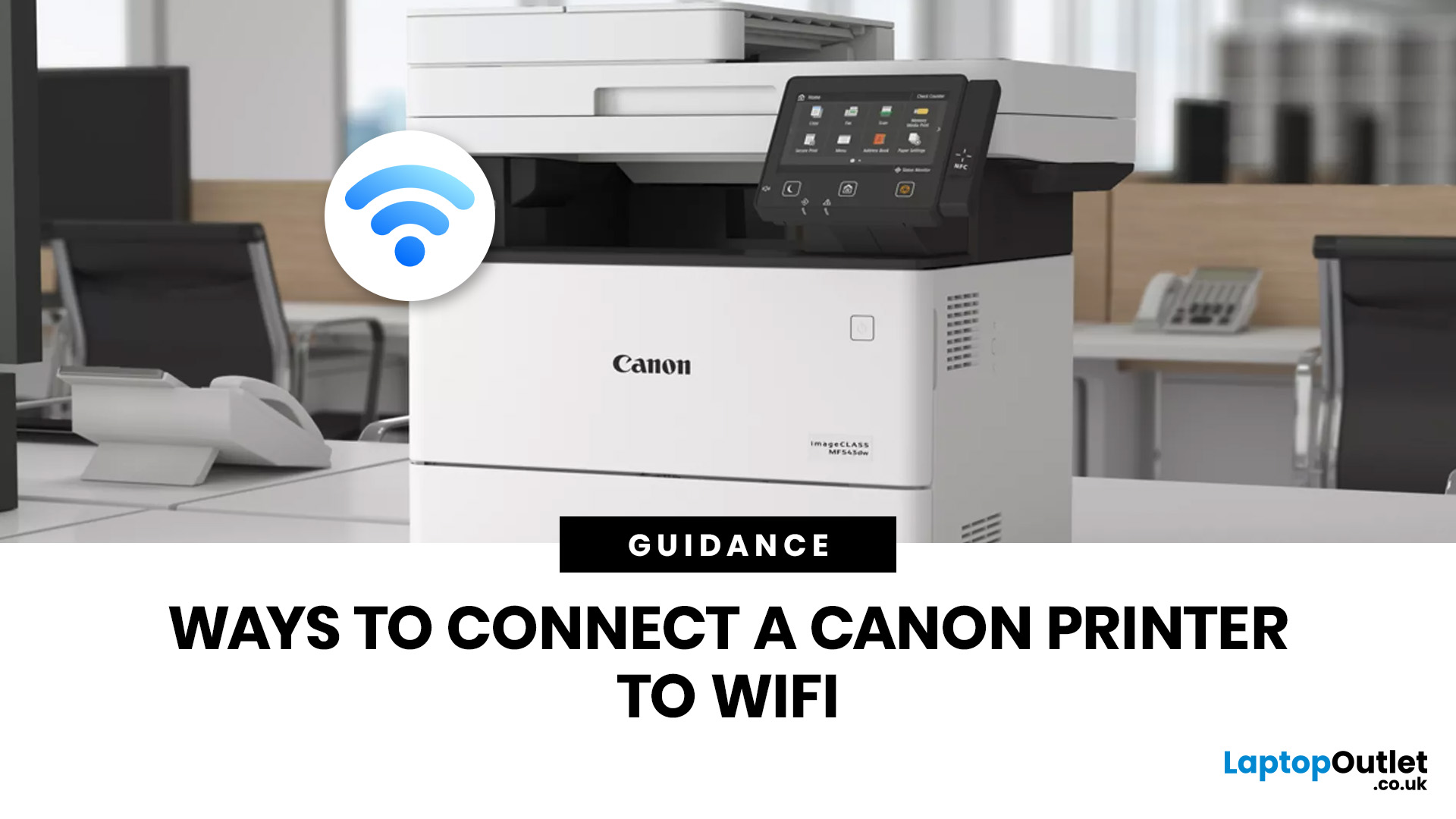
Getting your Canon printer onto your home or office WiFi is easier than you might think. This guide covers every method available to help you connect Canon printer to WiFi, whether you have a touchscreen model, a basic entry-level printer, or you prefer to set things up from your phone. We have also included a troubleshooting section at the end for when things do not go quite to plan.
What to Have Ready Before You Begin
It is worth taking two minutes to gather everything before you start setting up Canon printer to WiFi, as it will save you stopping halfway through. Most connection problems come down to one missing detail at this stage.
Here is what you will need:
- Your WiFi network name (SSID) and password (case-sensitive)
- A Canon wireless printer with the WiFi indicator light present
- The Canon PRINT Inkjet/SELPHY app if you plan to set up via smartphone
One thing worth checking: most Canon
Last Updated: June 05, 2026
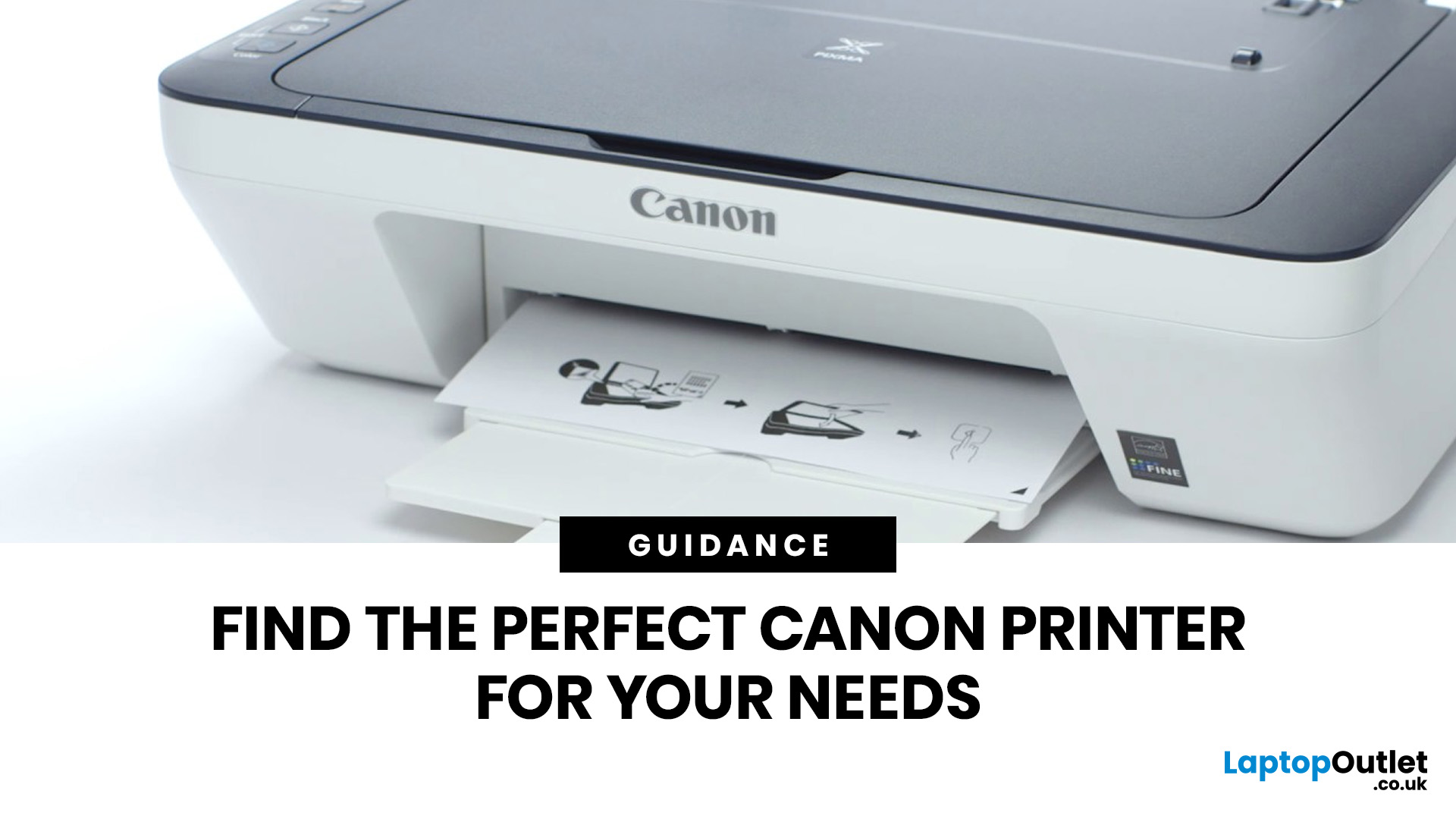
Buying a new printer sounds straightforward until you're faced with dozens of models, confusing specs, and overlapping features. If you're specifically looking at the best Canon printers, you've already made a solid start. Canon is one of the most trusted names in printing, with a range that covers everything from budget-friendly home models to high-volume business workhorses.
This Canon printer buying guide walks you through every series, every key feature, and every use case, so you can buy with confidence and get exactly what you need.
Start With Your Printing Needs and Usage Type
Before choosing a Canon printer, it is important to understand how often you will use it and what tasks you need it for, as this directly affects performance, features, and overall cost. A clear understanding of your usage helps narrow down the best options quickly.
Light Home Use Vs Heavy Office Workloads
If you only print occasionally, such as documents, tickets, or homework, basic home printers are usually

Last Updated: April 22, 2026
Printers are one of those devices you only notice when something goes wrong. One day everything works fine, and the next day your printer refuses to print, shows as offline, or gets stuck with a paper jam. These issues can be frustrating, especially when you need something printed urgently.
The good news is that most Brother printer problems are not serious. In many cases, the issue is related to setup, connectivity, or simple maintenance rather than a fault with the printer itself. Once you understand how to diagnose and fix these problems, you can save time and avoid unnecessary replacements.
This guide covers the most common Brother printer issues and provides clear, practical solutions. Whether you are using a home printer, a multifunctional device, or a printer for office use, this troubleshooting guide will help you get things working again quickly.
Understanding Common Brother Printer Problems
Before jumping into fixes, it helps to understand why problems occur in the first place.
Last Updated: April 22, 2026
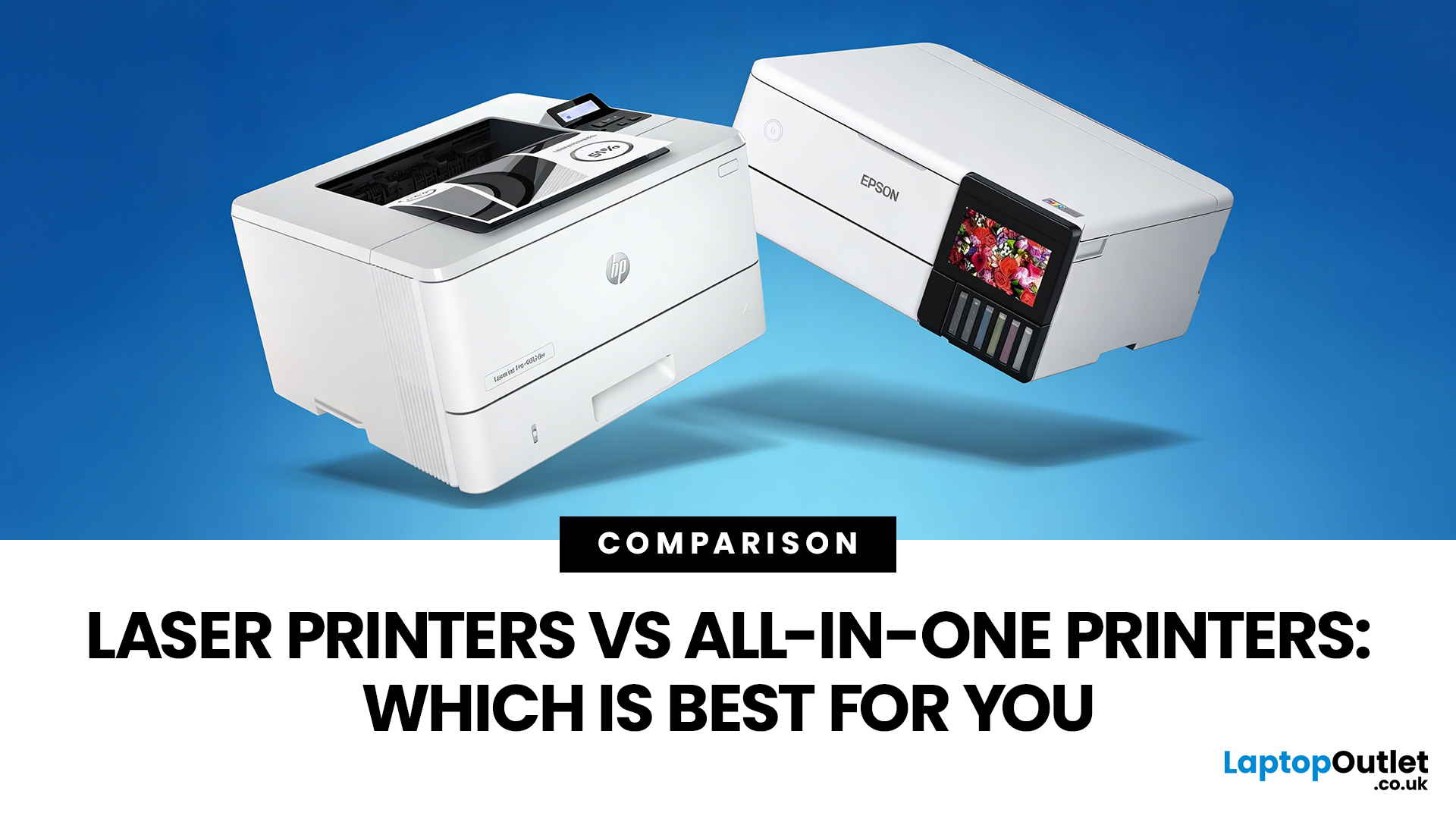
Choosing between Laser printers vs all-in-one printers sounds simple until you realise the two terms do not describe the same thing.
A Laser printer refers to the way the printer works. An all-in-one printer refers to the machine's capabilities, usually printing, scanning, and copying in one unit. That means some all-in-one printers are Laser models, while others are inkjet. So, when people compare all-in-one vs Laser printers, what they are really trying to work out is whether they need stronger print performance or broader day-to-day flexibility.
For some buyers, the Laser is the clear winner. For others, an all-in-one makes far more sense. The right choice depends on how often you print, what you print most, and whether scanning and copying matter as much as printing itself.
If your priority is fast document printing, crisp text and lower running costs over time, a Laser model is usually the smarter fit. If you want one machine that can handle household paperwork, scanning, copying and

Last Updated: April 22, 2026
If most of your printing revolves around invoices, reports, coursework, labels, forms, shipping documents, and everyday admin, a Laser printer usually makes more sense than many buyers first realise. A lot of people still think of Laser printers as large, office-only machines built for big companies, but that view is out of date. Today, you can find compact monochrome models for home desks, colour models for presentation-heavy work, and multifunction machines that print, scan, copy, and fax without dominating your space.
That matters because the right Laser printer can save time every week, keep text consistently sharp, reduce day-to-day hassle, and lower running costs when your workload is document-heavy. The wrong one can leave you paying extra for features you never use or relying on a machine that isn't actually built for the way you print.
This guide explains how Laser printers work, where they perform best, the main advantages and disadvantages to weigh up, and which features matter

Published: April 13, 2026
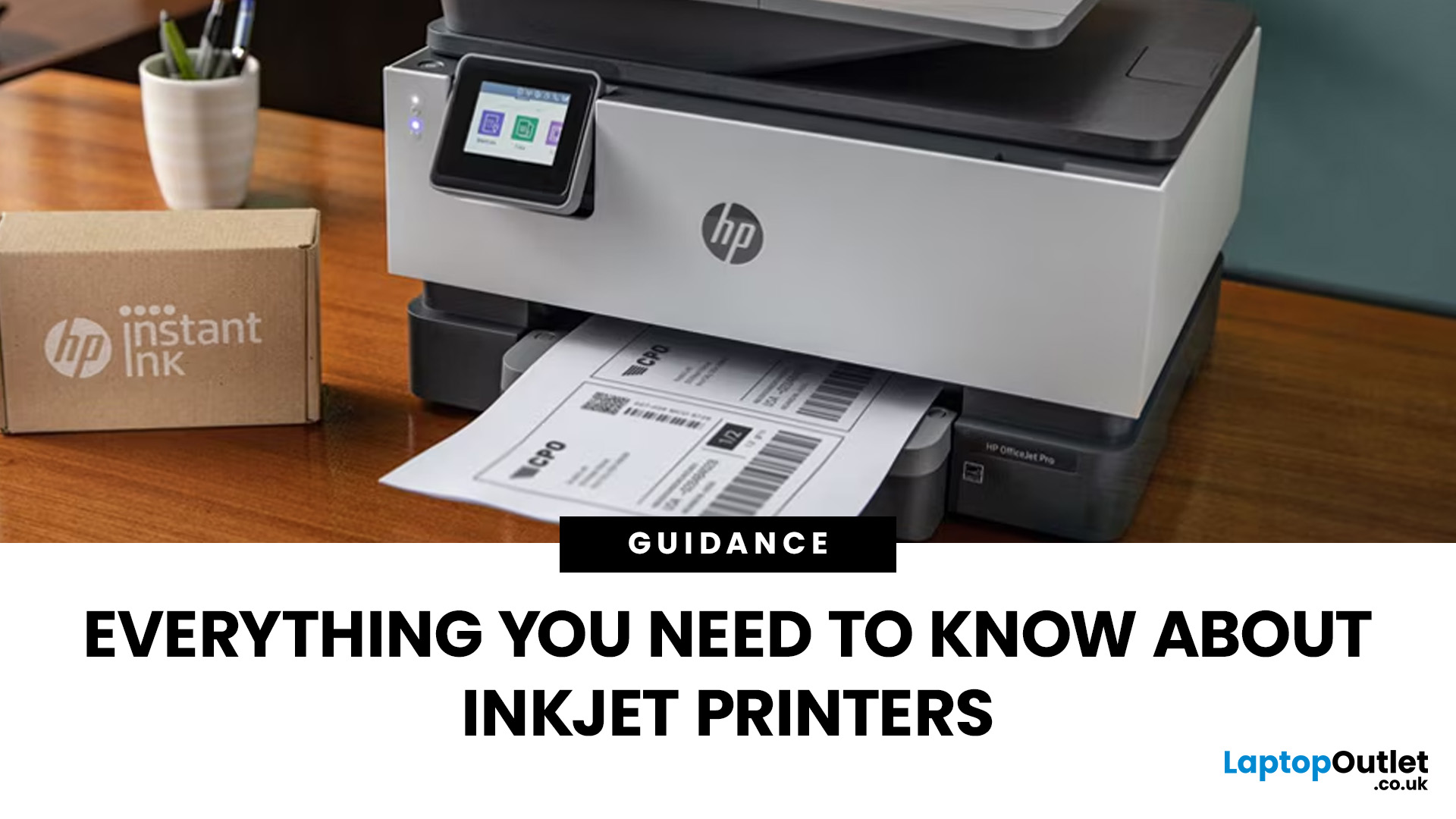
Inkjet printers are one of the most widely used printing solutions across UK homes, students, and small offices. They are affordable, versatile, and capable of producing high-quality colour output. But if you have used one for any length of time, you already know they can also be frustrating.
From faded prints to clogged nozzles and random error messages, inkjet printer problems are common. The good news is that most of these issues are not serious faults. In many cases, they are caused by usage habits, maintenance gaps, or simple setup errors. This guide goes beyond quick fixes. It explains why these problems happen, how to fix them properly, and how to prevent them in the future so your printer stays reliable long-term.
Why Inkjet Printer Problems Are So Common
To understand inkjet printer troubleshooting, you need to understand how these printers work in real use. Unlike laser printers, inkjet printers rely on liquid ink. That ink is pushed through extremely small nozzles to create
Last Updated: April 14, 2026
Buying a printer sounds simple until you start comparing print types, running costs, features, and maintenance. That is usually where inkjet models come into the picture. They are widely used, available at different price points, and often marketed as flexible printers for home and small office use. Even so, many buyers still have the same questions: what is an inkjet printer, how does it work, and is it the right fit for the way you print?
This inkjet printer guide breaks it down properly. It covers how inkjet printers work, the main types available, the real cost of ownership, how they compare with laser options, and what you need to know before buying one. Whether you need a printer for occasional homework, colour documents, creative work, or general home use, understanding the strengths and limits of inkjet printing makes it much easier to choose well.
What is an Inkjet Printer?
When people ask what is an inkjet printer, the simplest answer is that it is the most common type of printer

