



HP Printer Buying Guide: How to Choose the Right One
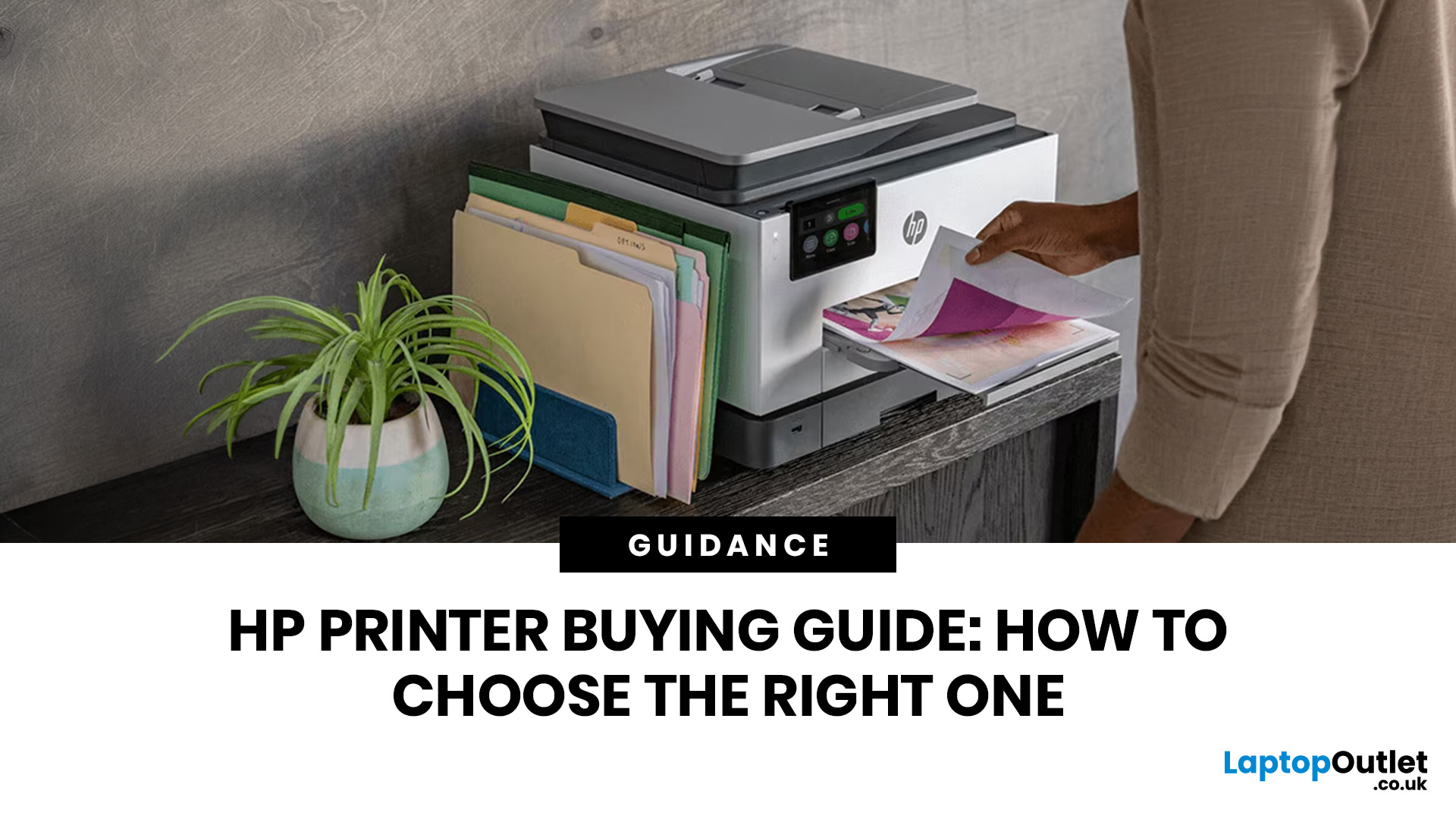
The best HP printer depends on what you print, how often you print, whether you need scanning or copying, and how much you want to spend on ink or toner. For home users, an HP inkjet or all-in-one printer is usually the best choice. For offices and small businesses, HP OfficeJet, LaserJet or multifunctional printers are better for speed, reliability and heavier workloads.
Buying a printer can feel confusing because HP offers many different models for different users. Some are made for simple home printing. Some are designed for students and families. Others are built for small businesses, offices, shipping labels, high-volume printing or professional document handling. That is why choosing the right printer is not just about finding the cheapest model. It is about understanding your print habits, running costs, space, connectivity and long-term needs.
This HP printer guide 2026 will take you from basic printer knowledge to more advanced buying terms, so whether you are buying your first printer or upgrading an office setup, you will know exactly what to look for.
What to consider before buying an HP printer
Before comparing models, ask these questions:
|
Question |
Why it matters |
|
What do you print most? |
Documents, photos, labels and reports need different printer types. |
|
How often do you print? |
Light users and daily users need different running-cost plans. |
|
Do you need scanning or copying? |
If yes, choose an all-in-one or multifunctional printer. |
|
Do you print mostly colour or black-and-white? |
Colour printing affects ink cost and printer choice. |
|
Is it for home, study or office use? |
Workload determines speed, paper capacity and durability. |
|
Do you want wireless printing? |
Wi-Fi and mobile printing are essential for modern homes and teams. |
|
Are ink costs important? |
Running cost can matter more than the printer’s upfront price. |
For most buyers, the best starting point is to browse the wider range of affordable printers, then narrow the choice by printer type, features and expected usage.
HP printers explained: main printer types
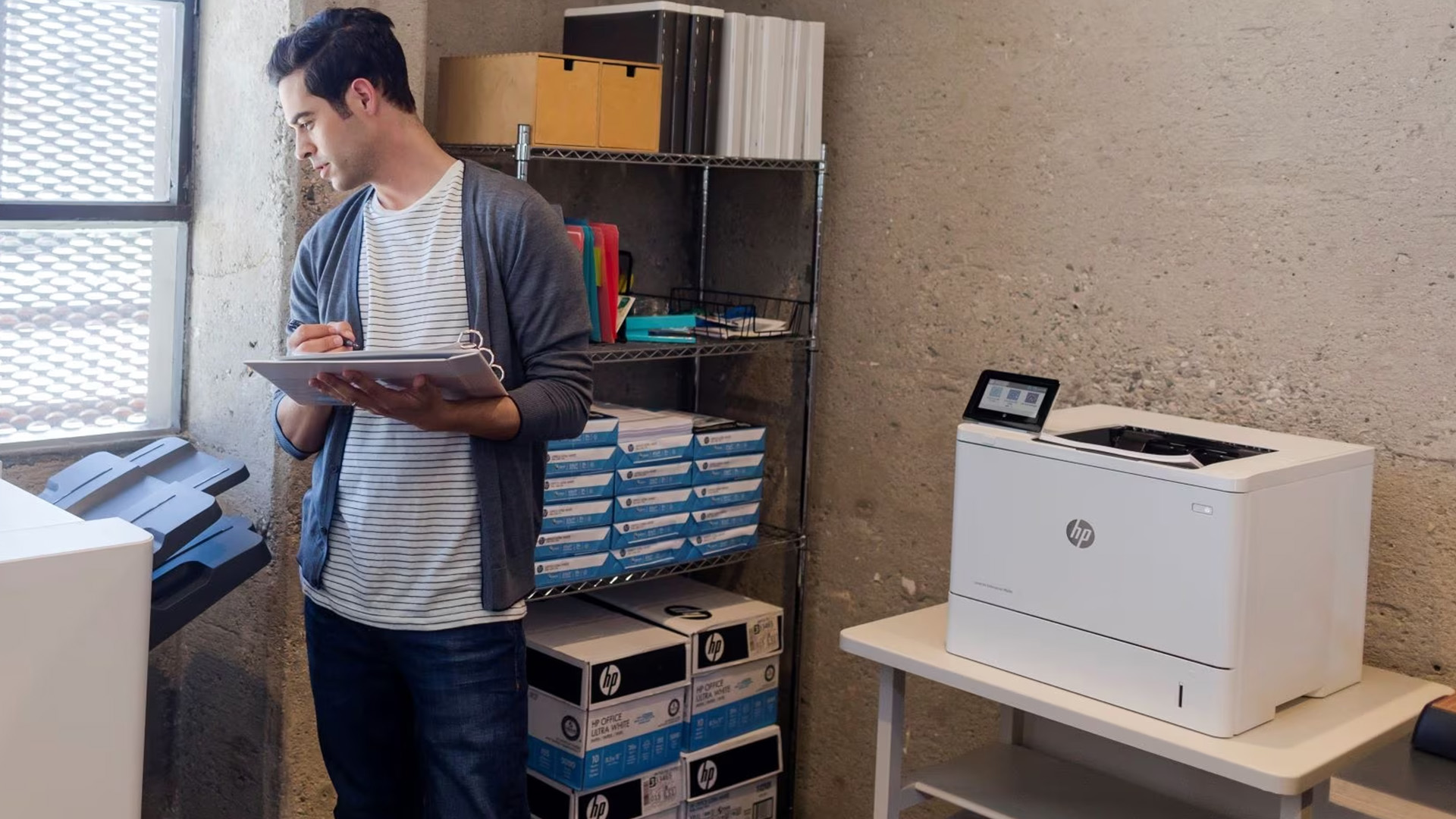
HP printers generally fall into a few major categories: inkjet, all-in-one, office, laser-style, Smart Tank and label printers. Each one suits a different kind of user.
1. HP inkjet printers
Inkjet printers use liquid ink to produce text, colour graphics and images. HP’s own buying guidance explains that inkjet printers are usually best for vibrant colour prints, photos and creative tasks, while also being more affordable upfront than many laser printers.
Choose an HP inkjet printer if you print:
- schoolwork
- occasional documents
- colour pages
- photos
- creative projects
- home admin paperwork
Inkjet printers are usually compact and affordable, making them a good choice for homes, students and occasional users. The main thing to watch is ink cost. If you print often, cartridges can become expensive unless you choose a model with efficient cartridges, refillable tanks or a subscription such as HP Instant Ink.
2. HP all-in-one printers
Multifunctional printers, also called all-in-one printers, can print, scan and copy. Some models also include fax. These are usually the best choice for home offices, families, students and small businesses because they handle several jobs in one device.
Choose an HP all-in-one printer if you need to:
- scan ID documents
- copy forms
- print schoolwork
- digitise paperwork
- print and scan invoices
- handle home-office admin
For most people, an all-in-one is more useful than a print-only model because scanning and copying often become necessary later.
3. HP office printers
Printers for office use are designed for regular, higher-volume printing. They usually offer faster speeds, larger paper trays, better durability and stronger connectivity than basic home printers.
Choose an office printer if you print:
- invoices
- reports
- contracts
- business documents
- staff paperwork
- forms and records
The best HP printers for small businesses are usually office-focused models because they are built to handle more pages with fewer interruptions.
4. HP LaserJet-style printers
Laser printers use toner rather than liquid ink. HP explains that inkjet and laser printers work differently: inkjets spray liquid ink through microscopic nozzles, while laser printers use toner powder and heat to create prints.
Laser-style HP printers are usually better for:
- fast text printing
- sharp black-and-white documents
- office paperwork
- higher monthly print volumes
- users who do not need photo-quality colour
They often cost more upfront than basic inkjets, but they can be better value for heavy document printing.
5. HP Smart Tank printers
HP Smart Tank printers use refillable ink tanks rather than traditional cartridges. They are designed for users who print often and want lower running costs over time.
Choose an HP Smart Tank printer if:
- you print regularly
- you want lower cost per page
- you print lots of schoolwork or documents
- you dislike replacing cartridges often
- you want a family or home-office workhorse
Smart Tank printers may cost more at purchase, but they can be economical for high-volume users.
6. Label printers
A label printer is not a replacement for a normal document printer. It is designed for labels, receipts, barcodes and shipping tasks.
Choose a label printer if you print:
- shipping labels
- product labels
- barcode labels
- address labels
- warehouse labels
- inventory stickers
- retail tags
For ecommerce sellers and small businesses, a label printer can save a lot of time.
HP printer types compared
|
Printer type |
Best for |
Main benefit |
Watch out for |
|
Inkjet printer |
Home, students, colour documents |
Affordable and versatile |
Ink cost can rise with frequent use |
|
All-in-one printer |
Homes and home offices |
Print, scan and copy in one device |
Larger than print-only models |
|
Office printer |
Teams and businesses |
Faster and more reliable |
Higher upfront cost |
|
Laser-style printer |
Text-heavy documents |
Fast, sharp document printing |
Less ideal for photo printing |
|
Smart Tank printer |
High-volume home users |
Lower long-term ink cost |
Higher initial price |
|
Label printer |
Shipping and stock control |
Fast label printing |
Not for normal documents |
How to choose HP printer by user type
Best HP printer for home use
For most homes, an HP inkjet or all-in-one printer is the best option. It gives you enough flexibility for homework, forms, recipes, travel documents, photos and occasional scanning.
Look for:
- Wi-Fi printing
- mobile printing
- colour printing
- scan and copy functions
- compact design
- affordable cartridges or Instant Ink support
A home printer does not need to be the fastest model. It needs to be reliable, easy to set up and affordable to run.
Best HP printer for students
Students usually need a compact and affordable printer. The best choice is often an inkjet all-in-one because it can print notes, scan documents and copy forms.
Look for:
- low purchase price
- wireless printing
- mobile app support
- double-sided printing
- decent ink cost
- small footprint
For university students, duplex printing is especially useful because it saves paper when printing lecture notes or assignments.
Best HP printer for home offices
Home-office users need more than occasional printing. They often need scanning, copying, stable Wi-Fi and good document handling.
Look for:
- all-in-one functionality
- automatic document feeder
- automatic double-sided printing
- reliable wireless connection
- good print speed
- affordable ink or toner
If you handle paperwork regularly, do not buy the cheapest printer available. A more capable multifunctional printer will usually save time.
Best HP printer for small businesses
Small businesses need reliability, speed and predictable running costs. For invoices, contracts, reports and client documents, an office printer or LaserJet-style printer is usually better than a basic home inkjet.
Look for:
- faster pages per minute
- larger input tray
- automatic document feeder
- Ethernet or strong Wi-Fi
- security features
- toner or efficient ink system
- high monthly duty cycle
For shipping businesses, pair your office printer with a label printer. Business buyers can also read how to select the right HP printer for your small business for more detailed advice on print volume, running costs and office features.
Important HP printer features explained
Print speed
Print speed is usually measured in pages per minute, often shortened to PPM. A higher PPM means the printer can produce more pages quickly.
For home use, speed is not always critical. For offices, it matters a lot. If several people print daily, slow print speeds can create delays.
Print resolution
Print resolution is measured in DPI, or dots per inch. Higher DPI can mean sharper detail, especially for images and graphics. For normal text, even modest resolution is usually enough. For photos, colour graphics and creative work, resolution matters more.
Duplex printing
Duplex printing means automatic double-sided printing. This is useful for students, businesses and anyone trying to reduce paper use.
ADF scanner
ADF stands for automatic document feeder. It lets you scan or copy multiple pages without placing each page on the scanner manually. This is very useful for offices and paperwork-heavy users.
Paper tray capacity
Paper tray capacity tells you how many sheets the printer can hold. A small tray is fine for occasional home use. A larger tray is better for offices because it reduces refilling.
Connectivity
Modern HP printers often support Wi-Fi, USB and mobile printing. Offices may also want Ethernet for a more stable wired connection. HP’s official setup page says HP provides printer setup software and drivers for Windows, macOS, iOS and Android.
Mobile printing
Mobile printing lets you print from a phone or tablet. This is useful for families, students and mobile workers who often keep documents on cloud storage or mobile apps.
Borderless printing
Borderless printing is useful for photos, flyers and creative projects because it prints to the edge of the page.
Security features
Business printers may include extra security features such as secure printing, admin controls and network protection. These matter more in offices than in homes.
HP printer cost: upfront price vs running cost
A common buying mistake is choosing the cheapest printer without checking ink or toner cost. The real HP printer cost includes:
- printer price
- ink or toner price
- cartridge yield
- paper cost
- subscription costs
- maintenance
- replacement parts
- electricity use
- expected lifespan
A £50 printer can become expensive if cartridges run out quickly. A more expensive printer can be better value if it prints more pages at a lower cost per page.
What is cost per page?
Cost per page means how much each printed page costs based on ink or toner use. It is one of the most important advanced buying terms.
For example:
|
User type |
Cost priority |
|
Occasional home user |
Low upfront price may matter more |
|
Student |
Low ink cost and duplex printing matter |
|
Home office user |
Balance of features and running cost |
|
Small business |
Low cost per page is very important |
|
High-volume office |
Toner efficiency and duty cycle matter most |
Should you use HP Instant Ink?
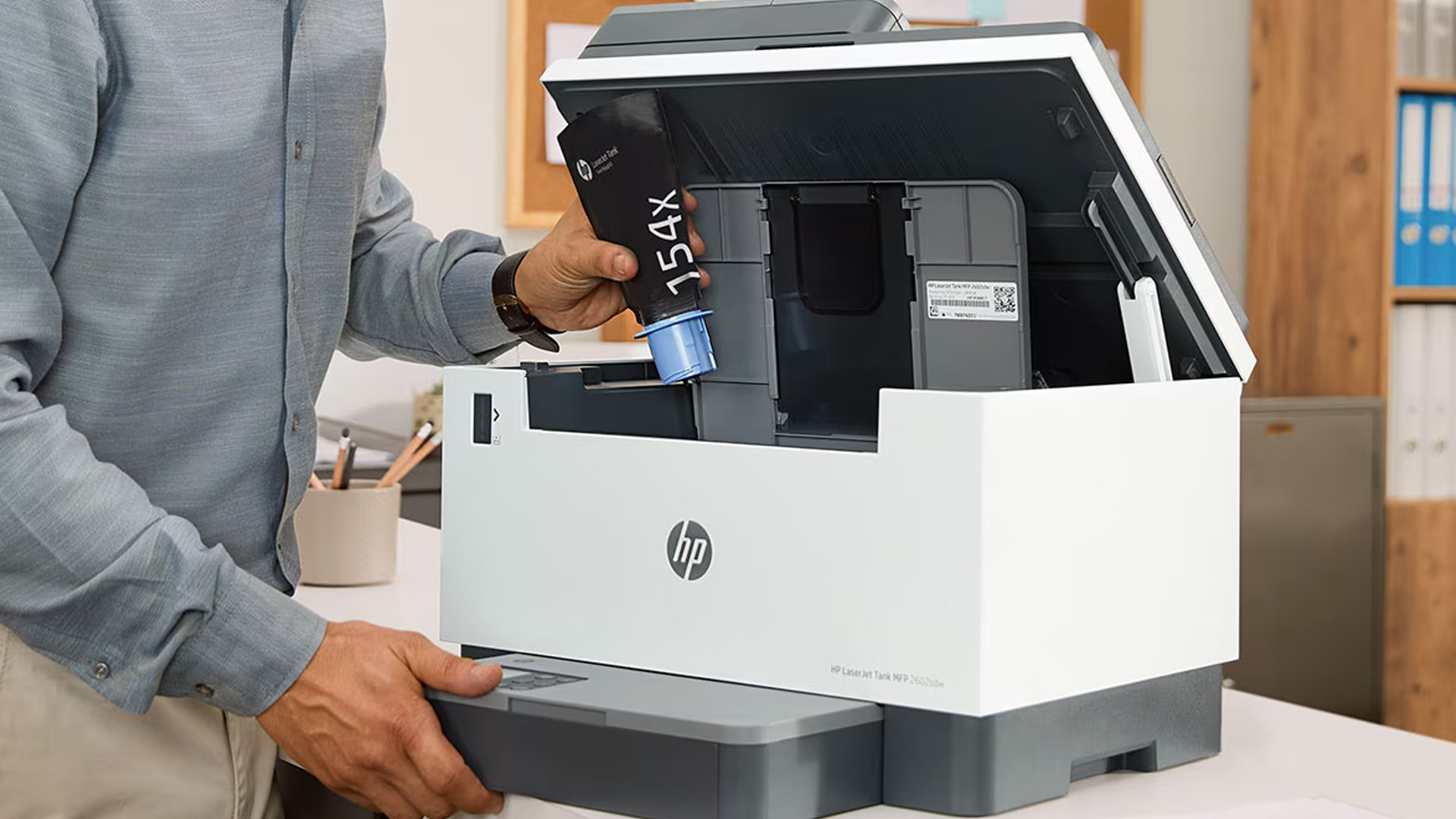
HP Instant Ink is a subscription service where eligible printers can order ink automatically before you run out. HP’s UK Instant Ink plans page says the monthly fee includes ink shipping and recycling, and HP’s support pages state that an eligible printer, online enrolment, valid payment method and internet-connected printer are required.
HP Instant Ink can be useful if:
- you print regularly
- you often forget to buy ink
- you print colour documents
- you want predictable monthly costs
- you want ink delivered automatically
It may not be ideal if:
- you print very rarely
- you dislike subscriptions
- your printer is often offline
- you prefer buying cartridges only when needed
For regular home and small-office users, it is worth comparing Instant I nk with normal cartridge buying. To understand whether a subscription plan suits your printing habits, read our guide on HP Instant Ink.
Inkjet vs LaserJet vs Smart Tank
|
Feature |
Inkjet |
LaserJet-style |
Smart Tank |
|
Best for |
Colour, photos, home use |
Text documents, office use |
Frequent low-cost printing |
|
Upfront cost |
Usually lower |
Usually higher |
Medium to higher |
|
Running cost |
Varies by cartridge |
Often good for documents |
Usually strong for volume |
|
Photo printing |
Good |
Limited |
Good on selected models |
|
Speed |
Moderate |
Fast |
Moderate to good |
|
Best buyer |
Families, students |
Offices, business users |
High-volume homes and small offices |
HP’s guidance broadly positions inkjet printers as better for vibrant colour and creative prints, while LaserJet-style printers are stronger for fast, sharp text-heavy printing.
HP printer buying guide for beginners
If you are buying your first HP printer, follow this simple route:
Step 1: Pick your main use
Choose one:
- home documents
- school or university
- photos
- home office
- small business
- shipping labels
- high-volume printing
Step 2: Choose the printer type
- For home: inkjet or all-in-one
- For students: compact all-in-one
- For home office: multifunctional printer
- For small business: office printer
- For heavy documents: LaserJet-style printer
- For shipping: label printer
- For low running cost: Smart Tank printer
Step 3: Check features
Make sure the printer has the features you actually need:
- Wi-Fi
- mobile printing
- scanning
- copying
- duplex printing
- ADF
- large paper tray
- Instant Ink compatibility
Step 4: Check long-term cost
Look at cartridge prices, toner prices, page yield and subscription options.
Step 5: Check space and setup
Measure your desk or shelf before buying. Some office printers are much larger than they look online.
Advanced HP printer terms explained
Duty cycle
Duty cycle means the maximum number of pages a printer is designed to handle in a month. It is especially important for office printers. Do not buy a printer with a low duty cycle if your team prints daily.
Recommended monthly page volume
This is more useful than maximum duty cycle. It tells you the page range the printer is designed to handle comfortably.
Page yield
Page yield estimates how many pages a cartridge or toner can print. Higher yield usually means fewer replacements and better long-term value.
Mono vs colour
Mono means black-and-white only. Colour printers can print in colour but usually cost more to run.
A4 vs larger formats
Most home and office printers print A4. Some models support larger paper sizes, but they take up more space and usually cost more.
Network printing
Network printing allows multiple users to access the same printer. This is important in offices and shared homes.
Cloud printing
Cloud printing lets you print from online services or mobile apps, depending on printer and app support.
OCR
OCR means optical character recognition. It can turn scanned documents into searchable or editable text, depending on the software used.
Common HP printer mistakes to avoid
Mistake 1: Buying only by price
Cheap printers can be good, but not if ink costs are high or the features are too limited.
Mistake 2: Ignoring scan and copy needs
Many people buy print-only models and later regret not choosing an all-in-one.
Mistake 3: Buying a home printer for office use
A basic home printer may not handle daily business printing well.
Mistake 4: Forgetting about paper capacity
Small trays are fine for light use, but annoying for offices.
Mistake 5: Not checking connectivity
Make sure the printer works with your laptop, phone, tablet and Wi-Fi setup.
Mistake 6: Not considering label printing
If you run an ecommerce store, a label printer can be just as important as a document printer.
HP printer setup guide
HP provides official setup software and drivers through its printer setup page, where users can enter the product name to get the right setup tools. HP says it supports major desktops and mobile operating systems including Windows, macOS, iOS and Android.
Basic setup steps:
- Unbox the printer.
- Remove all packaging.
- Plug in the power cable.
- Install ink or toner.
- Load paper.
- Connect to Wi-Fi, USB or Ethernet.
- Download HP setup software or app.
- Add the printer to your device.
- Print a test page.
- Check for firmware updates.
For wireless setup, keep the printer close to the router during installation. After setup, you can move it to its permanent location if the signal remains stable. Once you have chosen your model, follow our HP Printer easy installation guide for a simple step-by-step installation process.
Troubleshooting HP printer issues
Even good printers can run into problems. Common issues include:
- printer offline
- Wi-Fi not connecting
- paper jams
- low ink warnings
- slow printing
- poor print quality
- streaks or faded pages
- driver errors
- scanner not detected
HP’s printer support page offers diagnostic tools, driver downloads, warranty checks and support resources for common printer problems. If all that solutions don’t work, go to our HP Printer troubleshooting guide covers the most common fixes.
Quick fixes to try first
|
Problem |
What to try |
|
Printer offline |
Restart printer and router, then reconnect Wi-Fi |
|
Poor print quality |
Run printhead cleaning and check ink levels |
|
Paper jam |
Remove paper carefully and check tray alignment |
|
Slow printing |
Use draft mode or check network strength |
|
Scanner not working |
Reinstall software or check app permissions |
|
Ink warning |
Replace cartridge or check Instant Ink status |
For business users, regular maintenance is important. Keep firmware updated, use suitable paper and avoid overloading the tray.
HP printer recommendations by need
|
Need |
Best HP printer type |
|
Cheapest home printing |
Affordable inkjet |
|
Best for family use |
All-in-one inkjet |
|
Best for students |
Compact all-in-one |
|
Best for home office |
Multifunctional printer with ADF |
|
Best for small business |
Office printer or LaserJet-style printer |
|
Best for lots of colour pages |
Smart Tank or Instant Ink-compatible model |
|
Best for shipping |
Label printer |
|
Best for text-heavy documents |
LaserJet-style printer |
|
Best for occasional use |
Basic inkjet or all-in-one |

Final verdict: which HP printer should you buy?
The best HP printer is the one that matches your real print habits.
For light home use, choose an affordable HP inkjet. For homes and students, an all-in-one printer is usually the safest choice. For home offices, choose a multifunctional printer with duplex printing, scanning and an automatic document feeder. For small businesses, choose an office printer or LaserJet-style model with faster speeds and better paper handling. For frequent printing, compare Smart Tank and Instant Ink-compatible options. For ecommerce, shipping or stock control, add a label printer.
This yapping session comes down to one rule: do not buy only by price. Buy by workload, running cost, features and long-term convenience. That is how to choose an HP printer that stays useful well after the first setup.

FAQs
What type of HP printer is best for home use?
For most homes, an HP inkjet all-in-one printer is the best choice. It can handle documents, schoolwork, colour pages, scanning and copying without taking up too much space.
Is HP inkjet or LaserJet better?
HP inkjet printers are better for colour, photos and mixed home use. LaserJet-style printers are better for fast, sharp text documents and heavier office printing. HP’s own guidance says inkjets are generally better for vibrant colour and creative work, while laser printers suit document-heavy needs.
Are HP all-in-one printers worth it?
Yes. All-in-one HP printers are worth it for most homes, students and small offices because they combine printing, scanning and copying in one device.
How much does an HP printer cost to run?
Running cost depends on ink or toner prices, page yield, how often you print and whether you use HP Instant Ink. HP Instant Ink plans include ink shipping and recycling for eligible connected printers.
What features should I look for in an HP printer?
Look for Wi-Fi, mobile printing, duplex printing, scanning, copying, paper tray capacity and affordable ink or toner. Office users should also consider an automatic document feeder, Ethernet and higher monthly page volume.
Is HP Instant Ink worth it?
HP Instant Ink can be worth it if you print regularly and want automatic ink delivery with predictable monthly costs. It may be less useful if you print very rarely or prefer buying cartridges only when needed.
What is the best HP printer for small businesses?
The best HP printer for small businesses is usually an office-focused all-in-one or LaserJet-style printer with fast speeds, reliable connectivity, duplex printing and low running costs. Businesses that ship products may also need a separate label printer.
Related Articles

Last Updated: June 05, 2026
Buying a new printer sounds straightforward until you're faced with dozens of models, confusing specs, and overlapping features. If you're specifically looking at the best Canon printers, you've already made a solid start. Canon is one of the most trusted names in printing, with a range that covers everything from budget-friendly home models to high-volume business workhorses.
This Canon printer buying guide walks you through every series, every key feature, and every use case, so you can buy with confidence and get exactly what you need.
Start With Your Printing Needs and Usage Type
Before choosing a Canon printer, it is important to understand how often you will use it and what tasks you need it for, as this directly affects performance, features, and overall cost. A clear understanding of your usage helps narrow down the best options quickly.
Light Home Use Vs Heavy Office Workloads
If you only print occasionally, such as documents, tickets, or homework, basic home printers are usually

Last Updated: April 22, 2026
Printers are one of those devices you only notice when something goes wrong. One day everything works fine, and the next day your printer refuses to print, shows as offline, or gets stuck with a paper jam. These issues can be frustrating, especially when you need something printed urgently.
The good news is that most Brother printer problems are not serious. In many cases, the issue is related to setup, connectivity, or simple maintenance rather than a fault with the printer itself. Once you understand how to diagnose and fix these problems, you can save time and avoid unnecessary replacements.
This guide covers the most common Brother printer issues and provides clear, practical solutions. Whether you are using a home printer, a multifunctional device, or a printer for office use, this troubleshooting guide will help you get things working again quickly.
Understanding Common Brother Printer Problems
Before jumping into fixes, it helps to understand why problems occur in the first place.
Last Updated: April 22, 2026
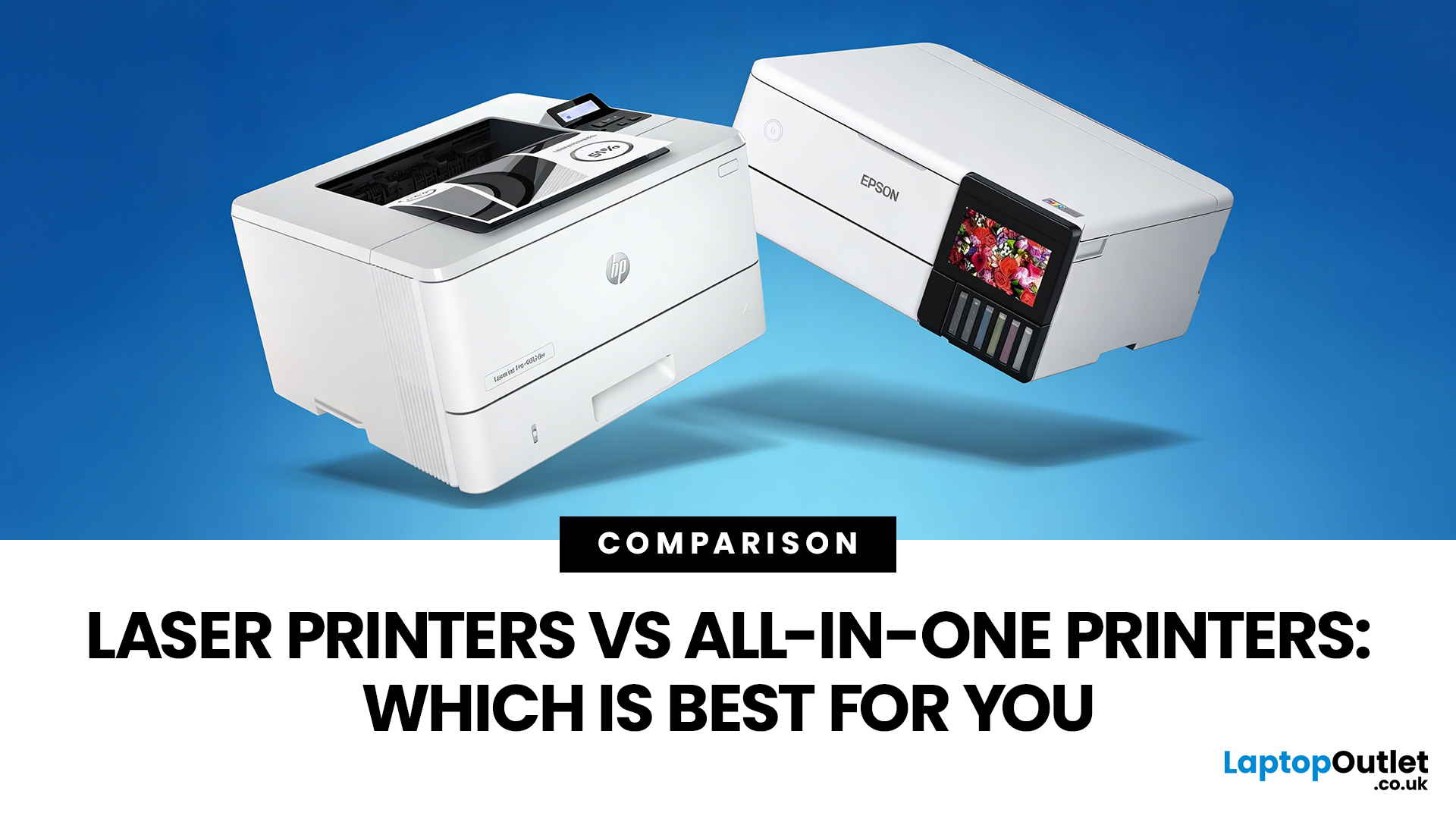
Choosing between Laser printers vs all-in-one printers sounds simple until you realise the two terms do not describe the same thing.
A Laser printer refers to the way the printer works. An all-in-one printer refers to the machine's capabilities, usually printing, scanning, and copying in one unit. That means some all-in-one printers are Laser models, while others are inkjet. So, when people compare all-in-one vs Laser printers, what they are really trying to work out is whether they need stronger print performance or broader day-to-day flexibility.
For some buyers, the Laser is the clear winner. For others, an all-in-one makes far more sense. The right choice depends on how often you print, what you print most, and whether scanning and copying matter as much as printing itself.
If your priority is fast document printing, crisp text and lower running costs over time, a Laser model is usually the smarter fit. If you want one machine that can handle household paperwork, scanning, copying and

Last Updated: April 22, 2026
If most of your printing revolves around invoices, reports, coursework, labels, forms, shipping documents, and everyday admin, a Laser printer usually makes more sense than many buyers first realise. A lot of people still think of Laser printers as large, office-only machines built for big companies, but that view is out of date. Today, you can find compact monochrome models for home desks, colour models for presentation-heavy work, and multifunction machines that print, scan, copy, and fax without dominating your space.
That matters because the right Laser printer can save time every week, keep text consistently sharp, reduce day-to-day hassle, and lower running costs when your workload is document-heavy. The wrong one can leave you paying extra for features you never use or relying on a machine that isn't actually built for the way you print.
This guide explains how Laser printers work, where they perform best, the main advantages and disadvantages to weigh up, and which features matter

Published: April 13, 2026
Inkjet printers are one of the most widely used printing solutions across UK homes, students, and small offices. They are affordable, versatile, and capable of producing high-quality colour output. But if you have used one for any length of time, you already know they can also be frustrating.
From faded prints to clogged nozzles and random error messages, inkjet printer problems are common. The good news is that most of these issues are not serious faults. In many cases, they are caused by usage habits, maintenance gaps, or simple setup errors. This guide goes beyond quick fixes. It explains why these problems happen, how to fix them properly, and how to prevent them in the future so your printer stays reliable long-term.
Why Inkjet Printer Problems Are So Common
To understand inkjet printer troubleshooting, you need to understand how these printers work in real use. Unlike laser printers, inkjet printers rely on liquid ink. That ink is pushed through extremely small nozzles to create
Last Updated: April 14, 2026
Buying a printer sounds simple until you start comparing print types, running costs, features, and maintenance. That is usually where inkjet models come into the picture. They are widely used, available at different price points, and often marketed as flexible printers for home and small office use. Even so, many buyers still have the same questions: what is an inkjet printer, how does it work, and is it the right fit for the way you print?
This inkjet printer guide breaks it down properly. It covers how inkjet printers work, the main types available, the real cost of ownership, how they compare with laser options, and what you need to know before buying one. Whether you need a printer for occasional homework, colour documents, creative work, or general home use, understanding the strengths and limits of inkjet printing makes it much easier to choose well.
What is an Inkjet Printer?
When people ask what is an inkjet printer, the simplest answer is that it is the most common type of printer
Last Updated: July 06, 2026
Laser printers are built for sharp text, fast output, and lower long-term running costs, but even reliable machines can develop faults. Smudged pages, streaks, repeated paper jams, faded print, offline errors, slow printing, and ghosting are common laser printer problems that occur in homes, student setups, and busy offices alike. The good news is that many laser printer issues can be diagnosed and fixed without calling support straight away.
This guide covers practical laser printer troubleshooting for the problems people hit most often, what usually causes them, and the steps worth trying before you replace parts or upgrade the printer.
If you want a clearer picture of how laser printers work before you start diagnosing faults, read our complete guide to laser printers, including how they work, where they perform best, and who should buy one.
A Quick Diagnostic Table for Common Laser Printer Problems
Before getting into the details, start here. In most cases, the symptom points you towards
Last Updated: April 22, 2026
Laser printers are built for sharp text, fast output, and dependable running costs, but they still need routine care to stay reliable year after year. Dust, paper debris, toner residue, worn feed parts, and poor storage habits can all shorten a printer’s life long before any major component actually fails.
The good news is that laser printer maintenance does not need to be complicated. A sensible routine can help reduce smudging, paper jams, streaks, faded print, and unnecessary consumable waste. It can also help you maintain stable print quality for longer, which matters whether you are printing coursework at home, handling household paperwork, or managing documents in a busy office.
This guide covers the practical side of laser printer cleaning and long-term care, including how to clean a laser printer safely, what to check regularly, how to handle toner and drum maintenance, and when maintenance stops making sense, and replacement becomes the smarter choice. If you are still weighing
Last Updated: April 21, 2026
Setting up an all-in-one printer is usually much easier than people expect. The part that trips most users up is not the printer itself, but the order. If you prepare the hardware first, connect it the right way, and install the correct software in the right place, most all-in-one printer setup jobs are straightforward.
This guide walks through how to set up an all-in-one printer step by step, including USB, Wi-Fi, and network setup, driver installation, scanning setup, and the small configuration choices that make the printer easier to live with long term. If you are installing a multifunction printer at home, in a home office, or for a small team, this is the practical setup flow that saves the most time.
What is an All-in-One Printer Setup?
An all-in-one printer setup is the process of getting a multifunction printer ready to print, scan, copy, and in some cases fax. That means more than plugging it in and printing one test sheet. A proper setup also includes network access, driver
Last Updated: July 06, 2026
If your printer is acting up, the short answer is this: most all in one printer problems are fixable without replacing the whole machine. The fastest wins usually come from checking the connection, clearing the print queue, confirming the right printer is selected, inspecting paper loading, and running the built-in cleaning or alignment tools before assuming the hardware has failed. Microsoft, Brother, Epson, Canon, and HP all point users toward those same basics first, which is a strong sign that the smartest troubleshooting is usually methodical, not dramatic.
That is exactly what this guide is here to do. Instead of giving you random fixes with no logic behind them, this article breaks down the most common all-in-one printer issues, shows what each symptom usually means, and explains the best way to fix it. So, whether your machine is offline, feeding paper badly, refusing to scan, printing faded documents, or suddenly producing blank pages like it has given up on communication,

