



All-in-One Printer Setup Guide: How to Install and Configure Easily
Setting up an all-in-one printer is usually much easier than people expect. The part that trips most users up is not the printer itself, but the order. If you prepare the hardware first, connect it the right way, and install the correct software in the right place, most all-in-one printer setup jobs are straightforward.
This guide walks through how to set up an all-in-one printer step by step, including USB, Wi-Fi, and network setup, driver installation, scanning setup, and the small configuration choices that make the printer easier to live with long term. If you are installing a multifunction printer at home, in a home office, or for a small team, this is the practical setup flow that saves the most time.
What is an All-in-One Printer Setup?
An all-in-one printer setup is the process of getting a multifunction printer ready to print, scan, copy, and in some cases fax. That means more than plugging it in and printing one test sheet. A proper setup also includes network access, driver installation, scanning tools, and default settings such as paper size and print quality.
That matters because many printers will print with a basic driver, but not give you the full feature set straight away. If scanning, document feeders, maintenance tools, or advanced settings matter to you, the software side of the setup matters just as much as the physical installation.
What do You Need Before You Start?
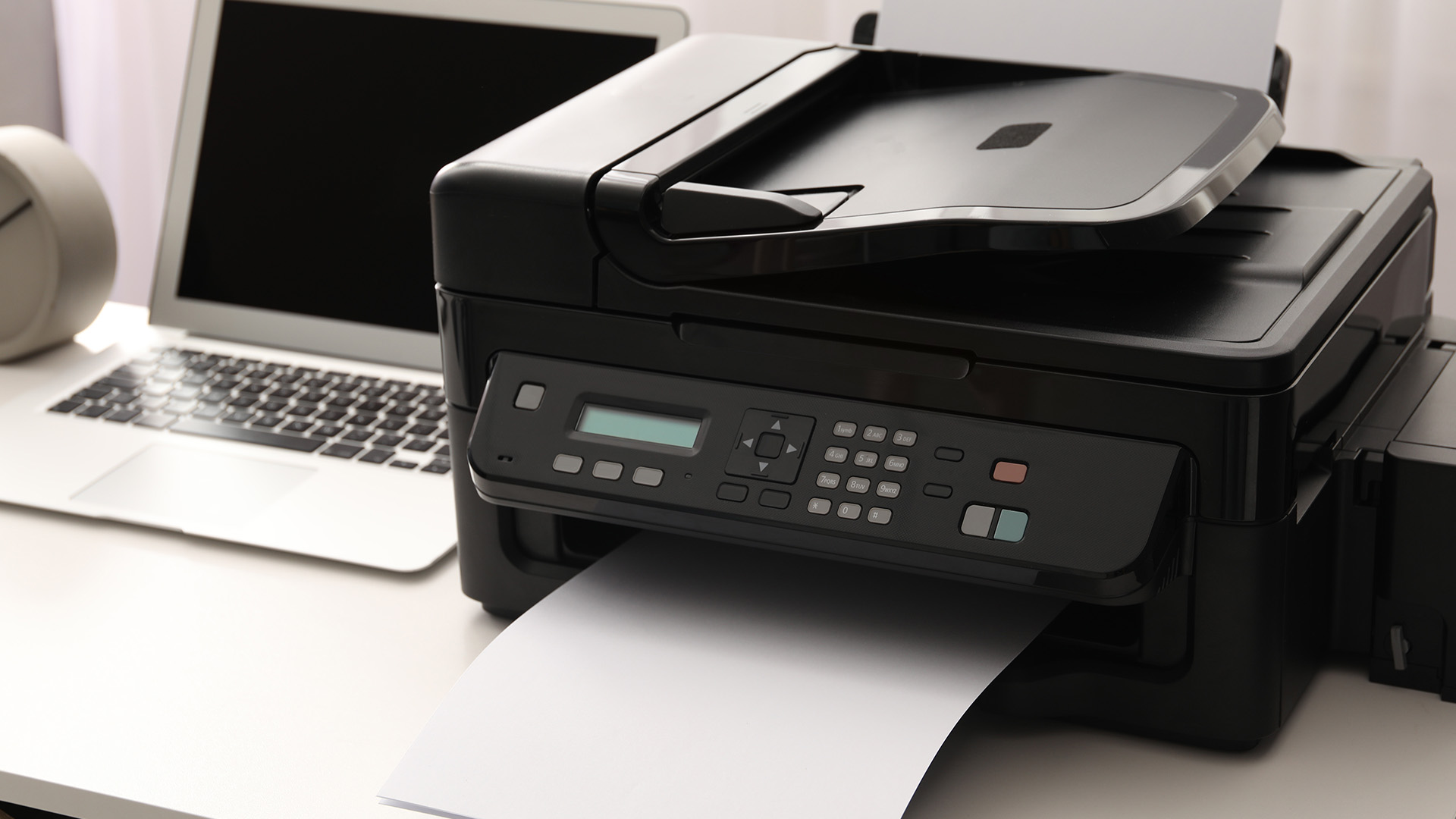
Before you begin, gather the essentials. It saves a lot of backtracking later.
- The exact printer model name
- Power cable and any included setup materials
- Ink cartridges or toner already installed
- Plain A4 paper loaded in the tray
- Your Wi-Fi network name and password if you are setting up wirelessly
- Admin access to the computer if software installation is restricted
- A USB cable if your model needs one during wireless setup
If you are replacing an older machine, it is also worth removing the old printer from your device list first. That avoids the common mess of duplicate printer names, old offline queues, and the wrong default printer being selected.
The Best Way to Set Up an All-in-One Printer
- The easiest all-in-one printer setup starts with the hardware, not the laptop. Unpack the device, remove every piece of transport tape, install the ink or toner, load paper, and turn the printer on before you try to add it to Windows or macOS.
- Next, choose the right connection method. USB is the simplest for one device, Wi-Fi is best for flexible everyday use, and Ethernet is usually the cleanest option for shared office printing. Once the printer is connected, add it to your operating system, then install the latest manufacturer software if you want full scanning, maintenance, and multifunction features.
- The final step is configuration. Set the correct paper size, check duplex printing, test scanning, and make sure the printer shows as ready on the devices that matter. A setup is not really finished until print, scan, and copy are all working properly.
How to Set Up an All-in-One Printer Step by Step
The cleanest all-in-one printer installation follows a fixed order. If you skip around, setup gets harder than it needs to be.
1. Prepare the Printer First
Start with the printer itself. Remove all packaging, tapes, transport locks, and protective films. Install the supplied ink or toner if it is not already fitted, then load plain paper into the main tray.
Turn the printer on and let it finish any first-time startup routine. Many models run an alignment or calibration cycle before they are fully ready. Do not try to connect it to your computer while the control panel is still showing setup errors or loading messages.
2. Choose the Right Connection Type
The best connection depends on how and where you will use the printer.
|
Connection Type |
Best For |
Main Advantage |
Main Drawback |
|
USB |
One laptop or desktop |
Fastest and simplest initial install |
Not ideal for sharing |
|
Wi-Fi |
Homes, students, flexible workspaces |
Easy wireless printing from multiple devices |
More dependent on network quality |
|
Ethernet |
Offices and shared workgroups |
Stable shared access |
Less flexible placement |
|
IP-based network install |
Business environments and trickier networks |
Useful when auto-discovery fails |
Slightly more technical |
For most home users, Wi-Fi is the best all-round choice. For a shared office printer, Ethernet is usually the better long-term setup because it is more predictable when multiple users need the same device. If you are still comparing models, this is a good point to browse printer options and narrow them down by home use, office use, or print volume.
3. Connect the Printer toYour Network or Device
If you are using USB, connect the cable only when the setup process or operating system asks for it. Plugging it in too early can sometimes create the wrong device profile or trigger a basic install before you are ready.
If you are using Wi-Fi, connect the printer to the same network as the device you want to print from. Most modern printers guide you through this on the screen, through a setup app, or through a temporary USB-assisted wireless setup. For business users, Ethernet setup is usually even simpler: connect the network cable, let the printer get an address, and then add it from your laptop or admin machine.
If the printer is not discovered during wireless setup, reset the printer’s network settings and try again rather than repeating the same failed search. In most cases, a clean network retry is quicker than forcing the problem.
4. Add the Printer on Windows
On Windows, go to Settings > Bluetooth & devices > Printers & scanners and choose Add device.
In many cases, Windows will detect the printer automatically, especially for USB or local connections. If it does not appear immediately, give Windows a minute to finish searching before assuming something is wrong. If you still do not see it, check that the printer is turned on, properly connected, and already on the same network if you are using Wi-Fi.
For a network printer in a business setting, adding by IP address can be the cleaner fix when discovery is unreliable. That is especially useful when you already know the printer’s address and want a more direct install route.
5. Add the Printer on Mac
On a Mac, go to System Settings > Printers & Scanners and add the printer from there.
If your Mac and printer are already on the same Wi-Fi network, the printer may appear automatically. Some models still need a temporary USB connection during wireless setup. That is normal, especially on printers that use a setup assistant to move the device onto Wi-Fi. Once setup is complete, you can usually disconnect the cable and carry on wirelessly.
If the printer does not appear in the standard list, adding it by IP can help on business networks or in more manual setups. Just keep in mind that a generic IP setup may not expose every feature the printer supports.
6. Install the Latest Printer Software and Drivers
This is the step too many people skip. Basic operating-system detection is often enough for simple printing, but full all-in-one printer configuration usually needs the latest manufacturer software. That software often enables:
- Scanning tools
- Maintenance utilities
- Firmware prompts
- Print quality controls
- Paper handling options
- Fax or document management features on supported models
The safest route is to download the latest package from the manufacturer’s official support page rather than relying on the CD or leaflet that came in the box. That matters even more if the printer has been sitting in stock for a while or you are connecting it to a newer laptop.
If you are researching broader all-in-one printing solutions, this is where model quality starts to show. Better-supported printers are usually easier to install, easier to maintain, and less awkward when you need scanning to work across more than one device.
7. Configure the Printer Properly After Installation
A printer that technically works is not always a printer that is properly set up. Before you call the job done, adjust the defaults that affect daily use. Start with:
- Paper size, especially A4 for UK users
- Default print quality
- Double-sided printing if supported
- Scan destination folder
- Scan format such as PDF for documents
- Default tray or media type if your printer supports it
If you are installing a multifunction printer for a small business, also check whether the printer name is clear and easy to recognise on the network. A clean printer name saves confusion later when several people are choosing from the same device list.
8. Test Print, Scan, and Copy
The most important part of all-in-one printing setup is the test. Print a one-page document, scan a sheet to your computer, and run a quick copy directly from the control panel.
That test confirms whether the setup is complete. A printer that prints but does not scan is only partly installed. A printer that scans locally but not over the network may need the full driver package or a corrected network configuration. It is better to spot that now than five minutes before you need to send a signed PDF.
USB vs Wi-Fi vs Ethernet: Which Setup is Best?
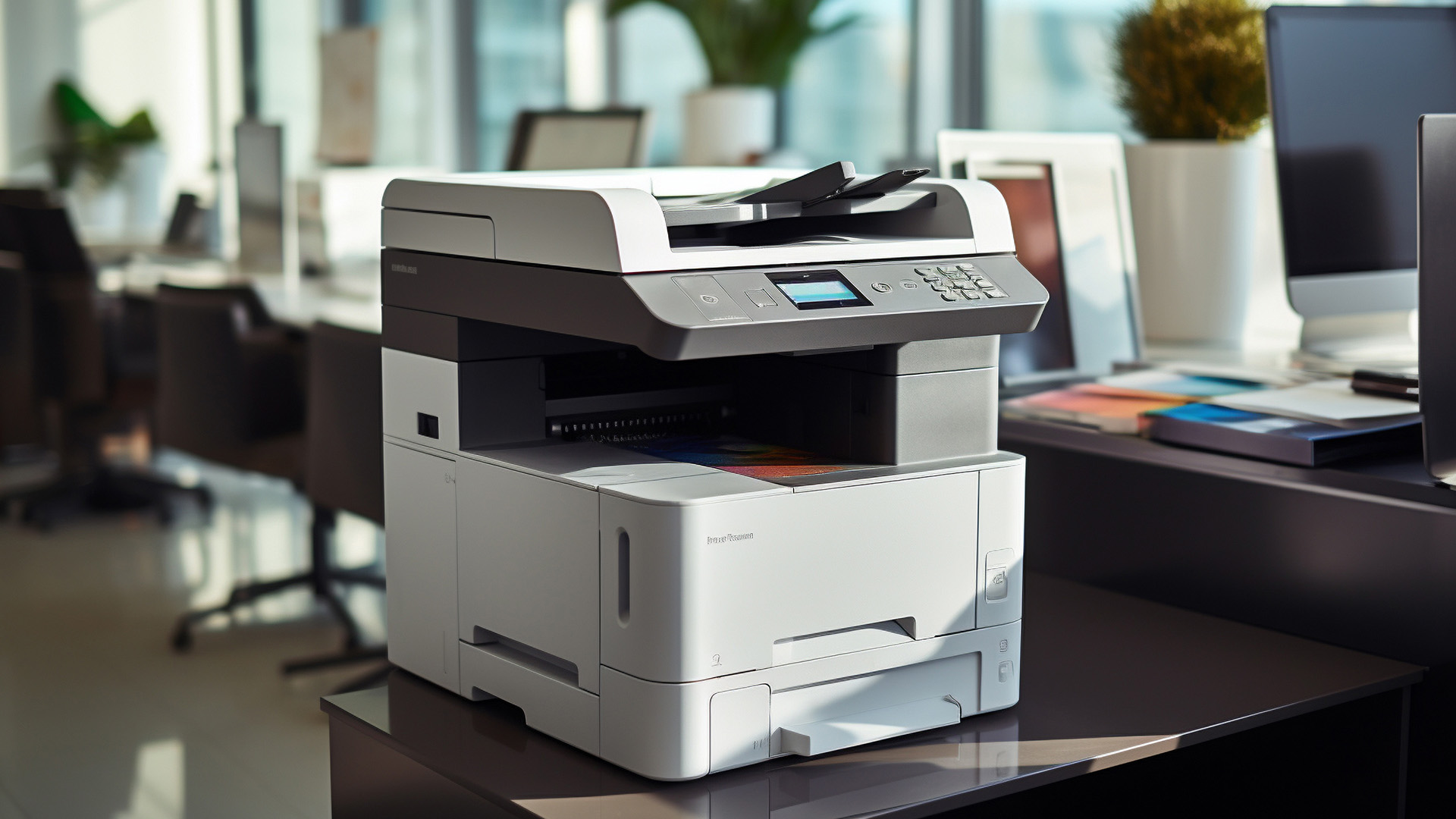
The best multifunction printer setup depends on how many devices need access and how much reliability matters.
|
Setup type |
Choose this if |
Avoid this if |
|
USB |
You print from one main computer and want the quickest install |
Multiple people need access |
|
Wi-Fi |
You want flexibility across laptops, tablets, and shared spaces |
Your wireless network is unreliable |
|
Ethernet |
You want stable shared access in an office |
You need the printer placed far from your router or switch |
|
IP-based setup |
Auto-detection keeps failing or you want a cleaner network install |
You want the most beginner-friendly method |
For most homes, Wi-Fi is the easiest long-term option. For teams, Ethernet usually wins because it reduces connection complaints and makes printer sharing more predictable.
How Do You Set Up a Wireless All-in-One Printer for Business?
The best way to install a wireless all-in-one for business is to treat it like a shared device, not a personal one. That means using a stable network, confirming the printer’s address, and installing the correct full software package from the start.
In a small office, we would usually recommend one of two routes. Either connect the printer by Ethernet for maximum stability, or connect it to Wi-Fi and then add it by IP or vendor software if discovery is inconsistent. That gives you a cleaner setup than relying on every user to find the printer separately on their own machine.
It is also worth testing print and scan from more than one device before you sign the setup off. A printer that works only from the admin laptop is not a finished business setup.
If you are weighing up better office hardware, efficient laser printers are often the right next step for heavier print volumes, while home inkjet printing solutions make more sense for lighter colour use. If you want a broader look at features, buying considerations, and everyday use, our guide to everything you need to know about all-in-one printers is a useful next step.
Why Does All-in-One Printer Setup Sometimes Go Wrong?
Most setup failures come down to one of five problems:
- The printer is not fully prepared before software setup starts
- The printer and computer are on different networks
- The wrong driver is installed, or only a basic driver is present
- The printer is detected for printing but not for scanning
- Old queues, old drivers, or old device profiles are getting in the way
The fix is usually to simplify the process, not complicate it. Remove the printer from the device list, restart the printer, reconnect it cleanly, and install the latest driver package from the official support site. If setup problems continue after the basics, our all-in-one printer troubleshooting guide covers the most common printer issues and fixes in more detail.
Common Setup Problems and the Fastest Fixes
The printer appears, but scanning does not work
This usually means the basic print driver installed, but the full software package did not. Reinstall the manufacturer’s latest software and test the scan function again.
The printer is online, but the computer cannot find it
Check that both devices are on the same network and retry the connection. If discovery still fails, use the printer’s IP address or the manufacturer setup tool instead.
Windows will not install the printer properly
Use the built-in Windows printer setup flow first. That is especially helpful on newer ARM-based Windows devices, where some manufacturer installers can be less reliable than the operating system’s own add-printer tools.
The printer works on one device but not another
This is often a driver or profile issue rather than a hardware fault. Install the printer cleanly on the second device and make sure it is connecting to the same printer instance, not an old offline copy.
The setup works, but printing is slow or awkward
This is usually a configuration issue. Check paper size, default quality, duplex settings, and whether the printer is connected in the best way for your environment.
Which Setup Makes Sense for Different Users?
Home users
Wi-Fi setup is usually the best balance of convenience and flexibility for printers for home use. It keeps the printer accessible without tying it to one desk and makes it much easier to print from more than one family device.
Students
Students usually need the simplest possible setup. A compact Wi-Fi all-in-one with easy scanning is the most practical choice because it handles coursework, ID forms, and quick copies without needing a permanent desk setup.
Home office users
For a home office, the best setup is the one that feels dependable on a busy weekday. That often means a stronger all-in-one printer installation with the full software suite, clean scan-to-PDF settings, and double-sided printing turned on from day one.
Small businesses and shared teams
For shared use, setup quality matters more than setup speed. Clear device naming, reliable connectivity, and a proper network install save far more time than a rushed setup that looks fine on the first laptop but fails on everyone else’s.
If your needs are growing, a multifunction printers guide or a broader comparison of all-in-one printing solutions can be a useful next step before you buy again.
When Should You Troubleshoot, and When Should You Replace the Printer?
Troubleshoot the current device if the printer is new, the setup has never been completed properly, or the problem is clearly software or network related.
Replace it if setup pain keeps coming back because the hardware is dated, driver support is poor, wireless connectivity is unreliable, or the printer no longer matches how you work. That is especially true if you now need scanning, mobile printing, duplex printing, or shared office use and your current device only does the basics well.
A lot of setup frustration is really a product-fit problem. If the printer was never the right device for your home or office, no amount of reinstalling will make it feel easy to use.
What Matters Most Before Buying an All-in-One Printer?
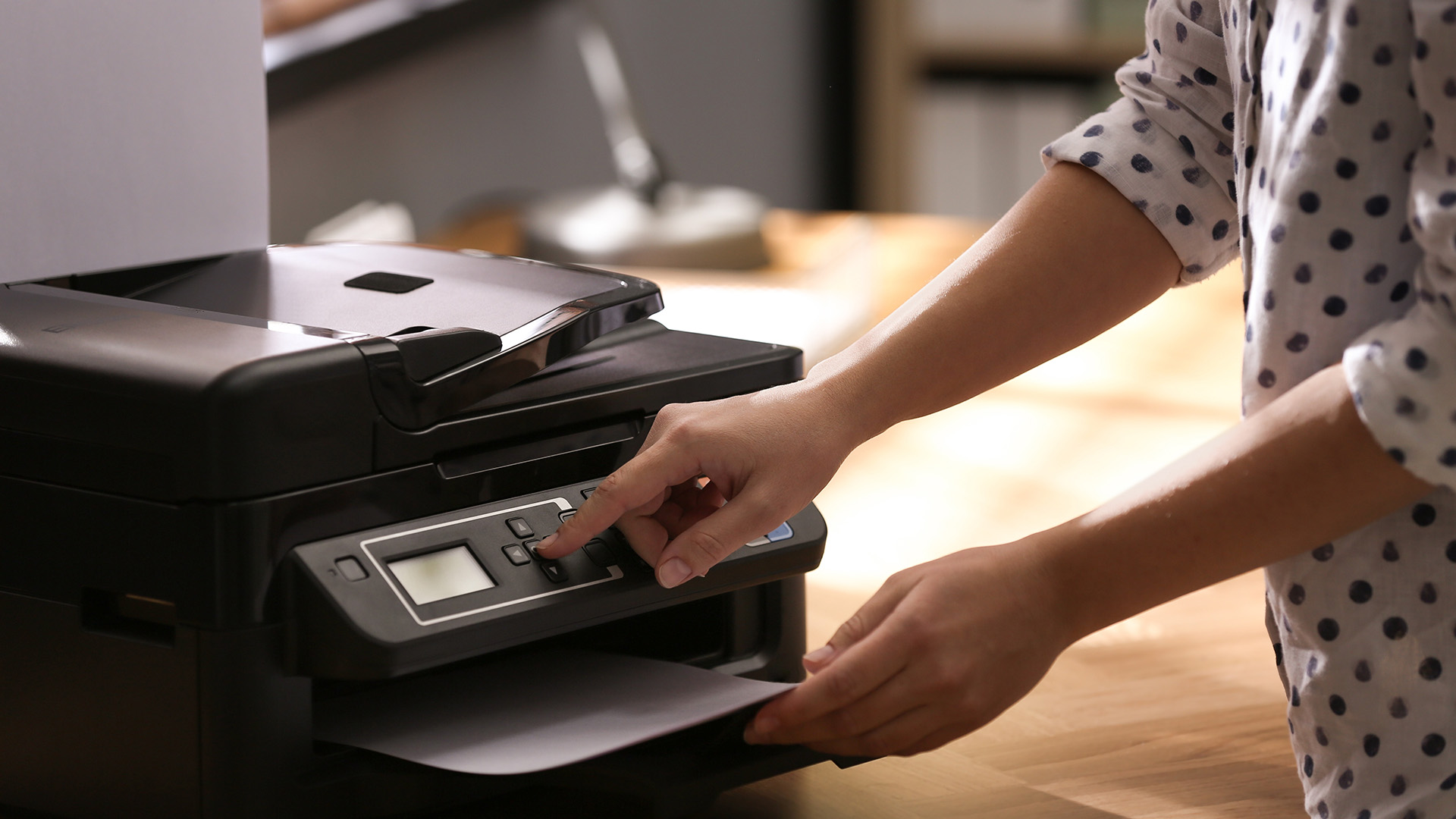
Before you buy, focus on the features that affect daily use rather than the headline price.
The most important checks are:
- How often you print
- Whether scanning is occasional or frequent
- Whether more than one person needs access
- Whether you need colour
- Whether automatic document feeding matters
- Whether you want duplex printing
- How easy the driver and software support looks
For lighter home printing, home inkjet printing solutions often make more sense. For frequent office documents, efficient laser printers are usually the stronger long-term buy. If brand support and software tools matter to you, it is also worth comparing manufacturer-specific hubs such as Canon printing solutions, Brother printing solutions, or professional Xerox printers on your site.
The Easiest Setup Choice for Most Buyers
For most readers, the best all-in-one printer setup is simple: prepare the printer properly, connect it the right way for your space, add it in your operating system, then install the full software package so printing and scanning both work as they should.
If you only print from one device, USB is still the quickest route. If you want flexibility at home, Wi-Fi is usually the best choice. If you are setting up for a team, Ethernet or IP-based installation is often the cleaner answer.
The bigger decision is not just how to install the printer, but whether the printer still fits the job. If you are still deciding, browse printer options by use case rather than price alone. That is usually the fastest path to a setup you do not have to fight with later. Once your printer is up and running, our guide on how to maintain an all-in-one printer for long-term use can help you keep it reliable over time.

FAQs
How do you set up an all-in-one printer step by step?
The simplest all-in-one printer setup is to prepare the hardware, connect the printer by USB, Wi-Fi, or Ethernet, add it in Windows or macOS, install the latest driver package, and then test print and scan functions.
Do I need manufacturer software for an all-in-one printer?
Not always for basic printing, but usually yes for full multifunction printer setup. Scanning, maintenance tools, and extra device features often depend on the manufacturer’s software package.
Can I set up an all-in-one printer without a USB cable?
Yes, many models support full wireless setup. Some printers still use a temporary USB connection during Wi-Fi setup, especially on Mac or guided setup workflows.
Why can I print but not scan?
That usually means only the basic print driver is installed. Reinstalling the correct all-in-one printer driver setup package normally fixes that.
What is the best connection type for a home printer?
Wi-Fi is usually the best setup for home use because it gives you flexible access from more than one device without leaving the printer tied to one computer.
Related Articles

Last Updated: April 22, 2026
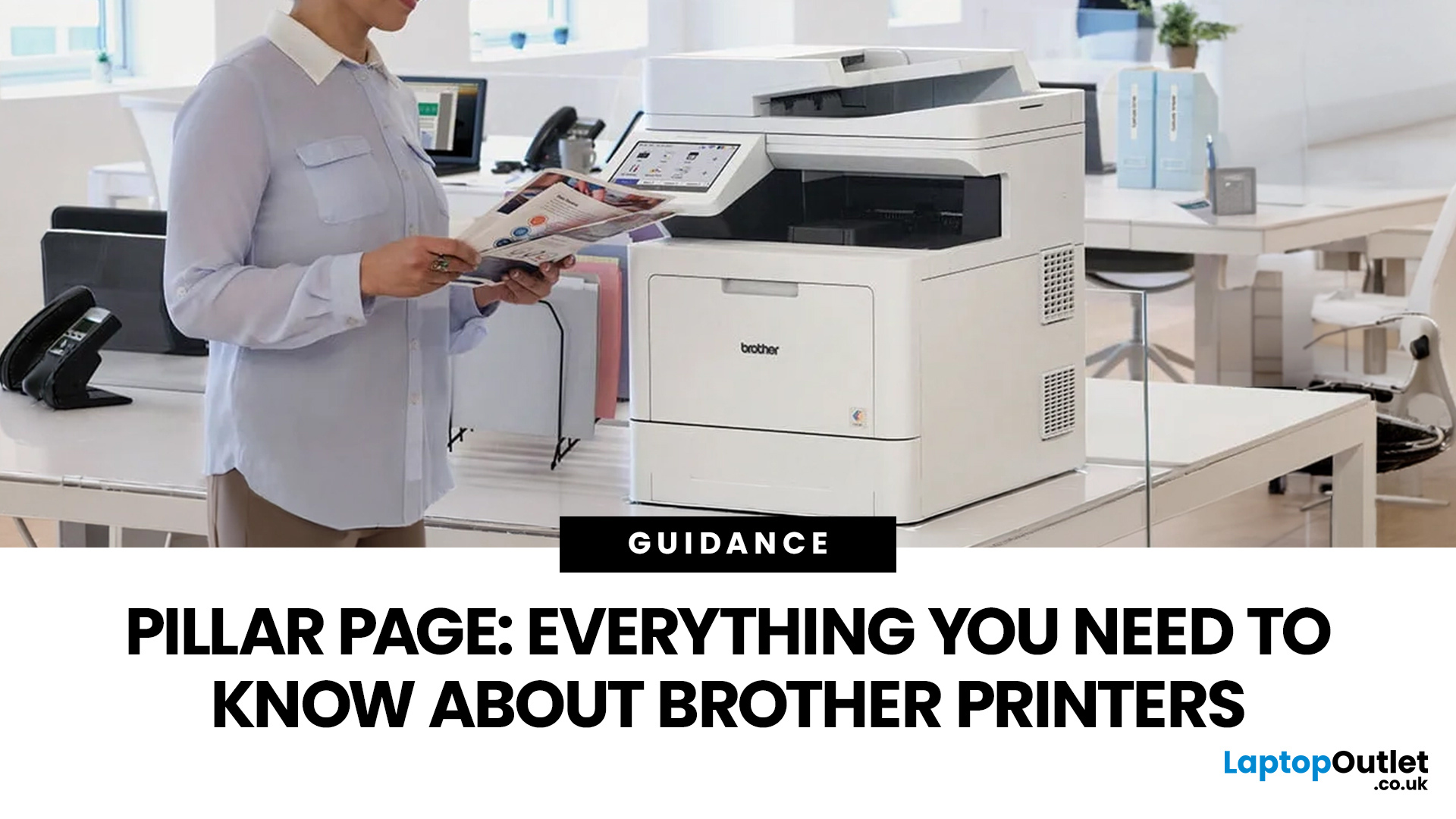
In the late 1980s, owning a printer wasn’t simple, unlike today - it was expensive, rare, and felt like a luxury. Printing was something most people could only dream of having at home.
Then Brother stepped onto the scene, redefining what a printer could be. They didn’t just enter the market, they changed it. By combining reliability, efficiency, and affordability, their printers quickly became a staple in offices and homes, setting a new standard for what printing could be.
Brother printers are widely used across the UK because they offer a practical mix of reliability, performance, and ease of use. However, with so many options available, inkjet, laser, all-in-one, wireless, the real challenge is understanding which one actually suits your needs.
This guide shows how their reliable, affordable, and easy-to-use printers fit real-life needs and helps you pick the right one without the tech overload.
What Makes Brother Printers So Popular?
Brother has built its reputation by focusing on
Last Updated: April 22, 2026
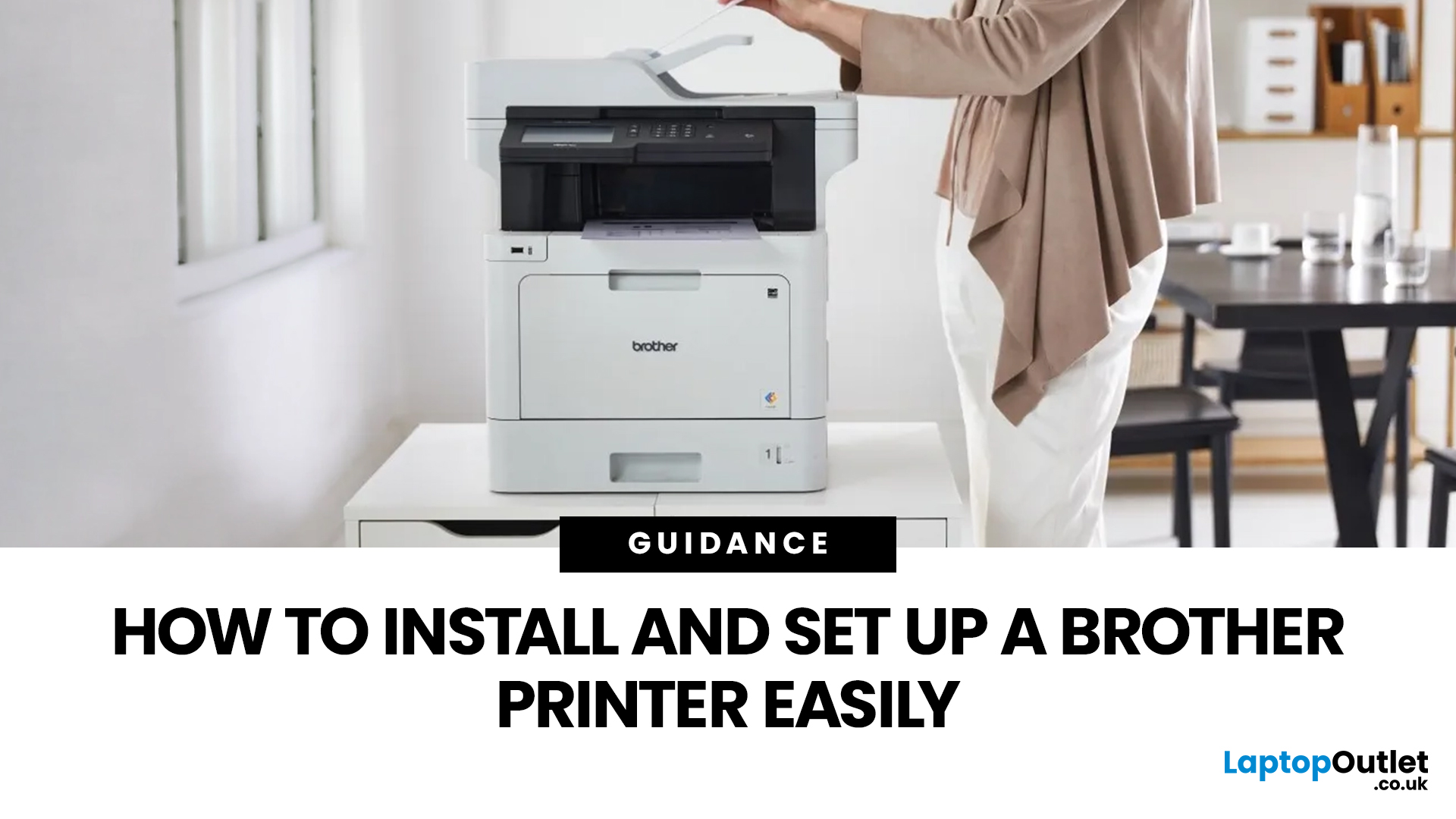
Setting up a new printer should be simple, but for many users, it can quickly become confusing. From installing toner to connecting to Wi-Fi and downloading drivers, even small steps can feel overwhelming if you are not sure what to do first.
This guide is designed to make Brother printer setup straightforward and stress-free. Whether you are installing a printer for the first time, replacing an old device, or setting up a wireless connection in a home or office environment, this step-by-step guide will walk you through everything you need to know.
By the end of this guide, you will have your Brother printer fully installed, connected, and ready to use.
Before You Start: What You Need for Brother Printer Setup
Before jumping into the installation process, it helps to prepare everything in advance. This avoids interruptions and makes the setup process much smoother.
You will typically need:
- Your Brother printer
- Power cable
- Ink cartridges or toner (included with most models)
- Paper for testing
Last Updated: April 22, 2026
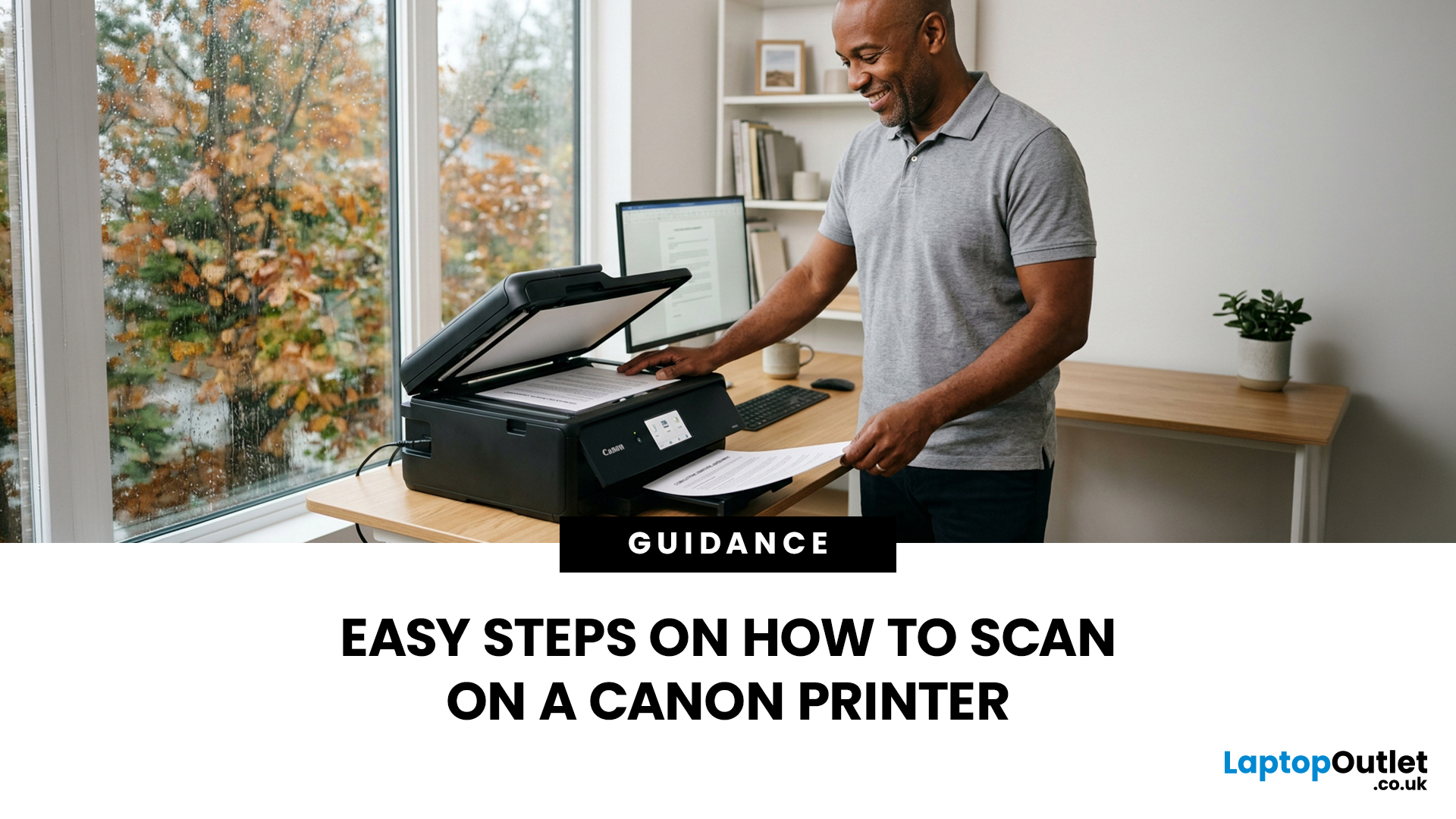
Canon makes some of the most popular multipurpose printers on the market, and for good reason. They're reliable, straightforward to use, and the scanning function is genuinely one of the better ones you'll find on a home or office printer. But if you've never used it before, staring at the control panel wondering where to start is a perfectly normal experience.
This guide covers everything you need to know to scan a document on a Canon printer, whether you're on Windows, Mac, or going straight from the printer itself. No fluff, just the steps that actually work.
Get These Things Sorted Before You Start
You don't need much to get going, but skipping these checks is how people end up wasting twenty minutes troubleshooting something obvious.
Make sure your Canon printer is switched on and connected to your computer, either by USB or over Wi-Fi. If it's a wireless connection, both your printer and computer need to be on the same network. Also confirm that your Canon drivers are installed.
Last Updated: April 22, 2026
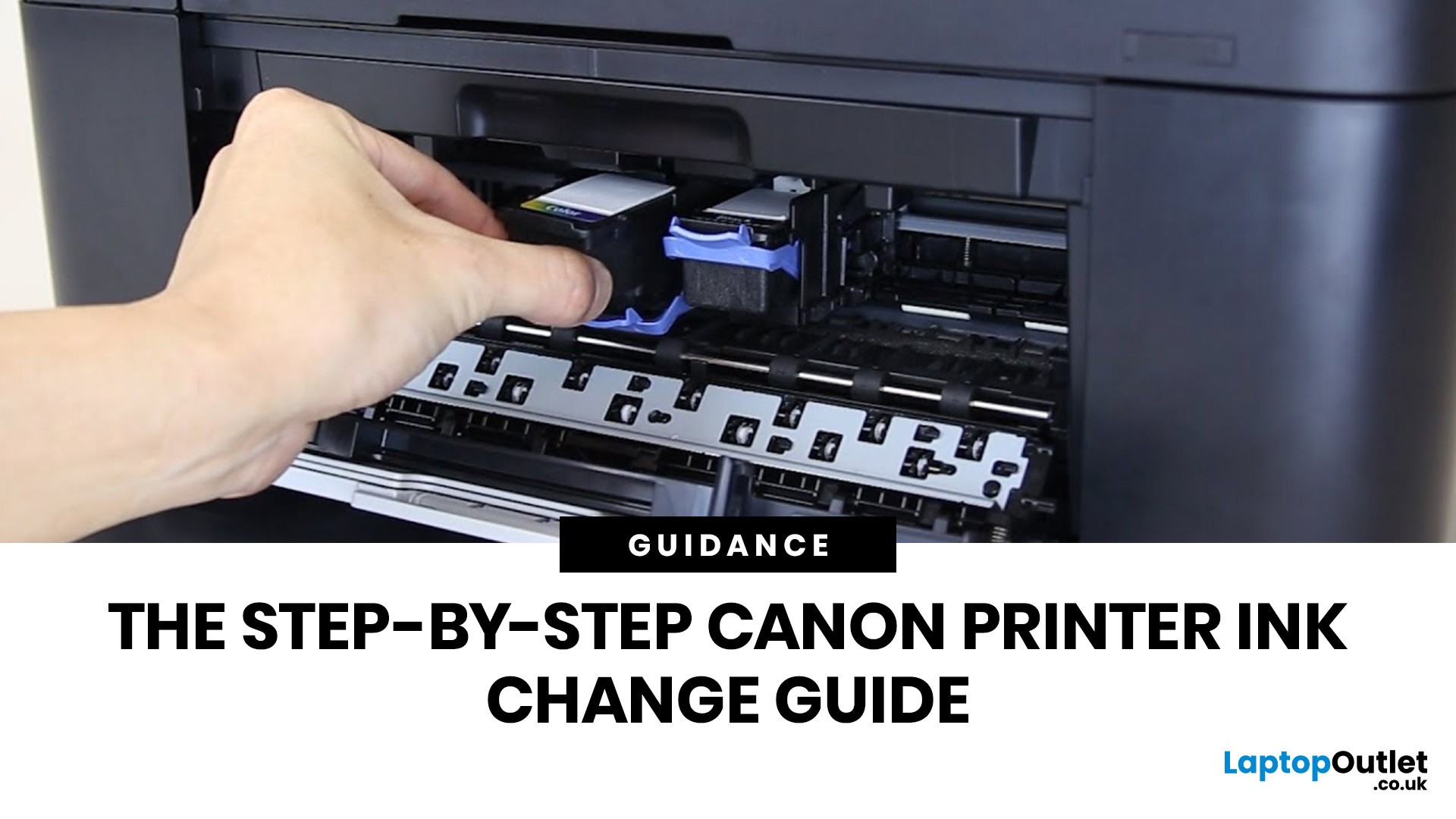
Running out of ink at the wrong moment is genuinely frustrating. Knowing how to change ink in a Canon printer quickly and confidently means less downtime, less wasted paper, and no panicked Googling mid-print.
Canon makes some of the most reliable inkjet printers on the market, and replacing the ink is one of those tasks that feels daunting the first time but becomes routine very quickly. This guide covers everything from the tools you need to the steps themselves, plus tips on cartridge costs, common mistakes, and what to do if problems persist after installation.
What You Need Before You Start
Before diving into the steps, it's worth taking a moment to get everything in order. A well-prepared workspace makes a Canon printer cartridge change much smoother and avoids unnecessary mess or confusion.
Here's what to have ready:
- The correct replacement cartridge for your specific Canon model
- A clean, flat surface to work on
- A tissue or lint-free cloth for any small drips
Always check your
Last Updated: April 22, 2026
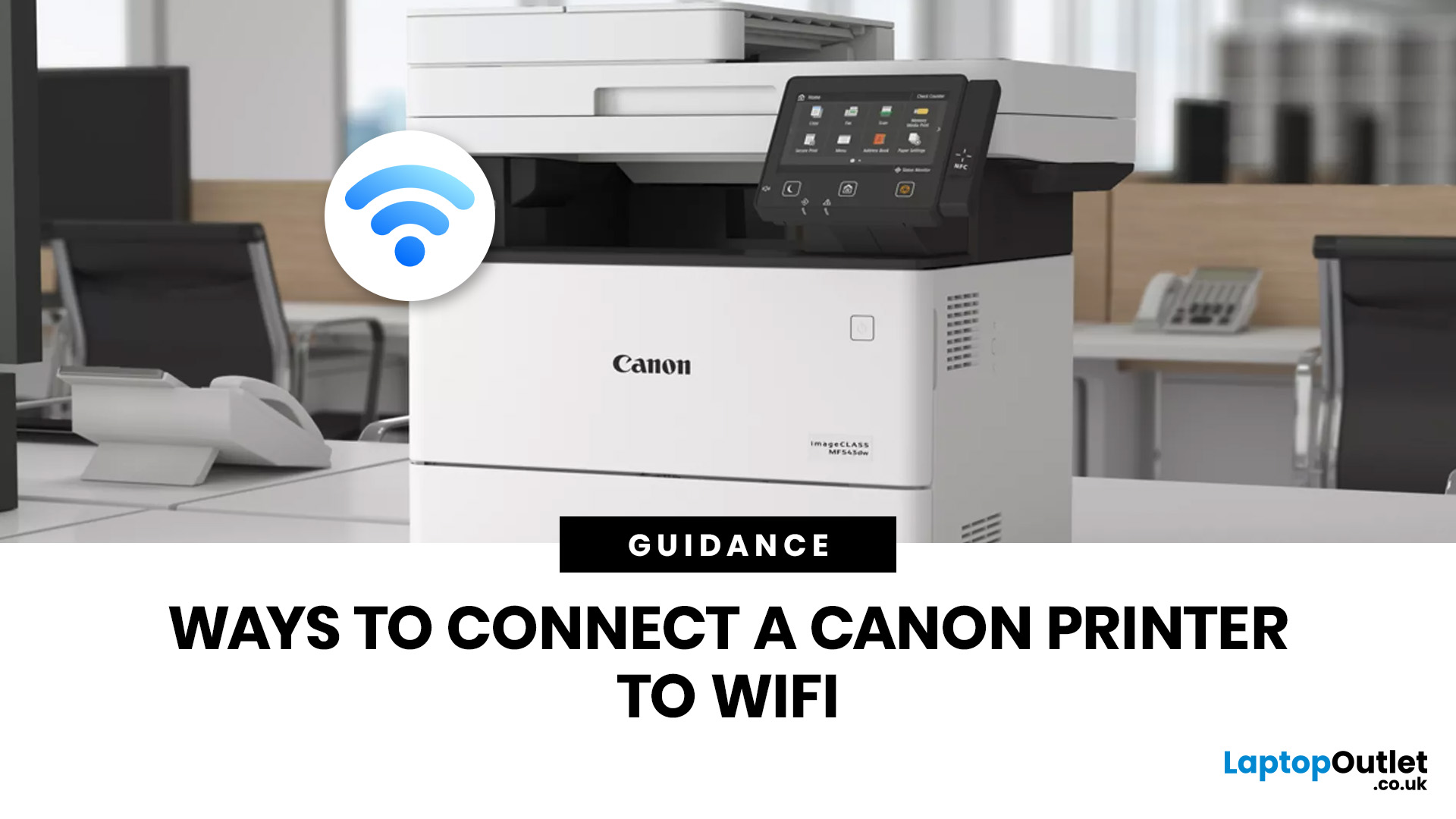
Getting your Canon printer onto your home or office WiFi is easier than you might think. This guide covers every method available to help you connect Canon printer to WiFi, whether you have a touchscreen model, a basic entry-level printer, or you prefer to set things up from your phone. We have also included a troubleshooting section at the end for when things do not go quite to plan.
What to Have Ready Before You Begin
It is worth taking two minutes to gather everything before you start setting up Canon printer to WiFi, as it will save you stopping halfway through. Most connection problems come down to one missing detail at this stage.
Here is what you will need:
- Your WiFi network name (SSID) and password (case-sensitive)
- A Canon wireless printer with the WiFi indicator light present
- The Canon PRINT Inkjet/SELPHY app if you plan to set up via smartphone
One thing worth checking: most Canon
Last Updated: June 05, 2026
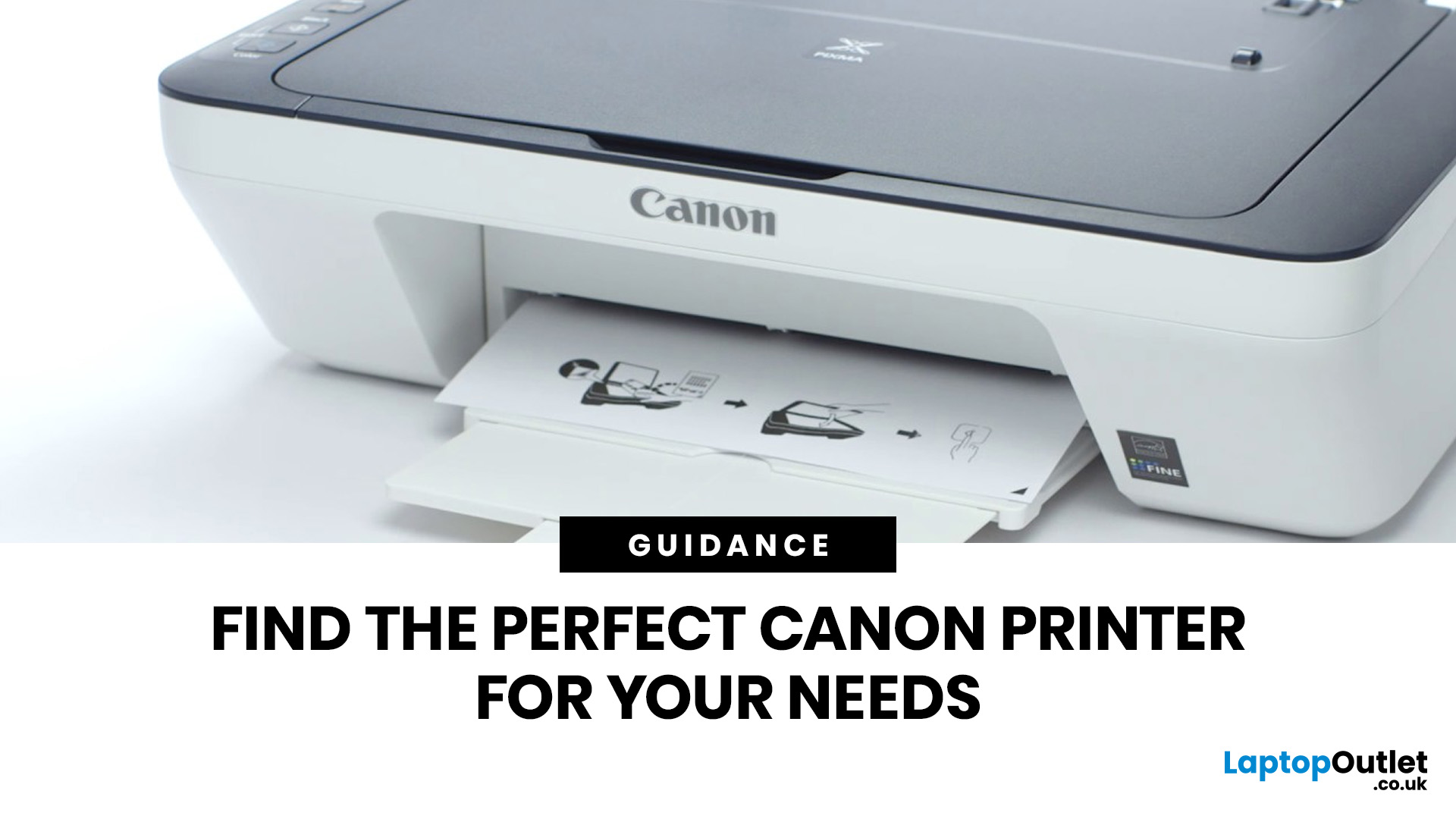
Buying a new printer sounds straightforward until you're faced with dozens of models, confusing specs, and overlapping features. If you're specifically looking at the best Canon printers, you've already made a solid start. Canon is one of the most trusted names in printing, with a range that covers everything from budget-friendly home models to high-volume business workhorses.
This Canon printer buying guide walks you through every series, every key feature, and every use case, so you can buy with confidence and get exactly what you need.
Start With Your Printing Needs and Usage Type
Before choosing a Canon printer, it is important to understand how often you will use it and what tasks you need it for, as this directly affects performance, features, and overall cost. A clear understanding of your usage helps narrow down the best options quickly.
Light Home Use Vs Heavy Office Workloads
If you only print occasionally, such as documents, tickets, or homework, basic home printers are usually

Last Updated: April 22, 2026
Printers are one of those devices you only notice when something goes wrong. One day everything works fine, and the next day your printer refuses to print, shows as offline, or gets stuck with a paper jam. These issues can be frustrating, especially when you need something printed urgently.
The good news is that most Brother printer problems are not serious. In many cases, the issue is related to setup, connectivity, or simple maintenance rather than a fault with the printer itself. Once you understand how to diagnose and fix these problems, you can save time and avoid unnecessary replacements.
This guide covers the most common Brother printer issues and provides clear, practical solutions. Whether you are using a home printer, a multifunctional device, or a printer for office use, this troubleshooting guide will help you get things working again quickly.
Understanding Common Brother Printer Problems
Before jumping into fixes, it helps to understand why problems occur in the first place.
Last Updated: April 22, 2026
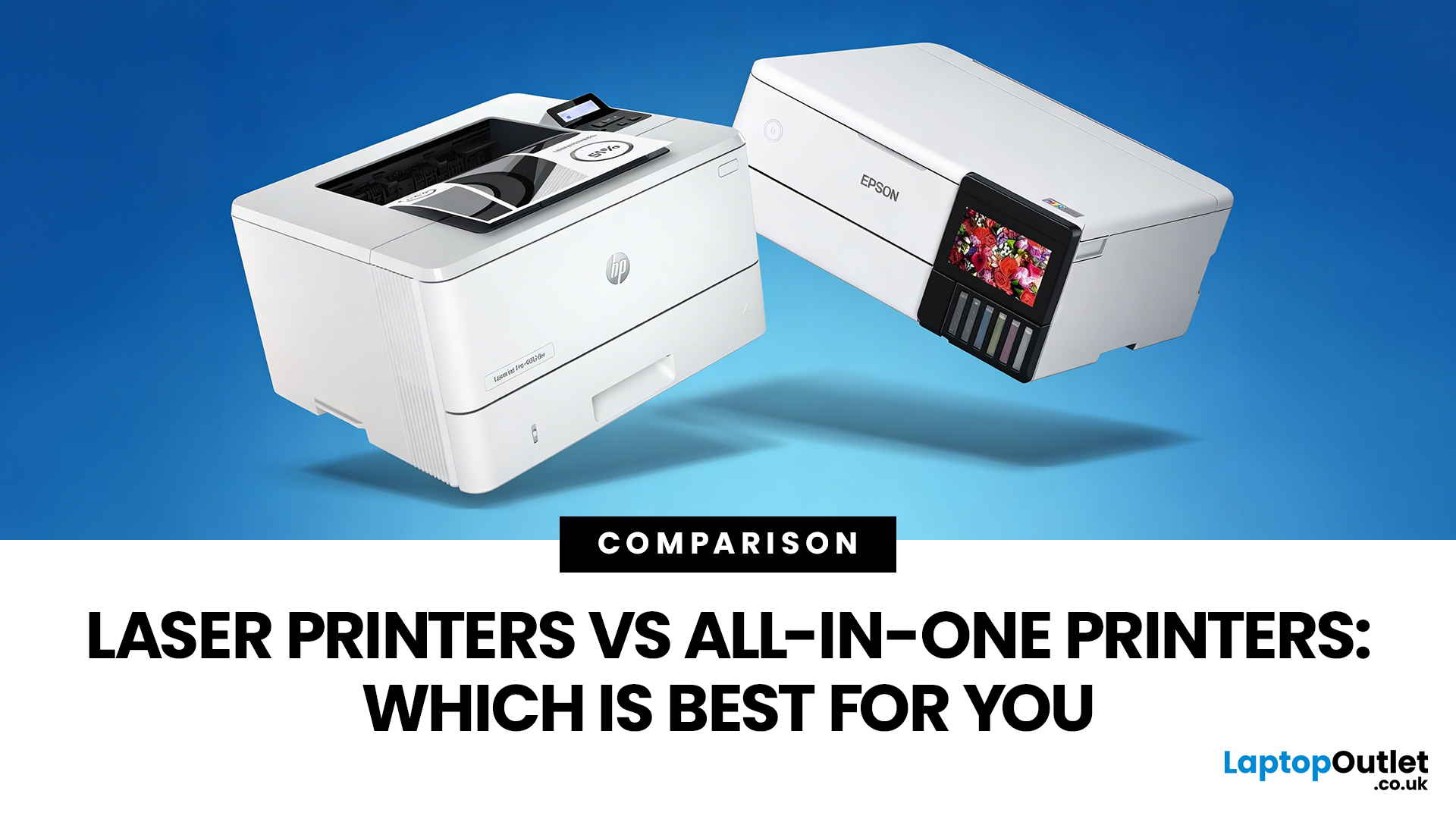
Choosing between Laser printers vs all-in-one printers sounds simple until you realise the two terms do not describe the same thing.
A Laser printer refers to the way the printer works. An all-in-one printer refers to the machine's capabilities, usually printing, scanning, and copying in one unit. That means some all-in-one printers are Laser models, while others are inkjet. So, when people compare all-in-one vs Laser printers, what they are really trying to work out is whether they need stronger print performance or broader day-to-day flexibility.
For some buyers, the Laser is the clear winner. For others, an all-in-one makes far more sense. The right choice depends on how often you print, what you print most, and whether scanning and copying matter as much as printing itself.
If your priority is fast document printing, crisp text and lower running costs over time, a Laser model is usually the smarter fit. If you want one machine that can handle household paperwork, scanning, copying and

Last Updated: April 22, 2026
If most of your printing revolves around invoices, reports, coursework, labels, forms, shipping documents, and everyday admin, a Laser printer usually makes more sense than many buyers first realise. A lot of people still think of Laser printers as large, office-only machines built for big companies, but that view is out of date. Today, you can find compact monochrome models for home desks, colour models for presentation-heavy work, and multifunction machines that print, scan, copy, and fax without dominating your space.
That matters because the right Laser printer can save time every week, keep text consistently sharp, reduce day-to-day hassle, and lower running costs when your workload is document-heavy. The wrong one can leave you paying extra for features you never use or relying on a machine that isn't actually built for the way you print.
This guide explains how Laser printers work, where they perform best, the main advantages and disadvantages to weigh up, and which features matter

Published: April 13, 2026
Inkjet printers are one of the most widely used printing solutions across UK homes, students, and small offices. They are affordable, versatile, and capable of producing high-quality colour output. But if you have used one for any length of time, you already know they can also be frustrating.
From faded prints to clogged nozzles and random error messages, inkjet printer problems are common. The good news is that most of these issues are not serious faults. In many cases, they are caused by usage habits, maintenance gaps, or simple setup errors. This guide goes beyond quick fixes. It explains why these problems happen, how to fix them properly, and how to prevent them in the future so your printer stays reliable long-term.
Why Inkjet Printer Problems Are So Common
To understand inkjet printer troubleshooting, you need to understand how these printers work in real use. Unlike laser printers, inkjet printers rely on liquid ink. That ink is pushed through extremely small nozzles to create

