



Why Is My Printer Not Working? Easy Fixes for Common Issues
Quick Answer: If your printer is not working, start by checking it is powered on, connected to the correct Wi-Fi network, and set as the default printer. Clear any stuck print jobs from the queue, update or reinstall the printer driver, and restart the Print Spooler service on Windows. On Mac, reset the printing system via System Settings. Most printer problems are solved within minutes with these steps.
A ‘printer not working’ issue is one of the most common tech complaints in UK homes and offices. The good news? Most printer problems are surprisingly easy to fix once you know where to look. This guide covers every major printer fault, with accurate, step-by-step fixes for both Windows 11 and macOS.
What Should I Check First When My Printer Stops Working?
Before diving into software fixes, run through this 60-second physical checklist. You would be surprised how often the simplest things are the actual culprit.
- Power: Is the printer switched on and showing a ready or idle light? A printer in sleep mode can sometimes appear unresponsive.
- Connections: Is the USB cable firmly seated at both ends, or is the Wi-Fi indicator lit? Try a different USB port if using a cable.
- Paper: Is the paper tray loaded correctly and not overfilled? Misaligned paper causes both jam errors and feed failures.
- Ink or toner: Are any cartridges flagged as empty or unrecognised on the printer's screen?
- Default printer: Is your printer actually set as the default? Windows 11 can silently switch the default to 'Microsoft Print to PDF' after an update.
- Error lights: Does the printer have any blinking amber or red indicator lights? Check the manufacturer's manual for what each pattern means.
If everything looks fine physically, work through the specific issues below, starting with whichever best matches what you are experiencing.
Why Does My Printer Say 'Offline' Even Though It Is Switched On?
This is one of the most commonly reported printer problems for home and office users. 'Printer offline' does not mean the printer is broken. It means your computer has lost communication with it and has incorrectly flagged its status.
Common triggers include a Windows 11 update, a brief Wi-Fi dropout, a router restart that changed the printer's IP address, or a sleep/wake cycle on your laptop.
Fix: Printer Offline on Windows 11
- Open Settings > Bluetooth & devices > Printers & scanners.
- Click your printer from the list, then select Open print queue.
- In the print queue window, click Printer in the top menu bar and confirm that Use Printer Offline is not ticked. If it is, click it to untick it.
- Back in Printers & scanners, scroll down and toggle Let Windows manage my default printer to Off. Then click your printer and set it as default manually.
- If the offline option is greyed out, the Print Spooler service has stalled. See Section 3 below to fix the spooler first, then return here.
| Tip: Windows 11 has a habit of switching your default printer to whichever device you used last, including 'Microsoft Print to PDF' or 'OneNote.' Turn off the auto-default and choose your printer manually to prevent this recurring. |
Fix: Printer Offline on Mac (macOS Sequoia and Later)
- Open System Settings > Printers & Scanners.
- Click your printer in the list, then click Open Print Queue.
- If the queue shows Pause or the printer status shows Paused, click Resume.
- Delete any jobs in the queue by clicking the X next to each one.
- If the printer remains offline after clearing the queue, right-click (or Control-click) anywhere in the printer list and select Reset printing system. Add your printer back from scratch afterwards.
| Warning: Resetting the printing system on Mac removes all printers and their settings. Make a note of any network printers you have set up before doing this, so you can re-add them. |
Why Are My Print Jobs Stuck in the Queue and Not Printing?
A single stuck or corrupted print job will block every subsequent job behind it. Windows may mark the printer as offline or 'not responding' until the queue is cleared. This can happen after a failed print job, a driver crash, a Windows update, or a printer losing connection mid-print.
How to Clear a Stuck Print Queue on Windows 11
- Press Windows + R, type services.msc, and press Enter.
- Scroll down, right-click Print Spooler, and select Stop.
- Open File Explorer and navigate to: C:\Windows\System32\spool\PRINTERS
- Select all files inside that folder and delete them. Do not delete the folder itself, only its contents.
- Return to Services, right-click Print Spooler, select Start, and set the Startup type to Automatic.
- Print a single test page to confirm it is working.
Critical mistake to avoid: Never delete the spool files while the Print Spooler service is still running. The files will be locked and the deletion will fail silently. Always stop the service first.
How to Clear a Stuck Print Queue on Mac
- Open System Settings > Printers & Scanners, click your printer, and select Open Print Queue.
- Click the X next to each stuck job to cancel them one by one.
- For a faster method, open Terminal (Finder > Applications > Utilities > Terminal) and type cancel -a, then press Enter. This cancels all queued print jobs instantly.
- If jobs refuse to clear, restart your Mac. macOS clears stuck queues automatically on restart.
Could a Faulty or Outdated Driver Be Causing My Printer to Stop Working?
If your printer worked perfectly before a Windows update and now refuses to print or produces gibberish text, a driver conflict or outdated driver is a strong possibility.
How to Fix Driver Issues on Windows 11
- Go to your printer manufacturer's official website (HP Support, Epson Support, Canon Support, or Brother Support) and search for your exact printer model. Download the latest Windows 11-compatible driver or firmware package. Do not rely on third-party driver tools.
- Before installing, remove the old driver: press Windows + X, open Device Manager, expand Printers or Print queues, right-click your printer, and select Uninstall device. Tick the option to remove the driver software as well.
- Restart your PC.
- Run the driver installer you downloaded in Step 1, or add the printer through Windows Settings if the manufacturer recommends using the built-in driver.
- Print a test page: Settings > Bluetooth & devices > Printers & scanners > click your printer > Print a test page.
| Important note for ARM PC users, including some Surface Pro and Snapdragon laptops: some ARM-based Windows 11 devices may not support every manufacturer installer. If the installer fails, add the printer via Settings > Bluetooth & devices > Printers & scanners > Add device instead of relying only on the manufacturer setup package. |
How to Update Printer Software on Mac
- Open System Settings > General > Software Update. macOS delivers printer driver updates through its standard system update channel, so keeping macOS up to date is the first step.
- If no update is available through Software Update, visit the manufacturer's website and download the macOS-compatible driver directly.
- Go to System Settings > Printers & Scanners, remove the printer using the minus button, install the new driver, and add the printer back fresh.
Why Won't My Wireless Printer Connect to the Network?
Wi-Fi printer problems are almost always caused by a changed IP address, a mismatch in Wi-Fi band (2.4 GHz vs 5 GHz), or a router restart that lost the printer's settings. The good news is all of these are simple to fix.
|
Symptom |
Likely Cause |
Fix |
|
Printer goes offline every few days |
Router assigns a new IP address on each restart |
Assign a reserved (static) IP to the printer in your router's admin panel |
|
Printer not found on the network |
Printer and PC on different Wi-Fi bands or networks |
Reconnect both to the same band; most older printers only support 2.4 GHz |
|
Offline after router upgrade or password change |
Saved Wi-Fi credentials are outdated |
Reconnect printer to Wi-Fi via its control panel or manufacturer app |
|
Printer found but jobs not printing |
IP address changed; Windows port settings are stale |
Update the port: Printer Properties > Ports > set the correct current IP |
|
Printer works from phone, not from laptop |
Firewall or security software blocking the connection |
Add the printer as an exception in your antivirus or firewall settings |
Step-by-Step: Reconnect a Wireless Printer to Wi-Fi
- Switch off the printer, your router, and your computer.
- Turn the router back on first and wait two full minutes for it to establish a connection.
- Turn the printer on. Use its control panel, touchscreen, or the manufacturer's app (HP Smart, Epson Connect, Brother iPrint&Scan, Canon PRINT) to reconnect it to your Wi-Fi network.
- Turn your computer on last and wait for it to fully boot.
- On Windows 11: Go to Settings > Bluetooth & devices > Printers & scanners, click your printer, select Remove device, then click Add device to re-add it fresh.
- On Mac: Go to System Settings > Printers & Scanners, click the minus button to remove the printer, then click the plus button to add it back.
| Permanent fix for recurring offline issues: Log into your router's admin page (usually 192.168.1.1 or 192.168.0.1) and assign a reserved IP address to your printer using its MAC address (found on the printer's network settings page or a printed configuration sheet). This prevents the printer from receiving a new IP address every time the router restarts. |
How Do I Fix a Paper Jam (Including Ghost Jam Errors)?
A paper jam is one of the most common reasons a printer stops working. More frustrating is the 'ghost jam' — where the printer displays a jam error even though there is no visible paper stuck inside.
How to Clear a Real Paper Jam Safely
- Switch the printer off and unplug it from the mains. Never reach inside a powered printer.
- Open every access point: the front cover, the rear panel, and the cartridge access area. Use a torch to inspect each area carefully, including under rollers and around sensors.
- Grip any visible jammed paper with both hands and pull it slowly and firmly in the direction of the paper path (typically straight out towards you from the front, or out from the rear tray). Never yank paper backwards against the feed direction as this tears it and leaves dangerous fragments inside.
- Check the rubber feed rollers for tiny paper scraps. Clean them with a slightly damp, lint-free cloth if dusty or dirty, then allow them to dry completely (approximately ten minutes) before closing the covers.
- Plug the printer back in, power it on, and print a test page.
How to Fix a Ghost Jam (Paper Jam Error with No Paper Present)
A ghost jam is usually caused by a paper fragment stuck near a sensor, or a paper sensor that has become sticky or stuck in the triggered position.
- Remove all ink or toner cartridges, then switch the printer off and back on. Reinstall the cartridges once the printer has restarted. On many Epson and HP models, this resets the sensor and clears the false jam error.
- If the error persists, access the rear panel and look for the small plastic paper-detection tab in the centre of the paper path. Do not force it. If it moves freely, gently cycle it up and down with a blunt plastic tool to free it. If it feels stuck or fragile, check the manufacturer’s manual or contact support.
- Use short bursts of compressed air to blow out any dust or micro-fragments from inside the paper path. Keep the can upright and avoid spraying liquid propellant into the printer.
| Prevent future jams: Fan your paper stack before loading to separate sheets. Never overfill the tray. Use the paper weight and size recommended in your printer's manual. Damp or low-quality paper is a leading cause of repeat jams. |
Why Is My Printer Not Recognising the Ink or Toner Cartridge?
This is especially common when fitting a new or compatible (third-party) cartridge. The issue is nearly always a seating problem, dirty contacts, or a firmware-level cartridge restriction.
|
Cause |
How to Fix It |
|
Protective tape not fully removed |
Check for orange or plastic sealing tape on the cartridge nozzle and contacts. Remove it entirely. |
|
Cartridge not seated properly |
Remove and reinsert the cartridge firmly until you hear or feel a definite click. |
|
Dirty electrical contacts |
Wipe the gold contacts on the cartridge and inside the printer with a dry, lint-free cloth. Do not use rough tissue or liquid cleaner unless your printer manufacturer specifically recommends it. |
|
Printer memory not reset |
Remove the cartridge, unplug the printer from the mains for ten minutes to clear its memory, then reinsert and power on. |
|
Wrong cartridge model installed |
Check the model number on the cartridge against the label inside the cartridge bay or your printer's manual. |
|
HP firmware cartridge protection enabled |
Visit HP's support site and search 'HP cartridge protection' for your model. This setting can be switched off in the printer's web interface or EWS page. |
HP users — important: HP periodically pushes firmware updates that enable 'cartridge protection,' which can block compatible or third-party ink cartridges from working. If your HP printer stopped recognising cartridges after an automatic firmware update, this is almost certainly why. The setting can be disabled, but check your model's support page as the steps vary.
Why Is My Printer Producing Streaky, Faded, or Blotchy Prints?
Poor print quality is almost always caused by clogged print heads, low ink or toner, incorrect paper settings, or a misaligned print head. Here is how to diagnose which one it is.
|
Symptom |
Most Likely Cause |
Fix |
|
Horizontal lines or streaks |
Clogged inkjet nozzles |
Run a Nozzle Check then Head Cleaning from the printer utility. Repeat once if needed. |
|
Faded or washed-out output |
Low ink or print mode set to Economy/Draft |
Check ink levels. Switch from Draft to Normal or High Quality in print settings. |
|
Blurry or smeared text |
Wrong paper type selected in settings |
Match the print setting to your paper (e.g., select 'Photo Paper' when printing on photo paper). |
|
Colours look wrong or shifted |
Print head misalignment |
Run a Print Head Alignment from the printer utility or printer menu. |
|
Black streaks on laser prints |
Dirty drum unit or near-empty toner cartridge |
Clean the drum unit with a dry cloth; replace toner if near end of life. |
Epson owners: Epson printers are prone to nozzle clogs after periods of inactivity because the ink dries in the print head. Print at least one test page per week if you do not print regularly. This keeps the nozzles clear without wasting a full cleaning cycle.
Why Can't My Computer Find My Printer at All?
If your computer cannot detect the printer at all — it simply does not appear in Settings — the issue is a connection problem rather than a software fault. Work through these checks in order.
USB Printers: Connection Checks
- Try a different USB port on your computer. Individual ports can fail without warning.
- Swap the USB cable with a known-good one. Cables are a surprisingly frequent point of failure and cost just a few pounds to replace.
- Switch the printer on before plugging in the USB cable. Connecting to a powered-off printer can cause detection failures.
- Avoid connecting through USB hubs or front-panel ports where possible. Connect directly to a rear USB port on the desktop or a side port on the laptop for a stronger signal.
- On Windows 11: open Device Manager (right-click Start > Device Manager) and look for your printer under Printers or Print queues. A yellow warning triangle means a driver issue. Right-click and select Update driver.
Wireless Printers: Detection Checks
- Confirm the printer and your computer are on the same Wi-Fi network and band (2.4 GHz vs 5 GHz). Many printers, particularly older models, only support 2.4 GHz.
- Run the built-in Windows 11 troubleshooter: Settings > System > Troubleshoot > Other troubleshooters > Printer > Run.
- Check whether your firewall or antivirus is blocking the printer. Only temporarily disable third-party security software if you understand the risk, then turn it back on immediately after testing. If disabling it fixes the issue, create a permanent printer exception instead.
- If your printer appears as multiple entries in the printer list (such as 'HP DeskJet 2720,' 'HP DeskJet 2720 (Copy 1),' and 'HP DeskJet 2720 (Network)'), delete all of them and add the printer from scratch. Duplicate entries confuse Windows and cause offline errors.
- On Mac: go to System Settings > Printers & Scanners, click the plus button, and try adding the printer manually by its IP address if it does not appear automatically in the list.
Why Does My Printer Work from My Phone but Not My Laptop?
This very specific symptom tells you the printer hardware and Wi-Fi connection are both fine. The issue is on your computer, either with the driver, user permissions, or a specific application.
- Check print permissions (Windows 11): Go to Settings > Bluetooth & devices > Printers & scanners, click your printer, then Printer properties. Under the Security tab, confirm your user account has the Print permission ticked. On managed work or school devices, printer permissions may be restricted by your administrator. Check the Security tab or contact IT if your account does not have permission to print.
- Test from a different application: If only your browser or one specific app cannot print, the fault is at application level, not the printer. Try printing from Notepad with a simple text document to isolate whether it is system-wide or app-specific.
- Disable bidirectional support: Open Printer Properties > Ports tab and untick Enable bidirectional support. This resolves some browser-based printing failures. If it does not help, turn bidirectional support back on, as some printers rely on it for ink levels and status updates.
- Check Windows Update history: Go to Settings > Windows Update > Update history. If printing stopped after a specific update, note its KB number and search Microsoft's support pages for a known fix or workaround.
Printer Not Working: Full Quick-Reference Diagnosis Table
|
Symptom |
Most Likely Cause |
First Fix to Try |
OS |
|
Shows 'Offline' |
Windows flagged offline after update or Wi-Fi drop |
Untick 'Use Printer Offline' in print queue; restart Print Spooler |
Windows |
|
Shows 'Offline' or 'Paused' |
Stuck print job blocking the queue |
Open print queue, resume or delete stuck jobs; run cancel -a in Terminal |
Mac |
|
Jobs disappear without printing |
Corrupted driver or spooler crash after update |
Clear C:\Windows\System32\spool\PRINTERS, restart Print Spooler, reinstall driver from manufacturer |
Windows |
|
Printing gibberish or blank pages after update |
Driver conflict, outdated driver, or incompatible print language |
Download latest IPP-compatible driver from manufacturer's official site |
Windows |
|
Paper jam error, no paper visible |
Ghost jam from sticky or triggered paper sensor |
Remove cartridges, power cycle printer; check sensor tab in rear panel |
Both |
|
Cartridge not recognised |
Dirty contacts, loose seating, or HP firmware lock |
Reseat until it clicks; wipe contacts; power-cycle for 10 minutes |
Both |
|
Streaky or faded prints |
Clogged nozzles or low ink/toner |
Run nozzle check and head cleaning from printer utility |
Both |
|
Printer not detected at all |
Faulty USB cable/port or Wi-Fi mismatch |
Swap USB cable and port; reconnect printer to correct Wi-Fi band |
Both |
|
Works from phone, not laptop |
Driver conflict or user permissions fault |
Check Security tab for Print permission; reinstall driver |
Windows |
|
Keeps going offline every few days |
Router assigns a new IP each restart |
Set a reserved (static) IP for the printer in your router admin |
Both |
When Should I Stop Troubleshooting and Replace My Printer?
Most printer issues are fixable, but there are times when replacement makes more sense than repair. Here are the honest signs to watch for.
- The printer is more than 5 to 7 years old and is showing repeated faults.
- The repair or replacement part costs more than 50% of the price of a new equivalent model.
- The fuser, drum, or print head needs replacing and the printer is a budget model.
- Drivers are no longer supported by the manufacturer for your version of Windows or macOS.
- You need features your current printer does not have, such as duplex printing, wireless, or A3 support.
- You are spending more on ink cartridges annually than an EcoTank or laser printer would cost to run over the same period.
If you are buying a replacement, modern inkjet printers and laser printers start from as little as £40 to £60 for home use, with better wireless connectivity and lower running costs than older models.
Ready to upgrade? Our printer buying guide covers everything you need to choose the right model for your home or office.

Get Back to Printing
A printer not working is rarely as serious as it first appears. Most printer problems, whether it is an offline status, a stuck print queue, a Wi-Fi dropout, or poor print quality, can be resolved at home without calling a technician or spending money on repairs.
Work through the relevant fix in this guide, starting with the simplest steps first. Restart the printer, clear the queue, check connections, and update your drivers. If you have tried everything and your printer is still not cooperating, it may be time for an upgrade.
Check out our printer range at Laptop Outlet for reliable, affordable options suited to every home and office need.

In Case You’re Still Stuck...
How do I clear a stuck print queue on Windows?
Stop the Print Spooler service via services.msc, delete files in C:\Windows\System32\spool\PRINTERS, then restart the Print Spooler service.
Why does my wireless printer keep going offline every few days?
Your router is assigning the printer a new IP address after each restart. Assign a static reserved IP via your router's admin panel to permanently resolve this.
How do I fix a printer not recognised ink cartridge error?
Remove and firmly reseat the cartridge until it clicks. Clean gold contacts with a dry lint-free cloth. Unplug the printer for ten minutes to reset its memory.
Why is my printer producing streaky or faded prints?
Streaky prints usually mean clogged nozzles or low ink. Run a Nozzle Check then a Head Cleaning cycle from your printer's utility software to fix this.
How do I clear a paper jam when there is no paper visible?
This is a ghost jam. Remove all cartridges, power cycle the printer, and check for micro-fragments near the paper sensor using a torch and compressed air.
How do I fix my Mac showing 'Printer Paused'?
Open System Settings, go to Printers and Scanners, click your printer, open the print queue, and click Resume. Delete any stuck jobs in the queue first.
How do I run the printer troubleshooter on Windows 11?
Go to Settings, System, Troubleshoot, Other troubleshooters, find Printer in the list, and click Run. Follow the on-screen prompts and restart your PC afterwards.
| Read More |
| A Complete Guide to the Different Types of Printers |
| How to Set Up a Wireless Printer: Step-by-Step Guide |
| How to Choose the Best Printer for Small Business |
Related Articles

Last Updated: July 03, 2026
Brother is a prevalent brand in the printing world, and its printers are a popular choice for home and business use. Brother printers offer many models with wireless connectivity, high-speed printing, and cost-effective solutions. Whether looking for an Inkjet, laser or all-in-one printer, Brother has something for you. Engineered to provide sharp and professional quality prints, Brother printers feature a user-friendly interface and features like automatic duplex printing, cloud-based printing options, and mobile device compatibility.
We have tested and reviewed over 100 of the best printers, ranking Brother high among the competition. So, here we are rounding up the best picks for Brother printers you can buy in 2026. These printers have been selected based on their performance, features, and overall user satisfaction. If you're a student, a professional, or a small business owner, you're sure to find the ideal Brother printer to meet your specific printing needs.
So, let's jump right
Last Updated: April 03, 2026
From compact inkjet printers for home use to heavy-duty laser printers for businesses, each model is designed with specific users in mind. While buying a printer may feel challenging, one important thing to remember is that the features you value will greatly impact your long-term satisfaction. Knowing how to choose the right printer for your needs ensures you get value for money, efficiency, and the features that matter most.
Why Choosing the Right Printer Matters
A printer is more than just an accessory, it’s a productivity tool. Picking the wrong one could mean high running costs, slower performance, or features you never use. The right printer, on the other hand, will save time, reduce costs, and fit seamlessly into your lifestyle or workplace.
Things to Consider Before Buying a Printer
What Will You Be Printing?
Not all printers are created equal, and the type of documents you print most often should guide your choice. If you're only printing everyday documents like work reports,
Last Updated: April 02, 2026
Why You Need Your Printer’s IP Address
Whether you’re setting up a new device, troubleshooting, or connecting wirelessly—knowing your printer’s IP address is essential. It’s how your laptop or phone finds and communicates with the printer over Wi-Fi. Here’s how to find it in a few simple steps.
How to Find a Printer’s IP Address
1. Check the Printer’s Display Screen (If Available)
- Most modern printers display their network settings.
- Press Menu or Settings on the printer
- Navigate to Network Settings > Wi-Fi Settings
- Look for IP Address
2. Print a Network Configuration Page
- Many printers allow you to print a page showing their network information.
- Go to Settings > Network > Print Network Configuration
- Look for the IPv4 Address or IP Address section on the printout
3. Find Printer IP Address on Windows
- Click Start > Settings > Devices > Printers & Scanners
- Select your printer > Manage > Printer Properties
- Go to the Ports tab and look for the IP address
Alternatively:

Last Updated: April 03, 2026
Mobile Printing Made Simple
Need to print a document, photo, or ticket from your phone? You don’t need to transfer files to a laptop first. Mobile printing lets you print directly from your smartphone or tablet to a wireless printer—fast and hassle-free. Here’s how to do it on both iPhone and Android.
What You’ll Need
Before you start:
- A Wi-Fi-enabled printer
- Your smartphone or tablet
- Both devices connected to the same Wi-Fi network
How to Print from an iPhone (iOS)
1. Use Apple AirPrint
Most modern printers support AirPrint, Apple’s built-in wireless printing feature.
Steps:
- Open the document, photo, or webpage you want to print
- Tap the Share icon (box with arrow)
- Tap Print
- Select your printer from the list
- Choose print settings (number of copies, pages, etc.)
- Tap Print
2. Use the Printer Manufacturer’s App
- If your printer doesn’t support AirPrint:
- Download the manufacturer’s app (e.g., HP Smart, Canon PRINT, Epson iPrint)
- Follow the in-app instructions

Last Updated: April 03, 2026
Printer Offline? Let’s Fix That.
You hit print—and your computer tells you the printer is offline. Frustrating, right? Whether you’re using Windows or macOS, this common error usually has a simple fix. Let’s explore the reasons why your printer might say it’s offline and how to get it back online.
1. What Does “Printer Offline” Mean?
It means your computer can’t communicate with the printer. This could be due to:
- Connection issues (Wi-Fi, USB, or cable)
- Printer being powered off or asleep
- Incorrect default printer settings
- Outdated or corrupted drivers
It doesn’t always mean your printer is broken—just that the computer can’t detect it.
2. Check the Printer Connection
- Ensure the printer is powered on
- Check Wi-Fi or Ethernet connections
- If using USB, confirm the cable is securely plugged in
- Try restarting the printer and your computer
3. Set the Printer as Default (Windows)
Sometimes your computer sends the job to a different printer.
Steps:
- Go to Settings
Last Updated: June 10, 2026
The best HP printer depends on what you print, how often you print, whether you need scanning or copying, and how much you want to spend on ink or toner. For home users, an HP inkjet or all-in-one printer is usually the best choice. For offices and small businesses, HP OfficeJet, LaserJet or multifunctional printers are better for speed, reliability and heavier workloads.
Buying a printer can feel confusing because HP offers many different models for different users. Some are made for simple home printing. Some are designed for students and families. Others are built for small businesses, offices, shipping labels, high-volume printing or professional document handling. That is why choosing the right printer is not just about finding the cheapest model. It is about understanding your print habits, running costs, space, connectivity and long-term needs.
This HP printer guide 2026 will take you from basic printer knowledge to more advanced buying terms, so whether you are buying your first

Last Updated: July 06, 2026
Buying one of the many HP printers for small business setups out there sounds easy until you start comparing them properly. Some are better for fast document printing, some are built for scanning and colour work, and some save you more money over time. The trick is not buying the fanciest one. It is buying the one that suits your workload. This guide walks through the HP printer types that make the most sense for home offices, small teams, and day-to-day business use.
Which HP Printer Type Should a Small Business Choose?
- If your business prints mixed colour documents, scans paperwork regularly and needs one compact machine, go for an HP all-in-one in the OfficeJet Pro range. OfficeJet Pro printers are best for higher-volume printing and all-around productivity in a home or home office, which is exactly the kind of workload many sole traders, hybrid workers and small teams deal with.
- If your business prints lots of text-heavy documents and speed matters more than photo-quality colour, choose
Last Updated: June 10, 2026
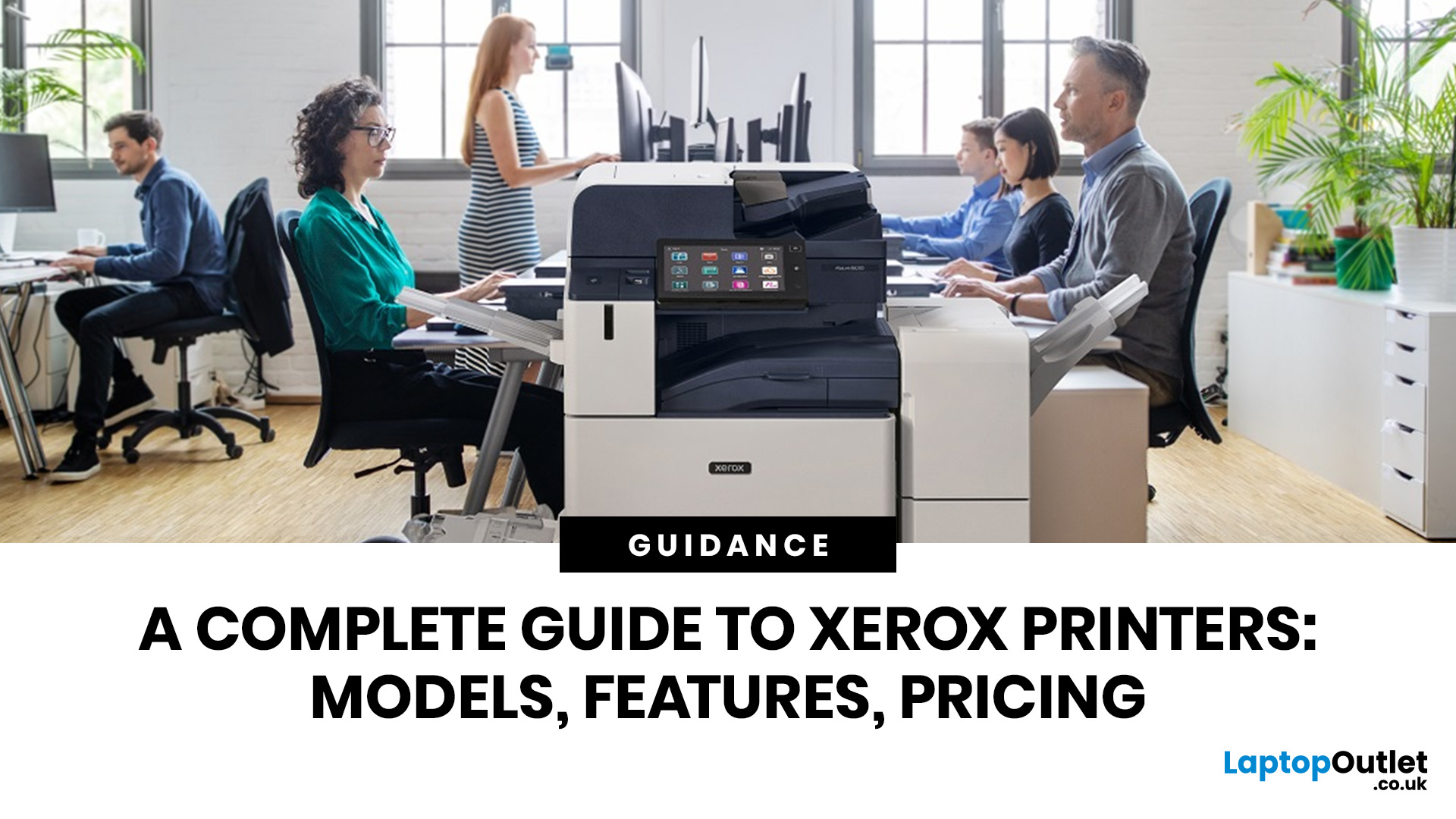
A Xerox printer is a document printer or multifunction device designed for reliable office, business, and home printing. Most modern Xerox printers focus on laser or LED printing, fast document output, strong security, mobile printing and multifunction features such as scanning, copying, faxing and cloud connectivity.
Xerox is a trusted name in business printing, best known for office printers, copiers and multifunction devices. While the brand is still strongly linked with photocopying, modern Xerox printers do much more than copy documents.
Today’s Xerox devices can print, scan, copy, fax, support mobile and cloud printing, manage user access and help businesses control print costs. Many models also include Wi-Fi, reliable paper handling, security features and easy touchscreen controls.
If you are comparing printers, looking for a Xerox printer, or trying to understand whether Xerox is right for your home or office, this guide breaks everything down in simple words.
What is a Xerox
Last Updated: May 05, 2026
HP printers are reliable, but even the best machines throw a wobble from time to time. The good news is that the vast majority of issues are easy to resolve on your own. This guide will show you how to fix common HP printer problems without calling a professional. Whether you've got an HP OfficeJet, DeskJet, LaserJet, or ENVY, many of the checks below apply across the range.
What Are the Most Common HP Printer Problems?
Before diving into individual fixes, it helps to know what you are actually dealing with. HP printers, from compact home models to full office workhorses, tend to run into the same handful of issues time and again.
Here is a quick overview of the most frequently reported HP printer problems and what typically causes them:
| Problem | Most Likely Cause |
| Printer not printing | Stuck print queue, offline status, driver fault |
| Paper jam | Overfilled tray, worn rollers, torn paper fragments |
| Printer showing offline | Wi-Fi dropout, incorrect default printer setting |
| Blank or faded pages |
Last Updated: May 05, 2026
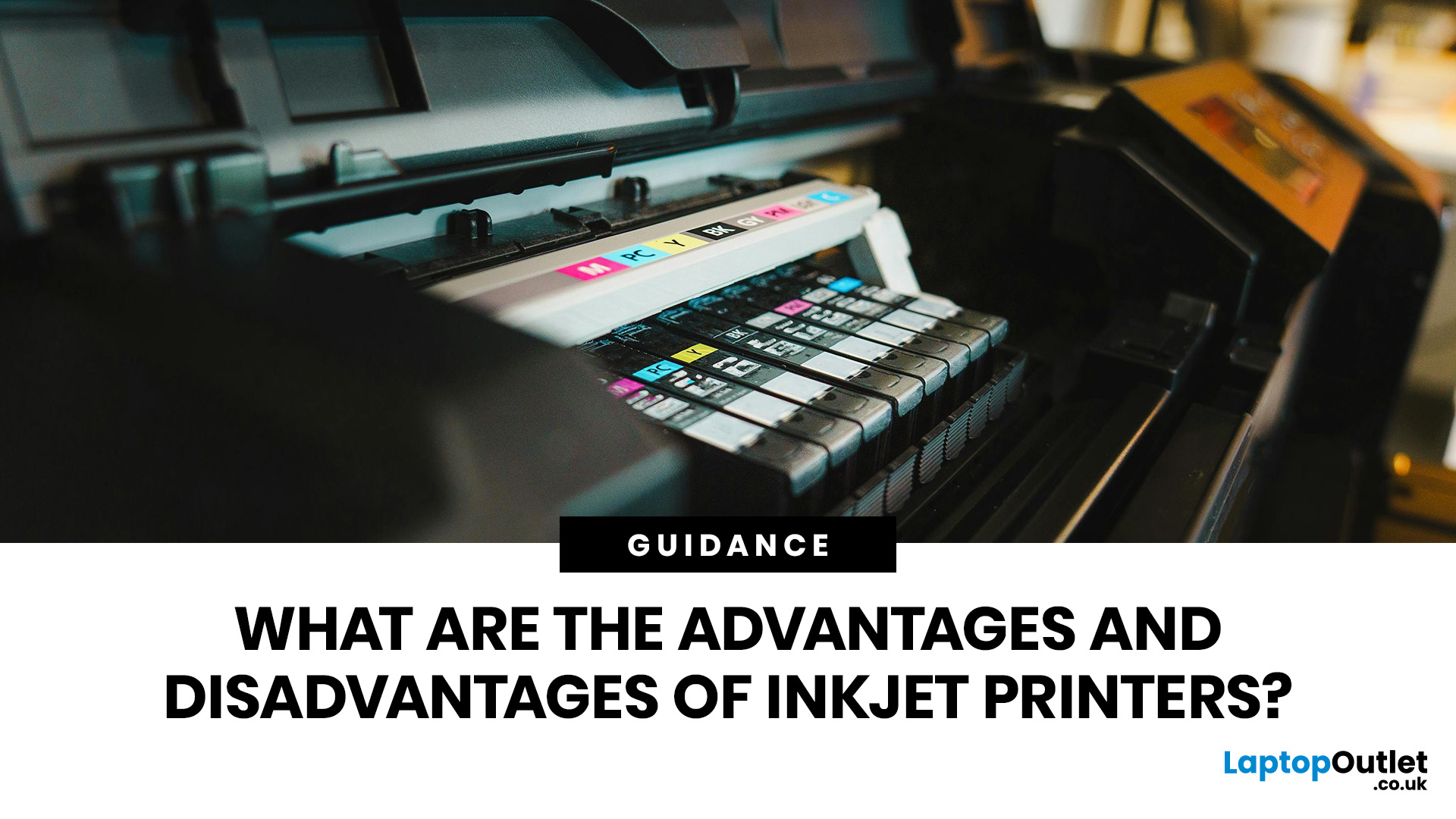
Quick Answer: Inkjet printers offer high colour quality, a compact design, and a lower upfront price, making them ideal for homes, students, creative projects, and light office use. The main disadvantages are higher ink costs on cartridge models, slower print speeds, possible ink smudging, and printhead maintenance when the printer sits unused.
Choosing a printer sounds simple until you start comparing ink costs, print speed, colour quality, maintenance, and the difference between inkjet and laser models. For many UK homes, students, hybrid workers, and small offices, an inkjet printer still makes a lot of sense. It is usually compact, affordable to buy, and strong at printing colour documents, photos, homework, labels, and everyday paperwork.
The part that needs more thought is the long-term cost. Some inkjet printers are cheap upfront, but can become expensive when you replace cartridges often. Others, such as refillable ink tank models, cost more upfront but may suit regular printing

