



A Complete Guide to Xerox Printers: Models, Features, Pricing
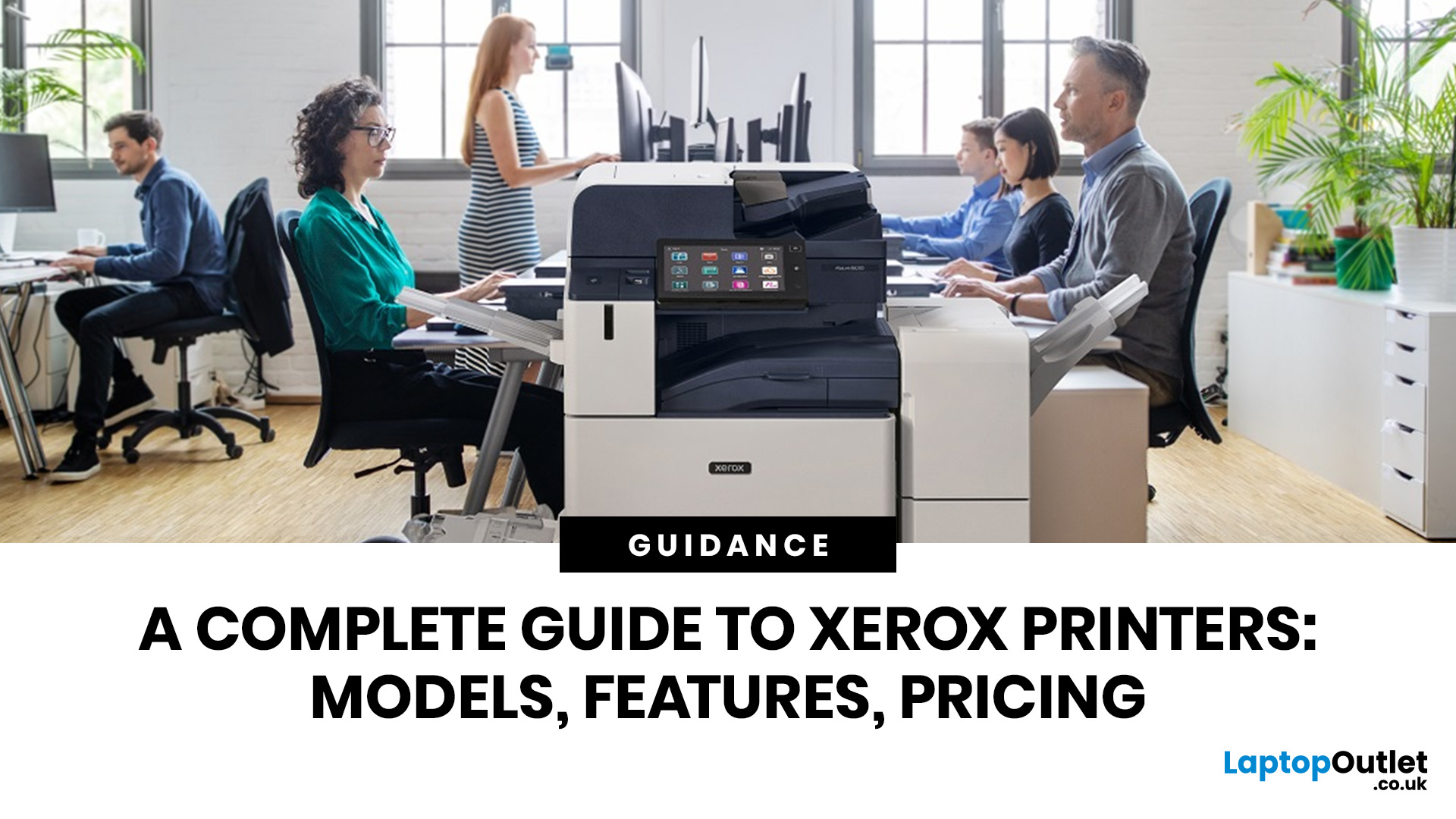
A Xerox printer is a document printer or multifunction device designed for reliable office, business, and home printing. Most modern Xerox printers focus on laser or LED printing, fast document output, strong security, mobile printing and multifunction features such as scanning, copying, faxing and cloud connectivity.
Xerox is a trusted name in business printing, best known for office printers, copiers and multifunction devices. While the brand is still strongly linked with photocopying, modern Xerox printers do much more than copy documents.
Today’s Xerox devices can print, scan, copy, fax, support mobile and cloud printing, manage user access and help businesses control print costs. Many models also include Wi-Fi, reliable paper handling, security features and easy touchscreen controls.
If you are comparing printers, looking for a Xerox printer, or trying to understand whether Xerox is right for your home or office, this guide breaks everything down in simple words.
What is a Xerox printer?
A Xerox printer is a printer or multifunction device made by Xerox, a brand best known for office printing, copying and document management. Depending on the model, a Xerox printer may be a simple single-function printer, a colour laser printer, a black-and-white office printer, or a multifunction printer that can print, copy, scan, fax and email documents.
In simple terms:
|
Xerox printer type |
What it does |
|
Single-function printer |
Prints documents only |
|
Multifunction printer |
Prints, scans, copies and may fax |
|
Colour printer |
Prints in colour and black-and-white |
|
Mono printer |
Prints black-and-white only |
|
Office printer |
Designed for daily business workloads |
|
A3 multifunction printer |
Handles larger paper sizes and office workflows |
So, if someone asks what a Xerox printer is, the simplest answer is: it is a printer or multifunction office machine designed to produce documents quickly, reliably and professionally.
How Xerox printers work
To understand how Xerox printers work, it helps to know that many Xerox office printers use laser or LED-style print technology rather than traditional inkjet printing.
A laser or LED printer uses toner powder instead of liquid ink. The printer creates an electrostatic image, applies toner to the page, and then uses heat and pressure to fuse the toner onto the paper. This is why laser-style printers are often faster and better suited to text-heavy office printing than many basic inkjet models.
This is different from inkjet printers, which spray tiny droplets of liquid ink onto paper. Inkjet printers are often great for home colour printing, photos and creative projects, while Xerox laser and multifunction printers are usually aimed more at documents, reports, office workflows and business use.
Quick comparison: Xerox laser-style printers vs inkjet printers
|
Feature |
Xerox laser-style printers |
Inkjet printers |
|
Print method |
Toner powder fused to paper |
Liquid ink sprayed onto paper |
|
Best for |
Office documents, reports, business printing |
Photos, colour pages, home projects |
|
Speed |
Usually faster for documents |
Varies by model |
|
Running cost |
Often better for frequent document printing |
Can be higher if cartridges are small |
|
Print quality |
Sharp text and professional documents |
Strong colour and image printing |
|
Typical user |
Offices, teams, businesses |
Homes, students, casual users |
That does not mean inkjet printers are bad. They are just built for a different kind of buyer. If you want photo prints or low-volume home printing, inkjet may still make sense. If you want fast business documents, Xerox is usually more relevant.
Types of Xerox printers

The types of Xerox printers can cover several different categories. Here are the main ones you are likely to come across.
1. Xerox single-function printers
Single-function Xerox printers are designed to print only. They do not scan, copy or fax. These are useful if your main need is fast document output and you already have another scanner or copier.
They are best for:
- offices that print lots of documents
- users who do not need scanning
- teams that want lower complexity
- black-and-white reports, invoices and letters
2. Xerox multifunction printers
Multifunction printers, also called MFPs, are the most common choice for offices because they combine printing, scanning, copying, and sometimes faxing. Xerox describes its all-in-one laser printers as devices that can act as a copier, printer, scanner and fax machine in one, with high-quality printing, reliability and security.
They are best for:
- offices
- small businesses
- reception desks
- admin teams
- document-heavy workflows
- businesses that scan and copy regularly
3. Xerox colour printers
Colour Xerox printers are designed for documents that need more visual impact, such as presentations, brochures, reports, charts and marketing material.
They are best for:
- client-facing documents
- reports with charts
- school or training materials
- marketing teams
- design-heavy office documents
4. Xerox mono printers
Mono printers print in black-and-white only. They are usually a smart choice if you mostly print text documents and want speed, simplicity and lower running costs.
They are best for:
- invoices
- contracts
- internal documents
- legal paperwork
- shipping paperwork
- admin departments
5. Xerox A3 printers
A3 Xerox printers support larger paper sizes. They are useful for businesses that print posters, plans, booklets, spreadsheets, design proofs or larger office documents. Xerox’s VersaLink C7100 series, for example, is described as a colour A3 multifunction printer range for small to mid-size workgroups, with print, copy, scan, fax, email and cloud capabilities.
They are best for:
- design teams
- construction offices
- education
- marketing departments
- finance teams working with large spreadsheets
Xerox printer models and ranges explained
Xerox has different printer families for different workloads. The exact models available can change, but the main ranges usually include compact business printers, VersaLink devices and AltaLink devices.
Xerox compact office printers
These are typically smaller desktop printers or multifunction devices. They suit home offices, small offices and workgroups that need reliable document printing without a huge machine.
They may include features such as:
- compact design
- Wi-Fi or Ethernet
- mono or colour printing
- scan and copy on MFP models
- automatic double-sided printing
- mobile printing support
These are a good step up from basic home printers if you want something more business focused.
Xerox VersaLink printers
VersaLink is one of Xerox’s key office printer ranges. Xerox says VersaLink printers offer functionality, security, crisp colour prints and cloud connectivity capabilities.
VersaLink printers are often a strong match for:
- small to medium workgroups
- offices needing colour documents
- teams using cloud workflows
- businesses that want security and productivity features
- users who need a balance of performance and usability
Some VersaLink devices support Xerox ConnectKey technology, which brings app-style workflows, cloud access and more customisation to the printer experience.
Xerox AltaLink printers
AltaLink is usually aimed at larger teams and more demanding business environments. These devices are often bigger, faster and more scalable than compact models.
They are better suited to:
- medium and large offices
- busy departments
- shared print environments
- advanced security needs
- higher monthly print volumes
- larger paper handling requirements
If VersaLink is the “smart office workhorse”, AltaLink is more like the “department-level print hub”. For setup-related errors, it is worth checking a step-by-step Xerox printer installation guide before trying advanced fixes.
Xerox printer features explained
Now we will cover the main features of the Xerox printer in a practical way, so you know what matters before buying.
Print speed
Print speed is usually measured in pages per minute, or PPM. A printer with a higher PPM can print more pages in less time.
For home use, this is not always a big deal. For offices, it matters a lot. If five people are waiting for reports, slow print speeds get annoying fast.
Print resolution
Resolution is usually measured in DPI, or dots per inch. Higher DPI can produce sharper detail. For text documents, you do not always need the highest number. For graphics, charts and colour reports, resolution matters more.
Duplex printing
Duplex printing means automatic double-sided printing. This saves paper and makes documents look more professional.
Choose duplex printing if you print:
- reports
- contracts
- handouts
- training packs
- school documents
- office paperwork
Automatic document feeder
An automatic document feeder, or ADF, lets you scan or copy multiple pages without placing each page on the glass manually. This is a must-have for admin-heavy offices.
Mobile printing
Mobile printing lets users print from phones and tablets. Xerox multifunction devices can include mobile printing and cloud-connected apps, which is useful for modern hybrid working.
Cloud connectivity
Cloud connectivity allows users to scan to, or print from, cloud services depending on the model and setup. This is useful if your team works across shared drives or cloud storage.
Security features
Security is a major part of xerox printer features for business. Offices often print sensitive documents, such as invoices, contracts, HR records and client information. Xerox highlights advanced security as part of its multifunction printer offering.
Useful security features may include:
- secure print release
- user authentication
- admin controls
- encrypted connections
- network security settings
- access restrictions
Paper handling
Paper handling includes tray size, paper capacity, supported paper weights and finishing options. For a small home office, a basic tray may be fine. For a busy team, larger trays and finishing options can save time.
Touchscreen controls
Many business printers now use tablet-like touchscreens. Xerox says some of its multifunction printers include tablet-like touchscreens and cloud-connected apps, helping users manage workflows more easily.
Best Xerox printer features for business
If you are buying for a company, the priorities are different from home use. A business printer needs to be reliable, secure and cost-effective over time.
Key business features to look for
|
Feature |
Why it matters for business |
|
Fast print speed |
Reduces waiting around |
|
Automatic duplex |
Saves paper and keeps documents professional |
|
ADF scanner |
Speeds up multi-page scanning and copying |
|
High paper capacity |
Reduces refilling |
|
Ethernet and Wi-Fi |
Supports flexible office setup |
|
User authentication |
Helps protect sensitive documents |
|
Cloud scanning |
Supports hybrid and digital workflows |
|
Cost controls |
Helps manage print budgets |
|
Toner efficiency |
Keeps long-term costs lower |
|
Support and drivers |
Makes setup and maintenance easier |
For businesses, the smartest choice is usually not the cheapest machine. It is the one that saves time, avoids downtime and supports the way your team actually works.
Xerox printer cost: what should you budget for?
The xerox printer cost depends on several things:
- printer type
- colour or mono printing
- single-function or multifunction
- print speed
- paper capacity
- toner cost
- maintenance parts
- warranty or support
- expected monthly print volume
A compact mono Xerox printer may cost far less than a large A3 colour multifunction device. But the upfront price is only one part of the real cost.
Total cost of ownership
Total cost of ownership means the full cost of owning the printer over time, not just buying it.
It includes:
- purchase price
- toner
- drums or imaging units
- paper
- maintenance
- energy use
- repairs
- downtime
- support contracts, if used
For businesses, total cost of ownership matters more than the shelf price. A cheaper printer can become expensive if toner runs out quickly or it cannot handle your workload.
Cost per page
Cost per page estimates how much each printed page costs. It is one of the most useful buying metrics.
If you print only a few pages a week, cost per page may not matter much. If you print hundreds or thousands of pages a month, it matters a lot.
Xerox printer pricing guide by user type
|
User type |
Recommended Xerox printer type |
Budget focus |
|
Home user |
Compact mono or colour printer |
Low upfront cost and simple setup |
|
Home office |
Compact multifunction printer |
Scan, copy, Wi-Fi and running cost |
|
Small business |
VersaLink-style printer or MFP |
Reliability and cost per page |
|
Medium office |
Higher-capacity multifunction printer |
Speed, paper handling and security |
|
Large department |
AltaLink-style printer |
Workflow, security and scalability |
|
Creative/marketing team |
Colour multifunction or A3 printer |
Colour quality and larger paper support |
Prices change often, so it is worth browsing the latest Xerox printer range before choosing.
Xerox printers for home use
Xerox is usually more business-focused than casual home-focused, but that does not mean it is only for big offices. A compact Xerox printer can be a good choice for a home office, a remote worker, or a household that prints lots of documents.
A Xerox printer may be right for your home if you:
- print work documents often
- want sharp text
- prefer toner over ink cartridges
- need reliable black-and-white printing
- want a more office-style device
- do not need photo-quality prints
If you mostly print photos, school crafts, or occasional colour pages, home printers or inkjet models may be a better starting point.
Xerox printers for office use
This is where Xerox really shines. Offices need printers that can handle regular use without drama. Xerox multifunction printers are especially useful because they reduce the need for separate printers, scanners, copiers and fax machines.
Choose Xerox for office use if you need:
- fast document output
- strong text quality
- reliable scanning
- secure printing
- shared team access
- cloud workflows
- lower document-printing cost over time
- better paper handling
Xerox’s multifunction printer pages highlight reliable paper handling, cost-control tools, security and mobile/cloud features, which align closely with what modern offices need.
Xerox printers vs inkjet printers
This is a key decision point.
Choose a Xerox laser-style printer if:
- you print lots of documents
- you want sharp text
- you print daily or weekly
- you need office reliability
- you want toner rather than ink
- you need a business-focused device
Choose an inkjet printer if:
- you print photos
- you print casually
- you want low upfront cost
- you print colourful home projects
- you do not print huge volumes
If you are still unsure, compare the wider inkjet printers category with Xerox models before deciding.
Do Xerox printers print labels?
Some Xerox printers can print on certain label sheets, depending on the model and supported media types. However, if your main job is shipping labels, barcodes or receipts, a dedicated Label printers category is usually the better option.
Use a Xerox printer for:
- document labels
- address label sheets
- occasional office labels
Use a dedicated label printer for:
- ecommerce shipping
- barcodes
- warehouse labels
- receipt labels
- stock tags
- high-volume labelling
This is one of those “buy the right tool” moments. A Xerox printer can handle general business printing. A label printer is built for label workflows.
How to Set Up a Xerox Printer
Once you buy a Xerox printer, setup usually follows a familiar process. Xerox’s support site provides product support, drivers, documentation, FAQs and instructions for Xerox products, which is the safest place to get the correct software for your exact model.
Basic setup steps
- Unbox the printer and remove packaging.
- Place it on a stable surface with enough ventilation.
- Connect the power cable.
- Install toner or cartridges if required.
- Load paper into the tray.
- Connect by USB, Ethernet or Wi-Fi.
- Download the correct driver from Xerox support.
- Add the printer to your computer or mobile device.
- Print a test page.
- Update firmware if available.
Setup tips
- Use the official Xerox driver, not a random download site.
- Keep the printer close to the router during Wi-Fi setup.
- For offices, Ethernet is often more stable than Wi-Fi.
- Set admin passwords properly on business printers.
- Update firmware to improve reliability and security.
Maintenance for Xerox printers
Good maintenance helps reduce downtime and keeps print quality consistent.
Basic maintenance checklist
|
Task |
How often |
|
Replace toner |
When print levels are low |
|
Clean paper path |
When jams or marks appear |
|
Update firmware |
When updates are available |
|
Use suitable paper |
Always |
|
Keep vents clear |
Always |
|
Check rollers |
If feeding issues appear |
|
Replace imaging units |
When required by model |
|
Keep drivers updated |
After OS updates |
Smart maintenance habits
Do not overload paper trays. Keep the printer in a dry, dust-free area. Use paper that matches the printer’s specifications. Replace toner and maintenance items when the printer recommends it. These simple habits can prevent many common Xerox printer problems.
Common Xerox printer problems
Even reliable printers can have issues. Common xerox printer problems include:
- paper jams
- faded prints
- streaks or lines
- printer offline errors
- slow printing
- Wi-Fi connection problems
- driver issues
- scan-to-email errors
- toner warnings
Xerox’s support portal is the best starting point for model-specific drivers, documentation, FAQs and instructions.
Quick troubleshooting table
|
Problem |
Possible cause |
First fix to try |
|
Printer offline |
Network issue |
Restart printer and router |
|
Paper jam |
Misaligned or unsuitable paper |
Remove jam and reload paper properly |
|
Faded print |
Low toner |
Check toner level and replace if needed |
|
Lines on page |
Dirty components or imaging issue |
Run cleaning cycle or check consumables |
|
Slow printing |
Large file or network delay |
Try a wired connection or reduce file size |
|
Scanner not working |
Driver or permission issue |
Reinstall driver and check settings |
|
Wi-Fi not connecting |
Weak signal |
Move printer closer to router |
For longer-term care, follow a detailed Xerox printer maintenance guide to keep toner, cleaning and performance issues under control.
How to choose the right Xerox printer
Here is the practical buying process.
Step 1: Decide home or business use
If it is for casual home use, do not overbuy. If it is for business, do not underbuy. A cheap printer that cannot handle your workload will cost more in frustration later.
Step 2: Choose colour or mono
Choose mono if you mostly print text. Choose colour if you print charts, presentations, customer documents or marketing material.
Step 3: Choose print-only or multifunction
If you only print, a print-only is fine. If you scan, copy or email documents, choose a multifunction printer.
Step 4: Check monthly volume
Look at how many pages you print each month. Pick a printer designed for that level of use.
Step 5: Check connectivity
For one user, USB or Wi-Fi may be enough. For an office, Ethernet, mobile printing and network controls are more important.
Step 6: Check running costs
Look at toner prices, page yield and maintenance parts. Do not judge the printer only by the initial price.
Step 7: Think about future growth
If your team may grow, choose a printer with stronger paper capacity, security and workflow features.
Xerox printer buying checklist
Before buying, check:
- Do I need colour?
- Do I need scanning and copying?
- How many pages do I print monthly?
- Is A4 enough, or do I need A3?
- Do I need Wi-Fi, Ethernet or both?
- How much does toner cost?
- What is the cost per page?
- Is duplex printing included?
- Does it support mobile printing?
- Does it have security features?
- Will it fit my desk or office?
- Is official driver support available?

Final verdict
This Xerox Printers guide comes down to one key idea: Xerox is best for users who want reliable document printing, office features and business-ready workflows. If you need a casual photo printer, an inkjet may be a better fit. But if you want fast text output, multifunction scanning, secure printing, cloud connectivity and a printer built for regular use, Xerox is a strong choice.
The best Xerox printer is not simply the most powerful one. It is the one that matches your print volume, budget, paper needs and workflow. Get that right, and your printer becomes the quiet office hero nobody appreciates until it stops working.

FAQs
What is a Xerox printer used for?
A Xerox printer is used for printing documents, and many models can also scan, copy, fax and email files. Xerox printers are especially common in offices because they are designed for reliable document workflows, shared team use and business printing.
Are Xerox printers good for home use?
Yes, a compact Xerox printer can be good for home offices or users who print documents regularly. However, if you mainly print photos, school projects or occasional colour pages, a home inkjet printer may be more suitable.
What are the main types of Xerox printers?
The main types include single-function printers, multifunction printers, mono printers, colour printers, compact office printers, VersaLink devices, AltaLink devices and A3 multifunction printers.
How much does a Xerox printer cost?
Xerox printer cost depends on the model, features, colour support, speed and paper capacity. A compact desktop printer will usually cost less than a large A3 multifunction office printer. You should also consider toner, maintenance and cost per page.
How do Xerox printers work?
Most Xerox office printers use laser or LED-style technology with toner powder. The printer transfers toner onto the page and fuses it with heat, creating sharp, professional-looking text and business documents.
What Xerox printer features are best for business?
The best Xerox printer features for business include fast print speed, duplex printing, automatic document feeder, secure print release, Ethernet, mobile printing, cloud connectivity, large paper capacity and cost-control tools.
How do I set up a Xerox printer?
To set up a Xerox printer, unbox it, connect power, install toner, load paper, connect via Wi-Fi, Ethernet or USB, download the correct driver from Xerox support, add the printer to your device and print a test page. Xerox provides official drivers and setup documentation through its support site.
Related Articles

Last Updated: April 22, 2026
In the late 1980s, owning a printer wasn’t simple, unlike today - it was expensive, rare, and felt like a luxury. Printing was something most people could only dream of having at home.
Then Brother stepped onto the scene, redefining what a printer could be. They didn’t just enter the market, they changed it. By combining reliability, efficiency, and affordability, their printers quickly became a staple in offices and homes, setting a new standard for what printing could be.
Brother printers are widely used across the UK because they offer a practical mix of reliability, performance, and ease of use. However, with so many options available, inkjet, laser, all-in-one, wireless, the real challenge is understanding which one actually suits your needs.
This guide shows how their reliable, affordable, and easy-to-use printers fit real-life needs and helps you pick the right one without the tech overload.
What Makes Brother Printers So Popular?
Brother has built its reputation by focusing on
Last Updated: April 22, 2026
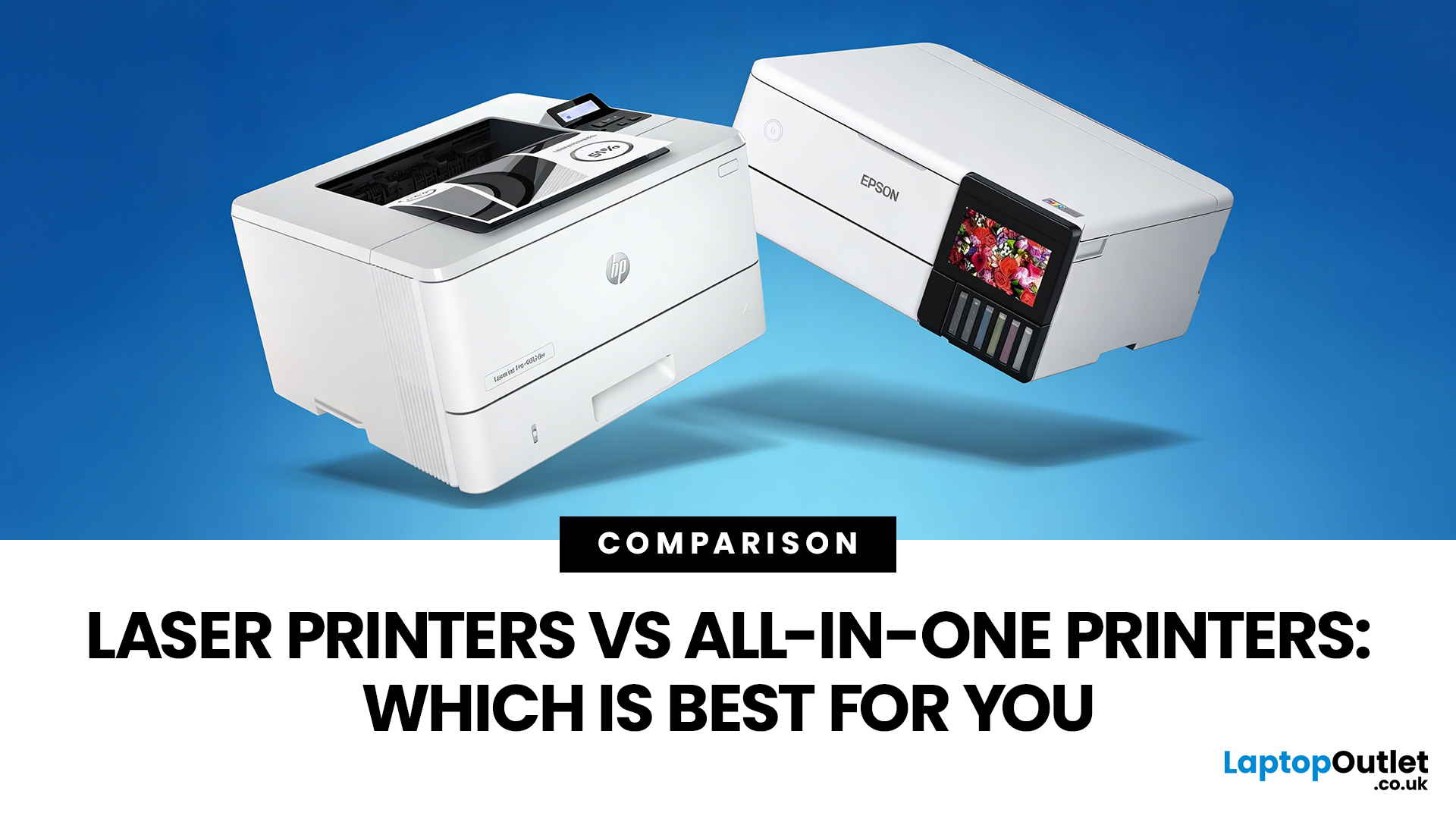
Choosing between Laser printers vs all-in-one printers sounds simple until you realise the two terms do not describe the same thing.
A Laser printer refers to the way the printer works. An all-in-one printer refers to the machine's capabilities, usually printing, scanning, and copying in one unit. That means some all-in-one printers are Laser models, while others are inkjet. So, when people compare all-in-one vs Laser printers, what they are really trying to work out is whether they need stronger print performance or broader day-to-day flexibility.
For some buyers, the Laser is the clear winner. For others, an all-in-one makes far more sense. The right choice depends on how often you print, what you print most, and whether scanning and copying matter as much as printing itself.
If your priority is fast document printing, crisp text and lower running costs over time, a Laser model is usually the smarter fit. If you want one machine that can handle household paperwork, scanning, copying and

Last Updated: April 22, 2026
If most of your printing revolves around invoices, reports, coursework, labels, forms, shipping documents, and everyday admin, a Laser printer usually makes more sense than many buyers first realise. A lot of people still think of Laser printers as large, office-only machines built for big companies, but that view is out of date. Today, you can find compact monochrome models for home desks, colour models for presentation-heavy work, and multifunction machines that print, scan, copy, and fax without dominating your space.
That matters because the right Laser printer can save time every week, keep text consistently sharp, reduce day-to-day hassle, and lower running costs when your workload is document-heavy. The wrong one can leave you paying extra for features you never use or relying on a machine that isn't actually built for the way you print.
This guide explains how Laser printers work, where they perform best, the main advantages and disadvantages to weigh up, and which features matter
Last Updated: April 14, 2026
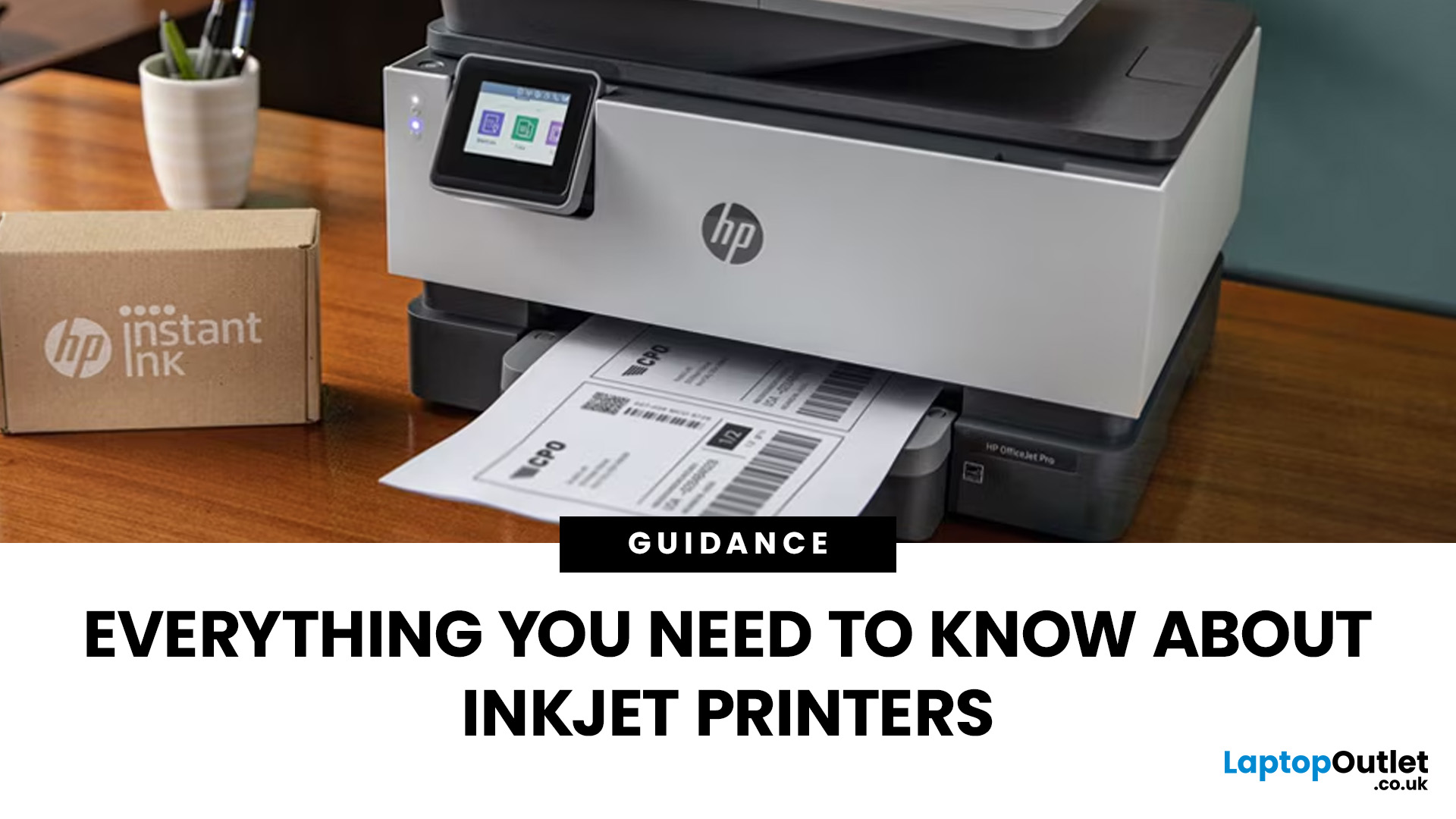
Buying a printer sounds simple until you start comparing print types, running costs, features, and maintenance. That is usually where inkjet models come into the picture. They are widely used, available at different price points, and often marketed as flexible printers for home and small office use. Even so, many buyers still have the same questions: what is an inkjet printer, how does it work, and is it the right fit for the way you print?
This inkjet printer guide breaks it down properly. It covers how inkjet printers work, the main types available, the real cost of ownership, how they compare with laser options, and what you need to know before buying one. Whether you need a printer for occasional homework, colour documents, creative work, or general home use, understanding the strengths and limits of inkjet printing makes it much easier to choose well.
What is an Inkjet Printer?
When people ask what is an inkjet printer, the simplest answer is that it is the most common type of printer
Last Updated: April 22, 2026
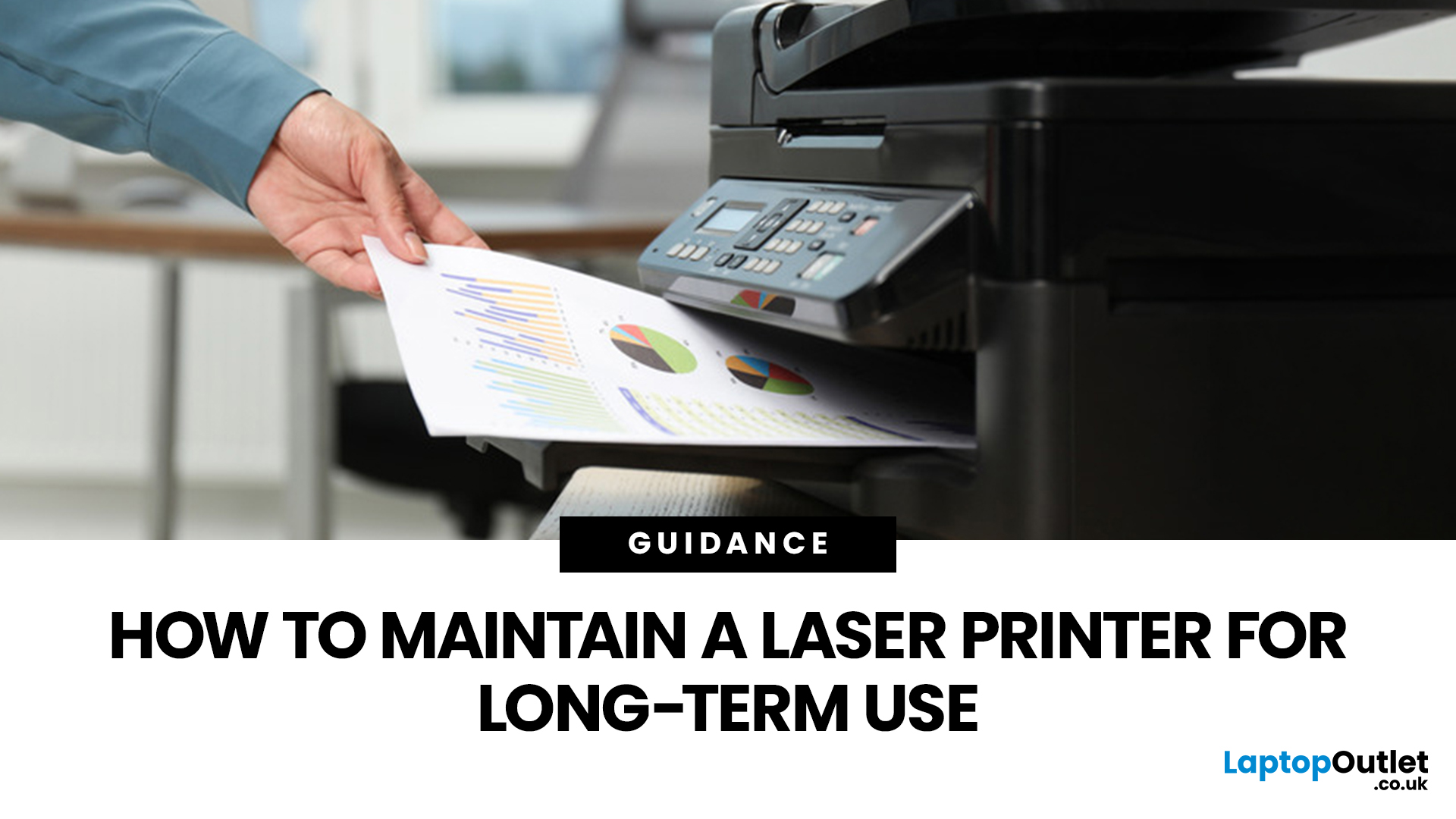
Laser printers are built for sharp text, fast output, and dependable running costs, but they still need routine care to stay reliable year after year. Dust, paper debris, toner residue, worn feed parts, and poor storage habits can all shorten a printer’s life long before any major component actually fails.
The good news is that laser printer maintenance does not need to be complicated. A sensible routine can help reduce smudging, paper jams, streaks, faded print, and unnecessary consumable waste. It can also help you maintain stable print quality for longer, which matters whether you are printing coursework at home, handling household paperwork, or managing documents in a busy office.
This guide covers the practical side of laser printer cleaning and long-term care, including how to clean a laser printer safely, what to check regularly, how to handle toner and drum maintenance, and when maintenance stops making sense, and replacement becomes the smarter choice. If you are still weighing
Last Updated: April 21, 2026
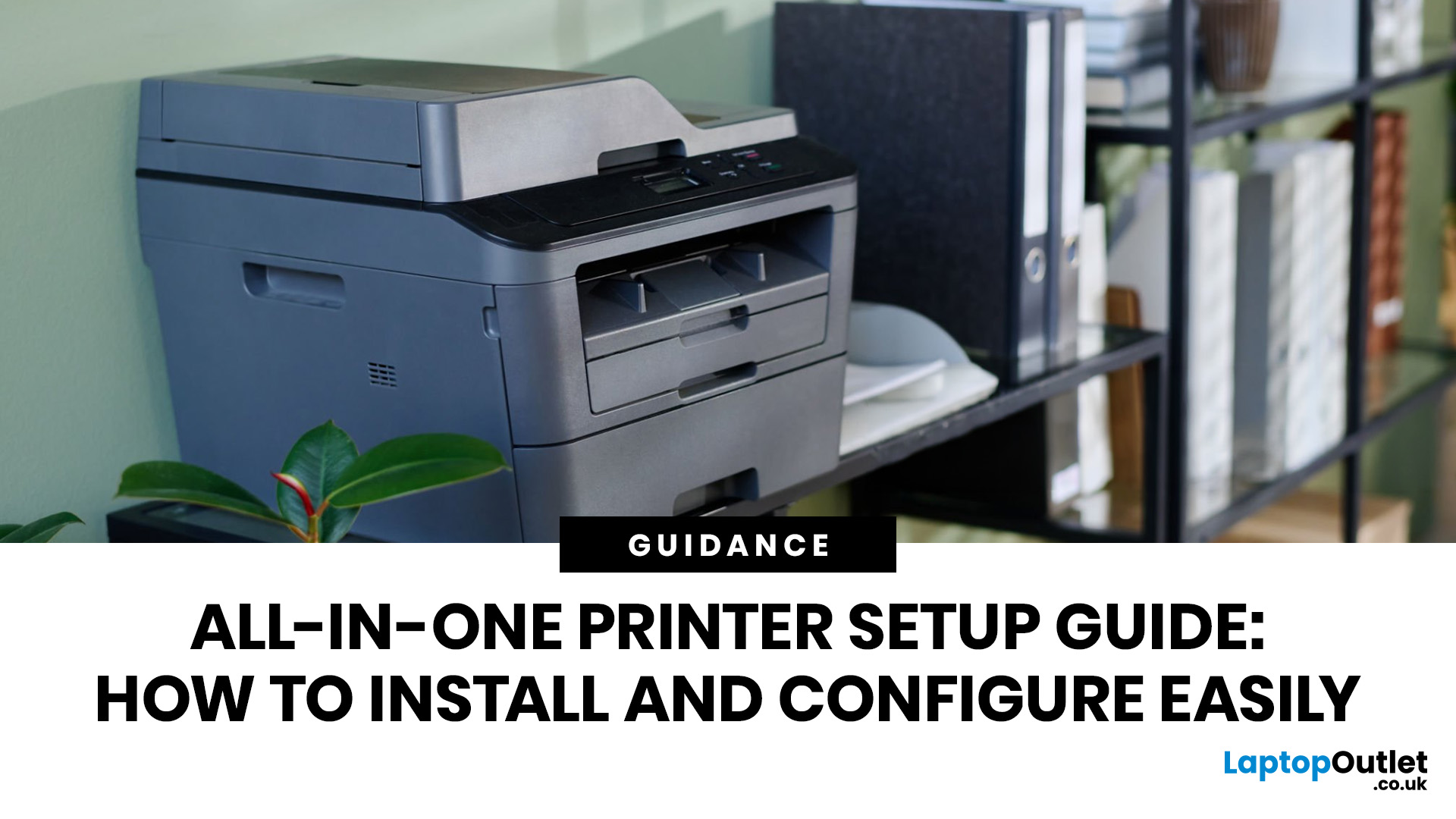
Setting up an all-in-one printer is usually much easier than people expect. The part that trips most users up is not the printer itself, but the order. If you prepare the hardware first, connect it the right way, and install the correct software in the right place, most all-in-one printer setup jobs are straightforward.
This guide walks through how to set up an all-in-one printer step by step, including USB, Wi-Fi, and network setup, driver installation, scanning setup, and the small configuration choices that make the printer easier to live with long term. If you are installing a multifunction printer at home, in a home office, or for a small team, this is the practical setup flow that saves the most time.
What is an All-in-One Printer Setup?
An all-in-one printer setup is the process of getting a multifunction printer ready to print, scan, copy, and in some cases fax. That means more than plugging it in and printing one test sheet. A proper setup also includes network access, driver
Last Updated: July 06, 2026
If your printer is acting up, the short answer is this: most all in one printer problems are fixable without replacing the whole machine. The fastest wins usually come from checking the connection, clearing the print queue, confirming the right printer is selected, inspecting paper loading, and running the built-in cleaning or alignment tools before assuming the hardware has failed. Microsoft, Brother, Epson, Canon, and HP all point users toward those same basics first, which is a strong sign that the smartest troubleshooting is usually methodical, not dramatic.
That is exactly what this guide is here to do. Instead of giving you random fixes with no logic behind them, this article breaks down the most common all-in-one printer issues, shows what each symptom usually means, and explains the best way to fix it. So, whether your machine is offline, feeding paper badly, refusing to scan, printing faded documents, or suddenly producing blank pages like it has given up on communication,
Published: April 24, 2026
If you want an all-in-one printer to last, the best approach is simple: keep it clean, use the built-in maintenance tools properly, and deal with small print-quality issues before they turn into bigger faults. Good all in one printer maintenance is less about deep cleaning every week and more about doing the right checks at the right time.
For most homes and small offices, that means cleaning the scanner glass and document feeder areas regularly, using printhead cleaning only when print quality drops, keeping paper and supplies in good condition, and not treating laser and inkjet models the same way. That last point matters. A multifunction printer cleaning routine for an inkjet is not the same as multifunction printer care for a laser model with a separate drum unit.
The Best Way to Keep an All-in-One Printer Working Well
The simplest all-in-one printer maintenance guide starts with routine care, not emergency fixes. Keep dust off the exterior, keep the scanner glass and ADF strip clean,
Published: April 24, 2026
An all-in-one printer is a machine that lets you print, scan, copy, and sometimes fax from one device. It is designed to save space, reduce setup hassle, and handle everyday home or office tasks without needing separate equipment.
An all-in-one printer, sometimes called a multifunction printer or MFP, combines multiple jobs into one device. Retailer and manufacturer guidance broadly agrees on the core value proposition: one device, less clutter, fewer cables, and a more streamlined workflow for home and office users.
Nobody wakes up thinking, “You know what would absolutely change my life today? A printer.” And yet, the second you need to print a return label, scan a signed document, copy schoolwork, or send a form to the office, your printer suddenly becomes the main character.
That is exactly why these all-in-one printers guide exists. We explain how all-in-one printers work, their key features, the main types, their benefits, costs, setup, maintenance, and how to choose the best one
Last Updated: June 10, 2026
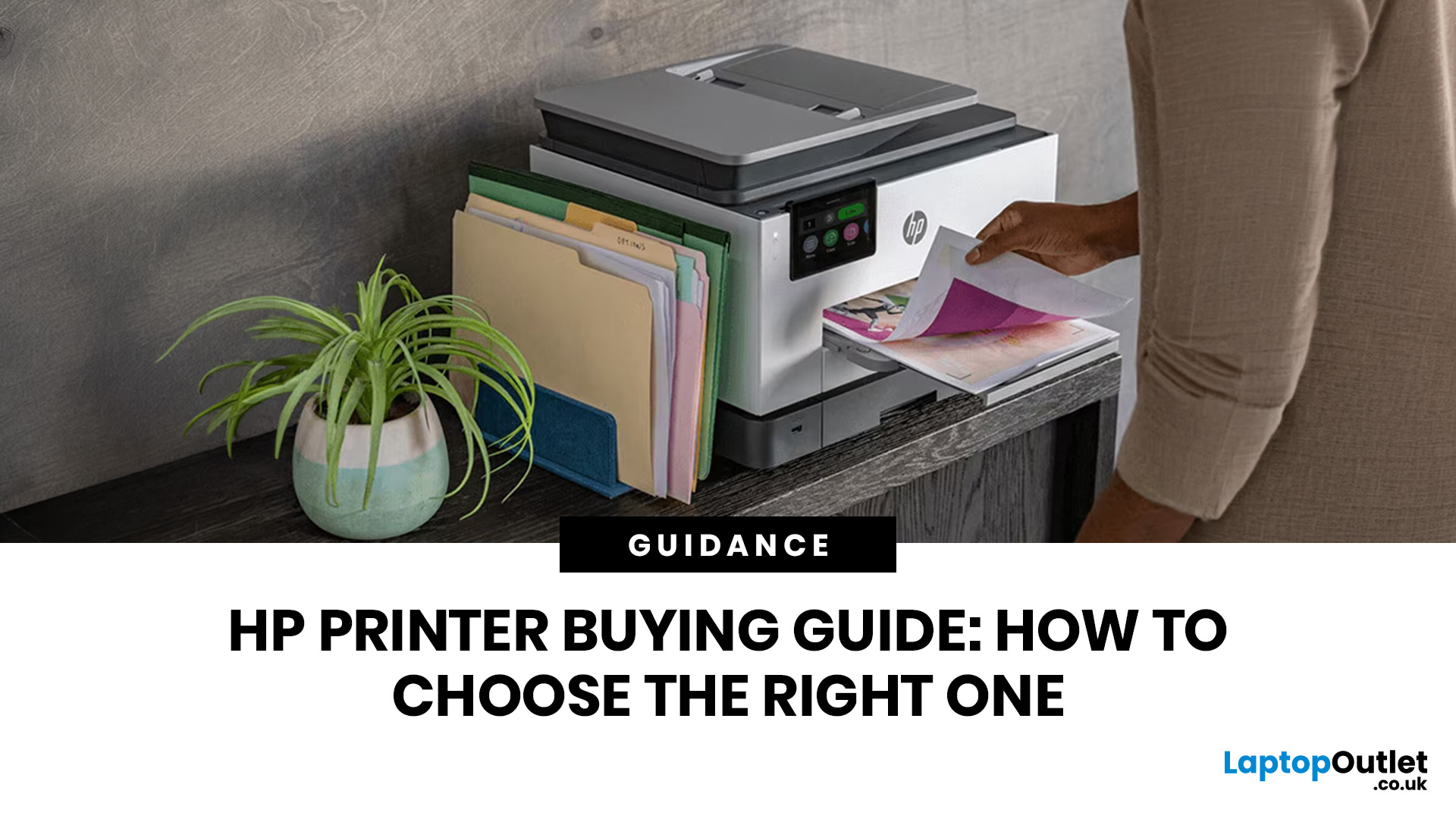
The best HP printer depends on what you print, how often you print, whether you need scanning or copying, and how much you want to spend on ink or toner. For home users, an HP inkjet or all-in-one printer is usually the best choice. For offices and small businesses, HP OfficeJet, LaserJet or multifunctional printers are better for speed, reliability and heavier workloads.
Buying a printer can feel confusing because HP offers many different models for different users. Some are made for simple home printing. Some are designed for students and families. Others are built for small businesses, offices, shipping labels, high-volume printing or professional document handling. That is why choosing the right printer is not just about finding the cheapest model. It is about understanding your print habits, running costs, space, connectivity and long-term needs.
This HP printer guide 2026 will take you from basic printer knowledge to more advanced buying terms, so whether you are buying your first

