



Using a TV as a PC Monitor: Pros, Cons & Setup Guide
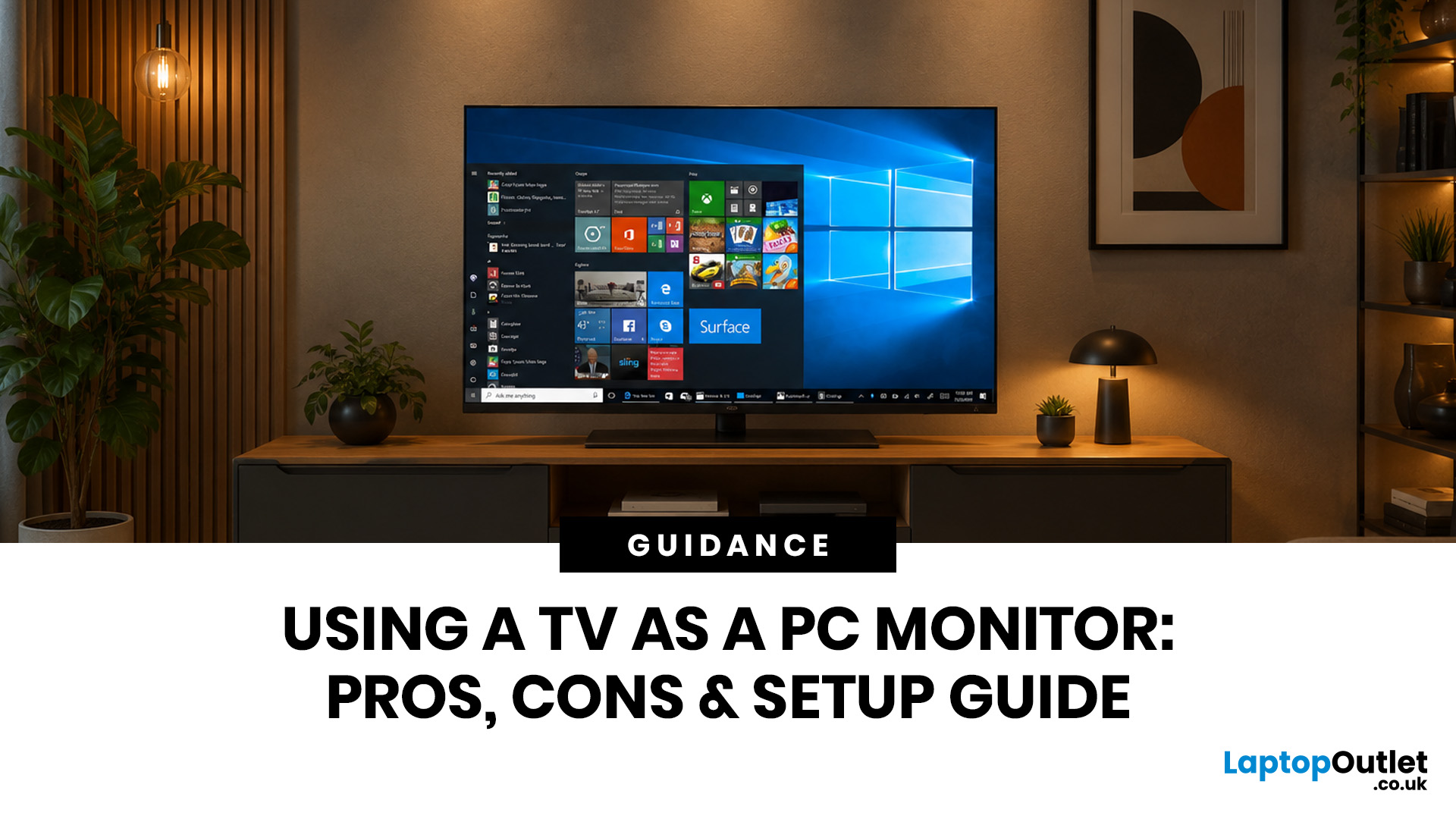
Quick Answer: Yes, you can use TV as PC monitor if your computer and TV have compatible ports, usually HDMI. It works well for films, casual gaming, presentations, sofa browsing and large-screen entertainment. However, using a TV as PC monitor is not always ideal for daily desk work because TVs can have higher input lag, lower pixel density, blurry text up close and fewer ergonomic adjustments than proper monitors. For entertainment and casual use, a TV can be a great option. For work, study, competitive gaming and sharp close-up text, a dedicated monitor is usually the better choice.
Using a big TV as your computer screen sounds like a genius move. Bigger display, built-in speakers, great for Netflix, and you may already have one sitting in the living room. Honestly, it sounds like a setup hack.
Before you plug in your PC and call it a day, there are a few things to know. A TV as computer monitor setup can work brilliantly for some people, especially for media, casual gaming and shared viewing. For close-up desk work, writing, coding or competitive gaming, a TV may feel less sharp and less responsive than a proper monitor.
In this TV monitor setup guide, we will explain the benefits, drawbacks, setup steps, best settings and whether you should use a TV as a monitor or choose a dedicated PC display instead.
Can You Use a TV as a PC Monitor?
Yes, you can use a TV as a PC monitor. In most cases, you only need an HDMI cable to connect your PC or laptop to the TV.
Most modern TVs have HDMI ports, and most PCs, gaming desktops and laptops also support HDMI or can connect through an adapter. Once connected, your TV works like an external display.
|
Question |
Quick Answer |
|
Can you use a TV as a PC monitor? |
Yes, if your PC and TV have compatible connections |
|
Can a TV be used as a PC monitor for work? |
Yes, but text clarity and desk distance matter |
|
Is a TV good for gaming? |
Yes for casual gaming, but input lag matters |
|
Is a monitor better than a TV? |
Usually yes for desk work and competitive gaming |
|
Best connection |
HDMI is the easiest option for most users |
So, can a reliable TV be used as a PC monitor? Absolutely. The bigger question is whether it is the right choice for your setup.
TV as Computer Monitor: How Does it Work?
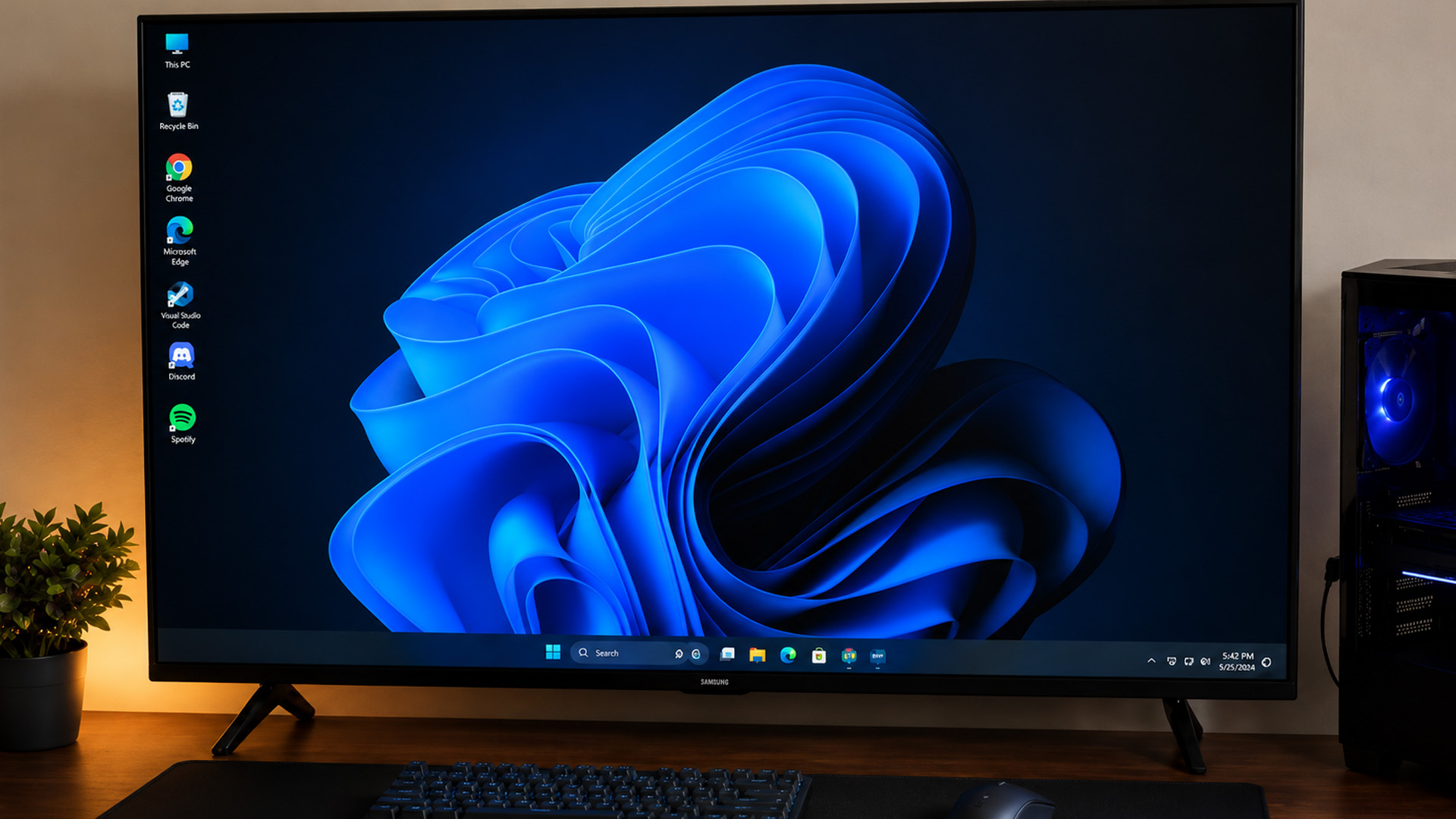
A TV can receive a video signal from your computer just like a monitor. Your PC sends the display output, and the TV shows your desktop, apps, games or videos on the screen.
The most common setup uses HDMI because it can carry both video and audio. That means your portable TV can display the picture and play sound through its built-in speakers. You may use:
- HDMI to HDMI
- USB-C to HDMI
- DisplayPort to HDMI
- Mini HDMI to HDMI
- Older VGA connections on older devices
For most people, HDMI is the simplest option. Plug one end into your PC or laptop, plug the other into your TV, select the correct input source, and then adjust your computer display settings.
Benefits of Using TV as a PC Monitor
There are several benefits of using TV as a PC monitor, especially if you want a bigger screen for entertainment or shared viewing.
|
Benefit |
Why it Helps |
|
Bigger screen |
Great for films, gaming, presentations and sofa setups |
|
Built-in speakers |
Useful if you do not have external speakers |
|
Easy HDMI connection |
Most TVs and PCs support HDMI |
|
Good for media |
Ideal for streaming, videos and entertainment |
|
Great for shared viewing |
Easier to show content to family, friends or colleagues |
|
Can save money |
Useful if you already own a TV |
|
Works well in living rooms |
Good for couch gaming or media PCs |
One of the biggest TV as a PC monitor advantages is size. TVs usually offer much larger screens than standard monitors, which makes them great for watching films, playing casual games or using your PC from the sofa.
If you want a larger display for streaming, casual gaming or shared viewing, you can shop TVs and compare screen sizes before setting one up with your PC.
TV as a PC Monitor Advantages
Bigger Screen for Less Money
Streaming TVs often offer larger screen sizes at lower prices than monitors of the same size. If you want a massive display for films, games or presentations, an affordable TV can be a budget-friendly way to go big.
Great for Streaming and Entertainment
Home TVs are built for entertainment. They are ideal for YouTube, Netflix, Disney+, Prime Video, sports and films. If your PC is mainly a media hub, a TV makes a lot of sense.
Useful for Casual Gaming
A 4K TV can be great for controller-based PC gaming, especially if you play from the sofa. Racing games, RPGs, sports games and story-driven titles can feel more immersive on a large screen.
Built-In Speakers and Smart Features
Many premium TVs include speakers, streaming apps, remotes and smart features. That makes them convenient for mixed use, especially in a bedroom or living room setup.
Good for Presentations and Shared Screens
A budget smart TV works well when several people need to see the same screen. It is useful for meetings, classrooms, family photo viewing or showing dashboards and slides.
TV as a PC Monitor Disadvantages
Now for the not-so-glam side. There are also some clear TV as a PC monitor disadvantages.
|
Disadvantage |
Why It Matters |
How to Reduce the Issue |
|
Input lag |
Mouse movement or gaming can feel delayed |
Use Game Mode or PC Mode |
|
Lower pixel density |
Text may look less sharp on large screens |
Sit further away or choose 4K |
|
Poor desk ergonomics |
TVs can be too large for close viewing |
Use proper distance and height |
|
Limited refresh rate |
Some TVs are 60Hz only |
Check refresh rate before buying |
|
Text clarity issues |
PC text may look blurry |
Enable PC Mode and correct scaling |
|
More power use |
Larger TVs may consume more energy |
Use sleep and power settings |
|
Less adjustability |
TVs usually lack monitor-style stands |
Use a wall mount or suitable stand |
The biggest issue for desk use is text clarity. A large 1080p TV viewed up close can make text look soft or pixelated. That is not ideal if you are writing documents, editing spreadsheets or working all day.
Input lag is another issue. This is the delay between moving your mouse or pressing a key and seeing the result on screen. For basic use, it may be fine. For competitive gaming, it can feel very annoying.
TV vs Monitor: Which is Better for a PC?
A TV and a monitor can both display your PC, but they are designed for different jobs.
|
Feature |
TV |
PC Monitor |
|
Screen size |
Usually larger |
Usually smaller to mid-size |
|
Text clarity |
Can be weaker up close |
Usually sharper for desk use |
|
Input lag |
Can be higher |
Usually lower |
|
Refresh rate |
Varies by model |
More gaming-focused options |
|
Ergonomics |
Less desk-friendly |
Designed for close viewing |
|
Speakers |
Often built in |
Not always included |
|
Best for |
Films, sofa gaming, shared viewing |
Work, study, gaming, productivity |
A TV is better for:
- Living room PC setups
- Streaming and films
- Casual gaming
- Presentations
- Shared viewing
- Large-screen browsing
A monitor is better for:
- Desk work
- Writing and reading text
- Competitive gaming
- Coding
- Long work sessions
- Design and editing
- High refresh rate gaming
If you mainly need a screen for desk work, gaming or sharp text, compare monitors before choosing a TV instead. Furthermore, if you want more screen space but are unsure about using a large TV, our ultrawide monitor guide explains when a wider desktop display may be the better choice.
How to Use TV as PC Monitor: Step-by-Step Setup Guide
Here is the simple TV monitor setup guide.
Step 1: Check Your PC and TV Ports
Look for ports on both devices. HDMI is the easiest option, but some laptops may only have USB-C and need an adapter. Common ports include:
- HDMI
- DisplayPort
- USB-C
- Mini HDMI
- VGA on older devices
Step 2: Choose the Right Cable or Adapter
Most users need an HDMI cable. If your laptop does not have HDMI, you may need a USB-C to HDMI adapter or DisplayPort to HDMI adapter.
Step 3: Connect the PC to the TV
Plug the cable into your PC or laptop, then connect the other end to the TV.
Step 4: Select the Correct TV Input
Use your TV remote to choose the right HDMI input. For example, HDMI 1, HDMI 2 or HDMI 3.
Step 5: Adjust Display Settings on Windows
On Windows:
- Right-click the desktop.
- Select Display settings.
- Choose Duplicate or Extend.
- Set the TV to its native resolution.
- Adjust scaling if text looks too small or too large.
- Check refresh rate under advanced display settings.
Step 6: Turn On Game Mode or PC Mode
Game Mode can reduce input lag. PC Mode can improve text clarity and colour handling. If your TV offers either mode, try it.
Step 7: Fix Overscan or Scaling Issues
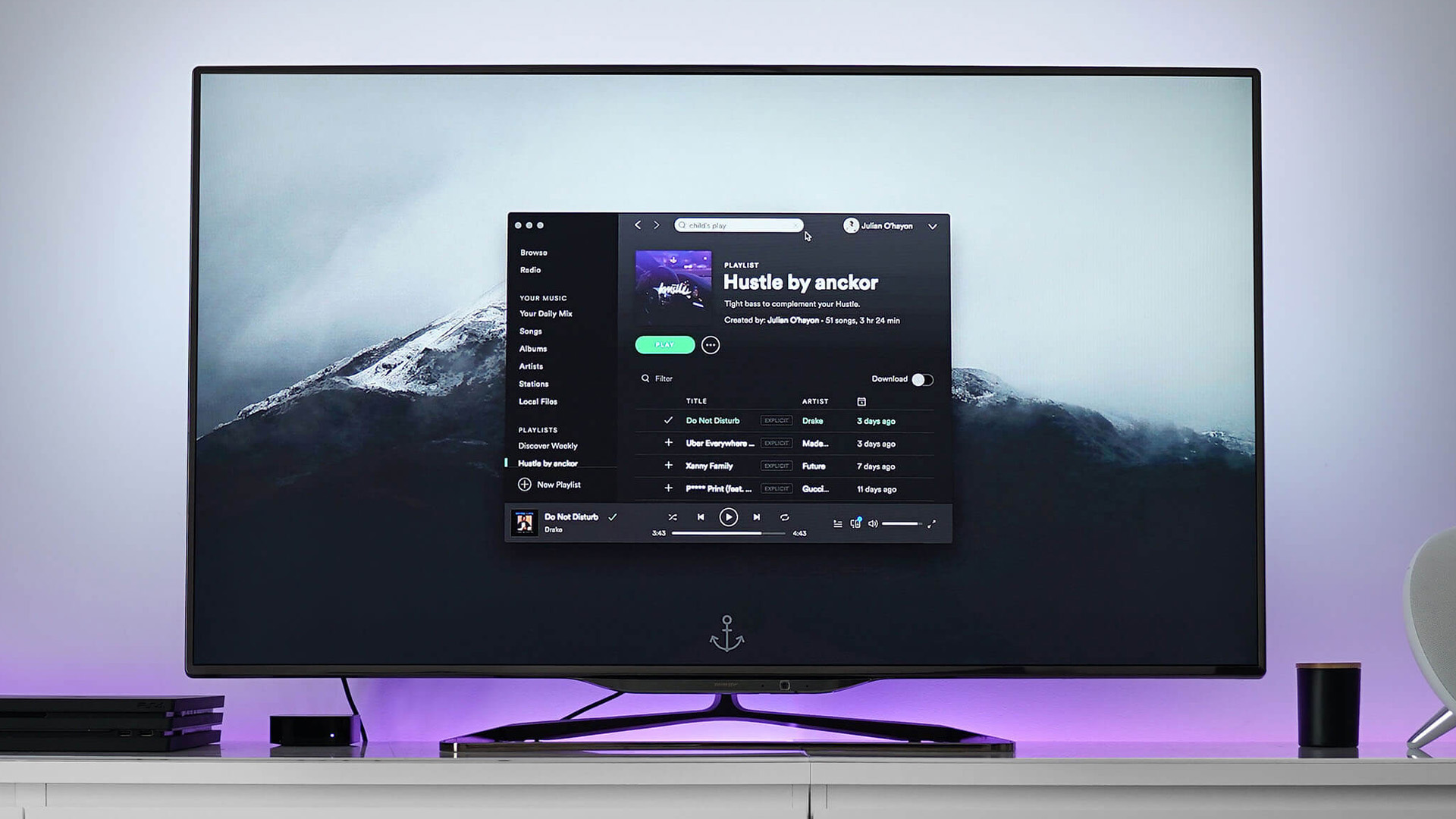
If your desktop edges are cut off, turn off overscan in the TV settings. Look for options like Just Scan, Screen Fit, 1:1 Pixel Mapping or Fit to Screen.
Best Settings When Using TV as PC Monitor
The right settings can make a big difference when using smart TV as PC monitor.
|
Setting |
Recommended Option |
Why |
|
Picture mode |
Game Mode or PC Mode |
Reduces lag or improves text |
|
Resolution |
Native TV resolution |
Keeps the image sharp |
|
Scaling |
100–150% depending on size |
Makes text readable |
|
Refresh rate |
Highest supported |
Smoother motion |
|
Sharpness |
Low or neutral |
Avoids over-processed text |
|
Overscan |
Off |
Prevents desktop edges being cut off |
|
HDR |
On only if supported properly |
Better visuals for supported content |
In Windows, check resolution, scaling, refresh rate, HDR, text size and whether the TV is set as your main display.
|
Laptop Outlet expert tip: If text looks weird, do not instantly blame the TV. Try PC Mode, native resolution, overscan off and lower sharpness first. Sometimes the default TV settings are just doing too much. |
Is a 4K TV Good as a PC Monitor?
A 4K TV can be a good PC monitor, especially for large-screen use. Because 4K has much more detail than 1080p, text and images can look sharper on bigger screens. A 4K TV is best for:
- Streaming
- Films
- Casual gaming
- Sofa browsing
- Presentations
- Living room PCs
- Home entertainment setups
However, even a 4K TV may not feel as comfortable as a monitor if you sit too close. Screen size and viewing distance still matter. If you want sharp 4K detail but prefer a display made for close-up desk use, 4K Ultra HD monitors may be a better fit than a TV.
Before choosing between a 4K TV and a dedicated monitor, read our 4K vs 1440p vs 1080p monitor guide to understand which resolution gives the best balance of sharpness, performance and value.
Is a 1080p TV Good as a PC Monitor?
A 1080p TV can work as a PC monitor, but it is usually better for casual use than serious desk work. It can be fine for:
- Occasional browsing
- Streaming
- Presentations
- Older PCs
- Budget setups
- Smaller TVs
The problem is that large 1080p TVs can look soft up close. Text may appear less sharp because the pixels are spread across a bigger screen.
For everyday desk work on a budget, Full HD monitors usually offer cleaner text and more comfortable close-up viewing than a large 1080p TV.
Can You Use a TV as a Gaming Monitor?
Yes, you can use a TV as a gaming monitor, and for some games, it can be brilliant. The right TV works well for:
- RPGs
- Racing games
- Sports games
- Story games
- Adventure games
- Controller gaming
- Living room setups
However, for competitive gaming, a monitor is usually better. Monitors often have lower input lag, faster response times and higher refresh rates. If you play fast FPS or esports games with a mouse and keyboard, a TV may feel less responsive. If you play from the sofa with a controller, a TV can be a great shout. If you are planning to game on a TV or monitor, our guide on what monitor refresh rate you need explains how 60Hz, 120Hz, 144Hz and higher refresh rates affect smoothness.
Can I Use My PC Monitor as a TV?
Yes, you can sometimes use a PC monitor as a TV, but it depends on what you want to watch. Most monitors do not have built-in TV tuners, so they cannot receive live TV channels by themselves. However, you can connect devices through HDMI, such as:
- Streaming sticks
- Set-top boxes
- Consoles
- TV boxes
- Laptops
The main downsides are audio and convenience. Some monitors do not have speakers, and most do not come with a TV-style remote or built-in smart apps.
So, can I use my PC monitor as a TV? Yes, but you may need extra devices.
Best TV to Use as a Computer Monitor: What to Look For
If you want the best TV to use a computer monitor, check these features before buying.
|
Feature |
What to Look For |
Why It Matters |
|
Resolution |
4K for larger screens |
Keeps text and detail sharper |
|
HDMI ports |
HDMI 2.0 or HDMI 2.1 |
Supports better resolution and refresh rates |
|
Game Mode |
Yes |
Reduces input lag |
|
PC Mode |
Yes, if available |
Improves text and colour handling |
|
Chroma 4:4:4 support |
Useful for text clarity |
Helps PC text look cleaner |
|
Refresh rate |
60Hz minimum, 120Hz for gaming |
Smoother movement |
|
Screen size |
Match viewing distance |
Too large can feel uncomfortable |
|
HDR |
Optional |
Useful for films and supported games |
|
Stand or wall mount |
Stable and ergonomic |
Helps placement and comfort |
For desk use, do not just buy the biggest TV you can afford. A huge screen too close to your face can feel uncomfortable fast.
Best Use Cases for Using TV as PC Monitor
Using a TV as a monitor makes the most sense in certain setups.
Living Room PC
Great for browsing, streaming and gaming from the sofa.
Presentations and Meetings
Useful for showing slides, dashboards, websites or videos to a group.
Media Editing Preview Screen
A TV can work as a large preview screen, although it may not be ideal for colour-critical editing.
Casual Gaming Setup
Good for racing, sports, RPGs and story games.
Home Entertainment PC
Ideal if you want your PC to work as a media hub for films, music, streaming and web browsing.
If you want to use a TV alongside your existing screen, our dual monitor setup guide explains how to connect, arrange and optimise multiple displays properly.
Common Problems When Using TV as PC Monitor
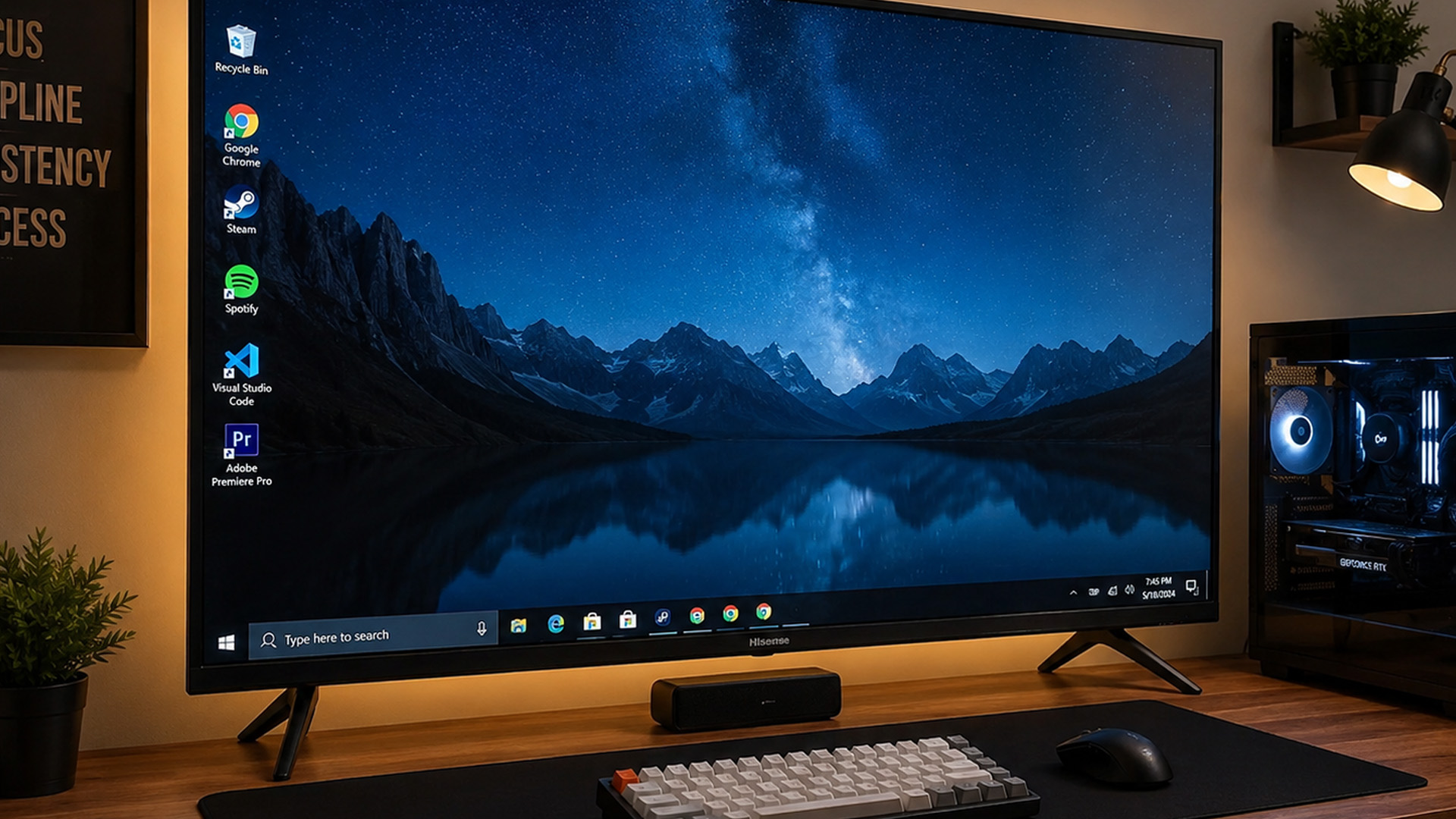
Desktop Does Not Fit the Screen
Turn off overscan or change the TV picture size setting to Screen Fit, Just Scan or 1:1.
Text Looks Blurry
Use native resolution, enable PC Mode, adjust Windows scaling and reduce sharpness processing on the TV.
Mouse Feels Delayed
Enable Game Mode and avoid heavy image processing settings.
No Sound from TV
In Windows, go to sound settings and select the TV as your audio output.
Wrong Resolution
Choose the TV’s native resolution in display settings.
TV Not Detected
Check the cable, TV input source, HDMI port, graphics drivers and adapter compatibility.

Should You Use a TV as a PC Monitor?
Using a reliable TV as a PC monitor is worth it if you want a big display for entertainment, casual gaming, sofa browsing or presentations. It is less ideal for daily desk work, competitive gaming, coding and long writing sessions, where a proper monitor usually feels sharper and more responsive.
|
Use a TV as a PC Monitor If… |
Choose a Monitor Instead If… |
|
You want a big display for films |
You work at a desk all day |
|
You play casual controller games |
You play competitive games |
|
You already own a suitable TV |
You need sharp text up close |
|
You want a living room PC setup |
You need ergonomic adjustment |
|
You present to groups |
You need high refresh rate performance |
The simple verdict: TVs are great for big-screen fun. Monitors are better for close-up focus.

FAQs
Can you use a TV as a PC monitor?
Yes, you can use a TV as a PC monitor if your PC and TV have compatible ports, usually HDMI.
Can a TV be used as a PC monitor for work?
Yes, but it may not be ideal for daily desk work because text clarity, input lag and ergonomics can be weaker than a dedicated monitor.
How do I use TV as PC monitor?
Connect your PC to the TV with HDMI or a suitable adapter, select the correct TV input, then adjust display settings on your computer.
Is using TV as PC monitor bad for eyes?
Not automatically, but using a large TV too close can be uncomfortable. Sit at the right distance, adjust brightness and use proper scaling.
What are the disadvantages of using a TV as a PC monitor?
The main disadvantages are input lag, lower pixel density, blurry text, poor desk ergonomics and limited refresh rate on some TVs.
| Read More |
| What is HDR on a Monitor? Everything You Need to Know |
| How to Wall-Mount a Monitor: A Complete VESA Guide |
| Monitor Buying Guide: How to Choose the Right Resolution & Refresh Rate |
Related Articles

Published: December 03, 2025
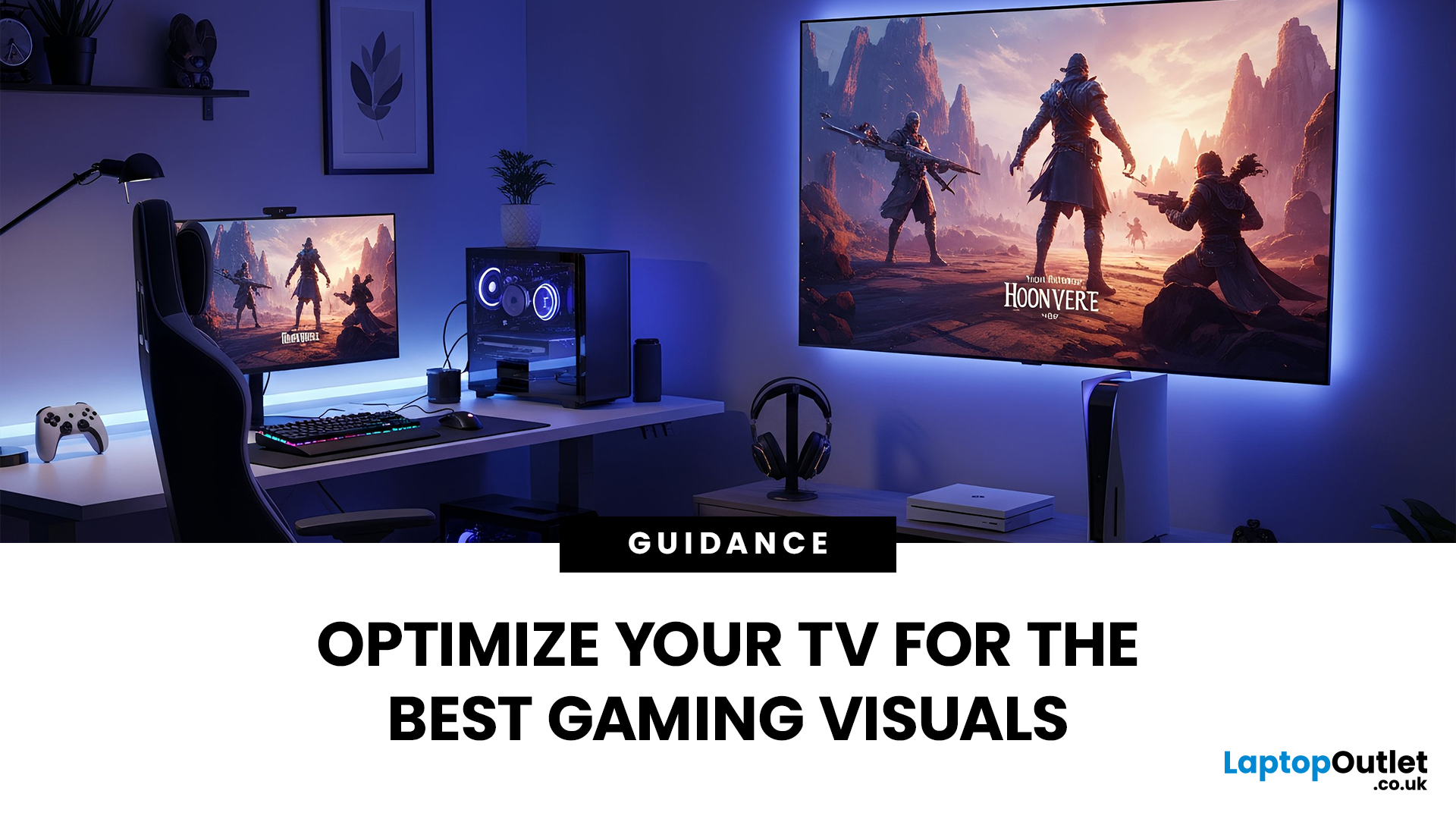
Whether you’re diving into the latest console titles or playing fast-paced online games, your TV settings can dramatically impact how smooth, vibrant, and responsive your gameplay feels. Modern TVs offer a wide range of picture modes and performance features, but not all are optimised for gaming out of the box. To get the most out of your console or PC setup, it’s important to fine-tune your display for low latency, crisp visuals, and accurate colour.
1. Switch to Game Mode
The single most impactful change you can make is to enable Game Mode. Most modern TVs include a dedicated gaming preset designed to reduce input lag, the delay between pressing a button and seeing the action on screen.
What Game Mode does:
- Minimises image processing
- Improves controller response time
- Provides smoother on-screen motion
While Game Mode may slightly reduce picture enhancements such as heavy sharpening or advanced noise reduction, the performance improvement is well worth it, especially for competitive
Last Updated: April 28, 2026
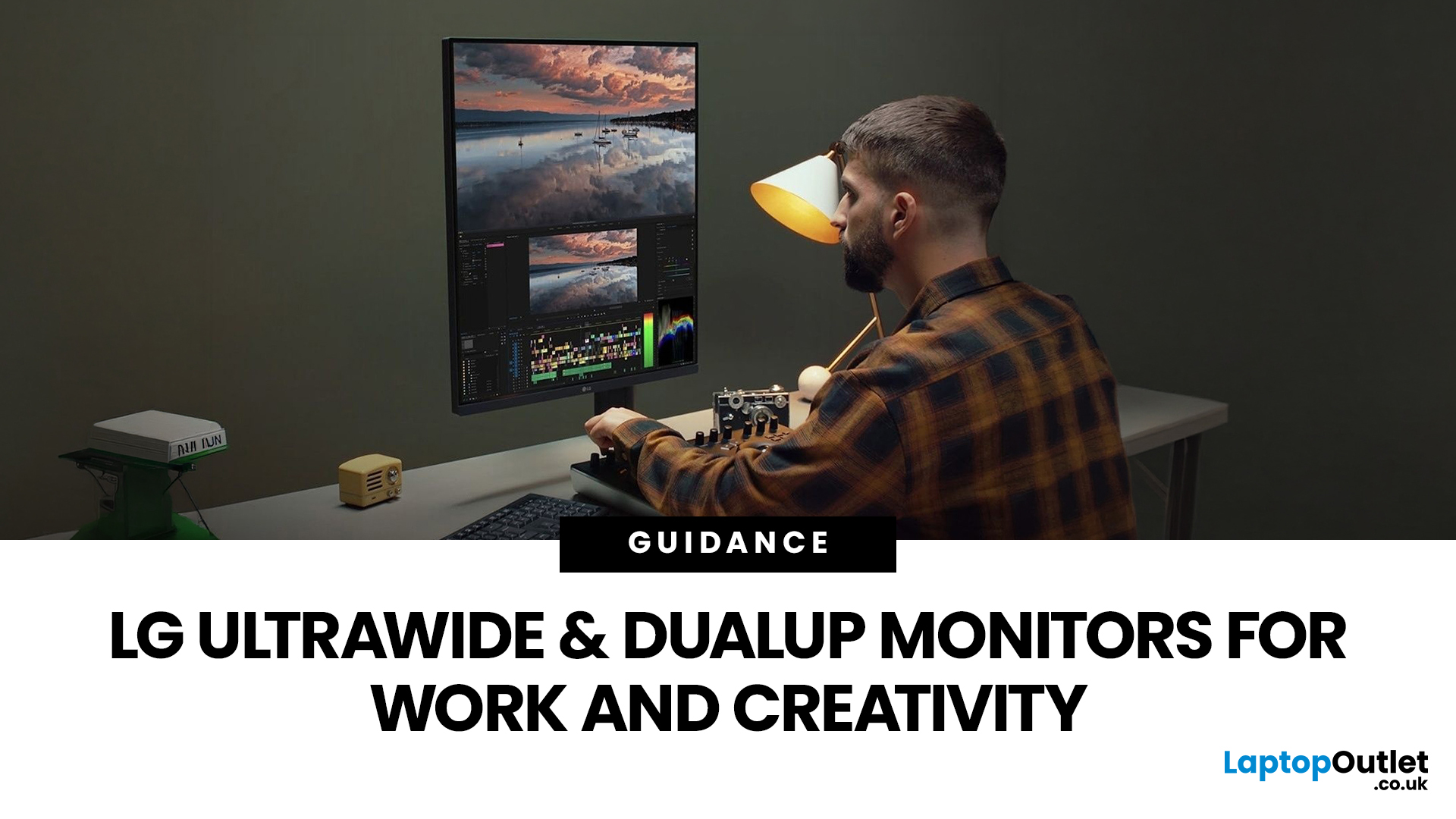
Choosing the right monitor format can transform how you work. Whether you are a developer, analyst, designer, or remote professional, your display shapes your entire workflow.
LG UltraWide and DualUp productivity monitors have become a firm favourite across the UK for professionals who need more screen space without the cable clutter of multiple setups.
This guide breaks down how each format performs for coding, content creation, dashboards, and day-to-day productivity, so you can pick the right one for your desk.
Why Screen Format Changes Everything
The shape of your display directly influences how many windows you can manage, how much you need to scroll, and whether your neck stays comfortable after a full working day. It is worth understanding the two non-standard formats LG offers before deciding which suits your setup.
LG monitors come in two distinctive formats: the horizontal 21:9 or 32:9 UltraWide and the vertical 16:18 DualUp. Both give you significantly more usable space than
Last Updated: August 28, 2026
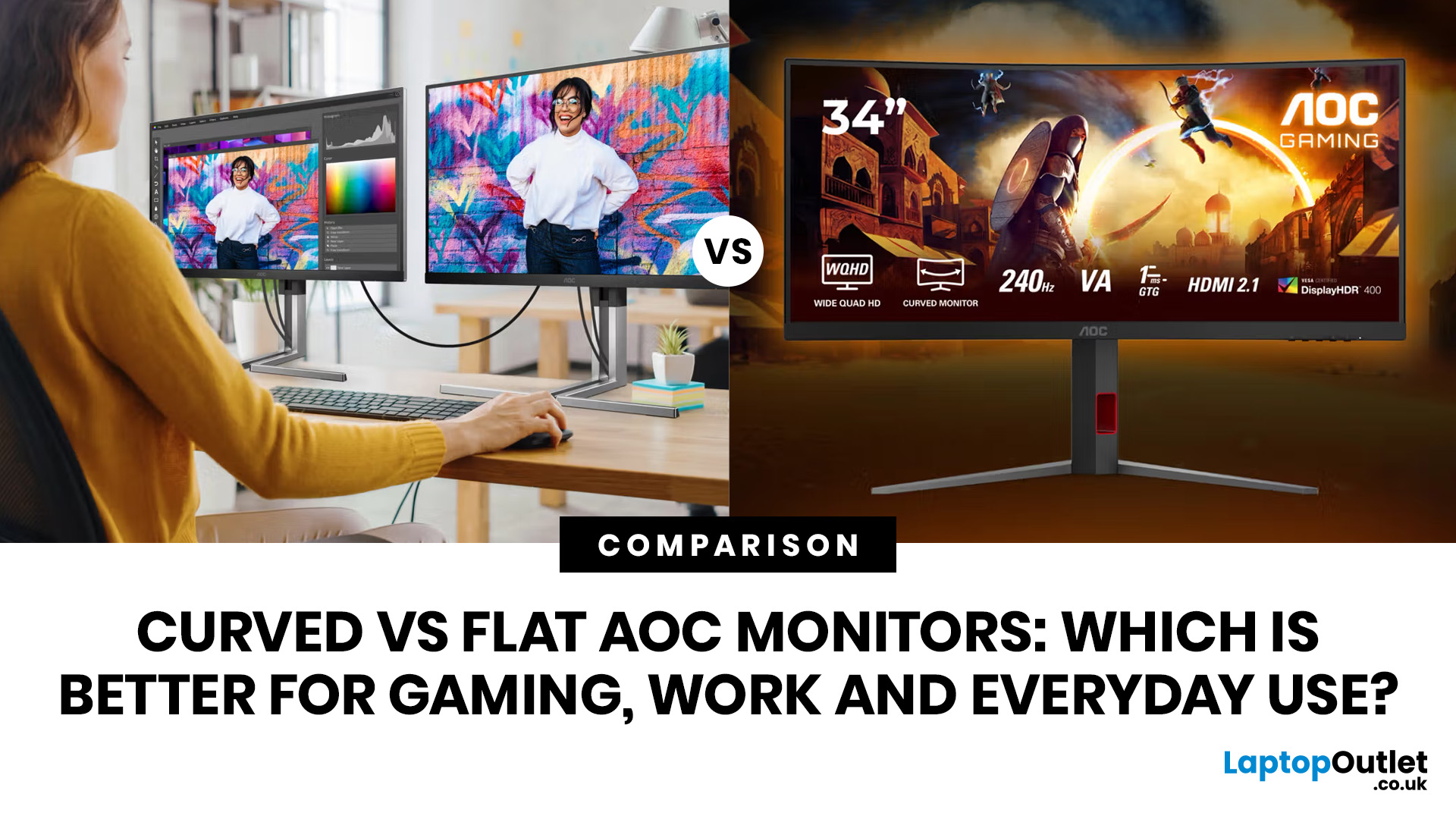
If you are comparing curved vs flat AOC monitors, the right choice depends less on trends and more on how you actually use your screen every day.
For gaming and entertainment, a curved display often feels more immersive, especially in racing games, open-world titles and films. For work, study and general day-to-day use, a flat screen is usually the more practical option because it is easier to position, easier to pair in dual-screen setups and often better suited to documents, spreadsheets and precision-focused tasks.
So, are curved monitors better? Not always. A curved model can be a great upgrade for the right person, but flat screens still make more sense for many buyers.
Here is the simplest way to think about it:
| Use case | Usually the better choice | Why |
| Immersive gaming | Curved | Feels more engaging and cinematic |
| Esports and fast competitive play | Depends | Refresh rate matters more than screen shape |
| Office work and spreadsheets | Flat | Cleaner lines, easier multi-window working |
| Study and everyday |
Published: April 27, 2026
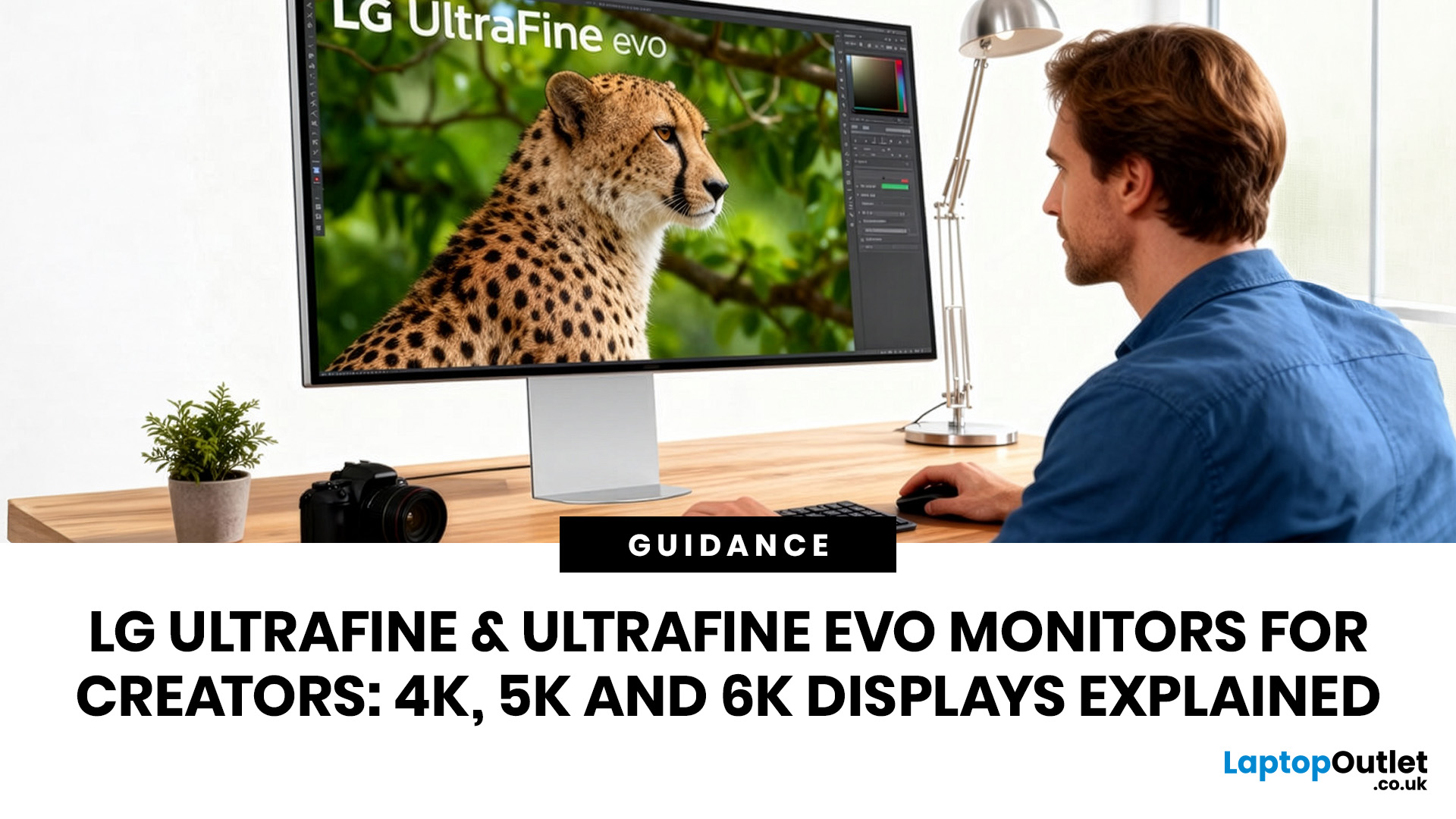
LG UltraFine monitors for creators cover three resolutions: 4K (entry-level colour accuracy), 5K (high pixel density), and 6K (the new UltraFine evo flagship). All prioritise wide colour gamut, IPS panel quality, and clean USB-C or Thunderbolt connectivity.
If you work in photo editing, video production, graphic design, or any colour-critical discipline, LG UltraFine monitors have been a trusted name for years. The right choice depends on your budget, resolution needs, and the software you rely on daily.
What Makes LG UltraFine Monitors Stand Apart for Creative Professionals?
Before going model by model, it helps to understand what the UltraFine brand actually stands for. It is a fundamentally different product category from general office or gaming displays, built around a single non-negotiable: colour and detail accuracy.
The Core Focus: Colour, Calibration, And Pixel Precision
Every UltraFine model ships with wide colour gamut coverage, typically covering 98–99% of the DCI-P3 colour
Published: April 28, 2026
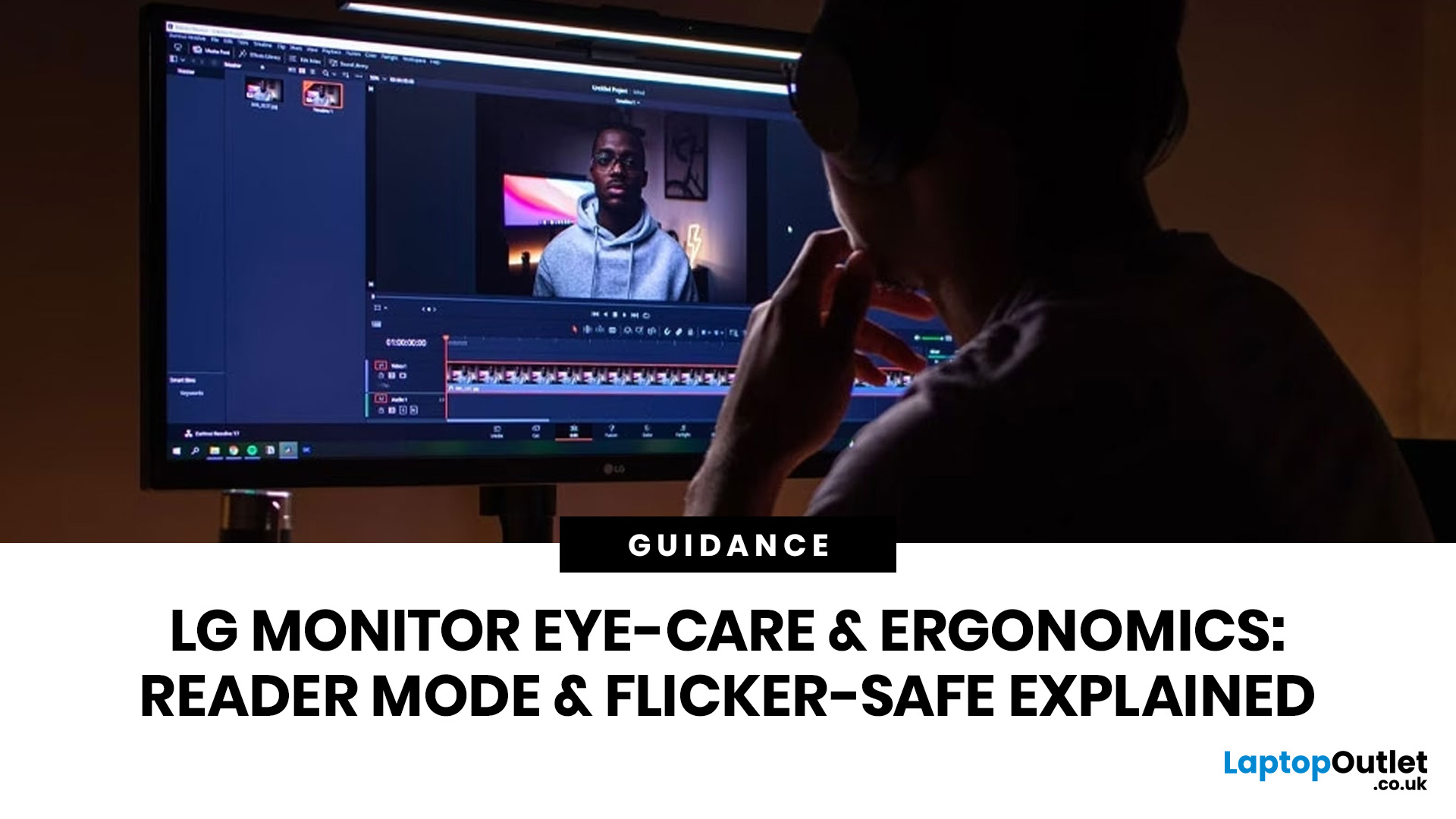
If you spend the better part of your working day staring at a screen, you already know what digital eye strain feels like. That dull ache behind your eyes, the heaviness by mid-afternoon, the headache that creeps in by the end of a long session. You are not alone in that, and it is not just "screen time." It is often a combination of poor monitor settings, bad posture, and a setup that was never properly dialled in.
The good news is that LG has put real thought into tackling these problems at the hardware and software level. This guide walks you through every LG monitor eye care feature worth knowing about, how to set your screen up properly, and which models are genuinely worth considering if comfort is a priority for you.
Why Do Eye-Care and Ergonomics Actually Matter with Modern Monitors?
You might think that modern screens are already comfortable enough out of the box. The reality is that even a high-quality monitor, poorly positioned and left on factory settings, can cause very real
Last Updated: September 01, 2026
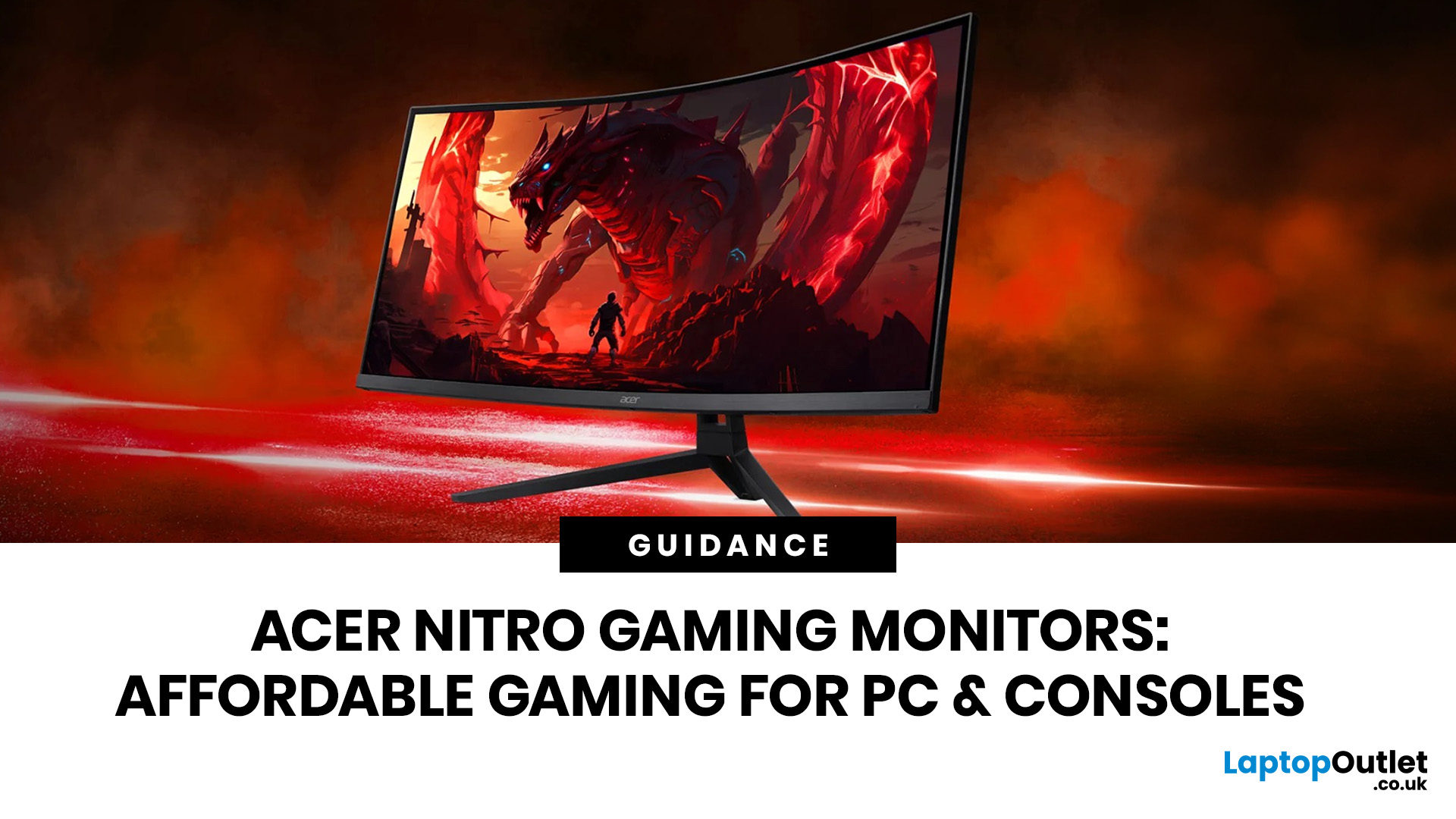
If you want smooth gameplay without jumping straight into premium OLED pricing, Acer Nitro gaming monitors are one of the easiest ranges to shortlist. Acer positions the Nitro line as a gaming family with options for fast-paced play, ultrawide immersion and richer colour, while Our Acer monitor range backs that up with Full HD, QHD, curved and ultrawide Nitro models aimed at buyers who want value, not just spec-sheet flexing.
That is exactly why Acer Nitro monitors UK shoppers keep coming back to the series. The range is broad enough to cover casual desk gaming, PS5 and Xbox setups, and entry-level PC esports, but it still stays realistic on price compared with high-end Predator and OLED alternatives. Nitro models from compact 23.8-inch Full HD panels up to 34-inch curved UWQHD displays, with refresh rates running from 120Hz to 240Hz.
Are Acer Nitro Gaming Monitors Good for Budget Gaming?
Yes. For casual gaming, console play and entry-level PC builds, Acer Nitro sits in a very practical
Last Updated: July 06, 2026
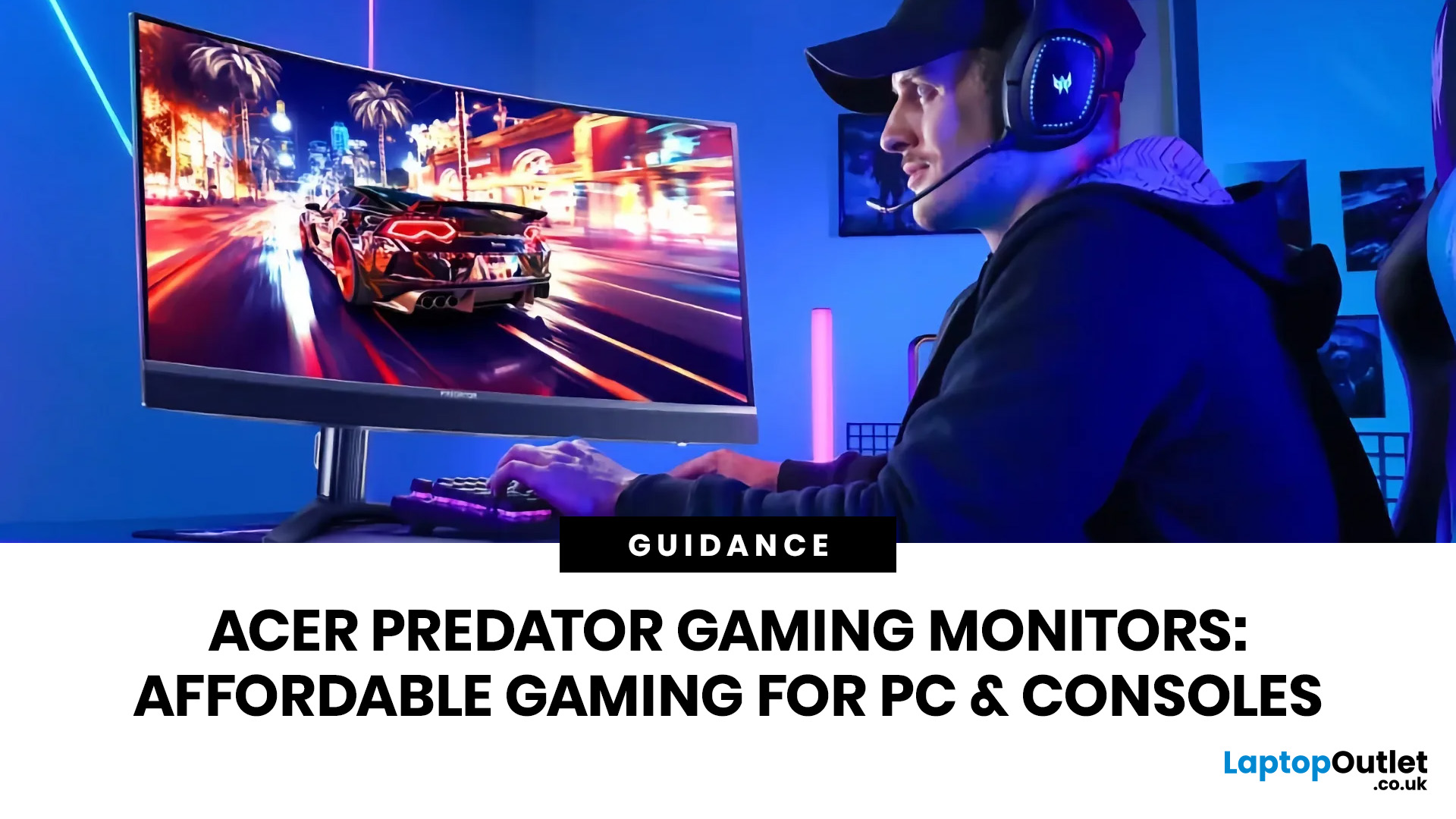
you are shopping for Acer Predator gaming monitors, you are usually not looking for a basic panel. You are looking for speed, image quality and a monitor that genuinely fits the kind of games you play. For some buyers, that means a fast 27-inch display for ranked shooters and esports titles. For others, it means a bigger 4K panel for high-detail single-player games. And for enthusiasts building the kind of setup that makes every desk photo look dramatic, it means an ultrawide or super-ultrawide screen that turns a gaming PC into the centrepiece of the room.
That is why Predator remains such an interesting range. Acer's broader monitor line covers different budgets and uses cases, but the Predator family is where Acer pushes harder on premium gaming features like OLED and QD-OLED panels, very high refresh rates, ultrawide formats and esports-level response times.
If you want the simple answer: Why choose Acer Predator monitor
Here is the short version.
- For competitive esports and fast shooters,
Last Updated: May 20, 2026
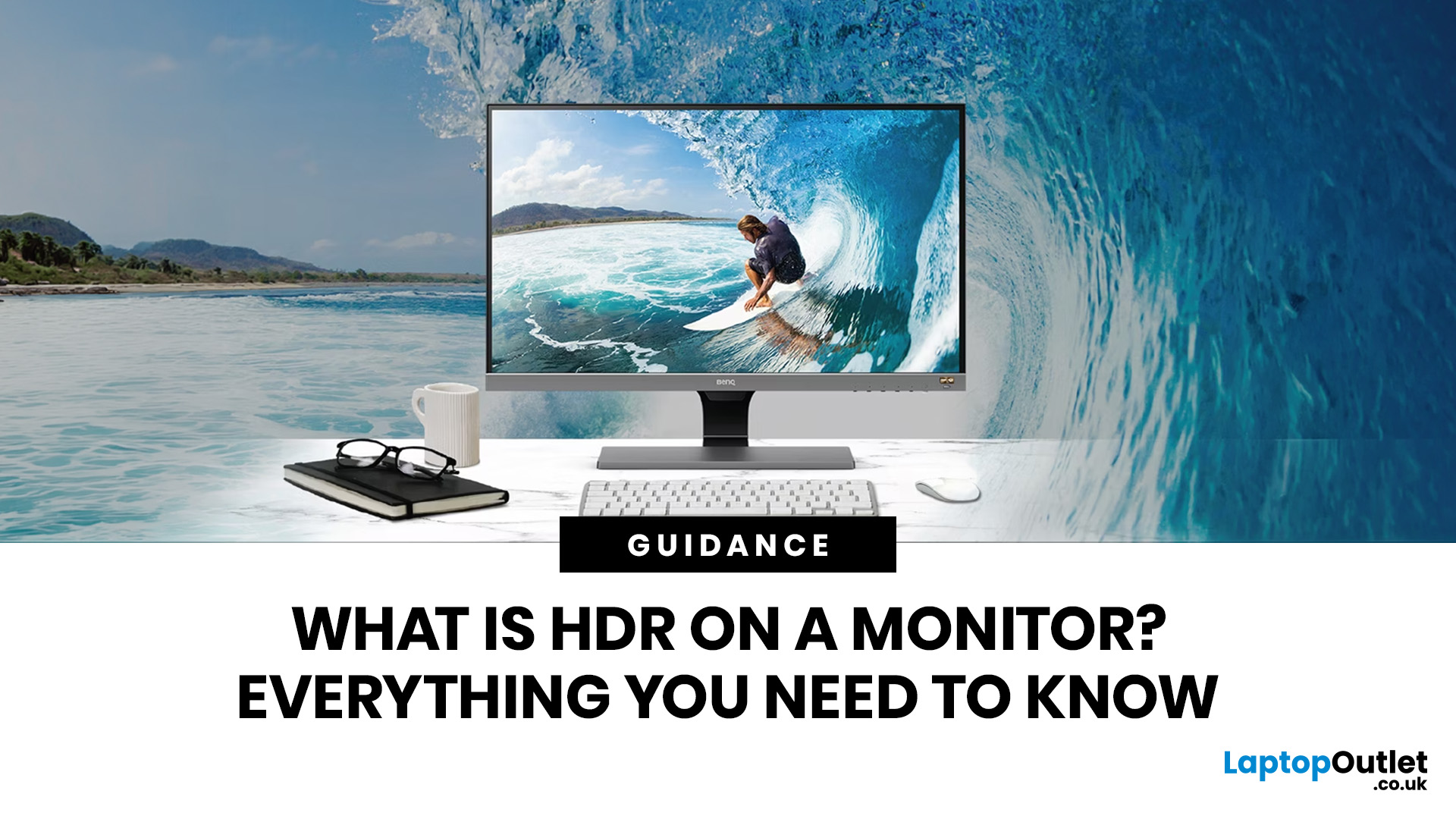
HDR is one of those monitor specs that sounds instantly premium. You see it on gaming monitors, 4K displays, creator screens, and even some budget monitors. But here’s the plot twist: not every HDR monitor gives you that “wow, this looks unreal” experience.
Some HDR displays look bright, rich and cinematic. Others technically support HDR but barely look different from standard mode. Bit awkward. So, what is HDR on a monitor, how does it work, and is HDR actually worth paying for? This complete HDR monitor explained guide breaks it all down in plain English, so you can shop smarter and avoid getting finessed by shiny spec labels.
What Does HDR Mean on a Monitor?
HDR stands for High Dynamic Range.
On a monitor, HDR is designed to show a wider range of brightness, contrast and colour than a standard SDR display. In simple terms, it helps bright areas look brighter, dark areas look deeper and colours look richer when you are watching or playing HDR-supported content.
So, when someone asks,
Last Updated: August 24, 2026
Buying a monitor should be simple. Pick a screen, plug it in, done. Except the second you start shopping, you’re hit with Full HD, QHD, 4K Ultra HD, 60Hz, 144Hz, 240Hz, IPS, VA, response time, HDMI, DisplayPort and about 47 other things that sound like they belong in a sci-fi film.
So, let’s make it easy.
This monitors & displays guide breaks down the two specs that matter most for most buyers: resolution and refresh rate. Whether you’re building a gaming setup, upgrading your home office, sorting a uni desk, editing content or just replacing an old screen that’s seen better days, this guide will help you choose the right monitor without getting finessed by big numbers.
Quick Answer: What Resolution and Refresh Rate Should You Choose?
Here’s the no-stress version.
| What You Use it For | Best Resolution | Best Refresh Rate | Best Monitor Type |
| Everyday browsing, emails and admin | Full HD | 60Hz–100Hz | Budget monitor |
| Studying or home office work | Full HD or QHD | 75Hz–120Hz | Productivity monitor |
| Multitasking |
Last Updated: August 24, 2026
One screen is fine. Two screens? That is where your setup starts feeling seriously organised. Whether you are working from home, studying, gaming, editing, coding or just tired of switching between 27 tabs every five seconds, a dual monitor setup can make your desk feel cleaner and your workflow feel smoother.
The good news is that learning how to set up dual monitors is not as complicated as it sounds. You just need the right monitors, the correct cables or adapters, and a few display settings adjusted properly. This complete guide explains how to connect two monitors, how to set up dual monitors on Windows, how to set up dual monitors with a laptop, and how to get the best layout for work, study, gaming and everyday use.
How Do You Set Up Dual Monitors?
Here is the simple version.
To set up dual monitors, connect both screens to your laptop or desktop PC using HDMI, DisplayPort, USB-C, Thunderbolt or a compatible docking station. Then open your display settings, choose Extend these displays

