



What is HDR on a Monitor? Everything You Need to Know
HDR is one of those monitor specs that sounds instantly premium. You see it on gaming monitors, 4K displays, creator screens, and even some budget monitors. But here’s the plot twist: not every HDR monitor gives you that “wow, this looks unreal” experience.
Some HDR displays look bright, rich and cinematic. Others technically support HDR but barely look different from standard mode. Bit awkward. So, what is HDR on a monitor, how does it work, and is HDR actually worth paying for? This complete HDR monitor explained guide breaks it all down in plain English, so you can shop smarter and avoid getting finessed by shiny spec labels.
What Does HDR Mean on a Monitor?
HDR stands for High Dynamic Range.
On a monitor, HDR is designed to show a wider range of brightness, contrast and colour than a standard SDR display. In simple terms, it helps bright areas look brighter, dark areas look deeper and colours look richer when you are watching or playing HDR-supported content.
So, when someone asks, “what does HDR mean on a monitor?”, the simple answer is:
HDR helps your monitor show more realistic brightness, deeper contrast and more detailed colour in supported content.
Here is a quick breakdown.
|
Term |
What it Means |
Why it Matters |
|
HDR |
High Dynamic Range |
Improves brightness, contrast and colour range |
|
SDR |
Standard Dynamic Range |
The standard display format used for most basic content |
|
Peak brightness |
The brightest level a monitor can reach |
Helps highlights look more realistic |
|
Contrast |
Difference between dark and bright areas |
Adds depth to films, games and images |
|
Colour gamut |
The range of colours a monitor can display |
Helps HDR content look richer and more lifelike |
|
Local dimming |
Controls brightness in different parts of the screen |
Improves dark scenes and highlight detail |
|
HDR certification |
A performance rating or HDR standard |
Helps buyers compare HDR quality |
A good HDR display can make explosions brighter, skies more vibrant, shadows more detailed and films more cinematic. But HDR only works properly when the monitor, content, cable, and device all support it.
How Does HDR Work on a Monitor?
HDR on a monitor is not just one feature. It is a mix of brightness, contrast, colour, and content support working together. A proper HDR computer monitor needs to handle:
- Brighter highlights
- Deeper dark areas
- Wider colour range
- More detail in shadows
- More detail in bright scenes
- HDR-compatible content
- HDR support from your PC, console or streaming APP
Think of SDR as a smaller box of colours and brightness levels. HDR gives the monitor a bigger box to work with. That means a sunny sky can look brighter without washing out the whole image, and a dark scene can keep detail instead of becoming one flat grey mess.
For example, in a film scene with a dark room and a bright window, an SDR monitor may struggle to show both properly. Either the window looks blown out, or the dark room loses detail. A good HDR monitor can show more of both at the same time.
|
Laptop Outlet Expert Tip: An HDR badge does not automatically mean elite picture quality. A good HDR monitor needs enough brightness, strong contrast and decent colour performance to actually make HDR content look better. |
HDR vs SDR: What is the Difference?
The difference between HDR and SDR comes down to how much brightness, contrast and colour the display can show.
SDR stands for Standard Dynamic Range. It is the traditional display format and is still used for loads of everyday content, including web pages, office apps, older videos and many standard streams.
HDR stands for High Dynamic Range. It is designed for more realistic image quality, especially in content mastered for HDR.
|
Feature |
SDR Monitor |
HDR Monitor |
|
Brightness range |
More limited |
Wider range from dark to bright |
|
Highlights |
Can look flat or clipped |
Brighter and more realistic |
|
Dark scenes |
May lose shadow detail |
Can show deeper blacks and more detail |
|
Colours |
Standard colour range |
Richer colour potential |
|
Best for |
Office work, browsing and basic use |
Films, gaming, editing and premium visuals |
|
Content needed |
Works with almost everything |
Needs HDR-supported content |
|
Hardware needed |
Standard monitor support |
HDR-capable monitor, device and cable |
So, what is the difference between HDR and SDR?
SDR is completely fine for everyday use. HDR is better when you want films, games and visual content to look more dynamic and realistic. You do not need HDR to write emails or work in spreadsheets. But for gaming, movies, creative work, and premium entertainment, HDR can be a proper glow-up.
Is HDR Worth it on a Monitor?
Yes, HDR can be worth it on a monitor, but only if the monitor has the right hardware to back it up.
This is where things get a bit spicy. Some monitors support HDR input, but they do not have enough brightness, contrast or colour quality to make HDR look impressive. So, HDR may appear in the specs, but the real-world result can feel underwhelming. HDR is worth it if you:
- Watch HDR films or TV shows
- Play HDR-supported games
- Use a PS5, Xbox Series X or gaming PC
- Edit photos or videos
- Want more cinematic visuals
- Are buying a premium 4K or OLED monitor
- Care about image quality more than basic office use
HDR is less important if you:
- Mainly use emails and spreadsheets
- Only browse the web
- Are buying the cheapest monitor possible
- Do not watch HDR content
- Care more about refresh rate for esports
- Use an older laptop or desktop with limited display output
For buyers who want sharper detail alongside better colour and contrast, a 4K HDR computer monitor can be a strong choice. Ultrawide monitors can be great for multitasking, gaming and creative work, but they are not ideal for everyone, so check our full ultrawide monitor buying guide first. If you want a premium screen for films, editing and everyday clarity, browse 4K Ultra HD monitors to compare available options.
|
Laptop Outlet Expert Tip: HDR is not automatically better just because it is switched on. If your monitor has weak brightness or poor contrast, SDR may sometimes look cleaner and more consistent. |
What Makes a Good HDR Monitor?
A good HDR monitor is not just about having “HDR” written in the product title. The actual display quality matters more.
Here are the HDR specs that actually count.
|
HDR Feature |
Why It Matters |
What to Look For |
|
Peak brightness |
Makes highlights pop in HDR scenes |
Higher brightness is usually better |
|
Contrast |
Adds depth between bright and dark areas |
OLED, Mini LED or strong VA/IPS performance |
|
Local dimming |
Helps dark areas stay dark while highlights stay bright |
More dimming zones are usually better |
|
Colour gamut |
Shows richer and more varied colours |
Wide colour coverage |
|
Bit depth |
Helps smooth colour gradients |
10-bit or 8-bit + FRC support |
|
HDR certification |
Gives a performance reference |
DisplayHDR, HDR10 or True Black certification |
|
Panel type |
Affects blacks, colours and viewing angles |
OLED, IPS, VA or Mini LED |
|
Connectivity |
Needed for full HDR signal support |
HDMI or DisplayPort version that supports your setup |
The most important things are brightness, contrast and colour.
A monitor with basic HDR support but low brightness may not look very different from SDR. A monitor with strong brightness, deep blacks and wide colour coverage will usually give a much better HDR experience. If you are already looking for a sharper premium display, you may want to compare 4K Ultra HD monitors.
HDR Certifications Explained: HDR10, DisplayHDR and True Black
HDR standards and certifications can look confusing, but they are useful once you know what they mean.
HDR10
HDR10 is one of the most common HDR formats. You will see it on monitors, TVs, consoles, games and streaming content.
If a monitor supports HDR10, it can accept and display HDR10 content. However, HDR10 support alone does not guarantee amazing HDR quality. The monitor still needs good hardware.
VESA DisplayHDR
DisplayHDR is a certification system used to help buyers understand HDR performance levels. Common DisplayHDR tiers include:
|
Certification |
General Meaning |
|
DisplayHDR 400 |
Entry-level HDR support |
|
DisplayHDR 500 |
Better brightness and performance than basic HDR |
|
DisplayHDR 600 |
Stronger HDR experience for mid-range displays |
|
DisplayHDR 1000 |
High brightness and stronger HDR performance |
|
DisplayHDR 1400 |
Premium HDR brightness and image quality |
|
DisplayHDR True Black |
Designed for displays with very deep black levels, such as OLED |
DisplayHDR 400 can be better than no HDR, but it is still entry-level. If you want HDR that genuinely looks impressive, look beyond the badge and check brightness, contrast, panel type and reviews.
DisplayHDR True Black
DisplayHDR True Black is usually linked with displays that can produce extremely deep blacks. This is where OLED monitors come in strong, because OLED pixels can switch off individually.
If deep blacks, cinematic contrast and premium HDR picture quality are your main priorities, OLED monitors are worth considering.
OLED, IPS and 4K: Which Display Type Is Best for HDR?
Different display types handle HDR differently. This is why two monitors can both support HDR but look completely different in real life.
OLED Monitors for HDR
OLED monitors are excellent for HDR because each pixel can light up or switch off independently. That means OLED can create extremely deep blacks and strong contrast without needing traditional backlighting.
OLED is great for:
- Films
- HDR gaming
- Creative work
- Premium entertainment
- Deep black levels
- Fast response times
- Cinematic visuals
The main reason OLED looks so good with HDR is contrast. Bright highlights can stand out against truly dark areas, which gives images more depth and realism. However, OLED monitors are usually more expensive, and buyers should consider usage habits, brightness needs and burn-in protection features. For premium contrast and deep blacks, explore OLED monitors designed for high-end visual setups.
IPS Monitors for HDR
IPS monitors are popular because they offer strong colour quality and wide viewing angles. This makes them a great choice for work, study, design and general everyday use.
IPS is good for:
- Colour-focused work
- Photo editing
- Office use
- Study setups
- Wide viewing angles
- General productivity
- Mixed work and entertainment
For HDR, IPS quality depends heavily on brightness and contrast. A basic IPS monitor with HDR support may not deliver dramatic HDR, but a high-quality IPS display with strong brightness and good colour coverage can still look excellent.
If you care about colour accuracy, wide viewing angles and a versatile screen for work or creative use, browse IPS monitors.
4K HDR Monitors
4K and HDR are different things, but they work beautifully together. 4K gives you more pixels and sharper detail. HDR improves brightness, contrast and colour depth. A 4K HDR monitor can be a great choice for:
- Watching films
- Playing cinematic games
- Editing photos
- Editing 4K video
- Premium office setups
- Larger screens
- Console gaming
A 4K HDR computer monitor gives you both sharpness and improved visual depth, making it ideal for users who want a premium display experience. HDR improves contrast and colour, but resolution controls sharpness, so check our guide to 4K vs 1440p vs 1080p monitors before choosing your display.
For sharper detail with HDR support on selected models, compare 4K Ultra HD monitors.
Is HDR Good for Gaming?
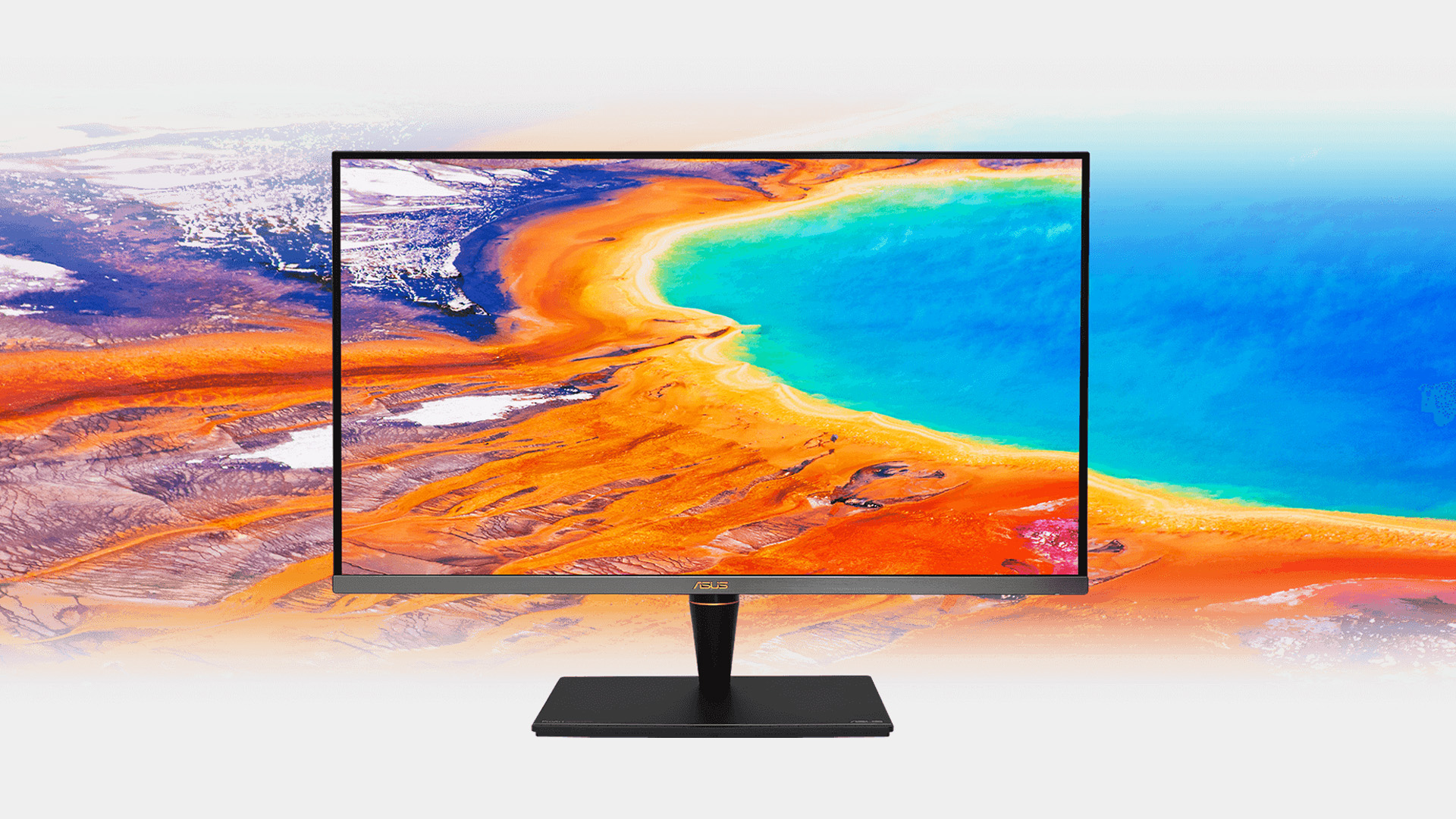
Yes, HDR can be brilliant for gaming, especially in titles designed to support it properly.
HDR can improve:
- Sunlight and reflections
- Fire, explosions and lighting effects
- Dark caves, night scenes and shadows
- Skies, landscapes and open worlds
- Cinematic cutscenes
- Colour-rich fantasy or sci-fi environments
In the right game, HDR can make the world feel more realistic and immersive. Bright effects look brighter, shadows carry more detail, and colours can look more alive.
But there is a catch. HDR gaming still depends on the monitor.
A basic HDR monitor may not look much better than SDR. A good HDR gaming monitor should also offer strong brightness, good contrast, low response time, high refresh rate and adaptive sync support.
For console gamers, HDMI 2.1 may also matter if you want 4K at high refresh rates on supported consoles. Gamers who want sharp resolution, HDR visuals and smooth performance should compare 4K gaming monitors built for console and PC setups.
|
Laptop Outlet expert tip: For competitive esports, refresh rate may matter more than HDR. For cinematic games, RPGs and story-based titles, HDR can make a much bigger visual difference. |
How to Tell if a Monitor Supports HDR
The easiest way to tell if a monitor supports HDR is to check the product specifications. Do not rely only on the product title. Look for terms such as:
- HDR
- HDR10
- DisplayHDR 400
- DisplayHDR 600
- DisplayHDR 1000
- DisplayHDR True Black
- Peak brightness rating
- Wide colour gamut
- Local dimming
- OLED or Mini LED panel
- HDMI or DisplayPort compatibility
You should also check whether your laptop, desktop or console supports HDR output. A monitor can be HDR-ready, but if your device or cable does not support HDR properly, you may not get the full experience.
Quick HDR Support Checklist
|
Check |
Why It Matters |
|
Monitor supports HDR |
The display must be able to receive and show HDR content |
|
Device supports HDR output |
Your PC, laptop or console needs to send HDR signal |
|
Cable supports required bandwidth |
Wrong cables can limit resolution, refresh rate or HDR |
|
Content is HDR-compatible |
HDR only works with HDR films, games or apps |
|
HDR is enabled in settings |
It may be switched off by default |
|
Monitor picture mode is correct |
Some monitors need HDR mode enabled manually |
So, if you are wondering how to tell if a monitor supports HDR, start with the spec sheet, then check your device settings and connection.
How to Enable HDR on a Monitor
Even if your monitor supports HDR, you may still need to turn it on.
Here is how to enable HDR on a monitor for Windows and Mac.
How to Enable HDR on Windows 11
Follow these steps:
- Open Settings
- Go to System
- Select Display
- Choose your HDR-capable monitor
- Find Use HDR
- Turn it on
- Adjust HDR video streaming or calibration settings if available
If you use multiple monitors, make sure you select the correct display before switching HDR on. You may also need to update your graphics drivers, use a better cable or enable HDR mode in the monitor’s own menu.
How to Enable HDR on Mac
On Mac, HDR support depends on your Mac model, macOS version, monitor and cable.
General steps:
- Open System Settings
- Go to Displays
- Select your external monitor
- Look for HDR or high dynamic range options
- Enable HDR if available
If the option does not appear, your Mac, cable, display or adapter may not support HDR in that setup.
Why HDR Might Not Show Up
HDR can be a little dramatic sometimes. If the HDR option does not appear, one of these issues may be the reason:
- The monitor does not support HDR
- HDR is disabled in the monitor menu
- The wrong cable is being used
- The wrong port is being used
- Your laptop or desktop does not support HDR output
- Graphics drivers need updating
- The app or game does not support HDR
- The monitor only supports basic HDR input
- You are using a dock or adapter that limits the signal
|
Laptop Outlet expert tip: If HDR is not showing up, check the cable first. A display can have the right specs, but the wrong cable or adapter can stop HDR from working properly. |
Best HDR Monitor by Use Case
The best HDR monitor depends on what you actually do. Here is a simple way to choose.
|
Use Case |
Best HDR Monitor Type |
What to Prioritise |
|
Everyday use |
Full HD, QHD or 4K monitor with basic HDR |
Resolution, comfort and value |
|
Films and streaming |
4K HDR, OLED or Mini LED monitor |
Contrast, brightness and colour |
|
Gaming |
4K HDR gaming monitor or high refresh HDR display |
Refresh rate, response time and HDR quality |
|
Creative work |
4K IPS or OLED monitor |
Colour accuracy, resolution and brightness |
|
Budget buyers |
Good SDR or entry-level HDR monitor |
Panel quality before HDR label |
|
Premium setup |
OLED, Mini LED or high-end 4K HDR monitor |
Deep blacks, peak brightness and wide colour |
Best HDR Monitor for Everyday Use
For everyday use, HDR is nice to have but not essential.
If you mostly browse, work, shop online, study and stream casual content, focus on:
- Screen size
- Resolution
- Panel quality
- Ergonomics
- Connectivity
- Price
A basic HDR display may be enough if you occasionally watch HDR content, but you do not need to overspend just for HDR.
Best HDR Monitor for Films and Streaming
For films and streaming, HDR can make a noticeable difference.
Look for:
- 4K resolution
- Strong contrast
- Good peak brightness
- HDR10 support
- OLED or Mini LED if budget allows
- Good colour coverage
This is where HDR feels most cinematic. Bright lights, sunsets, reflections and dark scenes can all look more realistic on a good HDR display.
Best HDR Monitor for Gaming
For gaming, HDR is only one part of the setup.
Look for:
- 4K resolution for sharp visuals
- High refresh rate
- Low response time
- Adaptive sync support
- HDMI 2.1 for newer consoles
- Strong brightness and contrast
- HDR10 or DisplayHDR certification
If you play competitive shooters, refresh rate and response time may matter more. If you play open-world, racing, RPG or story games, HDR can make the experience feel much more immersive.
Best HDR Monitor for Creative Work
For creative work, HDR can be useful, but colour accuracy matters most.
Look for:
- 4K resolution
- IPS or OLED panel
- Wide colour gamut
- Strong colour accuracy
- Good brightness
- 10-bit colour support where possible
- Adjustable stand
- USB-C if using a laptop
Creative users should avoid choosing a monitor just because it says HDR. Check colour performance, calibration and panel quality too.
Best HDR Monitor for Budget Buyers
If you are buying on a budget, do not pay extra for weak HDR.
It is often better to choose a monitor with:
- Better resolution
- Better panel quality
- Stronger brightness
- Good viewing angles
- Reliable warranty
- Comfortable stand
A cheap HDR monitor with poor brightness may not feel like a real upgrade. In that case, a good SDR monitor might be better than a weak HDR one.
Common HDR Monitor Mistakes to Avoid
HDR can be confusing, so avoid these common buying mistakes.
Mistake 1: Thinking Every HDR Monitor Looks Amazing
Not every HDR monitor delivers proper HDR quality.
Some monitors can accept an HDR signal but do not have the brightness, contrast or colour range to display it well. Always check the actual specs.
Mistake 2: Ignoring Brightness
HDR needs brightness to make highlights stand out.
If a monitor has low brightness, HDR content can look dull or flat. Peak brightness is one of the most important specs to check.
Mistake 3: Buying HDR for Office Work Only
HDR is not essential for spreadsheets, emails or basic browsing.
For office work, you may be better off prioritising resolution, screen size, USB-C connectivity, an adjustable stand and eye comfort features.
Mistake 4: Forgetting About Content Support
HDR only works when the content supports HDR.
If you watch SDR videos, browse standard websites or play games without HDR support, your HDR monitor will not magically upgrade everything.
Mistake 5: Choosing HDR Over More Important Specs
HDR is cool, but it should not distract you from the basics.
Before buying, also check:
- Screen size
- Resolution
- Refresh rate
- Panel type
- Ports
- Stand adjustment
- Warranty
- Device compatibility
The best monitor is not always the one with the most badges. It is the one that fits your setup. Still comparing specs beyond HDR? Our monitor buying guide explains how to choose the right resolution, refresh rate and key display features for your setup.

Final Verdict: Should You Buy an HDR Monitor?
Yes, you should buy an HDR monitor if you care about better visuals and you choose a model with strong enough specs.
HDR is worth it if you:
- Watch HDR films and shows
- Play HDR games
- Want deeper contrast
- Want brighter highlights
- Use a 4K display
- Are considering OLED
- Work with visual content
- Want a premium monitor experience
HDR is less important if you:
- Only do basic office work
- Mostly use SDR content
- Are buying a very cheap monitor
- Care mainly about esports performance
- Have a device that does not support HDR properly
The key takeaway?
HDR is only as good as the monitor behind it.
A strong HDR display can make films, games and creative work look richer, brighter and more lifelike. But a weak HDR monitor may not look much better than SDR. Look for brightness, contrast, colour quality and panel type before trusting the HDR label.

Still Got Questions?
What does HDR mean on a monitor?
HDR means High Dynamic Range. On a monitor, HDR allows supported content to show a wider range of brightness, contrast and colour than standard SDR displays.
What is HDR on a monitor?
HDR on a monitor is a display feature that can make bright areas brighter, dark areas deeper and colours richer in HDR-supported films, games and apps.
Is HDR worth it on a monitor?
HDR is worth it if you watch HDR content, play HDR games, do creative work or want premium picture quality. It is less important for basic office use.
What is the difference between HDR and SDR?
SDR is Standard Dynamic Range and has a more limited brightness and colour range. HDR is High Dynamic Range and can show brighter highlights, deeper shadows and richer colours.
How does HDR work on a monitor?
HDR works by using a wider brightness and colour range. The monitor needs HDR support, and the content, device, cable and settings also need to support HDR.
Related Articles

Last Updated: April 14, 2026
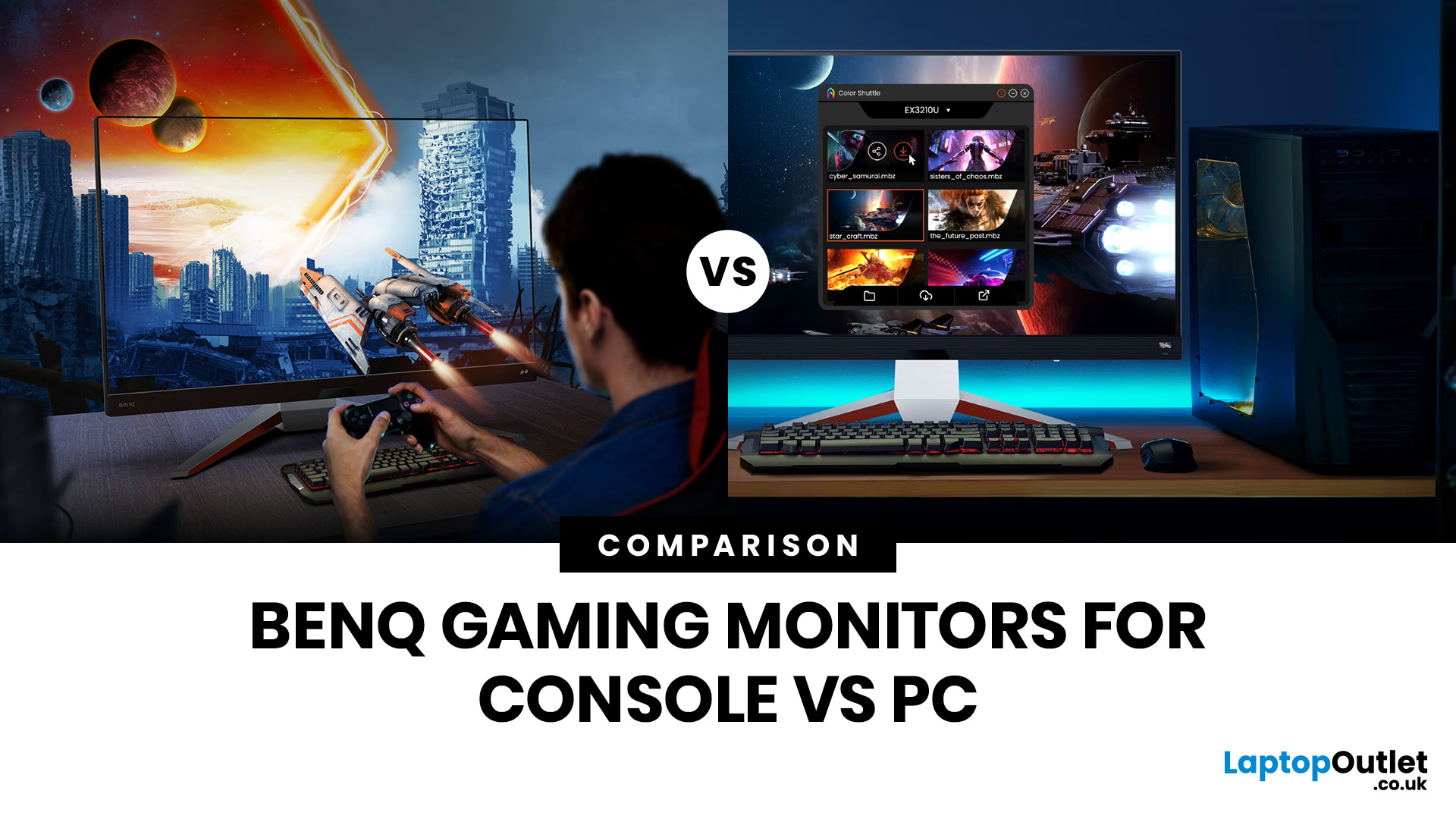
Picking the right gaming monitor is no longer as simple as choosing the biggest screen you can afford. Your setup matters, your platform matters, and the way you play matters even more. A monitor that feels perfect for a competitive PC player might not be the best fit for someone gaming on a PS5 or Xbox Series X.
That’s exactly why choosing the right BenQ gaming monitor for console or PC comes down to more than specs on a product page. You need to think about refresh rate, resolution, connectivity and whether you care more about raw speed or immersive visuals.
BenQ makes that decision easier by offering two clear gaming monitor families. ZOWIE is built for fast, focused competitive PC play, while MOBIUZ is designed for players who want strong performance with more visual depth and better console-friendly features. If you’ve been stuck comparing 1080p, 1440p and 4K, this guide breaks it all down in a way that helps.
Do Console and PC Gamers Need Different BenQ Monitors?
Console and PC
Last Updated: April 28, 2026
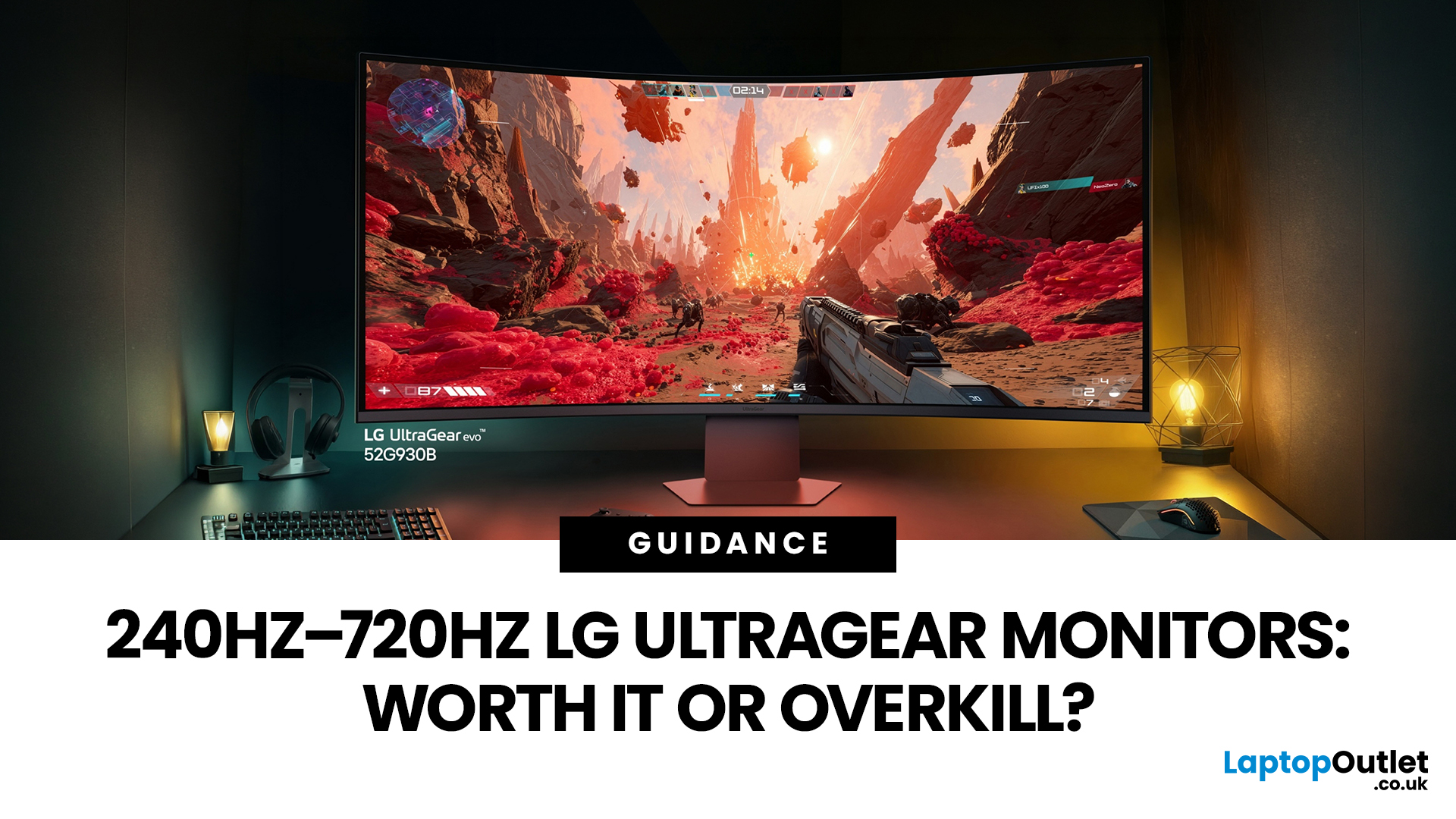
If you've been shopping for a gaming monitor lately, you've probably noticed the numbers getting a bit daft. 240Hz, 330Hz, 480Hz, 540Hz, and now 720Hz.
High refresh LG UltraGear monitors are pushing the boundaries of what gaming displays can do, and the specs are genuinely impressive. But the real question isn't what these monitors can do. It's whether you'll actually notice the difference when you're in the thick of a match.
This guide cuts through the spec sheet jargon and answers what most gamers genuinely want to know: when does a higher refresh rate actually matter, who benefits from it, and which part of the spectrum makes sense for your setup?
What Refresh Rate Actually Does During Gameplay
Refresh rate is one of the most talked-about monitor specs, yet it is also one of the most misunderstood. Before diving into the numbers, it helps to know what is actually happening at the hardware level, because the real-world experience comes from two separate things working together.
A monitor's
Last Updated: September 01, 2026
Not all gaming monitors are built the same, and the LG UltraGear range makes that very clear. Whether you're playing for fun on weekends, grinding ranked matches on a mid-range rig, or competing at a serious level, there's a specific UltraGear model that fits your needs.
This LG UltraGear guide breaks down the full lineup by player type so you can make a genuinely informed decision before spending your money.
What Makes LG UltraGear Different from Standard LG Monitors?
LG produces monitors for all sorts of uses, from office work to content creation to home cinema. UltraGear is the gaming-focused sub-brand, and it comes with a noticeably different spec sheet compared to LG's standard displays.
The core differences come down to priorities. Standard LG monitors are built around colour accuracy, ergonomics, and value for office use. UltraGear monitors are tuned for speed, responsiveness, and visual clarity under fast-moving gaming conditions.
In practical terms, this means LG UltraGear gaming
Last Updated: April 28, 2026
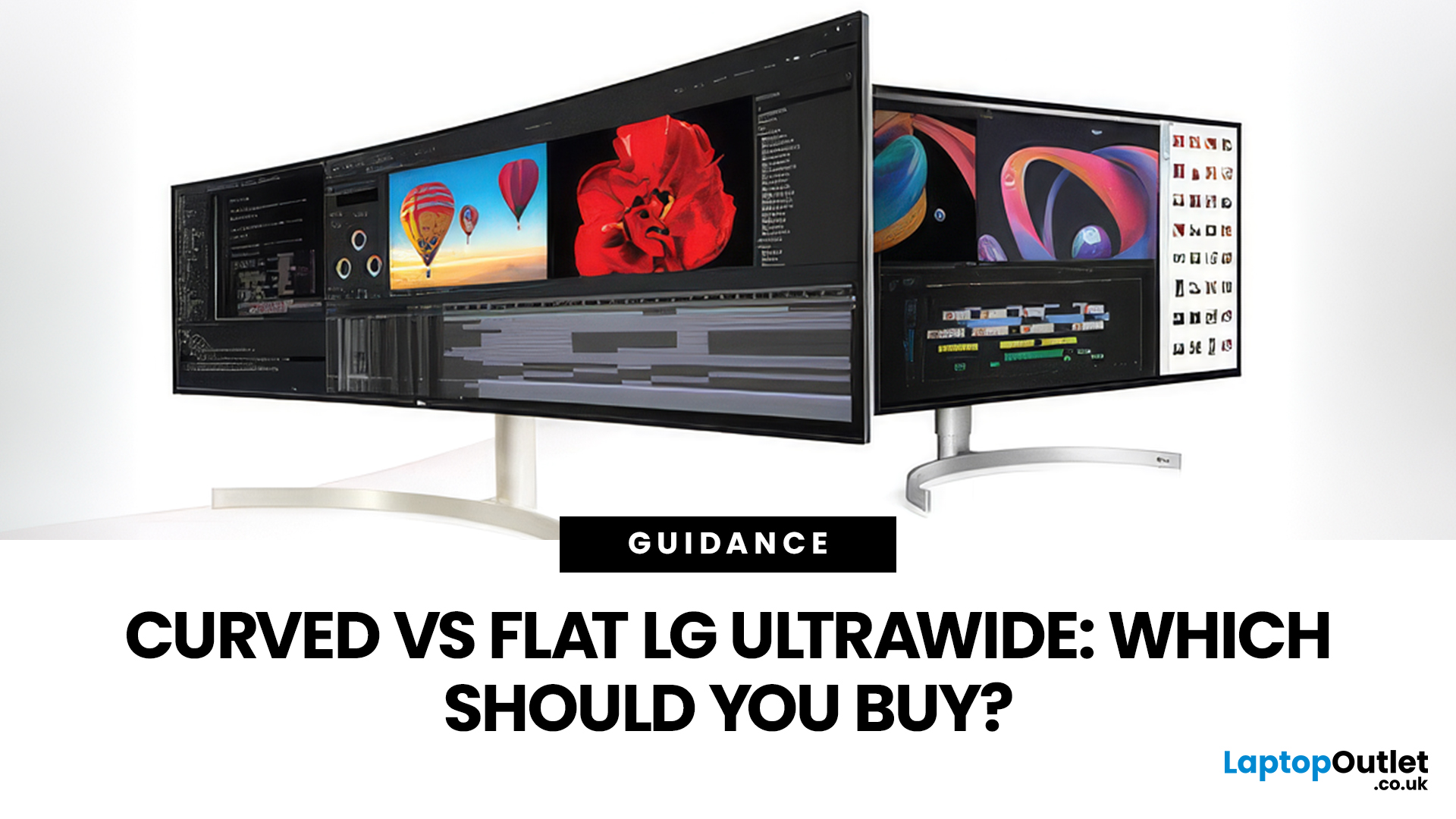
If you're choosing between a curved vs flat LG UltraWide monitor, the decision is more nuanced than it first appears. The right choice depends on what you do, how long you sit at your desk, and the kind of experience you want from your screen.
This guide breaks down every major use case side by side, with a clear verdict for each one, so you can make the right call before you spend your money.
What Makes LG UltraWide Monitors Different?
LG UltraWide monitors use a 21:9 aspect ratio, giving you roughly a third more horizontal screen space than a standard 16:9 display. That extra width is what makes the curved vs flat debate so relevant on these screens specifically.
On standard 26 to 28-inch monitors, the curve debate is largely down to personal preference. But once you hit 34 inches and beyond, the physics of how your eyes scan left-to-right starts to matter. On ultrawide displays of 34 inches or larger, the curvature brings the edges of the screen closer to you, covering more of your
Last Updated: April 14, 2026
If you work with colour professionally, your monitor is your most critical piece of kit. BenQ monitors for creators are built around one principle: what you see on screen should accurately reflect what you print, publish, or deliver to a client.
Whether you are a photographer editing RAW files, a designer producing brand assets, or a video editor reviewing colour grades, accuracy matters at every stage. BenQ addresses this through two dedicated series: the DesignVue PD range and the PhotoVue SW range.
Each is engineered for a different creative discipline. This guide explains both series, covers the key specs to look for, highlights how they compare, and helps you decide which one fits your workflow best.
BenQ’s Creator Series: DesignVue & PhotoVue SW
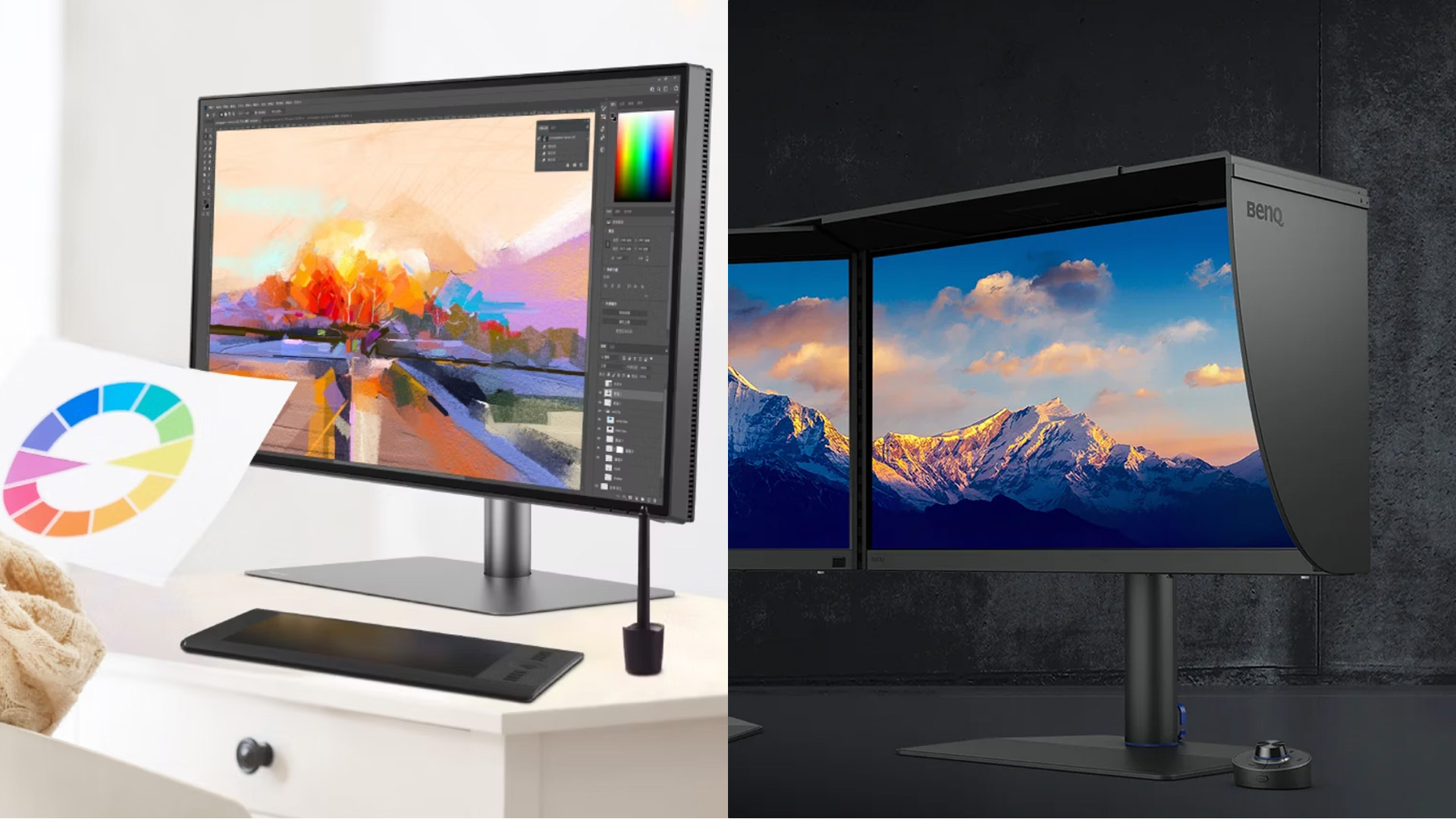
Finding the right BenQ monitors for creators starts with understanding why BenQ separates its professional range into two distinct families, each tailored to a different core workflow. Rather than one catch-all creative

Last Updated: April 14, 2026
If you want reliable colour from a BenQ creative monitor, calibration is not the final polish. It is the foundation. Whether you are editing photos, preparing work for print, designing for web, or reviewing client visuals, the goal is the same: your monitor should show colour in a way that is consistent, repeatable, and appropriate for the job in front of you.
This guide will walk you through how to calibrate a BenQ DesignVue monitor or BenQ PhotoVue monitor, when to use sRGB vs AdobeRGB on BenQ monitors, what hardware calibration changes, and how often you should recalibrate if accurate colour matters to your work.
Why BenQ Monitor Colour Calibration Matters
A high-spec monitor is only one part of colour accuracy. Out of the box, even a very good display may be too bright for print work, set to the wrong colour space for your workflow, or simply drift over time. That is where BenQ monitor colour calibration comes in.
BenQ explains that hardware calibration works by adjusting colour directly
Last Updated: April 28, 2026
Choosing the right monitor format can transform how you work. Whether you are a developer, analyst, designer, or remote professional, your display shapes your entire workflow.
LG UltraWide and DualUp productivity monitors have become a firm favourite across the UK for professionals who need more screen space without the cable clutter of multiple setups.
This guide breaks down how each format performs for coding, content creation, dashboards, and day-to-day productivity, so you can pick the right one for your desk.
Why Screen Format Changes Everything
The shape of your display directly influences how many windows you can manage, how much you need to scroll, and whether your neck stays comfortable after a full working day. It is worth understanding the two non-standard formats LG offers before deciding which suits your setup.
LG monitors come in two distinctive formats: the horizontal 21:9 or 32:9 UltraWide and the vertical 16:18 DualUp. Both give you significantly more usable space than
Last Updated: August 28, 2026
If you are comparing curved vs flat AOC monitors, the right choice depends less on trends and more on how you actually use your screen every day.
For gaming and entertainment, a curved display often feels more immersive, especially in racing games, open-world titles and films. For work, study and general day-to-day use, a flat screen is usually the more practical option because it is easier to position, easier to pair in dual-screen setups and often better suited to documents, spreadsheets and precision-focused tasks.
So, are curved monitors better? Not always. A curved model can be a great upgrade for the right person, but flat screens still make more sense for many buyers.
Here is the simplest way to think about it:
| Use case | Usually the better choice | Why |
| Immersive gaming | Curved | Feels more engaging and cinematic |
| Esports and fast competitive play | Depends | Refresh rate matters more than screen shape |
| Office work and spreadsheets | Flat | Cleaner lines, easier multi-window working |
| Study and everyday |
Published: April 27, 2026
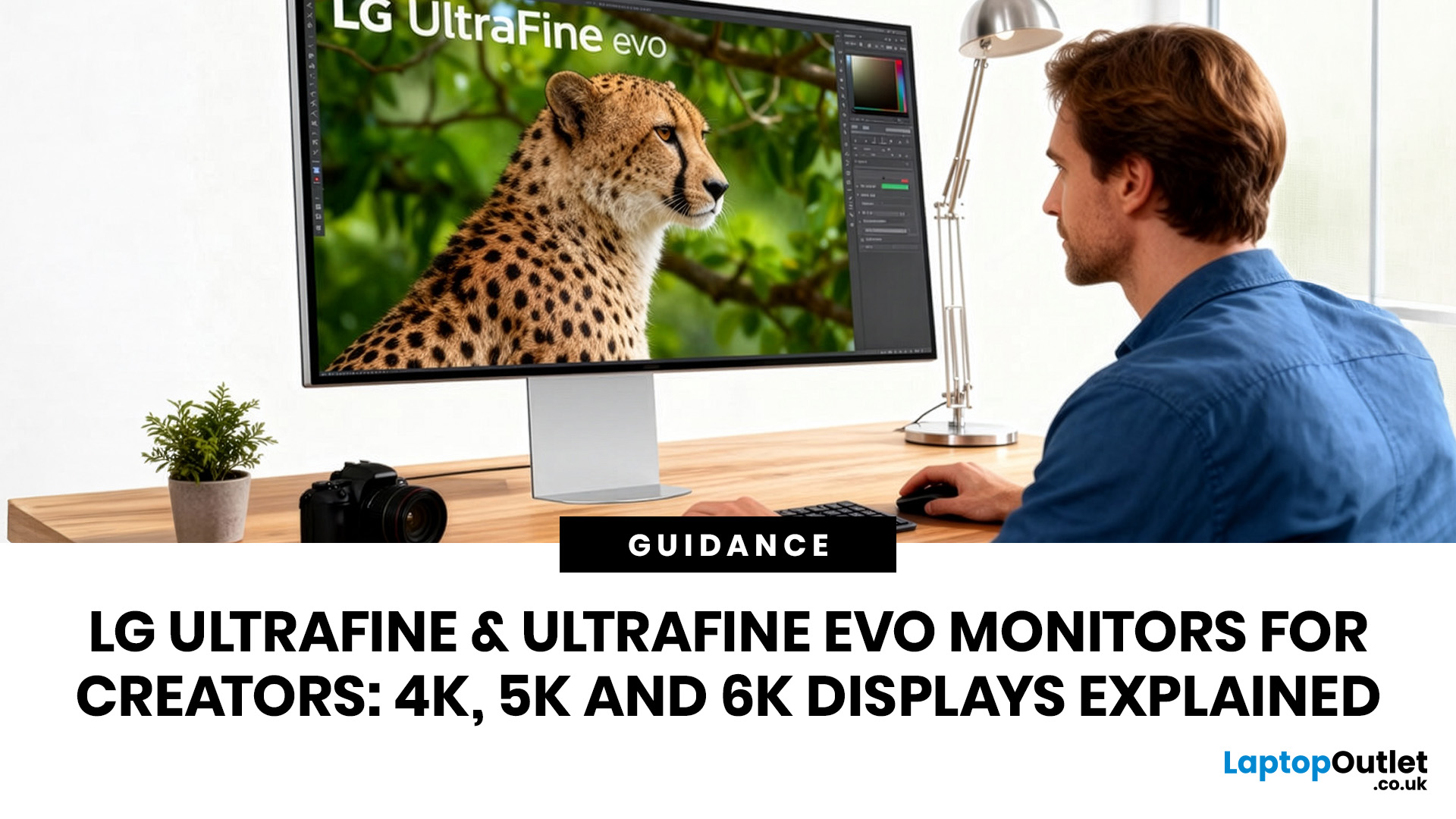
LG UltraFine monitors for creators cover three resolutions: 4K (entry-level colour accuracy), 5K (high pixel density), and 6K (the new UltraFine evo flagship). All prioritise wide colour gamut, IPS panel quality, and clean USB-C or Thunderbolt connectivity.
If you work in photo editing, video production, graphic design, or any colour-critical discipline, LG UltraFine monitors have been a trusted name for years. The right choice depends on your budget, resolution needs, and the software you rely on daily.
What Makes LG UltraFine Monitors Stand Apart for Creative Professionals?
Before going model by model, it helps to understand what the UltraFine brand actually stands for. It is a fundamentally different product category from general office or gaming displays, built around a single non-negotiable: colour and detail accuracy.
The Core Focus: Colour, Calibration, And Pixel Precision
Every UltraFine model ships with wide colour gamut coverage, typically covering 98–99% of the DCI-P3 colour
Published: April 28, 2026
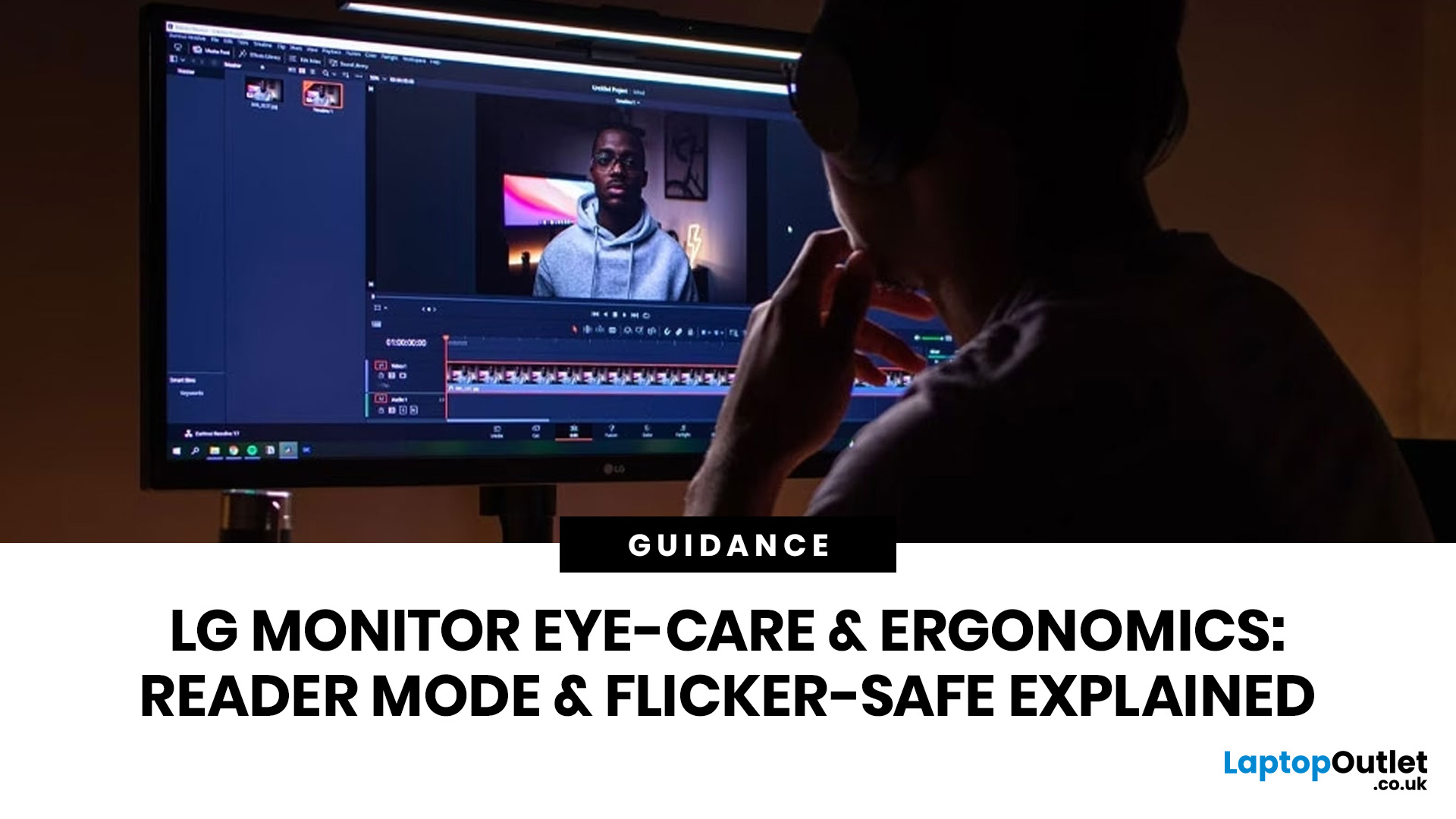
If you spend the better part of your working day staring at a screen, you already know what digital eye strain feels like. That dull ache behind your eyes, the heaviness by mid-afternoon, the headache that creeps in by the end of a long session. You are not alone in that, and it is not just "screen time." It is often a combination of poor monitor settings, bad posture, and a setup that was never properly dialled in.
The good news is that LG has put real thought into tackling these problems at the hardware and software level. This guide walks you through every LG monitor eye care feature worth knowing about, how to set your screen up properly, and which models are genuinely worth considering if comfort is a priority for you.
Why Do Eye-Care and Ergonomics Actually Matter with Modern Monitors?
You might think that modern screens are already comfortable enough out of the box. The reality is that even a high-quality monitor, poorly positioned and left on factory settings, can cause very real

