



15-Inch Laptop Sleeve for a 15.6-Inch Laptop: Too Small or Just Right?
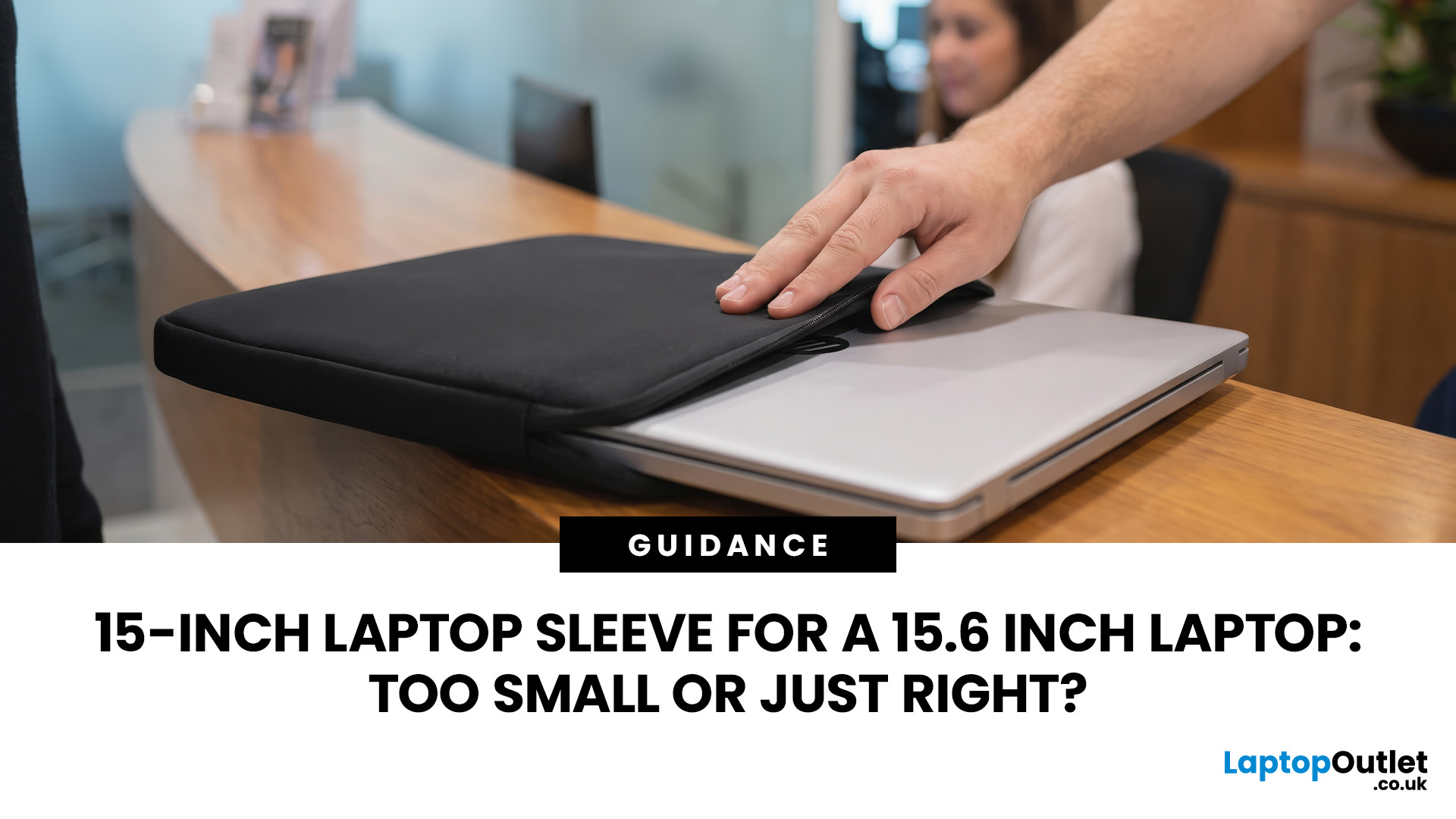
A 15 inch laptop sleeve can fit a 15.6-inch laptop, but the label alone does not guarantee it. The deciding factor is whether your laptop’s actual width, depth, and thickness fit within the sleeve’s internal measurements.
Laptop screen sizes are measured diagonally, whereas sleeves must accommodate the complete device. This means a slim 15.6-inch laptop may fit comfortably inside some 15 inch laptop sleeves, while a thicker model with wide bezels may not.
Before buying, compare the external dimensions of your laptop with the internal dimensions of the sleeve rather than relying only on the advertised screen size.
Why 15-Inch vs. 15.6-Inch Laptop Sleeve Sizing Causes Confusion
The 15-inch measurement usually refers to the diagonal display size, not the overall size of the laptop. It does not tell you the device’s width, depth, or thickness.
Retailers and accessory manufacturers also use “15-inch” as a broad size category. Laptop Outlet, for example, groups many 15-inch and 15.6-inch models within the same practical category because they meet a similar buying need. However, two laptops with 15.6-inch screens can have noticeably different bodies because of:
- Screen aspect ratio
- Bezel thickness
- Hinge design
- Cooling systems
- Dedicated graphics hardware
- Protective shells already attached to the laptop
This is why there are no universal 15 inch laptop dimensions or 15.6 inch laptop dimensions. If you are still choosing your device, compare the full specifications of affordable 15 inch laptops, including their listed physical measurements.

What is the Actual Difference Between 15 Inches and 15.6 Inches?
The difference between the two diagonal measurements is 0.6 inches, or approximately 15.2 mm. That does not mean a 15.6-inch laptop is automatically 15.2 mm wider than a 15-inch model.
Assuming both displays have a 16:9 aspect ratio, a 15.6-inch panel is approximately 13 mm wider and 7 mm taller than a 15-inch panel. These are only display measurements. The surrounding bezels, keyboard deck, ports and chassis can create a much larger difference between the complete devices.
For context, official specifications for one 15.6-inch Dell display give an active panel width of 344.2 mm and a height of 193.5 mm. The overall laptop body must extend beyond that display area.
The safest approach is therefore to ignore the 0.6-inch difference and measure the entire laptop. Screen size does not determine picture quality on its own, so read our guide to full HD vs 2.5K vs 4K for a 15 inch laptop to compare display sharpness, battery efficiency and suitability for everyday work, gaming and creative tasks.
How to Measure Your Laptop for a Sleeve
You need three measurements to choose the correct laptop sleeve size.
1. Measure the Laptop Width
Laptop width is the distance from the left edge to the right edge when the device is closed. Measure the widest part, including any rubber edging, protruding ports, or an attached protective shell.
2. Measure the Laptop Depth
Laptop depth is the distance from the front edge of the closed laptop to the rear edge near the hinge. Some gaming and performance laptops have rear cooling sections that increase their depth significantly.
3. Measure the Laptop Thickness
Measure the laptop from its lowest point to its highest point while it is closed. Include rubber feet and any permanent case you intend to leave attached. You can check the manufacturer’s specification page first, but confirming the measurements yourself helps account for attached covers and accessories.
Once you have the external laptop dimensions, compare them with the sleeve’s internal compartment measurements. You can also browse laptop accessories for daily use after confirming which dimensions your device requires.
4. Check Internal Sleeve Dimensions, Not External Size
The internal sleeve dimensions tell you how much usable space is available. External measurements include the material, padding, seams and zip, so they cannot reliably confirm whether your laptop will fit.
Your laptop should be slightly smaller than the sleeve compartment in all three measurements. A small amount of clearance makes it easier to insert the device without placing pressure on its corners or screen.
However, the sleeve should not be so large that the laptop slides around inside. Lenovo similarly recommends a snug fit because excessive movement can reduce protection during transport.

When will a 15 Inch Laptop Sleeve Fit a 15.6-Inch Laptop?
A laptop sleeve for 15.6 inch laptop use is likely to fit when:
- The product description says it supports devices up to 15.6 inches
- The sleeve’s internal width exceeds the laptop width
- Its internal depth exceeds the laptop depth
- The compartment supports the laptop’s thickness
- The zip closes without resistance
- The laptop does not move excessively inside
Some listings may call the product a 15.6 inch laptop sleeve, while others use descriptions such as “15 to 15.6 inches”. Listings worded as laptop 15 inch sleeve may also be suitable, provided their internal measurements match your device.
Signs Your 15-Inch Sleeve is Too Small
A 15 inch laptop sleeve is probably too small when the laptop has a thick gaming chassis, wide bezels or large rear exhaust vents. Warning signs include:
- Corners pressing into the sleeve
- Padding becoming compressed
- A strained or misaligned zip
- Difficulty removing the laptop
- Pressure marks on the display lid
- The sleeve changing shape around the device
Do not assume stretchy neoprene makes an undersized sleeve safe. Stretching can place constant pressure on the laptop and weaken the sleeve’s seams or zip over time.
When to Choose a 16-Inch Sleeve Over a 15-Inch
A 16-inch sleeve can be a sensible alternative for a 15.6-inch laptop, particularly if the device is thick or has an unusually wide chassis.
Check the internal measurements before buying because some 16-inch sleeves are designed around taller 16:10 laptops. They may provide more depth than your 15.6-inch model needs.
A slightly larger sleeve is usually preferable to one that is too tight, but excessive space allows the laptop to move. Look for thick padding, corner protection, an internal strap or a close-fitting compartment.
Laptop Sleeve, Bag, or Case: Which is Better?
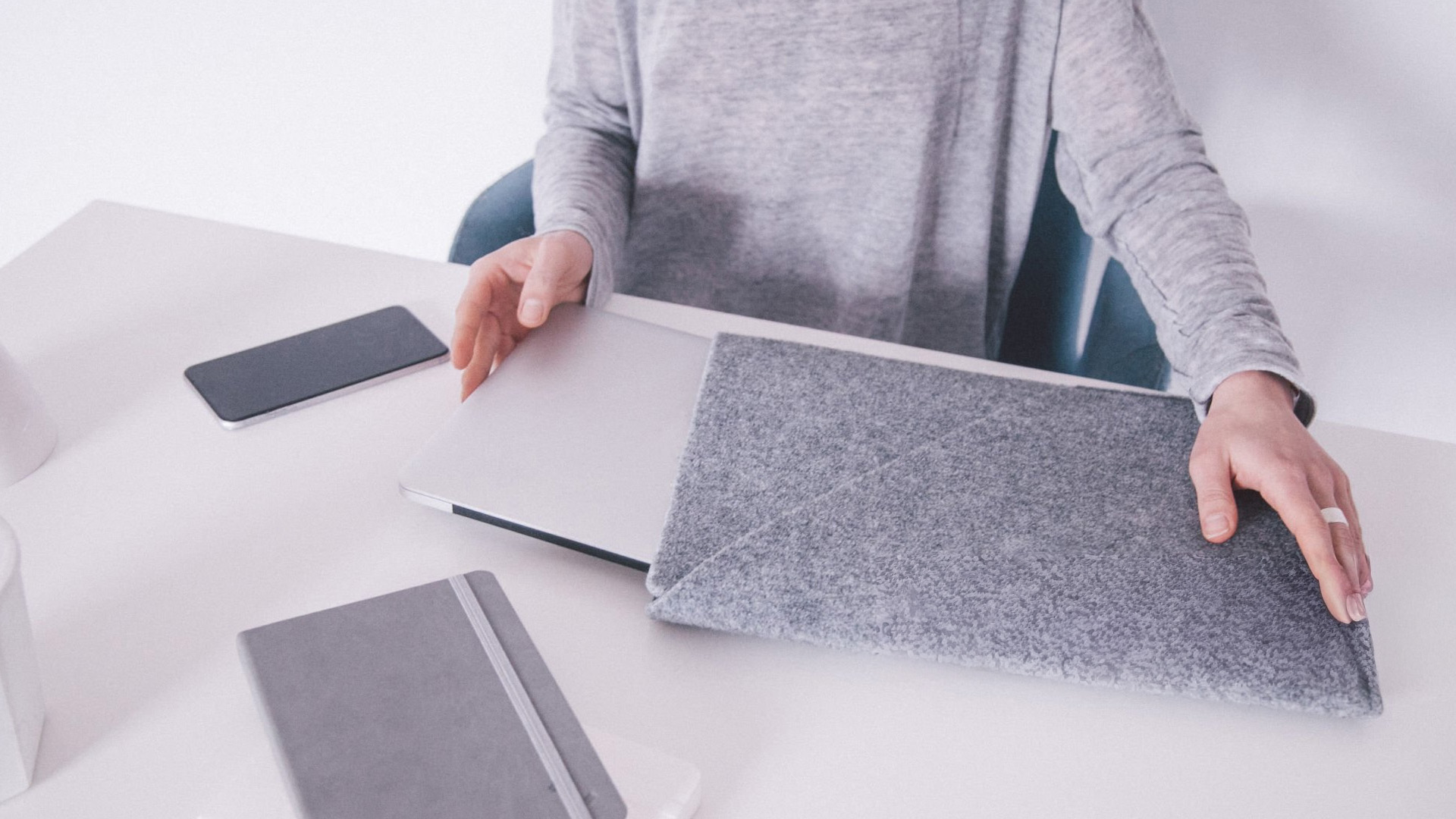
A sleeve provides slim protection against scratches, dust and minor bumps. It works well when you carry the laptop inside another backpack or only need minimal storage.
A 15 inch laptop bag normally includes handles, a shoulder strap and separate compartments for chargers, documents and other equipment. Some product listings shorten this to 15 laptop bag, but the same sizing rules still apply.
A 15 inch laptop case may offer a firmer structure and greater impact protection. It can be the better choice for frequent commuting, business travel or carrying a heavier gaming laptop.
For help comparing these options, read our guide to choosing the right laptop bag.

Final Verdict
A 15 inch laptop sleeve may be just right for a 15.6-inch laptop, but only when its usable compartment is larger than the laptop’s complete body in width, depth and thickness. Do not rely on the screen label alone. Measure your closed laptop, check the manufacturer’s dimensions and compare them with the sleeve’s internal measurements.
Laptop Outlet offers a selection of protective laptop bags and covers for different device sizes, carrying requirements, and levels of protection.

FAQs
Will a 15-inch laptop sleeve fit a 15.6-inch laptop?
It can, especially when the sleeve is advertised for laptops measuring between 15 and 15.6 inches. Check your laptop’s width, depth and thickness against the internal compartment measurements. The device should fit snugly without stretching the material or placing pressure on the zip.
What’s the actual size difference between a 15-inch and 15.6-inch laptop?
The screen diagonals differ by 0.6 inches, or approximately 15.2 mm. However, the difference between the complete laptops is not fixed. Bezel thickness, aspect ratio, cooling hardware and chassis design can make one model considerably wider, deeper or thicker than another.
Is 15 inches the same as 15.6 inches for laptop sleeves?
They are often treated as part of the same general accessory category, but they are not technically identical measurements. Some 15-inch sleeves support 15.6-inch laptops, while compact sleeves may only fit slimmer 15-inch devices. Always confirm the internal compartment dimensions.
Can I use a 16-inch sleeve for a 15.6-inch laptop?
Yes, provided the sleeve is not excessively large. A small amount of extra space can make insertion easier, especially for thicker laptops. Choose a well-padded design or one with an internal securing strap so the laptop does not slide around during transport.
| Read More: |
| How to Choose the Right Tablet Case for Your Device Size |
| The 2026 RAM Crunch: Why AI Could Make Laptops More Expensive |
| The Ultimate Buying Guide to HP Laptops: Models, Features, and Usage |
Related Articles

Last Updated: July 23, 2026
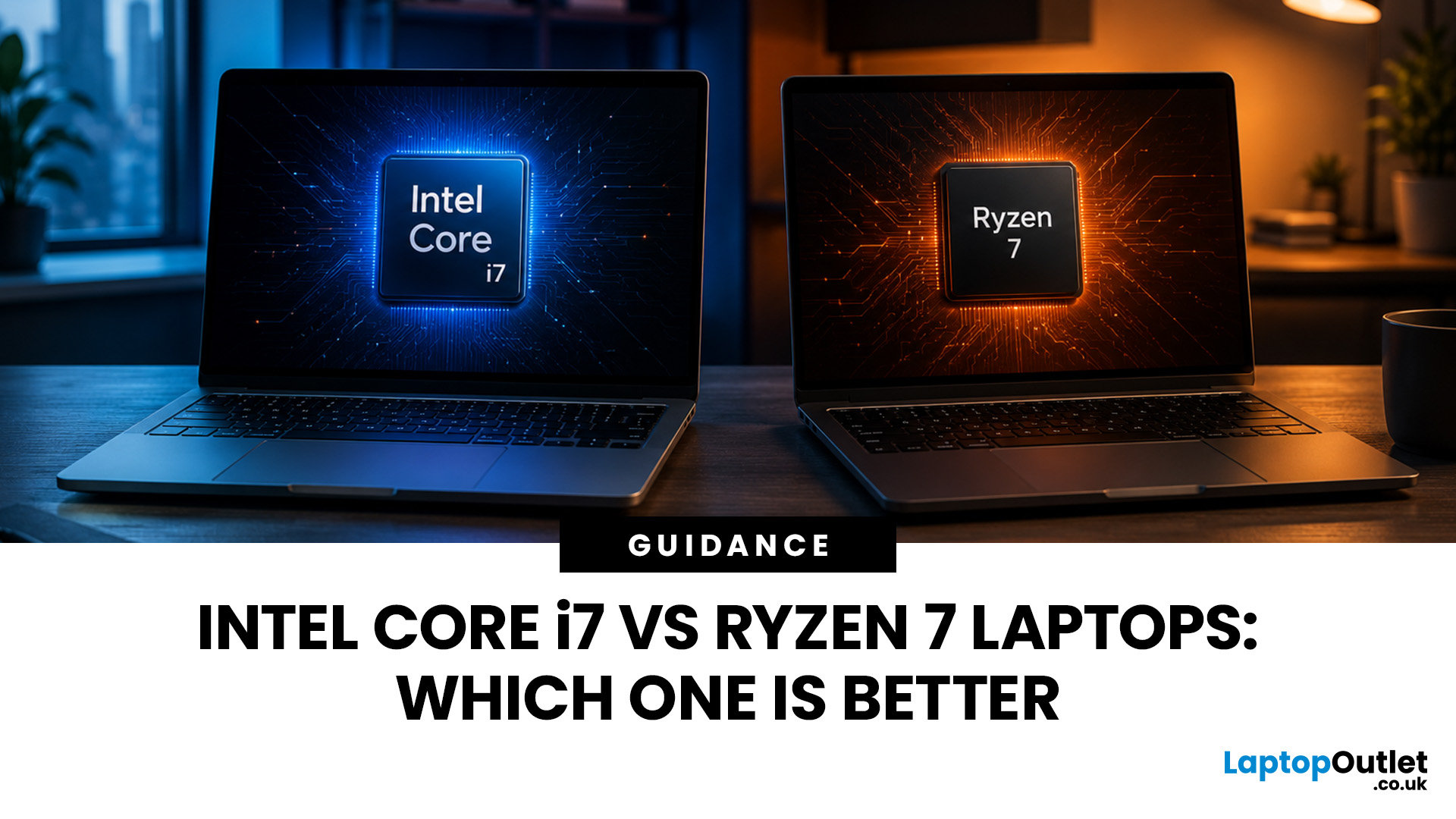
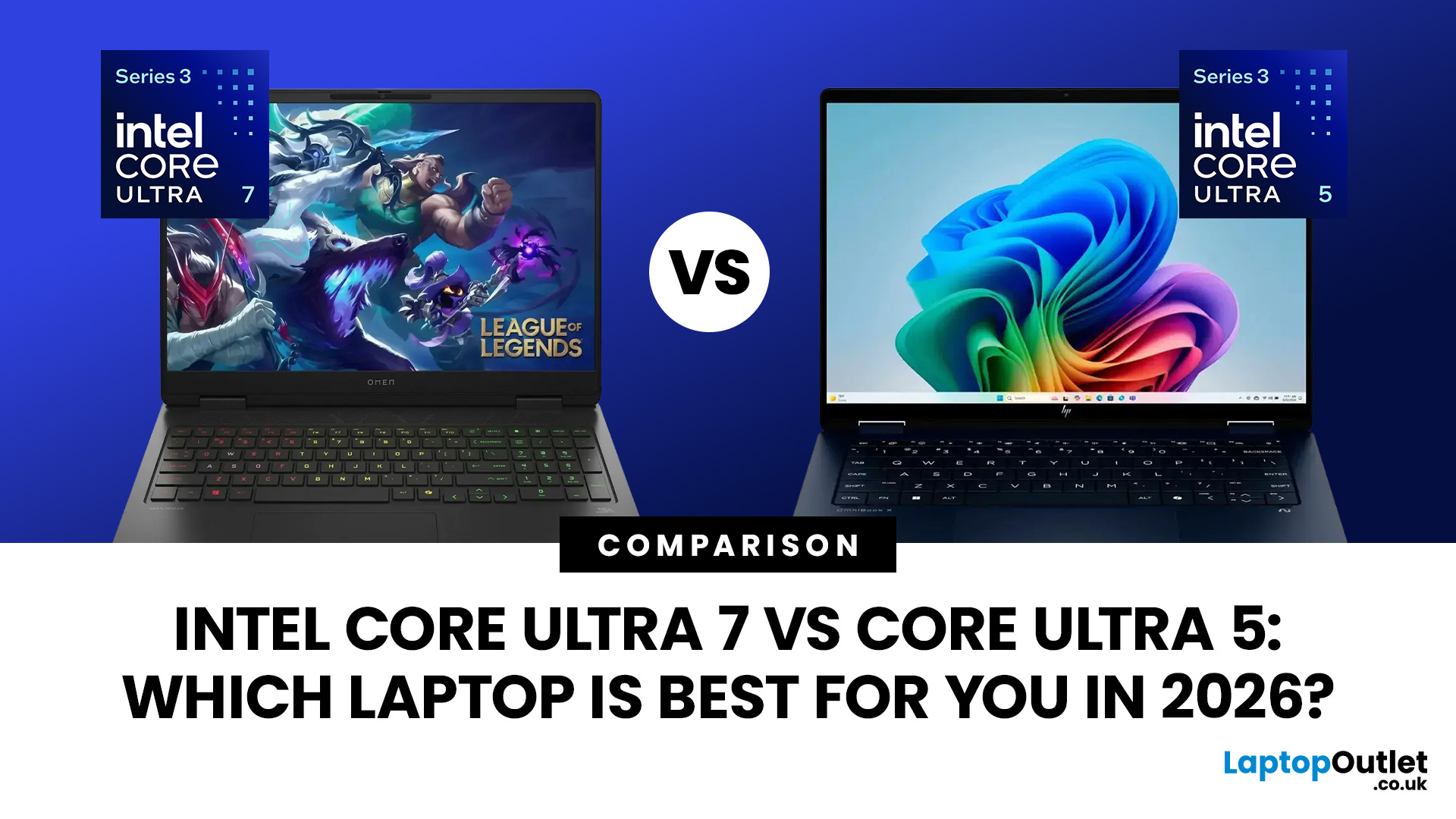
Neither processor family is automatically better. An Intel Core i7 laptop is often a strong choice for demanding productivity, supported video workflows and high-powered gaming configurations. A Ryzen 7 laptop can be especially attractive for efficient multitasking, capable integrated graphics and specification value.
When comparing an i7 vs Ryzen 7 laptop, the exact processor number matters more than the badge. A Core i7 U-series processor designed for a lightweight laptop is not equivalent to a Core i7 H-series gaming chip. The same applies to Ryzen 7 U, HS and HX processors.
For the broader brand-level differences, read our AMD vs Intel laptop guide. This guide goes deeper into the Core i7 and Ryzen 7 performance tier.
Intel Core i7 vs Ryzen 7 Laptops: Quick Answer
| Your priority | Better starting point | What to check |
| Everyday office work | Either | RAM, battery, screen and price |
| Heavy multitasking | Either | Exact CPU model, cooling and at least 16GB RAM |
| Gaming with dedicated graphics | Either | GPU |
Last Updated: September 03, 2026
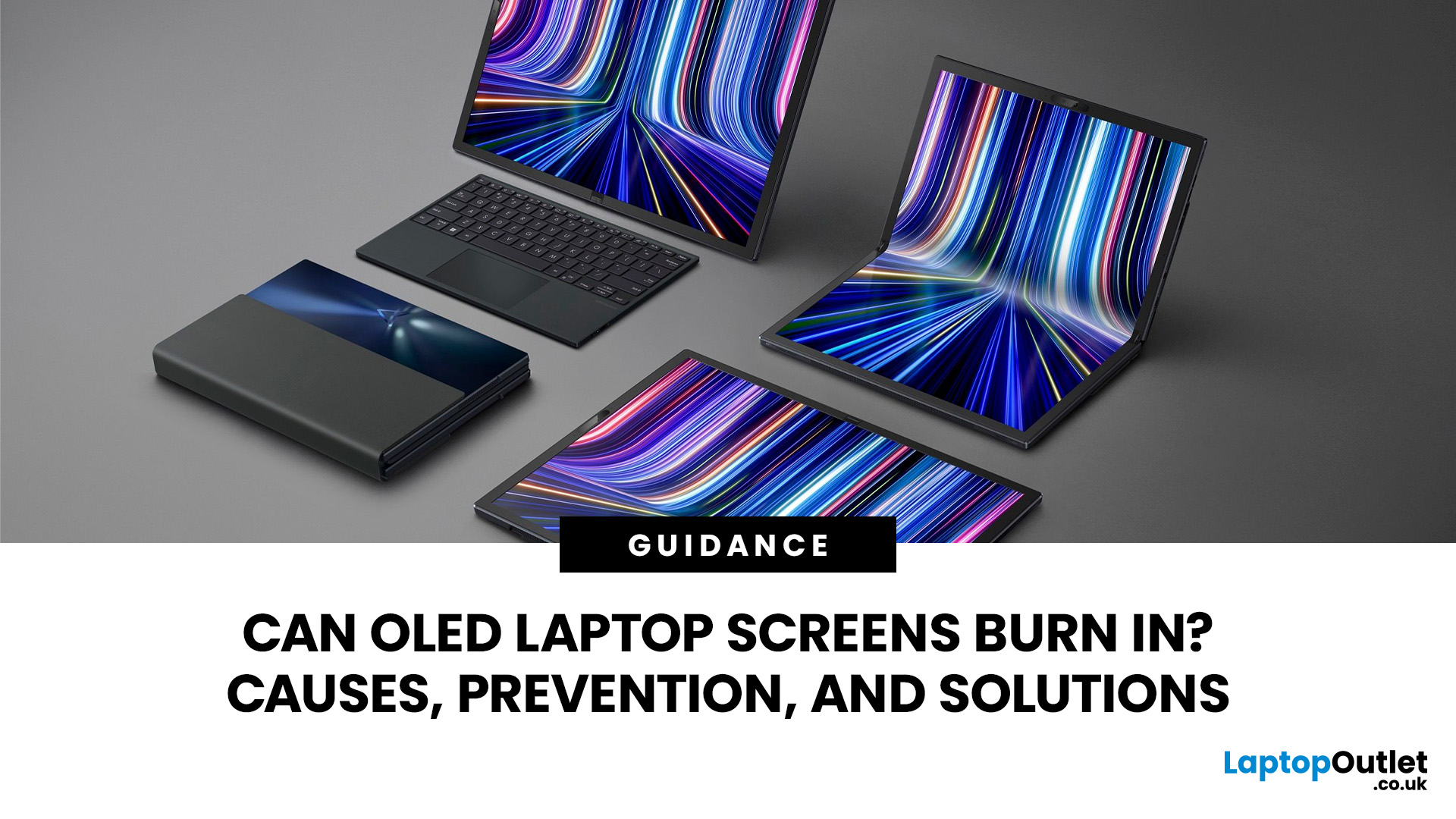
Yes, OLED laptop screens can develop permanent burn-in, but it is unlikely to happen quickly during normal, varied use. Risk increases when the same bright interface elements remain in one position for long periods, particularly at high brightness.
Modern OLED laptops reduce the risk through pixel shifting, automatic dimming and pixel-refresh routines. However, no OLED panel is completely immune.
For buyers considering laptops with OLED screen, burn-in is a manageable long-term consideration rather than a reason to avoid OLED. Sensible settings let you enjoy deep blacks, rapid response times and exceptional contrast while protecting the display.
For help comparing suitable models, see our guide to the best OLED laptops for work, gaming and creative use, covering options for different workloads and performance needs.
What Is OLED Screen Burn-In?
OLED screen burn in is a permanent shadow, outline or colour change caused by some pixels ageing faster than others.
OLED is a self-emissive display.
Published: July 27, 2026
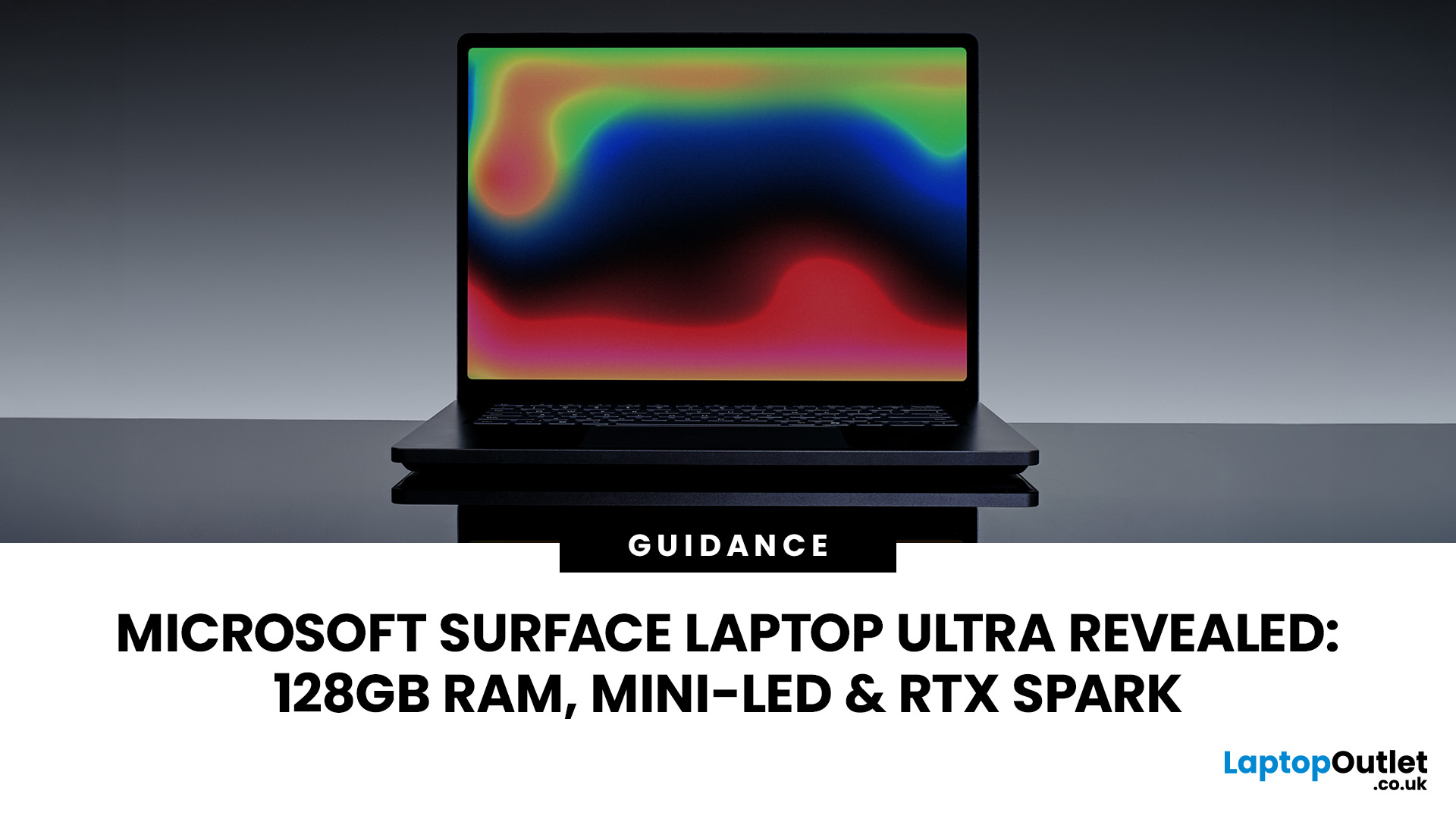
The Surface Laptop Ultra is Microsoft’s boldest laptop yet, built for local AI, 3D work, coding and demanding creative projects. It combines NVIDIA RTX Spark, Blackwell graphics, full CUDA support, and up to 128GB of unified memory, giving it serious workstation-level potential in a much slimmer design.
The 15-inch Mini-LED PixelSense Ultra display, upgraded cooling, and wider port selection make it even more appealing for power users. The only catch is that the exact UK price, full configurations and release date are still under wraps.
Microsoft Surface Ultra Specs at a Glance
The confirmed Microsoft Surface Ultra specs place the device above Microsoft’s conventional
Last Updated: August 06, 2026
Published: July 27, 2026
Last Updated: August 06, 2026
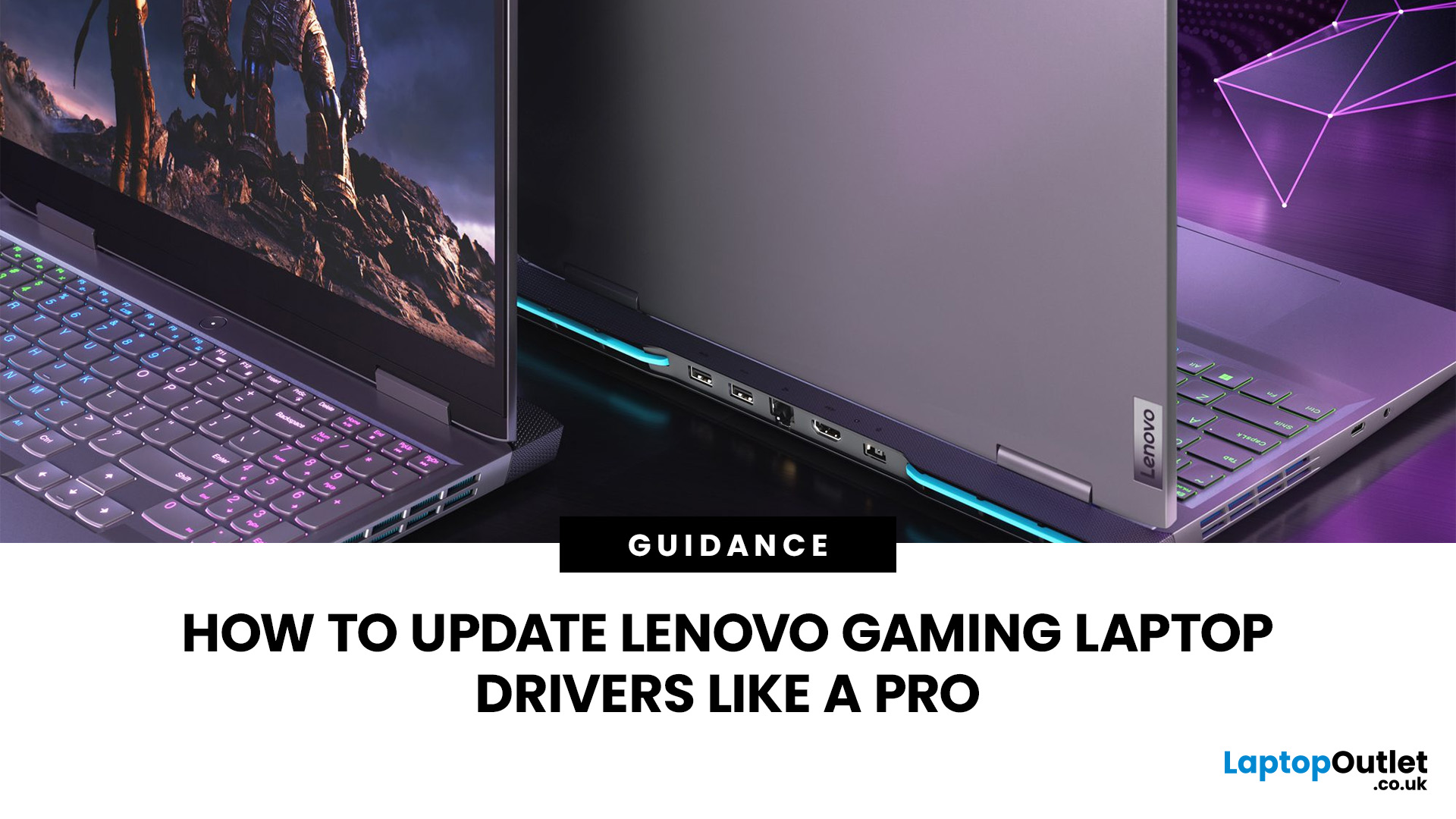
A safe Lenovo drivers update should begin with Lenovo Vantage or Lenovo Support, followed by Windows Update and, when needed, the official NVIDIA or AMD graphics software. Using these trusted sources helps ensure that chipset, graphics, audio, network, firmware and system drivers are matched to your specific Lenovo Legion or LOQ laptop.
Updating drivers can fix hardware problems, improve compatibility with newer games and address security or stability issues. However, installing every available update immediately is not always necessary. Graphics drivers often change frequently, while BIOS and firmware updates require more caution.
This guide explains how to check your current versions, install Lenovo laptop drivers safely and recover if an update causes problems. The same general process can also apply to professional Lenovo laptops for work, although gaming systems require additional attention to graphics and performance-related drivers.
Quick Driver Update Order
For most Lenovo gaming
Last Updated: July 28, 2026
Last Updated: October 22, 2026
Last Updated: July 29, 2026
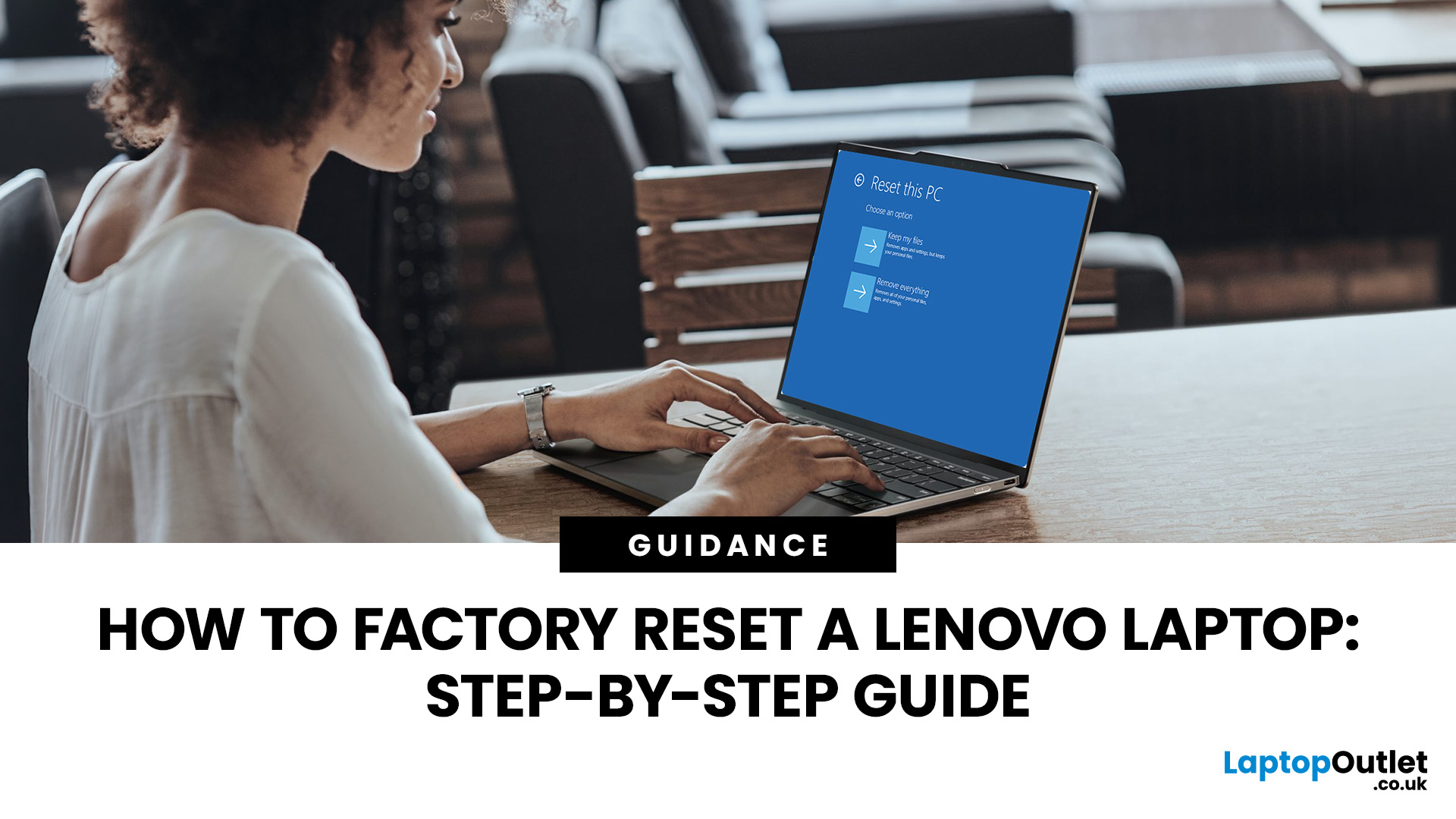
Your Lenovo laptop is slow, crashing, affected by persistent software problems or being prepared for a new owner; don't panic, it’s simply time for a factory reset.
A proper Lenovo factory reset reinstalls Windows and may remove applications, settings and personal data. This guide explains how to reset Lenovo laptop systems through Settings, the sign-in screen, Lenovo recovery mode, the Novo button or recovery media.
Before You Factory Reset Your Lenovo Laptop
- Back up documents, photos and other important files to cloud storage or an external drive.
- Keep the charger connected, remove unnecessary laptop accessories
Last Updated: September 03, 2026
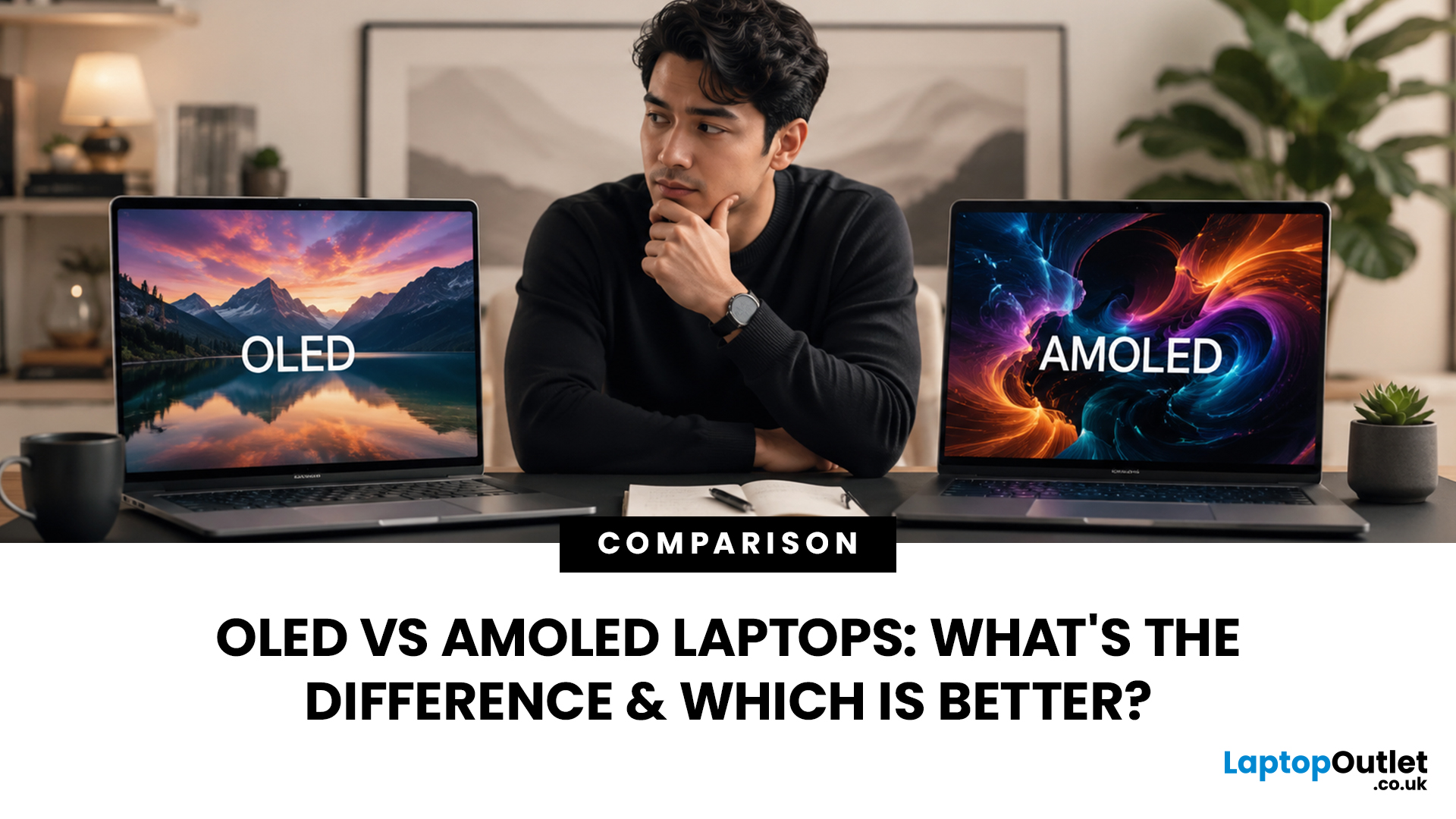
When comparing premium laptop screens, the OLED vs AMOLED debate is simpler than it seems. Both deliver deep blacks, vibrant colours, fast response times and strong contrast. OLED is the broader technology, while AMOLED is a type of OLED that uses an active-matrix system to control pixels. Many modern OLED laptops already use this system, even if not labelled AMOLED. Instead of focusing on the name, buyers should compare resolution, refresh rate, brightness, colour accuracy, battery life and burn-in protection. This guide helps you understand the differences and choose the right display for your needs.
OLED vs AMOLED: The Quick Answer
OLED, or Organic Light-Emitting Diode (OLED), is a display technology in which each pixel creates its own light. An OLED screen does not require the separate backlight used by traditional LCD panels.
AMOLED, or Active Matrix OLED (AMOLED), is a type of OLED display that uses an active-matrix transistor system to control each pixel quickly and individually.

