



How to Factory Reset a Lenovo Laptop: Step-by-Step Guide
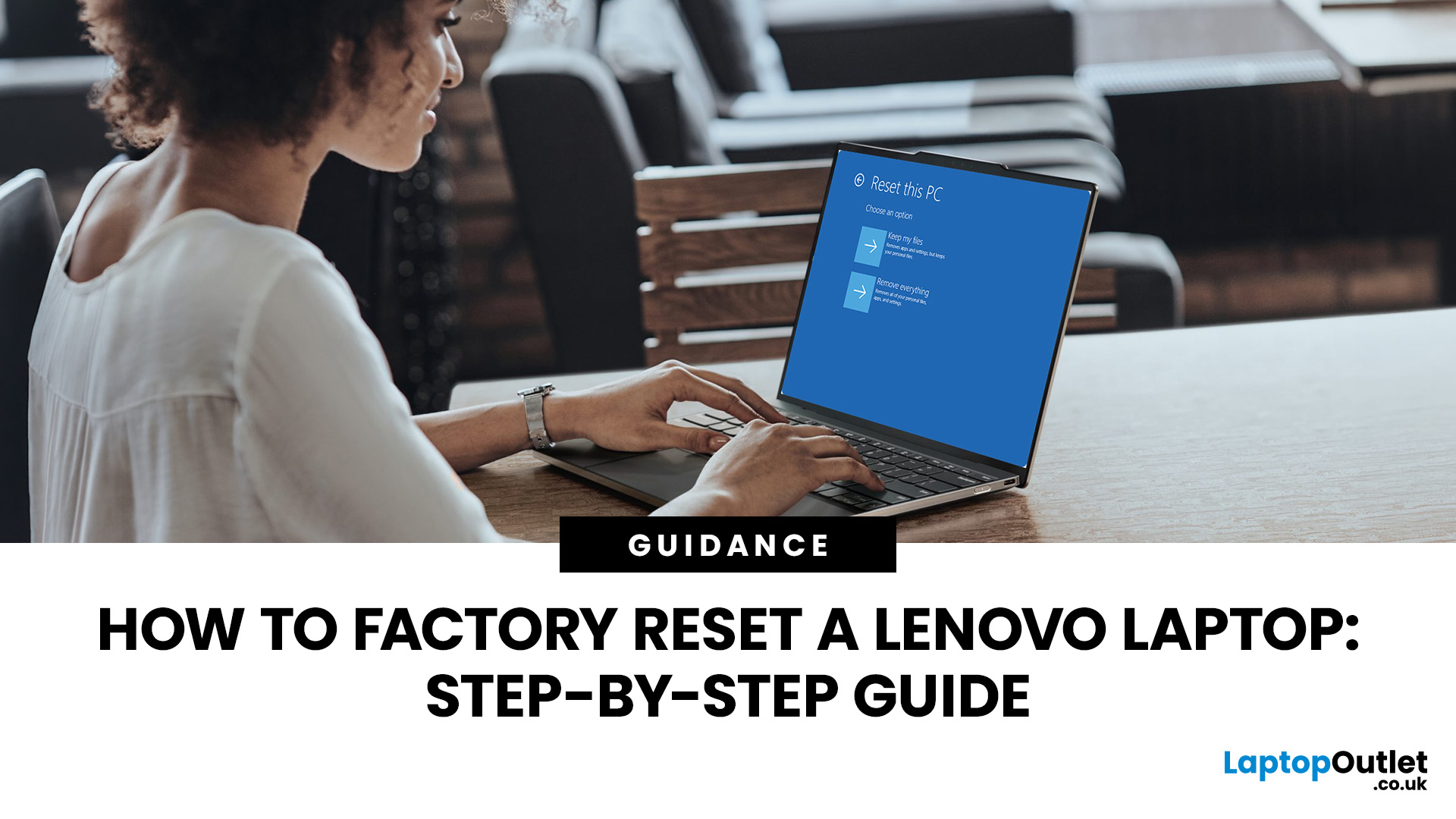
Your Lenovo laptop is slow, crashing, affected by persistent software problems or being prepared for a new owner; don't panic, it’s simply time for a factory reset.
A proper Lenovo factory reset reinstalls Windows and may remove applications, settings and personal data. This guide explains how to reset Lenovo laptop systems through Settings, the sign-in screen, Lenovo recovery mode, the Novo button or recovery media.
Before You Factory Reset Your Lenovo Laptop
- Back up documents, photos and other important files to cloud storage or an external drive.
- Keep the charger connected, remove unnecessary laptop accessories and know your Microsoft and Lenovo account details.
- If BitLocker or device encryption is active, save the Lenovo recovery key first.
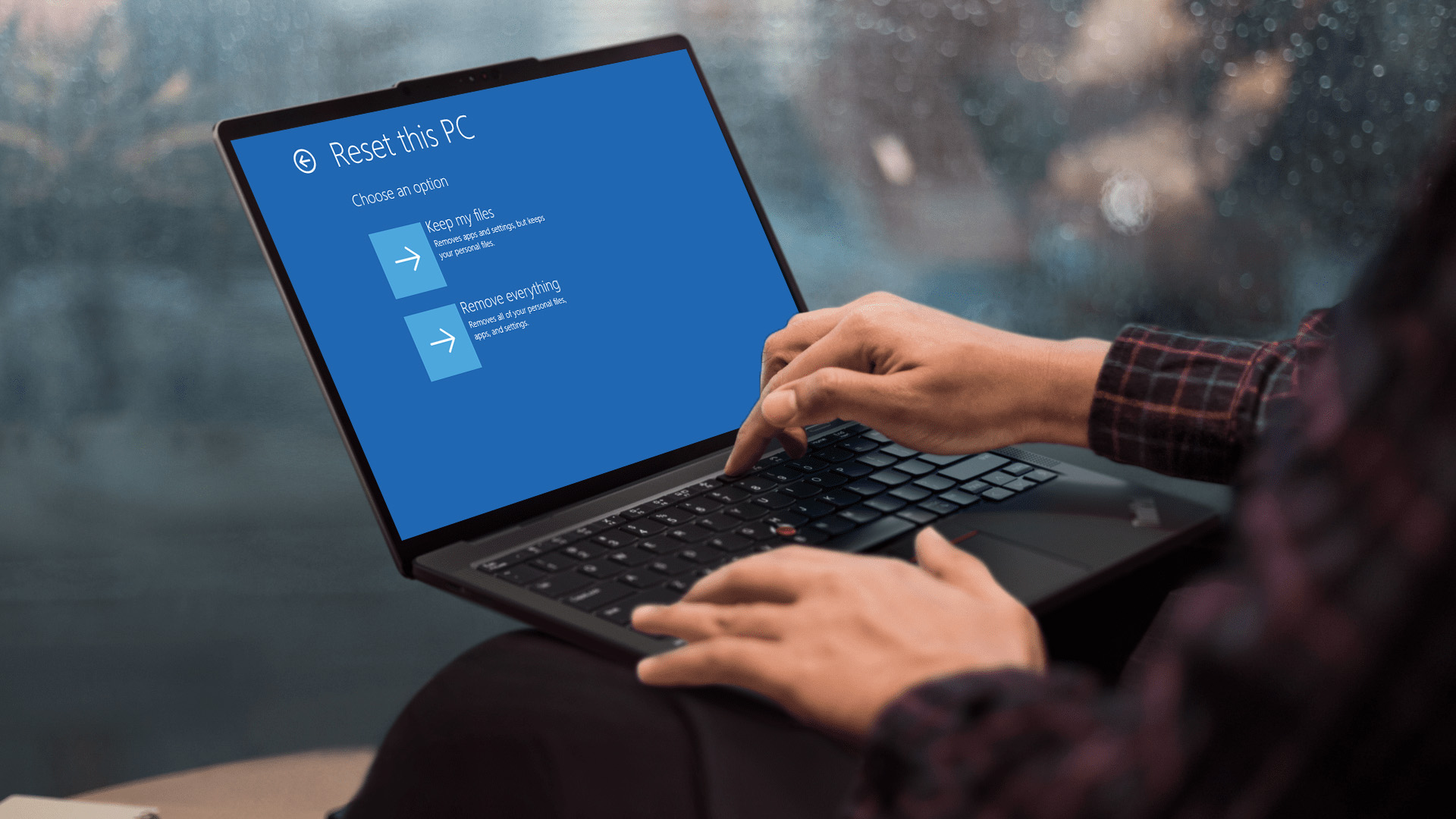
- Keep my files preserves personal files but removes installed applications and resets settings.
- Remove everything also deletes personal files, making it suitable when selling the laptop.
Method 1: Factory Reset a Lenovo Laptop Through Windows Settings
For most users, the Lenovo restore to factory process begins with Windows Settings. This is the easiest method when Windows opens normally.
Reset a Lenovo Laptop Running Windows 11
Open Settings, select System and choose Recovery. Beside Reset this PC, select Reset PC.
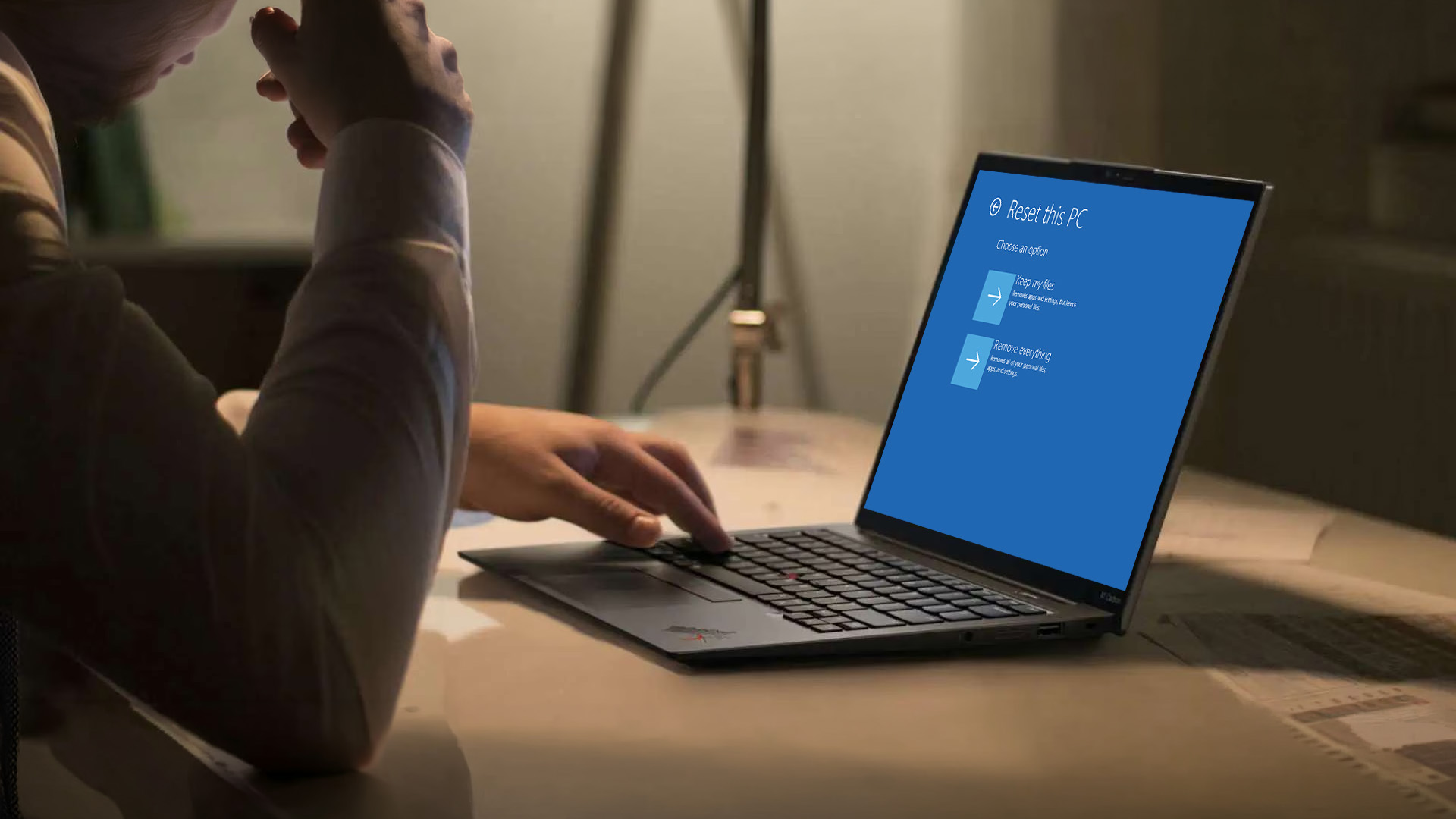
Choose Keep my files to preserve personal files or Remove everything for a fuller wipe. Follow the prompts and confirm the reset. Windows will automatically reboot Lenovo laptop hardware several times, so do not switch it off.
Reset a Lenovo Laptop Running Windows 10
Open Settings and select Update & Security, followed by Recovery. Under Reset this PC, choose Get started, then select Keep my files or Remove everything.
Windows 10 support ended on 14th October 2025. Resetting does not automatically upgrade the laptop to Windows 11. After recovery, check compatibility.
If unsupported, one of the latest Windows 11 laptops may provide a more secure long-term option.
Cloud Download vs Local Reinstall
Cloud download retrieves fresh Windows files from Microsoft. It helps when local files are damaged but requires reliable internet and several gigabytes of data.
Local reinstall uses files stored on the laptop. It is usually quicker but may fail if they are corrupted. Neither option necessarily restores every Lenovo application.
Method 2: Reset a Lenovo Laptop Without Logging In
Use Lenovo recovery mode when you cannot reach Settings, have forgotten the password or Windows will not start.
Open Windows Recovery Environment from the Sign-In Screen
At the sign-in screen, select the Power icon. Hold Shift and choose Restart while continuing to hold the key.
Select Troubleshoot, then Reset this PC. Choose Keep my files or Remove everything and follow the instructions. Windows may still request a BitLocker recovery key or account details.
Enter Recovery Mode When Windows Will Not Start
Windows may open Recovery Environment automatically after failed starts. Otherwise, switch the laptop off as Windows begins loading. Repeat until Automatic Repair appears, then select Advanced options.
Choose Troubleshoot and Reset this PC. Consider Startup Repair first when the problem only affects booting, as it may repair startup files without removing applications.
Can You Reset a Lenovo Laptop Without a Password?
Yes, you can start a reset from the sign-in screen without signing in. However, this does not bypass security. Windows may request a BitLocker recovery key, while some options require account verification.
The term Lenovo reset password refers to recovering account access, not resetting the entire device. Reset your Microsoft account password separately if needed.
Method 3: Factory Reset with the Novo Button
Some Lenovo laptops, particularly supported IdeaPad models, include a small Novo button. Not every Lenovo ThinkPad, ThinkBook, Yoga, Legion or LOQ model has one, so check the user guide first.
What Is the Lenovo Novo Button?
The Novo button is a recessed control that opens a special menu while the laptop is off. Depending on the model, it may include System Recovery, BIOS Setup, Boot Menu or normal startup. Its position varies and may require a paper clip.
Some users refer to this as a Lenovo recovery key, but it is different from a BitLocker key or recovery USB.
How to Use the Novo Button for System Recovery
Shut down the laptop and disconnect unnecessary devices. Gently press the Novo button, then choose System Recovery.
On some systems, this opens Lenovo OneKey Recovery. On others, it leads to Windows recovery tools, where you select Troubleshoot and Reset this PC. Read every warning because a full factory recovery can erase all data.
Lenovo OneKey Recovery vs Windows Reset
OneKey Recovery uses a hidden recovery partition and stored system image on supported Lenovo laptops for everyday use. It may return the device closer to its original factory configuration, including certain drivers and pre-installed software.
Windows Reset reinstalls Windows and lets you keep or remove personal files. OneKey Recovery is not available on every model and may fail if the hidden partition has been deleted, resized or damaged.
Method 4: Restore a Lenovo Laptop Using a Recovery USB
Recovery media is useful when Windows will not start, Reset this PC fails, the storage drive has been replaced or the recovery partition is missing.
When Do You Need Lenovo Recovery Media?
Lenovo recovery media can reformat the drive, reinstall Windows and restore the factory configuration. A Microsoft installation USB is different because it may not restore every Lenovo application or customisation.
What You Need to Create a Lenovo Recovery USB
Use Lenovo’s Digital Download Recovery Service if supported. Lenovo specifies a USB drive of at least 32GB, a Windows 10 or 11 computer, free download space and reliable internet. Creating it deletes existing contents.
Recovery files may be tied to a particular machine, so do not assume media created for another laptop will work.
How to Boot a Lenovo Laptop from the Recovery USB
Insert the USB drive, switch on the laptop and open the boot menu using the method listed for your model. This may involve the Novo menu or a function key.
Select the USB device and follow the recovery instructions. Confirm that important files are backed up because restoring the factory image can erase the internal drive.
The steps differ between operating systems, so anyone preparing another device should follow the correct process to reset a MacBook to factory settings safely rather than applying these Windows instructions.
What Happens After You Factory Reset Your Lenovo Laptop?
After completing the Lenovo factory reset, the job is not complete until Windows setup, updates, drivers and files have been handled properly.
Complete the Windows Setup
Select the UK region, keyboard layout, network and privacy preferences. Sign in with the correct Microsoft account, create a secure PIN and confirm that Windows is activated.
If selling the laptop, stop at the first setup screen so the next owner can create their own account.
Install Windows Updates and Lenovo Drivers
Open Windows Update and install all available security, quality and driver updates. Restart and check again until no important updates remain.
Then use Lenovo Support or Lenovo Vantage for model-specific BIOS, chipset, graphics, audio and power-management updates. Avoid unofficial driver websites.

Restore Your Files Without Reintroducing Problems
Restore documents and photos first, then reinstall trusted applications individually. Do not immediately copy back unknown programs, browser extensions or utilities that may have caused the original problem.
Scan restored files with Windows Security. If malware was involved, use a clean backup created before the infection.
If recurring performance or hardware problems are making you consider a replacement, understanding whether Lenovo laptops are good for performance, build quality and long-term value can help you choose your next device.

What to Do If Your Lenovo Factory Reset Fails
A failed reset may be caused by damaged files, insufficient storage, recovery-partition problems or failing hardware.
The Reset Is Stuck on a Percentage
Keep the laptop connected to power and allow enough time, especially during a cloud download or slow storage operation. Avoid forcing a shutdown unless there has been no activity for an unusually long period.
If it remains stuck, return to Windows Recovery Environment and retry. Choose cloud download if local files are damaged or use recovery media if Reset this PC repeatedly fails.
The Lenovo Recovery Partition Is Missing
If OneKey Recovery cannot find its image, use Windows Reset, a recovery drive or Lenovo recovery media. Do not download unofficial factory images because they may be unsafe or incompatible.
A missing partition may result from a clean Windows installation, drive replacement or earlier partition changes.
The Laptop Is Still Slow After the Reset
Install updates, check Task Manager for heavy startup applications and test the storage drive for errors. Persistent freezing, unusual noises, overheating or blue screens may indicate hardware failure.

Frequently Asked Questions
How do I completely wipe a Lenovo laptop?
Open Reset this PC and choose Remove everything. When selling the laptop, select the drive-cleaning option if available. Back up important data first because the process removes personal files.
How do I open recovery mode on a Lenovo laptop?
From the sign-in screen, hold Shift while selecting Restart. Lenovo recovery mode may appear automatically after failed starts. Supported models may also offer recovery through the Novo button.
Does factory resetting a Lenovo laptop remove Windows?
No. Windows is reinstalled during Reset this PC or Lenovo factory recovery. Applications, settings and personal files may still be removed depending on the method selected.
Can I factory reset a Lenovo laptop without a password?
You can start Reset this PC from the sign-in screen without logging in. However, Windows may still request a BitLocker recovery key or account verification, so the reset does not bypass device security.
| Read More: |
| Are Lenovo Laptops Good? Performance, Quality & Value Explained |
| Are Lenovo Laptops Any Good |
| How to Reset a MacBook to Factory Settings Safely: A Complete Guide |
Related Articles


Last Updated: October 12, 2026
Last Updated: June 18, 2026
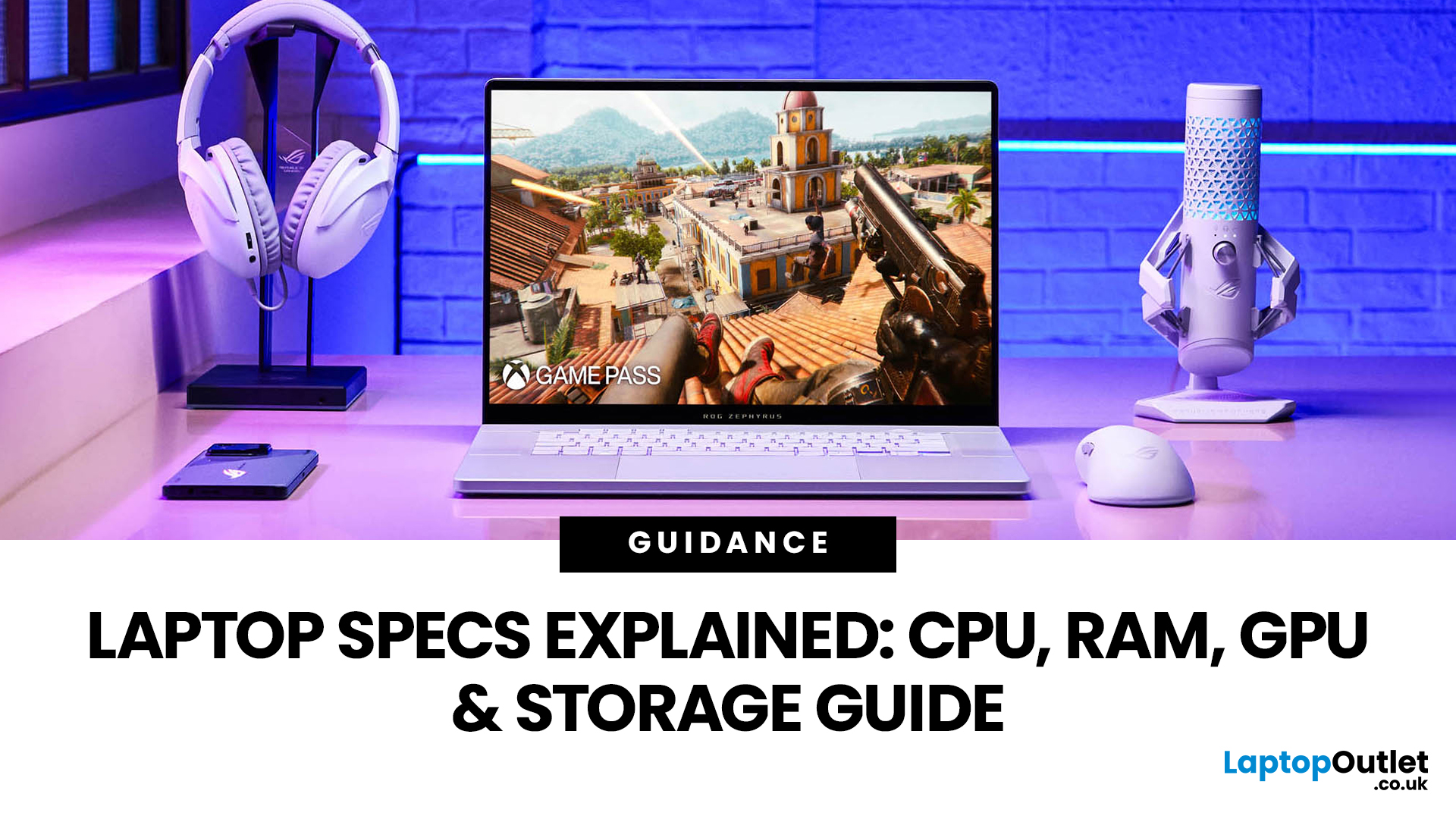
For most buyers in 2026, the best laptop specs are a modern Intel Core Ultra 5/7 or AMD Ryzen AI 5/7 processor, 16GB RAM, 512GB SSD storage, and integrated graphics. Choose 32GB RAM, 1TB storage, and a dedicated GPU if you edit videos, create content, play demanding games, or use professional software.
Buying a new laptop in 2026 can feel confusing, especially when every product page is packed with technical words, numbers, and abbreviations. This processors & specs explained guide breaks everything down in plain English so you can understand what matters before you spend your money.
For most buyers, the four most important laptop components are the CPU, RAM, GPU, and storage. Once you understand these, it becomes much easier to compare models, avoid overspending, and choose a laptop that actually suits your daily needs.
What are Laptop Specs and Why Do They Matter?
Understanding laptop specifications becomes important. Specs affect:
- How fast your laptop feels when opening apps.
- How many
Last Updated: June 30, 2026
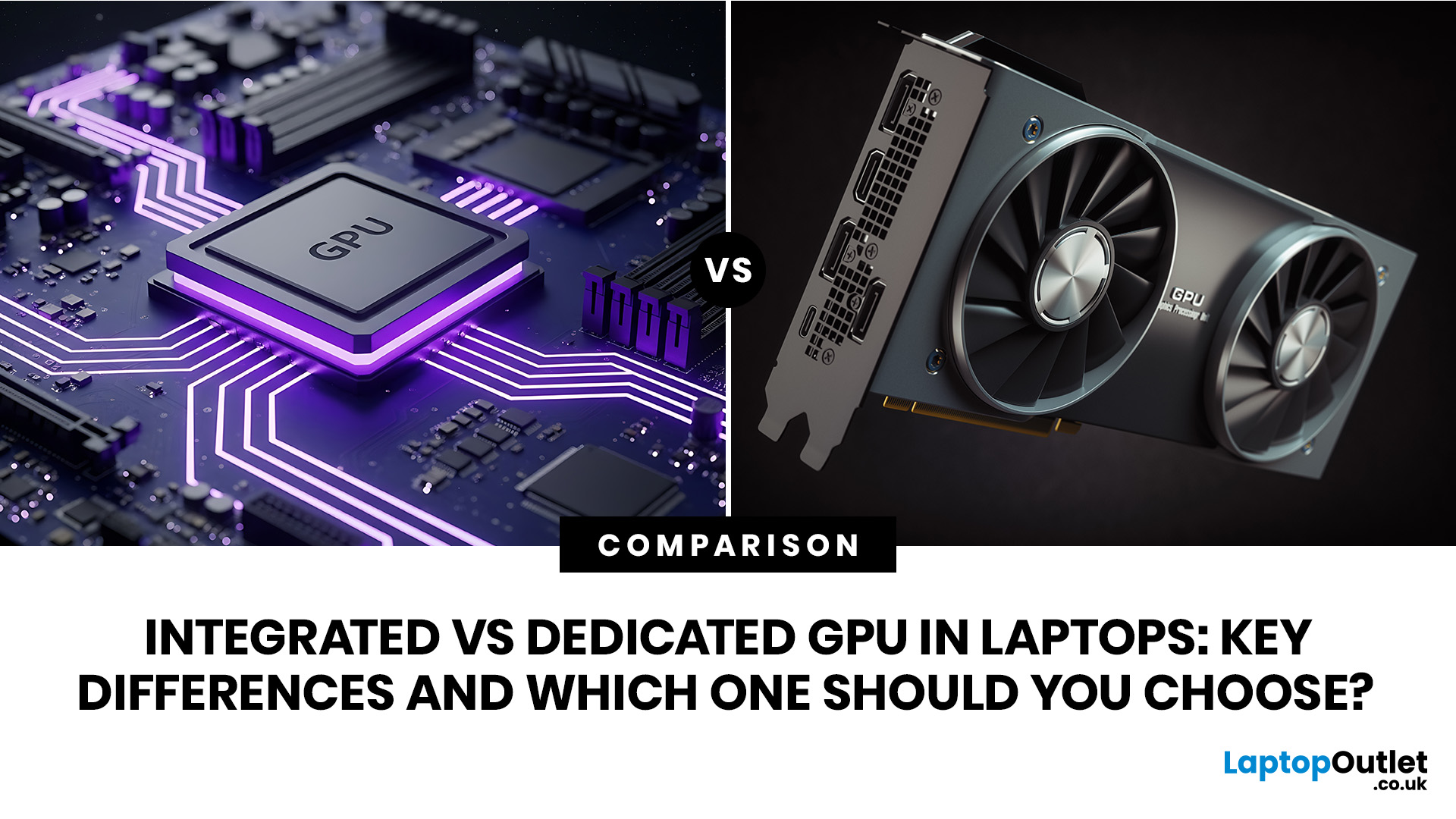
An integrated vs dedicated GPU laptop decision comes down to one simple question: do you need strong graphics performance every day, or do you mostly need a cooler, lighter, longer-lasting laptop for normal work?
For everyday browsing, office work, video calls, streaming, study and light photo editing, integrated graphics are usually enough. For serious gaming, 3D work, video editing, CAD, AI workloads or high-refresh creative work, a laptop with dedicated graphics card hardware is usually the better option.
Quick answer: Integrated vs dedicated GPU explained
Integrated graphics are built into the processor sharing, system memory. They are efficient, affordable and good for everyday laptop use.
A dedicated GPU is a separate graphics processor with its

Last Updated: July 21, 2026
Using your laptop in public is normal now. Cafés, trains, airports, libraries, lecture halls, shared offices, the laptop comes everywhere. But if the person sitting next to you can casually read your emails, bank details, work chats or assignments, that is not exactly ideal.
That is where privacy screen protectors laptops come in. Whether you are a student, business user, commuter or hybrid worker, this guide explains how privacy screens work, their benefits, disadvantages, types and whether they are actually worth buying.
How Does a Privacy Screen Protector Work?
Most laptop privacy screens use tiny vertical filter layers, often called micro-louvres. These work a bit like blinds. When you look at the laptop straight on, you can see the display clearly. When someone looks from the side, the filter blocks the view.
This is also how laptops and notebooks privacy screens work in everyday spaces. If you are working on a train, someone sitting beside you should find it much harder to read your
Last Updated: July 22, 2026
Last Updated: July 27, 2026
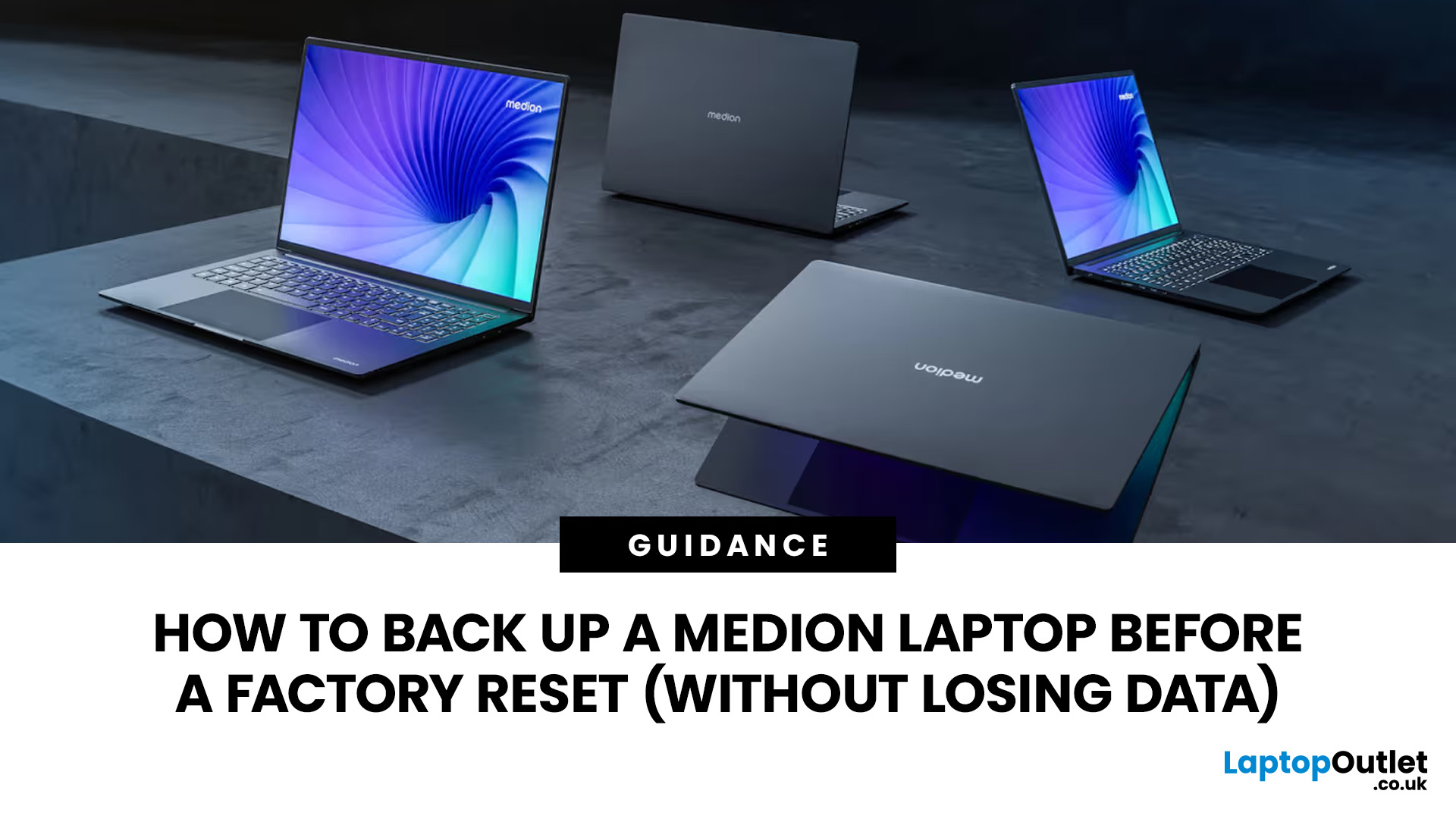
Before you reset MEDION laptop settings or reinstall Windows, copy your personal files to an external drive and create a second copy with Windows Backup and OneDrive or another drive.
Check Desktop, Documents, Downloads, Pictures, Videos, email archives, browser data, game saves and application folders. Open several files directly from the backup to confirm that they work.
Save your BitLocker recovery key, record essential applications and licences, then safely eject and disconnect the external drive before starting the reset.
A factory reset can solve persistent Windows problems, but it may remove applications, settings and personal files. Even when you choose Keep my files, treat it as a recovery option rather than a substitute for a verified backup.
Last Updated: July 23, 2026
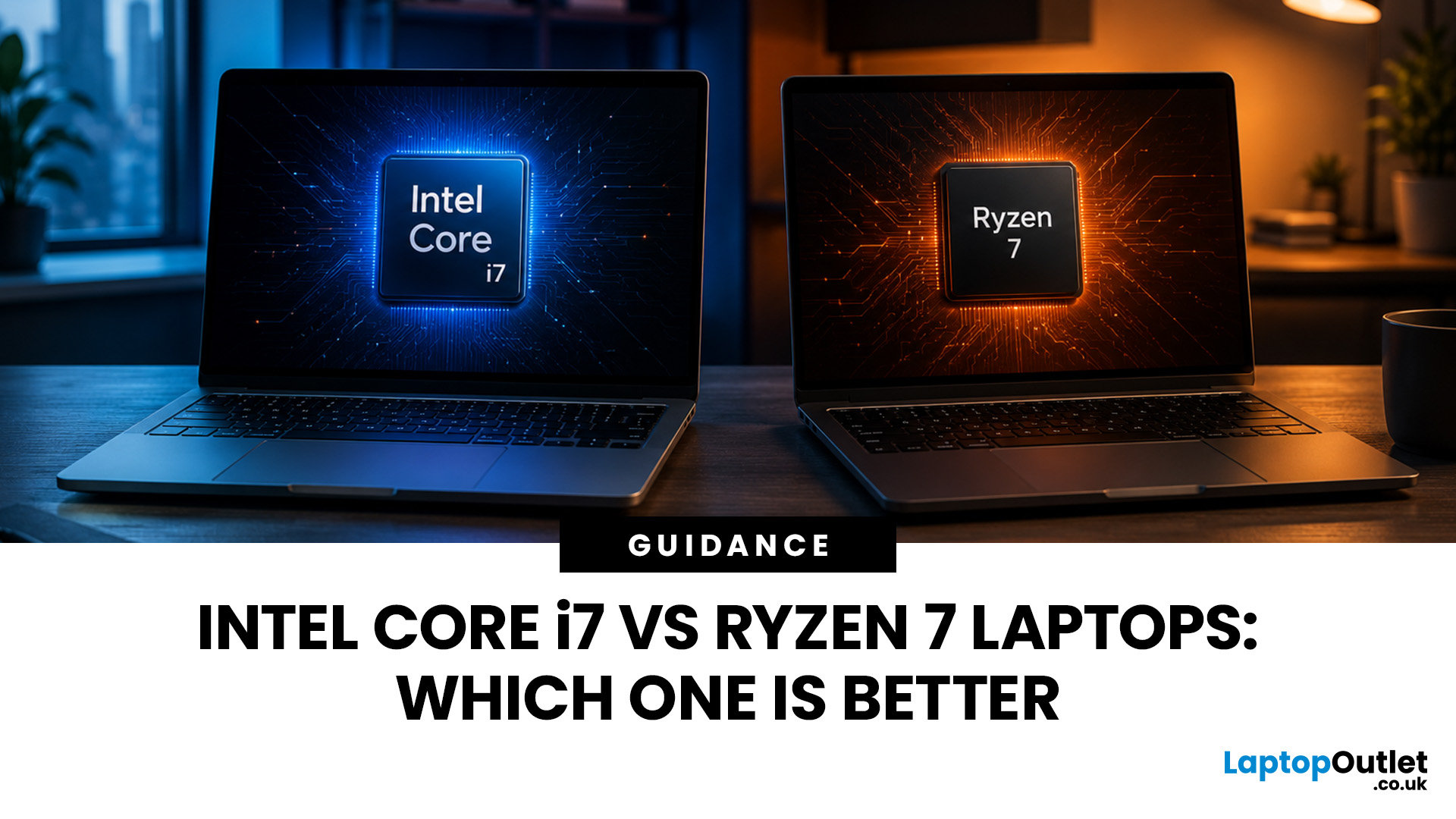
Neither processor family is automatically better. An Intel Core i7 laptop is often a strong choice for demanding productivity, supported video workflows and high-powered gaming configurations. A Ryzen 7 laptop can be especially attractive for efficient multitasking, capable integrated graphics and specification value.
When comparing an i7 vs Ryzen 7 laptop, the exact processor number matters more than the badge. A Core i7 U-series processor designed for a lightweight laptop is not equivalent to a Core i7 H-series gaming chip. The same applies to Ryzen 7 U, HS and HX processors.
For the broader brand-level differences, read our AMD vs Intel laptop guide. This guide goes deeper into the Core i7 and Ryzen 7 performance tier.
Intel Core i7 vs Ryzen 7 Laptops: Quick Answer
| Your priority | Better starting point | What to check |
| Everyday office work | Either | RAM, battery, screen and price |
| Heavy multitasking | Either | Exact CPU model, cooling and at least 16GB RAM |
| Gaming with dedicated graphics | Either | GPU |
Last Updated: September 03, 2026
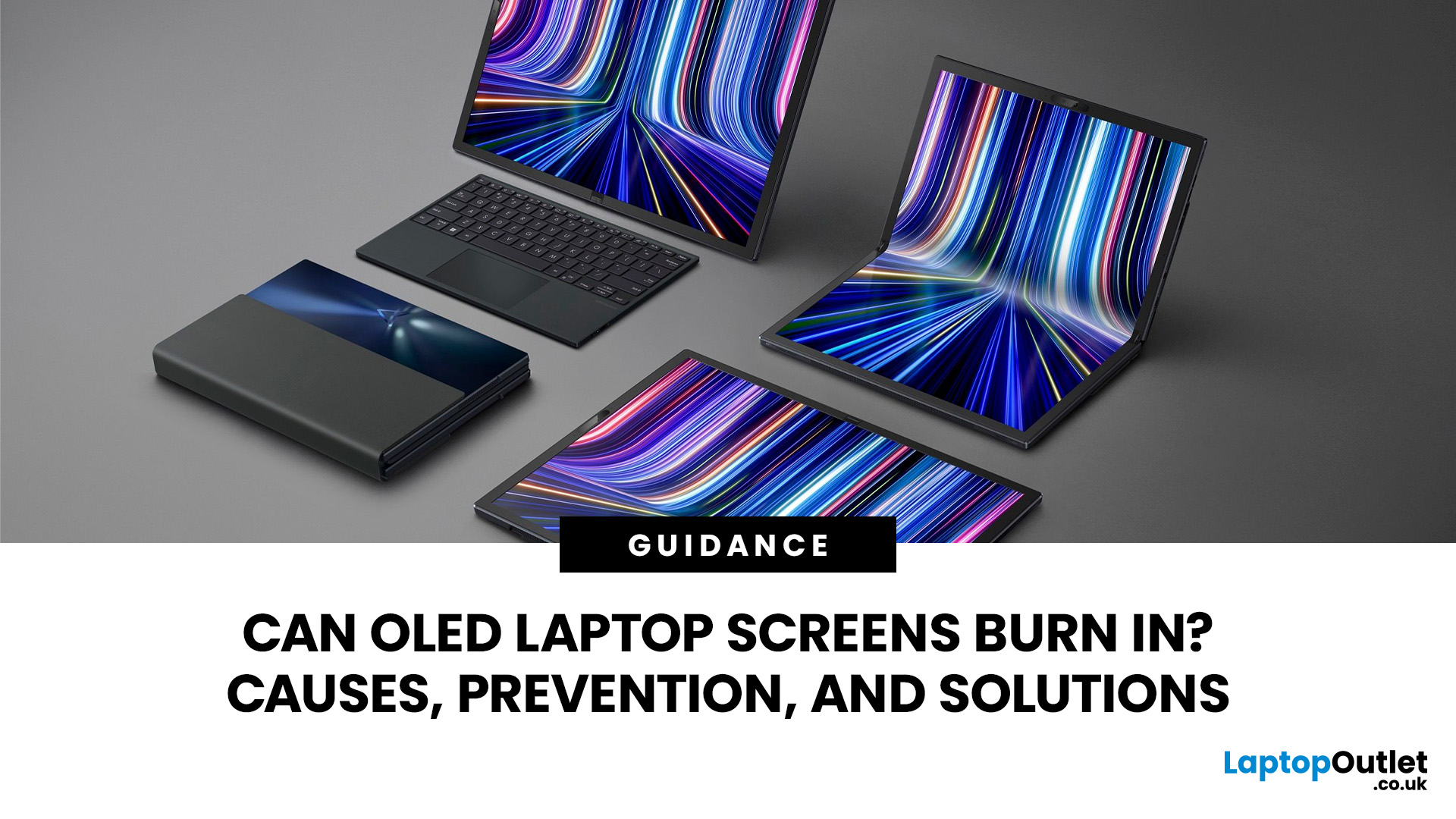
Yes, OLED laptop screens can develop permanent burn-in, but it is unlikely to happen quickly during normal, varied use. Risk increases when the same bright interface elements remain in one position for long periods, particularly at high brightness.
Modern OLED laptops reduce the risk through pixel shifting, automatic dimming and pixel-refresh routines. However, no OLED panel is completely immune.
For buyers considering laptops with OLED screen, burn-in is a manageable long-term consideration rather than a reason to avoid OLED. Sensible settings let you enjoy deep blacks, rapid response times and exceptional contrast while protecting the display.
For help comparing suitable models, see our guide to the best OLED laptops for work, gaming and creative use, covering options for different workloads and performance needs.
What Is OLED Screen Burn-In?
OLED screen burn in is a permanent shadow, outline or colour change caused by some pixels ageing faster than others.
OLED is a self-emissive display.
Published: July 27, 2026
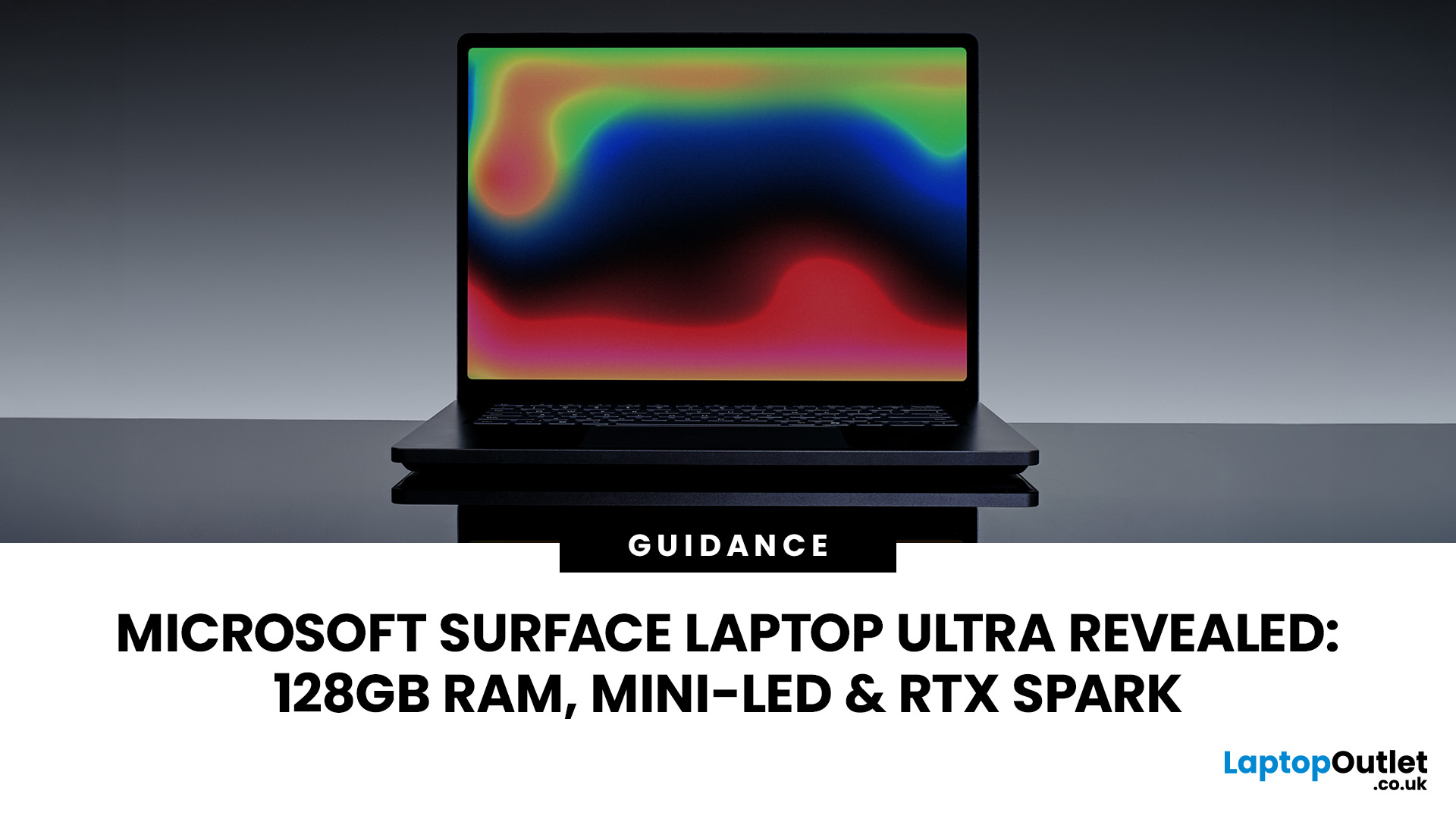
The Surface Laptop Ultra is Microsoft’s boldest laptop yet, built for local AI, 3D work, coding and demanding creative projects. It combines NVIDIA RTX Spark, Blackwell graphics, full CUDA support, and up to 128GB of unified memory, giving it serious workstation-level potential in a much slimmer design.
The 15-inch Mini-LED PixelSense Ultra display, upgraded cooling, and wider port selection make it even more appealing for power users. The only catch is that the exact UK price, full configurations and release date are still under wraps.
Microsoft Surface Ultra Specs at a Glance
The confirmed Microsoft Surface Ultra specs place the device above Microsoft’s conventional

Last Updated: August 06, 2026

