



What is ASUS ELMB and Should You Enable it for Gaming?
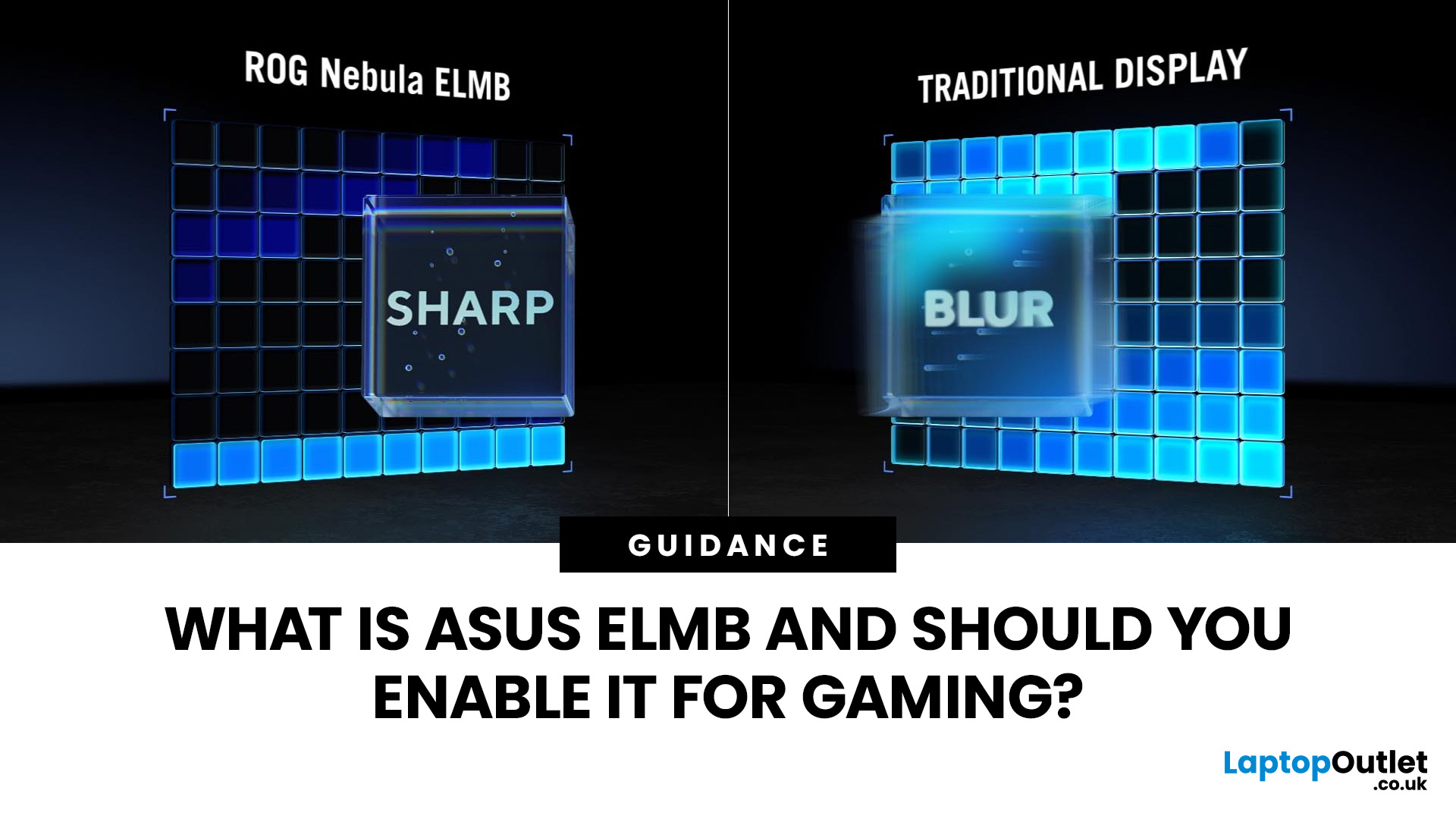
Fast-paced games can quickly expose motion blur, especially when you are tracking enemies, turning the camera rapidly, or following objects moving across the screen. ASUS ELMB is designed to improve motion clarity by reducing the blur you see during these movements.
Should you actually turn ELMB on? That depends on your monitor, the games you play and whether you value sharper motion over factors such as brightness and HDR. Below, we will explain how ELMB works, when it is worth enabling and what to check if the setting is unavailable.
What is ASUS ELMB and How Does it Reduce Motion Blur?
ASUS ELMB is a motion-blur reduction feature found on selected ASUS gaming monitors. ELMB stands for Extreme Low Motion Blur, and its purpose is to make fast-moving objects appear clearer when you are gaming.
On conventional LCD gaming monitors, ELMB typically uses backlight strobing technology. Instead of keeping the backlight continuously illuminated between refreshes, the monitor briefly switches it off at carefully timed intervals. This reduces the amount of time each frame remains visible to your eyes and can make movement look sharper.
The technology mainly targets eye-tracking motion blur. This is the blur you can notice when your eyes follow a moving enemy, vehicle, or object across the screen, even when the monitor itself is responding quickly.
ELMB can therefore be particularly useful in fast-paced games where clear movement matters. However, the way the feature operates, its supported refresh rates and its compatibility with other monitor settings can vary between ASUS models.
ASUS ELMB vs ELMB Sync: What Is the Difference?
Standard ELMB and ELMB Sync both aim to improve motion clarity, but they work differently with your monitor’s refresh settings.
|
Feature |
ASUS ELMB |
ELMB Sync |
|
Core purpose |
Reduces motion blur using backlight strobing |
Reduces motion blur while working with VRR |
|
Refresh rate behaviour |
Typically works at fixed/supported refresh rates |
Works alongside variable refresh rate (VRR) |
|
Adaptive-Sync / FreeSync / G-SYNC |
Often needs to be disabled on some models |
Can remain enabled on supported monitors |
|
Best use case |
Consistent high FPS gaming |
Fluctuating FPS or mixed-performance gaming |
|
Visual trade-offs |
May reduce brightness and flexibility |
Better balance of smoothness and clarity |
|
Ideal scenario |
Competitive, stable-frame-rate gameplay |
Fast-paced games with variable frame rates |
Should You Turn ELMB On or Off for Gaming?
Whether you should keep ELMB ON or OFF depends mainly on the type of games you play, your frame rate, and what you value most from your monitor.
For competitive games such as Counter-Strike 2, Valorant, Apex Legends, or Call of Duty, enabling ELMB for FPS games can be useful because clearer motion may make fast-moving enemies easier to track. It is particularly effective when your system can maintain a high and consistent frame rate that matches a supported monitor refresh rate.
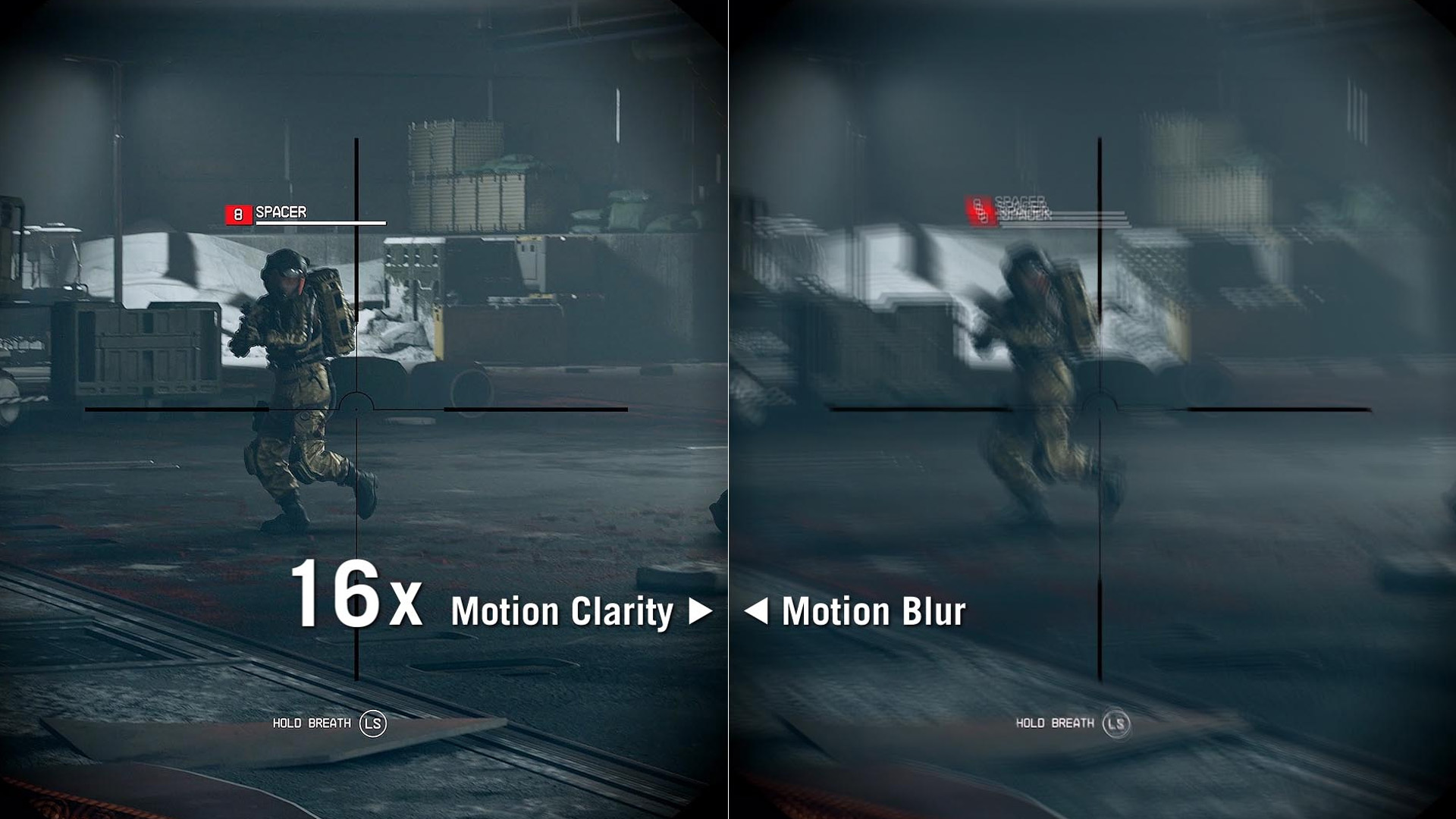
If competitive gaming is your priority, you may also want to browse 144Hz monitors or faster displays that combine high refresh rates with motion-clarity features.
ELMB may be less beneficial for slower, cinematic, or HDR-focused games. Because motion-blur reduction can lower perceived screen brightness on many monitors, you might prefer to leave it disabled when richer HDR highlights, brighter visuals and overall image quality matter more than maximum motion clarity.
If your frame rate frequently changes and your ASUS monitor supports ELMB Sync, that is often the better option because it lets you combine blur reduction with variable refresh rate technology.
Why Does ELMB Reduce Monitor Brightness?
One of the most noticeable effects of enabling ELMB is that your screen may look darker. This ELMB brightness reduction is usually a normal result of how motion-blur reduction works rather than a problem with your monitor.
On many LCD-based ASUS gaming monitors, ELMB uses backlight strobing. The backlight is switched off for brief periods between frames to reduce the amount of time each image remains visible. This improves motion clarity, but it also means less light reaches your eyes overall, which can reduce perceived brightness.
How noticeable the difference is depends on your specific monitor, refresh rate and ELMB implementation. Some models handle the trade-off better than others, so you should avoid assuming that every ASUS monitor will lose the same amount of brightness.
If you mainly play visually rich single-player games, you may prefer the brighter image and stronger HDR presentation available with ELMB disabled. This can be particularly relevant when comparing immersive 4K gaming displays, where resolution, HDR performance and image quality may matter more to you than maximum motion clarity.
ASUS has also introduced newer ELMB implementations designed to improve brightness while maintaining motion clarity. However, these improvements are model-specific, so always check the features of your exact monitor before deciding whether brightness reduction will be a significant compromise.
How to Enable ELMB on an ASUS Monitor
If your ASUS monitor ELMB feature is supported, you can usually enable it through the monitor’s on-screen display (OSD). The exact menu names can differ between models, but the process is generally straightforward.
- Open your ASUS monitor’s OSD using the joystick or control buttons.
- Go to the Gaming or Image settings menu.
- Look for ELMB, ELMB Sync or ELMB Setup.
- Select the available ELMB mode and apply the setting.
- Test it in a fast-moving game to see whether motion clarity improves.
Before enabling ELMB, make sure your monitor is running at a supported refresh rate. Depending on the model, you may also need to change HDR, Adaptive-Sync or other gaming settings before the ELMB option becomes available.
If your ASUS monitor supports both standard ELMB and ELMB Sync, choose according to your setup. Standard ELMB can suit consistently high frame rates, while ELMB Sync is generally more practical when you want motion-blur reduction alongside variable refresh rate technology.
Avoid copying settings from another ASUS monitor, even if the models look similar. ELMB compatibility and refresh-rate requirements can differ, so your monitor’s manual should be the final reference for supported configurations.

Why is ASUS ELMB Greyed Out?
If ASUS ELMB is greyed out, the monitor is usually using another setting that conflicts with ELMB or is running at an unsupported refresh rate. The exact restriction varies by model, so it is best to work through the most common causes one by one.
First, check your refresh rate. Some ASUS monitors only allow ELMB at specific refresh rates, so the option may remain unavailable if your display is running outside that supported range.
Next, review your variable refresh rate settings. On certain models, standard ELMB cannot be enabled while Adaptive-Sync, FreeSync, or G-SYNC-compatible operation is active. If your monitor supports ELMB Sync, you may be able to use that mode instead without disabling variable refresh rate.
HDR can also affect availability. Some ASUS displays disable ELMB when HDR is active, while power-saving or other picture-processing modes can restrict access to advanced gaming features. If the option is still unavailable, try this order:
- Confirm that your monitor is running at a supported refresh rate.
- Check whether HDR is enabled.
- Review Adaptive-Sync, FreeSync or G-SYNC settings.
- Disable any power-saving or conflicting picture modes.
- Restart the monitor and check the OSD again.
- Refer to the manual for your exact ASUS model.
If your current monitor does not support the ELMB configuration you want, comparing a newer ASUS display for gaming may be worthwhile, especially if you want motion-blur reduction alongside variable refresh rate support.

Is ASUS ELMB Worth Using?
ASUS ELMB is worth enabling if you mainly play fast-paced or competitive games and want sharper motion when tracking enemies or moving objects. It can be especially useful when your system maintains a high, stable frame rate, and your monitor support the feature at your preferred refresh rate.
However, ELMB is not automatically the best setting for every game. If you prioritise HDR, maximum brightness or variable refresh rate support, leaving it off may give you a better overall experience.
When comparing top gaming monitors at Laptop Outlet, look beyond ELMB alone. Refresh rate, resolution, response performance, VRR support and HDR capability all contribute to how a monitor feels in real-world gaming. The best approach is simple: test ELMB in the games you actually play and keep it enabled only if the improvement in motion clarity is noticeable to you.

Still Got Questions?
Does ELMB work with FreeSync or G-SYNC?
Standard ELMB may require variable refresh rate features to be disabled on some ASUS monitors. ELMB Sync, however, is designed to work alongside Adaptive-Sync technologies such as FreeSync or G-SYNC-compatible operation on supported models. Always check your monitor manual because compatibility differs between displays.
Why does my ASUS monitor become darker when ELMB is enabled?
ELMB can make the screen appear darker because its motion-blur reduction process limits how long the backlight remains visible during each refresh cycle. This is a normal side effect of backlight strobing on many monitors, although the amount of brightness loss varies by model.
Does ELMB reduce input lag?
ELMB is primarily designed to improve motion clarity rather than reduce input lag. A high refresh rate, low response time and stable frame rate have a more direct influence on responsiveness. ELMB can make movement easier to see, but it should not be treated as an input-lag reduction feature.
Why is the ELMB option greyed out?
If ELMB is unavailable, check your refresh rate, HDR setting, Adaptive-Sync configuration and power-saving modes. One of these settings may conflict with ELMB on your particular monitor. If changing them does not solve the issue, check the manual for your exact ASUS model to confirm its supported ELMB configuration.
Related Articles

Last Updated: August 11, 2026
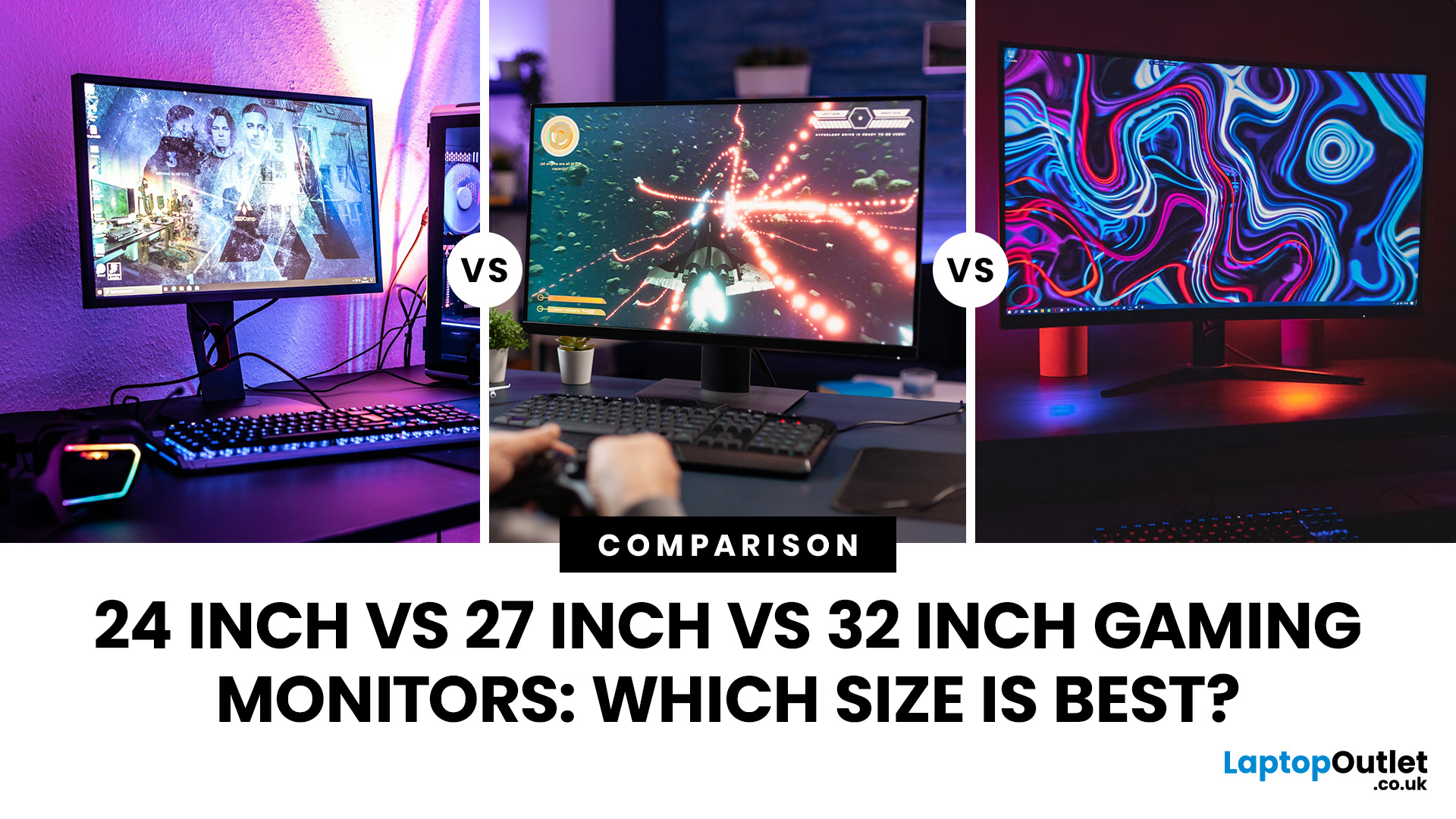
Picking the best gaming monitor size isn’t just about going big or going home. Your screen size actually changes how your games look, feel, and perform. A 24-inch setup is clutch for competitive play, a 27-inch hits that sweet spot between clarity and immersion, and a 32-inch screen? That’s where things get seriously cinematic.
Size alone isn’t the whole story. Resolution, desk space, refresh rate, and what you actually play all matter. This gaming monitor size comparison breaks down 24, 27, and 32-inch displays so you can find your perfect match.
24 Inch vs 27 Inch vs 32 Inch Gaming Monitors: Quick Comparison
The following table provides a quick overview of how the three most popular gaming monitor sizes compare.
| Feature | 24-Inch Monitor | 27-Inch Monitor | 32-Inch Monitor |
| Recommended resolution | 1920 × 1080 | 2560 × 1440 | 2560 × 1440 or 3840 × 2160 |
| Best suited to | Competitive gaming | Mixed gaming and everyday use | Immersive and cinematic gaming |
| Typical desk requirement | Small | Medium | Large |
| Graphics |
Last Updated: August 11, 2026
Last Updated: September 03, 2026
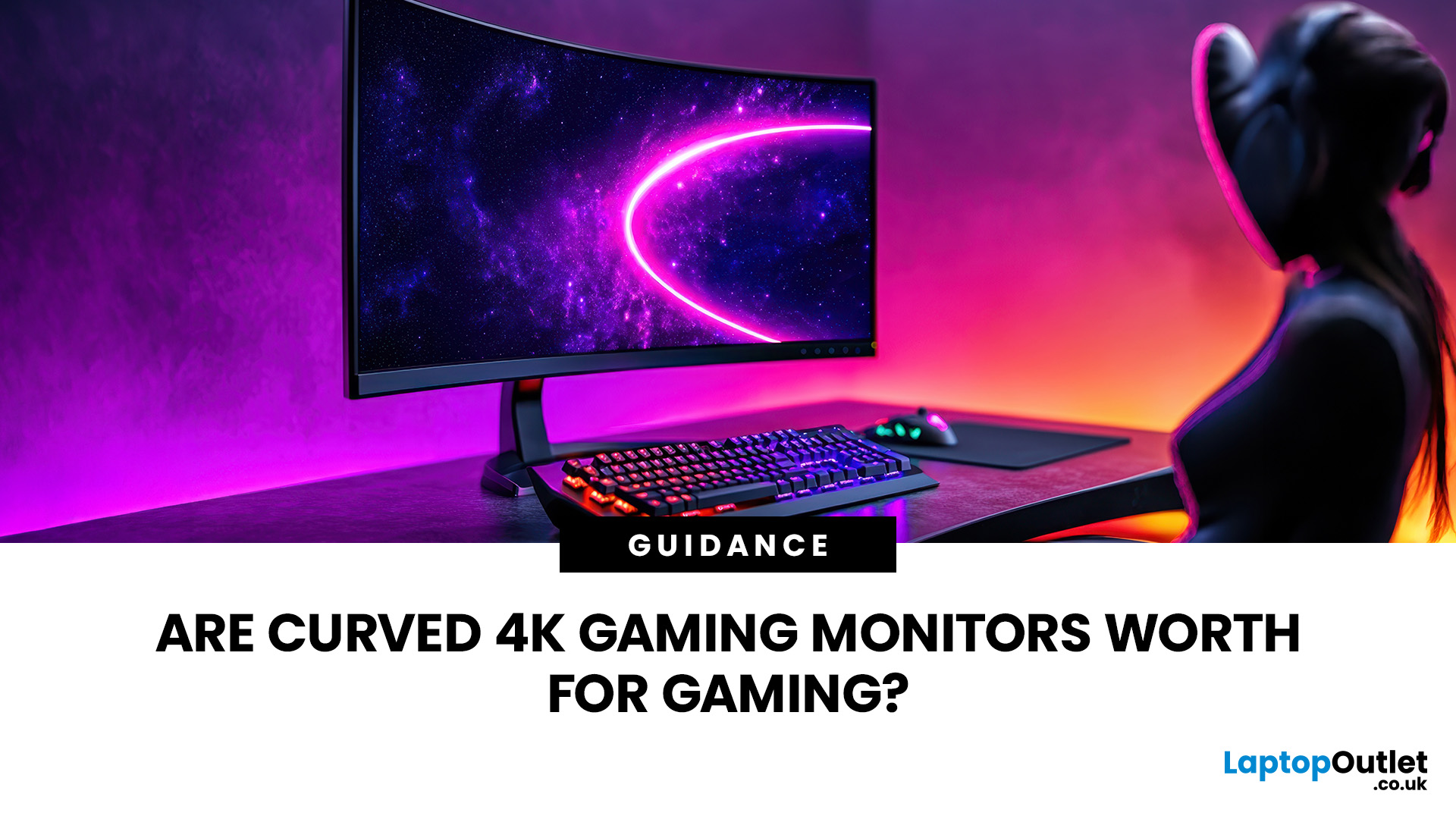
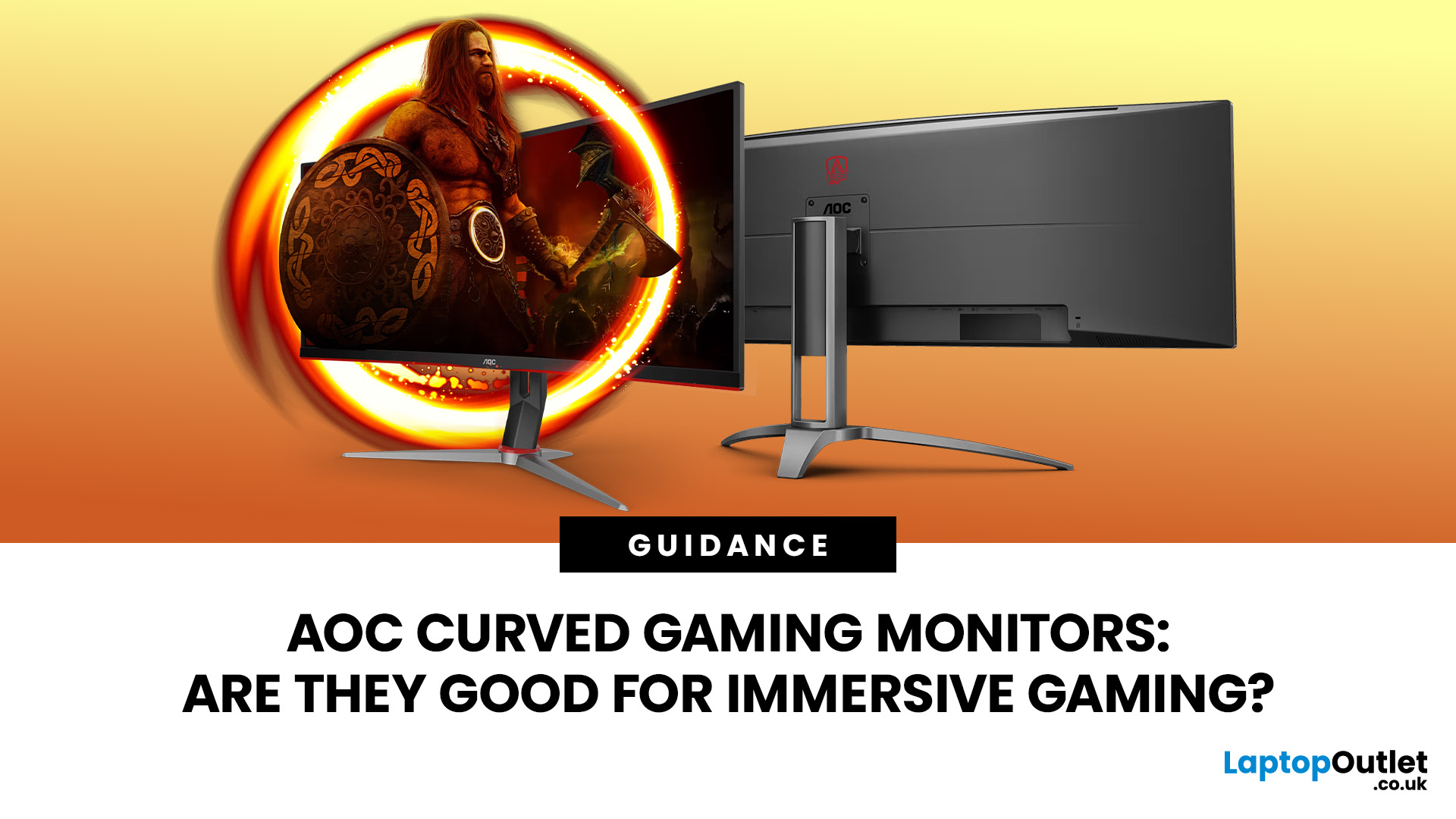
An AOC curved gaming monitor can be a strong choice for immersive gaming, especially if you play racing, simulation, RPG, open-world or cinematic single-player games. The curved screen helps draw more of the display into your natural field of view, which can make gameplay feel more engaging on larger panels. For many PC gamers, the sweet spot is a 27-inch or 32-inch high-resolution QHD monitors. For maximum immersion, an AOC 34 curved gaming monitor or another ultrawide curved gaming monitor can offer a wider, more cinematic view.
Are AOC Curved Gaming Monitors Good for Immersive Gaming?
Yes, AOC curved gaming monitors can be good for immersive gaming, but the experience depends on three things:
- Screen size
- Resolution
- Refresh rate
A curved display is most effective when the screen is large enough for the curve to matter. On a 24-inch screen, the curve may feel subtle. On a 32-inch or 34-inch screen, it becomes much more noticeable because the edges of the panel sit further into your peripheral
Published: July 27, 2026
Last Updated: September 03, 2026
Last Updated: August 11, 2026
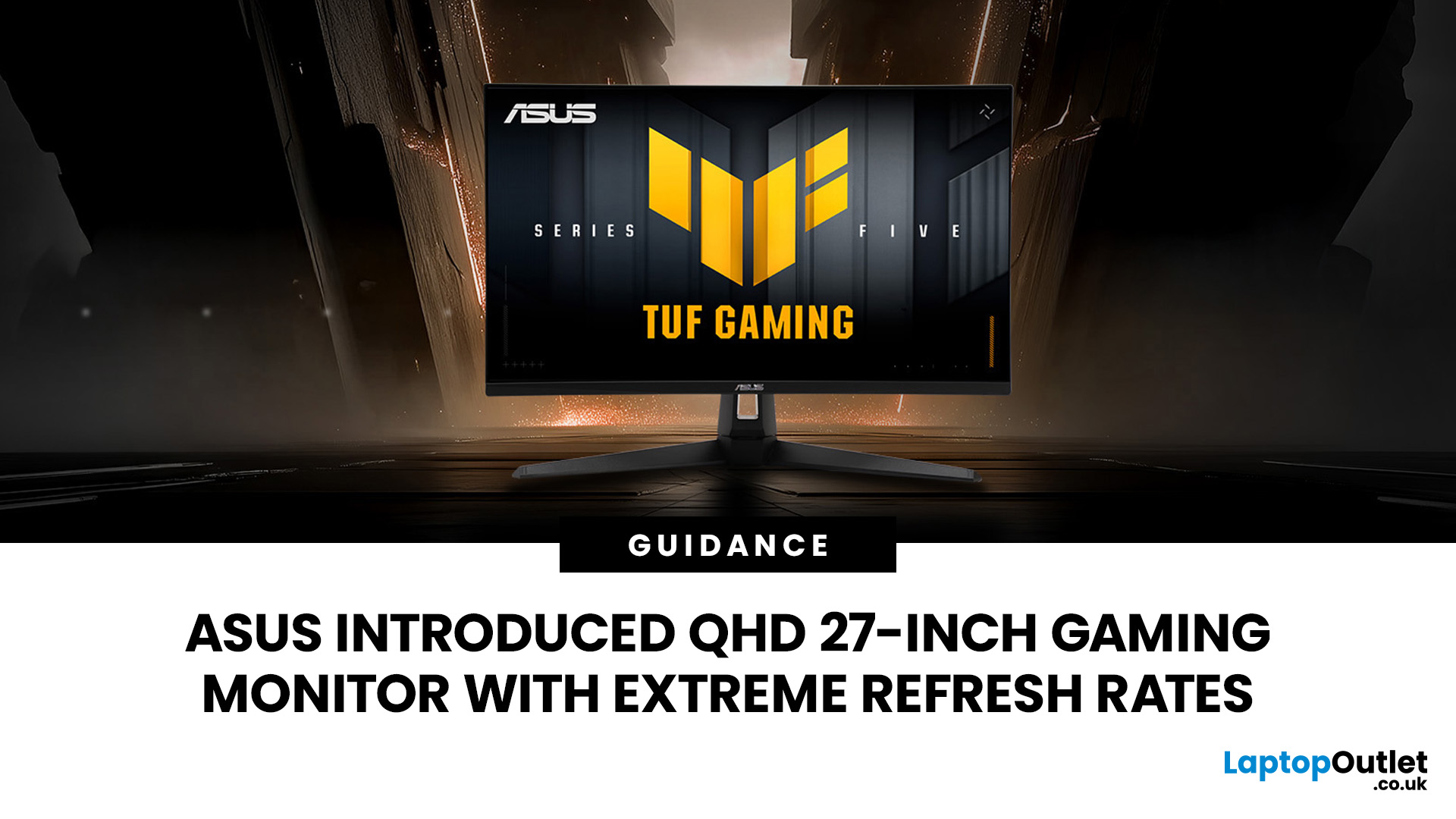
The ASUS VG27AQM5F is a 27 inch QHD gaming monitor built primarily for competitive PC players who want a higher refresh rate without dropping to Full HD resolution. As an ASUS QHD monitor, it combines a 2560 x 1440 Fast IPS panel with a maximum 320Hz refresh rate, adaptive-sync support and ASUS ELMB Sync. This ASUS new gaming display launch is aimed at players seeking smoother competitive gameplay, although its tilt-only stand, basic HDR capability and service-only USB-C port remain important limitations.
ASUS VG27AQM5F Quick Answer
| Question | Answer |
| Best suited to | Competitive PC gamers who regularly play above 200fps and still want QHD detail |
| Main strengths | 320Hz refresh rate, Fast IPS panel, 95% DCI-P3 coverage and broad adaptive-sync support |
| Main limitations | Tilt-only stand, modest 300cd/m² brightness, basic HDR10 support and no functional USB-C display input |
| Testing status | Specification-based assessment, not a hands-on review |
| UK availability | Available through UK retail channels, but not |
Last Updated: August 13, 2026
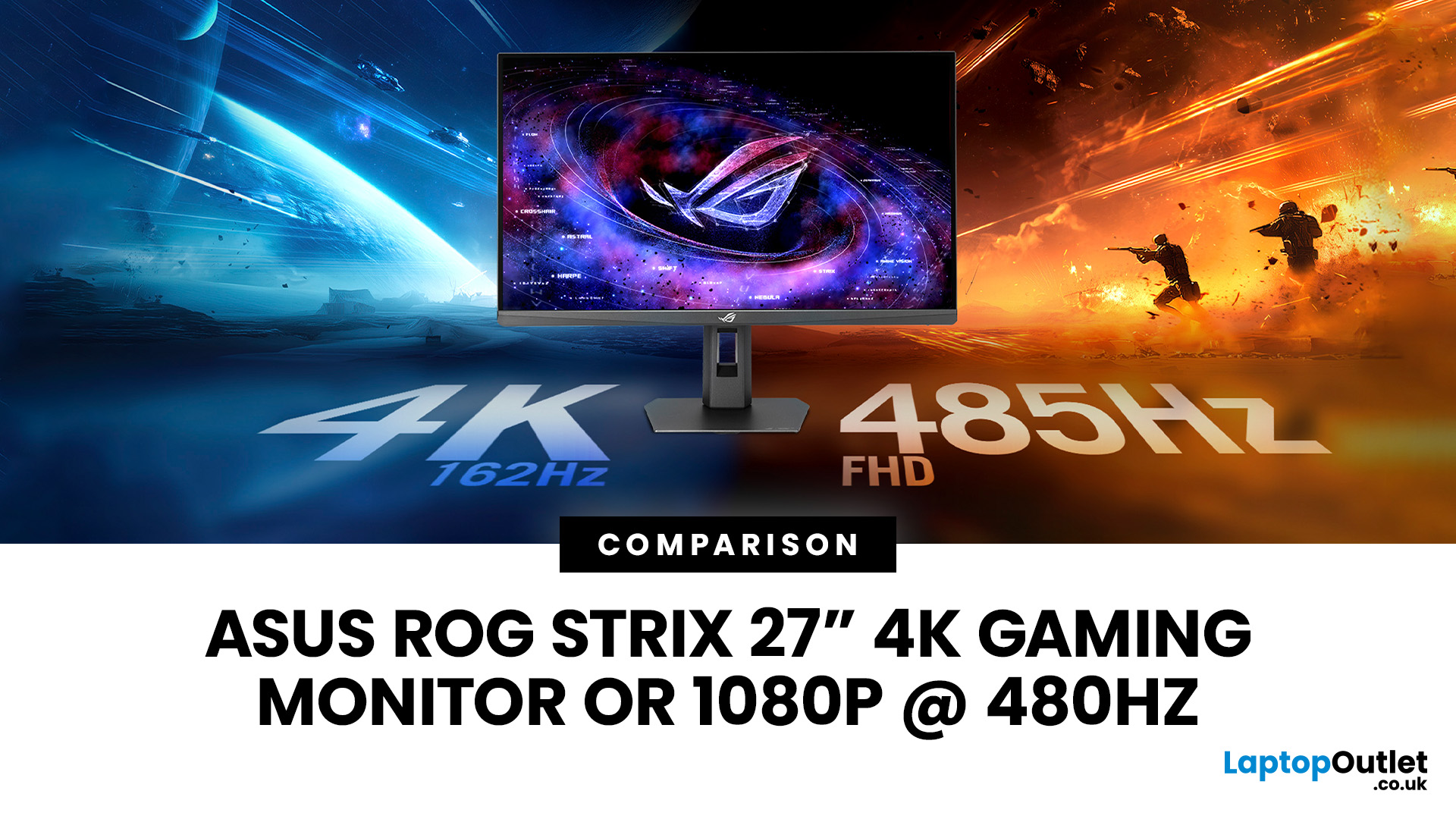
The ASUS ROG Strix XG27UCGR Gen2 is a 27 inch 4K gaming monitor that runs at up to 162Hz in 4K and switches to Full HD at 485Hz for esports. It succeeds the original XG27UCG’s 160Hz and 320Hz dual mode, adding a much faster competitive setting, Smart Pixel processing and a lower quoted minimum response time.
Most gaming monitors make you choose between resolution and refresh rate. A sharp 4K screen suits visually detailed games, while an ultra-fast Full HD display is usually better suited to competitive titles where responsiveness matters more than image detail.
The ASUS ROG Strix XG27UCGR Gen2 attempts to cover both uses. Its native mode delivers 3840 x 2160 resolution at up to 162Hz. Activating Frame Rate Boost changes the monitor to 1920 x 1080 and raises the refresh rate to 485Hz. ASUS confirms both modes for the XG27UCGR, alongside a Fast IPS panel, Smart Pixel processing and a manufacturer-rated minimum response time of 0.3ms.
ASUS ROG Strix XG27UCGR Specifications
The XG27UCGR Gen2
Last Updated: September 03, 2026
Refresh rate is one of the first specifications you will notice when shopping for a gaming monitor. A higher number promises smoother movement and faster feedback, but that does not automatically mean a 240Hz display is the right choice for your setup.
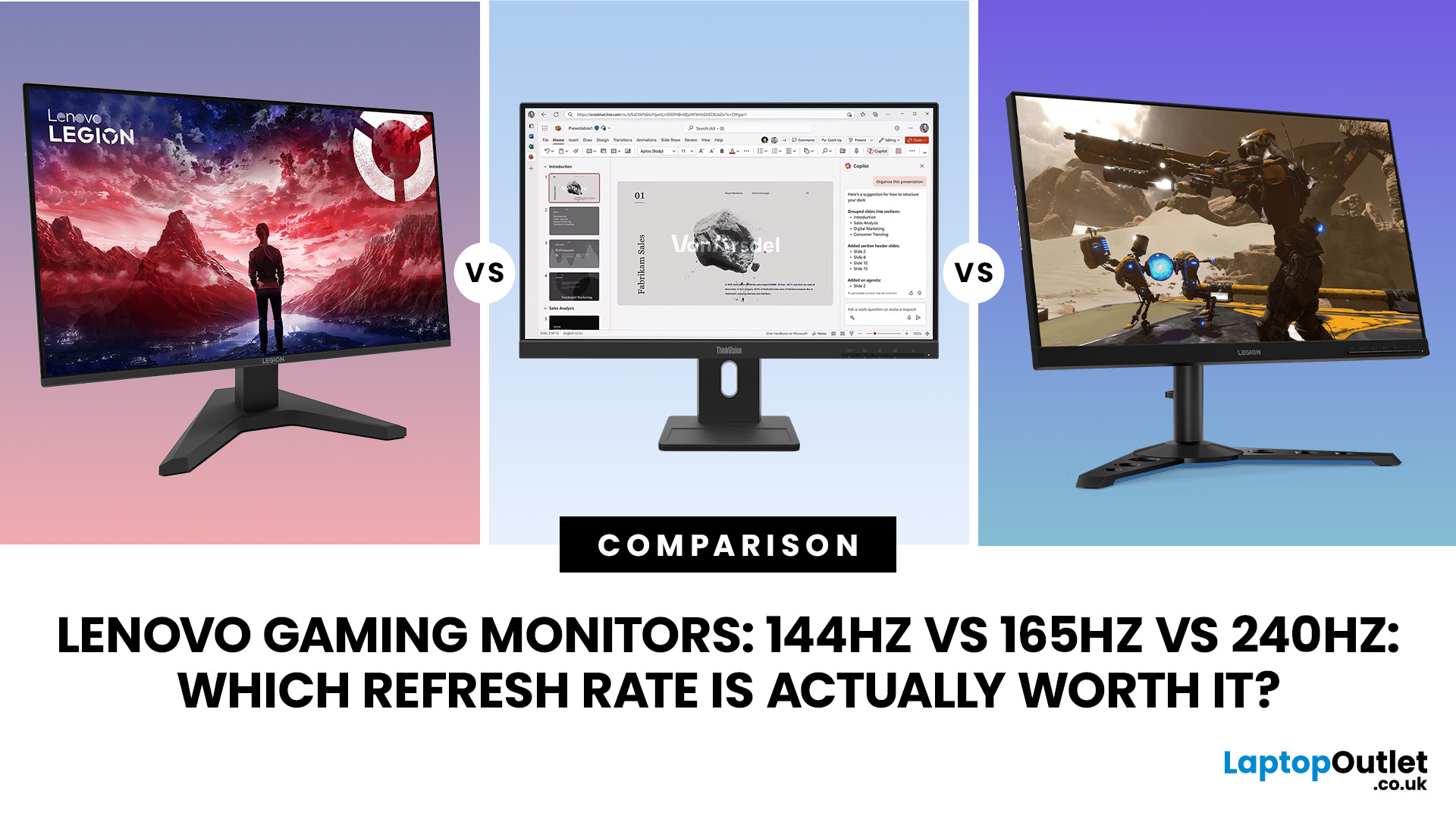
The best Lenovo monitor refresh rate depends on the games you play, the frame rates your computer can produce and whether you prioritise competitive responsiveness or sharper graphics. A casual player running cinematic games at 70 frames per second will gain little from 240Hz, while a competitive FPS player maintaining more than 200fps may notice a meaningful improvement.
This guide compares 144Hz, 165Hz, and 240Hz Lenovo gaming monitors so you can pay for performance you will actually use.
Quick Answer: Is 144Hz, 165Hz or 240Hz Best?
For most PC gamers, 144Hz or 165Hz offers the best balance of smoothness, hardware requirements, and value. Choose 240Hz when you mainly play competitive shooters and your PC can regularly produce close to 240fps
Last Updated: August 24, 2026
Published: August 06, 2026
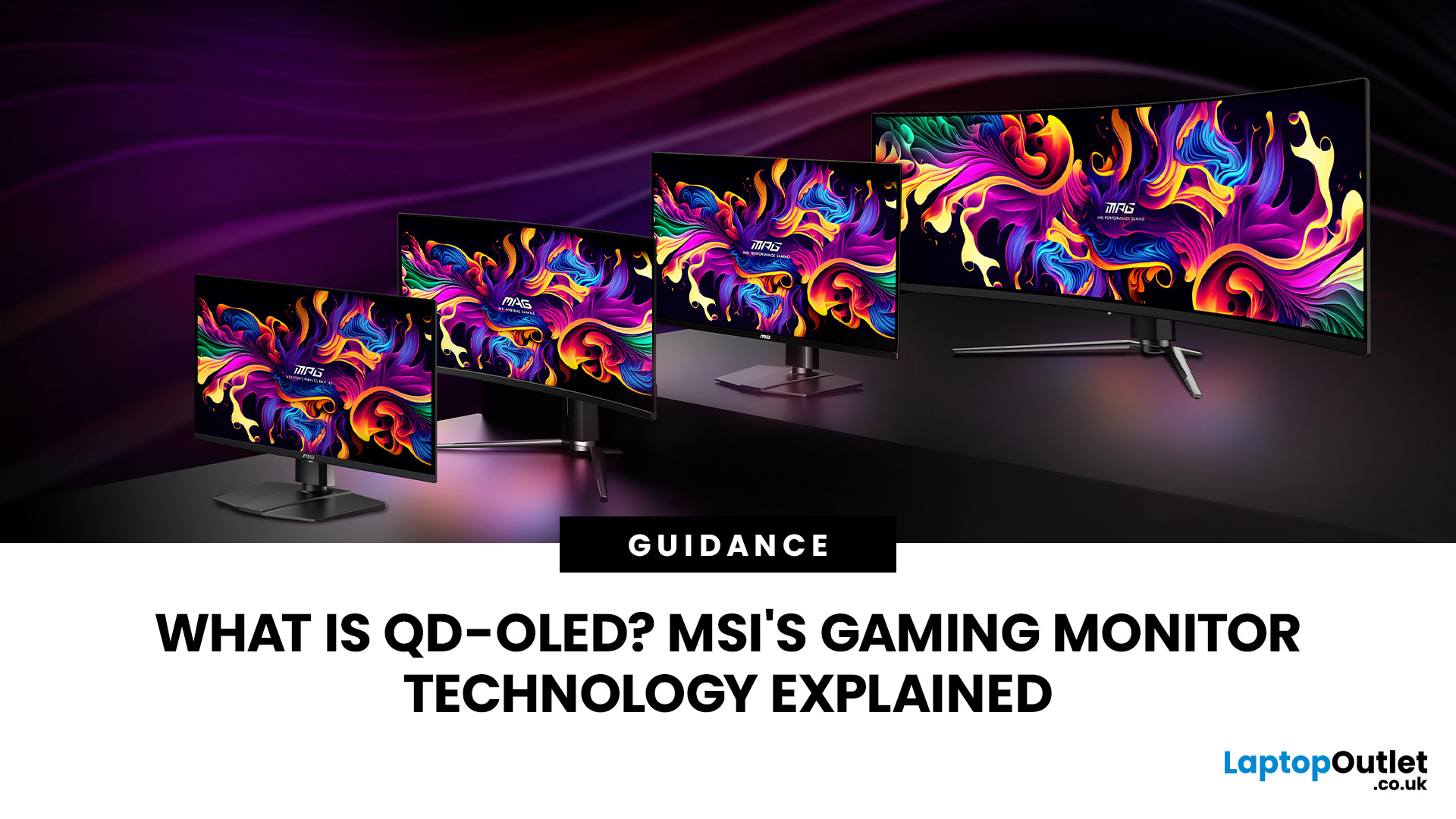
An MSI QD OLED monitor combines the individual pixel control of OLED with a quantum-dot colour conversion layer. The result is a display designed to produce deep blacks, vivid colours, fast response times, and convincing HDR performance. That sounds impressive, but specifications such as 0.03ms response times, True Black certification, and OLED Care can make choosing a monitor confusing. This guide explains how the technology works, what MSI adds and whether a QD-OLED display is right for your gaming setup.
How Does QD OLED Technology Work?
A conventional LCD monitor needs a backlight behind its pixels. Even when displaying a dark scene, some light can pass through the panel, which may make black areas appear grey. QD-OLED works differently because it is self-emissive. Its pixels generate their own light and can switch off individually when the image requires black. The process involves three main stages:
- A blue OLED layer produces the original light.
- Quantum dots convert part of that blue

