



Lenovo Gaming Monitors: 144Hz vs 165Hz vs 240Hz: Which Refresh Rate is Actually Worth it?
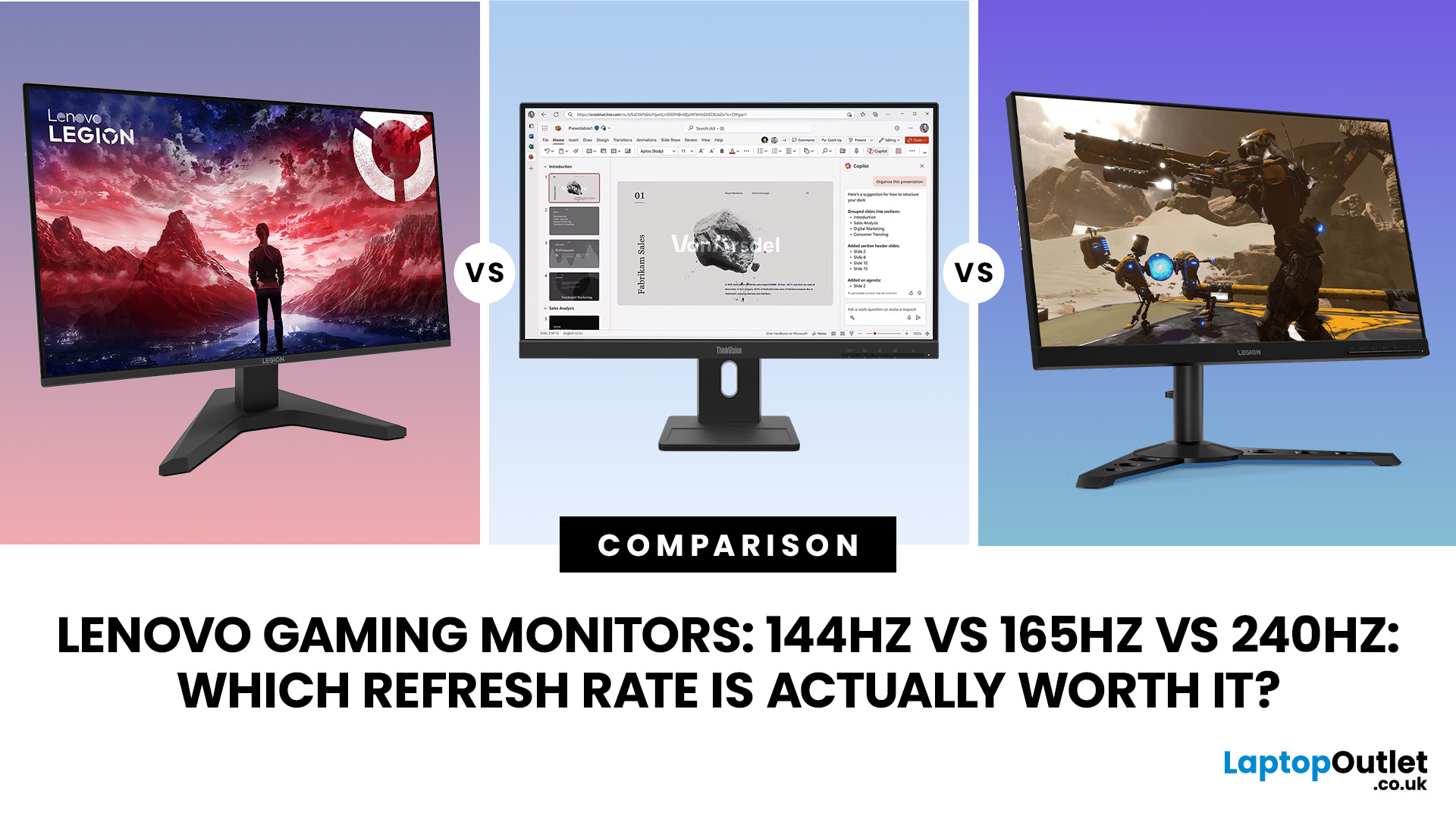
Refresh rate is one of the first specifications you will notice when shopping for a gaming monitor. A higher number promises smoother movement and faster feedback, but that does not automatically mean a 240Hz display is the right choice for your setup.
The best Lenovo monitor refresh rate depends on the games you play, the frame rates your computer can produce and whether you prioritise competitive responsiveness or sharper graphics. A casual player running cinematic games at 70 frames per second will gain little from 240Hz, while a competitive FPS player maintaining more than 200fps may notice a meaningful improvement.
This guide compares 144Hz, 165Hz, and 240Hz Lenovo gaming monitors so you can pay for performance you will actually use.
Quick Answer: Is 144Hz, 165Hz or 240Hz Best?
For most PC gamers, 144Hz or 165Hz offers the best balance of smoothness, hardware requirements, and value. Choose 240Hz when you mainly play competitive shooters and your PC can regularly produce close to 240fps at your chosen resolution. Here is the practical recommendation:
|
Refresh rate |
Best for |
Main advantage |
Main limitation |
|
144Hz |
Casual and mainstream gaming |
Major improvement over 60Hz |
Less headroom for serious competitive play |
|
165Hz |
Mixed gaming and occasional competition |
Slightly smoother than 144Hz |
Difference from 144Hz is modest |
|
240Hz |
Competitive FPS and esports |
Faster visual updates and lower frame intervals |
Requires high, stable frame rates |
|
240Hz at QHD or 4K |
Premium competitive setups |
Combines speed with sharper detail |
Places much greater demand on the GPU |
- A Lenovo 165Hz gaming monitor is the safest all-round choice.
- A Lenovo 240Hz gaming monitor is worth considering when speed is your clear priority rather than simply the largest number on the specification sheet.
What Does Monitor Refresh Rate Actually Change?
Refresh rate measures how many times a monitor updates per second, such as 144Hz, 165Hz or 240Hz. Higher refresh rates make motion appear smoother and reduce delay between frames, improving camera movement, and tracking in games. The jump from 60Hz to 144Hz is the most noticeable, while 144Hz to 165Hz is subtle. Moving to 240Hz offers clearer motion but requires higher performance. However, refresh rate is not the same as response time or input latency, which also affect overall gaming responsiveness.
Lenovo 144Hz Gaming Monitors: Still Enough for Most Players
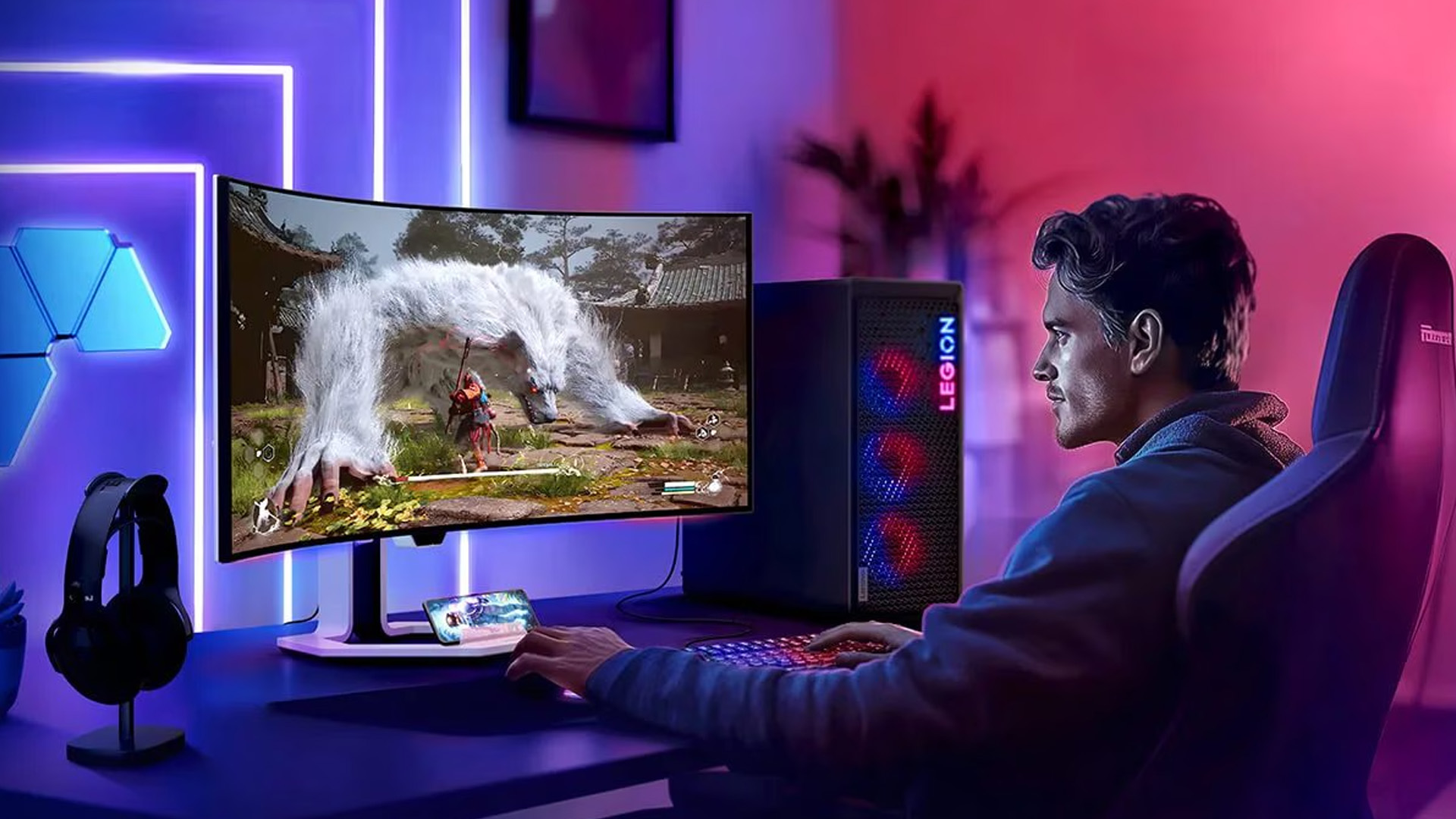
A Lenovo 144Hz gaming monitor remains an excellent starting point for high-refresh gaming. It provides much smoother motion than a standard 60Hz display without requiring an extremely powerful graphics card. It makes particular sense for:
- Single-player action and adventure games
- Racing and sports titles
- Role-playing games
- Occasional competitive multiplayer
- Entry-level and mid-range gaming PCs
- Players upgrading from a 60Hz or 75Hz screen
At 144Hz, aiming and camera movement feel substantially more immediate than they do at 60Hz. You also have a realistic chance of using the monitor’s full refresh rate in a wider range of games, especially at Full HD resolution.
When comparing fast refresh rate monitors, do not reject 144Hz simply because newer models offer larger numbers. A well-tuned 144Hz IPS monitor with consistent response times can look clearer in motion than a poorly configured panel advertised at a higher refresh rate.
Is a Lenovo 165Hz Gaming Monitor Noticeably Better?
A 165Hz monitor refreshes around 15% more often than a 144Hz monitor. On paper, that sounds significant. In practice, the visible difference is relatively small because both already deliver very smooth motion. You may notice the change if you:
- Regularly play fast FPS titles
- Can maintain more than 144fps
- Are sensitive to small changes in motion clarity
- Want slightly more refresh-rate headroom
- Are buying a new monitor and the price difference is small
For mixed gaming, 165Hz is arguably the best refresh rate for gaming because it remains achievable for mid-range PCs while providing enough speed for competitive play. It is also common across Full HD and QHD monitors, giving you more freedom to choose the resolution and panel that suit you.
The older Lenovo Legion Y27q-20, for example, combines QHD resolution with a 165Hz refresh rate and a stated 1ms response time. It illustrates why the Lenovo Legion Y27 family has been popular with players who want both image detail and responsive gaming rather than focusing exclusively on maximum refresh rate.
However, replacing an otherwise good 144Hz monitor with a similar 165Hz model is rarely a worthwhile upgrade. The move makes more sense when you are also improving resolution, panel quality, HDR performance, or connectivity.
You can compare gaming-focused models across the wider range of best gaming monitors rather than choosing by refresh rate alone.
When is a 240Hz Refresh Rate Worth Paying For?
A 240Hz refresh rate is designed primarily for competitive games in which rapid target tracking, quick reactions and lower latency matter more than maximum image detail. It is most valuable in games such as:
- Counter-Strike 2
- Valorant
- Overwatch 2
- Rainbow Six Siege
- Fortnite in competitive settings
- Rocket League
- Fast racing simulators
A high-level player may benefit from seeing an opponent’s movement slightly sooner and receiving more frequent visual information while aiming. A 240Hz display also makes rapid camera movement appear clearer when the panel’s pixel response is fast enough.
Current Lenovo gaming screens show that 240Hz is no longer limited to Full HD. The 27-inch Lenovo Legion 27Q-10 combines QHD resolution with a 240Hz panel and a stated 0.5ms MPRT response time. Lenovo also offers Full HD 240Hz Legion options aimed at less GPU-intensive competitive setups.
Another example is the Legion Y27qf-30. It supports a native 240Hz refresh rate, with an optional 250Hz overclock, alongside QHD resolution, DisplayHDR 400 and Adaptive Sync. Lenovo notes that the overclocked mode may introduce display irregularities, so the highest setting is not necessarily the most reliable one.
Do You Have Enough PC Performance for 240Hz?
Your monitor cannot create extra game frames. If your PC produces 90fps, a 240Hz monitor can still refresh quickly, but it will not display 240 unique frames every second.
Before choosing an Esports monitor, check the frame rates your current system achieves in the games you actually play. Use the settings and resolution you intend to keep, rather than relying on benchmark figures recorded at lower settings. As a practical guide:
- Below 100fps: prioritise 144Hz, image quality or resolution
- Around 120 to 165fps: choose 144Hz or 165Hz
- Around 180 to 240fps: 240Hz becomes more worthwhile
- Consistently above 240fps: a 240Hz display can be fully utilised
Resolution changes the calculation considerably. Producing 240fps at Full HD is much easier than doing so at QHD, while high-refresh 4K gaming is considerably more demanding. Players who value resolution and cinematic detail may prefer Ultra HD gaming monitors, even if they run below 240Hz in demanding games.
Why Response Time and Overdrive Matter Too
Refresh rate tells you how frequently the screen updates. Response time tells you how quickly individual pixels can change from one colour to another.
If the pixels respond too slowly, a high refresh rate gaming monitor may show ghosting or smeared trails behind moving objects. This is why a responsive 165Hz panel can sometimes provide better real-world motion clarity than a slower 240Hz panel.
Most gaming monitors provide several response-time or overdrive modes. The strongest overdrive setting is not always best. Excessive overdrive can create inverse ghosting, where bright or dark halos appear around moving objects.
Start with the medium or normal setting, then test fast movement in your usual games. Increase it only when conventional ghosting remains visible. Some monitors also behave differently at different refresh rates, so a mode that works well at 240Hz may be too aggressive when the game runs at 100fps.
Be careful when comparing advertised MPRT and GtG figures. MPRT often involves a motion-blur reduction or backlight-strobing mode, while GtG measures pixel transitions. They describe different behaviours and should not be treated as directly interchangeable. If you are experiencing flashing, unstable images or intermittent black screens, follow our Lenovo Gaming Monitor Flickering: Causes, Fixes & Troubleshooting Guide to identify the likely cause and apply the correct fix.
Adaptive Sync Helps Prevent Screen Tearing
Your GPU’s frame rate will rarely remain perfectly fixed. When frames arrive out of step with the monitor’s refresh cycle, parts of two frames can appear on screen simultaneously, creating screen tearing.
Adaptive-sync technologies vary the monitor’s refresh rate to follow the GPU’s output. AMD explains that FreeSync synchronises display refresh with a compatible graphics card’s frame rate to reduce tearing, stuttering and associated latency.
This can make a variable 110 to 150fps experience look smoother than it would on a fixed-refresh display. Therefore, FreeSync, VESA Adaptive Sync or verified G-SYNC compatibility may be more useful than moving from 144Hz to 165Hz without variable refresh support.
When choosing from Lenovo display monitors, confirm the supported adaptive-sync range and compatibility rather than assuming every model offers identical features.
HDR400 / HDR600 Does Not Determine Refresh Rate
HDR and refresh rate affect different parts of the image. Refresh rate controls motion updates, while HDR affects brightness, contrast and colour presentation.
Certifications such as HDR400 / HDR600 refer to defined HDR performance requirements, including factors such as luminance, colour gamut and bit depth. A higher HDR tier can improve bright highlights and image impact, but it does not make controls feel more responsive.
For competitive gaming, refresh rate, response behaviour and low latency normally matter more. For cinematic and open-world games, better contrast, local dimming, or OLED-level black performance may provide a more noticeable improvement than moving from 165Hz to 240Hz.
This is why the best Lenovo gaming monitor is not necessarily the fastest one. It is the model with the right combination of refresh rate, resolution, panel quality and connectivity for your games.
Check the Connection Before Expecting Maximum Refresh Rate
A monitor may support different refresh rates depending on whether you use DisplayPort or HDMI. Resolution, colour depth and chroma settings can also affect available bandwidth.
For example, Lenovo’s Y27qf-30 documentation lists a 240Hz native panel but specifies QHD at up to 144Hz through its HDMI connection. This means choosing the wrong port or cable could prevent you from accessing the headline refresh rate. Before buying or setting up a competitive gaming display, check:
- The maximum refresh rate supported by each input
- The DisplayPort or HDMI version on your graphics card
- Whether the supplied cable supports the required bandwidth
- The resolution and colour-depth restrictions at maximum refresh
- Whether an overclock must be enabled in the monitor menu
After connecting the display, open Windows Settings, select System, Display, Advanced display, and choose the highest supported refresh rate. Many users install a new monitor but unintentionally leave Windows at 60Hz.
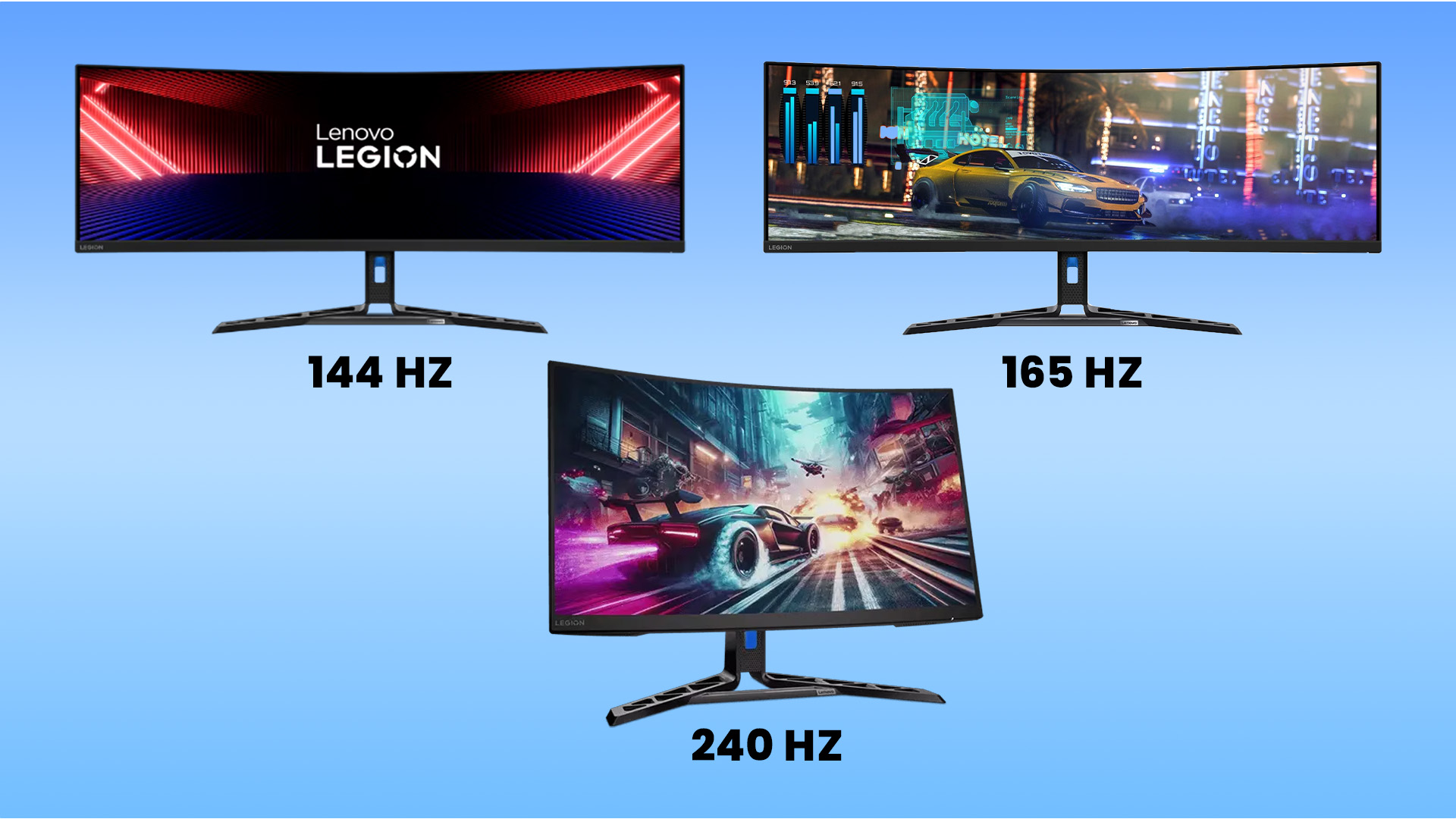
144Hz vs 165Hz vs 240Hz Monitor: Which Should You Buy?
Use your actual gaming habits to make the final decision.
Choose 144Hz if:
- You are upgrading from 60Hz
- You mainly play single-player or mixed genres
- Your PC normally runs games below 144fps
- You would rather invest in QHD, HDR or a better panel
- You want strong value without unnecessary specification headroom
Choose 165Hz if:
- You want the best all-round balance
- You play both competitive and story-driven games
- Your PC can regularly deliver 120 to 165fps
- The price is close to an equivalent 144Hz model
- You want more headroom without the hardware demands of 240Hz
Choose 240Hz if:
- Competitive FPS games are your priority
- You can maintain close to 200 to 240fps
- You value responsiveness above maximum graphics settings
- You are buying a dedicated esports setup
- The model also has consistently fast pixel response
Once you have chosen the right refresh rate, compare the best Lenovo gaming monitors for gaming, streaming & Esports in 2026 to find a model suited to your resolution, performance needs and playstyle.

Final Verdict: Which Lenovo Monitor Refresh Rate Is Worth It?
A 144Hz Lenovo gaming monitor is still more than enough for casual gaming, single-player titles and anyone moving from a standard 60Hz screen. A 165Hz model is the best general recommendation because it adds useful headroom without dramatically increasing hardware demands.
A 240Hz Lenovo monitor is worth the extra investment when you play competitive games, maintain very high frame rates and care about every possible reduction in visual delay. It is not automatically better for a player who values 4K detail, stronger HDR or more demanding graphics settings.
Laptop Outlet offers Lenovo options across mainstream and competitive performance tiers. Match the monitor to your PC and playstyle, rather than buying refresh rate you cannot consistently use.

In Case You’re Wondering...
Is 144Hz enough for gaming?
Yes. A 144Hz monitor is enough for most casual, mainstream and single-player gaming. It provides a major improvement over 60Hz and works particularly well when your PC produces between 80 and 144fps. Competitive players maintaining much higher frame rates may benefit from 240Hz.
Is 165Hz better than 144Hz?
A 165Hz monitor is technically faster, but the difference is modest. It refreshes every 6.06 milliseconds rather than every 6.94 milliseconds. Choose 165Hz when the price and other specifications are similar, but replacing a good 144Hz monitor solely for 165Hz is rarely worthwhile.
Is 240Hz worth it for gaming?
A 240Hz monitor is worth it for competitive FPS, esports and other fast games when your system can produce close to 240fps. For slower games or systems running below 144fps, spending the same budget on resolution, panel quality or HDR may deliver a more visible improvement.
Do I need a powerful PC for a 240Hz monitor?
You need sufficient processor and graphics performance to generate high frame rates. Full HD esports games can reach 240fps on a wider range of systems, while QHD or 4K at 240fps requires much stronger hardware. Check performance in your specific games before upgrading.
Which Lenovo gaming monitor is best for FPS games?
Look for a Lenovo Legion monitor with a 240Hz refresh rate, fast and consistent pixel response, adaptive sync and a suitable Full HD or QHD resolution. Current 240Hz Legion models are better suited to serious FPS gaming than 144Hz options, provided your computer can supply the required frame rate.
Related Articles

Last Updated: June 10, 2026
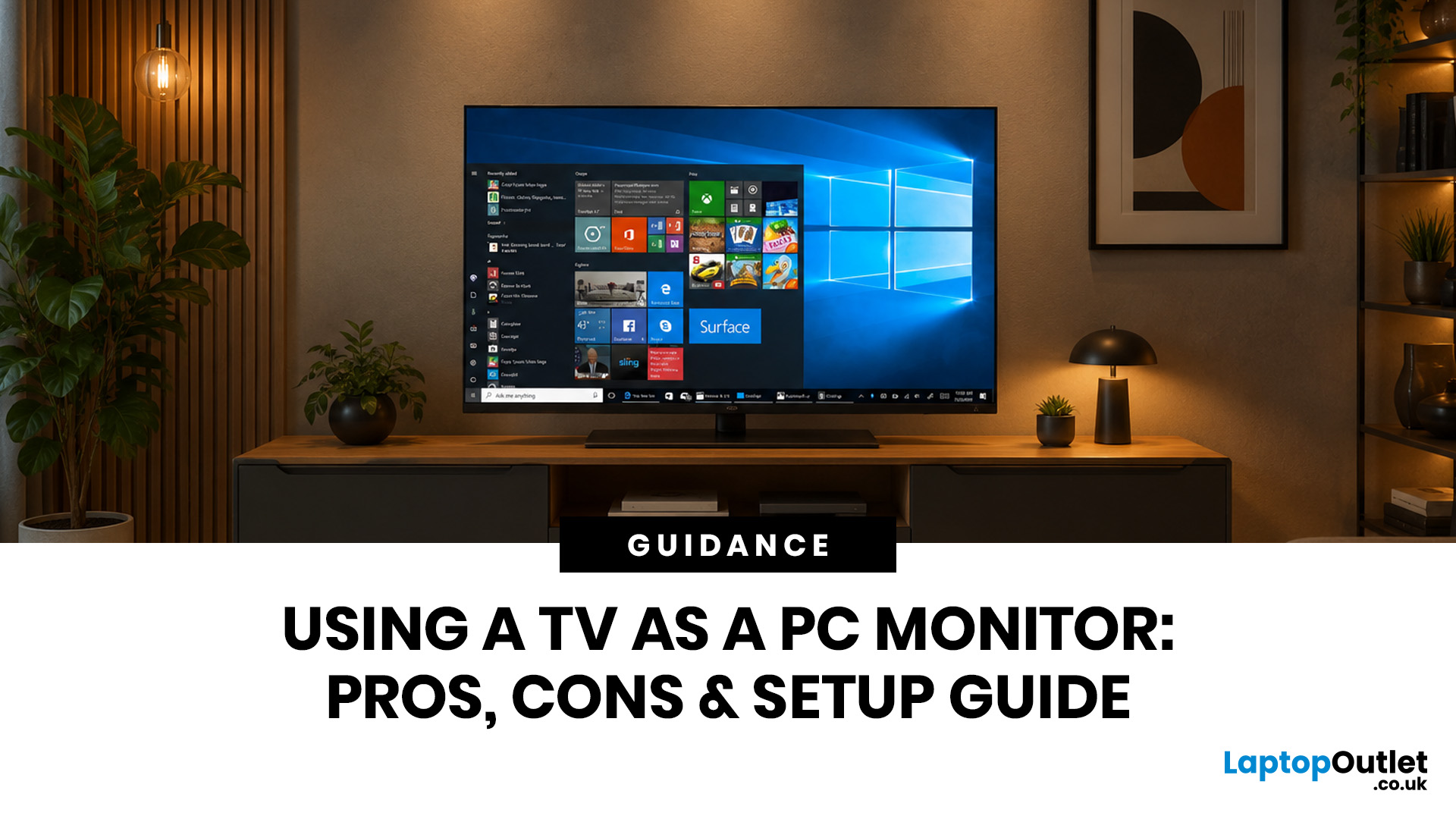
Quick Answer: Yes, you can use TV as PC monitor if your computer and TV have compatible ports, usually HDMI. It works well for films, casual gaming, presentations, sofa browsing and large-screen entertainment. However, using a TV as PC monitor is not always ideal for daily desk work because TVs can have higher input lag, lower pixel density, blurry text up close and fewer ergonomic adjustments than proper monitors. For entertainment and casual use, a TV can be a great option. For work, study, competitive gaming and sharp close-up text, a dedicated monitor is usually the better choice.
Using a big TV as your computer screen sounds like a genius move. Bigger display, built-in speakers, great for Netflix, and you may already have one sitting in the living room. Honestly, it sounds like a setup hack.
Before you plug in your PC and call it a day, there are a few things to know. A TV as computer monitor setup can work brilliantly for some people, especially for media, casual gaming and
Last Updated: October 12, 2026
Last Updated: August 25, 2026
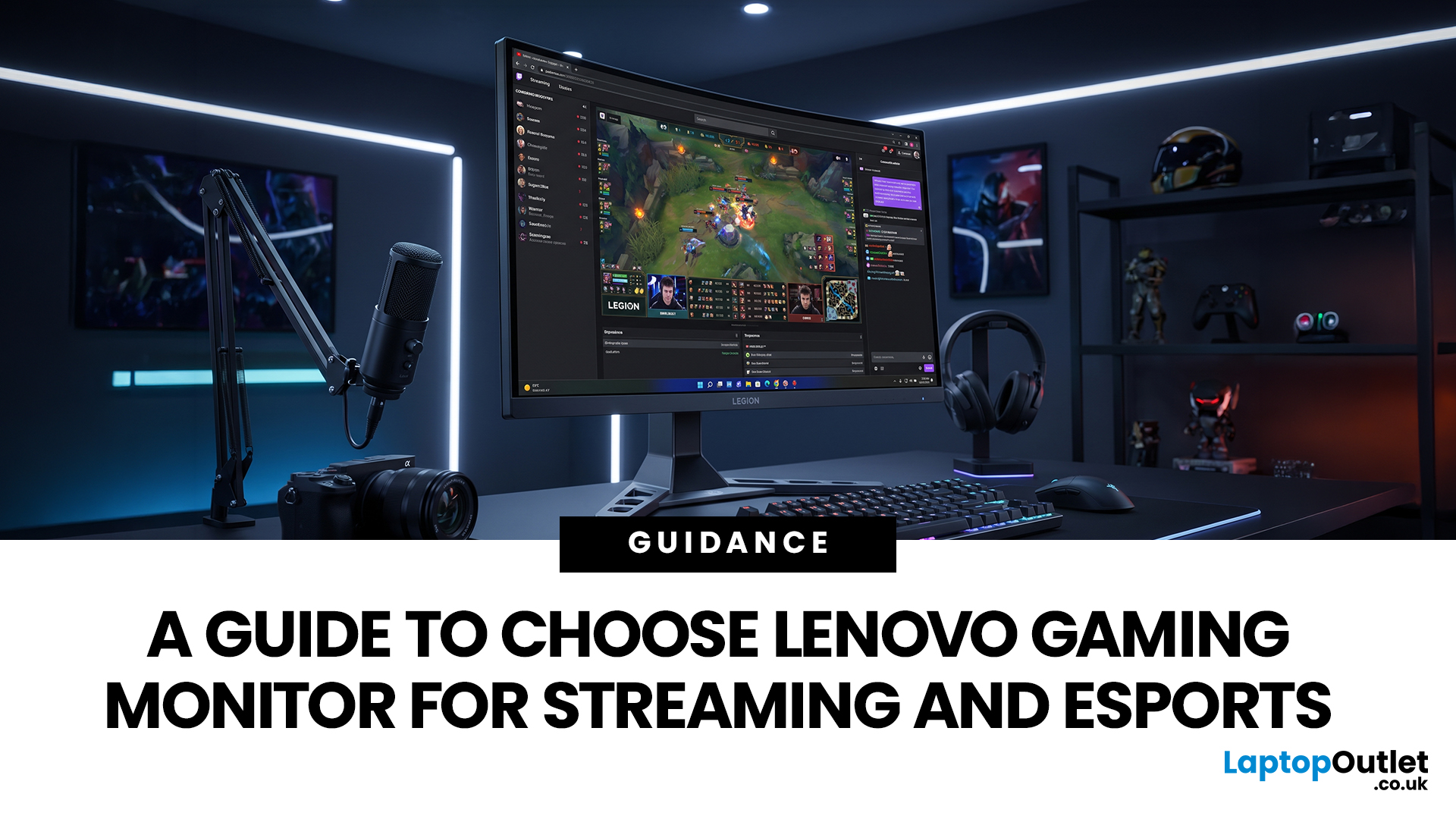
Quick answer: The best Lenovo gaming monitor for streaming and esports is the one your PC can drive consistently at its native resolution while it also handles your broadcast workflow. For many mixed-use setups, a 27-inch QHD display at 165Hz to 180Hz is the balanced choice. A 24.5-inch or 27-inch Full HD screen at 240Hz or above prioritises competitive speed, while a 34-inch UWQHD display at 165Hz to 180Hz provides more room for a single-screen streaming workspace.
Those are useful profiles, not universal rules. Your real decision depends on sustained frame rate, encoder load, game genre, desk space and whether OBS, chat and alerts live on the same display. A monitor does not encode the stream, and a 240Hz panel does not make viewers receive a 240fps broadcast. It changes the experience in front of you, which can still matter greatly during competitive play.
Last Updated: September 03, 2026
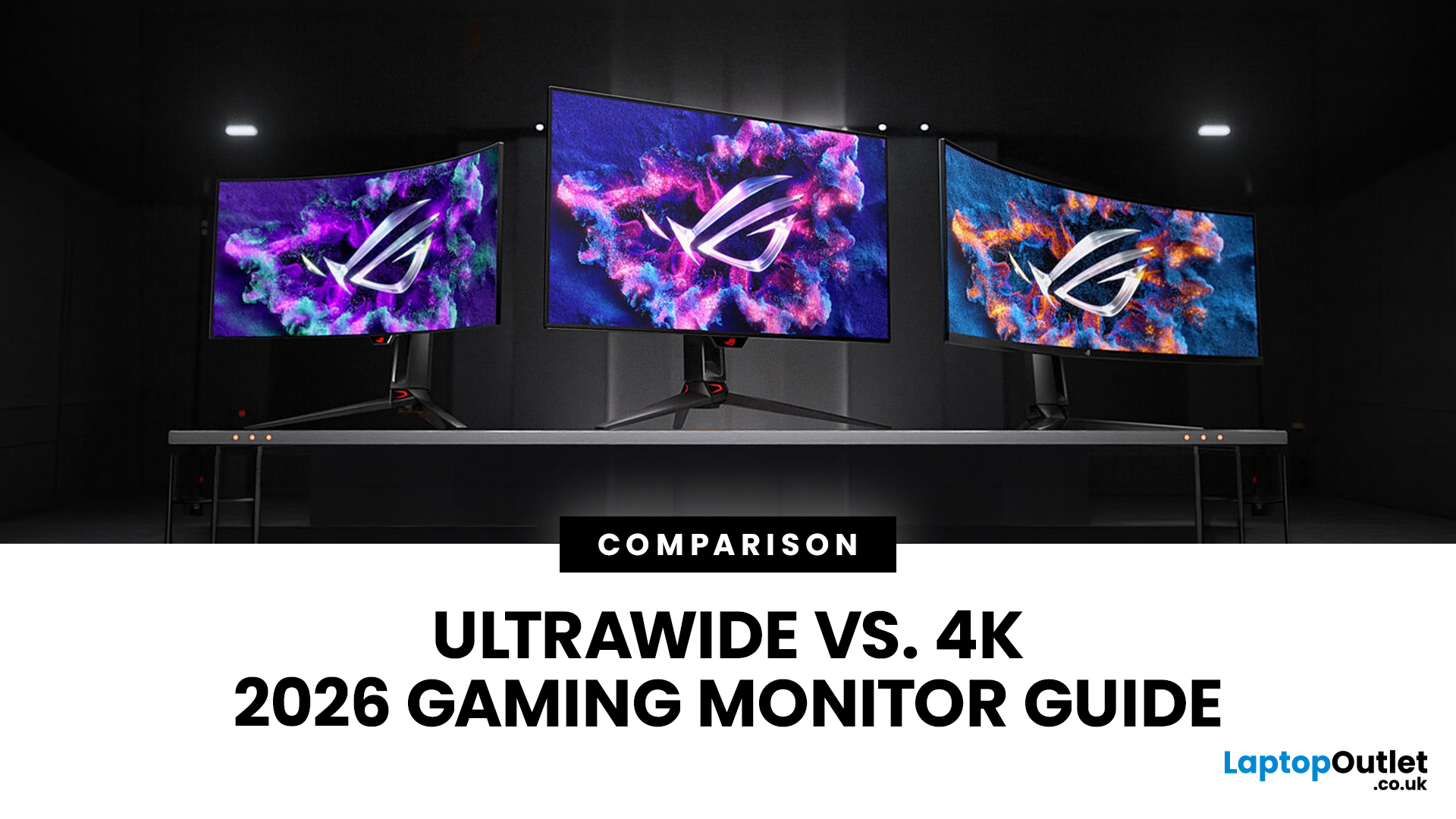
Choosing between an Ultrawide vs 4K monitor is one of the biggest decisions for gamers upgrading their setup in 2026. Both options can transform your gaming experience, but they do it in very different ways. The right choice depends on your games, GPU, desk space and budget, as well as whether you prioritise immersive gameplay or sharper resolution. This gaming monitor guide compares ultrawide and 4K displays across performance, game genres, GPU requirements, refresh rates, response time, and overall value.
Ultrawide vs 4K Monitor: Quick Comparison
| Feature | Ultrawide Gaming Monitor | 4K Gaming Monitor |
| Best for | Immersion, racing, RPGs, simulators, multitasking | Sharp visuals, AAA games, console gaming, creative use |
| Common aspect ratio | 21:9 or 32:9 | 16:9 |
| Main strength | Wider field of view | Higher pixel density |
| Image sharpness | Very good, especially at 3440 x 1440 | Excellent at 3840 x 2160 |
| GPU demand | Moderate to high | Very high |
| Competitive gaming | Good with high refresh rate | Good, but harder to drive |
Last Updated: July 16, 2026
Last Updated: September 24, 2026
Last Updated: July 30, 2026
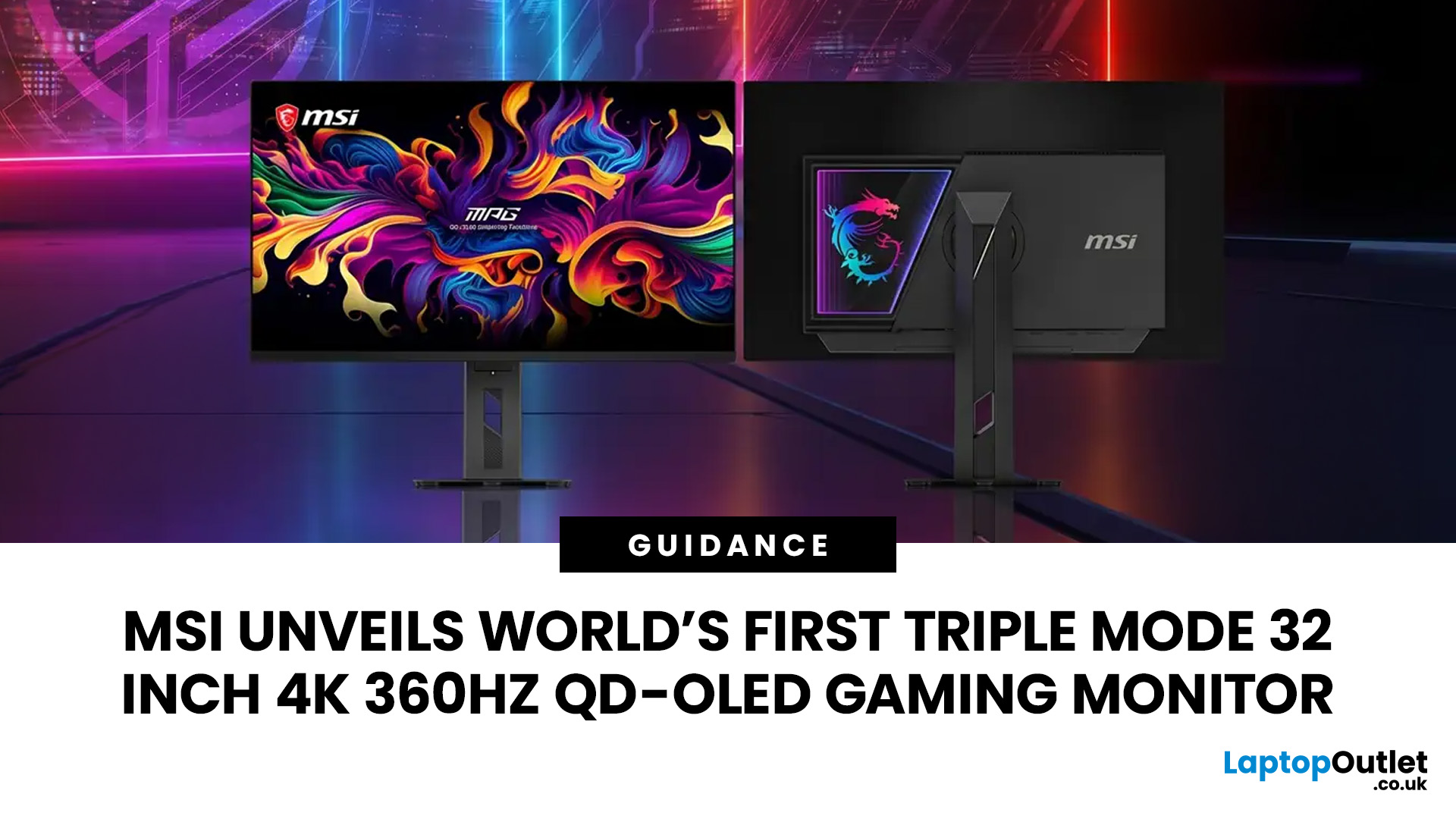
MSI has revealed a gaming monitor that sounds almost unreal on paper: a 32 inch 4K monitor with a 360Hz refresh rate, QD-OLED visuals, and a Triple Mode feature that lets gamers switch between different resolution and speed settings. Officially known as the MSI MPG OLED 322URDX36 (MSI lists the panel at 31.5 inches, though it's widely rounded to 32 inches), this display was unveiled ahead of COMPUTEX 2026 and is designed for players who want sharp 4K detail, ultra-smooth motion, and flexible performance in one premium screen.
For years, gamers had to choose between resolution and speed. A 4K monitor gave better image quality, while a lower-resolution, high-refresh-rate screen gave smoother competitive gameplay. MSI's new Triple Mode gaming monitor aims to close that gap, letting users move between 4K 360Hz, 1440p 520Hz, and Full HD 680Hz depending on the game, their hardware, and personal preference.
That makes it one of the most interesting display announcements for serious PC gamers,
Last Updated: August 11, 2026
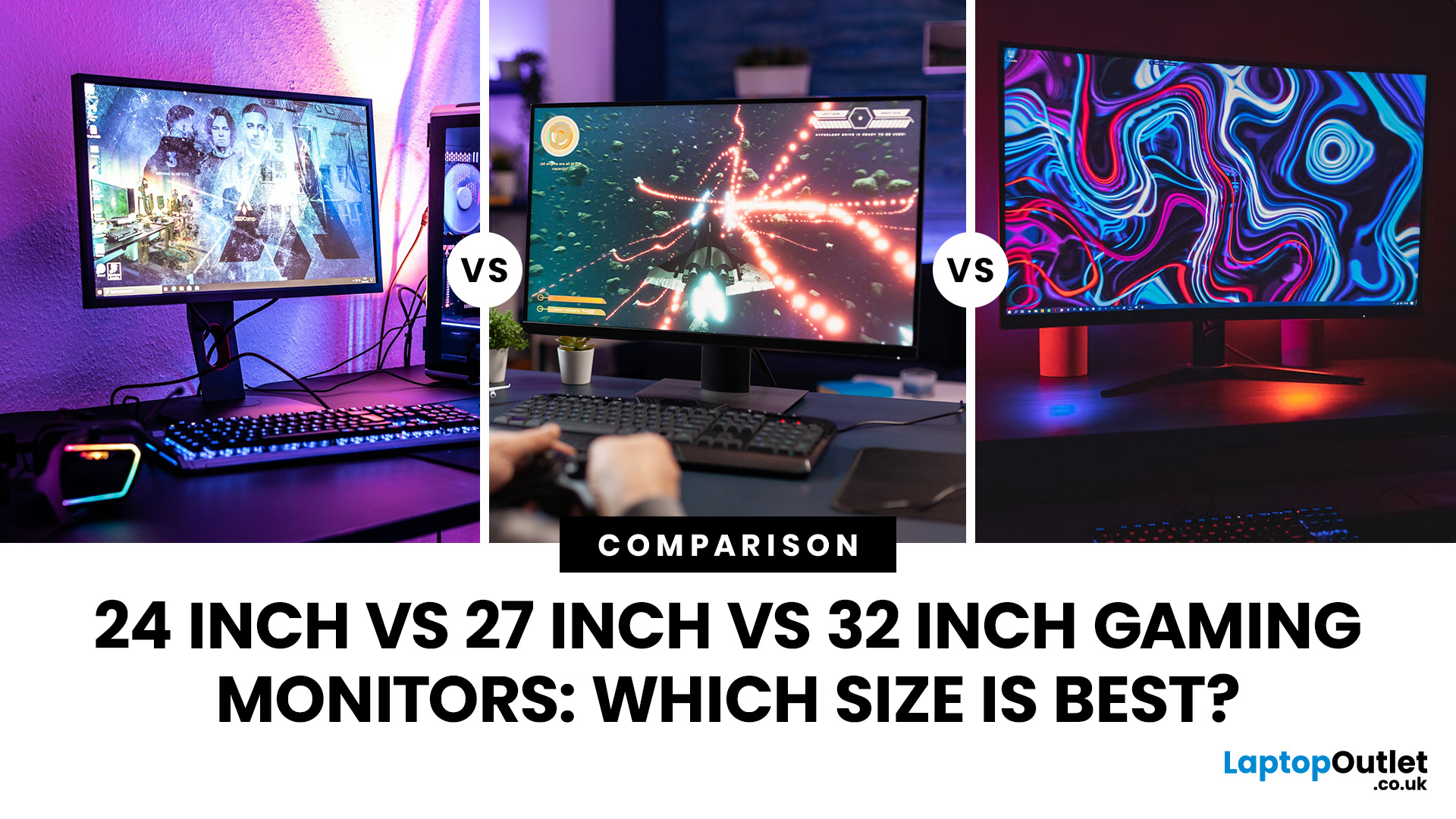
Picking the best gaming monitor size isn’t just about going big or going home. Your screen size actually changes how your games look, feel, and perform. A 24-inch setup is clutch for competitive play, a 27-inch hits that sweet spot between clarity and immersion, and a 32-inch screen? That’s where things get seriously cinematic.
Size alone isn’t the whole story. Resolution, desk space, refresh rate, and what you actually play all matter. This gaming monitor size comparison breaks down 24, 27, and 32-inch displays so you can find your perfect match.
24 Inch vs 27 Inch vs 32 Inch Gaming Monitors: Quick Comparison
The following table provides a quick overview of how the three most popular gaming monitor sizes compare.
| Feature | 24-Inch Monitor | 27-Inch Monitor | 32-Inch Monitor |
| Recommended resolution | 1920 × 1080 | 2560 × 1440 | 2560 × 1440 or 3840 × 2160 |
| Best suited to | Competitive gaming | Mixed gaming and everyday use | Immersive and cinematic gaming |
| Typical desk requirement | Small | Medium | Large |
| Graphics |
Last Updated: October 26, 2026
Last Updated: September 03, 2026
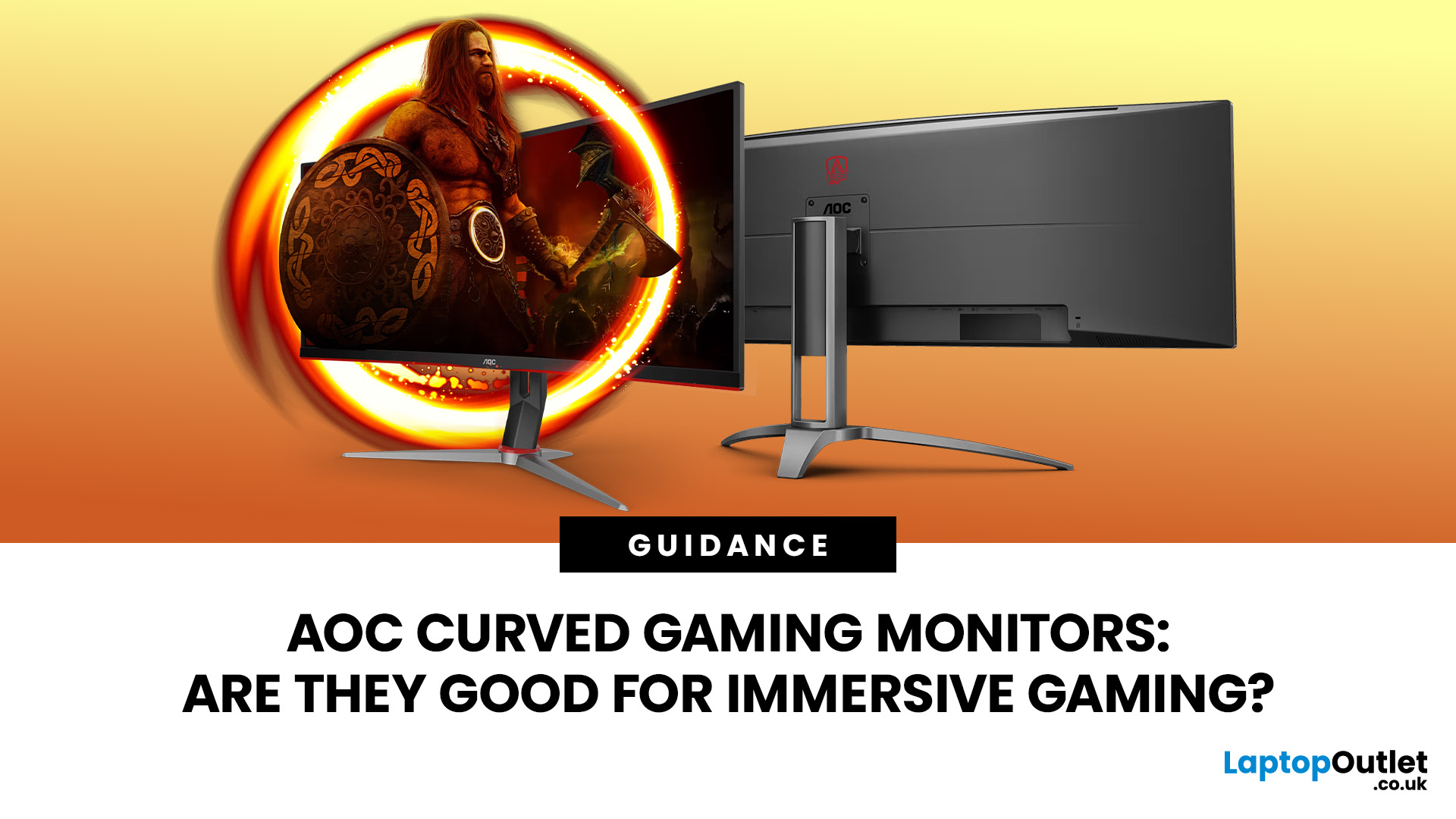
An AOC curved gaming monitor can be a strong choice for immersive gaming, especially if you play racing, simulation, RPG, open-world or cinematic single-player games. The curved screen helps draw more of the display into your natural field of view, which can make gameplay feel more engaging on larger panels. For many PC gamers, the sweet spot is a 27-inch or 32-inch high-resolution QHD monitors. For maximum immersion, an AOC 34 curved gaming monitor or another ultrawide curved gaming monitor can offer a wider, more cinematic view.
Are AOC Curved Gaming Monitors Good for Immersive Gaming?
Yes, AOC curved gaming monitors can be good for immersive gaming, but the experience depends on three things:
- Screen size
- Resolution
- Refresh rate
A curved display is most effective when the screen is large enough for the curve to matter. On a 24-inch screen, the curve may feel subtle. On a 32-inch or 34-inch screen, it becomes much more noticeable because the edges of the panel sit further into your peripheral

