



Lenovo Gaming Monitor Flickering Causes, Fixes & Troubleshooting Guide
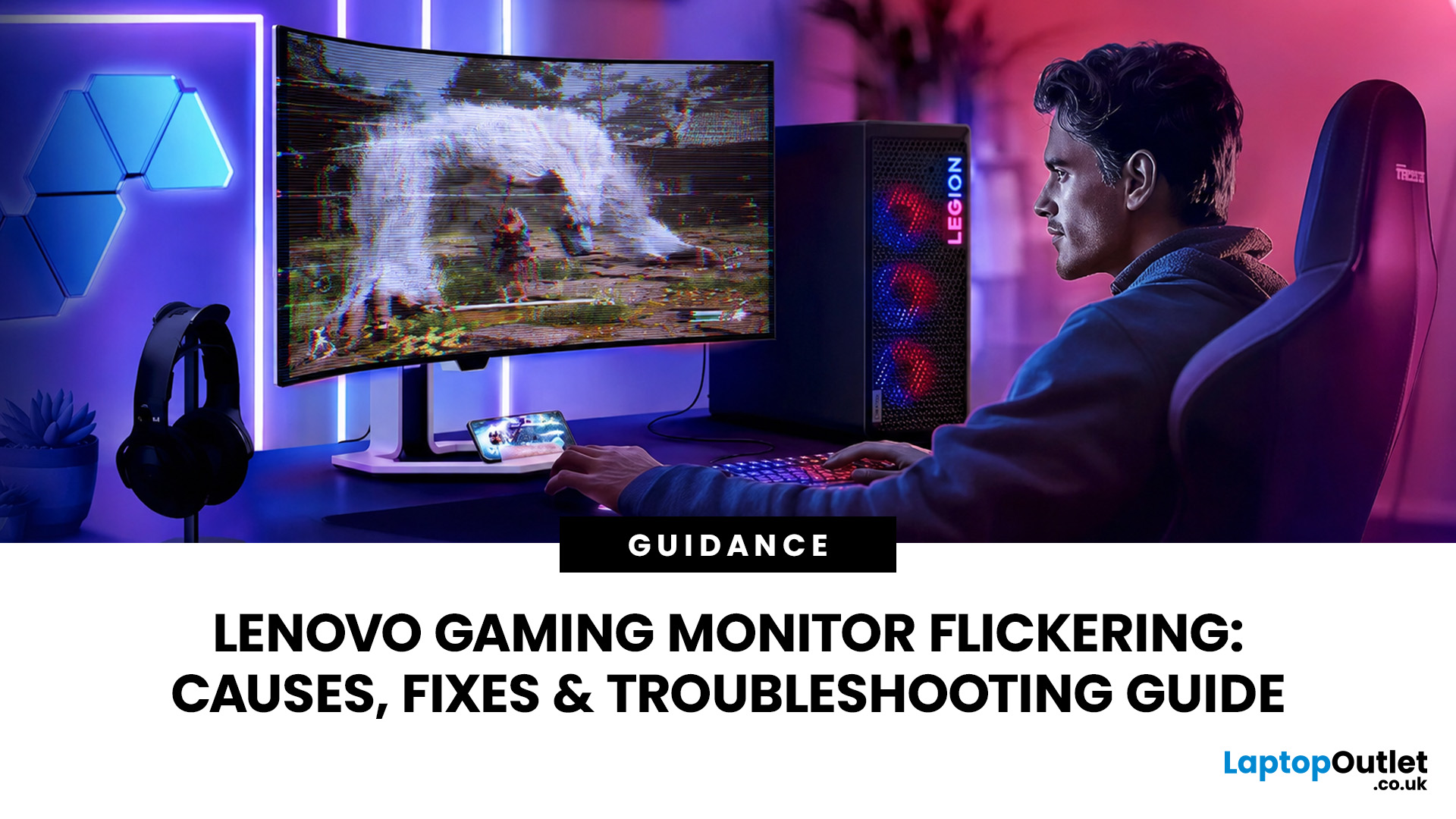
A gaming screen that flashes, pulses or briefly turns black can make a reliable PC feel faulty. However, Lenovo monitor flickering does not automatically mean the panel has failed. The problem may sit anywhere between the game, graphics driver, GPU output, cable, dock and monitor settings. This guide takes you through the most effective fixes in a practical troubleshooting order.
Is It Flickering or Another Screen Problem?
Several display faults are described as flickering even though they need different fixes. Identifying what you can actually see helps you avoid changing settings that were already correct.
|
Screen problem |
What it looks like |
Common source |
First check |
|
Flickering |
Rapid flashing or brightness changes |
Cable, driver, display mode, VRR or hardware |
Lower the refresh rate and test another cable |
|
Screen tearing |
A horizontal split across moving images |
Frames and refresh cycles are not synchronised |
Test V-Sync or adaptive sync |
|
Stuttering |
Uneven or jerky motion |
Inconsistent frame times or system performance |
Check frame-rate stability |
|
Ghosting |
Dark or smeared trails behind moving objects |
Slow pixel response or insufficient overdrive |
Try a moderate overdrive setting |
|
Inverse ghosting |
Bright or coloured trails around moving objects |
Excessively aggressive overdrive |
Reduce the overdrive setting |
|
Artefacts |
Dots, blocks, lines or corrupted textures |
GPU, video memory, driver or signal corruption |
Test another display |
|
Signal drop-out |
The screen briefly turns black and reconnects |
Cable, port, dock or bandwidth limitation |
Change the connection |
|
Backlight pulsing |
Brightness changes while the image remains visible |
Power instability, backlight behaviour or strobing modes |
Disable MPRT or motion blur reduction and open the OSD |
The same distinction applies to flat screens and curved monitors for gaming. Curvature itself does not normally create flicker.
Why Is My Lenovo Gaming Monitor Flickering?
Most cases originate from the connection, display mode, adaptive-sync system, software or monitor hardware. Gaming can expose these weaknesses more readily because high refresh rates, HDR, and variable frame rates increase signal and processing demands.
Cable, Port or Bandwidth Problems
A cable can be marginal without being completely broken. It may work normally at 60Hz but begin flashing or losing signal when the monitor runs at QHD or 4K with a higher refresh rate.
The latest Ultra HD gaming monitors require more connection bandwidth when high refresh rates, HDR and increased colour depth are combined. An unsuitable cable, limited port, adapter, hub, KVM switch or dock can prevent the connection from carrying this data consistently.
Unsupported Resolution or Refresh Rate
Monitor flickering can occur when the selected resolution and refresh rate are not fully supported by the monitor, graphics card or connection being used.
A refresh rate may appear as an available option in Windows but still become unstable when combined with a particular cable, port, adapter, HDR setting or colour depth. This is especially relevant to 4K and QHD display monitors running at 165Hz, 240Hz or another high refresh rate.
Custom timings and monitor overclocking can also push the display beyond its stable operating range. Port capabilities may differ as well, meaning an HDMI connection and a DisplayPort connection may not support the same maximum settings.
FreeSync, G-SYNC and Variable Refresh Rate
Variable refresh rate, or VRR, adjusts the monitor’s refresh timing to follow the GPU’s frame delivery. AMD FreeSync and NVIDIA G-SYNC are designed to reduce tearing and stuttering. Some FreeSync displays also support Low Framerate Compensation, which helps maintain smoother VRR operation when performance falls below the monitor’s minimum VRR range.
Flicker can become more noticeable when frame rates change sharply or repeatedly move around the lower end of the monitor’s VRR range. This commonly happens during loading screens, game menus and graphically demanding scenes.
The behaviour may also depend on the game, graphics driver, monitor firmware, and whether the content is running in full-screen or borderless-window mode. For the wider performance trade-off, see our guide to 144Hz vs 165Hz vs 240Hz Lenovo gaming monitors.
Driver, Windows or Application Conflicts
Windows 11 screen flicker is commonly associated with a display-driver problem or an incompatible application. A corrupted, outdated or unstable graphics driver can affect how the GPU communicates with the monitor.
The issue may also begin after a graphics-driver or Windows update. Game overlays, capture tools, performance-monitoring utilities, and hardware acceleration can interfere with display output in certain applications.
When flickering occurs only in one game, browser or program, the application itself is more likely to be involved than the monitor panel.
Power or Monitor Hardware Faults
A loose power connector, damaged power adapter or unstable extension lead can interrupt the monitor’s power supply, resulting in brightness pulsing, flashing or temporary blackouts.
Internal faults can produce similar symptoms. Possible causes include a failing backlight, input board, power board, panel controller or display panel.
Hardware failure becomes more likely when flickering appears in the monitor’s on-screen display (OSD), continues without a video signal or occurs across several devices and connections. Monitors can also retain dangerous electrical charge internally, so the casing should never be opened by an unqualified user.
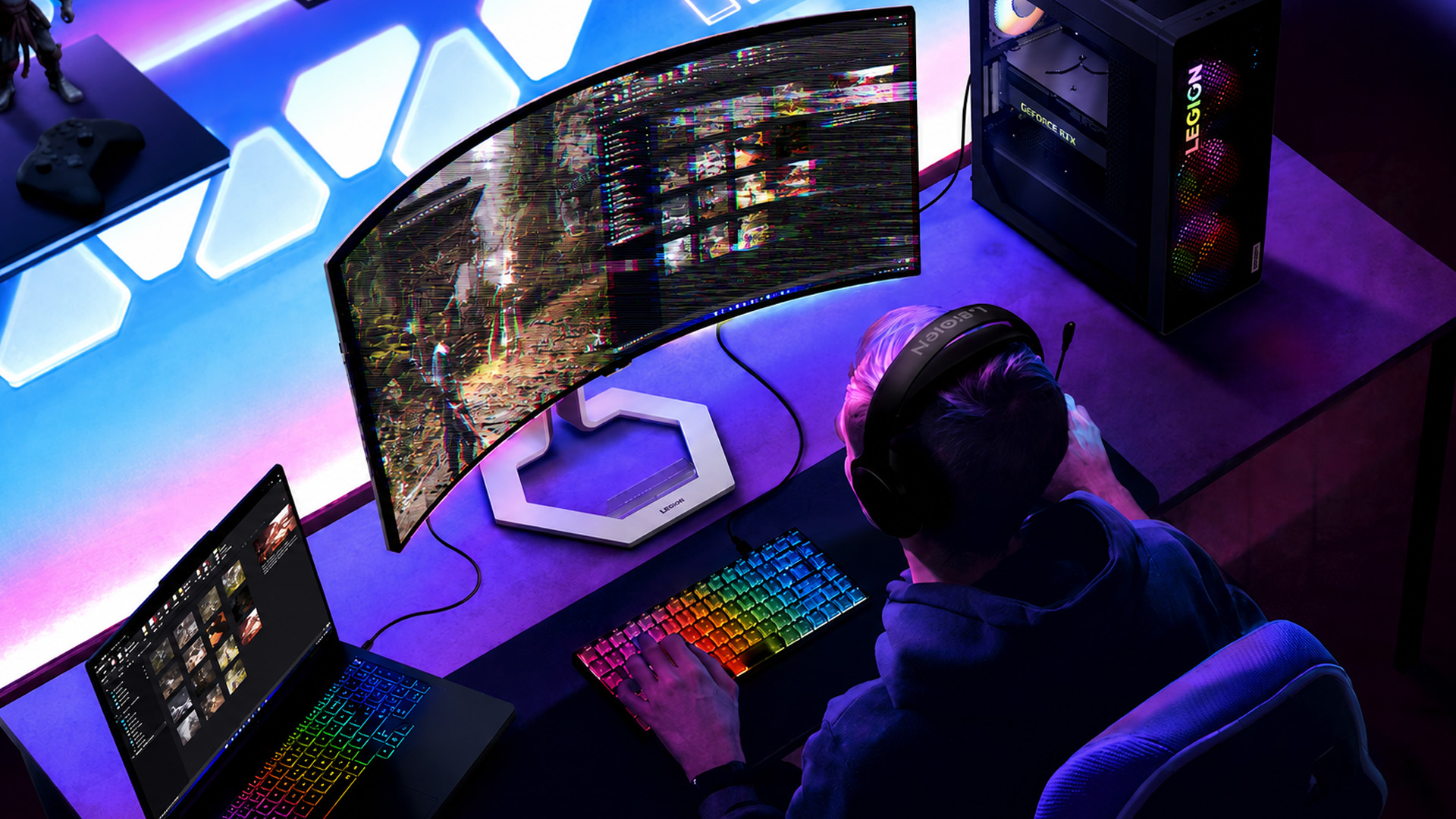
How to Fix Lenovo Monitor Flickering Issues
Start with reversible checks and test after each one. Firmware updates and professional repair should come later, once connection and settings faults have been ruled out.
1. Reset the Graphics Driver
Press the Windows key + Ctrl + Shift + B. The screen may briefly blink while Windows resets the graphics driver.
This does not update, remove or reinstall the driver. It only clears certain temporary display-driver faults.
2. Power-Cycle the Monitor and PC
Shut down the computer and switch off the monitor. Disconnect the monitor’s power and video cables for about one minute, then reconnect them firmly.
3. Test the Cable and Ports
Use a known-good HDMI or DisplayPort cable suitable for the target resolution and refresh rate. Try another monitor input and graphics-card output.
Remove adapters, conversion cables, docks and KVM switches. Do not assume a cable is healthy merely because it produces an image at a lower setting.
Connect the Lenovo monitor to another computer, laptop or console if possible. You should also test the original computer with another display. If the monitor flickers with several source devices, the monitor or its power supply becomes a stronger suspect. If another display also flickers on the original computer, investigate the graphics driver, GPU or dock.
4. Use a Stable Display Mode
Open Settings > System > Display > Advanced display. Choose the correct monitor, select its native resolution and test 60Hz, 120Hz or another standard supported rate before returning gradually to 144Hz, 165Hz or 240Hz.
Port and refresh-rate capabilities differ across premium to affordable Lenovo Legion gaming monitors. Check the exact product guide rather than assuming every port supports the advertised maximum refresh rate. Disable custom timings and monitor overclocking during diagnosis.
5. Test FreeSync, G-SYNC and Adaptive Sync
Disable Adaptive Sync in the OSD and FreeSync or G-SYNC in the GPU software. Retest the game in full-screen and borderless-window modes.
If the image stabilises, re-enable adaptive sync and test a sensible frame-rate cap. Change one setting at a time. NVIDIA describes G-SYNC as VRR technology designed to reduce tearing and stuttering, and provides a database of validated monitors and supported ranges.
6. Reset HDR, Overdrive and OSD Settings
Turn off HDR, disable MPRT, motion blur reduction or other backlight-strobing modes, and return overdrive to Normal or Medium. Disable monitor overclocking during testing.
Overdrive usually affects pixel response. Too little overdrive may produce dark or smeared ghosting, while excessive overdrive may create bright or coloured inverse ghosting. MPRT and similar motion blur reduction modes deliberately pulse the backlight, which some users may perceive as flickering.
If several monitor settings have been changed, reset the monitor to its factory defaults. Restore the refresh rate, adaptive sync, HDR, overdrive and motion settings individually, testing the screen after each change.
7. Update, Roll Back or Reinstall Drivers
If the issue began after an update, use Device Manager > Display adapters > Properties > Driver > Roll Back Driver, where available. Microsoft also recommends updating or rolling back display drivers when investigating unstable screens.
Otherwise, install the correct GPU driver. For Lenovo computers, follow the Lenovo UK driver installation guidance, which covers product detection, manual selection and Lenovo update tools.
Do not treat a BIOS update as a universal monitor fix. Install BIOS, monitor or dock firmware only when Lenovo provides a relevant update for the exact model.
8. Check Task Manager and Application Conflicts
Press Ctrl + Shift + Esc to open Task Manager while the screen is flickering. If Task Manager flickers with the rest of the display, the graphics driver is more likely to be involved. If Task Manager remains stable while another application flickers, investigate that application instead.
Close game overlays, capture software, RGB utilities and performance-monitoring tools. Temporarily disable hardware acceleration in the affected browser or application, then restart it and test the display again.
9. Isolate Docks and Multiple Monitors
Connect the monitor directly and disconnect additional displays. If the flicker stops, reconnect one component at a time.
Lenovo has documented external-display flickering with some dock, HDMI and DisplayPort combinations. Use only model-specific dock firmware and instructions.
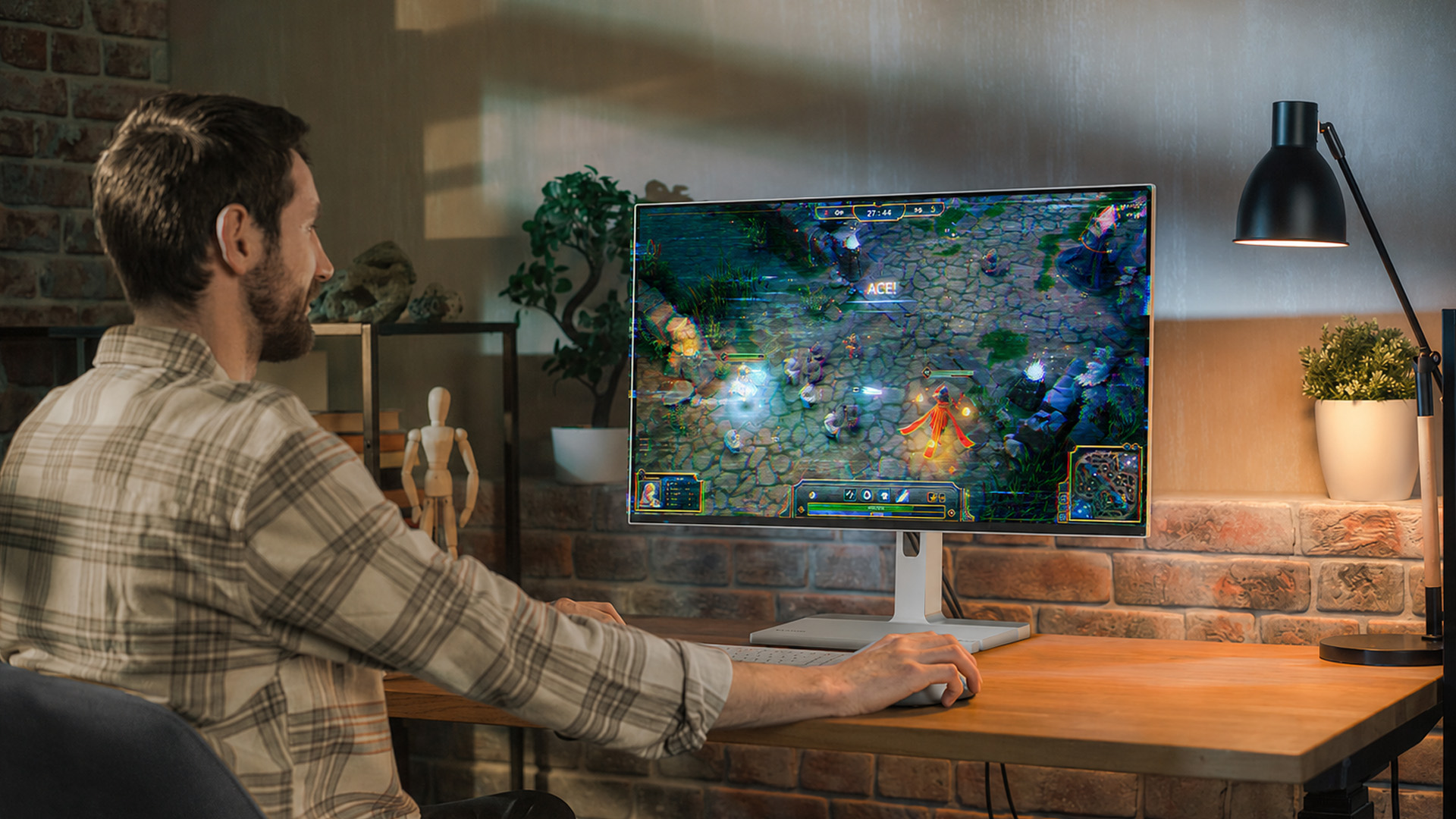
How to Prevent Future Flickering
Not every hardware failure is preventable, but stable connections and controlled software changes make problems less likely and easier to trace. Keep a note of working settings before changing drivers or display modes.
- Use a cable rated for the required resolution and refresh rate.
- Avoid unsupported custom timings and monitor overclocking.
- Record the previous working GPU driver before updating.
- Change one setting or application at a time.
- Keep monitor and PC ventilation clear.
- Avoid pulling or sharply bending cables.
- Replace damaged power strips and extension leads.
- Keep frame rates within a sensible adaptive-sync range.
- Retain the receipt, serial number and warranty details.
- Download firmware only for the exact model.
When to Contact Lenovo Support or Replace the Monitor
Contact Lenovo when the problem remains after testing another cable, port and source device, especially if the OSD or no-signal screen also flickers.
Seek support when:
- The screen flickers with several devices and cables.
- The OSD menu flickers.
- The fault appears before Windows loads.
- Inputs repeatedly disconnect.
- Lines, colour corruption or brightness pulses persist.
- The monitor produces unusual heat, noise or smell.
- Physical damage is visible.
- The fault is getting worse.
- The product may still be under warranty.
Stop using the monitor if there is a burning smell, smoke, sparking or excessive heat. Do not attempt an internal repair.
Check cover through Lenovo UK Warranty Lookup, then use Lenovo UK Contact Support or an authorised provider. Lenovo offers warranty checking, troubleshooting and repair routes based on the product and serial number.
When replacement is more economical, compare the best Lenovo desktop monitors based on resolution, refresh rate, ports and adaptive-sync support. Our 2026 guide to the best Lenovo gaming monitors for streaming and esports is worth browsing to find top models in one place

Know When to Fix or Contact Lenovo
Lenovo monitor flickering can originate from a cable, unstable or incompatible display mode, adaptive-sync behaviour, graphics software, a dock or internal hardware. Start with the connection, native resolution and a lower refresh rate, then isolate HDR, VRR, drivers and applications one at a time.
Testing another cable and source device is more useful than changing several settings together. If the OSD flickers, the problem appears before Windows loads, or the fault continues across multiple devices, check the warranty and contact Lenovo rather than opening the monitor or repeatedly reinstalling software.

Just So You Know...
Why does my Lenovo monitor flicker at 144Hz or 165Hz?
A higher refresh rate may expose cable bandwidth, port, timing or monitor-overclock limitations. Test a known-good cable and reduce the display to a lower supported rate. If it stabilises, verify that the monitor, GPU and connection support the preferred mode.
Why does my Lenovo gaming monitor flicker only in games?
Game-only flicker often relates to variable refresh rate, sudden frame-rate changes, overlays, full-screen mode or a driver profile. Test another game, disable adaptive sync temporarily and compare full-screen with borderless mode before suspecting panel failure.
Can an HDMI or DisplayPort cable cause monitor flickering?
Yes. Monitor flickering with DisplayPort or HDMI may occur when a cable is loose, damaged or unsuitable for higher resolutions, refresh rates, HDR or colour depth. Replace it with a known-good cable and test another monitor and graphics-card port.
Can FreeSync or G-SYNC cause screen flickering?
Flicker may appear when frame rates change rapidly or pass through parts of a monitor’s variable-refresh range. Disabling adaptive sync is a useful test, but it may allow tearing to return, so treat it as diagnosis rather than an automatic final fix.
How do I know if my Lenovo monitor needs replacing?
Replacement becomes more likely when the OSD flickers, the fault occurs with several cables and devices, or Lenovo confirms a panel, backlight, input-board or power fault. Check warranty cover before arranging paid repair or buying another monitor.
Can I fix a flickering screen myself?
Yes. Many cases can be fixed at home by reseating or replacing the display cable, lowering the refresh rate, disabling adaptive sync temporarily, resetting the graphics driver or updating and rolling back drivers.
| Read More: |
| Best OLED Gaming Monitors to Buy in 2026 |
| Monitor Buying Guide: How to Choose the Right Resolution & Refresh Rate |
| What is HDR on a Monitor? Everything You Need to Know |
Related Articles

Last Updated: April 14, 2026
Choosing the right monitor can genuinely change how you play. Whether you’re grinding ranked matches, competing in esports, or just kicking back on your console, your display has a direct impact on performance, clarity and overall experience.
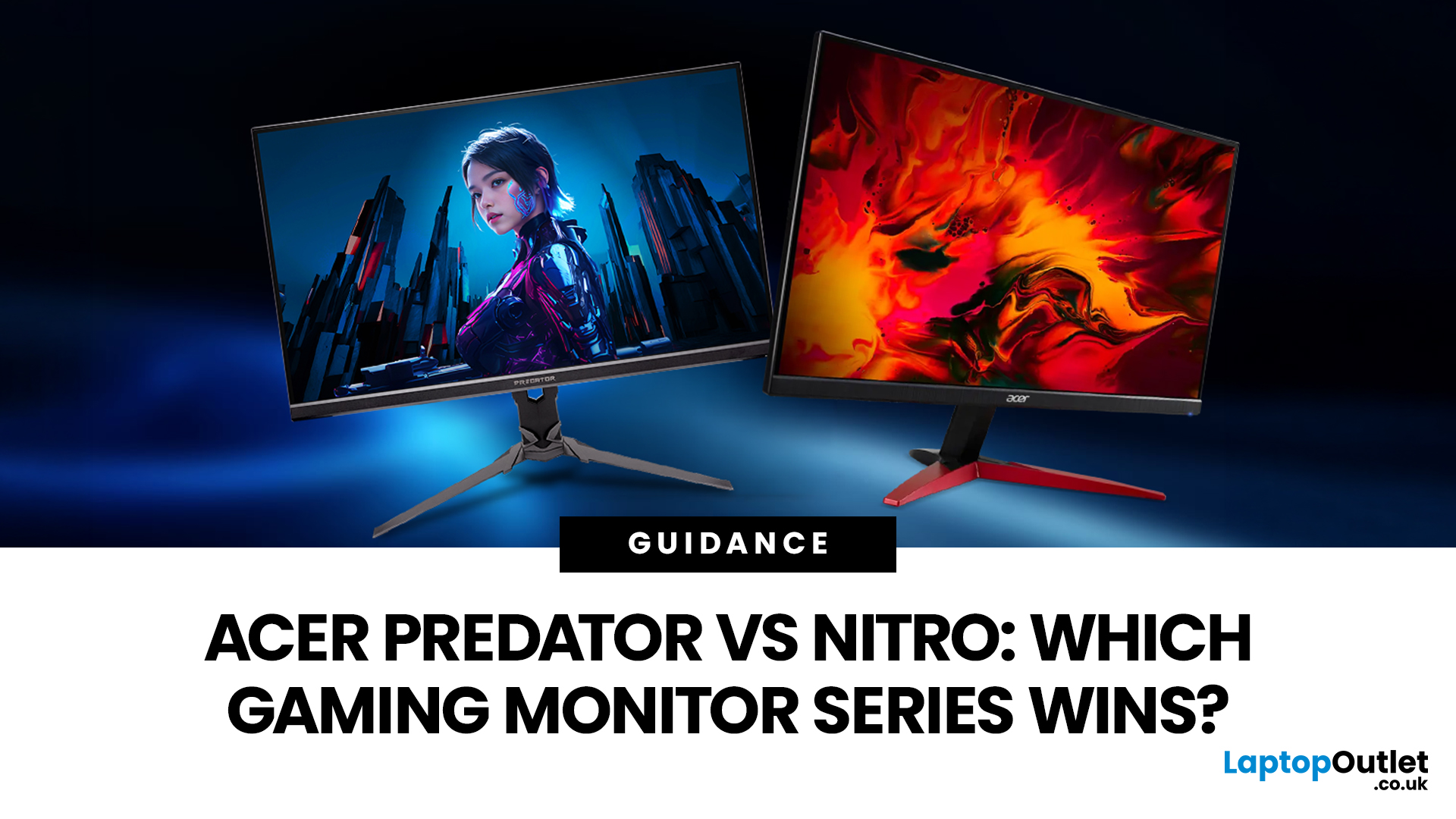
That’s where BenQ gaming monitors stand out. Known for precision engineering and gamer-first features, BenQ offers two standout ranges: ZOWIE and MOBIUZ. But when it comes to BenQ gaming monitors ZOWIE vs MOBIUZ, which one is right for you? Let’s break it down in a way that makes sense for how you play.
BenQ Gaming Monitors Explained
BenQ doesn’t take a one-size-fits-all approach to gaming. Instead, it splits its lineup into two clearly defined categories:
- BenQ ZOWIE esports monitors – built purely for competitive performance
- BenQ MOBIUZ gaming monitors – designed for immersive, all-round gaming
ZOWIE is about speed, precision and winning. MOBIUZ is about visuals, versatility and enjoying the full gaming experience. Both are excellent, but they serve
Last Updated: April 06, 2026
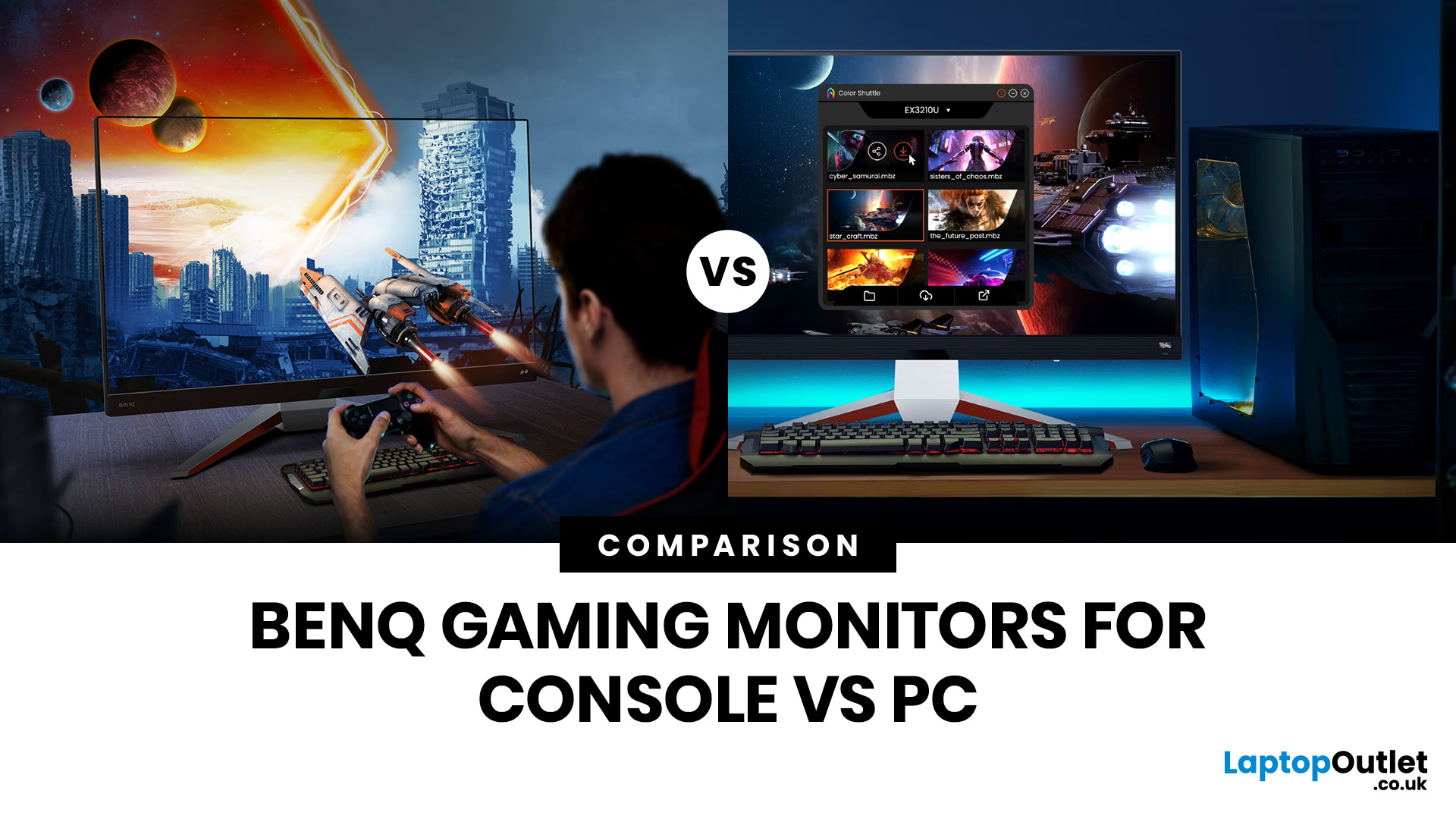
If you are comparing Acer Predator vs Nitro, you are likely at a point where a standard monitor no longer cuts it. Maybe you are upgrading your setup, moving into competitive gaming, or simply trying to get better value for your money.
Acer has made this decision slightly more complex by offering two strong Acer gaming monitor ranges that, at first glance, seem similar. Both support high refresh rates, both look like gaming displays, and both are widely available across the UK.
But once you dig deeper, Predator and Nitro are built for very different types of users. This guide breaks it down properly. No fluff, no brand hype, just a clear explanation of what matters when you are choosing between them.
Why Acer Splits Predator and Nitro in the First Place
Before comparing specs, it helps to understand Acer’s thinking. The company is not just offering two versions of the same product. These are two separate strategies:
- Predator is where Acer pushes performance, display innovation, and premium
Last Updated: April 14, 2026
Picking the right gaming monitor is no longer as simple as choosing the biggest screen you can afford. Your setup matters, your platform matters, and the way you play matters even more. A monitor that feels perfect for a competitive PC player might not be the best fit for someone gaming on a PS5 or Xbox Series X.
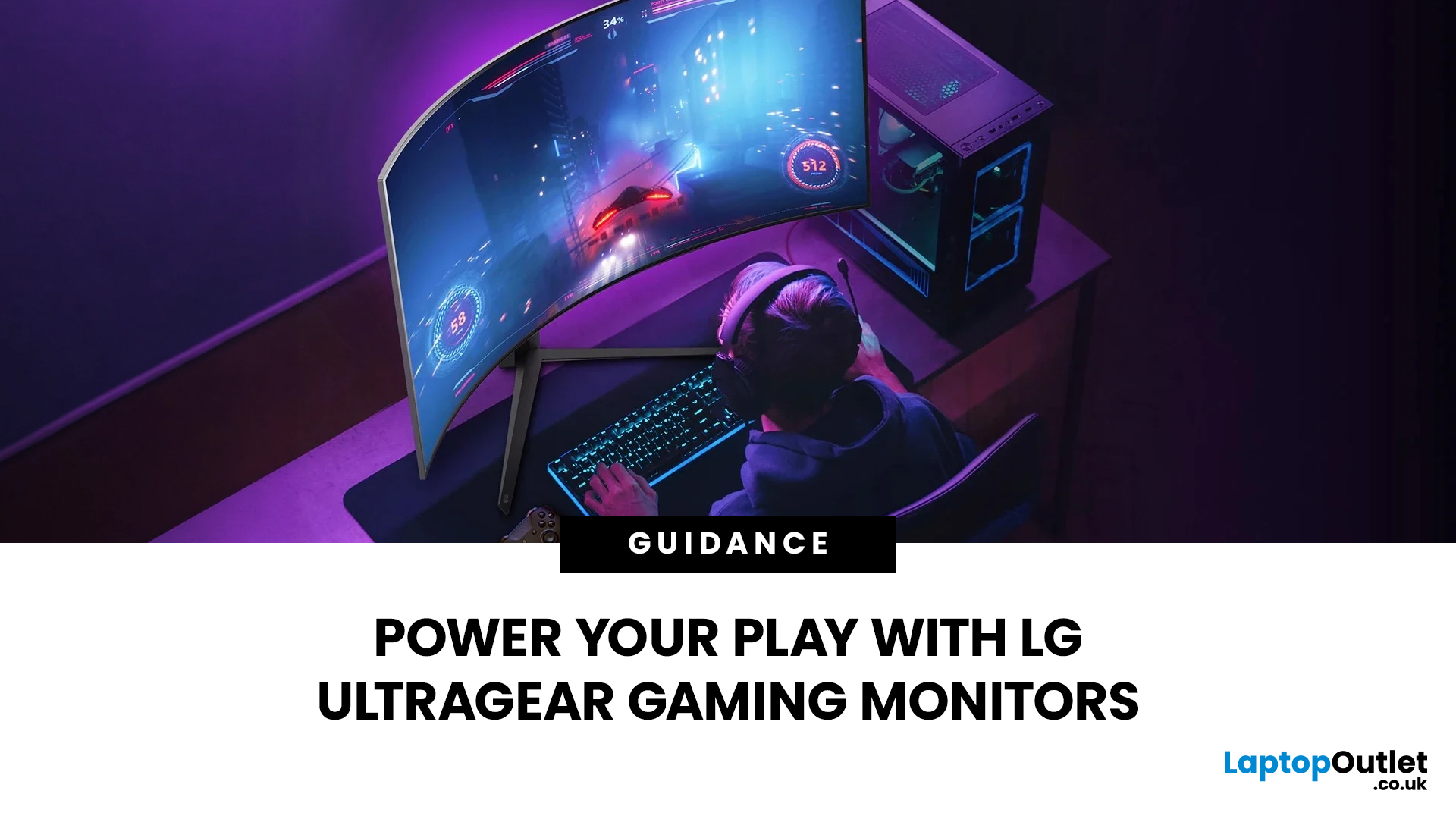
That’s exactly why choosing the right BenQ gaming monitor for console or PC comes down to more than specs on a product page. You need to think about refresh rate, resolution, connectivity and whether you care more about raw speed or immersive visuals.
BenQ makes that decision easier by offering two clear gaming monitor families. ZOWIE is built for fast, focused competitive PC play, while MOBIUZ is designed for players who want strong performance with more visual depth and better console-friendly features. If you’ve been stuck comparing 1080p, 1440p and 4K, this guide breaks it all down in a way that helps.
Do Console and PC Gamers Need Different BenQ Monitors?
Console and PC
Last Updated: September 01, 2026
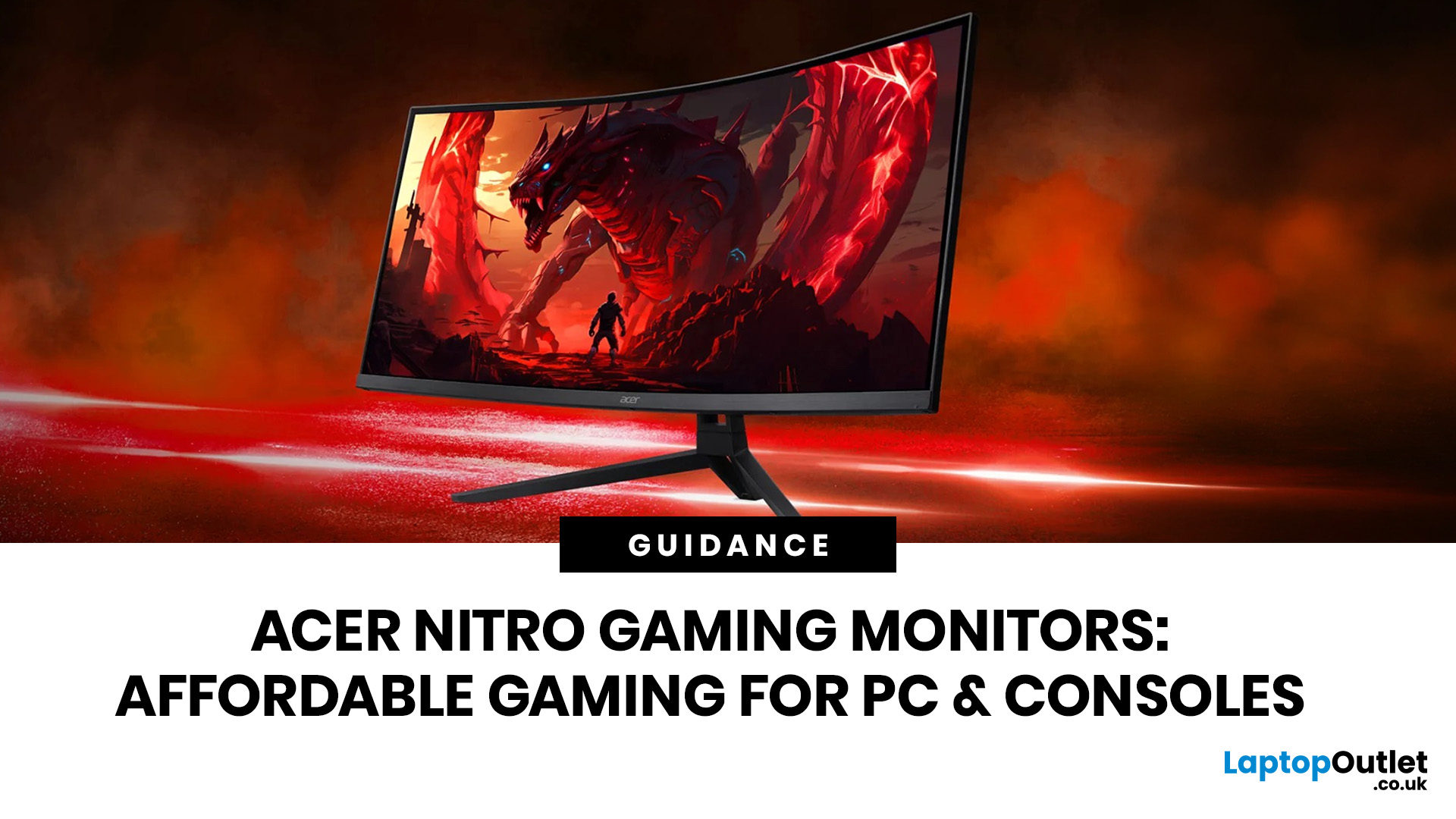
Not all gaming monitors are built the same, and the LG UltraGear range makes that very clear. Whether you're playing for fun on weekends, grinding ranked matches on a mid-range rig, or competing at a serious level, there's a specific UltraGear model that fits your needs.
This LG UltraGear guide breaks down the full lineup by player type so you can make a genuinely informed decision before spending your money.
What Makes LG UltraGear Different from Standard LG Monitors?
LG produces monitors for all sorts of uses, from office work to content creation to home cinema. UltraGear is the gaming-focused sub-brand, and it comes with a noticeably different spec sheet compared to LG's standard displays.
The core differences come down to priorities. Standard LG monitors are built around colour accuracy, ergonomics, and value for office use. UltraGear monitors are tuned for speed, responsiveness, and visual clarity under fast-moving gaming conditions.
In practical terms, this means LG UltraGear gaming
Last Updated: September 01, 2026
If you want smooth gameplay without jumping straight into premium OLED pricing, Acer Nitro gaming monitors are one of the easiest ranges to shortlist. Acer positions the Nitro line as a gaming family with options for fast-paced play, ultrawide immersion and richer colour, while Our Acer monitor range backs that up with Full HD, QHD, curved and ultrawide Nitro models aimed at buyers who want value, not just spec-sheet flexing.
That is exactly why Acer Nitro monitors UK shoppers keep coming back to the series. The range is broad enough to cover casual desk gaming, PS5 and Xbox setups, and entry-level PC esports, but it still stays realistic on price compared with high-end Predator and OLED alternatives. Nitro models from compact 23.8-inch Full HD panels up to 34-inch curved UWQHD displays, with refresh rates running from 120Hz to 240Hz.
Are Acer Nitro Gaming Monitors Good for Budget Gaming?
Yes. For casual gaming, console play and entry-level PC builds, Acer Nitro sits in a very practical
Last Updated: July 06, 2026
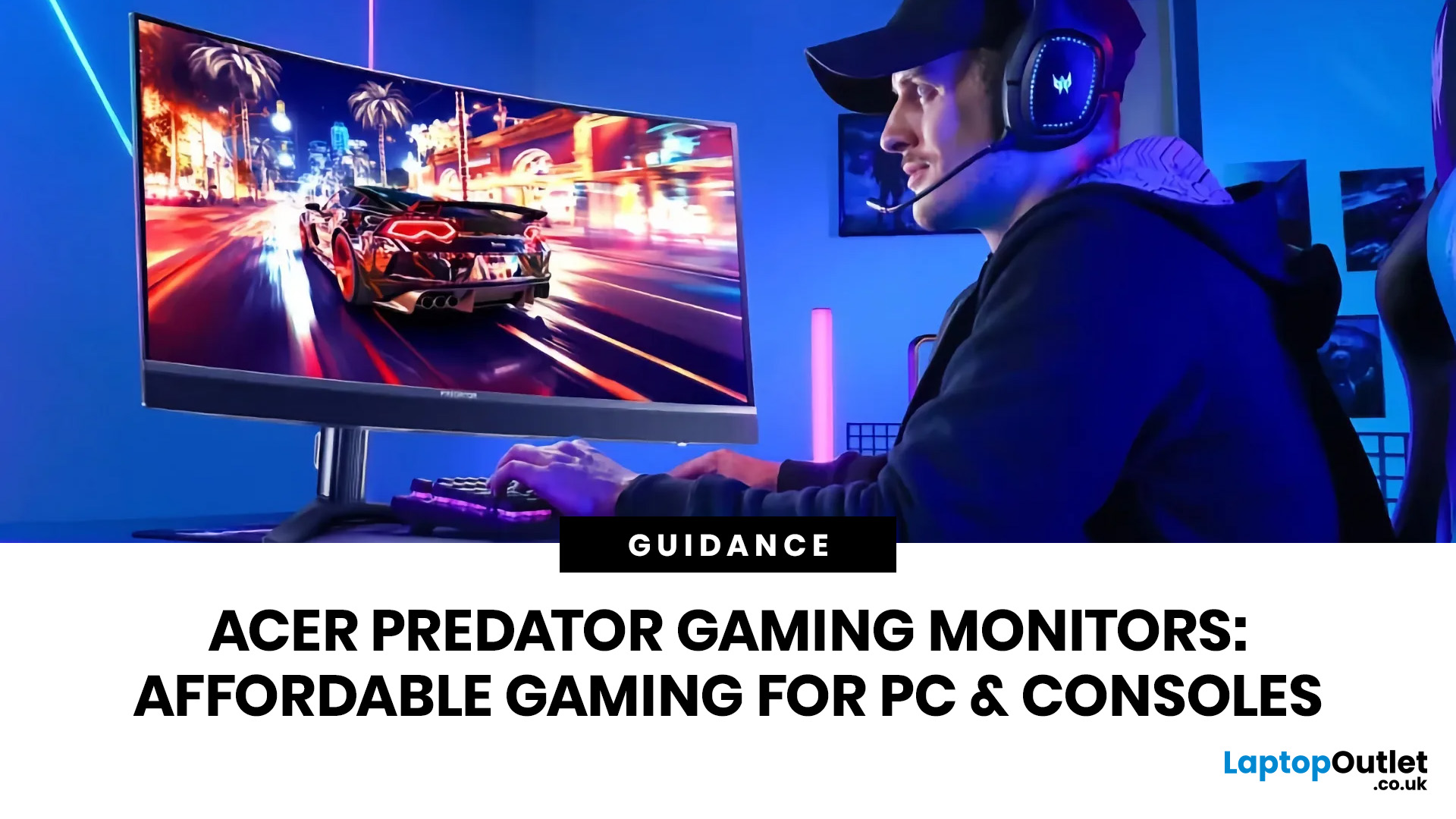
you are shopping for Acer Predator gaming monitors, you are usually not looking for a basic panel. You are looking for speed, image quality and a monitor that genuinely fits the kind of games you play. For some buyers, that means a fast 27-inch display for ranked shooters and esports titles. For others, it means a bigger 4K panel for high-detail single-player games. And for enthusiasts building the kind of setup that makes every desk photo look dramatic, it means an ultrawide or super-ultrawide screen that turns a gaming PC into the centrepiece of the room.
That is why Predator remains such an interesting range. Acer's broader monitor line covers different budgets and uses cases, but the Predator family is where Acer pushes harder on premium gaming features like OLED and QD-OLED panels, very high refresh rates, ultrawide formats and esports-level response times.
If you want the simple answer: Why choose Acer Predator monitor
Here is the short version.
- For competitive esports and fast shooters,
Last Updated: August 25, 2026
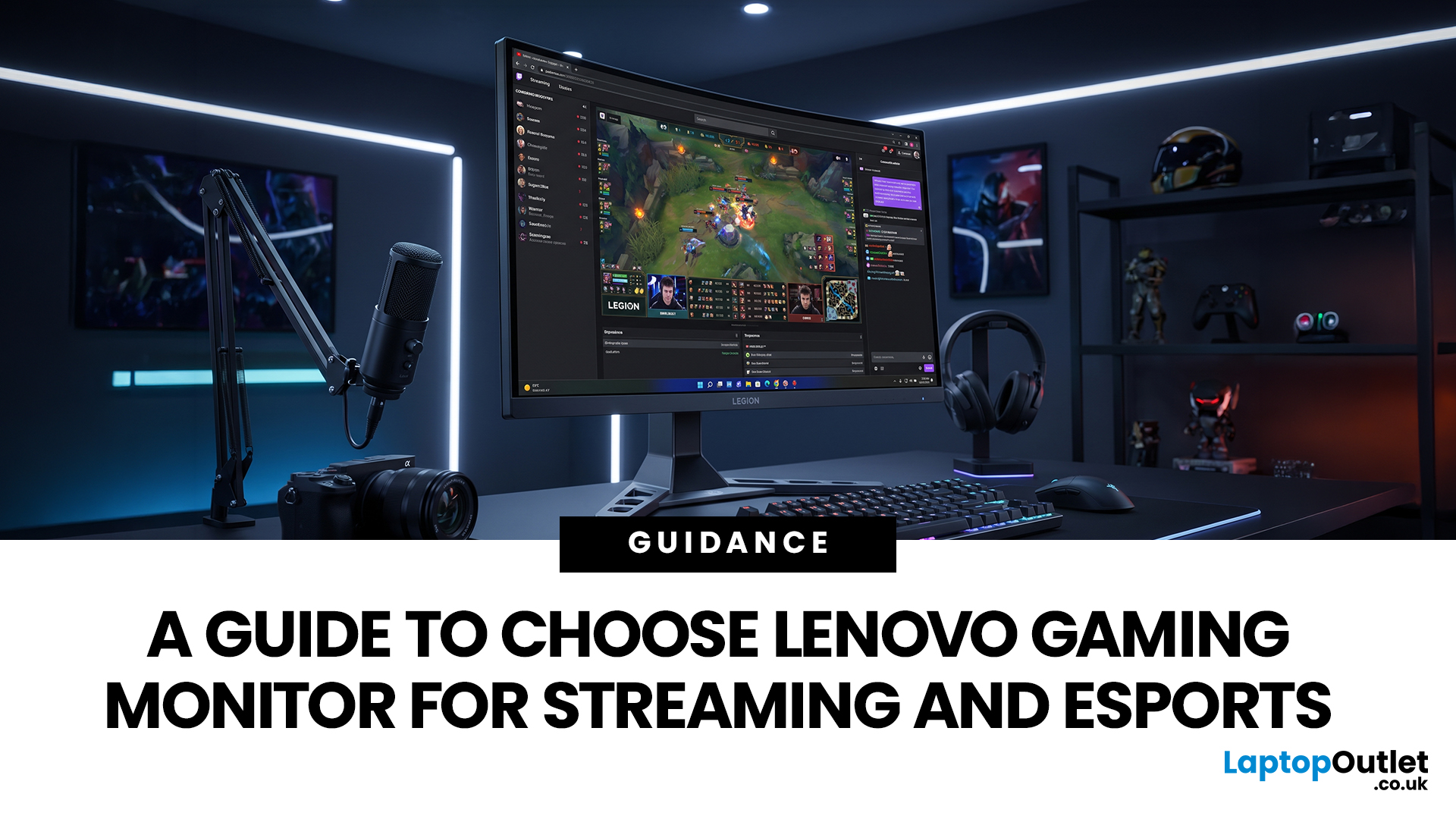
Quick answer: The best Lenovo gaming monitor for streaming and esports is the one your PC can drive consistently at its native resolution while it also handles your broadcast workflow. For many mixed-use setups, a 27-inch QHD display at 165Hz to 180Hz is the balanced choice. A 24.5-inch or 27-inch Full HD screen at 240Hz or above prioritises competitive speed, while a 34-inch UWQHD display at 165Hz to 180Hz provides more room for a single-screen streaming workspace.
Those are useful profiles, not universal rules. Your real decision depends on sustained frame rate, encoder load, game genre, desk space and whether OBS, chat and alerts live on the same display. A monitor does not encode the stream, and a 240Hz panel does not make viewers receive a 240fps broadcast. It changes the experience in front of you, which can still matter greatly during competitive play.
Last Updated: July 30, 2026
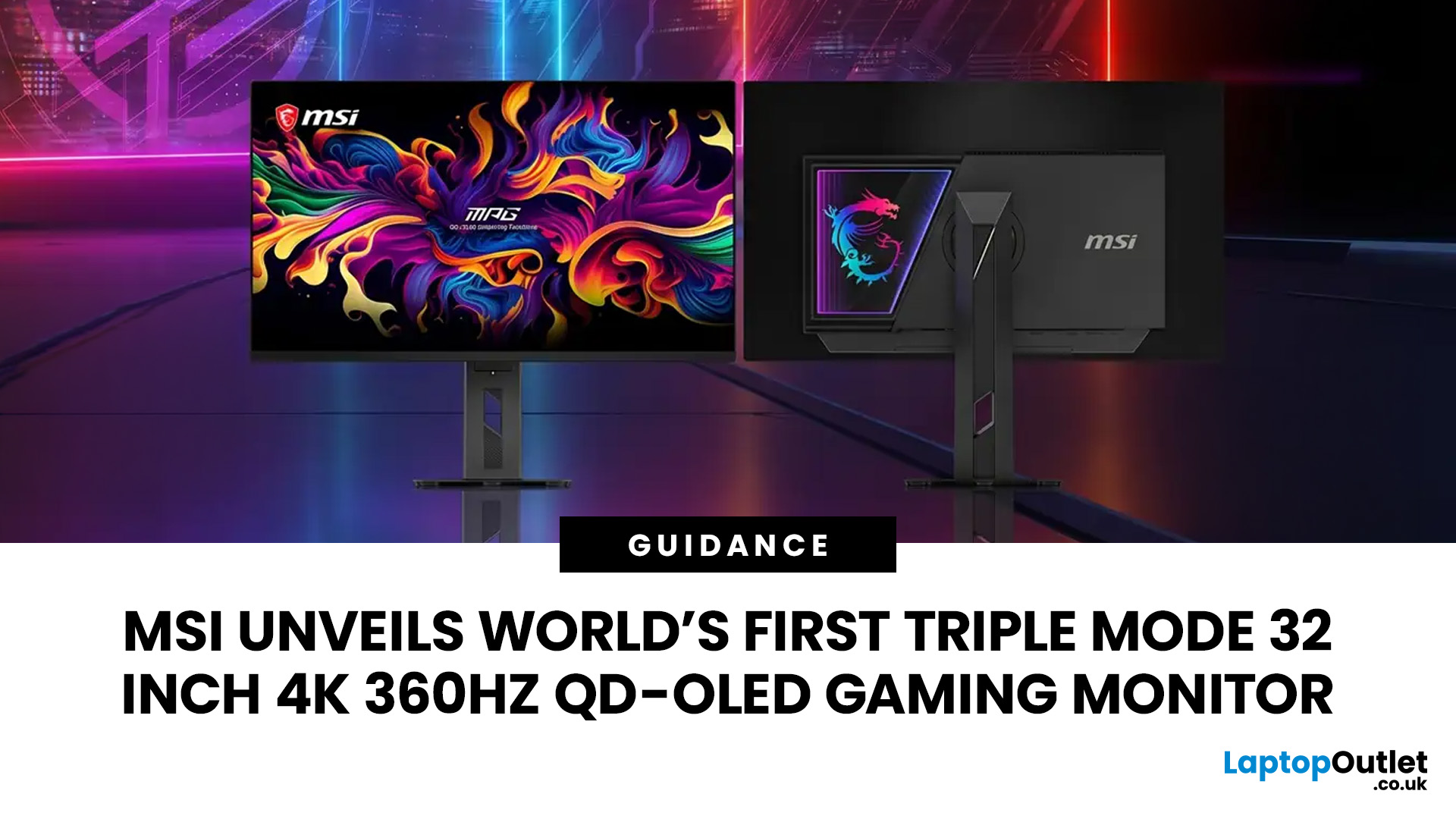
MSI has revealed a gaming monitor that sounds almost unreal on paper: a 32 inch 4K monitor with a 360Hz refresh rate, QD-OLED visuals, and a Triple Mode feature that lets gamers switch between different resolution and speed settings. Officially known as the MSI MPG OLED 322URDX36 (MSI lists the panel at 31.5 inches, though it's widely rounded to 32 inches), this display was unveiled ahead of COMPUTEX 2026 and is designed for players who want sharp 4K detail, ultra-smooth motion, and flexible performance in one premium screen.
For years, gamers had to choose between resolution and speed. A 4K monitor gave better image quality, while a lower-resolution, high-refresh-rate screen gave smoother competitive gameplay. MSI's new Triple Mode gaming monitor aims to close that gap, letting users move between 4K 360Hz, 1440p 520Hz, and Full HD 680Hz depending on the game, their hardware, and personal preference.
That makes it one of the most interesting display announcements for serious PC gamers,
Last Updated: August 11, 2026
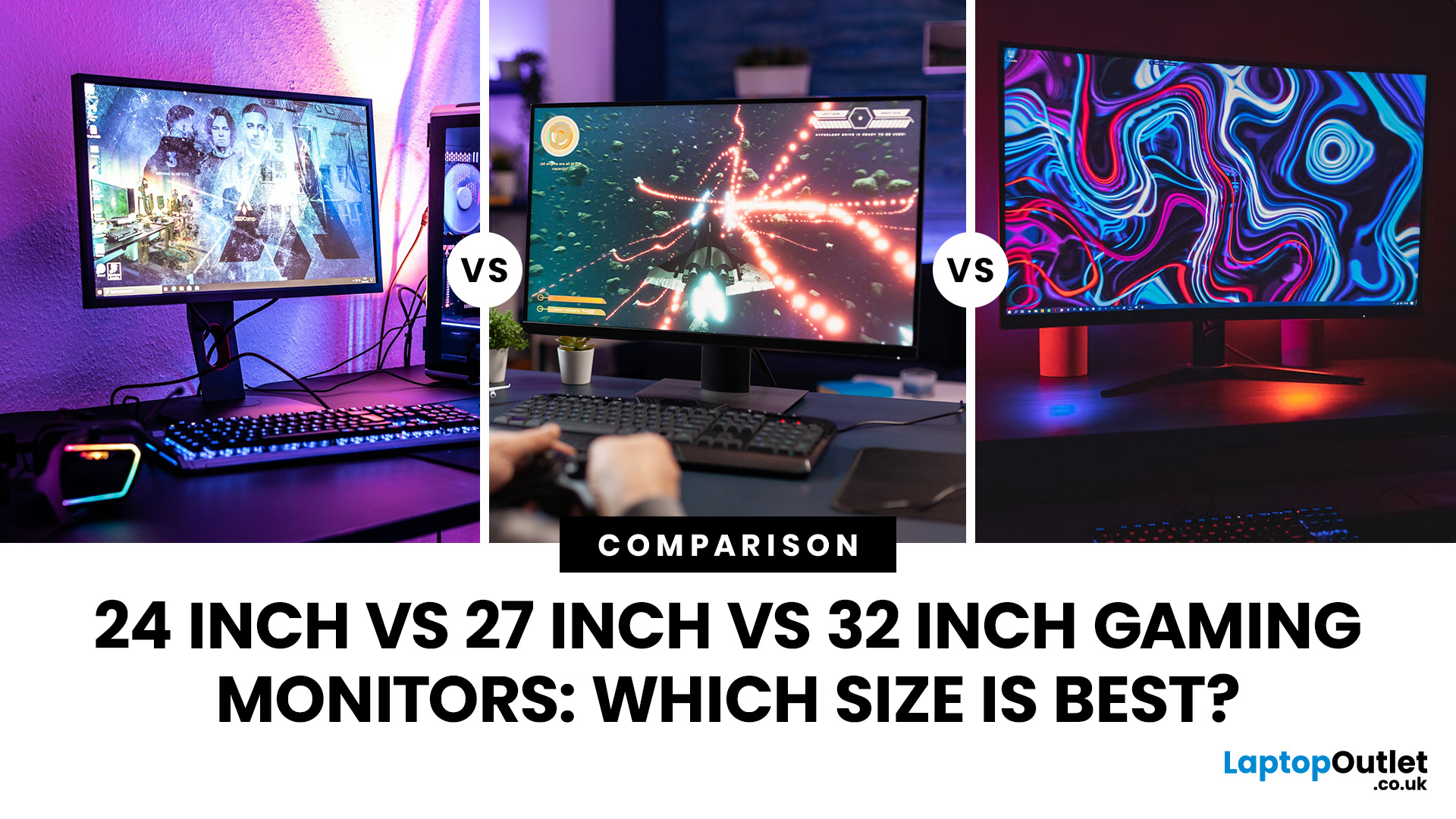
Picking the best gaming monitor size isn’t just about going big or going home. Your screen size actually changes how your games look, feel, and perform. A 24-inch setup is clutch for competitive play, a 27-inch hits that sweet spot between clarity and immersion, and a 32-inch screen? That’s where things get seriously cinematic.
Size alone isn’t the whole story. Resolution, desk space, refresh rate, and what you actually play all matter. This gaming monitor size comparison breaks down 24, 27, and 32-inch displays so you can find your perfect match.
24 Inch vs 27 Inch vs 32 Inch Gaming Monitors: Quick Comparison
The following table provides a quick overview of how the three most popular gaming monitor sizes compare.
| Feature | 24-Inch Monitor | 27-Inch Monitor | 32-Inch Monitor |
| Recommended resolution | 1920 × 1080 | 2560 × 1440 | 2560 × 1440 or 3840 × 2160 |
| Best suited to | Competitive gaming | Mixed gaming and everyday use | Immersive and cinematic gaming |
| Typical desk requirement | Small | Medium | Large |
| Graphics |
Last Updated: October 26, 2026

