



Upgrade Your Home Setup with ASUS PCs
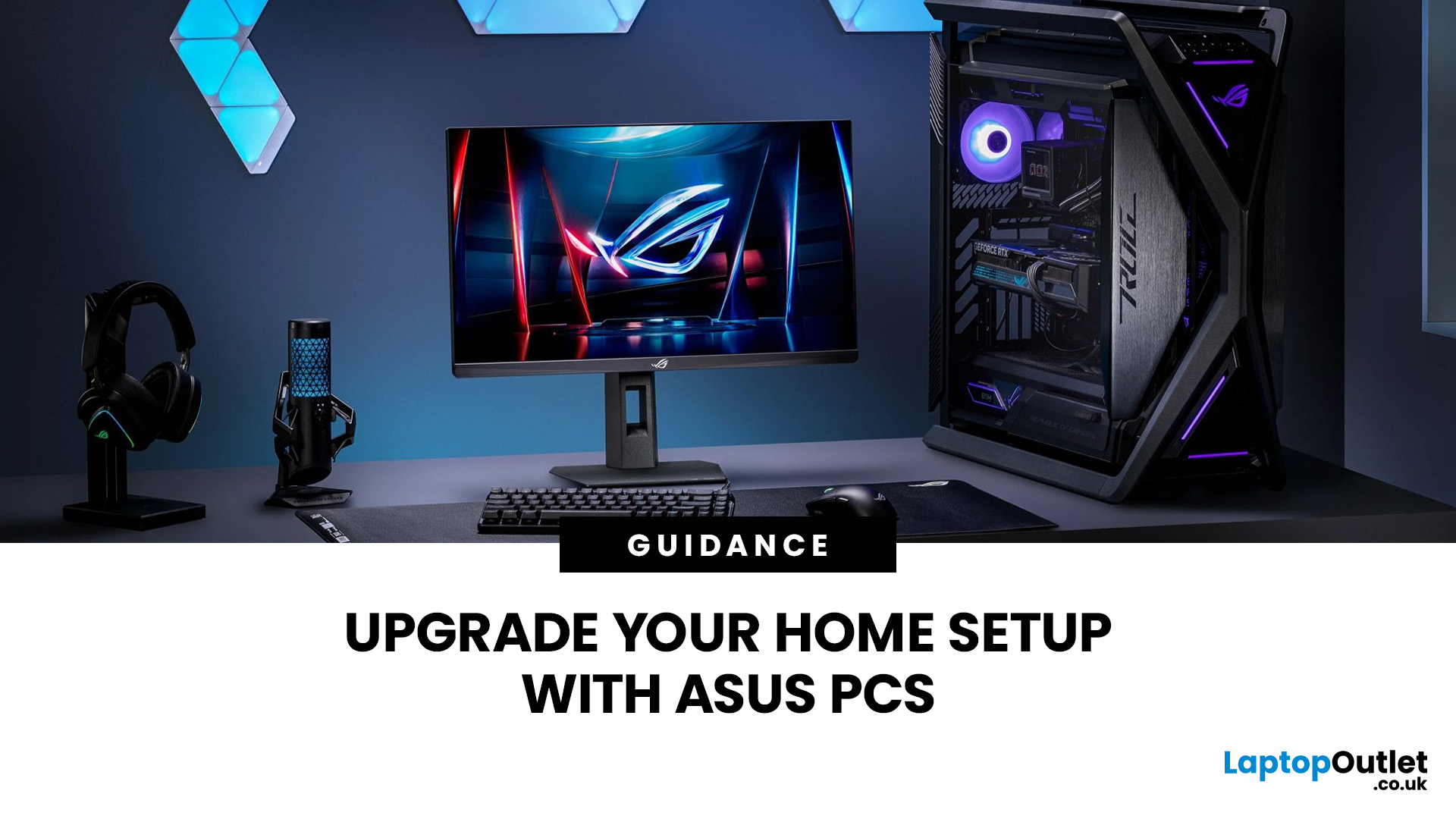
A good home PC setup is about more than processing power. The computer needs to suit how you use your space, the applications you run, the number of displays and accessories you connect, and whether the same system is shared between work, study and entertainment.
ASUS PCs can form part of many different home setups, from compact desks used for everyday computing to larger workstations for creative tasks or gaming. Understanding your own requirements first makes it easier to create a setup that is comfortable, practical and capable of handling your daily workload.
Start with How You Use Your Home PC
Before thinking about individual specifications, consider what you actually do on the computer.
A PC used mainly for browsing, emails, streaming and documents has very different requirements from one handling video editing, 3D applications or modern games. A home office may also need multiple displays and plenty of connectivity, while a shared family computer may prioritise simple everyday performance.
Think about the tasks you perform most often and whether those requirements are likely to change. Common home PC uses include:
- Web browsing, email and video calls
- Microsoft Office and productivity software
- Online learning and research
- Photo and video editing
- Coding and development
- Streaming films, TV and music
- PC gaming
- Managing photos and personal files
- Working across multiple monitors
Once the main workload is clear, decisions around processor performance, RAM, storage, and graphics become much easier.
Setting Up an ASUS PC for Home Working
A home office PC needs to remain responsive when several applications are open at the same time. A typical working day might involve a web browser with numerous tabs, Microsoft Teams or another video-call platform, email, spreadsheets and cloud-based applications running together.
RAM is particularly important for this kind of multitasking. While lighter workloads can function with less memory, 16GB provides more breathing room for modern office use and frequent multitasking. More demanding professional applications can benefit from 32GB or higher.
Your desk layout matters too. Position the PC where its ventilation is not blocked and make sure frequently used USB ports remain accessible. If the computer connects to your network through Ethernet, plan the cable route before arranging the desk permanently. Furthermore, if you are adding another display, our guide explains how to set up dual monitors and configure the screens correctly for work and everyday use.
Creating a PC Setup for Study
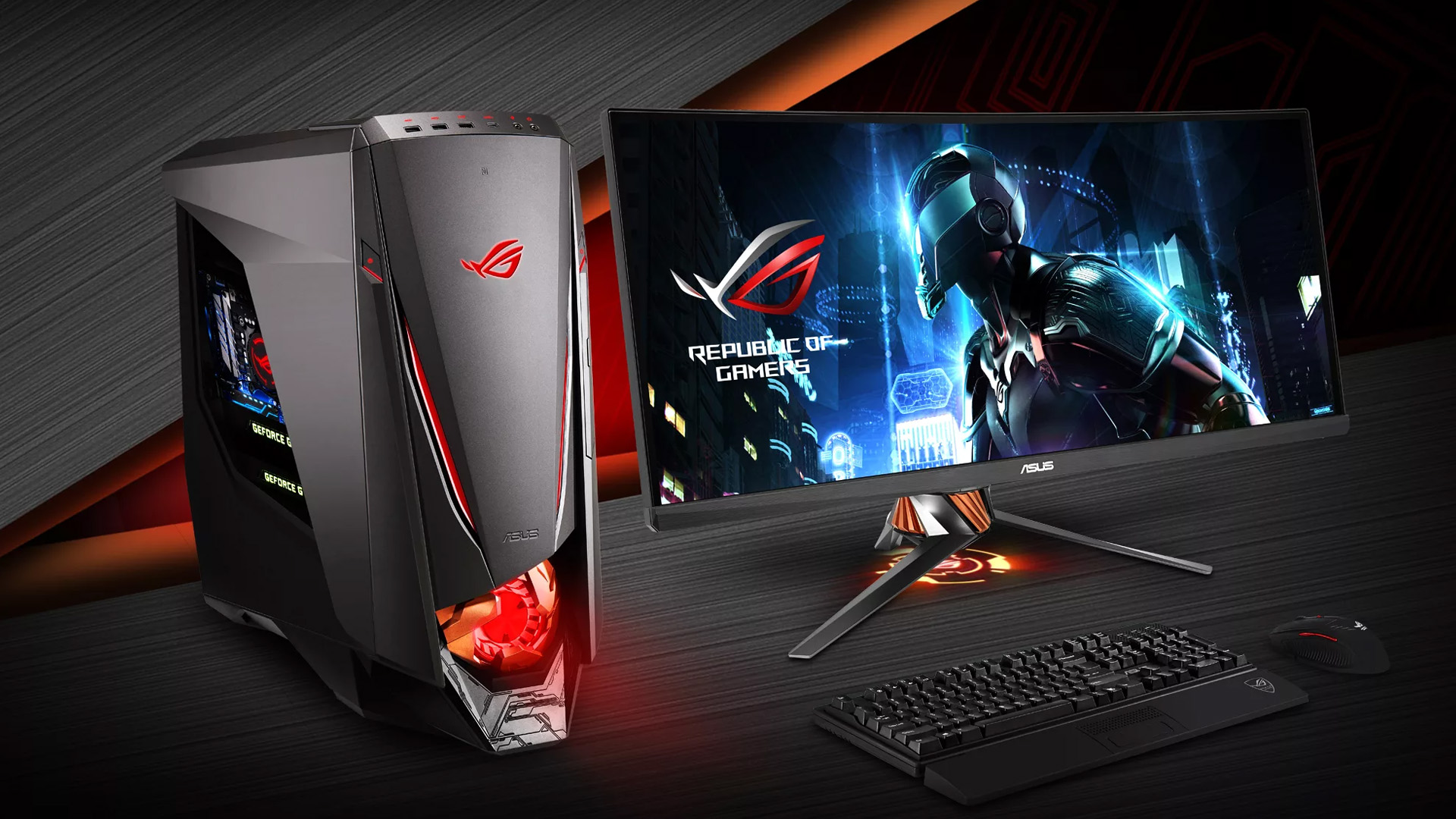
Students may use the same computer for several very different tasks during the day. Research and essay writing might be followed by an online lecture, programming session or creative project.
For general study, responsive storage and enough memory for multitasking usually matter more than high-end graphics performance. An SSD can make Windows, applications and files load more quickly than a traditional hard drive.
Course requirements can change this significantly.
Students working with engineering, architecture, animation, video production or 3D software may need more processing power, RAM or dedicated graphics. Programming itself can range from relatively lightweight coding environments to demanding development tools, virtual machines and large projects.
Using a Home PC for Entertainment
A desktop can also become part of a wider home entertainment setup.
Streaming video or music does not normally require powerful dedicated graphics, so the display and audio equipment can have a greater effect on the experience than raw PC performance. Monitor size, resolution, speakers and headphones are therefore worth considering alongside the computer itself.
If you store a large personal collection of photos, videos or media locally, storage capacity becomes more important. An external drive or network-attached storage can also provide additional space without filling the computer's internal SSD.
For a system connected to a television or positioned in a shared room, physical size and noise may become more important. Compact systems can reduce the amount of desk or cabinet space required, although their expansion options can differ from larger desktops.
Setting Up an ASUS PC for Gaming
Gaming places different demands on a PC because performance depends on several components working together.
The graphics processor has the largest influence in many games, particularly when playing at higher resolutions or using demanding visual settings. The processor is also important, especially in games that depend heavily on CPU performance or target high frame rates.
RAM and storage contribute to the overall experience as well. Modern games can take up a significant amount of storage, so available SSD capacity should be considered if you plan to keep several large titles installed.
A gaming setup also involves more than the PC itself. Consider:
- Monitor resolution and refresh rate
- Keyboard and mouse placement
- Headset or speaker positioning
- Network connection
- Desk space
- Ventilation around the system
- Cable management
Matching the monitor to the performance of the computer is particularly useful. There is little benefit in focusing on very high frame rates if the display cannot show them.
Think About the Available Desk Space
The physical layout of your room should influence how you organise a desktop setup.
Large tower systems require more space but generally have more room internally for cooling and components. Compact desktops can work well where floor or desk space is limited. All-in-one computers combine the PC hardware and display into one unit, which can reduce the number of separate devices on the desk.
Each format creates a different type of setup.
Tower PC Setups
A portable tower PC can sit on or underneath a desk, depending on the size of the case and available ventilation.
Avoid enclosing the system tightly against walls or furniture. Air needs to move through the case so that internal fans can remove heat effectively.
Tower PCs can also provide more flexibility when components need to be accessed later, although the exact upgrade options depend on the individual system.
Compact and Mini PC Setups
A compact mini PC takes up considerably less room and may be suitable for small desks, shared rooms or minimalist workspaces.
Some mini PCs can be positioned behind compatible monitors or mounted away from the main working area. This can help keep the desk clear for displays and peripherals.
The trade-off is that smaller systems usually have less internal space, so expansion and cooling arrangements can be different from those of a full tower.
For a more detailed comparison of the two formats, see our guide to Mini PC vs Tower PC.
All-in-One PC Setups
An all-in-one places the main computer components inside or behind the display.
This reduces the need for a separate desktop case and can make cable management simpler. However, because the components are integrated into a smaller enclosure, upgrade options may be more limited than with some tower systems.
How Much RAM Does a Home PC Need?
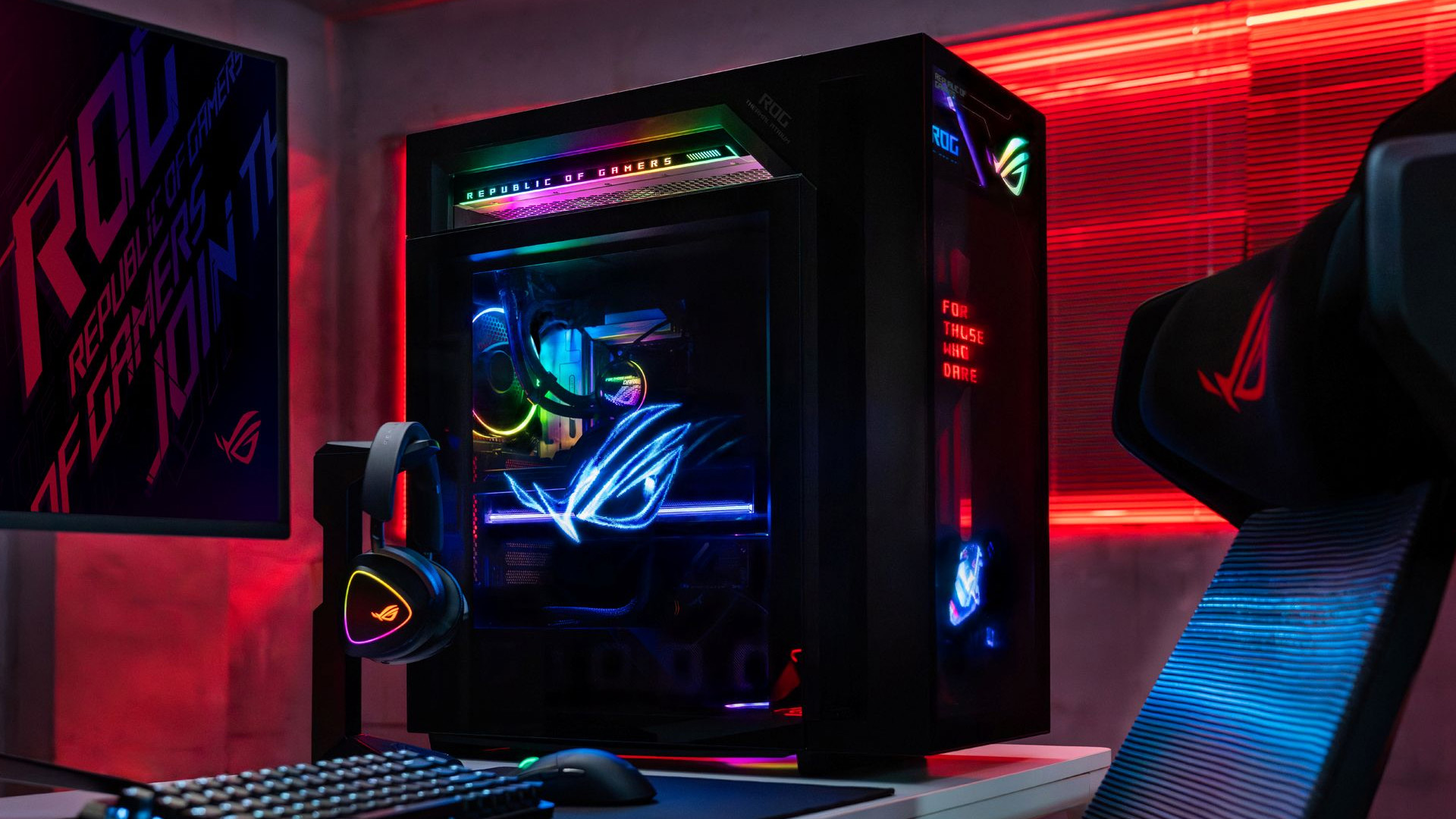
RAM allows the computer to keep applications and active data readily available while you work. The amount required depends heavily on workload.
8GB RAM can handle lighter computing such as basic browsing and document work, although multitasking headroom may be limited.
16GB RAM provides more flexibility for everyday computing, office applications, multiple browser tabs and many games.
32GB RAM becomes more useful for heavier multitasking, content creation, large projects and demanding professional applications.
Some specialist workloads may require considerably more. Rather than focusing only on the largest amount available, consider how much memory your applications actually need and whether the system allows memory expansion later.
How Much Storage Should You Have?
Storage requirements vary just as much as memory requirements.
A 512GB SSD can provide enough room for Windows, everyday applications and a moderate collection of personal files. A 1TB SSD gives more space for large applications, games, photos and video.
People working with large media files or extensive game libraries may need significantly more.
You can also combine internal and external storage. For example, frequently used applications can remain on the internal SSD while archived files, backups or large media collections are stored elsewhere.
Whatever capacity you use, important personal files should be backed up rather than stored in only one place. Moreover, storage type matters as well as capacity, so it can help to understand how to choose the right PC storage before deciding how much internal and external space you need.
Do You Need Dedicated Graphics?
Not every home computer needs a separate graphics card.
Integrated graphics are capable of handling many common tasks, including web browsing, documents, video calls, streaming and general desktop use. Dedicated graphics become more relevant for workloads such as:
- Modern PC gaming
- 3D rendering
- CAD applications
- Some video-editing workflows
- GPU-accelerated creative software
- Certain AI and professional applications
Software requirements are the most useful guide. If an application specifies a particular type or level of graphics hardware, use those requirements as the starting point. If your workload does require dedicated graphics, our guide to choosing the right GPU explains how display resolution, software, VRAM and other system components affect the decision.
Don't Overlook Connectivity
A PC rarely operates on its own. Monitors, keyboards, mice, webcams, external drives, printers, speakers and other devices all need suitable connections.
Before arranging the setup, check which ports your equipment requires.
USB-A remains common for keyboards, mice and older accessories, while USB-C is increasingly used for storage, displays and other modern peripherals. HDMI and DisplayPort are commonly used for monitors.
Network connectivity matters as well. Wi-Fi provides flexibility around the home, while Ethernet can provide a consistent wired connection when the router and room layout allow it.
Bluetooth can reduce cable clutter when connecting compatible keyboards, mice, headphones and other accessories.
Set Up Your Monitor Properly
The monitor is the part of the computer you look at for hours, so its positioning deserves attention.
Place the screen directly in front of your usual seating position rather than off to one side. The upper part of the display should generally sit around eye level, although the exact position depends on your desk and posture.
For dual-monitor setups, arrange the screens according to how often each one is used. If both are used equally, positioning them centrally can reduce repeated neck movement. If one is the primary screen, keep that display directly in front of you.
Screen resolution and size should also suit the viewing distance. Very large displays positioned too close can make it harder to view the entire screen comfortably.
Keep Cooling and Noise in Mind
All computers generate heat during operation.
Make sure ventilation openings are not pressed against a wall, covered by objects or surrounded by clutter. Dust can also collect around vents and fans over time, reducing airflow.
Noise is another consideration in home environments. A computer used in a quiet office or bedroom may make fan noise more noticeable than the same system in a busier room.
Higher workloads naturally generate more heat, which can cause cooling fans to run faster. Leaving sufficient airflow around the computer helps its cooling system operate as intended.
Build a Cleaner Setup with Cable Management
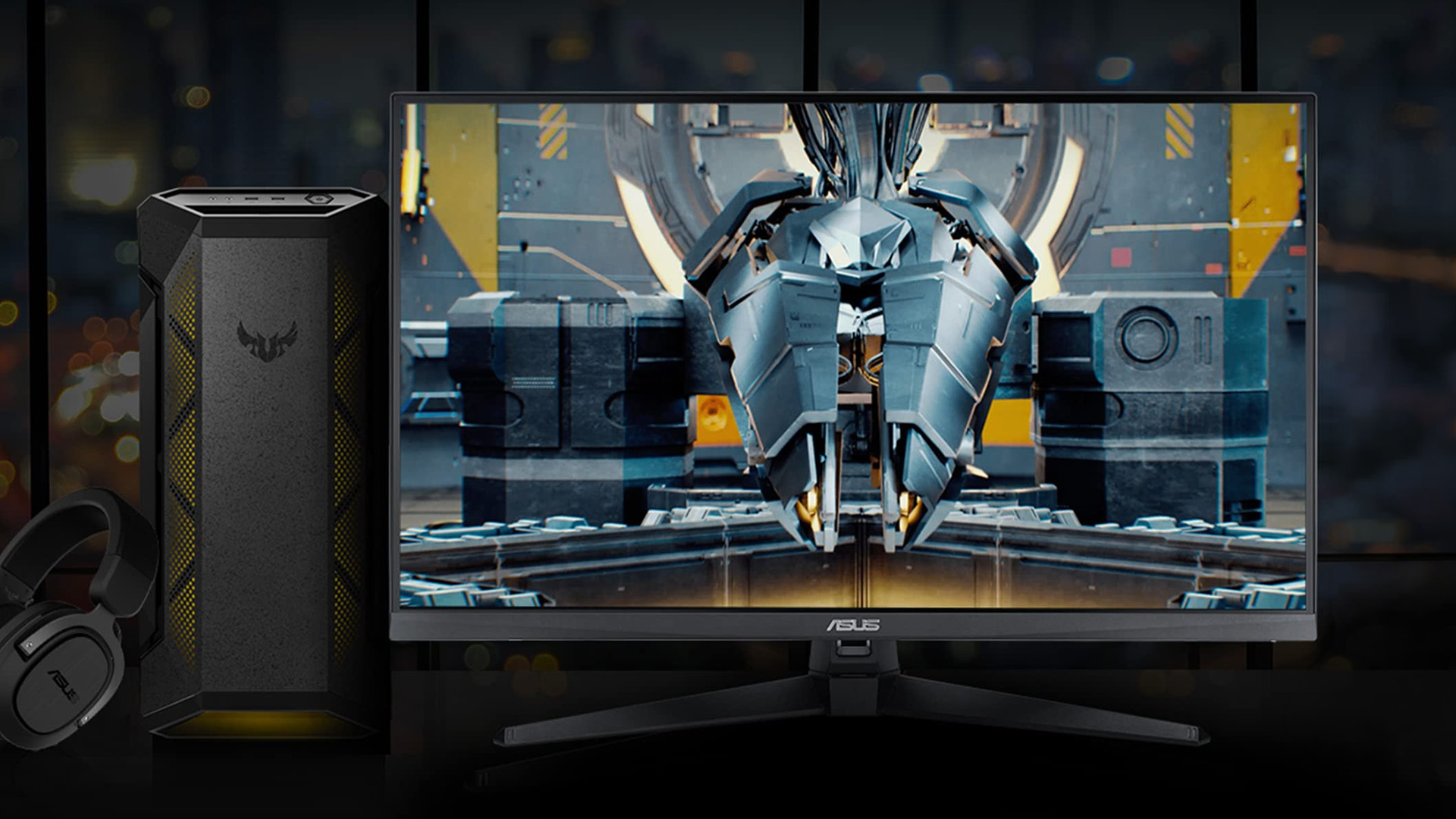
Cables can quickly become difficult to manage when a desktop is connected to several accessories.
Start by identifying which cables need to move regularly and which can remain fixed. Power leads, display cables and Ethernet connections can usually be routed together behind the desk, while USB ports used for removable storage should remain easy to reach.
Simple cable ties, clips and under-desk trays can prevent wires from spreading across the floor or working surface.
It is also worth leaving some slack in monitor and peripheral cables rather than pulling them tightly between devices.
Can You Upgrade an ASUS Desktop PC?
Upgradeability depends on the individual computer and its form factor.
Tower systems generally provide more physical space for replacing or adding components, but this does not mean every component in every tower is automatically upgradeable. The motherboard, power supply, case dimensions and available connectors can all affect compatibility.
Compact and all-in-one systems may offer fewer upgrade options because components are fitted into tighter spaces.
Before changing RAM, storage, graphics or other hardware, check the technical documentation for the exact system. This can help confirm supported capacities, interfaces and physical restrictions before the computer is opened.

Final Thoughts
Work, study, gaming and entertainment each place different demands on the processor, memory, graphics, storage and surrounding equipment. Desk space, monitor positioning, networking, ventilation and cable management can be just as important to the everyday experience.
ASUS PCs are available across different desktop formats, but the right setup ultimately depends on workload and environment rather than the brand name alone. Understanding those requirements first gives you a clearer foundation for configuring a practical home computing space.
If you need model-level specifications after identifying the hardware and form factor your setup requires, the ASUS PCs category contains the current desktop range.

FAQs
What specifications are useful for an everyday home PC?
Everyday tasks such as browsing, streaming and office work generally benefit from a modern processor, sufficient RAM and SSD storage. The exact specification should reflect how many applications you normally run together.
Is 16GB RAM enough for a home computer?
For many users, 16GB provides comfortable headroom for everyday multitasking, productivity applications and general home computing. More memory may be useful for demanding creative, development or professional workloads.
Can I connect two monitors to an ASUS desktop PC?
Some ASUS desktop systems support multiple displays, but the number and type of connections vary by model. Check the available HDMI, DisplayPort, USB-C or other display outputs before connecting additional monitors.
Is a mini PC suitable for working from home?
A mini PC can work well for home-office tasks when its processor, memory, storage and connectivity meet your software requirements. Its smaller footprint can also help where desk space is limited.
Do I need a graphics card for a home PC?
Not necessarily. Integrated graphics can handle many everyday tasks. Dedicated graphics become more important for modern gaming, 3D applications and certain video-editing, creative or GPU-accelerated workloads.
Can an ASUS desktop PC be upgraded later?
It depends on the individual system. Towers often provide greater access to replaceable components, while compact and all-in-one designs may be more restricted. Always check the model's technical documentation before upgrading hardware.
| Read More: |
| 60Hz vs 144Hz Gaming Monitors: Which Refresh Rate Should You Choose? |
| Remote Work 2.0: The Tech Setup Professionals Need in 2026 |
| Is Your PC Overheating? How to Check CPU & GPU Temperature |
Related Articles

Published: March 06, 2026
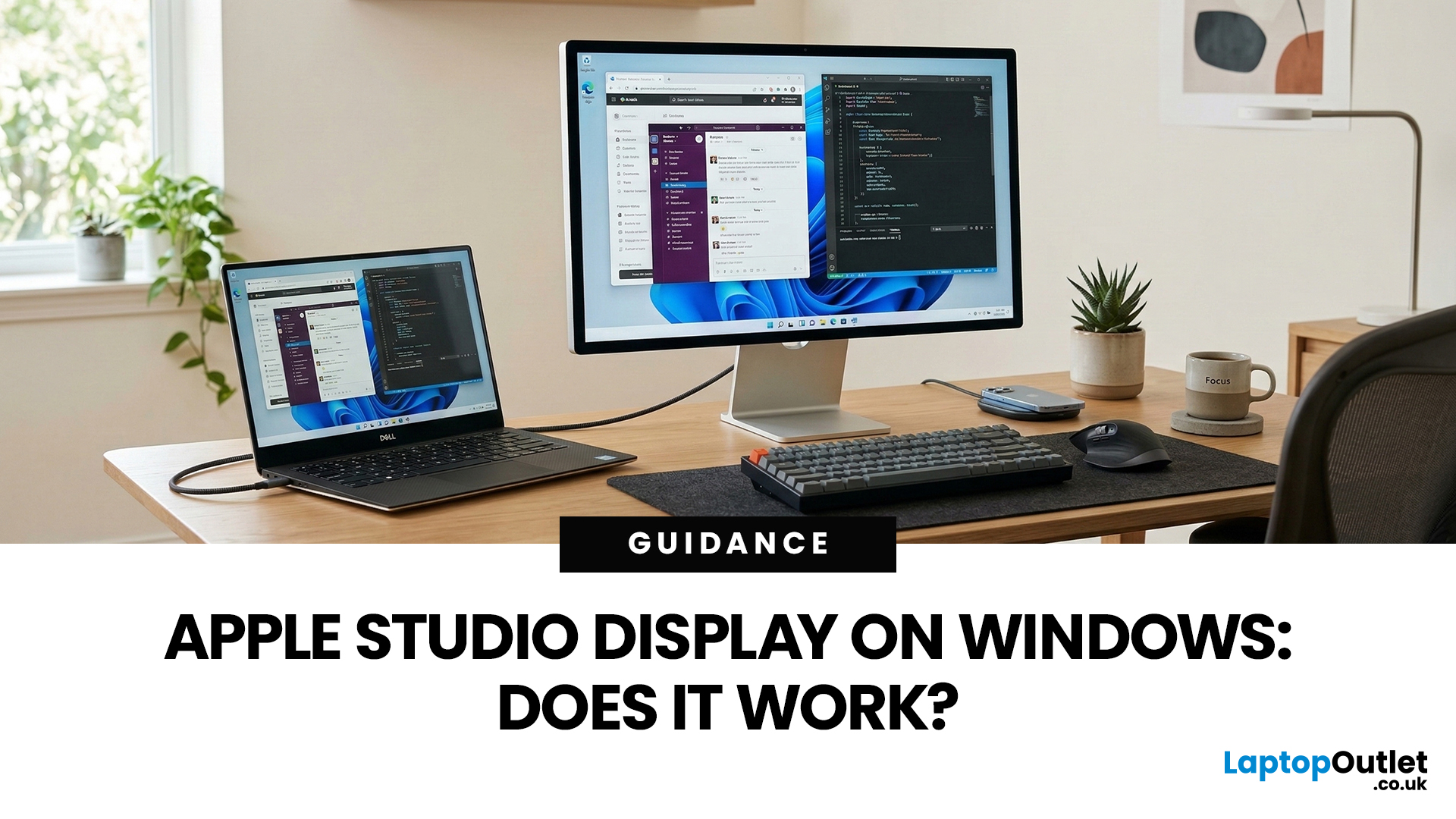
You’ve seen the Apple Studio Display. It’s sleek, stupidly sharp, and it makes your desk look like you’ve got your life together. But you’re on Windows. So, the big question is: Does Apple Studio Display work with Windows PCs? Yes, it can. But you won’t always get the full “Apple magic” experience on Windows.
Apple Studio Display + Windows: What Works vs What Doesn’t
Core Monitor Functions (generally work)
The good news: the basics are solid.
- You’ll get a picture (yep, it’s a monitor)
- Resolution and scaling can be adjusted in Windows settings
- It can act as an audio device (the built-in speakers often show up as an output option)
In other words: for day-to-day “I need a stunning screen”, you’re fine.
Features that May be Limited or Not Supported on Windows
Here’s where the “Apple ecosystem” bit starts showing:
- Center Stage (auto-follow webcam feature): usually not available as intended on Windows
- True Tone (auto colour temperature shifts): Generally not supported
- Firmware updates: typically
Published: March 12, 2026
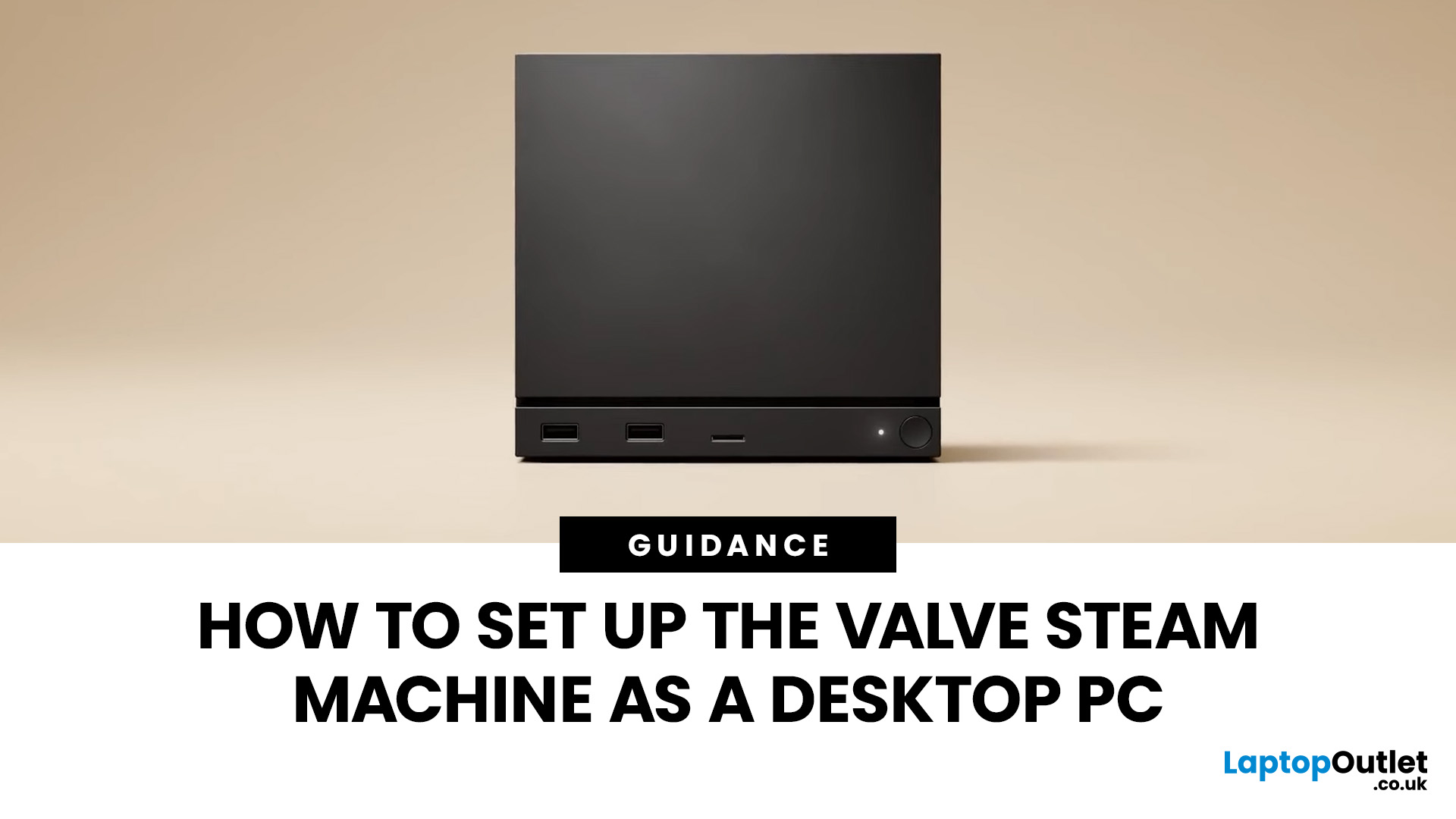
If you have an old Valve Steam Machine tucked away under the telly or on a shelf, you might be wondering whether it can still do more than launch games. The good news is that, with the right setup, it can absolutely pull double duty as a compact desktop computer for everyday use.
This guide walks you through a practical Valve Steam Machine setup for desktop use, from connecting a monitor and peripherals to accessing SteamOS desktop mode and making the system feels more like a standard PC. Whether you want a lightweight machine for web browsing, media streaming, or casual home computing, repurposing a Steam Machine can be a clever and cost-effective option.
What is a Valve Steam Machine?
A Valve Steam Machine was originally designed as a living-room gaming PC. It brought PC gaming closer to the console experience, usually running SteamOS and focusing on controller-friendly play from the sofa.
That said, the hardware inside many Steam Machines is still capable of handling basic desktop
Last Updated: April 07, 2026
If your PC is on for hours every day, it is absolutely part of your electricity bill story. Not in a dramatic “this one desktop is ruining your life” way, but enough that efficiency matters. That is why energy-efficient PCs are getting more attention from UK buyers who want solid performance without wasting power.
And honestly, fair enough. Nobody wants a machine that runs hot, pulls extra watts for no reason, and quietly adds more to the bill every month. This guide breaks down what energy efficient computers mean, how much you could realistically save in a year, and where the biggest differences show up between everyday desktops and a power efficient gaming PC.
What Counts as an Energy-Efficient PC?
An energy-efficient PC is simply a desktop that delivers the performance you need without drawing more power than necessary. That can come from better components, smarter power management, or both. A more efficient system usually has a few things going for it:
- newer processors that do more
Last Updated: June 10, 2026
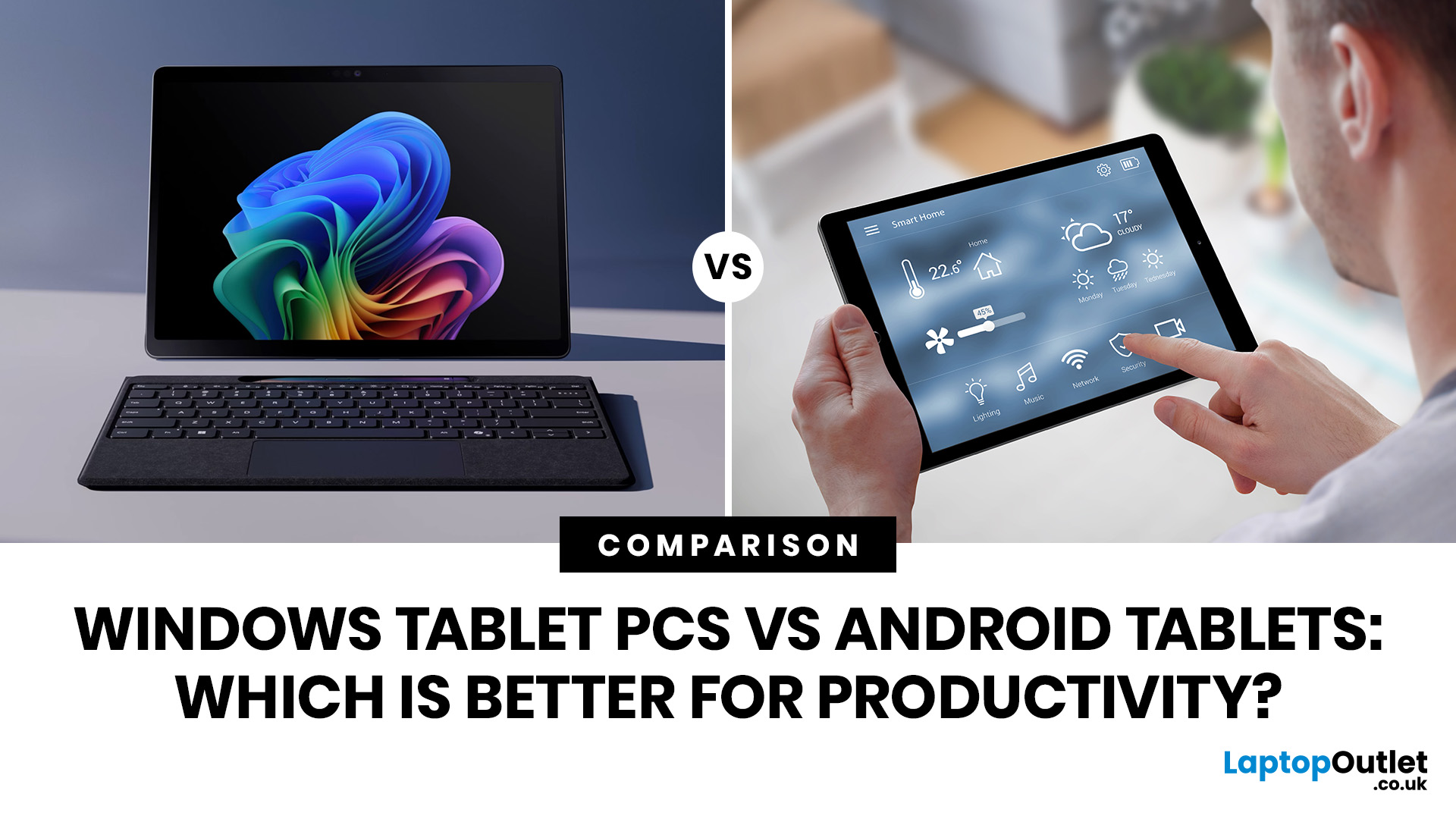
When comparing Windows tablet PCs vs Android tablets, Windows is usually better for productivity-heavy tasks like multitasking, office work and business use, while Android tablets are better for portability, value and lighter everyday productivity.
When comparing Windows tablet PCs vs Android tablets, the best choice depends on how you work. Some users need laptop-style performance for spreadsheets, email, browser tasks and multitasking, while others prefer a portable device for note-taking, research, video calls and everyday flexibility.
That is why the Android vs Windows tablets debate matters. Windows tablets offer a more PC-like experience with stronger multitasking, while Android tablets focus on portability, convenience and app-based productivity.
For buyers in the UK, the best option depends on whether you value desktop-style software, keyboard-led productivity and business features, or a lighter, more affordable system that is easy to carry and simple to use. If you are browsing
Published: June 11, 2026
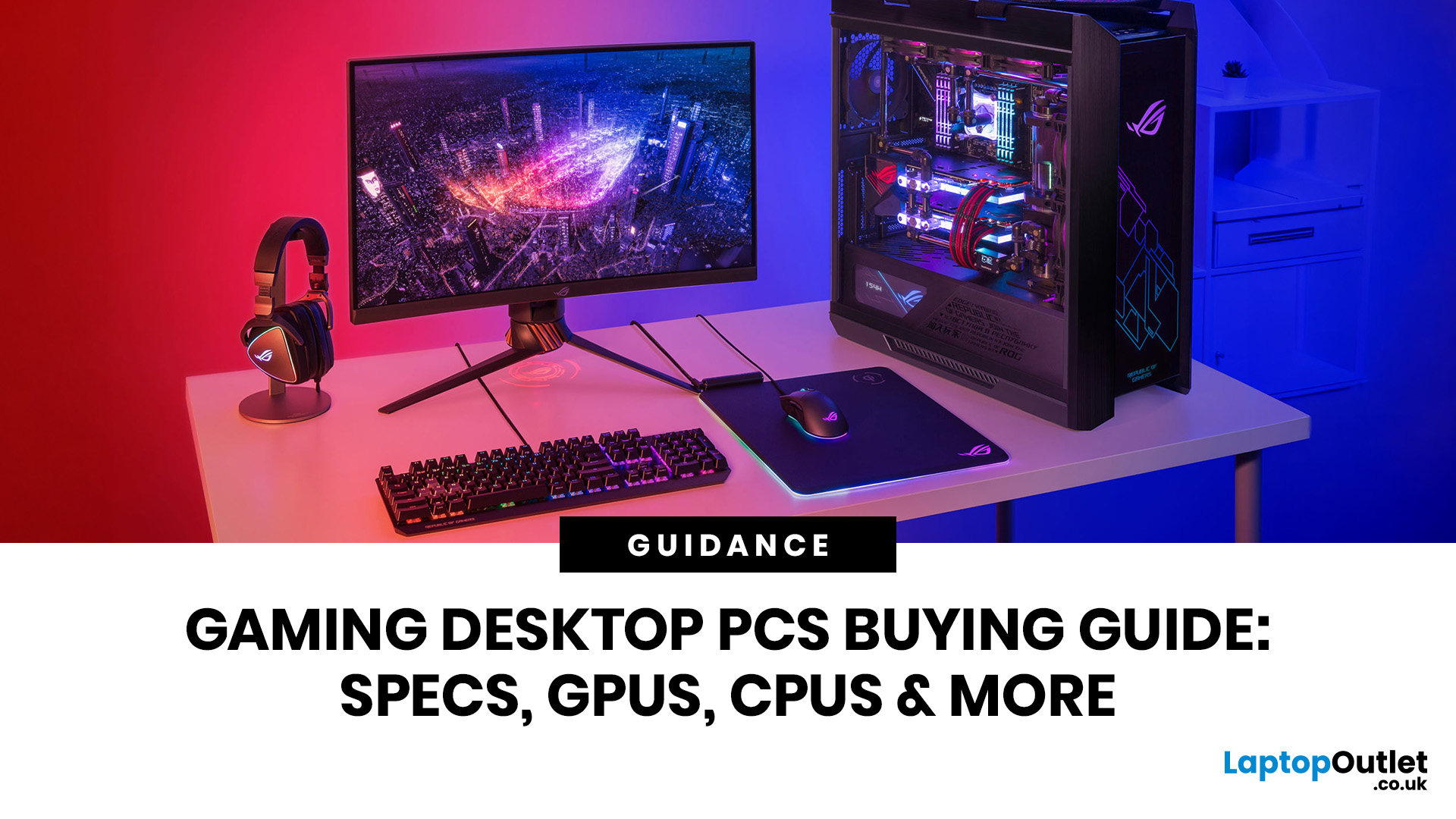
Choosing the right gaming desktop can be the difference between smooth, immersive gameplay and a system that struggles within a year. This gaming PC buying guide explains the key components that affect gaming performance, future-proofing, and value for money, so you can buy with confidence rather than guessing from confusing spec sheets.
A good gaming PC is not just about the most expensive graphics card. It is about balance. The CPU, GPU, RAM, storage, cooling, power supply, motherboard, and case all work together. Whether you play competitive esports, cinematic single-player titles, open-world RPGs, racing games or VR, understanding the right configuration helps you avoid overspending and choose a desktop that lasts.
This article is designed as a practical gaming PC specs guide for beginners, but it also includes up-to-date 2026 advice for buyers comparing modern RTX, Radeon, Intel, and AMD-powered systems.
Why Buy a Gaming Desktop PC?
A gaming desktop PC remains one of the best choices
Last Updated: June 15, 2026
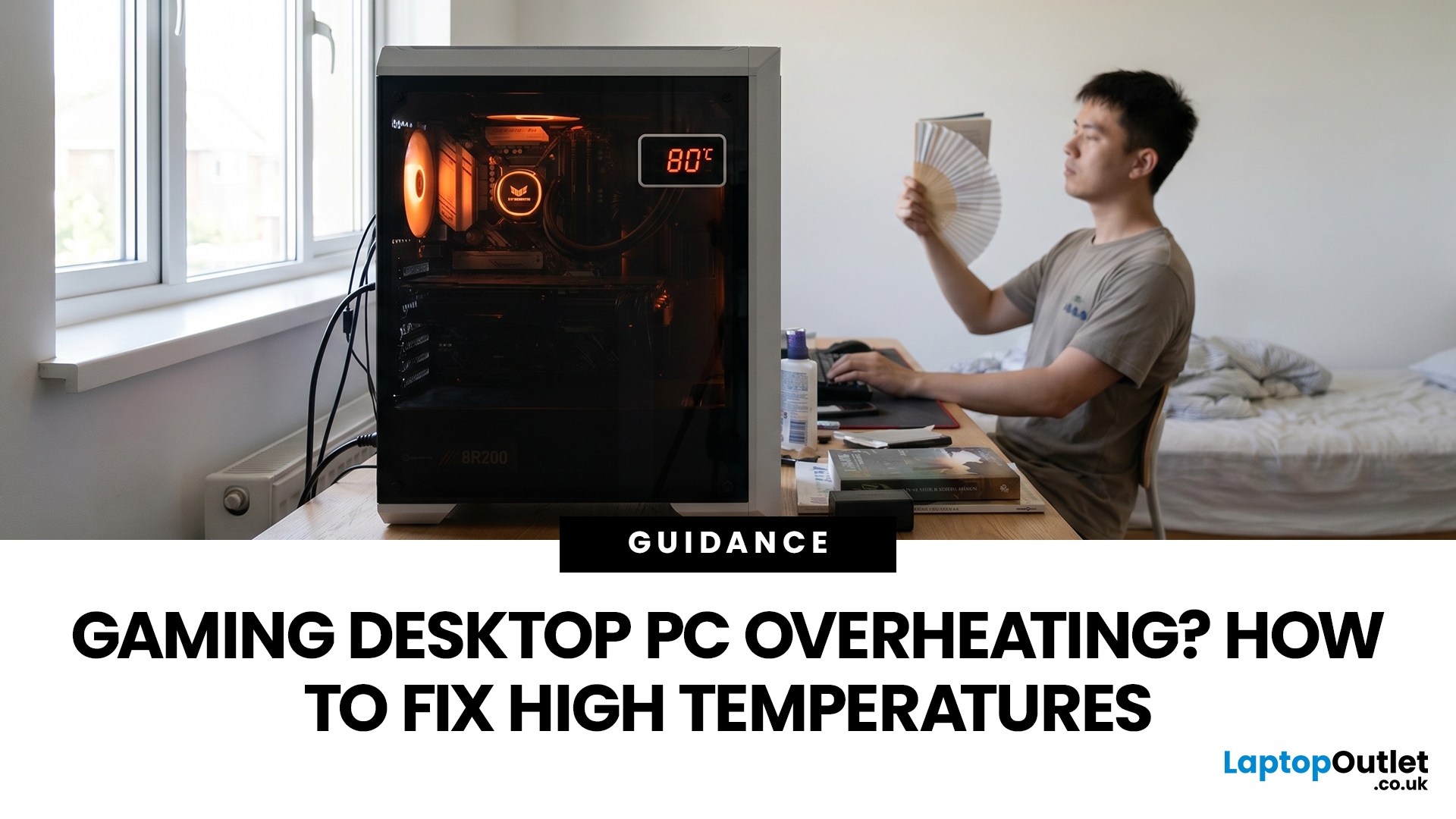
A gaming PC overheating usually comes down to one of five things: blocked airflow, dust build-up, weak cooling, aggressive game settings, or poor contact between the CPU/GPU and its cooler.
| Here is the fast version:
|
Gaming PC Overheating: What It Means and Why It Matters
You’re mid-match. Your FPS is smooth. Then suddenly, the game stutters, the fans sound like a jet engine, and your PC feels like it could toast bread.
That is not “just gaming PC life”.
A hot gaming desktop is normal. An overheating
Last Updated: July 03, 2026
Published: July 08, 2026
AI RTX gaming PCs can deliver real value, but only when their features align with how you actually play.
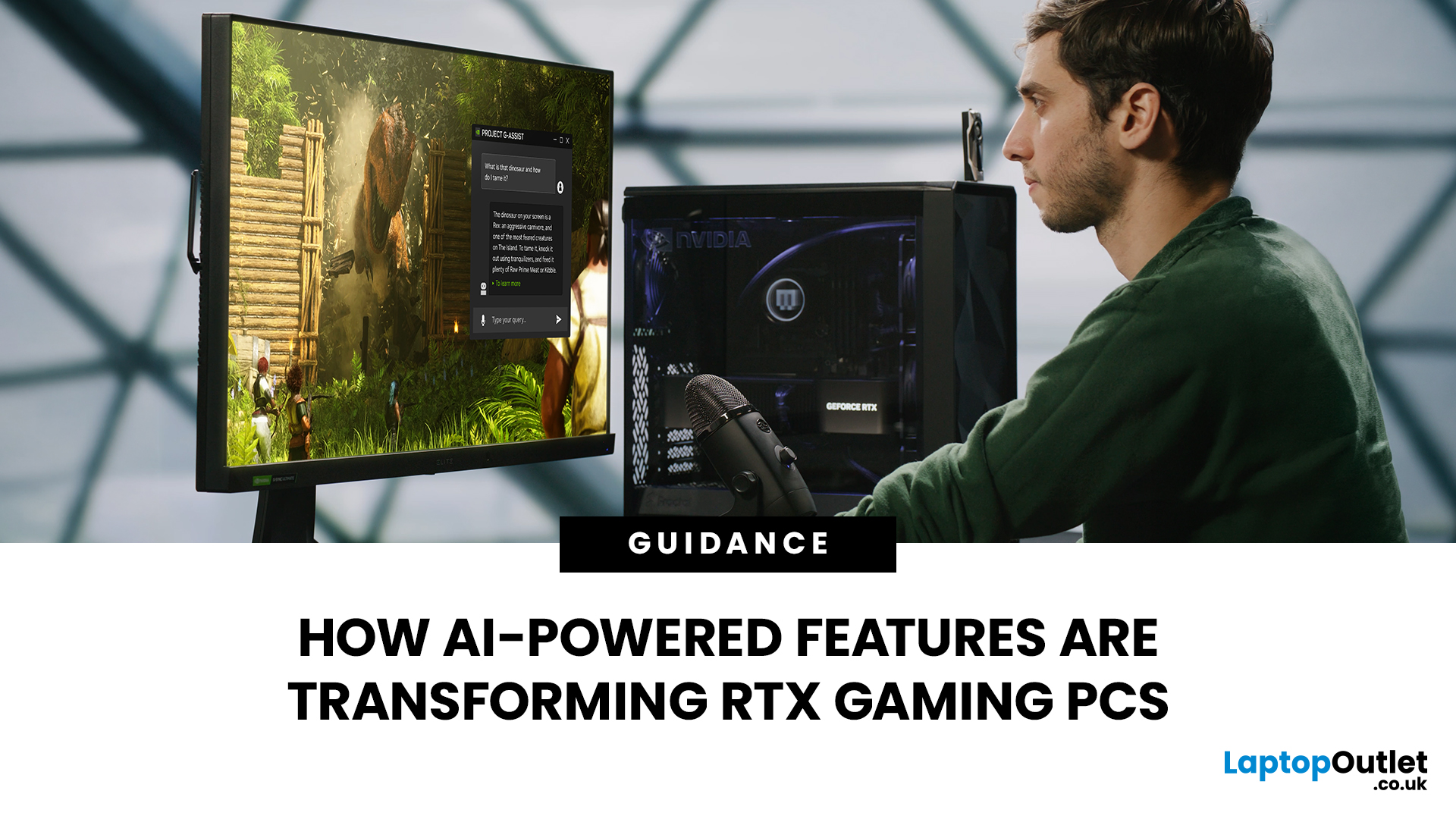
| AI-powered RTX gaming PCs use NVIDIA RTX AI features like DLSS upscaling, Frame Generation, ray tracing, and Reflex to boost FPS, improve visual quality, and reduce input lag. They are worth buying when matched to your games, monitor, and budget, especially for 1080p high-refresh, 1440p, streaming, and creator workloads. For UK gamers, prioritise RTX 5050/5060 or higher, 16GB RAM, a strong CPU, and 1TB SSD to get smoother gameplay, better ray tracing, and future-ready performance. |
Modern RTX gaming PCs use AI features like DLSS, Frame Generation, ray tracing, and NVIDIA Reflex to boost FPS, improve visuals, and reduce input lag. But the real value depends on your games, monitor, budget, and specs.
This guide explains what AI-powered RTX gaming actually means, which features matter, and how UK gamers can choose the right RTX PC without falling for marketing hype.
What Does “AI RTX Gaming
Published: July 21, 2026
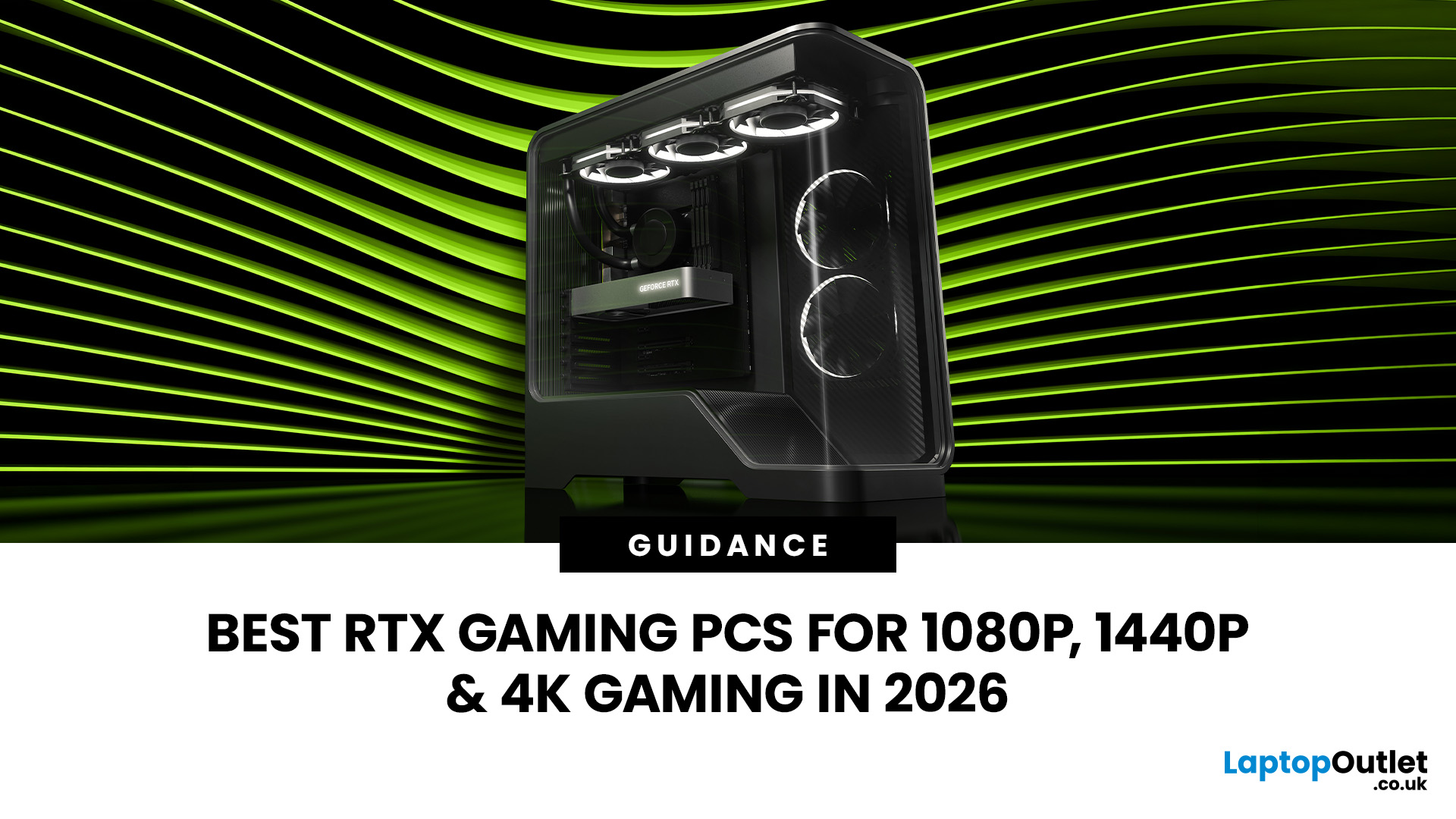
For 1080p, an RTX 5060 is the sensible mainstream pick. For 1440p, step up to an RTX 5060 Ti 16GB or RTX 5070. For 4K, the RTX 5080 is the best-balanced choice for most people, with the RTX 5090 reserved for buyers who genuinely need its 32GB of memory or maximum settings at every resolution.
Picking one of the best RTX gaming PCs isn't about flexing the priciest GPU - it's about matching your rig to your setup and the games you actually play. A competitive player on a 1080p 240Hz display needs strong CPU performance and low latency. Someone playing cinematic single-player games on a 4K screen needs more GPU power, VRAM, and cooling. A 1440p buyer usually wants the strongest balance of image quality, speed, and price.
Getting this right prevents two expensive mistakes: overspending on performance your display can't show, or buying a PC that leans too heavily on generated frames to hit numbers it can't sustain natively. The most common upgrade enquiry we see at Laptop Outlet is from 1080p
Last Updated: July 21, 2026

