



How to Set Up the Valve Steam Machine as a Desktop PC
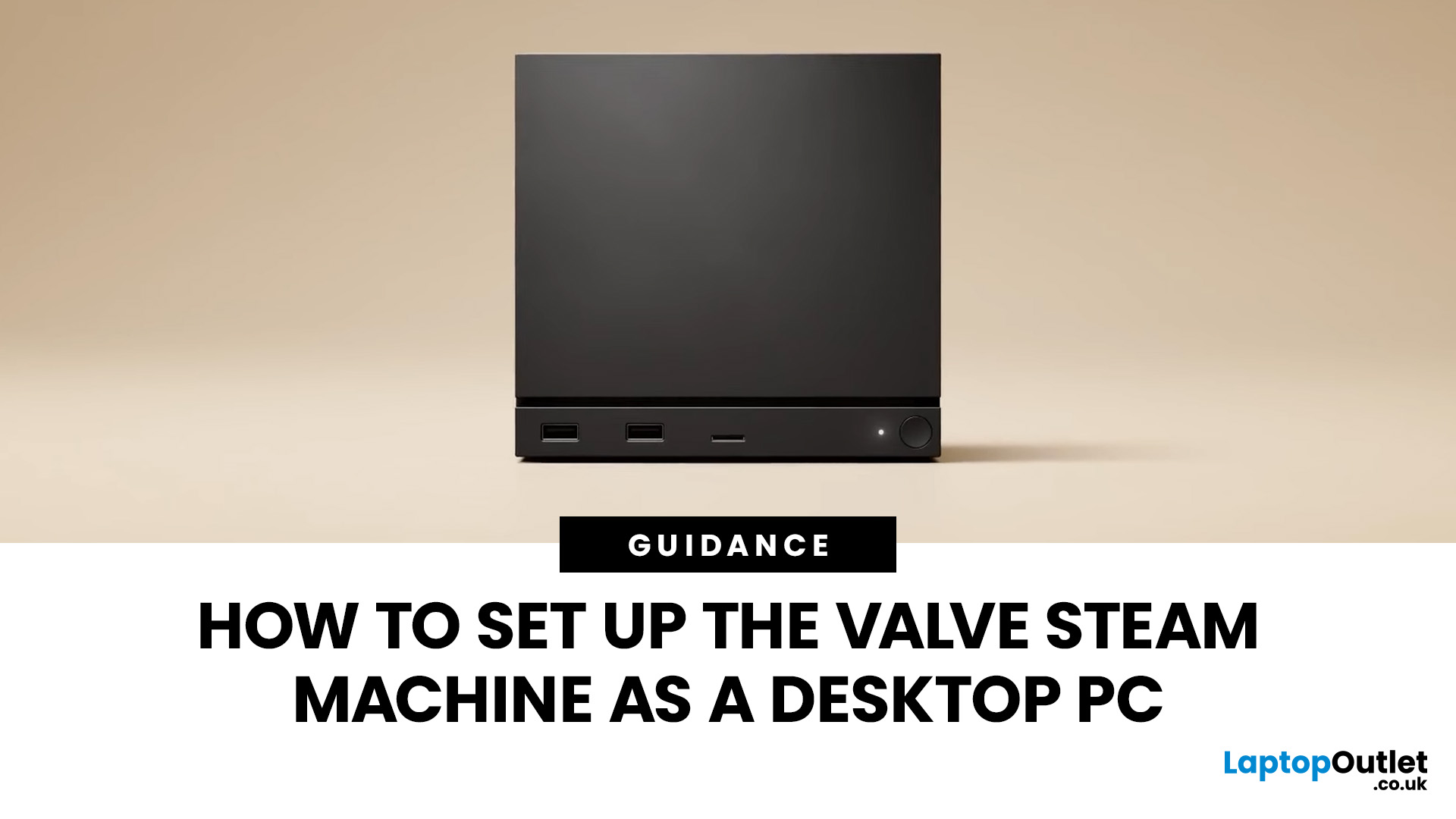
If you have an old Valve Steam Machine tucked away under the telly or on a shelf, you might be wondering whether it can still do more than launch games. The good news is that, with the right setup, it can absolutely pull double duty as a compact desktop computer for everyday use.
This guide walks you through a practical Valve Steam Machine setup for desktop use, from connecting a monitor and peripherals to accessing SteamOS desktop mode and making the system feels more like a standard PC. Whether you want a lightweight machine for web browsing, media streaming, or casual home computing, repurposing a Steam Machine can be a clever and cost-effective option.
What is a Valve Steam Machine?
A Valve Steam Machine was originally designed as a living-room gaming PC. It brought PC gaming closer to the console experience, usually running SteamOS and focusing on controller-friendly play from the sofa.
That said, the hardware inside many Steam Machines is still capable of handling basic desktop tasks. If your expectations are realistic, using Steam Machine as a PC can work surprisingly well for browsing, video playback, light admin, and some office-style work. It is not a replacement for a modern high-performance desktop, but it can still be useful.
Can You Really Use a Steam Machine as a Desktop PC?
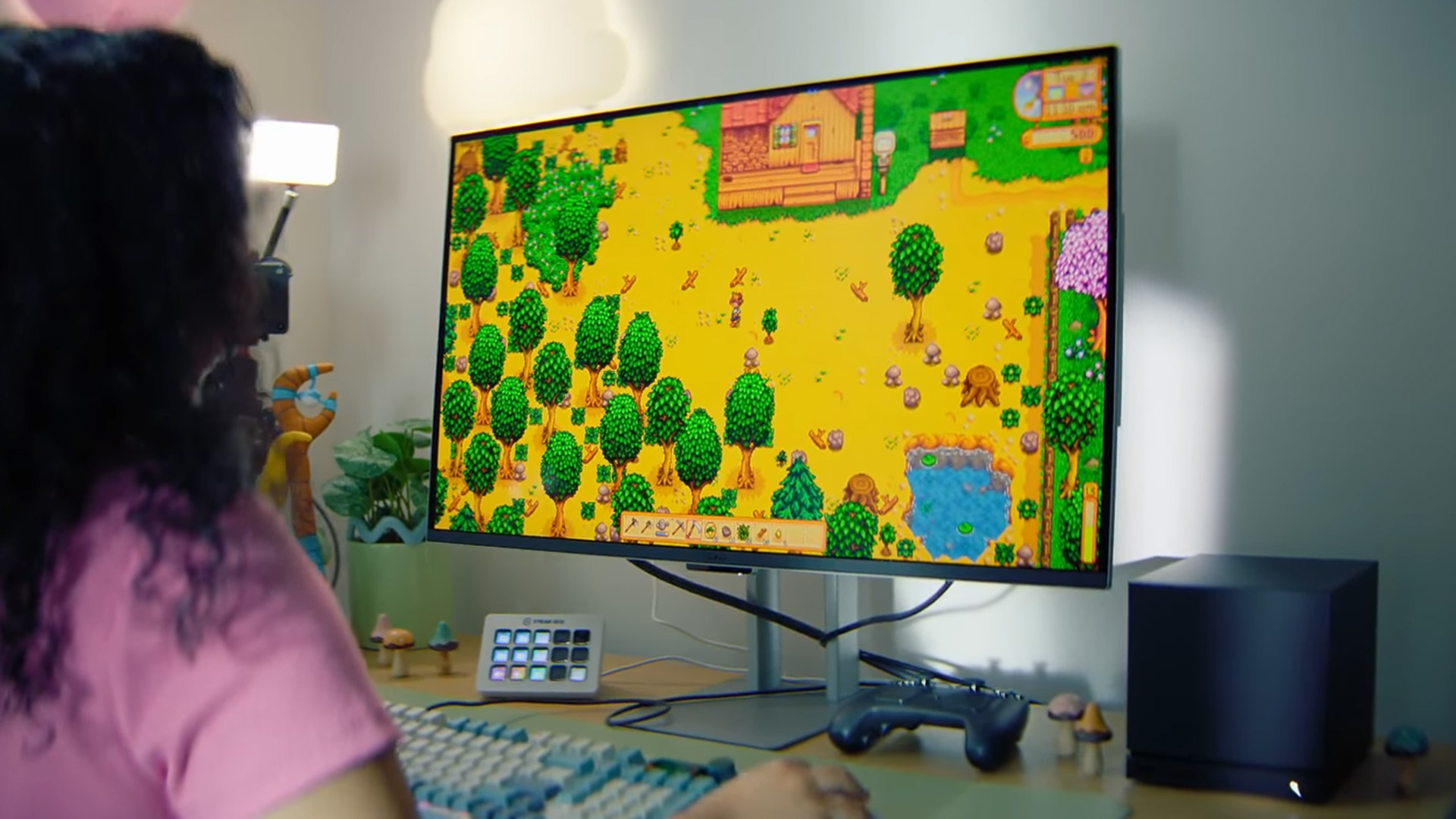
Yes, in many cases you can. A Steam Machine is, at its core, still a computer. If it boots properly, supports a display, and accepts a keyboard and mouse, you already have the essentials for desktop use. The overall experience depends on a few factors:
- the model and age of the hardware
- the version of SteamOS installed
- whether the storage and memory are still in decent shape
- the sort of tasks you want to do
For lighter workloads, such as checking email, browsing the web, watching YouTube, streaming films, and managing files, a Steam Machine can still be perfectly serviceable.
What You Need Before You Start
Before beginning your Valve Steam Machine setup, gather everything you need so the process is smooth from the start.
You should have:
- your Valve Steam Machine
- a monitor or TV
- an HDMI or DisplayPort cable, depending on the available ports
- a keyboard and mouse
- a stable internet connection
- a power cable
- optional Ethernet cable for a more reliable connection
- optional USB drive if you need updates or want to reinstall software
If you plan on proper desktop use rather than occasional sofa browsing, a monitor is usually better than a TV. Text tends to look sharper, scaling is often more comfortable, and you are less likely to run into overscan or blurry image issues.
Steam Machine Monitor Setup
A proper Steam Machine monitor setup is one of the most important parts of turning the device into a usable desktop PC.
- Start by connecting your Steam Machine to your monitor using the correct cable. Most systems will use HDMI, though some models may also support DisplayPort. Once connected, switch the monitor to the correct input source and power on the machine.
- If everything goes smoothly, the system should detect the display automatically. If it does not, you may run into no signal on screen, incorrect resolution, screen cut-off around the edges, and blurry text or stretched image
- If that happens, check the cable first, then confirm that the monitor is set to the correct input. Once the system boots, head into display settings and manually adjust the resolution to match your monitor’s native resolution. This makes a big difference when you are using the Steam Machine for desktop tasks rather than gaming on a TV from across the room.
- For a more comfortable setup, place the monitor on a desk and make sure the machine has enough ventilation around it. Steam Machines are compact, but they still need decent airflow.
Steam Machine Keyboard and Mouse Support
For any serious desktop use, Steam Machine keyboard and mouse support is essential. A controller might be fine for navigating Steam in gaming mode, but it is not ideal for browsing the web, typing documents, or adjusting system settings.
The easiest option is a wired USB keyboard and mouse. These are usually the simplest to detect and tend to work straight away. Wireless USB dongle models are also often fine, as long as the receiver is plugged in properly.
Bluetooth support may be available depending on the hardware and software setup, but it can be a little less straightforward on older systems. If you want the easiest possible experience, go wired first and switch later if needed.
If your keyboard or mouse is not recognised:
- try a different USB port
- restart the system with the devices already connected
- test the peripherals on another device to rule out faults
- check whether support is limited by the current operating system state
Once both are working, the Steam Machine starts to feel far more like a traditional desktop.
How to Access SteamOS Desktop Mode
One of the most useful features for this project is SteamOS desktop mode. This mode shifts the system away from the console-style Steam interface and into a more traditional desktop environment, where you can manage files, open applications, and use the machine more like a Linux PC.
Depending on the version of SteamOS installed, the path to desktop mode may vary slightly. On most setups, you will either find an option within power or session settings, or a route through the main system menu.
Once you enter desktop mode, you should see a more familiar interface with windows, menus, and desktop controls. This is where the Steam Machine becomes genuinely useful as a PC.
From here, you may be able to:
- browse the web
- manage local files
- adjust display and audio settings
- connect accessories
- install or run compatible Linux applications
If your Steam Machine has been modified over time or is running a different configuration, the layout may not look the same, but the goal is the same: get into an environment designed for keyboard-and-mouse use.
Step-by-Step Valve Steam Machine Setup Guide
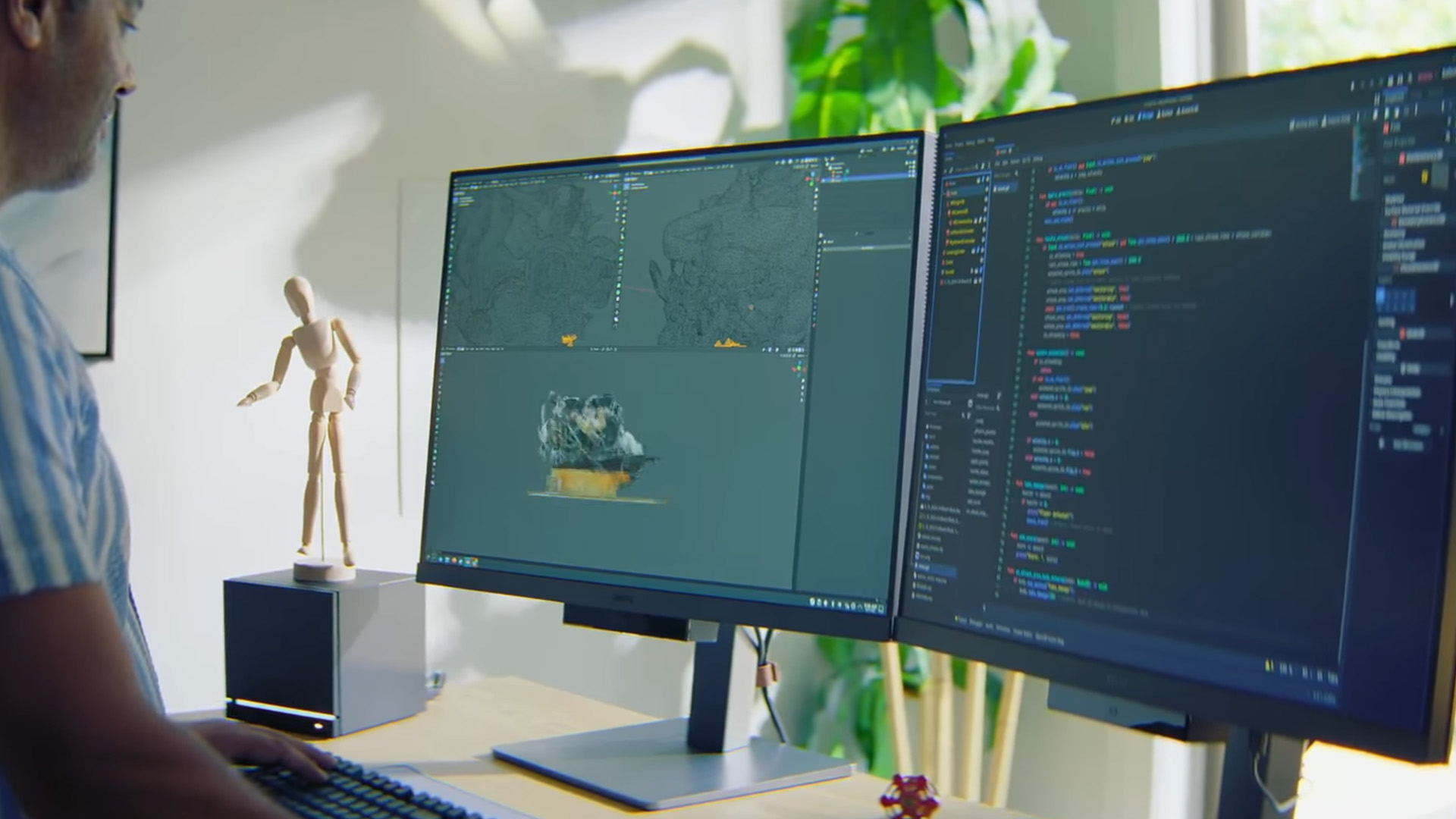
If you want a straightforward Steam Machine setup guide, follow these steps.
1. Connect the hardware
Plug the Steam Machine into mains power, connect it to your monitor, and attach your keyboard and mouse. If possible, use wired connections for the first boot to avoid unnecessary complications.
2. Power on the system
Turn on the Steam Machine and wait for it to boot fully. Older units can take a little longer than modern systems, so do not assume something is wrong straight away if it takes a moment.
3. Connect to the internet
Once the system is up and running, connect to Wi-Fi or use Ethernet if available. For updates, downloads, and smoother overall performance, a stable internet connection helps a lot.
4. Sign in to Steam
Log in with your Steam account if prompted. Even if you are not planning to use the machine mainly for gaming, signing in can make it easier to access the standard environment and settings.
5. Open SteamOS desktop mode
Switch from the gaming-focused interface to SteamOS desktop mode. This is the key step in using Steam Machine as a PC. Once you are there, navigation becomes far easier with a keyboard and mouse.
6. Adjust display settings
Open the display settings and set the resolution correctly for your monitor. If text looks tiny or awkward, adjust scaling as well. These small changes can make the machine much more comfortable for everyday use.
7. Configure audio
Check that sound is going to the right output, whether that is your monitor, headphones, speakers, or TV. Audio routing can sometimes default to the wrong device, especially if you are using HDMI.
8. Test desktop functions
Open a browser, try navigating menus, create or move a file, and check that input devices work reliably. This confirms that your Valve Steam Machine setup is ready for practical day-to-day use.
Steam Machine Configuration Tutorial: Best Settings for Desktop Use
A good Steam Machine configuration tutorial should go beyond simply getting the system to boot. To make the machine genuinely pleasant to use, spend a bit of time refining the settings.
Set the right resolution
Always match the display to its native resolution where possible. This improves sharpness and helps avoid a fuzzy interface.
Adjust text scaling
On some screens, especially smaller monitors with higher resolutions, text can appear too small. Increase scaling if needed to make menus and browser tabs easier to read.
Sort the audio output
If you are getting no sound, the wrong playback device may be selected. Switch manually between HDMI audio, internal output, or connected speakers until it is correct.
Optimise startup apps
If your Steam Machine feels sluggish, reduce anything unnecessary running at startup. On older hardware, even small changes can improve responsiveness.
Use Ethernet where possible
Wi-Fi is convenient, but a wired connection often gives you a more stable experience for updates, streaming, and downloads.
Keep storage tidy
Older Steam Machines often have limited storage. Remove unused games or files and avoid filling the drive completely, as this can affect performance.
Use lightweight applications
If you install apps in desktop mode, keep them practical. A light browser, media tools, and simple utilities are far better suited to older hardware than anything demanding.
Best Ways to Use a Steam Machine as a PC
There is no point in setting up a desktop machine unless it fits your needs. The good news is that there are several realistic uses for a repurposed Steam Machine.
Everyday web browsing
For checking news, reading articles, answering emails, or browsing online shops, a Steam Machine can still manage basic internet use well enough.
Media streaming
This is one of its strongest use cases. Watching streaming services, YouTube, or local video files is a natural fit for the hardware.
Light office tasks
Typing notes, managing spreadsheets with simple data, or editing documents can be possible, provided you do not expect top-tier speed.
Retro and indie gaming
Even if your main aim is desktop use, it still makes sense to keep some gaming in the mix. A Steam Machine is often better suited to older titles, indie releases, or lighter games than the latest big-budget releases.
Home study or admin machine
If you need a spare computer for online forms, homework, budgeting, or basic household organisation, it can do the job.
Compact gaming PC setup
For small rooms, shared spaces, or minimal desks, it can also work as a compact gaming PC setup. The footprint is small, the hardware is already there, and it can handle both entertainment and simple desktop duties.
Common Problems and How to Fix Them
No Steam Machine setup guide would be complete without some troubleshooting.
No picture on the monitor
Double-check the cable, the monitor input, and whether the machine is actually powering on. Try another cable or another screen if possible.
Keyboard and mouse are not working
Use wired USB devices first. If they still do not respond, try different ports and reboot the machine with them connected.
Desktop mode is missing
Some systems may have a slightly different interface or software setup. Explore session, system, or power menus and look for a desktop option. If the installation has changed over time, the route may not match older guides exactly.
Performance feels slow
This is common on ageing hardware. Close unused apps, keep storage free, reduce startup processes, and avoid heavy workloads. Expectations matter here.
No sound
Go into audio settings and manually select the correct output device. HDMI displays often confuse the default sound path.
Screen looks wrong
If the picture is stretched, blurry, or cut off, revisit the display settings and correct the resolution and scaling. TVs are especially prone to image issues if they are not in the right mode.
Is a Steam Machine Still Worth Using as a Desktop PC?
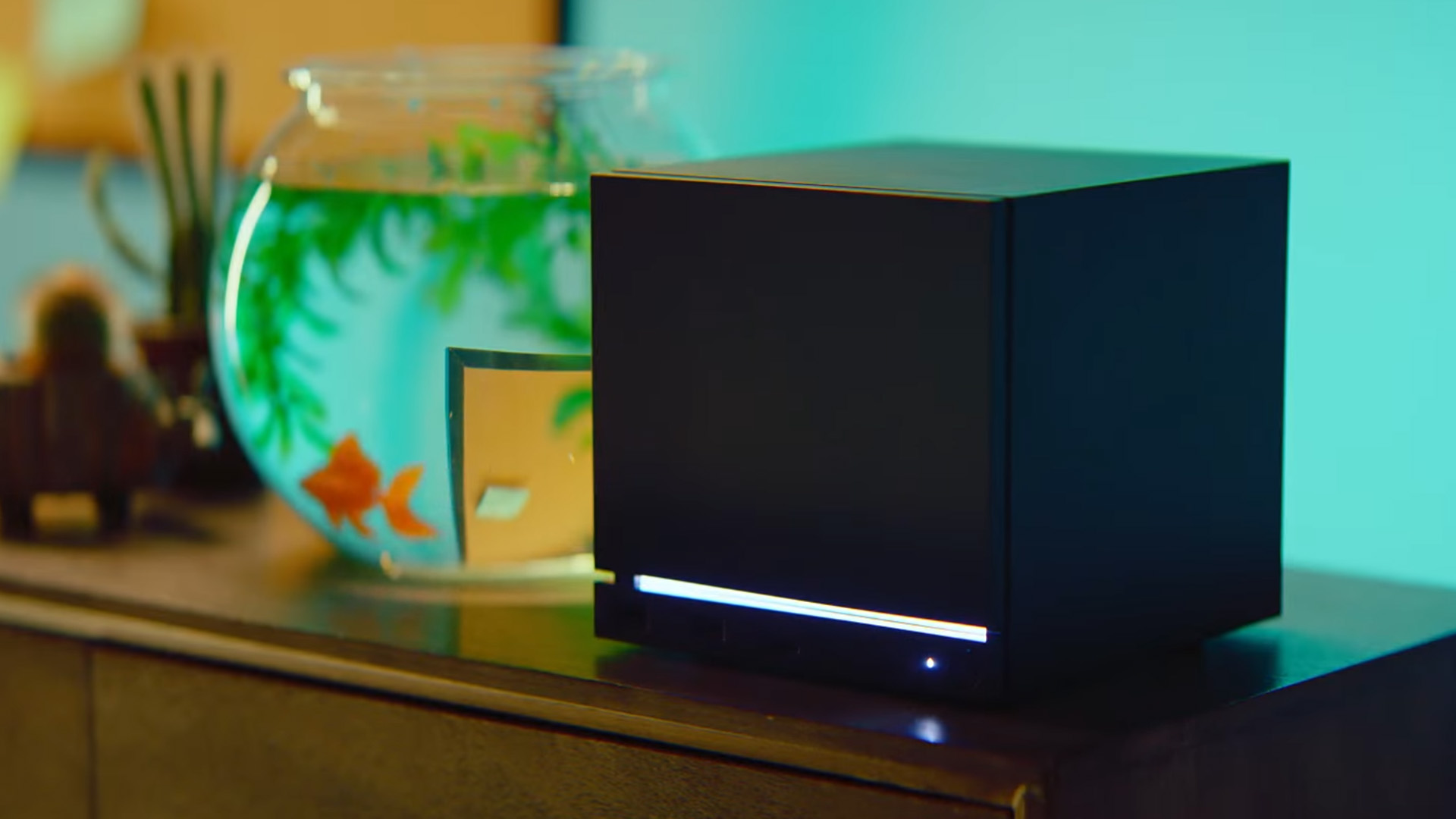
For most people, a Steam Machine is not the ideal first choice for a main desktop in 2026. Modern mini PCs are generally faster, quieter, and more efficient. But that does not mean a Steam Machine is useless.
If you already own one, there is real value in giving it a second life. You save money, reduce waste, and get a functional machine for light use without buying something new. That alone makes it worth considering. It is especially useful if:
- you want a second desktop for casual tasks
- you need a media and browsing machine for a small room
- you enjoy repurposing older hardware
- you want an all-in-one entertainment and light productivity setup
So while it may not replace a current desktop or laptop, it can still earn its place.

Final Thoughts
A thoughtful Valve Steam machine setup can turn an ageing gaming device into a useful desktop PC for everyday tasks. With the right monitor, a reliable keyboard and mouse, access to SteamOS desktop mode, and a few sensible tweaks, the system can handle much more than many people expect.
The key is to approach it with realistic expectations. It will not feel like a new office PC, but for browsing, streaming, file management, and light computing, it can still be a practical option. If you already have one at home, setting it up as a desktop machine is a smart way to get more value from hardware you already own.

Most Common Questions
Can I use a Valve Steam Machine as a normal desktop PC?
Yes, for basic everyday tasks such as web browsing, streaming, and light productivity, it can work well enough.
Does SteamOS desktop mode support a keyboard and mouse?
Yes. In fact, a keyboard and mouse are the best way to use desktop mode properly.
What is the best Steam Machine monitor setup?
A standard monitor connected by HDMI is usually the easiest and most practical arrangement for desktop use.
Can I install apps in SteamOS desktop mode?
In many cases, yes, as long as the apps are compatible with the operating system and hardware limitations.
Is using Steam Machine as a PC worth it?
If you already own the hardware and only need it for lighter tasks, it can be worthwhile.
Is a Steam Machine a good compact gaming PC setup?
It can be, especially for smaller spaces and lighter gaming alongside general desktop use.
| Read More: |
| Why Desktop PC Prices Are Rising in 2026 (And How to Still Get a Good Deal) |
| AI-Ready Desktop PCs: What Does It Actually Mean? |
| Desktop PC Lifespan: How to Make Your Desktop Last 5+ Years |
Related Articles


Last Updated: January 27, 2026
Building or buying a high-end gaming PC is an exciting journey for any enthusiast. The market moves fast, and staying updated on the latest hardware is essential for the best experience.
In this gaming desktop PC breakdown, we will explore the core parts that make a machine powerful. We will look at the latest processors from AMD and Intel, the incredible graphics power of NVIDIA RTX and Radeon RX, alongside other core components.
Whether you want to play the newest AAA titles or compete in esports, understanding these parts is vital. Let us dive into the modern world of gaming PC technologies.
Understanding Gaming Desktop PCs
A gaming desktop PC is a high-performance computer designed specifically to handle demanding video games. Unlike standard PCs, these machines focus on graphical power and fast processing speeds. They use specialised parts that can handle high heat and heavy workloads.
While gaming laptops and consoles are popular, the desktop remains the "gold standard" for several

Last Updated: February 03, 2026
Choosing a new processor used to be a simple choice between raw power and budget value. However, as we move through 2026, the landscape has shifted.
The rivalry of Intel vs AMD desktop processors has reached a fever pitch, with both "Team Blue" and "Team Red" offering incredible technology that caters to very specific types of users.
This guide breaks down everything you need to know about the current market to help you decide which brand deserves a spot in your desktop PC.
The State of the Market in 2026
As we move through 2026, both manufacturers have moved beyond simple core-count wars.
Intel has doubled down on its "Arrow Lake" and "Nova Lake" architectures, focusing heavily on integrated AI NPUs (Neural Processing Units) and a refined tiled architecture.
Meanwhile, AMD continues to dominate the enthusiast market with its Zen 5 architecture, led by the legendary 3D V-Cache technology.
Intel’s Current Strategy: The AI PC Era
Intel has successfully transitioned to its LGA 1851 socket.

Published: February 04, 2026
Your desktop PC is a key part of daily life. It handles work, gaming, and more. But how long can it last? Many users worry about desktop PC lifespan.
The good news is you can extend it to five years or beyond. With smart choices and simple habits, your setup stays reliable. This guide shares practical steps. It covers everything from processor picks to daily care.
Understanding Desktop PC Lifespan
Desktop PCs don't have a fixed expiry date. Their lifespan depends on build quality, usage, and maintenance. On average, a well-kept desktop lasts 5-8 years. But push it right, and you can hit 10 years or more. Why care? A longer desktop computer lifespan saves money and reduces waste.
Key Factors Affecting Longevity
Several elements play a role in how long your desktop endures. First, hardware quality matters most. Cheap parts wear out fast. Second, heat buildup shortens life—poor cooling is a killer. Third, software updates keep things secure and efficient. Finally, your habits, like overworking

Last Updated: February 11, 2026
Buying a desktop PC can quickly become frustrating. Endless specs, unfamiliar terms, and conflicting advice make it hard to know what really matters, and easy to waste money on the wrong setup. But here’s the solution: once you understand what desktop PC specifications actually do, choosing the right machine becomes simple. In this desktop PC specs explained guide, we break down every key component in plain English, showing you exactly what you need for work, home or gaming, and what you can safely ignore. No jargon, no guesswork, just confident buying decisions.
Processor (CPU): The Brain of Your Desktop
The processor, or CPU, is one of the most important parts of any desktop PC. It handles instructions and calculations, directly affecting how fast your system feels.
What to look for:
- Cores & Threads: More cores help with multitasking and demanding software
- Clock Speed (GHz): Higher speeds generally mean faster performance
What you actually

Last Updated: February 10, 2026
Buying a desktop PC is a big decision, especially when prices can range from a few hundred pounds to several thousand. The right choice depends not just on your budget, but on how you plan to use your PC now and in the future.
Let us help you understand exactly what you get at different price points, what specifications really matter, and how to avoid common mistakes. Whether you’re buying your first desktop or upgrading an older system, this guide will walk you through everything you need to know.
Why Choose a Desktop PC Instead of a Laptop?

Before diving into budgets, it’s worth understanding why many UK buyers still choose desktops:
- Better performance for the price
- Easier and cheaper upgrades
- Longer lifespan
- Improved cooling and sustained performance
- More connectivity options
For home offices, gaming setups, and creative work, desktops almost always offer better long-term value.
Understanding Desktop PC Specifications (Quick Primer)
If you’re not technical, these are the core components
Last Updated: May 05, 2026
Let’s call this out early: “AI-Ready” is one of those phrases that sounds important but tells you almost nothing by itself.
Every PC brand is using it. Every listing claims it. And most buyers still walk away thinking, “Cool… but what does that actually do for me?”
So instead of selling you a future fantasy, let’s talk about what AI-Ready desktops actually change in 2026, where they matter, and where they really don’t.
First: Why Everyone Is Suddenly Calling Their PCs “AI-Ready”
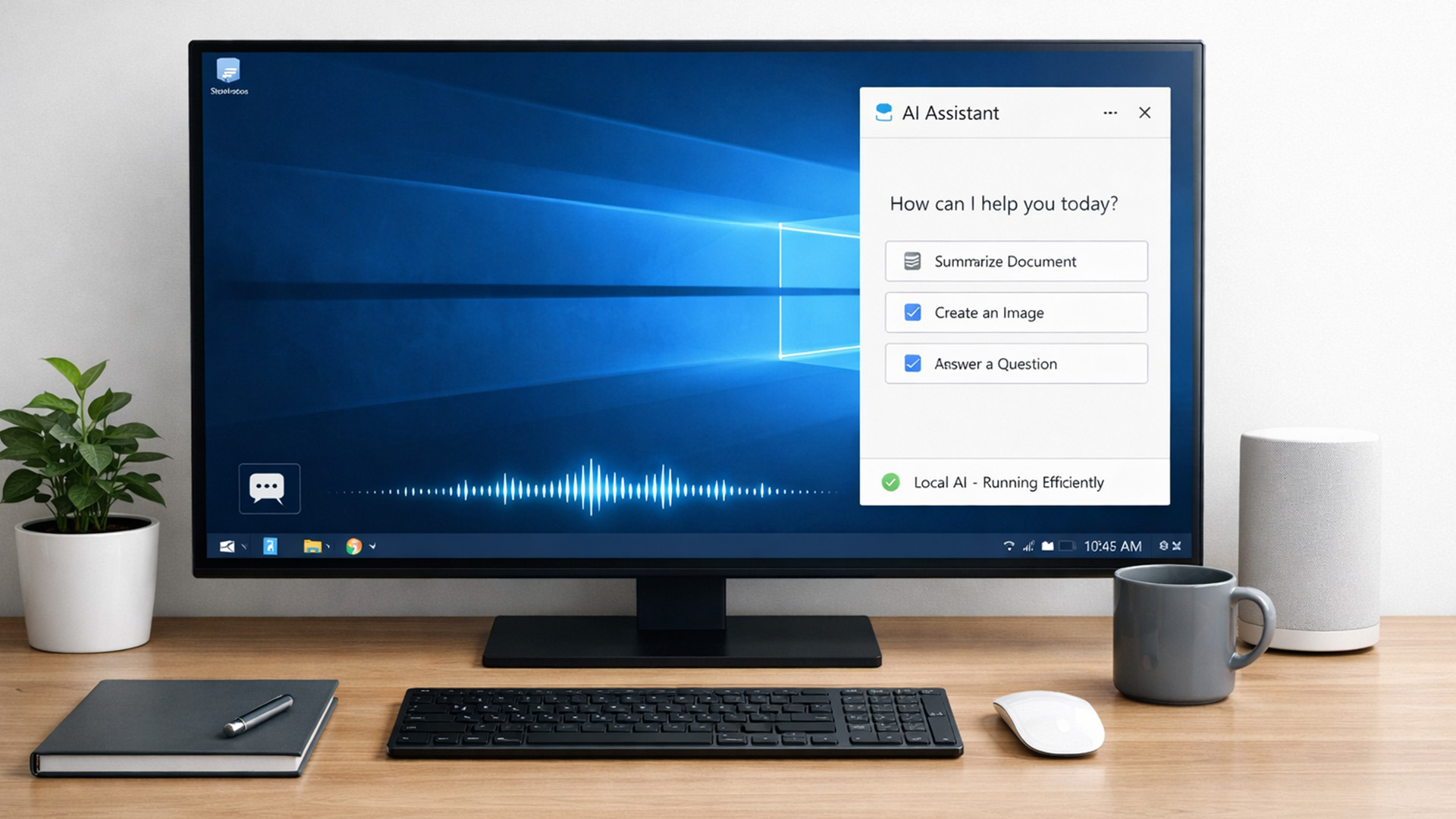
AI didn’t just become a software thing - it became a hardware conversation.
For years, AI lived in the cloud. You typed something, it went to a server, magic happened, and the result came back. Now, operating systems (especially Windows) are pushing AI features onto the device itself. That shift is what triggered the “AI-Ready” wave.
An AI-Ready desktop is basically a PC that can:
- Run certain AI tasks locally
- Do it efficiently
- Without destroying performance or power usage
That’s it. No sentience. No robot takeover.

Last Updated: February 11, 2026
Choosing the right desktop PC can feel a bit like picking a side in a long-running tech rivalry. HP, Dell, and Lenovo are three of the biggest names and for good reason. They all offer reliable, powerful desktops that suit everything from casual home use to hardcore business workloads and creative setups.
But when it comes to HP vs Dell vs Lenovo desktop PCs, which brand actually wins for you?
Why Compare HP, Dell, and Lenovo Desktop PCs?
HP, Dell, and Lenovo are all global heavyweights in the PC world. They each offer a wide range of desktops — from budget-friendly towers to powerful workstations and compact all-in-one PCs.
But here’s the thing:
Not all desktop PCs are built for the same kind of user.
Some are better for productivity, some for gaming, and others for long-term reliability. Understanding the differences is key before you hit “Add to Basket”.
HP Desktop PCs: Style Meets Performance
HP desktops are known for blending solid performance with modern design. If you like your
Published: February 09, 2026
If you have been browsing for a new PC lately, you might have noticed a bit of a price shock. Whether you are looking for a sleek all-in-one for your home office or a powerful gaming rig, the numbers on the price tags in 2026 are noticeably higher than they were just a couple of years ago.
Many UK buyers are left scratching their heads, asking the same question: why are desktop PCs expensive all of a sudden? It is a fair question. In this guide, we will break down exactly what is driving these costs and, more importantly, how you can still find incredible value.
Key Reasons Desktop PC Prices Are Rising
Understanding the "why" behind the price hike helps you time your purchase better. Here are the primary factors driving the market today.
The "AI Squeeze" on Components
The biggest culprit isn't a lack of chips, but a shift in what those chips are used for. Huge data centres are currently buying up almost 70% of the world’s advanced memory (DRAM) and storage (NAND) to power AI models.

Last Updated: September 15, 2026
If you’re asking “are refurbished desktop PCs worth it” in 2026, you’re not alone. Refurb is having a moment in the UK, partly because budgets are tight, and partly because more people want a cheaper, lower-waste way to get solid tech. At the same time, buyers are more hesitant than ever… and that hesitation is not random. A few very 2026-specific changes have raised the stakes.
This guide breaks down the real reasons people hesitate in 2026, and how Laptop Outlet reduces those risks so you can buy refurbished with genuine peace of mind - without losing out on choice or price.
What changed in 2026 that made buyers more cautious?
1) The Windows 10 “cliff edge” is now behind us
Windows 10 support ended on 14th October 2025, which means many older desktops are now in a riskier zone if they can’t upgrade cleanly.
Yes, Microsoft offers Extended Security Updates (ESU), but for consumers it’s a limited runway (through 2026) and comes with requirements that can add friction.
Why this makes refurbished

Last Updated: March 06, 2026
If you’re trying to plan your backlog (or your annual leave), this is your 2026 upcoming games list in one place, with confirmed release dates and clearly labelled release windows where a specific day isn’t locked yet.
This guide is built for people who want a clean answer to: “What’s coming out in 2026, and when?” — including release dates on Switch/Switch 2, PS5, Xbox Series X|S, and PC.
Last Updated: Friday, 6 March 2026
How We Verify Release Dates (so you can trust the calendar)
We only list a game under a month when it has a confirmed date (day + month) from a reliable source (publisher/dev announcement, platform store listing, or established release calendar). For wider coverage, we cross-check against frequently updated release schedules.
Labels You’ll See:
- Confirmed date = the day is publicly announced/listed
- Release window = “Spring 2026 / Q3 2026 / 2026” (no day yet)
- Early Access = date refers to EA launch, not 1.0
Quick timezone note (important): some PC store pages show a

