



Choosing the Best Storage for Your PC or Laptop in 2025

Selecting the right PC storage solution is one of the most important decisions when upgrading or building a PC or laptop in 2025. Computer data storage affects everything from system boot times and game load speeds to file transfers and long-term reliability. This guide provides an in-depth look at the different storage options available today, how to compare them, and what to prioritise depending on your individual needs. With storage technologies evolving rapidly, understanding what each option offers ensures you don't overspend or settle for outdated hardware.
What are the Different Storage Types Available?
The first step is to understand the core types of storage available in 2025. These include SSDs, HDDs, and niche legacy technologies.
Solid State Drives (SSDs) are the standard for performance-focused PC storage. They use flash memory with no moving parts, making them faster, more durable, and more energy-efficient than older technologies. Key types include:
- SATA SSDs: These are entry-level SSDs that connect via the SATA III interface. While significantly faster than HDDs (up to 550 MB/s), they are slower than NVMe drives. Still used in older laptops or desktops where NVMe isn't supported. Suitable for light office use or refurbished computer parts systems.
- NVMe SSDs: These connect through the PCIe bus and deliver much faster speeds. Available in multiple PCIe generations, they offer read/write speeds beyond SATA's limits. Ideal for gaming, creative work, and multitasking environments.
- M.2 SSDs: A common physical format. It can be either SATA or NVMe, so checking before purchasing is essential. Widely used in laptops and compact desktops due to their small size.
- U.2 SSDs and Add-in Card SSDs: Mostly used in professional or enterprise environments. Not typical for home users. Often found in servers and high-end workstations that require high IOPS and endurance.
Hard Disk Drives (HDDs) are mechanical drives using spinning disks. While they offer the cheapest cost per terabyte, they are painfully slow for modern systems. Best used for backup, large-scale media pc storage, or archival. Hard drives for PC users may still consider these for large capacity needs. HDDs are also more prone to mechanical failure and are heavier and noisier than SSDs.
Hybrid Drives (SSHDs attempt to blend SSD speed with HDD capacity, but their benefits are minimal. With SSD prices dropping, there's little reason to consider them in 2025. They also lack the longevity and speed of dedicated SSDs, and software caching often underdelivers in real-world scenarios.
NVMe Is the Default for Most Users
By 2025, NVMe drives will have become the new baseline for performance. They are no longer limited to high-end builds. Entry-level and mid-tier laptops often come with pre-installed PCIe 3.0 or 4.0 NVMe SSDs, making them the best PC storage option for most consumers.
Benefits of NVMe:
-
Significantly faster OS boot times
-
Reduced application and game load times
-
Smoother multitasking and app switching
-
Better performance in write-intensive workloads like video editing
-
Faster software installation and updates
-
Enhanced system responsiveness during heavy usage
Even if you're on a tight budget, a PCIe 3.0 NVMe drive will still outperform any SATA SSD or HDD by a wide margin. PCIe 4.0 and 5.0 NVMe drives offer even higher performance ceilings for users handling larger files or demanding workloads. NVMe drives also benefit from newer controller technologies and firmware optimisations, which improve efficiency and stability.
PCIe Generation Matters
NVMe drives use PCIe lanes for data transfer, and the PCIe generation directly affects performance:
-
PCIe 3.0: Max ~3,500 MB/s. Suitable for general use and budget-conscious users.
-
PCIe 4.0: Max ~7,000 MB/s. Ideal for gaming, creative work, and modern applications.
-
PCIe 5.0: Max ~14,000 MB/s. It is extremely fast, but currently, it is only useful for high-end use cases like AI, 4K/8K video editing, and large-data manipulation.
Important note: Always check system compatibility. A PCIe 5.0 drive in a PCIe 3.0 slot will function only at PCIe 3.0 speeds. Future-proofing is fine, but overspending for bandwidth you can't use is wasteful. Also, be aware that PCIe 5.0 drives may run hotter and require better cooling solutions.
Storage Capacity Recommendations
Storage needs vary widely depending on how you use your device. In 2025, storage prices will have fallen, so there's no need to settle for low capacities.
-
Casual users (web, email, office apps): 500GB – 1TB. Avoid 128GB or 256GB drives – they fill up fast and often perform worse due to fewer NAND channels.
-
Gamers: 1TB minimum. Many modern games exceed 100GB each. A 2TB drive offers room to grow and avoids constant game uninstalling/reinstalling.
-
Creative professionals: 2TB–4TB. You'll need the space and sustained write speeds for handling high-res video, RAW images, 3D renders, and project files.
-
Developers: At least 1TB. Coding environments, virtual machines, and containers eat up space. SSDs also improve compile times and reduce latency in dev workflows.
-
Students: 500GB–1TB is ideal. Enough for coursework, media, and backups. Consider external SSDs for additional flexibility.
Also, consider how long you plan to keep your device. A slightly larger drive upfront prevents the need to upgrade later.
Performance vs Budget
Performance often scales with price, but not linearly. Above a certain point, the performance gains are negligible for most users.
If you're just browsing the web or using office apps, a mid-range PCIe 3.0 NVMe SSD will feel identical to a PCIe 5.0 model in day-to-day use. However, gamers and professionals may notice real gains from faster drives, especially during large file operations or loading assets.
Balance you spend based on needs:
-
Don't pay extra for PCIe 5.0 unless you truly need it
-
Avoid bottom-barrel QLC-based drives unless you're fully aware of their limitations
-
Prioritise DRAM and endurance over raw speed for everyday reliability
-
Consider brands that bundle software tools for monitoring drive health and performance
It's also worth noting that a well-optimised drive from a reputable brand can outperform a higher-spec drive with poor firmware or thermal throttling issues.
DRAM vs DRAM-less SSDs
Many budget SSDs cut costs by removing onboard DRAM. These DRAM-less drives use a feature called HMB (Host Memory Buffer), which borrows system RAM.
DRAM SSDs:
- Faster under sustained load
- Better write consistency
- More suitable for gaming, content creation, and multitasking
- Less dependent on system resources
DRAM-less SSDs:
- Cheaper
- Fine for light or secondary usage
- Can suffer slowdowns during file transfers or heavy I/O
- May exhibit more latency during random reads/writes
Always check SSD specs before buying. If performance and reliability matter, choose a DRAM-equipped model.
NAND Type: TLC vs QLC
NAND flash stores your data, and its type affects performance and durability.
-
TLC (Triple-Level Cell): Industry standard. Balanced performance, endurance, and cost. Best choice for most users. Suitable for both OS and general-purpose storage.
-
QLC (Quad-Level Cell): This type of SSD is cheaper per gigabyte but has lower write speeds and endurance. It is not ideal for write-heavy tasks. It is common in budget SSDs, but performance drops sharply once the cache is saturated.
-
SLC/MLC: Rare now. More durable and faster, but too expensive or discontinued for most consumer use. Mostly seen in industrial or niche applications.
Avoid QLC drives if you're doing heavy writing tasks like video editing or virtual machine use. For general use, TLC offers the best compromise. Some QLC drives include large SLC caches to hide slower speeds, but these don't hold up under sustained load.
Reliability and Lifespan
Modern SSDs are durable, but they do wear out over time. Key factors to understand:
-
TBW (Terabytes Written): The Amount of data the drive can write before failure risk increases
-
MTBF (Mean Time Between Failures): Reliability indicator over time
-
Warranty: Good brands offer 3 to 5 years. Choose longer if available.
If you work in high-write environments (e.g., logging, video editing), prioritise high TBW-rated drives. Also, ensure your drive has power-loss protection if data integrity is critical.
Dual-Drive Setups
A dual-drive setup can provide both speed and space:
-
Primary Drive (NVMe SSD): Hosts your OS, apps, and games. Prioritise speed.
-
Secondary Drive (HDD or SATA SSD): Used for mass storage, backups, and media.
This setup allows you to enjoy fast load times while keeping costs manageable. It's ideal for users managing large files (video editors, photographers) or growing media collections. You can also configure SSD caching (e.g., Intel Optane) to accelerate HDD performance, though this is less common now.
External Storage Options
Portable hard drive or external hard drive for PC options are essential for backups, portable gaming libraries, or transferring files between machines.
-
External SSDs are fast, compact, and durable. Their USB-C or Thunderbolt interfaces allow speeds comparable to internal SSDs, making them suitable for editing projects on the go.
-
External HDDs: Still the cheapest way to store large volumes. Good for backups and rarely accessed files. Slower and more vulnerable to physical shock.
-
NVMe Enclosures: Combine an NVMe drive with a USB 4.0/Thunderbolt enclosure for blazing-fast portable storage. This is ideal for large file transfers or external boot drives.
Always check your system's port capabilities. Using a USB 2.0 port with a fast SSD will create bottlenecks. Proper cable and power delivery also matter when considering external hard drive setups.
Cloud vs Local Storage
Cloud storage is convenient and flexible but isn't a full replacement for local SSDs, especially when handling large files or working offline. While cloud services excel at syncing and backups, local pc storage remains essential for high-speed tasks.
| Feature | Cloud Storage | Local SSD Storage |
| Access | From any internet-connected device | Only on the connected machine |
| Speed | Limited by internet connection | Ultra-fast for large files & apps |
| Cost | Recurring subscription fees | One-time hardware cost |
| Control | Managed by third-party providers | Full user control and privacy |
| Offline Use | Requires internet | Fully usable offline |
| Best ForBest For | Backup, sharing, light file access | Gaming, video editing, intensive tasks |
Recommendation: Use cloud storage primarily for syncing, remote collaboration, and redundant backups. Local SSD storage remains essential for performance-critical tasks like gaming, content creation, and running applications.
What to Make Sure Before Buying
Before making a purchase, verify these factors:
-
Interface: Confirm whether your system supports NVMe, SATA, or PCIe 4.0/5.0.
-
Form Factor: Ensure physical compatibility with M.2 2280, 2230, or other sizes.
-
Cooling: Some high-speed SSDs require heatsinks or airflow. Don't overlook thermal design.
-
Firmware Support: Choose brands that release regular firmware updates and have solid management software.
-
Online Reviews: Don't rely on manufacturer specs alone. Independent benchmarks give real-world insights.
-
Endurance: Especially important for professional or high-write workloads
-
Brand reputation: Avoid generic or no-name drives with no reviews or support
Final Verdict
The storage options in 2025 offer better performance, and greater affordability than ever before. But with that abundance comes complexity. For most users, a PCIe NVMe SSD should be the foundation. It's fast, reliable, and increasingly cost-effective. If your work or play involves large files, multitasking, or demanding software, investing in higher-end NVMe storage with proper cooling and firmware support is worth every penny.
Don't overlook secondary PCstorage either. Hard drives for PC still have a place for cheap bulk computer data storage, especially when paired with a fast SSD for the OS and applications. And for those who need flexibility or mobility, external hard drive, portable hard drive, and cloud storage offer supplementary tools.
Whether you choose lightning-fast SSD performance or a high-capacity hard drive, Laptop Outlet has you covered. Browse our PC laptop storage selection from top brands, fully equipped with the latest NVMe drives, high-speed RAM and memory, and future-proof specs.
Choosing the Best Storage for Your Needs: FAQs
-
What is the best type of storage for a laptop in 2025?
The best storage for most laptops in 2025 is a PCIe NVMe SSD. It offers faster boot times, high data transfer speeds, and better overall system responsiveness than older SATA SSDs or traditional HDDs.
-
Is NVMe better than SSD for laptops and PCs?
NVMe is a type of SSD, but it's faster and more efficient than traditional SATA SSDs. If your laptop or PC supports it, NVMe provides significantly better performance for gaming, productivity, and multitasking.
-
How much storage do I need for a laptop in 2025?
Most users should aim for at least 500GB to 1TB of storage in 2025. Gamers and creative professionals may need 2TB or more to handle large files and modern applications without constantly managing space.
-
Can I combine SSD and HDD in one laptop or PC?
Yes, combining an SSD for speed (OS and apps) with an HDD for storage (files and media) is a common and cost-effective setup. Many laptops and desktops support dual-drive configurations in 2025.
-
Which SSD brands are best in 2025?
Top-rated SSD brands in 2025 include Samsung, Crucial, Western Digital, SK hynix, and Kingston. Look for models with TLC NAND, DRAM cache, and good TBW ratings for reliability and performance.
| Read More: |
| Hard Drive Prices: Storage Capacity, Robustness and Reliability |
| What is a Cloud Storage? |
| What is the Cheapest Laptop that Comes with 32GB RAM? |
Related Articles


Last Updated: May 05, 2026
The best external hard drives offer a convenient way to back up large amounts of data and keep them safe from malware attacks, hardware failures and theft.
The demand for storage capacity continues to grow rapidly as individuals and businesses accumulate vast amounts of data. Whether it's storing essential documents, multimedia files, or complex software applications, having sufficient storage space is crucial for maintaining productivity and efficiency.
However, the considerations extend beyond mere capacity regarding hard drives. Robustness and reliability are pivotal in ensuring that stored data remains safe and accessible over time.
This blog will explore the intricacies of hard drive prices and how storage capacity, robustness, and reliability influence purchasing decisions.
Whether you're a casual user needing extra storage for personal files or a business professional seeking dependable data storage solutions, understanding these factors is essential for making informed choices and

Last Updated: June 27, 2025
What Is Cloud Storage
Imagine accessing your photos, documents, and videos from any device—without carrying a USB stick. That’s the power of cloud storage. It’s fast, secure, and essential for both personal and professional life in 2025.
1. What Is Cloud Storage?
Cloud storage is a way to store digital data online—on remote servers managed by companies like Google, Apple, Microsoft, and Dropbox.
Instead of saving files on a device, you upload them to a virtual server (aka the cloud), making them accessible anywhere with an internet connection.
2. How Does Cloud Storage Work?
- You upload files using an app or web browser
- Files are encrypted and stored on secure servers
- Access them from any synced device—PC, phone, or tablet
- Changes sync in real-time across devices
3. Benefits of Cloud Storage
- Access anywhere – no need to carry drives
- Automatic backups – never lose a file again
- Share files easily – with friends, family, or co-workers
- Saves space – on your local device

Last Updated: July 02, 2025
From lightning-fast load times in your favourite games to managing massive project files at work, the right PC storage matters a lot. Whether you're a gamer building a high-performance rig or a professional balancing multiple workloads, your storage setup directly impacts speed, efficiency, and overall productivity.
But with so many storage options available, including SSDs, HDDs, external drives, and more, how do you know which one is best for your needs? Each type of storage brings its own strengths, weaknesses, and ideal use cases.
So, to make things easier for you, we’ll break down everything you need to know about choosing the best computer data storage for both gaming and work in this guide. From understanding the different types of storage to picking the right combination for your budget and goals, we’ll help you make a smart, future-ready decision for your setup.
Types of PC Storage:
Understanding the different types of PC storage is the first step toward building a system that
Last Updated: May 14, 2026
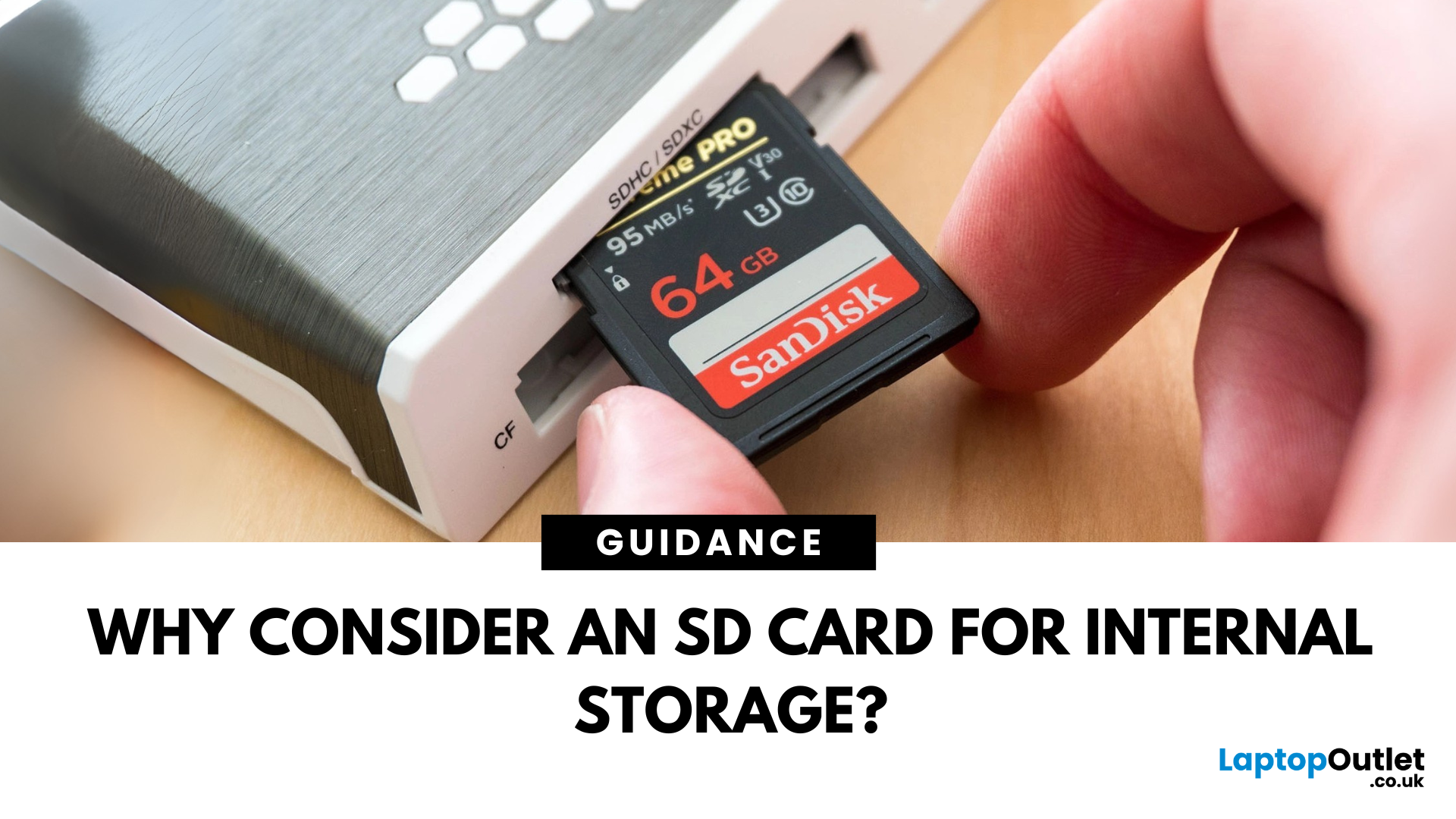
When most people think of internal storage, their minds leap to solid-state drives (SSDs) or embedded flash memory. Yet, there's a smaller, often overlooked storage solution in this space: the SD card. Traditionally used for photography, portable gaming, and mobile data transfer, SD cards have quietly evolved into powerful, reliable, and cost-effective internal storage solutions.
As devices become compact and users demand greater portability without sacrificing storage capacity, SD cards and their MicroSD variants are becoming popular. SD cards provide an expandable internal storage solution for affordable smartphones, compact PCs, tablets, and embedded systems.
In this blog, we explore the technical and practical reasons why SD and MicroSD cards have become viable internal storage alternatives. We'll discuss the advantages of SD cards, including their reliability, portability, energy efficiency, compatibility, and more.
Solid Reliability in a Small Package
Modern SD cards are built using

