



Does Apple Studio Display Work with Windows PCs
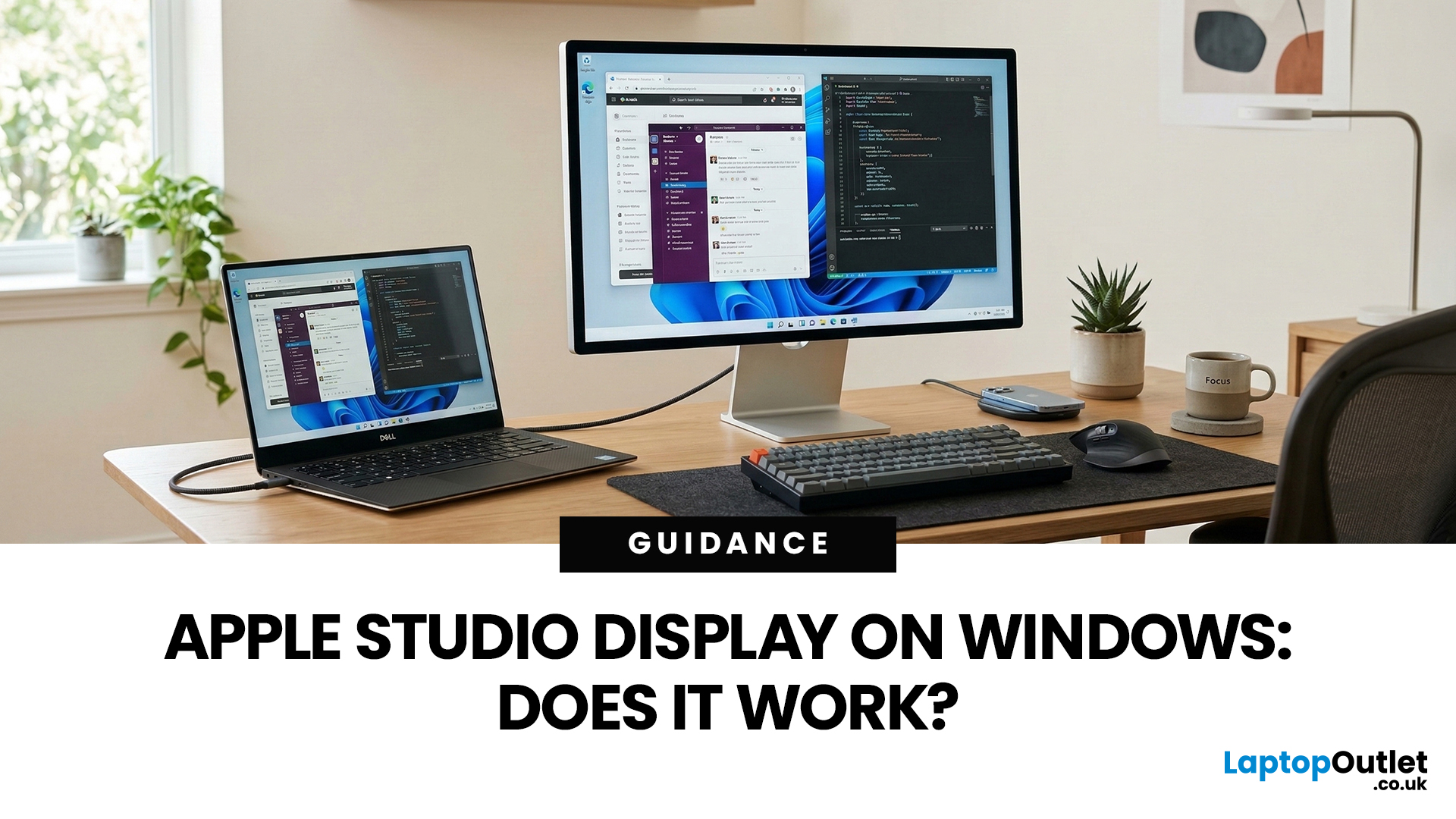
You’ve seen the Apple Studio Display. It’s sleek, stupidly sharp, and it makes your desk look like you’ve got your life together. But you’re on Windows. So, the big question is: Does Apple Studio Display work with Windows PCs? Yes, it can. But you won’t always get the full “Apple magic” experience on Windows.
Apple Studio Display + Windows: What Works vs What Doesn’t
Core Monitor Functions (generally work)
The good news: the basics are solid.
- You’ll get a picture (yep, it’s a monitor)
- Resolution and scaling can be adjusted in Windows settings
- It can act as an audio device (the built-in speakers often show up as an output option)
In other words: for day-to-day “I need a stunning screen”, you’re fine.
Features that May be Limited or Not Supported on Windows
Here’s where the “Apple ecosystem” bit starts showing:
- Center Stage (auto-follow webcam feature): usually not available as intended on Windows
- True Tone (auto colour temperature shifts): Generally not supported
- Firmware updates: typically require a Mac
- Camera/mic behaviour: can vary depending on USB drivers and the connection method
So yes, you can use it. Just don’t expect it to behave like it does with a Mac straight out of the box.
What You Need to Connect Studio Display to a Windows PC
Ports, Cables, and Adapters
Apple Studio Display connects via Thunderbolt / USB-C. The easiest Windows experience is when your Windows device has:
- Thunderbolt 3 or Thunderbolt 4, or
- USB4, or
- USB-C with DisplayPort Alt Mode (video over USB-C)
If your PC has one of those, you’re already winning. If it doesn’t? You might still make it work, but you may run into limitations, especially around 5K resolution.
Adapter Checklist (based on your PC)
If you have Thunderbolt 3/4 or USB4:
- Usually: plug in and go
If you have USB-C (DP Alt Mode):
- You’ll need a good quality USB-C cable (not the £6 mystery cable from a random marketplace)
If you have no USB-C video output at all (e.g., older desktop towers):
- You’ll likely need a dock, add-in Thunderbolt card, or specialist adapter setup
- This is where you must be careful: not all docks/adapters support 5K
How to Connect Apple Studio Display to Windows PC?
If your goal is to connect studio display to windows PC, here’s the cleanest path.
Step 1: Confirm Your Windows Port Supports Video
Not every USB-C port does video. Some are charge-only, some are data-only, and some do everything. Here are quick checks:
- Look for a lightning bolt icon (Thunderbolt)
- Check your laptop specs for Thunderbolt 3/4, USB4, or DisplayPort over USB-C
- If it’s a desktop: check if your motherboard supports Thunderbolt/USB4, or if your GPU offers USB-C video
Step 2: Choose the Right Connection Method
Your options, best to worst (generally):
- Thunderbolt direct connection (smoothest experience)
- USB-C direct (with DP Alt Mode) (often fine, but not always 5K)
- Dock/hub setup (varies wildly, check specs carefully)
Step 3: Set the Correct Display Settings in Windows
Once it’s connected:
- Go to Settings → System → Display
- Select the Studio Display
- Adjust:
- Display resolution
- Scale
- Refresh rate (if available)
Pro tip: Windows sometimes picks a weird scaling level. You can make it look chef’s kiss with a couple of tweaks (more on that next).
Resolution & Refresh Rate: Can Windows Drive 5K?
The Big Question, 5K at 60Hz
This is the main “it depends” moment.
5K is a lot of pixels, meaning it needs more bandwidth than 4K. In many cases, you’ll only get full 5K at 60Hz if your Windows machine supports Thunderbolt 3/4 or USB4 properly, and your GPU setup is capable. If you plug it in and only get 4K or lower, it’s usually because:
- your port isn’t Thunderbolt/USB4,
- the dock/adapter can’t handle 5K,
- your GPU output path is limited.
Best Settings for Text Clarity
If you do get high resolution, Windows text can look a bit… spicy… until you tune it.
Try:
- Scale around 150%–200% (depends on how close you sit)
- Turn on ClearType (search “ClearType” in Start)
- Check Advanced scaling settings if things look blurry
You’ll know it’s right when text stops looking like it’s been lightly smudged with a thumb.
Audio, Mic, and Webcam on Windows
Speakers
Often, the Studio Display shows up as an audio output device.
To set it:
- Right-click the sound icon → Sound settings
- Under Output, pick the Studio Display
If the speakers don’t show:
- Try unplugging/replugging
- Restart Windows
- Update GPU + chipset drivers
Microphone
Same idea:
- Sound settings → Input
- Select Studio Display mic if it appears
If it doesn’t:
- Go to Settings → Privacy & security → Microphone
- Make sure access is enabled for your apps
Webcam
The webcam can be the most chaotic part on Windows.
Sometimes it appears as a camera device, sometimes it doesn’t behave how you expect. And the Apple-only bits (like Center Stage) typically aren’t a thing in the same way on Windows.
If you need a webcam that’s guaranteed flawless on Windows, don’t buy this display for the camera. Buy it for the screen and treat the camera as a “nice if it works”.
Drivers: Do You Need Apple Studio Display Windows Drivers?
The Driver Reality
Here’s the truth: there usually isn’t a single magical “Apple Studio Display Windows drivers” download that fixes everything. For the monitor side, Windows normally handles it fine via plug-and-play. Where “drivers” come into play is more like:
- Thunderbolt/USB controller drivers
- GPU drivers (NVIDIA/AMD/Intel)
- Windows Update optional drivers
So, when people search for Apple Studio Display driver for Windows 11, what they often need is: updated Thunderbolt and graphics drivers.
What to Try if Something isn’t Detected
If the display/camera/audio isn’t showing properly:
- Run Windows Update (including optional updates)
- Update GPU drivers from NVIDIA/AMD/Intel
- If you have Thunderbolt: install/update your Thunderbolt drivers/software
- Try a different port/cable (yes, it matters)
If You Have Access to a Mac
If you can borrow a Mac even occasionally, it helps because:
- you can do firmware updates
- you can confirm the display is fully healthy
Not everyone has this option, but it’s a useful “if you can, do”.
Common Problems and Fixes
No Picture/Black Screen
- Make sure you’re using a port that supports video
- Try a different cable
- Restart the PC with the display connected
- Plug directly in (skip docks temporarily)
Stuck at 4K (or Lower)
- Check if your connection supports 5K bandwidth
- Avoid low-spec hubs/docks
- Update GPU + Thunderbolt/USB drivers
- Try Thunderbolt/USB4 if you have it
USB Devices Not Working (Hub Issues)
The Studio Display has USB-C ports. If they’re not working:
- You might have video but not proper USB upstream
- Use a Thunderbolt connection if possible
- Check Device Manager for USB/controller warnings
Webcam Not Showing Up
- Check Windows camera privacy permissions
- Try the Camera app first
- Update drivers (GPU + chipset/USB/TB)
Brightness Controls Missing
On Windows, brightness control can be limited:
- Some users rely on third-party monitor control apps
- If you can’t control it, you may be stuck with whatever brightness it boots with
Best Hardware Setups
Best-Case Windows Laptop Setup
- A Windows laptop with Thunderbolt 4 or USB4
- Direct connection (simple, clean, minimal drama)
Best-Case Desktop Setup
- A desktop with a compatible motherboard + Thunderbolt/USB4 support, or a proper add-in solution
- A modern GPU that can handle high resolution output
If you’re on a desktop with only HDMI/DisplayPort and no Thunderbolt/USB-C video support, the Studio Display becomes a much more complicated (and often not worth it) project.
When you should consider another monitor
Pick something else if you need:
- Guaranteed seamless Windows feature support
- Easy firmware updates
- Full on-screen control (brightness, colour modes, etc.)
- Built-in KVM features for switching between devices

Should You Buy Apple Studio Display for Windows?
If your Windows setup has Thunderbolt 3/4 or USB4, the Apple Studio Display can be a genuinely lush upgrade, delivering a super-sharp premium screen for work, streaming, and multitasking.
The catch is that Windows won’t always get the full Apple “magic”: features like True Tone, Center Stage-style webcam behaviour, and easy firmware updates are often limited, and hitting full 5K at 60Hz depends on your exact port, GPU, and any dock or adapter. Buy it for the screen quality with the right connectivity; otherwise, a Windows-first monitor may suit you better.

Things You Might Want to Know
Does Apple Studio Display work with Windows PCs?
Yes, it can work as an external monitor, but some features (like True Tone and firmware updates) are limited or Mac-only.
Do I need an Apple Studio Display driver for Windows 11?
Usually no for basic display output, but you may need up-to-date GPU, chipset, and Thunderbolt drivers for best results.
Will the webcam and microphone work on Windows?
They can, but behaviour varies by setup. Centre Stage and Apple-specific processing won’t work the same as on macOS.
How do I connect Studio Display to a Windows PC without Thunderbolt?
It depends on whether your USB-C supports DisplayPort Alt Mode and whether your adapter/dock supports 5K bandwidth.
Related Articles

Last Updated: May 05, 2026
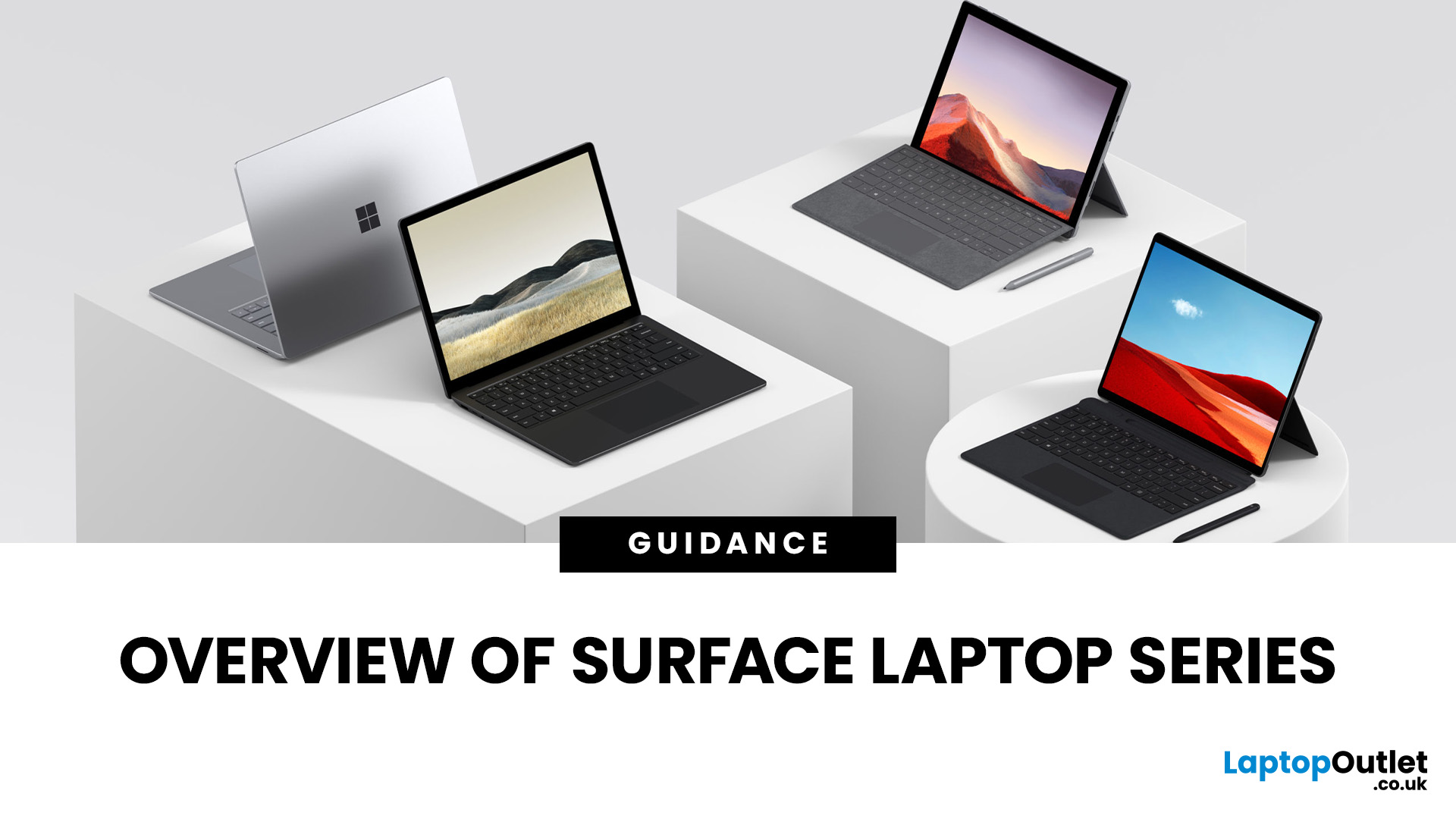
Finding the right laptop isn't always straightforward, especially when you're faced with the wide range of devices in the Microsoft Surface laptop series. Over the years, Microsoft has expanded this lineup to cover just about every type of user: students who want something light and affordable, professionals who need a reliable work machine, and even creatives who require the power of dedicated graphics.
In this guide, we'll explore the key models in the series: Surface Laptop, Surface Laptop Go, Surface Laptop Studio, and Surface Pro. You'll discover what makes each device unique, who they're best suited for, and what trade-offs to consider. By the end, you'll have a clear picture of which Surface laptop matches your lifestyle and budget.
What’s New & Key Trends in Microsoft Surface Laptop Series 2025
- Microsoft is pushing Copilot+ PCs: many Surface devices now include AI enhancements, on-device NPU (neural processing unit) capabilities, and Windows 11 Copilot features optimisations.
Last Updated: January 21, 2026
For years, Lenovo has quietly done something most tech brands struggle with:
making devices that actually make sense for real people.
- Not flashy-for-the-sake-of-it.
- Not overpriced because of a logo.
- Not confusing hybrids that don’t know what they want to be.
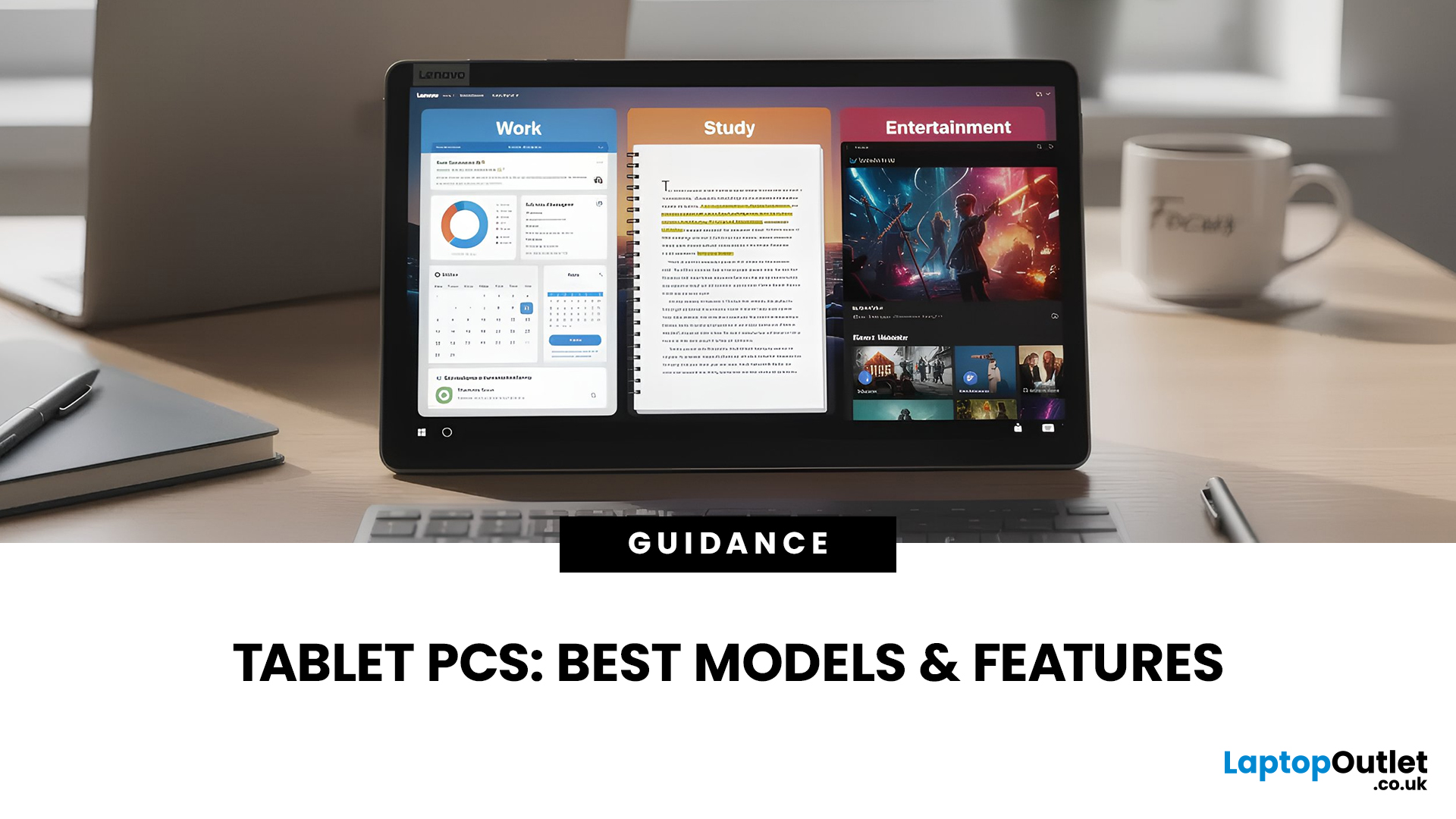
In 2026, Lenovo Tablet PCs feel more relevant than ever, especially if you care about value, flexibility, and devices that work just as well for studying, working, streaming, or light creativity.
This isn’t about hype.
It’s about what Lenovo tablets actually do well, where they fit best, and why they’re still one of the smartest tablet choices in the UK right now.
Why Lenovo Tablet PCs Still Matter in 2026
The tablet market has split into extremes. On one end, you’ve got ultra-premium devices that cost as much as laptops. On the other, budget tablets that struggle with basic multitasking.
Lenovo lives in the sweet spot.
Lenovo tablet PCs focus on:
- Practical performance
- Reliable build quality
- Sensible pricing
- Clear use cases
That’s
Last Updated: January 27, 2026
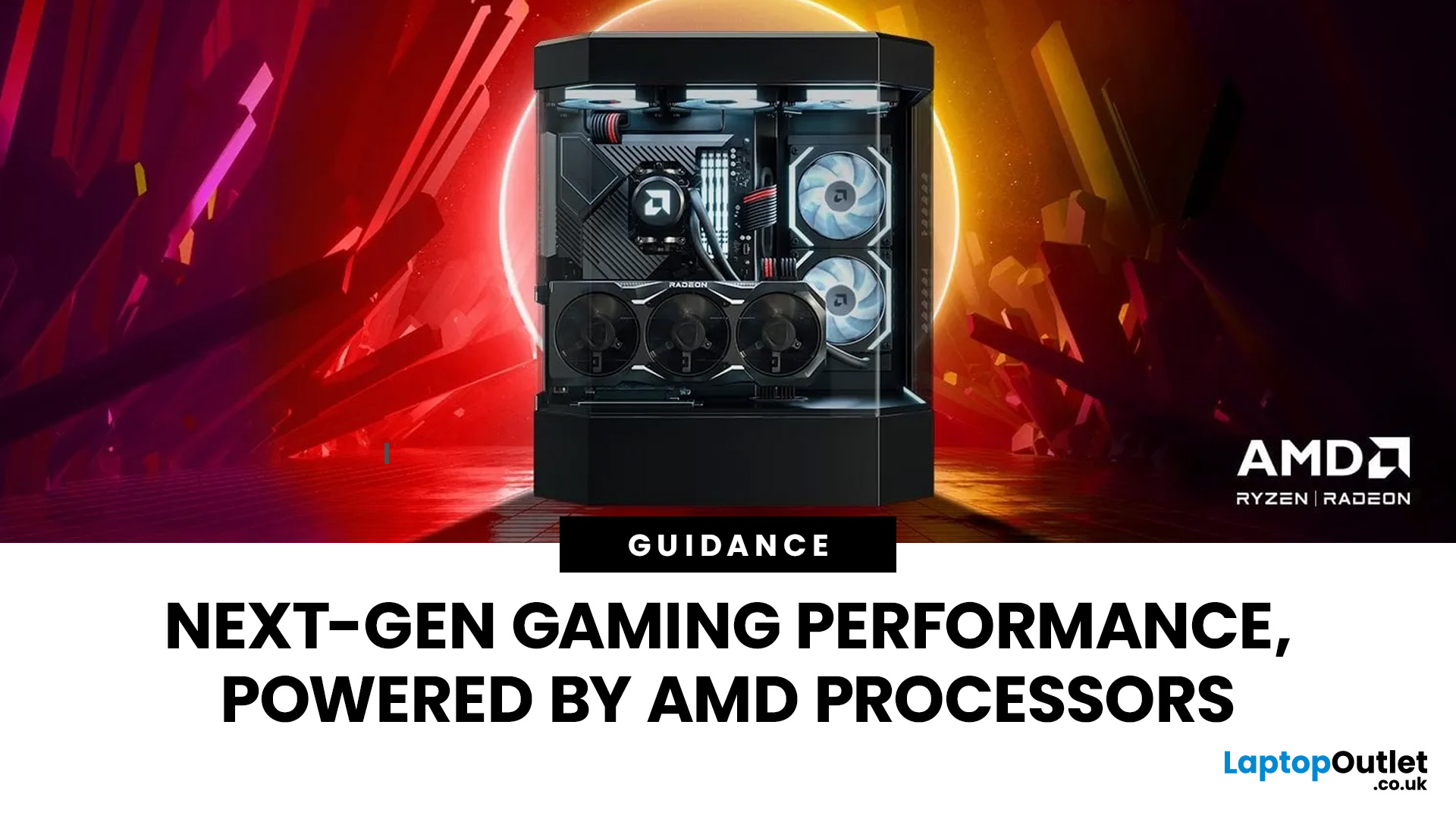
Over the past decade, AMD has transformed from an underdog in the CPU market to a dominant force in gaming PCs.
With its Ryzen series, AMD has consistently delivered processors that combine high performance, competitive pricing, and innovative features. For UK gamers, this has meant more choice, better value, and the ability to build powerful rigs without overspending.
In this guide, we’ll explore exactly how AMD processors work in gaming PCs, the key features that make them stand out, and the benefits they bring to gamers.
Understanding AMD Processors in Gaming PCs
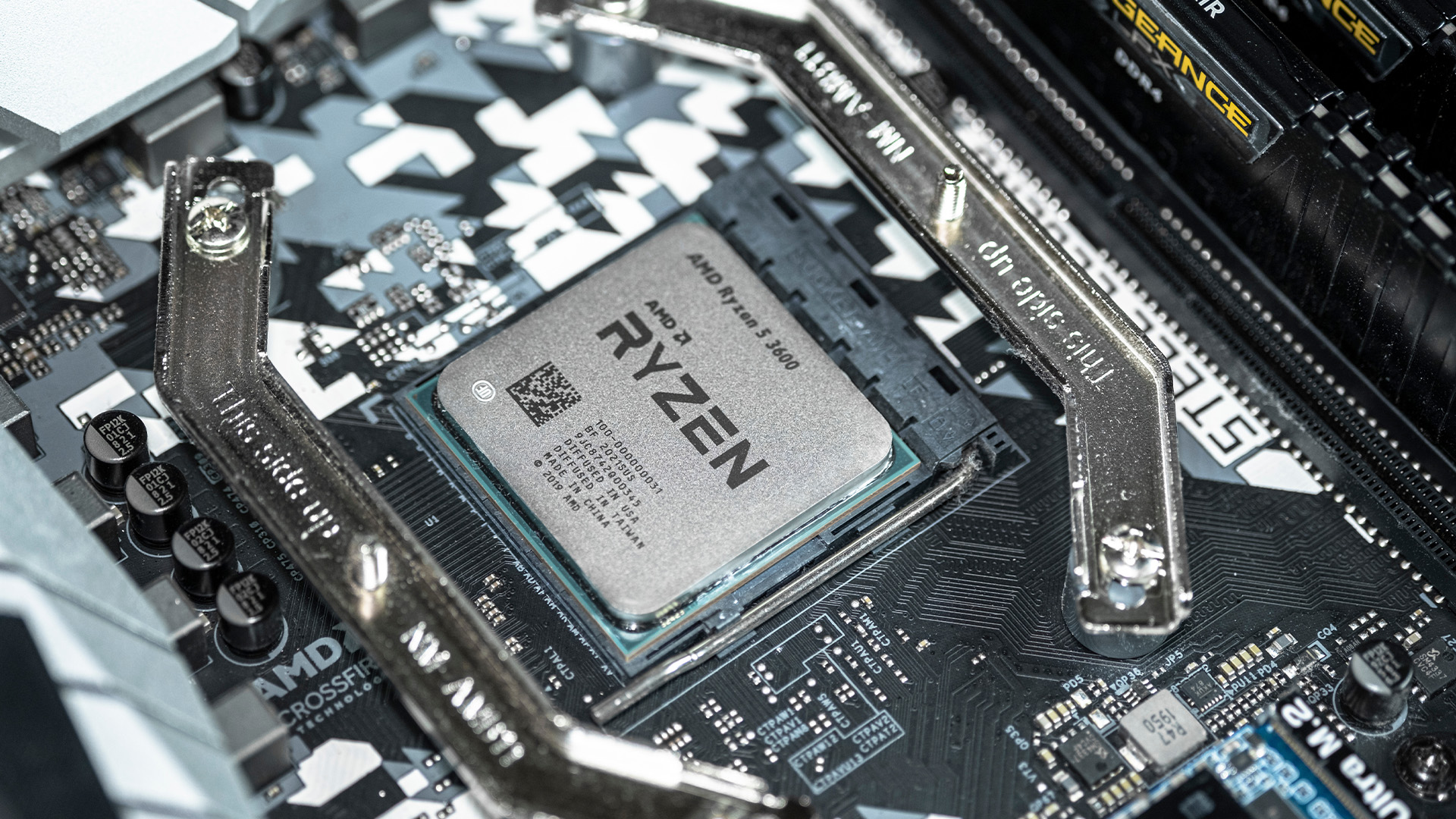
In any gaming setup, the Central Processing Unit (CPU) acts as the primary coordinator. It handles complex AI logic, processes game physics, and manages all background system tasks while your graphics card renders the visuals.
AMD has revolutionised this space by moving away from traditional "monolithic" chip designs where everything is on one piece of silicon. Instead, the modern AMD CPU architecture uses a modular

Last Updated: January 27, 2026
The world of PC gaming has changed forever thanks to a massive leap in graphics innovation. If you have looked at modern gaming desktop PCs recently, you have likely seen the term "RTX" everywhere.
But what is NVIDIA RTX technology exactly? It is not just a fancy label on a box. It represents a total shift in how your computer creates the images you see on screen.
By combining clever artificial intelligence with raw power, NVIDIA has made games look like Hollywood films while keeping them running smoothly.
Introduction to NVIDIA RTX Technology
NVIDIA RTX (Ray Tracing Texel eXtreme) is more than just a brand name. it is a high-end computing platform. It combines specialized hardware cores with advanced software to create lifelike visuals.
A Brief History of NVIDIA Graphics Cards
Before RTX, we had the GTX (Giga Texel Shader eXtreme) series. These cards were powerful, but they relied on "rasterisation." This is a method where a 3D scene is squashed into 2D pixels on your screen. It worked

Last Updated: January 27, 2026
Building or buying a high-end gaming PC is an exciting journey for any enthusiast. The market moves fast, and staying updated on the latest hardware is essential for the best experience.
In this gaming desktop PC breakdown, we will explore the core parts that make a machine powerful. We will look at the latest processors from AMD and Intel, the incredible graphics power of NVIDIA RTX and Radeon RX, alongside other core components.
Whether you want to play the newest AAA titles or compete in esports, understanding these parts is vital. Let us dive into the modern world of gaming PC technologies.
Understanding Gaming Desktop PCs
A gaming desktop PC is a high-performance computer designed specifically to handle demanding video games. Unlike standard PCs, these machines focus on graphical power and fast processing speeds. They use specialised parts that can handle high heat and heavy workloads.
While gaming laptops and consoles are popular, the desktop remains the "gold standard" for several

Last Updated: February 03, 2026
Choosing a new processor used to be a simple choice between raw power and budget value. However, as we move through 2026, the landscape has shifted.
The rivalry of Intel vs AMD desktop processors has reached a fever pitch, with both "Team Blue" and "Team Red" offering incredible technology that caters to very specific types of users.
This guide breaks down everything you need to know about the current market to help you decide which brand deserves a spot in your desktop PC.
The State of the Market in 2026
As we move through 2026, both manufacturers have moved beyond simple core-count wars.
Intel has doubled down on its "Arrow Lake" and "Nova Lake" architectures, focusing heavily on integrated AI NPUs (Neural Processing Units) and a refined tiled architecture.
Meanwhile, AMD continues to dominate the enthusiast market with its Zen 5 architecture, led by the legendary 3D V-Cache technology.
Intel’s Current Strategy: The AI PC Era
Intel has successfully transitioned to its LGA 1851 socket.

Published: February 04, 2026
Your desktop PC is a key part of daily life. It handles work, gaming, and more. But how long can it last? Many users worry about desktop PC lifespan.
The good news is you can extend it to five years or beyond. With smart choices and simple habits, your setup stays reliable. This guide shares practical steps. It covers everything from processor picks to daily care.
Understanding Desktop PC Lifespan
Desktop PCs don't have a fixed expiry date. Their lifespan depends on build quality, usage, and maintenance. On average, a well-kept desktop lasts 5-8 years. But push it right, and you can hit 10 years or more. Why care? A longer desktop computer lifespan saves money and reduces waste.
Key Factors Affecting Longevity
Several elements play a role in how long your desktop endures. First, hardware quality matters most. Cheap parts wear out fast. Second, heat buildup shortens life—poor cooling is a killer. Third, software updates keep things secure and efficient. Finally, your habits, like overworking

Last Updated: February 11, 2026
Buying a desktop PC can quickly become frustrating. Endless specs, unfamiliar terms, and conflicting advice make it hard to know what really matters, and easy to waste money on the wrong setup. But here’s the solution: once you understand what desktop PC specifications actually do, choosing the right machine becomes simple. In this desktop PC specs explained guide, we break down every key component in plain English, showing you exactly what you need for work, home or gaming, and what you can safely ignore. No jargon, no guesswork, just confident buying decisions.
Processor (CPU): The Brain of Your Desktop
The processor, or CPU, is one of the most important parts of any desktop PC. It handles instructions and calculations, directly affecting how fast your system feels.
What to look for:
- Cores & Threads: More cores help with multitasking and demanding software
- Clock Speed (GHz): Higher speeds generally mean faster performance
What you actually

Last Updated: February 10, 2026
Buying a desktop PC is a big decision, especially when prices can range from a few hundred pounds to several thousand. The right choice depends not just on your budget, but on how you plan to use your PC now and in the future.
Let us help you understand exactly what you get at different price points, what specifications really matter, and how to avoid common mistakes. Whether you’re buying your first desktop or upgrading an older system, this guide will walk you through everything you need to know.
Why Choose a Desktop PC Instead of a Laptop?

Before diving into budgets, it’s worth understanding why many UK buyers still choose desktops:
- Better performance for the price
- Easier and cheaper upgrades
- Longer lifespan
- Improved cooling and sustained performance
- More connectivity options
For home offices, gaming setups, and creative work, desktops almost always offer better long-term value.
Understanding Desktop PC Specifications (Quick Primer)
If you’re not technical, these are the core components
Last Updated: May 05, 2026
Let’s call this out early: “AI-Ready” is one of those phrases that sounds important but tells you almost nothing by itself.
Every PC brand is using it. Every listing claims it. And most buyers still walk away thinking, “Cool… but what does that actually do for me?”
So instead of selling you a future fantasy, let’s talk about what AI-Ready desktops actually change in 2026, where they matter, and where they really don’t.
First: Why Everyone Is Suddenly Calling Their PCs “AI-Ready”
AI didn’t just become a software thing - it became a hardware conversation.
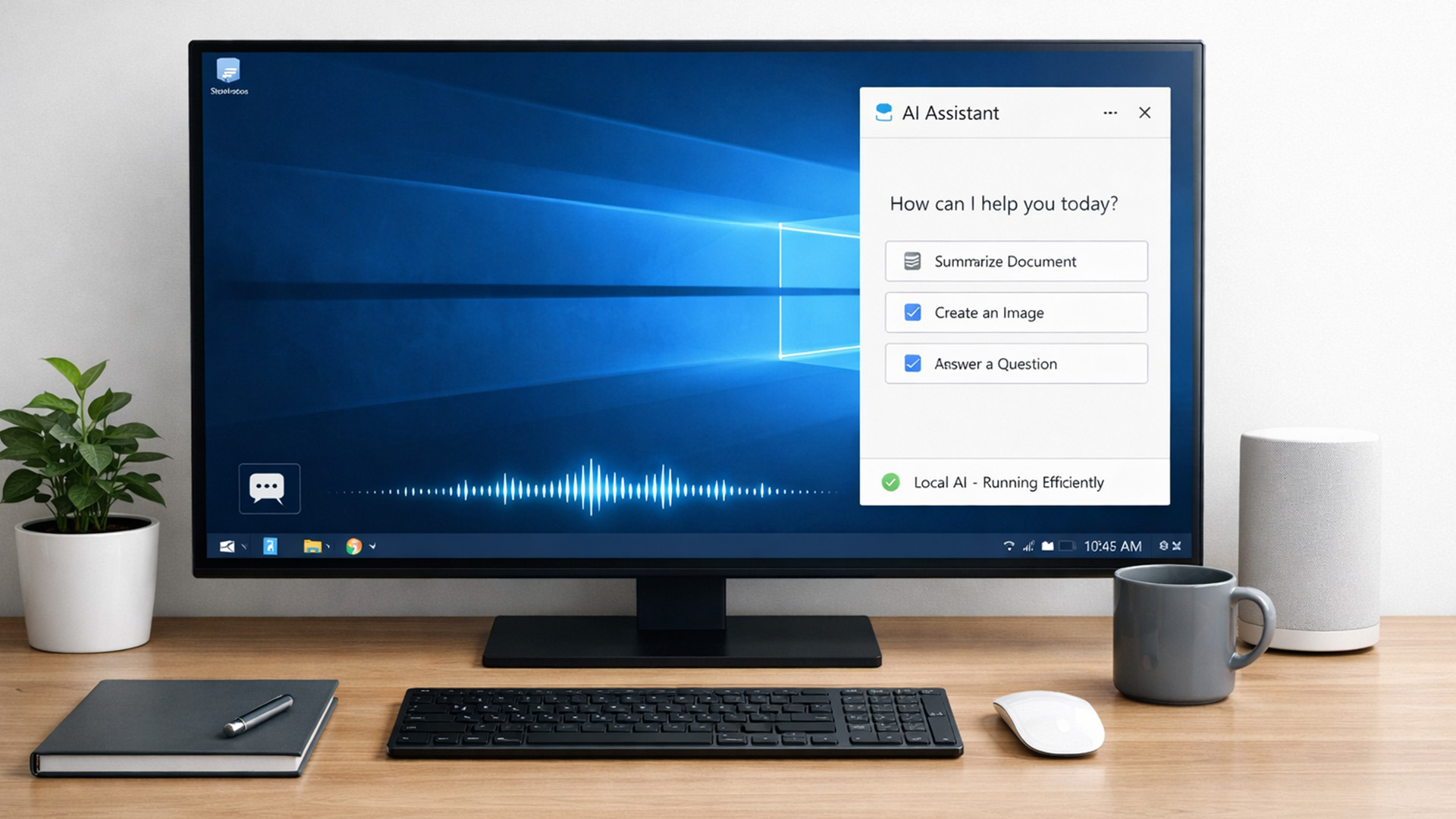
For years, AI lived in the cloud. You typed something, it went to a server, magic happened, and the result came back. Now, operating systems (especially Windows) are pushing AI features onto the device itself. That shift is what triggered the “AI-Ready” wave.
An AI-Ready desktop is basically a PC that can:
- Run certain AI tasks locally
- Do it efficiently
- Without destroying performance or power usage
That’s it. No sentience. No robot takeover.

