



PSU Fan Not Spinning: Normal Zero-RPM Mode or a Fault?
Quick Answer
A PSU fan not spinning is often normal if the power supply uses zero-RPM, semi-passive or hybrid fan control. The fan may stay off at idle, spin briefly at startup, or start only when internal temperature or load rises. Check the PSU manual and fan-mode switch first. If the fan should run but never does, stop troubleshooting and seek support.
Seeing a stationary power-supply fan can look alarming, especially in a new build. In many modern units, however, the fan is deliberately stopped when active cooling is not required.
The important question is not simply whether the fan is moving. You need to know how your exact PSU is designed to behave, whether its fan mode is enabled, and whether the PC is showing any other signs of a cooling or power problem.
Why Is My PSU Fan Not Spinning?
There are two very different explanations for a stationary PSU fan: normal fan-stop behaviour or a genuine cooling fault. Modern power supplies increasingly use temperature- and load-aware fan control, so the fan does not necessarily run whenever the PC is switched on.
A power supply fan not spinning at the Windows desktop can therefore be completely normal. The same observation becomes more concerning if the manufacturer says the fan should run continuously, or if the system is unstable, shutting down, making abnormal noises or producing a burning smell.
What Fan Behaviour Can Mean
|
What you see |
Possible explanation |
What to do |
|
Fan stays off at idle |
Zero-RPM, hybrid or semi-passive mode may be active |
Check the exact PSU manual and model specification |
|
Fan spins briefly, then stops |
Normal startup behaviour on some zero-RPM models |
Confirm the model supports fan-stop operation |
|
Fan runs during a game, then stops later |
The PSU may have cooled below its fan threshold |
Usually normal if the system is stable and the manual describes this behaviour |
|
Fan never spins in a documented continuous mode |
Possible fan or control fault |
Stop relying on the unit and contact the manufacturer |
|
Grinding, scraping, repeated shutdowns or burning smell |
Possible mechanical or electrical fault |
Power down, unplug and arrange support or replacement |
What Is PSU Zero RPM Mode?
PSU zero RPM mode is a cooling strategy that allows the power-supply fan to stop completely when the unit does not need active airflow. The PSU continues delivering power; only the cooling fan is stationary.
You may also see the same idea described as a semi passive PSU design, PSU hybrid fan mode, ECO mode or fanless mode at low load. The wording varies by manufacturer, and some models provide a physical switch while others control the behaviour automatically.
The trigger is not universal. Some power supplies react mainly to internal temperature, others use load and temperature together, and some keep the fan running for a short cooldown period before stopping. This is why copying a percentage or temperature from another PSU is unreliable.
PSU Zero RPM Is Not the Same as a Fanless PSU
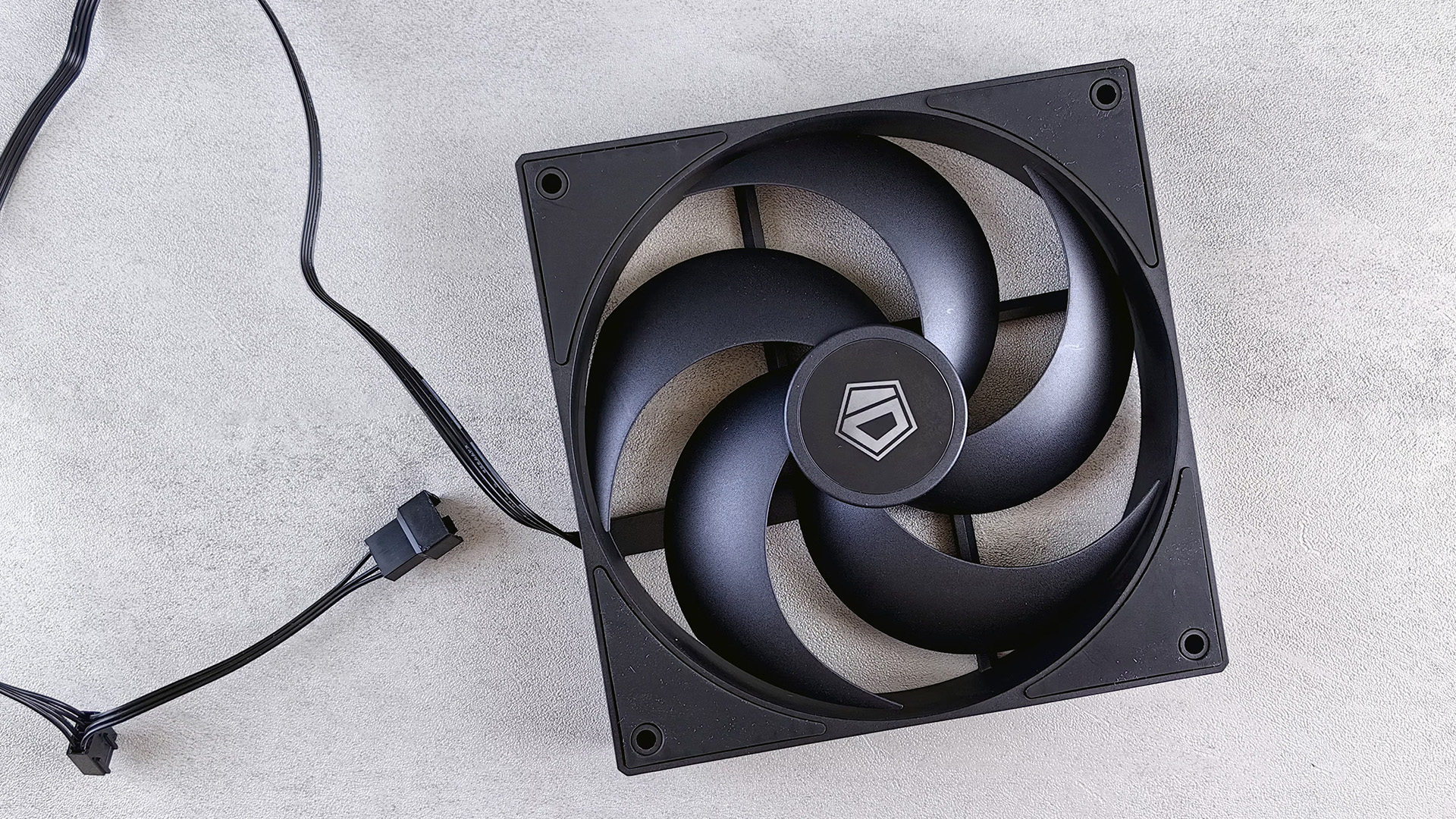
A fanless PSU is designed without a cooling fan at all. A zero-RPM or semi-passive unit still has a fan, but the fan is allowed to stop during suitable operating conditions and starts when additional cooling is required.
Why Does the PSU Fan Spin then Stop?
If the PSU fan spins then stops a few seconds after startup, that can be normal on a model with zero-RPM operation. Some power supplies briefly start the fan when power is applied, then stop it once the controller determines that active cooling is unnecessary.
The reverse can also happen. A fan may continue running after a demanding game or render has finished and stop only after the power supply cools. Some semi-passive designs deliberately use a short post-ventilation period to avoid repeated rapid starts and stops.
Do not diagnose the PSU from the startup spin alone. A fan that twitches, scrapes, stalls repeatedly or makes a new mechanical noise is different from a clean, deliberate start followed by silence.
How to Check Whether Your PSU Uses Hybrid Fan Mode
- Find the exact PSU model. Two 850W units from the same manufacturer can use different fan-control systems.
- Read the product page or manual for terms such as Zero RPM, semi-passive, Hybrid, ECO, fan-stop or silent mode.
- Look for a dedicated fan-mode switch or button on the rear of the PSU. Do not confuse it with the main I/O power switch.
- If the PSU has monitoring software or a documented fan-test function, use only the manufacturer-supported method for that exact model.
- If the manufacturer offers a Normal or active mode, use that mode only as instructed in the manual. A fan that still does not run when it is specifically required should be treated as a fault.
A PSU fan not turning on is therefore not enough information by itself. The exact model behaviour is the deciding factor.
When Is a Non-Spinning PSU Fan More Likely to Be a Fault?
A power supply fan not working becomes more concerning when the fan is expected to run and the PSU cannot demonstrate normal cooling behaviour.
- The manual describes continuous fan operation, but the fan remains stationary.
- The PSU is switched to a documented Normal or active-fan mode and the fan still does not start.
- A manufacturer-provided fan-test button or supported diagnostic fails.
- The fan makes grinding, scraping, rattling or repeated stalling noises.
- The PC shuts down or restarts under load and the PSU fan behaviour has changed.
- There is a burning smell, smoke, visible melting or electrical crackling.
A shutdown under load does not automatically prove the power supply is faulty. CPU or GPU overheating, unstable memory, an inadequate power connection, motherboard problems and other faults can produce similar symptoms. Treat the PSU fan as one piece of evidence, not the entire diagnosis.
Safety warning: Never open a power supply to inspect, lubricate or replace its fan. A PSU contains high-voltage components and has no user-serviceable internal parts. Do not insert tools, fingers or other objects through the fan grille.
Safe Troubleshooting for a PSU Fan That Is Not Spinning
If the PC is otherwise stable and there are no electrical warning signs, use external checks first. The aim is to confirm expected behaviour without opening the PSU or forcing the fan to move.
1. Check the Manual Before Stressing the System
Start with the PSU manual or manufacturer support page. If it documents zero-RPM or hybrid operation, a stationary fan at idle is expected. There is no reason to create an extreme synthetic load just to make the fan spin.
2. Check the Fan-Mode Switch
Some units let you switch between semi-passive and continuous fan modes. Follow the model-specific instructions and note that the button position is not standardised across brands. If there is no fan-mode control, do not assume the feature can be disabled.
3. Inspect the PSU Intake and Exhaust
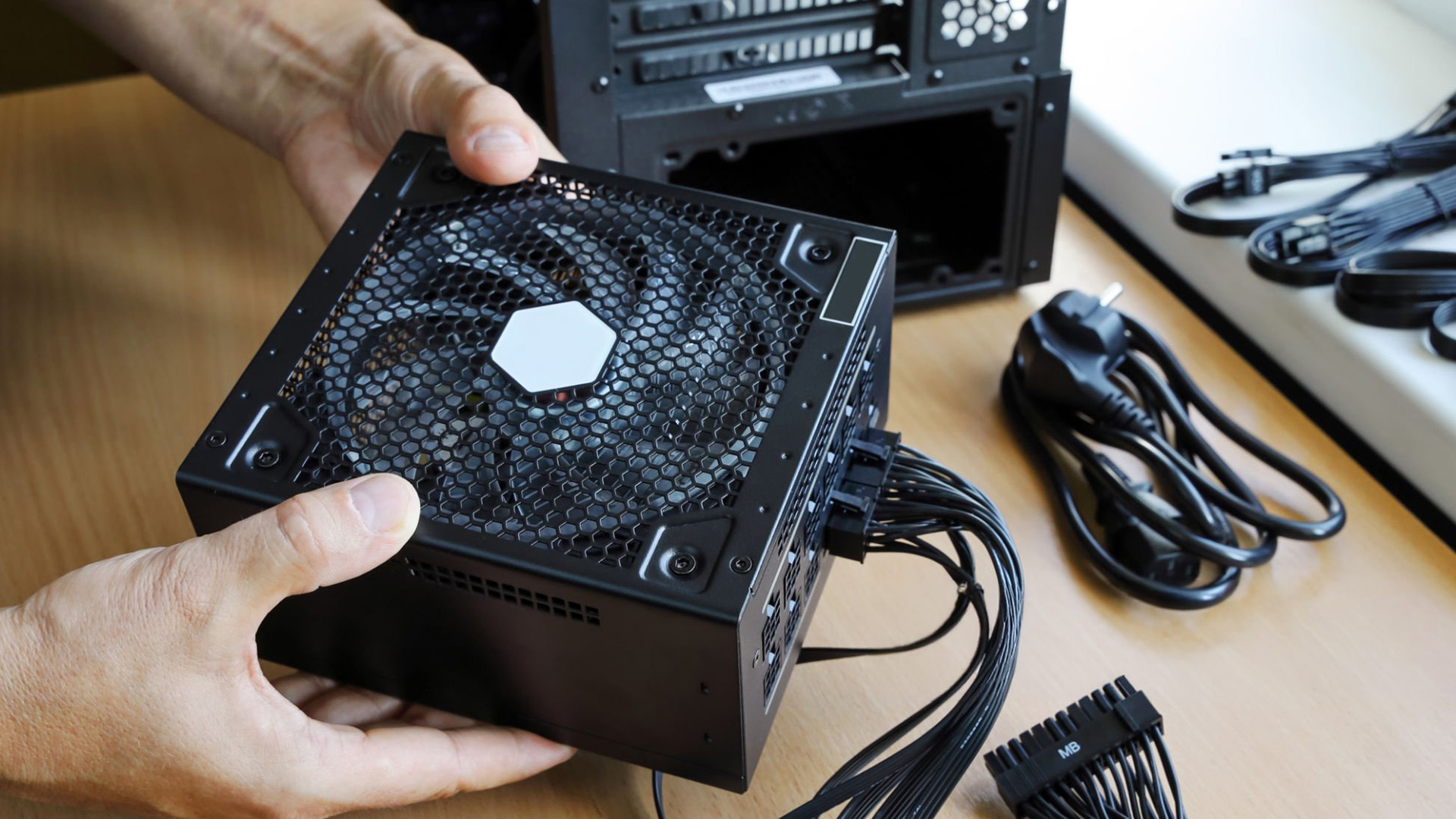
Shut the PC down, switch the PSU off and unplug the mains cable before checking the exterior vents. Make sure a dust filter, carpet, wall or cable bundle is not blocking the intake or exhaust.
The case also affects how easily the power supply can draw in cool air. A bottom-mounted PSU normally needs an unobstructed intake and enough clearance beneath the chassis, so case layout and ventilation are worth checking when choosing between PC cases for a new build or rebuild.
4. Keep PSU Cooling Separate from Case-Fan Control
The power-supply fan is normally controlled by the PSU itself, not by the motherboard fan curve in BIOS. Changing SYS_FAN or CHA_FAN settings will not usually make a PSU fan start.
Case airflow still matters because it affects the air available around the power supply and other components. If the chassis needs better intake or exhaust airflow, choose compatible PC Case fans for the case rather than attempting to replace the fan inside the PSU.
5. Observe Normal Workloads Only If the PC Is Stable
If the manual says the fan activates under greater load or temperature, ordinary gaming or another workload you already use can provide useful context. Do not continue loading a system that is shutting down, smelling hot, crackling or showing damaged connectors.
6. Use Manufacturer Diagnostics Where Available
A few power supplies provide a fan-test button or supported software monitoring. These features are model-specific. Use them exactly as documented, because the absence of a spinning fan during a generic power-on test can be misleading on a zero-RPM unit.
What If the PSU Fan Stopped Spinning After Working Normally?
A PSU fan stopped spinning does not always mean the fan has failed. You may simply have noticed it under a lighter workload, after a firmware or mode change, or while the PSU is cool enough to remain in fan-stop operation.
A change becomes more significant when the fan previously ran under the same conditions and now grinds, stalls or never starts when the manual says it should. Age, dust and bearing wear can affect a fan, but the safe response is warranty or professional service, not opening the PSU.
Should the PSU Fan Always Spin While Gaming?
No. Gaming does not guarantee that a hybrid PSU fan will run continuously. A high-efficiency power supply with plenty of wattage headroom may remain below its model-specific fan threshold during some games, especially if the actual system draw is moderate.
Do not judge PSU load from GPU utilisation alone. A graphics card can be near 100% utilisation without the whole PC drawing enough power, or generating enough PSU heat, to trigger a particular fan curve.
Can Poor Case Airflow Affect PSU Fan Behaviour?
Yes, surrounding airflow can affect how much heat the power supply must remove, although the relationship depends on how the PSU is mounted and where it draws air from. Keep the PSU intake clear and follow the case and PSU manuals for orientation.
Do not flip a PSU simply so you can see the fan. A bottom-mounted unit may be designed to draw air through a filtered floor vent, while other case layouts use a different path. The priority is unobstructed ventilation, not visual access to the fan.
If the whole PC is running hot, the issue may be broader than the power supply. Our guide to gaming desktop overheating explains how to separate case-airflow problems from CPU and GPU cooling issues.
PSU Fan Not Spinning and the PC Will Not Boot
If the computer will not power on, do not use fan movement as the only PSU test. A zero-RPM design may leave the internal fan stopped even when the unit can deliver power, and a brief startup spin is not proof that every output is healthy.
Check the wall socket, PSU I/O switch, 24-pin motherboard power, CPU power and GPU power connections with the PC switched off and unplugged. Modular cables must be the correct cables for that PSU model; cables from another modular PSU are not automatically interchangeable.
If the system still has no power, use the manufacturer's documented test procedure or contact support. Avoid improvised internal testing if you are not confident with PSU electrical diagnostics.
When Should You Replace or Warranty the PSU?
Replace or warranty-service the unit when the manufacturer's expected fan behaviour is not being met, a supported fan test fails, the fan has obvious mechanical problems, or the PSU shows electrical warning signs or repeated protection shutdowns.
If a replacement is required, match the new unit to the system rather than choosing by wattage alone. Check form factor, CPU and GPU power connectors, wattage headroom, current ATX requirements, warranty and whether you actually want a zero-RPM feature.
If a replacement is needed, choose from PC power supplies that match your system's wattage, form factor and power-connector requirements.
Before You Replace the Power Supply
A non-spinning PSU fan is easy to notice, but it is not always the cause of the problem you are troubleshooting. Before replacing a working unit, confirm the symptoms that actually affect the PC.
- No boot: check power switches and all required motherboard/GPU power connections.
- Random shutdowns: consider PSU protection, CPU/GPU temperatures, unstable memory and loose power cables.
- High system temperatures: inspect case airflow and component cooling, not just the PSU fan.
- New GPU instability: check PSU wattage, connectors and cable seating against the GPU requirements.
- Noise: identify whether it comes from the PSU, GPU, CPU cooler or case fans before replacing hardware.
If the power supply appears to be working normally but the PC still shuts down, fails to boot or behaves unpredictably under load, the fault may lie elsewhere in the system. Checking the PSU alongside the motherboard, graphics card, memory and other gaming PC components can help narrow down where the problem is actually coming from.

PSU Fan Not Spinning: What Matters Most
A PSU fan not spinning is not automatically a fault. Zero-RPM, semi-passive and hybrid designs intentionally stop the fan when active cooling is unnecessary, and some models spin briefly at startup before becoming silent. The safest approach is to verify the exact model, check its documented fan mode, keep the intake unobstructed and watch for genuine warning signs such as abnormal fan noise, shutdowns or electrical smells. If the fan is required to run but does not, stop using the PSU and contact the manufacturer or arrange replacement rather than opening the unit yourself.

Common Questions About PSU Fan Behaviour
Is it normal for a PSU fan not to spin?
Yes, if the PSU supports zero-RPM, semi-passive or hybrid cooling. The fan can remain off until internal temperature or load reaches a model-specific threshold. Check the exact manual before treating a stationary fan as a fault.
Why does my PSU fan spin for a second and then stop?
Some zero-RPM power supplies briefly spin the fan during startup and then stop it when active cooling is unnecessary. If the manual describes fan-stop operation and the PC is stable, this behaviour can be completely normal.
When should a power supply fan turn on?
There is no universal trigger. Depending on the design, the fan may respond to internal temperature, electrical load or both. Use the fan curve or operating description for your exact PSU rather than another model's threshold.
Can I use my PC if the PSU fan is not working?
Only if the stationary fan is documented normal behaviour. If the PSU should be actively cooling but its fan will not run, or the system shows shutdowns, burning smells or abnormal noise, power down and seek support.
Can I control the PSU fan from the BIOS?
Usually not. Motherboard BIOS fan controls normally manage CPU and case-fan headers, while the PSU controls its own fan internally. Some digital power supplies provide manufacturer software or a physical fan-mode switch, but support varies by model.
Should I replace a faulty PSU fan myself?
No. Do not open a power supply to replace or lubricate its fan. High voltages can remain inside, and manufacturers state that PSUs contain no user-serviceable internal parts. Use warranty support or replace the complete unit instead.
| Read More: |
| How to Build a Gaming PC |
| Desktop PC Specs Explained: What Do You Actually Need |
| Prebuilt vs Custom Desktop PCs: Pros and Cons Explained |
Related Articles

Last Updated: September 02, 2026
Last Updated: May 22, 2026
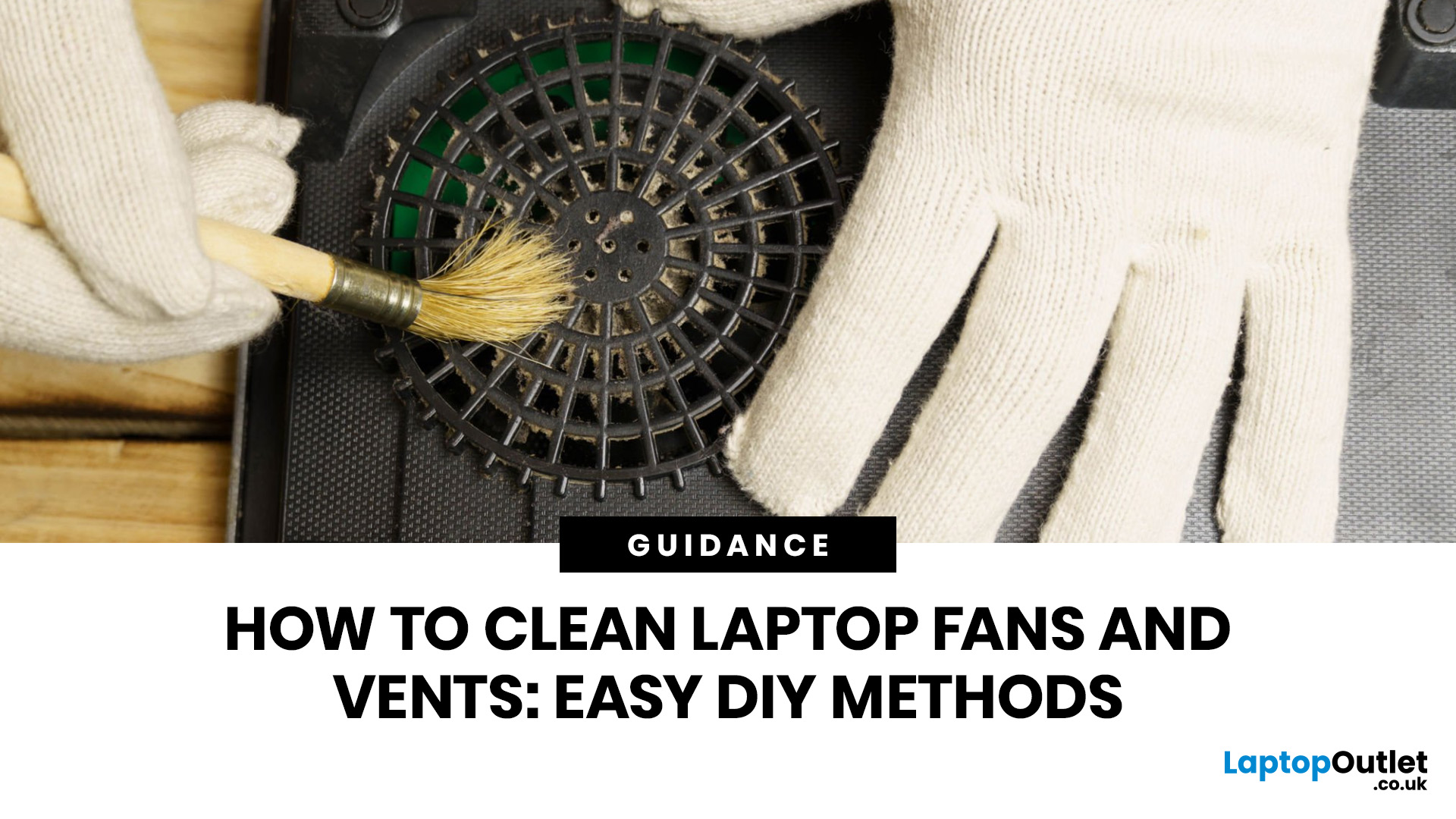
A thin layer of dust can make your laptop work harder than it should. When vents get blocked, heat stays trapped inside, the fan spins louder, and performance can drop during everyday tasks.
The simple tip? Start from the outside. In most cases, you can clean laptop fan vents safely with a soft brush, a microfibre cloth, and short bursts of compressed air - no risky disassembly needed.
This easy DIY guide shows you how to clean laptop fan and vent areas, what to avoid, and when it is smarter to call a professional.
Quick Checklist: How to Clean Laptop Fan Safely
Use this simple checklist whenever you clean the laptop:
- Shut down the laptop fully
- Unplug the charger and accessories
- Let the laptop cool
- Find the real vents
- Brush away visible dust
- Use compressed air in short bursts
- Keep the air can upright
- Avoid spinning the fan too fast
- Wipe the exterior gently
- Restart and check temperature and noise
This is the safest routine for most users who want to clean the laptop without opening it.
Last Updated: July 21, 2026
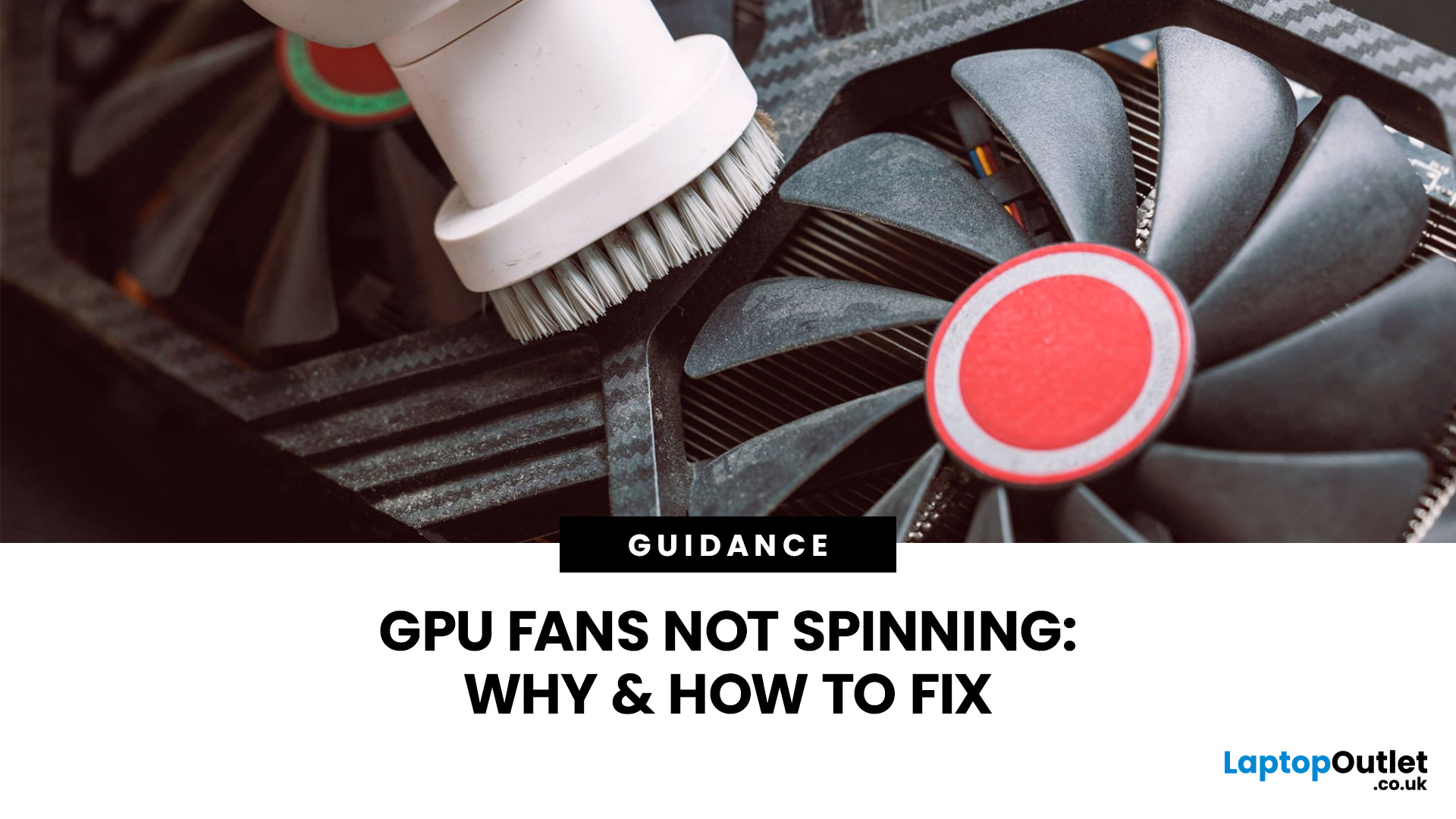
Your PC is on. Your game is loading. Everything seems fine… until you peek inside your case and notice your GPU fans not spinning. Instant panic? Understandable.
Your graphics card is one of the hottest components in a gaming PC, so when the fans stop moving, it feels like your graphics card is about to enter meltdown mode. But here’s the plot twist: graphics card fans not spinning is not always a bad sign. In many modern graphics cards, the fans stay off on purpose when the card is cool.
Still, if your GPU fan not working situation comes with overheating, crashes, noise, or poor performance, then yeah, it is time for some proper GPU fan troubleshooting. Let’s break down what is normal, what is not, and how to fix a processor fan not spinning issue without going full tech panic mode.
First, is it Normal for GPU Fans Not to Spin?
Sometimes, yes.
Many modern NVIDIA GeForce and AMD graphics cards for gaming come with a zero RPM or fan-stop mode. This means the fans do not spin when the GPU
Last Updated: July 17, 2026
Last Updated: July 28, 2026
Last Updated: August 17, 2026
HP OMEN laptops use powerful processors and dedicated graphics, so their cooling systems can become clearly audible during gaming and other demanding work. Some HP OMEN fan noise is normal, but constant noise at idle, grinding or repeated overheating deserves attention. This guide explains how to identify the sound, diagnose the cause and choose a safe fix across the top HP OMEN laptop range.
| HP OMEN Fan Noise: Quick Answer Loud fan noise is normal while an OMEN laptop starts, updates, games, renders or runs a demanding AI task. HP says a brief fan surge for about five to twenty seconds at startup can be normal, while Performance mode deliberately increases fan speed to manage higher CPU and GPU power and temperature. Investigate an HP OMEN loud fan when it remains noisy during light use, produces mechanical sounds or appears with weak airflow, throttling or shutdowns. Many cases improve after reducing background load, changing settings, updating HP software and BIOS, restoring airflow |
Last Updated: August 06, 2026
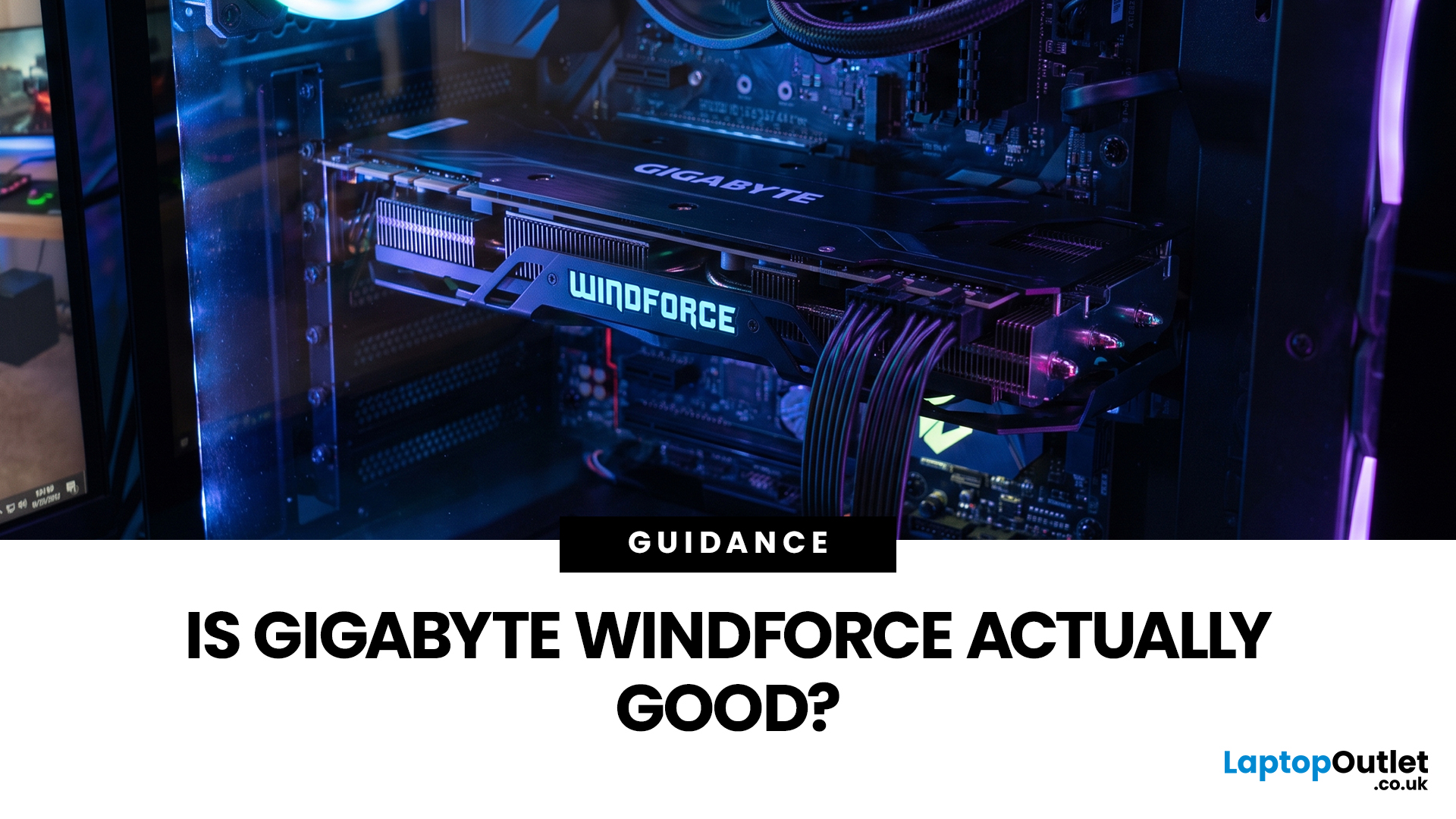
Gigabyte WINDFORCE graphics cards are generally good choices for gamers who want dependable cooling, sensible dimensions, and competitive pricing without paying extra for every premium feature. However, WINDFORCE does not identify the performance level of the GPU itself. An RTX 5080 WINDFORCE will still be substantially faster than an RTX 5060 WINDFORCE because the graphics processor matters more than the cooler’s name.
This guide explains how the WINDFORCE cooling system works, what to expect from temperatures and noise, and how Gigabyte WINDFORCE compares with Gaming OC and AORUS models.
What Does Gigabyte WINDFORCE Mean?
WINDFORCE is Gigabyte’s name for a collection of graphics card cooling technologies rather than a specific GPU architecture. Gigabyte uses the name both on dedicated WINDFORCE models and as the underlying cooling platform for certain Gaming OC and AORUS cards.
This distinction is important. A Gigabyte RTX graphics cards may use two or three fans, different numbers of
Last Updated: August 17, 2026
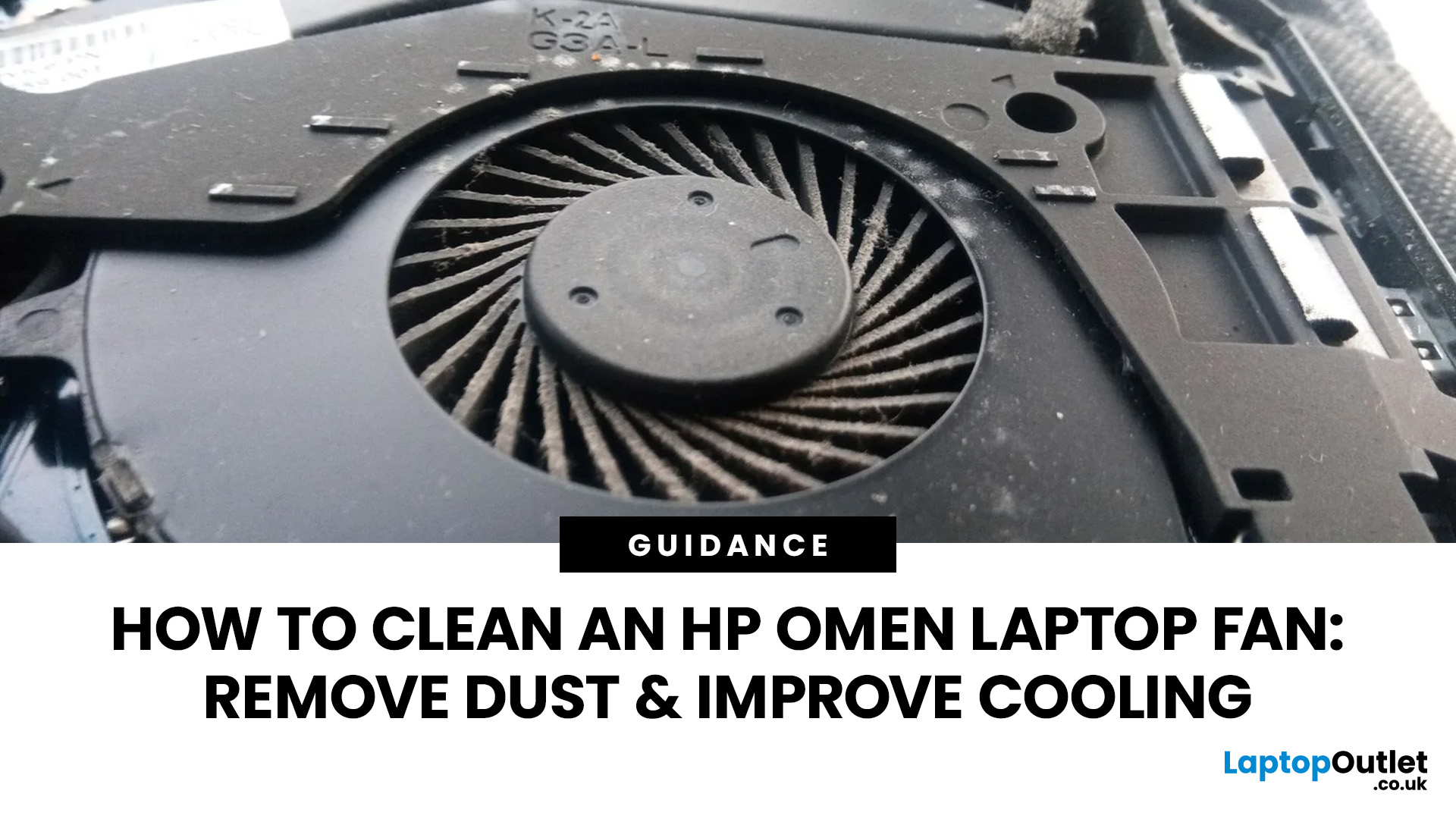
An HP OMEN laptop moves plenty of air during gaming and other demanding work. That airflow can draw dust, lint and pet hair towards its intake vents. As debris builds up, cooling may become louder, airflow can weaken and sustained performance can suffer.
The safest approach is to start with external cleaning. Only remove the bottom cover when deeper cleaning is necessary and you have checked the service instructions for your exact OMEN model. This guide covers both methods, essential safety precautions and post-cleaning checks.
Why HP OMEN Fan Cleaning Matters
Gaming laptops generate considerable heat because the processor and dedicated graphics chip can remain under heavy load for long periods. Their fans draw cooler air through the chassis and push warm air across the heatsink fins towards the exhausts.
Effective laptop fan dust removal prevents debris from reducing the space available for air to pass through. A thin layer of dust may only increase noise, while a compacted blockage can
Published: August 20, 2026
Last Updated: September 02, 2026
Choosing a monitor is not simply a case of buying the highest resolution or fastest refresh rate you can afford. Your graphics card has to render the resolution, generate enough frames to benefit from the screen’s refresh rate and support the connection needed to carry that signal.
Get those factors right and you can enjoy sharper images, smoother motion and better use of the hardware you already own. Here is how to choose the right monitor for gaming, creative work and everyday use without paying for display performance your PC cannot use.
Quick Answer: How Do You Choose the Right Monitor?
Start with your GPU’s real performance at the resolution you want. Match the monitor’s native resolution and refresh rate to the frame rates your graphics card can realistically deliver, then check variable refresh rate support and display connections. After that, compare panel type, screen size, HDR and other features based on how you use the PC.
For most buyers, resolution should come first, refresh

