



GPU Fans Not Spinning: Why & How to Fix
Your PC is on. Your game is loading. Everything seems fine… until you peek inside your case and notice your GPU fans not spinning. Instant panic? Understandable.
Your graphics card is one of the hottest components in a gaming PC, so when the fans stop moving, it feels like your graphics card is about to enter meltdown mode. But here’s the plot twist: graphics card fans not spinning is not always a bad sign. In many modern graphics cards, the fans stay off on purpose when the card is cool.
Still, if your GPU fan not working situation comes with overheating, crashes, noise, or poor performance, then yeah, it is time for some proper GPU fan troubleshooting. Let’s break down what is normal, what is not, and how to fix a processor fan not spinning issue without going full tech panic mode.
First, is it Normal for GPU Fans Not to Spin?
Sometimes, yes.
Many modern NVIDIA GeForce and AMD graphics cards for gaming come with a zero RPM or fan-stop mode. This means the fans do not spin when the GPU is idle or running at a low temperature. It keeps the PC quieter and reduces unnecessary fan wear. So, if your GPU fans not spinning on startup, do not instantly assume the card is dead. Your GPU may simply be cool enough that the fans are not needed yet.
Here is a quick temperature guide:
|
GPU Situation |
Normal GPU Temperature |
Fan Behaviour |
|
Idle / desktop use |
30°C–50°C |
Fans may stay off |
|
Light browsing / streaming |
40°C–60°C |
Fans may spin slowly or stay off |
|
Gaming / heavy load |
65°C–85°C |
Fans should usually spin |
|
90°C+ |
Too hot |
Fans should be active; check cooling |
If your GPU fan not spinning while gaming, or temperatures are climbing above safe levels, that is when the issue needs attention.
The Real Problem: When GPU Fans Stay Off Under Load
When your graphics card heats up and the fans still refuse to move, your PC can start acting weird. You might notice lower FPS, random crashes, screen flickering, sudden shutdowns, or thermal throttling. In some cases, you may even see the graphics card not detected after a bad connection, power issue, or hardware fault.
That is where things get annoying fast. A GPU that cannot cool itself properly will not perform the way it should, especially if you are gaming, editing videos, rendering 3D projects, or running multiple monitors.
And if the problem is ignored for too long? Your card may take permanent damage. Not very slay.
Common Reasons Your GPU Fans are not Spinning
Before replacing anything, check the basics. The issue could be software, dust, power, or an actual hardware fault.
|
Cause |
What It Looks Like |
What to Do |
|
Zero RPM mode |
Fans stay off at idle but spin under load |
Usually normal |
|
Dust buildup |
Fans move slowly or make noise |
Clean it carefully |
|
Loose cable |
GPU acts unstable or is not detected |
Check PCIe and fan connections |
|
Fan curve issue |
Fans do not respond properly |
Reset or adjust the fan control |
|
Driver problem |
Fans behave oddly after an update |
Update or roll back drivers |
|
Faulty fan motor |
One or more fans never spin |
Replace the fan or seek repair |
|
Weak PSU |
Crashes, black screens, detection issues |
Check your power supply |
If your fan issue comes with black screens, crashes, display errors, or the graphics card not detected message, check our complete graphics card troubleshooting guide for deeper GPU fixes.
1. Check if Zero RPM Modeis Enabled
This is the easiest one to misunderstand.
A lot of newer graphics cards use passive cooling at low loads. The fans may only start spinning once the GPU reaches around 50°C to 60°C, depending on the model and brand.
Open a monitoring tool and check your temperature while launching a game or stress test. If the fans start spinning once the GPU warms up, your card is probably fine.
If you are upgrading or building a gaming setup, choosing the right graphics cards for gaming PCs can help you get better cooling features, quieter fan profiles, and stronger performance from the start.
2. Test the GPU Under Load
If the fans do not spin at idle, that is not enough evidence. You need to see what happens under pressure.
Launch a game, benchmark, or GPU stress test, and monitor the temperature. If the temperature rises and the fans still do nothing, you may have a genuine GPU fan not working problem.
Watch for these warning signs:
|
Warning Sign |
What It Could Mean |
|
GPU temperature goes above 90°C |
Cooling issue |
|
Fans stay at 0 RPM while gaming |
Fan control or hardware fault |
|
PC crashes under load |
Heat or power issue |
|
GPU disappears from Device Manager |
Driver, slot, or power issue |
|
One fan spins but another does not |
Individual fan failure |
This is where your GPU cooling fan fix journey really begins.
3. Clean Dust and Debris from the Fans
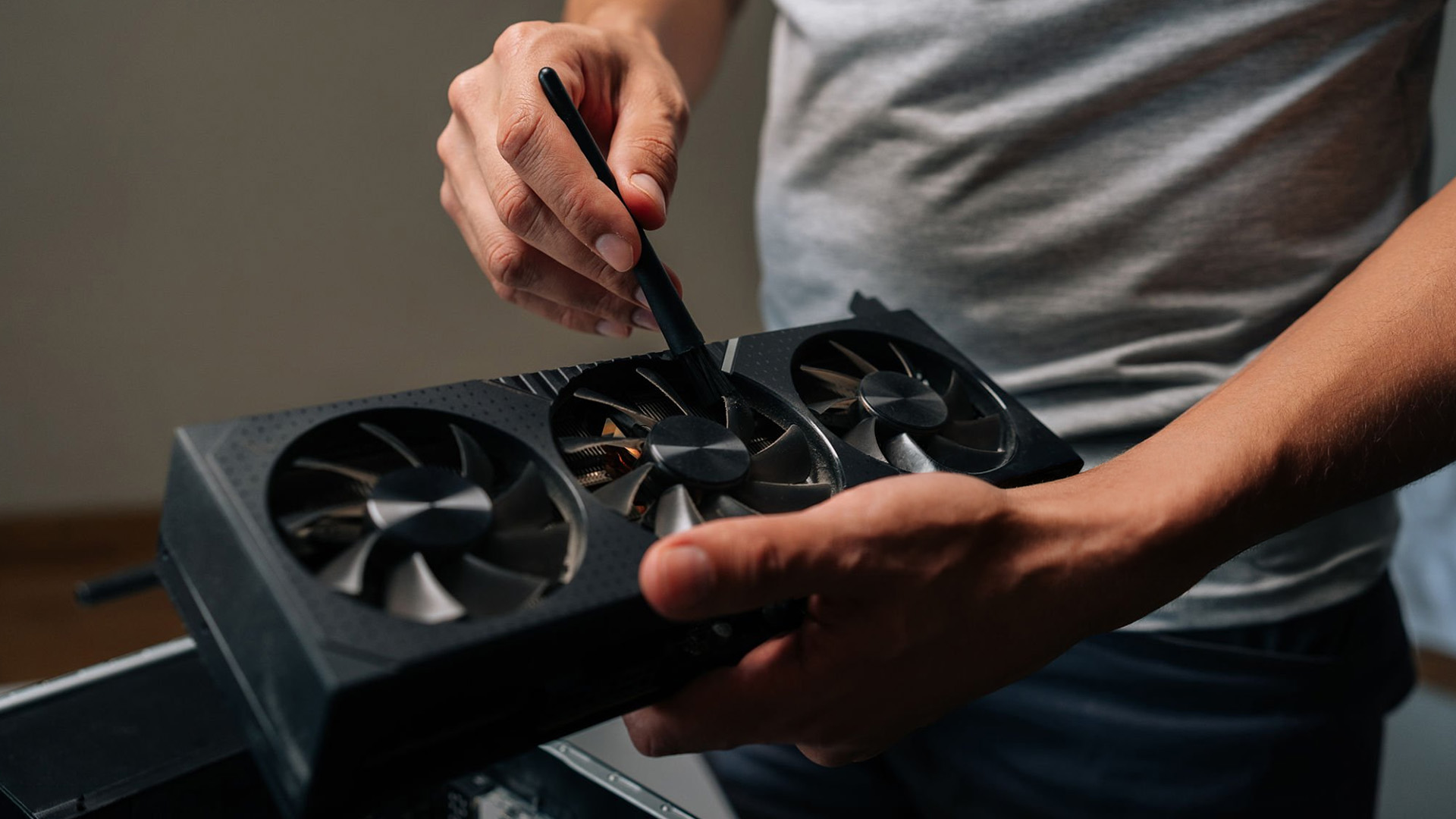
Over time, dust can clog your fans, block airflow, and make your graphics card run hotter than it should. If the fan blades are jammed or struggling to move, the GPU may overheat even if everything else is working.
Turn off the PC, unplug it, and carefully clean around the GPU using compressed air. Hold the fan blades still while cleaning so they do not spin too fast from the air pressure.
Also check for loose cables near the fan blades. Sometimes a tiny wire is all it takes to stop a fan from spinning. For better airflow across your build, quality gaming PC cooling fans can help keep the whole case cooler, not just the GPU.
4. Check GPU Power Cables and PCIe Connection
A graphics card needs proper power to work properly. If the PCIe power cable is loose, damaged, or not fully clicked in, your GPU may act unstable. In some cases, you may get a graphics card not detected error or black screen.
Shut down your PC and check:
- The GPU is fully seated in the PCIe slot
- All PCIe power connectors are firmly attached
- The power cables are not damaged
- The PSU has enough wattage for your GPU
If your system crashes under load or the fans behave randomly, the issue may not be the fan at all. It could be power delivery. A reliable PC power supplies upgrade can make a big difference if your current PSU is old or underpowered.
5. Adjust GPU Fan Control Settings
Sometimes the hardware is fine, but the settings are messy. If your GPU fan curve not working, the fans may not respond correctly when temperatures rise. This can happen after driver updates, software conflicts, or custom tuning. Use your GPU software to check the fan curve. You can usually adjust when fans start spinning and how fast they run at different temperatures.
For example:
|
Temperature |
Suggested Fan Behaviour |
|
Below 50°C |
Fan off or low speed |
|
60°C |
Moderate fan speed |
|
70°C–80°C |
Higher fan speed |
|
85°C+ |
Aggressive cooling |
Do not set fans to 100% all the time unless you really need to. It can get loud and may wear the fans faster. The goal is balanced cooling, not turning your PC into a jet engine.
6. Update or Roll BackGraphics Drivers
Drivers can cause weird behaviour, including broken fan control. If the issue started after a recent update, try rolling back to the previous driver. If your drivers are outdated, install the latest official version from AMD or NVIDIA. This is especially worth checking if you recently upgraded to a new card, switched brands, or installed new control software.
Whether you use AMD graphics cards for gaming or NVIDIA GeForce GPUs, keeping the driver clean and updated helps with performance, temperature management, and fan behaviour.
7. Look for Physical Fan Damage
If one fan spins and the other does not, or the fan makes grinding, rattling, or buzzing noises, you may be dealing with a physical fault. Common signs of a damaged fan include:
|
Symptom |
Possible Issue |
|
Grinding noise |
Worn bearing |
|
Rattling sound |
Loose or damaged fan |
|
Fan stuck at 0 RPM |
Motor or connector fault |
|
Fan spins unevenly |
Blade or bearing damage |
|
Burning smell |
Stop using the GPU immediately |
If your GPU is overheating often, showing its age, or repairs cost almost as much as an upgrade, our guide on how to choose the right GPU for your PC in 2026 can help you pick a better replacement.

Final Note
Seeing your GPU fans not spinning can look scary, but it is not always a disaster. Sometimes it is just zero RPM mode doing its thing. Other times, it is dust, bad settings, driver issues, loose power cables, or a faulty fan.
The key is simple: check the temperature, test the card under load, and look for signs of overheating. If your graphics card fans not spinning during gaming or heavy workloads, take action before your GPU starts throttling or crashing. A good cooling setup, clean airflow, reliable power, and the right graphics card can save you from a lot of drama. Your GPU deserves to breathe. Let it cook frames, not itself.

In Case You’re Wondering...
Why are my GPU fans not spinning?
Your GPU fans may not be spinning because of zero RPM mode, low GPU temperature, dust buildup, loose power cables, faulty drivers, broken fan control settings, or a damaged fan motor. If the fans spin under load, it is usually normal. If they stay off while gaming or overheating, there is a problem.
How do I know if my GPU fan is faulty?
A GPU fan may be faulty if it stays at 0 RPM under load, makes grinding or rattling noises, spins unevenly, stops randomly, or does not move even when GPU temperatures are high. Overheating, crashes, and thermal throttling are also warning signs.
Can dust stop GPU fans from spinning?
Yes. Dust can block the fan blades, clog the heatsink, reduce airflow, and make the GPU run hotter. Heavy dust buildup can cause the fans to spin slowly, make noise, or stop working properly.
What temperature should GPU fans turn on?
Most GPU fans turn on around 50°C to 60°C, depending on the graphics card model and fan curve settings. During gaming, a normal temperature is usually around 65°C to 85°C. If the graphics temperature goes above 90°C and the fans are still not spinning, check the cooling system.
Should I replace my GPU fan or the whole graphics card?
Replace the GPU fan if only the fan is damaged and the graphics card still performs normally. Replace the whole graphics card if it has major issues like repeated crashes, overheating after fan replacement, display artifacts, power faults, or if repairs cost too much compared to upgrading.
Read More:
Best Deals on Graphics Cards in 2026: Top GPUs at Unbeatable Prices
XFX Graphics Cards Deals UK: Best AMD GPU Prices & Offers
Gigabyte Graphics Cards Deals UK: Gaming GPUs at Best Prices
Related Articles

Last Updated: January 13, 2026
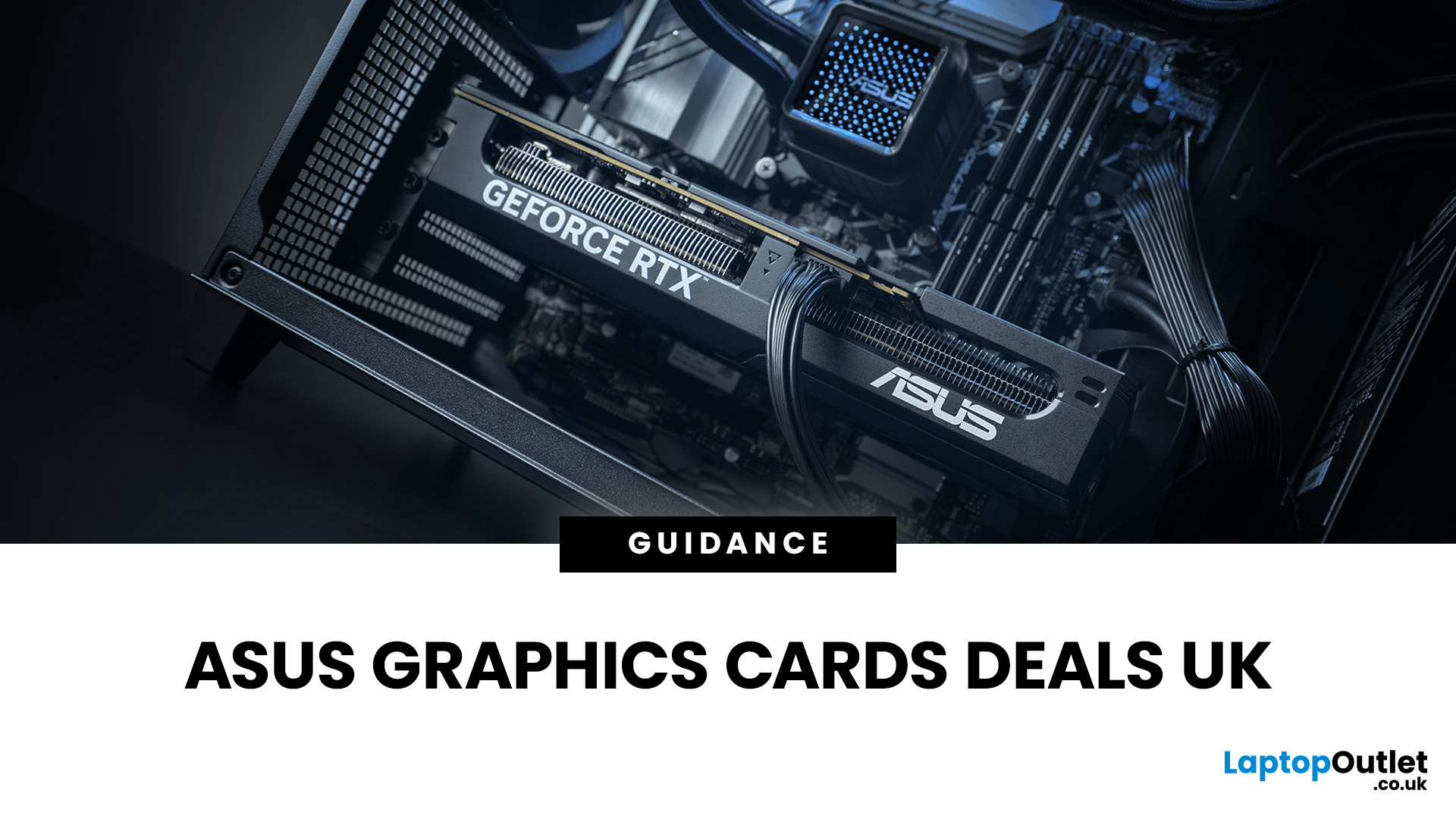
Are you looking to upgrade your PC with cutting-edge performance, reliability, and exceptional gaming visuals? ASUS graphics cards remain one of the most trusted choices in the UK market. We bring you competitive prices, frequent deals, and a wide selection of ASUS GPUs designed for gamers, creators, and professionals alike. From advanced NVIDIA RTX models to efficient AMD Radeon options, ASUS continues to lead the way in innovation, cooling, and long-term durability.
Why Choose ASUS Graphics Cards?
ASUS has built a global reputation for producing premium PC components, and its graphics cards are no exception. Designed with performance, stability, and longevity in mind, ASUS PC graphics cards are trusted by enthusiasts and professionals worldwide.
Proven Engineering and Build Quality
ASUS graphics cards are engineered using high-quality components, reinforced PCBs, and advanced power delivery systems. This ensures consistent performance even under heavy workloads such as 4K gaming, 3D
Published: January 13, 2026
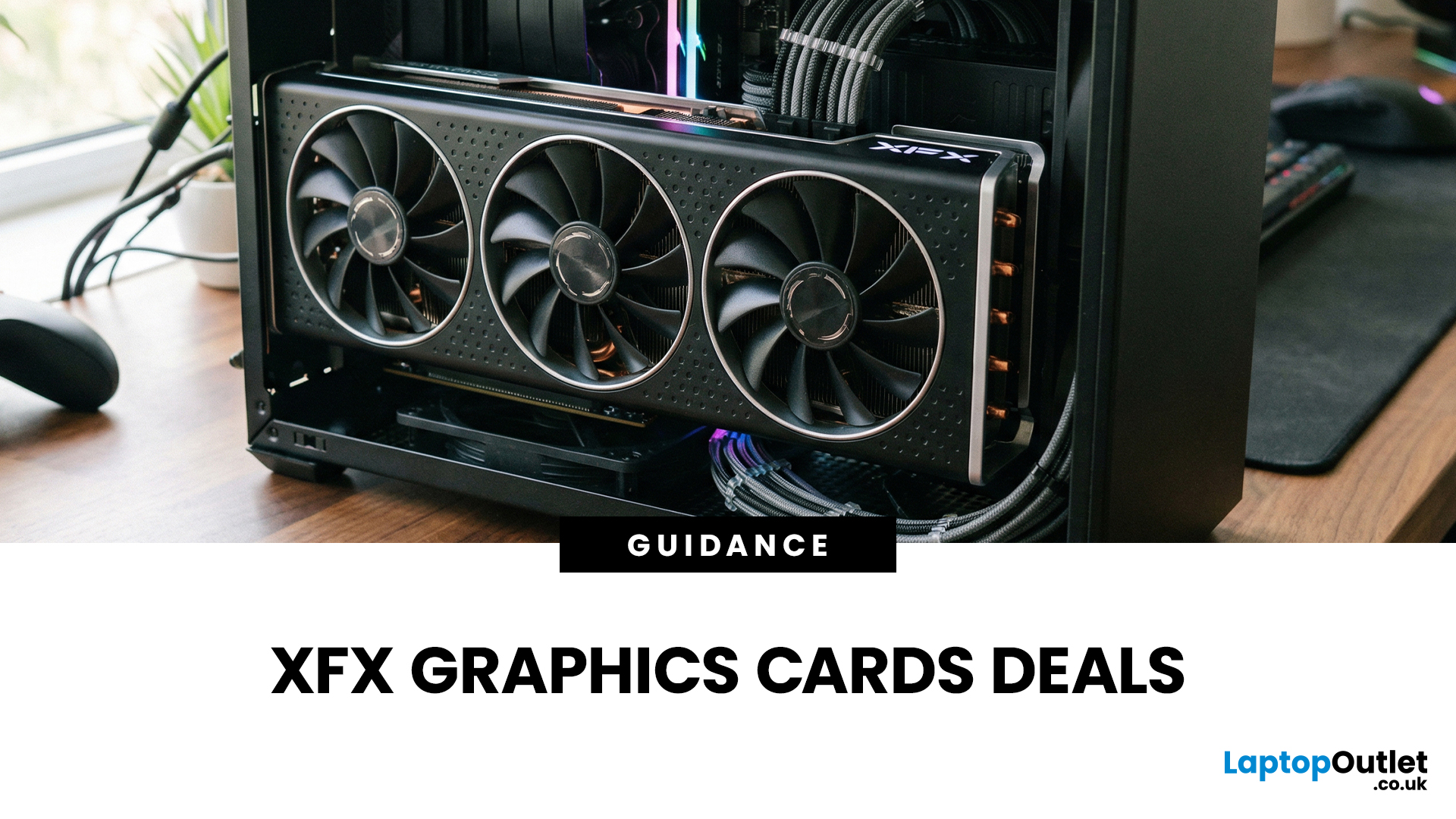
Choosing the right graphics card is one of the most important decisions when building or upgrading a gaming PC, and XFX graphics cards UK gamers trust continue to stand out for performance, reliability and value. As one of AMD’s most established board partners, XFX focuses exclusively on Radeon GPUs, delivering powerful gaming performance at highly competitive prices. We offer a wide range of XFX graphics cards deals, making it easier for you to access cutting-edge AMD technology without overspending. Whether you’re upgrading an older system, building a new gaming rig or searching for better value than current NVIDIA options, XFX delivers a compelling alternative. This guide explores everything you need to know about XFX GPUs, including performance, pricing, comparisons, and how to find the best XFX GPU deals UK buyers can rely on.
Why XFX Graphics Cards Are a Trusted Choice for AMD Gamers
XFX has built a strong reputation by focusing entirely on AMD hardware. Unlike brands that split
Last Updated: April 28, 2026
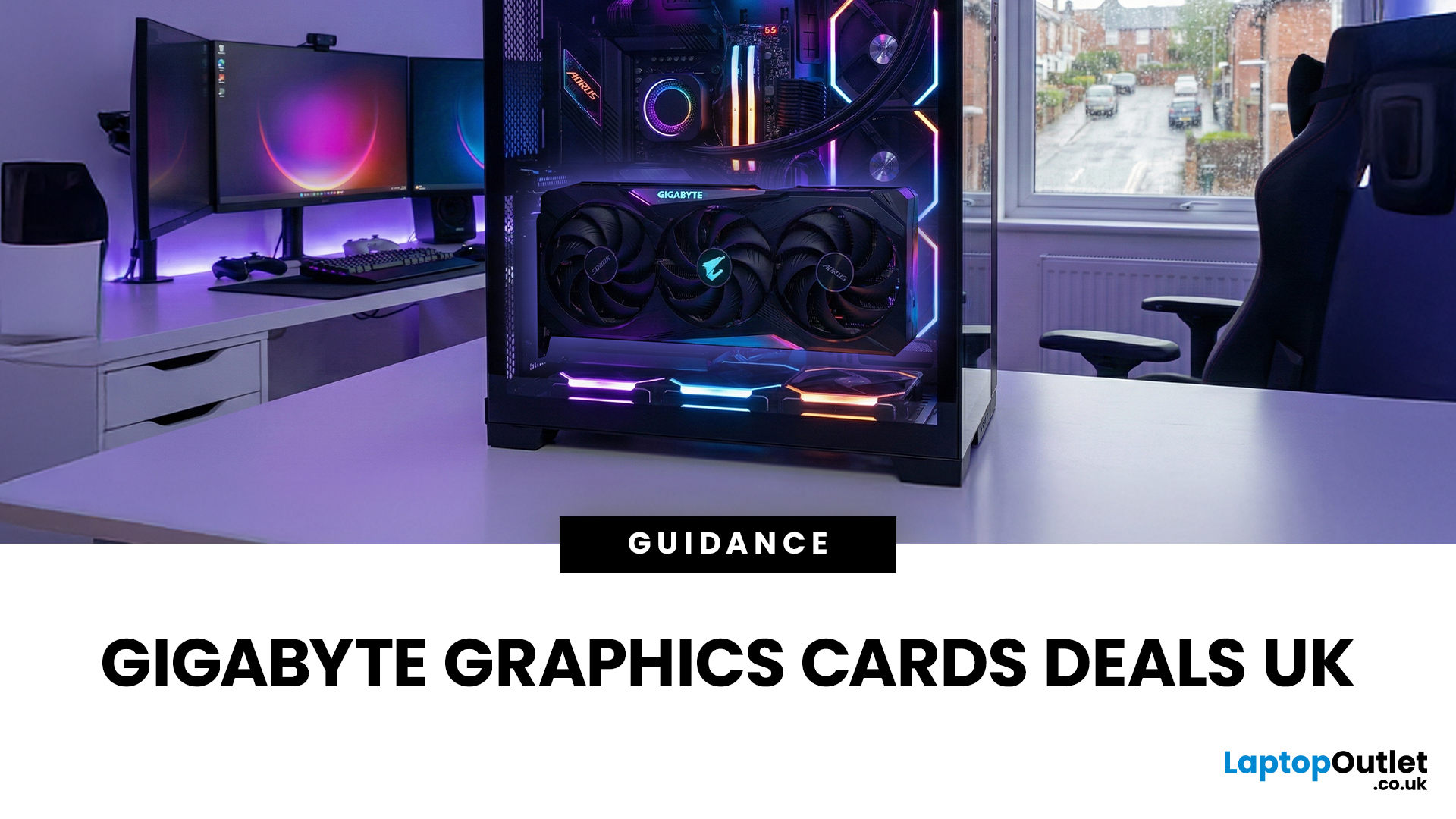
When it comes to upgrading your gaming PC or building a reliable high-performance setup, Gigabyte graphics cards are one of the suitable choices for gamers and creators. Known for strong performance, efficient cooling and excellent value, Gigabyte GPUs are designed to handle everything from everyday gaming to demanding creative tasks. Whether you’re aiming for smooth gameplay, detailed visuals or future-ready performance, there’s a Gigabyte graphics card to suit your needs and budget.
What Makes Gigabyte Gaming Graphics Cards Ideal for Modern Gaming?
Modern games demand more from hardware than ever before. Gigabyte has responded with GPUs that deliver high frame rates, detailed visuals and smooth gameplay across popular titles.
Performance that Keeps Up with New Games
From competitive esports titles to AAA blockbusters, Gigabyte gaming graphics cards are built to handle demanding workloads. Features such as ray tracing, DLSS (on NVIDIA models) and high memory bandwidth ensure consistent
Last Updated: March 30, 2026
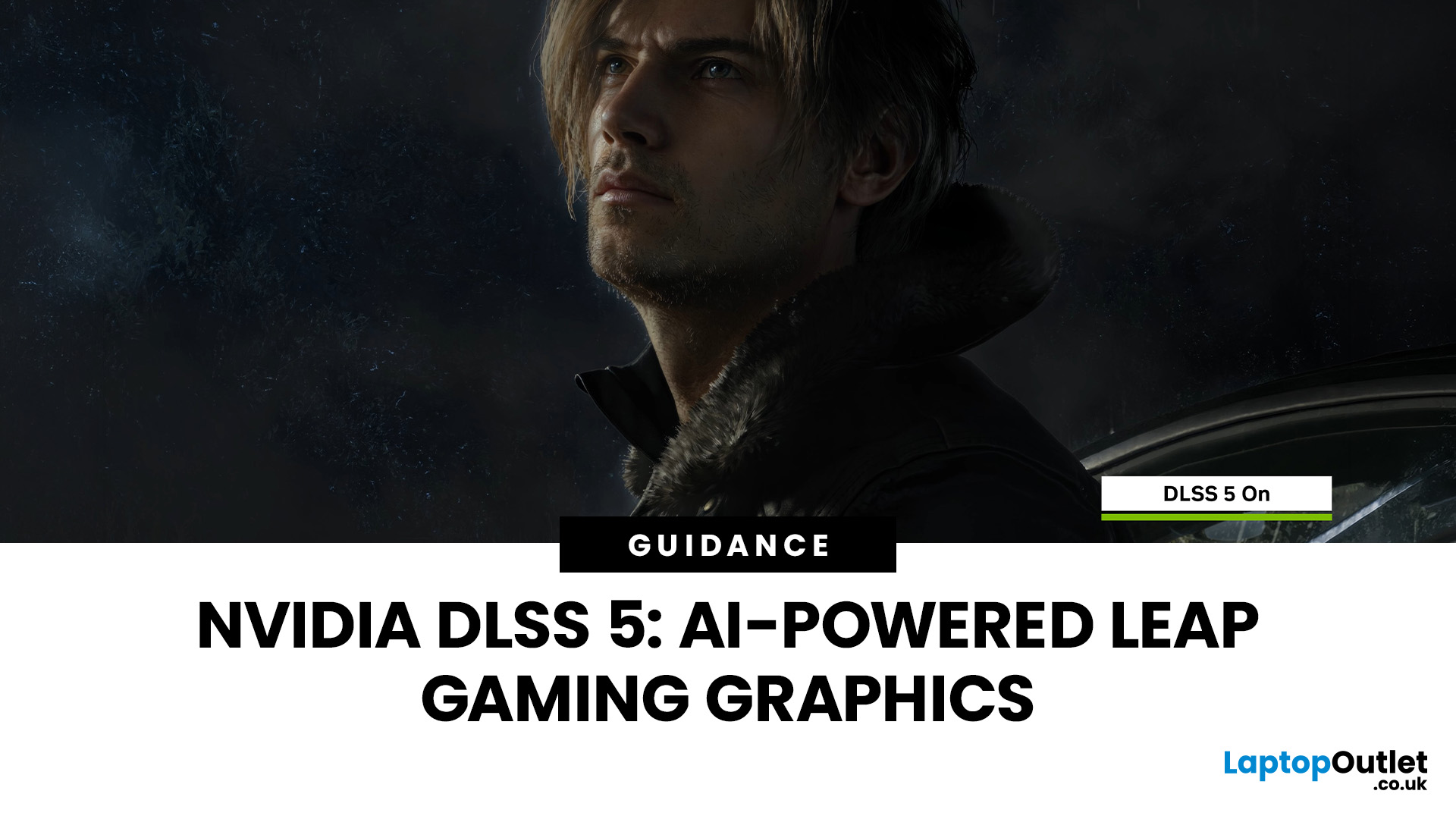
NVIDIA DLSS 5 marks a much bigger shift than a routine version update. Rather than focusing mainly on upscaling and frame generation, NVIDIA is positioning DLSS 5 as a real-time neural rendering system that can add photoreal lighting and material detail to game scenes while they are being played. According to NVIDIA’s March 2026 announcement, it is the company’s biggest graphics breakthrough since real-time ray tracing arrived in 2018, with a launch scheduled for fall 2026.
For PC gamers, that matters because the long-running trade-off between image quality and performance may be changing again. Earlier DLSS versions were mainly about making games run faster at high resolutions. DLSS 5 expands that idea into visual interpretation, where AI is used not just to reconstruct pixels, but to enhance lighting response, material realism and scene fidelity in ways NVIDIA says were previously closer to Hollywood VFX than a 16-millisecond game frame.
For UK buyers looking at a gaming laptop or desktop
Last Updated: August 20, 2026
Last Updated: June 18, 2026
For most buyers in 2026, the best laptop specs are a modern Intel Core Ultra 5/7 or AMD Ryzen AI 5/7 processor, 16GB RAM, 512GB SSD storage, and integrated graphics. Choose 32GB RAM, 1TB storage, and a dedicated GPU if you edit videos, create content, play demanding games, or use professional software.
Buying a new laptop in 2026 can feel confusing, especially when every product page is packed with technical words, numbers, and abbreviations. This processors & specs explained guide breaks everything down in plain English so you can understand what matters before you spend your money.
For most buyers, the four most important laptop components are the CPU, RAM, GPU, and storage. Once you understand these, it becomes much easier to compare models, avoid overspending, and choose a laptop that actually suits your daily needs.
What are Laptop Specs and Why Do They Matter?
Understanding laptop specifications becomes important. Specs affect:
- How fast your laptop feels when opening apps.
- How many
Published: June 11, 2026
Choosing the right gaming desktop can be the difference between smooth, immersive gameplay and a system that struggles within a year. This gaming PC buying guide explains the key components that affect gaming performance, future-proofing, and value for money, so you can buy with confidence rather than guessing from confusing spec sheets.
A good gaming PC is not just about the most expensive graphics card. It is about balance. The CPU, GPU, RAM, storage, cooling, power supply, motherboard, and case all work together. Whether you play competitive esports, cinematic single-player titles, open-world RPGs, racing games or VR, understanding the right configuration helps you avoid overspending and choose a desktop that lasts.
This article is designed as a practical gaming PC specs guide for beginners, but it also includes up-to-date 2026 advice for buyers comparing modern RTX, Radeon, Intel, and AMD-powered systems.
Why Buy a Gaming Desktop PC?
A gaming desktop PC remains one of the best choices
Last Updated: June 15, 2026
Overheating can slow down your PC, crash games, and damage key components. Checking CPU and GPU temperature helps spot heat issues early, compare readings with safe ranges, and choose the right fix, from cleaning vents to upgrading cooling fans, coolers, processors, or graphics cards for smoother everyday performance and overall stability.
Is your laptop sounding like it’s about to take off? Or does your PC randomly slow down, crash, or shut itself off? Yeah, that’s usually not a vibe. It could mean your system is overheating.
Doing a quick check CPU GPU temperature laptop test can help you spot heat issues before they turn into expensive damage. Whether you game, edit videos, stream, or just multitask like a boss, keeping an eye on your processor’s and graphics cards temperature is a smart move.
Here’s how to check both easily.
Signs Your PC or Laptop is Overheating
Your device usually gives you clues before things get serious. Watch out for:
- Loud fans running non-stop
- Sudden lag or freezing
Last Updated: June 30, 2026
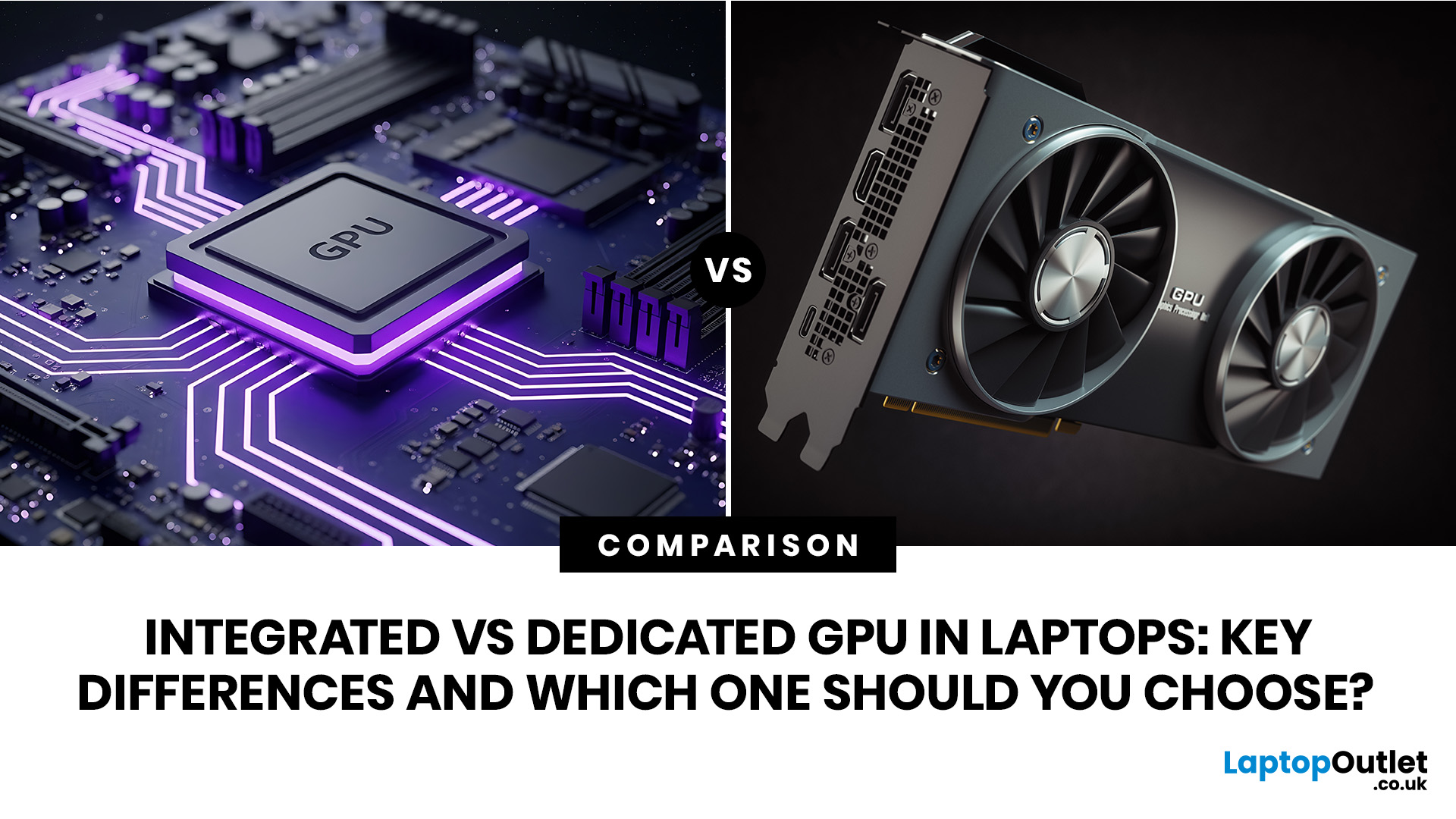
An integrated vs dedicated GPU laptop decision comes down to one simple question: do you need strong graphics performance every day, or do you mostly need a cooler, lighter, longer-lasting laptop for normal work?
For everyday browsing, office work, video calls, streaming, study and light photo editing, integrated graphics are usually enough. For serious gaming, 3D work, video editing, CAD, AI workloads or high-refresh creative work, a laptop with dedicated graphics card hardware is usually the better option.
Quick answer: Integrated vs dedicated GPU explained
Integrated graphics are built into the processor sharing, system memory. They are efficient, affordable and good for everyday laptop use.
A dedicated GPU is a separate graphics processor with its
Last Updated: August 24, 2026

