



Graphics Card Not Working A Complete GPU Troubleshooting Guide
Quick Answer
When a graphics card stops producing a display or crashes under load, the card itself is only one possible cause. A monitor, cable, driver, power supply, motherboard setting, unstable overclock or cooling problem can create similar symptoms.
The safest approach is to change one variable at a time and record what happens. This guide starts with quick external checks, moves through Windows and driver diagnosis, and only then covers internal hardware testing.
Key Takeaways
|
Graphics Card Not Working? Start With the Symptom
Match the symptom to the stage at which it occurs before opening the PC or removing drivers. This prevents a display problem from being treated as a hardware failure and stops software troubleshooting from wasting time when the card is not initialising.
|
Symptom |
More Likely Causes |
Best First Check |
|
No image before the manufacturer logo or BIOS screen |
Monitor input, display cable, GPU power, PCIe seating, PSU, motherboard or RAM |
Test the display path, then inspect GPU power and seating |
|
Picture appears during startup but disappears when Windows loads |
Display mode, corrupted driver, incompatible update or Windows graphics fault |
Reset the driver, try Safe Mode and consider a rollback |
|
GPU not detected in Device Manager |
Missing power, poor PCIe contact, disabled laptop GPU mode, BIOS setting or driver failure |
Scan for hardware changes and check power or manufacturer settings |
|
One game crashes but other games and applications work |
Game files, settings, overlay, API, shader cache or VRAM demand |
Test another application before changing hardware |
|
Several games or creative applications fail under load |
Heat, unstable clocks, power delivery, driver corruption or hardware degradation |
Return settings to stock and monitor the fault under a controlled load |
|
Lines, coloured blocks or corrupted textures appear everywhere |
Cable, monitor, unstable settings, VRAM, GPU core or power delivery |
Try another cable and display, then check whether artefacts appear before Windows |
|
Fans remain stopped while the PC is idle |
Zero-RPM or fan-stop mode |
Watch temperature and fan speed under a normal workload |
|
The PC restarts or shuts down during gaming |
PSU, loose power connector, thermal protection or system instability |
Stop repeated stress tests and inspect power and temperature evidence |
A useful distinction is whether the failure happens before or after Windows takes control. If the computer never shows its startup logo, start with the display path, power and hardware. If the image disappears only after Windows loads, software and driver checks move higher up the list.
Before You Begin: Protect the PC and Yourself
Start with non-invasive checks. Only open a desktop PC if you are comfortable working around internal components and the device is no longer connected to mains power.
Follow these precautions:
- Shut down the PC, switch off the power supply and unplug it before touching the graphics card or internal cables.
- Work on a stable surface and discharge static by touching an unpainted metal part of the case before handling components.
- Never open a power supply. Components inside can retain dangerous electrical charge after the PC is unplugged.
- Never reuse a modular PSU cable from another power supply unless the PSU manufacturer explicitly confirms compatibility. Identical-looking plugs can be wired differently.
- Do not flash a motherboard BIOS or graphics card firmware as a general troubleshooting experiment. Use firmware only when the manufacturer documents a relevant fix for the exact model.
- Avoid removing a cooler, thermal pads or thermal paste while the card is under warranty unless the manufacturer has approved the work.
Step 1: Record When the Graphics Card Stopped Working
Write down what changed immediately before the problem began. Useful details include a Windows update, new graphics driver, new monitor, GPU installation, PSU replacement, BIOS reset, overclock, case move or internal cleaning.
Also note the exact failure point:
- Before the startup logo
- While Windows is loading
- After signing in
- When a game starts
- After several minutes under load
- When waking from sleep
- Only when using a particular monitor, port or application
This timing can save substantial work. For example, a display that works in the BIOS but turns black when Windows loads is more consistent with a driver or display-mode problem than a completely unpowered card.
Create a short troubleshooting log as you work. Record the change, the result and whether the symptom occurred at the same point, because repeatable evidence is more useful than a single successful startup.
Step 2: Rule Out the Monitor, Cable and Display Path
A GPU black screen does not always originate from the GPU. The monitor may be on the wrong input, the cable may have failed, or Windows may be sending the image to a different display.
Check the following in order:
- Confirm that the monitor has power and is set to the correct HDMI, DisplayPort or USB-C input.
- Disconnect extra displays and test one monitor at a time.
- Reconnect the display cable at both ends.
- Try another cable that is known to work.
- Test a different output on the graphics card.
- Connect the PC to another monitor or television if one is available.
On a desktop with a dedicated graphics card, the display cable normally connects to the ports on the card, not the motherboard. A motherboard output uses integrated graphics where supported and can make a healthy discrete GPU appear inactive.
The motherboard output is still useful as a controlled test if the processor has integrated graphics. If integrated graphics produces a stable image while the dedicated card does not, continue with power, detection and driver checks rather than immediately declaring the GPU dead.
If Windows is running but the wrong display mode is selected, press Windows + P, wait briefly, then choose the appropriate screen mode. This will not help when the PC fails before Windows starts.
Step 3: Try the Safe Windows Display Recovery Checks
If the screen froze or went black while Windows was already running, press Windows + Ctrl + Shift + B. Windows should attempt to restart the graphics driver, and the display may flicker or make a brief sound.
However, this shortcut is useful for a temporary graphics-stack freeze. It cannot repair loose hardware, inadequate power, excessive heat or a damaged card.
For a black screen with a visible pointer, try Ctrl + Alt + Delete. If the security screen appears, open Task Manager and restart Windows Explorer. A desktop-process failure can look like a GPU fault even when the graphics hardware is still producing an image.
Safe Mode is the next useful separation when the display fails as Windows loads. If the picture works with Microsoft's basic display driver in Safe Mode, the installed graphics driver, display configuration or startup software becomes more likely than a total hardware failure.
Microsoft also recommends the Windows + Ctrl + Shift + B shortcut, display-mode checks and Safe Mode in its official Windows blank-screen troubleshooting guidance.
If the display issue returns, our detailed guide explains when and how to reset your graphics card using the available reset methods.
Step 4: Check Whether Windows Detects the GPU
Open Device Manager by right-clicking Start and selecting Device Manager, then expand Display adapters. The exact entry provides more information than a general statement that the GPU is missing.
|
Device Manager Result |
What It Usually Means |
Next Action |
|
Correct GPU name with no warning |
Windows can communicate with the device |
Investigate the display, application, heat or power issue |
|
Microsoft Basic Display Adapter |
Windows sees display hardware but the proper driver is missing or failed |
Install the correct manufacturer driver |
|
Yellow warning symbol or Code 43 |
The driver or device reported a problem |
Update, roll back or reinstall the driver, then retest before assuming hardware failure |
|
GPU shown only after View > Show hidden devices |
Windows retains an inactive or previously connected entry |
Scan for hardware changes and confirm the physical device is connected |
|
No dedicated GPU entry |
The card may lack power, have poor PCIe contact, be disabled by a laptop mode or not initialise in BIOS |
Move to manufacturer settings, power and hardware checks |
Select Action > Scan for hardware changes after a driver change or hardware reconnection. If the device appears only temporarily, note that result rather than repeatedly reinstalling the same driver.
For a GeForce-specific detection or no-display fault, read out the dedicated NVIDIA GPU not detected guide. It can cover NVIDIA App, Game Ready and Studio drivers, Optimus and NVIDIA-specific black-screen routes.
ASUS systems also have brand-specific indicators and GPU modes. Follow the ASUS graphics card not detected guide for Q-LED VGA indicators, Armoury Crate GPU modes, ASUS BIOS options and model-specific power warnings.
Step 5: Update, Roll Back or Reinstall the Graphics Driver
GPU driver issues often begin after an update, an interrupted installation or a switch between graphics card brands. The correct action depends on what changed.
If the Problem Began After a Driver Update
Try rolling back to the previous driver through Device Manager if the option is available. A newer release can fix one game while introducing a problem with another system configuration, so “latest” does not always mean “most stable for this PC”.
If the Driver Is Missing or Outdated
Download the correct driver for the exact GPU model and Windows version from NVIDIA, AMD, Intel or the computer manufacturer. Avoid third-party driver download sites and do not assume that drivers for similarly named cards are interchangeable.
If a Normal Update Does Not Fix the Problem
Use the manufacturer's standard uninstall or clean-install option before turning to a third-party removal utility. AMD provides its own Cleanup Utility, while NVIDIA users can reinstall the correct Game Ready or Studio driver through the current NVIDIA software and official driver package.
After the installation, restart the PC and repeat the same controlled test. Do not change BIOS settings or overclocking profiles at the same time, because you need to know whether the driver action changed the result.
A deeper walkthrough of versions, official sources, rollback choices and verification belongs in the supporting Laptop Outlet guide on how to upgrade graphics card drivers.
Step 6: Return Performance Settings to Stock
An unstable GPU overclock, undervolt, memory tune, custom fan curve or power-limit change can produce crashes that resemble hardware failure. Restore the graphics card to its default settings before testing further.
Temporarily return CPU and RAM tuning to standard settings as well. A GPU-heavy game can expose system-memory or CPU instability, so a display-driver crash does not automatically prove that the graphics card caused it.
Disable overlays, recording tools and hardware-monitoring utilities for one test if the issue occurs only in games. If only one application fails, verify its files, update it, rebuild its shader cache where supported and test a different graphics API or lower VRAM-heavy settings before changing hardware.
When several unrelated games and creative applications fail in the same way at stock settings, the evidence points more strongly towards a shared driver, heat, power or hardware problem.
Step 7: Check Desktop GPU Power and PCIe Seating
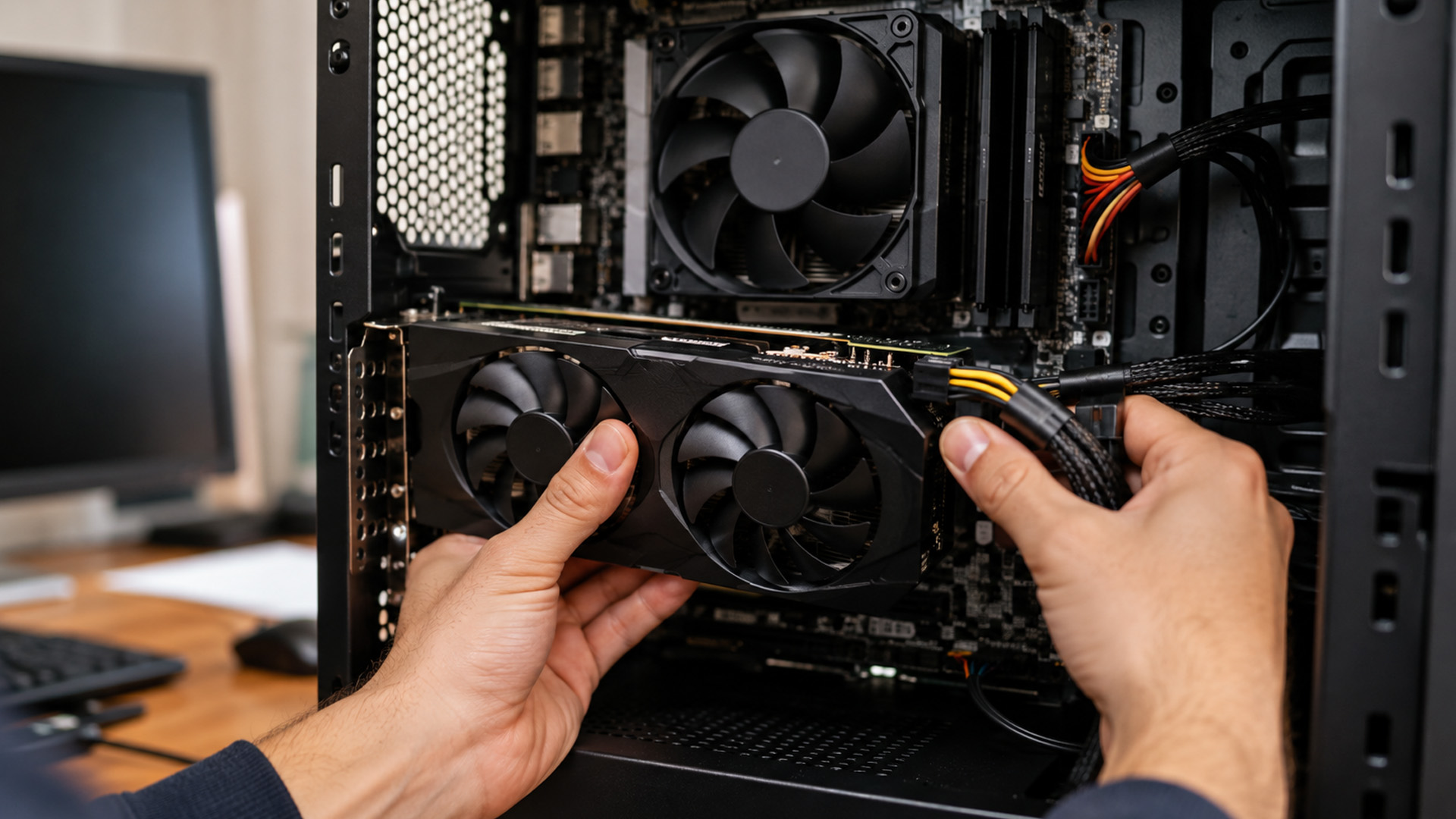
Skip this section if you have a laptop or all-in-one PC because their graphics processors are normally integrated into the mainboard. Desktop users should only remove a card if they are comfortable handling PC components.
With the PC switched off, unplugged and discharged:
- Check that the card sits level and fully inserted in the primary PCIe slot.
- Confirm that the slot-retention latch is engaged and the case bracket is secured.
- Inspect each GPU power connector for a partial connection, damaged pin, discolouration or melted plastic.
- Reconnect the required power plugs until they are fully seated, following the graphics card and PSU manuals.
- Check that a heavy card is not pulling away from the slot because of excessive sag.
Do not sharply bend a high-power cable immediately beside the connector. Also avoid forcing a plug that does not align cleanly, because a mismatched CPU, peripheral or modular PSU cable can damage hardware.
An inadequate or failing power supply may allow the PC to work on the desktop but restart, freeze or lose video during gaming. Compare the complete system against the graphics card manufacturer's PSU recommendation, including the processor and other components, rather than looking only at the wattage printed on the unit.
A Kernel-Power event in Windows confirms that the system shut down unexpectedly, but it does not identify the PSU as the cause. Heat, unstable memory, motherboard faults and interrupted mains power can produce the same event.
Step 8: Review BIOS, UEFI and Laptop GPU Modes
BIOS and UEFI changes come after the simpler checks. Menu names vary by motherboard, so use the manual for the exact computer or board rather than following a generic screenshot.
Relevant settings may include:
- Primary Display, Initial Display Output or PEG/PCIe Graphics
- Integrated graphics or hybrid graphics modes
- Laptop MUX, Eco, Standard, Optimised or discrete-GPU modes
- PCIe slot configuration after a BIOS reset
A laptop power-saving or Eco mode may deliberately hide the dedicated GPU from Device Manager. Change the mode through the manufacturer's control application, connect mains power and restart before treating the missing entry as a fault.
On supported ASUS gaming laptops, ASUS confirms that Armoury Crate Eco Mode can prevent the discrete GPU from appearing in Device Manager. Mode names and behaviour vary between manufacturers and models.
Restoring BIOS defaults can help after an incorrect setting, but record any storage, boot or security configuration first. Update BIOS or GPU firmware only from the official manufacturer support page and only when the release notes address compatibility or the specific problem you have.
Never interrupt a firmware update. If the system is unstable, has unreliable power or cannot maintain a display, professional support may be safer than attempting an update.
Step 9: Check for Graphics Card Overheating and Fan Problems
Graphics card overheating can cause clock-speed reductions, stuttering, driver resets, black screens and shutdowns. However, there is no single temperature that diagnoses every GPU, because limits differ by model, sensor, cooler, workload and ambient conditions.
Monitor the following while reproducing the problem with a normal game or application:
- GPU core temperature
- Hotspot or junction temperature, where available
- Fan speed
- Clock speed
- Power use
- GPU and video-memory use
- Whether performance drops as temperature rises
Stopped fans at idle may be normal because many cards use a zero-RPM mode. A graphics card fan not spinning under sustained load is more concerning if temperature keeps rising, the card throttles or the system crashes.
Check for dust, blocked case intakes, cables touching fan blades and poor exhaust clearance. Hold fan blades still when using suitable compressed air, and do not insert fingers or tools into a powered fan.
If CPU, GPU and case temperatures all rise together, take help from our broader gaming PC overheating guide. That article can cover case airflow, ambient temperature, fan layout and system-wide cooling.
Stop the test if temperature climbs rapidly towards the card's documented limit, the fan fails to respond, artefacts worsen or the PC shuts down. Replacing thermal pads or paste is not a first-line fix and can affect warranty cover.
Step 10: Run a Controlled Stability Test
Do not begin with an extreme stress test. First confirm that the PC is stable on the desktop, during video playback and in a light application, then try a known game or workload that previously worked.
Record the time to failure, temperature, fan response and visible symptom. A benchmark result by itself cannot prove whether the fault sits in the GPU, PSU, RAM, motherboard or driver.
Use this evidence to narrow the cause:
|
Test Result |
What It Suggests |
What to Do Next |
|
Only one game fails |
Game, settings, overlay, API or VRAM demand |
Repair the game installation and test other software |
|
Safe Mode works but normal Windows does not |
Driver, display configuration or startup software |
Roll back or reinstall the driver |
|
Another cable or monitor fixes the image |
Display-path fault |
Replace or reconfigure the affected cable, port or display |
|
The card fails only after heating up |
Cooling, power delivery or temperature-related hardware fault |
Inspect fans, airflow, clocks and PSU behaviour |
|
Another GPU works in the same PC |
Suspect card or its model-specific compatibility |
Test the original card in another suitable system |
|
The suspect card fails in a second compatible PC |
Stronger evidence of a card fault |
Check warranty, repair or replacement options |
|
Several GPUs fail in the original PC |
PSU, motherboard, BIOS, display or wider system fault |
Stop blaming the original card and test the system |
Cross-testing is one of the clearest diagnostic methods, but it requires compatible hardware and a suitable power supply. If you do not have a known-good system or card, a repair technician can perform the comparison without risking another component.
A passed test does not guarantee that every part of a GPU is healthy. It only shows that the system completed that workload under those conditions.
Signs of GPU Failure Vs a Fixable Problem
The strongest signs of GPU failure are repeatable and follow the card after other causes are removed. A single symptom should be treated as a clue, not a verdict.
|
More Likely to Be Fixable |
Stronger Evidence of Hardware Failure |
|
The fault began immediately after a driver or Windows update |
Artefacts appear before Windows loads and remain with another cable and display |
|
Safe Mode works normally |
The card is not detected in two compatible systems with suitable power |
|
Only one game or application crashes |
Several unrelated applications crash at stock settings under normal temperatures |
|
A different cable, port or monitor restores the picture |
Another known-good GPU works in the original system while the suspect card does not |
|
Returning an overclock or custom profile to default restores stability |
Visible damage, scorched connectors, burning smell or a failed fan under load |
|
Fans start normally once the card is under load |
The fault follows the card after driver, power, display and PCIe checks |
Visual artefacts can come from a cable, display or unstable settings as well as faulty video memory. Code 43 can also indicate either a driver problem or a device problem, so neither should be treated as automatic proof of a dead GPU.
Laptop GPU Troubleshooting Is Different Than Desktop
Most laptop GPUs cannot be removed, reseated or replaced independently. You need to focus on software, power modes, manufacturer diagnostics, external-display testing and cooling before arranging service.
Useful laptop checks include:
- Connect the original charger and disable battery-saving modes for the test.
- Check the manufacturer's hybrid, MUX, Eco or discrete-GPU setting.
- Confirm which GPU Windows assigns to the affected application.
- Test the internal screen and an external display separately.
- Use the laptop manufacturer's BIOS and driver packages where it recommends them for that model.
- Check whether the fault appears only on battery power or only after the laptop becomes hot.
Do not follow desktop instructions that involve opening the case, changing PCIe slots or replacing PSU cables. A soldered laptop GPU or mainboard fault requires specialist equipment and may be covered by the device warranty.
Common GPU Troubleshooting Mistakes
❌ Changing Several Things at Once
If you replace the cable, reinstall the driver and reset BIOS settings together, you cannot tell which action mattered. Make one controlled change and repeat the same test.
❌ Assuming the Newest Driver Is Always the Best Fix
A current driver may contain necessary support or fixes, but it can also conflict with a particular game or system. If the fault began after an update, rollback is a valid diagnostic step.
❌ Treating Spinning Fans as Proof the Card Works
Fans and lighting can receive power even when the GPU cannot initialise or output a picture. Check Device Manager, the display path and behaviour under load.
❌ Using a Universal Temperature Rule
Core, hotspot and memory limits vary. Compare readings with the specifications for the exact card and focus on throttling, rising temperature, failed fan response and repeatable crashes.
❌ Running Repeated Extreme Stress Tests
A failed stress test does not identify the faulty component by itself. Repeating it on an overheating or unstable system can worsen the problem without producing better evidence.
❌ Flashing Firmware Too Early
BIOS and VBIOS updates are not routine fixes for every black screen. Use them only when the manufacturer identifies a relevant compatibility problem and provides instructions for the exact model.
❌ Ignoring the Rest of the System
RAM instability, a failing PSU, poor CPU cooling, motherboard faults, a damaged display cable and game-specific bugs can all look like a graphics card problem. A good diagnosis tries to disprove these alternatives.
Should You Repair, Claim Under Warranty or Replace the GPU?
Check the warranty before opening the graphics card or paying for a repair. Record the serial number, purchase information, symptoms, driver version, temperature evidence and cross-test results, because the retailer or manufacturer may request them.
A repair can make sense for a replaceable fan, damaged display port or another clearly identified serviceable component. Board-level GPU and video-memory faults require a specialist with appropriate diagnostic and soldering equipment.
Replacement becomes more reasonable when the card fails in another compatible system, another GPU works in the original PC, the warranty has expired and the repair is not economical. Compare graphics cards for gaming on Laptop Outlet by physical size, PSU requirement, display outputs, workload and monitor resolution rather than choosing on model name alone.
The next decision is the GPU platform. NVIDIA GeForce graphics cards may provide better continuity when games or professional applications rely on NVIDIA-specific technologies. AMD Radeon graphics cards may suit different performance, display and feature requirements. Check the exact applications and games you use instead of deciding by brand alone.
Finally, you need to inspect the individual brands rather than relying on the GPU name. MSI graphics cards and ASUS graphics cards based on the same GPU can have different dimensions, cooling systems, noise characteristics and power connectors. These details are particularly important for compact cases and PCs with restricted airflow.
How to Reduce Future Graphics Card Problems
- Keep a note of the last stable driver instead of updating immediately before important work or a competitive gaming session.
- Install graphics software from the GPU or computer manufacturer, not a third-party download site.
- Clean case filters and check airflow before dust blocks the GPU heatsink.
- Inspect high-power connectors after moving the PC, but only while the system is switched off and unplugged.
- Support a heavy graphics card if its weight is pulling it away from the PCIe slot.
- Return clocks and power settings to stock before diagnosing new instability.
- Avoid placing the PC in a closed cabinet or directly beside a heat source.
- Record temperatures and symptoms before and after maintenance so improvements can be measured.
Preventive maintenance cannot stop every hardware failure. It can, however, reduce heat, connection and software problems that often make a healthy graphics card appear faulty.

What to Do If Your Graphics Card Is Still Not Working
If your graphics card is not working correctly, the most reliable approach is to identify when the fault begins and eliminate simpler causes before replacing hardware. Check the monitor, cable and output first, then separate Windows and driver faults from power, PCIe and cooling problems. Test one change at a time and use another display, application or compatible system where possible. A single crash, Code 43 message or stopped idle fan does not prove failure. Persistent artefacts, repeated faults at stock settings or problems that follow the card into another suitable PC provide stronger evidence that repair, warranty support or replacement is needed.

What People Also Ask…
Why Is My Graphics Card Not Working Even Though the Fans Spin?
Spinning fans only confirm that the card receives some power. The GPU may still have an incomplete power connection, faulty display path, driver problem, BIOS conflict or hardware fault. Check the monitor, cables, Device Manager and power connectors.
How Do I Know If My GPU Is Dead?
A GPU is more likely to have failed when artefacts appear before Windows loads, it remains undetected in another compatible PC, or several applications crash at stock settings. One black screen, driver error or stopped idle fan is insufficient evidence.
Why Is My GPU Not Detected in Device Manager?
Windows may not detect a GPU because the card lacks power, is poorly seated, is hidden by a laptop graphics mode, or has a driver or BIOS problem. Check Device Manager, power connections and manufacturer-specific settings.
Can I Reset My Graphics Card Without Restarting the PC?
Use the Windows graphics-driver shortcut, Windows + Ctrl + Shift + B, without restarting the PC. The screen may flicker or beep briefly. This can recover a frozen display, but it cannot fix loose hardware, overheating or physical damage.
Can a Graphics Card Be Repaired?
Some graphics cards can be repaired if the problem is a replaceable fan, damaged display port or another serviceable component. Board-level GPU or memory faults require specialist equipment. Compare warranty coverage, repair cost, card age and replacement suitability first.
| Read More: |
| How to Find Out What Graphics Card You Have |
| How Do You Install a New Graphics Card |
| How to Choose the Right GPU for Your PC in 2026 |
Related Articles


Last Updated: February 27, 2026
GPU price trends, which historically followed steady consumer demand cycles, were hijacked by a series of unprecedented global crises. These events first pushed the cost of graphics cards to astronomical highs, then plunged them into a sharp decline, before finally settling on a new, structurally higher price baseline.
This analysis examines the economic forces that drove this extraordinary five-year shift. We trace the market from the initial chaos of the supply chain fracture, through the speculative peak driven by cryptocurrency mining, and into the current era dominated by the massive enterprise investment in Artificial Intelligence (AI).
The Initial Storm (2020–Mid 2021): Scarcity and Supply Chain Shock
The sharp inflation in GPU prices did not begin with a single factor but with the convergence of two major, simultaneous economic disruptions: a severe global logistics crisis and a dramatic shift in consumer habits.

The Pandemic’s Logistical Fracture
The start of the COVID-19 pandemic

Last Updated: December 30, 2025
If your current rig is starting to stutter or you are simply ready to jump into the next generation of visual fidelity, there is no better time to act. The New Year graphics card deals are finally here.
Whether you are a competitive esports player, a 4K gaming enthusiast, or a professional video editor, the right GPU is the heart of your system. This year, we are seeing incredible NVIDIA GPU discounts and an extensive AMD Radeon sale New Year event.
In this guide, we will explore the best graphics cards for gaming and work, ensuring you find the perfect match for your monitor and your budget.
Top New Year Graphics Card Deals for 2026
We have hand-picked eight of the most impressive NVIDIA RTX GPUs and AMD Radeon GPUs currently available. Let’s explore the right card for your setup.
1. MSI GeForce RTX 5060 GAMING 8GB OC Graphics Card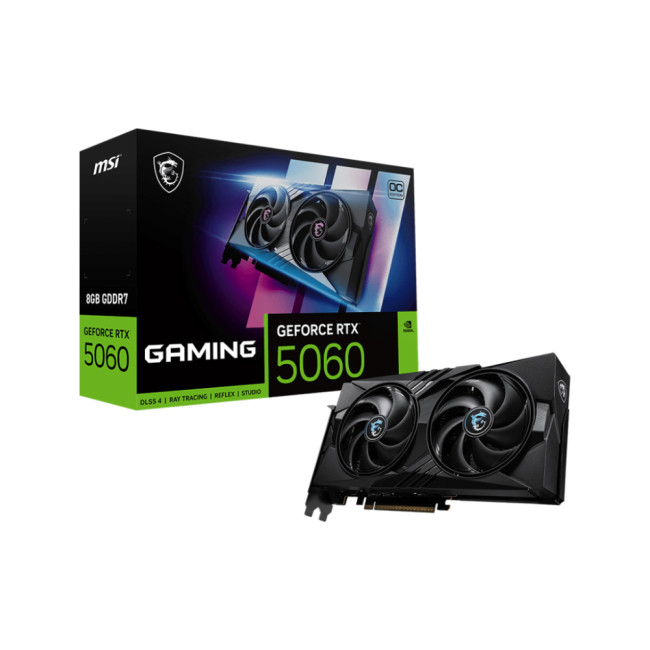
Key Specifications
- GPU: NVIDIA GeForce RTX 5060 (Blackwell Architecture)
- Memory: 8GB GDDR7
- Memory Speed: 28 Gbps
- Memory Interface: 128 bit
- Core

Last Updated: January 14, 2026
From smooth 1080p gameplay to breathtaking 4K visuals, AMD graphics cards put serious gaming power right at your fingertips. You want smooth gameplay, great visuals, and good value for money, without paying more than you need to. That’s exactly where AMD graphics cards come into the picture.
AMD has become one of the most popular choices for gamers in the UK thanks to its strong performance, competitive pricing, and wide range of options for every type of player. Whether you’re after the best AMD graphics cards for high-end gaming, searching for cheap AMD graphics cards to get started, or are curious about the new AMD graphics cards hitting the market, this guide is here to help.
Why AMD Graphics Cards are a Smart Choice for Gamers
AMD has earned a strong reputation among PC gamers by offering powerful GPUs at competitive prices. If you want excellent gaming performance without overspending, AMD often delivers some of the best value on the market.
Great Performance for the Price
One
Last Updated: January 14, 2026
If you’re planning to upgrade your gaming PC or build a new setup from scratch, choosing the right graphics card is one of the most important decisions you’ll make. Whether you’re chasing ultra-high frame rates, immersive 4K visuals, or reliable performance for competitive gaming, MSI has a solution tailored to your needs.
At Laptop Outlet, we stock a wide range of MSI gaming graphics cards, covering both NVIDIA and AMD platforms for you. From legacy favourites to the latest MSI graphics cards, this guide explores performance, key models, driver support, and how MSI compares with other leading brands. If you’re searching for dependable gaming graphics cards that deliver real-world value, you’re in the right place.
MSI NVIDIA Graphics Cards for Gaming
If you prefer NVIDIA-powered GPUs, MSI offers some of the most popular and trusted models on the market. Today’s NVIDIA graphics cards for gaming from MSI are leagues ahead in terms of performance and efficiency. You’ll benefit from features

Last Updated: April 28, 2026
When it comes to high-performance computing, gaming realism, and creative workloads, NVIDIA graphics cards continue to set the benchmark. From immersive gaming experiences to professional-grade rendering and AI acceleration, NVIDIA’s GPUs power some of the most advanced systems on the market today. This guide explores everything you need to know about Nvidia graphics cards.
Understanding NVIDIA Graphics Cards and their Advantages
When performance matters, NVIDIA continues to lead the graphics card market with technology designed for today’s most demanding applications. From immersive gaming worlds to high-speed creative workflows, NVIDIA GeForce graphics cards deliver the power, efficiency, and visual realism modern users expect. Trusted by gamers and professionals alike, NVIDIA GPUs have become the benchmark for smooth gameplay, intelligent upscaling, and advanced rendering. What truly sets NVIDIA graphics cards apart is how each generation evolves. With smarter architecture, improved

Last Updated: April 28, 2026
If you’re looking for the most powerful consumer GPU NVIDIA has ever produced, the RTX 5090 graphics card is designed with you in mind. Whether you’re building a no-compromise gaming PC, upgrading a professional workstation, or simply want the very best from the latest graphics technology, the RTX 5090 sits at the very top of NVIDIA’s graphics cards UK lineup. In this guide, we’ll walk you through everything you need to know as a UK buyer, from the RTX 5090 release date and expected pricing to real-world performance and whether this GPU actually makes sense for how you use your PC.
What Exactly is the RTX 5090 Graphics Card?
The RTX 5090 graphics card is NVIDIA’s flagship GPU, built for users who don’t want to make trade-offs. If you play at 4K, use ultra-wide monitors, or rely on your system for demanding creative work, this is the kind of hardware designed to keep up. As a true RTX 5090 high-end GPU, it’s aimed at:
- Gamers who want maximum frame rates at ultra settings
- Creators working

Published: January 09, 2026
If you’re searching for graphics cards 9060 in the UK, you’re clearly looking for the next sweet spot in gaming and creative performance without overspending. At Laptop Outlet, we know UK gamers and professionals want powerful, reliable graphics cards at genuinely competitive prices, backed by trusted brands and fast delivery. In this guide, we’ll explore graphics cards 9060 deals, discuss how they compare to alternatives, and help you decide whether an AMD-based option, a next-generation NVIDIA alternative, or a trusted gaming brand like ASUS, Gigabyte, or XFX is right for you.
What are Graphics Cards 9060 and Why are they Generating So Much Interest?
The growing interest in graphics cards 9060 comes from demand for mid-to-upper-tier GPUs that deliver excellent performance at a more accessible price point. These cards are widely associated with AMD’s next-generation lineup, including expected models such as the AMD RX 9060 XT graphics card. Gamers and creators are excited because graphics
Last Updated: April 28, 2026
Finding the right graphics card at the right price has become one of the biggest challenges for PC gamers in the UK. With new GPU generations launching and stock levels fluctuating, buyers are looking for hardware that delivers strong performance without stretching their budget. In this guide, we explore everything you need to know about the NVIDIA RTX 5050 GPU, including expected gaming performance, anticipated UK pricing, and where it fits within today’s competitive graphics card market. We’ll also highlight the best alternatives available at Laptop Outlet, ensuring you have plenty of options if stock is limited.
What is the NVIDIA RTX 5050 GPU?
The NVIDIA RTX 5050 GPU is expected to sit at the entry-to-mid-level end of NVIDIA’s next-generation RTX lineup. Designed for gamers who want modern features without the premium price tag, the RTX 5050 PC graphics card is aimed at smooth 1080p gaming and entry-level 1440p performance. As part of NVIDIA’s latest architecture, the RTX 5050 graphics
Last Updated: January 13, 2026
Are you looking to upgrade your PC with cutting-edge performance, reliability, and exceptional gaming visuals? ASUS graphics cards remain one of the most trusted choices in the UK market. We bring you competitive prices, frequent deals, and a wide selection of ASUS GPUs designed for gamers, creators, and professionals alike. From advanced NVIDIA RTX models to efficient AMD Radeon options, ASUS continues to lead the way in innovation, cooling, and long-term durability.
Why Choose ASUS Graphics Cards?
ASUS has built a global reputation for producing premium PC components, and its graphics cards are no exception. Designed with performance, stability, and longevity in mind, ASUS PC graphics cards are trusted by enthusiasts and professionals worldwide.
Proven Engineering and Build Quality
ASUS graphics cards are engineered using high-quality components, reinforced PCBs, and advanced power delivery systems. This ensures consistent performance even under heavy workloads such as 4K gaming, 3D
Published: January 13, 2026
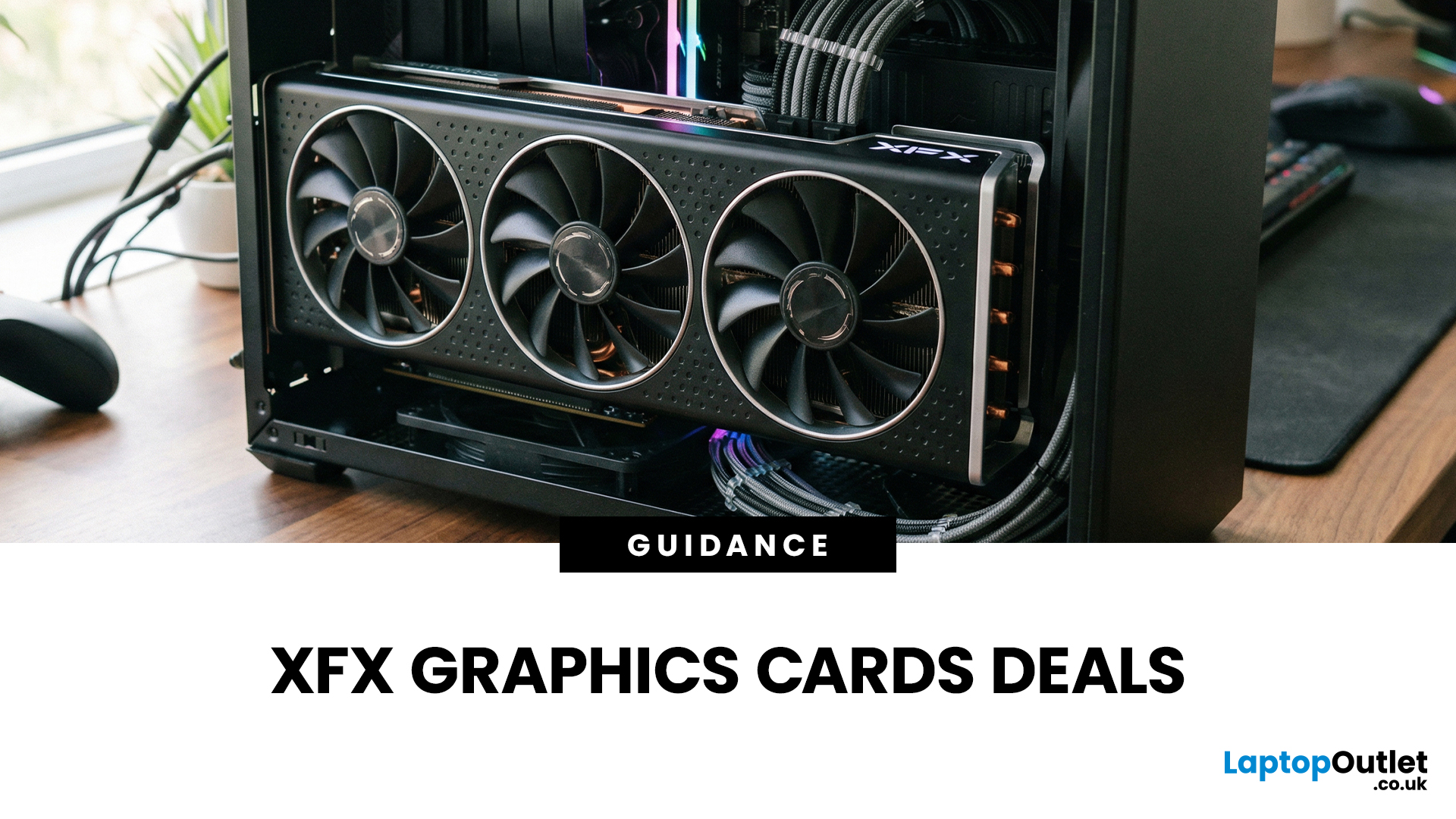
Choosing the right graphics card is one of the most important decisions when building or upgrading a gaming PC, and XFX graphics cards UK gamers trust continue to stand out for performance, reliability and value. As one of AMD’s most established board partners, XFX focuses exclusively on Radeon GPUs, delivering powerful gaming performance at highly competitive prices. We offer a wide range of XFX graphics cards deals, making it easier for you to access cutting-edge AMD technology without overspending. Whether you’re upgrading an older system, building a new gaming rig or searching for better value than current NVIDIA options, XFX delivers a compelling alternative. This guide explores everything you need to know about XFX GPUs, including performance, pricing, comparisons, and how to find the best XFX GPU deals UK buyers can rely on.
Why XFX Graphics Cards Are a Trusted Choice for AMD Gamers
XFX has built a strong reputation by focusing entirely on AMD hardware. Unlike brands that split

