



Intel Quick Sync Explained: Does Your Video Editing PC Need it?
Quick Answer: Intel Quick Sync Video is a hardware acceleration technology that uses dedicated media-processing circuitry in supported Intel graphics hardware to encode and decode video. It can improve playback of compatible footage and reduce rendering times for supported exports, particularly when working with H.264 and H.265 files.
If you're building a PC for video editing, Intel Quick Sync can make a noticeable difference to how smoothly certain footage plays and how quickly supported videos export. However, its benefits depend on your processor, editing software, and the video formats you use.
Not every Intel processor offers the same capabilities, and you don't necessarily need Quick Sync if your graphics card already handles these tasks efficiently. In this guide, we'll explain how Intel Quick Sync works, which CPUs support it, how it performs in Adobe Premiere Pro, and whether it's worth considering for your next editing PC.
What is Intel Quick Sync and How Does it Work?
Intel Quick Sync is a hardware-based video encoding and decoding technology built into the media engines of supported Intel graphics processors. Normally, processing compressed video can place a significant workload on your CPU. Quick Sync handles supported video compression and decompression tasks using dedicated hardware, reducing the need to rely entirely on software processing.
It performs two important functions:
- Hardware Decoding: Decompresses supported video files so your editing software can display footage during playback, scrubbing and timeline editing.
- Hardware Encoding: Compresses video into a supported format when exporting a finished project.
For example, if you're editing several H.265 clips recorded on a mirrorless camera, compatible Quick Sync hardware may help the software decode those files more efficiently.
However, Quick Sync does not accelerate every aspect of editing. Colour grading, motion graphics, visual effects, and other rendering operations can still depend heavily on CPU and GPU performance.
Why Does Intel Quick Sync Matter for Video Editing?
The biggest advantage of Intel Quick Sync is how it handles compressed video during everyday editing tasks.
Smoother Timeline Playback
Compressed footage, especially high-resolution H.264 or HEVC video, can be demanding to decode. When your editor supports Intel Quick Sync hardware decoding, it can reduce CPU processing requirements and help improve timeline responsiveness.
This can be particularly useful when:
- Editing 4K H.264 or H.265 footage.
- Scrubbing through long recordings.
- Working with multiple compressed video clips.
- Previewing supported camera footage without generating proxies.
However, smoother playback isn't guaranteed. Effects, colour corrections, storage performance, and codec compatibility can still cause dropped frames.
Faster Video Exports
Intel Quick Sync can also accelerate supported video encoding tasks. For example, exporting an H.264 video for YouTube may take less time with hardware encoding than with CPU-only software encoding, depending on your project and system.
The difference becomes more noticeable when encoding is a major part of the workload. Projects involving intensive effects or compositing may see smaller improvements.
Expert Tip: Hardware encoding is useful when you need quicker turnaround times, but it doesn't automatically deliver the highest image quality at a given bitrate. For quality-critical projects, test hardware and software encoding using your intended export settings.
Intel Quick Sync Codec Support: H.264, HEVC and AV1
One of the most important things to understand is that Intel Quick Sync codec support differs between processor generations .
A codec determines how video data is compressed and decompressed. Even when two processors support Quick Sync, they may handle different formats, colour depths, and chroma subsampling modes. Here's how the three most relevant codecs fit into modern editing workflows.
|
Codec |
Typical use |
Quick Sync considerations |
|
H.264 (AVC) |
YouTube videos, screen recordings and everyday footage |
Widely supported for hardware encoding and decoding across many Intel generations |
|
H.265 (HEVC) |
4K footage, smartphone videos and higher-efficiency recording |
Supported capabilities vary by generation, bit depth and chroma format |
|
AV1 |
Modern streaming, distribution and increasingly supported workflows |
Decode and encode capabilities depend on graphics generation and software support |
Intel Quick Sync H.264 Support
H.264 remains one of the most widely used formats for online video and content creation.
Intel Quick Sync H.264 support is available across numerous older and newer Intel graphics generations, making it particularly useful for editors handling standard camera footage, tutorials, and screen recordings. However, support for common 8-bit 4:2:0 H.264 footage doesn't mean every H.264 format will receive hardware acceleration.
Intel Quick Sync HEVC Support
H.265, also called HEVC, offers efficient compression and is commonly used for 4K and higher-resolution recording.
Intel Quick Sync HEVC support includes hardware acceleration on many Intel processors , although capabilities vary significantly across generations. For instance, 10-bit 4:2:2 HEVC footage may require more recent media hardware than standard 8-bit 4:2:0 video.
If your camera records 10-bit 4:2:2 files, verify that your specific processor and editing application support hardware decoding of that format. This matters because a processor supporting HEVC generally may still require software decoding for your particular files.
Intel Quick Sync AV1 Support
AV1 is a modern video codec designed to deliver efficient compression while maintaining image quality.
Intel Quick Sync AV1 support is particularly relevant to newer Intel graphics architectures.
For example, Intel's Arc-equipped Core Ultra Series 1, Series 2 and Series 3 graphics configurations support AV1 hardware encoding and decoding. Older Intel integrated graphics may support AV1 decoding without offering AV1 hardware encoding.
Your editing application must also support the relevant AV1 workflow before you can benefit from the hardware.
Expert Tip: Don't select a processor based on codec names alone. Check the resolution, bit depth and chroma subsampling of your source files. A 10-bit 4:2:2 HEVC recording can have very different hardware requirements from an 8-bit 4:2:0 recording.
Which Intel Processors Support Quick Sync?
Intel Quick Sync supported processors include many generations of Intel Core and Core Ultra CPUs equipped with compatible integrated graphics.
However, Intel Quick Sync CPU compatibility cannot be determined by the Core i5, i7, i9 or Core Ultra branding alone. Two processors with similar names may have different graphics configurations and media capabilities.
Intel Core Processors with Integrated Graphics
Many mainstream Intel Core desktop processors include integrated graphics with Quick Sync support.
For example, processors such as the Core i5-12400, Core i7-13700 and Core i9-14900K feature integrated graphics that support Quick Sync. However, the capabilities aren't identical across these chips, particularly when newer video formats are involved.
Intel Core Ultra Processors
Intel Core Ultra processors with supported integrated graphics also offer hardware media acceleration.
Some newer models include more advanced codec capabilities, such as AV1 encoding and decoding. However, the exact features vary by processor family and integrated GPU configuration.
If you're choosing a new editing processor, we recommend checking the specific model rather than assuming every Core Ultra chip supports the same formats. You can browse our CPUs for your editing build to find suitable Intel processor options, then verify the media capabilities against Intel's official specifications before ordering.
Do Intel F and KF Processors Support Quick Sync?
This is an important distinction when choosing a desktop CPU. Intel's mainstream desktop processors with F or KF suffixes generally lack integrated graphics. For example:
- Core i5-14400: Includes Intel UHD Graphics 730 and supports Quick Sync.
- Core i5-14400F: Has no integrated graphics, so it cannot provide CPU-integrated Quick Sync.
- Core i7-14700K: Includes Intel UHD Graphics 770 with Quick Sync support.
- Core i7-14700KF: Lacks integrated graphics and therefore its associated Quick Sync functionality.
An F or KF processor can still be perfectly capable of video editing when paired with a dedicated graphics card.
However, if you specifically want Intel's CPU-integrated media engine, choose a compatible non-F processor. Intel's official specifications also distinguish graphics-equipped models from those without integrated graphics.
Does Adobe Premiere Pro Use Intel Quick Sync?
Yes. Intel Quick Sync Premiere Pro support includes hardware-accelerated decoding and encoding for compatible H.264 and HEVC footage.
Adobe confirms that Premiere can use Quick Sync to improve supported video playback and exporting. However, availability depends on your hardware, graphics drivers and media settings. Quick Sync is only one part of a capable Adobe workstation. Our guide to hardware for Adobe Creative Cloud apps covers the other specifications worth considering for creative work.
How to Enable Intel Quick Sync in Premiere Pro
If your system has a compatible Intel processor, follow these steps to check the relevant settings.
- Open Adobe Premiere Pro and select Edit > Preferences > Media on Windows.
- Enable H.264/HEVC hardware-accelerated decoding, where available.
- Restart Premiere Pro to apply the change.
- Open your project and go to the export settings.
- Select H.264 or HEVC as your export format.
- Under Video > Encoding Settings, select Hardware Encoding if the option is available.
The exact interface may differ depending on your Premiere version and system configuration.
It's also worth understanding that selecting Hardware Encoding doesn't necessarily mean Premiere is using Intel Quick Sync. When multiple compatible GPUs are available, the application may use a different hardware encoder.
If you want to confirm which graphics engine is working, check GPU activity through Windows Task Manager or a compatible monitoring utility while exporting. Adobe provides separate guidance for optimising H.264 and H.265 playback.
Can You Use Intel Quick Sync with a Dedicated GPU?
Yes. Intel Quick Sync with dedicated GPU configurations is possible, provided your processor supports Quick Sync, its integrated graphics remain enabled and your software can access the media engine.
For example, an editing PC can use:
- Intel integrated graphics for supported video decoding or encoding.
- An NVIDIA or AMD graphics card for GPU-intensive effects, rendering and other accelerated workloads.
- The main CPU for tasks that benefit from general-purpose processing.
However, these components don't necessarily work together on every task. Your editing software decides which hardware engines to use. If you're unsure how the two graphics types differ, our integrated vs dedicated GPU guide explains their capabilities and where each makes sense.
What Happens If Your Integrated Graphics Are Disabled?
On some desktop systems , installing a dedicated graphics card can cause the motherboard firmware to disable the integrated GPU. When that happens, Quick Sync may no longer be available. To resolve this, you can:
- Check whether your Intel processor includes integrated graphics.
- Open Windows Device Manager and look under Display Adapters.
- If Intel graphics are missing, check your motherboard's BIOS or UEFI settings for options such as Integrated Graphics or iGPU Multi-Monitor.
- Enable the integrated GPU if your system supports it.
- Install the appropriate Intel graphics drivers and restart your editing application.
BIOS options differ between manufacturers, so consult your motherboard documentation before changing anything. If you're building a workstation around GPU-accelerated effects, choosing from our graphics cards for your editing PC can help you find a suitable dedicated GPU alongside your Intel processor.
Remember: You don't need to connect your monitor to the motherboard's video output in every configuration to use Quick Sync. What matters is that the integrated graphics device is enabled, recognised by the operating system and accessible to your application.
Intel Quick Sync vs GPU Encoding: Which Is Better?
Modern dedicated graphics cards from NVIDIA, AMD, and Intel can also include dedicated video encoding and decoding engines. For example, NVIDIA NVENC provides hardware-based video encoding on supported GeForce GPUs, while compatible AMD Radeon graphics cards include their own media engines. So, which technology makes more sense for your editing PC?
|
Your editing requirements |
What to prioritise |
|
Frequent H.264 and HEVC editing |
Hardware decoder compatibility with your source footage |
|
Regular social media exports |
A supported, efficient hardware encoder |
|
Heavy GPU effects and colour grading |
Dedicated graphics processing performance and sufficient VRAM |
|
10-bit 4:2:2 camera footage |
Exact codec and pixel-format support |
|
A PC with an Intel CPU and dedicated GPU |
Whether both media engines offer useful capabilities in your software |
Quick Sync isn't automatically faster or better than dedicated GPU encoding. Export speed and visual quality depend on your hardware generation, software, bitrate and encoding settings.
Also, transferring video data between integrated and dedicated graphics can introduce additional overhead in some workflows. For those reasons, the best configuration is the one that accelerates the footage you actually edit, rather than simply offering the greatest number of hardware encoders.
What Else Does Your Editing PC Need Besides Quick Sync?
Even with hardware-accelerated video processing, your computer needs balanced components to handle demanding projects.
Enough RAM for Larger Projects
Video editing applications use system memory for timeline data, effects, previews, and other working resources.
For many Full HD editing tasks, 16GB RAM can be workable. However, 32GB is a more sensible starting point for regular 4K projects, especially if you're running other creative applications. More demanding workflows involving high-resolution footage, complex compositions or multiple applications may benefit from 64GB or more.
If you're upgrading, check your motherboard's memory type, capacity and slot configuration before selecting desktop memory for your workstation.
Fast Storage for Media and Cache Files
An NVMe SSD can help with project loading, media transfers, preview generation and cache access.
However, faster storage won't fix a decoding bottleneck if your footage format is unsupported by your media hardware. For larger productions, separate drives for the operating system, active projects and media cache can also help organise your workflow. Furthermore, if you regularly transfer large video files or export lengthy projects, understanding the differences between TLC and QLC SSDs can help you choose storage with suitable sustained write performance.
A CPU and GPU That Match Your Software
Quick Sync handles specific video operations, but many editing tasks still need strong CPU and GPU performance. A processor with sufficient cores and good single-thread performance can help with general responsiveness and CPU-intensive effects.
Meanwhile, a capable dedicated GPU becomes particularly important for colour grading, visual effects, noise reduction and other supported acceleration features. For demanding creative work, consider the complete workstation rather than treating Quick Sync as a substitute for processing power.
How to Check If Intel Quick Sync Is Available on Your PC
Before replacing any components, check whether your current system already supports hardware video acceleration. Here's a practical checklist:
- Identify your processor: Open Settings > System > About in Windows and note your exact Intel CPU model.
- Check Intel's specifications: Search for your processor on Intel's official product specifications website and look for Intel Quick Sync Video under the graphics specifications.
- Confirm codec compatibility: Check whether the integrated graphics support hardware decoding or encoding for your source footage.
- Check the graphics driver: Ensure the integrated GPU is enabled and its driver is installed.
- Test your editing application: Check whether hardware acceleration is available in your software's media and export settings.
If playback is still slow despite enabled hardware decoding, try generating proxies or transcoding footage to an editing-friendly intermediate codec. That can be more effective than upgrading your processor, particularly when dealing with unsupported recording formats.

Does Your Video Editing PC Actually Need Intel Quick Sync?
Intel Quick Sync is worth considering if you regularly edit compressed footage, particularly H.264 or HEVC recordings. It can be especially useful for YouTube creators, videographers, and anyone working with compatible 4K camera files who wants smoother playback and potentially faster exports.
However, Intel Quick Sync isn't essential for every video editing PC. You may not gain much from it if your dedicated graphics card already provides suitable hardware acceleration, or if your workflow relies mainly on intermediate codecs such as ProRes and DNxHR.
The key is to identify your editing software, source formats and export requirements before deciding which hardware matters most. At Laptop Outlet, we stock processors, graphics cards, memory, and other components to help you put together a workstation suited to your projects. Whether you're assembling a new PC or upgrading an existing one, our range gives you options across different performance requirements and spending limits.
Choose components that address your actual editing bottlenecks, and you'll be better placed to build a reliable system without paying for features you rarely use.

Is Intel Quick Sync good for 4K video editing?
Yes, Intel Quick Sync can improve playback and exporting of supported 4K H.264 and HEVC footage. However, actual performance depends on your processor generation, video format, editing software and project complexity.
Does Intel Quick Sync work without a graphics card?
Yes, compatible Intel processors can use their integrated graphics for Quick Sync without requiring a separate graphics card. However, an enabled integrated GPU, suitable drivers and compatible software are necessary.
Is Intel Quick Sync better than NVIDIA NVENC?
Neither is universally better. Intel Quick Sync and NVIDIA NVENC use dedicated media-processing hardware, but supported formats, export quality and speed vary by generation and application. Check which encoder best suits your footage and workflow.
Can Intel Quick Sync improve Premiere Pro playback?
Yes. Premiere Pro supports Quick Sync hardware decoding for compatible H.264 and HEVC media. This may reduce CPU usage and improve timeline responsiveness, although effects, unsupported codecs and other system bottlenecks can still affect performance.
Do Intel Core i7 processors support Quick Sync?
Many Intel Core i7 processors support Quick Sync, but not all. Desktop F and KF variants generally lack integrated graphics, while codec capabilities differ between generations. Always check the specific processor's specifications before buying.
Related Articles

Last Updated: June 16, 2026
Intel Core i5, i7 and i9 processors all serve different types of laptop users. The right one depends on your daily workload, budget, battery expectations and the laptop’s overall build, not just the number printed on the processor badge.
For most people, Intel Core i5 is the sensible option. It handles study, office work, browsing, streaming, video calls and everyday multitasking without pushing the price too high. Intel Core i7 gives your laptop more breathing room. It suits people who work with heavier apps, play modern games, edit photos or videos, code, or keep lots of tasks open at the same time. Intel Core i9 sits at the top end. It is built for demanding users who need serious speed for 4K editing, 3D rendering, engineering software, large creative projects and premium gaming laptops with strong cooling.
The real answer is not always “i9 is best”. A newer i5 can outperform an older i7. A well-cooled i7 laptop can feel faster than a slim i9 laptop that overheats under pressure. This
Last Updated: July 03, 2026
Last Updated: September 03, 2026
AI is no longer limited to the cloud or research labs. It’s now built into everyday laptops, powering features like clearer video calls, live captions, and smarter editing tools. At the heart of this is the intel core ultra 5 NPU, a dedicated AI engine within the processor that handles machine-learning tasks efficiently. An intel core ultra 5 processor combines CPU, GPU, and NPU, allowing each task to run on the most suitable hardware. This setup improves multitasking and efficiency, though benefits depend on software support and the specific processor model.
What is Intel AI Boost NPU in Core Ultra 5 Laptops?
Intel AI Boost is the name Intel uses for the neural processing hardware integrated into supported Core Ultra processors. It is designed to process AI inference workloads efficiently, particularly tasks that run continuously or repeatedly in the background.
The AI boost NPU complements the CPU and GPU rather than replacing them. It becomes a low-power engine for longer-running AI
Last Updated: August 06, 2026
Last Updated: July 23, 2026
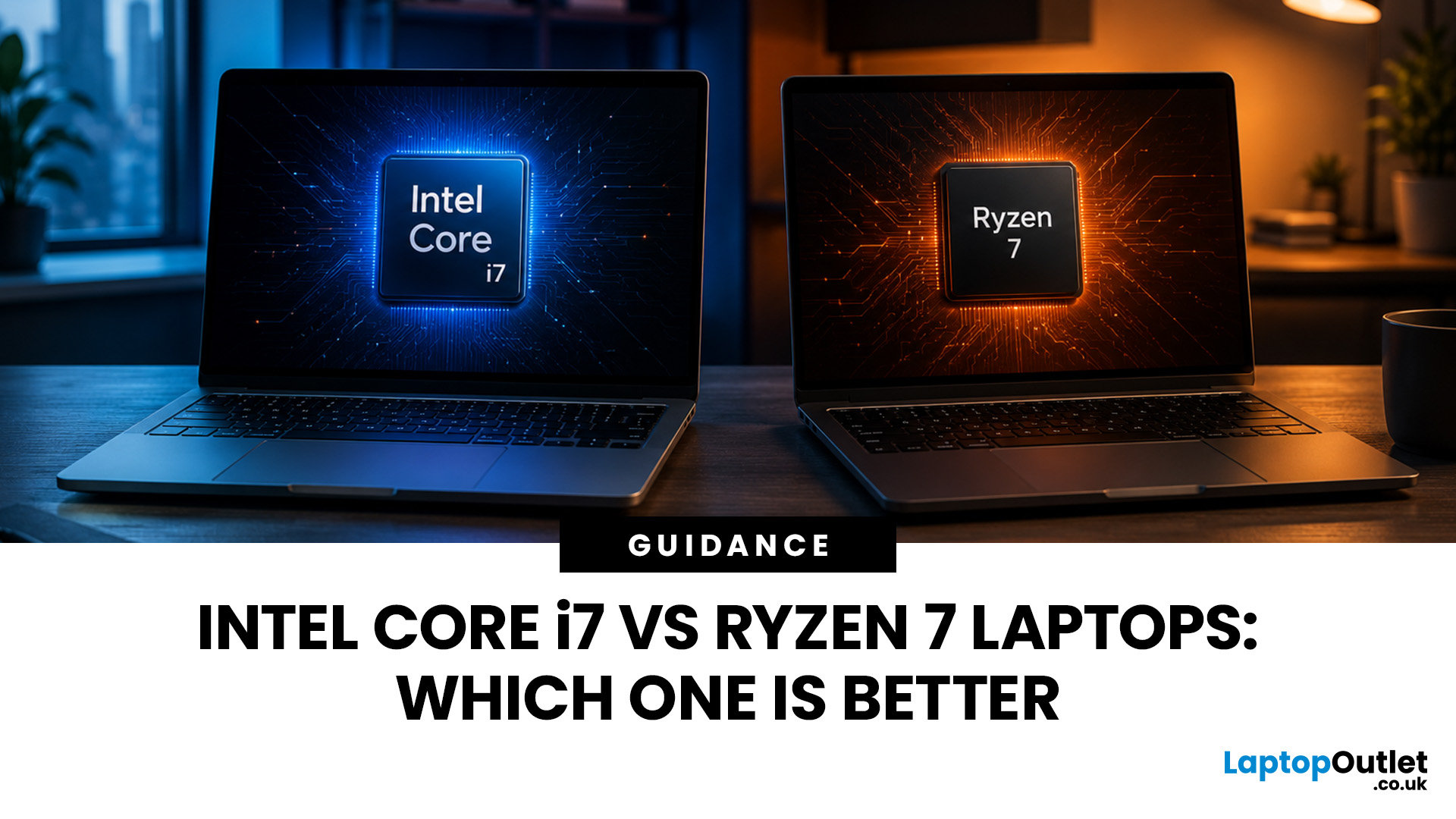
Neither processor family is automatically better. An Intel Core i7 laptop is often a strong choice for demanding productivity, supported video workflows and high-powered gaming configurations. A Ryzen 7 laptop can be especially attractive for efficient multitasking, capable integrated graphics and specification value.
When comparing an i7 vs Ryzen 7 laptop, the exact processor number matters more than the badge. A Core i7 U-series processor designed for a lightweight laptop is not equivalent to a Core i7 H-series gaming chip. The same applies to Ryzen 7 U, HS and HX processors.
For the broader brand-level differences, read our AMD vs Intel laptop guide. This guide goes deeper into the Core i7 and Ryzen 7 performance tier.
Intel Core i7 vs Ryzen 7 Laptops: Quick Answer
| Your priority | Better starting point | What to check |
| Everyday office work | Either | RAM, battery, screen and price |
| Heavy multitasking | Either | Exact CPU model, cooling and at least 16GB RAM |
| Gaming with dedicated graphics | Either | GPU |
Published: July 27, 2026
Last Updated: September 28, 2026
Quick Answer
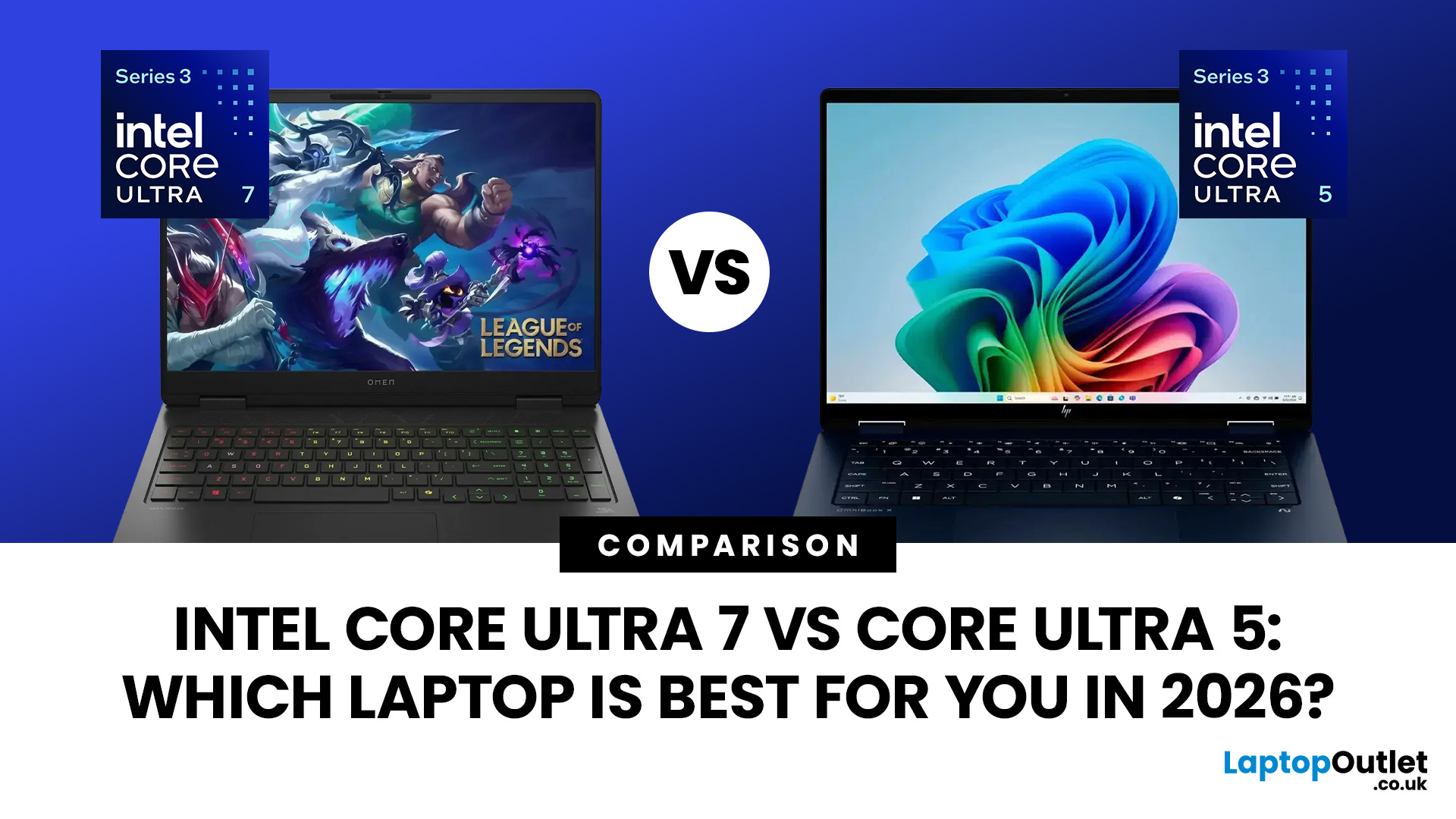
Intel Core Ultra 7 vs Core Ultra 5 comes down to workload, generation and laptop design. Core Ultra 5 is typically sufficient for productivity, study and moderate creative work, while Core Ultra 7 offers more CPU headroom for heavier multitasking and sustained workloads. However, graphics, NPU performance, cooling, RAM and processor suffix can matter more than the tier name alone.
Choosing between Intel Core Ultra 5 and Core Ultra 7 is more complicated in 2026 than simply assuming the higher number will always give you the better laptop.
Intel now has Core Ultra Series 1, Series 2 and Series 3 processors in circulation. Within those generations you will also find different processor classes designed for thin-and-light systems, efficient mobile computing and higher sustained performance. Intel identifies Ultra 5 and Ultra 7 as performance tiers, while the processor number indicates the series or generation.
That means the sensible comparison is not simply Ultra 5 vs Ultra 7.
Last Updated: August 03, 2026
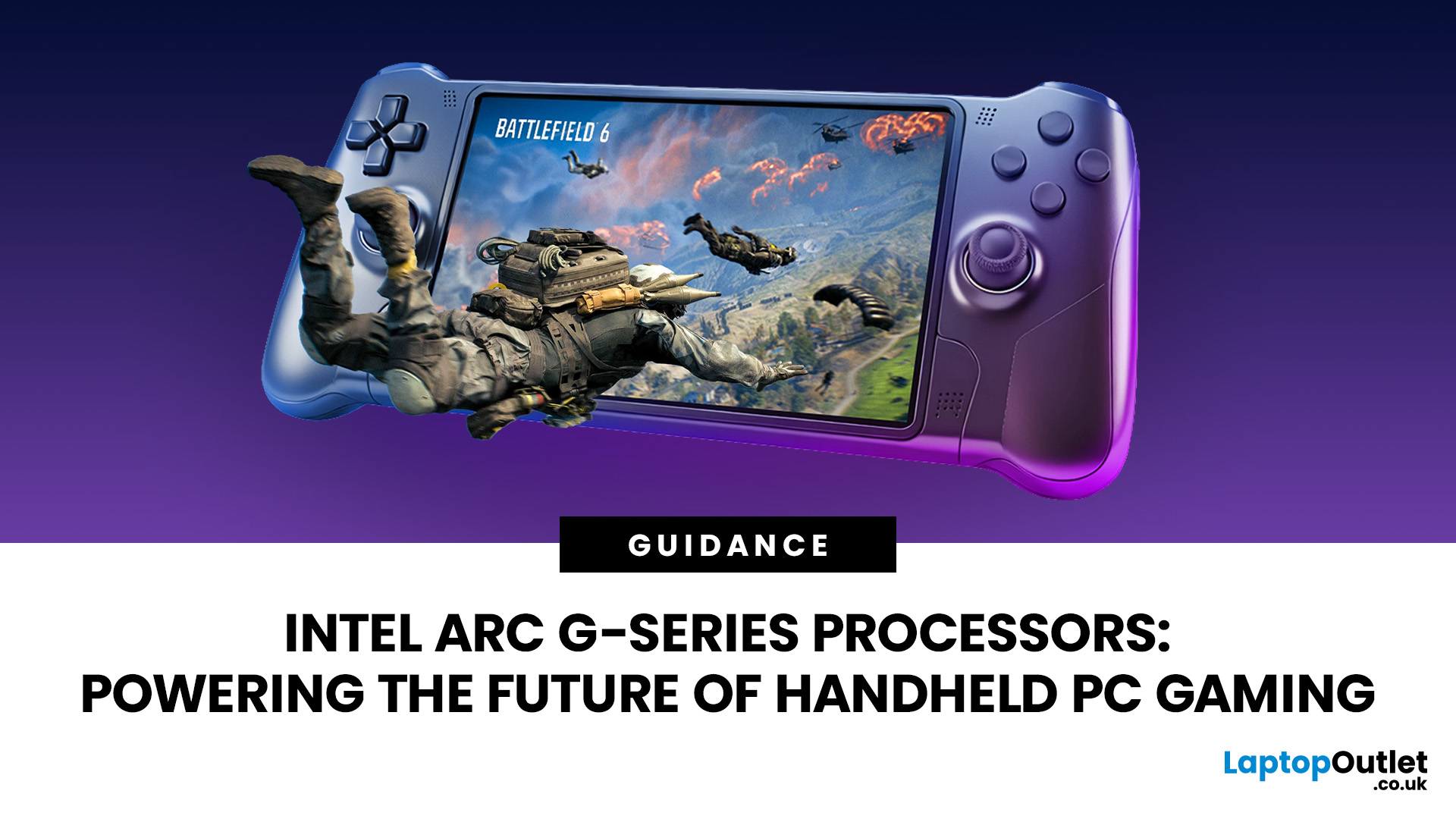
Handheld PC gaming has reached the point where portability alone is no longer enough. Players now expect current PC games, sharper displays, stable frame rates and usable battery life from a device small enough to carry in a bag.
Intel Arc G-Series processors have been developed specifically for that challenge. Instead of placing a conventional laptop processor inside a handheld and adjusting its power limits, Intel has rebalanced the design around integrated graphics, efficient CPU cores and lower-wattage gaming.
The first two processors are the Intel Arc G3 and Intel Arc G3 Extreme. Both combine a 14-core CPU, Xe3-based Intel Arc graphics, XeSS
Published: August 03, 2026
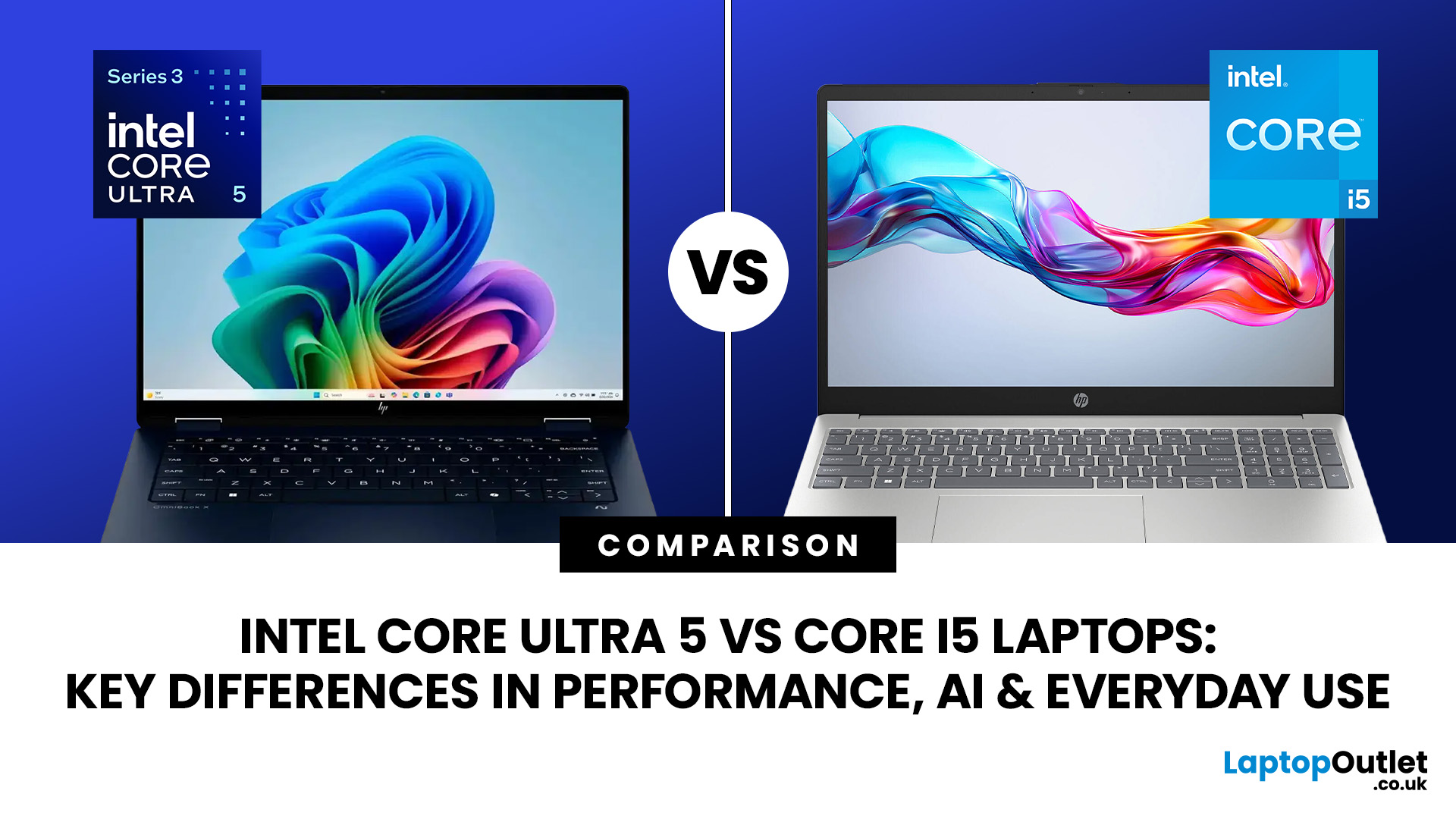
Intel has changed how it names and builds its laptop processors (CPUs). Traditional Core i5 chips remain widely available, but newer premium laptops increasingly use the Core Ultra 5 name, which Intel introduced alongside a major architectural redesign and built-in AI acceleration. That makes the Intel Core Ultra 5 vs i5 comparison more complicated than simply checking which number looks newer.
This guide explains the differences in everyday speed, multitasking, graphics, gaming, AI features, and battery life, without burying the answer under unnecessary technical jargon.
Quick Answer: Should You Buy Intel Core Ultra 5 or Core i5?
Buy Core Ultra 5 for stronger integrated graphics, on-device AI features and generally better efficiency. Buy Core i5 when price matters most, especially for office work or laptops with dedicated graphics card. Always compare the exact processor suffix and laptop configuration.
| If you want... | Buy | Why |
| Lowest price | Core i5 | Older i5 laptops are regularly discounted |
Last Updated: August 11, 2026
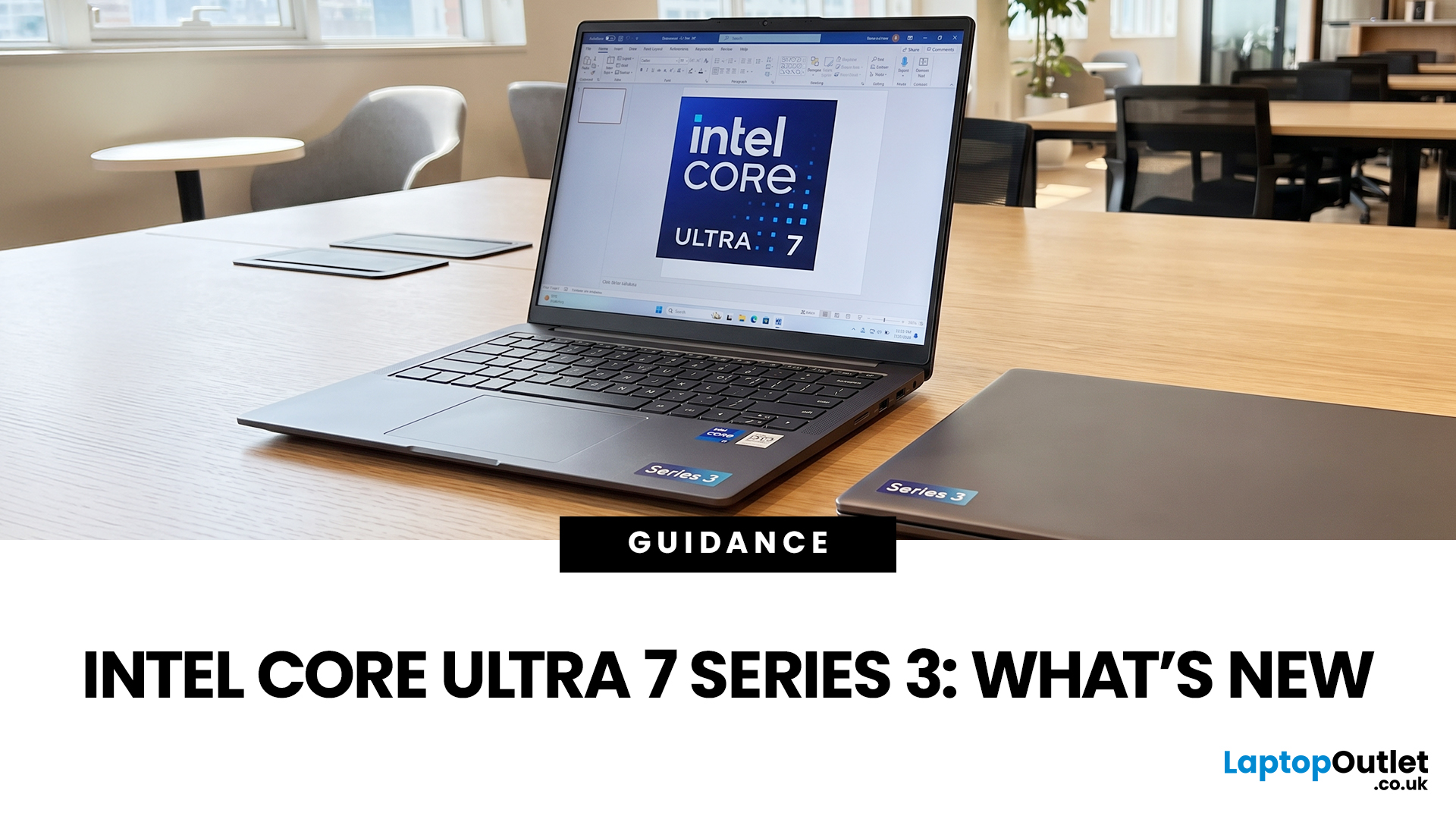
If you’re considering an Intel Core Ultra 7 Series 3 laptop in 2026, the processor name is only part of the story. Intel’s latest Core Ultra Series 3 generation brings a new architecture, Intel 18A process technology, built-in AI acceleration and updated graphics capabilities.
However, different Series 3 processors can have significantly different core and graphics configurations, so it is important to look beyond the “Core Ultra 7” label when choosing a laptop.
Series 3 is aimed at modern laptops that need to balance

