



TLC vs QLC SSDs: Speed, Endurance and Value Compared
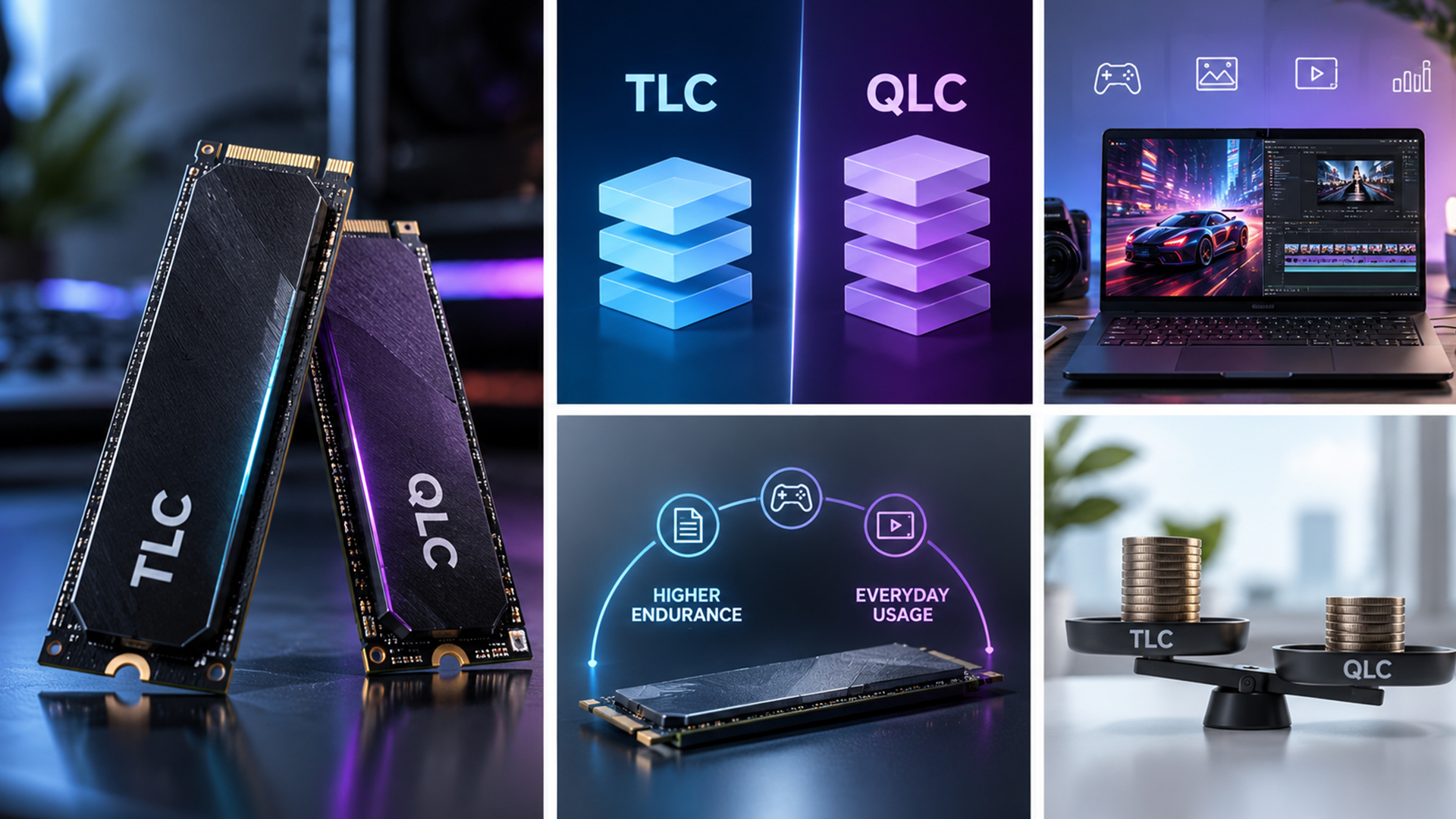
TLC SSDs store three bits of data in each NAND cell, while QLC SSDs store four. TLC generally provides higher write endurance and more consistent performance during sustained writes. QLC increases storage density, which can make larger capacities available at a lower cost per GB.
For most people, however, a TLC vs QLC SSD decision should not be based on NAND type alone. Controller design, SLC cache, firmware, capacity, interface and thermal performance can all affect how an SSD behaves in real-world use.
The right choice ultimately comes down to workload. Frequent large writes tend to favour TLC, while QLC can make sense for gaming libraries, media storage and everyday computing where capacity is more important than sustained write performance.
What TLC and QLC Mean
An SSD stores data in NAND flash, a type of non-volatile memory that retains information when your computer is switched off.
TLC and QLC are two common NAND flash types used in modern SSDs:
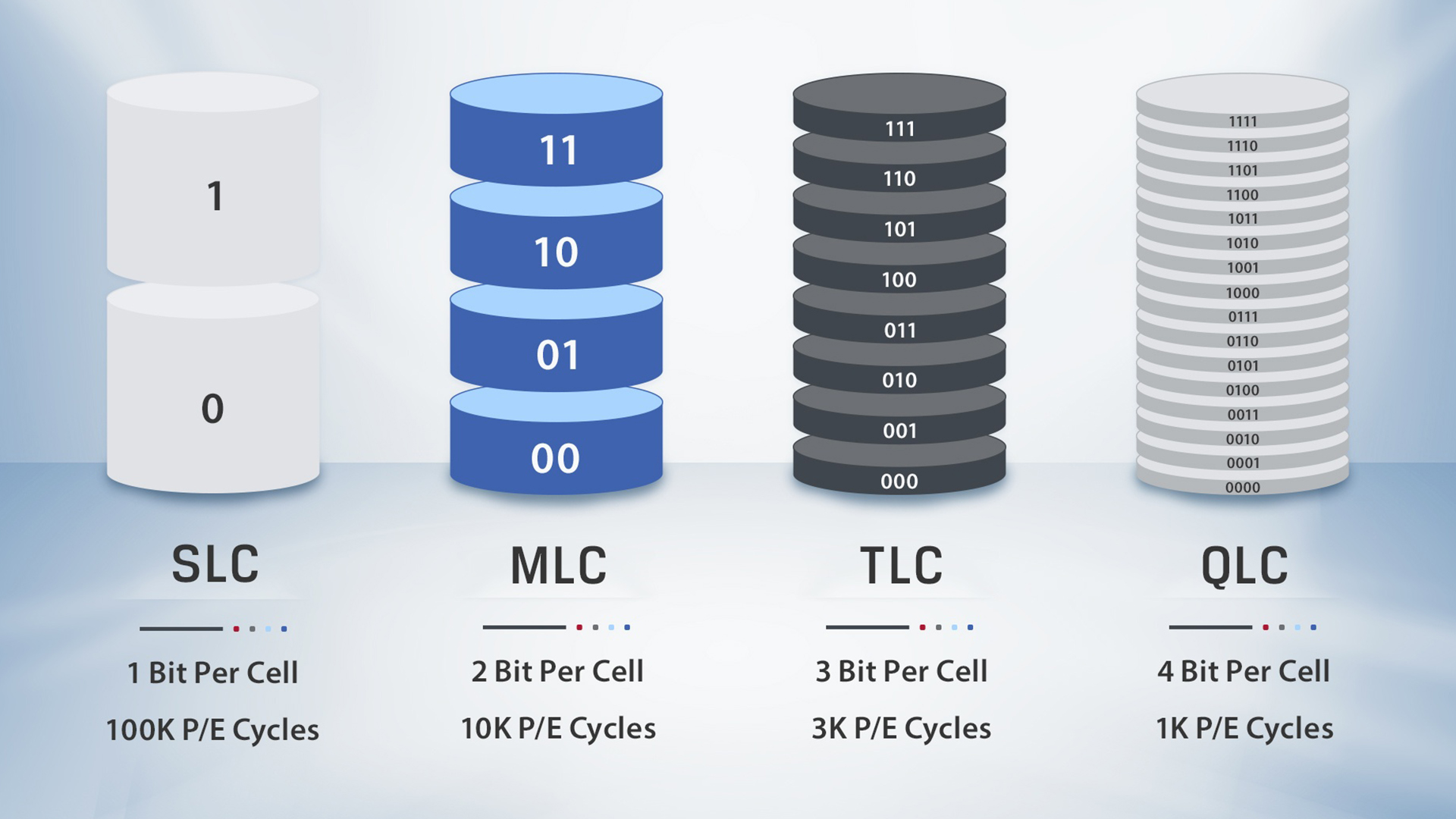
- TLC SSD: A triple level cell SSD stores three bits of data per NAND cell.
- QLC SSD: A quad level cell SSD stores four bits of data per NAND cell.
This difference sounds small, but it changes how many possible states each memory cell must distinguish.
Three-bit TLC NAND needs to represent eight possible states, while four-bit QLC NAND needs to distinguish 16. The additional states allow QLC to store more information within the same physical amount of NAND, but they also make programming the cells and distinguishing between voltage levels more demanding.
That helps explain why TLC generally offers stronger write endurance and native write performance, while QLC's higher density can make it attractive for larger-capacity SSDs.
3D TLC vs 3D QLC
Modern SSDs commonly use 3D NAND, where layers of flash memory are stacked vertically rather than relying solely on increasing density across a flat surface.
The basic 3D TLC vs 3D QLC distinction remains unchanged:
- 3D TLC stores three bits per cell.
- 3D QLC stores four bits per cell.
The term 3D NAND describes the physical arrangement of the memory cells. TLC and QLC describe how much information is stored within each cell.
TLC vs QLC SSD Comparison
|
Factor |
TLC SSD |
QLC SSD |
|
Bits per cell |
3 |
4 |
|
Possible cell states |
8 |
16 |
|
Storage density |
Lower than QLC |
Higher |
|
Write endurance |
Generally higher |
Generally lower |
|
Sustained writes |
Usually more consistent |
More dependent on cache and drive design |
|
Large capacities |
Widely available |
Particularly well suited |
|
Cost per GB |
Often higher |
Often lower |
|
Typical workloads |
Content creation, frequent transfers, write-heavy work |
Everyday use, game libraries, media and read-heavy storage |
These differences describe general characteristics rather than guaranteeing the performance of an individual SSD. A well-designed QLC drive can outperform a weaker TLC model, particularly during short workloads where caching and controller performance have a major influence.
How TLC and QLC SSD Speeds Differ
Comparing TLC vs QLC SSD speed requires more than looking at the maximum read and write figures printed on a specification sheet.
An SSD can perform very differently depending on whether you are opening applications, copying thousands of small files or writing hundreds of gigabytes of data continuously.
Sequential vs Random Performance
Sequential performance measures how quickly an SSD can read or write large blocks of data stored in sequence.
It matters particularly for tasks such as:
- Copying large video files
- Moving disk images
- Transferring project folders
- Working with large media files
Random performance measures how efficiently the SSD handles smaller pieces of data spread across different locations.
This type of access is important for:
- Starting Windows
- Opening applications
- Loading documents
- General desktop responsiveness
- Everyday multitasking
During normal PC use, a capable TLC SSD and QLC SSD can therefore feel very similar.
Peak vs Sustained Write Speed
Maximum SSD speeds are normally measured under favourable conditions and may only be maintained for a limited amount of data.
Sustained speed becomes more important during longer writes.
TLC generally has an advantage once large amounts of data need to be written continuously. QLC SSDs can also achieve high peak speeds, but their sustained performance can depend heavily on SLC cache behaviour, controller design and available free capacity.
That distinction is particularly important if you regularly move large project folders, edit high-resolution media or perform other write-heavy tasks.
What Else Affects SSD Performance?
NAND type is only one part of an SSD.
When comparing internal solid-state drives, also consider:
- Controller: Manages communication between the NAND and the rest of the system.
- Firmware: Controls caching, data management, background operations and other drive behaviour.
- DRAM: Some SSDs use dedicated onboard DRAM to store mapping information and support controller operations.
- HMB: Certain DRAM-less NVMe drives use Host Memory Buffer to access a small amount of system RAM for mapping data. HMB can improve DRAM-less designs, but it is not identical to having dedicated onboard DRAM.
- Capacity: Different capacities within the same SSD family can use different NAND layouts and provide different performance.
- Interface: SATA and different PCIe generations place different limits on available bandwidth.
- Thermals: Fast NVMe SSDs can reduce performance if they become hot enough to trigger thermal throttling.
Compare the complete SSD rather than using TLC or QLC as a standalone performance rating.
How SLC Cache Affects SSD Writes
SLC caching is one of the main reasons two SSDs can post similar benchmark results during short tests but behave differently during a long file transfer.
What Is an SLC Cache?
Many consumer TLC and QLC SSDs temporarily operate a portion of their NAND in a pseudo-SLC, or pSLC, mode.
Instead of storing three or four bits per cell, this temporary area stores only one bit per cell. Doing so allows incoming data to be written more quickly.
You can think of the cache as a high-speed temporary area. Data is written there first before the SSD later reorganises it into its normal TLC or QLC format.
This is why both TLC and QLC drives can achieve very high advertised write speeds.
What Happens When the Cache Fills?
During a sufficiently large transfer, the incoming data can eventually fill the available cache faster than the SSD is able to clear it.
New data then needs to be written more directly to the underlying NAND.
At this point, write speeds may fall significantly from the drive's advertised peak figure. The exact drop depends on the SSD, NAND, controller, capacity and cache implementation.
QLC's lower native write performance can become more noticeable during this type of prolonged workload.
Why Cache Size Can Change
There is no standard SLC cache size shared by every SSD.
Manufacturers can use:
- Fixed SLC caches
- Dynamic SLC caches
- A mixture of fixed and dynamic caching
A dynamic cache uses currently unused NAND capacity. Its available size can therefore decrease as the SSD becomes fuller.
This means the same SSD may perform differently during a long write when nearly empty compared with when most of its storage is already occupied.
TLC vs QLC NAND Flash Endurance
Endurance describes how much writing an SSD is designed to withstand over its working life.
TLC generally provides higher endurance than comparable QLC because storing fewer bits per cell requires the NAND to distinguish between fewer voltage states.
What Are P/E Cycles?
NAND cells are programmed when data is written and erased before being rewritten. This process is measured in program/erase, or P/E, cycles.
Each cycle gradually contributes to NAND wear.
Because QLC stores four bits within each cell and needs to distinguish between more voltage states, comparable QLC NAND generally supports fewer P/E cycles than TLC NAND.
This difference becomes most important in systems that perform large volumes of writes regularly.
SSD TBW Meaning
TBW stands for terabytes written. It is an endurance rating showing how much host data the manufacturer rates an SSD to handle under its specified endurance or warranty conditions.
For example, when comparing two drives, a higher TBW rating indicates that the manufacturer rates that particular model and capacity for a greater amount of writing.
TBW is generally more useful when choosing an actual SSD than assuming every TLC drive will outlast every QLC drive.
Capacity matters too. Higher-capacity versions of the same SSD family often have higher TBW ratings because writes can be distributed across more NAND.
Does QLC Endurance Matter in Everyday Use?
For many home users, write endurance is unlikely to be a major limitation.
Browsing, streaming, office applications, gaming and normal Windows use usually involve far less continuous writing than professional media creation or storage-intensive workstation workloads.
A QLC SSD can therefore provide sufficient endurance for many consumer desktop PCs despite the underlying endurance advantage of TLC.
The difference becomes more relevant if your computer regularly handles:
- Video editing
- Large media exports
- Continuous recording
- Virtual machines
- Large project files
- Frequent backups
- Repeated large file transfers
TLC vs QLC Price per GB and Capacity
One of QLC's main advantages is storage density.
Storing four bits per cell allows manufacturers to hold more data using a given amount of NAND. That can help reduce manufacturing cost per unit of storage and make high-capacity SSDs more accessible.
When comparing TLC and QLC SSDs on price per GB, the difference varies between individual drives and current market pricing, so the NAND type alone does not guarantee which SSD will cost less. However, QLC is commonly used where manufacturers want to prioritise greater capacity and lower cost per gigabyte.
QLC Can Suit Users Who Prioritise
- Large SSD capacities
- Big game libraries
- Media collections
- General file storage
- Everyday computing
- Read-heavy workloads
- Lower cost per GB
Data that is written once and read repeatedly is particularly well suited to QLC storage.
TLC Can Suit Users Who Prioritise
- Frequent large file transfers
- Video and photo editing
- Sustained writes
- Higher write endurance
- Workstation workloads
- More consistent post-cache write speeds
TLC may cost more per gigabyte in some product ranges, but that additional expense can be worthwhile when the workload genuinely benefits from its endurance and sustained performance characteristics.
For files where SSD-level responsiveness is unnecessary, internal hard drives can also provide additional capacity alongside an SSD.
Which Workloads Suit TLC or QLC?
The easiest way to choose between TLC and QLC is to consider what the SSD will actually be doing.
Home and Office PCs
Browsing, documents, video calls, streaming and everyday applications rarely involve continuous high-volume writes.
Either NAND type can work well here. Drive capacity, price, warranty and overall SSD quality may matter more than selecting TLC purely for its technical endurance advantage.
Content Creation
Video editing, large photo projects, media exports and other creative workloads can generate considerably more writes.
TLC is generally better suited to these workloads when transfers and exports are frequent because sustained performance and endurance become more important.
Large File Transfers
Regularly moving large folders, virtual machines, disk images and project files can exhaust an SSD's high-speed SLC cache.
If your workflow regularly involves moving data between systems, it may also be useful to compare suitable external SSDs.
Media and File Libraries
QLC works particularly well for files that need fast access but are not repeatedly rewritten.
Examples include:
- Photos
- Video libraries
- Downloads
- Archived projects
- Music collections
If you use several drive types within one system, comparing broader computer storage options can help you separate high-performance working storage from larger-capacity file storage.
TLC vs QLC SSDs for Gaming
Gaming is primarily read-focused once a title has been installed, so both TLC and QLC SSDs can provide strong gaming performance.
QLC can be particularly useful when capacity matters because modern game libraries can consume hundreds of gigabytes.
The difference becomes more noticeable when you:
- Install very large games
- Download major updates
- Move games between drives
- Frequently uninstall and reinstall titles
These activities create sustained writes and can push an SSD beyond its SLC cache.
TLC may provide stronger sustained performance if you perform those tasks regularly, but selecting TLC instead of QLC will not automatically increase your frame rate.
The GPU and CPU remain the main components responsible for rendering game frames. Storage can influence loading times and asset delivery, but NAND type alone does not tell you how fast a gaming SSD will feel.
What to Check Before Buying a TLC or QLC SSD
The NAND label is useful, but these specifications provide a more complete picture of what you are buying.
1. TBW Rating
Compare the endurance rating of the exact capacity you plan to buy rather than relying only on whether the NAND is TLC or QLC.
2. Warranty
A longer manufacturer warranty can provide additional reassurance, although warranty conditions and TBW limits should both be checked.
3. Sustained Write Performance
If you frequently transfer hundreds of gigabytes at once, look beyond peak benchmark figures and consider how the SSD performs after its SLC cache is exhausted.
4. DRAM or HMB
Dedicated DRAM can benefit some SSD designs, while modern DRAM-less NVMe models may use HMB effectively. Judge the implementation rather than automatically dismissing every DRAM-less drive.
5. Capacity
Larger SSD capacities can offer different endurance, cache sizes and NAND configurations from smaller versions of the same product.
6. PCIe Generation
A PCIe 5.0 SSD is not automatically better for every workload than a strong PCIe 4.0 model. Make sure your motherboard supports the interface and that your workload can benefit from the additional bandwidth.
7. Controller and Firmware
The controller and firmware can have a major influence on latency, caching and sustained performance.
8. Complete Drive Specifications
Two TLC SSDs can behave very differently. The same applies to two QLC drives.
Always compare the exact model rather than treating NAND type as a complete measure of quality.

TLC vs QLC SSD: Which Is Right for You?
A TLC vs QLC NAND choice ultimately depends on the way you use your storage.
TLC generally makes more sense when write endurance, frequent large transfers and sustained performance are important. QLC can be an excellent fit when capacity, read-heavy use and lower cost per GB take priority.
For a gaming or everyday PC, either technology can work well. For content creation or consistently write-heavy workloads, TLC's characteristics become more useful.
Rather than choosing on NAND type alone, compare the exact SSD's capacity, TBW rating, warranty, controller, cache behaviour and real-world sustained performance before buying.

Just So You Know...
Is TLC always faster than QLC?
No. TLC generally has stronger native and sustained write performance, but overall SSD speed also depends on the controller, firmware, cache, interface and capacity. A well-designed QLC SSD can outperform a weaker TLC model in some workloads.
Does a QLC SSD have a shorter lifespan?
QLC generally has lower write endurance than comparable TLC NAND, but that does not mean a QLC SSD will fail quickly. For normal home, office and gaming use, the rated endurance of a suitable QLC SSD can comfortably cover typical workloads.
Does SLC cache make QLC as fast as TLC?
SLC caching can allow TLC and QLC SSDs to achieve similar peak write speeds during short transfers. Once the cache becomes full, however, performance depends more heavily on the underlying NAND, controller and overall SSD design.
Is TLC better for a gaming PC?
Not necessarily. Both TLC and QLC SSDs can perform well for gaming because installed games are predominantly read-focused. TLC becomes more useful if you frequently install, update or transfer large games, while QLC can be attractive for storing a larger game library.
Is paying more for TLC worth it?
It can be worthwhile if you regularly edit media, move large files or perform other write-heavy tasks. For general computing and read-heavy storage, choosing an SSD solely because it uses TLC may provide little noticeable benefit.
Can you use TLC and QLC SSDs together?
Yes. A system can use a TLC SSD for frequently written applications or working files and a larger QLC SSD for games, media and other mostly read-focused data. This allows each drive to handle the workload that best suits its characteristics.
Related Articles


Last Updated: February 17, 2026
Storage problems aren’t just annoying; they’re productivity killers. Studies show that nearly 60% of laptop slowdowns are linked to storage-related issues, whether it’s low disk space, corrupted files, or failing SSDs. When your drive is over 85% full, performance can drop significantly because your system has less room to manage temporary files and virtual memory. Add disk errors or early SSD/HDD failure into the mix, and suddenly your “quick task” turns into a 30-minute meltdown.
Laptop storage issues don’t just slow things down, they risk your data, crash your apps, and test your patience.
The good news? Most storage problems are fixable in real time. In this guide, we’ll break down exactly what’s happening, why it’s happening, and how to fix it step-by-step, no tech degree required.
SSD vs HDD: What’s Actually Inside Your Laptop (And Why It Matters)

Before you panic about laptop storage issues, you need to know what you’re working with. Not all drives fail the same way and the fix
Last Updated: May 01, 2026
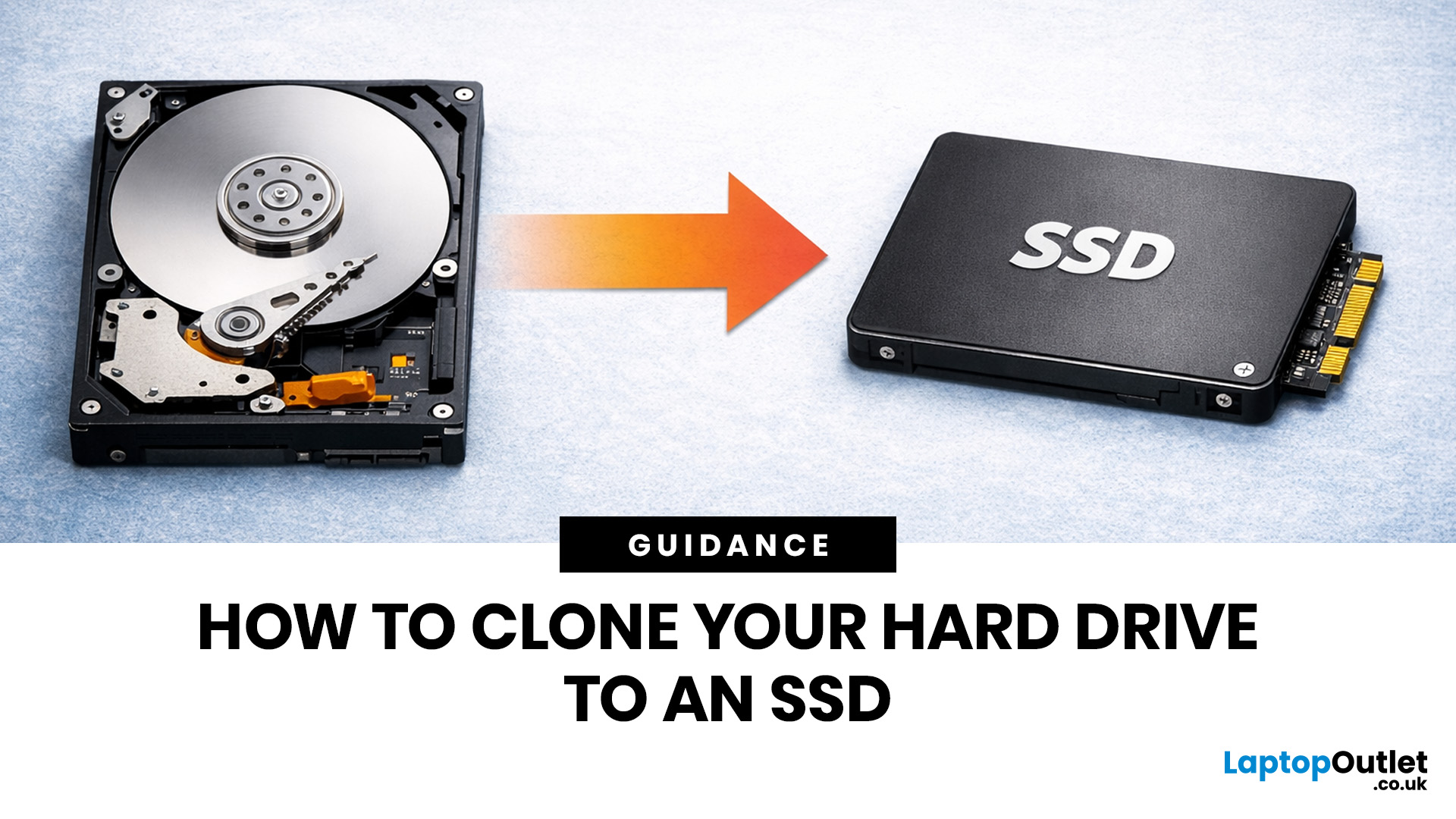
If your laptop feels slow to boot, takes too long to open files, or struggles with everyday performance, it may be time to clone hard drive to SSD and give your system a faster, more responsive upgrade. Moving from a traditional hard disk drive to a solid-state drive is one of the most effective ways to improve speed without replacing your entire device.
In this guide, you’ll learn how to clone a hard drive safely, what you need before you start, and how to handle the SSD migration process step by step. Whether you want to clone HDD to SSD for quicker startup times or simply transfer hard drive to SSD without losing your files, this guide will help you do it with confidence.
Why Upgrade from HDD to SSD?
A hard disk drive stores data using moving parts, while an SSD uses flash memory to access files much faster. That means quicker boot times, faster app launches, smoother multitasking, and less waiting around. If you use your laptop daily for work, study, browsing, or entertainment, choosing
Last Updated: May 01, 2026
Formatting an SSD takes less than five minutes when you know what you're doing. The tricky part is knowing which tool to use, which file system to pick, and how to avoid losing data along the way. That's exactly what this guide covers.
You will learn how to format a solid state drive on Windows, macOS, and Linux laptops, with step-by-step instructions for each. You'll also find out how to partition your SSD and wipe it securely when needed.
Before You Start: What You Need to Know
Before you touch any settings, take a few minutes to prepare. Skipping this stage is the most common reason people run into problems when setting up or reformatting a drive.
Back Up Your Data First
Formatting wipes everything. Every file, folder, and installed programme will be gone.
- Copy important files to a USB drive or cloud storage
- Use an external drive for large backups (if you need one, you can buy external hard drive options from Laptop Outlet)
- Double-check your backup before proceeding
There's no undo
Last Updated: May 01, 2026
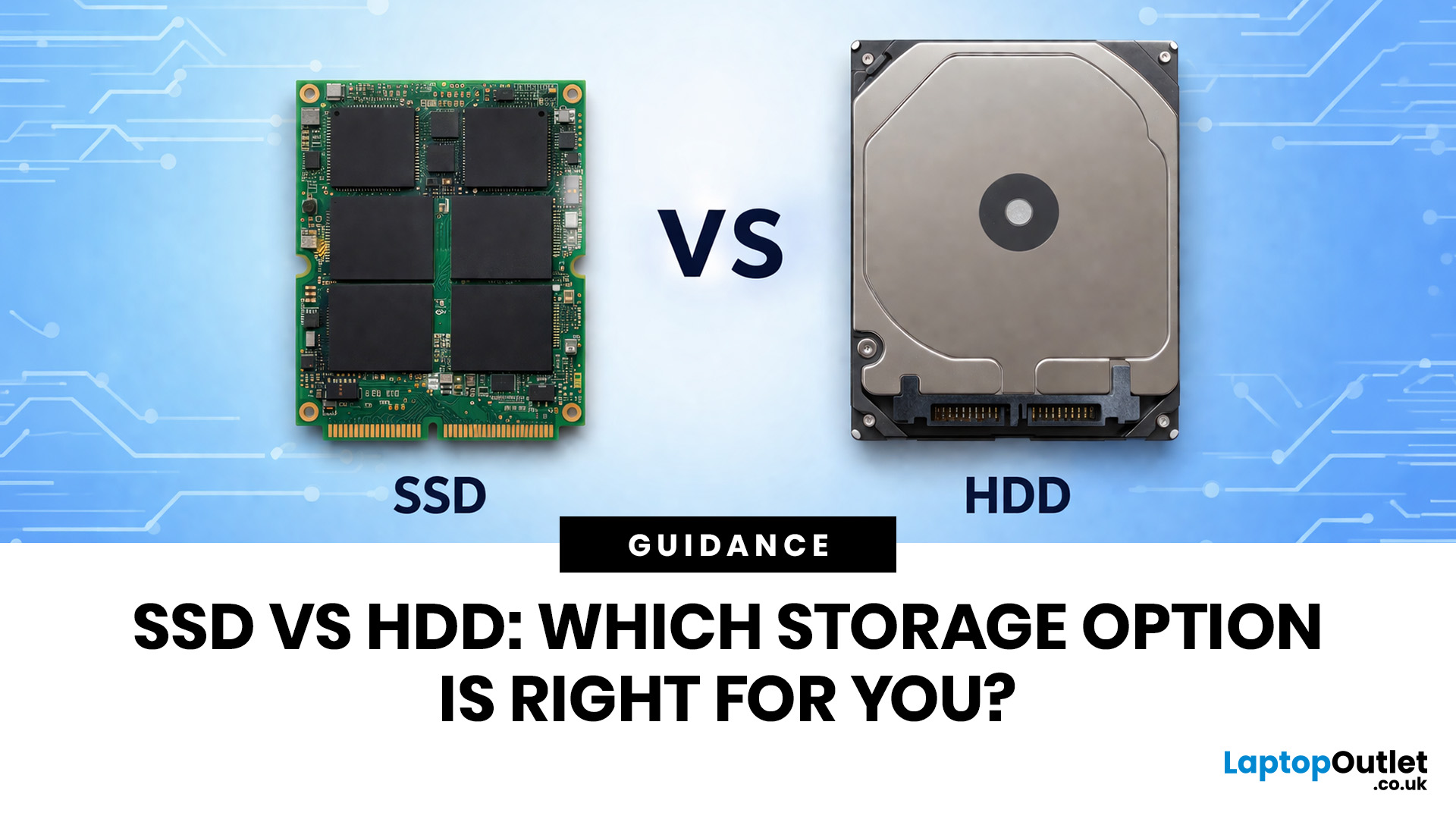
Your laptop can have a great screen, a decent processor, and enough RAM to survive the day, but if the storage is slow, the whole thing still feels off. That is why the SSD vs HDD laptop debate matters more than most people think. One option is built for speed, faster boot-ups, quicker app launches, and way less waiting around. The other is better known for giving you more storage for less money.
So which one actually makes sense for you?
That depends on how you use your laptop. If you want something that feels fast, smooth, and ready to move when you are, an SSD usually wins. If you need loads of space without spending too much, an HDD can still hold its ground.
In this guide, we will break down the real difference between HDD and SSD drives, compare speed, lifespan, value, and help you figure out which one is actually worth it.
SSD vs HDD laptop: what is the actual difference?
An HDD, or hard disk drive, is the old-school storage option. It stores your files, apps, operating system,
Last Updated: May 01, 2026
The computer that helped guide the Apollo missions worked with just 4 KB of RAM and around 72 KB of stored memory. Today, a modern laptop can burn through more than that just opening a few tabs.
That is how fast tech has moved and why an older laptop can suddenly feel frustratingly slow. Long boot times, laggy apps, and constant low-storage warnings can make even simple tasks feel harder than they should.
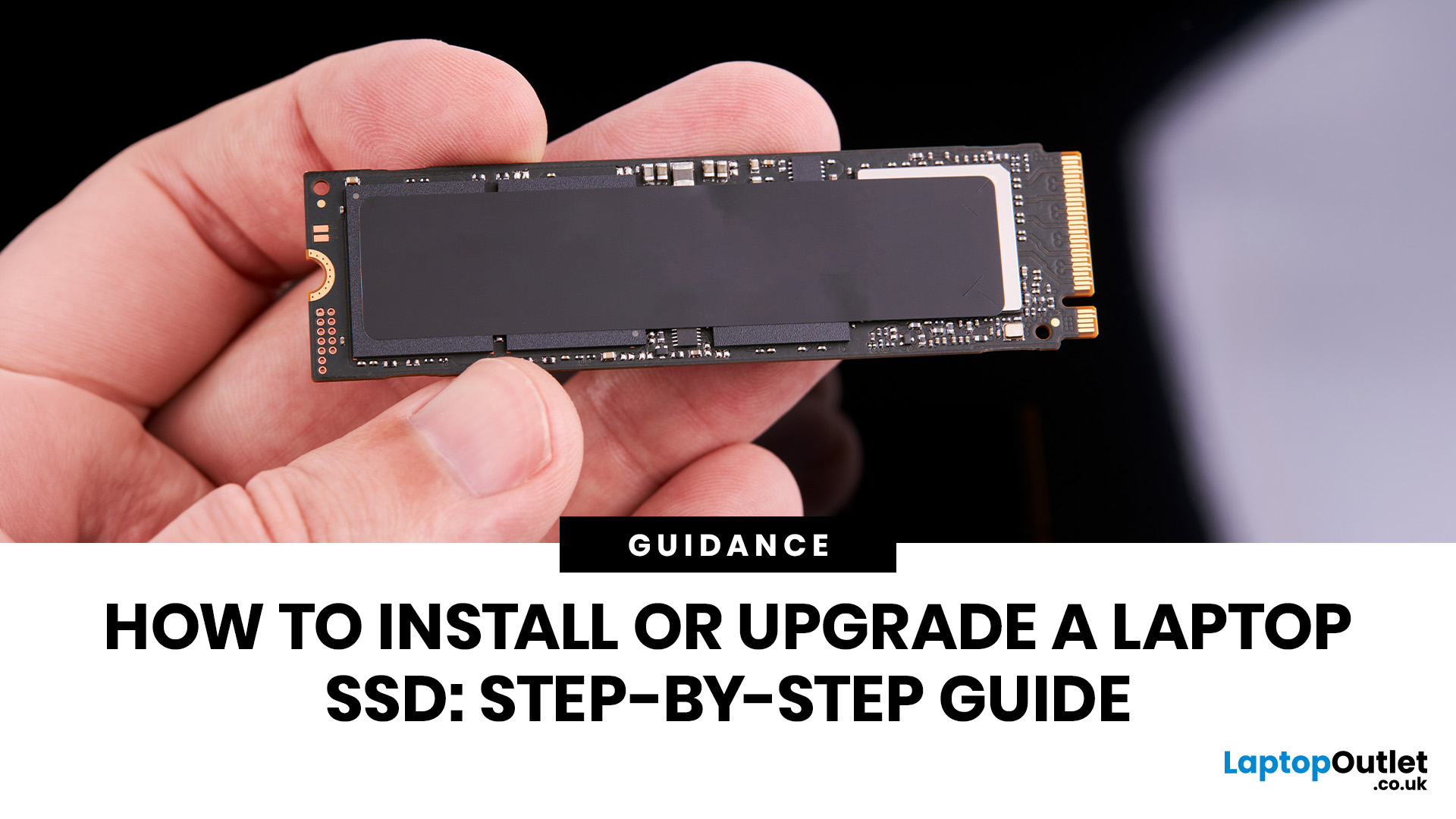
The good news is that you do not always need a brand-new machine. In many cases, upgrading your SSD is one of the easiest ways to make your laptop feel faster, smoother, and far more usable.
In this guide, we will show you how to upgrade a laptop SSD step by step, from checking compatibility to choosing the right drive and installing it properly.
Why upgrading your laptop SSD is worth it
Faster boot times, file transfers, and app loading
A slow laptop gets old fast. Long startup times, laggy apps, and endless waiting usually point to one thing: slow storage.
That is why how to upgrade
Published: September 17, 2026
The amount of RAM in a Dell PC affects how comfortably it can handle everyday programs, multitasking, and more demanding applications. Too little memory can hold performance back, while paying for far more than your workload needs often brings little practical benefit.
RAM, or Random Access Memory, is the short-term working space your PC uses for active applications and data. As your workload becomes heavier or you run more programs at once, the amount of memory you need generally increases.
For most Dell desktop buyers, 16GB of RAM is the safest choice. Choose 8GB for basic browsing, email, and light office work, while 32GB or more makes sense for heavier creative, technical or multitasking workloads. RAM matters, but processor performance, SSD storage, graphics capability and upgrade options also shape how responsive the PC feels.
How Much Dell PC RAM Do You Need?
Your ideal Dell PC RAM capacity depends mainly on the applications you run and how many you expect to use simultaneously.
Last Updated: September 24, 2026
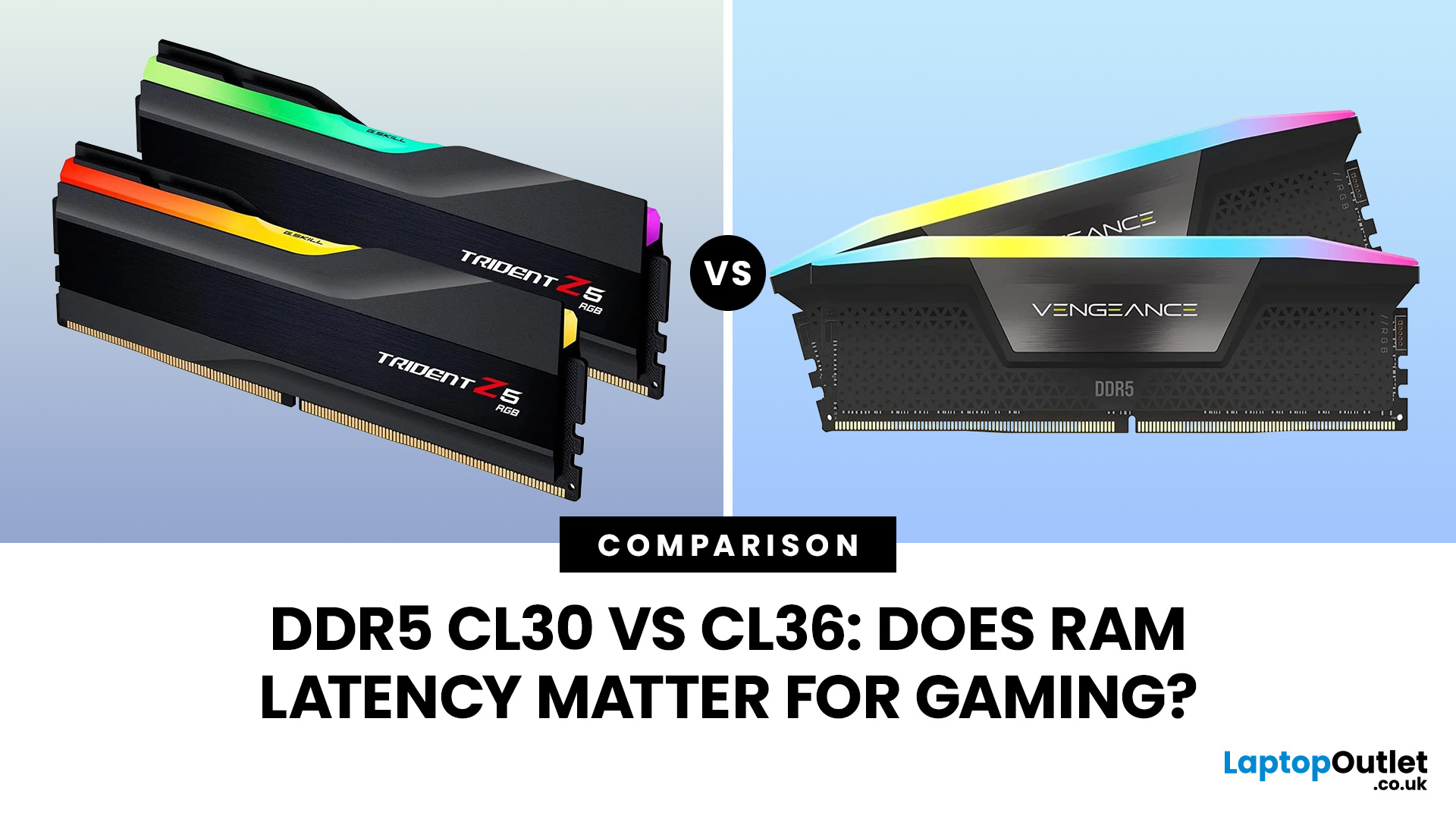
Quick Answer: If two DDR5 kits run at the same speed, CL30 has lower CAS latency than CL36. At DDR5-6000, CL30 works out at about 10ns of CAS delay versus 12ns for CL36. That can help in CPU-limited games, but the real gaming difference is usually much smaller than the 20% difference suggested by those latency figures. Memory speed, secondary timings, CPU architecture, and the game itself also matter.
When comparing RAM modules, specifications such as DDR5-6000 CL30 and DDR5-6000 CL36 can look confusingly similar. Both have the same data rate, so does paying attention to that CL number actually make a difference?
It can, but CL30 vs CL36 is not as simple as choosing the lowest number. Here is what those timings really mean and when lower RAM latency can affect your gaming PC.
What Do CL30 and CL36 Mean?
CL stands for CAS latency, or Column Address Strobe latency. It measures the number of memory clock cycles between a read command being issued and the RAM beginning to return the requested
Published: September 18, 2026
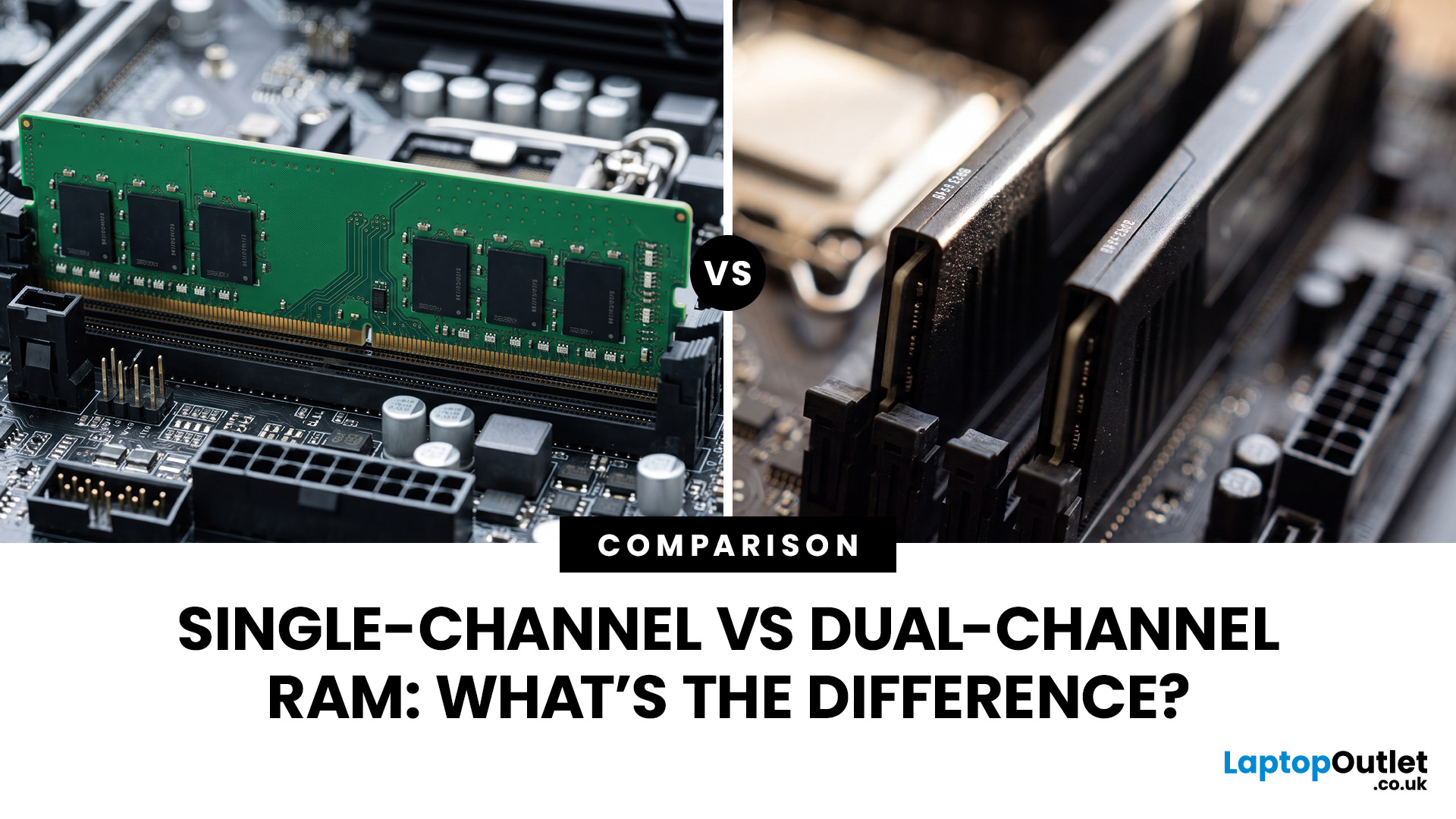
The difference between single channel vs dual channel RAM comes down to how the processor communicates with your system memory. Single-channel memory uses one system memory channel, while dual-channel memory uses two, allowing more data to move between the RAM and processor at the same time.
That extra memory bandwidth can improve performance in workloads that rely heavily on memory access. However, dual-channel RAM does not automatically make a desktop PC twice as fast. The difference you notice depends on the processor, graphics hardware, application and memory configuration.
If you are choosing new RAM and memory kits, understanding how channels work can help you decide whether one larger module or two smaller modules make more sense.
Single-Channel vs Dual-Channel RAM at a Glance
Here is the practical difference between the two configurations:
| Options | Single-Channel RAM | Dual-Channel RAM |
| System memory channels used | One | Two |
| Common configuration | 1x16GB | 2x8GB |
| Available memory bandwidth |
Last Updated: September 18, 2026
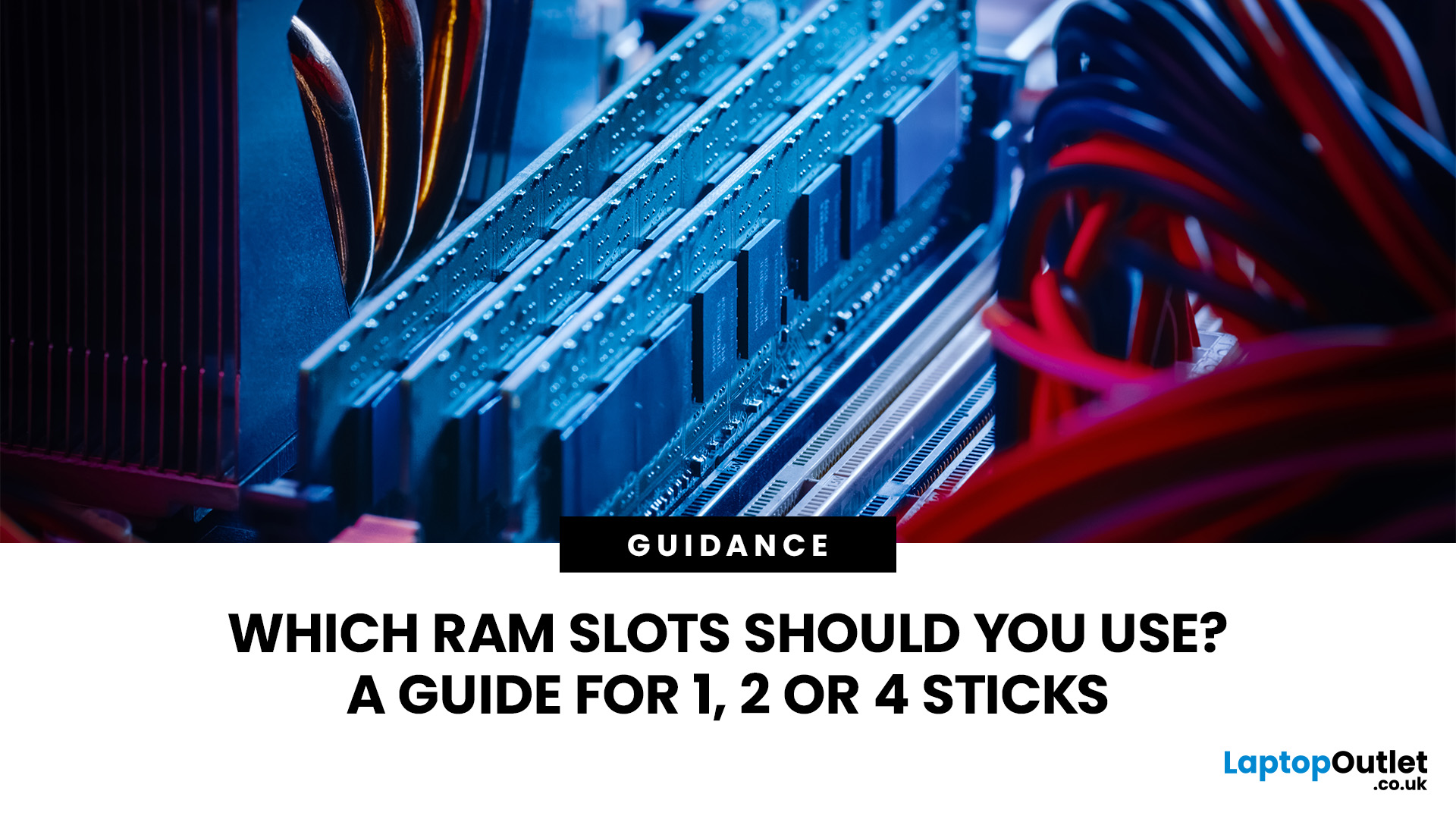
Installing RAM looks simple until you see four motherboard slots labelled A1, A2, B1 and B2. Put the memory in the wrong pair and your PC may still boot, but you might not be using the motherboard’s recommended memory configuration.
So, which RAM slots to use? On many four-slot desktop motherboards, a single stick goes in A2, while two sticks go in A2 and B2. With four compatible sticks, all four slots are populated. However, this is not a universal rule. Your motherboard manual should always take priority.
If you are upgrading capacity or building a PC, it is also worth checking that your RAM and memory modules are compatible with the motherboard before deciding where they go.
What Do A1, A2, B1 and B2 RAM Slots Mean?
Most mainstream desktop motherboards with four DIMM slots divide them between two memory channels, commonly called Channel A and Channel B.
The labels normally work like this:
| Slot | What the label usually means |
| A1 | First DIMM position on Channel A |
| A2 | Second DIMM position |
Last Updated: September 24, 2026

