



How to Zoom In and Out on a Laptop: Step-by-Step Guide
To zoom in and out on a laptop, press Ctrl + + to zoom in and Ctrl + - to zoom out in most browsers, documents, PDFs, pictures, and apps. To reset a webpage to normal size, press Ctrl + 0. If you need to quickly zoom out on a laptop screen, this shortcut is usually the fastest fix.
If the whole Windows screen is zoomed in, press Windows key + Esc to turn off Magnifier. If everything on your laptop still looks too big or too small, open Settings > System > Display and check Scale and Display resolution.
Most laptop Zoom problems happen in one of 5 places: the browser, an app, Windows Magnifier, display scale, or display resolution. The quickest fix depends on what exactly looks too large or too small.
Quick Answer: Laptop Zoom Shortcuts
|
WHAT YOU WANT TO DO |
SHORTCUT OR SETTING |
USE THIS WHEN |
|---|---|---|
|
Zoom in on a webpage, document, PDF, or picture |
Ctrl + + |
Text, images, or details are too small |
|
Zoom out on a webpage, document, PDF, or picture |
Ctrl + - |
A page, file, or app looks too large |
|
Reset browser zoom |
Ctrl + 0 |
One website looks zoomed in or zoomed out |
|
Zoom in on the Windows screen |
Windows key + + |
You want to magnify the whole screen |
|
Zoom out while Magnifier is active |
Windows key + - |
Windows Magnifier is open |
|
Turn off Windows Magnifier |
Windows key + Esc |
The whole desktop looks zoomed in |
|
Zoom with a mouse |
Ctrl + mouse wheel |
You prefer using a mouse |
|
Zoom with a touchpad |
Pinch in or pinch out |
Your laptop touchpad supports gestures |
|
Make everything in Windows bigger or smaller |
Settings > System > Display > Scale |
Apps, menus, icons, and text all look wrong |
|
Fix a stretched or blurry screen |
Settings > System > Display > Display resolution |
The screen looks blurry, stretched, or incorrectly sized |
First, Check What is Actually Zoomed
Before changing settings, identify where the problem is happening.
|
WHAT YOU SEE |
LIKELY CAUSE |
FAST FIX |
|---|---|---|
|
Only one website looks too large |
Browser zoom changed |
Press Ctrl + 0 |
|
A document, PDF, or picture looks too large |
App zoom changed |
Press Ctrl + - or use the app’s zoom control |
|
The whole screen moves around with your mouse |
Windows Magnifier is on |
Press Windows key + Esc |
|
Apps, menus, icons, and text all look too big |
Display scale is too high |
Set Scale to the recommended option |
|
The screen looks stretched, blurry, or wrongly sized |
Display resolution is wrong |
Set Display resolution to the recommended option |
|
Only desktop icons look huge |
Desktop icon view changed |
Right-click desktop > View |
|
The page zooms while using the touchpad |
Pinch zoom gesture |
Press Ctrl + 0 or adjust touchpad settings |
This matters because browser zoom, Windows Magnifier, display scale, and screen resolution are different settings. Changing the wrong one can make the screen look worse.
How to Zoom Out on a Laptop Using the Keyboard
To zoom out on a laptop using your keyboard, press:
Ctrl + -
This works in most browsers, documents, PDFs, spreadsheets, and image viewers. Click inside the page or app first, then press the shortcut until the size looks right.
To zoom back in, press:
Ctrl + +
To reset a webpage to normal size, press:
Ctrl + 0
Use this method when only one webpage, file, picture, or app looks too large. It is also the easiest way to zoom out on a laptop screen without a mouse.
How to Zoom in on a Laptop
|
To zoom in on a laptop, press: Ctrl + + |
This makes text, images, and page content larger in most browsers and many apps. You can also hold Ctrl and scroll up with your mouse wheel.
Use zoom in when text is too small; a picture needs a closer look, or you want to make reading easier. Just remember that browser zoom only changes the page or app you are using. It does not change the whole Windows display.
How to Fix Browser Zoom
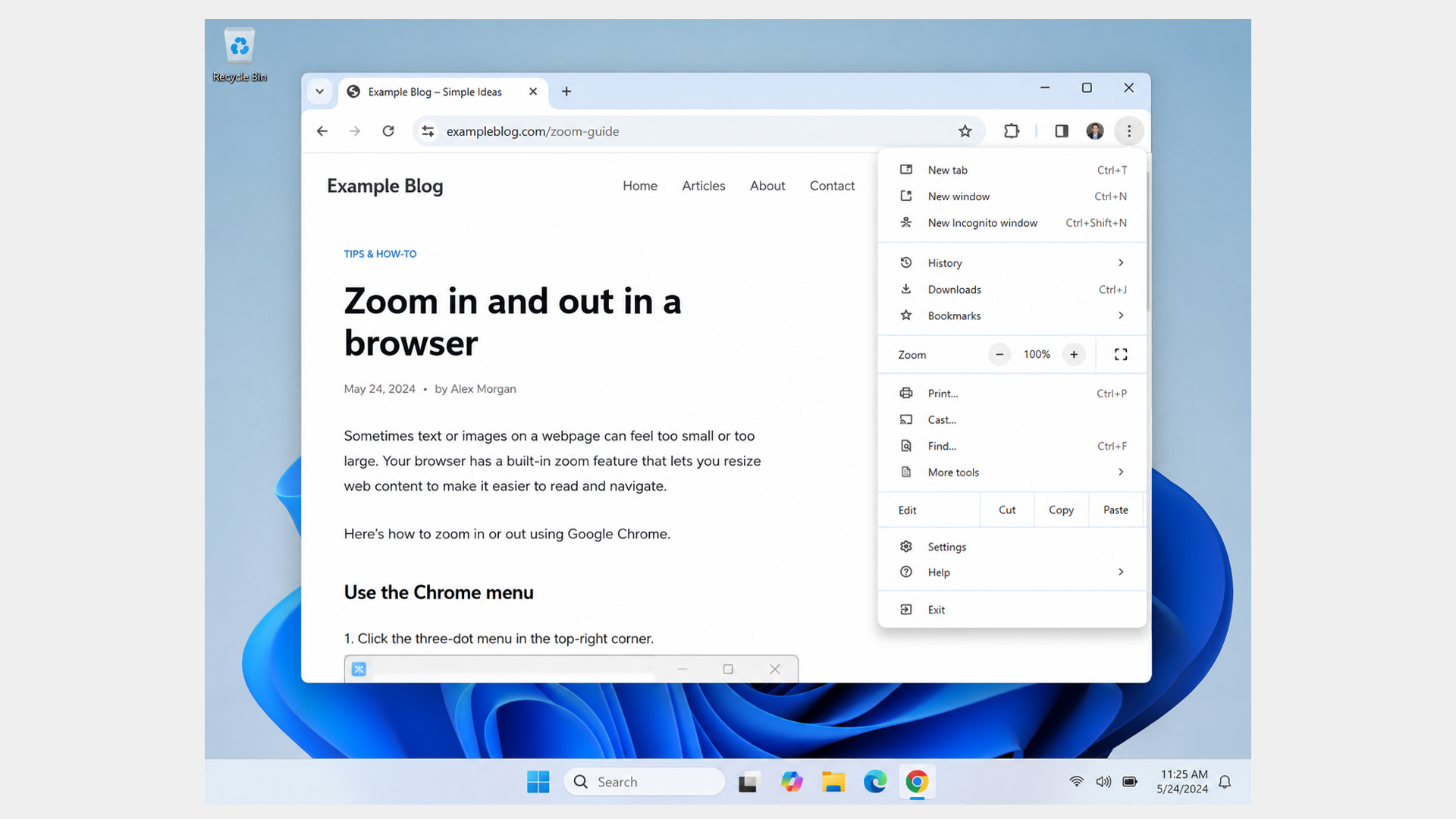
If only one website looks too large or too small, you probably need to adjust browser zoom.
Use these shortcuts:
|
BROWSER ACTION |
SHORTCUT |
|---|---|
|
Zoom out |
Ctrl + - |
|
Zoom in |
Ctrl + + |
|
Reset zoom |
Ctrl + 0 |
|
Enter or exit full screen |
F11 |
You can also change zoom from the browser menu. In Chrome or Edge, open the three-dot menu in the top-right corner and look for the Zoom controls. Most pages are easiest to read at 100%, but you can raise or lower the percentage if needed.
Use browser zoom when text, buttons, images, or menus on a webpage look wrong, but your desktop, taskbar, and other apps look normal.
| Source note: Google’s Chrome Help explains that browser zoom changes the size of text, images, and videos on webpages. |
How to Unzoom Windows When the Whole Screen Is Zoomed In
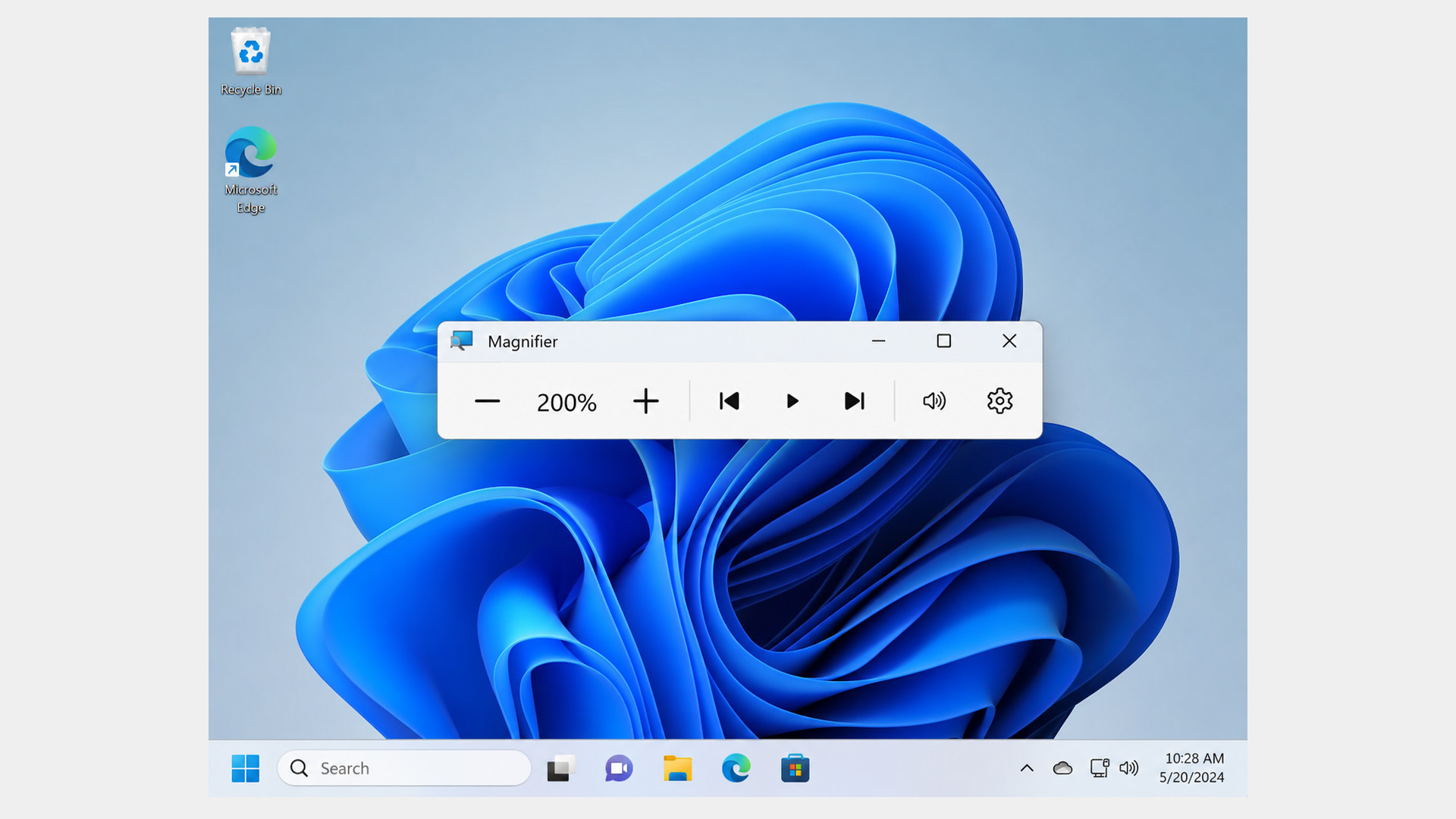
If your whole Windows screen is zoomed in, press:
Windows key + Esc
This turns off Windows Magnifier and should return the screen to normal.
Use this fix when:
- The whole desktop looks enlarged.
- The taskbar looks too big.
- Apps and menus are zoomed in.
- The screen moves around as you move your mouse.
- Everything looks magnified, not just one website.
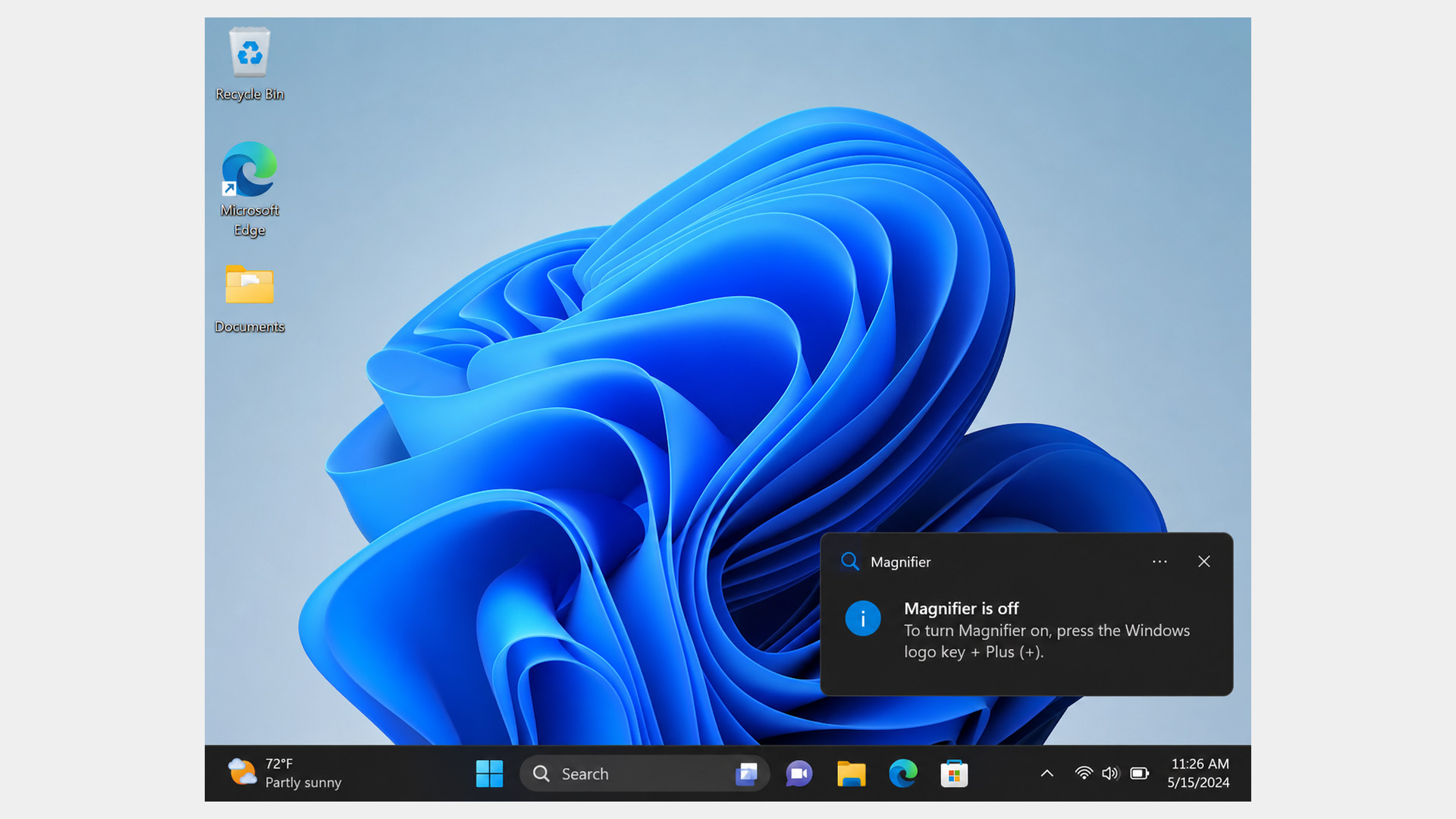
If Magnifier is still active, try this:
- Press Windows key + - to reduce the zoom level.
- Press Windows key + Esc to close Magnifier.
- Open Settings.
- Go to Accessibility > Magnifier.
- Check whether Magnifier is set to open automatically.
This is the right fix when you are trying to “unzoom Windows.” In that case, the problem is usually Magnifier, not browser zoom. Features like Magnifier, display scaling, and touch gestures work especially well on modern productivity-focused Windows laptops designed for multitasking, office work, and everyday browsing.
| Source note: Microsoft lists Windows key + +, Windows key + -, and Windows key + Esc as Magnifier shortcuts. |
How to Zoom in and Out with a Mouse
To zoom in and out on a laptop with a mouse, hold Ctrl and move the mouse wheel.
- Scroll up to zoom in.
- Scroll down to zoom out.
This works in most browsers, documents, PDFs, and image viewers.
If you are using Windows Magnifier, use:
Ctrl + Alt + mouse scroll wheel
That changes the Magnifier zoom level instead of normal browser or app zoom.
How to Zoom in and Out with a Touchpad
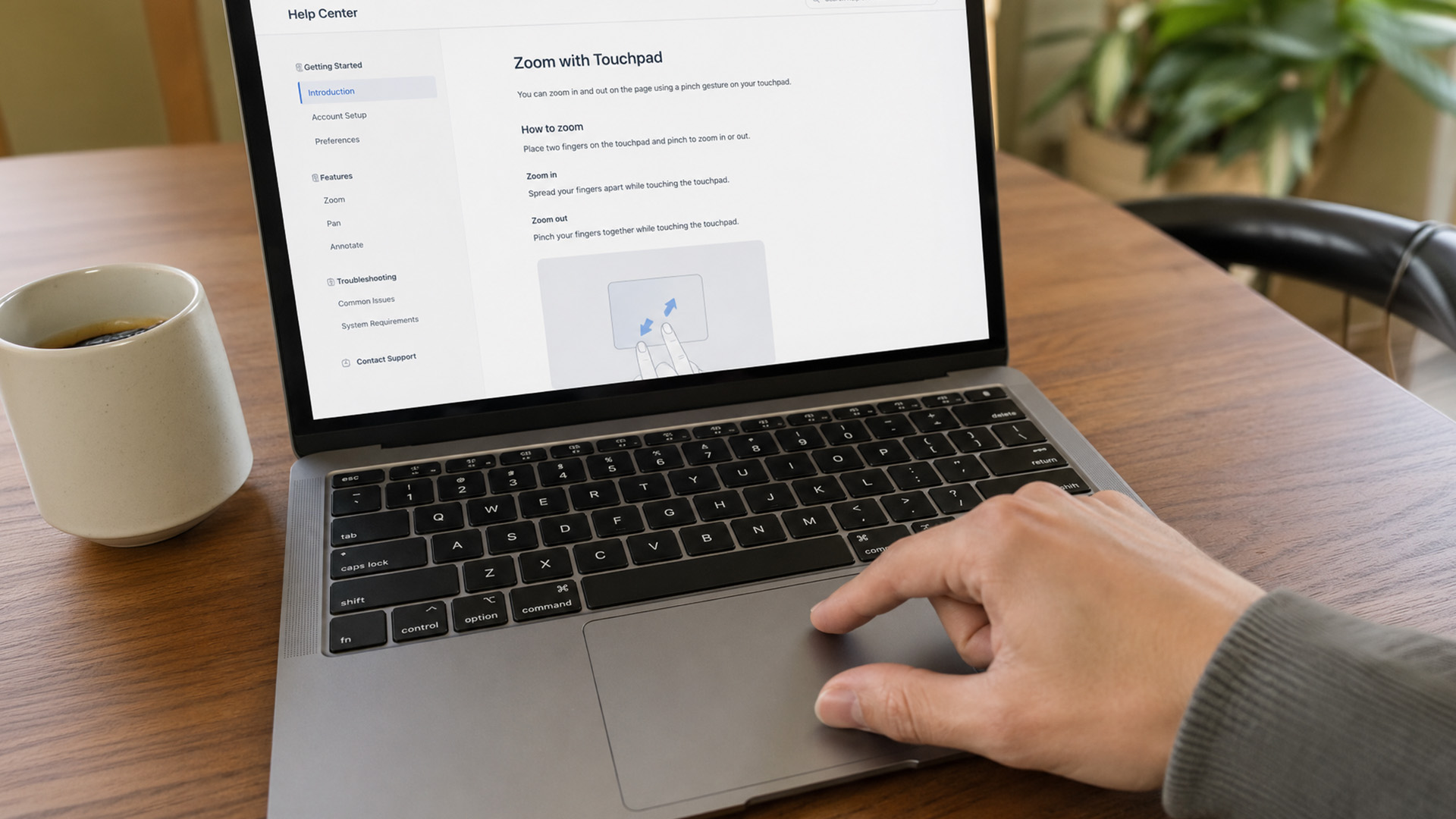 To zoom in and out with a laptop touchpad, place two fingers on the touchpad.
- Pinch out to zoom in.
- Pinch in to zoom out.
This works on supported Windows touchpads and touchscreen laptops.
If your page suddenly looks larger while you are scrolling, you may have triggered pinch zoom by accident. Press Ctrl + 0 to reset browser zoom. If the whole Windows screen is enlarged, press Windows key + Esc instead.
How to Stop Your Touchpad from Zooming by Accident
Accidental pinch zoom is more common on smaller touchpads, especially on ultra-portable devices such as compact Microsoft laptops. If your touchpad keeps zooming in or out, you are probably triggering a pinch gesture without meaning to.
Try this:
- Press Ctrl + 0 if only a webpage is zoomed.
- Press Windows key + Esc if the whole screen is enlarged.
- Open Settings.
- Go to Bluetooth & devices > Touchpad.
- Review your touchpad gesture settings.
If your touchpad is also lagging, freezing, or not responding properly, check out our full keyboard and touchpad troubleshooting guide for more input-device fixes.
How to Reduce Screen Size on a Laptop
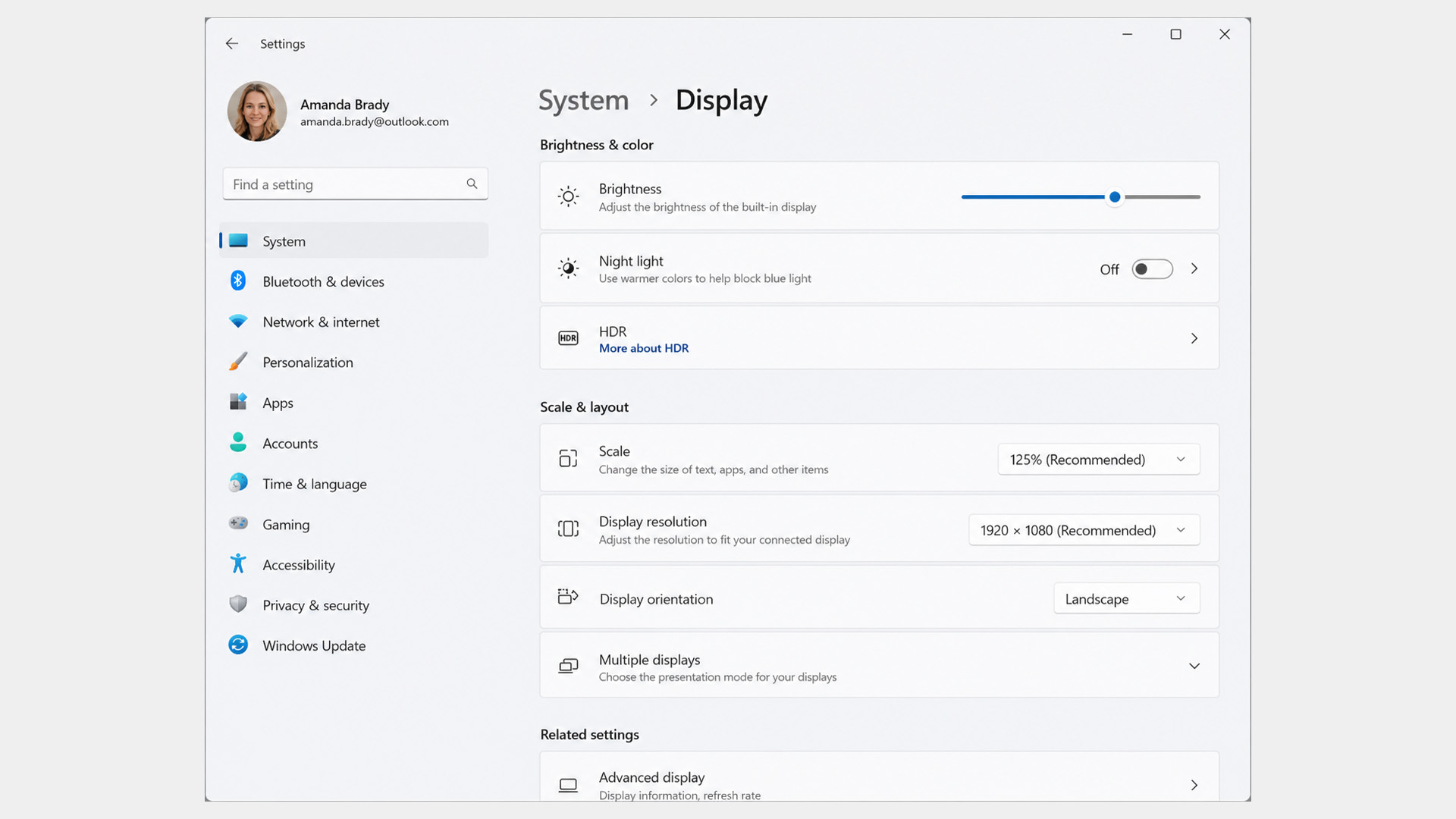
To reduce screen size on a laptop, check your Windows display scale and resolution. This is the right fix when everything looks too large, including apps, menus, icons, and text.
Follow these steps:
- Right-click an empty space on your desktop.
- Select Display settings.
- Find Scale & layout.
- Set Scale to the option marked Recommended.
- Check Display resolution.
- Choose the option marked Recommended.
- Restart your laptop if the display still looks unusual.
New Windows laptop? It is worth checking your display, privacy, update, and performance settings early. Our Windows 11 laptop setup guide walks through the most important settings to review after first boot.
| Source note: Microsoft recommends using display settings such as scale and resolution to improve how text and images appear on screen. |
Why is your Laptop Screen Zoomed In?
Your laptop screen may be zoomed in because of a shortcut, touchpad gesture, browser setting, Windows Magnifier, display scale, or screen resolution. This is one of several common laptop display issues. For a wider troubleshooting checklist, see our guide to common laptop problems and fixes.
|
CAUSE |
WHAT YOU SEE |
BEST FIX |
|---|---|---|
|
Browser zoom changed |
One website looks too big |
Press Ctrl + 0 |
|
Windows Magnifier is on |
Whole screen is enlarged |
Press Windows key + Esc |
|
Display scale is too high |
Apps, menus, and text all look large |
Set Scale to Recommended |
|
Wrong resolution |
Screen looks stretched, blurry, or oversized |
Set Display resolution to Recommended |
|
Desktop icons are enlarged |
Only desktop icons look too big |
Right-click desktop > View |
|
Touchpad pinch zoom |
Page zooms while using the touchpad |
Press Ctrl + 0 |
|
App-specific zoom |
Only one app or game looks too large |
Check that app’s zoom or display settings |
Start with the simplest fix. If one webpage is wrong, press Ctrl + 0. If the full screen is enlarged, press Windows key + Esc. If everything in Windows looks too big, check display scale.
How to Zoom Out a Picture on a Laptop
To zoom out a picture on a laptop, click the image first, then press:
Ctrl + -
If that does not work, use the image app’s zoom slider, minus button, or Fit to screen option.
|
PICTURE LOCATION |
BEST WAY TO ZOOM OUT |
|---|---|
|
Picture in a browser |
Ctrl + - |
|
Picture in a photo app |
Zoom slider, minus button, or Fit to screen |
|
Picture in a document |
Document zoom controls |
|
Picture in a PDF |
Ctrl + - or Fit to page |
|
Picture on a touchscreen |
Pinch two fingers together |
Use Fit to screen when you want to see the whole image. Zoom back in when you need to check small details.
Zoom vs Scale vs Resolution: What Is the Difference?
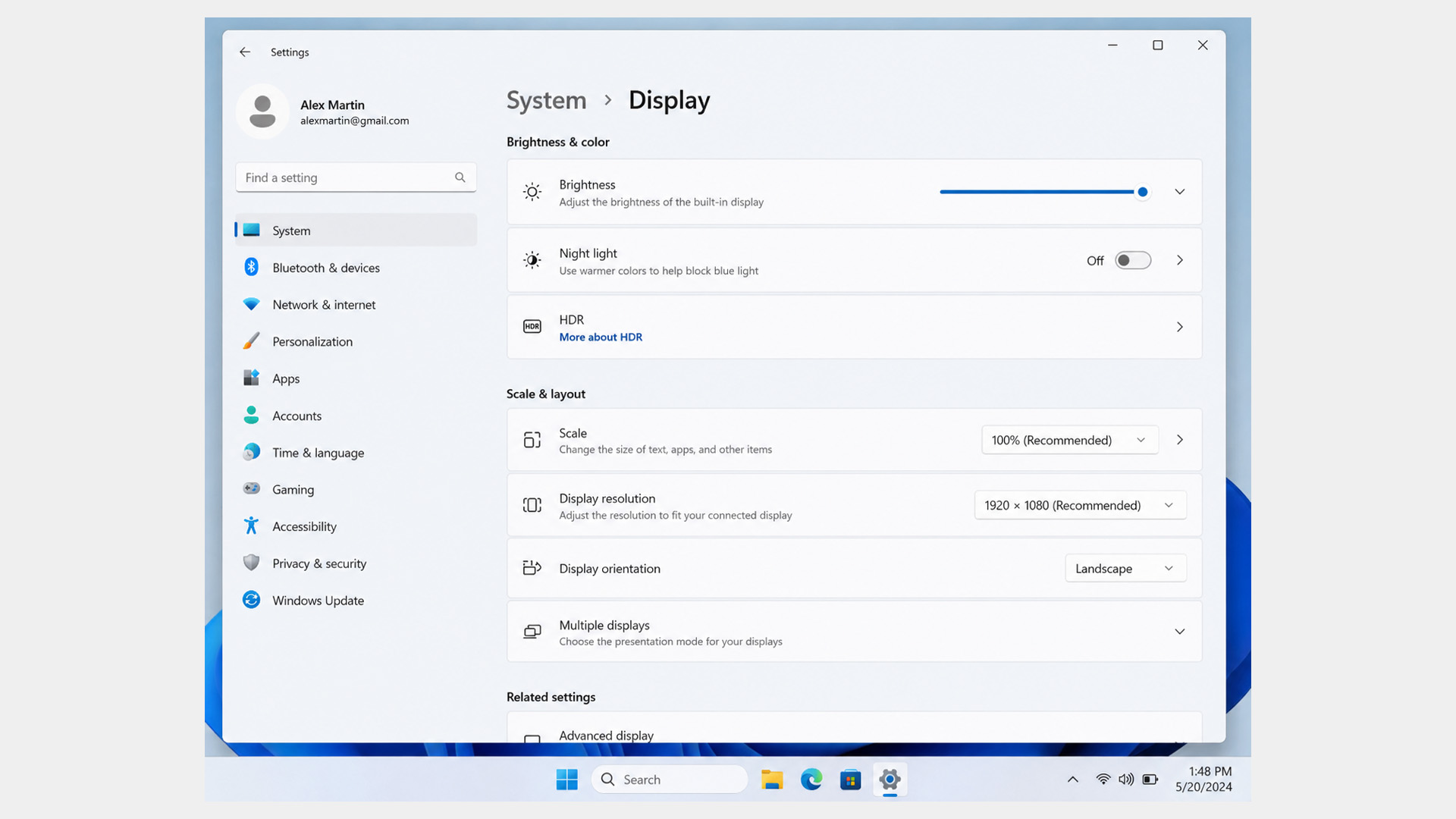
Zoom, scale, and resolution sound similar, but they solve different problems.
|
SETTING |
WHAT IT CHANGES |
USE IT WHEN |
|---|---|---|
|
Browser zoom |
One webpage |
A website looks too big or too small |
|
App zoom |
One document, PDF, picture, or file |
One file is hard to read or too enlarged |
|
Windows Magnifier |
Part or all of the Windows screen |
You need temporary screen enlargement |
|
Display scale |
Text, apps, icons, and menus |
Everything in Windows looks too large or too small |
|
Display resolution |
Pixel layout and sharpness |
The screen looks stretched, blurry, or wrongly sized |
If one webpage is wrong, use the browser zoom. If the full screen is enlarged, close Magnifier. If the whole Windows interface feels too big, adjust display scale. If the screen looks blurry or stretched, check out display resolution.
Troubleshooting Checklist: What If Your Laptop Screen Is Still Zoomed In?
Try these fixes in order:
- Press Ctrl + 0 if only a webpage looks zoomed.
- Press Ctrl + - if you want to zoom out inside a page, document, or picture.
- Press Windows key + Esc if the whole Windows screen is zoomed.
- Set Scale to the recommended option in Windows display settings.
- Set Display resolution to the recommended option.
- Right-click the desktop and check icon size if only icons look large.
- Check the app’s own zoom or display settings.
- Restart your laptop if the display still looks wrong. (If the screen still looks wrong after checking zoom, scale, and resolution, the problem may be a deeper display fault. Read our guide on laptop screen not working fixes for black screens, flickering, dim displays, and other screen issues).
- Check for Windows updates if the screen changed after a display or graphics issue.
Most zoom problems are fixed by one of the first three shortcuts: Ctrl + 0, Ctrl + -, or Windows key + Esc. If your laptop constantly feels cramped, blurry, or difficult to scale correctly, it may be worth upgrading to one of today’s budget-friendly laptops with a sharper display and better screen scaling support.

Final Takeaway
To zoom out on a laptop, press Ctrl + -. To reset a webpage, press Ctrl + 0. To unzoom the whole Windows screen, press Windows key + Esc.
The best fix depends on where the zoom happened. Browser zoom affects one page, app zoom affects one file, Magnifier affects the Windows screen, display scale affects apps and menus, and resolution affects how sharp and correctly sized your screen looks.

FAQs
How do I zoom out on a laptop?
To zoom out on a laptop, press Ctrl + - in most browsers, documents, PDFs, and apps. If only one webpage looks too large, this shortcut should make the page smaller. If the whole Windows screen is zoomed in, press Windows key + Esc to turn off Magnifier.
What is the laptop zoom out shortcut?
The main laptop zoom out shortcut is Ctrl + -. Use it when a webpage, PDF, document, spreadsheet, or image viewer looks too large. For Windows Magnifier, the zoom out shortcut is Windows key + -.
How do I reset zoom on my laptop?
To reset browser zoom on your laptop, press Ctrl + 0. This returns the webpage to its default zoom level. If the whole Windows screen is zoomed in, press Windows key + Esc instead.
How do I unzoom Windows?
To unzoom Windows, press Windows key + Esc. This turns off Windows Magnifier. If Magnifier is still active, press Windows key + - to reduce the zoom level, then press Windows key + Esc to close it fully.
Why is my laptop screen zoomed in?
Your laptop screen may be zoomed in because browser zoom changed, Windows Magnifier is turned on, display scale is too high, screen resolution is wrong, or a touchpad gesture changed the zoom. Start with Ctrl + 0 for browser zoom, then try Windows key + Esc if the whole screen is enlarged.
Why does only one website look zoomed in?
If only one website looks zoomed in, your browser zoom level probably changed for that page. Press Ctrl + 0 to reset the webpage to default zoom. You can also press Ctrl + - to zoom out manually.
Why does everything on my laptop look too big?
If everything on your laptop looks too big, the issue is usually Windows Magnifier, display scale, or display resolution. Press Windows key + Esc first to close Magnifier. If that does not fix it, open Settings > System > Display and set Scale and Display resolution to the recommended options.
How do I stop my touchpad from zooming?
If your touchpad keeps zooming by accident, you are probably triggering a pinch gesture. Press Ctrl + 0 to reset browser zoom, then check your touchpad settings under Settings > Bluetooth & devices > Touchpad.
| Read More |
| Windows 11 vs Windows 10: Is It Time to Upgrade Your Laptop? |
| Windows 11 Tips & Tricks to Maximise Laptop Performance’ |
| Why Your Laptop is Running Slow: Top Causes & Quick Fixes |
Related Articles

Last Updated: September 24, 2026
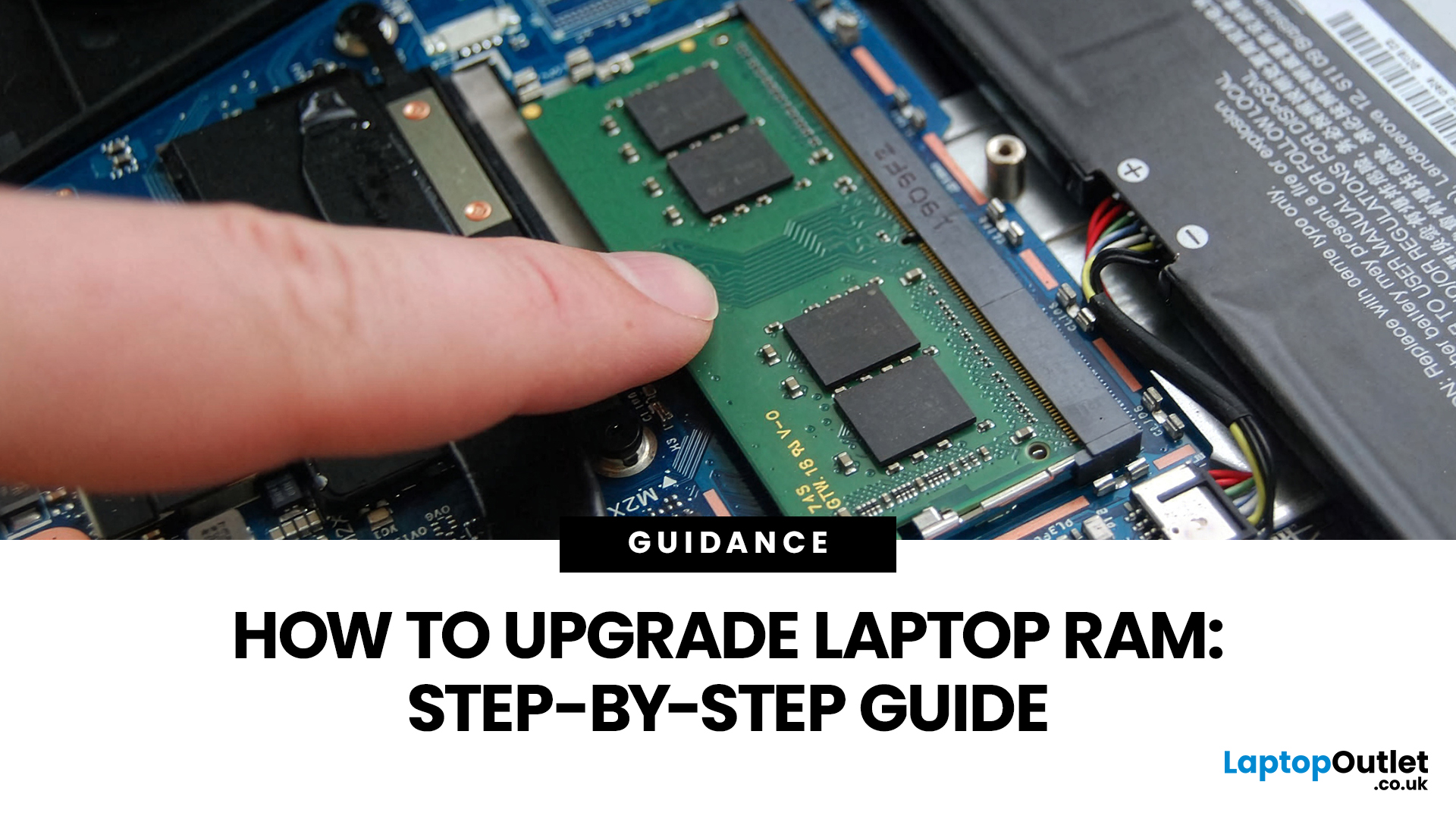
Upgrading laptop RAM is one of the simplest ways to make an older machine feel faster and more capable again, but only if the compatibility side is right from the start. That is the part many quick guides skip. Before buying anything, we always recommend checking whether the laptop has upgradeable memory, what RAM standard it uses, how much it supports, and whether upgrading means adding another module or replacing the existing setup.
To upgrade laptop RAM, first check whether your model has upgradeable SO-DIMM slots, the supported DDR generation, maximum capacity and current memory configuration. Buy compatible RAM, shut the laptop down, disconnect power, open the service panel, remove or add the module, then reassemble and boot up. Finally, confirm the new memory is recognised and test system performance for improved multitasking.
For UK shoppers, that matters because a RAM upgrade can be a much smarter option than replacing a laptop too early. If a system slows down with lots of browser
Last Updated: May 01, 2026
The computer that helped guide the Apollo missions worked with just 4 KB of RAM and around 72 KB of stored memory. Today, a modern laptop can burn through more than that just opening a few tabs.
That is how fast tech has moved and why an older laptop can suddenly feel frustratingly slow. Long boot times, laggy apps, and constant low-storage warnings can make even simple tasks feel harder than they should.
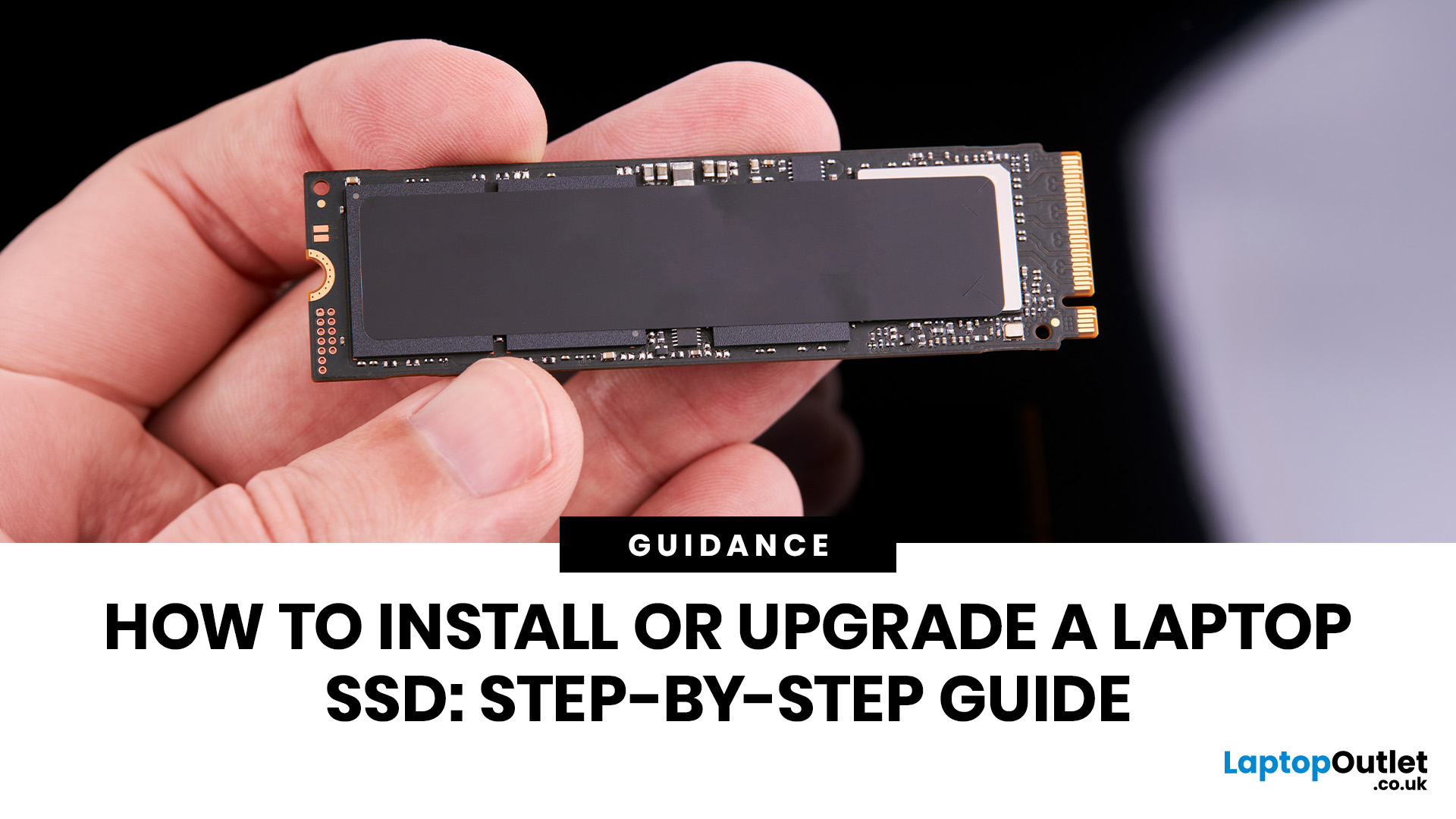
The good news is that you do not always need a brand-new machine. In many cases, upgrading your SSD is one of the easiest ways to make your laptop feel faster, smoother, and far more usable.
In this guide, we will show you how to upgrade a laptop SSD step by step, from checking compatibility to choosing the right drive and installing it properly.
Why upgrading your laptop SSD is worth it
Faster boot times, file transfers, and app loading
A slow laptop gets old fast. Long startup times, laggy apps, and endless waiting usually point to one thing: slow storage.
That is why how to upgrade
Last Updated: May 01, 2026
If you are searching for teacher discount laptops UK, the good news is that there are several ways to cut the cost of a new device without compromising on performance. In the UK, teachers, lecturers, and some school staff can often access education pricing, retailer offers, refurbished savings, and category-specific deals designed for work and study. Apple’s UK education pricing is available to students, teachers and staff, while Lenovo UK also includes teachers in its education discount programme.
The key is knowing where teachers get discounts on laptops in the UK, what proof you need, and which laptop category makes the most sense for your day-to-day workload. Whether you need a lightweight machine for lesson planning, a durable device for classroom use, or a more powerful system for admin-heavy tasks, there are smart ways to save.
In this step-by-step guide, we’ll show you how to access laptop discounts for teachers in the UK, what the verification process typically looks like, and
Last Updated: May 22, 2026
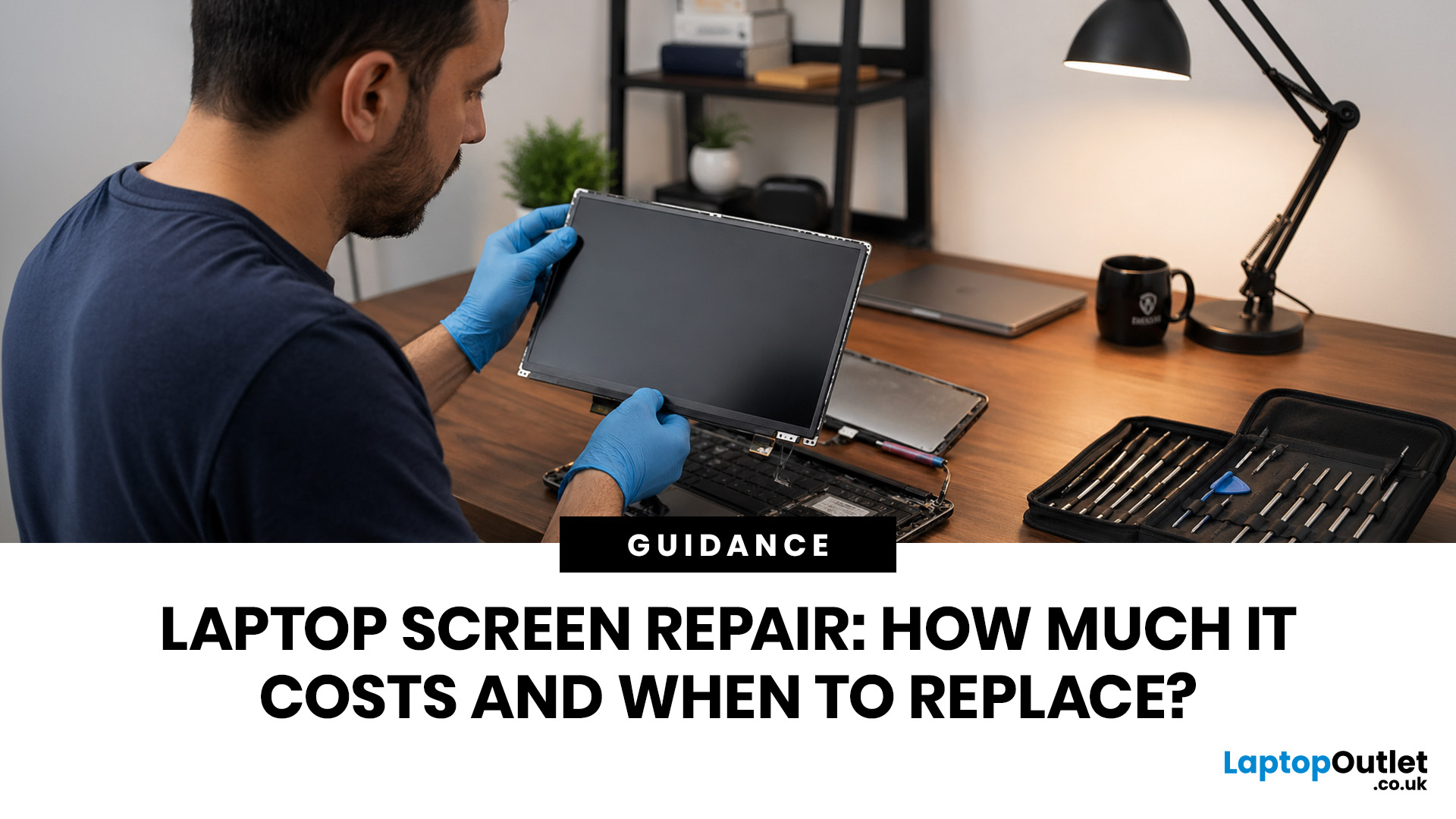
Laptop screen repair cost in the UK usually ranges from £50 to £300 for a standard 15.6-inch screen, depending on the laptop model, screen type, damage level, and labour cost. Basic LCD replacements are usually cheaper, while touchscreen, OLED, gaming laptop, and MacBook screen repairs can cost more. If your laptop is still fast and the repair costs less than half its value, fixing the screen is usually worth it. If the laptop is old, slow, or the repair is close to the price of a replacement, upgrading may be the smarter choice.
So, your laptop screen has cracked, flickered, gone black, or started showing strange lines - and now you are probably wondering one thing:
How much does laptop screen repair cost in the UK, and is it even worth fixing?
The answer depends on your laptop model, screen type, and damage level. A standard laptop screen repair or replacement in the UK usually costs around £50 to £300, while touchscreens, OLED displays, gaming laptops, and MacBooks can cost more.
This
Last Updated: May 22, 2026
A thin layer of dust can make your laptop work harder than it should. When vents get blocked, heat stays trapped inside, the fan spins louder, and performance can drop during everyday tasks.
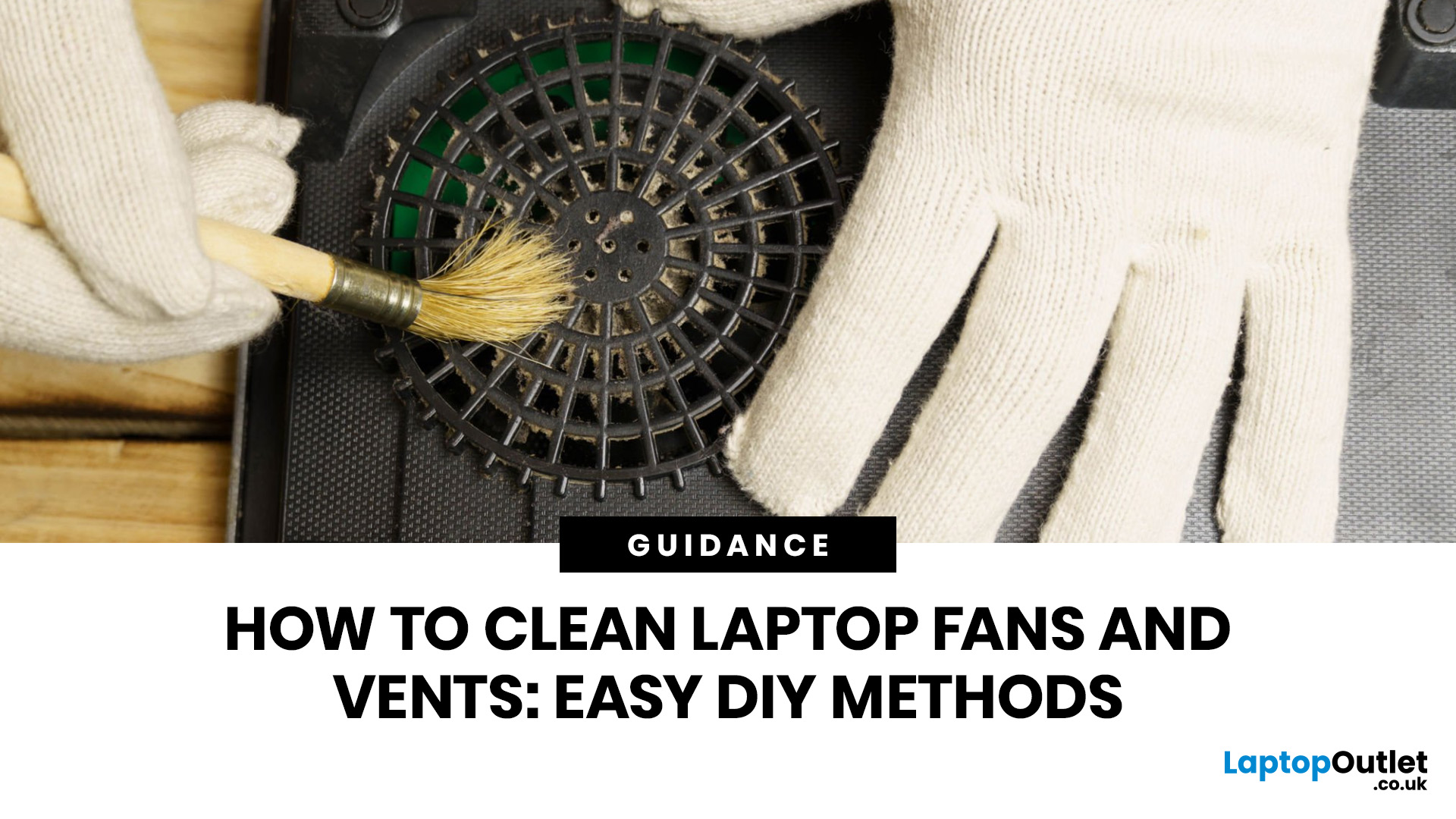
The simple tip? Start from the outside. In most cases, you can clean laptop fan vents safely with a soft brush, a microfibre cloth, and short bursts of compressed air - no risky disassembly needed.
This easy DIY guide shows you how to clean laptop fan and vent areas, what to avoid, and when it is smarter to call a professional.
Quick Checklist: How to Clean Laptop Fan Safely
Use this simple checklist whenever you clean the laptop:
- Shut down the laptop fully
- Unplug the charger and accessories
- Let the laptop cool
- Find the real vents
- Brush away visible dust
- Use compressed air in short bursts
- Keep the air can upright
- Avoid spinning the fan too fast
- Wipe the exterior gently
- Restart and check temperature and noise
This is the safest routine for most users who want to clean the laptop without opening it.
Last Updated: June 10, 2026
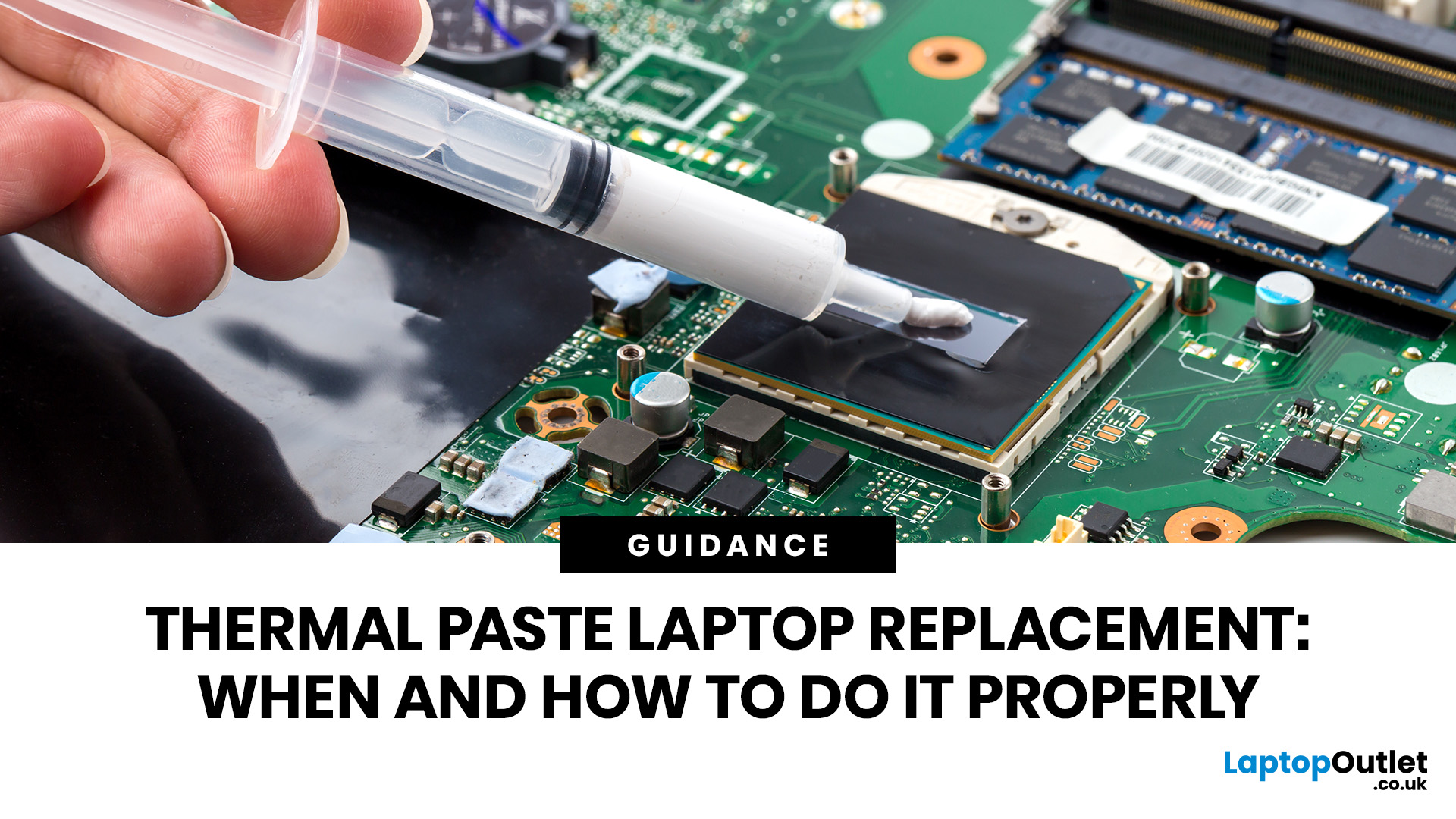
Thermal paste laptop replacement is needed when your laptop overheats, runs loud, slows down under load, or shuts down unexpectedly even after cleaning the fans and vents. Thermal paste helps transfer heat from the CPU or GPU to the heatsink, but it can dry out over time. Replacing it properly can improve cooling, reduce thermal throttling, and help your laptop perform more consistently.
A hot, loud, or slow laptop may be struggling with dust, poor airflow, heavy software, or ageing thermal paste. If temperatures stay high even after cleaning the vents, thermal paste laptop replacement can help restore cooling performance.
Thermal paste transfers heat from the CPU or GPU to the heatsink, but it can dry out or lose effectiveness over time. This guide explains when to replace it, how to apply it safely, how much to use, and when to get professional help.
What Is Thermal Paste in a Laptop?
Thermal paste, also called thermal grease, CPU paste, cooling paste, thermal compound, or thermal

Last Updated: June 10, 2026
The 2026 RAM crunch is being driven by AI data centre demand. Memory makers are shifting capacity towards high-bandwidth memory, server DDR5, and enterprise SSDs, leaving less supply for consumer laptops. As a result, laptop RAM and SSD costs may rise, making many 2026 laptops more expensive or less generously specified.
If you were hoping laptop prices would settle down in 2026, the RAM market may have other plans.
The AI boom is pushing huge demand for memory chips, including DDR5, SSD storage, and high-bandwidth memory used in data centres. As manufacturers prioritise these high-margin AI products, consumer laptops could face tighter supply and higher component costs.
For UK buyers, that may mean more expensive laptops in 2026, fewer strong discounts, and budget models with weaker specs than before.
What Is the 2026 RAM Crunch?
The 2026 RAM crunch is a global memory shortage caused by rising demand for AI servers, high-bandwidth memory, DDR5 server memory, and enterprise SSDs.
In

Last Updated: June 10, 2026
The best free AI apps that work offline include Ollama, LM Studio, GPT4All, Jan, Msty Studio, AnythingLLM, PocketPal AI, llamafile, Upscayl, and DiffusionBee. These tools help users run offline chatbots, local AI assistants, AI writing apps, document Q&A tools, and AI image tools without relying on the internet after setup.
Looking for the best free AI apps offline? You are not alone. More users now want AI tools that can work without constant internet access, protect private data, and run directly on a phone or laptop.
Offline AI apps are especially useful for writing, coding, document chat, transcription, image generation, image upscaling, and personal productivity. Instead of sending every prompt to the cloud, these local AI tools use models stored on your own device.
What Are Offline AI Apps?
Offline AI apps are tools that run AI models directly on your device instead of depending fully on cloud servers. Once installed and configured, they can perform tasks like chatting, summarizing,
Last Updated: July 15, 2026
Ethernet is faster, more stable, and lower-latency than Wi-Fi for laptops, making it the better choice for gaming, video calls, and large file transfers. Wi-Fi wins on convenience and flexibility, especially for everyday browsing and light tasks where a physical cable is not practical. The right connection depends on your specific use case.
The debate around Ethernet vs WiFi is one that most laptop users run into at some point, whether you are setting up a home office, getting into PC gaming, or just trying to stop your video calls from dropping out mid-meeting.
Both connection types are perfectly capable of getting you online, but they work in very different ways and perform quite differently depending on what you are doing. This guide breaks everything down clearly so you can make the right call for your setup.
How Does Each Connection Actually Work?
Before comparing the two, it helps to understand the basics of how each technology functions. Knowing this makes it much easier to understand
Last Updated: July 15, 2026
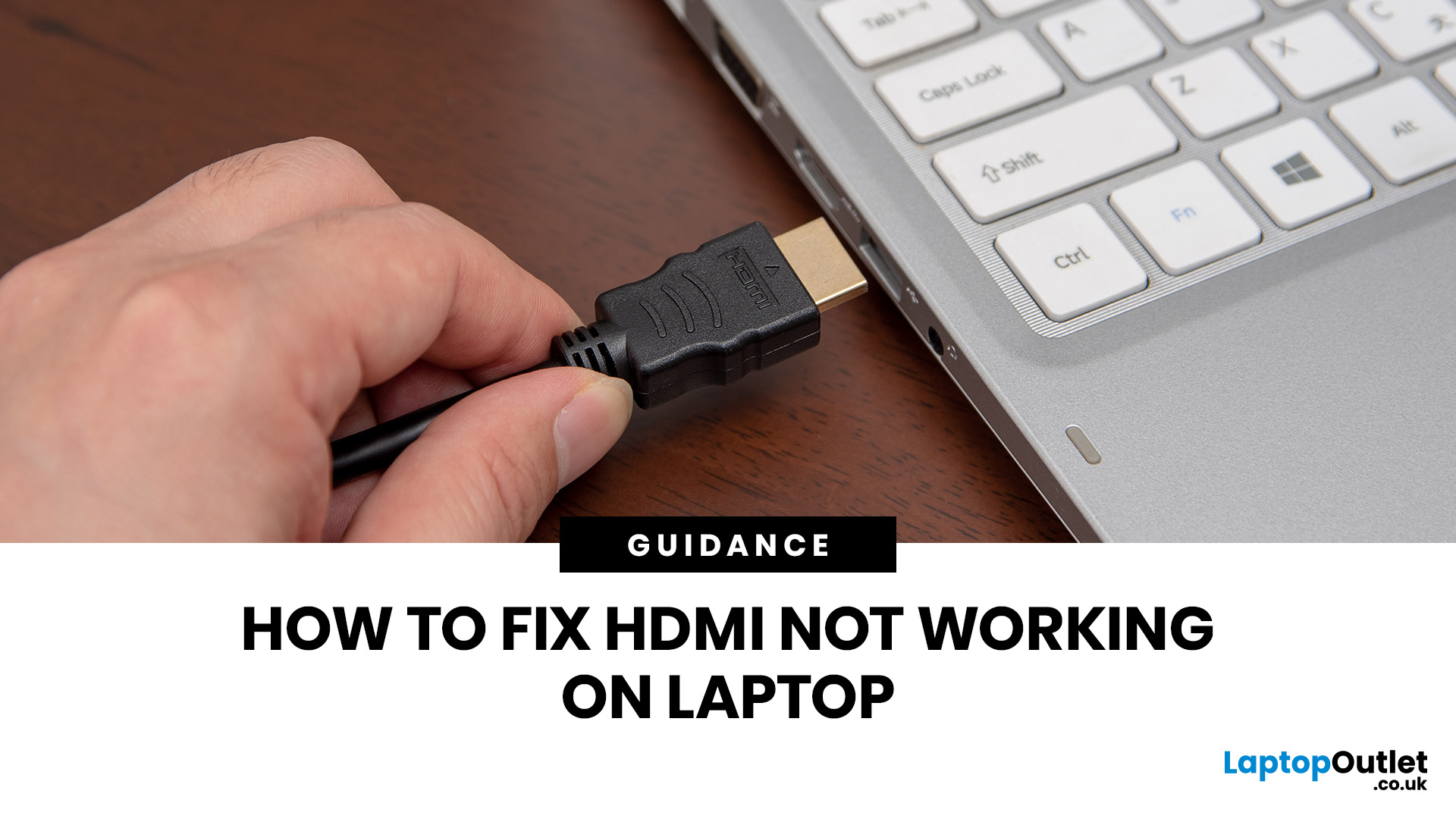
If HDMI is not working on your laptop, start by checking the cable and port for damage, then select the correct input on your monitor or TV. Press Windows + P to choose your display mode. If the screen stays blank, update or reinstall your graphics driver in Device Manager. Most HDMI not working laptop issues are resolved by these steps alone, without needing any specialist help.
There are few things more frustrating than plugging in your HDMI cable and being greeted by a black screen or a "No Signal" message. Whether you are connecting your laptop to a smart TV, an external monitor, or a projector, the issue can almost always be sorted without a trip to a repair shop.
This guide covers most common HDMI not working laptop fixes, from the simplest physical checks right through to driver reinstalls and BIOS settings. Work through the steps in order and you will find your fix quickly.
Why Is Laptop Not Connecting to HDMI?
Before diving into fixes, it helps to understand what causes

