



Windows 11 Tips & Tricks to Maximise Laptop Performance
Simple ways to boost speed, improve battery life, and keep your Windows 11 laptop running smoothly.
Windows 11 has brought a modern, elegant design and a range of improvements that make computing smoother, smarter, and more secure. However, even the best laptops can slow down over time if not maintained properly. Whether the laptop is brand new or has been used for a while, a few clever Windows 11 laptop performance tweaks can make a big difference to speed, responsiveness, and battery life.
Thinking about upgrading but not sure if Windows 11 is really worth it? Find out how it compares to Windows 10 in terms of speed, features and everyday performance in our full breakdown on Windows 11 vs Windows 11 laptop.
This guide covers easy, practical Windows 11 laptop tips to help you speed up your laptop and keep it performing at its best.
Why Laptop Performance Slows Down
Over time, laptops may take longer to boot, apps can lag, and multitasking can feel sluggish. This is usually caused by unnecessary background apps, low storage, or misconfigured settings rather than hardware faults.
Windows 11 is built to balance performance, visuals, and battery life, which works perfectly for everyday use. However, with a few Windows 11 optimisation tips, you can safely push performance further for work, study, or gaming.
1. Keep Windows and Drivers Updated

One of the most effective Windows 11 optimisation tips is to ensure your system and drivers are up to date. Updates often fix bugs, improve security, and optimise performance.
- Open Settings → Windows Update → Check for updates.
- Under Advanced options → Optional updates, look for driver updates for your graphics, chipset, or network.
- Keep BIOS or firmware updated when available.
Regular updates are the foundation of every Windows 11 system cleanup guide and can instantly resolve common performance issues.
2. Disable Startup Apps in Windows 11
Too many apps starting automatically can slow boot times and drain memory. Managing them is one of the easiest ways to speed up a Windows 11 laptop.
- Press Ctrl + Shift + Esc to open Task Manager.
- Select the Startup tab.
- Sort by “Startup impact” and disable startup apps in Windows 11 that are not essential.
Disabling unnecessary apps gives your laptop a faster startup and smoother performance.
3. Remove Unnecessary Software
Many laptops come preloaded with software that you may never use. These “bloatware” applications can take up storage and run in the background.
Go to Settings → Apps → Installed apps, sort by size or usage, and remove what you don’t need.
Reducing unused software is a smart Windows 11 laptop performance tweak that helps free memory and improve responsiveness.
4. Free Up Disk Space and Enable Storage Sense

When the system drive gets full, performance slows down. Windows 11 includes Storage Sense, which automatically clears temporary and unused files.
To enable it:
- Open Settings → System → Storage.
- Turn on Storage Sense.
- Run Disk Cleanup to remove system files and old downloads.
This step is a must in any Windows 11 system cleanup guide and keeps your laptop running efficiently.
5. Adjust Visual Effects for Better Speed
Windows 11’s visuals are stylish but resource-heavy. Adjusting them can help speed up a Windows 11 laptop without changing its look too much.
- Search Advanced system settings.
- Under Performance, select Settings.
- Choose Adjust for best performance, or manually untick animations and shadows.
These Windows 11 laptop tips strike the right balance between speed and style.
6. Use the Right Power Plan
Windows 11 balances performance and battery efficiency by default, but you can switch to a performance mode for faster results.
- Open Control Panel → Hardware and Sound → Power Options.
- Select High performance or Best performance.
This setting maximises CPU power and is perfect for users looking to optimise performance on Windows 11 laptops.
For those prioritising battery life, try the Windows 11 battery saver mode, which adjusts settings automatically for longer unplugged use.
7. Assign the Right GPU to Each App
If your laptop has both integrated and dedicated graphics, assigning the right GPU improves speed for demanding tasks.
- Go to Settings → System → Display → Graphics.
- Choose an app, click Options, and select High performance.
This Windows 11 optimisation tip ensures creative software, games, or design tools always use the most powerful graphics option.
8. OptimiseVirtual Memory
Virtual memory supplements physical RAM when multitasking. Setting it correctly prevents lag and crashes.
- Search Advanced system settings → Performance Options → Advanced → Virtual memory.
- Choose Automatically manage or set it manually (1.5 to 2 times the installed RAM).
It’s a small but effective Windows 11 laptop performance tweak that makes multitasking smoother.
9. Regular Maintenance and Security Checks
While performance is key, security is just as important for keeping your laptop and data safe. Windows 11 offers advanced protection tools that make it a reliable choice for professionals and business users alike.
This is how can you do it:
- Run antivirus scans regularly.
- Check for disk errors with chkdsk.
- Use sfc /scannow to fix corrupted system files.
- Restart your laptop weekly to clear memory.
Following a consistent maintenance routine is part of every reliable Windows 11 system cleanup guide. Learn more about these powerful safeguards in our detailed guide on Windows 11 laptop security features.
10. CustomiseSearch Indexing
Search indexing improves search speed but can consume system resources. Adjusting it can help speed up your Windows 11 laptop.
- Open Settings → Privacy & security → Searching Windows.
- Switch to Classic mode or exclude heavy folders from indexing.
This reduces background processing and frees up system power for active tasks.
11. Pause Background Syncing
Real-time syncing, especially with OneDrive, can slow your system during large uploads.
- Click the OneDrive icon on the taskbar.
- Select Pause syncing when performing heavy tasks like video editing or gaming.
This prevents performance drops while keeping your files safely backed up.
12. Upgrade Hardware for Maximum Impact
Software optimisations go a long way, but hardware upgrades can take performance even further.
- Upgrade from an HDD to an SSD for faster boot and load times.
- Add more RAM to improve multitasking.
- Clean fans and vents to reduce overheating.
For users comparing options, check our best laptops for Windows 11 performance or laptops with optimised battery life to experience next-level speed and efficiency.
13. Explore Built-In Tools andPowerToys
Windows 11 includes helpful utilities like Troubleshooter and System Maintenance that automatically fix small issues.
You can also install PowerToys for advanced features such as window snapping or bulk file renaming. These built-in options make it easy to optimise performance on Windows 11 laptops without third-party software.
Real-World Results
Consistent use of these methods often transforms even mid-range laptops. Users typically notice faster startups, fewer background freezes, and better battery efficiency. These aren’t experimental tweaks - they are verified techniques applied daily by system engineers and IT professionals to optimise Windows 11 performance safely.
According to Windows Central, following similar optimisation steps can improve responsiveness by up to 30%. The key is maintaining balance performance improvements should never compromise stability or system security.
Just getting started with a new Windows 11 laptop? Setting it up correctly from the very first boot can make a huge difference in performance and reliability later on.
Check out our complete Windows 11 laptop setup guide to learn how to configure your device the right way.

Keep Your Windows 11 Laptop at Its Best
Windows 11 is designed for performance, but every system needs a little care to stay at its best. By applying these Windows 11 laptop tips, you can enjoy faster performance, longer battery life, and a more seamless experience.
At Laptop Outlet, our goal is to help users get the most from their devices through smart optimisation and the latest technology. Whether you’re tuning up your current laptop or want to squeeze the best performance out of your newest Windows 11 laptop, these tips ensure you get the best value and reliability every day.

Everything You Need to Know About Optimising Windows 11 Laptops
How to make your laptop fasterinWindows 11?
To make your laptop faster in Windows 11, start by disabling unnecessary startup apps, uninstalling unused programmes, and turning on Storage Sense to clear temporary files. You can also adjust visual effects, switch to a high-performance power plan, and keep your drivers and Windows updates current.
How to get ultimate performance on a Windows 11 laptop?
To unlock ultimate performance, enable the High performance or Ultimate performance mode in Power Options. Go to Control Panel → Hardware and Sound → Power Options, and select Ultimate performance (available on some laptops). Combine this with regular maintenance and smart optimisation tips to get the best possible speed.
Does Windows 11 improve laptop performance?
Yes, Windows 11 is designed to deliver faster load times, smoother multitasking, and better memory management compared to Windows 10. It uses updated scheduling and power optimisation features to make your system more efficient. However, applying a few Windows 11 laptop performance tweaks can enhance these improvements even further.
How to improve HP laptop performance in Windows 11?
To improve performance on an HP laptop running Windows 11, uninstall any unnecessary HP background utilities, update BIOS and device drivers through HP Support Assistant, and use Windows 11 battery saver mode when unplugged. Also, follow the same steps as other laptops, such as disabling startup apps and cleaning up storage space.
How to clean up andoptimiseWindows 11 for better speed?
Use the built-in tools like Storage Sense, Disk Cleanup, and System Maintenance to remove junk files and optimise performance. Regular clean-ups keep your system light and prevent slowdowns.
| Read More: |
| Windows 11 vs Windows 10: Is It Time to Upgrade Your Laptop? |
| Windows 11 Laptop Security Features for Business Users |
| Windows 11 vs macOS: Which OS Is Better for Everyday Use? |
Related Articles


Published: October 08, 2025
Choosing the right laptop in 2025 can be overwhelming, given the wide range of options available across budgets, designs, and performance levels. With Microsoft’s Windows 11 becoming the most optimised OS for hybrid work, gaming, and everyday use, selecting the right device is more important. In this Windows 11 laptops buying guide, we’ll cover everything you need to know before purchasing. From Windows 11 laptop comparisons to use-case specific recommendations for students, business users, and gamers, this guide ensures you make an informed decision.
Why Choose a Windows 11 Laptop?
Enhanced Performance
In 2025, Windows 11 is fully optimised for the latest Intel Core Ultra (Meteor Lake) and AMD Ryzen 8000/9000 series processors. These chips integrate dedicated NPUs (Neural Processing Units), which offload AI workloads from the CPU and GPU, resulting in:
- Faster multitasking across productivity apps like Microsoft 365, Adobe Creative Suite, and Teams.
- Improved power efficiency, extending
Last Updated: April 08, 2026
Remember when using a laptop was all about speed and specs i.e. faster processors, bigger storage, sharper screens? Those things still matter, but in 2025, the real game-changer is AI built directly into your PC. Microsoft’s new Windows 11 Copilot+ PCs are designed for exactly that.
Instead of just running apps faster, these laptops think alongside you. They can find files you barely remember creating, relight a photo as if you’re in a studio, or even recall what you were working on hours ago with a simple search. In short, they’re not just computers anymore - they’re collaborators.
In this post, we’ll dive into what makes Copilot+ special, unpack the latest AI tools in Windows 11, and show how customers can best benefit from these features.
What Makes a Copilot+ PC Different?
A Copilot+ PC is more than just a Windows 11 device. At its core is a Neural Processing Unit (NPU), a chip designed specifically to handle AI tasks. With this hardware in place, features like Recall and Windows

Last Updated: October 09, 2025
Think back a few years... when you bought a laptop, what did you care about most? Probably the processor, maybe RAM, and the graphics card if you were into gaming. The display? It was usually just “good enough.”
Fast forward to 2025, and the screen has become just as important as the hardware inside. Whether you’re streaming, gaming, editing photos, or juggling multiple apps, the display is what you interact with most — and it shapes your entire experience.
This is especially true with Windows 11 laptops, as the operating system is designed to take full advantage of modern display technologies. Its sharper interface, multitasking layouts, HDR support, and gaming optimisation features really shine when paired with quality screens.
That’s why today’s Windows 11 laptop display comparison often comes down to three main types: OLED, IPS, and Microsoft’s PixelSense. Each has unique strengths, trade-offs, and ideal use cases. Understanding them will help you pick the best display type for Windows
Last Updated: June 15, 2026
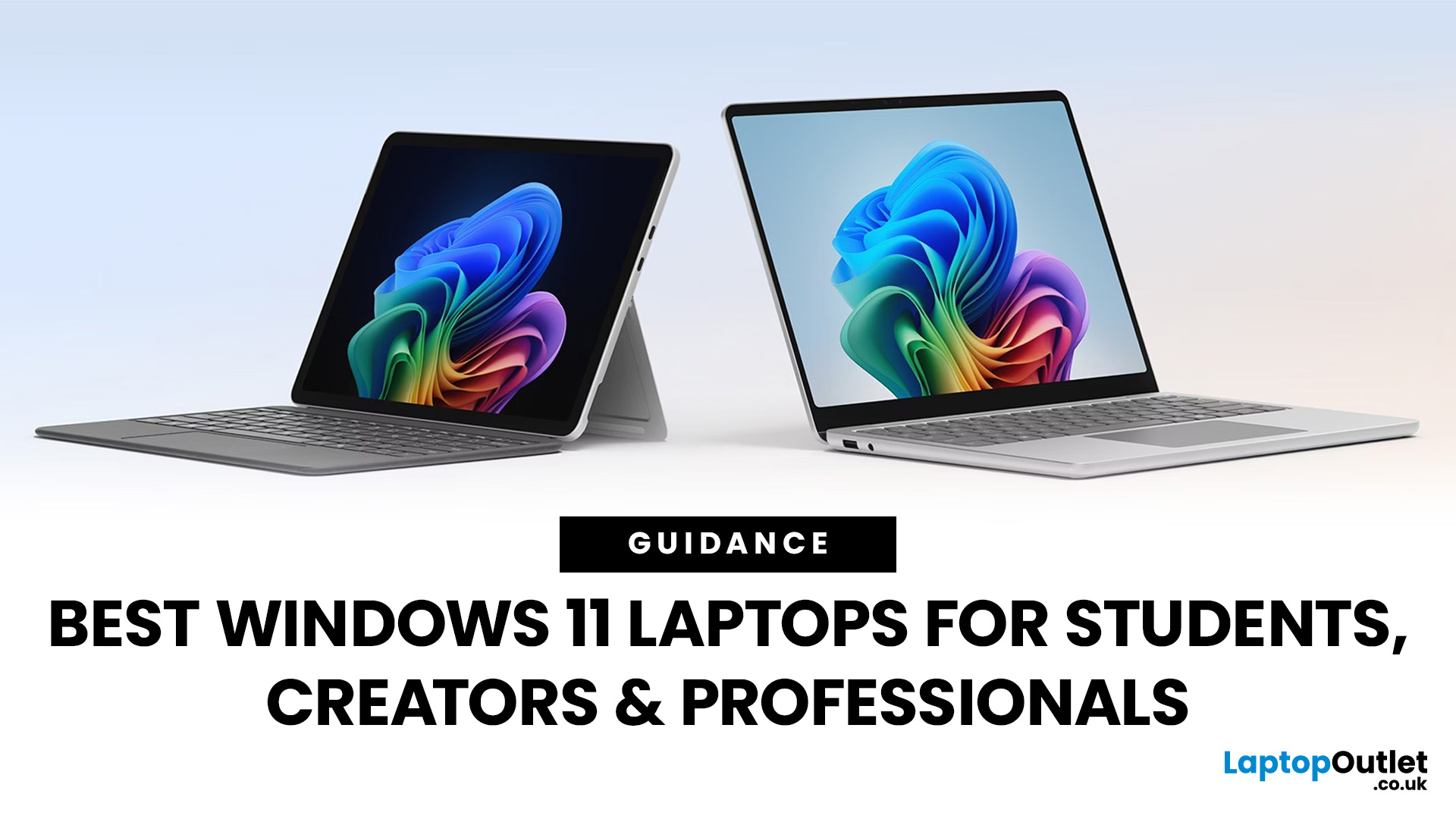
Choosing the right laptop has never been more important. Whether you are studying for exams, editing videos, or managing a full workload from home, the laptop you use makes a real difference. And right now, Windows 11 laptops are setting the standard for what a modern, capable machine should look and feel like.
Windows 11 brings a cleaner interface, better multitasking tools, improved security features, and built-in support for the latest AI-powered workflows. Add to that the wide range of hardware options available — from budget-friendly everyday machines to high-performance creative workstations — and it is clear why Windows 11 remains the go-to platform for most users in 2026.
But with so many options out there, knowing where to start can feel overwhelming. That is exactly why we put together this guide. We have split the best Windows 11 laptops into three clear categories — students, professionals, and creators — so you can find the right fit quickly.
The Best Windows 11 Laptops for
Last Updated: October 15, 2025
If you still rely on a Windows 10 laptop, you're standing right on a deadline. Support for Windows 10 ends on 14 October 2025, which means no more free security updates or bug fixes via Windows Update. Your machine will continue to run, but it will steadily become more exposed online. Microsoft's own guidance is straightforward: "move to Windows 11 on supported hardware or consider a managed path to extend security while you transition".
Below,we have compiled a practical guide on Windows 11 vs. Windows 10 laptops, comparing their performance, gaming, security, features, and hardware requirements.
A Quick Verdict If You're a Busy Reader!

- If your laptop meets Windows 11 requirements, upgrade and carry on. You'll gain modern security defaults (TPM 2.0, virtualisation-based protections), ongoing feature updates (25H2/24H2), and gaming tech like Auto HDR and DirectStorage without changing your hardware.
- If your laptop is too old for Windows 11, you can subscribe to the Extended Security

Last Updated: November 04, 2025
In today’s connected world, security is a top priority, especially for businesses handling sensitive data and remote workflows. Microsoft’s latest operating system brings advanced protection designed for the modern workforce. Windows 11 security features deliver multiple layers of defence, offering a robust shield against cyber threats, ransomware, and data breaches.
Compared to its predecessor, Windows 11 vs Windows 10 security shows clear improvements in encryption, authentication, and hardware-based protection. Whether you’re an enterprise leader or a small business owner, investing in Windows 11 laptops with advanced security ensures your data, devices, and users remain protected, wherever work happens.
What Makes Windows 11 the Most Secure OS Yet
Enhanced Hardware-Based Protection
Windows 11 is built for zero-trust security, meaning protection starts from the chip level. All certified Windows 11 business laptops include:
- Trusted Platform Module (TPM) 2.0 – A secure crypto-processor

Published: October 15, 2025
So, you’ve just cracked open a shiny new Windows 11 laptop, maybe something sleek from ASUS or one of the new-gen ultrabooks from the Windows 11 laptop range and you’re ready to dive in.
But before you start downloading Spotify, Chrome, or every game-on-game pass, let’s get one thing straight: Windows 11 runs beautifully… when it’s set up properly.
Out of the box, most laptops are loaded with trialware, telemetry, and services you’ll never use, all quietly eating battery and slowing things down. The good news? You can sort it all out in under an hour with the right steps.
This isn’t one of those “just click next” guides. This is your no-fluff, Gen Z-approved, tech-expert walkthrough, from the first boot to a fully optimised, smooth, private, and battery-efficient setup.
Let’s go.
First Boot: Don’t Just Click Next — Be Smarter Than Setup
The Windows 11 first boot is full of small traps. Microsoft really wants you to sign into a Microsoft Account, connect to Wi-Fi, and enable every cloud

Published: October 15, 2025
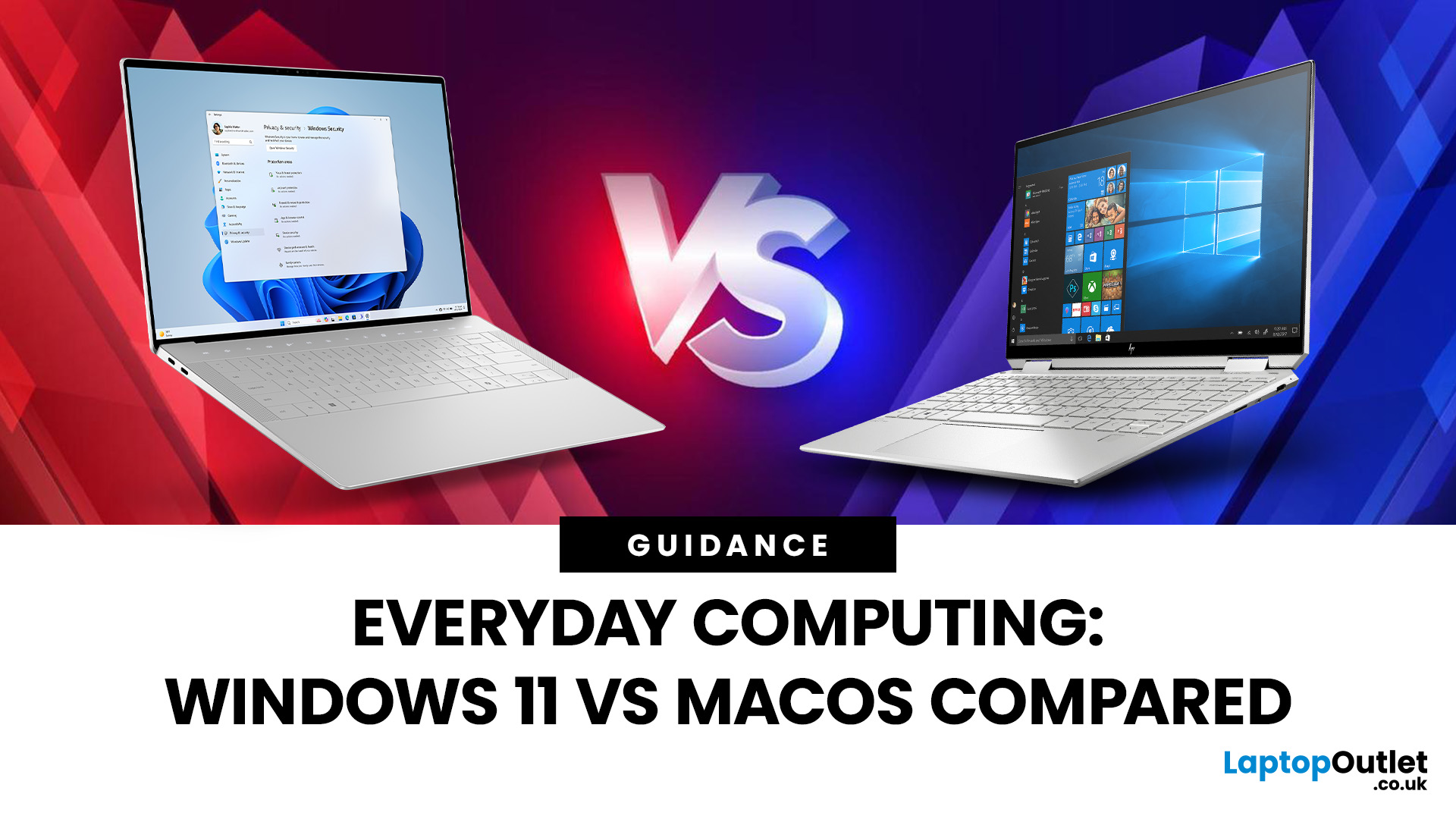
When it comes to choosing your next laptop, the debate between Windows 11 and macOS remains one of the most important decisions. Both operating systems offer sleek design, advanced performance, and productivity features, but they cater to very different kinds of users. Whether you’re a student, professional, or gamer, knowing how Windows 11 vs macOS comparison stacks up can help you find the right fit for your workflow.
In this guide, we’ll compare Windows 11 and macOS across key areas, including productivity, performance, gaming, user interface, and security, so you can decide which OS works best for your everyday needs.
Windows 11 vs macOS: Overview
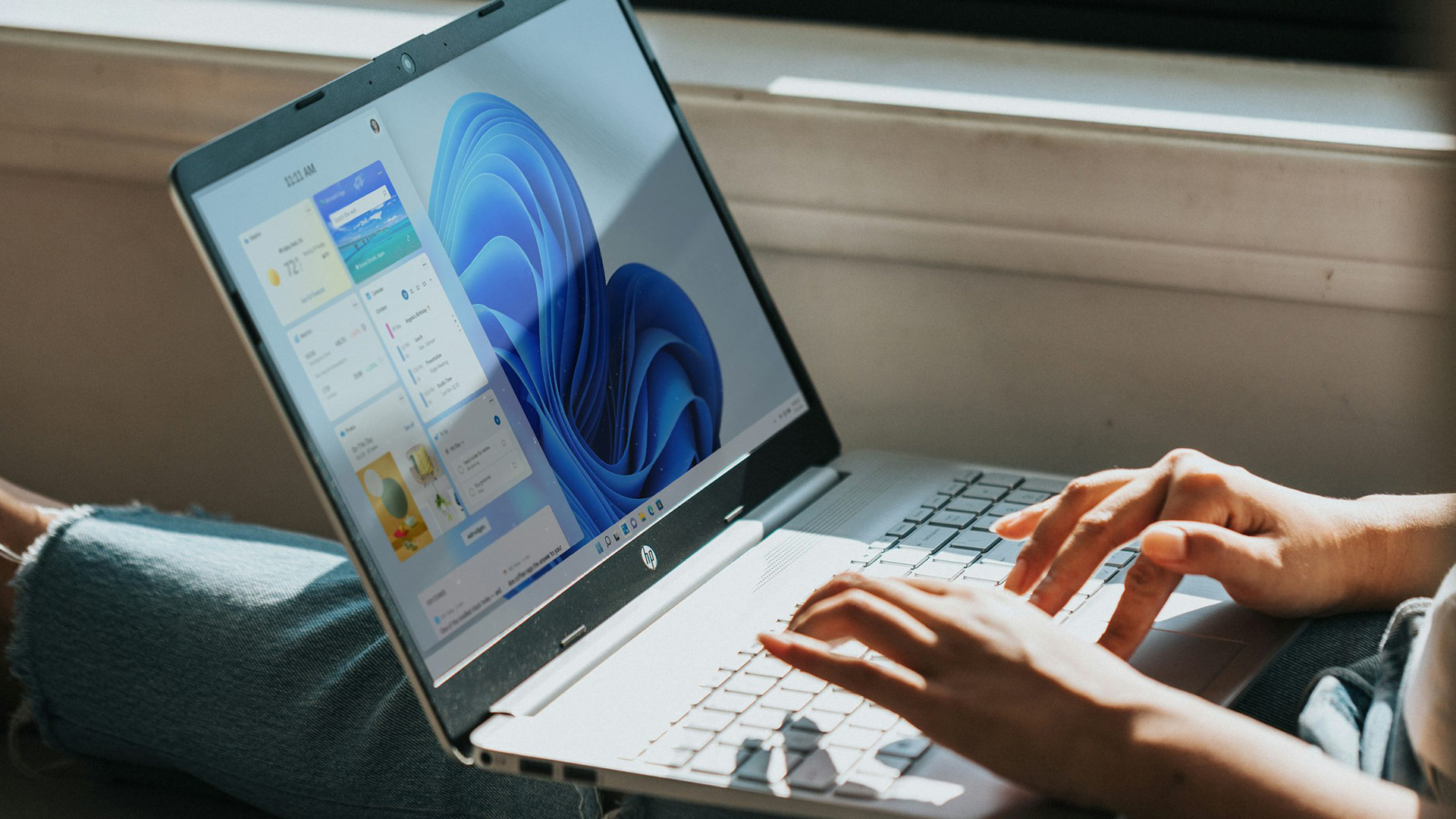
Windows 11, released in 2021 and continuously updated through 2025, represents Microsoft’s vision of a modern, intelligent, and AI-integrated operating system. macOS, on the other hand, continues Apple’s tradition of seamless integration with its ecosystem, known for its stability and clean design.
Both systems focus on user experience,

