



Windows 11 Laptop Setup Guide: From First Boot to Optimisation

So, you’ve just cracked open a shiny new Windows 11 laptop, maybe something sleek from ASUS or one of the new-gen ultrabooks from the Windows 11 laptop range and you’re ready to dive in.
But before you start downloading Spotify, Chrome, or every game-on-game pass, let’s get one thing straight: Windows 11 runs beautifully… when it’s set up properly.
Out of the box, most laptops are loaded with trialware, telemetry, and services you’ll never use, all quietly eating battery and slowing things down. The good news? You can sort it all out in under an hour with the right steps.
This isn’t one of those “just click next” guides. This is your no-fluff, Gen Z-approved, tech-expert walkthrough, from the first boot to a fully optimised, smooth, private, and battery-efficient setup.
Let’s go.
First Boot: Don’t Just Click Next — Be Smarter Than Setup
The Windows 11 first boot is full of small traps. Microsoft really wants you to sign into a Microsoft Account, connect to Wi-Fi, and enable every cloud feature. ’t get me wrong, OneDrive and cross-device sync are useful but not everyone wants their personal data flying about before the desktop even loads.
When you hit the region setup screen, connect to Wi-Fi only if you plan to use the online features. Otherwise, skip it (yes, there’s a “I don’t have Internet” option). Doing so lets you create a local account, keeping things faster and cleaner.
Once you’re through the basics:
- Deselect “Send diagnostic data to Microsoft.”
- Skip “Tailored experiences.”
- Untick “Let apps use my advertising ID.”
You’ll still get full Windows functionality, just without all the background data chatter.
Activation, Secure Boot & Recovery – The Foundation Layer
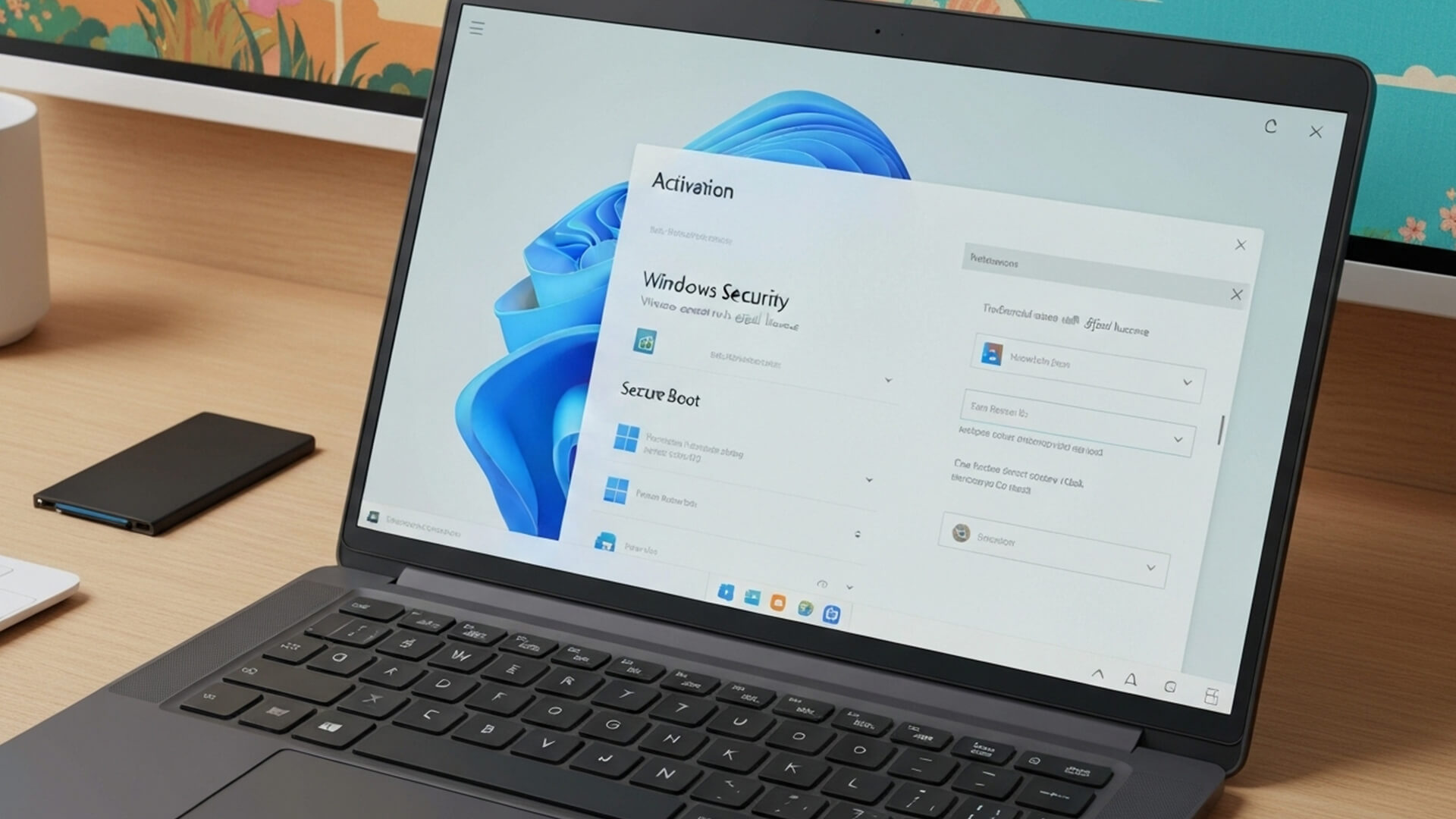
Before you even think about installing apps, check your activation status. Hit Settings → System → Activation - if it says, “Windows is activated with a digital licence,” you’re good. If not, log in once with your Microsoft account and it’ll sort itself.
Now check Secure Boot and TPM 2.0, essential for security and Windows 11 compliance. Go to Windows Security → Device Security → Security Processor Details to confirm they’re enabled.
While you’re in a cautious mood, create a recovery drive (Control Panel → Recovery → Create Recovery Drive). If anything, ever goes sideways, you’ll thank yourself later.
Pro users, enable BitLocker encryption. It’s the easiest way to keep your laptop data safe if it’s ever lost or stolen.
Drivers, Firmware & OEM Tools — The Right Way to Update
Don’t go downloading random driver packs. Windows Update actually does a good job these days,especially under Optional Updates. That’s where GPU, audio, and Wi-Fi drivers live.
If you’re on an ASUS laptop, open MyASUS or Armoury Crate, these handle BIOS and fan updates safely, no dodgy firmware flashing required.
But here’s a pro tip: once everything’s updated, uninstall the parts of those OEM tools you don’t use. Many come with background services that slow things down over time.
For safety, before any major driver install, create a restore point: Control Panel → Recovery → Configure System Restore → Create.
Privacy & Telemetry – Stop the Snooping
Windows 11 loves “helpful insights,” but you don’t need to be constantly sending diagnostic data to Redmond.
Head to Settings → Privacy & Security → Diagnostics & Feedback. Switch diagnostic data to “Required only.” Then disable:
- “Tailored experiences.”
- “Feedback frequency.”
- “Improve inking and typing.”
Next, hit Settings → Privacy & Security → General and turn off everything except “Let apps show me personalised ads” (if you really want them).
If you’re on Windows 11 Pro, search “gpedit.msc” → Computer Configuration → Administrative Templates → Windows Components → Data Collection → disable telemetry completely.
You’ve now taken your laptop from “data farm” to “private workstation.”
Windows Indexing & Search – Fast, Not Noisy
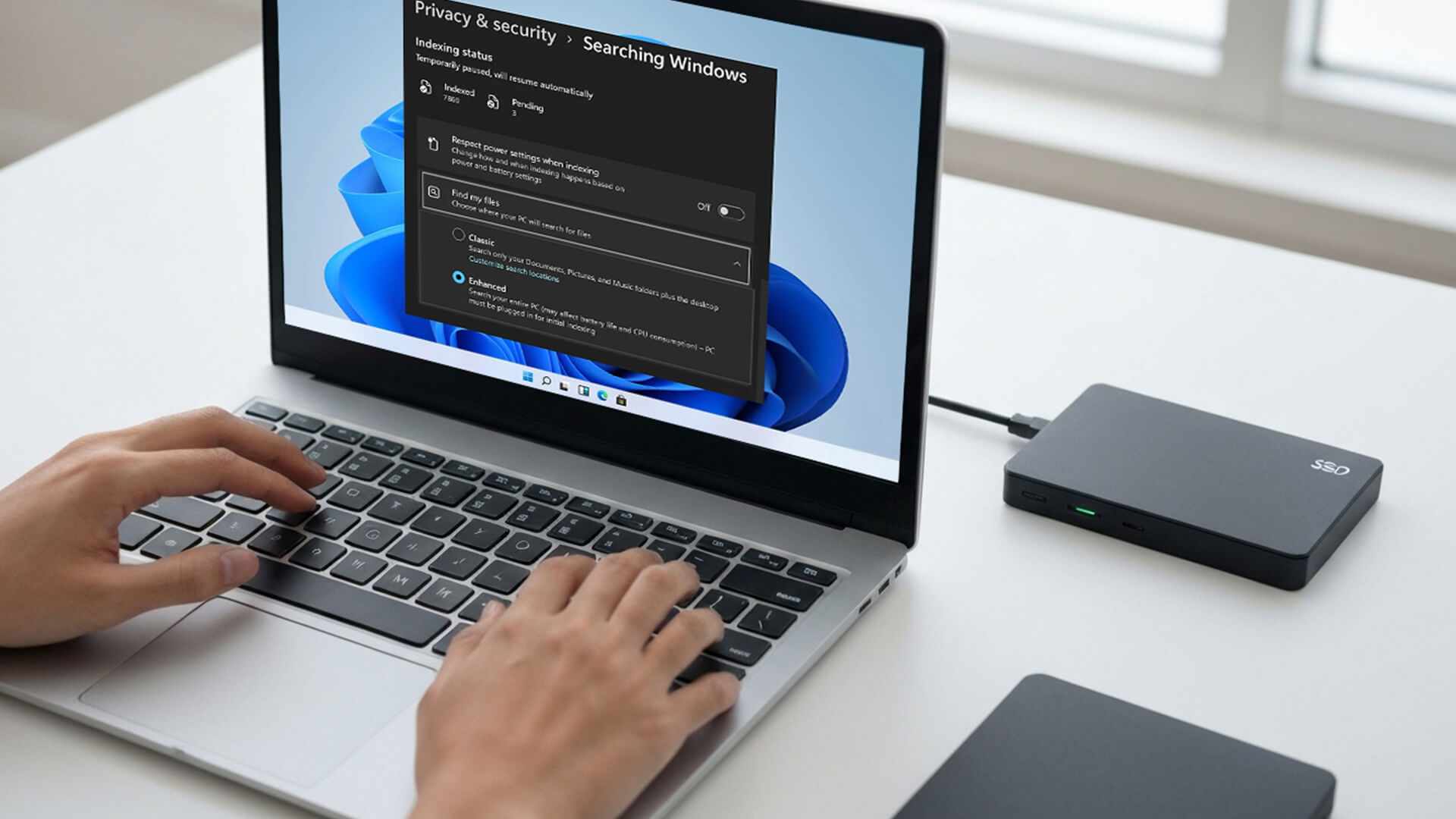
Indexing sounds helpful, but it constantly scans your drive, brutal for SSD health and battery.
Search “Indexing Options” → Modify → untick everything except your main folders (Documents, Downloads, etc.). Avoid indexing Program Files or Windows.
If you use Outlook, keep “Emails” checked. Otherwise, remove it too.
Want to go even deeper? Run PowerShell as admin and type:
net stop wsearch
sc config wsearch start=disabled
This disables indexing entirely. You’ll lose a few milliseconds on search speed but gain performance and battery life.
Performance & Startup Optimisation
Here’s where you start feeling the difference.
a) Turn off startup junk
Right-click the taskbar → Task Manager → Startup Apps. Disable anything you don’t use every day (Teams, Spotify, Adobe Updater, all those “helpers”).
b) Trim visual effects
Search “Performance Options” → Adjust for best performance (or keep “Smooth edges of screen fonts” ticked if you’re not a monster).
c) Power Plan upgrades
Search “Power Options” → choose Balanced or Ultimate Performance. The latter’s best for gaming laptops, especially ASUS models that throttle thermals automatically anyway.
d) GPU scheduling
If you’ve got a discrete GPU, go to System → Display → Graphics Settings → toggle Hardware-accelerated GPU scheduling ON. You’ll get snappier frames and fewer stutters.
Windows Updates – Control the Chaos

Windows 11 loves to update mid-meeting or mid-match. Take charge.
Go to Settings → Windows Update → Advanced Options.
- Pause updates for 5–7 days after first boot (this lets initial hotfixes settle).
- Under “Optional Updates,” install drivers manually.
- Disable “Receive updates for other Microsoft products” - it’ll stop unwanted store app updates flooding in.
If you’re running Windows 11 Pro, open Group Policy Editor → Windows Components → Windows Update for Business. Set feature updates to delay by 30 days. Stability over speed, always.
Security & Account Protection — Quick Wins
a) Windows Hello
Set up PIN or Face ID via Settings → Accounts → Sign-in Options. It’s secure and quick.
b) Dynamic Lock
Pair your phone or smartwatch via Bluetooth, when you walk away, your laptop auto-locks. A bit James Bond, that.
c) Defender & Firewall
You don’t need third-party antivirus. Windows Defender is actually excellent in 2025. Just open Windows Security → Virus & Threat Protection → Manage Settings and turn off cloud-based submissions if you prefer privacy.
d) Controlled Folder Access
Protect your documents against ransomware by toggling on Controlled Folder Access. Windows will block unauthorised apps from editing your personal files.
Battery & Efficiency Tweaks
Laptop batteries have finite lives. Windows 11 gives you some serious tools to stretch them.
- Tap the battery icon on the taskbar → slide to Best Power Efficiency when not gaming.
- In Settings → Power → Battery Usage by App, stop apps like Teams or Edge from running in the background.
- For ASUS machines, open MyASUS → Battery Health Charging → Maximum Lifespan Mode to cap charging at 80%.
Want to geek out?
Run:
powercfg /batteryreport
It creates a full report (saved in your user folder) showing capacity drain and charge cycles. Handy for spotting ageing batteries early.
Networking & Connectivity Tricks
Wi-Fi 6/7 laptops are incredibly fast but still benefit from a quick tune-up.
- Set your Wi-Fi as Metered Connection (Settings → Network → Properties). It stops sneaky updates on mobile data.
- Change your DNS to Cloudflare (1.1.1.1) or Google (8.8.8.8) -fewer drops, quicker page loads.
- In Device Manager → Network Adapters → Properties → Power Management, untick “Allow computer to turn off device to save power.” That prevents random disconnections on sleep wake.
Storage, TRIM & File Management
Windows 11 is obsessed with background tasks. One of them drives indexing and automatic maintenance, it can eat battery life.
Turn off “Scheduled Maintenance”:
Control Panel → Security and Maintenance → Change maintenance settings → untick automatic maintenance.
Then run manual TRIM once a month:
defrag /c /h /o
(Yes, it says “defrag,” but it’s smart enough to optimise SSDs properly.)
Also, delete Reserve Storage (that 7GB Windows holds for updates):
Open PowerShell (admin):
DISM /Online /Set-ReservedStorageState /State:Disabled
Boom - more usable space instantly.
Customisation & Workflow Setup
You’ve cleaned, secured, and tuned your system, now make it yours.
a) Start Menu
Right-click any pre-installed nonsense (Candy Crush, TikTok, McAfee trials) → Uninstall. Then pin your essentials.
b) Taskbar
Shift it to the left if you’re old-school. Turn off “Widgets” and “Chat” icons for a cleaner look.
c) Snap Layouts & Virtual Desktops
Windows 11 nailed multitasking. Drag windows to corners to auto-snap, or press Win + Z for layout templates. Use Win + Ctrl + D to spawn new desktops for work, gaming, or study.
d) Optional Tools You’ll Actually Use
- PowerToys: adds shortcuts like FancyZones window snapping and colour picker.
- EarTrumpet: way better sound mixer.
- Files (Beta): cleaner File Explorer replacement.
All free, all game-changing.
Gaming & Multimedia Optimisation
If you’re rocking an ASUS ROG or TUF Windows 11 laptop, this one’s for you.
a) Game Mode
Search “Game Mode” and make sure it’s ON, it prioritises gaming threads and reduces background noise.
b) GPU & DirectStorage
Ensure you’ve got the latest AMD/NVIDIA drivers. Then toggle Hardware-accelerated GPU scheduling ON (Display Settings → Graphics). This boosts frame consistency by reducing CPU overhead.
DirectStorage is automatic if you’ve got an NVMe SSD - meaning faster loading times in titles like Forza Horizon 5 and Starfield.
c) HDR Calibration
If you’ve got a 120 Hz HDR panel, grab Microsoft’s HDR Calibration App. Fixes those washed-out whites and oversaturated shadows.
d) Audio
Turn on Spatial Sound (Windows Sonic) or Dolby Atmos if supported,headphones or not, it’s noticeably better.
Final Setup Checklist — The Expert’s Routine
Before you get lost in Netflix and Discord:
- Run sfc /scannow to verify system integrity.
- Run DISM /Online /Cleanup-Image /RestoreHealth to repair any corrupted files.
- Create a system restore point.
- Enable Defender sandbox mode (Command Prompt admin → setx /M MP_FORCE_USE_SANDBOX 1).
- Note your product key (Command Prompt → wmic path softwarelicensingservice get OA3xOriginalProductKey).
- Backup your configuration (Control Panel → Backup and Restore → Create System Image).
That’s it - your laptop’s locked down, tuned up, and ready for daily use.
Long-Term Maintenance Plan (Because Future You Will Forget)
Keep your system crisp by following a light routine:
Monthly
- Clear temp files (cleanmgr /sageset:1)
- Review startup apps
- Check Windows Update history
Quarterly
- Refresh BIOS & drivers via OEM app
- Defragment external HDDs (if any)
- Verify battery wear via powercfg /batteryreport
Yearly
- Consider a clean reinstall using Cloud Reset (Settings → Recovery).
- Or export your system image to an external SSD, so if Windows 12 sneaks in one day, you’re ready.

The Wrap-Up: Your Laptop, But Better
You’ve just turned your new laptop into something faster, smarter, and genuinely yours. No random OEM clutter. No hidden battery drain. No invasive tracking. Just clean, lean Windows 11, the way it should have shipped.
And if you’re still shopping, or thinking about upgrading, check out our picks for Windows 11 Pro laptops and the latest ASUS Windows 11 devices - powerful, efficient, and perfect for the tweaks you’ve just mastered.
Setting up Windows 11 properly isn’t just about performance, it’s about control. You’ve built a system that runs fast, respects your privacy, and stays efficient for years.
Now shut the lid, grab a coffee, and enjoy that rare feeling: a laptop that’s clean, fast, and completely under your command.
| Read More: |
| Windows 11 Laptop Security Features for Business Users |
| How to Choose the Right Windows 11 Laptop: Complete Buying Guide |
| Top Windows 11 Gaming Laptops with RTX Graphics in 2025 |
Related Articles

Published: October 08, 2025
The battle between Intel and AMD has shaped the laptop world for decades. With the release of Intel Core Ultra processors and the new AMD Ryzen Z2 series, that rivalry has entered a new phase - one defined not just by raw speed, but also by AI integration, efficiency, and Windows 11 optimisation.
Intel’s Core Ultra chips (available in Core Ultra 5, 7, and 9 tiers) mark a major shift in design, blending performance and efficiency cores with a dedicated AI NPU (Neural Processing Unit). Meanwhile, AMD’s Ryzen Z2 processors are raising eyebrows with their RDNA 3.5 graphics and strong balance between performance and battery efficiency.
So, which one is better for you? In this guide, we’ll break down the Intel vs AMD Windows 11 laptops debate, comparing performance, AI features, battery life, and creative workloads. Whether you’re a student, gamer, or professional, by the end you’ll know which processor suits your needs.
Intel Core Ultra – What’s New?
Intel’s Core Ultra range is its most significant
Last Updated: February 24, 2026
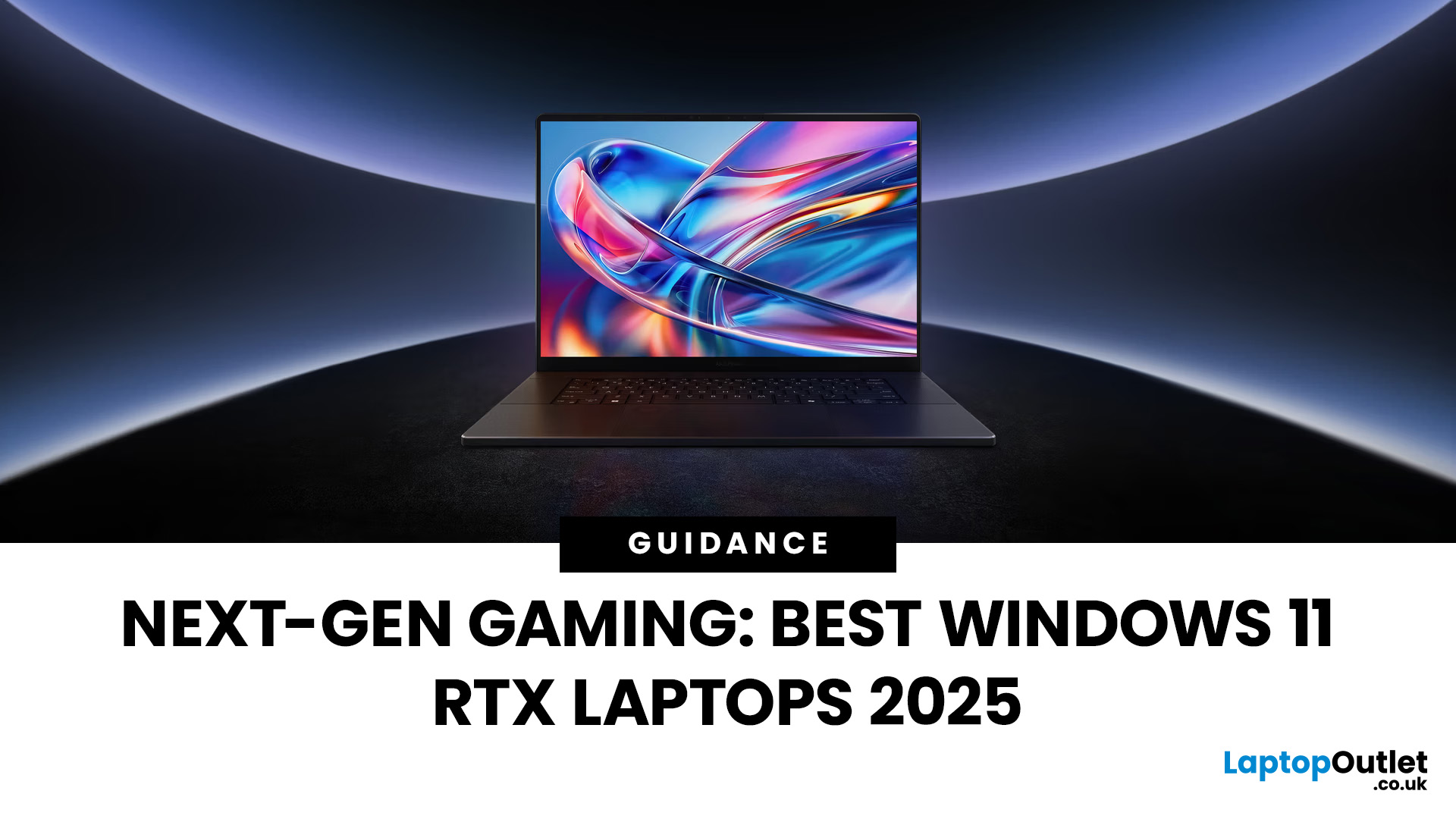
Choosing the right gaming laptop in 2025 comes down to striking a balance between raw power, intelligent features, and future-ready design. With Windows 11 now fully optimised for AI-powered performance, Auto HDR, and DirectStorage 1.2, gaming has never been smoother or more immersive. Pair that with the latest NVIDIA RTX 40 and 50-series GPUs, and you get a portable machine that rivals desktop-level experiences.
This guide explores the best Windows 11 gaming laptops with RTX graphics, helping you understand which models deliver the most value for gamers in different categories — from budget RTX 4060 machines to ultra-premium RTX 5090 rigs. Whether you’re into esports, AAA titles, or content creation alongside gaming, these laptops are designed to keep up with your demands.
Why Windows 11 Gaming Laptops with RTX Graphics Stand Out
AI-Driven Gaming Features
Windows 11 laptops in 2025 integrate Windows Game Mode, Copilot, and AI-based resource management. Together, they ensure your CPU

Published: October 08, 2025
Choosing the right laptop in 2025 can be overwhelming, given the wide range of options available across budgets, designs, and performance levels. With Microsoft’s Windows 11 becoming the most optimised OS for hybrid work, gaming, and everyday use, selecting the right device is more important. In this Windows 11 laptops buying guide, we’ll cover everything you need to know before purchasing. From Windows 11 laptop comparisons to use-case specific recommendations for students, business users, and gamers, this guide ensures you make an informed decision.
Why Choose a Windows 11 Laptop?
Enhanced Performance
In 2025, Windows 11 is fully optimised for the latest Intel Core Ultra (Meteor Lake) and AMD Ryzen 8000/9000 series processors. These chips integrate dedicated NPUs (Neural Processing Units), which offload AI workloads from the CPU and GPU, resulting in:
- Faster multitasking across productivity apps like Microsoft 365, Adobe Creative Suite, and Teams.
- Improved power efficiency, extending
Last Updated: April 08, 2026
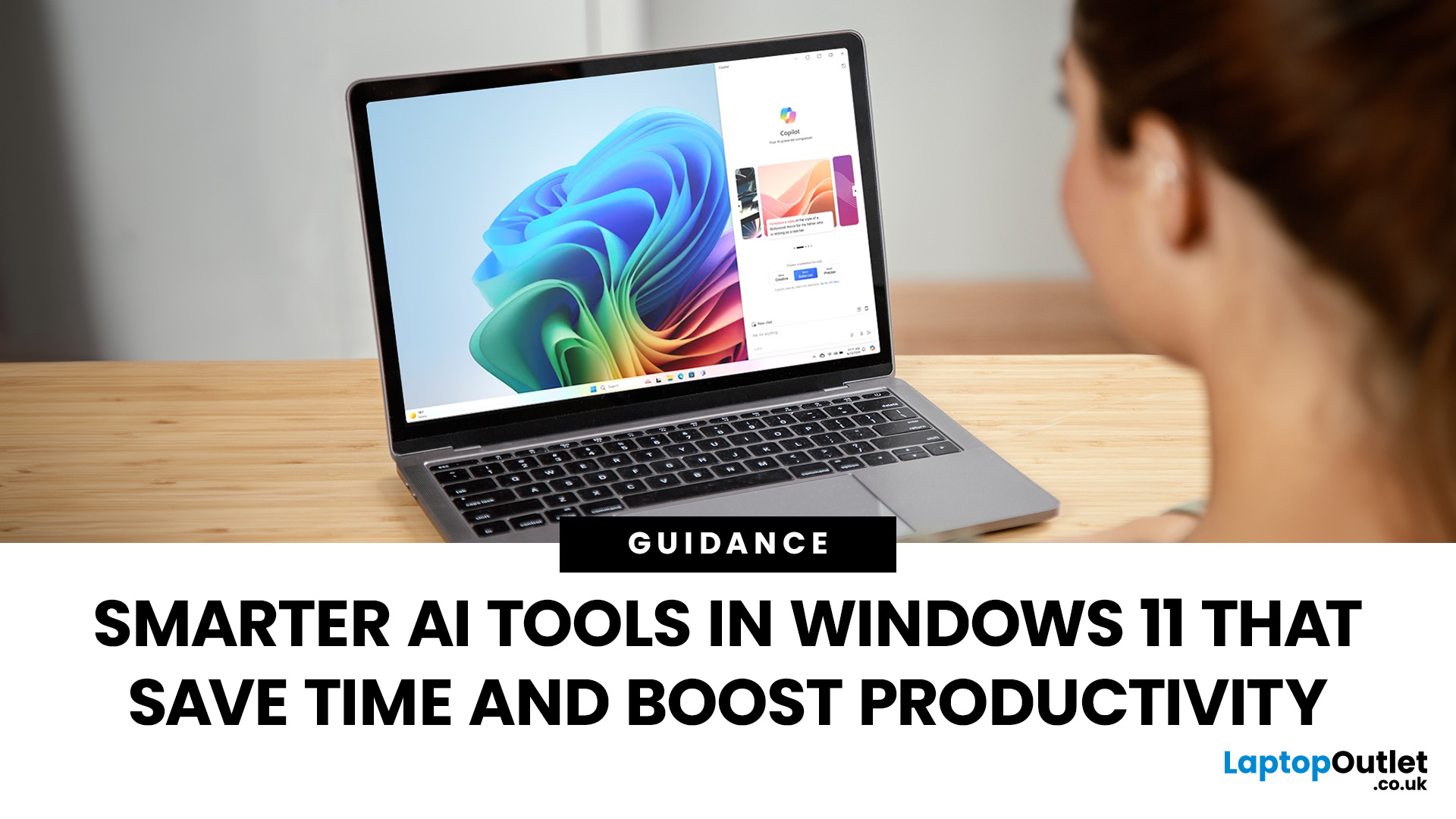
Remember when using a laptop was all about speed and specs i.e. faster processors, bigger storage, sharper screens? Those things still matter, but in 2025, the real game-changer is AI built directly into your PC. Microsoft’s new Windows 11 Copilot+ PCs are designed for exactly that.
Instead of just running apps faster, these laptops think alongside you. They can find files you barely remember creating, relight a photo as if you’re in a studio, or even recall what you were working on hours ago with a simple search. In short, they’re not just computers anymore - they’re collaborators.
In this post, we’ll dive into what makes Copilot+ special, unpack the latest AI tools in Windows 11, and show how customers can best benefit from these features.
What Makes a Copilot+ PC Different?
A Copilot+ PC is more than just a Windows 11 device. At its core is a Neural Processing Unit (NPU), a chip designed specifically to handle AI tasks. With this hardware in place, features like Recall and Windows

Last Updated: October 09, 2025
Think back a few years... when you bought a laptop, what did you care about most? Probably the processor, maybe RAM, and the graphics card if you were into gaming. The display? It was usually just “good enough.”
Fast forward to 2025, and the screen has become just as important as the hardware inside. Whether you’re streaming, gaming, editing photos, or juggling multiple apps, the display is what you interact with most — and it shapes your entire experience.
This is especially true with Windows 11 laptops, as the operating system is designed to take full advantage of modern display technologies. Its sharper interface, multitasking layouts, HDR support, and gaming optimisation features really shine when paired with quality screens.
That’s why today’s Windows 11 laptop display comparison often comes down to three main types: OLED, IPS, and Microsoft’s PixelSense. Each has unique strengths, trade-offs, and ideal use cases. Understanding them will help you pick the best display type for Windows
Last Updated: June 15, 2026
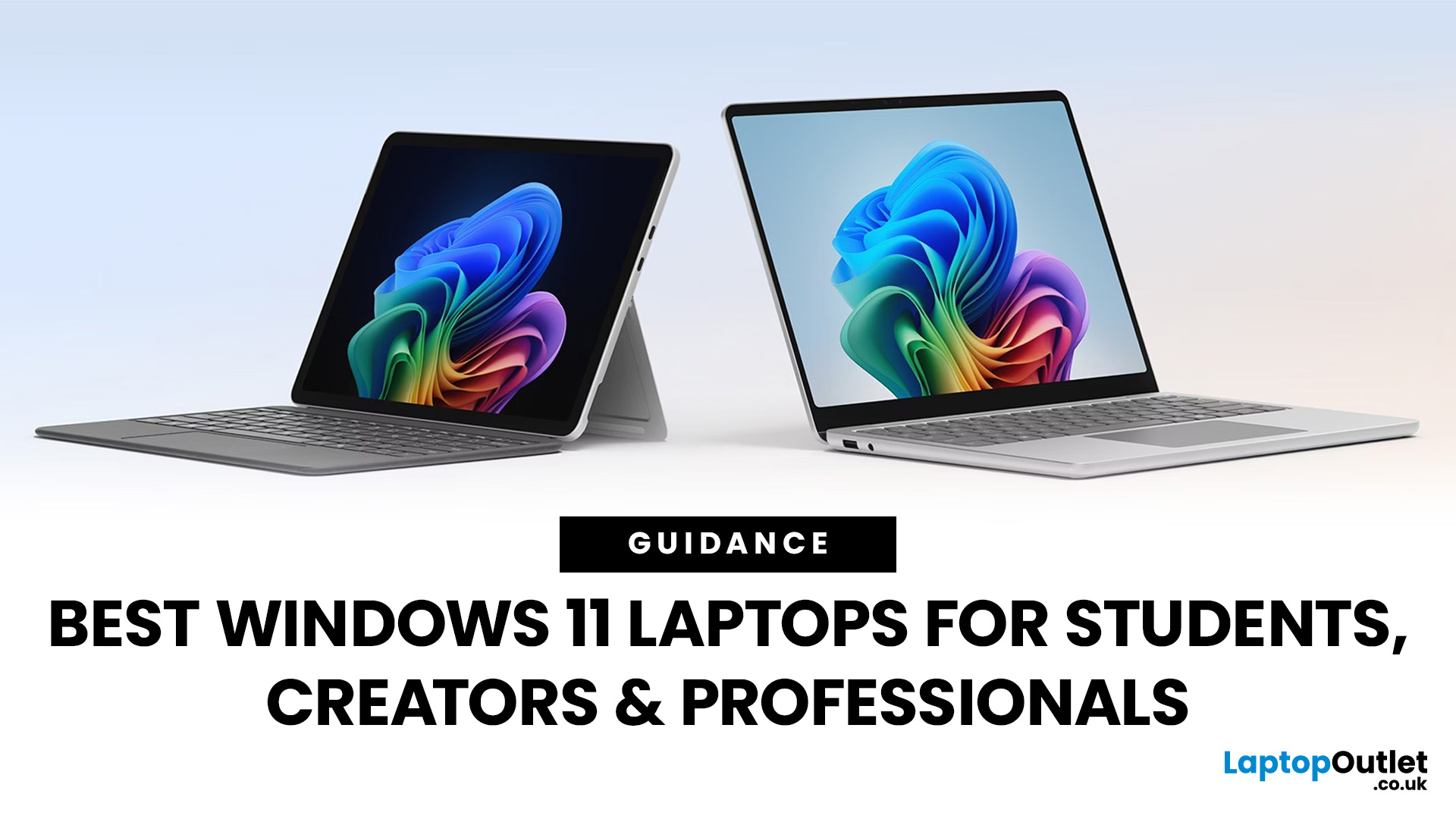
Choosing the right laptop has never been more important. Whether you are studying for exams, editing videos, or managing a full workload from home, the laptop you use makes a real difference. And right now, Windows 11 laptops are setting the standard for what a modern, capable machine should look and feel like.
Windows 11 brings a cleaner interface, better multitasking tools, improved security features, and built-in support for the latest AI-powered workflows. Add to that the wide range of hardware options available — from budget-friendly everyday machines to high-performance creative workstations — and it is clear why Windows 11 remains the go-to platform for most users in 2026.
But with so many options out there, knowing where to start can feel overwhelming. That is exactly why we put together this guide. We have split the best Windows 11 laptops into three clear categories — students, professionals, and creators — so you can find the right fit quickly.
The Best Windows 11 Laptops for
Last Updated: October 15, 2025
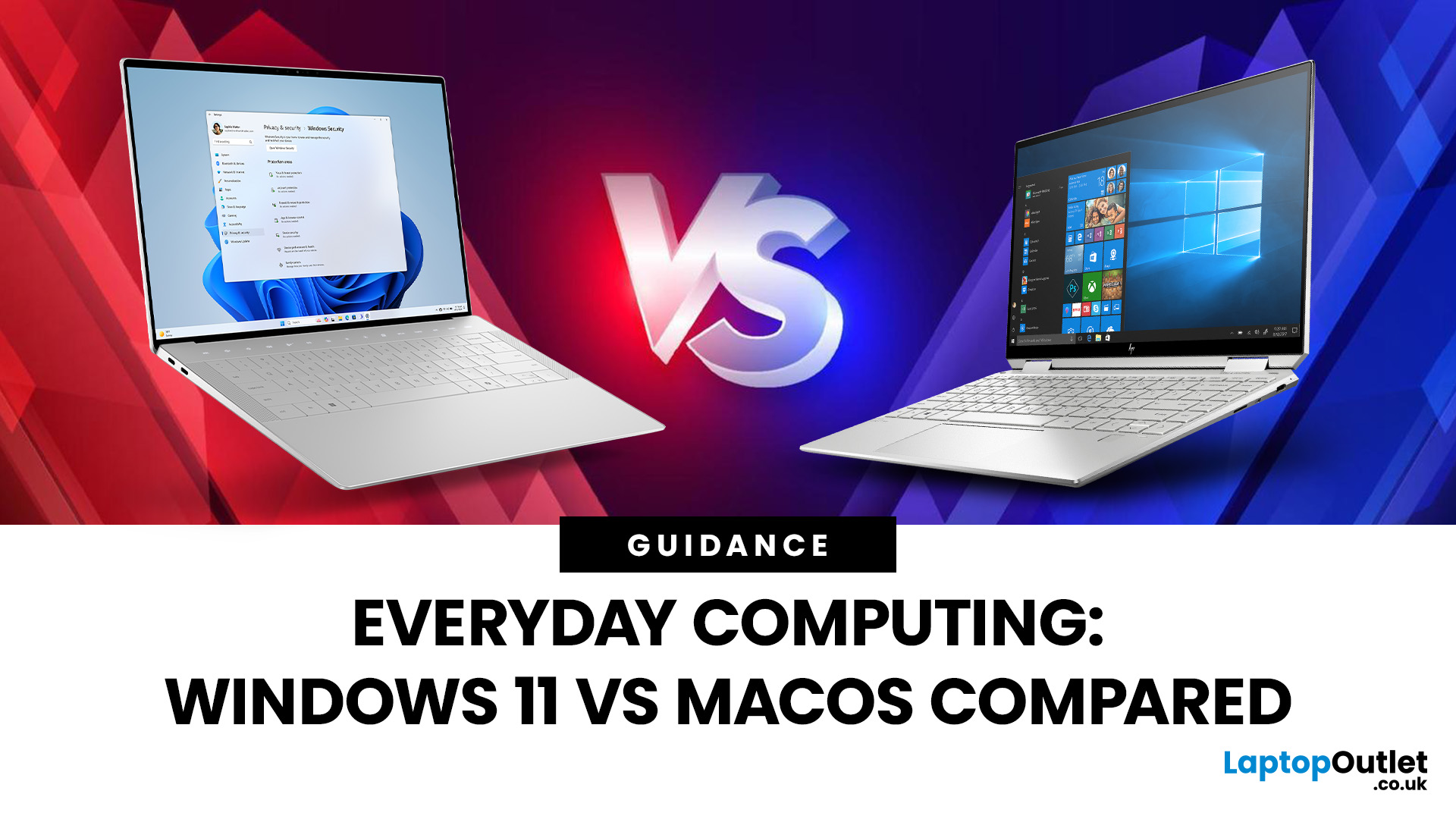
If you still rely on a Windows 10 laptop, you're standing right on a deadline. Support for Windows 10 ends on 14 October 2025, which means no more free security updates or bug fixes via Windows Update. Your machine will continue to run, but it will steadily become more exposed online. Microsoft's own guidance is straightforward: "move to Windows 11 on supported hardware or consider a managed path to extend security while you transition".
Below,we have compiled a practical guide on Windows 11 vs. Windows 10 laptops, comparing their performance, gaming, security, features, and hardware requirements.
A Quick Verdict If You're a Busy Reader!

- If your laptop meets Windows 11 requirements, upgrade and carry on. You'll gain modern security defaults (TPM 2.0, virtualisation-based protections), ongoing feature updates (25H2/24H2), and gaming tech like Auto HDR and DirectStorage without changing your hardware.
- If your laptop is too old for Windows 11, you can subscribe to the Extended Security

Last Updated: November 04, 2025
In today’s connected world, security is a top priority, especially for businesses handling sensitive data and remote workflows. Microsoft’s latest operating system brings advanced protection designed for the modern workforce. Windows 11 security features deliver multiple layers of defence, offering a robust shield against cyber threats, ransomware, and data breaches.
Compared to its predecessor, Windows 11 vs Windows 10 security shows clear improvements in encryption, authentication, and hardware-based protection. Whether you’re an enterprise leader or a small business owner, investing in Windows 11 laptops with advanced security ensures your data, devices, and users remain protected, wherever work happens.
What Makes Windows 11 the Most Secure OS Yet
Enhanced Hardware-Based Protection
Windows 11 is built for zero-trust security, meaning protection starts from the chip level. All certified Windows 11 business laptops include:
- Trusted Platform Module (TPM) 2.0 – A secure crypto-processor

