



Windows 11 vs Windows 10: Is It Time to Upgrade Your Laptop?
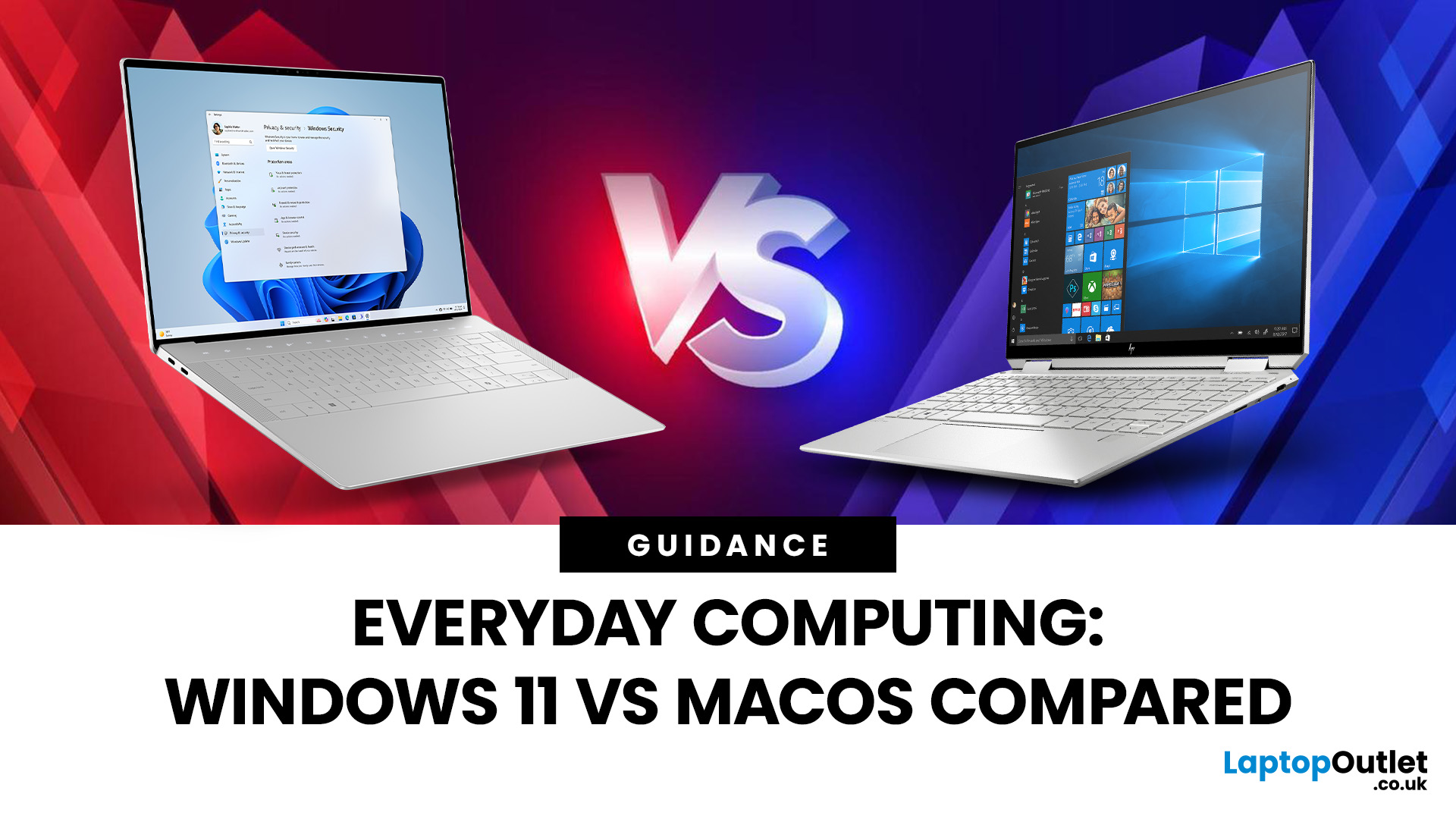
If you still rely on a Windows 10 laptop, you're standing right on a deadline. Support for Windows 10 ends on 14 October 2025, which means no more free security updates or bug fixes via Windows Update. Your machine will continue to run, but it will steadily become more exposed online. Microsoft's own guidance is straightforward: "move to Windows 11 on supported hardware or consider a managed path to extend security while you transition".
Below,we have compiled a practical guide on Windows 11 vs. Windows 10 laptops, comparing their performance, gaming, security, features, and hardware requirements.
A Quick Verdict If You're a Busy Reader!

- If your laptop meets Windows 11 requirements, upgrade and carry on. You'll gain modern security defaults (TPM 2.0, virtualisation-based protections), ongoing feature updates (25H2/24H2), and gaming tech like Auto HDR and DirectStorage without changing your hardware.
- If your laptop is too old for Windows 11, you can subscribe to the Extended Security Updates (ESU) programme to keep Windows 10 patched while you plan a replacement, but ESU is a paid option and not a long-term solution.
- If you're ready to refresh, shop a current Windows 11 device. For curated choices, see our collection of Windows 11 laptops.
Windows 11 vs Windows 10 Laptops: What is the Difference?
1) Hardware requirements and compatibility
What this means for you:Windows 11 tightened the hardware baseline, focusing on security and reliability. At minimum, you'll need a compatible 64-bit CPU, 4GB RAM, 64GB storage, UEFI with Secure Boot and TPM 2.0 (often present on laptops from the last few years; it may simply need enabling in firmware). Microsoft lists the full specifications and notes that some machines can adjust their settings to meet the standard.
Why TPM 2.0 matters: On many newer laptops, the Microsoft Pluton security processor is built into the CPU and acts as a standards-compliant TPM. Pluton helps protect credentials and keys even if an attacker has the device in hand, and it underpins features such as BitLocker, Windows Hello and System Guard.
- If your laptop is from roughly 2018 onwards, there's a strong chance it meets Windows 11's bar.
- If you can't see "TPM 2.0" in Windows Security, check your UEFI settings; many OEMs ship it off by default.
2) Security: Windows 11 is built to be safer by default
Security is the starkest difference between the two systems. Windows 11 turns on hardware-rooted protections on supported devices, including virtualisation-based security (VBS) and hypervisor-enforced code integrity (HVCI), to guard the kernel and block untrusted code from running in privileged memory. These are available on Windows 10, but Windows 11 integrates and enables them by default on most new hardware.
You also get Smart App Control, a Windows 11 feature that uses Microsoft's cloud intelligence and code-signing checks to block untrusted or potentially malicious apps before they run. It's aimed at keeping everyday users safe with minimal fuss.
Put simply, if you use your laptop for work, banking, or anything sensitive, Windows 11's secure-by-design model is the safer choice. (When shopping for new devices, look for Pluton-enabled.)
3) Performance and battery life on laptops
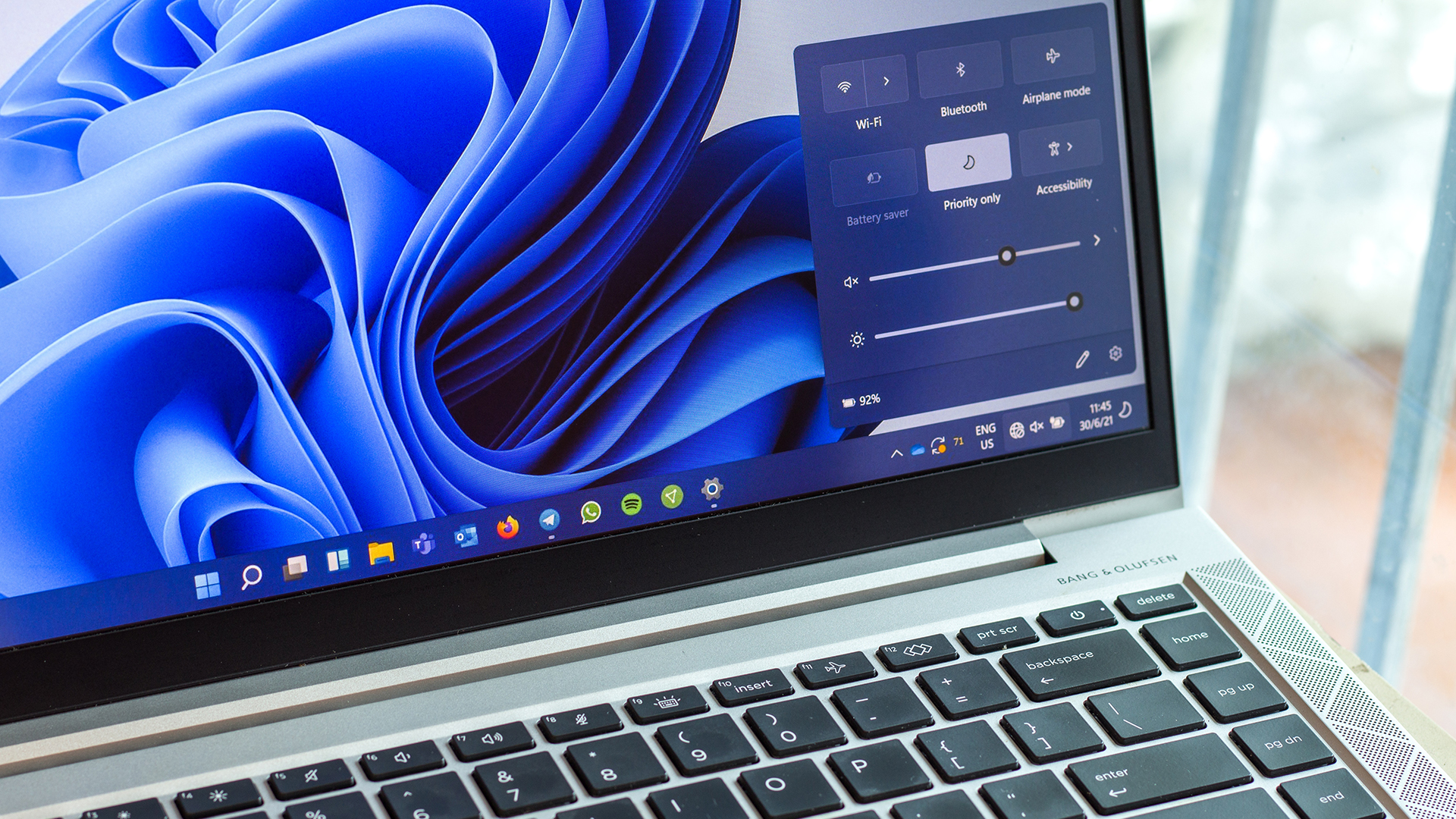
Day-to-day speed is similar on like-for-like hardware, but Windows 11 brings a few meaningful advantages for modern laptops:
- Hybrid CPU scheduling. On newer Intel hybrid chips (with performance and efficiency cores), Windows 11 coordinates with the hardware to place the right threads on the right cores, improving responsiveness under load. It's part of the "Thread Director" co-design work and is especially helpful on 12th Gen and newer Intel Core laptops.
- Ongoing energy efficiency work. Microsoft continues to ship power management updates through releases such as 24H2/25H2 and has been trialling an Adaptive Energy Saver mode to extend battery life intelligently on portable devices.
If your work is mostly browsing, documents and calls, you won't see night-and-day gains moving from a healthy Windows 10 install to Windows 11. But on recent hardware, you'll benefit from smarter scheduling and steady power optimisations over the OS's lifetime.
Want to get the most out of your upgraded laptop? Check out our detailed guide on Windows 11 tips & tricks to maximise laptop performance, covering system tweaks, background process control, and power settings that truly make a difference
4) Gaming: Windows 11's built-in boosters
If you play on your laptop, Windows 11 pulls ahead. It includes Auto HDR, DirectStorage, and improved handling for windowed games, reducing latency and smoothing frame times in titles that aren't run full-screen. DirectStorage can cut load times on NVMe SSDs in supported games by letting the GPU decompress assets directly.
These features don't magically raise FPS in every title, but they modernise the pipeline and make better use of today's storage and displays. If you're a Game Pass regular or you switch between full-screen and borderless windowed play, Windows 11 is the better platform on the same hardware.
5) Features, fit and finish
Windows 11 continues to receive yearly feature updates - version 25H2 (the 2025 update) is available as a lightweight enablement package for eligible devices, carrying forward improvements introduced in 24H2. That means you'll keep seeing incremental polish to Settings, accessibility, Bluetooth, HDR and more, without destabilising overhauls. Windows 10, by contrast, is in maintenance mode and will stop receiving free security and quality updates after 14 October 2025.
Windows 10 Support Ending: What Should You Do?
Option A: Upgrade in place (if your laptop qualifies)
- Check compatibility in Settings → Windows Update. If your device meets requirements, you should be offered the upgrade path to Windows 11 at no charge.
- Enable TPM 2.0/Secure Boot in firmware if required. Microsoft's guide shows where to look in most UEFI menus.
- Update BIOS/firmware and drivers, then upgrade via Windows Update or the Installation Assistant.
This route preserves your investment and gives you ongoing security updates and new features (24H2/25H2).
Option B: Use Extended Security Updates while you plan your move
If your laptop can't run Windows 11 and you're not ready to replace it this minute, Microsoft offers Windows 10 Extended Security Updates (ESU) - an annual, paid subscription that continues to deliver critical and important security fixes after the end-of-support date. It's designed as a temporary bridge while you transition.
Important: ESU keeps the OS patched but doesn't add new features or compatibility upgrades. It's also time-limited. If you handle sensitive work or customer data, relying on ESU for years isn't wise - treat it as a breathing space to plan a proper refresh.
Option C: Replace the laptop with a modern Windows 11 device
If your machine is several generations old, a replacement is often the most cost-effective answer. You'll gain instant compliance with Windows 11's hardware security model, better battery life, and typically a brighter, calibrated display - useful for hybrid work and study.
If your use case absolutely depends on Windows 10 for legacy apps or workflow while you transition, we also maintain stock where relevant—see the best laptops with Windows 10, and if you prefer a specific brand, explore Windows 10 Lenovo laptops or Windows laptops by other top brands.
Windows 11 Features Comparison: What You'll Notice after Upgrading
Security defaults you don't have to think about
- VBS/HVCI is on by default (on supported hardware) to isolate the kernel and block unsigned drivers in kernel mode. This addresses entire classes of attack that prey on the OS's lowest levels.
- Smart App Control is powered by Microsoft's reputation systems to prevent untrusted or unsigned apps from launching in the first place.
- TPM 2.0 / Pluton to anchor encryption keys and credentials in tamper-resistant silicon. BitLocker and Windows Hello benefit directly.
Day-to-day experience
- A cleaner, calmer interface (Start, taskbar, quick settings) with ongoing refinements in 24H2/25H2 rather than disruptive redesigns.
- Better windowed gaming behaviour and HDR handling where supported.
- Steady improvements to power efficiency over the release cycle, with Adaptive Energy Saver in testing to stretch battery life further on laptops.
Developer and pro-user niceties
- More consistent update cadence and release-health transparency, so you can see known issues and rollout status before applying a major update.
Windows 11 vs 10 Laptop Performance: When Will You Feel it?
- Modern CPUs (Intel 12th Gen or newer; AMD's hybrid architectures): Windows 11's scheduler support helps under mixed loads, improving responsiveness as background tasks compete with foreground apps. In photo/video work or code builds, this translates to fewer "hitches" while multitasking.
- Storage-bound workloads and games: DirectStorage can reduce asset load times in supported titles on NVMe SSDs. That's not a universal FPS boost, but it shaves waiting around and benefits open-world games that stream constantly.
- Battery-sensitive users: between modern standby tuning and upcoming adaptive power features, Windows 11 laptops typically last longer on a charge than equivalently aged Windows 10 machines—especially if you're coming from an older build that never saw those tweaks.
If you're on a 7–10-year-old laptop with a dual-core CPU and a SATA SSD (or HDD), the bigger jump in "feel" will come from the hardware refresh itself. Pair a current i5/Ryzen 5 with an NVMe SSD, and you'll feel the lift regardless of OS; Windows 11 then protects and polishes that experience for the long haul.
Windows 11 vs 10 Security: What Changes for Businesses and Students?
- Risk profile: Windows 10 will stop getting free security patches after 14 October 2025, exposing older devices to newly discovered vulnerabilities. ESU can buy for a limited time, but it's not a hardening makeover.
- Default posture: Windows 11's baseline - TPM 2.0/Secure Boot, VBS/HVCI, Smart App Control—is simply stronger out of the box. That reduces the chance that an everyday user will be tripped up by a Trojanised installer, dodgy driver, or kernel exploit.
- Identity and data: Pluton-backed credentials and BitLocker keys are harder to extract, even if the device is lost. That matters for freelancers, students, and SMEs who are carrying client data around on a laptop.
Windows 11 Gaming Improvements You Can Actually Make the Most Out of

- Auto HDR: adds high dynamic range to a library of DirectX 11/12 titles that shipped with only SDR, instantly brightening highlights and deepening contrast on HDR-capable displays.
- DirectStorage moves asset decompression to the GPU and reduces CPU bottlenecks, which is particularly noticeable on laptops with PCIe NVMe SSDs in games that support it.
- Optimisations for windowed games: a toggle in Settings that lowers latency and enables modern presentation modes for borderless/windowed play.
If you mostly play e-sports titles and older games, Windows 11's tweaks help smoothness and loading more than raw framerate. For new AAA games built with the tech in mind, the benefits grow over time.
Windows 11 Upgrade Guide: How to Decide in5 Minutes
- Check the calendar. If you're still on Windows 10, you have until 14 October 2025 before free updates stop. If you can't upgrade in time, plan for ESU or a new laptop.
- Run the compatibility check and confirm TPM 2.0/Secure Boot. Many laptops simply need a quick firmware toggle.
- Assess your work. Handle client data, banking or coursework? Windows 11's default protections are worth it alone.
- Consider gaming. If you're on NVMe storage and play titles that support DirectStorage/HDR, Windows 11 will make better use of your hardware.
- If in doubt, refresh. A new Windows 11 laptop gives you five-plus years of updates and the best security baseline yet.
Just switched to a new device? Our Windows 11 laptop setup guide: From first boot to optimisation walks you through everything from initial setup and updates to personalisation and performance tuning.

Make the Switch to Windows 11 on Your Terms...Before the Deadline Does It for You
For most users, the case is clear. On like-for-like hardware, Windows 11 gives you a stronger default security posture (TPM 2.0, Secure Boot, VBS/HVCI), steadier battery optimisations, and a gaming stack that makes better use of NVMe storage and modern displays. Windows 10 will keep functioning, but with support ending on 14 October 2025, each month you delay increases your exposure and limits access to new features and protections.
If your laptop meets Windows 11 requirements, upgrade now for better performance, security, and support. If it doesn't, the ESU programme offers short-term cover, but a modern Windows 11 laptop is the smarter, longer-lasting move.

Everything You Need to Know Before Upgrading
Is Windows 11 faster than Windows 10 on the same laptop?
On modern CPUs, Windows 11's scheduler works better with hybrid core designs, improving responsiveness under mixed load. For most day-to-day use, performance is comparable; the bigger gains come from newer hardware, not the OS alone.
What happens after 14 October 2025 if I stay on Windows 10?
Your laptop will still run, but will no longer receive free security updates or fixes via Windows Update. That increases risk over time, especially if you browse widely or handle sensitive data.
Can I keep Windows 10 secure for a while?
Yes, Microsoft's Extended Security Updates (ESU) programme continues to provide critical and important security patches for Windows 10 on a paid subscription basis. Think of it as a bridge while you plan a replacement or finalise app compatibility.
Are Windows 11 features still evolving?
Yes. Windows 11 version 25H2 is rolling out, carrying forward improvements from 24H2 through a fast "enablement" update. Expect ongoing polish without disruptive changes.
What about Microsoft 365 on Windows 10?
Microsoft will provide security updates for Microsoft 365 apps on Windows 10 until 10 October 2028—useful if you remain on Windows 10 during a planned transition. That does not extend Windows 10 OS security; it only covers the apps.
Related Articles

Last Updated: September 11, 2025
Ready to Install Windows 11?
If you're planning to install Windows 11 using a USB stick, one of the first things to sort out is the size. Too small, and it won’t fit the installer. Too large, and it’s unnecessary. Let’s clear up exactly what size USB you need to install Windows 11 and how to get it ready.
Minimum USB Size for Windows 11 Installation
- At least 8GB of storage is required
- Recommended: 16GB or more for extra space and reliability
Microsoft officially recommends a USB drive with 8GB minimum, but using a 16GB or 32GB USB stick ensures you won’t run into space issues.
USB Format Requirements
Before using the USB stick:
- Format it as FAT32 (for UEFI systems) or NTFS (for BIOS/Legacy systems)
- Use tools like Rufus (Windows) or Disk Utility (Mac) to format and prepare the drive
Create a Bootable USB for Windows 11
Using Microsoft’s Media Creation Tool:
- Download the Media Creation Tool from Microsoft’s website
- Run the tool and choose Create installation media
Last Updated: March 17, 2026
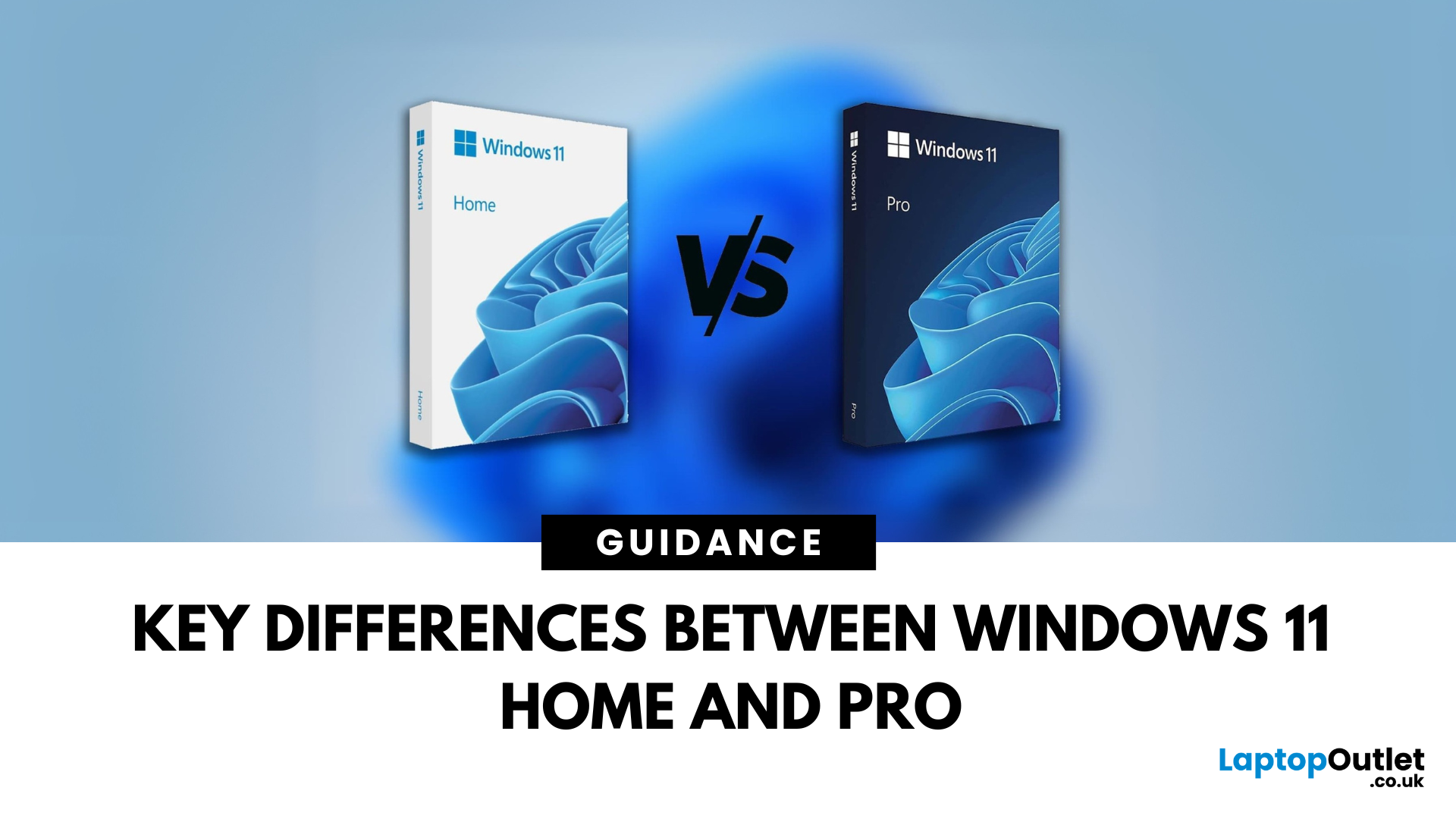
Planning an upgrade or buying a new laptop? You’ve probably noticed two editions of Windows 11: Home and Pro. But which one is right for you? Let’s compare their features to help you decide.
Who Should Choose Windows 11 Home?
Perfect for: Everyday users, students, gamers
- Clean, modern interface with widgets and Snap Assist
- Gaming-friendly with Auto HDR and DirectStorage
- All the essentials for secure and fast performance
- Supports Microsoft Store apps, voice access, and touchscreens
Think of Home as the all-rounder version—smooth for work, play, and everything in between.
Who Should Choose Windows 11 Pro?
Perfect for: Professionals, business users, advanced power users
Includes everything in Home plus extra business tools:
- BitLocker (for advanced device encryption)
- Hyper-V (virtualisation for running multiple OSes)
- Windows Information Protection (WIP)
- Remote Desktop for secure access on the go
Enhanced security with Windows Hello for Business and TPM 2.0
Can join
Published: October 08, 2025
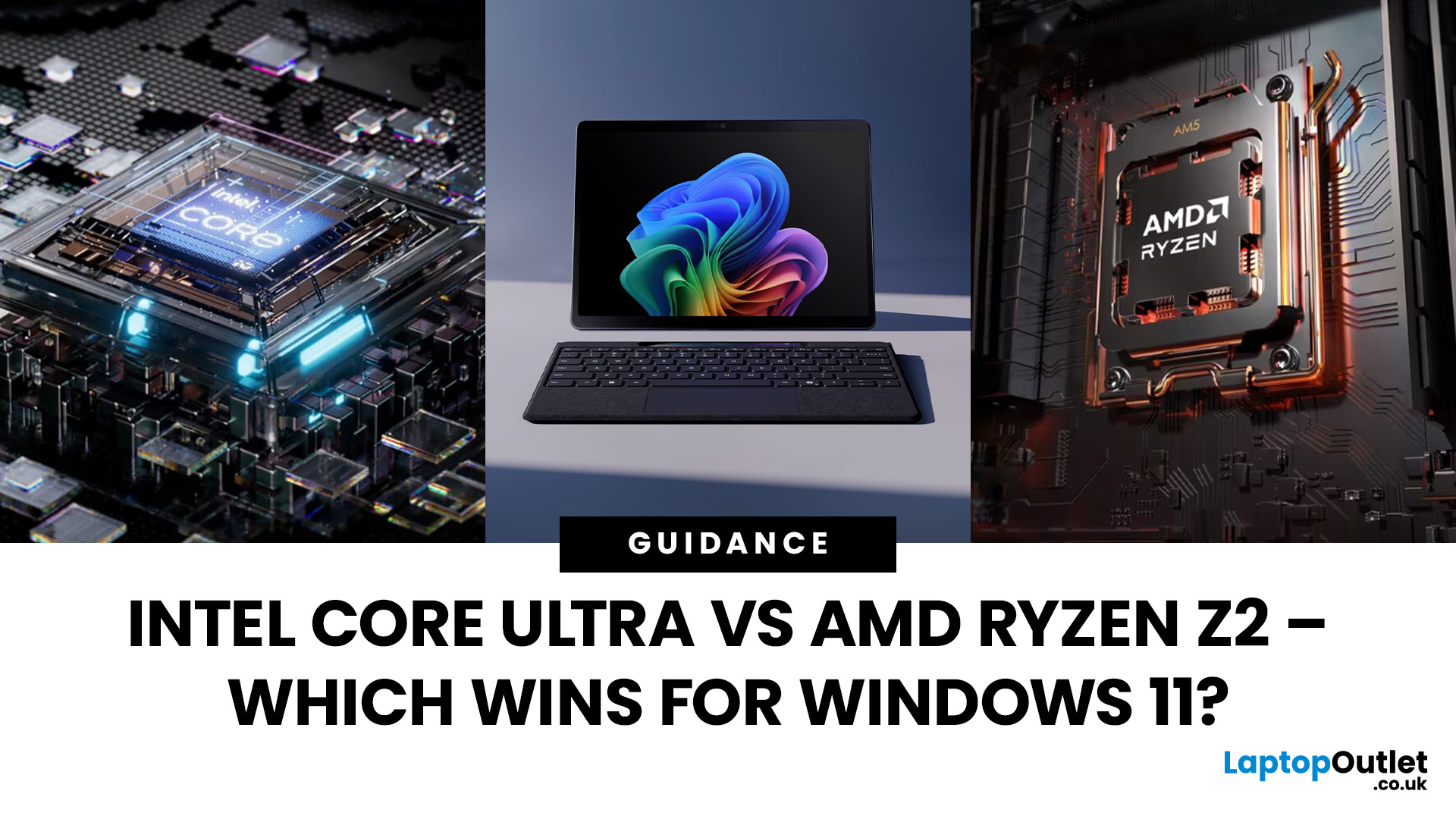
The battle between Intel and AMD has shaped the laptop world for decades. With the release of Intel Core Ultra processors and the new AMD Ryzen Z2 series, that rivalry has entered a new phase - one defined not just by raw speed, but also by AI integration, efficiency, and Windows 11 optimisation.
Intel’s Core Ultra chips (available in Core Ultra 5, 7, and 9 tiers) mark a major shift in design, blending performance and efficiency cores with a dedicated AI NPU (Neural Processing Unit). Meanwhile, AMD’s Ryzen Z2 processors are raising eyebrows with their RDNA 3.5 graphics and strong balance between performance and battery efficiency.
So, which one is better for you? In this guide, we’ll break down the Intel vs AMD Windows 11 laptops debate, comparing performance, AI features, battery life, and creative workloads. Whether you’re a student, gamer, or professional, by the end you’ll know which processor suits your needs.
Intel Core Ultra – What’s New?
Intel’s Core Ultra range is its most significant
Last Updated: February 24, 2026
Choosing the right gaming laptop in 2025 comes down to striking a balance between raw power, intelligent features, and future-ready design. With Windows 11 now fully optimised for AI-powered performance, Auto HDR, and DirectStorage 1.2, gaming has never been smoother or more immersive. Pair that with the latest NVIDIA RTX 40 and 50-series GPUs, and you get a portable machine that rivals desktop-level experiences.
This guide explores the best Windows 11 gaming laptops with RTX graphics, helping you understand which models deliver the most value for gamers in different categories — from budget RTX 4060 machines to ultra-premium RTX 5090 rigs. Whether you’re into esports, AAA titles, or content creation alongside gaming, these laptops are designed to keep up with your demands.
Why Windows 11 Gaming Laptops with RTX Graphics Stand Out
AI-Driven Gaming Features
Windows 11 laptops in 2025 integrate Windows Game Mode, Copilot, and AI-based resource management. Together, they ensure your CPU

Published: October 08, 2025
Choosing the right laptop in 2025 can be overwhelming, given the wide range of options available across budgets, designs, and performance levels. With Microsoft’s Windows 11 becoming the most optimised OS for hybrid work, gaming, and everyday use, selecting the right device is more important. In this Windows 11 laptops buying guide, we’ll cover everything you need to know before purchasing. From Windows 11 laptop comparisons to use-case specific recommendations for students, business users, and gamers, this guide ensures you make an informed decision.
Why Choose a Windows 11 Laptop?
Enhanced Performance
In 2025, Windows 11 is fully optimised for the latest Intel Core Ultra (Meteor Lake) and AMD Ryzen 8000/9000 series processors. These chips integrate dedicated NPUs (Neural Processing Units), which offload AI workloads from the CPU and GPU, resulting in:
- Faster multitasking across productivity apps like Microsoft 365, Adobe Creative Suite, and Teams.
- Improved power efficiency, extending
Last Updated: April 08, 2026
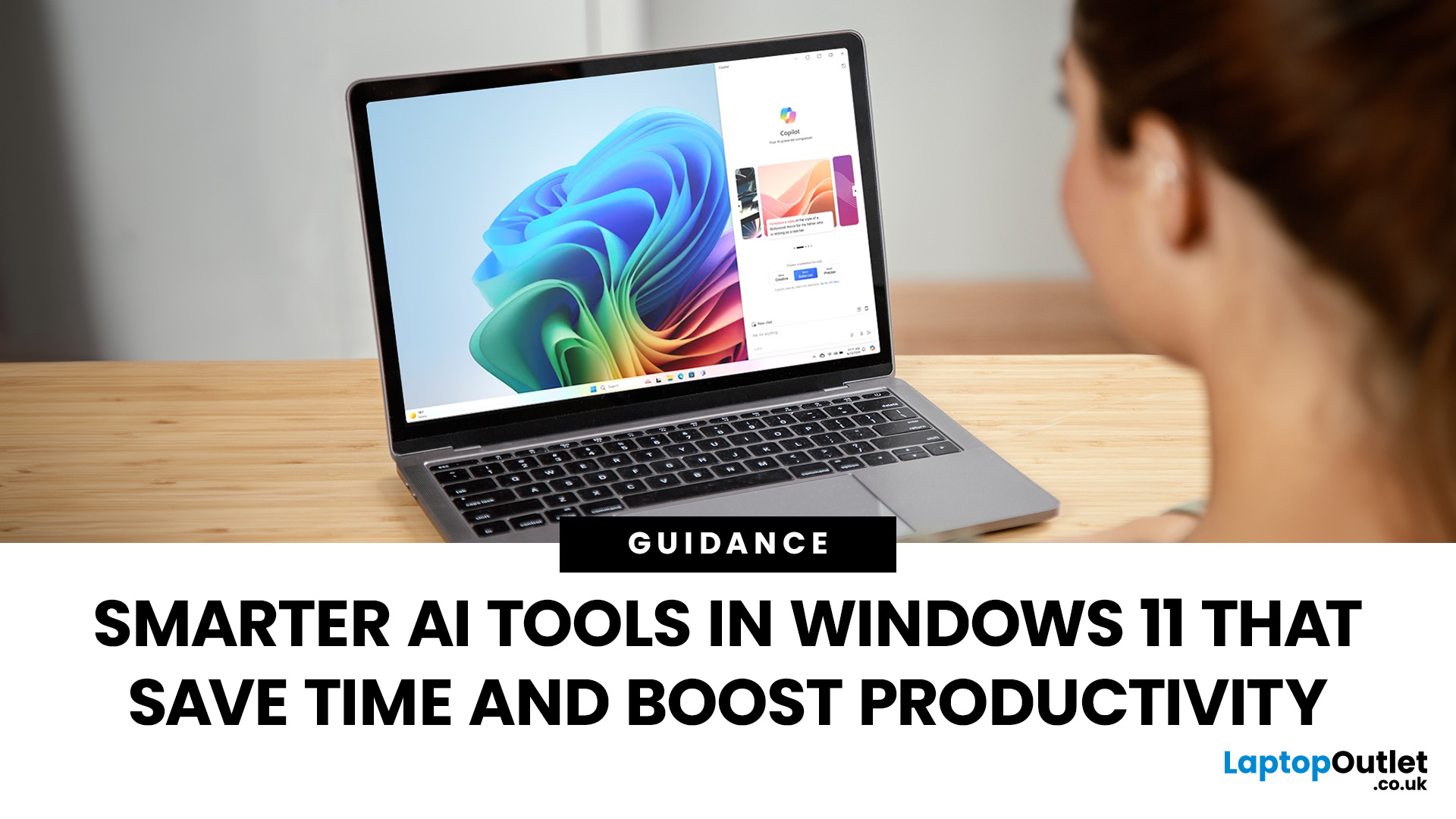
Remember when using a laptop was all about speed and specs i.e. faster processors, bigger storage, sharper screens? Those things still matter, but in 2025, the real game-changer is AI built directly into your PC. Microsoft’s new Windows 11 Copilot+ PCs are designed for exactly that.
Instead of just running apps faster, these laptops think alongside you. They can find files you barely remember creating, relight a photo as if you’re in a studio, or even recall what you were working on hours ago with a simple search. In short, they’re not just computers anymore - they’re collaborators.
In this post, we’ll dive into what makes Copilot+ special, unpack the latest AI tools in Windows 11, and show how customers can best benefit from these features.
What Makes a Copilot+ PC Different?
A Copilot+ PC is more than just a Windows 11 device. At its core is a Neural Processing Unit (NPU), a chip designed specifically to handle AI tasks. With this hardware in place, features like Recall and Windows

Last Updated: October 09, 2025
Think back a few years... when you bought a laptop, what did you care about most? Probably the processor, maybe RAM, and the graphics card if you were into gaming. The display? It was usually just “good enough.”
Fast forward to 2025, and the screen has become just as important as the hardware inside. Whether you’re streaming, gaming, editing photos, or juggling multiple apps, the display is what you interact with most — and it shapes your entire experience.
This is especially true with Windows 11 laptops, as the operating system is designed to take full advantage of modern display technologies. Its sharper interface, multitasking layouts, HDR support, and gaming optimisation features really shine when paired with quality screens.
That’s why today’s Windows 11 laptop display comparison often comes down to three main types: OLED, IPS, and Microsoft’s PixelSense. Each has unique strengths, trade-offs, and ideal use cases. Understanding them will help you pick the best display type for Windows
Last Updated: June 15, 2026
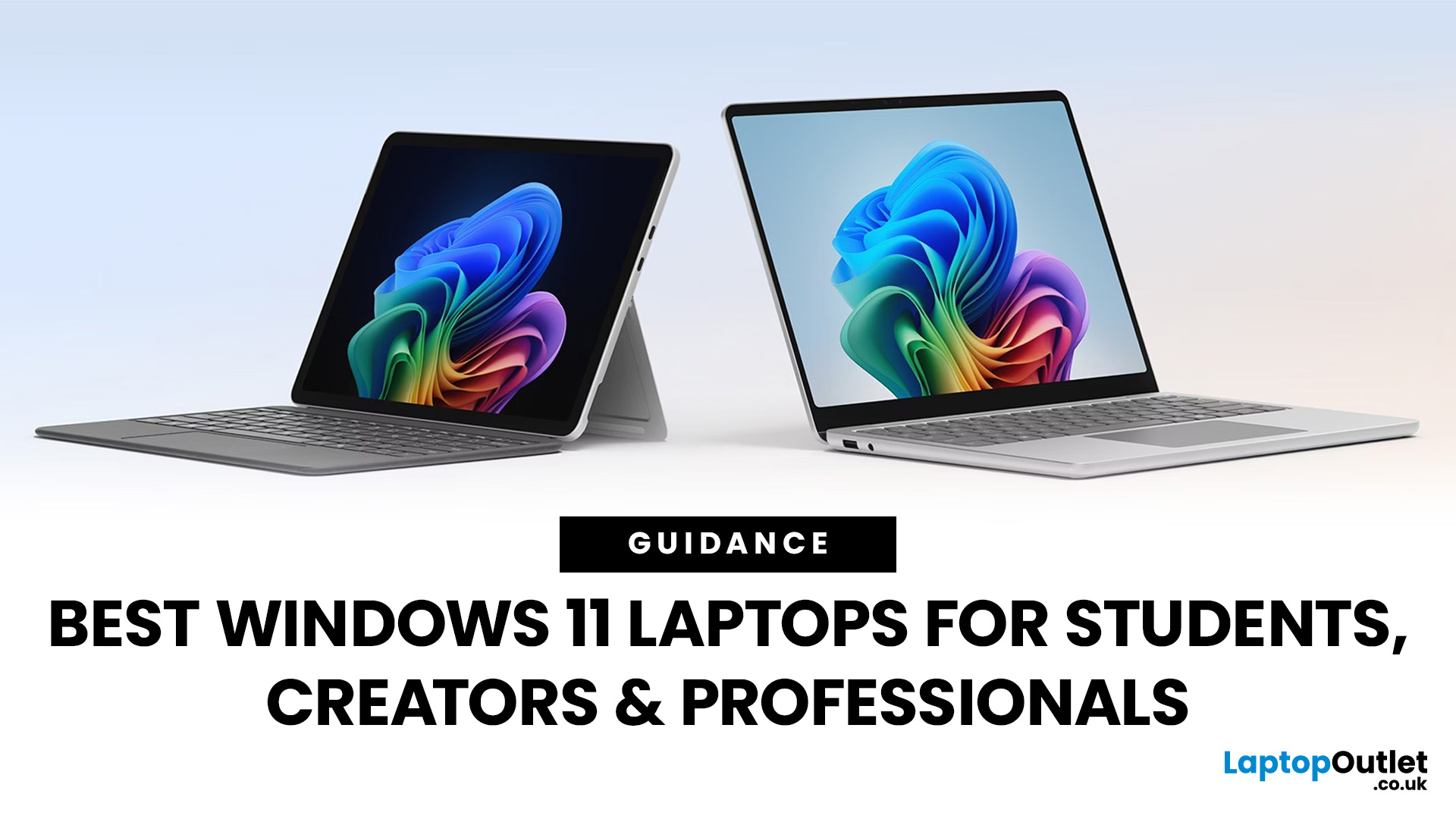
Choosing the right laptop has never been more important. Whether you are studying for exams, editing videos, or managing a full workload from home, the laptop you use makes a real difference. And right now, Windows 11 laptops are setting the standard for what a modern, capable machine should look and feel like.
Windows 11 brings a cleaner interface, better multitasking tools, improved security features, and built-in support for the latest AI-powered workflows. Add to that the wide range of hardware options available — from budget-friendly everyday machines to high-performance creative workstations — and it is clear why Windows 11 remains the go-to platform for most users in 2026.
But with so many options out there, knowing where to start can feel overwhelming. That is exactly why we put together this guide. We have split the best Windows 11 laptops into three clear categories — students, professionals, and creators — so you can find the right fit quickly.

