



How to Install or Upgrade a Laptop SSD: Step-by-Step Guide
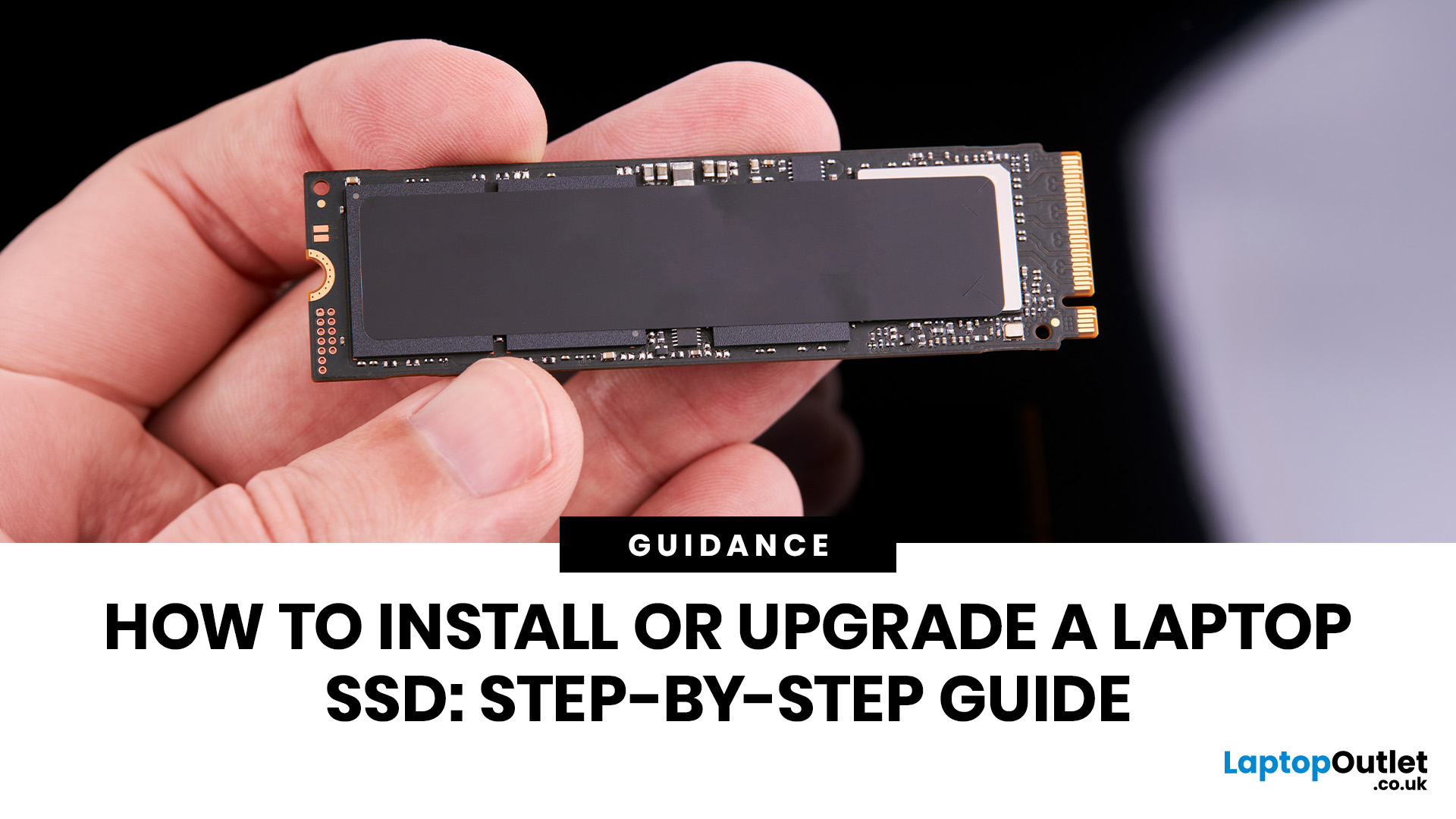
The computer that helped guide the Apollo missions worked with just 4 KB of RAM and around 72 KB of stored memory. Today, a modern laptop can burn through more than that just opening a few tabs.
That is how fast tech has moved and why an older laptop can suddenly feel frustratingly slow. Long boot times, laggy apps, and constant low-storage warnings can make even simple tasks feel harder than they should.
The good news is that you do not always need a brand-new machine. In many cases, upgrading your SSD is one of the easiest ways to make your laptop feel faster, smoother, and far more usable.
In this guide, we will show you how to upgrade a laptop SSD step by step, from checking compatibility to choosing the right drive and installing it properly.
Why upgrading your laptop SSD is worth it
Faster boot times, file transfers, and app loading
A slow laptop gets old fast. Long startup times, laggy apps, and endless waiting usually point to one thing: slow storage.
That is why how to upgrade laptop SSD is such a common search. A solid-state drive can speed up boot times, app loading, file transfers, and everyday multitasking. In simple terms, it makes your laptop feel quicker, smoother, and far less frustrating to use.
More storage for games, work files, photos, and software
Speed is one part of the upgrade. Space is the other.
When you upgrade laptop storage to SSD, you get more room for games, work files, apps, photos, and everyday downloads without constantly deleting things to free up space. That is also why people search how to add SSD in laptop or how to install SSD in laptop. Sometimes the goal is not replacing the old drive, just adding more usable storage.
Why an SSD upgrade often feels better than buying a new laptop
A slow laptop does not always mean you need a new one. Sometimes the real issue is just outdated or limited storage.
In that case, it often makes more sense to install SSD in laptop first. It is a simpler, more cost-effective upgrade that can make the device feel faster and more responsive without replacing the whole machine.
At a glance: what an SSD upgrade actually improves
|
What changes |
What it feels like in real life |
|
Boot times |
Your laptop starts in a normal-human amount of time |
|
App loading |
Programs open when you click them, not when they feel like it |
|
File transfers |
Big files move faster and with less waiting around |
|
Storage space |
Less deleting old stuff just to install one new thing |
|
Everyday performance |
The whole laptop feels smoother, lighter, and less dramatic |
Quick reality check
An SSD upgrade will not magically fix every problem. If your laptop also has very low RAM, overheating issues, or an old processor, those things still matter. But when storage is the main pain point, upgrading to an SSD is easily one of the most effective changes you can make.
That is why this guide matters. Before you buy anything or start opening screws, the next step is making sure your laptop actually supports the kind of SSD upgrade you have in mind.
Can you add or replace an SSD in any laptop?
How to check if your laptop supports an SSD upgrade
Not every laptop supports the same storage upgrade. Check your exact model to confirm the drive type, slot count, and whether it supports M.2 NVMe, M.2 SATA, or 2.5-inch SATA.
The difference between replacing a drive and adding a second SSD
Replacing a drive means swapping out the current storage for a new one. Adding a second SSD means keeping the old drive and using an extra slot, which is usually what people mean by how to add SSD in laptop, while how to upgrade laptop SSD often means replacing the main drive.
When a laptop is upgradeable and when it is not
Some laptops are easy to upgrade, while others have soldered or limited storage. Before learning how to install SSD in laptop, make sure your laptop actually supports the upgrade.
Quick check: is your laptop likely upgradeable?
|
What to look for |
What it usually means |
|
Service manual shows storage removal steps |
Good sign, the SSD is likely replaceable |
|
Laptop has an M.2 slot plus a 2.5-inch bay |
You may be able to add a second SSD |
|
Only one storage slot is listed |
You can probably upgrade, but only by replacing the current drive |
|
Storage is marked as soldered |
Bad news, upgrade options are very limited or non-existent |
|
SSD size is listed as 2230, 2242, or 2280 |
You need to match the correct form factor before buying |
Before you buy anything
Check these first:
- your exact laptop model number
- current storage type
- whether there is one slot or two
- supported SSD format
- supported SSD length or form factor
- whether you need a bracket, cable, or adapter
Get that right, and the rest of the upgrade gets way easier. Get it wrong, and you are just online shopping with confidence and no direction.
Understanding laptop SSD types before you buy
M.2 NVMe vs M.2 SATA vs 2.5-inch SATA SSDs
Okay, this is where a lot of people get humbled by storage jargon.
You start shopping for an SSD and suddenly every product page is throwing around terms like M.2, NVMe, SATA, and 2.5-inch like you were supposed to know all of this from birth. But the difference is actually not that deep once someone explains it like a normal person.
Let’s make it simple.
2.5-inch SATA SSDs are the older, more traditional style. They look a bit like slim little hard drives and usually connect with a cable inside the laptop. They are still way faster than old hard drives, but they are not the fastest SSD option out there.
M.2 SATA SSDs are smaller, slimmer drives that plug directly into the motherboard. They look modern, take up less space, and skip the cables, but they still use SATA speeds.
M.2 NVMe SSDs are the real speed demons. Same slim style, but much faster because they use PCIe instead of SATA to move data. If your laptop supports NVMe, that is usually the better pick for speed-focused upgrades.
So yes, all NVMe drives can be M.2, but not all M.2 drives are NVMe. That is the part that catches people out.
SSD sizes and form factors like 2230, 2242, and 2280
Now for the next bit of chaos: size.
And no, we are not talking about storage size like 512GB or 1TB. We are talking about the physical size of the SSD itself. That is what numbers like 2230, 2242, and 2280 mean.
It sounds complicated, but it is actually just dimensions:
- 2230 = 22mm wide, 30mm long
- 2242 = 22mm wide, 42mm long
- 2280 = 22mm wide, 80mm long
The width usually stays the same. The length changes.
Most laptops that use M.2 SSDs commonly support 2280, but not always. Some compact laptops and handheld-style devices use shorter drives like 2230. So, if your laptop only supports one specific size and you buy a different one, that SSD is not going in no matter how motivational your attitude is.
That is why form factor matters just as much as speed. A fast SSD that does not fit is still useless.
How to choose the right SSD for your laptop model
This is the part where you stop shopping based on vibes.
Before buying anything, match the SSD to your exact laptop model. That means checking:
- the storage interface
- the supported form factor
- whether your laptop has one slot or more than one
- whether you are replacing the main drive or adding extra storage
If your laptop supports M.2 NVMe, great. That usually gives you the best performance. If it only supports M.2 SATA or 2.5-inch SATA, that is still fine. The goal is not to buy the most expensive SSD on the internet. The goal is to buy the one your laptop can actually use.
Also, think about capacity. If you mostly browse, stream, study, and store everyday files, 512GB can be a solid upgrade. If you keep large games, edit videos, or store loads of photos and software, 1TB or more is usually the smarter move.
So, when people ask how to install a solid-state drive or how to use SSD in laptop, this is the prep that makes the whole process smoother. Pick the right drive first, and everything after that gets a lot less messy.
SSD types at a glance
|
SSD type |
What it looks like |
Speed level |
Best for |
|
2.5-inch SATA SSD |
Small rectangular drive with cable connection |
Good |
Older laptops upgrading from hard drives |
|
M.2 SATA SSD |
Slim stick-style drive |
Better |
Laptops with M.2 slots that do not support NVMe |
|
M.2 NVMe SSD |
Slim stick-style drive |
Fastest |
Modern laptops needing better speed and responsiveness |
Quick rule before you buy
- If your laptop supports NVMe, go for it.
- If it only supports SATA, do not force it.
- And if you have not checked the form factor yet, you are not ready to buy.
That is the golden rule.
What you need before installing an SSD in a laptop
Essential tools, accessories, and safety checks
Before you start, get the basics ready: a screwdriver, your new SSD, and a clean surface. If your laptop has one slot and you plan to clone, you may also need a USB enclosure or adapter.
Shut the laptop down, unplug it, and avoid static damage while working.
Backing up your files or cloning your current drive
Before you install SSD in laptop, choose whether to back up your files or clone the current drive.
A backup saves your important data elsewhere. Cloning copies Windows, apps, and files to the new SSD. If your laptop has one SSD slot, cloning is often the easier option.
Important prep steps like checking BitLocker, battery, and warranty
Check BitLocker or device encryption before upgrading and keep the recovery key ready. Also check the battery setup and warranty terms, especially if your laptop has an internal battery or limited upgrade support.
Before you open a single screw
|
What you need to check |
Why it matters |
|
Correct SSD type and size |
Because “almost compatible” is still not compatible |
|
Screwdriver set |
Tiny screws do not respond to brute force |
|
Backup or cloning plan |
So your data does not disappear into the void |
|
External enclosure or adapter |
Useful if you are cloning on a one-slot laptop |
|
BitLocker or device encryption |
You may need the recovery key after the upgrade |
|
Warranty and service manual |
Saves you from avoidable surprises |
Quick prep checklist
Before you move on, make sure you have done these:
- confirmed your laptop supports the SSD you bought
- backed up your files or prepared to clone the drive
- powered the laptop off fully
- unplugged the charger
- checked for battery and encryption issues
- kept your screws, tools, and sanity in one place
Do that first, and the actual installation part becomes way less stressful and way more manageable. Next up, we get into the real part: how to replace the old drive with the new SSD properly.
How to install SSD in laptop if you are replacing the old drive
Open the laptop and locate the existing storage drive
Shut the laptop down, unplug it, and remove the bottom panel carefully. Then find the current drive.
An M.2 SSD looks like a slim stick on the motherboard, while a 2.5-inch SATA drive sits in a bay or connects with a cable. Before you go further, make sure the new SSD matches the same type and size.
Remove the old SSD or hard drive and fit the new one properly
To install SSD in laptop, remove the old drive gently and fit the new one in the same slot.
For M.2 SSDs, unscrew the drive, slide it out, insert the new one, and secure it. For 2.5-inch drives, remove the bracket or cable, move any needed parts to the new SSD, and fit it properly.
Reassemble the laptop and check that the new SSD is detected
Close the laptop, screw the panel back on, and power it up. If you cloned the old drive, Windows may boot normally. If not, the laptop may open BIOS or ask for an operating system.
The main thing is to check whether the SSD is detected. You can do that in BIOS/UEFI, Windows setup, or Disk Management.
SSD replacement in one quick flow
|
Step |
What you do |
What matters most |
|
Open the laptop |
Remove the bottom panel carefully |
Do not force clips or screws |
|
Find the current drive |
Identify whether it is M.2 or 2.5-inch SATA |
Match it with your new SSD |
|
Remove the old drive |
Unscrew and disconnect it properly |
Keep screws and brackets safe |
|
Install the new SSD |
Fit it into the correct slot or bay |
Gentle alignment beats brute force |
|
Reassemble and power on |
Close the laptop and boot it up |
Check if the SSD is detected |
Quick “don’t mess this up” checklist
- do not force the SSD into the slot
- do not lose the tiny mounting screw
- do not mix up SATA and NVMe drives
- do not forget to transfer the bracket if your laptop uses one
- do not panic if a blank SSD does not boot straight into Windows
You are not trying to make it look impressive. You are trying to make it work cleanly.
How to add SSD in laptop if there is an extra slot
How to find the spare M.2 or 2.5-inch bay
If your laptop has an extra slot, you can keep the current drive and add more storage. Open the laptop and check for an empty M.2 slot or 2.5-inch bay.
Before you buy anything, confirm the SSD type and size your laptop supports.
Insert and secure the new SSD correctly
To how to add SSD in laptop properly, fit the new SSD into the spare slot and secure it with the screw, bracket, or cable your laptop uses.
An M.2 SSD slides into the slot at an angle. A 2.5-inch SATA SSD usually fits into a bay and may need a cable or caddy.
What to do after installation so the laptop can use the drive
After you install SSD in laptop, the new drive may still need to be set up before it appears in File Explorer.
Open Disk Management and check if the SSD shows as unallocated space. If it does, initialise it, create a volume, and format it so the laptop can use it properly.
Adding an SSD vs replacing one
|
Upgrade type |
What happens |
Best for |
|
Replacing the old drive |
You remove the current drive and install a new SSD in its place |
Laptops with only one storage slot |
|
Adding a second SSD |
You keep the current drive and install another SSD in the spare slot |
Laptops with extra storage support |
|
Using the new SSD as storage only |
The old drive keeps Windows, the new one stores files and apps |
Users who want more space without changing the boot drive |
|
Using the new SSD later as main storage |
You add it now, then move files or apps over time |
Users who want a slower, safer transition |
Quick win checklist
If your laptop has a spare slot, make sure you:
- confirm the extra slot actually supports your SSD type
- check whether you need a bracket, screw, or cable
- install the SSD gently and securely
- boot the laptop and check if the drive is detected
- initialise and format the SSD if it does not appear straight away
This is one of the easiest ways to upgrade laptop storage to SSD without disturbing your current setup too much.
How to move Windows and files to your new SSD
When to clone your old drive and when to do a clean install
If you want to keep Windows, apps, and files exactly as they are, cloning is the easier option. It copies your current setup to the new SSD.
A clean install is better if you want a fresh start and do not mind reinstalling everything.
How cloning works on laptops with one SSD slot
If your laptop has one SSD slot, connect the new SSD externally with a USB enclosure or adapter, then clone the old drive to it.
After that, shut the laptop down, replace the old drive with the new SSD, and power it back on. Just make sure the new SSD has enough space for the data you are moving.
How to boot from the new SSD after migration
Once the new SSD is installed, turn the laptop on. If it does not boot straight into Windows, open BIOS/UEFI and set the new SSD as the main boot drive.
When Windows loads, check that your files, apps, and settings are all there.
Clone vs clean install: the no-stress version
|
Option |
What it does |
Best for |
|
Clone the old drive |
Copies Windows, apps, files, and settings to the new SSD |
People who want the easiest transition |
|
Clean install Windows |
Installs a fresh system on the new SSD |
People who want a cleaner, less cluttered setup |
|
Clone with a USB enclosure |
Let's one-slot laptops move data before swapping drives |
Laptops without a second SSD slot |
|
Fresh setup after upgrade |
Starts from zero and rebuilds everything manually |
Users fixing years of software mess |
Quick decision cheat sheet
Go with cloning if:
- you want to keep your current setup
- you do not want to reinstall apps
- your laptop is working fine and just needs faster storage
Go with a clean install if:
- your system feels bloated or messy
- you want a more polished reset
- you do not mind reinstalling programs and signing back in to everything
This is the part where your SSD upgrade stops being just hardware and starts becoming a proper laptop glow-up.
Common laptop SSD upgrade mistakes to avoid
Buying the wrong SSD type or size
This is the classic mistake. People buy a fast SSD, then realise their laptop does not support it. Pain.
Before you order anything, check:
- SSD type: NVMe, M.2 SATA, or 2.5-inch SATA
- form factor: 2230, 2242, 2280
- whether your laptop has one slot or two
A powerful SSD that does not fit is just expensive decoration.
Forgetting to back up data or check compatibility first
A lot of upgrade problems start before the laptop is even opened.
If you skip backup, skip cloning prep, or skip checking the laptop model, you are basically hoping the universe carries the process for you. It will not. Save your files, check the specs, and make sure the upgrade actually makes sense for your system.
Skipping BIOS, boot order, or formatting steps
Sometimes the SSD is installed perfectly, but the laptop still does not boot or show the drive properly. That is usually because the setup after installation got ignored.
If the SSD is your new main drive, check the boot order. If it is a second drive, it may need to be initialised and formatted first. Hardware done, software still matters.
Quick mistake check
|
Mistake |
What happens |
|
Wrong SSD type |
It does not fit or work |
|
No backup |
Risk of losing files |
|
No compatibility check |
Wasted time and money |
|
No boot setup |
Laptop does not load Windows |
|
No formatting |
New SSD does not appear properly |
Troubleshooting if the new SSD is not working
What to do if the laptop does not detect the SSD
First: do not panic.
If the laptop is not detecting the SSD, check the obvious stuff first:
- is the SSD seated properly?
- is the screw secure?
- is it the correct SSD type for the slot?
- did you miss a connector or bracket?
A lot of the time, it is a fit or compatibility issue, not instant disaster.
What to do if Windows does not boot after the upgrade
If Windows does not load, the laptop may still be trying to boot from the wrong drive. Go into BIOS/UEFI and make sure the new SSD is selected as the main boot device.
If you did a clone, also check that the cloning process completed properly. If you did a clean install, make sure Windows was actually installed onto the new SSD and not just prepared halfway.
What to check if the SSD appears but cannot be used properly
If the SSD shows up in BIOS or Disk Management but not in File Explorer, it probably needs to be set up.
That usually means:
- initialise the disk
- create a volume
- assign a drive letter
- format it
So yes, the SSD may already be fine. It just is not fully ready to use yet.
SSD troubleshooting cheat sheet
- Not detected at all? Reseat it and recheck compatibility
- Detected but no Windows? Check boot order
- Detected but no storage shown? Initialise and format it
- Clone failed? Retry with less used data and a proper enclosure
- Still broken? Recheck the laptop manual and SSD specs
Is it better to upgrade laptop storage to SSD or buy a new laptop?
When an SSD upgrade is the smarter and cheaper choice
If your laptop still does the basics well and just feels slow, an SSD upgrade is usually the smarter move.
You keep the machine you already know, spend less money, and still get a very noticeable improvement in speed and responsiveness. For a lot of people, that is enough.
When your laptop may also need more RAM or a full replacement
Now, if your laptop is old-old, constantly overheating, struggling with multitasking, or running on very low memory, storage might not be the only issue.
In that case, pairing the SSD upgrade with the best RAM for laptops can make a bigger difference. And if the machine is seriously outdated, it may be time to explore all laptops instead.
How to decide based on age, performance, and upgrade limits
Ask yourself three simple things:
- does the laptop still do what I need?
- is storage the main problem?
- is the laptop actually upgradeable?
If the answer is mostly yes, an SSD upgrade makes sense. If the laptop has multiple weak points and limited upgrade options, buying new may be the better long-term move.
Upgrade or replace?
|
Situation |
Best move |
|
Laptop is slow but otherwise fine |
Upgrade to SSD |
|
Storage is full, performance is okay |
Add or replace with SSD |
|
Laptop also struggles with multitasking |
Consider SSD + RAM upgrade |
|
Laptop is very old and limited |
Consider replacing it |

Final thoughts
Upgrading your laptop SSD is one of the easiest ways to make a slow, cramped laptop feel useful again.
It can give you faster boot times, more storage, quicker app loading, and a much smoother everyday experience without the cost of replacing the whole machine. The main thing is getting the right SSD for your laptop, preparing properly, and following the install steps without rushing.
Do that, and this is not a scary upgrade at all. It is just a smart one.
If you are ready to upgrade, check out high-speed internal SSDs for compatible options, or buy an external hard drive if you want extra backup or storage on the side.

FAQs
Can I install an SSD in any laptop?
Not every laptop supports the same kind of SSD upgrade. Some let you replace the drive, some let you add a second one, and some have limited or soldered storage.
Is it better to replace HDD with SSD in a laptop?
Yes, in most older laptops, replacing a hard drive with an SSD gives a huge speed boost and makes the system feel much more responsive.
Can I add SSD to laptop without removing the old drive?
Yes, but only if your laptop has an extra storage slot or bay.
Do I need to reinstall Windows after upgrading my laptop SSD?
Not always. If you clone your old drive, you can keep Windows, apps, and files without reinstalling everything.
How do I know what SSD is compatible with my laptop?
Check your laptop model, service manual, current storage type, supported SSD format, and form factor before buying.
Will upgrading to SSD make an old laptop faster?
In many cases, yes. It is one of the most noticeable upgrades you can make, especially if the laptop is still using an old hard drive.
Related Articles

Last Updated: September 09, 2025
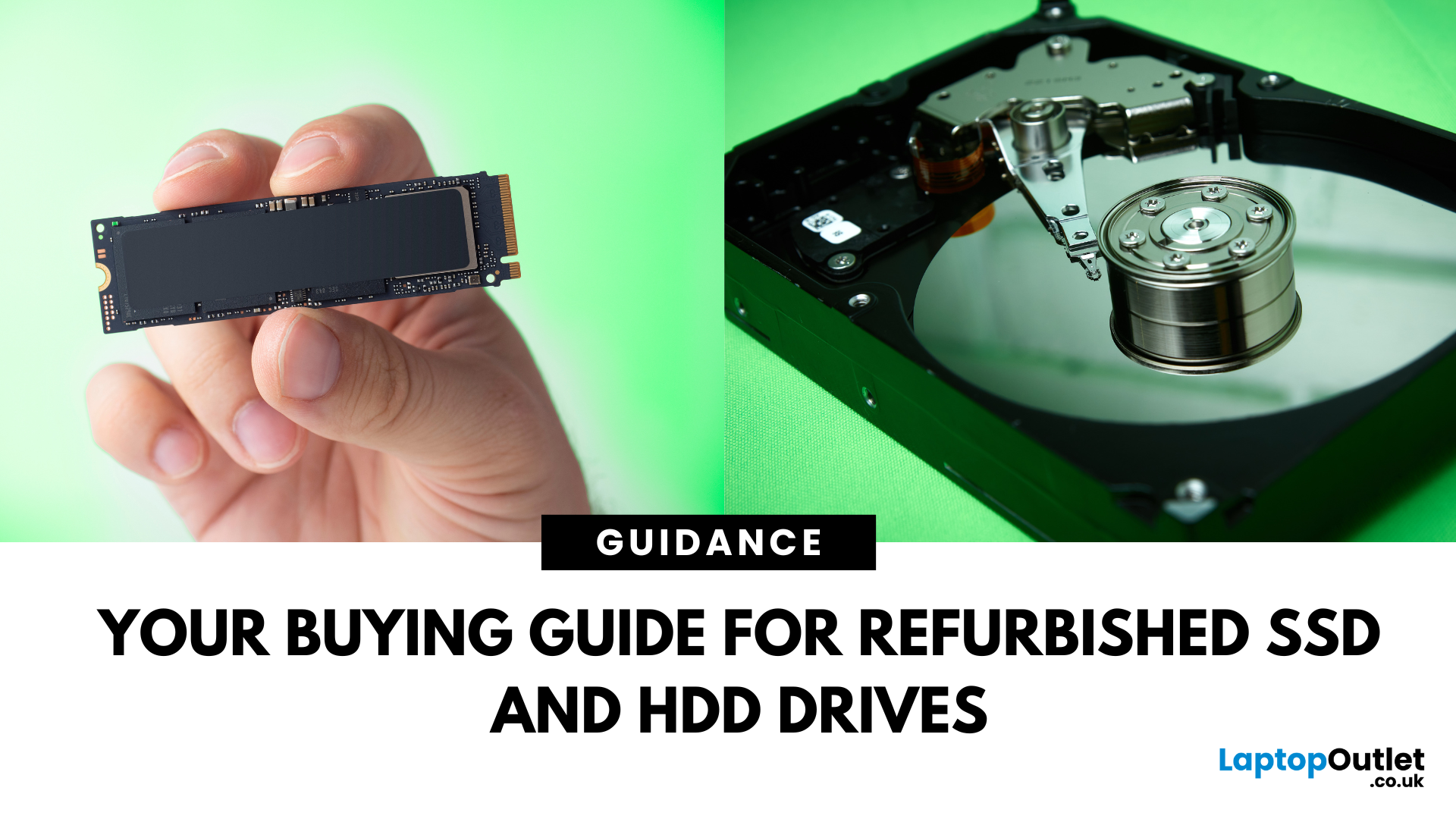
Need more storage or speed but don’t fancy paying full price? Buying a refurbished SSD or HDD could be the budget-friendly solution you’re after. Whether you're upgrading your current device or adding extra space for files, games, or media, refurbished drives offer great value without compromising functionality.
However, not all refurbished storage is created equal. To ensure your investment lasts and performs well, you need to understand the difference between drive types, evaluate their health, and select based on your specific needs, whether it’s for day-to-day use, gaming, or business tasks.
This guide covers everything you should know before buying refurbished SSD or HDD, external refurbished drives, or upgrading your refurbished SSD laptop. It’s your go-to resource for making a smart, informed choice.
Understanding the Difference Between SSD and HDD
When choosing between a refurbished SSD and HDD, it’s important to know how each works and which suits your needs better. Both offer
Last Updated: October 14, 2025
Meet the ROG Ally — the Portable Gaming Beast
If you’ve been anywhere near gaming TikTok or Reddit lately, you’ll know the ASUS ROG Ally has taken the handheld scene by storm. It’s sleek, powerful, and gives a proper run for its money. But beyond its flashy white shell and 120 Hz display, there’s one detail everyone’s curious about: how fast is the storage really?
What Kind of SSD are We Talking About?
The 512 GB variant packs a PCIe Gen 4 NVMe SSD, fancy words for “blistering quick”, running over the M.2 2230 form factor (the compact size used in handhelds).
Typical specs:
- Sequential Read Speed – around 5,000 MB/s
- Sequential Write Speed – around 3,500 MB/s
- Random 4K Read/Write – 500K / 600K IOPS
That’s several times faster than older SATA SSDs and absolutely galaxies ahead of traditional hard drives. Translation? Instant game launches, smoother texture streaming, and snappier OS performance.
What is ROG Xbox Ally 512GB SSD Speed in Real-World Use?

Loading Times
When you’re booting
Last Updated: April 02, 2026
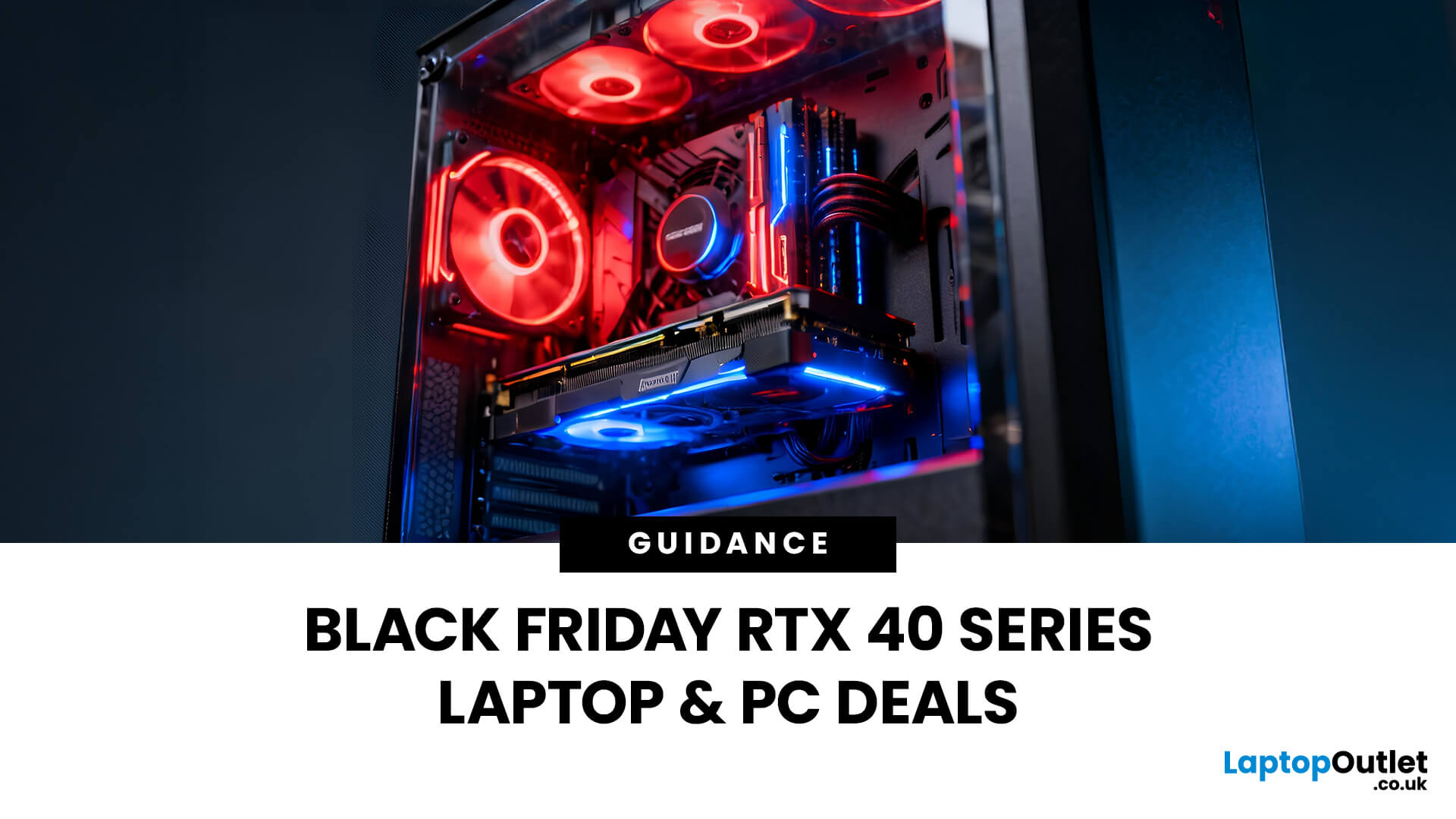
Black Friday 2025 is set to bring some of the best deals we’ve seen yet on gaming laptops and PCs, especially those powered by NVIDIA’s RTX 40-series graphics. But this year, smart buyers aren’t just chasing discounts, they’re targeting the right specs for lasting performance. The RTX 4060 and RTX 4070 GPUs have become the ideal mid-to-high range picks, balancing power, efficiency, and price. Pair that with fast DDR5 RAM and a 1TB NVMe SSD, and you have a future-ready setup built for modern gaming. This guide breaks down exactly what to look for in fast DDR5 RAM and a 1TB NVMe SSD, and you have a future-ready setup built for modern gaming. This guide breaks down exactly what to look for and make the most of Black Friday gaming laptop deals (RTX 4070) in the UK.
The 2025 Gaming Hardware Landscape: What’s Changed
Gaming hardware has evolved quickly over the past year, and 2025’s market looks very different from before. NVIDIA’s RTX 40-series GPUs, like the RTX 4060 and RTX 4070, now deliver

Last Updated: February 17, 2026
Storage problems aren’t just annoying; they’re productivity killers. Studies show that nearly 60% of laptop slowdowns are linked to storage-related issues, whether it’s low disk space, corrupted files, or failing SSDs. When your drive is over 85% full, performance can drop significantly because your system has less room to manage temporary files and virtual memory. Add disk errors or early SSD/HDD failure into the mix, and suddenly your “quick task” turns into a 30-minute meltdown.
Laptop storage issues don’t just slow things down, they risk your data, crash your apps, and test your patience.
The good news? Most storage problems are fixable in real time. In this guide, we’ll break down exactly what’s happening, why it’s happening, and how to fix it step-by-step, no tech degree required.
SSD vs HDD: What’s Actually Inside Your Laptop (And Why It Matters)

Before you panic about laptop storage issues, you need to know what you’re working with. Not all drives fail the same way and the fix

Last Updated: March 13, 2026
Modern workplaces are more screen-based than ever and in the UK, the average office employee now spends over 6 hours a day looking at a monitor. For businesses, that makes display choice more than just a tech detail; it’s a productivity and wellbeing decision.
The right ASUS business monitors can improve workflow efficiency, reduce eye strain, and support hybrid teams with flexible connectivity like USB-C docking. Whether you’re equipping a corporate office, a call centre, or a growing enterprise rolling out hundreds of workstations, choosing the right monitor spec matters.
In this buying framework, we’ll break down what UK organisations should prioritise, from screen size and ergonomics to ASUS Eye Care features, bulk purchasing, and the best monitor options for business use in 2026.
Why ASUS Monitors Work Well for Modern Workplaces

In today’s business environment, monitors are no longer just office accessories, they’re core productivity tools. From finance teams working across spreadsheets
Last Updated: April 14, 2026
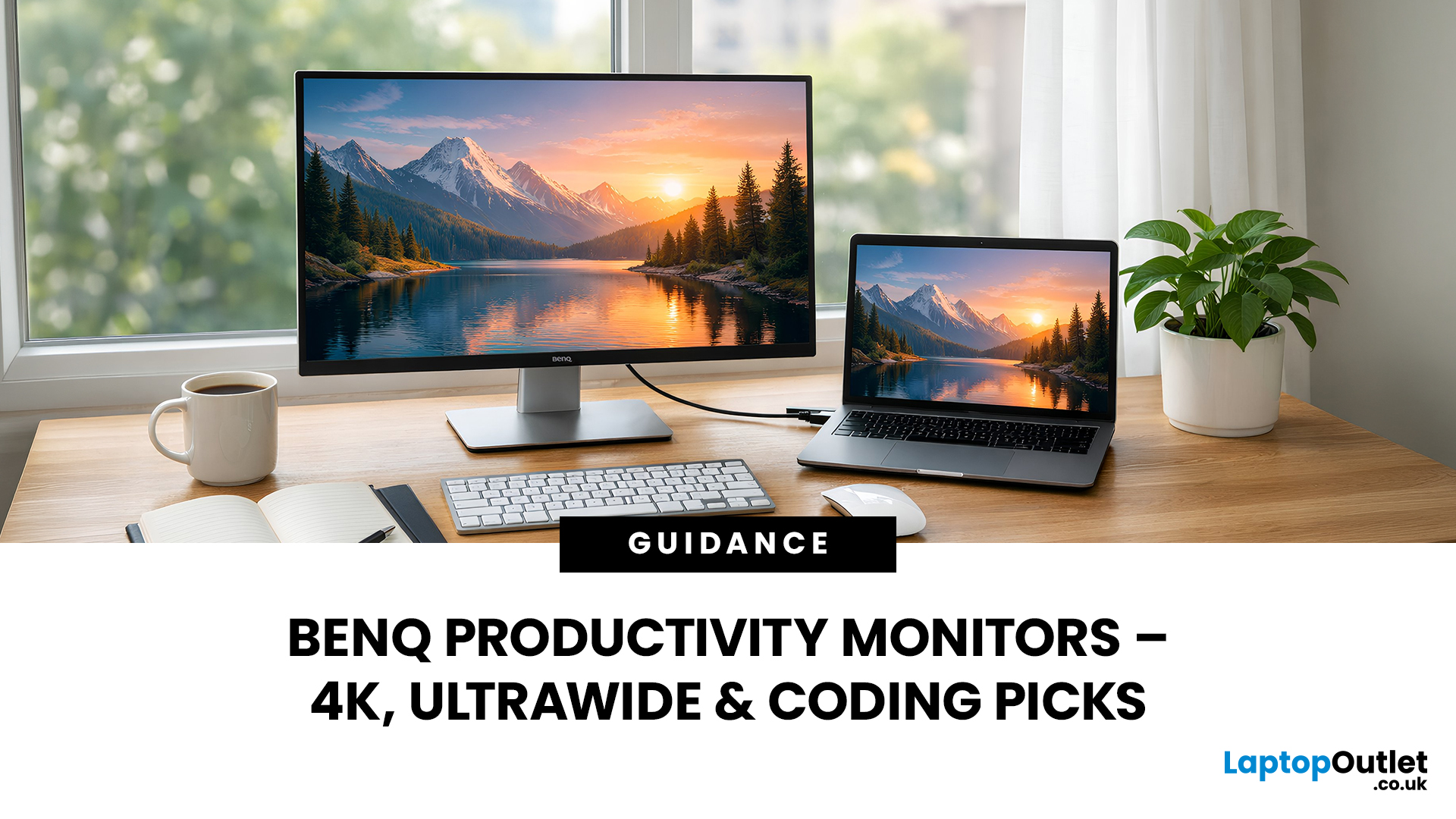
When you spend hours each day working across spreadsheets, dashboards, documents, or lines of code, your monitor becomes more than just a screen. It becomes the centre of your workflow. The right display can make work feel smoother, reduce fatigue, and help you stay focused for longer.
That’s exactly where BenQ productivity monitors stand out. Designed with knowledge workers, developers, and multitaskers in mind, BenQ offers a range of displays built for modern professional demands. Whether you need pixel-perfect clarity, extra-wide space for multiple apps, or coding-specific features, there’s a BenQ option tailored to the way you work.
Why Productivity-Focused Monitors Matter for Knowledge Work
A standard office monitor can get the job done, but knowledge work has evolved. Today’s workflows often involve multiple applications running side by side, detailed content review, long hours of screen time, and constant context switching. That’s why choosing the right monitor is no longer just
Last Updated: May 01, 2026
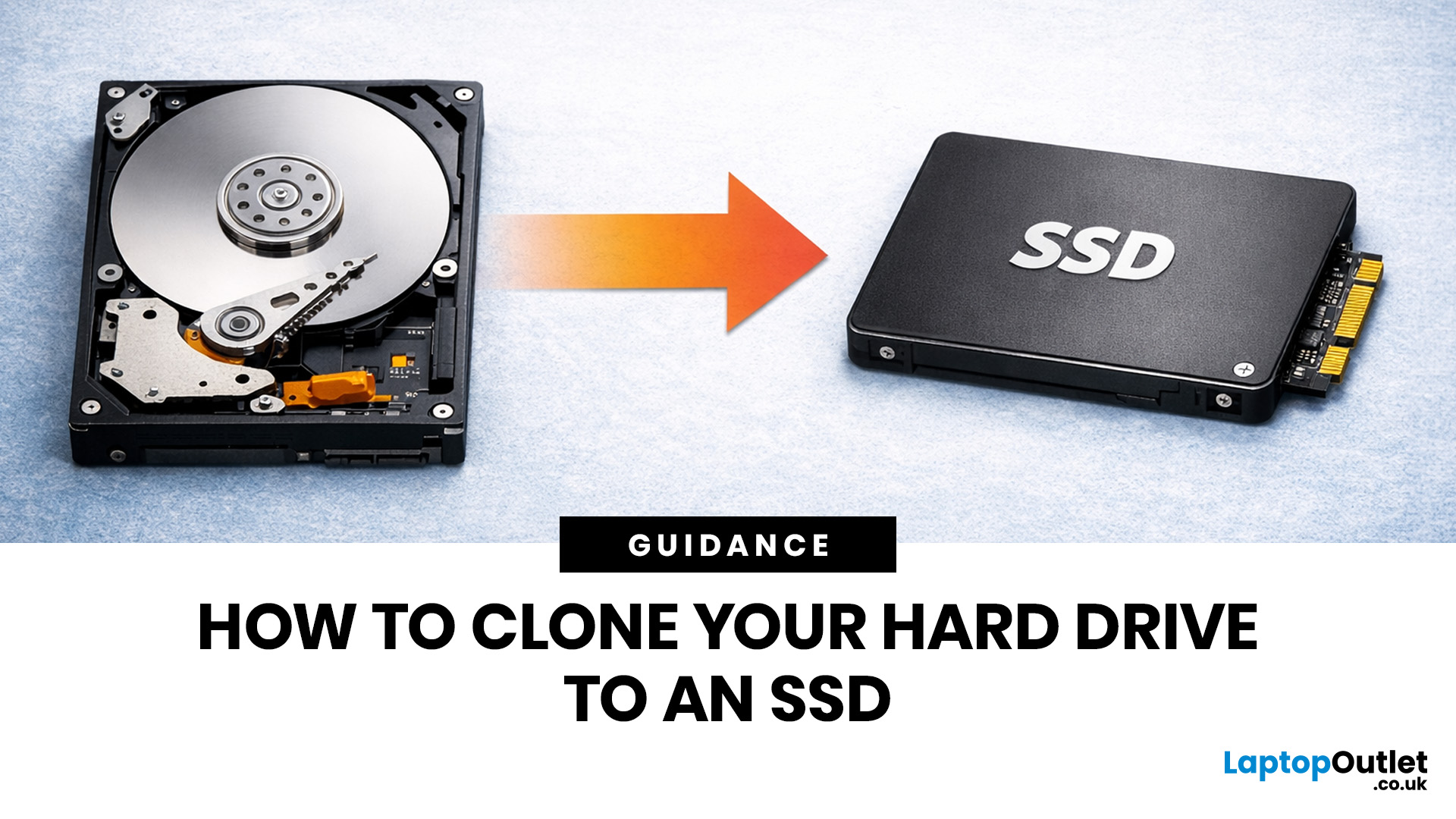
If your laptop feels slow to boot, takes too long to open files, or struggles with everyday performance, it may be time to clone hard drive to SSD and give your system a faster, more responsive upgrade. Moving from a traditional hard disk drive to a solid-state drive is one of the most effective ways to improve speed without replacing your entire device.
In this guide, you’ll learn how to clone a hard drive safely, what you need before you start, and how to handle the SSD migration process step by step. Whether you want to clone HDD to SSD for quicker startup times or simply transfer hard drive to SSD without losing your files, this guide will help you do it with confidence.
Why Upgrade from HDD to SSD?
A hard disk drive stores data using moving parts, while an SSD uses flash memory to access files much faster. That means quicker boot times, faster app launches, smoother multitasking, and less waiting around. If you use your laptop daily for work, study, browsing, or entertainment, choosing
Last Updated: May 01, 2026
Formatting an SSD takes less than five minutes when you know what you're doing. The tricky part is knowing which tool to use, which file system to pick, and how to avoid losing data along the way. That's exactly what this guide covers.
You will learn how to format a solid state drive on Windows, macOS, and Linux laptops, with step-by-step instructions for each. You'll also find out how to partition your SSD and wipe it securely when needed.
Before You Start: What You Need to Know
Before you touch any settings, take a few minutes to prepare. Skipping this stage is the most common reason people run into problems when setting up or reformatting a drive.
Back Up Your Data First
Formatting wipes everything. Every file, folder, and installed programme will be gone.
- Copy important files to a USB drive or cloud storage
- Use an external drive for large backups (if you need one, you can buy external hard drive options from Laptop Outlet)
- Double-check your backup before proceeding
There's no undo

Last Updated: July 03, 2026
For most developers, the best machine is not necessarily the most expensive one. It is the one that keeps up with your workflow, feels comfortable to use for hours at a time, and still makes sense a few years down the line.
That matters even more in 2026. Modern development work is heavier than it used to be. A typical day might include an IDE, a browser with far too many tabs open, Docker, a local database, Slack, video calls, design files, and maybe a virtual machine or AI-assisted tools running in the background. A laptop that feels fine on paper can start to struggle surprisingly quickly once real work begins.
This guide is designed for a UK audience looking for a dependable laptop for software development, whether you are a student, a junior developer, a freelancer, or a full-time engineer replacing an ageing machine. Given below are top 10 laptops for programming and coding 2026:
1. ASUS Zenbook 14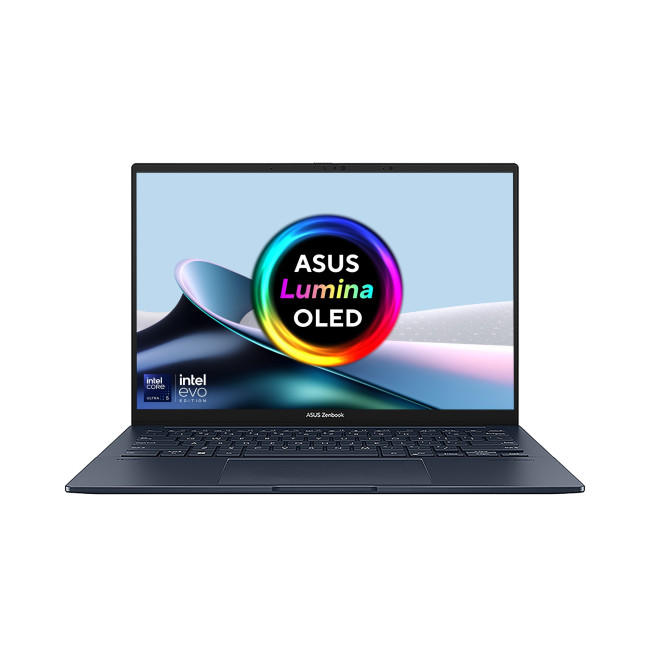
Technical Specs:
- Intel Core Ultra 5 225H 14-Core Processor
- AI Ready Laptop
Last Updated: September 24, 2026
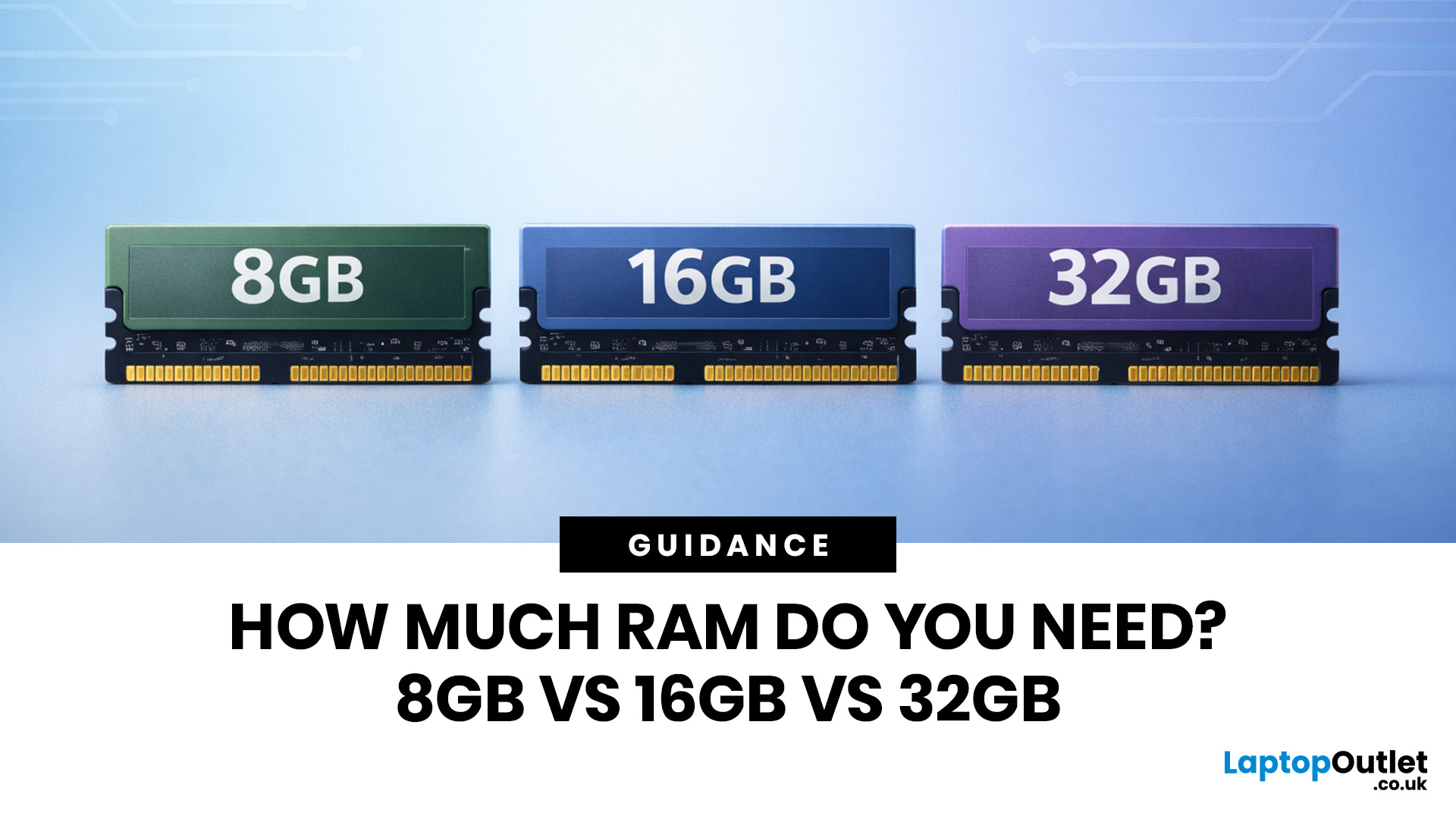
Wondering how much RAM you need? The practical answer is fairly simple. 8GB is still usable for basic laptop tasks; 16GB is the best all-around choice for most buyers, and 32GB is the right move for heavier gaming, creative work, coding, or extra long-term headroom.
For most laptop users, 16GB of RAM is the best all-round choice for work, study, multitasking and mainstream gaming. 8GB is still suitable for lighter everyday use, while 32GB makes more sense for creative work, coding, heavier gaming and demanding multitasking. 64GB is mainly for specialist professional workloads, while 4GB is best avoided on a new Windows laptop.
For RAM shoppers, the real question is not just how much RAM a laptop can run. It is about how much memory will give you a smooth, comfortable experience for how you actually work, study, stream, game, and multitask every day. That is where the difference between 8GB vs 16GB RAM, or 16GB vs 32GB, starts to matter.
What RAM Actually Does?
RAM is your laptop’s short-term

