



How to Upgrade Laptop RAM: Step-by-Step Guide
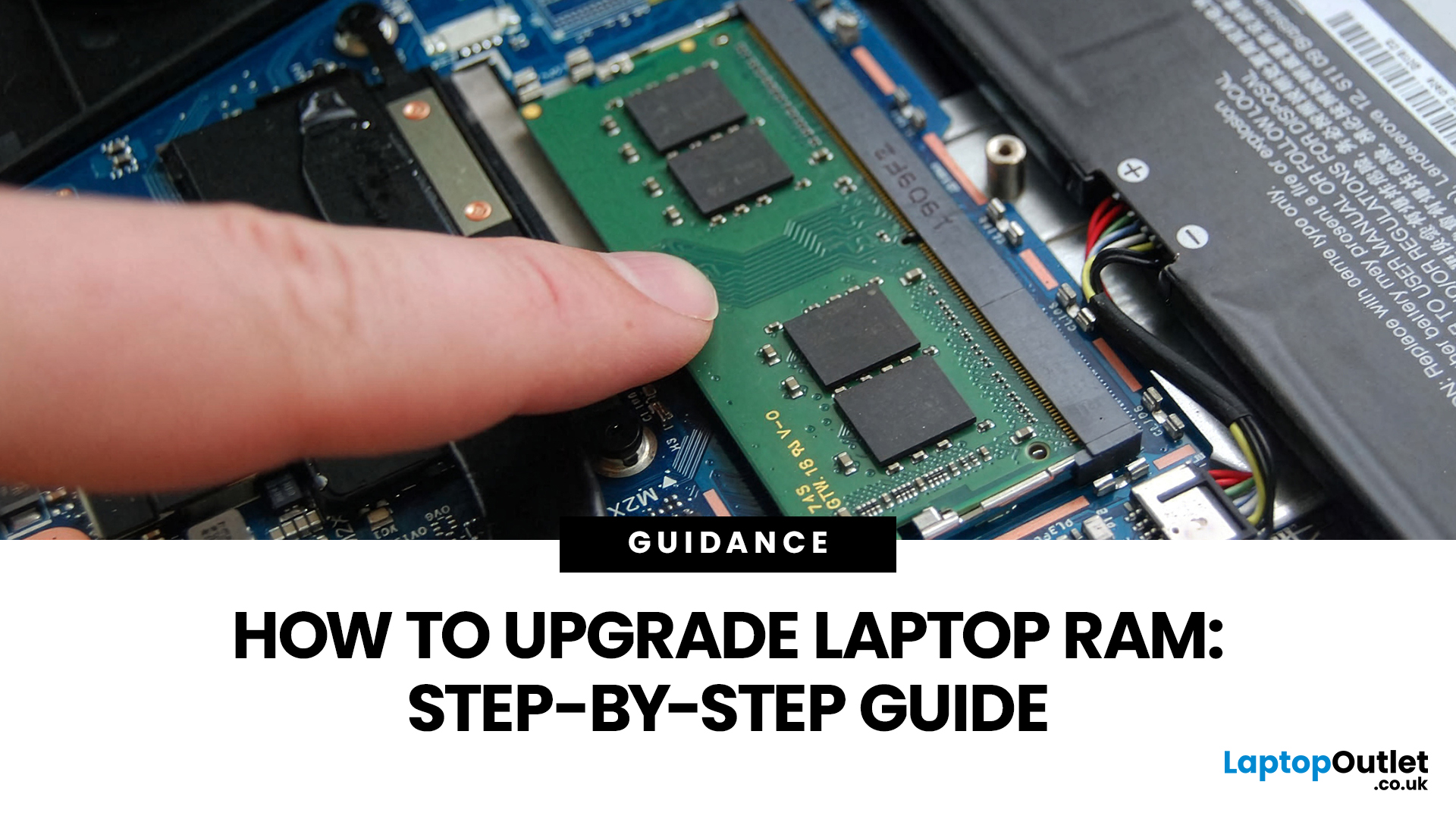
Upgrading laptop RAM is one of the simplest ways to make an older machine feel faster and more capable again, but only if the compatibility side is right from the start. That is the part many quick guides skip. Before buying anything, we always recommend checking whether the laptop has upgradeable memory, what RAM standard it uses, how much it supports, and whether upgrading means adding another module or replacing the existing setup.
To upgrade laptop RAM, first check whether your model has upgradeable SO-DIMM slots, the supported DDR generation, maximum capacity and current memory configuration. Buy compatible RAM, shut the laptop down, disconnect power, open the service panel, remove or add the module, then reassemble and boot up. Finally, confirm the new memory is recognised and test system performance for improved multitasking.
For UK shoppers, that matters because a RAM upgrade can be a much smarter option than replacing a laptop too early. If a system slows down with lots of browser tabs, Office apps, study tools, or light creative work, upgrading the RAM can improve day-to-day responsiveness at a much lower cost than buying a new machine. If the laptop is already maxed out, has soldered memory, or is really held back by old storage, the better move may be to consider an SSD upgrade or a newer device.
Why Upgrade Laptop RAM in the First Place?
RAM is the short-term memory your laptop uses while apps and files are open. More RAM will not turn a basic laptop into a high-end workstation, but it can make a noticeable difference when multitasking, switching between apps, keeping more browser tabs open, or handling heavier day-to-day workloads.
In practical terms, a laptop computer memory upgrade usually makes the most sense when the device still does the job overall but starts to feel limited in normal use. That is common with student laptops, family devices, home-office systems, and entry-level business laptops that originally shipped with 4GB or 8GB of memory.
Signs You Need a RAM Upgrade
|
Symptom |
RAM Upgrade Likely Helps? |
What It Usually Means |
|
Browser slows down with many tabs open |
Yes |
The system is running out of working memory |
|
Word, Excel, Teams, and Chrome open together feels sluggish |
Yes |
Multitasking load is too high for current RAM |
|
Light photo editing or design apps stutter |
Often |
More memory can help if the CPU is still decent |
|
Laptop takes ages to boot |
Not always |
Storage may be the bigger issue |
|
Apps freeze while disk usage stays high |
Sometimes |
Could be RAM pressure, but SSD may matter more |
|
Games stutter on an older non-gaming laptop |
Sometimes |
RAM can help, but graphics limits may be the real bottleneck |
A useful rule is this: If your laptop feels slow mainly when doing more than one thing at once, RAM is a good place to look. If it feels slow all the time, even at startup, the bigger upgrade may be an SSD instead.
Can Your Laptop RAM Be Upgraded?
This is the question that matters most.
Not every laptop supports a RAM upgrade. Some models have fully upgradeable memory, some have a mix of onboard memory and one upgradeable slot, and some use soldered memory that cannot be replaced. That is why checking the exact model before buying RAM is essential.
Laptop RAM expansion is only possible on models with upgradeable memory slots. There are three common scenarios.
Fully Upgradeable RAM
The laptop has one or two accessible SO-DIMM slots, and the installed memory can be replaced.
Partially Upgradeable RAM
The laptop has some onboard memory plus one free or replaceable SO-DIMM slot. This is common in thinner and lighter designs.
Non-Upgradeable RAM
The memory is fully soldered to the motherboard. In that case, you cannot add more RAM later in the normal way.

How to Check RAM Before You Buy
The safest way to check is to look up the exact laptop model on the manufacturer's support page and review the technical specifications or service documentation. That will usually confirm the RAM type, slot count, maximum supported capacity, and whether the memory is upgradeable or soldered.
|
What to Check |
Why It Matters |
|
Exact laptop model number |
Similar model names can support different RAM limits |
|
Whether memory is soldered or slotted |
Tells you if a RAM upgrade is possible at all |
|
RAM generation |
DDR3, DDR4, and DDR5 are not interchangeable |
|
Form factor |
Laptops usually use SO-DIMM, not desktop DIMM |
|
Maximum supported capacity |
Helps avoid overspending on RAM the laptop cannot use |
|
Number of memory slots |
Helps decide whether to add or replace |
|
Current configuration |
1 x 8GB and 2 x 4GB lead to different upgrade options |
Once that information is clear, it becomes much easier to compare options in the best RAM for laptops range instead of guessing from generic product titles.
What RAM Does Your Laptop Need?
A good upgrade starts with choosing the right memory, not simply buying more.
1. Match the DDR Generation First
This part is non-negotiable. If a laptop uses DDR4, it needs a DDR4. If it uses DDR5, it needs DDR5. These memory generations are not interchangeable, and the wrong one will not work.
2. Check the Form Factor
Laptop memory is usually SO-DIMM, which is physically smaller than desktop DIMM memory. That is a simple detail, but it is one of the easiest mistakes to make when shopping online.
3. Capacity Matters More Than Chasing Higher Specs
For most buyers, the biggest real-world improvement comes from moving to the right memory capacity rather than chasing the highest advertised speed.
|
Use Case |
Recommended Total RAM |
|
Basic browsing, email, study, and streaming |
8GB minimum |
|
Office work, multitasking, remote work, and general home use |
16GB sweet spot |
|
Heavier creative apps, large spreadsheets, coding, and modern gaming |
32GB |
|
Specialist professional workloads |
32GB and above, if supported |
For most home users, students, and office buyers, 16GB is a sweet spot. It gives enough headroom for smoother multitasking without pushing the cost too far.
Not sure how much memory you actually need? Read our guide on 8GB vs 16GB vs 32GB RAM to see which capacity makes the most sense for everyday use, study, gaming, and work.
Speed Still Matters, But Compatibility Comes First
Memory speed still matters, but only after compatibility has been confirmed. If a laptop supports a certain speed, installing a faster module does not necessarily deliver extra value if the system simply runs it at the supported limit. In most cases, matching the correct type and capacity matters more than chasing a headline figure.
Should You Buy One Stick or a Matched Kit?
If the laptop has two slots and supports a pair of matching modules, a matched kit is often the cleaner choice for stability, balance, and performance. Mixed-capacity upgrades can sometimes work, but where possible, matching the RAM type, speed, and capacity is the safer route.

How to Upgrade RAM in a Laptop: Step by Step
Upgrading the RAM on a laptop is usually straightforward once compatibility has been checked properly.
What You Need Before You Start
- Compatible laptop RAM
- A suitable screwdriver
- The laptop service manual or support guide
- A clean workspace
- Good lighting
- An anti-static wrist strap, if available
It is also worth taking basic anti-static precautions before handling memory. A clean surface and careful handling go a long way.
Step 1: Check the Current RAM Setup
Before opening the laptop, confirm:
- The current total RAM
- How many slots are in use
- The RAM generation
- The laptop’s maximum supported capacity
This helps avoid buying the wrong upgrade or replacing modules unnecessarily.
Step 2: Decide Whether You Are Adding or Replacing
If the laptop has one free slot, it may be possible to add a second module. If both slots are already occupied, the existing modules will usually need to be replaced with higher-capacity ones.
Examples:
- 1 x 8GB installed with one free slot: add another compatible 8GB module for 16GB total
- 2 x 4GB installed with both slots full: replace with 2 x 8GB for 16GB total
- 8GB onboard plus 1 free slot: add only what the upgradeable slot supports
Step 3: Shut Down Fully and Remove Power
Power the laptop down completely, unplug it, and remove the battery if it is removable. It is also a good idea to press the power button for a few seconds afterwards to discharge any remaining power.
Step 4: Open the Bottom Panel or Service Cover
Some laptops have a dedicated memory access panel. Others require the full bottom cover to be removed. This is where the service guide matters, especially if the laptop uses hidden screws or delicate clips.
Step 5: Ground Yourself Before Touching Components
Static electricity is one of the easiest ways to damage memory during installation. Before touching the RAM, ground yourself and avoid handling the gold connector pins directly.
Step 6: Remove the Existing RAM If Needed
If the installed module needs to be removed, release the retaining clips on either side. The RAM will usually pop up at an angle and can then be carefully lifted out.
Step 7: Insert the New Module Correctly
If you are wondering how to add RAM memory to a laptop, the process usually comes down to checking slot availability, choosing compatible memory, and installing it correctly. Laptop RAM is normally inserted at an angle rather than pushed straight down. Align the notch in the module with the slot, slide it in firmly, then press it down until the retaining clips click into place.
Step 8: Reassemble the Laptop
Once the RAM is seated properly, refit the cover, reinstall the battery if needed, reconnect the power, and switch the laptop back on.
Step 9: Check That the Upgrade Has Been Recognised
After booting, confirm that the system detects the new total memory. If not, shut down the laptop and reseat the module carefully.
Step 10: Test the Laptop Normally
Open the apps and workloads that previously felt sluggish. If the upgrade was worthwhile, the laptop should feel smoother when switching between apps, handling multiple tabs, and managing everyday multitasking.
Common RAM Upgrade Mistakes to Avoid
If the goal is to upgrade laptop RAM without wasting money, these mistakes are worth avoiding.
Buying the Wrong DDR Type
DDR3, DDR4, and DDR5 are different standards. They are not interchangeable, so always check the exact memory type first.
Ignoring the Maximum Supported Capacity
A laptop may physically accept a module but still not support the total capacity being installed. That is why the maximum supported memory matters just as much as the slot count.
Forgetting That Some RAM Is Soldered
Plenty of slim and lightweight laptops do not allow full RAM upgrades. Some offer partial expansion, while others do not allow upgrades at all.
Mixing Random Modules
Mixed memory can work in some systems, but matched modules are usually the safer option where stability and balanced performance matter.
Assuming RAM Is the Only Upgrade That Matters
If the real issue is slow boot times, sluggish file loading, or older storage, a bigger improvement may come from one of our high-speed internal SSDs.

RAM Upgrade or SSD Upgrade: Which One Should You Do First?
A RAM or SSD change can be a worthwhile laptop upgrade when the system still meets your needs in every other area.
- A RAM upgrade usually makes more sense if the laptop struggles with multitasking, heavy browser use, video calls while working, or running multiple apps at once.
- An SSD upgrade usually makes more sense if the laptop boots slowly, loads apps slowly, or still relies on an older hard drive.
Doing both can be the best option if the laptop is still in good condition, supports upgrades, and just needs a meaningful refresh rather than a full replacement.
For buyers who also need more space after upgrading, it may be worth looking at an external hard drive for backups, archived files, and media storage.
If your laptop feels slow all the time, not just when multitasking, storage may be the real bottleneck. Our SSD vs HDD guide explains which upgrade will make the biggest difference.
When a Laptop RAM Upgrade Is Not Worth It
Sometimes the honest answer is not to spend the money.
A RAM upgrade is usually a poor value when:
- The memory is fully soldered and already fixed at a low capacity
- The laptop is very old and limited by more than just memory
- The processor is too weak to justify further investment
- The system only supports a small memory ceiling
- The total upgrade cost starts getting too close to the value of a better replacement laptop
That point matters to UK buyers. If the total cost of RAM, storage, and other maintenance starts creeping up, it may be smarter to explore all laptops and compare the spend with a newer model that offers better battery life, faster connectivity, and current warranty coverage.
The same applies to gaming. If the goal is to push extra life out of a laptop that was never built for modern games, more RAM may help a little, but it will not solve weak graphics performance. In that case, it often makes more sense to compare affordable gaming laptops instead.

Our Final Take on Upgrading Laptop RAM
If the laptop supports it, upgrading the RAM is still one of the most sensible low-cost upgrades available. It is especially worthwhile for home office users, students, families, and small businesses that want better multitasking without replacing the whole machine.
The real value is not just knowing how to put more RAM in a laptop. It is knowing how to do it properly. For buyers looking at how to increase laptop memory performance, the best results usually come from the following:
Check the exact model → Confirm whether the memory is upgradeable → Match the correct DDR generation → Stay within the supported capacity → Choose a matched kit where it makes sense → Then decide honestly whether memory is the real bottleneck or whether storage, or even a newer laptop, would deliver better value overall.

Common Questions About Upgrading Laptop RAM
Can you upgrade RAM on any laptop?
No. Some laptops have upgradeable SO-DIMM slots, some have part-soldered memory, and some have fully soldered RAM that cannot be upgraded in the normal way. Always check the model-specific specs first.
How do I know if my laptop RAM is upgradeable?
Look up your exact model on the manufacturer's website and check the technical specifications or service documentation. You need to confirm whether the memory is slotted or onboard, how many slots are present, and the maximum supported capacity.
How much RAM do I need in a laptop?
For basic use, 8GB is the practical starting point. For most students, home users, and office multitasking, 16GB is the better target. For heavier creative work or gaming, 32GB is often the stronger choice if your laptop supports it.
Can I add RAM to a laptop without replacing the existing stick?
Yes, if your laptop has a free compatible slot and supports the total capacity you want. If all slots are full, you normally need to replace the existing modules instead.
Can I mix 8GB and 16GB laptop RAM?
Sometimes yes, but it is not always ideal. Matching capacity, speed, and specification is the safer option for compatibility and more consistent performance.
Will upgrading laptop RAM make it faster?
It can make the laptop feel noticeably smoother when multitasking, switching between apps, or using heavier workloads. It will not fix every performance problem, especially if storage or the processor is the real bottleneck.
Is DDR4 laptop RAM the same as DDR5 laptop RAM?
No. They are different generations of memory and are not interchangeable. Your laptop supports one or the other based on its platform.
Is it better to upgrade RAM or buy a new laptop?
Upgrade the RAM if the laptop still meets your needs and supports the upgrade properly. Buy a new laptop if the memory is soldered, the system is already maxed out, or the total upgrade spend no longer makes financial sense.
Do I need a technician to upgrade the laptop RAM?
Not always. Many laptops are simple enough for a careful DIY upgrade, provided you have the correct RAM and follow the service guidance for your exact model. If the design is awkward, sealed, or still under a service-sensitive warranty, professional fitting may be the safer route.
| Read More: |
| How to Clone Your Hard Drive to an SSD: Upgrade Guide |
| A Complete Guide to Formatting and Partitioning an SSD |
| How to Install or Upgrade a Laptop SSD: Step-by-Step Guide |
Related Articles


Last Updated: July 06, 2026
AI-powered laptop features matter in 2026 for one reason: they change the everyday feel of a laptop, not just the spec sheet. The key shift is on-device AI. When tasks like search, captions, camera effects, and quick actions run locally on an NPU, they tend to respond faster, waste less battery, and rely less on a perfect internet connection. That is why “AI-ready” is now a real buying category, not a vague label.
If you are upgrading this year, focus less on hype and more on the features that will save time each week: an NPU you can trust, OS-level AI tools that sit inside your workflow, practical call and meeting upgrades, and enough RAM and storage headroom to keep those features running smoothly for years.
Why AI Laptop Features Matter in 2026
Laptop marketing always finds a new headline, but this cycle is different because it is tied to real platform requirements. Microsoft has separated “regular Windows laptops” from Copilot+ PCs by setting expectations around NPU capability, RAM,
Published: March 10, 2026
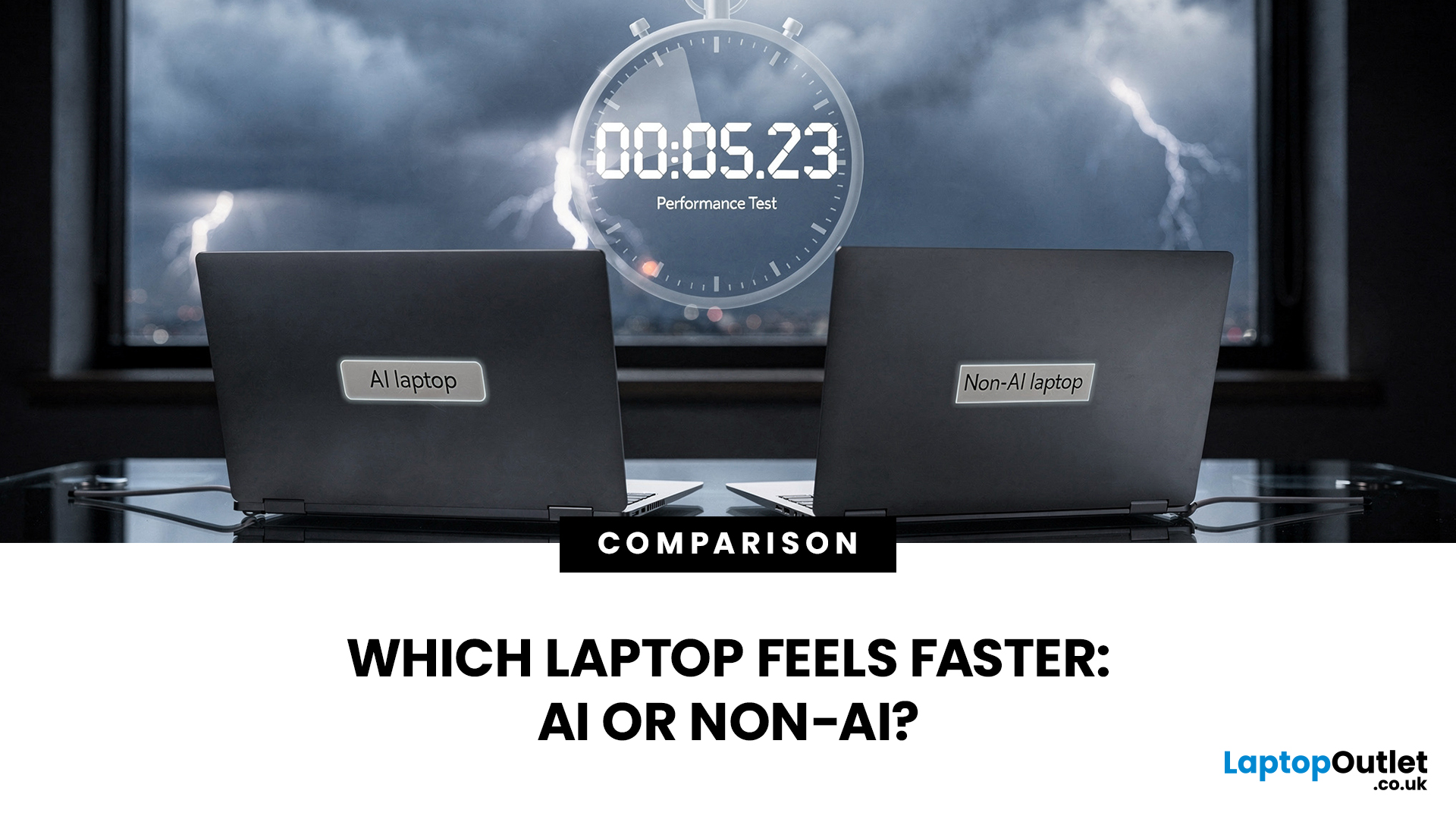
If you’re comparing AI vs non-AI laptops in 2026, the most important thing to understand is this: an “AI laptop” is not automatically faster at everything. In everyday tasks like browsing, working with Office documents, email, and file management, a powerful non-AI laptop can feel just as fast as a newer AI model.
Where AI laptops change, the experience is when you stack AI features on top of normal usage, and the laptop stays smooth. That’s the difference buyers actually feel: better battery efficiency under mixed workload, quieter operation, and on-device features that don’t steal as much CPU and GPU time.
This guide works like an AI laptop performance test, using the kind of checks you can actually repeat at home or at work: wake-from-sleep, app launch behaviour, video calls with camera effects enabled, captioning latency, and battery drain under a realistic office day. It will help you decide whether an AI laptop is worth it for your workload, or whether a well-specced non-AI laptop

Last Updated: June 05, 2026
Choosing the right laptops for video editing can feel far more complicated than it should. Some brands focus on AI features; others push gaming specs, and many guides make it sound as though you need a studio-grade machine just to edit a few clips.
In reality, the best laptop depends on the type of editing you do.
A beginner creating YouTube videos, reels, or student projects will not need the same machine as someone working on commercial edits, colour grading in DaVinci Resolve, or handling large 4K client timelines. That is why this guide breaks down the best laptops for video editing by editing level, workflow, and real-world use case.
Whether you need a machine for social content, advanced post-production, or portable editing on the move, these are the options worth considering.
If your creative work also includes Photoshop, Illustrator, or wider Adobe software, it is worth reading our guide to the best laptops for Adobe Creative Cloud apps as well.
What to Look for in Laptops for Video

Last Updated: April 22, 2026
Choosing between Intel and AMD is no longer a simple case of picking the “faster” processor. If you are comparing Intel Core i5 vs Ryzen 5, you are looking at two highly capable mid-range options that power a large share of laptops available in the UK today.
Both deliver strong everyday performance, but they are designed with slightly different priorities. Understanding those differences is what helps you avoid overspending or buying a laptop that does not quite suit how you use it. This guide focuses on real-world use, not just specs, so you can make a confident decision in 2026.
Core i5 vs Ryzen 5: What is the Real Difference?
At a surface level, both processors handle everyday tasks comfortably. The difference comes from how they manage performance behind the scenes.
Intel’s modern Core i5 processors use a hybrid architecture that splits workloads between performance cores and efficiency cores. This allows the system to stay responsive even when multiple processes are running in the

Last Updated: September 22, 2026
Choosing between an Intel Core i3 and Core i5 laptop can be confusing, especially when two laptops with the same processor tier can perform very differently. Your everyday workload, processor generation, power class and overall laptop specification all play a part in deciding which option makes more sense.
Core i3 is generally enough for browsing, Office apps, streaming and lighter study, while Core i5 is better suited to heavier multitasking, creative work, coding and more demanding software. In 2026, however, you should compare the exact processor generation and suffix, such as U, H or HX, rather than choosing a laptop based on the i3 or i5 badge alone.
Intel's laptop range has also evolved beyond the familiar Core i3 and Core i5 names, with newer machines using Intel Core 3, Core 5 and Core Ultra branding. This guide breaks down the differences so you can understand which processor type better matches the way you use your laptop.
Core i3 vs Core i5: What Is the Difference?
Traditionally,
Last Updated: June 18, 2026
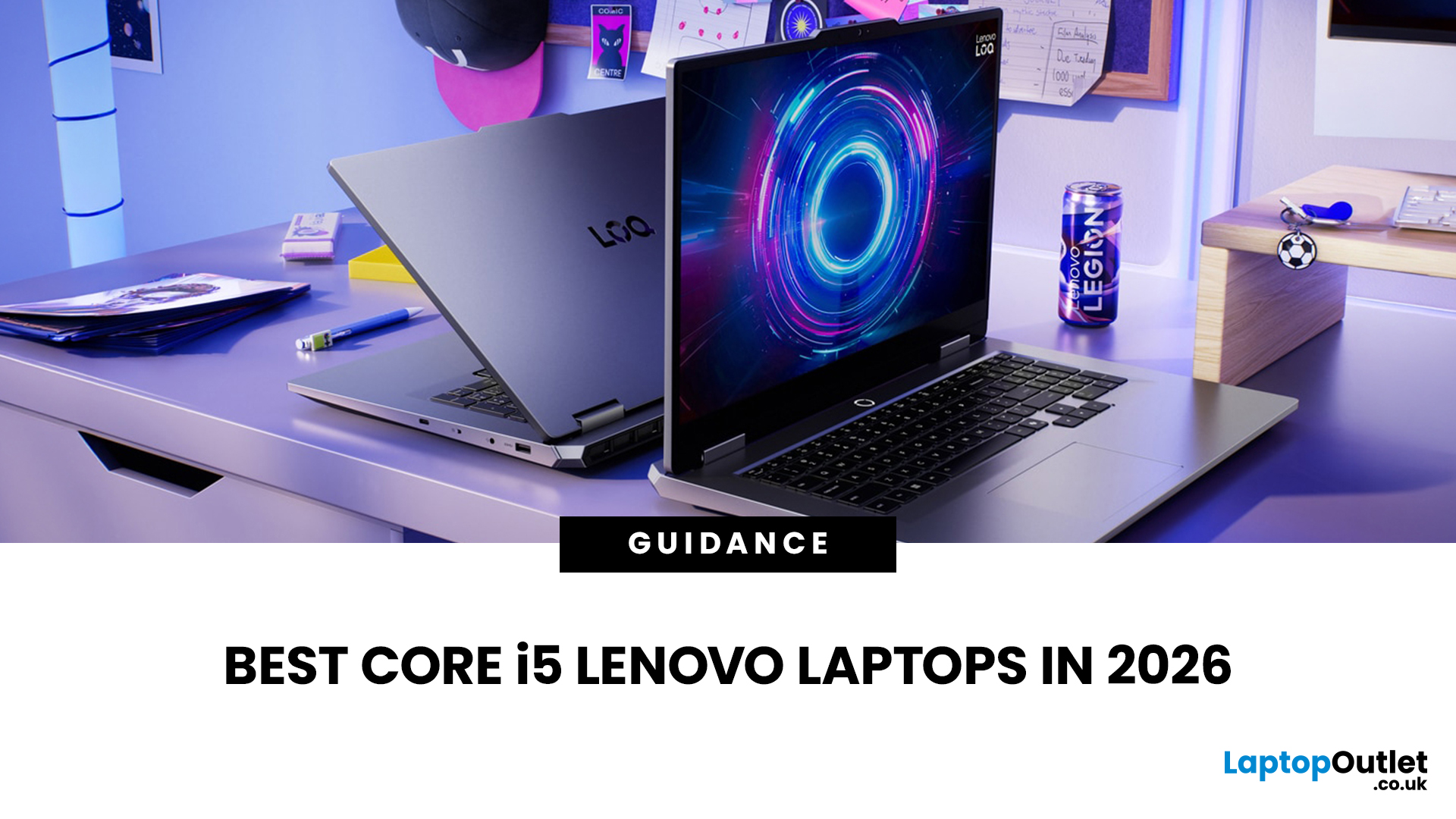
If you are searching for Core i5 Lenovo laptops, you are likely looking for a balance of performance, price, and reliability. And that is exactly where Lenovo stands out in 2026. From affordable everyday machines to durable business devices, Lenovo’s Core i5 lineup covers a wide range of use cases. Whether you need a laptop for work, study, or general productivity, there is a model that fits without pushing into premium pricing.
This guide breaks down the best options available right now, with a focus on real-world usability, value, and what each model is good for.
Why Choose a Lenovo Core i5 Laptop in 2026?
Lenovo continues to be one of the most consistent brands when it comes to mid-range laptops. Its Core i5 models are particularly popular because they offer:
- Reliable everyday performance
- Strong build quality across price ranges
- Good keyboard and typing experience
- Wide choice across business and budget segments
For most users, a Core i5 processor is more than enough for:
- Office work

Last Updated: May 01, 2026
Streaming accounted for over 38% of total TV and video consumption globally last year, overtaking traditional viewing for the first time. That means more people are now watching films on laptops, tablets, and personal screens than ever before, not TVs.
But here’s the problem: most laptops aren’t actually built for a good viewing experience.
You can open the same film on two different laptops and get completely different results. On one, colours look rich, scenes feel immersive, and everything flows smoothly. On another, the image feels dull, brightness struggles in daylight, and the whole experience falls flat - even if the specs look similar on paper.
That’s where most buyers get caught out. Terms like “Full HD,” “OLED,” or “high brightness” sound impressive, but they don’t always translate into a better streaming experience. Many people end up choosing based on performance or price, while overlooking what actually matters for watching films.
This guide breaks that down clearly - focusing

Last Updated: May 01, 2026
By the end of 2025, buying a laptop had become a bigger decision than ever. Global PC shipments climbed to more than 270 million units in 2025, with the final quarter alone reaching 71.5 million units.
On the surface, that sounds like good news: more innovation, more models, more choice. But for buyers, it also means more noise. Bigger spec sheets, bolder marketing claims, AI-ready labels everywhere, and a growing chance of paying for power you do not need or missing the features you actually do.
That is what makes choosing a laptop in 2026 tricky. The best option is not always the most expensive, the most powerful, or the newest on the page. It is the one that fits the way you work, study, stream, create, or game without compromise.
This guide cuts through the clutter and helps you choose with confidence. So, get yourself ready to buy the laptop you are looking for.
How to Choose the Right Laptop in 2026
If you want the quick answer, here’s how to choose the right laptop without overthinking

Last Updated: June 11, 2026
Choosing the best laptops for teachers in the UK is not about chasing the highest specs or the most expensive model. It is about finding a device that aligns with the realities of teaching. That means smooth multitasking for lesson planning, marking, presentations, browser-based platforms, video calls, and the everyday admin that comes with school life. A good teacher's laptop should feel reliable from the first lesson of the day to the last task in the evening.
In 2026, teachers need more from their laptops than ever. Hybrid working, online meetings, digital classroom tools, and resource-heavy workflows have made performance, portability, and practicality far more important than they used to be. For most buyers, the right choice comes down to a balance of speed, battery life, screen size, webcam quality, and the ports that still matter in real classrooms.
This guide focuses on laptops that make sense for teachers in the UK today. Whether you need a lightweight everyday device for commuting,

Last Updated: May 19, 2026
Staying connected wherever you go is no longer a luxury, it’s a necessity. Whether you’re working remotely, travelling frequently, or simply want a more reliable connection than public Wi-Fi, laptops with sim card slot capabilities are becoming an increasingly popular choice in 2026. If you’re considering making the switch to a laptop with built-in mobile internet, this guide will walk you through everything you need to know, from how they work to the key differences between 4G and 5G models, and who should be using them.
What are Laptops with SIM Card Slots?
A laptop with sim card functionality allows you to insert a SIM card directly into your device, giving you access to mobile data networks, just like your smartphone. These are often referred to as laptops with built-in mobile internet or cellular laptops.
Instead of relying solely on Wi-Fi, these devices connect to 4G LTE or 5G networks, ensuring you stay online wherever there’s mobile coverage. You’ll commonly find this feature

