



How to Fix HDMI Not Working on Laptop: Step-by-Step Windows Guide
If HDMI is not working on your laptop, start by checking the cable and port for damage, then select the correct input on your monitor or TV. Press Windows + P to choose your display mode. If the screen stays blank, update or reinstall your graphics driver in Device Manager. Most HDMI not working laptop issues are resolved by these steps alone, without needing any specialist help.
There are few things more frustrating than plugging in your HDMI cable and being greeted by a black screen or a "No Signal" message. Whether you are connecting your laptop to a smart TV, an external monitor, or a projector, the issue can almost always be sorted without a trip to a repair shop.
This guide covers most common HDMI not working laptop fixes, from the simplest physical checks right through to driver reinstalls and BIOS settings. Work through the steps in order and you will find your fix quickly.
Why Is Laptop Not Connecting to HDMI?
Before diving into fixes, it helps to understand what causes the problem. Most faults related to laptop HDMI not working fall into one of a handful of categories, and knowing which one applies to you saves a lot of time.
The most common culprits are a loose or faulty cable, incorrect display input selection on the monitor or TV, outdated or corrupted graphics drivers, and incorrect Windows display settings. Less frequently, the issue is caused by BIOS configuration, a recent Windows update, or physical damage to the HDMI port itself.
|
Cause |
Typical Symptom |
How Common? |
|---|---|---|
|
Loose or damaged HDMI cable |
Flickering, no signal, intermittent picture |
Very common |
|
Wrong input selected on display |
"No Signal" on screen despite cable being connected |
Very common |
|
Incorrect Windows display mode (Win + P) |
Laptop screen works but external display stays blank |
Common |
|
Outdated or corrupt graphics driver |
External display not detected in settings |
Common |
|
Wrong resolution or refresh rate |
Black screen after connection, display returns "Out of Range" |
Moderate |
|
HDMI audio not set as default output |
Video works but no sound through TV or monitor |
Moderate |
|
Faulty or incompatible HDMI adapter |
Inconsistent signal, works sometimes |
Moderate (USB-C users) |
|
BIOS/UEFI display setting misconfigured |
HDMI fails after BIOS update or firmware reset |
Less common |
|
Physical port damage |
Never detects display, port feels loose |
Less common |
What Quick Physical Checks Should You Do First?
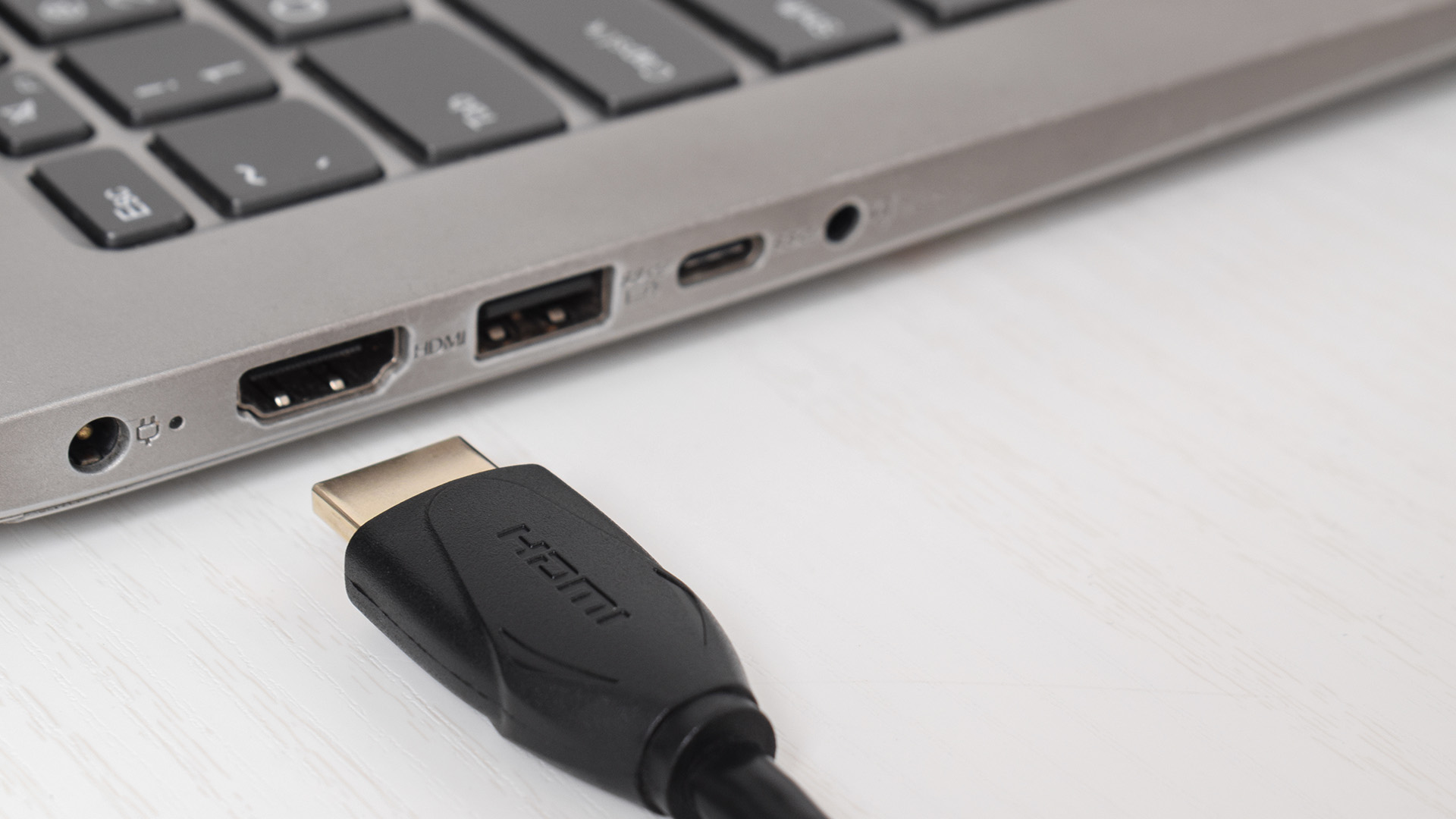
Always start with the basics. Many HDMI laptop connection problems are caused by something simple that takes 30 seconds to fix, and it saves you time before moving on to software troubleshooting.
Check the cable and ports visually
Pull out the HDMI cable and inspect both ends carefully. Look for bent pins, debris inside the connector, or any visible damage to the cable casing. Even a tiny piece of fluff inside a port can prevent a solid connection.
- Push the cable firmly into both the laptop port and the display port. HDMI connectors are not as snug as some other cables and can appear connected when they are slightly loose.
- If you have a can of compressed air, give both ports a quick blast to clear dust or lint.
- Try a different HDMI cable if you have one available. A cable can fail internally without showing any visible damage.
- Test on a different HDMI port on your TV or monitor if there is more than one available.
| Worth knowing: HDMI cables do not need to be expensive to work well for standard use. However, if you are using 4K or HDR content, you need a cable rated Premium High Speed or Ultra High Speed. A standard HDMI cable may cause a black screen or no signal at higher resolutions. |
Check which HDMI connector your cable is in on the laptop
Some gaming and performance laptops route external display ports through either the integrated graphics processor or the dedicated graphics card, depending on the laptop design. If you have multiple video outputs, one port may behave differently from another.
If your laptop has a dedicated GPU from NVIDIA or AMD, check your laptop manual or graphics control panel to see how its external display ports are routed. Try each available video output if you have more than one, such as HDMI, USB-C, DisplayPort, or Mini DisplayPort.
Fix 1: Is the Correct Input Selected on Your Monitor or TV?
This is the single most frequently overlooked step and probably the most common reason for "no signal" errors. Your display device needs to be set to the same HDMI port your cable is plugged into.
How to select the correct input source
- Pick up your TV remote or use the physical buttons on your monitor.
- Look for a button labelled Input, Source, or AV.
- Press it until you reach the HDMI input that matches the port your cable is in (e.g. HDMI 1, HDMI 2, HDMI 3).
- Wait a few seconds for the signal to appear.
| Note: Some smart TVs label their inputs with custom names like "PC", "Game Console", or even a brand name. Check all HDMI inputs, not just the ones labelled "HDMI". |
Fix 2: How Do You Change Display Mode on a Windows Laptop?
Even when the physical connection is correct, Windows might not be sending the image to the external screen. This is because Windows has a projection setting that controls where the display output goes, and it sometimes needs to be changed manually.
This is one of the quickest fixes for an HDMI laptop display problem and should be tried early in your troubleshooting process.
How to use Windows + P to fix HDMI output
- Press Windows key + P on your keyboard simultaneously.
- A panel will appear on the right side of your screen with four options.
- Select Duplicate to mirror your laptop screen on the external display.
- Select Extend to use the external display as a second screen.
- Select Second screen only if you want to use only the TV or monitor.
|
Windows + P Option |
What It Does |
When to Use It |
|---|---|---|
|
PC screen only |
Only your laptop screen is active |
When disconnecting an external display |
|
Duplicate |
Same image on both screens |
Presentations, watching films |
|
Extend |
Two separate screens, more desktop space |
Productivity, dual-screen work setups |
|
Second screen only |
Only the external display is active |
Clamshell mode with docking station |
| Tip: If your laptop lid is closed and you are using it in clamshell mode with a docking station, make sure your power settings do not put the laptop to sleep when the lid is closed. Go to Settings > System > Power & Battery > Additional power settings > Choose what closing the lid does and set it to "Do nothing" when plugged in. |
Fix 3: Have You Tried Power Cycling Everything?
A proper power cycle resets the HDMI handshake, which is the digital "introduction" that happens between your laptop and display every time they connect. When this handshake fails, you get a black screen or no signal, even if everything else is working correctly.
This fix is surprisingly effective and solves many random or intermittent HDMI not working on a laptop problems.
How to power cycle for an HDMI fix
- Disconnect the HDMI cable from both the laptop and the display.
- Shut down your laptop completely (not sleep or restart, a full shutdown).
- Turn off your monitor or TV and unplug it from the mains.
- Wait at least 30 seconds.
- Plug the monitor or TV back into the mains and turn it on.
- Reconnect the HDMI cable to the display first, then to the laptop.
- Turn the laptop back on.
Fix 4: How Do You Update or Reinstall Your Graphics Driver?
An outdated or corrupted graphics driver is one of the most common software causes of HDMI connection issue on a laptop with Windows 11 and Windows 10. The graphics driver controls how your laptop communicates with external displays, so when it goes wrong, the HDMI connection often fails entirely.
There are two approaches here: updating the driver through Device Manager, or downloading the latest version directly from the manufacturer's website. The manufacturer's website usually provides more up-to-date drivers.
Method A: Update via Device Manager
- Right-click the Start button and select Device Manager.
- Expand the Display adapters section.
- Right-click your graphics card (e.g. NVIDIA GeForce, AMD Radeon, Intel Iris) and select Update driver.
- Choose Search automatically for drivers and follow the prompts.
- Restart your laptop when the update is complete.
Method B: Reinstall your graphics driver from scratch
- Right-click the Start button and open Device Manager.
- Expand Display adapters and right-click your GPU.
- Select Uninstall device.
- In the pop-up, tick the box that says "Attempt to remove the driver for this device".
- Click Uninstall and then restart your laptop.
- Windows will automatically attempt to reinstall the driver on reboot. If not, go to the GPU manufacturer's website and download the latest driver for your model.
| Tip: If you have an NVIDIA GPU, use GeForce Experience to manage driver updates. AMD users can use AMD Adrenalin. Both apps detect your exact hardware and download the correct driver automatically. |
Also check under Sound, video and game controllers in Device Manager. If HDMI audio is not working, there may be a separate issue with the HDMI audio driver listed there.
Fix 5: Could a Wrong Resolution or Refresh Rate Be the Problem?
When your laptop sends a resolution or refresh rate that your monitor or TV cannot handle, the display will usually show a black screen or return an "Out of Range" error. This is particularly common when connecting to older monitors or when switching between displays.
How to adjust screen resolution and refresh rate in Windows 11
- Right-click the desktop and select Display settings.
- Scroll down to Scale & layout and click Display resolution.
- Drop the resolution to 1920 x 1080 (or lower) and click Keep changes.
- Scroll further and click Advanced display settings.
- Under Refresh rate, try 60 Hz if you are currently on a higher value.
- If the display comes on, you can then gradually increase the resolution to find the highest setting your display supports.
| Important: If your laptop is connected to your external display via HDMI but you cannot see anything on either screen, restart Windows with the HDMI cable connected. During boot, Windows may reset to a safer resolution automatically. |
Fix 6: Is HDMI Audio Not Working on Your Laptop?
It is quite common for HDMI video to work but HDMI audio to remain on the laptop speakers. This happens because Windows does not always switch the audio output automatically when you plug in an HDMI cable.
How to set HDMI as the default audio output
- Right-click the speaker icon in your taskbar and select Open Sound settings (or Sound in Control Panel).
- Under Output, click the dropdown and look for your TV or monitor listed as an HDMI audio device (e.g. "LG TV HDMI" or "Digital Audio (HDMI)").
- Select it as your default output device.
- If it does not appear, right-click inside the sound devices list and choose Show disabled devices, then enable the HDMI option.
Fix 7: Did HDMI Stop Working After a Driver or Windows Update?
Sometimes a driver update or a Windows update breaks the HDMI connection. If your HDMI was working perfectly before and stopped after an update, rolling back the driver is a straightforward fix.
This is especially relevant if your HDMI stopped working after a Windows 11 cumulative update. Driver conflicts after updates can occasionally affect external display output, so a roll-back is worth trying if the timing matches.
How to roll back a graphics driver in Windows
- Open Device Manager and expand Display adapters.
- Right-click your GPU and select Properties.
- Go to the Driver tab and click Roll Back Driver.
- Follow the prompts and restart your laptop.
If the "Roll Back Driver" button is greyed out, there is no previous driver stored to revert to. In that case, download an older known-stable driver directly from the GPU manufacturer's website.
| Also check: In Device Manager, go to View > Show hidden devices. Your HDMI output device may be hidden rather than absent. If you find it listed there, right-click and enable it. |
Fix 8: Have You Checked for Windows Updates?
Just as an update can sometimes cause an HDMI problem on a laptop, a new update can also resolve one. Microsoft periodically releases patches that fix driver compatibility and hardware recognition bugs, including display output problems.
How to check for Windows updates that might fix HDMI
- Go to Settings > Windows Update.
- Click Check for updates.
- Also click Advanced options > Optional updates to see if there are any driver-related updates waiting.
- Install all available updates and restart your laptop.
Some manufacturer-specific driver updates do not come through Windows Update at all. If you have an HP, Dell, Lenovo, or ASUS laptop, check the support section of your laptop manufacturer's website and run their own update utility if one is available.
| Tip: For large driver packages, BIOS files, or manufacturer update tools, use the most stable internet connection available. Network cables are useful when Wi-Fi is unreliable, while networking accessories such as USB-to-Ethernet adapters can help laptops without a built-in Ethernet port stay connected during important downloads. |
Fix 9: Does HDMI Work in Windows Safe Mode?
Safe Mode loads Windows with a minimal set of drivers and processes. If your HDMI connection works in Safe Mode but not in normal mode, that tells you the problem is software-related rather than hardware, which is good news because it means it is fixable.
How to boot Windows 11 into Safe Mode
- Hold Shift and click Restart from the Windows Start menu.
- Go to Troubleshoot > Advanced options > Startup Settings.
- Click Restart, then press 4 to enter Safe Mode or 5 for Safe Mode with Networking.
- Connect your HDMI cable and see if the display is detected.
If HDMI works in Safe Mode, try a clean reinstall of your graphics driver in normal mode. This resolves the majority of software-level HDMI display failures.
Fix 10: Should You Check BIOS/UEFI Display Settings?
This is a more advanced step, but it is worth trying if none of the above fixes have worked. Some laptops manage graphics output at the firmware level, and if the BIOS settings are misconfigured or were changed after a reset, HDMI output can become limited or unstable.
This is particularly relevant if your HDMI stopped working after a BIOS update, a factory reset, or after enabling features like Secure Boot.
How to access and reset BIOS settings for HDMI
- Hold Shift and click Restart in Windows.
- Go to Troubleshoot > Advanced options > UEFI Firmware Settings and click Restart.
- Alternatively, restart your laptop and press the BIOS key at boot (typically F2, F10, F12, or Del, depending on your laptop brand).
- Look for any settings related to display output, primary display, or graphics configuration.
- If you recently changed settings, use the option to Load Default Settings or Restore Optimised Defaults.
- Save and exit. Test your HDMI connection after reboot.
| Be careful: Only change settings you understand in BIOS. If you are not sure what a setting does, leave it alone or restore the defaults rather than experimenting. |
Using USB-C to HDMI? Here Are Some Extra Things to Check
Many modern laptops no longer have a full-size HDMI port and instead rely on USB-C with an adapter or cable. This introduces additional points of failure that are slightly different from a standard HDMI connection.
Not every USB-C port supports video output. It needs to support either DisplayPort Alt Mode or Thunderbolt. Check your laptop's specifications to confirm which ports are video-capable before assuming the adapter or cable is at fault.
Common USB-C to HDMI issues and fixes
- Check the USB-C port: Only USB-C ports that support DisplayPort Alt Mode or Thunderbolt can carry video. USB-C ports used only for charging will not work.
- Try a powered USB-C hub: Direct USB-C to HDMI connections can be unreliable on some laptops. Routing through a powered hub or docking station often provides a more stable signal.
- Check HDMI version compatibility: A monitor expecting HDMI 2.1 signals may not display correctly if the laptop only outputs HDMI 1.4. Check your adapter and cable ratings match the requirements of your display.
- Test a different adapter: USB-C to HDMI adapters vary considerably in quality. A cheap or uncertified adapter is often the culprit in intermittent signal problems.
- Try a shorter cable: Longer HDMI cable runs (over 5 metres) can lose signal integrity, especially at 4K. If using a long cable, try a shorter one first to confirm the cable is not the issue.
What Are the Different HDMI Versions and Cable Types?
Understanding HDMI versions can save you a lot of troubleshooting time. Using the wrong type of cable for your setup is a surprisingly common cause of no signal or degraded picture quality.
|
Cable Type |
Best Supported Use |
Max Bandwidth |
Best For |
|
Standard HDMI Cable |
Up to 1080i or 720p on older devices |
Lower-bandwidth legacy use |
Older TVs and basic HD setups |
|
High Speed HDMI Cable |
1080p and 4K at 30Hz |
Up to 10.2 Gbps |
Full HD monitors, older 4K displays |
|
Premium High Speed HDMI Cable |
4K at 60Hz with HDR |
18 Gbps |
4K TVs, streaming, HDR content |
|
Ultra High Speed HDMI Cable |
8K at 60Hz / 4K at 120Hz and above, depending on device and display support |
48 Gbps |
High-refresh gaming, 8K TVs |
If you are connecting a laptop to a 4K display and seeing a black screen or poor image quality, switching to a Premium High Speed or Ultra High Speed cable often resolves the problem immediately.
Could It Be a Physical Hardware Problem with the HDMI Port?
If you have worked through all the steps above and HDMI still does not work, there is a chance the port itself is physically damaged. This is less common but does happen, particularly on laptops that are frequently moved around or have had cables forcefully removed.
Signs your HDMI port may be physically damaged
- The connector feels loose or wobbly when plugged in.
- HDMI only works when you hold the cable at a particular angle.
- The display flickers or cuts out when the laptop is moved.
- The port has never detected any display despite the cable and driver both being confirmed working on another device.
- Visible damage inside the port, such as bent or missing pins.
To fix HDMI port on a laptop that is physically damaged, the options are professional repair or using an alternative connection method. Many laptops can output video via DisplayPort, USB-C, or Thunderbolt. In the meantime, if you need wireless connectivity as a workaround, check out options like Wi-Fi adapters that can support wireless display solutions.
Quick Laptop HDMI Troubleshooting Checklist
Use this checklist to make sure you have covered all the bases before concluding there is a hardware fault. Tick off each item as you go.
- HDMI cable is firmly connected at both ends
- Cable is not visibly damaged and has been swapped for a known working one
- Correct input source is selected on the monitor or TV
- Windows + P display mode is set to Duplicate, Extend, or Second screen only
- Devices have been power cycled (full shutdown, not just restart)
- Graphics driver has been updated or reinstalled
- Screen resolution has been set to a supported value (try 1920x1080 at 60Hz)
- HDMI audio output has been set as default in Sound settings
- Driver roll-back has been attempted if HDMI broke after an update
- Windows is fully up to date, including optional updates
- Safe Mode test has been performed
- BIOS settings have been checked if none of the above worked
If you have ticked off every item and the issue persists, it is likely that the hardware itself has developed a fault and may require professional repair or replacement.
Get Your External Display Back on Track
Dealing with an HDMI not working laptop fix is rarely as complicated as it first seems. Most HDMI laptop connection problems come down to a loose cable, an incorrect input source, a wrong display mode setting in Windows, or an outdated graphics driver. Working through the steps in this guide in order will resolve the problem for most users.
If software fixes do not help, check whether your HDMI cable meets the requirements for your display's resolution. A cable mismatch is a surprisingly common cause of no-signal issues on 4K setups. And if you are using USB-C to HDMI, a good quality laptop docking station often provides a far more reliable connection than a direct adapter.
For the rare cases where the port itself is damaged, explore alternative video outputs on your laptop before committing to a repair. Browse audio visual accessories at Laptop Outlet to find cables and adapters suited to your setup.
A Bit More Info for You...
Why is my HDMI not working on my laptop when connected to a TV?
Most commonly, the TV is on the wrong input source, or the Windows display mode (Win + P) is set to "PC screen only". Check both before anything else.
How do I get my laptop to detect an HDMI monitor?
Press Win + P and select Extend or Duplicate. Then go to Settings > System > Display and click "Detect" to force Windows to recognise the connected monitor.
Why does my HDMI show "No Signal" even though it is plugged in?
A "No Signal" message usually means the TV or monitor is on the wrong HDMI input, the cable is faulty, or the laptop is not outputting to the external display.
Can an outdated driver cause HDMI to stop working?
Yes. An outdated or corrupted graphics driver is one of the most common causes of HDMI failures on Windows laptops. Updating it in Device Manager often resolves the issue.
Why does HDMI video work but there is no sound?
Windows may not have switched audio output automatically. Go to Sound settings and manually set your HDMI-connected display as the default audio output device.
Can I use USB-C as an HDMI output on my laptop?
Only if the USB-C port supports DisplayPort Alt Mode or Thunderbolt. Check your laptop specifications, as not every USB-C port carries video signal.
Is a specific HDMI cable needed for 4K displays?
Yes. You need a Premium High Speed HDMI Cable for 4K HDR at 60Hz, or an Ultra High Speed HDMI Cable for higher-bandwidth setups such as 4K at 120Hz or 8K at 60Hz. Older Standard HDMI cables are not suitable for demanding 4K setups and may cause no signal, flickering, or limited refresh-rate options.
| Read More: |
| How to Mirror or Cast Your Screen to a TV: Complete Guide |
| Do USB to Ethernet Adapters Work? Everything You Need to Know |
| Bluetooth Not Connecting on Laptop? Here’s How to Fix It |
Related Articles

Last Updated: May 01, 2026
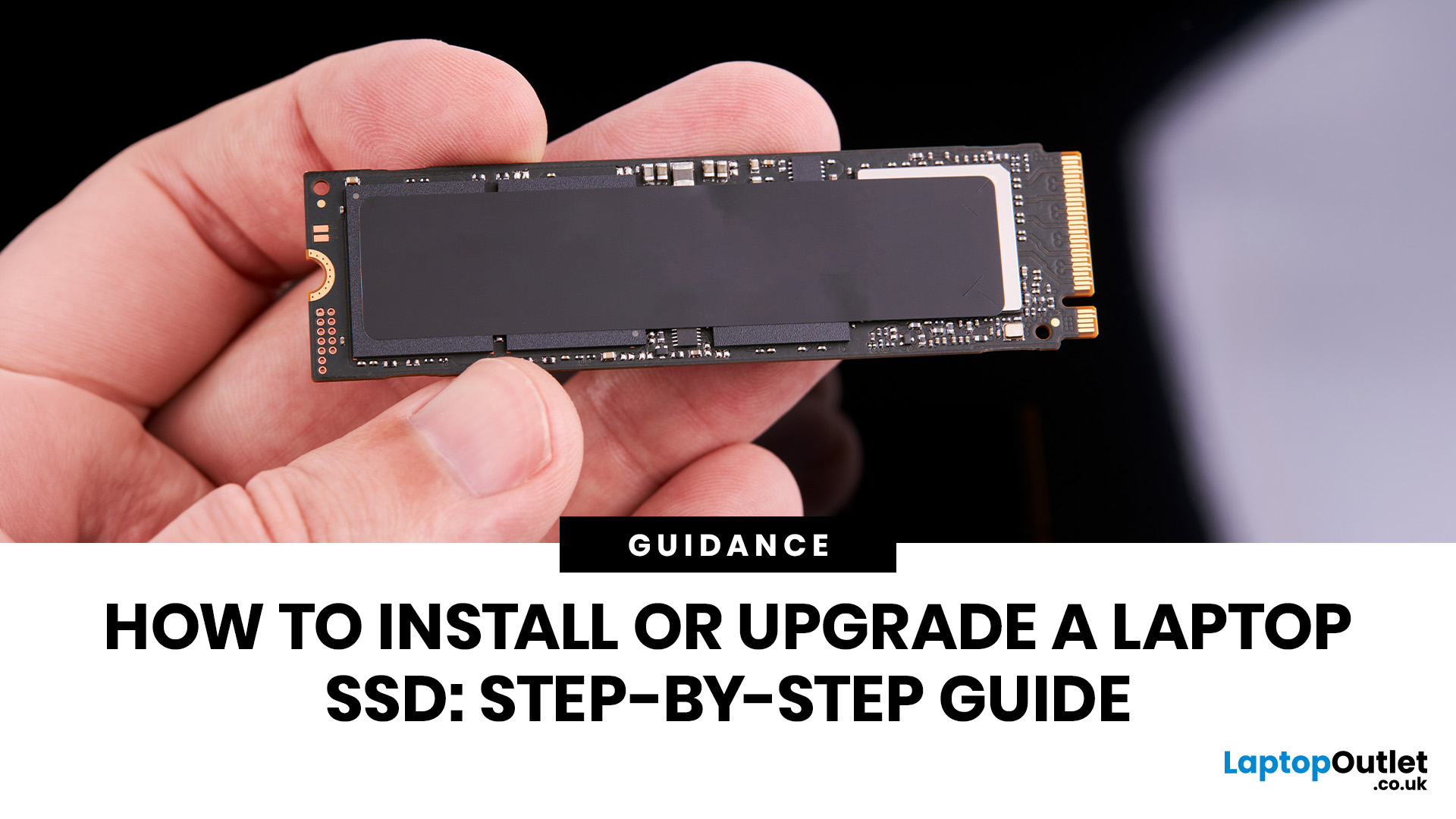
The computer that helped guide the Apollo missions worked with just 4 KB of RAM and around 72 KB of stored memory. Today, a modern laptop can burn through more than that just opening a few tabs.
That is how fast tech has moved and why an older laptop can suddenly feel frustratingly slow. Long boot times, laggy apps, and constant low-storage warnings can make even simple tasks feel harder than they should.
The good news is that you do not always need a brand-new machine. In many cases, upgrading your SSD is one of the easiest ways to make your laptop feel faster, smoother, and far more usable.
In this guide, we will show you how to upgrade a laptop SSD step by step, from checking compatibility to choosing the right drive and installing it properly.
Why upgrading your laptop SSD is worth it
Faster boot times, file transfers, and app loading
A slow laptop gets old fast. Long startup times, laggy apps, and endless waiting usually point to one thing: slow storage.
That is why how to upgrade
Last Updated: July 09, 2026
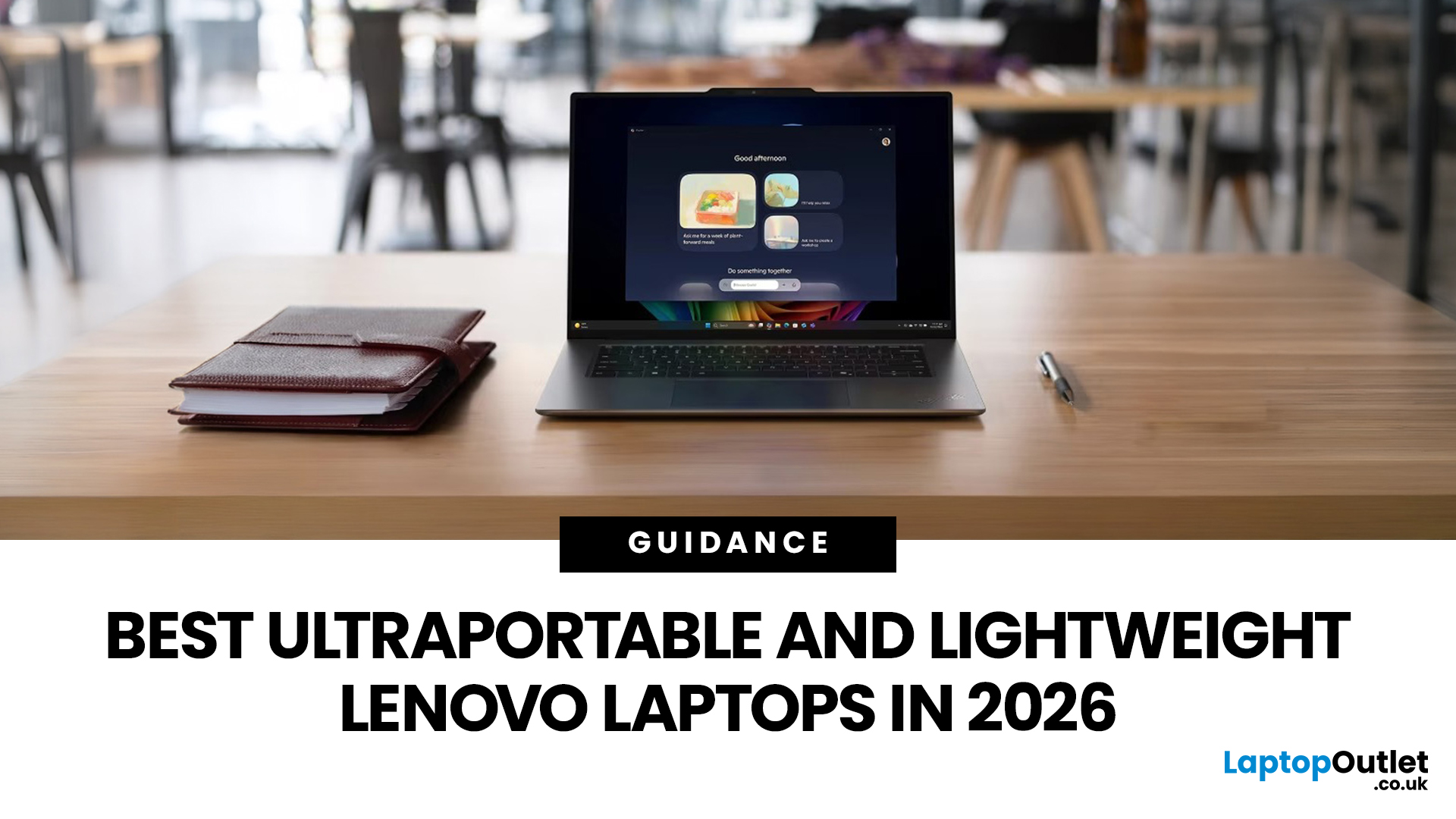
The best lightweight Lenovo laptops in 2026 are not all trying to do the same job. If we want the lightest premium 14-inch option, Lenovo’s Yoga Slim 7i Ultra Gen 11 Aura Edition stands out at 975g with a 75Wh battery. If business travel comes first, the ThinkPad X1 Carbon Gen 13 Aura Edition is still one of the strongest all-round choices thanks to its sub-1kg starting weight on some configs, proper business-grade connectivity, and classic ThinkPad focus.
That matters because buyers looking for ultraportable Lenovo laptops usually care about more than one thing at once: low carry weight, reliable battery life, enough ports to avoid living off dongles, and a screen that still feels good after a full day of work, study or travel. In this guide, we break down the best current Lenovo options for commuters, students, professionals, creators and home users, using Lenovo’s own 2026-era spec sheets first and independent reviews where they add useful trade-offs.
What Counts as a Genuinely Lightweight

Last Updated: April 29, 2026
If you want to spend less on a laptop in 2026, the smartest move is to make better buying decisions from the start. That means:
- Buy the right type of laptop for the way you actually use it
- Compare new and refurbished properly
- Avoid machines that look cheap but cost you more later through poor performance, weak battery life, or missing warranty cover.
In the UK, refurbished options can save you a lot when you buy from a reputable retailer, but you still need to check condition grading, warranty, return options, and whether the laptop is genuinely suitable for today’s Windows requirements.
That is the real cheapest way for UK shoppers to buy a laptop they can feel good about. A low headline price only counts as a good deal on laptops if the machine still fits your workload, stays supported, and does not force you into another purchase too soon. This laptop deals & savings guide helps you work that out clearly, without making the process feel more complicated than it needs to be.
Quick Money-Saving

Last Updated: September 02, 2026
Looking to sell or trade in old laptop in the UK and get the most cash for it? This guide covers everything you need to know, from checking your laptop's resale value and wiping your data safely, to choosing the right selling method and avoiding common scams. Follow these steps and you could put a healthy amount back in your pocket.
What Does "Selling vs Trading In" Actually Mean?
Before diving in, it's worth being clear about the difference. Selling your old laptop means listing it yourself and receiving payment from a buyer. Trading in means handing your device to a scheme or retailer in exchange for cash, credit, or a discount off your next purchase.
Both have real merit, and the right option depends on how much time you have, how much you want to earn, and what condition your laptop is in.
How Much Is Your Old Laptop Actually Worth?
The first question most people ask, “how much is my laptop.” The honest answer is: it depends on several factors, but there are reliable ways to estimate

Last Updated: May 01, 2026
If you are searching for teacher discount laptops UK, the good news is that there are several ways to cut the cost of a new device without compromising on performance. In the UK, teachers, lecturers, and some school staff can often access education pricing, retailer offers, refurbished savings, and category-specific deals designed for work and study. Apple’s UK education pricing is available to students, teachers and staff, while Lenovo UK also includes teachers in its education discount programme.
The key is knowing where teachers get discounts on laptops in the UK, what proof you need, and which laptop category makes the most sense for your day-to-day workload. Whether you need a lightweight machine for lesson planning, a durable device for classroom use, or a more powerful system for admin-heavy tasks, there are smart ways to save.
In this step-by-step guide, we’ll show you how to access laptop discounts for teachers in the UK, what the verification process typically looks like, and
Last Updated: May 22, 2026
A laptop usually overheats because of blocked airflow, dust, heavy apps, dried thermal paste, charging heat, or a faulty fan. To cool it down fast, place it on a hard surface, close demanding programs, clean the vents, switch to Balanced mode, and let it rest. If it keeps overheating or shutting down, it may need internal cleaning, thermal paste replacement, or repair.
Your coffee could be hot, but it doesn't work for a laptop to be honest. A little warmth is normal during gaming, charging, video calls, or heavy work, but if your laptop is overheating, slowing down, shutting off, or making loud fan noise, something needs fixing. This guide explains the fastest laptop overheating fix, why your laptop is running hot, and how to cool it down before the problem gets worse.
First, Is Your Laptop Actually Overheating?
Before you panic, it is important to know the difference between a laptop that is simply warm and a laptop that is truly overheating.
Laptops are compact machines. The processor,
Last Updated: May 22, 2026
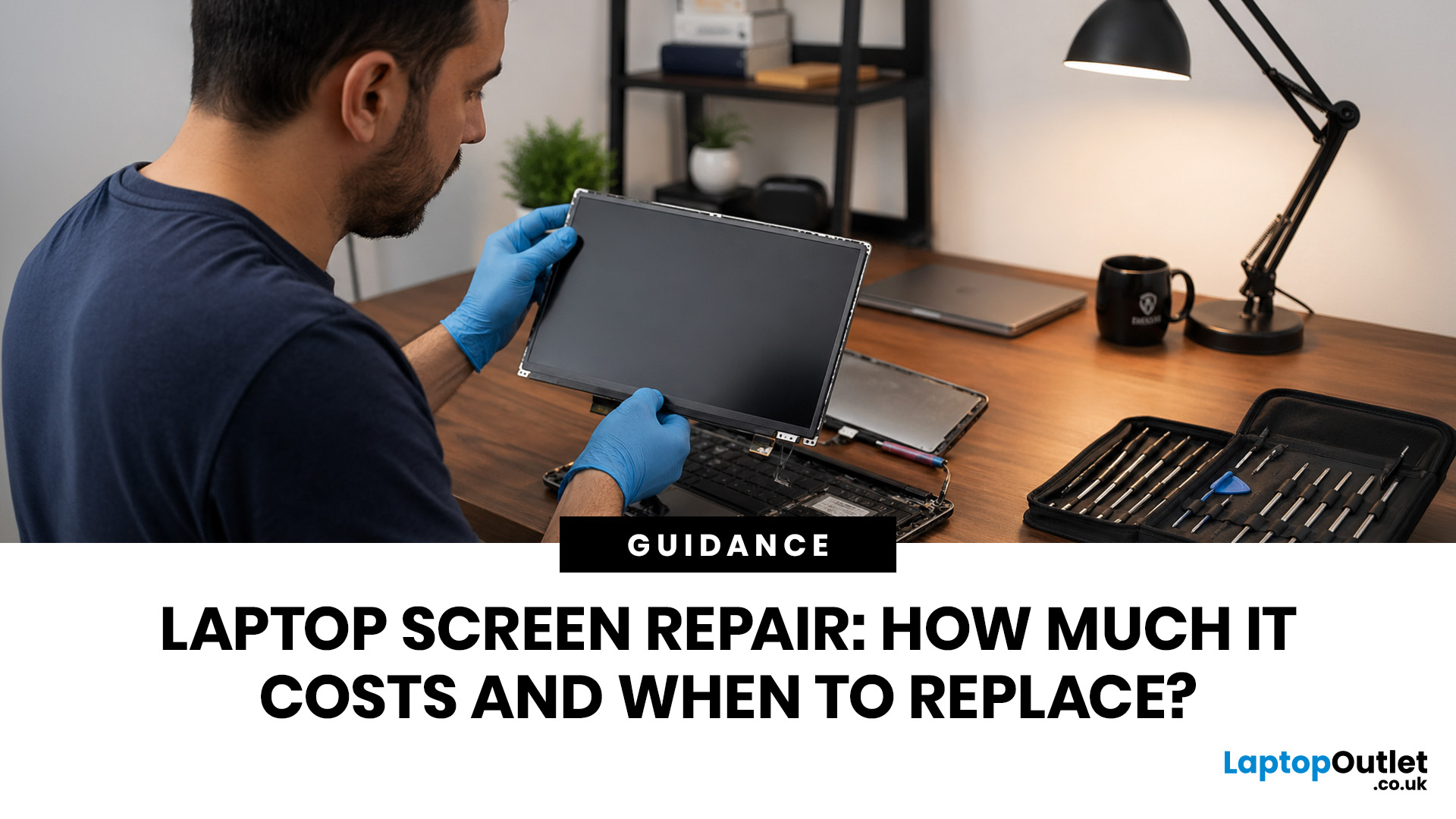
Laptop screen repair cost in the UK usually ranges from £50 to £300 for a standard 15.6-inch screen, depending on the laptop model, screen type, damage level, and labour cost. Basic LCD replacements are usually cheaper, while touchscreen, OLED, gaming laptop, and MacBook screen repairs can cost more. If your laptop is still fast and the repair costs less than half its value, fixing the screen is usually worth it. If the laptop is old, slow, or the repair is close to the price of a replacement, upgrading may be the smarter choice.
So, your laptop screen has cracked, flickered, gone black, or started showing strange lines - and now you are probably wondering one thing:
How much does laptop screen repair cost in the UK, and is it even worth fixing?
The answer depends on your laptop model, screen type, and damage level. A standard laptop screen repair or replacement in the UK usually costs around £50 to £300, while touchscreens, OLED displays, gaming laptops, and MacBooks can cost more.
This
Last Updated: May 22, 2026
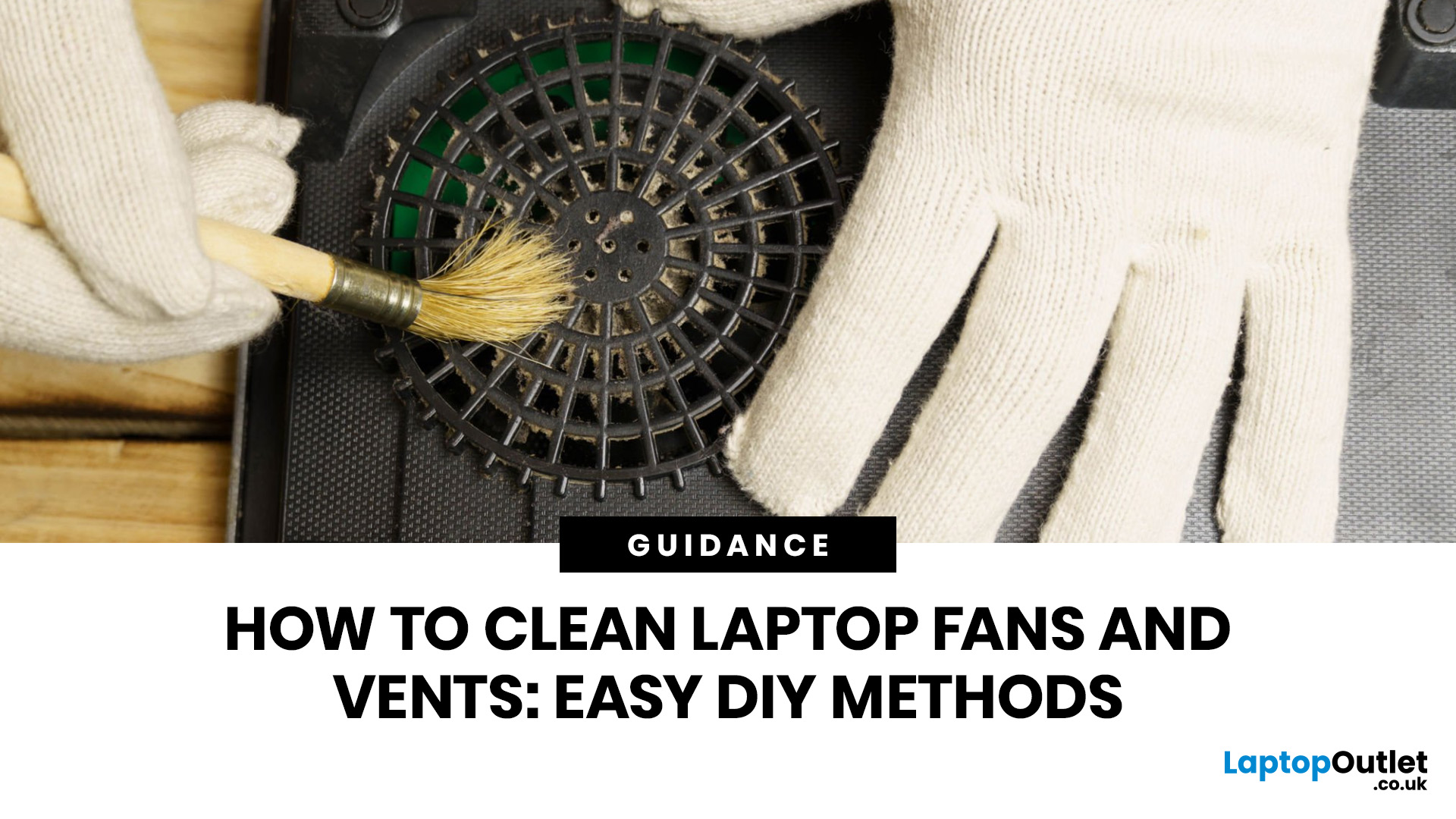
A thin layer of dust can make your laptop work harder than it should. When vents get blocked, heat stays trapped inside, the fan spins louder, and performance can drop during everyday tasks.
The simple tip? Start from the outside. In most cases, you can clean laptop fan vents safely with a soft brush, a microfibre cloth, and short bursts of compressed air - no risky disassembly needed.
This easy DIY guide shows you how to clean laptop fan and vent areas, what to avoid, and when it is smarter to call a professional.
Quick Checklist: How to Clean Laptop Fan Safely
Use this simple checklist whenever you clean the laptop:
- Shut down the laptop fully
- Unplug the charger and accessories
- Let the laptop cool
- Find the real vents
- Brush away visible dust
- Use compressed air in short bursts
- Keep the air can upright
- Avoid spinning the fan too fast
- Wipe the exterior gently
- Restart and check temperature and noise
This is the safest routine for most users who want to clean the laptop without opening it.
Last Updated: June 10, 2026
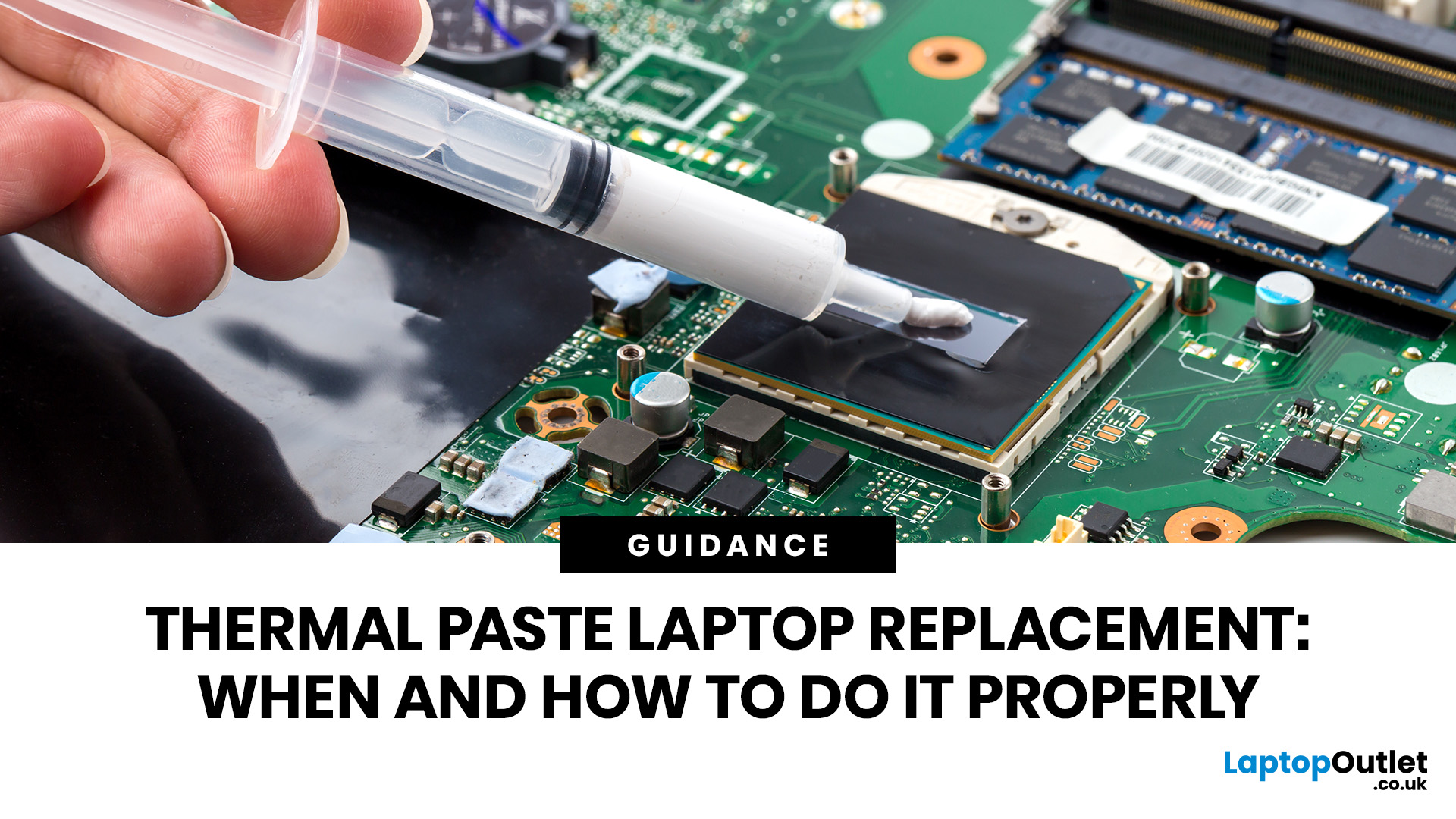
Thermal paste laptop replacement is needed when your laptop overheats, runs loud, slows down under load, or shuts down unexpectedly even after cleaning the fans and vents. Thermal paste helps transfer heat from the CPU or GPU to the heatsink, but it can dry out over time. Replacing it properly can improve cooling, reduce thermal throttling, and help your laptop perform more consistently.
A hot, loud, or slow laptop may be struggling with dust, poor airflow, heavy software, or ageing thermal paste. If temperatures stay high even after cleaning the vents, thermal paste laptop replacement can help restore cooling performance.
Thermal paste transfers heat from the CPU or GPU to the heatsink, but it can dry out or lose effectiveness over time. This guide explains when to replace it, how to apply it safely, how much to use, and when to get professional help.
What Is Thermal Paste in a Laptop?
Thermal paste, also called thermal grease, CPU paste, cooling paste, thermal compound, or thermal

Last Updated: June 10, 2026
The 2026 RAM crunch is being driven by AI data centre demand. Memory makers are shifting capacity towards high-bandwidth memory, server DDR5, and enterprise SSDs, leaving less supply for consumer laptops. As a result, laptop RAM and SSD costs may rise, making many 2026 laptops more expensive or less generously specified.
If you were hoping laptop prices would settle down in 2026, the RAM market may have other plans.
The AI boom is pushing huge demand for memory chips, including DDR5, SSD storage, and high-bandwidth memory used in data centres. As manufacturers prioritise these high-margin AI products, consumer laptops could face tighter supply and higher component costs.
For UK buyers, that may mean more expensive laptops in 2026, fewer strong discounts, and budget models with weaker specs than before.
What Is the 2026 RAM Crunch?
The 2026 RAM crunch is a global memory shortage caused by rising demand for AI servers, high-bandwidth memory, DDR5 server memory, and enterprise SSDs.
In

