



Wi-Fi vs Ethernet: Which Connection Is Better for Laptops?
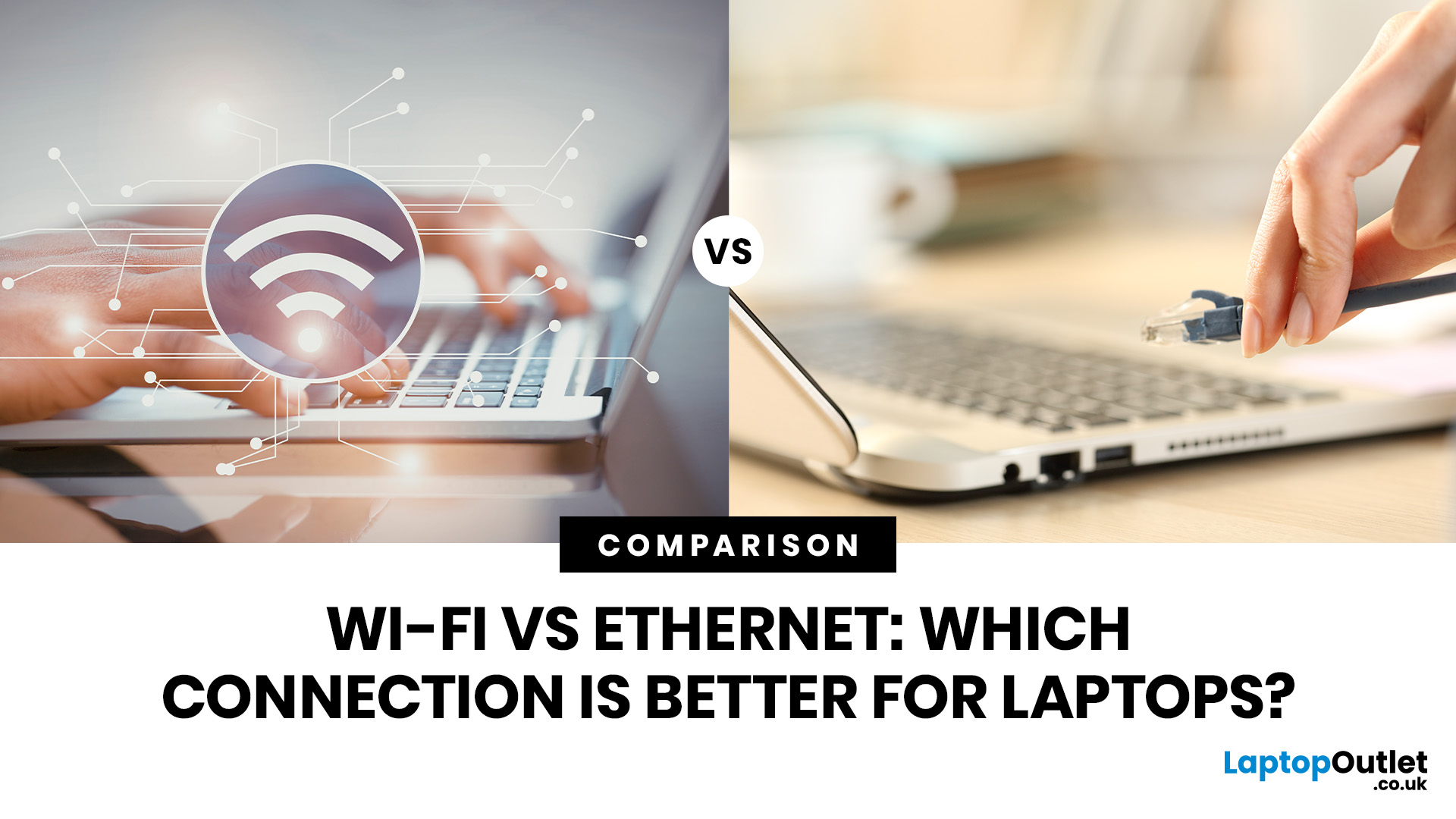
Ethernet is faster, more stable, and lower-latency than Wi-Fi for laptops, making it the better choice for gaming, video calls, and large file transfers. Wi-Fi wins on convenience and flexibility, especially for everyday browsing and light tasks where a physical cable is not practical. The right connection depends on your specific use case.
The debate around Ethernet vs WiFi is one that most laptop users run into at some point, whether you are setting up a home office, getting into PC gaming, or just trying to stop your video calls from dropping out mid-meeting.
Both connection types are perfectly capable of getting you online, but they work in very different ways and perform quite differently depending on what you are doing. This guide breaks everything down clearly so you can make the right call for your setup.
How Does Each Connection Actually Work?
Before comparing the two, it helps to understand the basics of how each technology functions. Knowing this makes it much easier to understand why one performs better than the other in certain situations.
How Wi-Fi Works
Wi-Fi transmits data wirelessly using radio frequency signals, typically on the 2.4 GHz or 5 GHz bands (and now 6 GHz with Wi-Fi 6E). Your laptop communicates with a wireless router, which connects to your broadband line and sends data back and forth through the air.
Because the signal travels through open space, it is susceptible to interference from other devices, walls, neighbouring networks, and even microwave ovens. The further you are from your Wi-Fi router, the weaker and less consistent your connection becomes.
How Ethernet Works
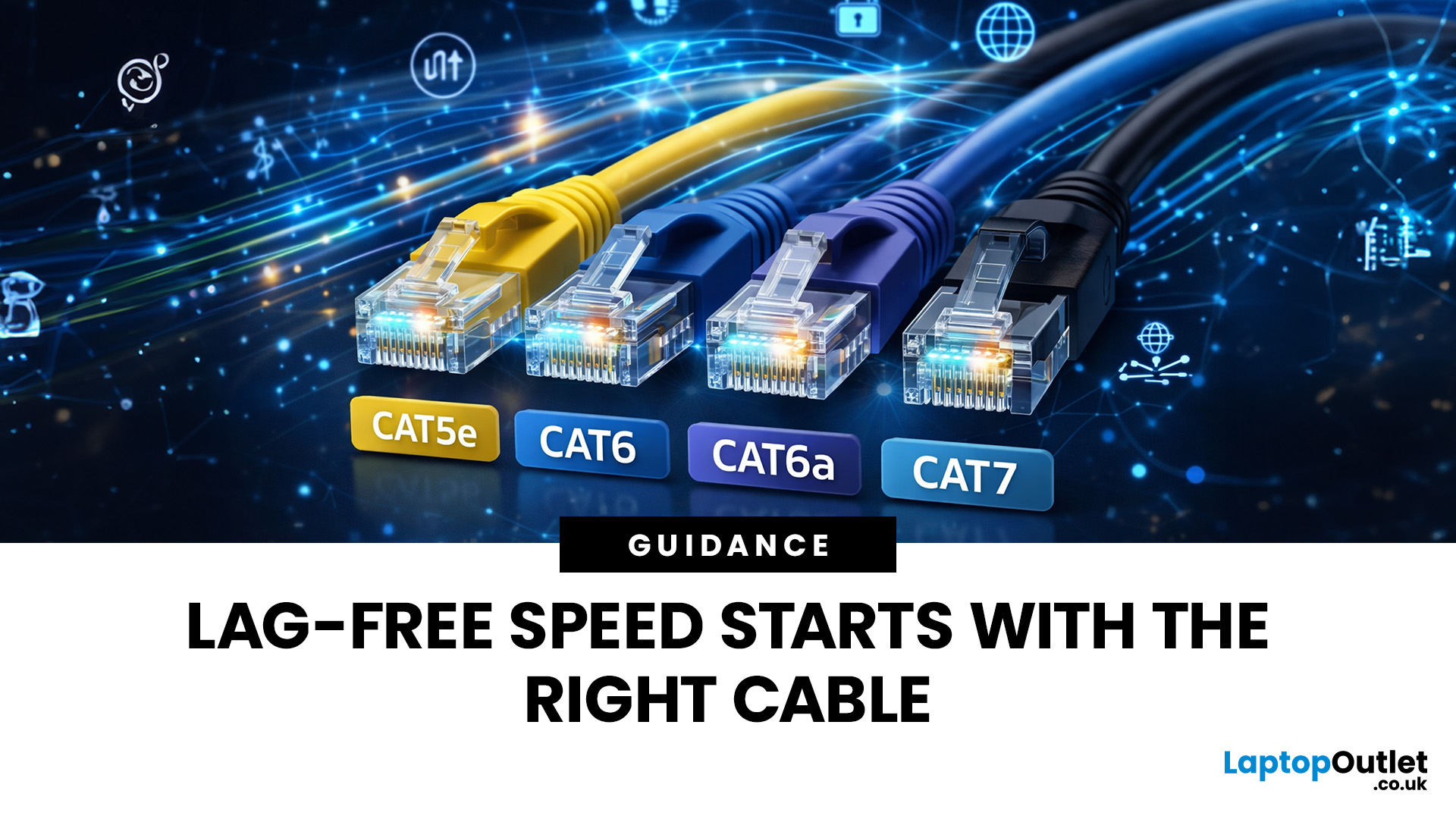
Ethernet sends data through a physical cable, usually a Cat5e, Cat6, or Cat6a cable, directly from your router or switch to your laptop. There are no signals bouncing through the air, no interference from other devices, and no signal degradation based on distance (within normal cable length limits).
This wired approach creates a dedicated, private data path between your laptop and the network. That is fundamentally why Ethernet is considered the more reliable option for demanding tasks. You can browse the range of Ethernet cables available to find the right spec for your setup.
Wi-Fi vs Ethernet Speed: Which Is Actually Faster?
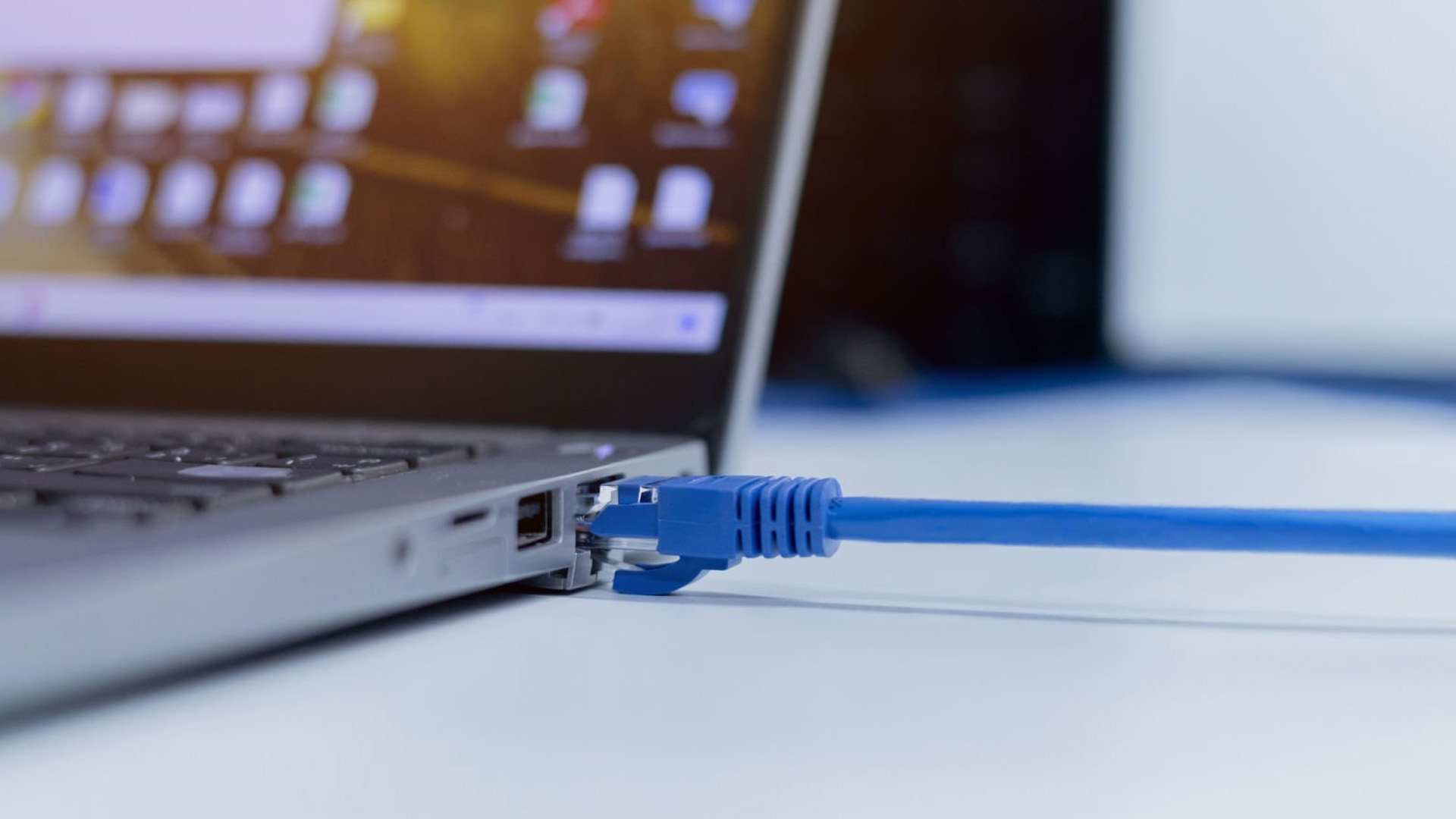
Speed is usually the first thing people compare when weighing up wired vs wireless internet for laptops, and for good reason. The difference can be significant depending on your hardware and broadband plan.
Real-World Speed Differences
On paper, modern Wi-Fi standards like Wi-Fi 6 (802.11ax) are capable of impressive speeds. In practice, real-world throughput is almost always lower than the theoretical maximum due to interference, device congestion, and signal strength.
Ethernet, by contrast, consistently delivers speeds close to its rated capacity. A Cat6 cable supports up to 10 Gbps over short runs, and even a basic Cat5e connection handles 1 Gbps reliably.
|
Connection Type |
Max Theoretical Speed |
Typical Real-World Speed |
Consistency |
|
Wi-Fi 5 (802.11ac) |
3.5 Gbps |
100–400 Mbps |
Moderate |
|
Wi-Fi 6 (802.11ax) |
9.6 Gbps |
200–600 Mbps |
Moderate–Good |
|
Wi-Fi 6E (6 GHz band) |
9.6 Gbps |
300–700 Mbps |
Good (short range) |
|
Wi-Fi 7 (802.11be) |
46 Gbps |
1–2+ Gbps |
Very Good |
|
Ethernet Cat5e |
1 Gbps |
900–1,000 Mbps |
Excellent |
|
Ethernet Cat6 |
10 Gbps |
1–10 Gbps |
Excellent |
| Tip: If your broadband plan is 100 Mbps or under, both Wi-Fi 5 and Ethernet will handle it comfortably. Where Ethernet really pulls ahead is when your plan is 500 Mbps or above, or when multiple devices are sharing the network simultaneously. |
| ✅ Verdict: Ethernet consistently delivers faster, more reliable speeds than Wi-Fi, especially on high-speed broadband plans. If raw speed matters, a wired connection wins without question. |
Which Has Lower Latency: Ethernet or Wi-Fi?
Latency, or ping, is how long it takes for a data packet to travel from your laptop to a server and back. For most browsing, latency is barely noticeable. For gaming, video calls, and real-time applications, it matters a great deal.
Latency Comparison Explained
Ethernet typically achieves latency of 1–5 ms on a local network. Wi-Fi usually sits between 10–50 ms, with spikes that can go much higher during interference or congestion. That gap might sound small, but in competitive gaming or live video collaboration, those milliseconds make a real difference.
Wi-Fi also introduces something called jitter, which is variation in latency over time. Ethernet is far more consistent, meaning your ping does not spike unpredictably.
|
Metric |
Ethernet |
Wi-Fi |
|---|---|---|
|
Typical Latency |
1–5 ms |
10–50 ms |
|
Jitter |
Very low |
Can be high |
|
Best For |
Gaming, video calls, VoIP |
General browsing, streaming |
| ✅ Verdict: Ethernet is the clear winner for low latency and consistent ping. If you play online games or join a lot of video meetings, a wired connection is noticeably more responsive. |
Which Connection Is More Stable and Reliable? Wi-Fi or Ethernet?
Reliability is about how consistently your connection holds up over time, not just how fast it is at its best. This is where the difference between wired and wireless internet for laptops becomes most obvious in everyday use.
What Causes Wi-Fi Instability?
Wi-Fi signals can be disrupted by a surprising range of things in a typical UK home or office. Physical obstacles like walls and floors reduce signal strength, and competing networks from neighbours on the same channel can cause interference.
- Thick walls or multi-storey buildings weakening signal
- Other devices on the 2.4 GHz band (baby monitors, cordless phones, microwaves)
- Network congestion when many devices are connected simultaneously
- Automatic channel switching by the router causing brief drops
- Distance from the router leading to weaker, more variable signal
| Tip: If Wi-Fi dropping is a persistent issue at home, mesh Wi-Fi systems can significantly improve coverage across multiple rooms and floors, reducing dead zones without running cables everywhere. |
Why Is Ethernet More Reliable?
A wired connection avoids all of the above issues by design. Data travels through the cable directly, so there is no signal to degrade, no interference to worry about, and no drop-outs caused by neighbouring networks. The connection is as reliable as the cable and hardware involved.
For critical tasks like video calls with clients, uploading large files, or running VPNs reliably, Ethernet is significantly more dependable.
| ✅ Verdict: Ethernet is substantially more stable than Wi-Fi in most real-world environments. If connection reliability is a priority, particularly for professional work or streaming, wired is the better choice. |
Ethernet versus WiFi: Which Connection Is More Secure?
Security is a genuinely important consideration, particularly if you handle sensitive data or work remotely. The difference between Ethernet and Wi-Fi here is meaningful but often overlooked.
Wi-Fi Security Vulnerabilities

Wi-Fi transmits data through the air, which means it is theoretically possible for someone within range to intercept signals. Modern protocols like WPA3 offer strong encryption and are much harder to crack than older WPA2, but wireless networks remain inherently more exposed than wired ones.
Public Wi-Fi, such as in cafes or hotels, carries significantly higher risk. Man-in-the-middle attacks and eavesdropping are more feasible on unsecured networks.
Why Ethernet Is Inherently More Secure
To intercept data on an Ethernet connection, someone would need physical access to the cable or network hardware. That is a much higher bar than sniffing wireless signals from a car park or a neighbouring flat.
For businesses handling sensitive information, financial data, or client records, a wired network connection offers a meaningful security advantage over Wi-Fi.
| Warning: Regardless of whether you use Wi-Fi or Ethernet, always use a VPN when working remotely on sensitive data. Encryption matters regardless of connection type. |
| ✅ Verdict: Ethernet is the more secure option by design. For home use on WPA3 Wi-Fi, the risk is relatively low, but in shared or public environments, a wired connection or VPN is strongly advisable. |
Which Is More Convenient: Wi-Fi or Ethernet?
This is genuinely the area where Wi-Fi has a clear advantage over Ethernet, and it is worth being honest about that. Not every laptop user sits at a desk all day.
The Flexibility Advantage of Wi-Fi
Wi-Fi lets you move freely around your home or office without being tethered to a single spot. You can use your laptop on the sofa, in the kitchen, or in a meeting room without any setup beyond your password. That kind of flexibility has real practical value.
For users who travel frequently or use laptops in multiple locations throughout the day, Wi-Fi is often the only practical option. Most public spaces, hotels, and co-working spaces offer Wi-Fi, not wired ports.
The Limitations of Ethernet for Portability
Ethernet cables tie your laptop to a specific location. Most modern thin-and-light laptops do not even include an Ethernet port, which means you would need a USB-C adapter or a docking station to use a wired connection at all.
Setting up a wired connection also takes a little more effort: routing cables, managing cable clutter, and ensuring the right equipment is in place.
| ✅ Verdict: Wi-Fi is the winner on convenience and portability without question. For users who value mobility and flexibility above all else, wireless is simply the more practical day-to-day option. |
What If My Laptop Does Not Have an Ethernet Port?
This is one of the most common practical hurdles people face when trying to use a wired connection. Slim laptops from the last few years routinely omit the RJ45 Ethernet port to keep their profile thin, which can be frustrating when you want a wired connection.
Using a USB to Ethernet Adapter
The simplest solution is a USB-A or USB-C to Ethernet adapter. These plug into your laptop's USB port and give you a standard Ethernet socket. They are compact, affordable (typically around £10–£25), and easy to carry in your bag. A good range of network adapters covers both USB-A and USB-C connections.
Most modern adapters support Gigabit Ethernet (1 Gbps), which is more than enough for the majority of UK broadband plans. Look for one that uses a reliable chipset such as Realtek RTL8153 for best compatibility.
Using a Docking Station for a Permanent Setup
If you have a fixed desk setup and want a cleaner solution, a docking station is a smarter investment. Docking stations connect to your laptop via a single USB-C or Thunderbolt cable and typically include a built-in Ethernet port alongside multiple USB ports, display outputs, and audio connections.
This means you get a wired connection plus all your peripherals connected through one cable, which is far neater than a cluster of individual adapters.
Adding an Ethernet Port via a Network Card
For laptops with an available PCIe or ExpressCard slot, installing a dedicated network card gives you a permanent Ethernet port without using any external USB connection. This is more common in older or larger business laptops than modern thin-and-light models.
Ethernet vs Wi-Fi for Laptops: Pros and Cons at a Glance
If you want a quick summary of the advantages of Ethernet and the benefits of Wi-Fi side by side, here is a straightforward breakdown covering both connection types across all the key factors.
Ethernet Pros and Cons
|
Pros |
Cons |
|
Consistent, reliable speeds close to your ISP plan maximum Very low, stable latency (1–5 ms) No interference from walls, appliances, or neighbouring networks Dedicated wired link to the router or switch, reducing local wireless congestion Inherently more secure – no wireless signal to intercept Unaffected by the number of Wi-Fi devices in the home Cable quality is affordable and long-lasting |
Requires a physical cable – less convenient for portable use Many thin and light laptops lack a built-in Ethernet port Cables can be unsightly if not managed properly Limits movement while connected May require an adapter or docking station for portless laptops |
Wi-Fi Pros and Cons
|
Pros |
Cons |
|
No cables – full freedom of movement Easy to set up and connect new devices Supports phones, tablets, and devices without Ethernet ports Modern standards (Wi-Fi 6, Wi-Fi 7) are fast enough for most tasks Works across multiple rooms without physical installation Available in cafes, hotels, and public spaces |
Speeds vary with distance, walls, and interference Bandwidth shared across all connected devices Higher and less consistent latency than Ethernet More susceptible to congestion in dense environments Weaker security by nature – signal broadcast through the air Performance degrades with older routers or many simultaneous users |
So, Which Connection Is Right for Your Laptop?
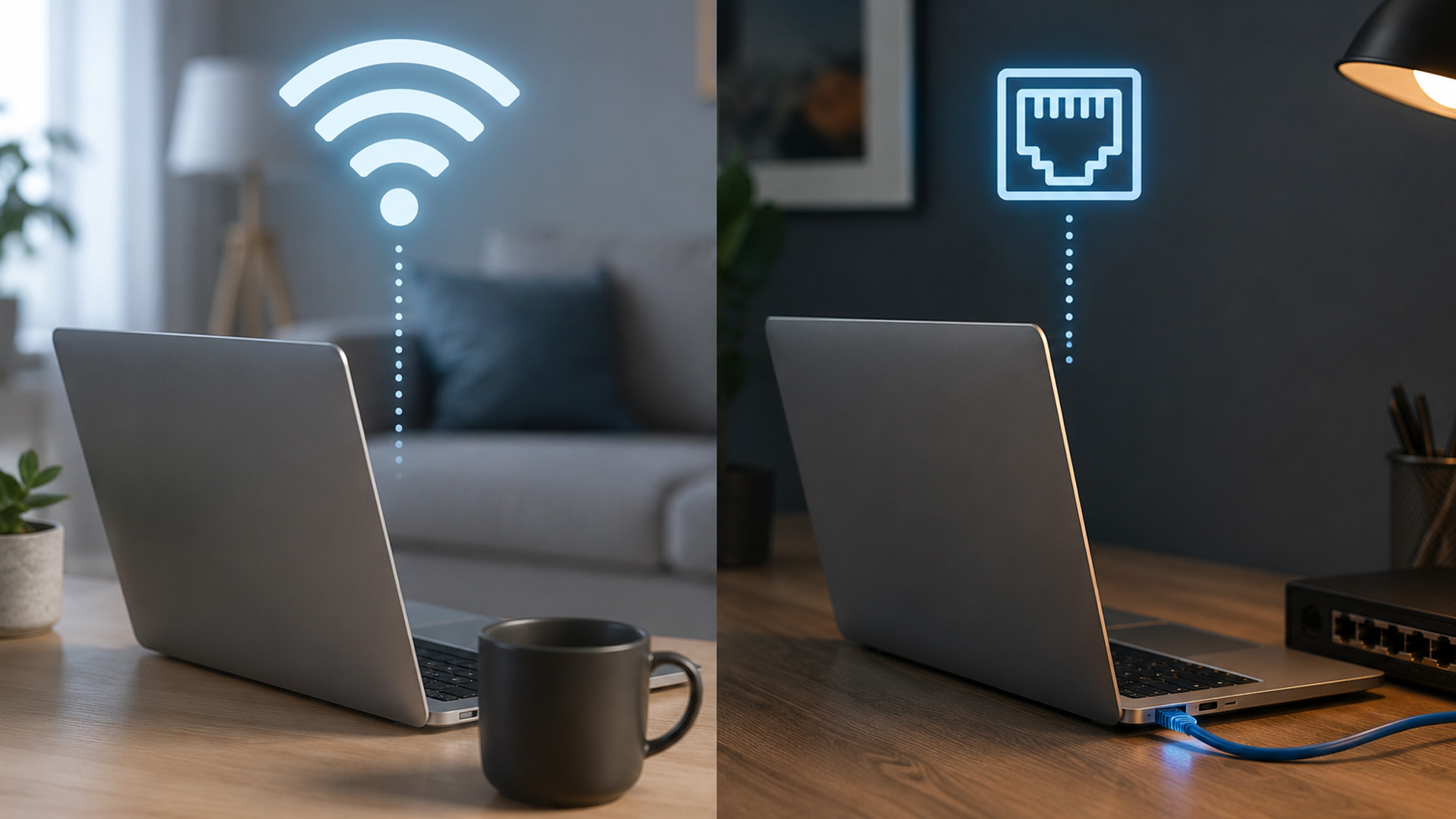
There is no single answer that fits everyone, and the smartest setups often use both. Most people find that Ethernet is better for their main work or gaming setup, while Wi-Fi handles everything else. Here is a quick guide to help you decide.
|
Your Situation |
Recommended Connection |
Why |
|---|---|---|
|
Competitive online gaming |
Ethernet |
Lowest latency, no packet loss risk |
|
Working from home, daily video calls |
Ethernet |
Stable, consistent connection for calls and uploads |
|
4K streaming to a fixed TV or screen |
Ethernet |
No buffering, full bandwidth available |
|
Handling sensitive or financial data |
Ethernet |
No wireless signal to intercept |
|
Browsing, emails, social media |
Wi-Fi |
More than adequate, much more convenient |
|
Moving between rooms regularly |
Wi-Fi |
Cables restrict movement |
|
Laptops without an Ethernet port |
Wi-Fi or Adapter |
Native Wi-Fi or USB-C Ethernet adapter |
|
Large home with poor coverage |
Mesh Wi-Fi |
Consistent wireless across multiple floors or rooms |
|
Desk-based work and gaming |
Ethernet via Docking Station |
Clean setup with full port connectivity |
If your laptop stays on a desk for most of its use, connecting via Ethernet is a worthwhile upgrade. You can unplug and use Wi-Fi whenever you need to move, getting the best of both connection types.
| Tip: If you want to browse the full range of wired and wireless solutions in one place, Laptop Outlet's networking devices section covers everything from cables and adapters to routers and switches. |

Which Connection Type Wins for Your Laptop?
When it comes to the Ethernet vs WiFi laptop debate, there is no one-size-fits-all answer. Ethernet delivers superior speed, reliability, lower latency, and better security, making it the stronger choice for gaming, working from home, and anything that demands a consistent connection.
Wi-Fi, meanwhile, offers the flexibility and convenience that modern portable laptops are built around. For everyday browsing, light work, and situations where running a cable is simply not practical, it does the job very well, especially with Wi-Fi 6/7 hardware.
Just So You’re in the Loop...
Is Ethernet faster than WiFi for laptops?
Yes. Ethernet consistently delivers speeds closer to your ISP's maximum. Wi-Fi speeds vary with distance, interference, and device congestion.
What is the main advantage of Ethernet over Wi-Fi?
The main advantages of Ethernet are consistent speed, lower latency, better security, and immunity to wireless interference and congestion.
Does Ethernet reduce ping for gaming laptops?
Yes. Ethernet typically provides 1–5 ms latency compared to 10–50 ms on Wi-Fi, making it noticeably better for competitive online gaming.
Can I use Ethernet on a laptop without an Ethernet port?
Yes. A USB-C or USB-A to Ethernet adapter, or a docking station with a built-in port, solves this quickly and affordably for most laptops.
Is Ethernet more secure than Wi-Fi?
Yes. Ethernet requires physical access to intercept data, whereas Wi-Fi signals can theoretically be intercepted wirelessly, especially on public networks.
What Ethernet cable should I use for a home laptop setup?
Cat6 is a sensible choice for most homes because it supports 1Gbps up to 100m and can support 10Gbps over shorter runs; Cat6a is better for full-distance 10Gbps.
Can I use both Wi-Fi and Ethernet at the same time on a laptop?
Technically yes, but most operating systems prioritise one connection. Windows and macOS typically default to Ethernet when both are active simultaneously.
| Read More: |
| Wi-Fi 6 and Wi-Fi 6E Explained |
| Choosing the Right Display Cable: HDMI vs DisplayPort vs VGA vs USB-C |
| Bluetooth Not Connecting on Laptop? Here’s How to Fix It |
Related Articles


Last Updated: December 03, 2025
Ever found yourself out and about, needing to work on your laptop, but there’s no reliable Wi-Fi? It’s a common scenario. Luckily, your smartphone holds the solution: tethering.
Tethering is a simple, effective way to use your phone's mobile data connection to get your PC online. Essentially, you're turning your phone into a portable Wi-Fi hotspot or a physical modem.
This comprehensive guide will walk you through the three main ways to tether phone to PC, ensuring you can get back to work (or play) swiftly and securely.
What is Tethering?
Tethering is the process of sharing your mobile phone's internet connection with another device, like a computer or tablet. It effectively turns your phone into a portable Wi-Fi router. You are "tethering" the two devices together to share the data.
You can tether phone to PC using a cable (USB), wirelessly (Wi-Fi hotspot), or via Bluetooth. Each method has its own advantages, which we will explore below.
Method 1: Wi-Fi
Last Updated: March 12, 2026
Most Wi-Fi guides start with specs. That’s already the wrong place.
To choose the best Wi-Fi router for your home, you first need to understand how Wi-Fi behaves inside real buildings, especially UK homes, which are often older, brick-built, and not designed for wireless signals.
What Wi-Fi Really Is (Without the Marketing Spin)
Wi-Fi is not “internet speed in the air”. It’s a radio signal that carries data between your router and your devices.
That signal:
- Weakens over distance
- Loses strength passing through walls
- Competes with other signals nearby
This is why Wi-Fi performance changes dramatically depending on where you are in your home, even when your broadband speed stays the same.
Important reality check:
Your router doesn’t “push” Wi-Fi evenly in all directions. It broadcasts radio waves that are:
- Reflected
- Absorbed
- Blocked
UK homes often make this worse because of:
- Solid brick and stone walls
- Metal-backed insulation
- Floor heating systems
- Older layouts with thick internal walls
This

Last Updated: January 26, 2026
Whether you are gaming, working from home, or streaming 4K content, having a slow internet connection is frustrating. While many people blame their ISP or router, the culprit might be inside your computer. Upgrading to high-quality network cards can transform your online experience.
In this guide, we will explore the best options available in the UK. We will also explain the technology behind these devices to help you make an informed choice.
What is a Network Card?
A network card, also known as a Network Interface Controller (NIC), is a hardware component that allows a computer to connect to a network. It acts as a middleman. It takes data from your computer and translates it into a format that can travel through cables or radio waves.
How Network Cards Work
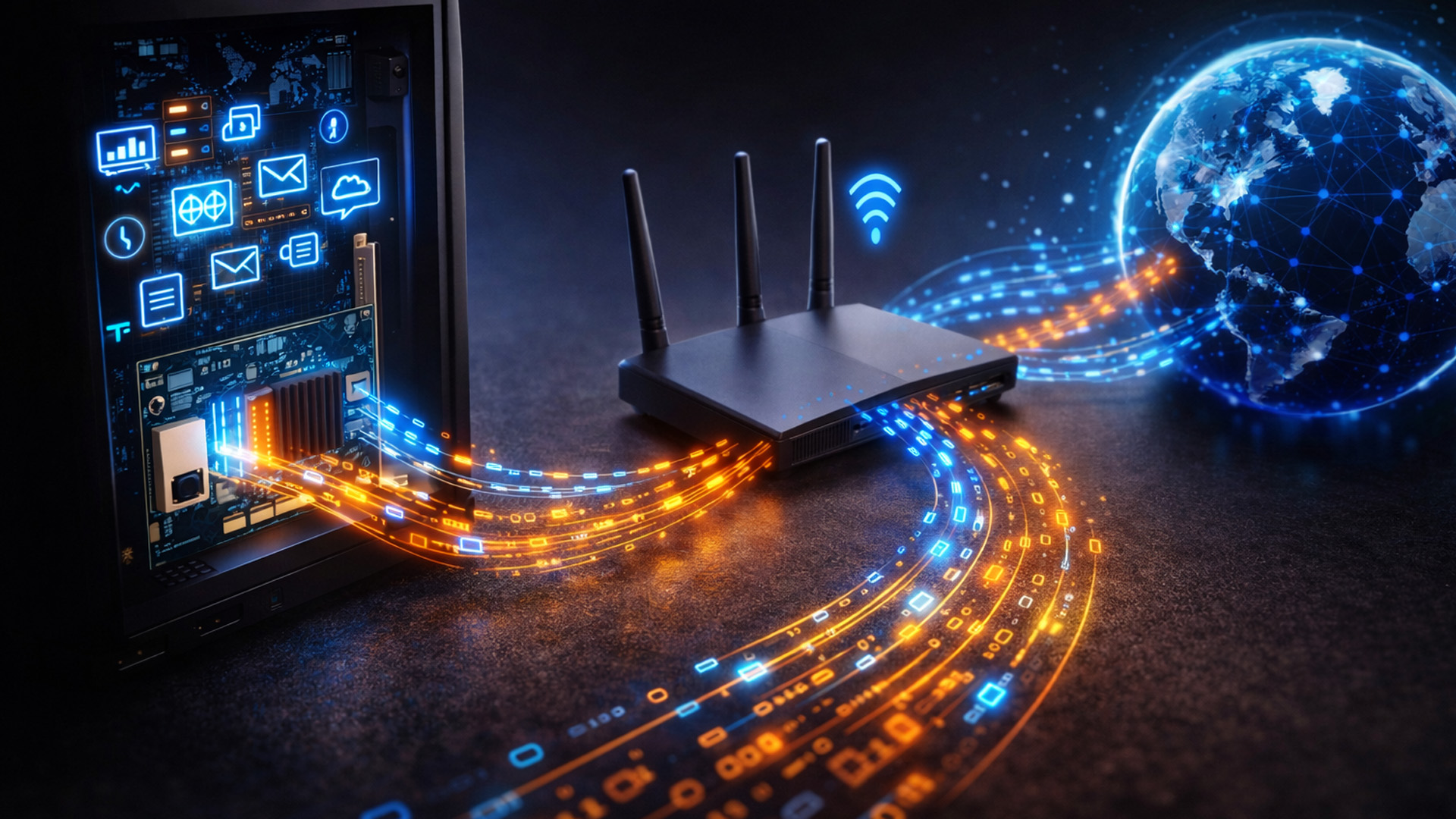
If you are wondering how network cards work, think of them as a translator. Your computer processes data in a specific way. To send this data to a router or another PC, it needs to be packaged correctly.
The network card prepares
Last Updated: January 26, 2026
Network cables are the essential, physical links that form the backbone of any robust, high-speed network. While wireless is popular, wired connections provide unmatched stability and speed for gaming, streaming, and business operations.
In this post, we’ll get network cables explained simply, covering everything you need to know about choosing and installing Ethernet cables for your UK home or office.
Why Wired Connectivity Matters in 2026
Wired connections are the secret to a stress-free digital life. They offer a level of performance that wireless routers often promise but rarely deliver consistently.
Unmatched Speed & Reliability
Physical LAN cables eliminate the frustrating signal dropouts often found with wireless signals. This reliability is vital for professional home offices and growing business environments. A direct wire ensures your bandwidth remains consistent throughout the entire day.
Low Latency for Serious Users
Low latency is the secret to a smooth experience
Last Updated: March 12, 2026
If you’ve ever wondered why your laptop struggles to stay connected while your phone works perfectly on the same Wi-Fi, the answer is often simpler than people expect.
It’s usually the network adapter.
Understanding what is a network adapter, and what it actually does — is the key to fixing many everyday connectivity problems without replacing your router, broadband plan, or entire device.
This section explains network adapters in plain English, with real UK use cases, so you can recognise when an adapter is the missing piece in your home or PC setup.
What Is a Network Adapter, Really?

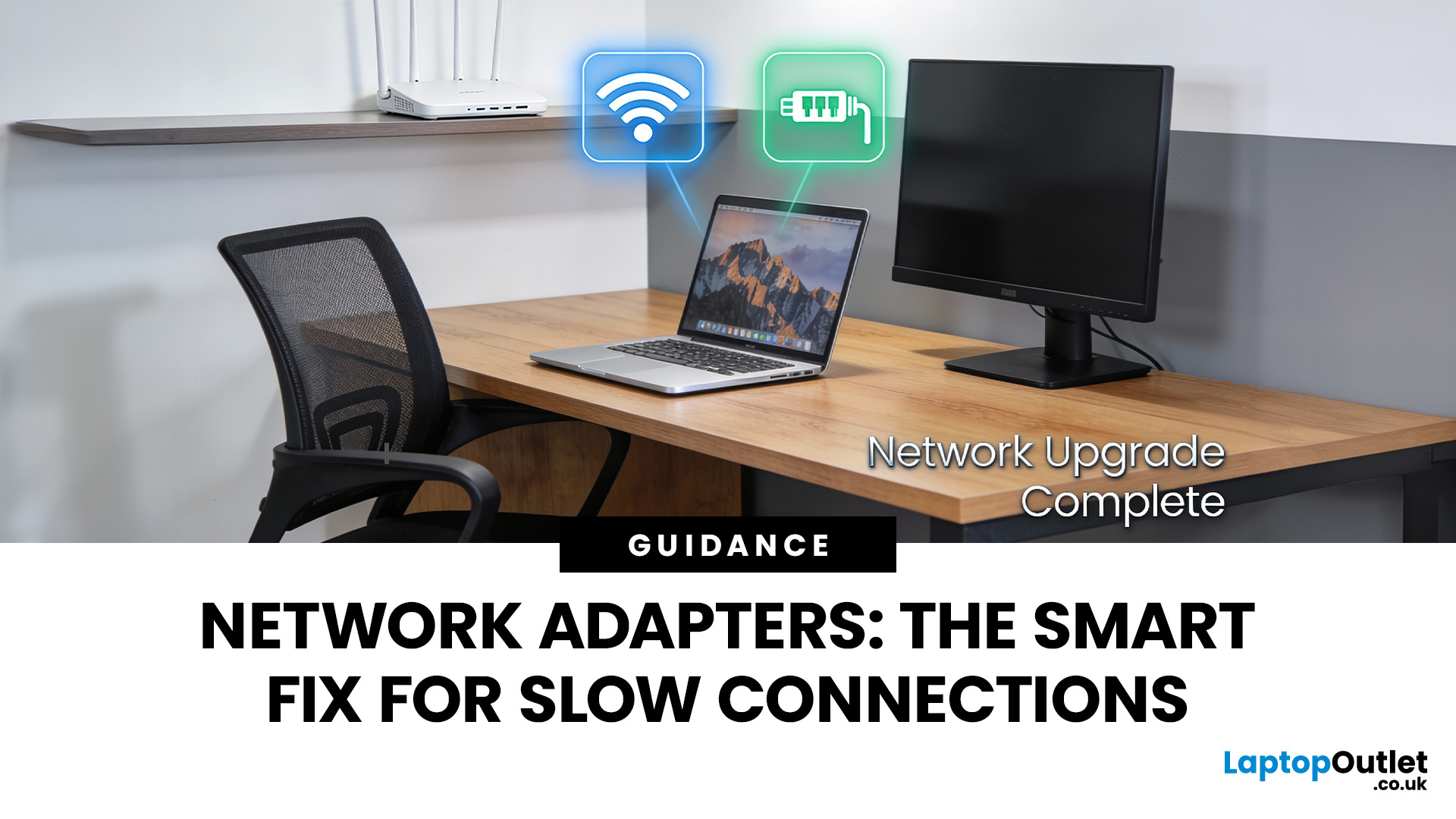
A network adapter is the component that allows a device to connect to a network, either wirelessly or with a cable.
Every device that accesses the internet has one:
- Laptops and PCs
- Smartphones and tablets
- Smart TVs and consoles
Without a network adapter, a device simply cannot communicate with your router or the wider internet.
Think of the adapter as a translator:
- Your router speaks “network”
- Your device
Last Updated: February 13, 2026
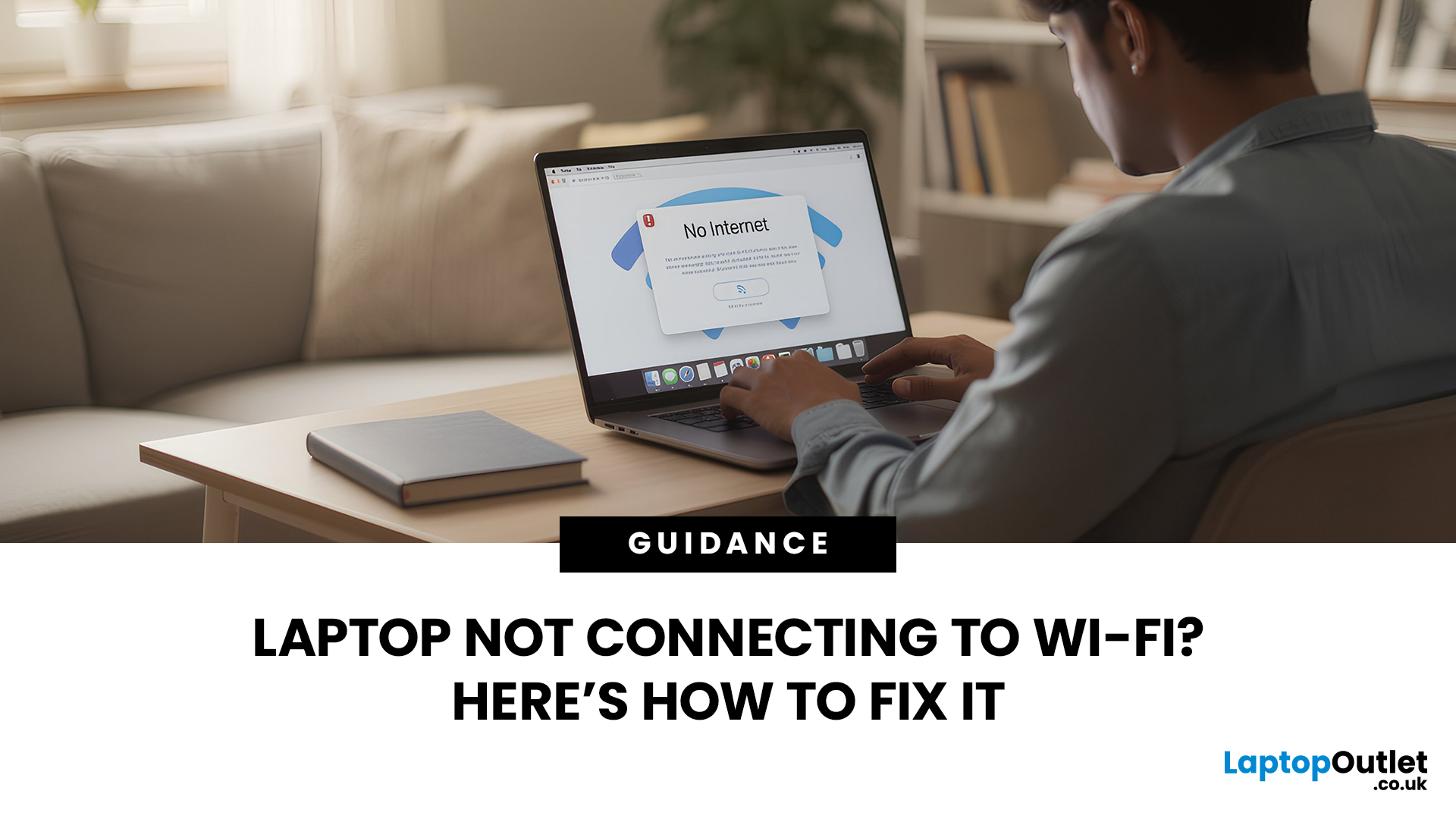
Few things are more irritating than a laptop that insists it cannot connect to Wi-Fi, especially when your phone and tablet are happily online. The good news is that most Wi-Fi faults fall into a handful of predictable categories, and you can usually narrow it down in 10 to 15 minutes with a calm, methodical check.
This guide covers the most common laptop Wi-Fi connection issues and how to fix them. Let’s start with the quickest checks, then move into deeper fixes, and finish with the point where it makes sense to involve your broadband provider or consider hardware.
Start by Identifying the Best Possible “Laptop Wi-Fi Connection Issues”

A laptop can have “Wi-Fi Connection Issues” in several different ways. If you choose the wrong fix for the wrong symptom, you can waste time.
Here’s a quick symptom map so you can match what you’re seeing:
| What you’re seeing | What it usually means | Best first move |
| No networks appear at all | Wi-Fi is switched off, Aeroplane mode is on, adapter is disabled, |
Last Updated: April 22, 2026
Getting your Canon printer onto your home or office WiFi is easier than you might think. This guide covers every method available to help you connect Canon printer to WiFi, whether you have a touchscreen model, a basic entry-level printer, or you prefer to set things up from your phone. We have also included a troubleshooting section at the end for when things do not go quite to plan.
What to Have Ready Before You Begin
It is worth taking two minutes to gather everything before you start setting up Canon printer to WiFi, as it will save you stopping halfway through. Most connection problems come down to one missing detail at this stage.
Here is what you will need:
- Your WiFi network name (SSID) and password (case-sensitive)
- A Canon wireless printer with the WiFi indicator light present
- The Canon PRINT Inkjet/SELPHY app if you plan to set up via smartphone
One thing worth checking: most Canon

Last Updated: May 01, 2026
By the end of 2025, buying a laptop had become a bigger decision than ever. Global PC shipments climbed to more than 270 million units in 2025, with the final quarter alone reaching 71.5 million units.
On the surface, that sounds like good news: more innovation, more models, more choice. But for buyers, it also means more noise. Bigger spec sheets, bolder marketing claims, AI-ready labels everywhere, and a growing chance of paying for power you do not need or missing the features you actually do.
That is what makes choosing a laptop in 2026 tricky. The best option is not always the most expensive, the most powerful, or the newest on the page. It is the one that fits the way you work, study, stream, create, or game without compromise.
This guide cuts through the clutter and helps you choose with confidence. So, get yourself ready to buy the laptop you are looking for.
How to Choose the Right Laptop in 2026
If you want the quick answer, here’s how to choose the right laptop without overthinking

Last Updated: May 19, 2026
Staying connected wherever you go is no longer a luxury, it’s a necessity. Whether you’re working remotely, travelling frequently, or simply want a more reliable connection than public Wi-Fi, laptops with sim card slot capabilities are becoming an increasingly popular choice in 2026. If you’re considering making the switch to a laptop with built-in mobile internet, this guide will walk you through everything you need to know, from how they work to the key differences between 4G and 5G models, and who should be using them.
What are Laptops with SIM Card Slots?
A laptop with sim card functionality allows you to insert a SIM card directly into your device, giving you access to mobile data networks, just like your smartphone. These are often referred to as laptops with built-in mobile internet or cellular laptops.
Instead of relying solely on Wi-Fi, these devices connect to 4G LTE or 5G networks, ensuring you stay online wherever there’s mobile coverage. You’ll commonly find this feature

Published: April 14, 2026
Remote work is no longer a temporary perk. In 2026, it has become a steady work pattern for many UK employees, and the laptop has effectively turned into the main workplace tool, meeting room, and travel companion rolled into one.
That shift is changing what people prioritise when they buy. Price still matters, but buyers are more likely to pay for reliability, better video-call hardware, stronger security, and a setup that works just as well at home as on the train.
Hybrid Work is Pushing Standards Up, Not Down
UK hybrid working is best understood as a long-term rebalancing rather than a short-lived trend. In Great Britain, the Office for National Statistics has shown how hybrid working varies across demographic groups, reinforcing that it is embedded unevenly but persistently across the workforce rather than disappearing.
Employer practice points in the same direction. The CIPD’s research on flexible and hybrid working practices reports that a large share of organisations have hybrid

