



Fanless vs Fan-Cooled Mini PCs: Noise, Heat, and Speed Compared
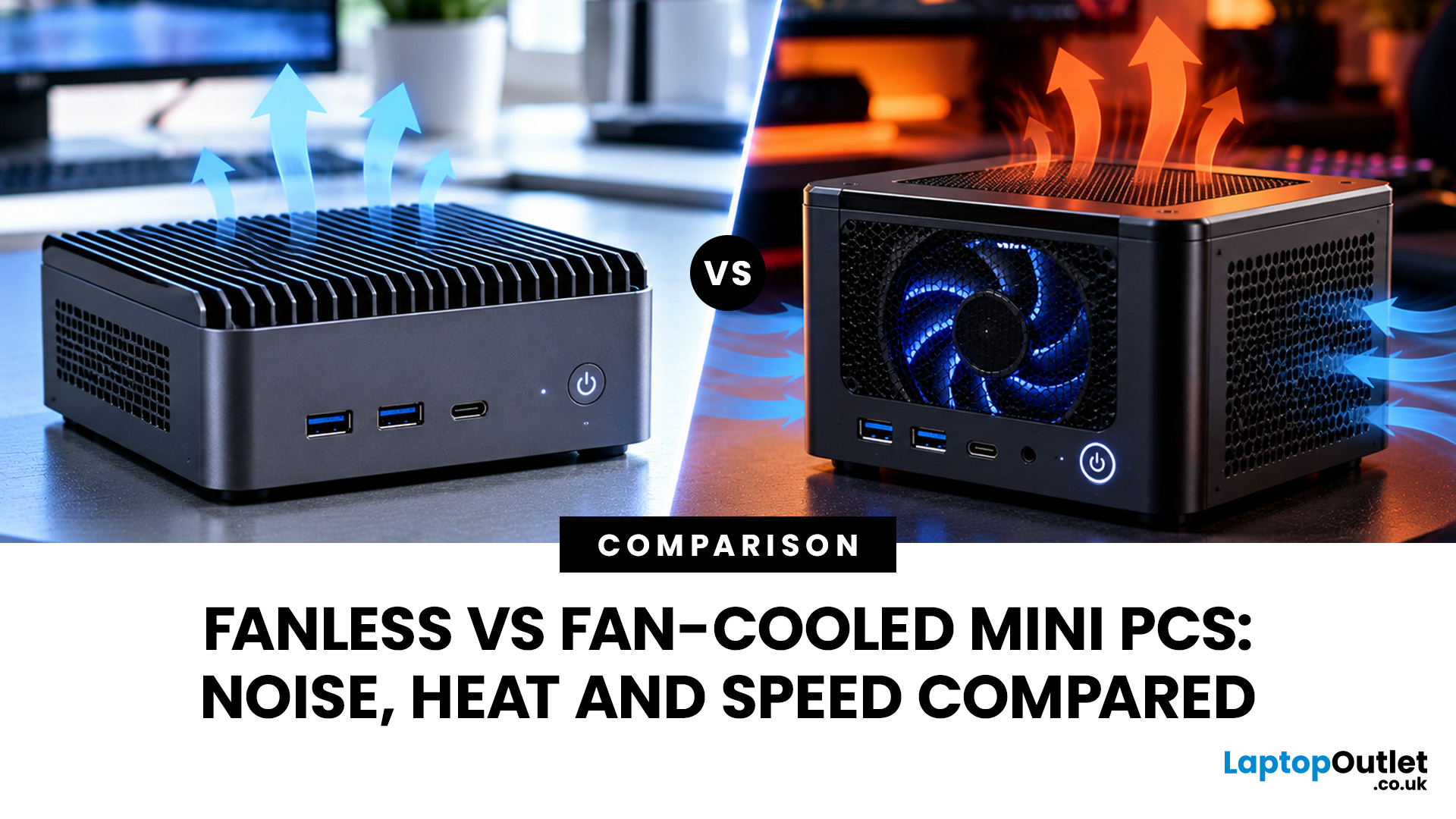
Quick Answer: A fanless mini PC is ideal for quiet offices, basic computing and low-maintenance setups. Fan-cooled mini PCs offer better sustained performance for multitasking and demanding workloads. Choose fanless for silent, lightweight operation or fan-cooled for greater processing power, thermal efficiency and flexibility. Your workload and budget should guide the decision.
A fanless mini PC is a smart choice when silence, low maintenance, and a compact setup matter most. However, if your working day involves demanding applications, constant multitasking, or heavy processing, a fan-cooled model may be a better investment.
Both designs have their strengths. Compact mini desktops without fan hardware rely on passive cooling to release heat, while an actively cooled system uses airflow to manage temperature. That difference can affect how quietly your computer runs and how well it maintains performance.
Fanless vs Fan-Cooled Mini PCs: Key Differences
A fanless computer prioritises silent operation and fewer moving parts. Fan-cooled models typically have greater thermal headroom, allowing suitable processors to maintain higher performance under demanding workloads.
|
Feature |
Fanless Mini PC |
Fan-Cooled Mini PC |
|
Cooling method |
Passive heatsink and chassis |
Fan and heatsink |
|
Operating noise |
No cooling fan noise |
Low to noticeable fan noise |
|
Everyday performance |
Good with suitable hardware |
Good to excellent |
|
Sustained performance |
More dependent on thermal limits |
Often better under heavy loads |
|
Heat dissipation |
Relies on passive heat transfer |
Actively removes warm air |
|
Maintenance |
No fan cleaning required |
Vents and fans need occasional cleaning |
|
Typical applications |
Signage, kiosks, basic office tasks |
Multitasking, business software, creative work |
|
Main trade-off |
Limited cooling capacity |
Potential noise and dust build-up |
Quick Note: Choose passive cooling for silence and light, predictable workloads. Choose active cooling when processing power and consistent performance matter more.
Noise: Is a Fanless Mini PC Really Silent?
A fanless PC removes one of the main sources of computer noise: the cooling fan. This makes it attractive for quiet home offices, reception desks, libraries, and customer-facing workspaces.
Fanless Systems for Noise-Sensitive Spaces
With no internal cooling fan spinning, a fanless micro PC can operate without fan noise, even during extended use. That's useful if you're placing a computer near a microphone, running digital signage or working in a space where background noise becomes distracting.
However, fanless doesn't guarantee complete silence. Electronic components may produce coil whine, and an external power adapter can occasionally generate audible noise.
Fan-Cooled Systems Can Still Be Quiet
Modern mini PC cooling fan designs can remain unobtrusive during everyday tasks. Some systems adjust fan speed according to processor temperature, reducing unnecessary airflow when demand is low.
You may notice the fan during software installations, video calls with multiple applications running or intensive processing.
Our Advice: Don't rule out fan-cooled systems simply because they contain a fan. Check independent acoustic measurements where available, particularly idle and sustained-load noise levels.
Heat and Speed: Which Cooling System Performs Better?
Cooling becomes particularly important when you're buying a mini PC for daily business use. A processor needs sufficient thermal headroom to maintain its operating speed over time.
Fanless Mini PCs: Efficient but Thermally Limited
Passive cooling transfers heat from the processor through a heatsink and sometimes the metal enclosure. Without forced airflow, heat dissipation depends heavily on the chassis design and surrounding temperature.
If internal temperatures rise too high, the processor may reduce its clock frequency. This is called thermal throttling, and it protects the hardware from excessive heat.
An Intel N100 fanless mini PC is a useful example of low-power computing. The Intel N100 has four cores, a 6W processor TDP, and a maximum turbo frequency of 3.4GHz. These specifications make it suitable for certain passively cooled designs, although real-world performance depends on the manufacturer's power and thermal configuration.
For browser-based applications, document editing and light administration, this type of processor can be perfectly reasonable.
For prolonged CPU-heavy tasks, however, its performance ceiling becomes more noticeable. Processor power limits also influence how much heat a compact system generates. Our guide to CPU TDP and cooling requirements explains why advertised wattage doesn't always reflect real-world thermal demands.
Fan-Cooled Mini PCs: Better for Sustained Loads
An actively cooled computer moves warm air away from the processor, allowing more capable hardware to operate within its intended thermal limits. This is particularly valuable when your workload includes:
- Large Excel spreadsheets and data processing
- Running multiple business applications simultaneously
- Photo editing and light video production
- Software development and code compilation
- Extended multitasking across several displays
A fan doesn't automatically make a processor faster. However, when two otherwise similar configurations are compared, effective active cooling may allow higher sustained performance.
If your workload is demanding enough to need a powerful processor regularly, a larger system from our desktop PC range may also provide better long-term value.
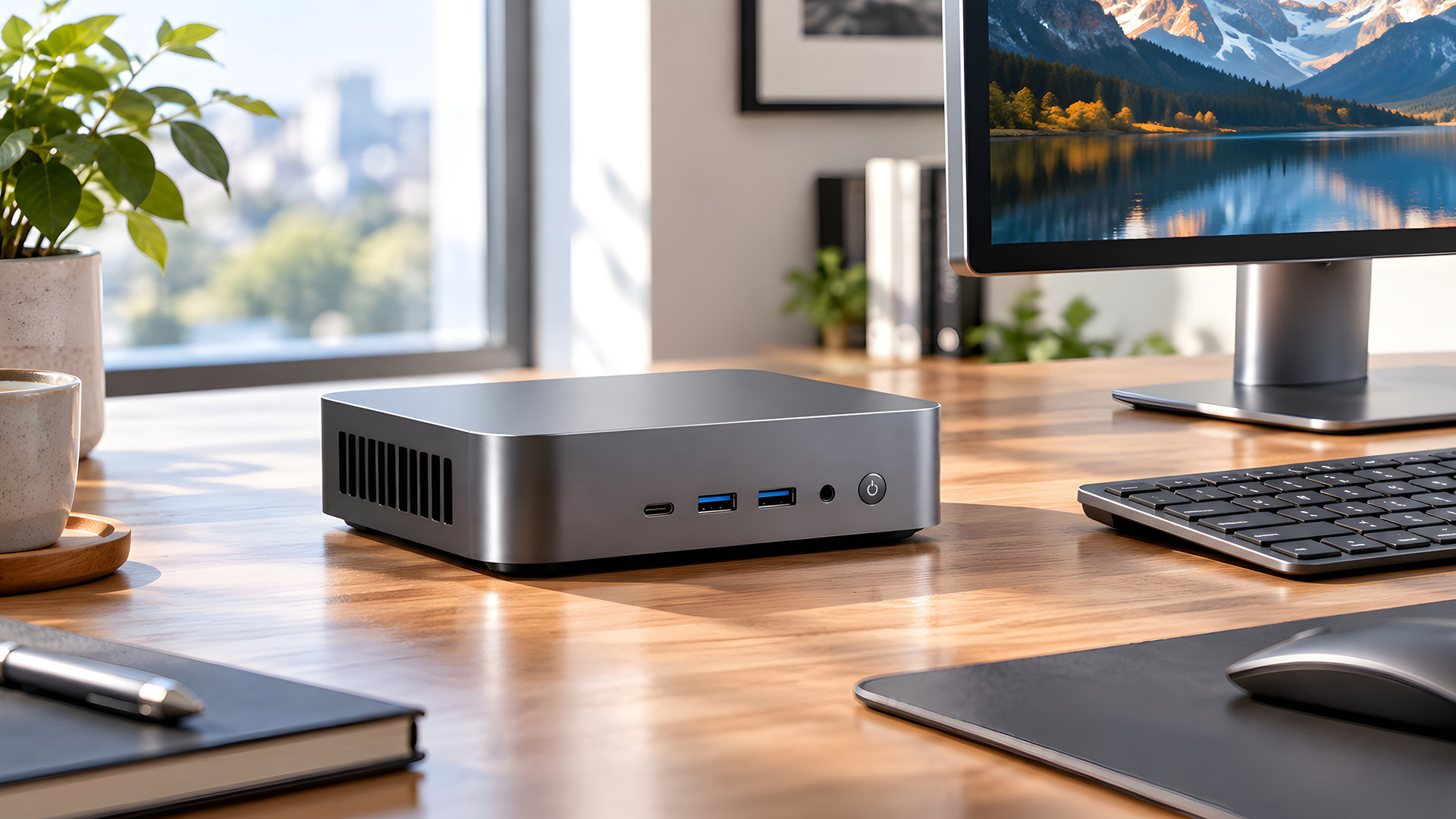
Fanless and Fan-Cooled Mini PCs at Laptop Outlet
The most useful way to understand the difference is to look at actual hardware. Here are three models listed in our mini PC range, each suited to a different type of buyer.
1. Lenovo ThinkEdge SE10: Fanless Industrial Computing
Processor: Intel Atom x6425RE
Memory: 8GB RAM
Storage: 256GB SSD
Operating system: Not included
Cooling: Fanless
The Lenovo ThinkEdge SE10 is designed for edge computing, where devices process data near its source rather than relying entirely on remote servers. Its fanless construction is particularly useful for industrial monitoring, digital signage and dedicated workplace applications.
Unlike a conventional fanless office PC, this model is intended for specialised deployment environments.
Why consider it? You get a compact system designed for reliable, quiet operation without a mechanical cooling fan.
What to consider: It comes without a preinstalled operating system, and its Intel Atom processor is not intended to replace a powerful everyday workstation.
2. MSI Cubi 5 12M: Compact Performance with Active Cooling
Processor: Intel Core i7-1255U
Configuration: Barebone
Cooling: Active fan cooling
Operating system: Not included
The MSI Cubi 5 12M provides a different approach, combining a compact chassis with an Intel Core i7 processor and active cooling.
MSI specifies a fan-based cooling system for this model, along with support for DDR4 memory and SSD storage.
This makes it an appealing option if you want to configure a small business desktop around your own requirements.
Why consider it? Its processor and cooling arrangement are better suited to demanding multitasking than an entry-level fanless design.
What to consider: This barebone configuration requires compatible memory, storage and an operating system before use. Factor those additional costs into your budget.
3. HP Elite Mini 800 G9: Ready-to-Use Office Performance
Processor: Intel Core i5-14600T
Memory: 16GB RAM
Storage: 256GB SSD
Operating system: Windows 11 Pro
Condition: Refurbished
The refurbished HP Elite Mini 800 G9 is a practical alternative for buyers who want a compact business PC without configuring a barebone system.
Its Intel Core i5 processor, 16GB RAM and Windows 11 Pro installation make it suitable for office multitasking, business applications and everyday productivity.
Why consider it? You get a complete business-oriented mini desktop, avoiding the separate component purchases associated with barebone models.
What to consider: The 256GB SSD may be restrictive if you regularly work with large local files.
Maintenance: Which Mini PC is Easier to Own?
A computer that needs less attention can save time, particularly when you're managing several devices across a workplace.
A fanless computer has no cooling fan to wear out or collect dust around its blades. This removes a common mechanical maintenance concern.
However, passive cooling doesn't make a computer maintenance-free. Dust can still settle on external surfaces, and blocked ventilation or unsuitable mounting can restrict heat dissipation.
Fan-cooled computers require occasional checks for dust around their air intakes and exhausts. Keeping these areas clear helps preserve airflow and reduce unnecessary fan noise.
Expert Tip: Avoid treating every compact PC like a conventional desktop tower. Its heatsink, fan and enclosure are designed to work together, and internal modifications may compromise cooling or warranty coverage.
If you're building a larger or more customisable system, our CPU cooling solutions offer options for compatible desktop builds. Most mini PCs, however, use model-specific thermal assemblies rather than standard retail coolers. If your mini PC becomes unusually hot or starts slowing down, checking its temperatures can help identify the cause. Follow our guide on how to check CPU and GPU temperatures before considering repairs.
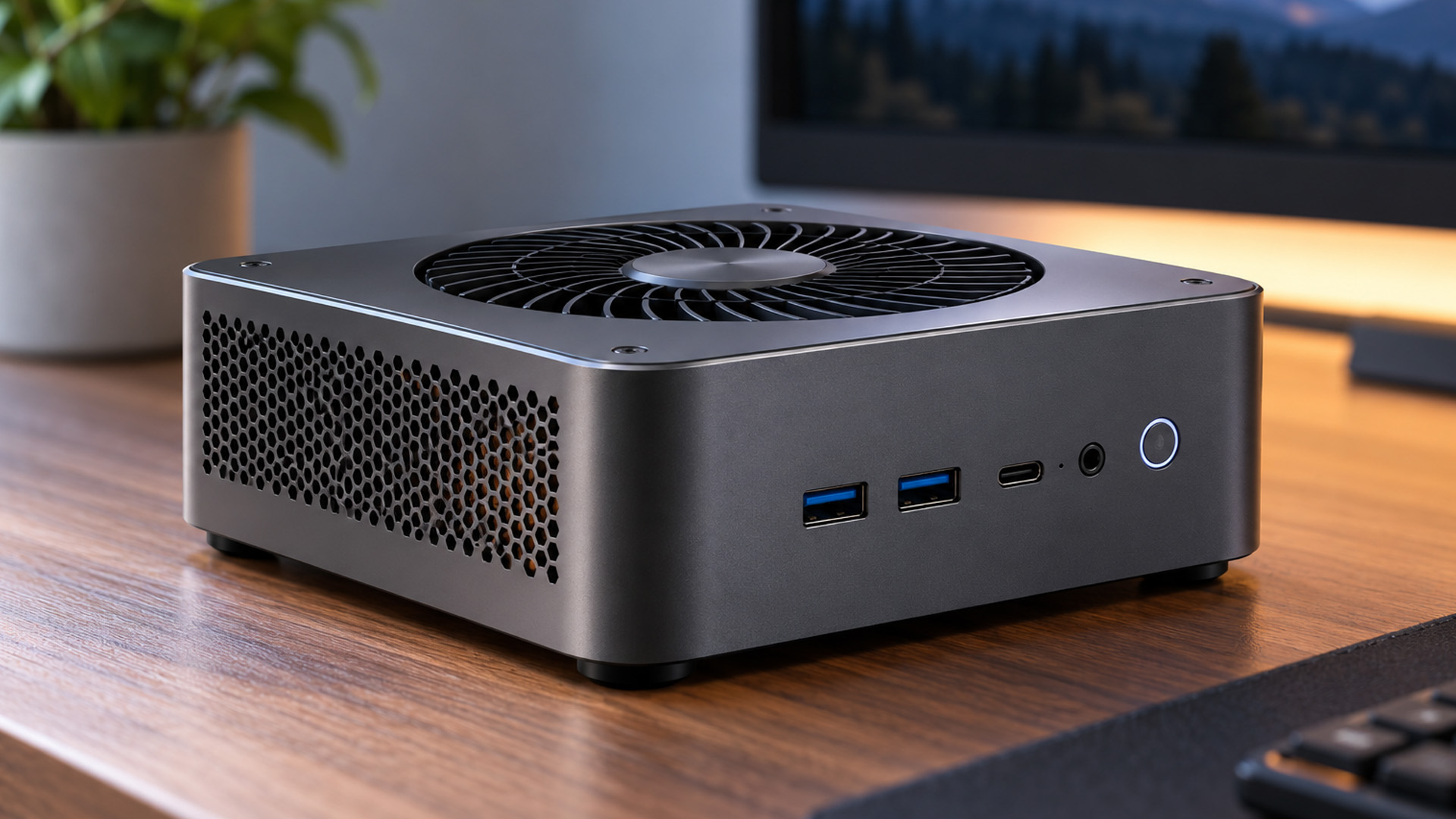
Which Mini PC Should You Buy for Your Workload?
The right decision depends on what you'll actually do with the computer, not simply which cooling design sounds more advanced.
Choose Fanless for Dedicated, Lightweight Tasks
A mini PC without fan cooling makes sense when your applications are lightweight, predictable and don't require sustained high processor output.
Typical examples include digital displays, point-of-sale terminals, basic administrative tasks and simple monitoring systems.
For these environments, low acoustic output and minimal mechanical maintenance can be more valuable than unused processing power.
Choose Fan-Cooled for Everyday Business Productivity
If you regularly switch between Excel, Teams, browser tabs, and business software, a capable fan-cooled model is often the more versatile purchase.
Models such as the MSI Cubi 5 12M and HP Elite Mini 800 G9 illustrate the advantages of choosing stronger processor configurations for office work.
Look beyond the processor name, though. Adequate RAM, fast SSD storage and the required connectivity are equally important for an efficient setup.
Consider a Larger Desktop for Heavy Workloads
Mini PCs aren't the ideal solution for every workload. If you're planning demanding 3D rendering, high-end gaming or extensive hardware upgrades, consider our tower desktop systems .
Their larger enclosures generally allow more flexible cooling arrangements and component expansion.
Alternatively, if your work regularly takes you between meetings, home and the office, our office laptops may provide the portability a fixed mini desktop cannot.
Are Barebone Fanless Mini PCs Worth it?
A barebone fanless mini PC appeals to buyers who prefer selecting their own memory, storage and operating system instead of paying for a complete preconfigured computer. However, compatibility matters more than the freedom to customise.
Before purchasing, verify the supported RAM capacity, storage interfaces, operating system compatibility and whether the required components are included.
Also check the processor's power requirements and the manufacturer's cooling design. A barebone enclosure cannot safely accommodate just any CPU.
Our Recommendation: Choose a barebone system when you understand the component requirements and want a tailored configuration. If convenience matters more, a complete mini PC is usually the simpler option.
Still deciding whether a compact desktop offers enough room for future upgrades? Our mini PC vs tower PC guide breaks down the differences in performance potential, expandability and desk space.

Final Thoughts: Silence or Sustained Performance?
A fanless mini PC is ideal for quiet offices, basic computing and specialised tasks. With no cooling fan, it operates silently and requires less maintenance. On the other hand, fan-cooled mini PCs offer better sustained performance for demanding applications, multitasking and everyday business use. Their active cooling helps manage heat during extended workloads.
Ultimately, the right choice depends on your workload, performance needs and budget. There's no reason to pay extra for processing power you won't use. At Laptop Outlet, we offer compact desktops for different computing needs. Browse our mini PC selection to find a reliable system that balances performance, cooling efficiency and value without compromising your workspace.

Is a fanless mini PC better than a fan-cooled PC?
A fanless model is better for noise-sensitive environments and lightweight workloads. A fan-cooled PC generally offers more thermal capacity for sustained processing. The better option depends on your applications, processor requirements and working environment.
Do fanless mini PCs overheat easily?
Not necessarily. A properly designed fanless computer can operate safely within its specified temperature range. However, blocked ventilation, high ambient temperatures or prolonged heavy workloads can cause thermal throttling. Follow the manufacturer's installation and operating-temperature guidance.
Is an Intel N100 fanless mini PC good for office work?
Yes, for basic tasks such as web browsing, document editing and light administrative work. The Intel N100 is a low-power four-core processor, but its suitability depends on RAM, storage and software requirements. Heavy multitasking may benefit from a more powerful system.
Can you add a cooling fan to a fanless mini PC?
Most fanless mini PCs aren't designed for internal fan upgrades. Adding one may require physical modifications and could affect reliability or warranty coverage. An external fan may improve surrounding airflow in some setups, but it isn't a guaranteed solution to thermal limitations.
Are fanless mini PCs suitable for 24/7 operation?
Some fanless models are specifically designed for continuous operation, including industrial edge computers and digital signage systems. However, not every consumer mini PC is rated for uninterrupted use. Check the manufacturer's duty cycle, ambient-temperature limits and installation requirements before deploying one.
Do fan-cooled mini PCs use more electricity?
Not necessarily. Although a cooling fan consumes some power, total electricity usage depends mainly on the processor, other components and workload. A low-power fan-cooled computer can consume less electricity than a more powerful fanless system.
| Read More: |
| Top Mini PCs for Students – Small Size, Big Performance |
| Why Businesses Are Switching to Mini PCs in 2026 |
| Prebuilt vs Custom Desktop PCs: Pros and Cons Explained |
Related Articles

Published: October 27, 2025
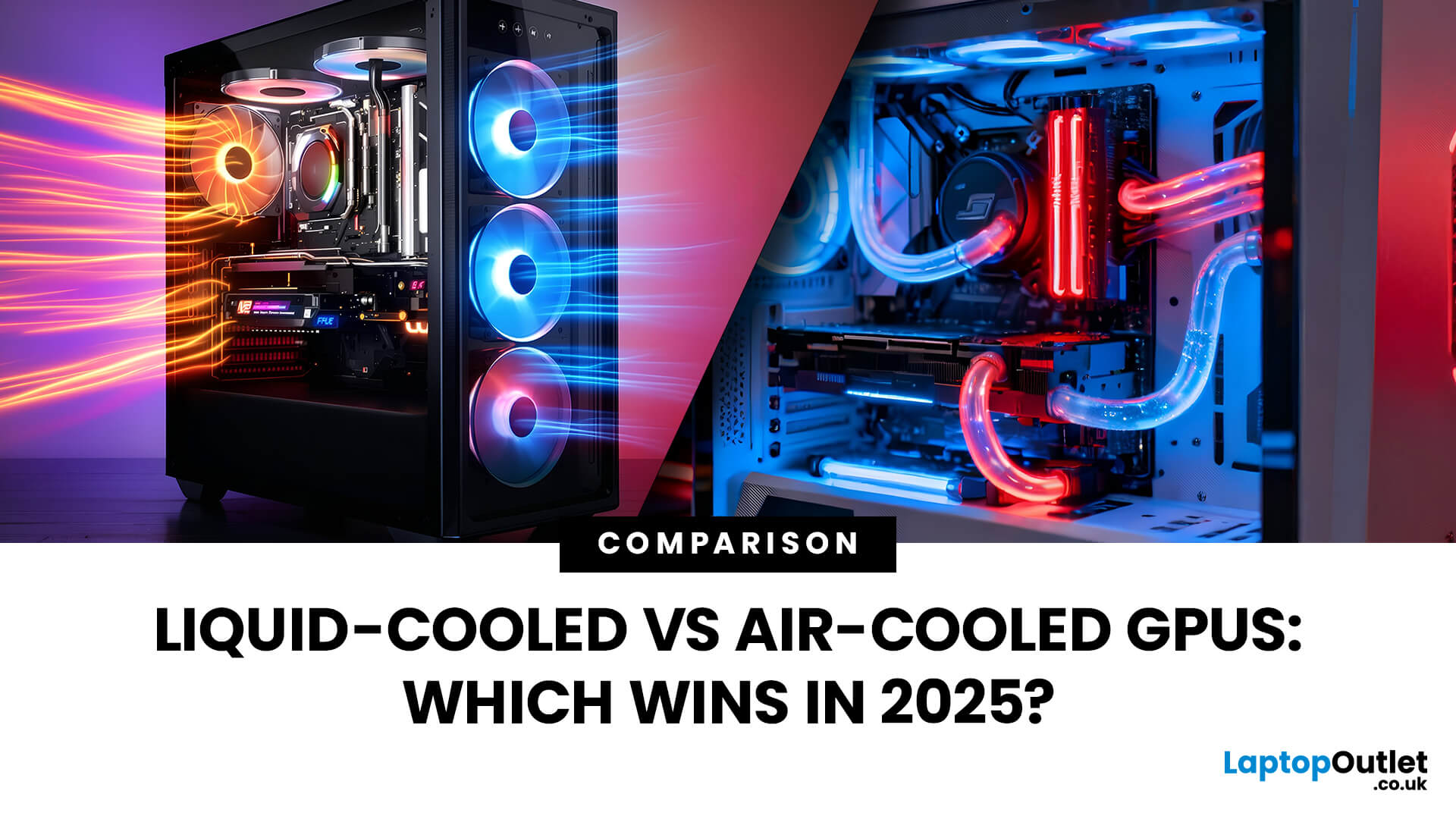
Modern GPUs are more powerful than ever, and with that power comes heat, a lot of it. Whether you’re gaming in 4K, pushing frame rates in competitive titles, or overclocking for maximum performance, cooling plays a crucial role in how well your graphics card performs and lasts. The debate of Liquid-Cooled vs Air-Cooled GPUs has never been more relevant, especially for high-end builds running the latest NVIDIA and AMD cards.
This guide breaks down how each cooling method works, their pros and cons, and which one offers the best balance of performance, noise, and reliability. If you’re planning a premium setup in 2025, understanding your GPU’s cooling system is just as important as choosing the GPU itself.
Why GPU Cooling Matters More Than Ever
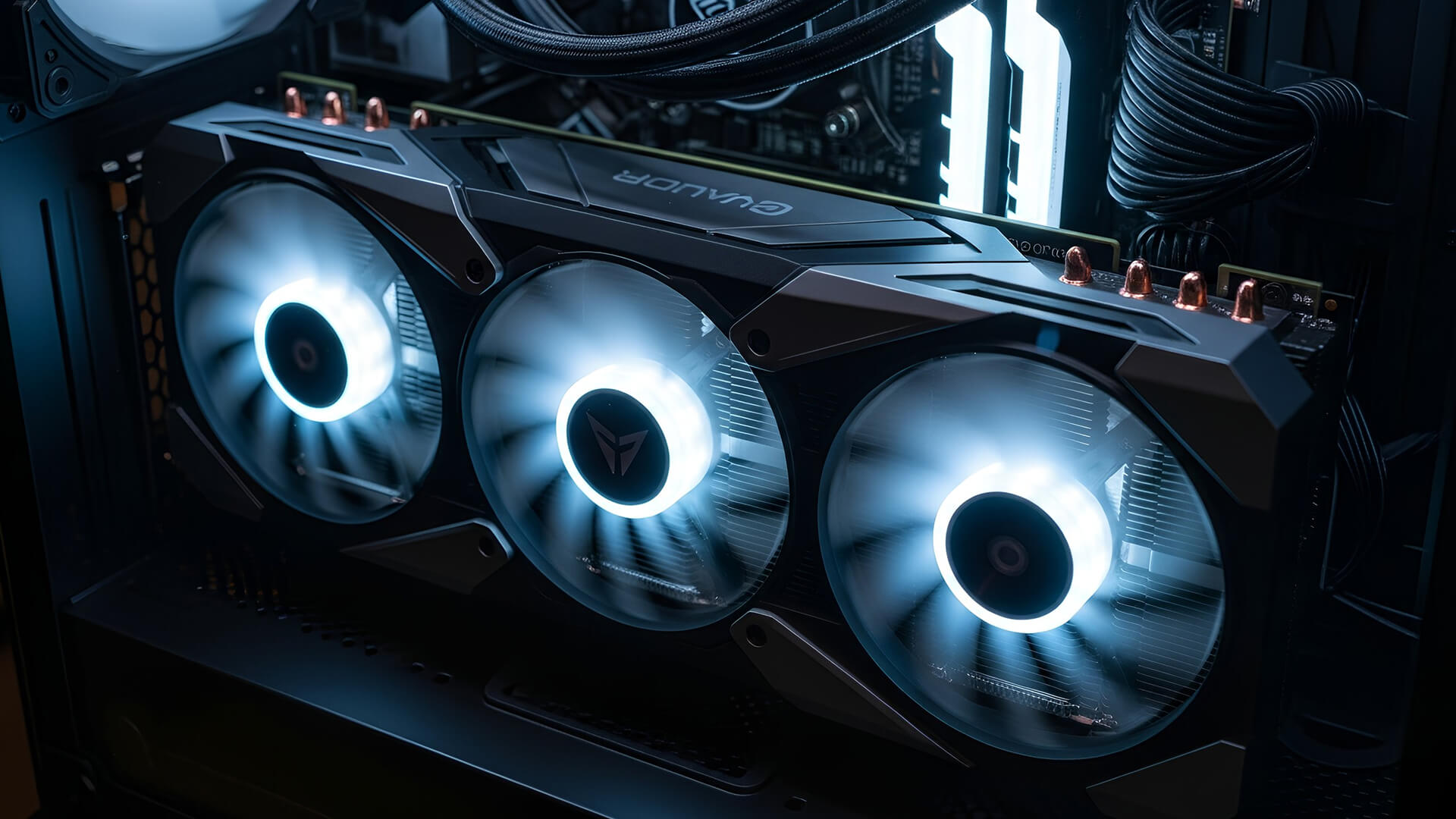
Modern GPUs have evolved into high-performance powerhouses, often rivaling CPUs in complexity and power to draw. Cards like the RTX 5090 or RX 7900 XTX can consume 400W or more, and that energy translates directly into heat. If that heat isn’t managed
Last Updated: May 22, 2026
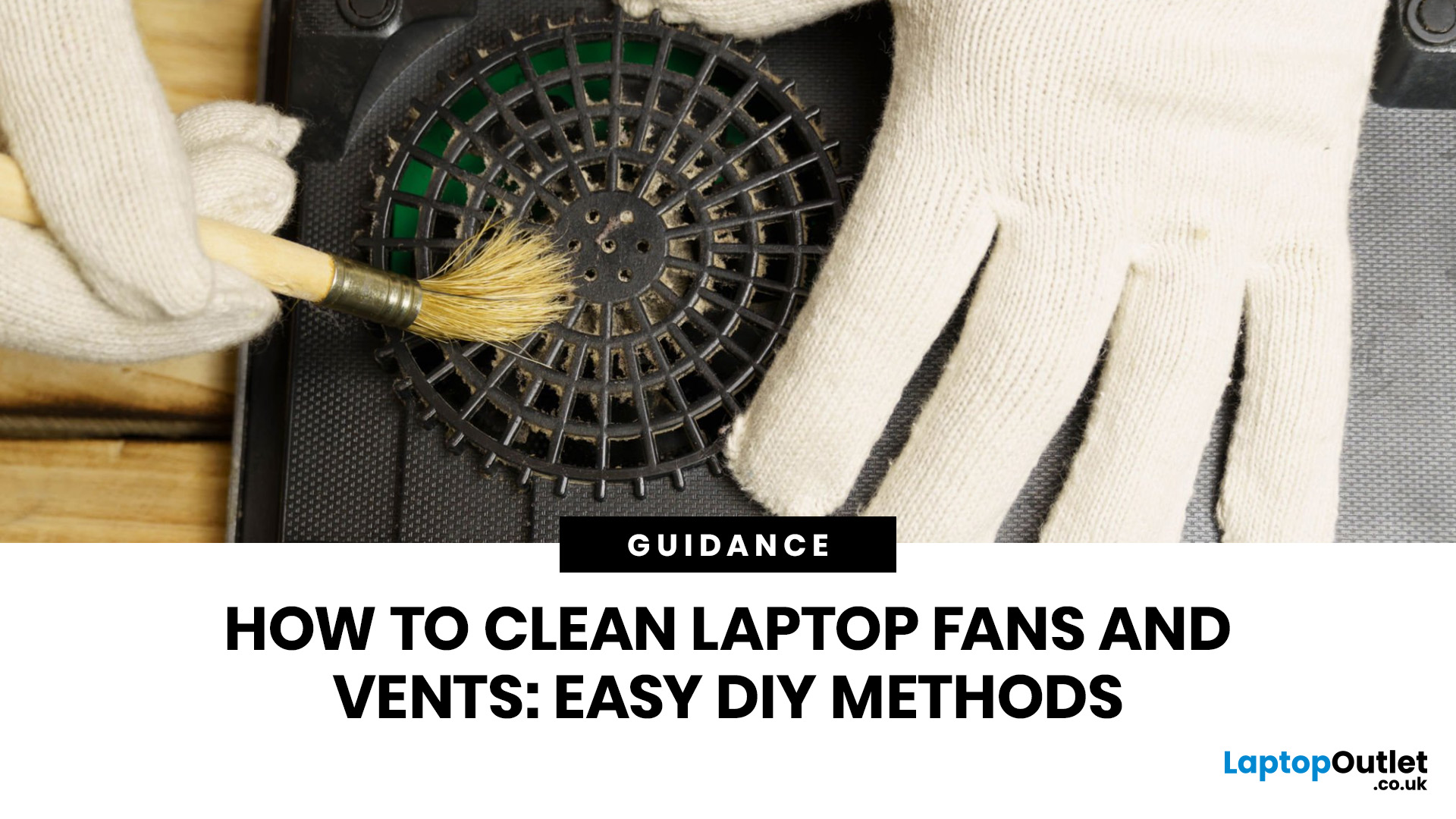
A thin layer of dust can make your laptop work harder than it should. When vents get blocked, heat stays trapped inside, the fan spins louder, and performance can drop during everyday tasks.
The simple tip? Start from the outside. In most cases, you can clean laptop fan vents safely with a soft brush, a microfibre cloth, and short bursts of compressed air - no risky disassembly needed.
This easy DIY guide shows you how to clean laptop fan and vent areas, what to avoid, and when it is smarter to call a professional.
Quick Checklist: How to Clean Laptop Fan Safely
Use this simple checklist whenever you clean the laptop:
- Shut down the laptop fully
- Unplug the charger and accessories
- Let the laptop cool
- Find the real vents
- Brush away visible dust
- Use compressed air in short bursts
- Keep the air can upright
- Avoid spinning the fan too fast
- Wipe the exterior gently
- Restart and check temperature and noise
This is the safest routine for most users who want to clean the laptop without opening it.
Published: June 04, 2026
Gaming laptops are built to push frames, load heavy worlds, and keep up with long sessions. But when temperatures climb, performance can take a hit. That is where the right cooling setup matters.
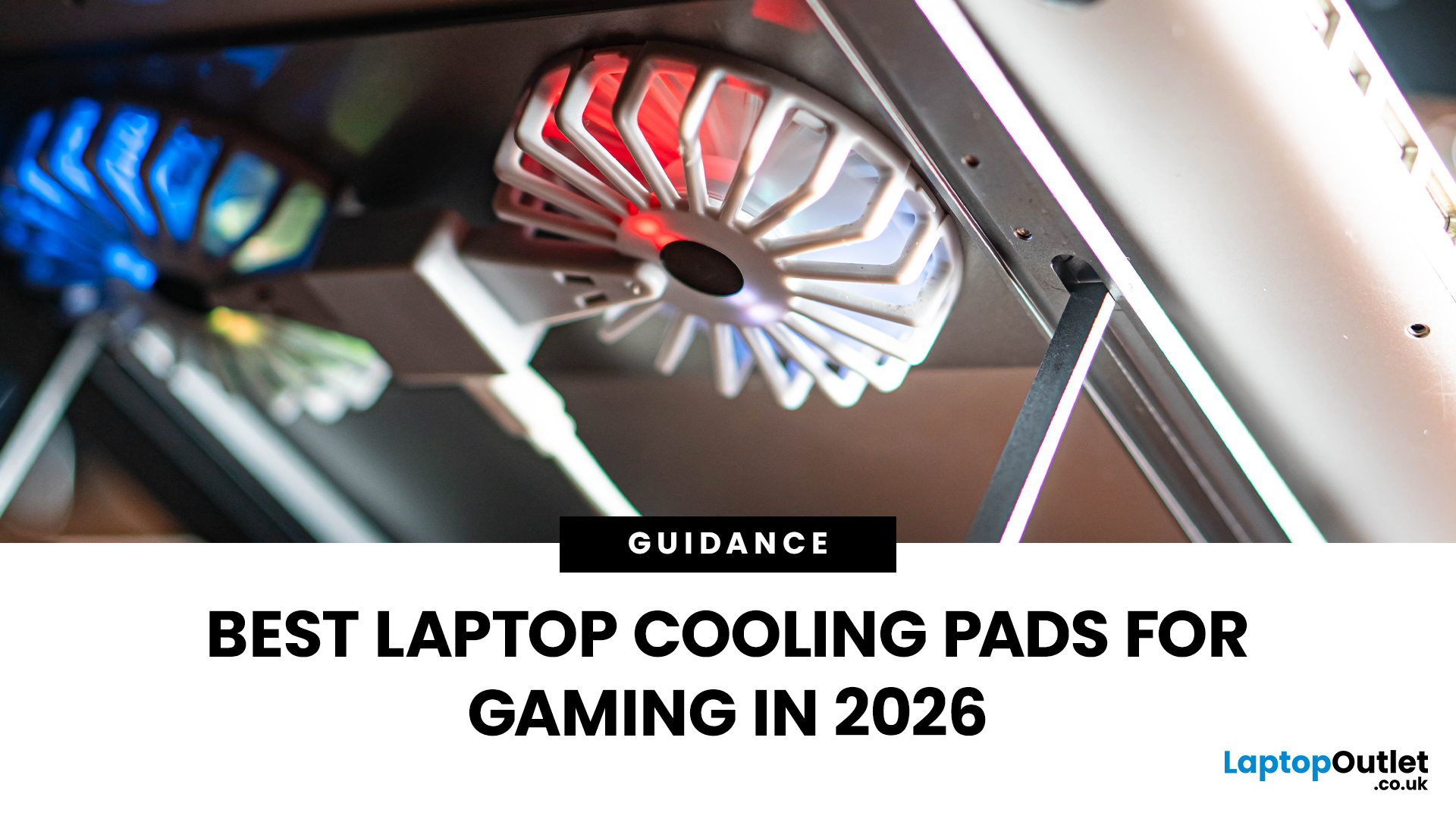
A gaming laptop cooling pad can help improve airflow around your laptop, raise it into a better position, and reduce heat build-up during long gaming sessions. For more advanced setups, PC builders may also look at liquid coolers, CPU coolers, and performance cooling fans to keep gaming rigs running cooler and more consistently.
In this guide, we break down the Best laptop cooling pads UK shoppers should look for in 2026, what features actually matter, and the top cooling picks to upgrade your gaming space.
Why Laptop Cooling Matters for Gaming
Gaming pushes your laptop harder than everyday browsing or streaming. The CPU and GPU work together to deliver smooth frame rates, detailed graphics, and fast response times. More power means more heat.
When your laptop gets too hot, it may reduce performance
Last Updated: July 21, 2026
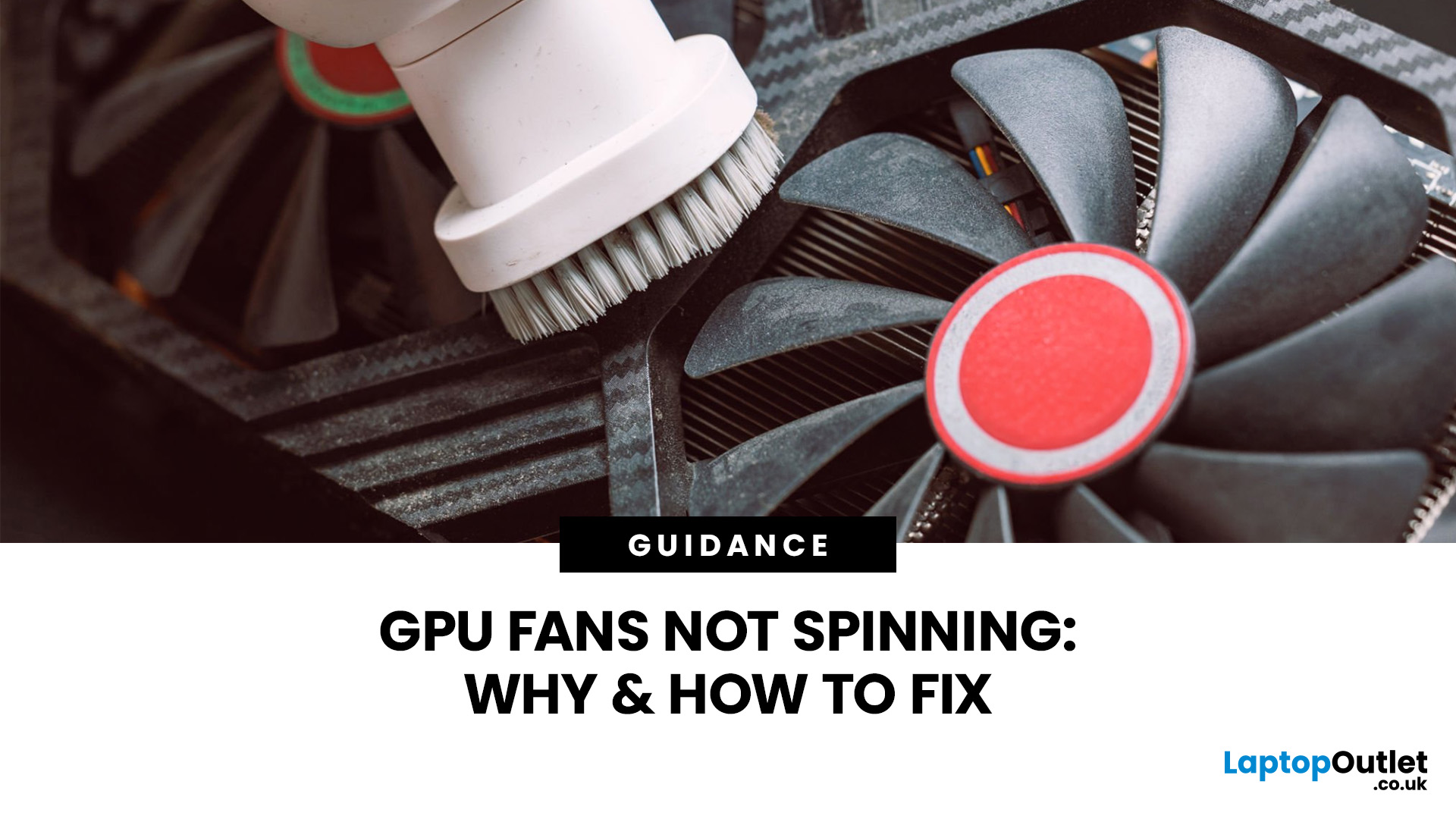
Your PC is on. Your game is loading. Everything seems fine… until you peek inside your case and notice your GPU fans not spinning. Instant panic? Understandable.
Your graphics card is one of the hottest components in a gaming PC, so when the fans stop moving, it feels like your graphics card is about to enter meltdown mode. But here’s the plot twist: graphics card fans not spinning is not always a bad sign. In many modern graphics cards, the fans stay off on purpose when the card is cool.
Still, if your GPU fan not working situation comes with overheating, crashes, noise, or poor performance, then yeah, it is time for some proper GPU fan troubleshooting. Let’s break down what is normal, what is not, and how to fix a processor fan not spinning issue without going full tech panic mode.
First, is it Normal for GPU Fans Not to Spin?
Sometimes, yes.
Many modern NVIDIA GeForce and AMD graphics cards for gaming come with a zero RPM or fan-stop mode. This means the fans do not spin when the GPU
Last Updated: July 17, 2026
Last Updated: July 28, 2026
Last Updated: August 17, 2026
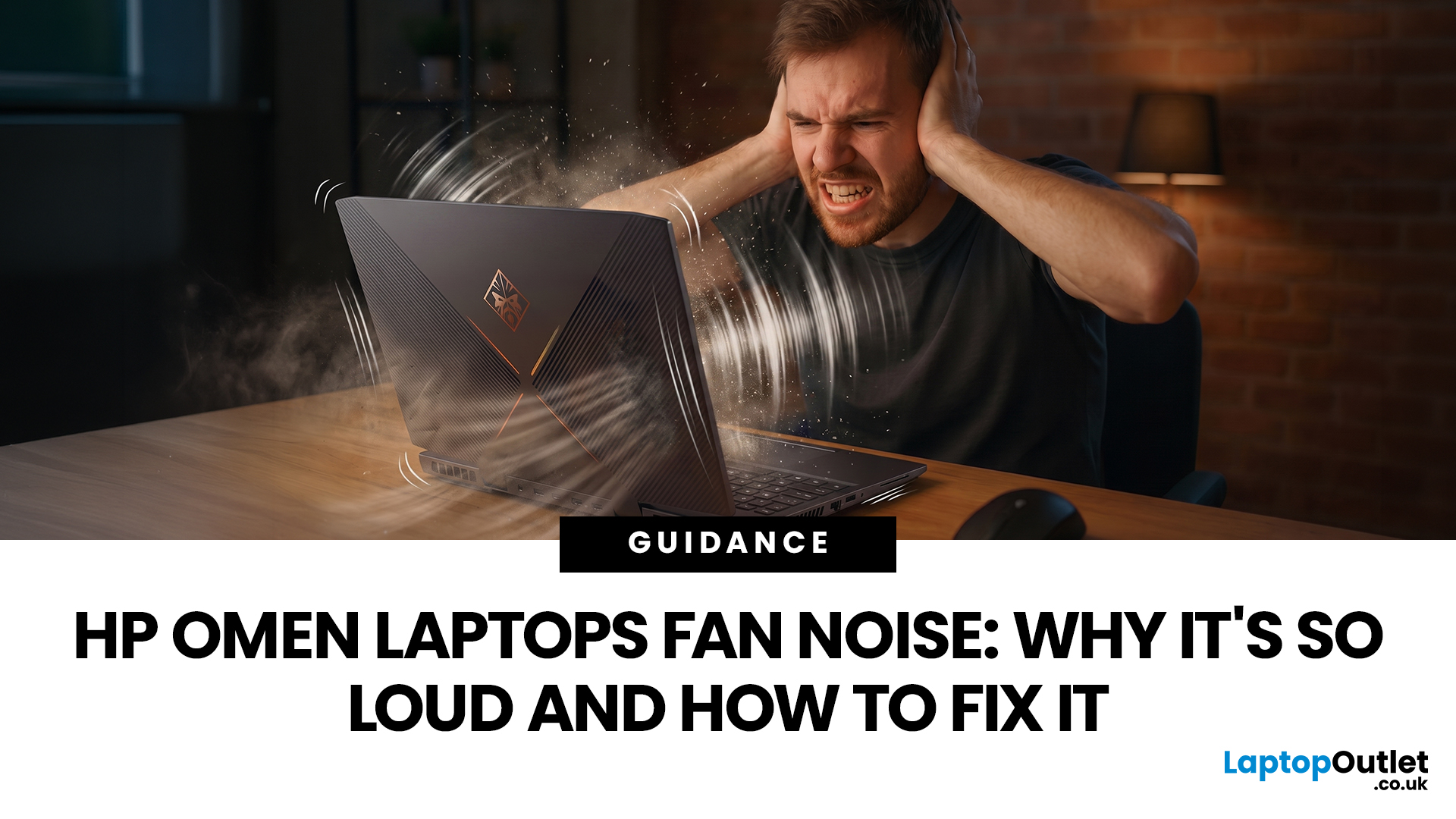
HP OMEN laptops use powerful processors and dedicated graphics, so their cooling systems can become clearly audible during gaming and other demanding work. Some HP OMEN fan noise is normal, but constant noise at idle, grinding or repeated overheating deserves attention. This guide explains how to identify the sound, diagnose the cause and choose a safe fix across the top HP OMEN laptop range.
| HP OMEN Fan Noise: Quick Answer Loud fan noise is normal while an OMEN laptop starts, updates, games, renders or runs a demanding AI task. HP says a brief fan surge for about five to twenty seconds at startup can be normal, while Performance mode deliberately increases fan speed to manage higher CPU and GPU power and temperature. Investigate an HP OMEN loud fan when it remains noisy during light use, produces mechanical sounds or appears with weak airflow, throttling or shutdowns. Many cases improve after reducing background load, changing settings, updating HP software and BIOS, restoring airflow |
Last Updated: August 06, 2026
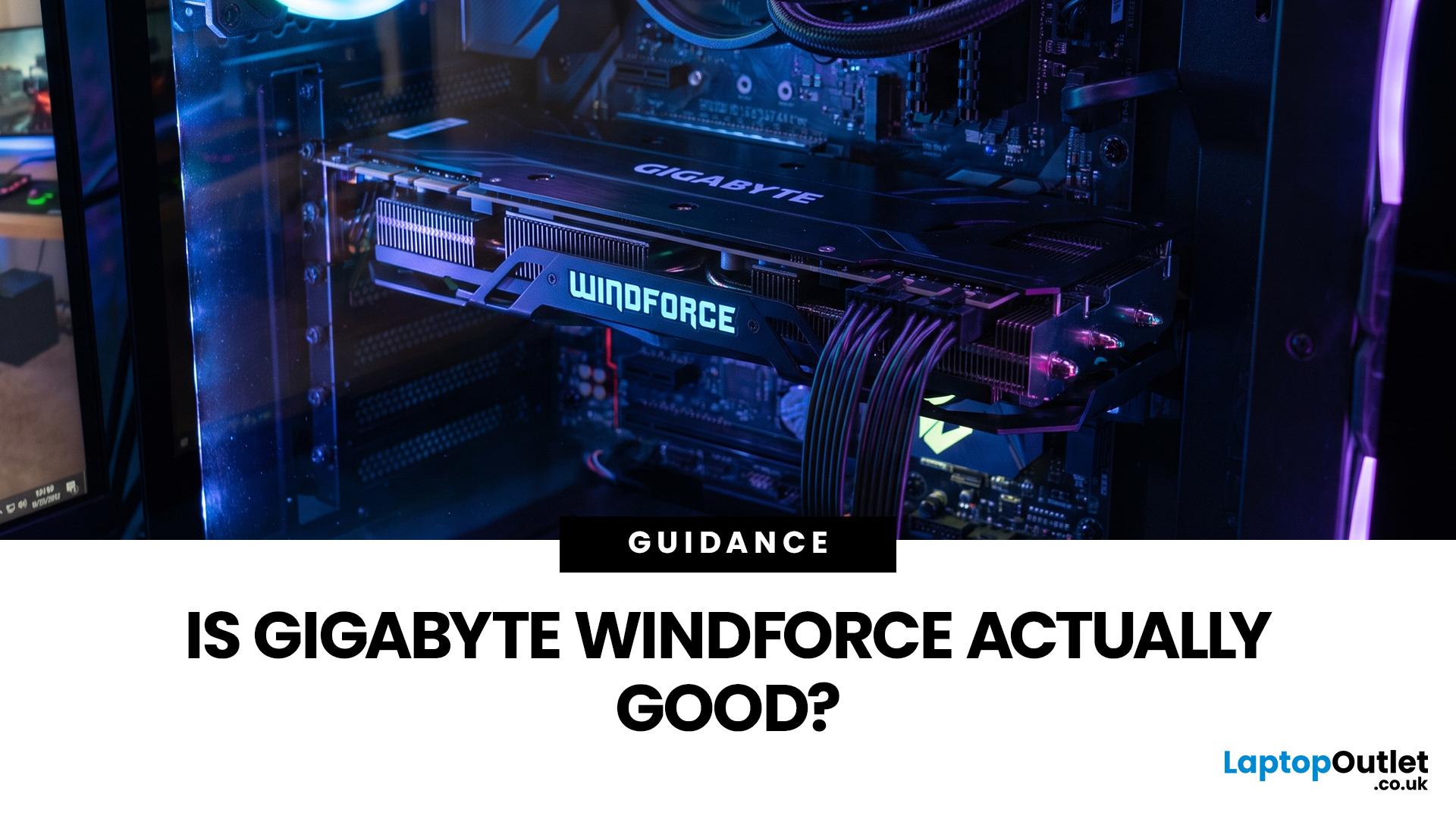
Gigabyte WINDFORCE graphics cards are generally good choices for gamers who want dependable cooling, sensible dimensions, and competitive pricing without paying extra for every premium feature. However, WINDFORCE does not identify the performance level of the GPU itself. An RTX 5080 WINDFORCE will still be substantially faster than an RTX 5060 WINDFORCE because the graphics processor matters more than the cooler’s name.
This guide explains how the WINDFORCE cooling system works, what to expect from temperatures and noise, and how Gigabyte WINDFORCE compares with Gaming OC and AORUS models.
What Does Gigabyte WINDFORCE Mean?
WINDFORCE is Gigabyte’s name for a collection of graphics card cooling technologies rather than a specific GPU architecture. Gigabyte uses the name both on dedicated WINDFORCE models and as the underlying cooling platform for certain Gaming OC and AORUS cards.
This distinction is important. A Gigabyte RTX graphics cards may use two or three fans, different numbers of
Last Updated: August 17, 2026
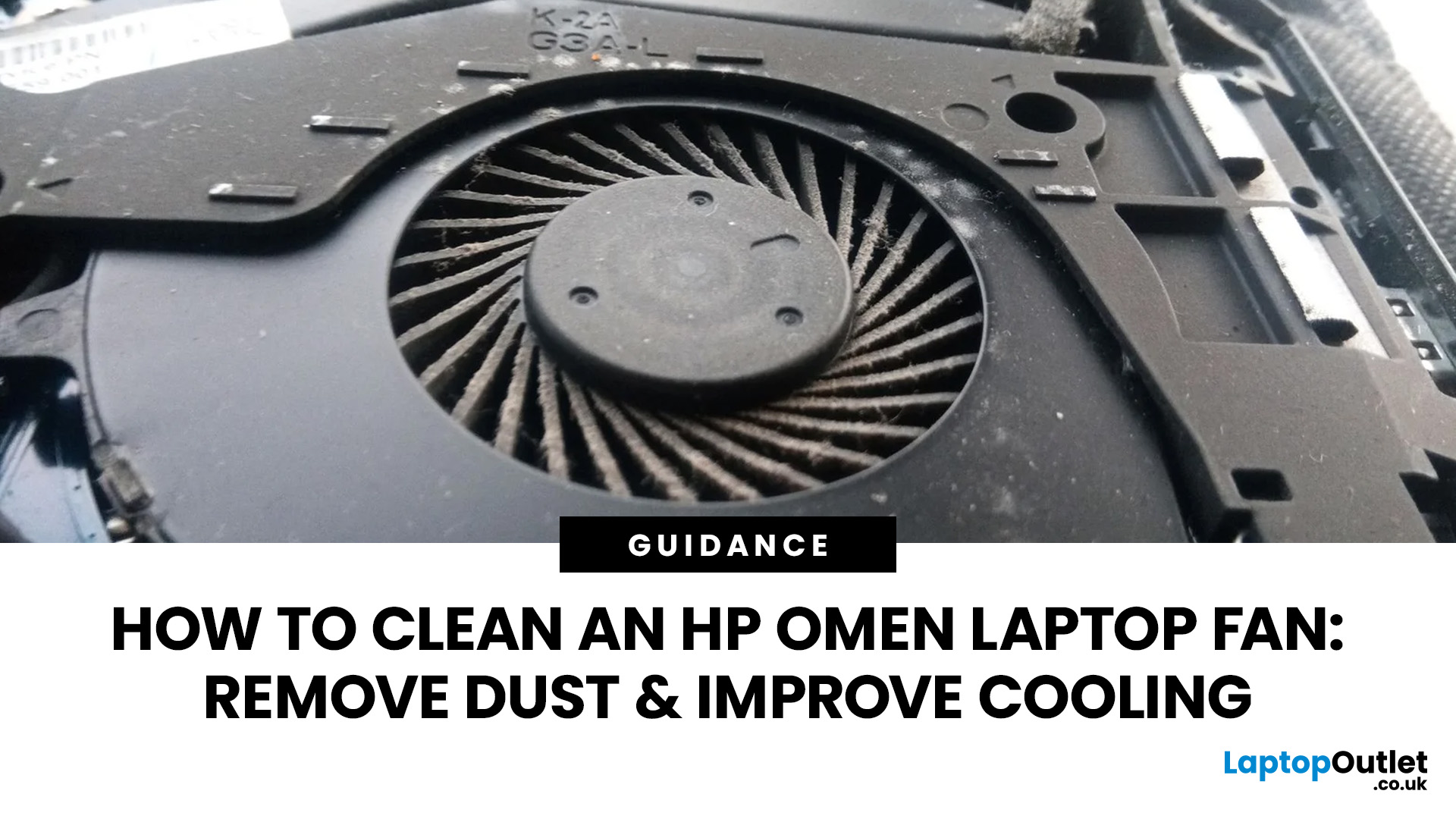
An HP OMEN laptop moves plenty of air during gaming and other demanding work. That airflow can draw dust, lint and pet hair towards its intake vents. As debris builds up, cooling may become louder, airflow can weaken and sustained performance can suffer.
The safest approach is to start with external cleaning. Only remove the bottom cover when deeper cleaning is necessary and you have checked the service instructions for your exact OMEN model. This guide covers both methods, essential safety precautions and post-cleaning checks.
Why HP OMEN Fan Cleaning Matters
Gaming laptops generate considerable heat because the processor and dedicated graphics chip can remain under heavy load for long periods. Their fans draw cooler air through the chassis and push warm air across the heatsink fins towards the exhausts.
Effective laptop fan dust removal prevents debris from reducing the space available for air to pass through. A thin layer of dust may only increase noise, while a compacted blockage can
Published: September 29, 2026
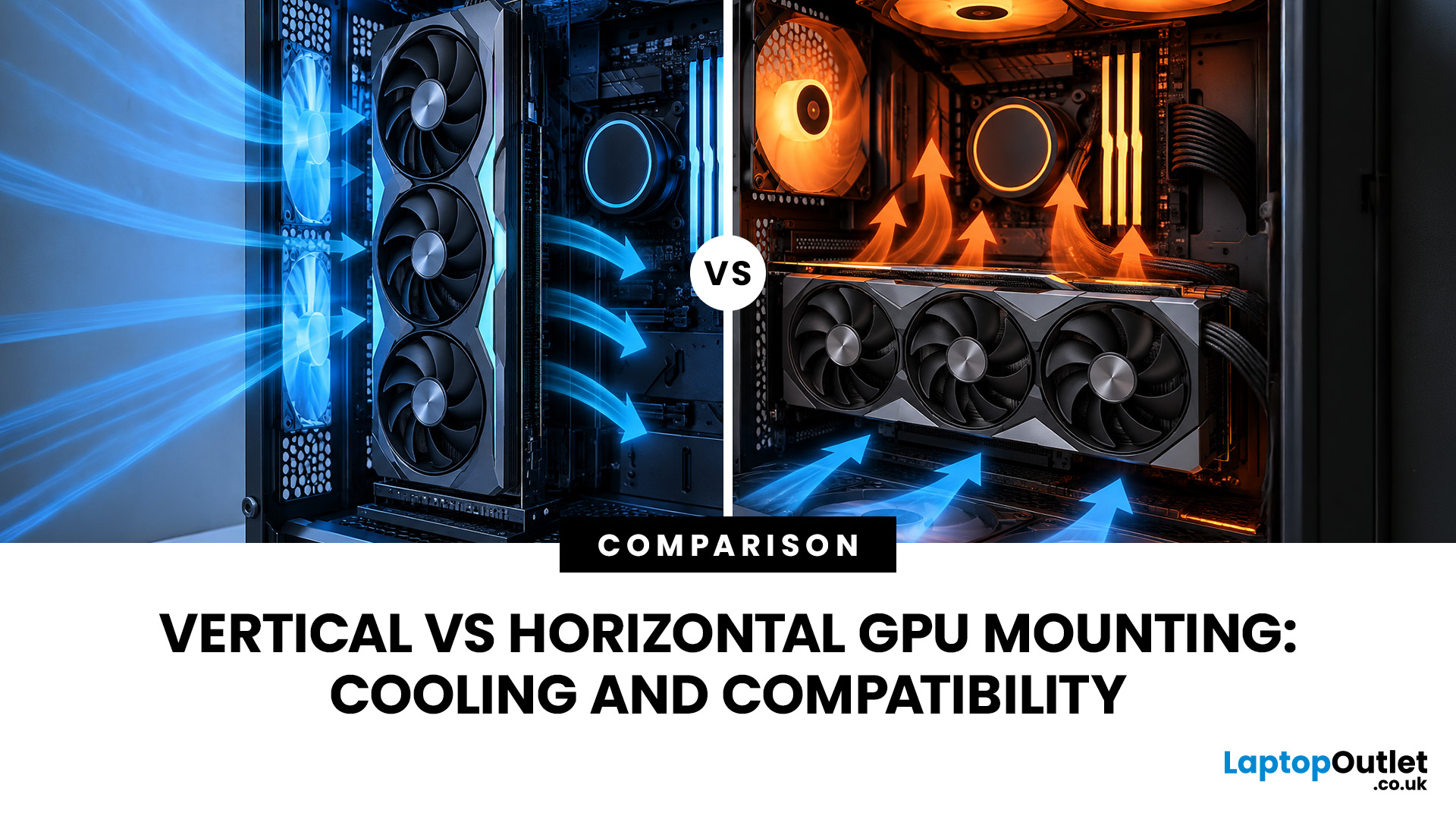
A graphics card is normally installed horizontally, with its fans facing down towards the bottom of the PC case. However, many modern cases also support vertical GPU installation, allowing the graphics card to sit upright and display its cooling shroud, RGB lighting or custom design through a side panel.
Vertical vs horizontal GPU mounting refers to the different ways a graphics card can be positioned inside a PC case. A horizontal GPU mount installs the graphics card directly into the motherboard’s PCIe slot, while a vertical GPU mount uses a bracket and often a GPU riser cable to reposition the card. Horizontal mounting usually offers simpler installation and airflow, while vertical mounting can improve aesthetics but requires careful compatibility checks.
The choice between a vertical vs horizontal graphics card setup is not only about appearance. The position of the GPU can affect airflow, temperatures, installation requirements and long-term compatibility. A vertical GPU mount may

