



Vertical vs Horizontal GPU Mounting: Cooling and Compatibility
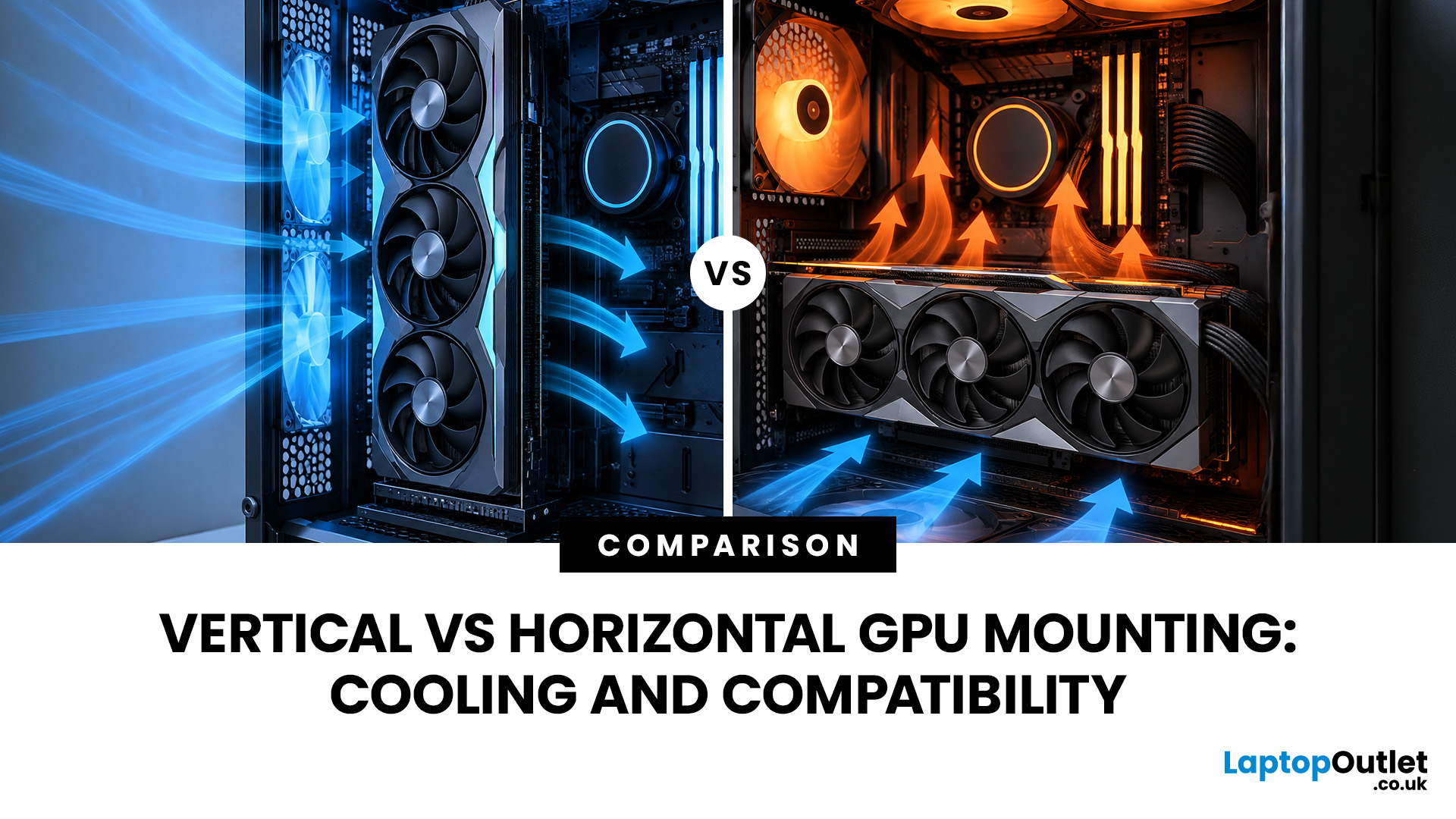
A graphics card is normally installed horizontally, with its fans facing down towards the bottom of the PC case. However, many modern cases also support vertical GPU installation, allowing the graphics card to sit upright and display its cooling shroud, RGB lighting or custom design through a side panel.
Vertical vs horizontal GPU mounting refers to the different ways a graphics card can be positioned inside a PC case. A horizontal GPU mount installs the graphics card directly into the motherboard’s PCIe slot, while a vertical GPU mount uses a bracket and often a GPU riser cable to reposition the card. Horizontal mounting usually offers simpler installation and airflow, while vertical mounting can improve aesthetics but requires careful compatibility checks.
The choice between a vertical vs horizontal graphics card setup is not only about appearance. The position of the GPU can affect airflow, temperatures, installation requirements and long-term compatibility. A vertical GPU mount may suit showcase builds, but it is not automatically better for cooling.
For most traditional gaming PCs, a horizontal GPU mount remains the simplest and most reliable option. A vertical setup can work well when the case, graphics card thickness and airflow layout are designed to support it.
This guide explains the differences between each GPU mounting orientation, including cooling considerations, compatibility requirements, installation advice and the situations where each approach makes sense.
What Is GPU Mounting Orientation?
GPU mounting orientation describes the position of a graphics card inside a desktop PC case. It determines how the GPU sits relative to the motherboard, case airflow and other PC components.
The two main options are:
|
Mounting type |
How it works |
Typical use |
|
Horizontal GPU mount |
Graphics card connects directly into the motherboard’s PCIe slot and sits parallel to the motherboard |
Most gaming PCs and standard desktop builds |
|
Vertical GPU mount |
Graphics card is repositioned upright using a dedicated bracket and usually a GPU riser cable |
Showcase builds and cases designed for visible components |
The graphics card itself does not change internally between mounting methods. The difference comes from its position inside the case and how air moves around the cooler.
A standard horizontal installation has been used for decades because it provides a direct connection to the motherboard and generally leaves more open space around the GPU fans.
A vertical GPU mount changes this layout by moving the card closer to the side panel. This can create a cleaner visual appearance but may reduce airflow if there is not enough clearance.
Horizontal GPU Mount: How It Works
A horizontal GPU mount is the conventional installation method found in most desktop computers.
The graphics card is inserted directly into the motherboard’s PCIe x16 slot and secured to the rear expansion slots of the PC case. The GPU fans usually face downwards, drawing air from the lower section of the case before exhausting warm air through the heatsink and surrounding airflow channels.
Benefits of a Horizontal GPU Mount
A horizontal installation offers several practical advantages:
Direct motherboard connection
The graphics card connects directly to the motherboard without additional components. This reduces potential compatibility issues and avoids signal limitations that can occur with poor-quality extension cables.
Better general airflow compatibility
Most PC cases are designed around horizontal GPU placement. Front intake fans, bottom fans and rear exhaust fans are usually positioned with this layout in mind.
Easier installation and upgrades
Installing or replacing a horizontally mounted GPU is straightforward. There is no need to check riser cable length, vertical brackets or additional clearance requirements.
Supports larger graphics cards more easily
Many high-performance graphics cards are large, often occupying three or more expansion slots. Horizontal mounting usually provides more room for thick GPU coolers.
For users building a performance-focused system, browsing compatible PC graphics cards requires checking dimensions, power requirements and cooling designs before installation.
With longer or heavier graphics cards, it is also worth checking for GPU sag, particularly if the card appears to droop after installation.

Vertical GPU Mount: How It Works
A vertical GPU mount rotates the graphics card so the side of the GPU faces the case window instead of the fans facing downwards.
To achieve this, most systems require:
- A compatible PC case with vertical GPU support
- A vertical GPU bracket
- A PCIe GPU riser cable
- Enough clearance between the GPU and side panel
The riser cable allows the graphics card to connect to the motherboard while being physically positioned away from the PCIe slot.
Some cases include vertical mounting points as standard, while others require an additional accessory.
Why Do People Choose Vertical GPU Installation?
The main reason is visual presentation.
A vertical GPU mount can highlight:
- GPU cooling designs
- Manufacturer branding
- RGB lighting
- Custom backplates
- Premium graphics card finishes
This makes vertical mounting popular for showcase PCs where component visibility is an important part of the build.
However, aesthetics should not be the only consideration. The available space around the graphics card has a direct impact on cooling performance.
Vertical vs Horizontal GPU Mounting: Cooling Differences
Cooling is one of the biggest differences when comparing vertical vs horizontal GPU mounting.
A graphics card relies on airflow through its fans and heatsink. Changing its position can alter how easily cool air reaches the GPU.
Horizontal GPU Cooling
With a horizontal GPU mount, the graphics card normally has more breathing room underneath.
Air can enter through:
- Bottom case vents
- Front intake fans
- Open expansion areas
This layout works well with most GPU cooler designs because it matches the airflow patterns used by many PC cases.
Vertical GPU Cooling
A vertical GPU mount can have different cooling results depending on the case design.
If the GPU sits too close to the side panel, the fans may have less room to draw air. This can restrict airflow and potentially increase temperatures.
The effect is usually more noticeable with thicker graphics cards that use large triple-fan coolers.
For example, a three-slot GPU positioned close to tempered glass may have limited intake space compared with the same card installed horizontally.
Does Vertical Mounting Increase GPU Temperatures?
Not always.
A vertical GPU mount does not automatically make a graphics card hotter. Temperature changes depend on:
- Distance between GPU fans and side panel
- Case ventilation
- GPU cooler design
- Ambient room temperature
- Fan configuration
Some modern cases are designed specifically for vertical GPU mounting and include additional side ventilation to prevent airflow restrictions.
The important factor is clearance. A well-designed vertical installation can maintain similar temperatures to a horizontal setup, while a poorly positioned GPU may experience reduced cooling efficiency.
GPU Riser Cables: Why They Matter
A GPU riser cable is one of the most important components in a vertical GPU installation.
It extends the connection between the motherboard PCIe slot and the graphics card, allowing the GPU to be positioned away from its original slot.
Not all riser cables are identical.
Important considerations include:
|
Factor |
Why it matters |
|
PCIe generation |
The cable must support the required PCIe bandwidth |
|
Build quality |
Poor-quality cables may cause connection instability |
|
Length |
Excess cable can complicate installation and airflow |
|
Case compatibility |
The cable must match the mounting position |
Modern graphics cards may use PCIe 4.0 or PCIe 5.0 interfaces, so choosing a compatible riser cable is important for reliable operation.
A common mistake is buying a vertical GPU bracket first and assuming any riser cable will work. The cable, motherboard, GPU and case should be considered together.
Vertical GPU Bracket Compatibility Explained
A vertical GPU bracket compatibility check is essential before installing a graphics card vertically.
Not every PC case supports every GPU size or mounting method.
Before installation, check:
Case support
The case must include vertical mounting slots or have enough internal space for an aftermarket bracket.
Some cases support vertical GPUs only with specific manufacturer accessories.
GPU thickness
Graphics cards vary significantly in size.
A GPU measuring three or four slots thick may sit much closer to the side panel than a smaller dual-slot model.
Side panel clearance
The gap between the GPU fans and the side panel is critical.
A narrow gap can restrict airflow and create higher temperatures.
PCIe compatibility
The riser cable must support the GPU and motherboard PCIe connection.
Compatibility issues may appear as:
- GPU not detected
- Reduced PCIe speeds
- System instability
Vertical vs Horizontal GPU Mounting Pros and Cons
Choosing between a vertical GPU mount and a horizontal GPU mount depends on your priorities. Both approaches can deliver reliable performance, but they suit different types of PC builds.
A horizontal GPU mount prioritises simplicity, compatibility and predictable airflow. A vertical GPU mount focuses more on presentation while requiring additional planning around space and cooling.
|
Mounting type |
Advantages |
Limitations |
|
Horizontal GPU mount |
Direct PCIe connection, wider case compatibility, easier installation, generally reliable airflow |
GPU design and lighting may be less visible |
|
Vertical GPU mount |
Shows the GPU cooler and design, creates a cleaner showcase appearance, can improve cable presentation |
Requires compatible hardware, may restrict airflow, needs careful installation |
Advantages of Horizontal GPU Mounting
Simple installation process
A horizontal GPU installation is the standard method supported by almost every desktop PC case. The graphics card connects directly to the motherboard, meaning fewer components are involved.
This makes troubleshooting easier because there are fewer potential connection points between the GPU and motherboard.
Better compatibility with large GPUs
Modern graphics cards are becoming larger, with some models using thick heatsinks and multiple fans. Horizontal mounting usually provides more flexibility because the GPU is not positioned close to the side panel.
This is especially useful for high-performance gaming builds using larger cooling solutions.
Fewer additional costs
A horizontal setup normally does not require extra accessories. A vertical configuration may require a bracket and a quality riser cable, which adds complexity and additional cost.
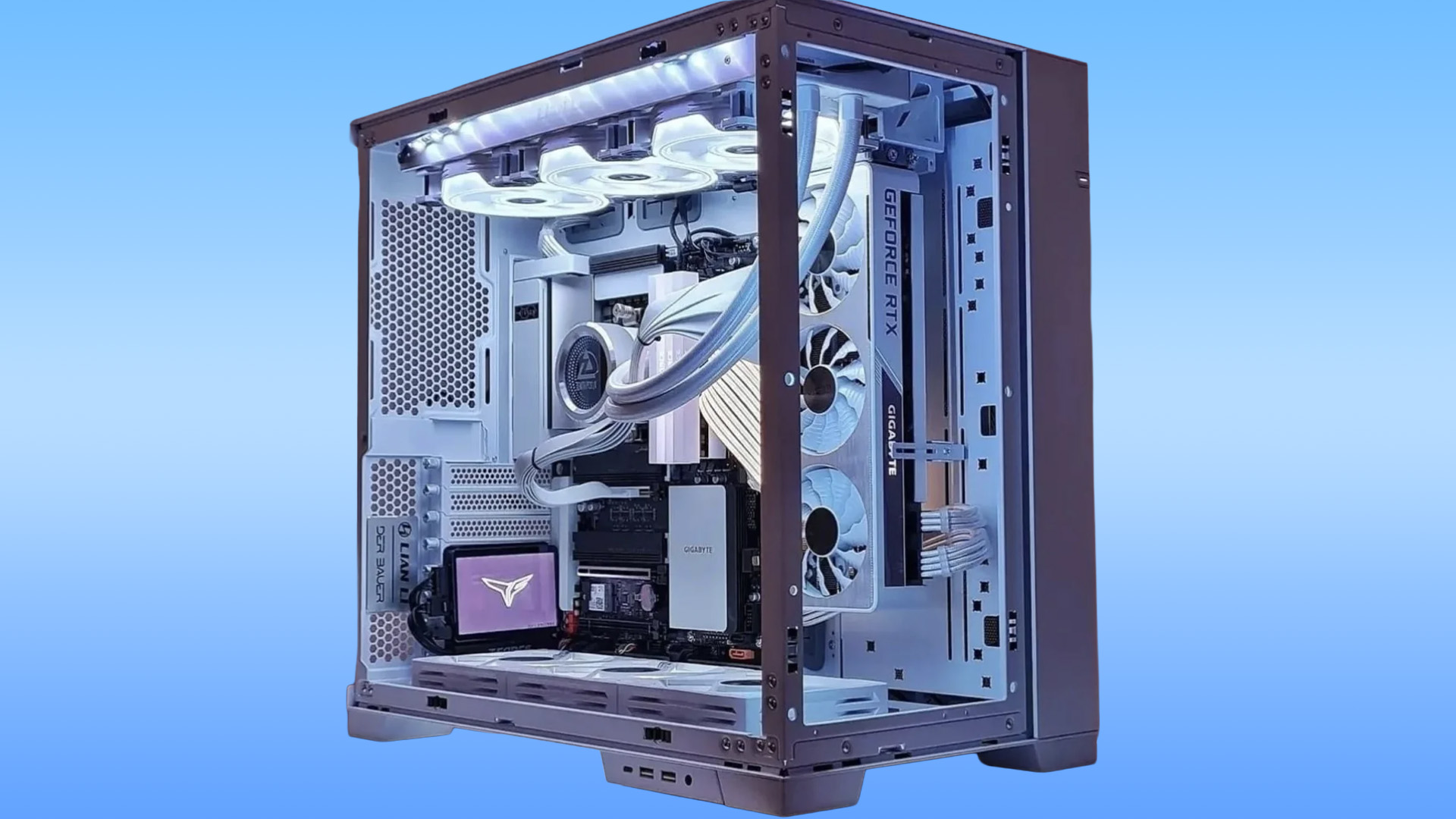
Advantages of Vertical GPU Mounting
Improved component visibility
The main attraction of vertical mounting is appearance. Instead of looking at the top edge of the graphics card, users can display the GPU cooler, fans and branding through a tempered glass side panel.
This can be useful for custom builds where component presentation is part of the overall design.
Cleaner showcase builds
A vertical GPU installation can create a more organised-looking interior by changing how the graphics card sits inside the case.
Combined with careful cable management, this layout can create a cleaner visual arrangement.
Better use of some case designs
Certain modern PC cases are designed around vertical graphics cards. These cases may include dedicated airflow channels or mounting positions that allow the GPU to receive enough cool air.
However, this depends on the specific case design rather than vertical mounting alone.
Common Vertical GPU Installation Mistakes
A vertical GPU mount can work well, but incorrect installation can create problems. Understanding common mistakes helps prevent compatibility and cooling issues.
Installing the GPU too close to the side panel
This is one of the most common issues.
Many graphics cards use open-air cooling designs where fans need access to fresh air. If the GPU is positioned directly against glass or a solid side panel, airflow can become restricted.
Always check the manufacturer’s recommended clearance where possible.
Using an unsuitable riser cable
A low-quality or incompatible riser cable can create connection problems.
Possible issues include:
- GPU detection failures
- Reduced PCIe performance
- System instability
- Display problems
A riser cable should match the required PCIe generation and be designed for the intended installation.
Ignoring GPU size measurements
Graphics card dimensions vary significantly between manufacturers and models.
Before installing vertically, check:
- GPU length
- GPU thickness
- Case mounting position
- Side panel clearance
A graphics card that fits horizontally may not have enough room when repositioned vertically.
Forgetting about airflow balance
A vertical GPU does not replace the need for good case airflow.
The graphics card still relies on a balanced setup involving intake and exhaust airflow. This may include front fans bringing cool air into the case and rear or top fans removing warm air.
For users upgrading their cooling setup, compatible PC case fans can help improve overall airflow management when paired with suitable placement.
How to Install a Vertical GPU Mount
The exact process depends on the PC case and bracket design, but the general steps are similar.
1. Check compatibility first
Before installation, confirm:
- Your PC case supports vertical GPU mounting
- The GPU fits the available clearance
- The riser cable supports your hardware
- The motherboard and graphics card are compatible
This step prevents most installation problems.
2. Remove the standard GPU mounting position
If the case includes removable expansion slot covers or a dedicated vertical mounting section, prepare the area according to the case instructions.
Avoid forcing brackets into position, as mounting systems can vary between manufacturers.
3. Install the vertical bracket
Attach the bracket securely inside the case.
The graphics card should sit firmly without placing unnecessary pressure on the riser cable.
4. Connect the riser cable
Connect the riser cable between:
- The motherboard PCIe slot
- The graphics card PCIe connector
Ensure the cable is not sharply bent or compressed.
5. Test before final cable management
Before completing the build, power on the system and confirm:
- The GPU is detected
- Display output works correctly
- Fans operate normally
- Temperatures are within expected ranges
Testing early makes troubleshooting easier.
If you have rebuilt or upgraded several parts of the PC at the same time, this is also a useful point to check whether components such as your RAM are running at their advertised speed.
Does Vertical GPU Mounting Affect Performance?
A correctly installed vertical GPU mount should not significantly reduce gaming performance.
The graphics card itself remains the same. Performance is primarily determined by:
- GPU architecture
- VRAM capacity
- Cooling efficiency
- Power delivery
- Software settings
However, mounting orientation can indirectly affect performance if cooling is reduced.
Higher temperatures may cause a graphics card to reduce clock speeds through thermal management systems. This is why airflow and clearance matter more than the orientation itself.
A well-ventilated vertical GPU installation can perform similarly to a horizontal setup, while a restricted installation may result in higher operating temperatures. Mounting orientation is not usually responsible for electrical noises such as GPU coil whine, which can occur under certain workloads regardless of whether the card is installed vertically or horizontally.
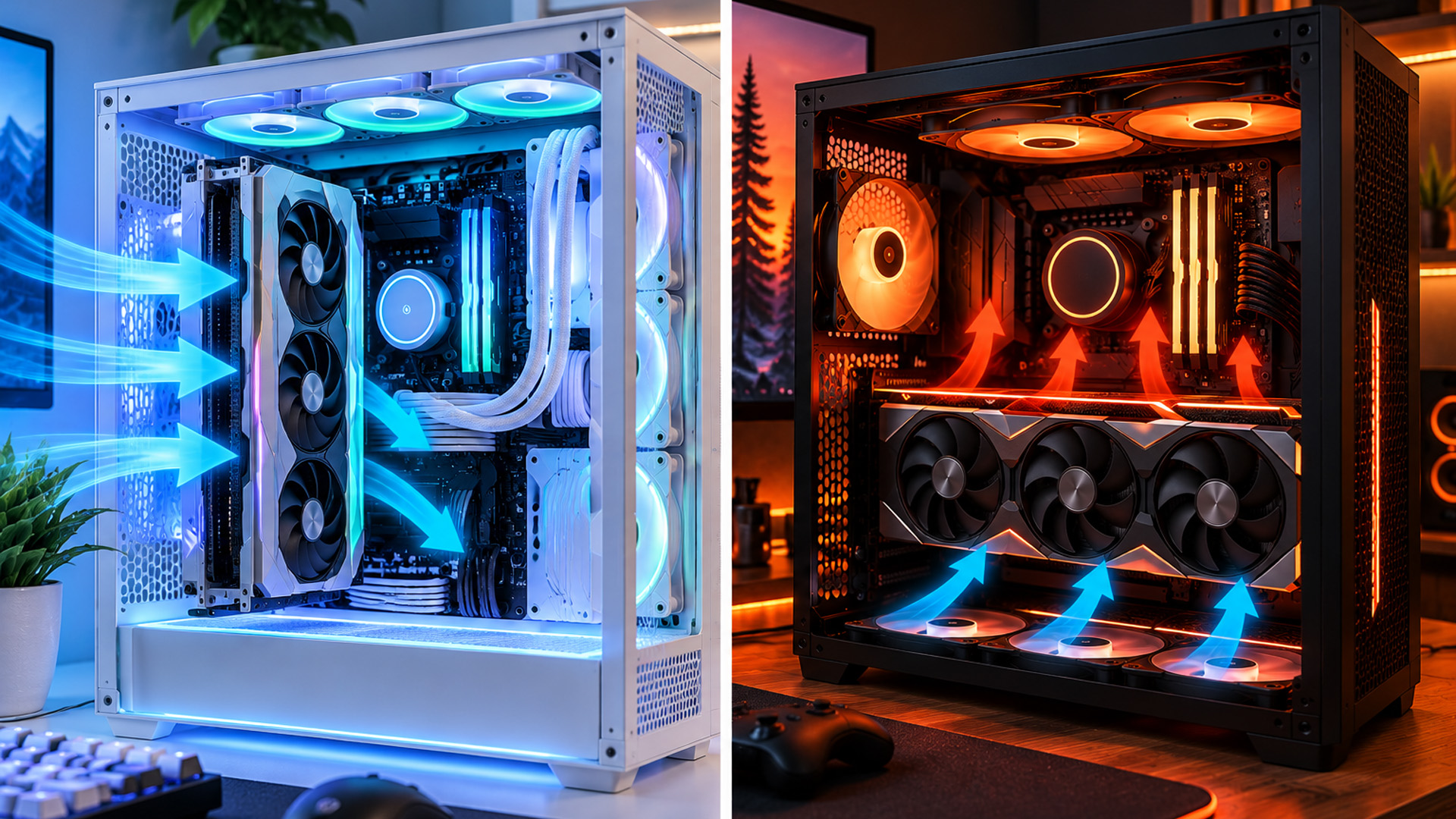
How PC Cases Affect GPU Mounting Choices
The PC case is one of the most important factors when deciding between vertical and horizontal mounting.
A case designed around airflow may support both options effectively, while a smaller case may only suit one orientation.
When selecting a case, consider:
- GPU length support
- GPU thickness clearance
- Vertical GPU bracket compatibility
- Side panel ventilation
- Fan mounting options
- Cable management space
A larger tower case generally provides more flexibility because it allows better spacing between components.
For builders planning a new system, checking suitable PC Tower cases before choosing a graphics card can prevent compatibility issues later.
Should You Choose a Vertical or Horizontal GPU Mount?
The right choice depends on your priorities.
Choose a horizontal GPU mount if you want:
- Maximum compatibility
- Easier installation
- Reliable airflow
- Fewer additional components
- A straightforward gaming PC build
This option suits most users, including first-time PC builders.
Choose a vertical GPU mount if you want:
- A showcase-style PC
- Better visibility of your graphics card design
- A cleaner visual layout
- A case specifically designed for vertical installation
However, ensure cooling and compatibility are checked before making the change.
Vertical vs Horizontal GPU Mounting: Key Takeaways
|
Question |
Answer |
|
Is horizontal mounting more common? |
Yes. It remains the standard layout for most desktop PCs because it offers broad compatibility and simple installation. |
|
Does vertical mounting improve GPU performance? |
No. Performance depends on the GPU itself and cooling conditions, not the orientation alone. |
|
Can vertical mounting affect temperatures? |
Yes. Poor clearance can restrict airflow, while well-designed cases can maintain effective cooling. |
|
Do all cases support vertical GPUs? |
No. The case must support a vertical GPU bracket or include compatible mounting options. |
|
Is a riser cable required? |
Usually yes. Most vertical installations require a PCIe riser cable to connect the GPU to the motherboard. |

Conclusion
Vertical vs horizontal GPU mounting comes down to balancing appearance, compatibility and cooling requirements. A horizontal GPU mount remains the simplest choice for most builds because it offers direct motherboard connectivity and predictable airflow.
A vertical GPU mount can create a more visually appealing system, but it requires careful planning around case support, riser cable compatibility and GPU clearance. Before changing your GPU mounting orientation, check your hardware specifications and airflow layout to ensure the graphics card can operate effectively.

FAQs
Is a vertical GPU mount better than a horizontal GPU mount?
A vertical GPU mount is not automatically better. It improves component visibility but may affect airflow if clearance is limited. Horizontal mounting generally provides simpler installation and wider compatibility.
Does vertical GPU mounting increase GPU temperatures?
Vertical GPU mounting can increase temperatures if the graphics card sits too close to the side panel. With sufficient airflow space and a suitable case design, temperature differences may be minimal.
Do I need a riser cable for vertical GPU installation?
Yes, most vertical GPU installations require a PCIe riser cable. The cable connects the graphics card to the motherboard while allowing the GPU to be repositioned inside the case.
Can any graphics card be mounted vertically?
No. A graphics card needs enough clearance, and the PC case must support the required bracket or mounting position. Larger GPUs may require additional space for proper airflow.
Does vertical GPU mounting reduce gaming performance?
Vertical GPU mounting does not directly reduce performance. Any impact usually comes from restricted cooling, which may cause higher temperatures and potential thermal limitations.
Related Articles


Last Updated: February 11, 2026
Buying a desktop PC can quickly become frustrating. Endless specs, unfamiliar terms, and conflicting advice make it hard to know what really matters, and easy to waste money on the wrong setup. But here’s the solution: once you understand what desktop PC specifications actually do, choosing the right machine becomes simple. In this desktop PC specs explained guide, we break down every key component in plain English, showing you exactly what you need for work, home or gaming, and what you can safely ignore. No jargon, no guesswork, just confident buying decisions.
Processor (CPU): The Brain of Your Desktop
The processor, or CPU, is one of the most important parts of any desktop PC. It handles instructions and calculations, directly affecting how fast your system feels.
What to look for:
- Cores & Threads: More cores help with multitasking and demanding software
- Clock Speed (GHz): Higher speeds generally mean faster performance
What you actually

Last Updated: February 10, 2026
Buying a desktop PC is a big decision, especially when prices can range from a few hundred pounds to several thousand. The right choice depends not just on your budget, but on how you plan to use your PC now and in the future.
Let us help you understand exactly what you get at different price points, what specifications really matter, and how to avoid common mistakes. Whether you’re buying your first desktop or upgrading an older system, this guide will walk you through everything you need to know.
Why Choose a Desktop PC Instead of a Laptop?

Before diving into budgets, it’s worth understanding why many UK buyers still choose desktops:
- Better performance for the price
- Easier and cheaper upgrades
- Longer lifespan
- Improved cooling and sustained performance
- More connectivity options
For home offices, gaming setups, and creative work, desktops almost always offer better long-term value.
Understanding Desktop PC Specifications (Quick Primer)
If you’re not technical, these are the core components
Last Updated: May 05, 2026
Let’s call this out early: “AI-Ready” is one of those phrases that sounds important but tells you almost nothing by itself.
Every PC brand is using it. Every listing claims it. And most buyers still walk away thinking, “Cool… but what does that actually do for me?”
So instead of selling you a future fantasy, let’s talk about what AI-Ready desktops actually change in 2026, where they matter, and where they really don’t.
First: Why Everyone Is Suddenly Calling Their PCs “AI-Ready”
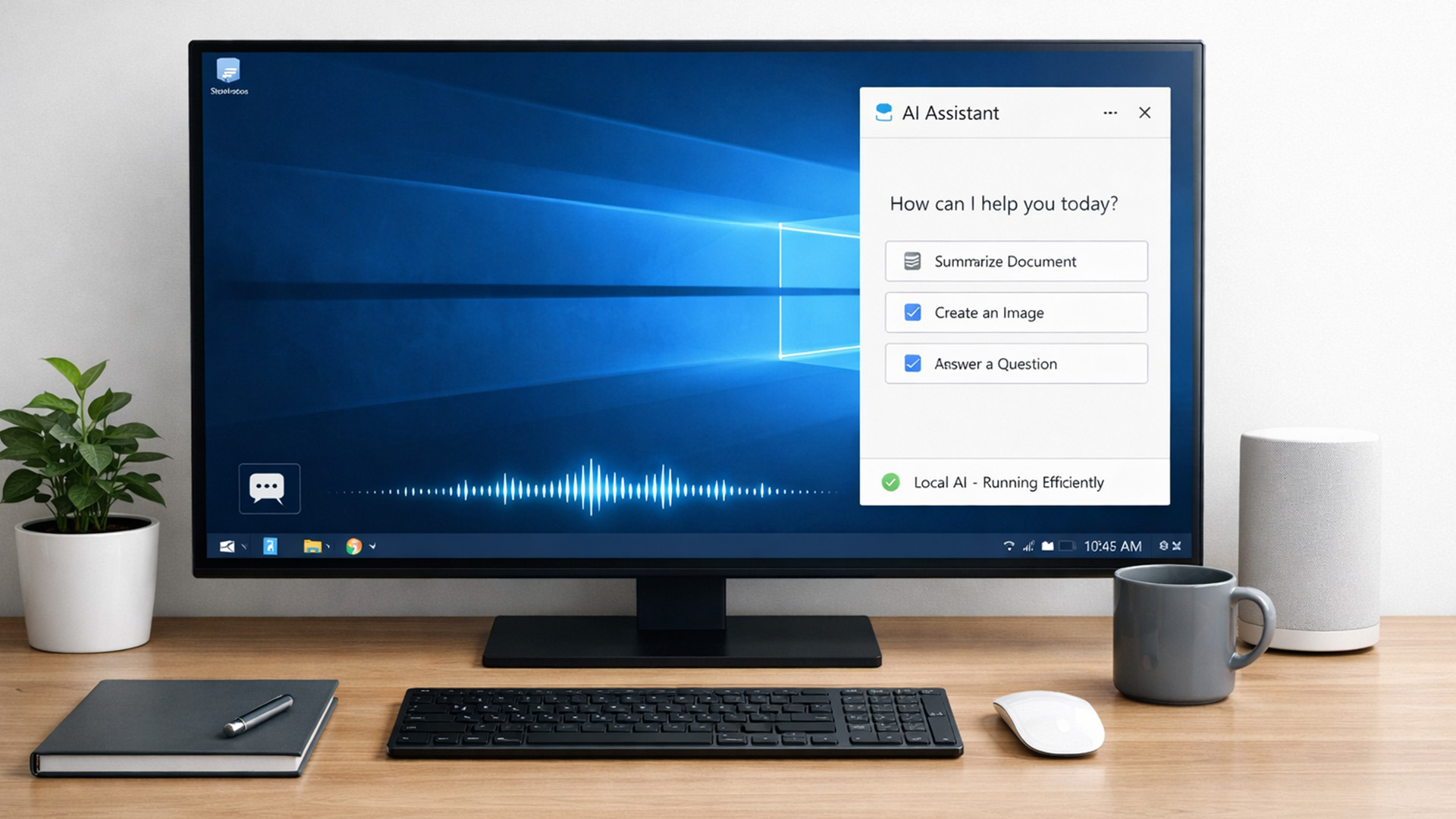
AI didn’t just become a software thing - it became a hardware conversation.
For years, AI lived in the cloud. You typed something, it went to a server, magic happened, and the result came back. Now, operating systems (especially Windows) are pushing AI features onto the device itself. That shift is what triggered the “AI-Ready” wave.
An AI-Ready desktop is basically a PC that can:
- Run certain AI tasks locally
- Do it efficiently
- Without destroying performance or power usage
That’s it. No sentience. No robot takeover.

Last Updated: February 11, 2026
Choosing the right desktop PC can feel a bit like picking a side in a long-running tech rivalry. HP, Dell, and Lenovo are three of the biggest names and for good reason. They all offer reliable, powerful desktops that suit everything from casual home use to hardcore business workloads and creative setups.
But when it comes to HP vs Dell vs Lenovo desktop PCs, which brand actually wins for you?
Why Compare HP, Dell, and Lenovo Desktop PCs?
HP, Dell, and Lenovo are all global heavyweights in the PC world. They each offer a wide range of desktops — from budget-friendly towers to powerful workstations and compact all-in-one PCs.
But here’s the thing:
Not all desktop PCs are built for the same kind of user.
Some are better for productivity, some for gaming, and others for long-term reliability. Understanding the differences is key before you hit “Add to Basket”.
HP Desktop PCs: Style Meets Performance
HP desktops are known for blending solid performance with modern design. If you like your
Published: February 09, 2026
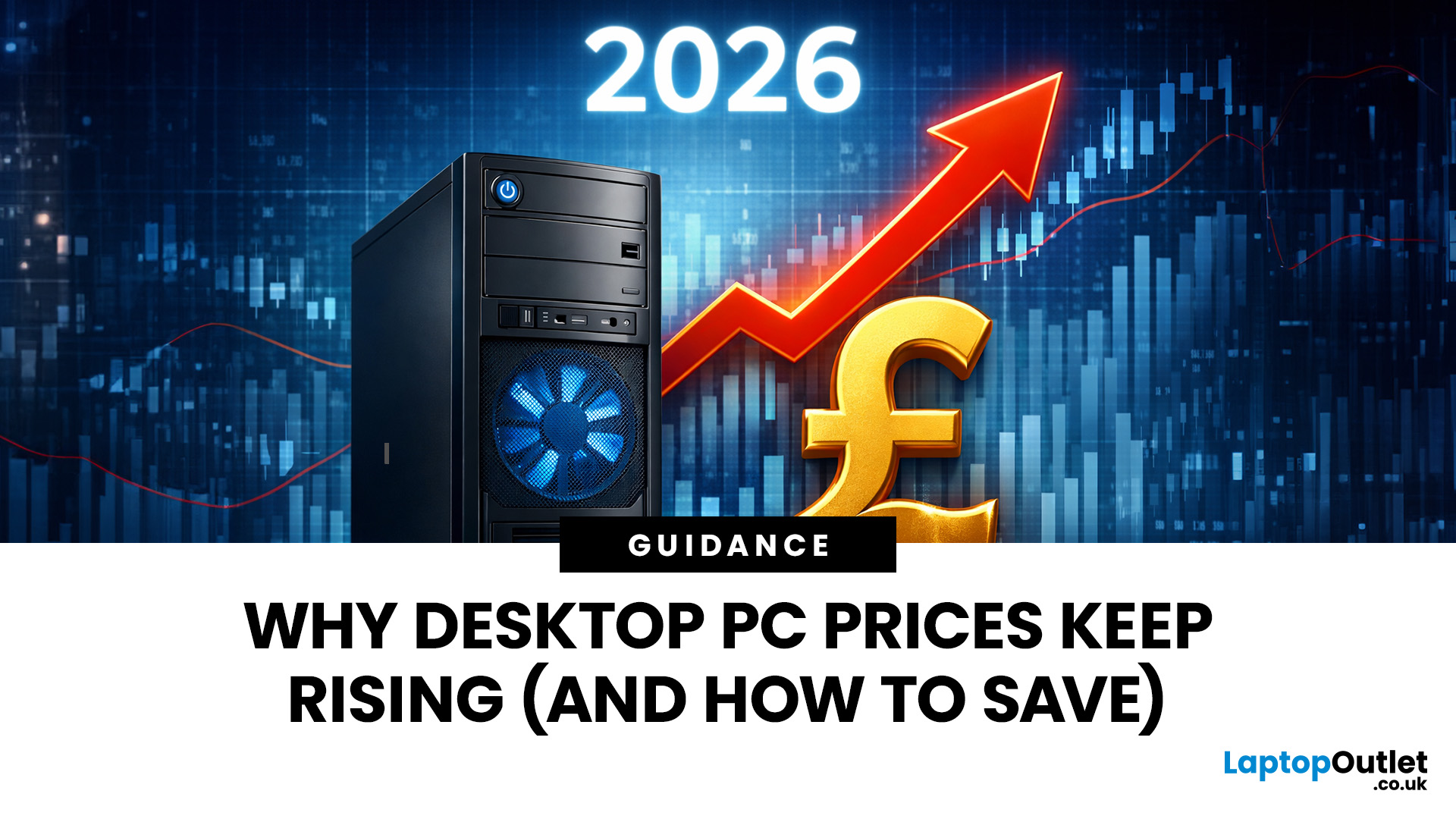
If you have been browsing for a new PC lately, you might have noticed a bit of a price shock. Whether you are looking for a sleek all-in-one for your home office or a powerful gaming rig, the numbers on the price tags in 2026 are noticeably higher than they were just a couple of years ago.
Many UK buyers are left scratching their heads, asking the same question: why are desktop PCs expensive all of a sudden? It is a fair question. In this guide, we will break down exactly what is driving these costs and, more importantly, how you can still find incredible value.
Key Reasons Desktop PC Prices Are Rising
Understanding the "why" behind the price hike helps you time your purchase better. Here are the primary factors driving the market today.
The "AI Squeeze" on Components
The biggest culprit isn't a lack of chips, but a shift in what those chips are used for. Huge data centres are currently buying up almost 70% of the world’s advanced memory (DRAM) and storage (NAND) to power AI models.

Last Updated: September 15, 2026
If you’re asking “are refurbished desktop PCs worth it” in 2026, you’re not alone. Refurb is having a moment in the UK, partly because budgets are tight, and partly because more people want a cheaper, lower-waste way to get solid tech. At the same time, buyers are more hesitant than ever… and that hesitation is not random. A few very 2026-specific changes have raised the stakes.
This guide breaks down the real reasons people hesitate in 2026, and how Laptop Outlet reduces those risks so you can buy refurbished with genuine peace of mind - without losing out on choice or price.
What changed in 2026 that made buyers more cautious?
1) The Windows 10 “cliff edge” is now behind us
Windows 10 support ended on 14th October 2025, which means many older desktops are now in a riskier zone if they can’t upgrade cleanly.
Yes, Microsoft offers Extended Security Updates (ESU), but for consumers it’s a limited runway (through 2026) and comes with requirements that can add friction.
Why this makes refurbished
Published: March 12, 2026
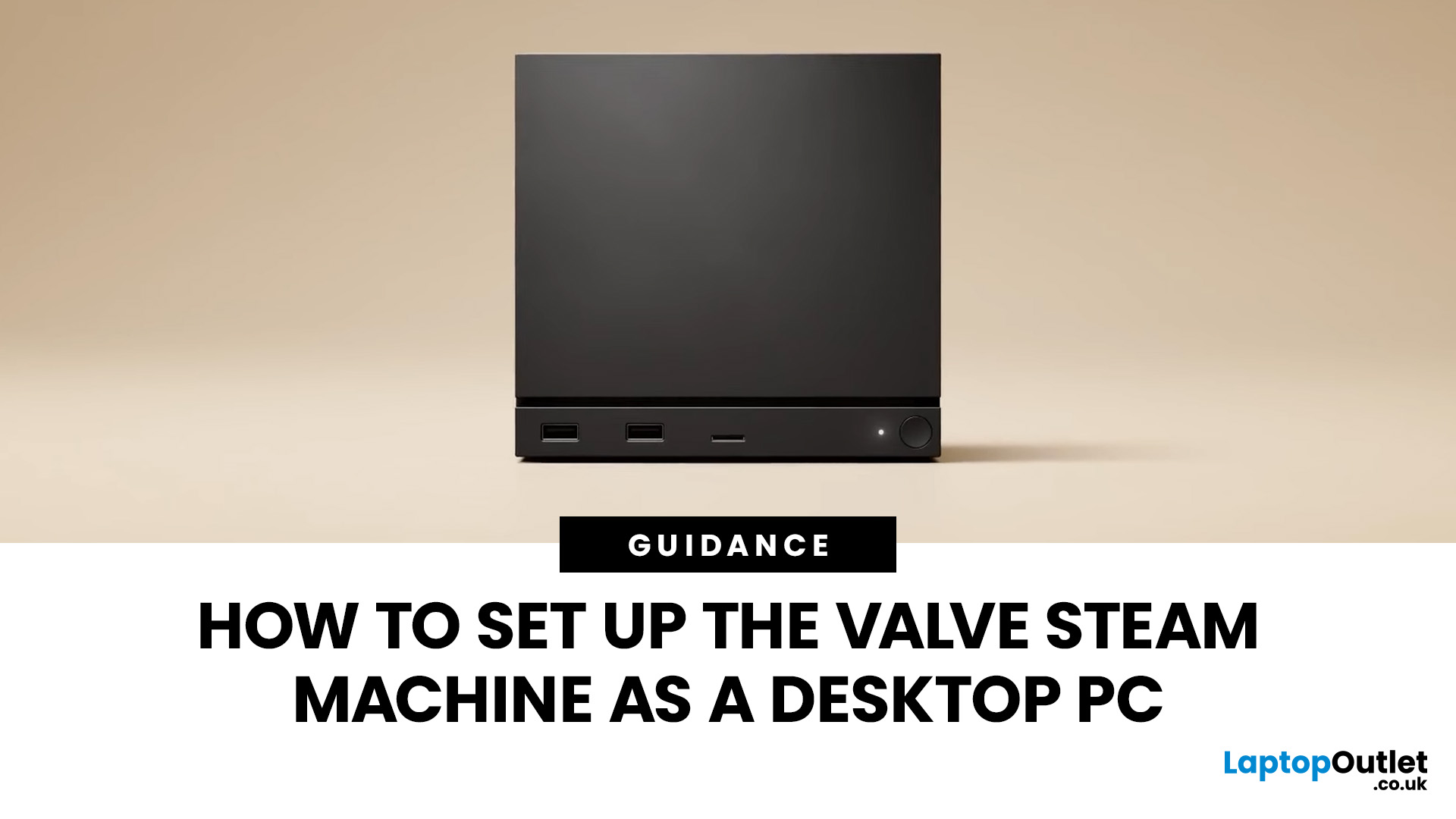
If you have an old Valve Steam Machine tucked away under the telly or on a shelf, you might be wondering whether it can still do more than launch games. The good news is that, with the right setup, it can absolutely pull double duty as a compact desktop computer for everyday use.
This guide walks you through a practical Valve Steam Machine setup for desktop use, from connecting a monitor and peripherals to accessing SteamOS desktop mode and making the system feels more like a standard PC. Whether you want a lightweight machine for web browsing, media streaming, or casual home computing, repurposing a Steam Machine can be a clever and cost-effective option.
What is a Valve Steam Machine?
A Valve Steam Machine was originally designed as a living-room gaming PC. It brought PC gaming closer to the console experience, usually running SteamOS and focusing on controller-friendly play from the sofa.
That said, the hardware inside many Steam Machines is still capable of handling basic desktop
Published: June 11, 2026
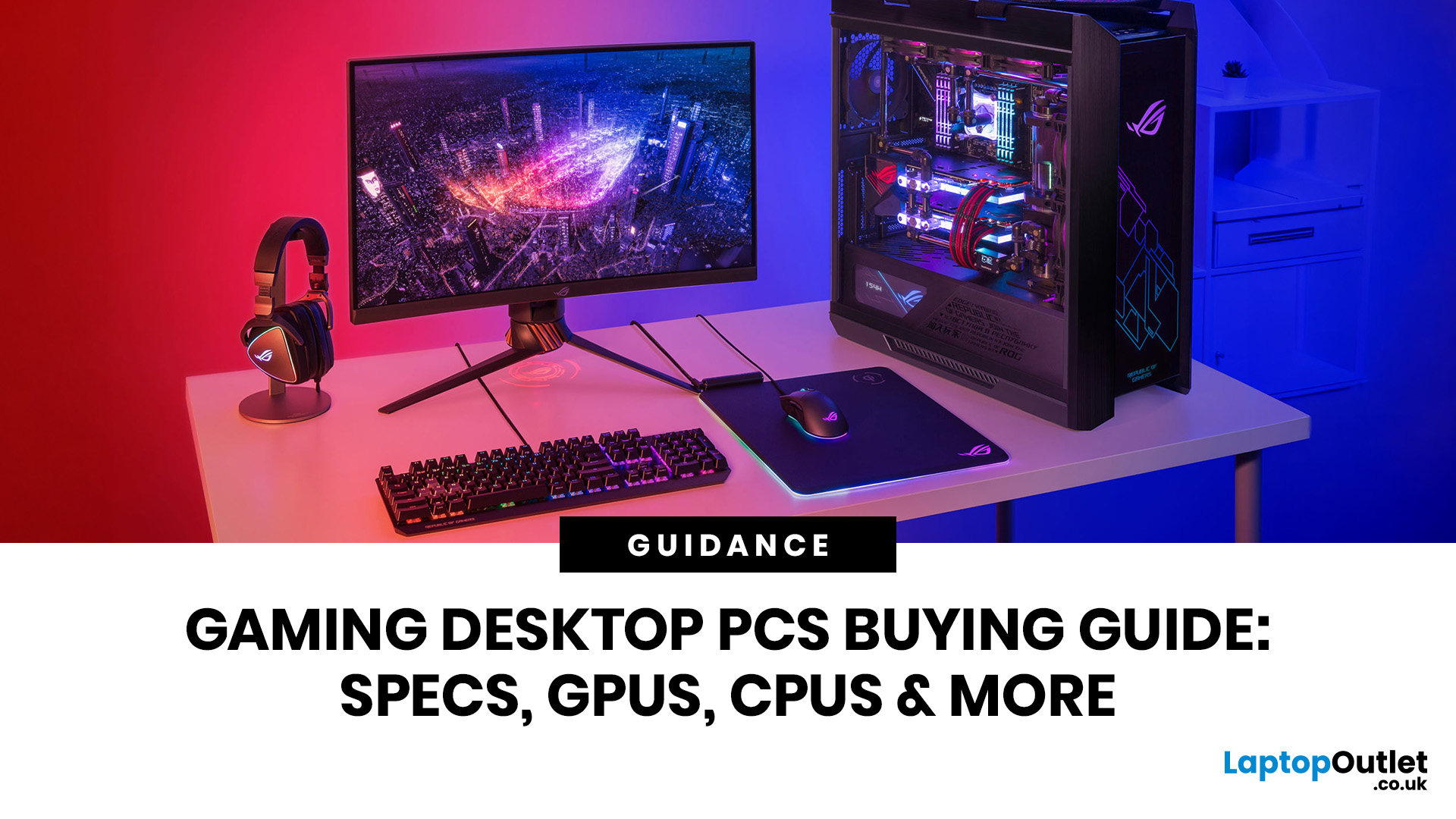
Choosing the right gaming desktop can be the difference between smooth, immersive gameplay and a system that struggles within a year. This gaming PC buying guide explains the key components that affect gaming performance, future-proofing, and value for money, so you can buy with confidence rather than guessing from confusing spec sheets.
A good gaming PC is not just about the most expensive graphics card. It is about balance. The CPU, GPU, RAM, storage, cooling, power supply, motherboard, and case all work together. Whether you play competitive esports, cinematic single-player titles, open-world RPGs, racing games or VR, understanding the right configuration helps you avoid overspending and choose a desktop that lasts.
This article is designed as a practical gaming PC specs guide for beginners, but it also includes up-to-date 2026 advice for buyers comparing modern RTX, Radeon, Intel, and AMD-powered systems.
Why Buy a Gaming Desktop PC?
A gaming desktop PC remains one of the best choices
Last Updated: June 15, 2026
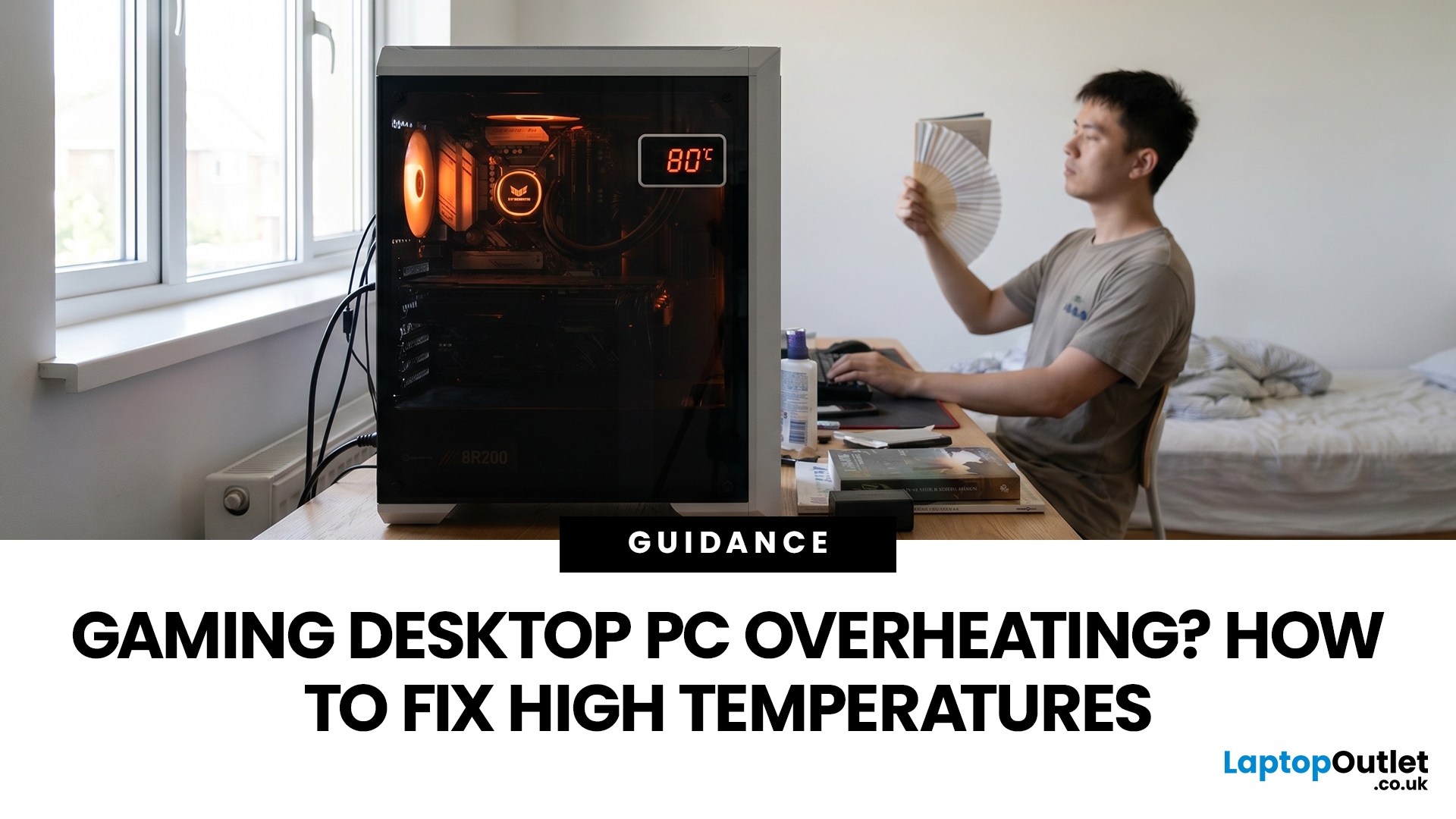
A gaming PC overheating usually comes down to one of five things: blocked airflow, dust build-up, weak cooling, aggressive game settings, or poor contact between the CPU/GPU and its cooler.
| Here is the fast version:
|
Gaming PC Overheating: What It Means and Why It Matters
You’re mid-match. Your FPS is smooth. Then suddenly, the game stutters, the fans sound like a jet engine, and your PC feels like it could toast bread.
That is not “just gaming PC life”.
A hot gaming desktop is normal. An overheating
Last Updated: June 30, 2026
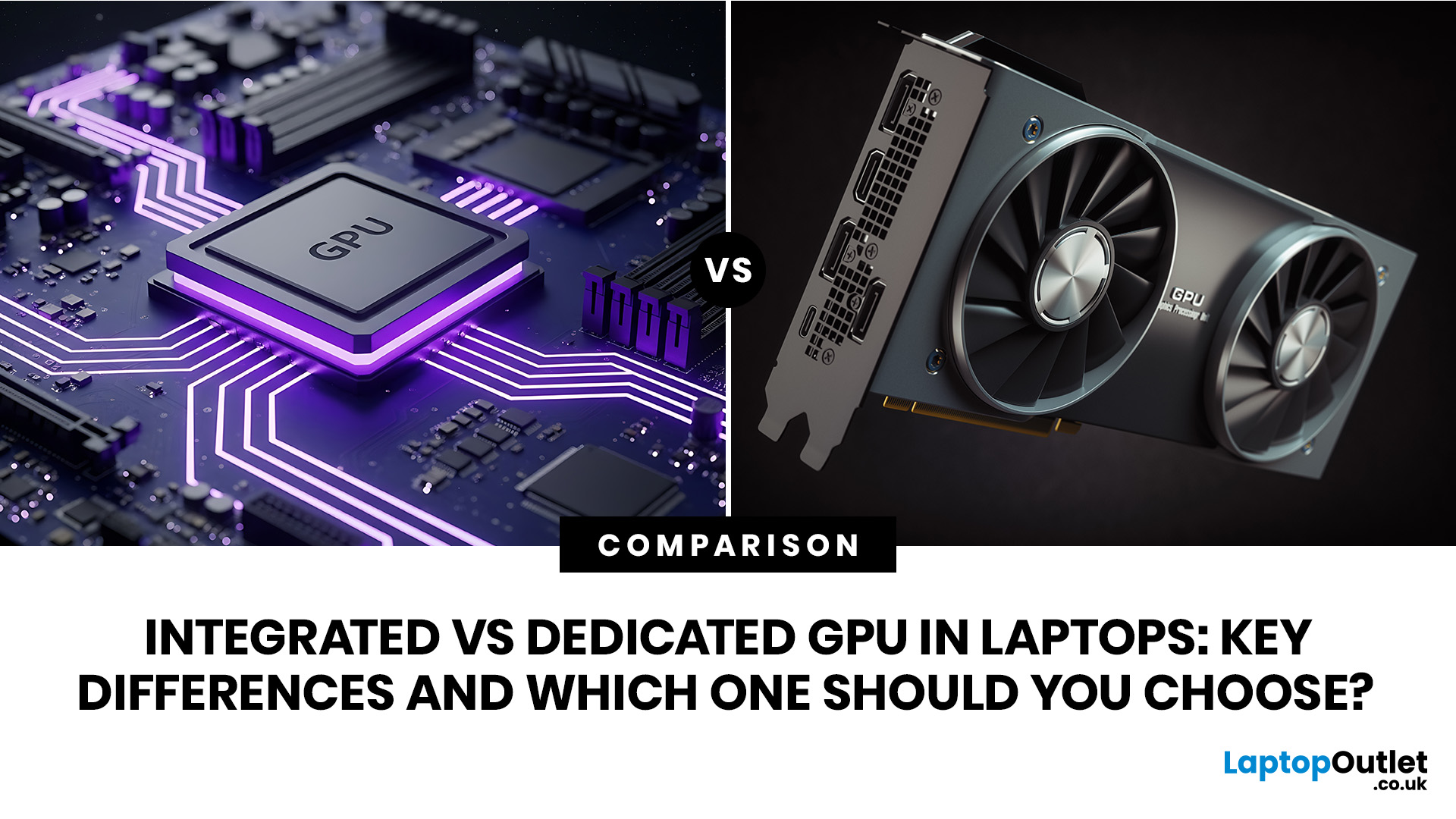
An integrated vs dedicated GPU laptop decision comes down to one simple question: do you need strong graphics performance every day, or do you mostly need a cooler, lighter, longer-lasting laptop for normal work?
For everyday browsing, office work, video calls, streaming, study and light photo editing, integrated graphics are usually enough. For serious gaming, 3D work, video editing, CAD, AI workloads or high-refresh creative work, a laptop with dedicated graphics card hardware is usually the better option.
Quick answer: Integrated vs dedicated GPU explained
Integrated graphics are built into the processor sharing, system memory. They are efficient, affordable and good for everyday laptop use.
A dedicated GPU is a separate graphics processor with its

