



Acer Gaming PC Not Booting? Common Issues and Easy Fixes
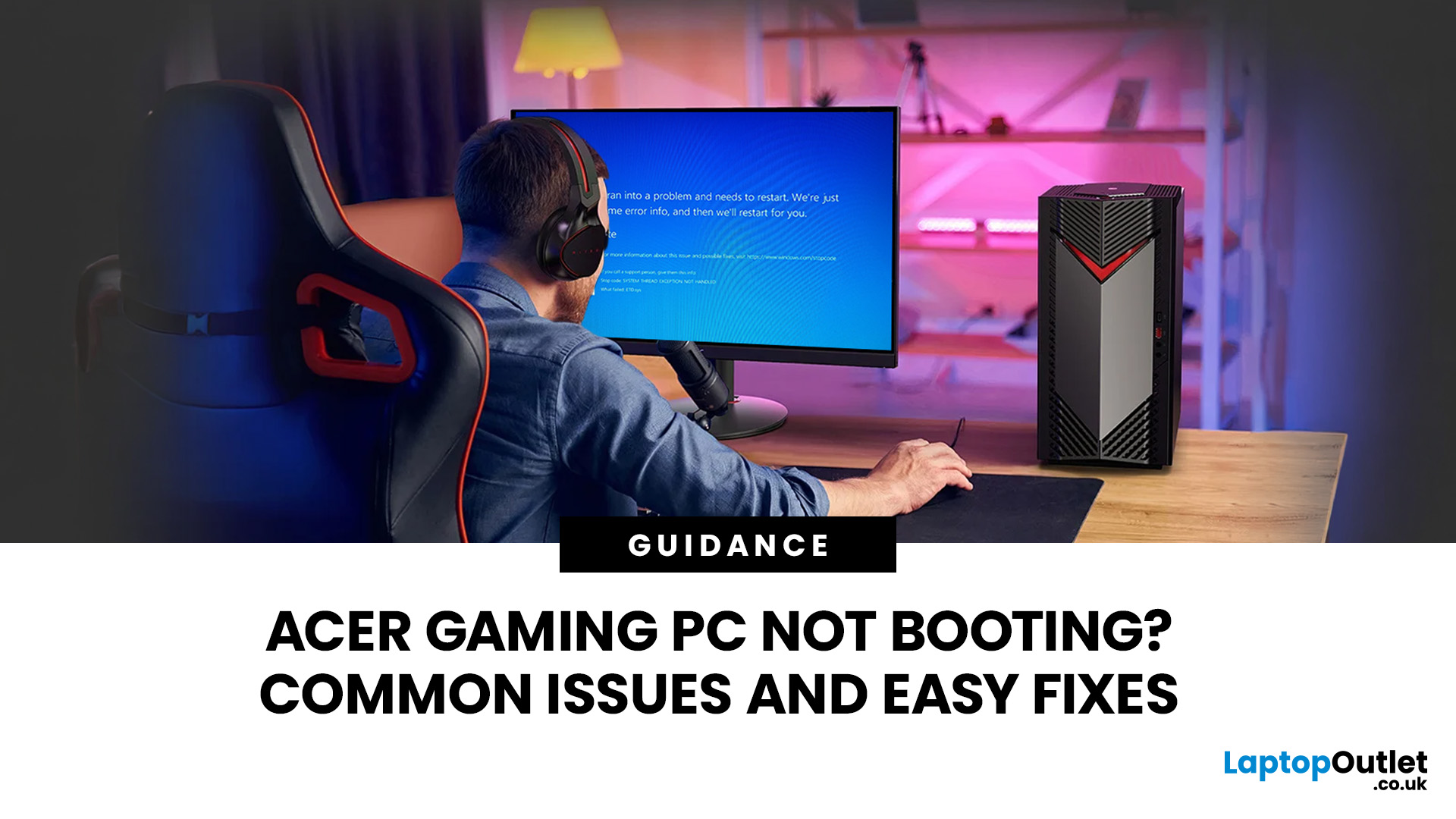
An Acer gaming PC not booting can feel like instant panic mode, especially when you were ready to jump into a game, finish work, or just chill. One minute everything is fine, and the next your PC turns on but no display appears, the monitor says no signal, or the screen stays completely black.
The good news? A PC not booting does not always mean something major is broken. Sometimes it is a loose cable, a monitor input issue, a RAM problem, or a BIOS setting that needs a reset. In this guide, we will walk through the most common Acer desktop startup issues, what they usually mean, and the easy fixes you can try before heading straight to a repair shop.
Is Your Acer PC Actually Not Booting, or is There No Display?
Before you start unplugging parts, it helps to know what problem you are really dealing with. A PC can fail in different ways, and each one points to a different cause.
If your Acer PC is not starting up that means there are no lights, no fans, and no sound at all, it may be a power issue. But if the fans spin, RGB lights turn on, or you hear the system running, then the computer may be powering on but failing to show an image.
That is where symptoms like Acer computer no signal, or computer boots but no display come in. These usually point to your monitor, cable, graphics card, RAM, or BIOS rather than the whole machine being dead.
A black screen PC problem can also happen before Windows loads, after login, or even with a cursor visible. The timing matters, so pay attention to exactly when the screen goes black.
Quick Checks Before You Open the Case
- Start with the simple stuff first. It may sound basic, but plenty of boot problems are caused by something small.
- Check that the power cable is firmly connected to the back of your Acer desktop and the wall socket. If you are using an extension lead, try plugging the PC directly into the wall. Also, check the power switch on the back of the power supply, if your model has one.
- Next, look at your monitor. Make sure it is turned on, set to the correct input, and connected to the right port. Gaming PCs often have display ports on both the motherboard and the graphics card. If your Acer gaming PC has a dedicated GPU, connect your HDMI or DisplayPort cable to the graphics card, not the motherboard.
- Also try a different display cable if you have one. A faulty HDMI or DisplayPort cable can easily make it look like your Acer PC screen black issue is more serious than it really is.
- Finally, disconnect extra USB devices. External drives, controllers, USB hubs, and other accessories can sometimes interfere with startup. Boot with only your monitor, keyboard, and mouse connected.
Common Reasons Your Acer Gaming PC is Not Booting
There are a few usual suspects when an Acer PC not booting issue appears. Some are easy to fix, while others need a technician.
1. Loose Display Cable or Wrong Monitor Input
If your monitor says “No Signal,” the PC may still be running fine, but the screen is not receiving video. This can happen when the cable is loose, plugged into the wrong port, or the monitor is set to HDMI 2 when your cable is connected to HDMI 1. This is one of the easiest fixes, so always check it early.
2. RAM is Loose or Faulty
RAM problems can stop a PC from completing its startup checks. You might see a black computer screen, hear beeps, or notice the system turning on and off repeatedly.
This can happen on standard desktops as well as Acer PCs designed for gamers, especially if the system has recently been moved, upgraded, or cleaned. If you are comfortable opening the case, power off the PC, unplug it, and carefully reseat the RAM sticks. Press them firmly into their slots until the clips lock in place. If you have more than one RAM stick, try booting with one stick at a time to identify whether one is faulty.
3. Graphics Card Connection Issues
Gaming desktops depend heavily on the graphics card. If the GPU has moved slightly, especially after the PC was transported or bumped, it may cause a PC turns on but no display situation.
Make sure the graphics card is properly seated in the PCIe slot and that any power cables connected to it are secure. If your monitor is plugged into the GPU and there is still no display, the graphics card could be part of the problem.
If your system boots again but still struggles with demanding titles, understanding what makes the best Acer gaming PC for games like Fortnite, Warzone, and Valorant can help you separate a startup issue from a performance limitation.
4. BIOS or Boot Order Problems
Your BIOS controls basic startup settings. If the boot order changes or the BIOS fails to detect your storage drive, your Acer PC may not load Windows.
On many Acer desktops, you can enter BIOS by pressing F2 or Del repeatedly right after turning the PC on. The exact key can vary by model, so check your Acer manual if those do not work.
Once inside BIOS, check whether your SSD or hard drive appears. If the drive is missing, the issue may be a loose connection, failed storage drive, or motherboard problem.
5. Storage Drive Problems
If you see an Acer no bootable device error, it usually means the PC cannot find a drive with a working operating system. In normal-person terms: your PC is looking for Windows, but it cannot find it.
This issue can affect gaming systems and Acer PCs for multitasking, especially if the SSD or HDD is disconnected, damaged, corrupted, or moved lower in the boot order after a BIOS reset or failed update.
6. Power Supply Issues
An Acer desktop power problem is not always obvious. Your fans may spin and lights may turn on, but the power supply may still fail to deliver enough stable power for the whole system to boot.
If the PC randomly shuts off, clicks, smells burnt, or only powers on sometimes, stop repeatedly restarting it. Power issues can get worse, and this is where professional help is the smarter move.
Easy Fixes to Try for an Acer PC Not Starting Up
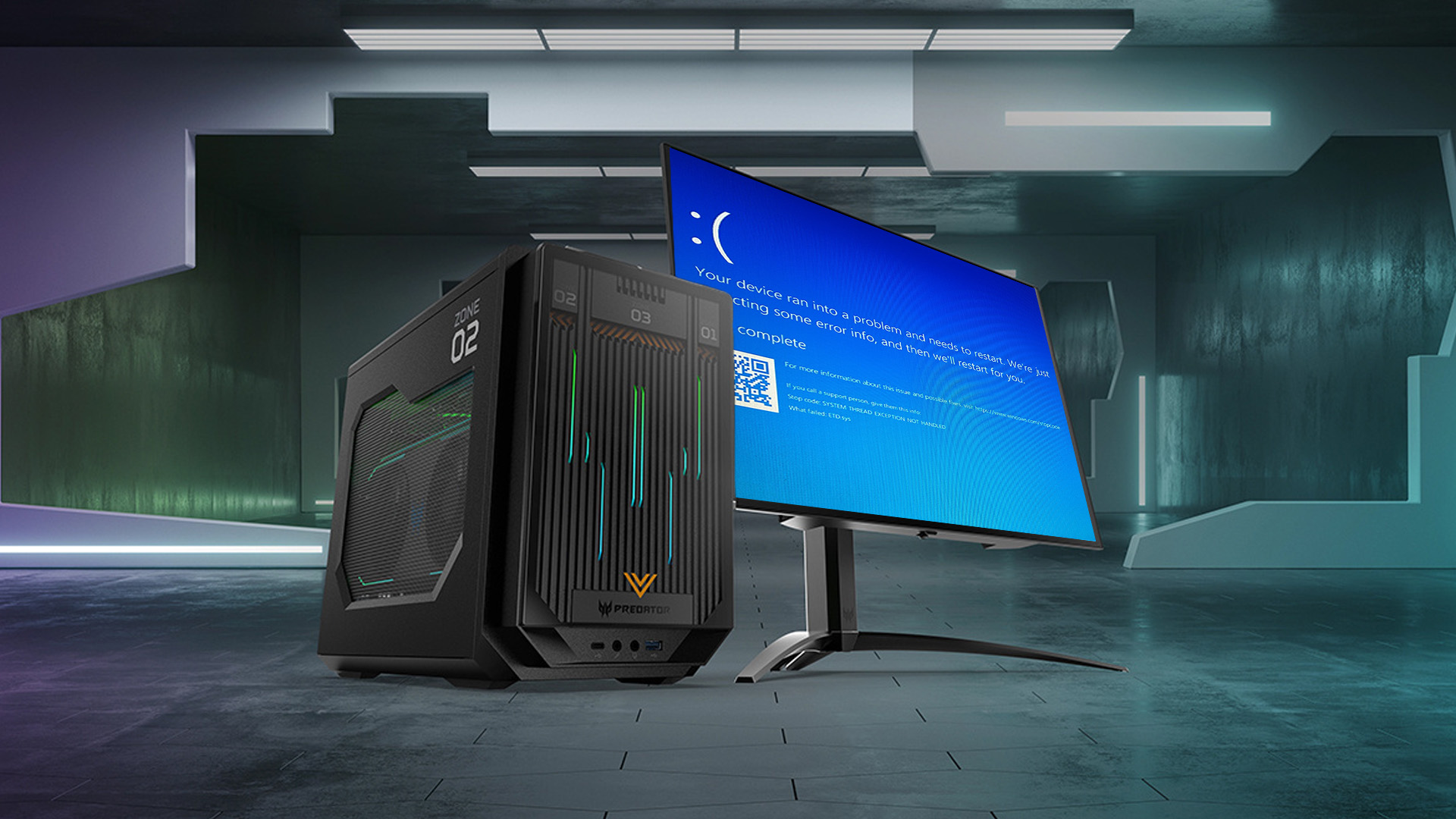
Here are the safest troubleshooting steps to try before assuming the worst.
Power Cycle the PC
Turn off the PC completely. Unplug the power cable. Hold the power button for around 15 to 30 seconds. Then reconnect the cable and try turning the PC on again. This clears leftover electrical charge and can fix temporary startup glitches.
Try Another Monitor or Cable
If your PC seems to run but the screen stays black, test another HDMI or DisplayPort cable. You can also connect the PC to another monitor or TV. This helps you figure out whether the issue is with the computer or the display. This is especially useful when dealing with a black computer screen, but still running.
Reseat the RAM
If the PC powers on but does not boot properly, reseating RAM is worth trying. Shut down the system, unplug it, open the side panel, and remove the RAM sticks. Then reinstall them carefully. If the PC starts after this, the issue may have simply been a loose RAM connection.
Check the Graphics Card
Make sure the GPU is firmly in place and connected to power. If your Acer gaming PC has onboard graphics and your processor supports it, you may be able to test display output from the motherboard by temporarily removing or bypassing the dedicated GPU. Not every model supports this, so check your specs first.
Reset BIOS Settings<
If the PC reaches BIOS but will not load Windows, look for an option such as “Load Setup Defaults” or “Restore Defaults.” Save and restart.
A BIOS reset can help if the boot order or hardware settings were changed accidentally. For a full CMOS reset, it is better to follow your Acer model manual or ask a technician, especially if you are not used to working with motherboard components.
How to Fix a Black Screen on an Acer Gaming PC
A black computer screen fix depends on when the black screen appears.
- If the screen is black before the Acer logo appears, check the monitor, cable, GPU, RAM, and power supply first. This is more likely to be a hardware or display connection issue.
- If you see the Acer logo but Windows does not load, the problem may be with Windows startup, storage, drivers, or boot settings.
- If you get a black screen on PC with cursor, Windows may be loading incorrectly. You can try restarting the PC, booting into Safe Mode, or uninstalling a recent display driver update if the issue started after a software change.
- And if you are literally searching “my computer screen is black” while your Acer desktop is humming away beside you, do not instantly assume your PC is cooked. A black screen PC problem can be annoying, but it is often fixable with basic checks.
What “No Bootable Device” Means on an Acer Gaming PC
The Acer no bootable device error means your PC cannot find a storage drive it can boot from. Usually, that means it cannot find Windows.
The first step is to enter BIOS and check whether your SSD or hard drive is detected. If the drive appears, the boot order may be wrong or Windows may be corrupted. If the drive does not appear at all, the storage drive may be disconnected, damaged, or failing.
In some cases, Windows repair tools can help. But if the drive contains important files, avoid random formatting or reinstalling Windows before backing up your data. Data recovery is much easier before major changes are made.
When Should You Get Professional Help?
Some gaming Acer PC problems are safe to troubleshoot at home. Others are not worth risking.
Get professional help if your PC smells burnt, makes clicking or sparking sounds, shuts down repeatedly, or does not detect the storage drive in BIOS. You should also avoid opening the power supply unit itself. That part can be dangerous even when unplugged. For anyone dealing with repeated startup or display problems, reading an Acer vs ASUS desktop breakdown can give useful context on build quality, gaming performance, and how different desktop systems handle heavy use.
If you have tried the basic display, cable, RAM, and BIOS checks and your Acer gaming PC still refuses to boot, a technician can test the power supply, motherboard, GPU, and storage drive properly. And if your desktop is older, overheats often, or struggles with newer games, it may be worth comparing affordable gaming desktop options instead of spending money on repeated repairs.

Thinking About an Upgrade?
Not every boot issue means you need a new PC. But if your current setup has ongoing faults, limited upgrade options, or cannot keep up with your games and daily workload, upgrading can make sense. Furthermore, if the PC is fine but your setup needs a glow-up, the best accessories for gaming can improve comfort, control, and overall experience. Take the time to compare your repair costs, performance needs, and setup goals so you can make the choice that genuinely works best for you.

FAQs
Why is my Acer gaming PC turning on but not booting?
Your Acer gaming PC may turn on but not boot because of faulty RAM, a loose graphics card, a disconnected storage drive, BIOS boot order issues, or corrupted Windows files. If the fans and lights work but there is no display, check the monitor cable, GPU port, and RAM first.
How do I reset BIOS on an Acer gaming PC?
Restart the PC and press the BIOS key during startup. On many Acer desktops, this is F2 or Del, but it can vary by model. Once inside BIOS, look for “Load Setup Defaults,” “Restore Defaults,” or a similar option. Save the changes and restart. For a hardware CMOS reset, check your Acer manual or contact a technician.
What does “No Bootable Device” mean on an Acer gaming PC?
“No Bootable Device” means your PC cannot find a drive with a working operating system. Your SSD or HDD may be disconnected, failed, missing from the boot order, or affected by corrupted Windows files.
Can faulty RAM stop an Acer gaming PC from booting?
Yes, faulty or loose RAM can stop an Acer gaming PC from booting. It can cause a black screen, random restarts, beeping sounds, or a system that powers on but never reaches Windows.
Can I use an Acer gaming PC like a regular PC?
Yes, you can use an Acer gaming PC like a regular PC. It can handle everyday tasks such as web browsing, office work, streaming, studying, video calls, and multitasking. The gaming hardware simply gives you extra power for demanding apps and games.
| Read More: |
| How AMD Processors Work in Gaming PCs: Key Features and Benefits |
| Gaming Desktop PC Breakdown: AMD, Intel & RTX Tech |
| Gaming Desktop PCs vs. Gaming Laptops: Which Should You Buy? |
Related Articles

Last Updated: September 01, 2026
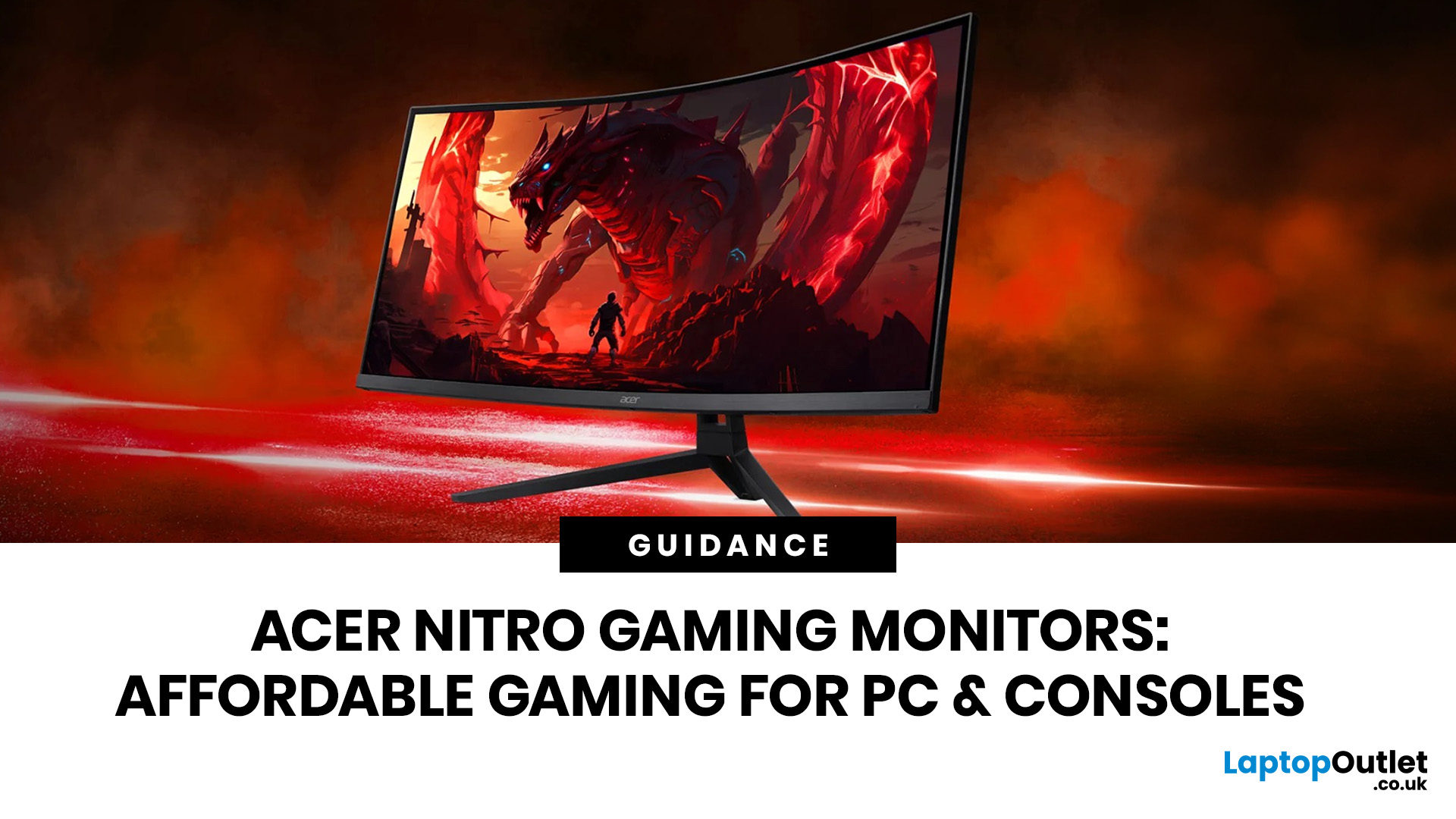
If you want smooth gameplay without jumping straight into premium OLED pricing, Acer Nitro gaming monitors are one of the easiest ranges to shortlist. Acer positions the Nitro line as a gaming family with options for fast-paced play, ultrawide immersion and richer colour, while Our Acer monitor range backs that up with Full HD, QHD, curved and ultrawide Nitro models aimed at buyers who want value, not just spec-sheet flexing.
That is exactly why Acer Nitro monitors UK shoppers keep coming back to the series. The range is broad enough to cover casual desk gaming, PS5 and Xbox setups, and entry-level PC esports, but it still stays realistic on price compared with high-end Predator and OLED alternatives. Nitro models from compact 23.8-inch Full HD panels up to 34-inch curved UWQHD displays, with refresh rates running from 120Hz to 240Hz.
Are Acer Nitro Gaming Monitors Good for Budget Gaming?
Yes. For casual gaming, console play and entry-level PC builds, Acer Nitro sits in a very practical
Last Updated: July 06, 2026
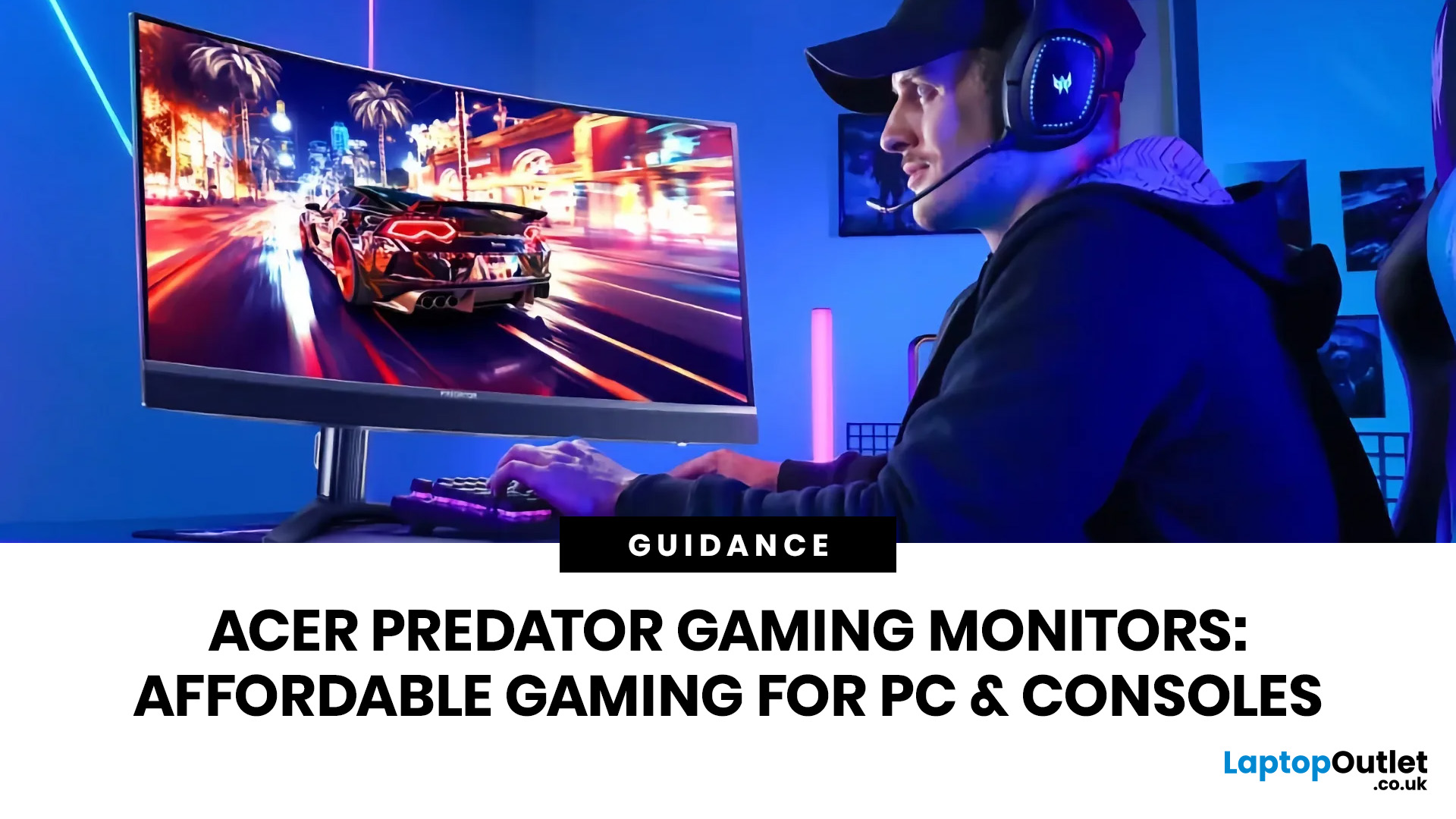
you are shopping for Acer Predator gaming monitors, you are usually not looking for a basic panel. You are looking for speed, image quality and a monitor that genuinely fits the kind of games you play. For some buyers, that means a fast 27-inch display for ranked shooters and esports titles. For others, it means a bigger 4K panel for high-detail single-player games. And for enthusiasts building the kind of setup that makes every desk photo look dramatic, it means an ultrawide or super-ultrawide screen that turns a gaming PC into the centrepiece of the room.
That is why Predator remains such an interesting range. Acer's broader monitor line covers different budgets and uses cases, but the Predator family is where Acer pushes harder on premium gaming features like OLED and QD-OLED panels, very high refresh rates, ultrawide formats and esports-level response times.
If you want the simple answer: Why choose Acer Predator monitor
Here is the short version.
- For competitive esports and fast shooters,
Last Updated: May 13, 2026
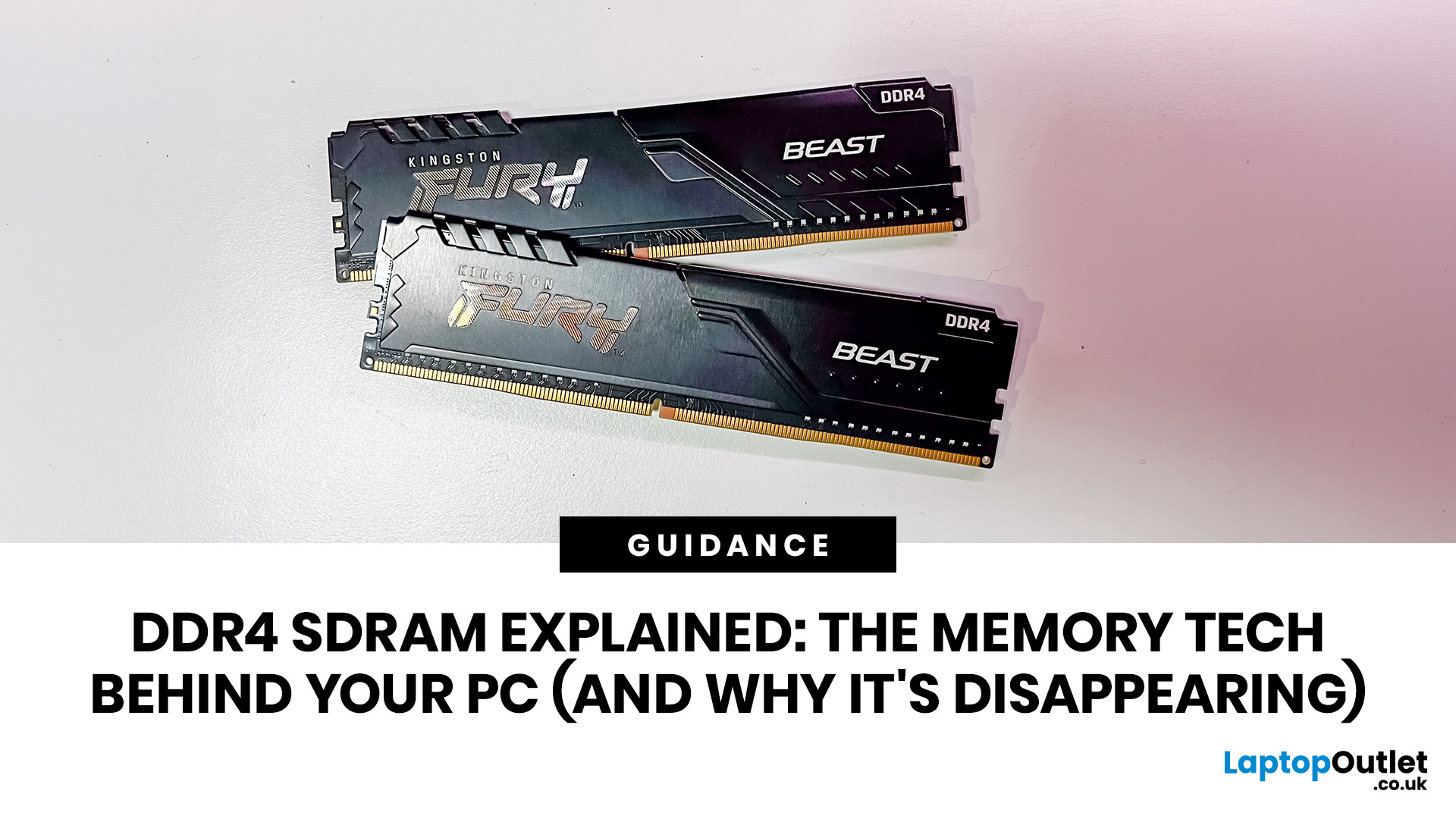
DDR4 is basically the reliable older sibling of modern PC memory. It powered gaming rigs, office PCs, laptops, creator setups and budget builds for years. But now? DDR5 has entered the chat, and new PC hardware is slowly moving on.
Still, DDR4 is not suddenly useless. Far from it. If your current PC uses DDR4, a memory upgrade can still make your system feel faster, smoother and less stressed. This guide has DDR4 SDRAM explained in plain English: what DDR4 memory is, how it works, how it compares with DDR5, and why it is gradually disappearing from new builds.
What is DDR4 SDRAM?
DDR4 stands for Double Data Rate 4. SDRAM stands for Synchronous Dynamic Random-Access Memory. Put together, DDR4 SDRAM is a type of computer memory used in desktops, laptops, workstations and servers.
In normal human terms, DDR4 is the short-term memory your PC uses while it is switched on. It temporarily holds the data your processor needs right now, such as open browser tabs, game assets, APPs, system
Last Updated: June 10, 2026
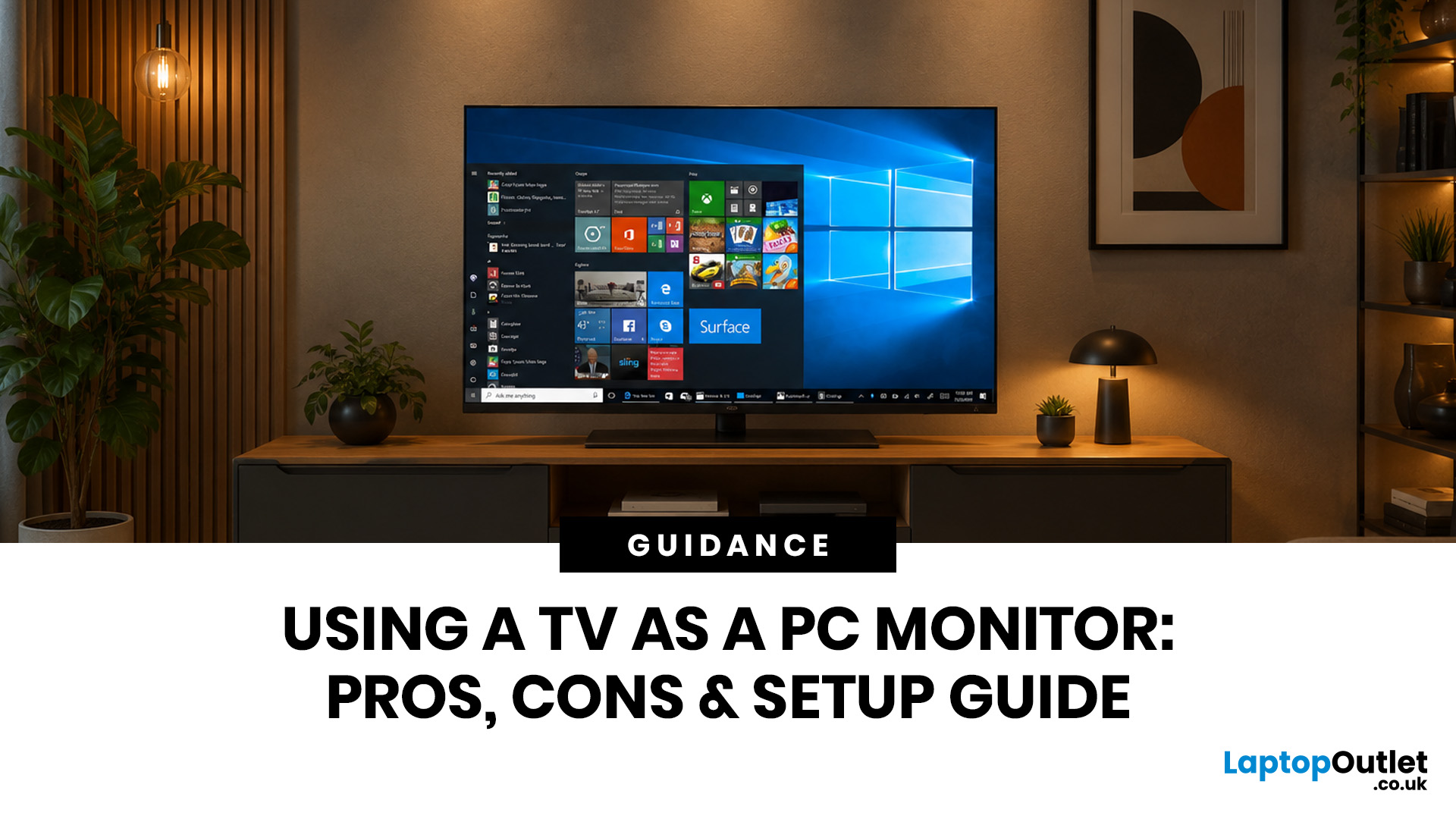
Quick Answer: Yes, you can use TV as PC monitor if your computer and TV have compatible ports, usually HDMI. It works well for films, casual gaming, presentations, sofa browsing and large-screen entertainment. However, using a TV as PC monitor is not always ideal for daily desk work because TVs can have higher input lag, lower pixel density, blurry text up close and fewer ergonomic adjustments than proper monitors. For entertainment and casual use, a TV can be a great option. For work, study, competitive gaming and sharp close-up text, a dedicated monitor is usually the better choice.
Using a big TV as your computer screen sounds like a genius move. Bigger display, built-in speakers, great for Netflix, and you may already have one sitting in the living room. Honestly, it sounds like a setup hack.
Before you plug in your PC and call it a day, there are a few things to know. A TV as computer monitor setup can work brilliantly for some people, especially for media, casual gaming and

Last Updated: June 01, 2026
The best microphone for PC depends on how you use it. For work and meetings, choose a noise-reducing USB headset. For gaming and streaming, a headset with a clear boom mic is ideal. For recording vocals or content, prioritise audio clarity and a quiet environment.
| Key features to look for include:
|
Story time: a colleague of mine had just been promoted and was joining one of her first important meetings with senior management. She was prepared, confident, and ready to prove why the decision was the right one. But instead of focusing on her presentation, she spent half the meeting repeating herself because no one could hear her properly.
The problem wasn’t her confidence. It wasn’t her ideas. It was her microphone.
That is exactly why choosing a good microphone for your PC matters. Whether you are attending an important Zoom meeting, streaming,
Published: June 11, 2026
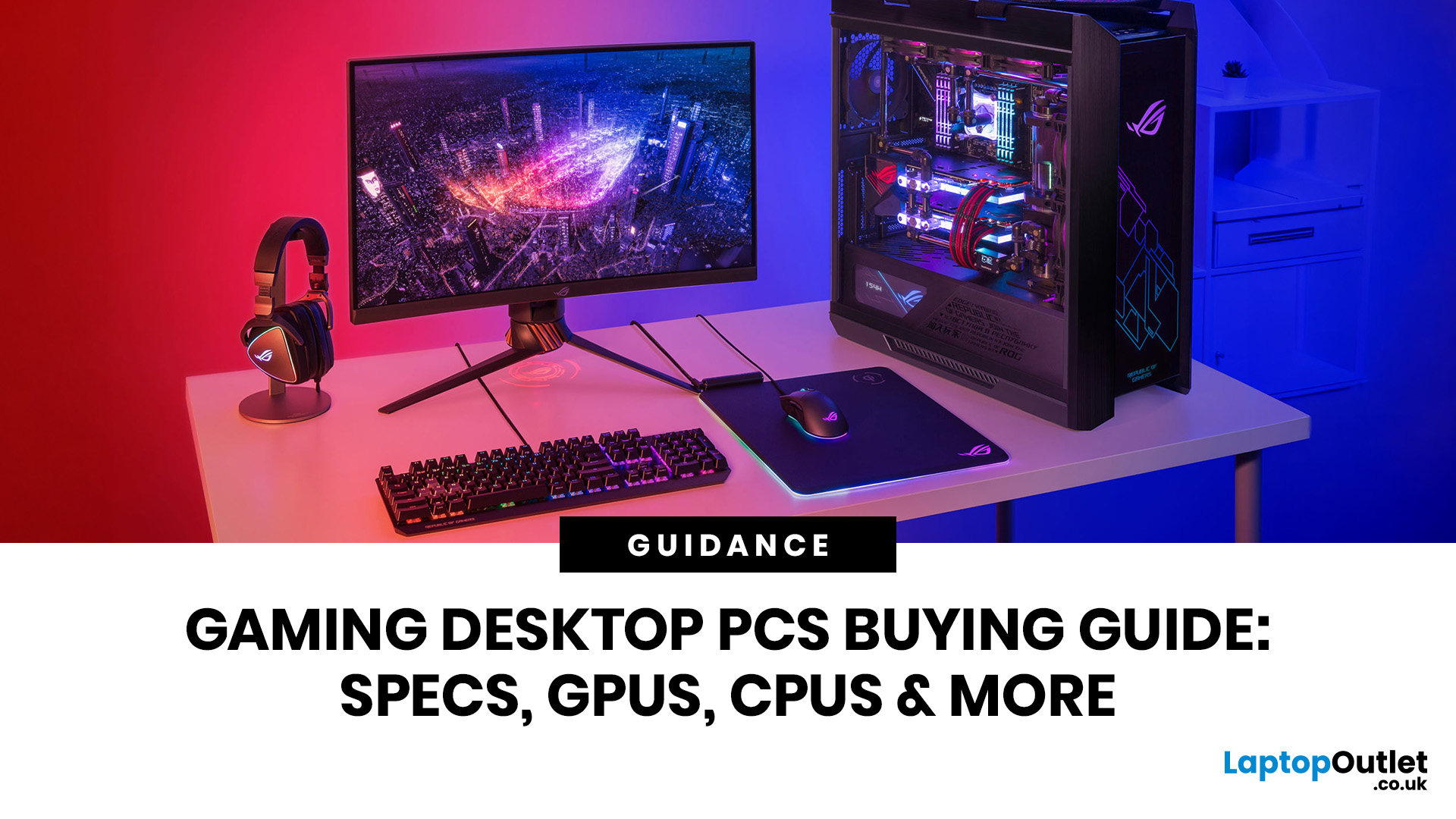
Choosing the right gaming desktop can be the difference between smooth, immersive gameplay and a system that struggles within a year. This gaming PC buying guide explains the key components that affect gaming performance, future-proofing, and value for money, so you can buy with confidence rather than guessing from confusing spec sheets.
A good gaming PC is not just about the most expensive graphics card. It is about balance. The CPU, GPU, RAM, storage, cooling, power supply, motherboard, and case all work together. Whether you play competitive esports, cinematic single-player titles, open-world RPGs, racing games or VR, understanding the right configuration helps you avoid overspending and choose a desktop that lasts.
This article is designed as a practical gaming PC specs guide for beginners, but it also includes up-to-date 2026 advice for buyers comparing modern RTX, Radeon, Intel, and AMD-powered systems.
Why Buy a Gaming Desktop PC?
A gaming desktop PC remains one of the best choices
Last Updated: June 15, 2026
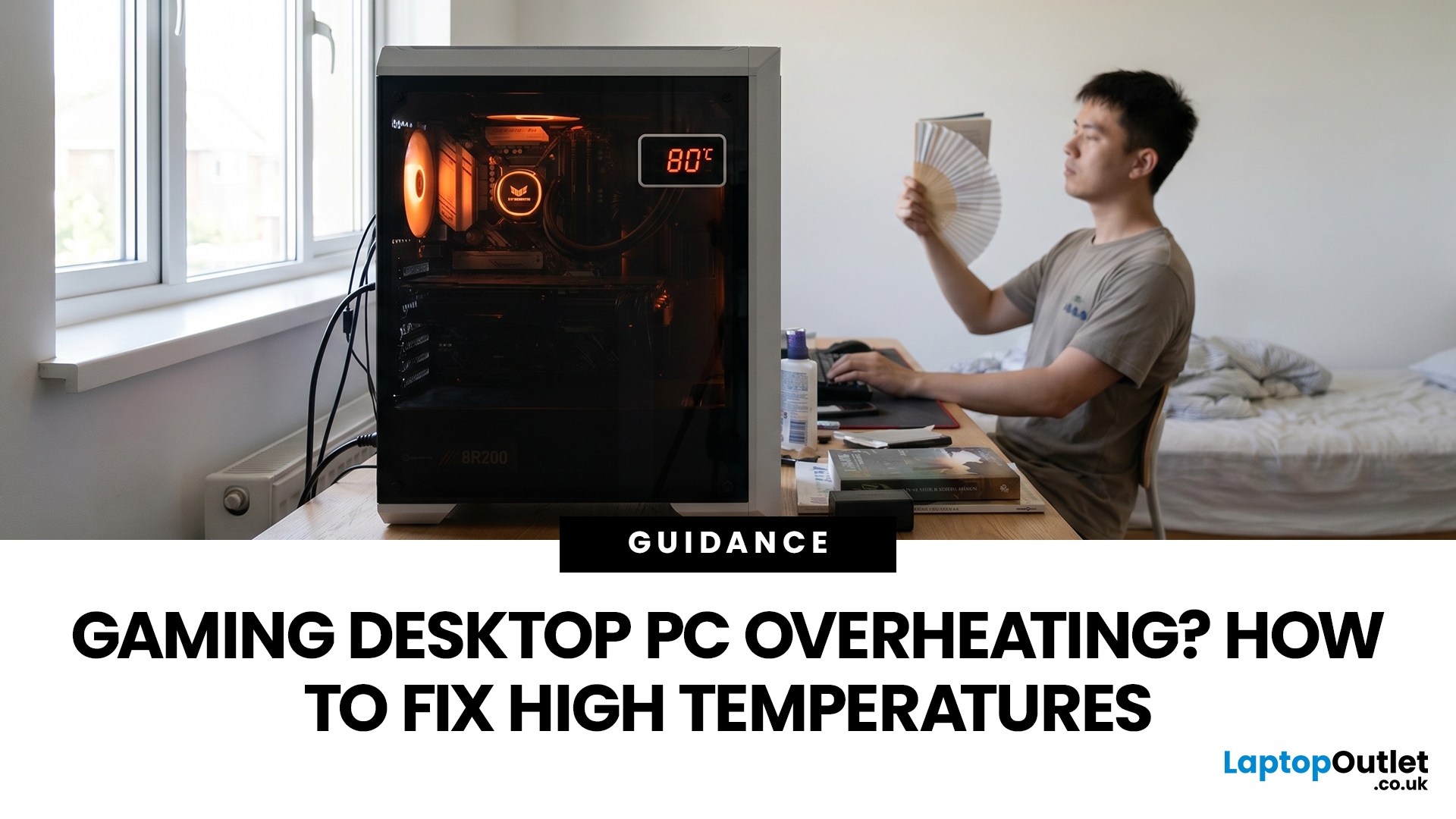
A gaming PC overheating usually comes down to one of five things: blocked airflow, dust build-up, weak cooling, aggressive game settings, or poor contact between the CPU/GPU and its cooler.
| Here is the fast version:
|
Gaming PC Overheating: What It Means and Why It Matters
You’re mid-match. Your FPS is smooth. Then suddenly, the game stutters, the fans sound like a jet engine, and your PC feels like it could toast bread.
That is not “just gaming PC life”.
A hot gaming desktop is normal. An overheating
Last Updated: June 15, 2026
Overheating can slow down your PC, crash games, and damage key components. Checking CPU and GPU temperature helps spot heat issues early, compare readings with safe ranges, and choose the right fix, from cleaning vents to upgrading cooling fans, coolers, processors, or graphics cards for smoother everyday performance and overall stability.
Is your laptop sounding like it’s about to take off? Or does your PC randomly slow down, crash, or shut itself off? Yeah, that’s usually not a vibe. It could mean your system is overheating.
Doing a quick check CPU GPU temperature laptop test can help you spot heat issues before they turn into expensive damage. Whether you game, edit videos, stream, or just multitask like a boss, keeping an eye on your processor’s and graphics cards temperature is a smart move.
Here’s how to check both easily.
Signs Your PC or Laptop is Overheating
Your device usually gives you clues before things get serious. Watch out for:
- Loud fans running non-stop
- Sudden lag or freezing
Last Updated: June 25, 2026
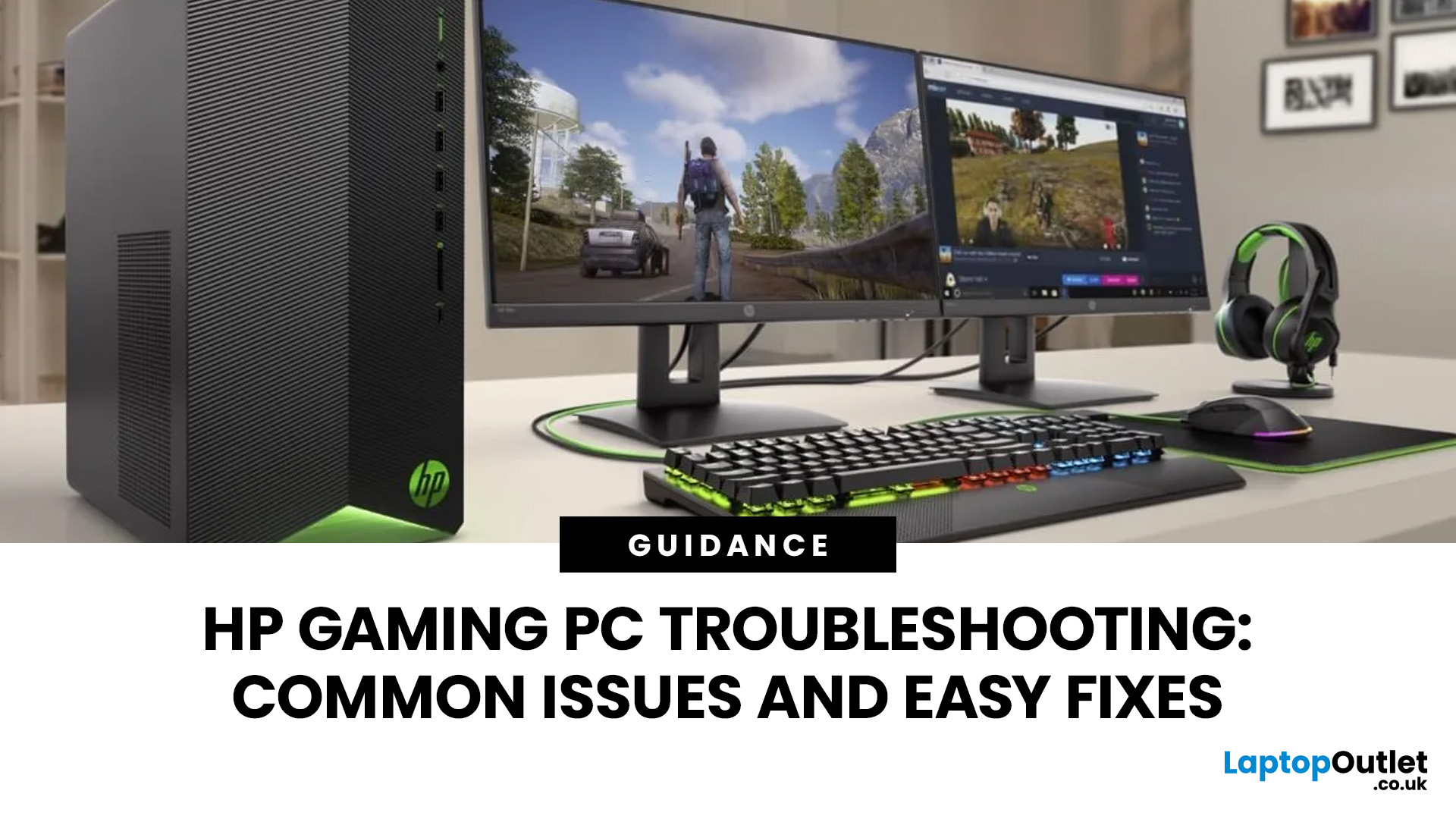
Your HP gaming PC should not feel like a boss fight before the game even loads.
HP gaming PC problems include black screens, overheating, lag, crashes, fan noise, slow performance, and startup failures. Most can be fixed by updating drivers, cleaning dust, improving airflow, freeing storage, and checking power or display connections.
You will also learn when a repair is worth it, when an upgrade makes more sense, and when it might be time to compare newer HP desktop PCs for gaming.
What Are the Most Common HP Gaming PC Problems?
Published: July 01, 2026
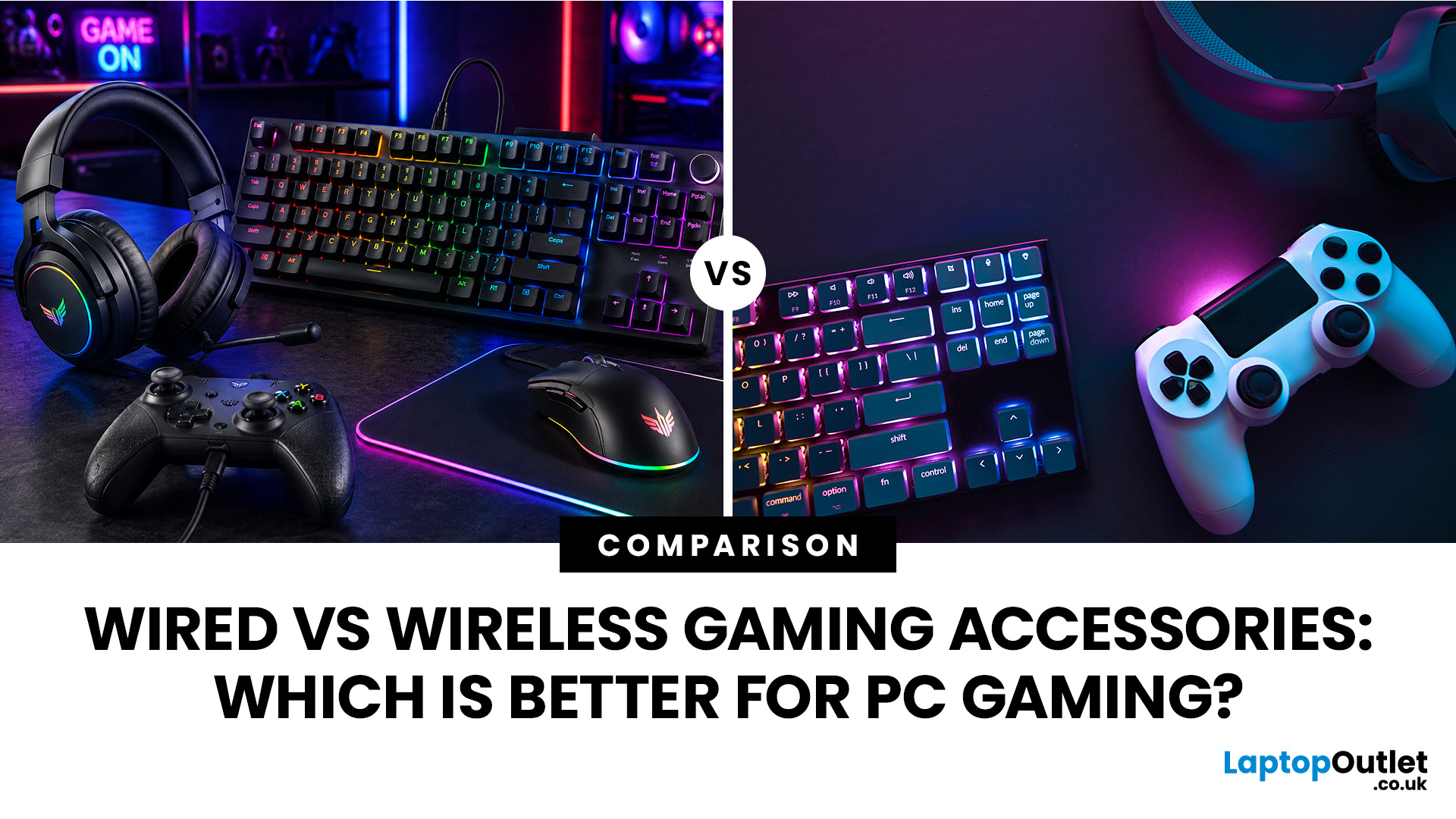
When building a PC gaming setup, choosing the right accessories matters just as much as choosing the right system. Your keyboard, mouse, headset, controller, and display all affect how comfortable, responsive, and enjoyable your games feel.
Many gamers compare wired vs wireless gaming accessories before upgrading their setup. Wired options are known for reliable performance and no battery concerns, while wireless models offer cleaner desks and more freedom of movement. Some players need speed and stability. Others want comfort, flexibility, and fewer cables. The right choice depends on what you play, how often you play, and how you use your desk.
What are Wired Gaming Accessories?
Wired gaming accessories connect directly to your PC using a cable, usually through USB or a 3.5mm audio port. Common examples include wired keyboards, mice, headsets, controllers, and charging docks.
The main appeal is consistency. You do not need to worry about charging, Bluetooth pairing, signal drops, or battery

