



CPU_OPT vs CPU_FAN vs AIO_PUMP: Where Should You Connect Your Cooler?
Quick Answer
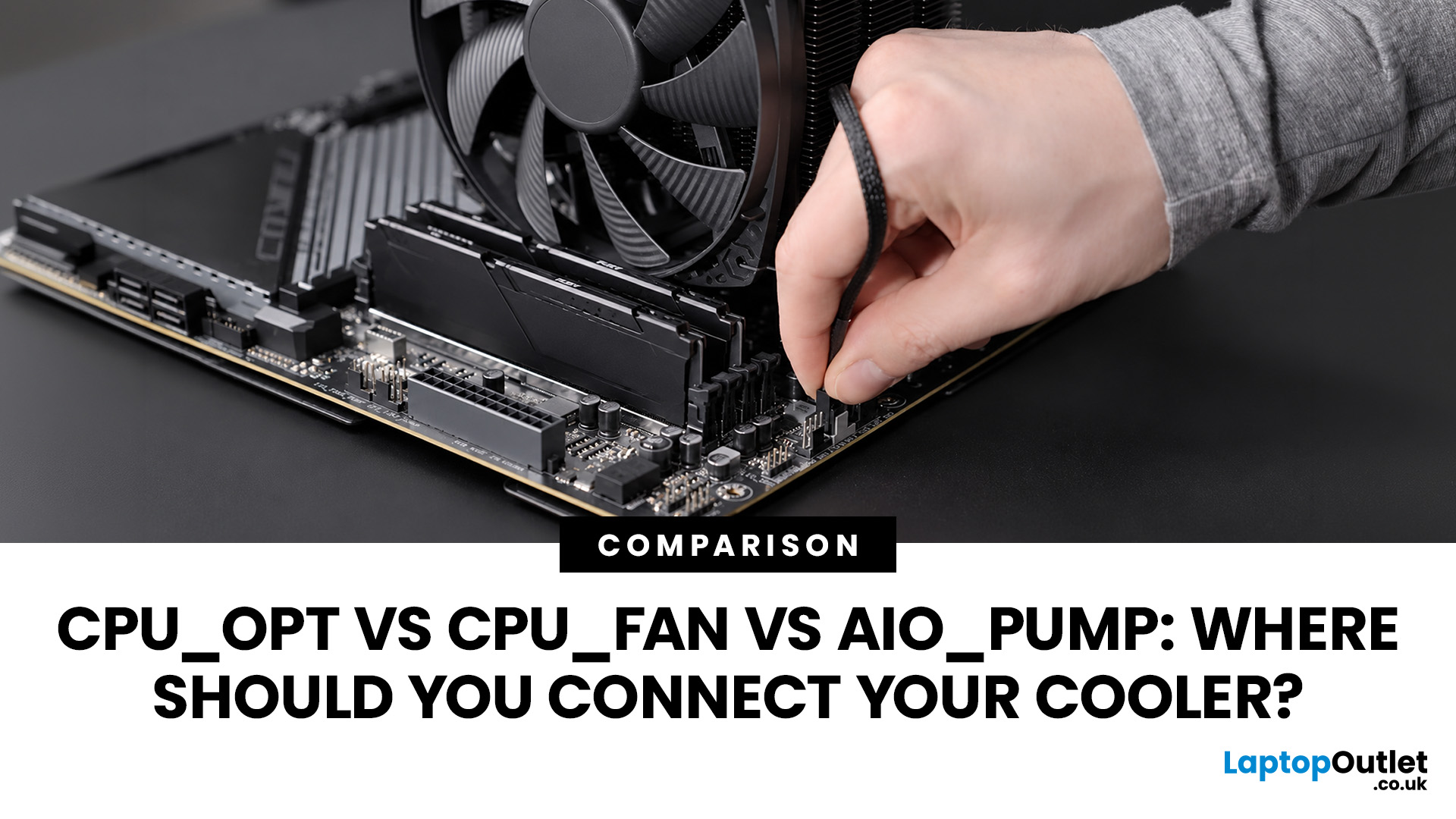
CPU_FAN is normally the primary monitored header for a CPU cooler fan or AIO radiator fans. CPU_OPT is typically intended for a second CPU-cooling fan, although its control behaviour varies by motherboard. AIO_PUMP is designed for an AIO pump and may use different default speed settings. For a typical AIO, connect the pump as its manual specifies and keep radiator fans on CPU_FAN or another recommended CPU-controlled header.
Choosing the correct motherboard header helps your cooling system respond properly to CPU temperature and avoids unnecessary boot warnings or poor pump control. The labels on motherboard fan headers look simple, but their behaviour is not identical across every board. Before connecting a fan, pump or splitter, check both the cooler instructions and the motherboard manual for header control modes and electrical limits.
CPU OPT vs CPU FAN vs AIO PUMP at a Glance
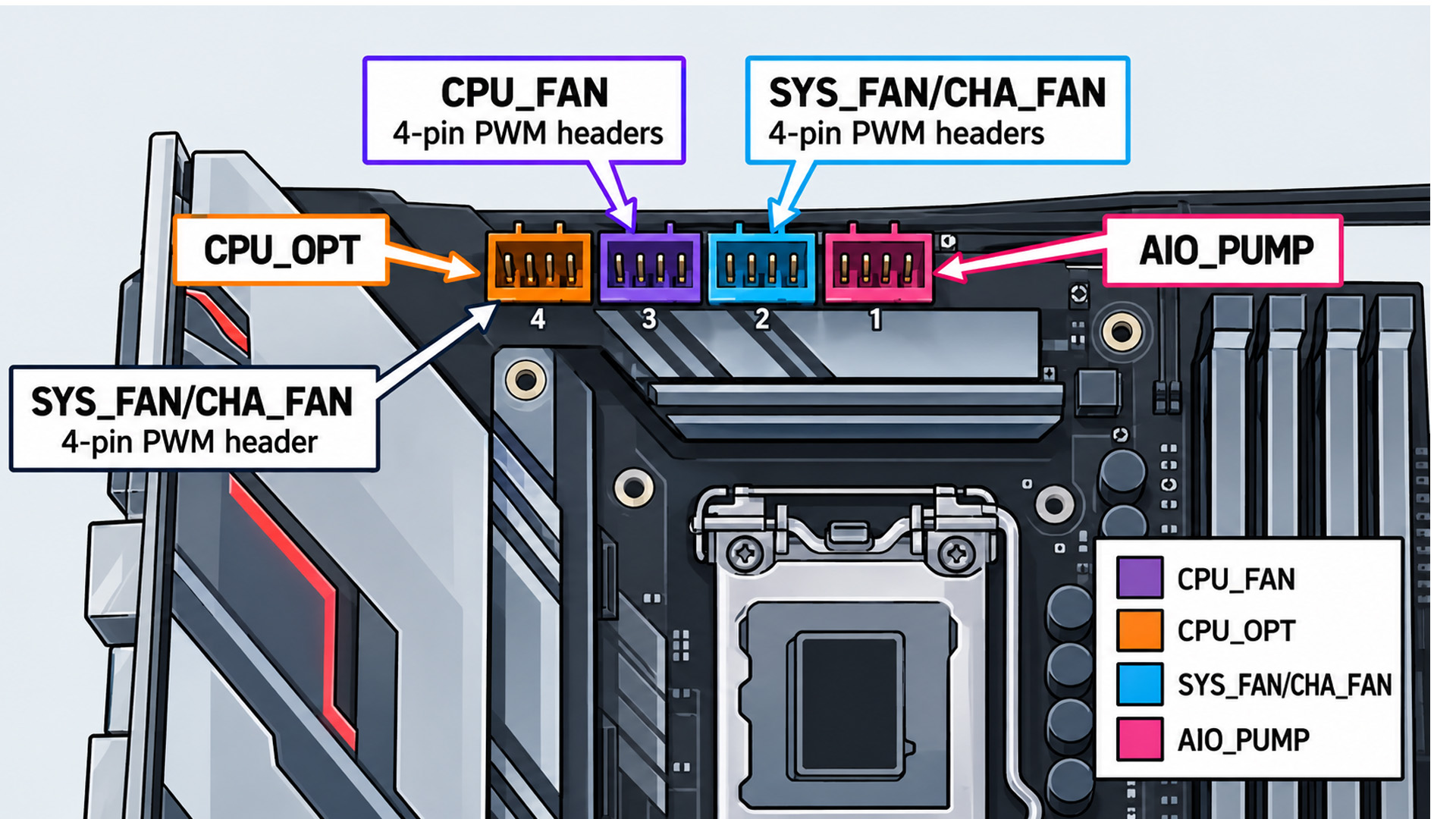
The main difference between CPU_OPT vs CPU_FAN vs AIO_PUMP is their intended role, how the BIOS monitors them and how the board controls them. Header naming and behaviour vary between manufacturers and models.
|
Header |
Typical purpose |
Common connection |
|
CPU_FAN |
Primary CPU cooling |
Main air-cooler fan or AIO radiator fan group |
|
CPU_OPT |
Secondary CPU cooling |
Second tower fan or another CPU-related fan |
|
AIO_PUMP |
Liquid-cooler pump |
AIO pump cable |
Some boards use a dedicated pump-labelled header, while others describe CPU_OPT as suitable for a CPU fan or water-cooling pump. Pump headers may also offer DC, PWM and manual control instead of being permanently fixed at full speed.
What Does CPU_FAN Do?
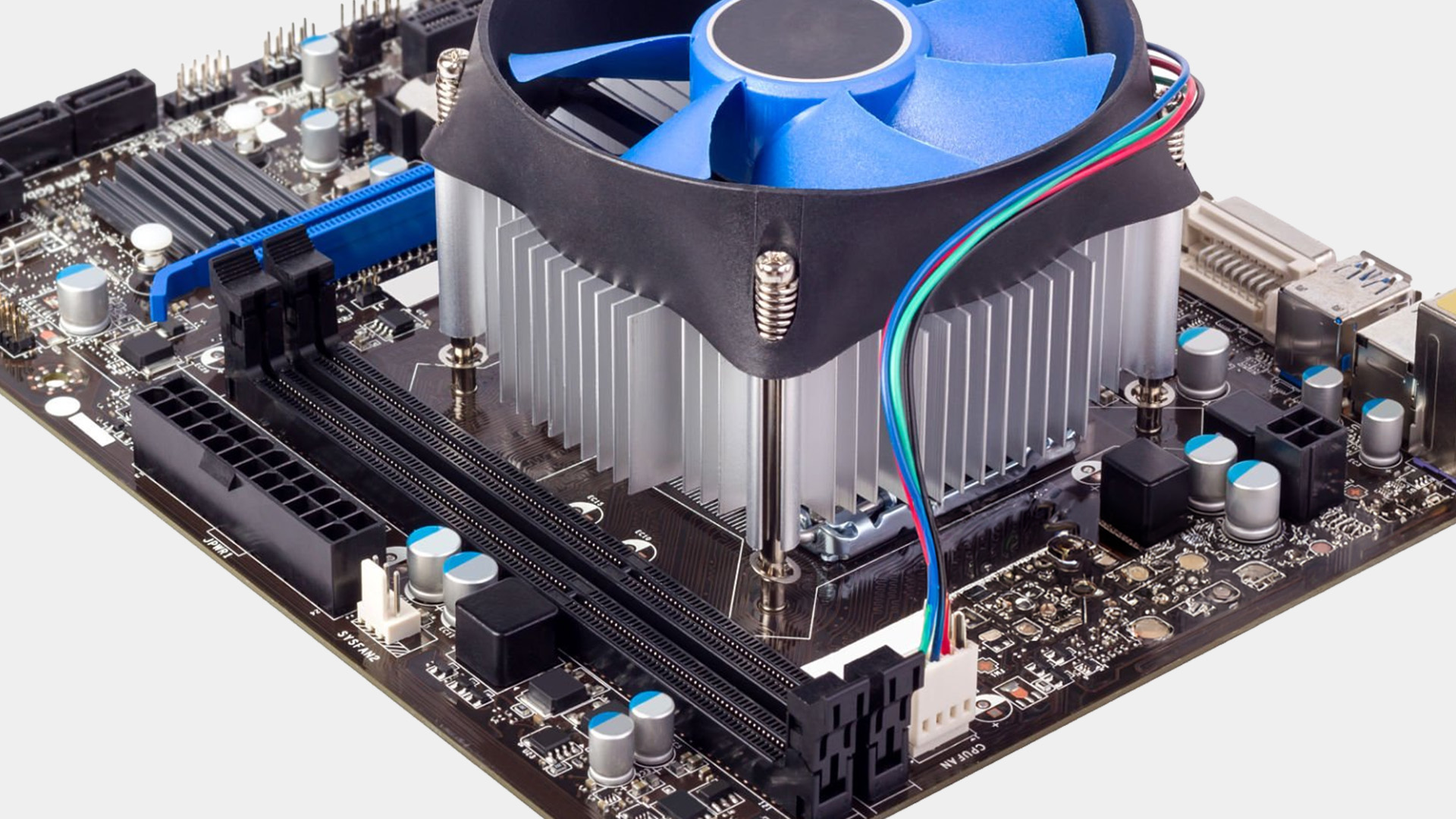
The CPU_FAN header is the main motherboard connection for CPU cooling. With a normal air cooler, the primary fan should usually connect here. With many AIO setups, the radiator fan group also uses CPU_FAN so fan speed can follow CPU temperature.
CPU_FAN commonly provides power, speed control and an RPM or tachometer signal. That monitoring matters because some motherboards show a CPU fan warning if they cannot detect an expected RPM signal. A warning does not automatically mean the cooler has failed, but the wiring and pump operation should be checked before changing BIOS warning settings.
Before fitting a new CPU cooler, use its wiring diagram rather than assuming every cooler cable belongs on CPU_FAN.
What Does CPU_OPT Do?
The CPU_OPT header, usually labelled CPU_OPT on the motherboard, means CPU optional. It is commonly intended for a second fan that forms part of the CPU cooling system, such as the rear fan on a dual-fan tower cooler.
On some boards, CPU_OPT follows the same temperature source or curve as CPU_FAN. Other boards allow different control, and some specify CPU_OPT as a fan or water-pump-capable header. Do not assume it is identical to CPU_FAN.
For a dual-fan air cooler, a common layout is:
- primary fan to CPU_FAN;
- secondary fan to CPU_OPT.
A supplied Y-splitter can also place both fans on CPU_FAN, provided their combined current stays within the header limit stated in the motherboard manual.
What Does AIO_PUMP Do?
The AIO_PUMP header, normally labelled AIO_PUMP on the motherboard, is intended for the pump in an all-in-one liquid cooler.
However, “AIO_PUMP always runs at 100%” is not a universal rule. Some BIOS implementations support Auto, DC, PWM and several speed profiles for pump headers.
Cooler instructions still take priority. Some AIOs direct the pump to AIO_PUMP, while others use CPU_FAN for the pump or its tachometer signal. Read the motherboard manual and cooler manual together.
Where Should You Connect Different Cooler Types?
Single-Fan Air Cooler
Connect a standard single-fan air cooler to CPU_FAN unless its documentation says otherwise. This gives the BIOS a primary CPU-cooling RPM signal and lets the fan curve respond to processor temperature.
Dual-Fan Air Cooler
Connect the main fan to CPU_FAN and the second fan to CPU_OPT where supported. If the cooler includes a splitter, both fans can often share CPU_FAN, but their total current must stay within the header’s stated limit.
AIO Liquid Cooler
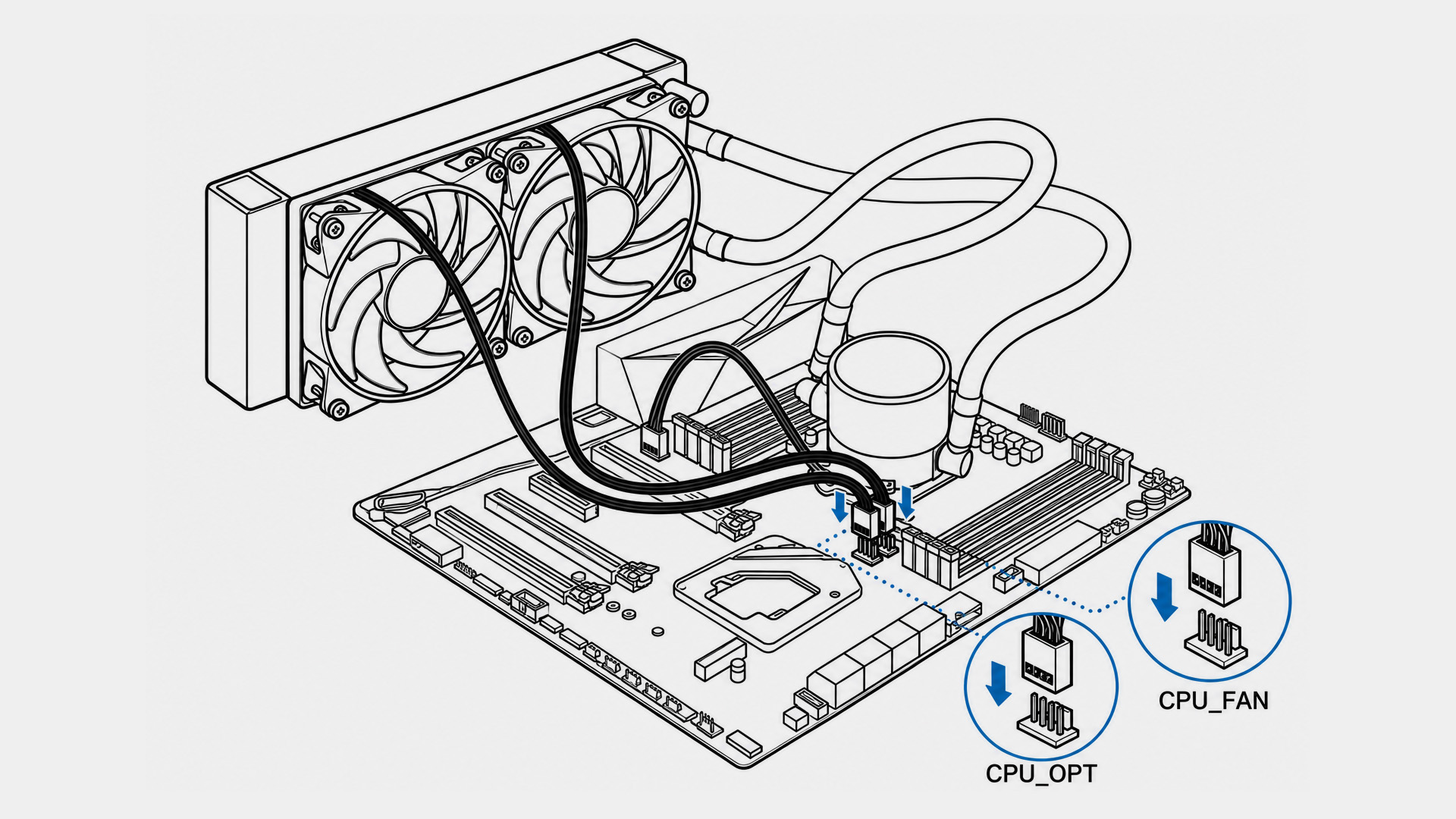
A conventional AIO with separate pump and radiator fan leads is commonly wired like this:
- Pump: AIO_PUMP, or the header specified by the cooler manual.
- Radiator fans: CPU_FAN, CPU_OPT or a supplied controller, depending on the design.
- RGB/ARGB and USB: only to the matching lighting or USB headers.
Radiator fans can use CPU_FAN because their work is directly tied to CPU cooling. CPU_OPT can suit an additional radiator fan if the board supports the required control.
When planning radiator placement inside PC cases, make sure pump and fan leads can reach their intended headers without crossing moving fans.
Pump Control vs Fan Control
A radiator fan and water pump may use similar three-pin or four-pin connectors, but they do not necessarily need the same control strategy.
A 4-pin PWM fan uses a PWM control signal on the fourth pin. A 3-pin fan is normally speed-controlled by changing the supplied voltage when the motherboard supports DC control. Many boards let you select Auto, PWM or DC in BIOS.
If a three-pin pump is connected to a four-pin header, the connector may fit but the selected BIOS mode still matters. Do not reduce pump speed simply to lower noise unless the cooler manufacturer supports that operating range.
For case airflow, additional chassis fans are normally better placed on SYS_FAN or CHA_FAN headers so their curves can be configured separately.
What Happens If You Use the Wrong Header?
A compatible device on a different fan header does not automatically cause damage, but the system may behave incorrectly.
Common issues include:
- CPU fan warning: CPU_FAN may have no detectable RPM signal.
- Pump running too slowly: the header may be following a quiet fan curve.
- Radiator fans running too fast: a pump-oriented header may use a high default duty.
- Poor control response: the fan may follow an unsuitable temperature source.
- No independent adjustment: CPU_OPT may mirror CPU_FAN on that board.
- Header overload: too many fans on a splitter can exceed the header’s rated current.
Always identify what the cable controls, then verify the header’s intended use, control mode and current limit.
BIOS Checks After Installation
After the first boot, open the BIOS or UEFI hardware-monitoring section and check:
- CPU_FAN and pump RPM readings;
- PWM, DC or Auto mode;
- the CPU fan curve;
- the pump profile recommended by the cooler maker;
- any low-speed warning threshold;
- whether the expected fan increases speed as CPU temperature rises.
Only change a CPU_FAN warning threshold after confirming that the cooling system is operating correctly.
If you are assembling several PC Parts, verify the cooler before final cable management. A header mistake is much easier to correct while the system is still open.
Practical Connection Examples
|
Cooling setup |
Typical connection |
|
Single-fan air cooler |
Main fan to CPU_FAN |
|
Dual-fan air cooler |
Primary fan to CPU_FAN, second fan to CPU_OPT or both through a supported splitter |
|
AIO with separate leads |
Radiator fans to CPU_FAN; pump to the header specified by the AIO manual |
|
AIO with controller, SATA power or USB control |
Follow the cooler wiring diagram because the motherboard lead may carry only control or RPM data |
These are common layouts, not universal wiring diagrams.
Troubleshooting a Fan or Pump
If temperatures rise quickly, a pump reports zero RPM or a fan does not spin, shut the system down and check:
- The connector is fully seated on the intended header.
- The cooler manual matches your wiring.
- PWM, DC or Auto mode is correct.
- The fan curve is not below the device’s usable starting speed.
- Any required SATA power, controller or internal USB cable is connected.
- Splitters and hubs stay within motherboard power limits.
- BIOS shows a realistic RPM reading for the fan or pump.

A Simple Rule for Cooler Connections
CPU_FAN is normally the primary monitored CPU-cooling header, CPU_OPT usually supports a secondary CPU-related fan, and AIO_PUMP is intended for a liquid-cooler pump. Those roles are useful starting points, not universal rules.
Match each cable to its actual function, confirm PWM or DC control, stay within the header’s electrical limits and check both the motherboard and cooler manuals before changing BIOS settings.

A Few More Things to Know...
Can CPU_OPT be controlled independently from CPU_FAN?
Sometimes. On some motherboards CPU_OPT follows CPU_FAN or uses the same CPU-based control, while other boards expose separate settings. Check the fan-control section of your BIOS and motherboard manual. Do not assume CPU_OPT will always mirror CPU_FAN or always be independently adjustable.
Can I connect a case fan to CPU_OPT?
It may work if the fan is compatible with the header and stays within its power limit. A SYS_FAN or CHA_FAN header is usually more appropriate because CPU_OPT may follow CPU temperature or CPU_FAN behaviour, which is not always ideal for general case airflow.
Can a 3-pin pump connect to a 4-pin AIO_PUMP header?
Often yes, because many four-pin motherboard headers accept a three-pin connector. The key issue is control mode. A three-pin device normally relies on voltage-based DC control rather than a fourth-pin PWM signal, so check the pump and motherboard instructions before changing its speed.
Do I need something connected to CPU_FAN when using an AIO?
Not every board requires it to boot, but some firmware monitors CPU_FAN and may display a warning if no RPM signal is detected. Many AIO configurations therefore place radiator fans or a pump tachometer signal on CPU_FAN. Confirm that cooling works before disabling a warning.
Should a second CPU fan use CPU_OPT or a splitter?
Either can be valid. CPU_OPT is intended for an additional CPU-related fan on many boards, while a supported splitter lets two fans share CPU_FAN. With a splitter, add the fans’ current requirements and confirm the total remains within the motherboard header’s rated limit.
What if my motherboard has no AIO_PUMP header?
Follow the AIO manufacturer’s instructions. Depending on the cooler and board, the pump may use CPU_OPT, CPU_FAN or a pump-capable system fan header. Configure the correct control mode and speed behaviour in BIOS, and make sure the selected header can safely supply the required current.
Related Articles

Last Updated: October 08, 2025
Keeping your PC cool is one of the most important factors in maintaining performance, extending hardware lifespan, and ensuring a stable computing experience. Processor of a gamer, or a professional creative generates heat that must be managed effectively. Air cooling may be sufficient for entry-level builds, but high-performance desktops and overclocked CPUs demand more advanced solutions. This is where Corsair steps in.
Corsair has earned a strong reputation for delivering reliable and innovative cooling systems. Let’s explore the best Corsair CPU cooler options in 2025, review their performance, noise levels, installation process, and software features.
Why Choose a Corsair CPU Cooler?
Before diving into the product reviews, it’s important to understand why Corsair CPU coolers continue to dominate the PC cooling market in 2025. Corsair has consistently evolved its product line to meet the demands of modern processors, gaming rigs, and workstation builds.
Proven Reliability and Build
Last Updated: November 19, 2025
When you’re building or upgrading a PC, choosing the right motherboard can feel a little intimidating — especially when it comes down to the age-old rivalry of AMD vs Intel motherboards.
Both brands make fantastic hardware, but each has its strengths. Whether you’re planning a high-end gaming rig, a creative workstation, or an everyday PC, the motherboard you choose will shape your system’s performance, features, and future-proofing.
In this guide, we’ll compare Intel vs AMD motherboards across performance, chipsets, memory, overclocking, and more. By the end, you’ll know exactly which option suits your needs in 2025.
What Exactly is a Motherboard?
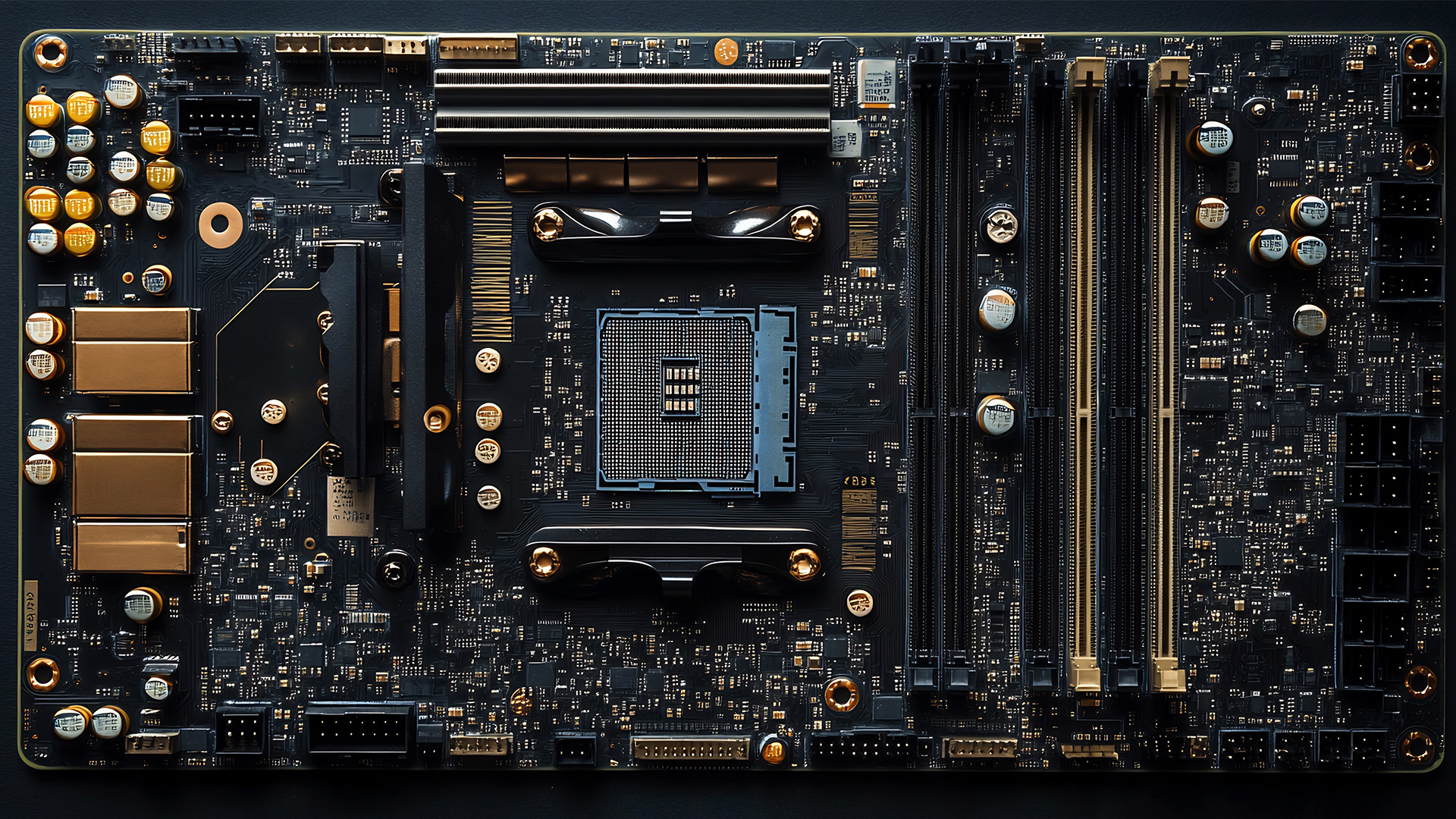
Before diving into the AMD vs Intel motherboards comparison, let's briefly clarify what a motherboard is and why it's so important.
Often called the 'mainboard' or 'system board,' the motherboard is the central printed circuit board (PCB) in a computer. It is, quite simply, the foundation and communication hub for all other components.
It houses

Last Updated: December 03, 2025
The motherboard is the central nervous system of your computer. Every component, from the CPU and RAM to the GPU and storage drives, connects to it.
Making the right choice here is crucial. A well-chosen board ensures smooth performance, effortless upgrades, and long-term stability for your entire desktop PC build.
If you’re wondering how to choose the right motherboard to suit your needs, you’ve come to the right place. This comprehensive motherboard buying guide will take you through every essential step to help you lay the best foundation for your next project.
Step 1: CPU Choice Defines the Socket (AMD vs Intel)
The first and most crucial step when selecting a motherboard is choosing your CPU (Central Processing Unit). The processor dictates which socket type and chipset your motherboard must have.
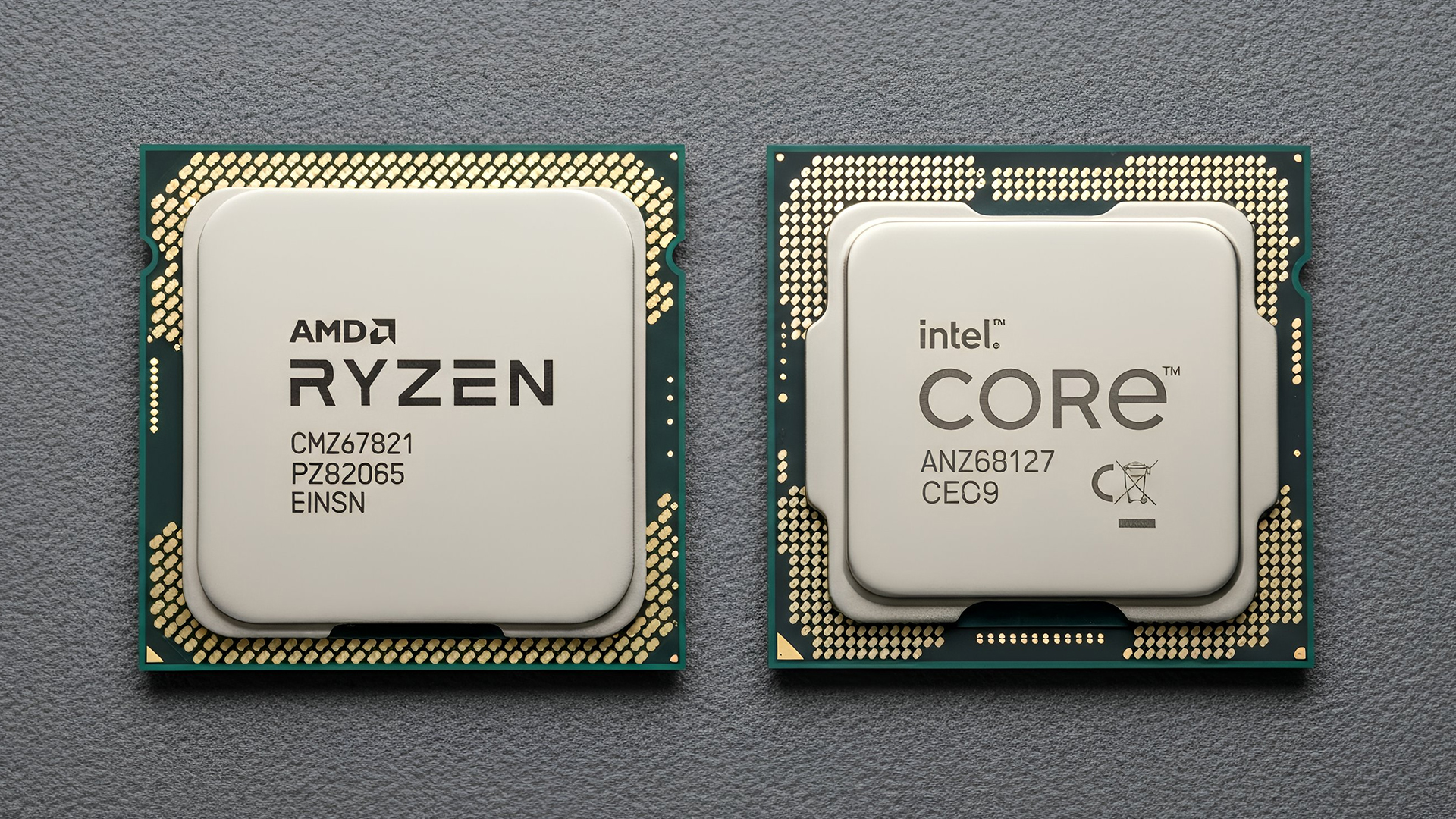
AMD vs Intel Motherboards
- AMD motherboards are known for value and longevity. Platforms like AM5 often maintain compatibility across several CPU generations, allowing for future upgrades

Last Updated: June 05, 2026
If you’re upgrading your gaming rig or building one from scratch in 2025, the motherboard you choose is going to set the tone for your entire PC. Whether you’re aiming for an affordable setup or an ultra-high-end powerhouse, the motherboard is the foundation - determining not just what components you can use today, but how future-ready your system will be.
This guide takes you through the best motherboards for gaming PCs in 2025, handpicked for performance, features, and value. You’ll find AMD and Intel options, from budget boards with modern DDR5 support to premium PCIe 5.0 powerhouses. Every recommendation is researched using up-to-date 2025 benchmarks, market data, and UK availability, ensuring you can make an informed purchase that fits your budget and build goals.
Why the Motherboard Matters in 2025

With the launch of AMD’s Ryzen 9000 and Intel’s 15th-gen “Arrow Lake” CPUs, the motherboard landscape has changed considerably. New chipsets like AMD B650E and Intel Z890 bring cutting-edge

Last Updated: May 06, 2026
year is more than just a fresh calendar; it’s one of the best times of the year to upgrade your PC hardware for less. As retailers clear stock, introduce refreshed product lines, and compete for attention during seasonal sales, motherboard New Year deals 2026 unlock savings that simply aren’t available during regular months. Whether you’re planning a brand-new desktop build, upgrading an ageing system, or finally pairing a powerful CPU with a compatible board, New Year sales make high-end components far more affordable.
New Year Sale on AMD Motherboards

This New Year, AMD motherboard discounts make it easier than ever to build or upgrade your PC with powerful AM5 boards at lowered prices.
1. ASUS TUF GAMING X870E-PLUS WIFI7 ATX AMD Socket AM5 Motherboard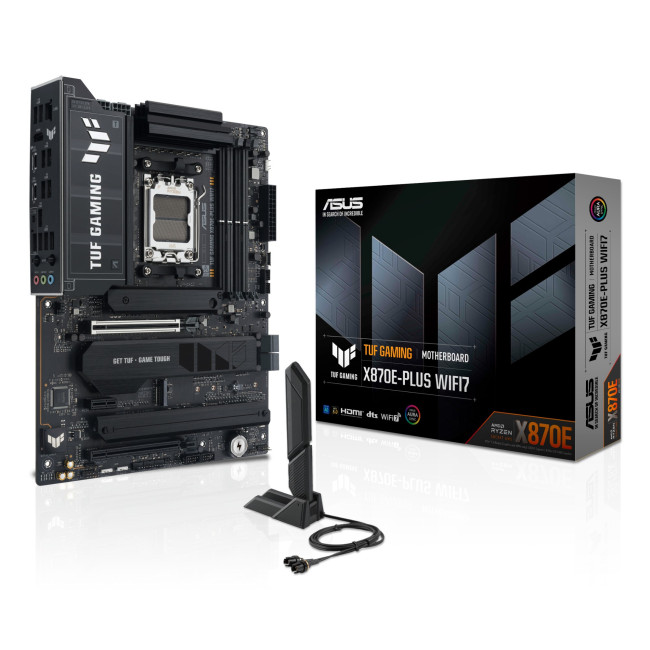
This flagship TUF board typically sits in the upper mid-range price bracket, but New Year Sale pricing often brings it into compelling territory compared to standard retail tags, shaving a noticeable percentage off regular prices.

Last Updated: January 02, 2026
When you start plugging in devices and suddenly run out of USB slots, the first question that comes to mind is a simple one: how many USB ports does my motherboard actually have?
This is something most users never think about until they hit a limitation. Whether you are building a PC, upgrading an old system, or just trying to understand why you need a USB hub, the answer always comes back to your motherboard USB ports.
The tricky part is that the total number of USB ports is not always obvious at first glance. Some are visible on the back of the PC, others are internal, and some are supported but not even active unless you connect the right headers.
This guide breaks everything down in a practical way and helps you discover how to check the total USB ports supported by your motherboard.
Why Motherboard USB Ports Matter More Than You Think
Motherboard USB ports define how many devices your system can handle directly. That includes keyboards, mice, external drives, webcams, printers

Last Updated: January 06, 2026
Need to find motherboard model details for an upgrade? Knowing your motherboard (often called the baseboard or system board) helps you pick compatible RAM and storage to download the right drivers. You can usually confirm it easily in minutes using built-in Windows tools, or via BIOS/UEFI if Windows won’t load. It’s especially handy before ordering parts or booking a repair. Learn easy ways to check your motherboard model in Windows or BIOS.
Method 1: Windows System Information (msinfo32)
System Information often shows the clearest result.
- Press Windows + R
- Type msinfo32 and press Enter
- In System Summary, look for:
BaseBoard Manufacturer
- BaseBoard Product (often the motherboard model)
- BaseBoard Version (board revision)
If you’re sharing details with support, use File > Export to save a report.
Method 2: Command Prompt (WMIC)
A fast command-line check:
- Open Start, type Command Prompt, and run it
You’ll typically see the motherboard manufacturer and product/model code. On some OEM laptops

Last Updated: January 06, 2026
Have you ever needed to upgrade your PC, install new RAM or a CPU, or simply troubleshoot hardware - only to realise you don’t actually know what motherboard is inside your computer? It’s a more common situation than you’d think. Whether you’re working on a desktop you assembled years ago, a shop-bought laptop, or helping a mate sort out theirs, knowing how to check your motherboard type quickly and accurately is a vital tech skill.
Ever wondered what motherboard is powering your PC? Good news - finding out is way easier than you might think. No opening your case, no tech wizard required. Using built-in tools on Windows, macOS, and Linux (plus a few handy apps), you can uncover all the details in just minutes.
Why You Might Need to Know Your Motherboard
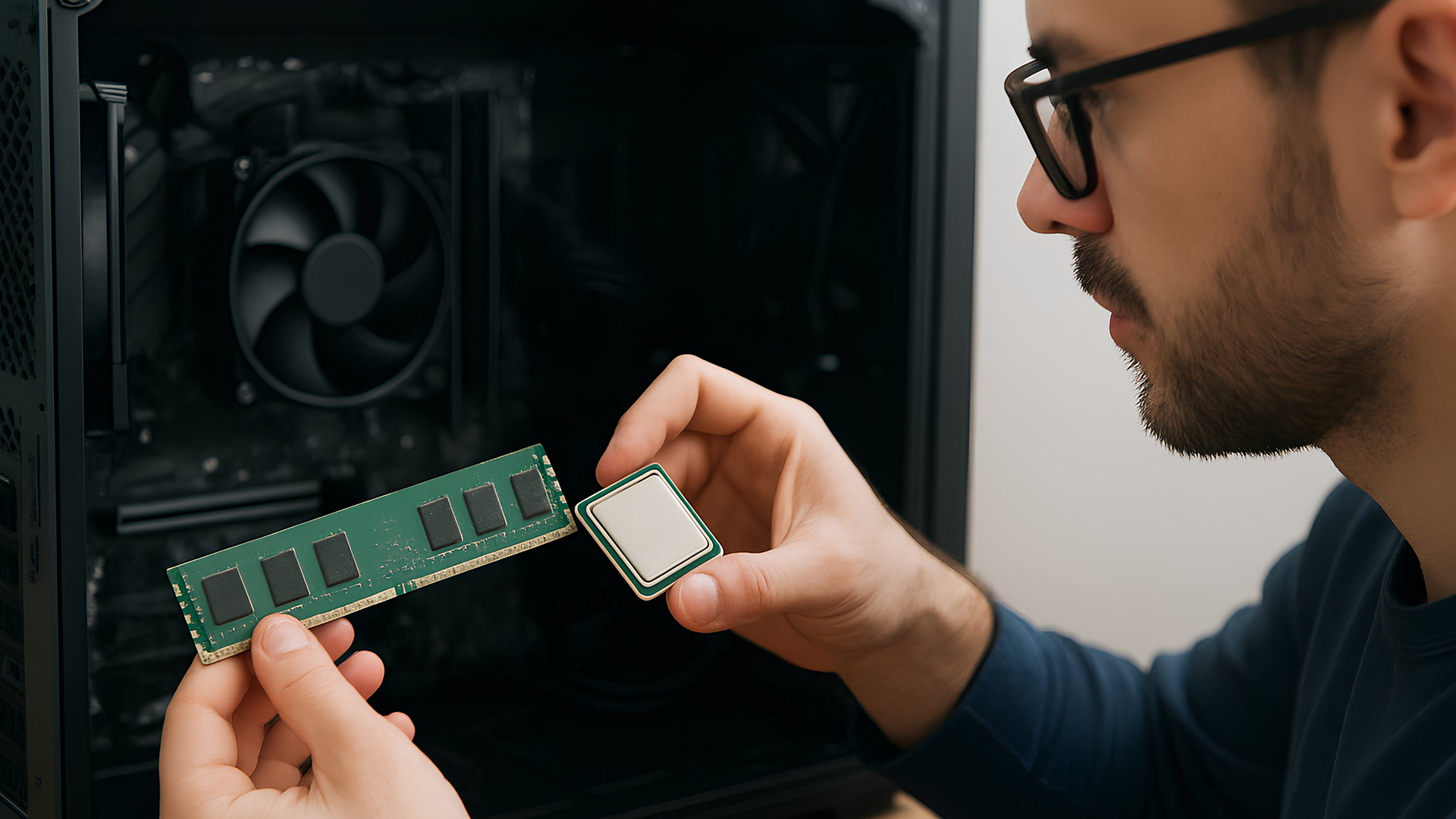
Before we explore the methods, you might be wondering why this even matters. Here are common reasons:
- Upgrading components: If you want to fit a new CPU or faster RAM, you must know the motherboard’s socket type and supported standards.

Last Updated: May 22, 2026
A thin layer of dust can make your laptop work harder than it should. When vents get blocked, heat stays trapped inside, the fan spins louder, and performance can drop during everyday tasks.
The simple tip? Start from the outside. In most cases, you can clean laptop fan vents safely with a soft brush, a microfibre cloth, and short bursts of compressed air - no risky disassembly needed.
This easy DIY guide shows you how to clean laptop fan and vent areas, what to avoid, and when it is smarter to call a professional.
Quick Checklist: How to Clean Laptop Fan Safely
Use this simple checklist whenever you clean the laptop:
- Shut down the laptop fully
- Unplug the charger and accessories
- Let the laptop cool
- Find the real vents
- Brush away visible dust
- Use compressed air in short bursts
- Keep the air can upright
- Avoid spinning the fan too fast
- Wipe the exterior gently
- Restart and check temperature and noise
This is the safest routine for most users who want to clean the laptop without opening it.
Last Updated: July 21, 2026
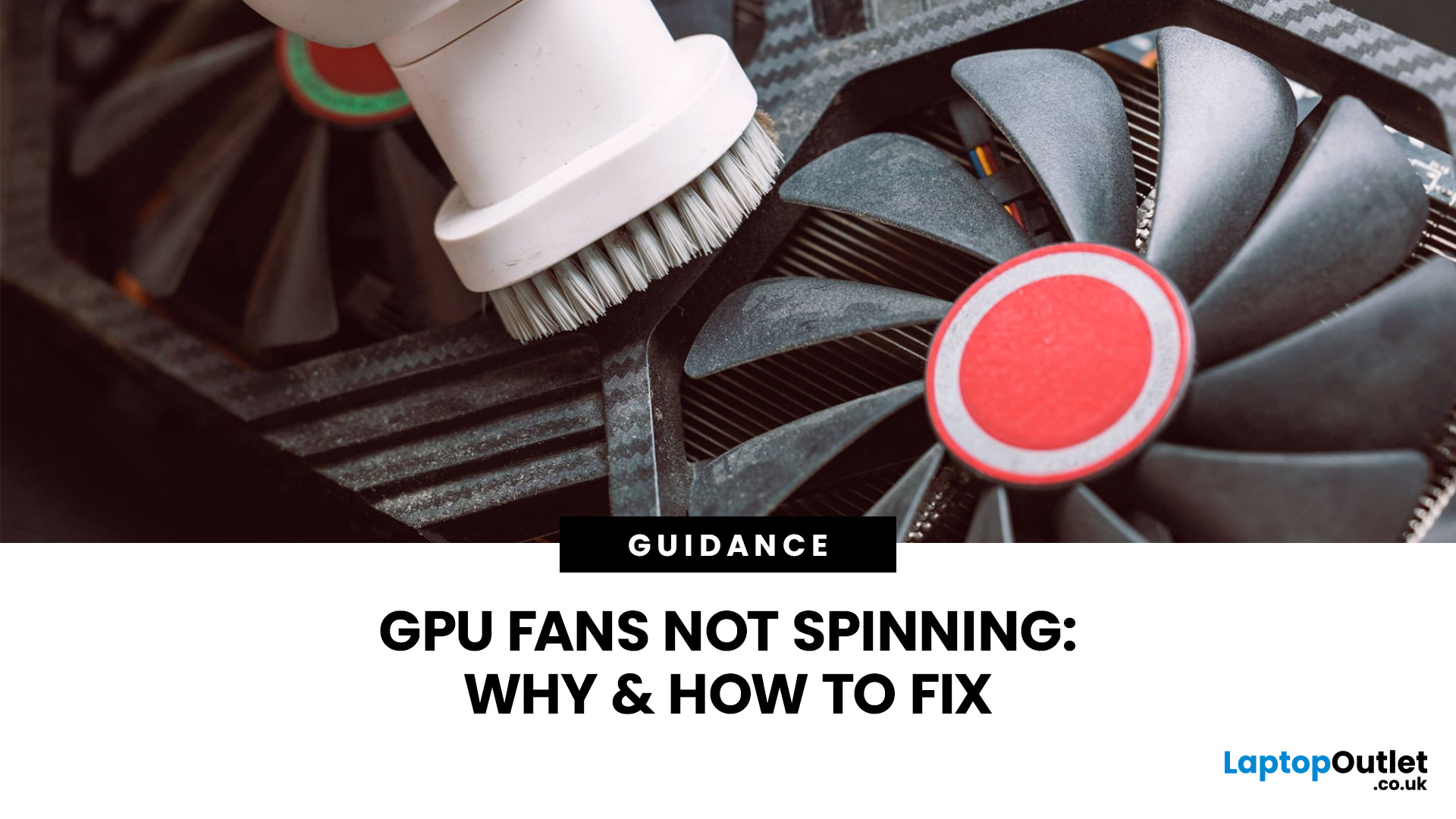
Your PC is on. Your game is loading. Everything seems fine… until you peek inside your case and notice your GPU fans not spinning. Instant panic? Understandable.
Your graphics card is one of the hottest components in a gaming PC, so when the fans stop moving, it feels like your graphics card is about to enter meltdown mode. But here’s the plot twist: graphics card fans not spinning is not always a bad sign. In many modern graphics cards, the fans stay off on purpose when the card is cool.
Still, if your GPU fan not working situation comes with overheating, crashes, noise, or poor performance, then yeah, it is time for some proper GPU fan troubleshooting. Let’s break down what is normal, what is not, and how to fix a processor fan not spinning issue without going full tech panic mode.
First, is it Normal for GPU Fans Not to Spin?
Sometimes, yes.
Many modern NVIDIA GeForce and AMD graphics cards for gaming come with a zero RPM or fan-stop mode. This means the fans do not spin when the GPU

