



ASUS ProArt vs ROG for Video Editing: Which Monitor Should You Choose?
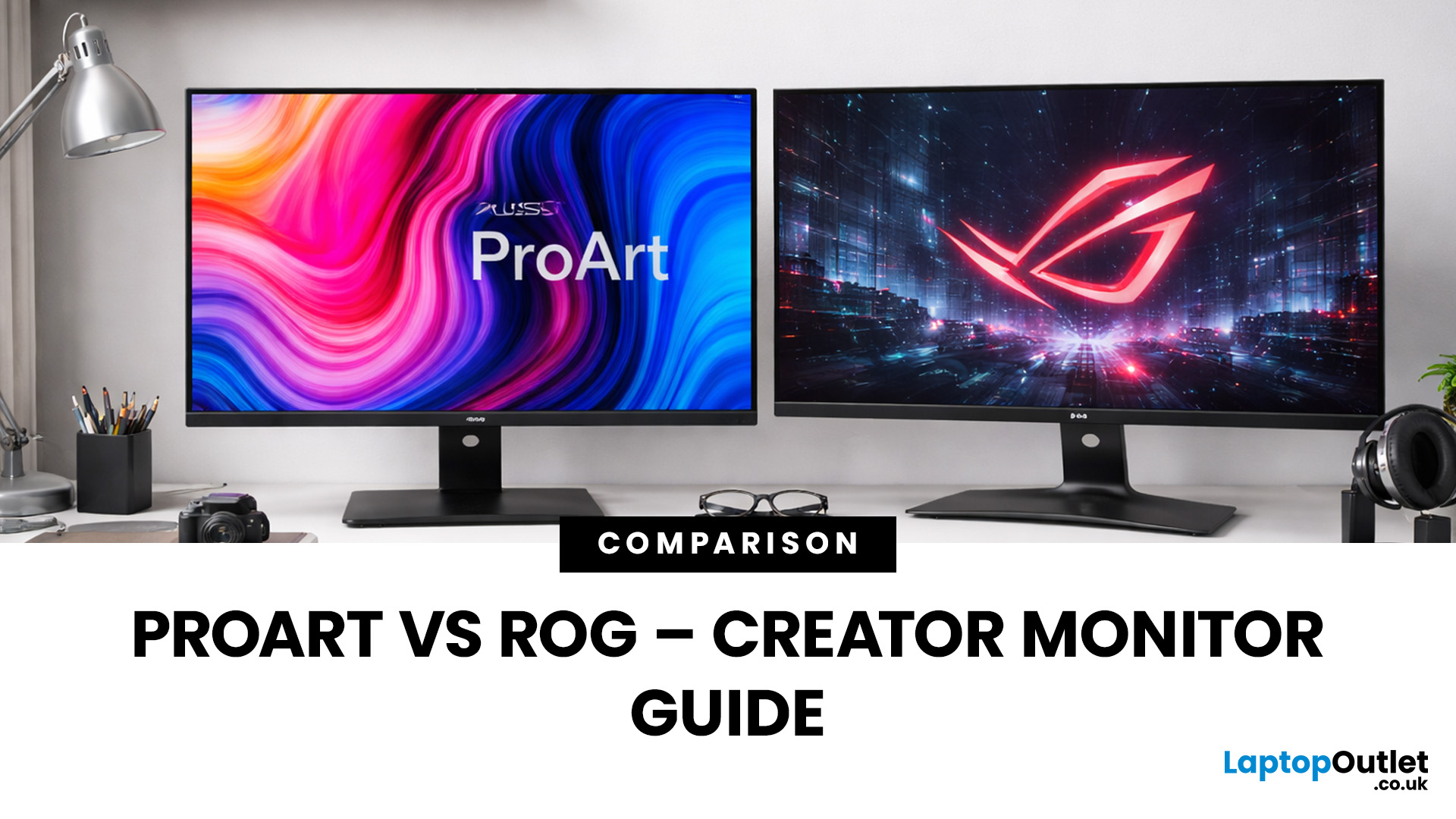
Choosing the right display can dramatically impact your workflow, especially when it comes to colour grading, motion graphics, and smooth timeline playback. If you're deciding between ASUS ProArt vs ROG for video editing, you're essentially choosing between two different philosophies: precision-focused colour accuracy or high refresh performance.
Both ranges are among the best ASUS monitors available today, but they serve different types of creators. In this guide, we’ll break down everything you need to know about ASUS ProArt vs ROG, including panel technology, refresh rates, HDR performance, and which models make the most sense for editors in the UK.
What Video Editors Actually Need from a Monitor
Before comparing models, it’s important to understand what really matters in a video editing monitor UK buyers should consider.
1. Colour Accuracy (ΔE, Rec.709 & DCI-P3)
For editors, colour accuracy is critical. If you're delivering to YouTube or broadcast, your monitor must reproduce colours correctly. Key specs to look for:
- Delta E (ΔE) < 2 for accurate colour reproduction
- 100% Rec.709 coverage for YouTube and SDR content
- Wide DCI-P3 coverage for cinematic projects
- Factory calibration reports
This is where ProArt for colour grading becomes especially relevant, as these monitors are specifically designed for professional creative work.
2. Resolution – Is 4K Necessary?
While 1440p can work for beginners, 4K is ideal for serious editors and motion designers. A 4K ASUS monitor for editing provides:
- More timeline space
- Sharper text and UI
- Full-resolution preview for UHD projects
3. Panel Technology – IPS vs OLED vs Mini-LED
Panel choice directly impacts the debate of colour accuracy vs high refresh, a central theme in comparing ProArt and ROG.
- IPS: Reliable colour consistency and viewing angles
- OLED: Incredible contrast and true blacks (with burn-in considerations)
- Mini-LED: High brightness and improved HDR control
4. Refresh Rate – Does 144Hz Matter?
A higher refresh rate helps with:
- Smoother timeline scrubbing
- Fluid motion graphics previews
- Reduced motion blur
However, it does not improve colour grading accuracy. This is where the difference between ASUS ProArt vs ROG becomes clearer.
ASUS ProArt Monitors – Built for Colour-Critical Work
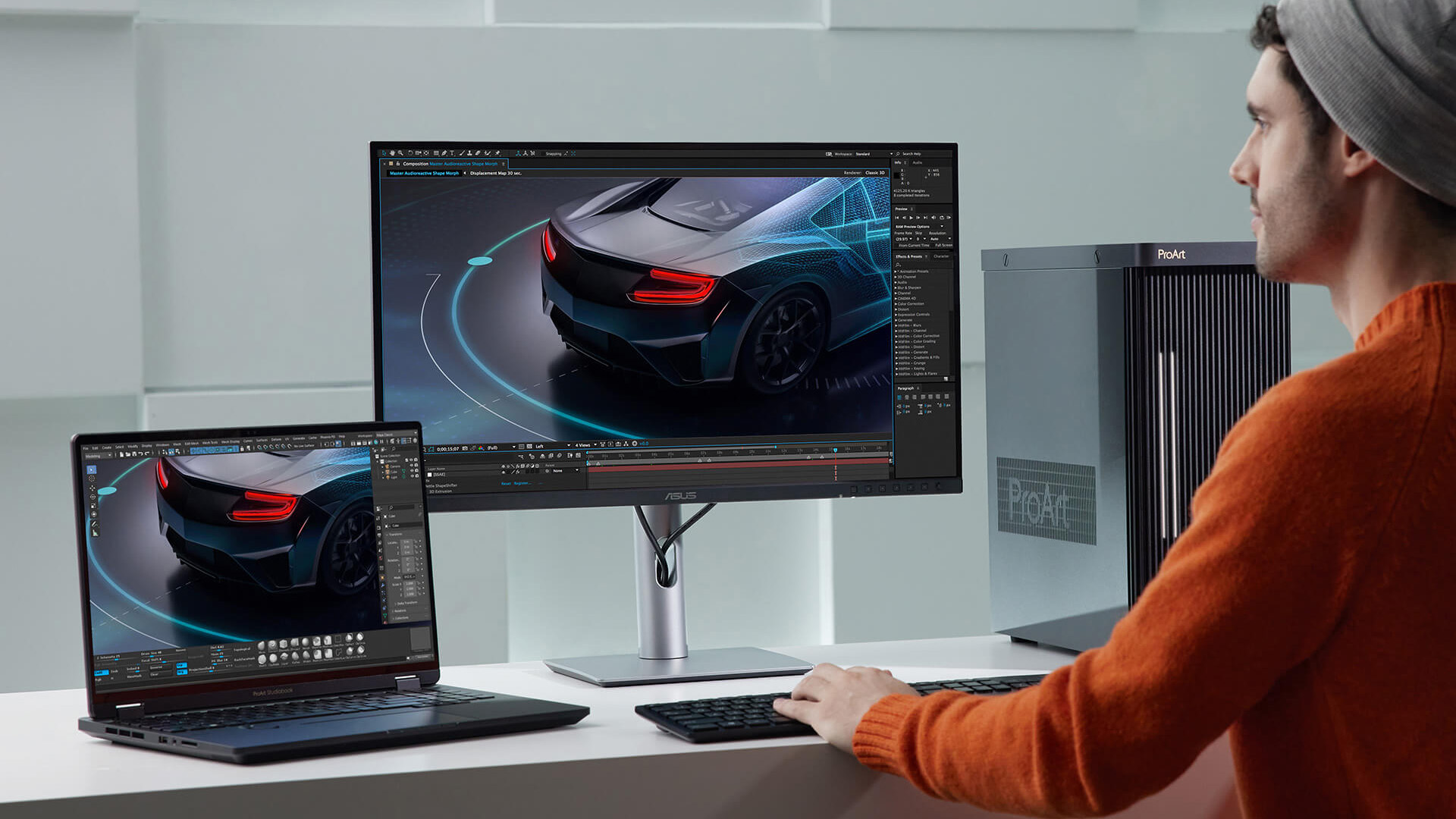
When discussing ASUS ProArt vs ROG for video editing, ProArt models are purpose-built for creators.
Why Choose ProArt for Colour Grading?
The following features make ProArt models one of the best ASUS monitors for professional editors.
- Factory-calibrated panels (ΔE < 2)
- 100% Rec.709 and high DCI-P3 coverage
- True 10-bit colour support
- Hardware calibration support
- Thunderbolt connectivity (ideal for MacBook users)
Ideal For:
- Professional colourists
- DaVinci Resolve users
- Studio editors delivering client work
- Agencies requiring consistent colour standards
Running a professional studio? Learn more in our guide to ASUS ProArt calibration tools to maintain consistent colour across every screen.
Limitations of ProArt
If your workflow revolves around precise colour delivery, ProArt for colour grading is difficult to beat.
- Usually capped at 60–75Hz
- Not designed for competitive gaming
- Premium pricing for high-end models
ASUS ROG Monitors – Performance Meets Creativity
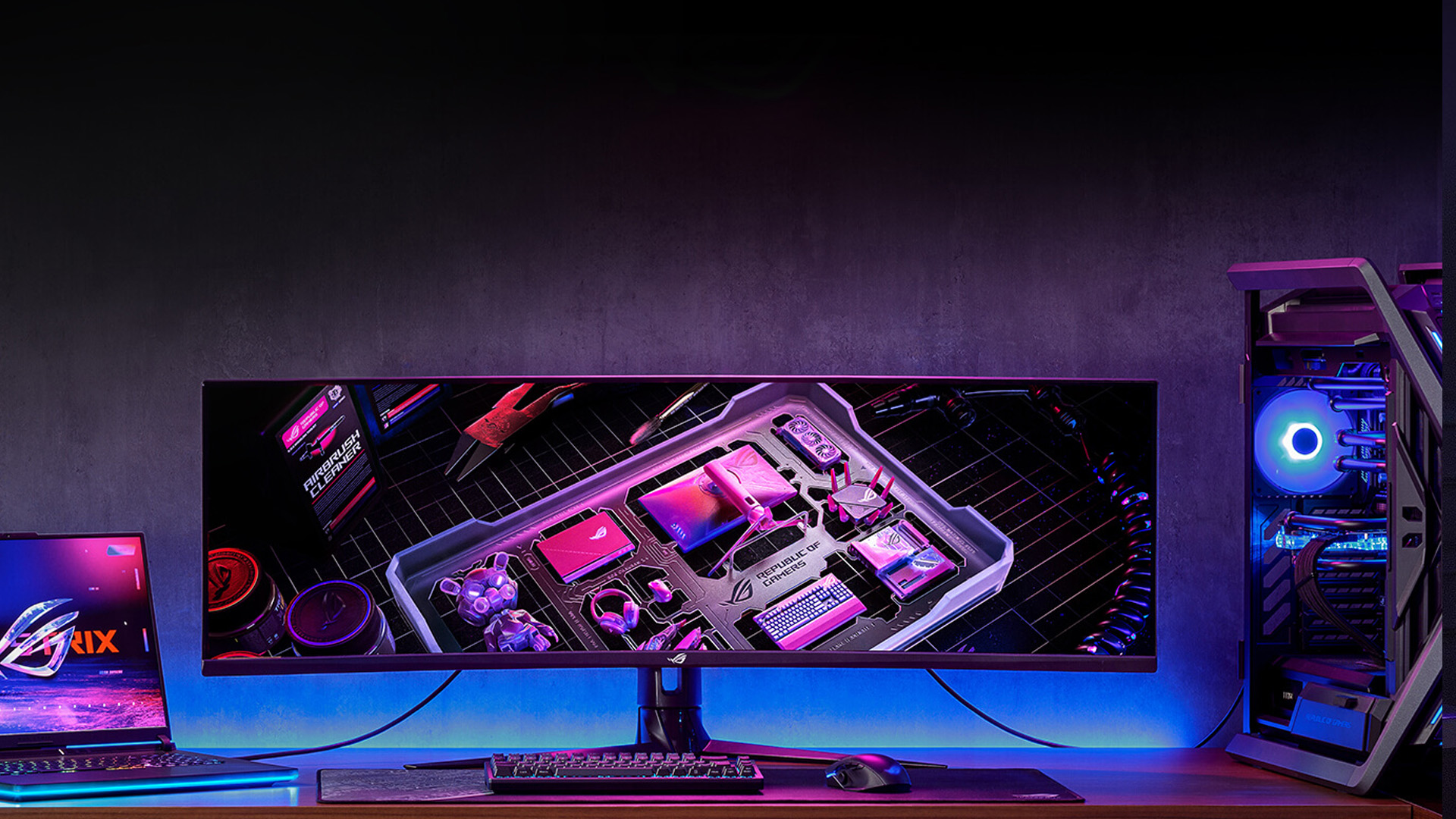
On the other side of the debate, ASUS ROG gaming monitors prioritise speed and responsiveness. Many creators now consider an ASUS ROG monitor for editing and gaming as a hybrid solution.
Where ROG Excels
For editors who also game or create fast-paced content, ROG offers flexibility.
- 144Hz to 240Hz refresh rates
- Faster response times
- Strong HDR performance (especially OLED models)
- Excellent for motion graphics and high-frame-rate playback
The Trade-Off
ROG monitors often prioritise vibrant, punchy colours rather than strict calibration. This highlights the ongoing tension of colour accuracy vs high refresh. That means:
- Colour accuracy may vary by model
- Factory calibration isn’t always as creator-focused
- Some models require manual calibration for accurate Rec.709 work
ASUS ProArt vs ROG – Side-by-Side Comparison
Here’s a simplified comparison of ASUS ProArt vs ROG:
|
Feature |
ASUS ProArt |
ASUS ROG |
|
Primary Focus |
Colour precision |
High refresh & gaming |
|
Refresh Rate |
60–75Hz |
144–240Hz |
|
Colour Accuracy |
ΔE < 2 (factory calibrated) |
Good but varies |
|
Best For |
Colour grading & professional editing |
Hybrid editing & gaming |
|
Panel Types |
IPS, Mini-LED |
IPS, OLED |
|
Connectivity |
Thunderbolt common |
HDMI 2.1 common |
|
Ideal User |
Content creators & studios |
Gamers who also edit |
Top ProArt and ROG Monitors Available at Laptop Outlet
1. ASUS ROG Strix XG49VQ 49" 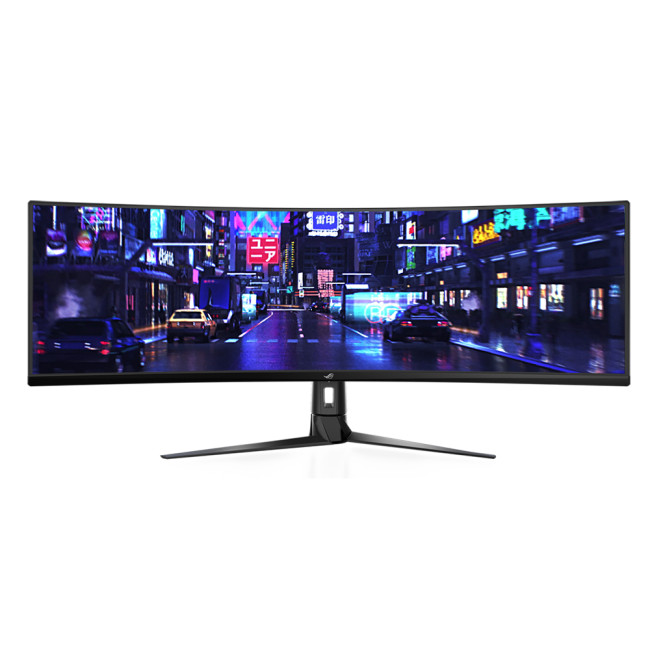
The ASUS ROG Strix XG49VQ is a super ultrawide 49-inch display designed for immersive multitasking and gaming. With its 3840x1080 resolution and 144Hz refresh rate, it delivers smooth motion and expansive screen real estate, ideal for editors who want a dual-monitor-style setup without bezels. AMD FreeSync support reduces screen tearing, while the curved VA panel enhances immersion. Although not colour-critical like ProArt models, it works well for timeline-heavy editing and hybrid workflows. Built-in speakers add convenience, making it a strong option for creators who prioritise workspace width and fluid performance.
Planning a dual or ultrawide editing setup? See our guide to Designing Multi-Monitor Workspaces with ASUS: Productivity, Ergonomics & Cabling for workspace optimisation tips.
2. ASUS ROG Strix XG259QNS 24.5"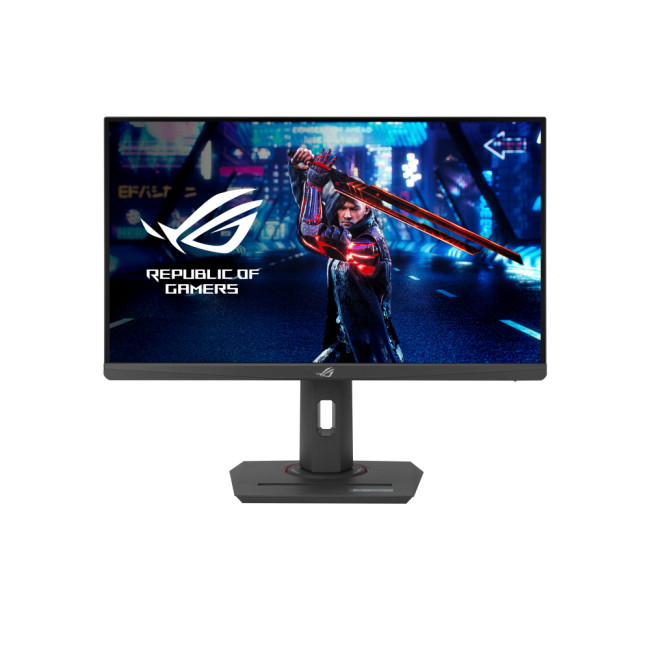
The ASUS ROG Strix XG259QNS is built for extreme speed, featuring a 380Hz refresh rate and Full HD IPS panel. While primarily designed for competitive gaming, its fast refresh rate ensures exceptionally smooth playback and timeline scrubbing for video editors. The 24.5-inch screen size suits compact desks, and IPS technology provides decent colour consistency. AMD FreeSync support enhances fluid motion, though its 1080p resolution limits workspace compared to 1440p or 4K monitors. This model is best suited to hybrid users who prioritise performance and responsiveness over high-resolution editing precision.
3. ASUS ROG Strix XG279CNS 27"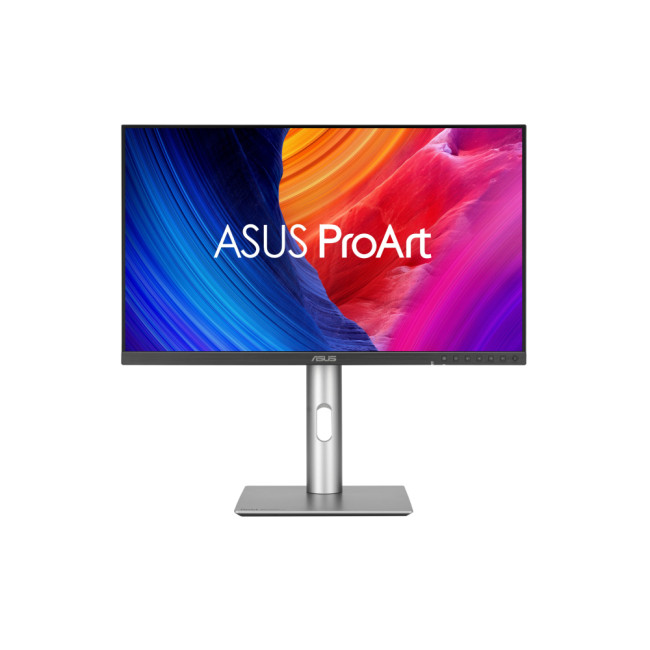
The ASUS ROG Strix XG279CNS combines a 27-inch IPS panel with an ultra-fast 380Hz refresh rate and 0.3ms response time. Designed for esports-level performance, it also appeals to motion graphics creators who value ultra-smooth previews. USB-C connectivity adds flexibility for laptop users, including content creators working on portable setups. While its Full HD resolution is less suited to detailed 4K editing, the colour consistency of IPS makes it more balanced than many gaming displays. This monitor is ideal for hybrid users who edit, animate and game on the same system.
If you're building a hybrid creative and gaming environment, explore our guide to ASUS ROG & TUF Gaming Monitors for Esports, Studios & Gaming Venues for performance-focused setups.
4. ASUS ProArt PA278CFRV 27"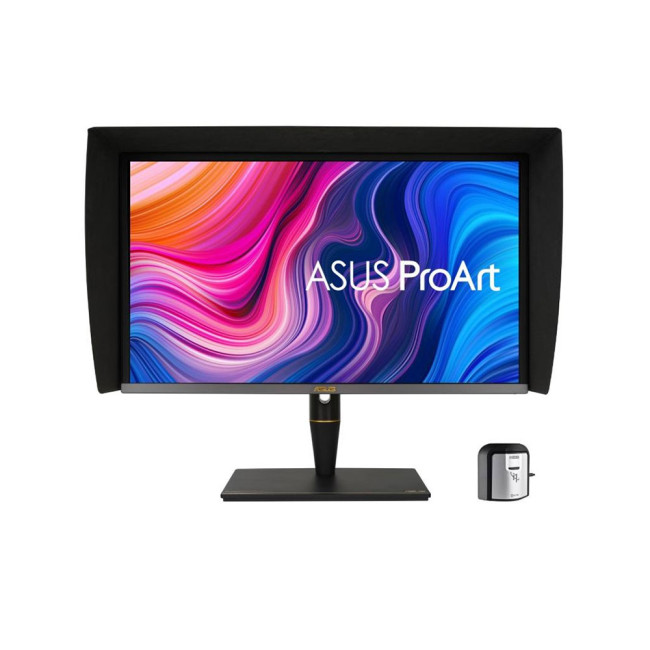
The ASUS ProArt PA278CFRV is a 27-inch Quad HD IPS monitor tailored for creative professionals. With a 2560x1440 resolution and 100Hz refresh rate, it offers a balance between smooth visuals and strong colour performance. Factory calibration ensures excellent accuracy, making it suitable for content creators working in Rec.709 and sRGB colour spaces. The higher-than-standard refresh rate adds smoother scrolling and timeline interaction without sacrificing precision. This model is ideal for freelancers and designers seeking dependable colour accuracy in a mid-range editing setup without moving to full 4K resolution.
5. ASUS ProArt Display 24"
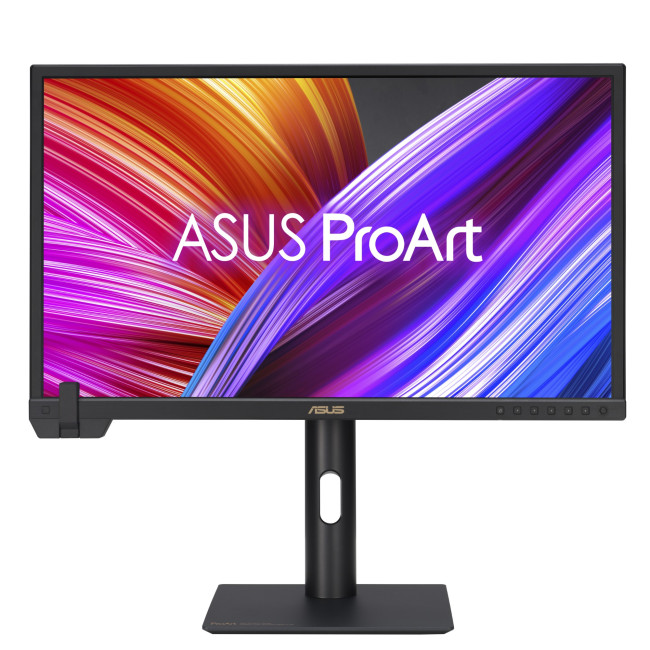
This 24-inch ProArt 4K UHD monitor delivers exceptional pixel density and sharp detail, making it ideal for precise editing work. The IPS panel ensures consistent colour reproduction and wide viewing angles, while factory calibration supports professional-grade workflows. Its compact size suits smaller desks or dual-monitor setups, especially when paired with a larger display. The 4K resolution allows editors to preview UHD footage at native resolution without scaling. Designed specifically for creators, it’s a practical choice for photographers, video editors and designers who prioritise colour accuracy in a smaller format.
6. ASUS ProArt OLED PA32DC 31.5"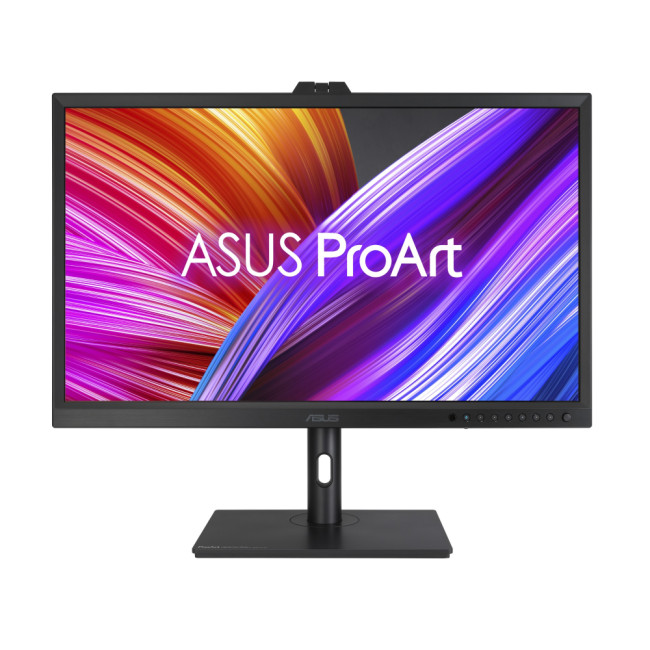
The ASUS ProArt OLED PA32DC is a premium 31.5-inch 4K Ultra HD monitor built for high-end colour grading. Its OLED panel delivers true blacks, exceptional contrast and precise colour reproduction, making it ideal for professional video editors and filmmakers. With a 0.1ms response time and factory calibration, it combines visual accuracy with responsiveness. Height adjustment and built-in speakers enhance studio usability. While limited to 60Hz, its focus is uncompromising image quality rather than high refresh rates. This is a top-tier option for creators who demand cinematic-level colour performance.
When Should You Choose ProArt vs ROG?
Choose ProArt If:
- You deliver paid client projects
- You prioritise colour accuracy
- You need Rec.709 precision
- You want a dependable video editing monitor UK professionals trust
Choose ROG If:
- You edit and game on the same system
- You value smooth playback
- You create motion graphics
- You want an ASUS ROG monitor for editing and gaming
Choosing displays for a wider team? Read our ASUS Monitors for Business & Enterprise: The Complete Buying Framework to plan scalable, future-ready setups.
Hybrid Setup: One ProArt + One ROG Monitor
Many professional creators combine both. A popular setup:
- ProArt monitor for colour grading
- ROG monitor for timeline scrubbing, previews, and gaming
This gives you the best of both worlds and maximises productivity. For serious ASUS gaming monitors for content creators, this dual-monitor approach is increasingly common.
Recommended ASUS Monitors for Video Editing
If you’re shopping for the best ASUS monitor for video editing, here’s how to approach it:
Best for Professional Colour Grading
Look for 4K ProArt models with:
- 100% Rec.709
- Hardware calibration
- Wide DCI-P3 coverage
These are ideal as a primary editing display.
Best Mid-Range Option for Freelancers
A 4K IPS ProArt monitor offers strong colour accuracy without high-end studio pricing.
Best Hybrid Editing & Gaming Monitor
An ASUS ROG monitor for editing and gaming with 144Hz and IPS or OLED panel can provide excellent flexibility for creators who want performance and entertainment in one screen.
How to Calibrate Your Monitor for Accurate Editing
Even the best display benefits from proper setup. Calibration ensures you’re truly getting the benefit of your chosen display, whether you pick ProArt or ROG.
Tips:
- Use a hardware calibration tool (X-Rite or Datacolor)
- Work in controlled lighting conditions
- Use Rec.709 presets for YouTube
- Avoid oversaturated “gaming” modes

Final Verdict: Which One to Select?
The decision between ASUS ProArt vs ROG for video editing ultimately comes down to your priorities.
- If colour precision is critical → Choose ProArt for colour grading
- If smooth playback and gaming matter → Choose ROG
- If you want both → Consider a hybrid setup
Both ASUS ProArt monitors and ASUS ROG gaming monitors represent some of the best ASUS monitors available today. The key is aligning the monitor’s strengths with your creative workflow.
For editors and creators looking for a reliable video editing monitor UK, understanding the balance between colour accuracy vs high refresh will ensure you invest in the right display for your needs.

Still Wondering...
Is ASUS ROG good for video editing?
Yes, especially for hybrid creators. However, for strict colour grading, ProArt remains more precise.
Is 144Hz necessary for video editing?
Not essential, but helpful for smooth playback and motion graphics work.
Do I need a 4K ASUS monitor for editing?
For 4K footage and detailed timelines, yes. A 4K ASUS monitor for editing provides more workspace and sharper previews.
What is the best ASUS monitor for video editing?
It depends on your workflow. For professional colour work, ProArt is ideal. For hybrid editing and gaming, ROG is more versatile.
Related Articles

Last Updated: September 24, 2026
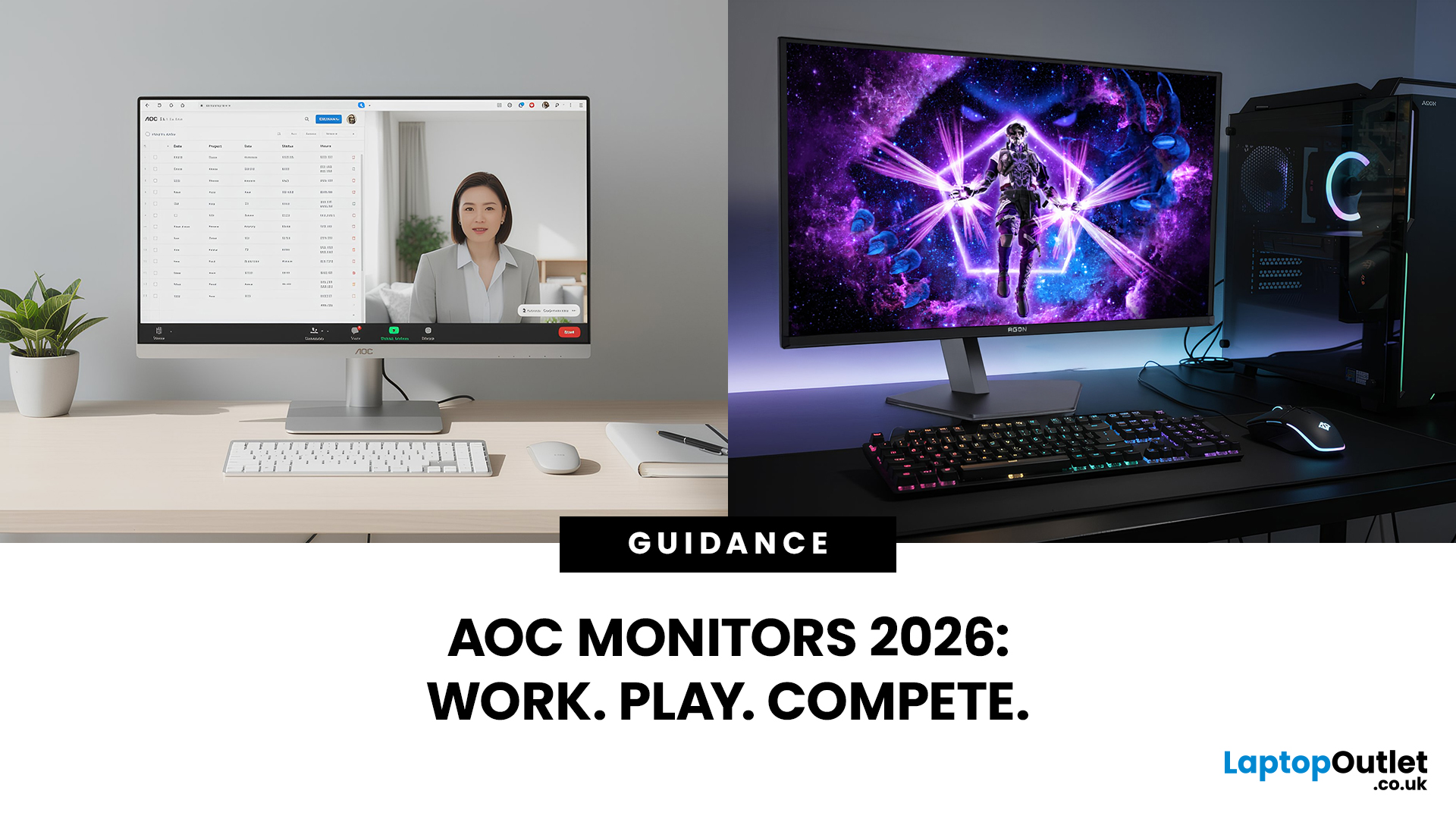
AOC monitors have quietly become one of the biggest go-to choices in 2026, whether you’re building a clean home office setup, upgrading your gaming station, or just wanting a solid screen that doesn’t destroy your budget. The brand covers everything from simple everyday displays to seriously high-performance esports-level monitors under AGON PRO. In this guide, we’ll break down the full AOC monitor family, explain what each series is actually made for, and help you figure out which models fit your lifestyle best: work, study, gaming, or all three. If you’re looking for value, comfort, and modern features, AOC is definitely worth knowing.
Meet the AOC Monitor Family: AOC, AOC Gaming, AGON & AGON PRO
AOC isn’t just one type of monitor; it’s more like a full lineup of screen “personalities,” each built for different people and setups. In 2026, AOC monitors cover everything from budget-friendly everyday displays to elite esports-level gaming machines.
The main difference comes down to performance,

Last Updated: March 13, 2026
Choosing the right display in 2026 is about more than just resolution. It is about how a screen fits into your specific lifestyle. ASUS has remained a global leader by creating distinct lanes for every type of user. Whether you are a competitive gamer, a high-end designer, or a remote professional, understanding the core ASUS monitors uses is the first step to a perfect setup.
In this ASUS monitors 2026 guide, we look at how the brand has evolved its technology. From the staggering motion clarity of the latest OLEDs to the sustainable, eye-friendly designs of their business line, ASUS continues to set the benchmark for quality and reliability.
Why ASUS Monitors Are So Popular in 2026
The popularity of ASUS monitors stems from their ability to innovate within niche categories. ASUS does not just make "screens"; they build tools.
In 2026, the brand has focused heavily on "Dual-Mode" technology. This allows a single screen to switch between ultra-high resolution for work and extreme refresh

Last Updated: August 28, 2026
Working from home and studying online have become the norm in 2026, which means your monitor is no longer just a screen, it is where you spend hours reading, writing, video calling and multitasking. A good home office display needs to deliver sharp text, comfortable viewing and reliable eye-care features without costing a fortune.
That is why AOC has become one of the most popular brands for affordable productivity setups. Whether you need a cheap AOC 27 inch monitor for essays and coursework or a larger QHD screen for full-time remote work, there are plenty of options designed for comfort and clarity.
In this guide, we break down the best AOC monitor for home office and study, including budget picks, eye-care displays and refurbished bargains.
What Makes a Good Home Office Monitor?
Choosing the best AOC monitor for home office use starts with understanding what actually improves comfort and productivity. Unlike gaming displays, office monitors are about clarity, screen space and reducing
Published: February 25, 2026
The global gaming monitor market is projected to surpass 25 million units annually, driven by demand for higher refresh rates, lower response times, and immersive panel technology. Refresh rates have climbed from the standard 60Hz to 240Hz, 360Hz and even 500Hz models designed for competitive esports. As performance expectations rise, so does the confusion around product tiers.
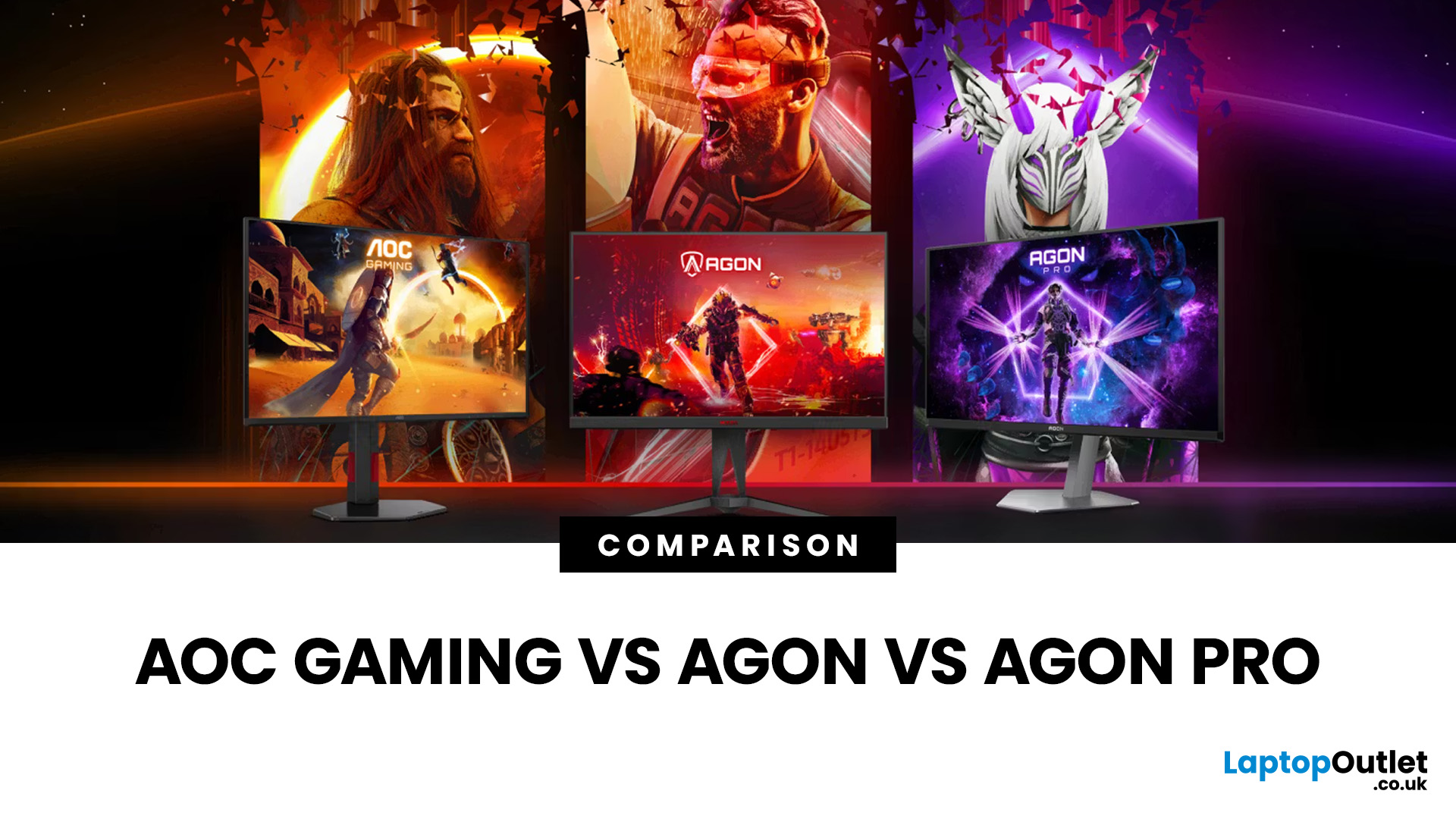
That is especially true when comparing AOC Gaming vs AGON vs AGON PRO. Each series targets a different type of player, from casual console users to tournament level competitors. Understanding the real differences in features, performance and pricing is the key to choosing the best AOC gaming series for your setup.
Quick Overview of AOC Gaming, AGON and AGON PRO
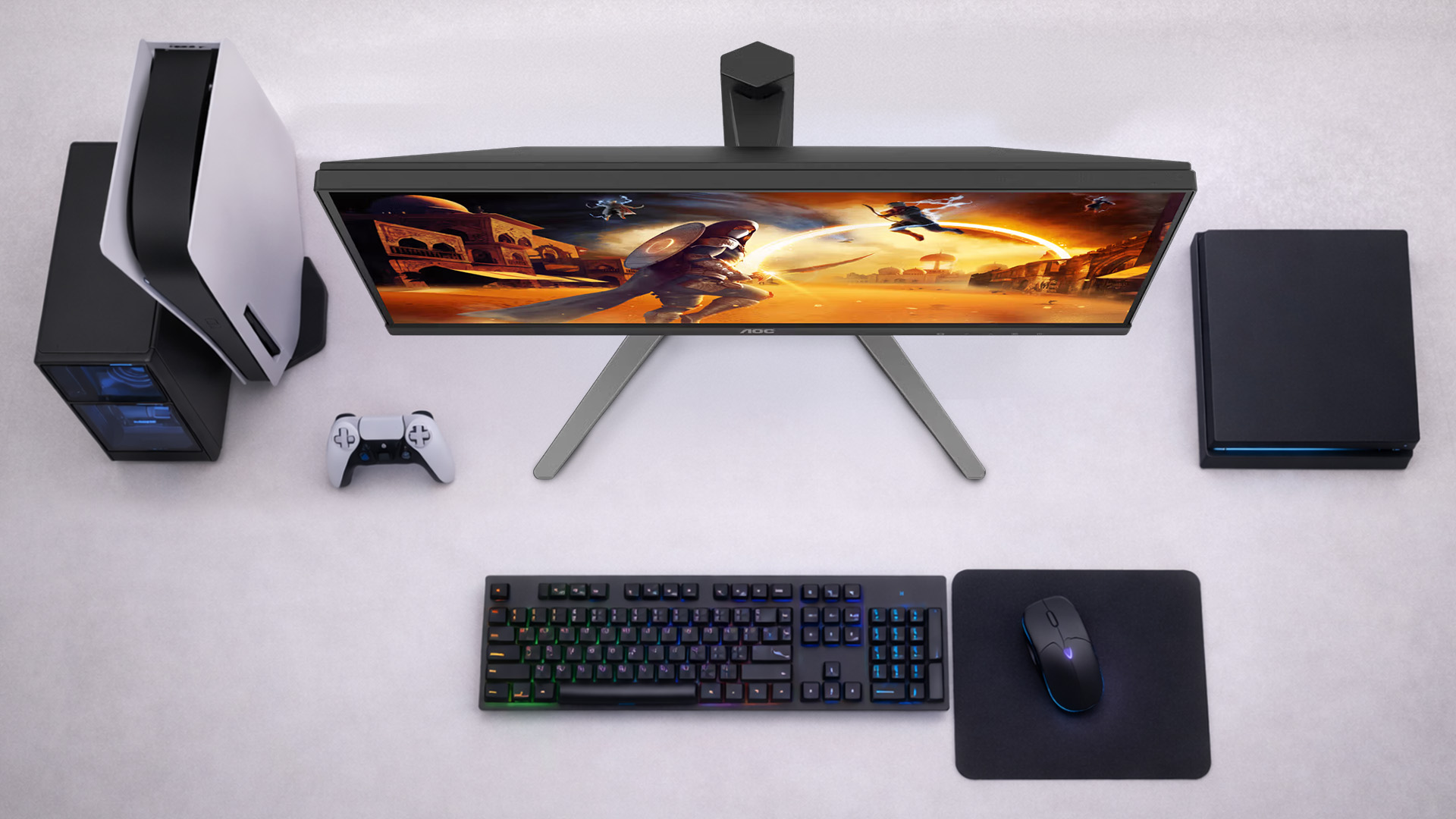
AOC structures its gaming monitors into three clear tiers; each designed for a different level of performance and budget.
AOC Gaming sits at the entry and mid-range level. These monitors focus on strong refresh rates, solid panel quality and competitive
Last Updated: August 28, 2026
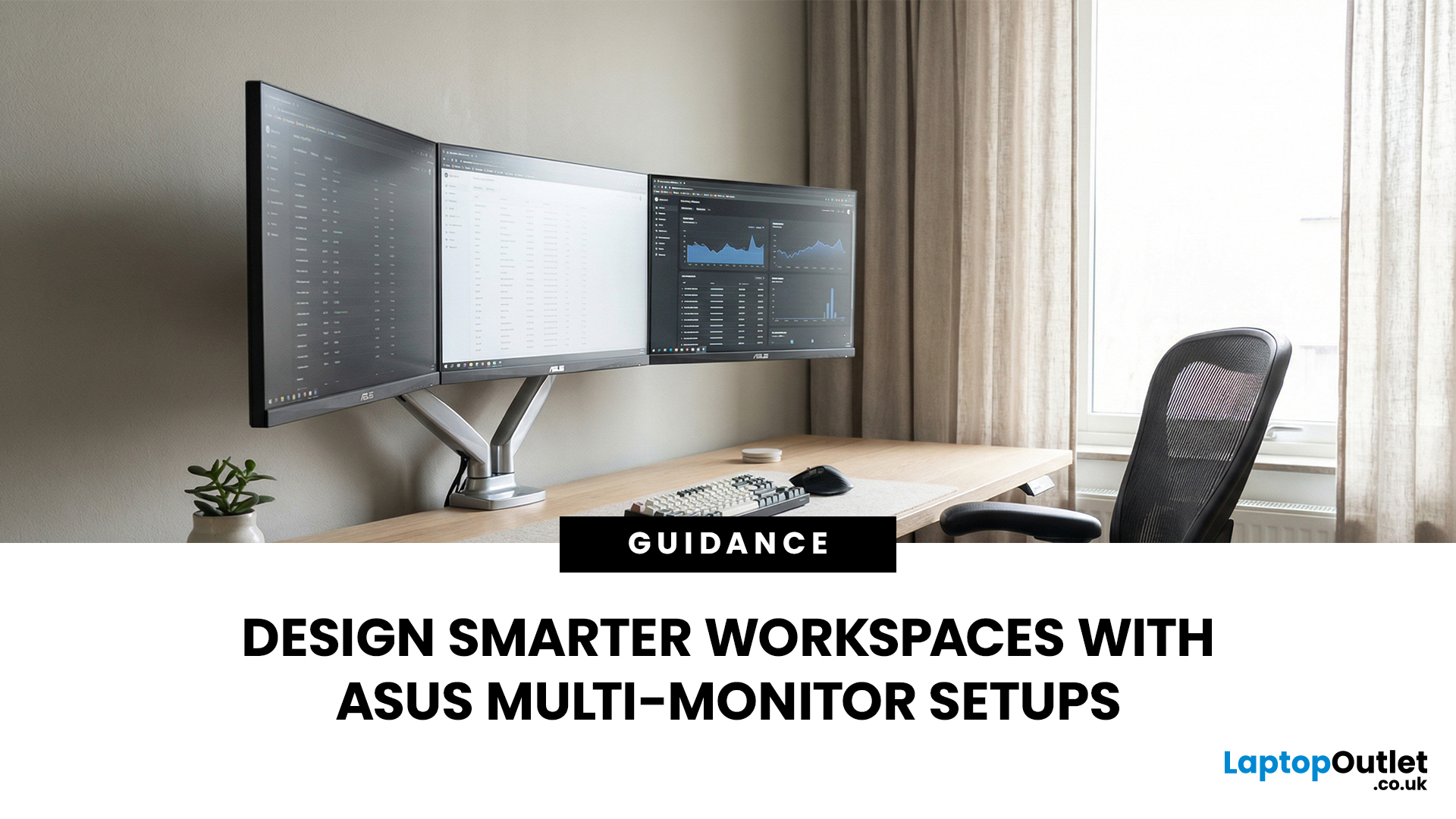
A single screen just does not cut it anymore. Whether you are writing code, managing client accounts, or analysing live market data, a well-built ASUS multi monitor setup can transform how you work. It gives you more room to think, less time switching between tabs, and a setup that genuinely supports your workflow.
This guide walks you through everything — from picking the right monitors to cabling, ergonomics, and ready-to-use layout ideas for teams and individuals alike.
Why Multi-Monitor Setups Boost Productivity
The case for multiple screens is not just about having more space. It is about working smarter. Research consistently shows that extended display setups can cut task-switching time and reduce cognitive load. When your reference document, communication tool, and primary work window each have their own screen, you stay in flow longer.
Suitable Roles: Devs, Finance, Support, Creatives
Not every job benefits equally, but a wide range of professionals gain a clear edge from multi-screen
Last Updated: August 28, 2026
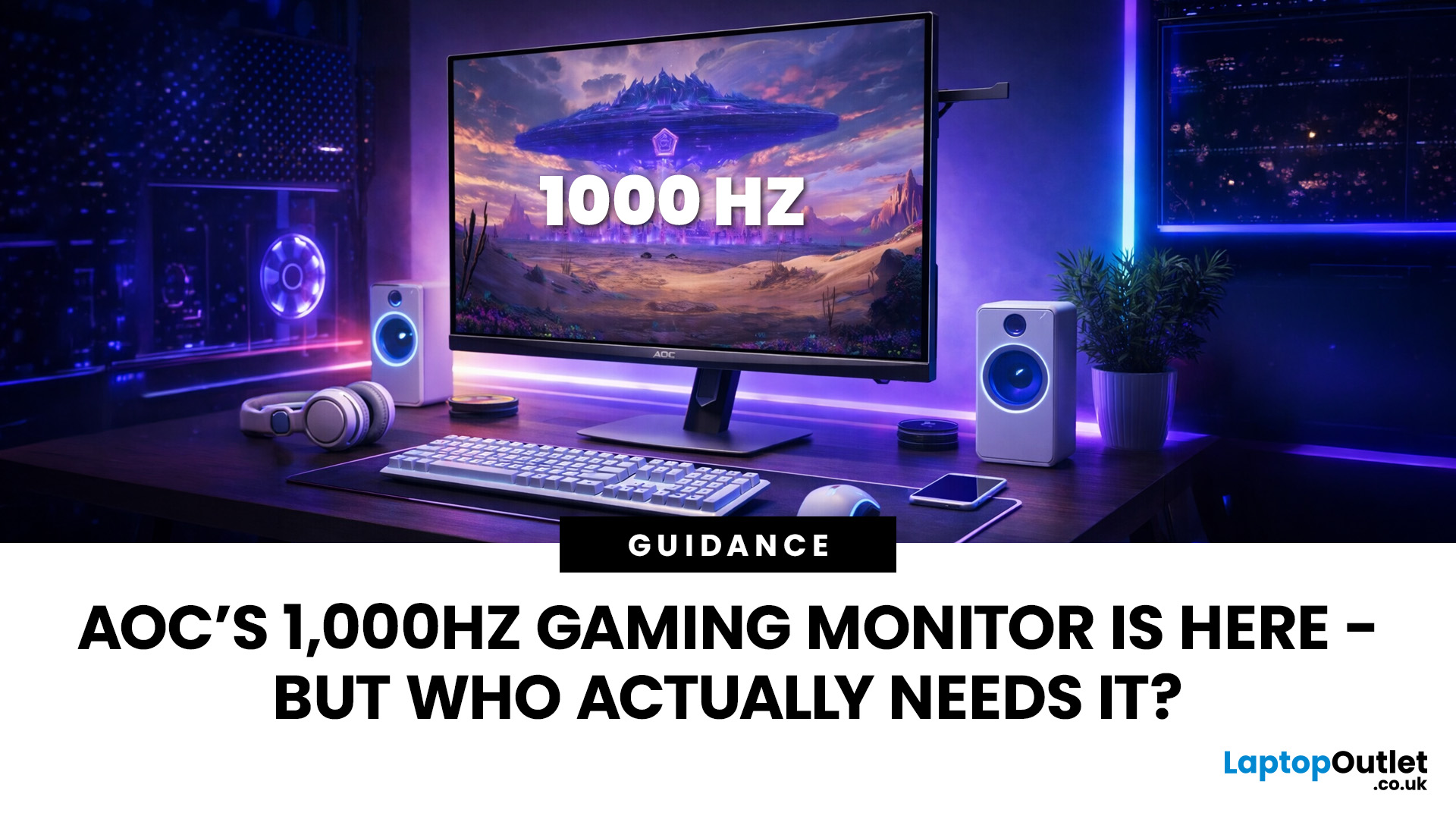
Gaming monitors have moved from 144Hz to 240Hz, then 360Hz and 500Hz in just a few years. Now AOC is pushing even further with its new AOC 1000Hz gaming monitor, the AGON PRO AGP277QK. At 1000Hz, the screen refreshes 1000 times per second, cutting frame time to just 1 millisecond. That is half the frame time of 500Hz and one quarter of 240Hz.
AOC’s new dual-mode 1000Hz monitor can switch between 500Hz at QHD and 1000Hz at a lower resolution, targeting elite competitive players. But who actually benefits from refresh rates this extreme, and should most gamers even consider waiting for it?
What AOC’s 1,000Hz Dual-Mode Monitors Actually Are
The AOC 1000Hz gaming monitor, known as the AOC AGON PRO AGP277QK, is part of a new wave of next-gen AOC AGON PRO monitors focused purely on competitive performance. It introduces a dual-mode 1000Hz monitor design, meaning it can operate at two different refresh rate and resolution combinations.
In its standard mode, the panel runs at QHD resolution with
Last Updated: August 28, 2026
Choosing the right gaming monitor depends on factors like refresh rate, resolution, panel type, response time, and HDR support.
AOC offers gaming monitors across every budget, making it hard to know which one is right for you.
This guide highlights the best AOC gaming monitors by budget and helps you choose between 1080p, 1440p, and 4K options based on your gaming needs.
How to Choose an AOC Gaming Monitor for Your Budget
Before looking at specific recommendations, it's important to understand what you're paying for.
Resolution Matters More Than Most Gamers
Last Updated: August 25, 2026
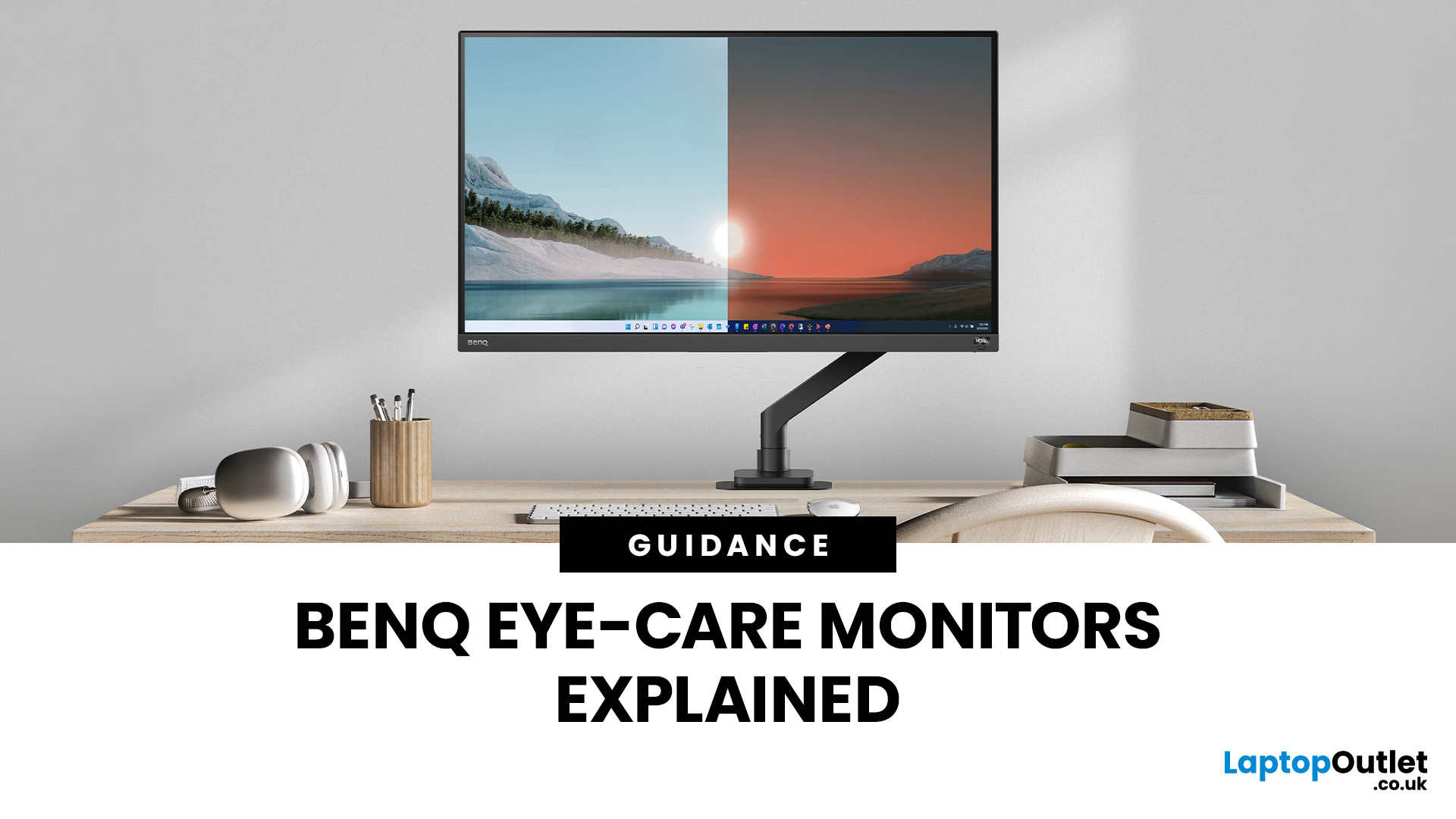
If you spend hours a day on a screen, you’ve probably felt it: tired eyes, headaches, dryness or that slightly gritty end-of-day sensation. While no monitor can solve every cause of screen-related discomfort, BenQ Eye-Care monitors include features designed to make longer sessions more comfortable by managing brightness, reducing flicker and giving you control over blue-heavy light, particularly for evening use.
What BenQ Eye-Care Means: Features and What They’re For
Several BenQ monitor ranges include comfort-focused tools under the Eye-Care umbrella. The exact feature set varies by model, but the typical options include:
- BenQ Brightness Intelligence, sometimes called Brightness Intelligence Plus or B.I.+, to adjust the screen according to your surroundings and displayed content
- Visual Optimizer, the newer name for B.I.+ on supported BenQ monitors, which can adapt brightness and colour temperature
- BenQ Low Blue Light or Low Blue Light Plus modes to reduce blue-heavy light output
- BenQ
Last Updated: March 13, 2026
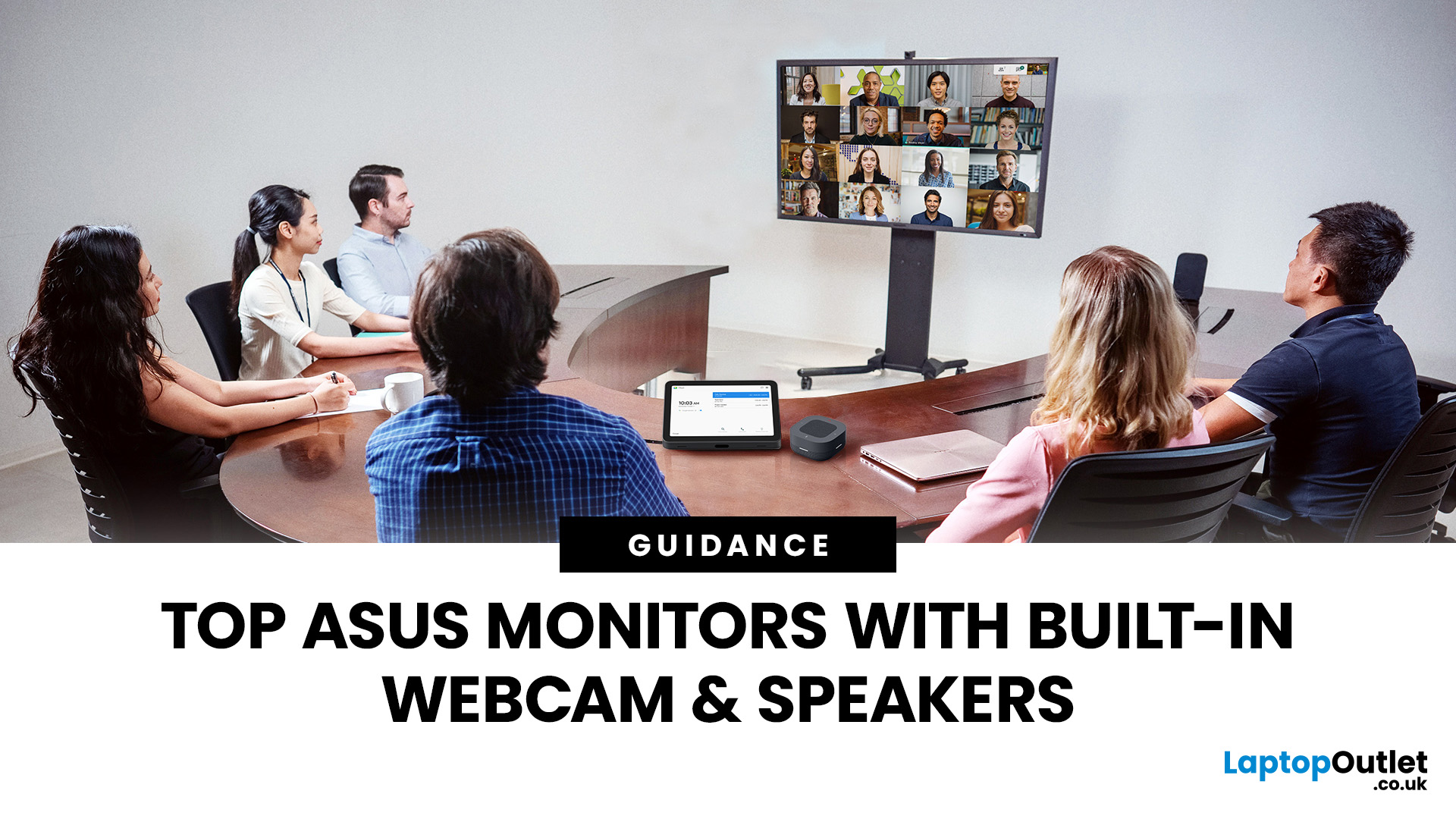
Choosing the right ASUS monitor with a webcam can significantly simplify how modern meeting rooms operate. As hybrid work becomes the norm, businesses are looking for cleaner, more efficient conferencing setups that don’t rely on multiple external peripherals. An integrated solution that combines display, camera, microphone, and speakers into one device makes deployment faster and more cost-effective. For small meeting spaces and huddle rooms in particular, an ASUS business monitor with speakers and a built-in webcam offers a practical alternative to a full conferencing kit.
What to Know About Microsoft Teams Rooms Compatibility
It’s important to clarify how an ASUS monitor with webcam fits into a Microsoft Teams Rooms environment.
Microsoft Teams Rooms (MTR) systems are typically powered by a dedicated PC or collaboration bar. The monitor itself is not the Teams Rooms system, instead, it acts as the display and USB conferencing endpoint. When paired with a Teams-enabled PC, many ASUS
Last Updated: August 13, 2026
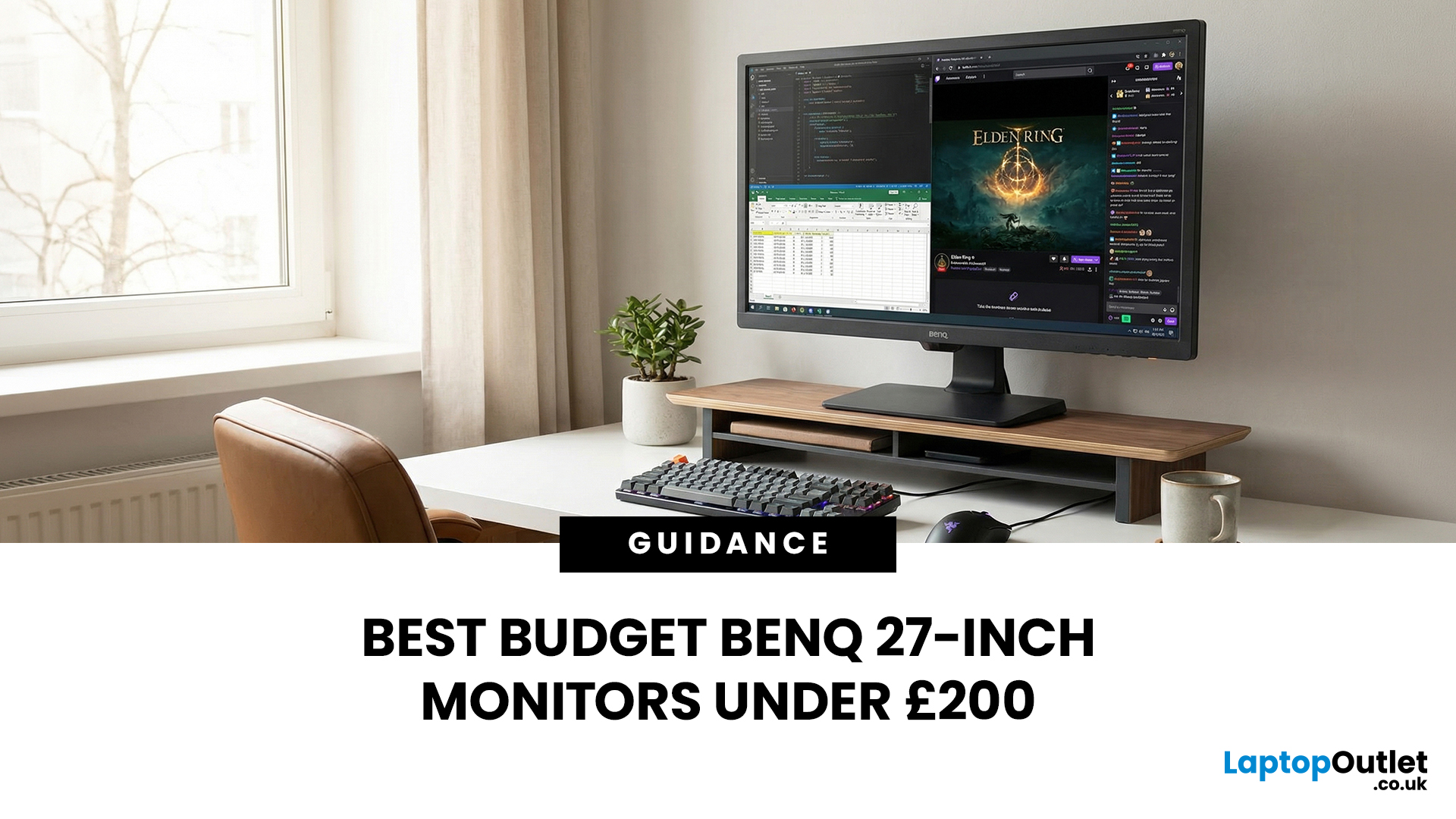
A 27-inch display gives you enough screen space for documents, spreadsheets, online classes, streaming, and gaming without taking over the average desk. Better still, choosing an affordable model no longer means settling for a basic 60Hz or 75Hz screen.
Today’s budget-friendly BenQ range includes Full HD IPS displays with 100Hz and 144Hz refresh rates, eye-care features, built-in speakers, USB-C connectivity, and ergonomic stands on selected models. That gives buyers considerably more choice, whether the priority is office productivity, studying, or smoother casual gaming.
What Can You Expect from a BenQ 27-Inch Monitor Under £200?
The specifications available at this price have improved significantly. Rather than assuming every affordable display will have a low refresh rate and a basic stand, it is better to compare individual models. Features available across the models in this guide include:
- Full HD 1920 x 1080 resolution
- IPS panel technology
- 100Hz or 144Hz refresh rates
- BenQ Eye-Care

