



Centralised Colour Management: Using ASUS ProArt Calibration Tools Across a Creative Studio
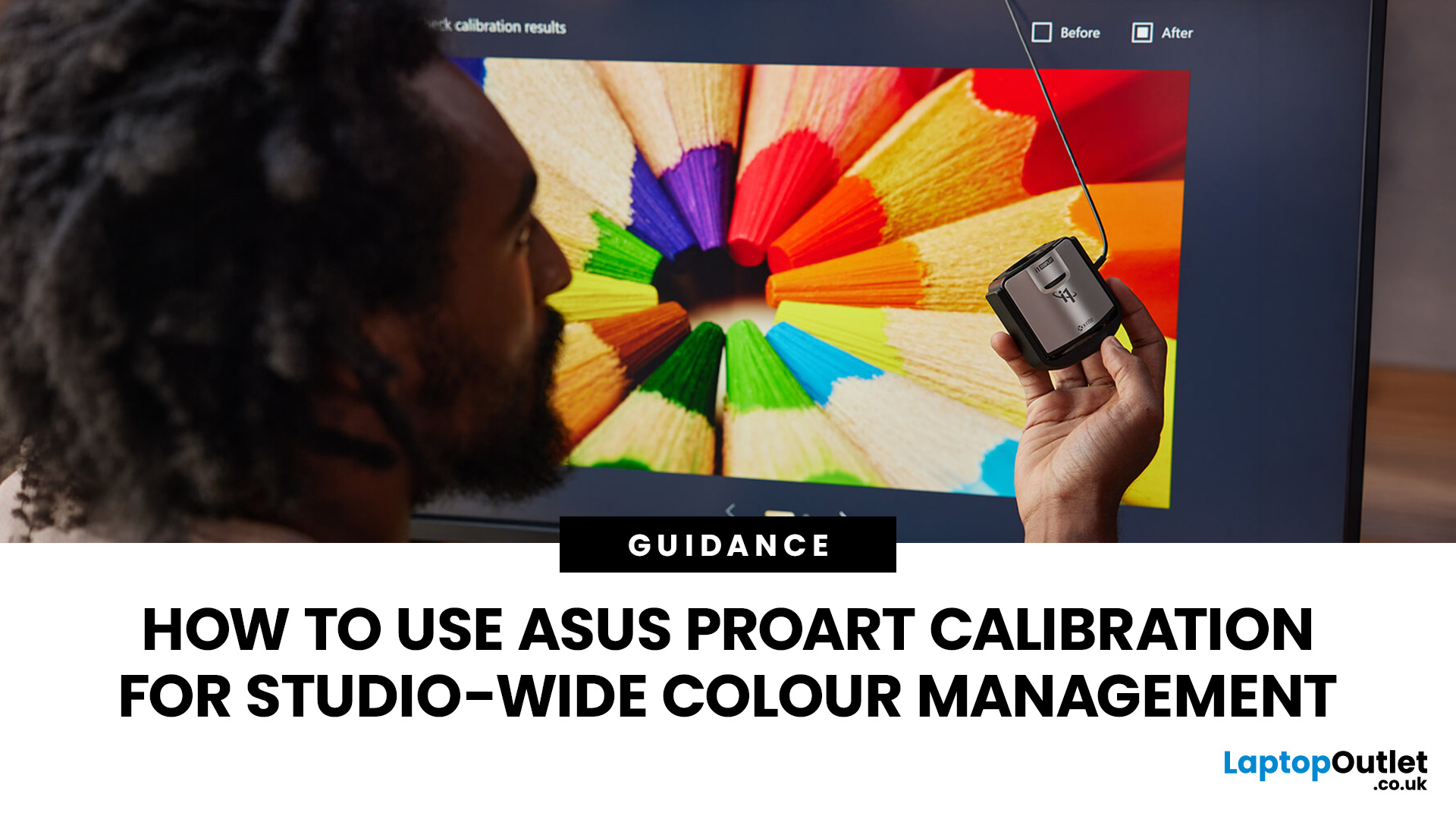
In a collaborative environment where multiple creatives work across several editing stations, ensuring consistent colour representation becomes even more challenging. This is where centralised colour management becomes essential. With advanced display technology and dedicated calibration tools, ASUS ProArt calibration provides studios with a reliable solution for maintaining colour consistency across multiple workstations. By combining hardware calibrated ASUS monitors, calibration software and studio-wide colour management practices, creative teams can ensure every designer, editor and colourist sees the same accurate image.
Why Colour Consistency Matters in Creative Studios
Creative studios often rely on multiple displays across editing suites, design desks and grading stations. Without proper calibration, each monitor may display colour differently. This leads to several problems:
- Designers seeing different shades of the same colour
- Video editors producing footage that looks different on other screens
- Inconsistent branding colours in marketing assets
- Time wasted adjusting colours during review cycles
For teams working with clients or preparing content for broadcast, print or online distribution, these inconsistencies can significantly slow down production. A well-planned colour calibration for studios ensures every display follows the same colour standards. This means the colours seen during editing remain accurate when viewed on other calibrated displays. Professional displays such as ASUS ProArt monitors are designed specifically for colour-critical workflows, offering high colour accuracy and wide gamut support.
What is ASUS ProArt Calibration?
ASUS ProArt calibration refers to a dedicated system used to adjust and maintain accurate colour reproduction on ProArt displays. Unlike standard monitor adjustments that rely purely on software profiles, ProArt displays support hardware-level calibration, which writes colour adjustments directly to the monitor’s internal processing. This approach provides several advantages for professional studios.
Hardware-Level Colour Accuracy
Many hardware calibrated ASUS monitors include internal Look-Up Tables (LUTs). Calibration settings are stored inside the display rather than the operating system. This means:
- Colour accuracy remains consistent regardless of the connected computer
- Profiles are not affected by GPU or operating system changes
- Multiple users can connect different devices while maintaining accurate colour
Adjustable Colour Parameters
Using ASUS ProArt calibration software, users can adjust several important colour settings:
- Brightness and luminance levels
- White point
- Gamma curves
- Colour gamut
- Colour temperature
These adjustments allow studios to calibrate monitors for specific colour standards such as:
- Rec.709 (commonly used for video production)
- Adobe RGB (popular for photography and print)
- DCI-P3 (used in film and cinema production)
Because calibration data is stored within the monitor itself, ProArt displays maintain reliable accuracy across long creative sessions.
The Importance of Centralised Colour Management
In smaller setups, calibrating one monitor may be sufficient. However, in a professional studio environment with several editing suites, maintaining colour accuracy requires a more structured approach. Centralised colour management ensures that all displays follow the same calibration standards. Without this system, teams may encounter several issues:
- Editors grading footage differently across stations
- Designers producing inconsistent brand colours
- Print outputs not matching digital previews
By using ASUS ProArt colour management tools, studios can standardise calibration across multiple displays and maintain consistency throughout the production process. This approach offers several benefits:
Improved Workflow Efficiency
When all displays show consistent colour, creative teams spend less time correcting colour discrepancies during reviews.
Accurate Collaboration
Editors, designers and producers can confidently share projects knowing that everyone sees the same colour representation.
Reliable Client Deliverables
Centralised calibration ensures final content appears consistent across devices, improving client satisfaction and reducing revisions.
Building a Creative Studio Monitor Setup
Creating an effective creative studio monitor setup requires more than simply purchasing high-quality displays. Studios must also consider lighting, calibration practices and monitor placement.
Choosing Colour Accurate Displays
Using colour accurate ASUS displays ensures that every workstation begins with reliable colour reproduction. ProArt monitors are factory calibrated to deliver professional-level colour accuracy straight out of the box. These displays often support wide colour gamuts and industry-standard colour spaces, making them suitable for demanding creative tasks.
Matching Displays Across Workstations
Whenever possible, studios should use the same monitor models across editing stations. Matching displays helps maintain uniform colour performance. This is particularly important for teams involved in:
- video editing
- colour grading
- photography
- design and animation
Controlling Ambient Lighting
Lighting conditions also influence perceived colour. Professional studios typically use controlled lighting environments to prevent colour shifts caused by reflections or inconsistent brightness levels. By combining controlled lighting with calibrated displays, studios create a reliable colour workflow.
If your team focuses on graphic design, photography or branding work, explore our guide to ASUS ProArt & Creator Monitors: Colour-Accurate Displays for Design Teams, which highlights displays built specifically for colour-critical creative environments.
Using ASUS ProArt Calibration Tools Across Workstations
Once monitors are installed across the studio, calibration becomes the next step. Calibration occurs at the hardware level and it remains consistent even if the monitor is connected to another computer. The ASUS ProArt Calibration software allows users to calibrate compatible ProArt monitors using supported colour measurement devices such as X-Rite or Datacolour colourimeters.
Typical Calibration Workflow
A typical calibration process involves several steps.
1. Connect the calibration device
A colourimeter is attached to the workstation and positioned on the monitor.
2. Launch the ProArt Calibration software
The software communicates directly with the monitor to adjust colour parameters.
3. Select colour targets
Studios typically choose a colour standard such as Rec.709 or Adobe RGB depending on their production needs.
4. Measure the display
The software measures the monitor’s colour output and identifies deviations from the target values.
5. Apply hardware calibration
Calibration data is written directly into the display’s internal LUT, ensuring accurate colour reproduction.
Managing Shared Colour Profiles Across a Studio
As studios grow, managing calibration across several displays becomes more complex. To address this, ASUS has developed tools that support shared colour profiles ProArt workflows. One such solution is ProArt Colour Center, a platform designed to help teams monitor and manage colour calibration across multiple displays.
Key Features of ProArt Colour Center
This system allows studio managers to:
- Monitor calibration status across displays
- Schedule regular calibration tasks
- Manage groups of displays in different rooms
- Maintain consistent colour targets across the studio
For studios with distributed teams or multiple editing suites, this centralised system simplifies colour management. By maintaining shared calibration standards, creative teams can ensure colour accuracy regardless of where the work is being produced. Studios that handle both editing and motion graphics may also want to compare professional displays with gaming monitors. Our article on ASUS ProArt vs ROG: Best Monitors for Video Editing & Motion Graphics breaks down the key differences.
Latest Developments in the ProArt Calibration Ecosystem
ASUS continues to expand its professional colour management ecosystem. Recent developments include advanced calibration solutions that integrate measurement tools, calibration software and colour management platforms. One example is ProArt CaliContrO, a dedicated colour calibration device designed for professional creators. This device combines multiple calibration functions in a single system, enabling accurate colour measurement for both SDR and HDR workflows.
Modern calibration tools can measure brightness levels far beyond typical display ranges, making them suitable for HDR production environments. For studios working with cinematic content or high-dynamic-range video, these developments allow more precise colour grading and display calibration. As display technology evolves, tools like these help ensure ASUS ProArt colour management keeps pace with modern creative requirements.
Best ASUS Monitors for Colour Grading and Studio Work
When selecting displays for professional creative environments, several ProArt models stand out as best ASUS monitors for colour grading.
ProArt PA32 Series
The PA32 series is widely used in professional studios thanks to its wide colour gamut, high brightness capabilities and support for advanced HDR formats.
ProArt PA27 Series
These displays provide excellent colour accuracy and are well suited for photographers, designers and video editors.
ProArt OLED Displays
ASUS has also introduced OLED options in the ProArt lineup, offering deep contrast and precise colour reproduction for visual content creators.
These displays combine factory calibration, wide colour space coverage and hardware calibration capabilities, making them suitable for demanding creative workflows. For creators comparing display options, it’s helpful to understand how ProArt displays differ from gaming-focused screens. Our guide on ASUS ProArt vs ROG: Best Monitors for Video Editing & Motion Graphics explains which monitors are better suited for professional creative workflows.
Best Practices for Maintaining Colour Accuracy
Even with advanced calibration tools, maintaining colour accuracy requires regular monitoring.
Studios should follow several best practices.
Schedule Regular Calibration
Most professionals recalibrate displays every two to four weeks to prevent colour drift.
Standardise Colour Targets
All displays should use the same colour space targets to ensure consistency across projects.
Maintain Consistent Lighting
Controlled lighting environments help prevent colour perception shifts.
Monitor Display Ageing
Over time, displays may gradually change in brightness or colour response. Regular calibration ensures these changes do not affect project quality.

Conclusion Bottom Line
Without proper calibration, different monitors may display colour inconsistently, leading to delays and costly revisions. By using ASUS ProArt calibration tools, studios can implement centralised colour management across multiple displays. Hardware calibration, shared colour profiles and advanced monitoring tools help ensure that every workstation follows the same colour standards.
Combined with high-quality ASUS ProArt monitors, these tools allow creative teams to maintain accurate colour from the initial edit through to final delivery. For studios focused on video production, photography, animation or design, investing in reliable colour accurate ASUS displays and calibration tools can significantly improve workflow efficiency and project consistency.

You Might Wonder...
What is ASUS ProArt calibration?
ASUS ProArt calibration is a system used to adjust colour accuracy on ProArt displays using dedicated software and colour measurement devices. Calibration data can be stored directly within the monitor to maintain consistent colour performance.
Are ASUS ProArt monitors good for colour grading?
Yes. ProArt displays support professional colour spaces such as Adobe RGB, DCI-P3 and Rec.709, making them suitable for colour grading and other colour-critical workflows.
How often should studio monitors be calibrated?
Most creative studios recalibrate displays every two to four weeks to ensure colour accuracy remains consistent.
What makes ProArt displays colour accurate?
ProArt monitors are factory calibrated for professional colour accuracy and support hardware calibration, allowing precise adjustments directly within the display.
Do ASUS ProArt monitors need regular calibration?
Yes. Although ASUS ProArt monitors are factory calibrated for high colour accuracy, regular recalibration helps maintain consistent performance over time. Most studios perform ASUS ProArt calibration every 2–4 weeks to prevent colour drift and ensure reliable results across all workstations.
Related Articles

Last Updated: June 15, 2026
If you run an esports arena, gaming cafe, university esports lab, or content studio, your monitor choice is not a background decision. It directly affects performance, player satisfaction, brand perception, and long-term ROI. Competitive players notice the refresh rate instantly. Streamers notice colour accuracy. Venue owners notice durability. And everyone notices screen quality.
That’s why ASUS gaming monitors have become a staple across esports stages and gaming venues in the UK. From ultra-premium ASUS ROG gaming monitors built for tournament environments to scalable ASUS TUF gaming monitor options designed for multi-station rollouts, ASUS covers every level of competitive deployment.
If you're building or upgrading a gaming business, here’s what you need to know.
Why Esports & Gaming Businesses Choose ASUS
A single hardware issue during a tournament can damage a reputation fast. ASUS has built a strong position in esports by delivering consistency under pressure.
Brand Reputation

Last Updated: March 13, 2026
Modern workplaces are more screen-based than ever and in the UK, the average office employee now spends over 6 hours a day looking at a monitor. For businesses, that makes display choice more than just a tech detail; it’s a productivity and wellbeing decision.
The right ASUS business monitors can improve workflow efficiency, reduce eye strain, and support hybrid teams with flexible connectivity like USB-C docking. Whether you’re equipping a corporate office, a call centre, or a growing enterprise rolling out hundreds of workstations, choosing the right monitor spec matters.
In this buying framework, we’ll break down what UK organisations should prioritise, from screen size and ergonomics to ASUS Eye Care features, bulk purchasing, and the best monitor options for business use in 2026.
Why ASUS Monitors Work Well for Modern Workplaces

In today’s business environment, monitors are no longer just office accessories, they’re core productivity tools. From finance teams working across spreadsheets
Last Updated: March 13, 2026
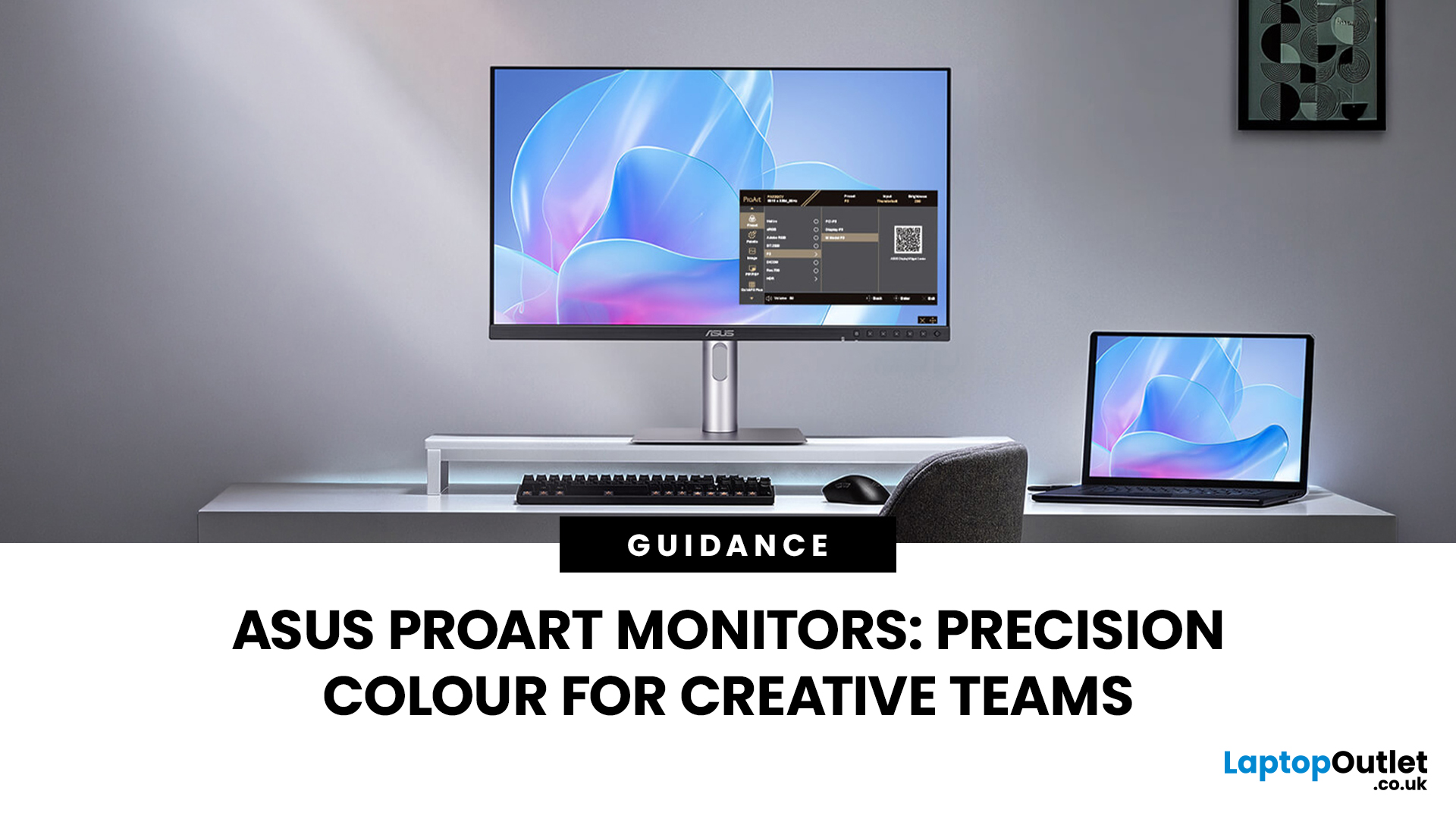
Creative work is more colour-critical than ever and studies show the average designer spends over 7 hours a day staring at a screen. That means your monitor isn’t just a display… it’s basically your studio. If colours are even slightly off, edits don’t match, prints come out wrong, and client work gets messy fast.
That’s where ASUS ProArt monitors come in. Built specifically for creators, they deliver factory-calibrated accuracy, wide colour coverage, and crisp 4K detail that makes photo editing, graphic design, and video workflows feel effortless. Whether you’re running a creative agency, an in-house design team, or a full studio setup, ProArt screens help you work with confidence, not guesswork.
Let’s break down what makes them worth it.
What Creative Teams Need from a Monitor
Not all monitors are built the same and creative teams feel that difference immediately. A standard office screen might be fine for spreadsheets, but when you’re adjusting skin tones, matching brand colours, or
Last Updated: August 28, 2026
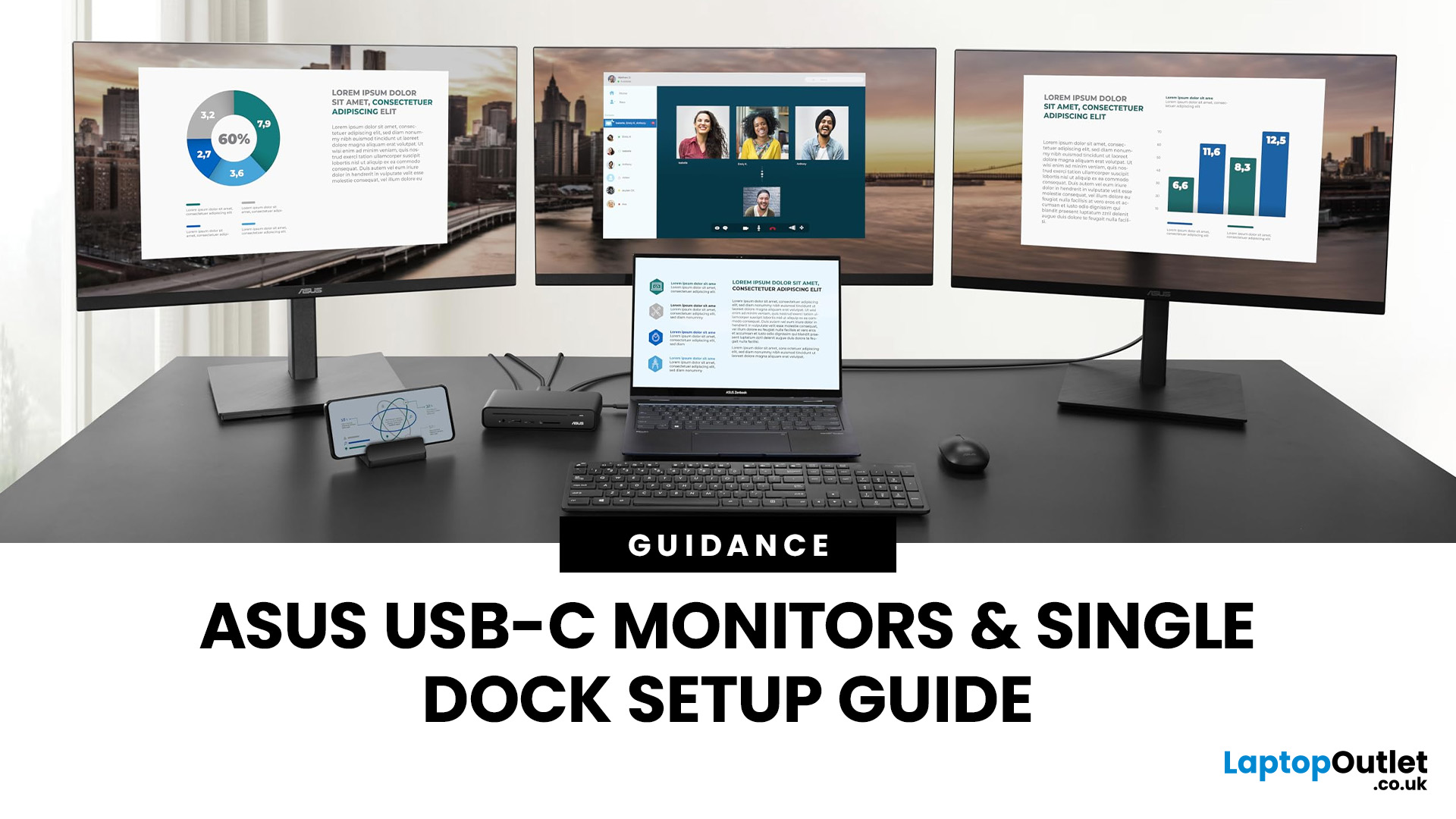
If you’re planning a desk refresh, rolling out new workstations, or managing a hot-desking environment, one question always comes up: how many ASUS USB-C monitors can you realistically run from a single dock? The short answer? It depends.
The long answer? It depends on your laptop’s GPU, the dock’s bandwidth, the monitor resolutions, and whether you’re daisy-chaining or using multiple video outputs.
In this practical IT deployment guide, we’ll break down exactly how ASUS USB-C monitors behave in real-world setups, what limits your configuration, and how to plan a reliable multi-monitor rollout without unpleasant surprises.
How USB-C Video and Power Actually Work
USB-C looks simple. One cable. Power. Video. Data. Done.
But behind that clean setup, there’s a lot happening.
USB-C monitors rely on a feature called DisplayPort Alt Mode. This allows the USB-C cable to carry video signals from your laptop’s GPU directly to the monitor. Many modern docks also use DisplayLink technology, which

Last Updated: March 13, 2026
Choosing the right display in 2026 is about more than just resolution. It is about how a screen fits into your specific lifestyle. ASUS has remained a global leader by creating distinct lanes for every type of user. Whether you are a competitive gamer, a high-end designer, or a remote professional, understanding the core ASUS monitors uses is the first step to a perfect setup.
In this ASUS monitors 2026 guide, we look at how the brand has evolved its technology. From the staggering motion clarity of the latest OLEDs to the sustainable, eye-friendly designs of their business line, ASUS continues to set the benchmark for quality and reliability.
Why ASUS Monitors Are So Popular in 2026
The popularity of ASUS monitors stems from their ability to innovate within niche categories. ASUS does not just make "screens"; they build tools.
In 2026, the brand has focused heavily on "Dual-Mode" technology. This allows a single screen to switch between ultra-high resolution for work and extreme refresh
Last Updated: August 28, 2026
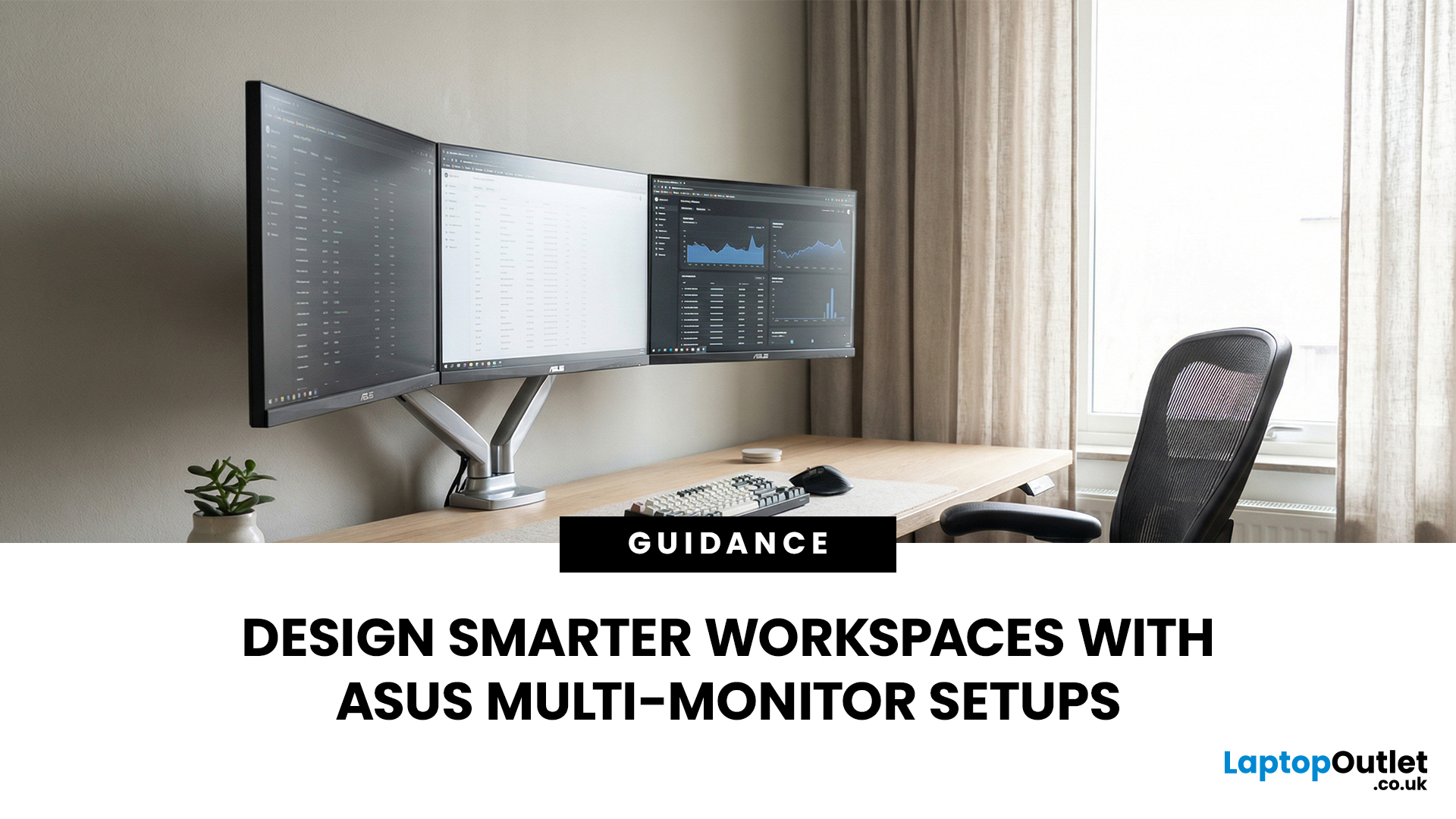
A single screen just does not cut it anymore. Whether you are writing code, managing client accounts, or analysing live market data, a well-built ASUS multi monitor setup can transform how you work. It gives you more room to think, less time switching between tabs, and a setup that genuinely supports your workflow.
This guide walks you through everything — from picking the right monitors to cabling, ergonomics, and ready-to-use layout ideas for teams and individuals alike.
Why Multi-Monitor Setups Boost Productivity
The case for multiple screens is not just about having more space. It is about working smarter. Research consistently shows that extended display setups can cut task-switching time and reduce cognitive load. When your reference document, communication tool, and primary work window each have their own screen, you stay in flow longer.
Suitable Roles: Devs, Finance, Support, Creatives
Not every job benefits equally, but a wide range of professionals gain a clear edge from multi-screen

Last Updated: March 13, 2026
Choosing the right ASUS monitor with a webcam can significantly simplify how modern meeting rooms operate. As hybrid work becomes the norm, businesses are looking for cleaner, more efficient conferencing setups that don’t rely on multiple external peripherals. An integrated solution that combines display, camera, microphone, and speakers into one device makes deployment faster and more cost-effective. For small meeting spaces and huddle rooms in particular, an ASUS business monitor with speakers and a built-in webcam offers a practical alternative to a full conferencing kit.
What to Know About Microsoft Teams Rooms Compatibility
It’s important to clarify how an ASUS monitor with webcam fits into a Microsoft Teams Rooms environment.
Microsoft Teams Rooms (MTR) systems are typically powered by a dedicated PC or collaboration bar. The monitor itself is not the Teams Rooms system, instead, it acts as the display and USB conferencing endpoint. When paired with a Teams-enabled PC, many ASUS
Last Updated: April 08, 2026
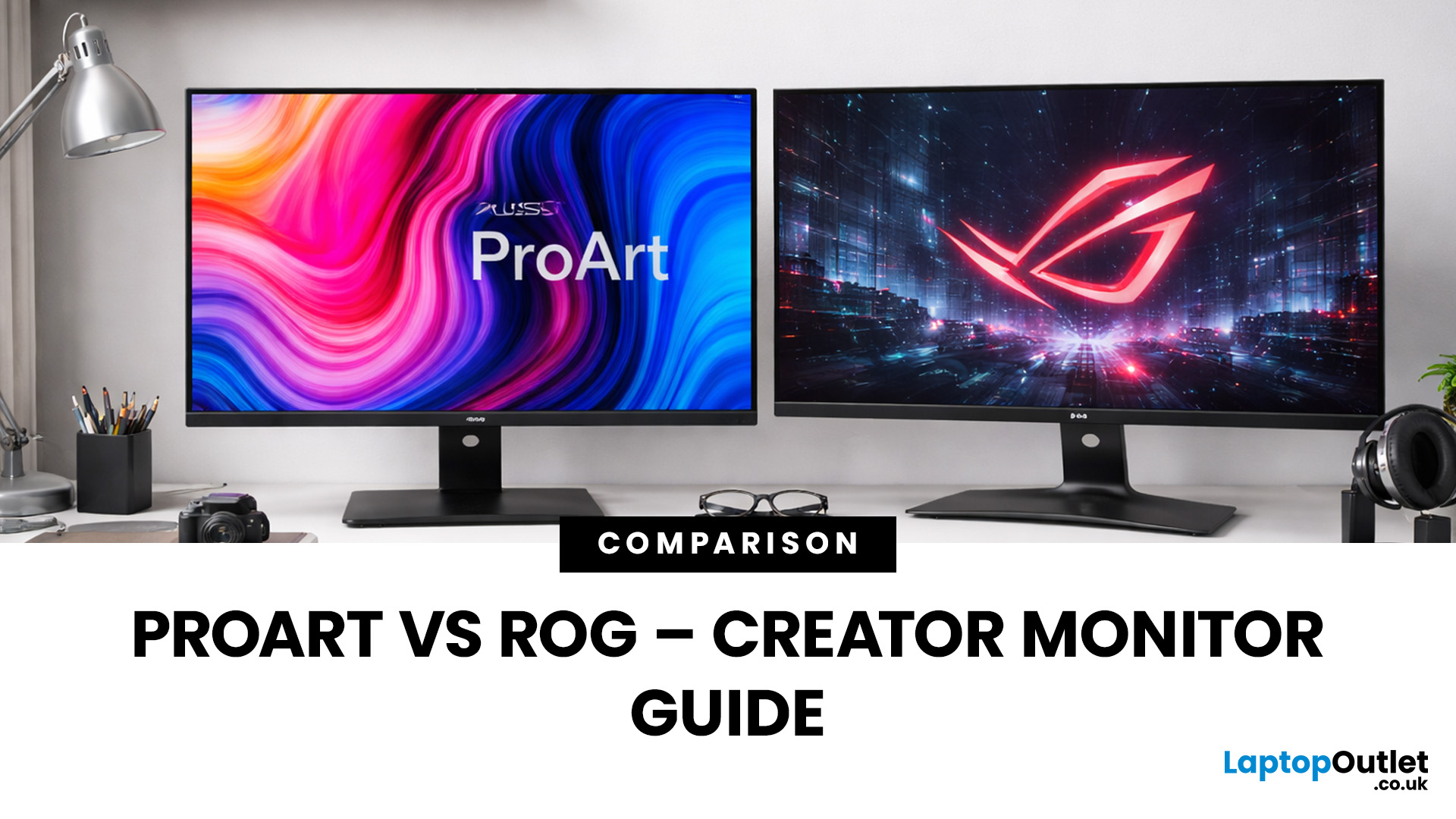
Choosing the right display can dramatically impact your workflow, especially when it comes to colour grading, motion graphics, and smooth timeline playback. If you're deciding between ASUS ProArt vs ROG for video editing, you're essentially choosing between two different philosophies: precision-focused colour accuracy or high refresh performance.
Both ranges are among the best ASUS monitors available today, but they serve different types of creators. In this guide, we’ll break down everything you need to know about ASUS ProArt vs ROG, including panel technology, refresh rates, HDR performance, and which models make the most sense for editors in the UK.
What Video Editors Actually Need from a Monitor
Before comparing models, it’s important to understand what really matters in a video editing monitor UK buyers should consider.
1. Colour Accuracy (ΔE, Rec.709 & DCI-P3)
For editors, colour accuracy is critical. If you're delivering to YouTube or broadcast, your monitor must reproduce colours

Last Updated: September 01, 2026
Choosing a new monitor is not always straightforward. With so many screen sizes, panel types, and resolution options on the market, it is easy to get lost before you even reach a shortlist. This LG monitors buying guide cuts through all of that.
It walks you through every major LG screen series, explains the specs that actually matter, and helps you find the right display for your needs and budget. Whether you are gaming, working from home, editing photos, or simply upgrading a tired old screen, LG has a monitor built for the job. Let’s get started.
Why Choose an LG Monitor in 2026?
LG is one of the few brands that designs and manufactures its own display panels. That matters because it gives LG direct control over colour accuracy, panel quality, and how quickly new technology reaches the market.
Whether you need a budget-friendly Full HD screen or a professional-grade OLED display, LG offers a broad, well-priced range. They continue to lead with innovations like Nano IPS for

Last Updated: April 28, 2026
Choosing a new monitor is never as simple as picking the biggest screen you can afford. The panel technology underneath the glass makes a huge difference. It shapes how colours look, how fast the screen responds, and how comfortable it is to use for hours on end.
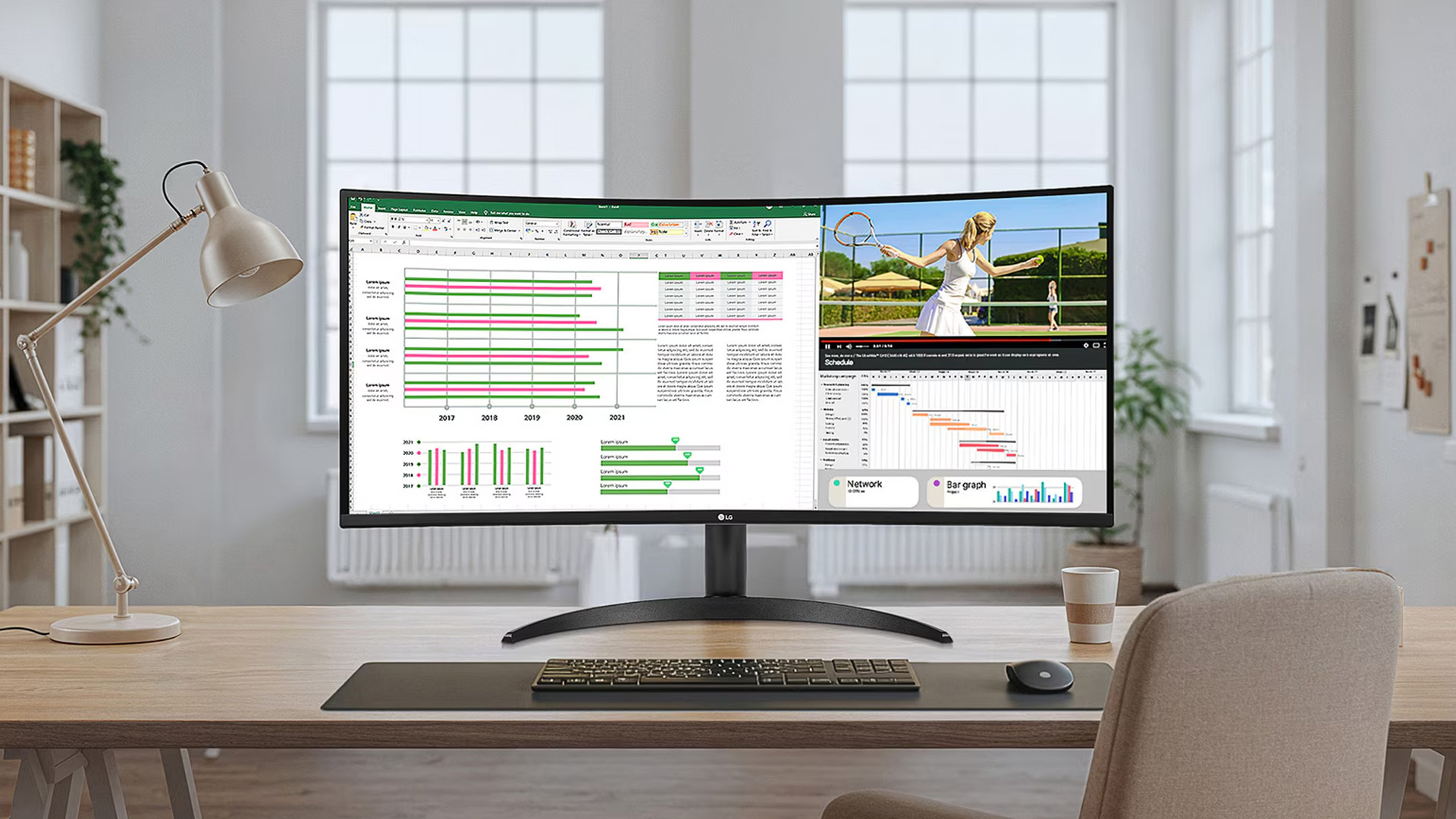
LG monitors feature all three major panel types under one roof — OLED, IPS, and Nano IPS. Each one has a distinct character. And each one suits a different kind of user.
So, if you are weighing up the LG OLED vs IPS vs Nano IPS debate, this guide cuts through the noise. We will explain what each panel actually does, where it excels, and where it falls short. By the end, you will know exactly which display belongs on your desk.
Understanding the Three Panel Types
Before diving into comparisons, it helps to understand what each technology actually does. The differences go deeper than just price.
What Is an IPS Panel?
IPS stands for In-Plane Switching. This technology uses a backlight to illuminate liquid crystals, which then twist

