



Designing Multi-Monitor Workspaces with ASUS: Productivity, Ergonomics & Cabling
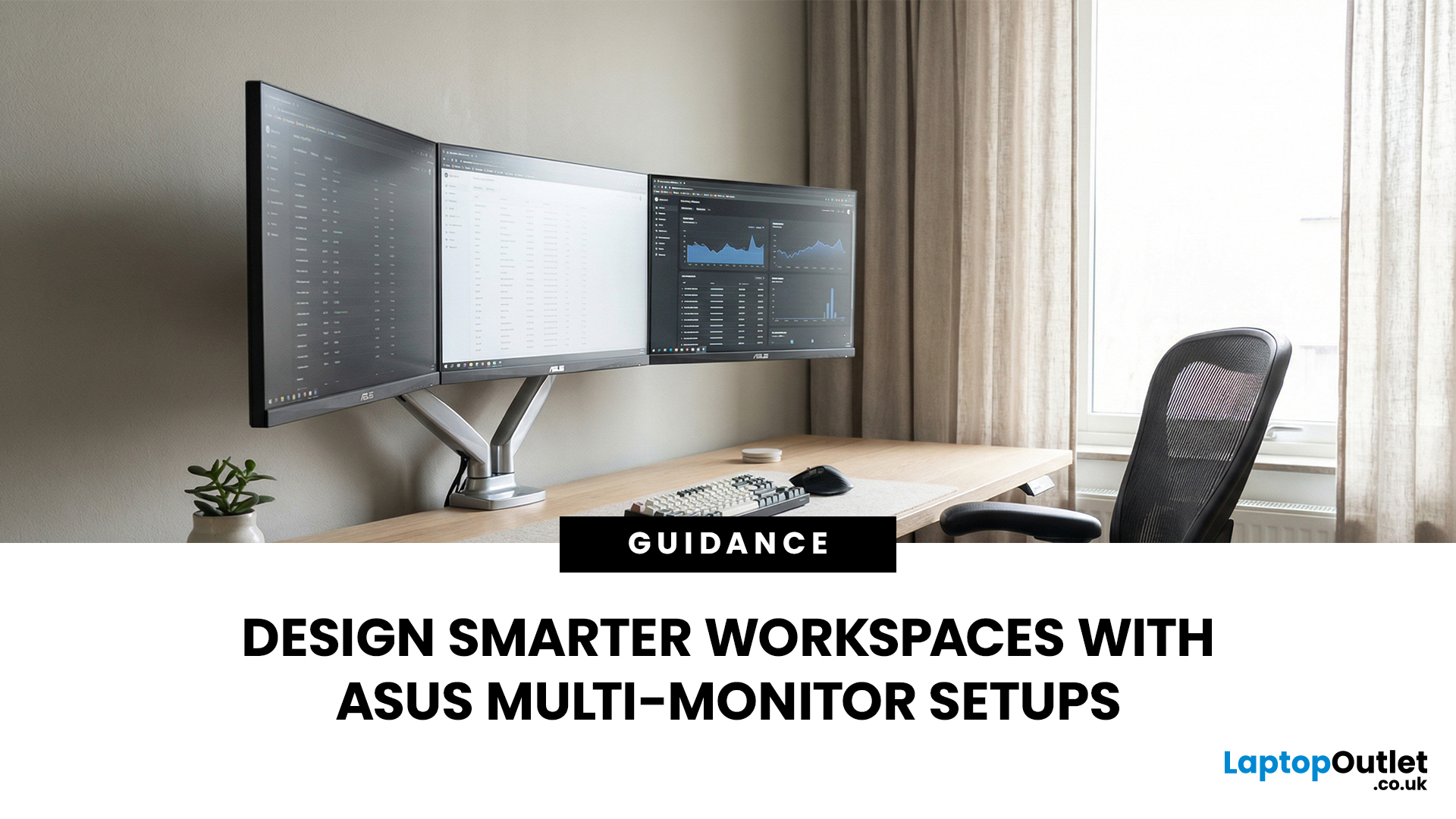
A single screen just does not cut it anymore. Whether you are writing code, managing client accounts, or analysing live market data, a well-built ASUS multi monitor setup can transform how you work. It gives you more room to think, less time switching between tabs, and a setup that genuinely supports your workflow.
This guide walks you through everything — from picking the right monitors to cabling, ergonomics, and ready-to-use layout ideas for teams and individuals alike.
Why Multi-Monitor Setups Boost Productivity
The case for multiple screens is not just about having more space. It is about working smarter. Research consistently shows that extended display setups can cut task-switching time and reduce cognitive load. When your reference document, communication tool, and primary work window each have their own screen, you stay in flow longer.
Suitable Roles: Devs, Finance, Support, Creatives
Not every job benefits equally, but a wide range of professionals gain a clear edge from multi-screen workstations.
- Software developers thrive with a dedicated screen for their IDE, another for documentation or browser testing, and a third for terminal output. The ability to see all three simultaneously removes constant mental juggling.
- Finance and trading professionals depend on real-time data. A triple-screen layout lets them monitor dashboards, news feeds, and execution platforms concurrently — which is critical when every second counts.
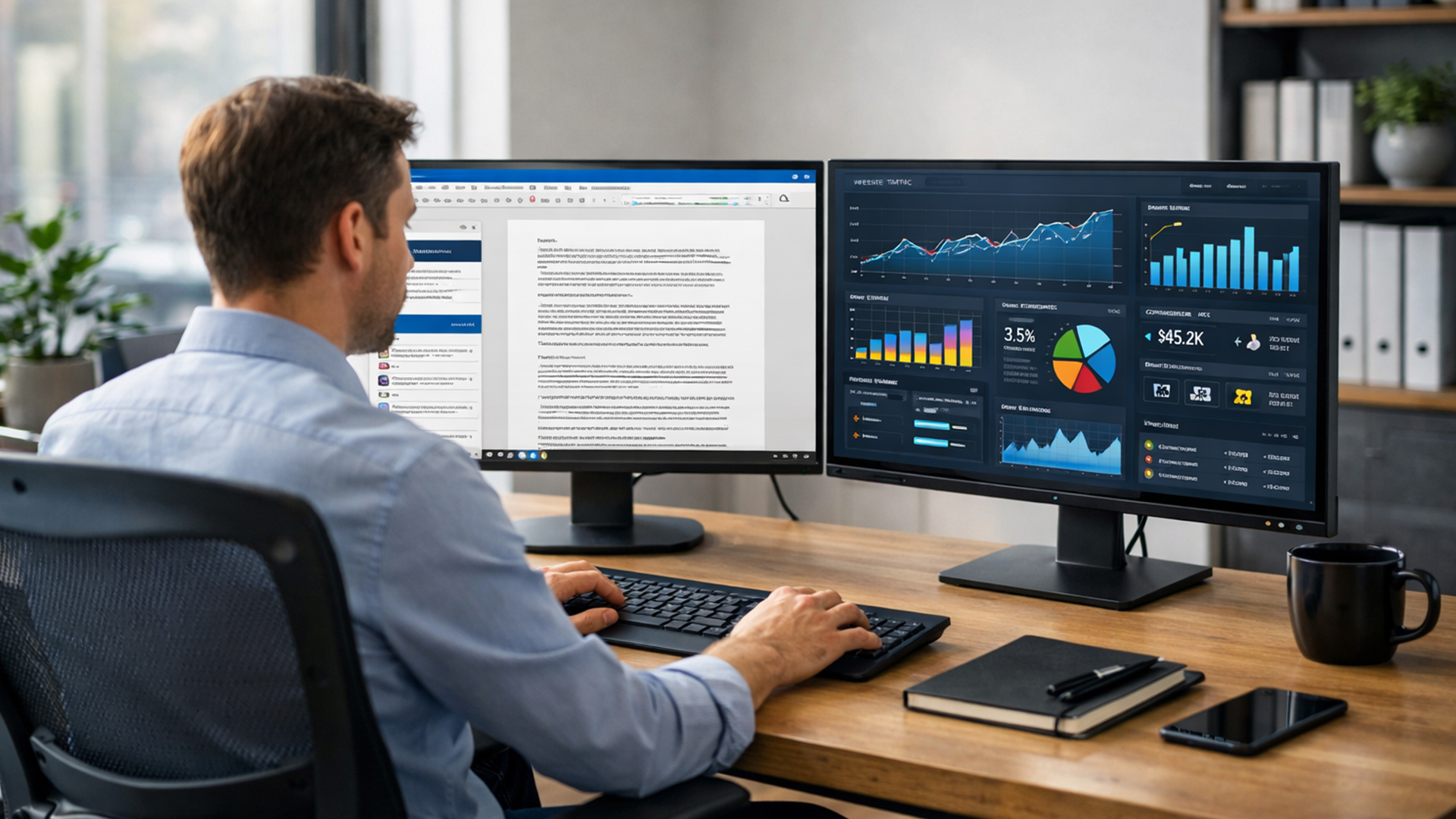
- Customer support agents often juggle CRM systems, knowledge bases, ticketing tools, and communication channels all at once. A dual setup alone can cut average handling time noticeably.
- Creative professionals — including video editors, graphic designers, and photographers — use extended screens for dedicated tool palettes, timelines, and full-resolution preview windows. The colour accuracy and IPS panel quality that ASUS offers matters greatly here.
ASUS Portfolio That Suits Multi-Monitor Use
ASUS has a broad range of display solutions designed with professional use in mind. Its ProArt, business and ZenScreen monitor ranges each serve different workplace needs. Whether you need colour-calibrated panels for design work, ultra-slim screens for a clean desk aesthetic, or portable displays for hybrid setups, ASUS has a monitor to match.
Consistency across screens is another strong point. Many ASUS monitors for productivity share similar bezel designs, stand footprints, and height-adjustment mechanisms — which makes building a cohesive multi-monitor workstation far simpler.
Choosing the Right ASUS Monitors for Multi-Screen Work
Getting the right monitors from the start saves you headaches later. A mismatched set can mean different colour profiles, inconsistent brightness, or awkward gaps between bezels.
Matching Resolutions and Sizes
For a seamless experience, keeping resolution and screen size consistent across your displays is ideal. A common and practical choice is Full HD (1920×1080) across a dual or triple setup — it is well-supported, easy on GPU resources, and works smoothly with most docking stations.
If you want sharper output, QHD (2560×1440) is worth considering, especially for design or video work. However, mixing a QHD primary with FHD secondary screens can create scaling inconsistencies in some applications, so be mindful of that.
For teams purchasing in bulk, choosing one reliable model — such as the 23.8-inch Full HD IPS LED monitor — across all desks ensures visual uniformity and simplifies support and replacement workflows.
Panel Types and Viewing Angles
IPS panels are the go-to choice for multi-monitor workstations. They deliver consistent colour across wide viewing angles — which matters when screens are positioned at slight angles to either side of your primary display.
TN panels are cheaper but suffer from noticeable colour shift when viewed off-axis. For a side monitor that you frequently glance at rather than face directly, this becomes a real problem.
VA panels offer strong contrast and are suitable for single-monitor setups, but colour accuracy can shift slightly at wider angles — something to consider in a spread layout.
For most business and professional use cases, IPS is the clear recommendation.
Connectivity & Cabling Best Practices
Getting the connections right is where many ASUS multi-monitor setups fall apart. Poor cable management leads to cluttered desks, unreliable connections, and frustrated IT teams.
DisplayPort vs HDMI vs USB-C
Each connection type has its strengths, and understanding them helps you plan a clean, reliable setup.
DisplayPort is the strongest choice for multi-monitor workstations. It supports daisy-chaining (more on that shortly), higher refresh rates, and greater bandwidth — especially useful for QHD and 4K panels. Most dedicated graphics cards offer multiple DisplayPort outputs, making it the natural choice for desktop PC setups.
HDMI is widely available and works well for Full HD and many QHD monitors. However, not all HDMI versions support high refresh rates or 4K at full bandwidth, so always check the version. HDMI does not support native daisy-chaining.
USB-C has become increasingly important, particularly for laptop users. A single USB-C or Thunderbolt 3/4 cable can carry video, data, and power simultaneously — which dramatically reduces desk clutter. You can easily find many modern ASUS USB-C monitors at top retailers like Laptop Outlet.
If you are interested in diving deeper, the USB-C ASUS monitor guide covers compatibility and docking options in detail.
Daisy-Chaining and Docking Stations
Daisy-chaining allows you to connect multiple monitors in a chain rather than running individual cables from each screen back to your PC. This requires DisplayPort 1.2 or later on both the graphics card and monitors, and the monitors must support MST (Multi-Stream Transport).
ASUS business monitors with DisplayPort output support this configuration. It is particularly useful when your PC or laptop has limited video outputs.
Docking stations are another effective solution, especially for laptop users. A quality dock with Thunderbolt or USB-C connectivity can drive two or three external monitors from a single cable connection to the laptop — while also handling peripherals, Ethernet, and charging. This is a highly practical approach for hot-desking environments and hybrid workplaces.
Ergonomic Layouts for Teams
An ergonomic monitor setup is not just about comfort — it directly affects focus, fatigue levels, and long-term musculoskeletal health. Getting the layout right is as important as choosing the right screens.
Ideal Heights and Angles
The top edge of your primary monitor should sit roughly at or just below eye level. This encourages a natural downward gaze of around 10–15 degrees, which reduces neck strain significantly.
For a dual ASUS monitor setup, place the secondary monitor directly beside the primary — angled slightly inward at around 30 degrees. If you use both screens equally, position them symmetrically with a slight inward angle so your head stays centred rather than consistently turned to one side.
In a triple ASUS monitor setup, the two outer monitors should be angled more noticeably — around 45 degrees inward — to minimise how far you turn your head. The centre screen handles primary tasks, whilst the outer screens support reference or monitoring tasks.
Brightness should be calibrated across all screens to a consistent level, and colour temperature adjusted to match ambient light — especially in office environments with mixed natural and artificial lighting.
Desk Depth and Mounts
Standard desks with 60–70 cm of depth work well for most dual setups. For triple-screen configurations, you may need at least 80 cm of depth to position screens at a comfortable viewing distance of 50–70 cm.
Monitor arms and mounts are worth serious consideration. They free up desk space, allow precise height and angle adjustment, and make cable management significantly cleaner. ASUS monitors for productivity typically feature VESA-compatible mounting holes (75×75mm or 100×100mm depending on the model), making them compatible with most standard monitor arms and wall mounts.

Sample ASUS Multi-Monitor Layouts
Theory is useful, but real-world layouts make it practical. Here are three proven configurations to consider.
Dual-Screen Coding / Design Workstation
- Layout: Two 24-inch Full HD IPS monitors side by side, angled inward at 30 degrees each. Primary monitor for the IDE or design canvas; secondary for browser, documentation, or preview window.
- Connection: Both via DisplayPort from a dedicated GPU or via a Thunderbolt dock for laptop users.
- Stand: Dual monitor arm to free up desk space and allow quick height adjustments.
This is a clean, focused setup that works brilliantly for developers and designers who spend long hours in front of a screen.
Triple-Screen Trading or Analytics Setup
- Layout: Three 24–27 inch monitors — one landscape centre screen flanked by two screens in landscape orientation, each angled at 45 degrees.
- Connection: Centre display via DisplayPort; outer screens via HDMI or daisy-chained via DisplayPort MST.
- Stand: Triple monitor arm or dedicated freestanding triple mount.
This setup gives financial professionals or data analysts a full panoramic view of dashboards, charts, and communication tools — all visible at a glance without switching windows.
Mix of Fixed and Portable (ZenScreen) Layouts
- Layout: One or two fixed desk monitors paired with an ASUS ZenScreen portable display for a third screen or travel companion.
- Connection: Fixed monitors via HDMI or DisplayPort; ZenScreen via USB-C for plug-and-play simplicity.
This hybrid approach suits professionals who work both at a desk and on the move. The portable screen extends your workspace at client sites, in meeting rooms, or whilst working remotely — without compromising your primary setup.
Recommended ASUS Monitors for Multi-Monitor Desks
When building a multi-screen workstation, choosing monitors designed for professional use makes a notable difference. The business monitors from ASUS are particularly well-suited to office and team environments — offering consistent colour performance, flexible connectivity, ergonomic stands, and enterprise-ready features like built-in KVM switches and daisy-chain support.
Here are four in-stock ASUS monitors well suited to multi-monitor workstations:
- ASUS ZenScreen MB16AHG — 15.6" Full HD Portable: A lightweight, USB-C portable display that expands your workspace at your desk or on the go — no external power needed.
- ASUS VY229HF — 21.4" Full HD IPS: A compact, budget-friendly Eye Care monitor well suited as a secondary or tertiary screen in space-constrained desk setups.
- ASUS ProArt PA278CV — 27" WQHD IPS: A colour-accurate WQHD professional display with USB-C, DisplayPort, and a fully ergonomic stand — ideal for designers and developers.
- ASUS VP32UQ 31.5" 4K UHD IPS Eye Care Monitor — Delivers sharp 4K detail with 178° viewing angles and TÜV-certified eye care features. Ideal as a central screen in a high-resolution workstation.
Key features to look for when selecting monitors for a multi-screen build:
- IPS panel for consistent colour and wide viewing angles
- VESA mount compatibility for flexible positioning
- DisplayPort output for daisy-chain capability
- USB-C input for laptop-friendly one-cable connectivity
- Thin bezels to reduce the visual gap between screens
- Height-adjustable stand with tilt and swivel options
ASUS consistently delivers on all of these fronts across their business-focused display range — making them a reliable, cost-effective choice for IT procurement teams and individual professionals alike.

Deployment Checklist for IT Teams
Rolling out ASUS multi-monitor setups across an office or team? Use this checklist to ensure a smooth deployment.
Before Purchase
- Confirm GPU/laptop output compatibility (number and type of ports)
- Verify monitor resolution, size, and panel type are consistent across all units
- Check for VESA mount compatibility if monitor arms are planned
- Confirm USB-C or DisplayPort daisy-chain support where needed
Cabling and Connectivity
- Source cables of sufficient length for desk and cable tray routing
- Order cable management trays, clips, or sleeves in appropriate quantities
- Test docking station compatibility with all laptop models in use
- Label cables at both ends for easier future servicing
Setup and Configuration
- Calibrate brightness and colour temperature across all screens
- Configure display layout in Windows or macOS display settings
- Set DPI scaling consistently, especially in mixed-resolution setups
- Position monitors at correct ergonomic heights for each individual user
Post-Deployment
- Document the setup configuration for each workstation
- Provide brief user training on display settings and keyboard shortcuts for window management
- Schedule a review after 2–4 weeks to address any ergonomic or technical concerns
A structured deployment process saves time, reduces support calls, and ensures every team member gets the full benefit of their new multi-monitor workspace.

Build Your Ultimate Workspace Today
Building a business multi monitor workstation is not complicated — but it does require the right decisions upfront.
Choose monitors that match in size and resolution. Plan your cabling before the screens arrive. Get the ergonomics right from day one. And select a display brand that offers consistency, flexibility, and long-term reliability.
ASUS ticks all of those boxes. From compact portable screens like the ZenScreen to full business-grade displays with daisy-chain and USB-C support, their range covers virtually every professional use case.
A well-designed ASUS multi monitor setup is not just an upgrade to your desk — it is an upgrade to how you work. Start with two screens, get comfortable, and build from there. The productivity gains speak for themselves.

A Few Quick Things to Note...
Do ASUS monitors support daisy-chaining for multi-monitor setups?
Yes. Select ASUS business monitors with DisplayPort output support MST daisy-chaining, allowing multiple screens from a single GPU output.
How many ASUS monitors can I run from one laptop dock?
Most Thunderbolt 4 docks support two to three external displays, depending on your laptop's GPU and the dock's video output configuration.
Is it OK to mix different ASUS models in one multi-monitor layout?
Yes, but match resolution and panel type where possible to ensure consistent colour, brightness, and an even visual experience across screens.
Which stands or mounts work best with ASUS monitors?
ASUS monitors are widely VESA-compatible. Single, dual, or triple monitor arms from brands like Ergotron or Amazon Basics work reliably with most ASUS models.
How do I reduce cable clutter with 2–3 ASUS monitors?
Use USB-C or daisy-chaining to reduce cable count, then route remaining cables through under-desk cable trays or cable sleeves for a tidy finish.
Related Articles

Last Updated: August 12, 2026
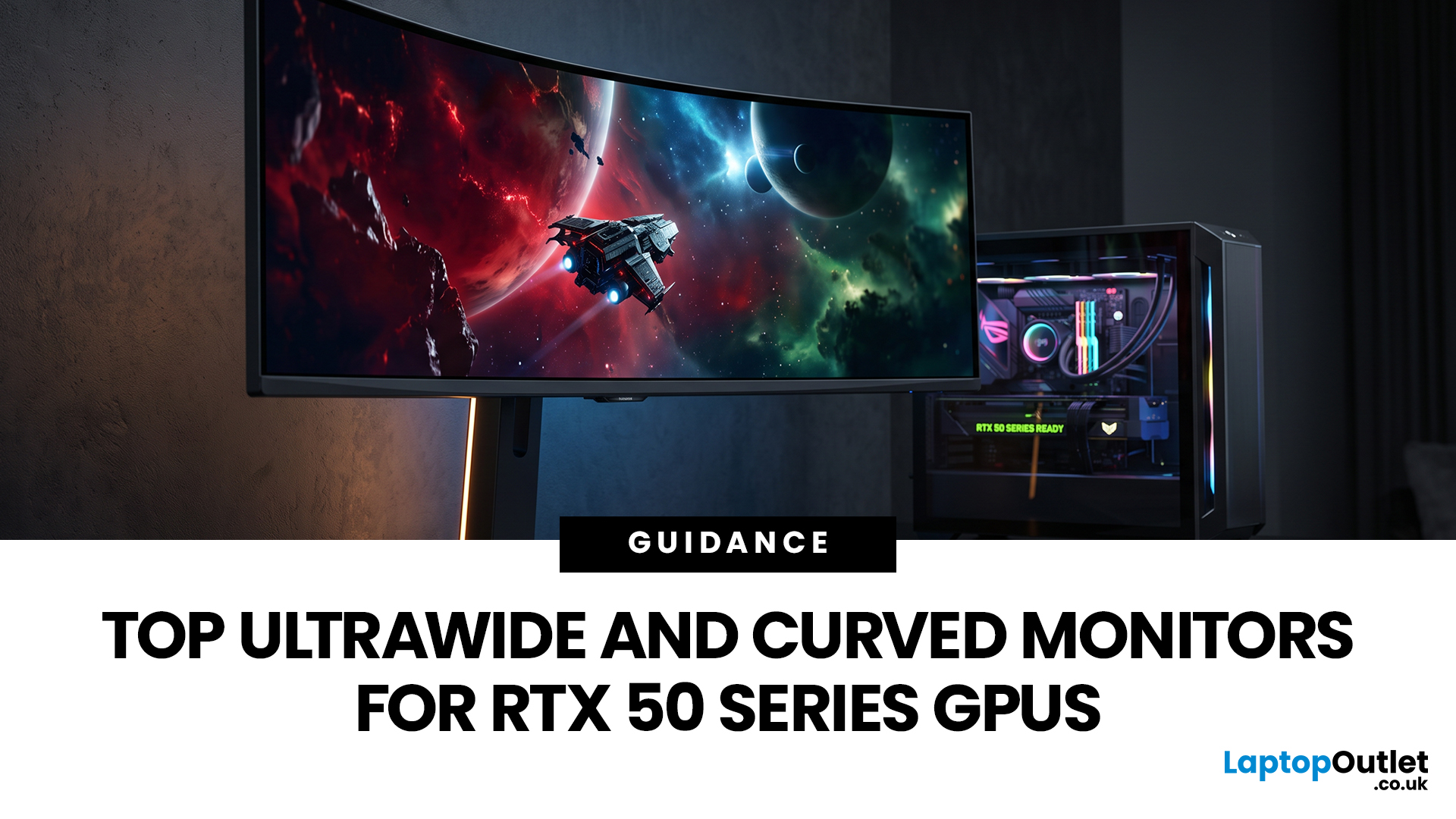
Picking a monitor for an RTX 50 Series GPU isn’t just about chasing the highest refresh rate, it’s about getting the right vibe for your setup. Think resolution, panel type and aspect ratio that actually match how you game, how powerful your RTX 5080 or RTX 5070 Ti is, and how much space you’ve got on your desk.
If you’re on an RTX 5080, a massive 49-inch 5120 × 1440 ultrawide hits different for immersive racing, sim and open-world gameplay. The RTX 5070 Ti feels right at home on a 34-inch 3440 × 1440 ultrawide, while a compact QHD curved monitor is perfect if you want smooth, high-refresh gaming on a budget.
Quick Comparison
| Best For | Monitor | Screen and Resolution | Refresh Rate | Panel | Main Strength | Consider Before Buying |
| RTX 5080 | Philips Evnia 49M2C8900 | 48.9-inch, 5120 × 1440, 32:9 | 240Hz | QD-OLED | Maximum immersion with OLED picture quality | Requires substantial desk space and strong GPU performance |
| RTX 5070 Ti | AOC G4 CU34G4Z | 34-inch, 3440 × 1440, 21:9 | 240Hz | Fast VA | Strong balance of speed, |
Last Updated: September 01, 2026
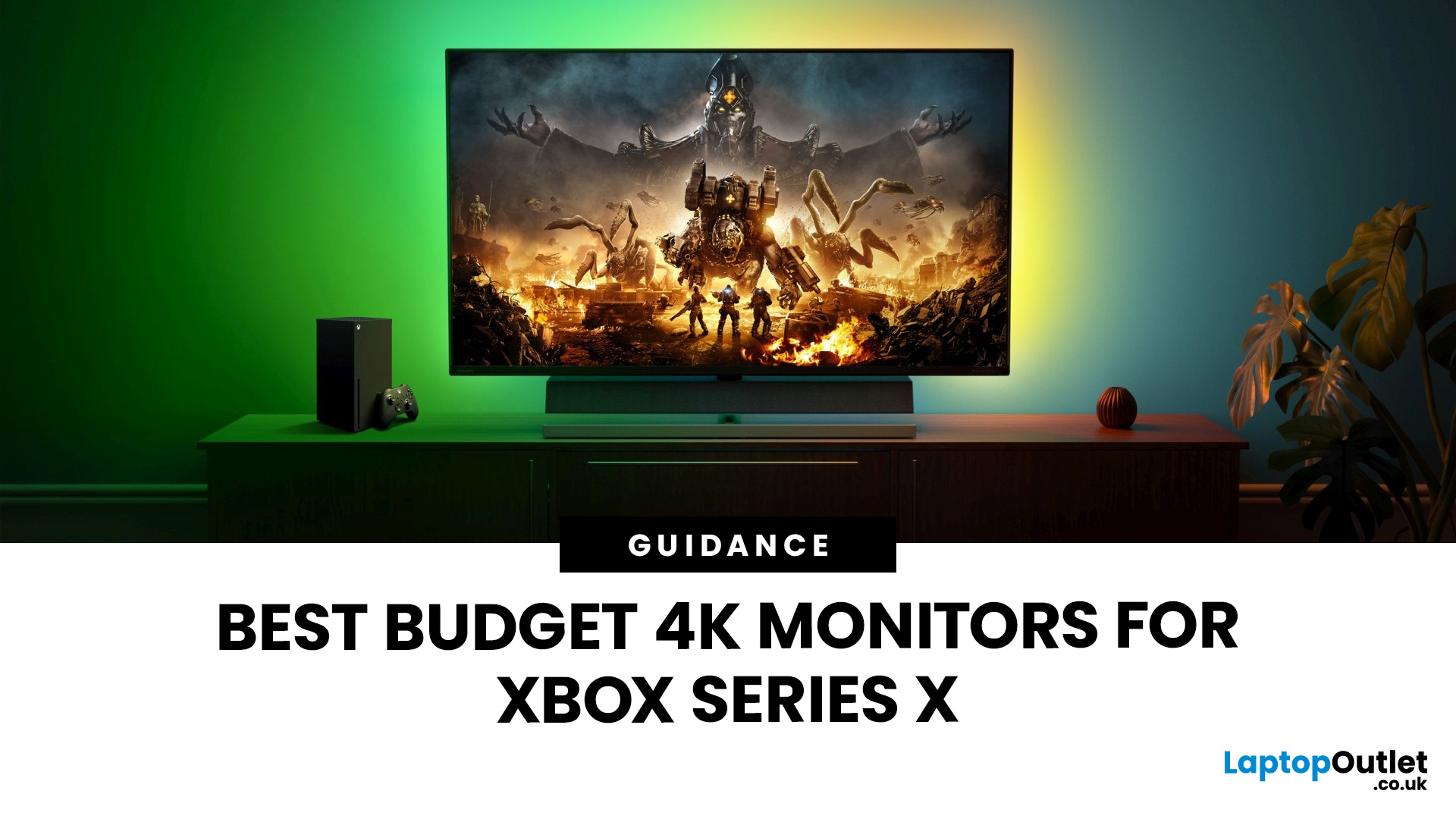
If you're looking to unlock true next-gen performance on your Xbox Series X without stretching your budget, you’re in the right place. The console is capable of extraordinary visuals, which includes from razor-sharp 4K resolution and buttery-smooth 120Hz gameplay to HDR brilliance and ultra-low latency. But to experience these features properly, you need the right display. That’s why we’ve curated a detailed guide to the best budget-friendly 4K monitors for Xbox Series X, helping you choose a display that enhances every moment of your gaming while keeping your wallet happy.
Why a 4K Monitor is Ideal for Xbox Series X
The Xbox Series X was built for 4K gaming. While you can play on lower resolutions, a monitor that fully supports the console’s capabilities will significantly improve your experience. Here’s why a 4K monitor for next-gen consoles is the perfect match:
True 4K Resolution
With a 4K monitor, you get four times the pixel density of 1080p, giving you:
- Sharper textures
- Improved

Last Updated: August 28, 2026
Gaming has changed forever. If you are still using an old LCD screen, you are missing out on the best visuals possible. In 2026, the best OLED gaming monitors have become the gold standard for every serious player. Whether you want a competitive edge in shooters or deep immersion in RPGs, OLED is the answer.
But why is everyone switching? It comes down to speed and colour. OLED panels offer near-instant response times. They also provide "true blacks" that no other screen can match. In this guide, we will look at the top OLED gaming screens available. We will also explain what to look for so you can find the perfect match for your PC or console.
1. AOC Gaming Q27G41ZDF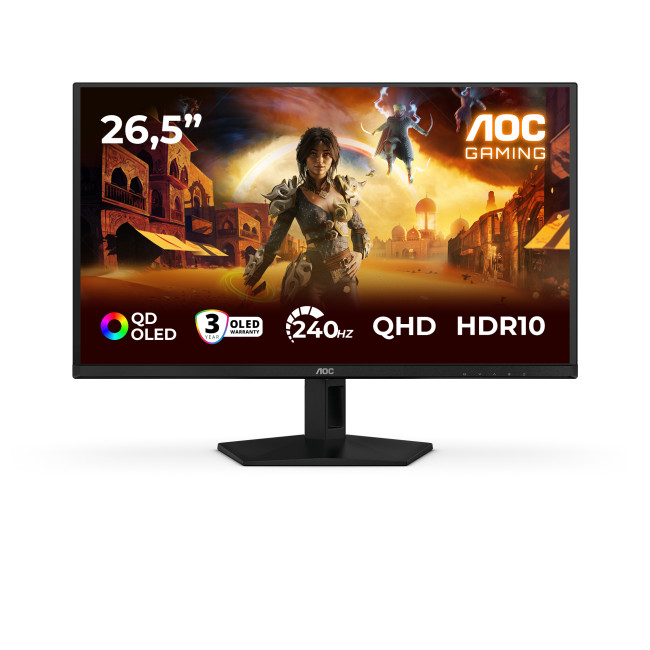
Key Specifications:
- Screen Size: 26.5-inch
- Panel Type: QD OLED
- Resolution: 2560 x 1440 (QHD)
- Refresh Rate: 240Hz
- Response Time: 0.03ms
- Aspect Ratio: 16:9
- Screen Shape: Flat
- Sync Technology: G-SYNC Compatible, Adaptive Sync
- Low Blue Light Technology: Yes
- HDR Standards: HDR10
Last Updated: August 28, 2026
Gaming has changed rapidly over the last few years. In 2026, players demand more than just a clear picture. They want fluid movement, deep colours, and hardware that looks as good as the game itself. This is where Philips Evnia monitors come into play.
The Evnia range was designed to break the "typical gamer" stereotype. These screens combine high-end performance with a sleek, modern aesthetic. Whether you are a competitive esports player or a casual console gamer, there is a model tailored for you.
Finding the right display can be tricky. You have to balance refresh rates, resolution, and panel types. In this guide, we break down the five best Philips monitors for gaming to help you level up your setup.
1. Philips Evnia 24M2N3201A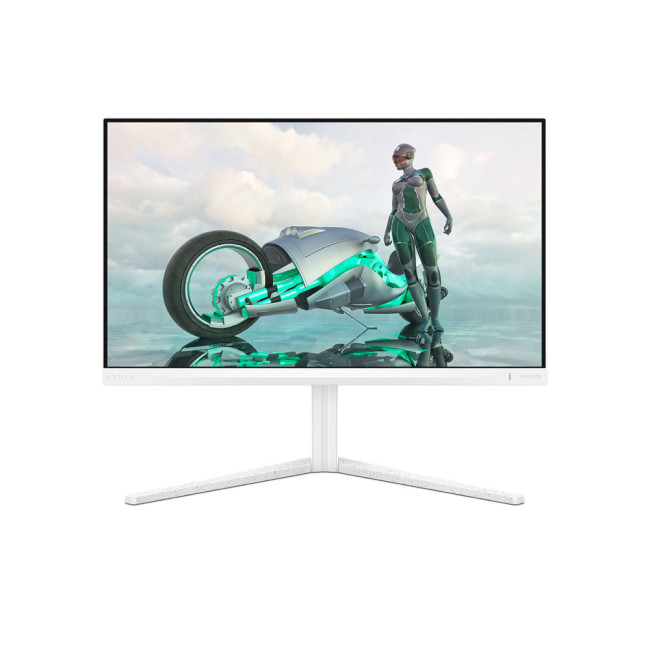
Key Specifications:
- Screen Size: 23.8 Inches
- Panel Type: Fast IPS
- Resolution: Full HD (1920 x 1080)
- Refresh Rate: 180Hz
- Response Time: 1ms (GtG)
- Aspect Ratio: 16:9
- Screen Shape: Flat
- Connectivity: 2x HDMI 2.0, 1x DisplayPort 1.4
- Features: Adaptive Sync,
Last Updated: February 26, 2026
Starting a new year often means setting new goals for productivity and success. To reach those targets, you need the right tools on your desk.
Our New Year monitor deals for 2026 bring you the perfect opportunity to upgrade your workspace without breaking the bank. Whether you are a creative designer, a financial analyst, a software developer, or a hardcore gamer, this year's monitor New Year sale has something for everyone.
We have curated a list of the top 10 monitors available at Laptop Outlet that combine high performance with incredible value. Let’s explore them.
1. LG 24U421A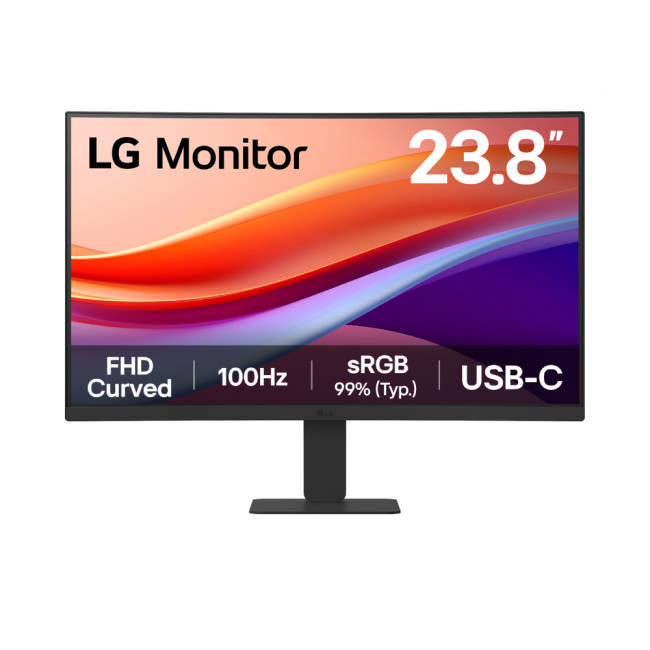
Key Specifications
- Screen Size: 23.8-inch
- Resolution: Full HD (1920 x 1080)
- Panel Type: VA
- Refresh Rate: 100 Hz
- Response Time: 5 ms
- Aspect Ratio: 16:9
- Screen Shape: Curved
- Connectivity: 1 x HDMI | USB-C
- Features: Flicker-Free Technology, Blue Light Filter
- Weight: 2.9 kg
What Makes it Worth Buying
If you are looking for affordable monitors that punch above
Last Updated: December 31, 2025
Upgrading your display is one of the smartest ways to refresh your setup for the year ahead. A better monitor can make work feel smoother, games look sharper, and day-to-day browsing far more comfortable, without needing a whole new PC. The good news? You don’t have to pay full retail to get a premium panel. Choosing refurbished is a practical way to access higher specs (4K, OLED, high refresh rates, USB-C portability) for less, while keeping perfectly usable tech in circulation for longer. That’s especially true during New Year promotions, when clearance pricing and seasonal offers often collide. You’ll see everything from portable screens for hybrid work to big-format displays built for entertainment and collaborative spaces.
Classroom-Ready 4K Touch: Refurbished BenQ Education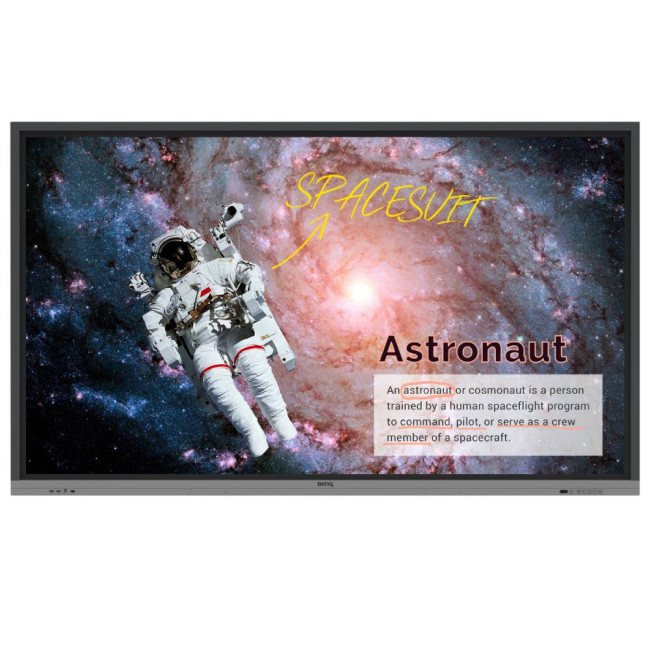
If you’re upgrading a classroom, meeting room, training space, or collaborative studio, the BenQ RE8601 is a standout. At 86 inches with 4K clarity and interactive touch, it’s built for hands-on presentations,
Last Updated: December 31, 2025
If your setup is still running on an older 60–75Hz display (or a basic office screen), 2026 is the year to change that. The jump to a modern gaming monitor can be instantly noticeable: smoother camera movement, clearer motion in fast fights, and a more responsive “feel” when you aim, flick, track, or even just pan across open-world scenery. That’s why New Year gaming monitor deals are such a popular time to upgrade, stock is refreshed, prices tend to be competitive, and you can often find the exact spec combination you’ve been waiting for without paying peak-season prices.
Laptop Outlet makes this easier because there’s a wide range of gaming monitors in one place, so you can compare size, resolution, refresh rate and panel tech without bouncing between stores. A good starting point is the main gaming monitors category (it’s perfect for filtering by what matters most). And if you’re shopping across more than just monitors, it’s also worth keeping an eye on the wider promotions to save big
Last Updated: July 10, 2026
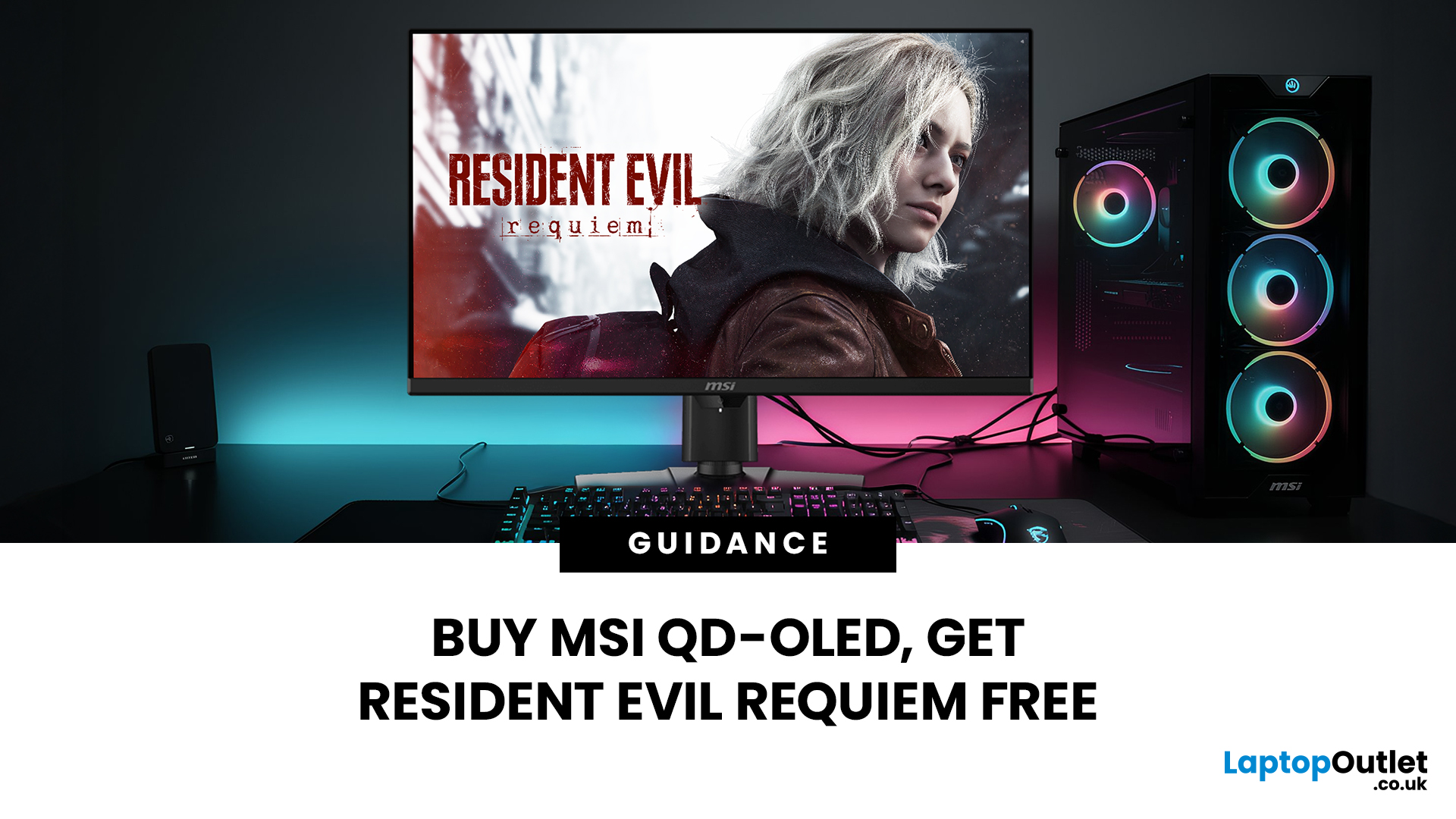
Gaming is about to get a whole lot better. If you are looking for a screen upgrade, now is the perfect time. MSI is currently offering a deal that is hard to ignore. When you buy a selected MSI QD-OLED monitor, you can get Resident Evil Requiem free.
This latest title usually costs £51.99. However, for a limited time, you can add it to your library without spending an extra penny. Combining the terrifying visuals of Resident Evil with the ground-breaking technology of QD-OLED is a match made in heaven.
In this guide, we will look at the best MSI gaming monitors included in this deal.
Why This Gaming Deal Matters
Gaming hardware is expensive. Getting a £51.99 game for free helps offset the cost of your new screen. But beyond the money, it is about the experience. MSI QD-OLED monitors are currently the pinnacle of display technology.
They offer:
- Perfect Blacks: No "halo" effect around bright objects.
- Vivid Colours: Quantum Dots provide a wider colour gamut.
- Instant Response: 0.03 ms is
Last Updated: June 15, 2026
If you run an esports arena, gaming cafe, university esports lab, or content studio, your monitor choice is not a background decision. It directly affects performance, player satisfaction, brand perception, and long-term ROI. Competitive players notice the refresh rate instantly. Streamers notice colour accuracy. Venue owners notice durability. And everyone notices screen quality.
That’s why ASUS gaming monitors have become a staple across esports stages and gaming venues in the UK. From ultra-premium ASUS ROG gaming monitors built for tournament environments to scalable ASUS TUF gaming monitor options designed for multi-station rollouts, ASUS covers every level of competitive deployment.
If you're building or upgrading a gaming business, here’s what you need to know.
Why Esports & Gaming Businesses Choose ASUS
A single hardware issue during a tournament can damage a reputation fast. ASUS has built a strong position in esports by delivering consistency under pressure.
Brand Reputation
Last Updated: March 13, 2026
Modern workplaces are more screen-based than ever and in the UK, the average office employee now spends over 6 hours a day looking at a monitor. For businesses, that makes display choice more than just a tech detail; it’s a productivity and wellbeing decision.
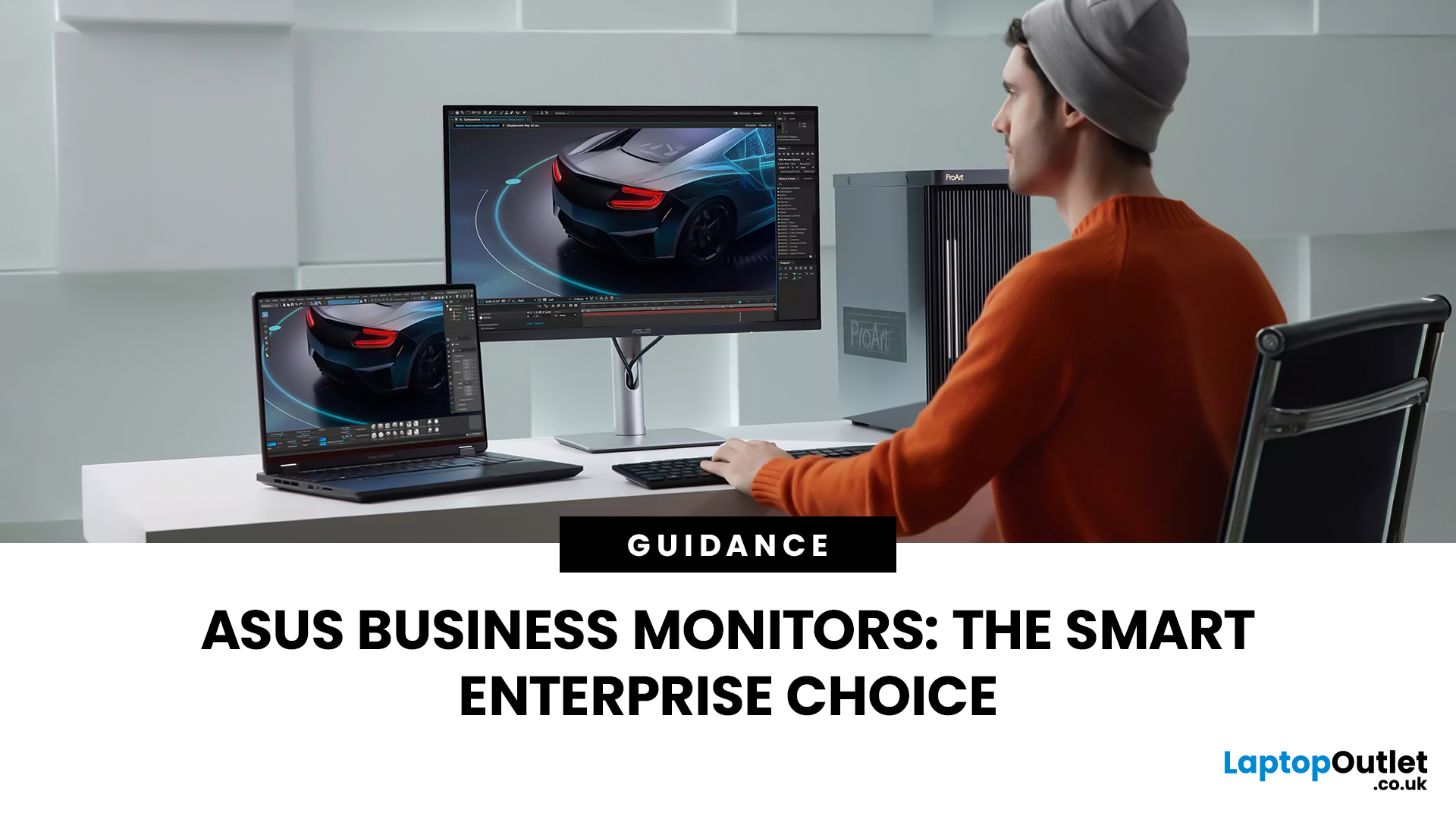
The right ASUS business monitors can improve workflow efficiency, reduce eye strain, and support hybrid teams with flexible connectivity like USB-C docking. Whether you’re equipping a corporate office, a call centre, or a growing enterprise rolling out hundreds of workstations, choosing the right monitor spec matters.
In this buying framework, we’ll break down what UK organisations should prioritise, from screen size and ergonomics to ASUS Eye Care features, bulk purchasing, and the best monitor options for business use in 2026.
Why ASUS Monitors Work Well for Modern Workplaces

In today’s business environment, monitors are no longer just office accessories, they’re core productivity tools. From finance teams working across spreadsheets

