



Best ASUS Business Monitors with Built-In Webcams & Speakers for Microsoft Teams Rooms
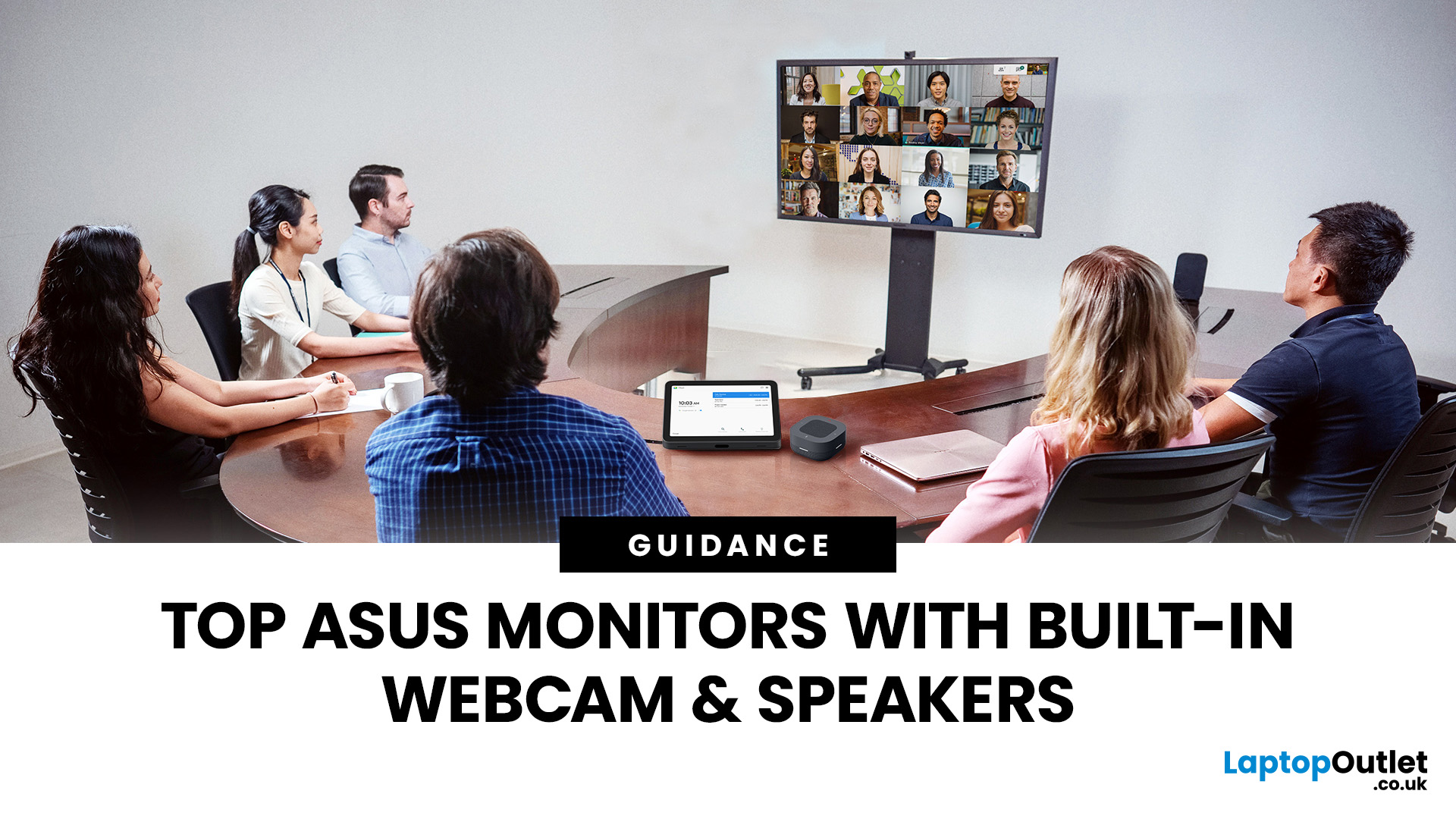
Choosing the right ASUS monitor with a webcam can significantly simplify how modern meeting rooms operate. As hybrid work becomes the norm, businesses are looking for cleaner, more efficient conferencing setups that don’t rely on multiple external peripherals. An integrated solution that combines display, camera, microphone, and speakers into one device makes deployment faster and more cost-effective. For small meeting spaces and huddle rooms in particular, an ASUS business monitor with speakers and a built-in webcam offers a practical alternative to a full conferencing kit.
What to Know About Microsoft Teams Rooms Compatibility
It’s important to clarify how an ASUS monitor with webcam fits into a Microsoft Teams Rooms environment.
Microsoft Teams Rooms (MTR) systems are typically powered by a dedicated PC or collaboration bar. The monitor itself is not the Teams Rooms system, instead, it acts as the display and USB conferencing endpoint. When paired with a Teams-enabled PC, many ASUS monitors for video conferencing integrate seamlessly via HDMI or DisplayPort for video and USB for camera and audio.
For small Teams deployments, this setup works extremely well. An ASUS Teams room monitor connected to a mini PC can function as a streamlined room solution without the complexity of separate cameras and speaker units. Before purchasing, IT teams should confirm:
- USB compatibility for webcam and audio
- Mounting options
- Whether USB-C docking is required
Why Built-In Webcams & Audio Make Sense for Meeting Rooms
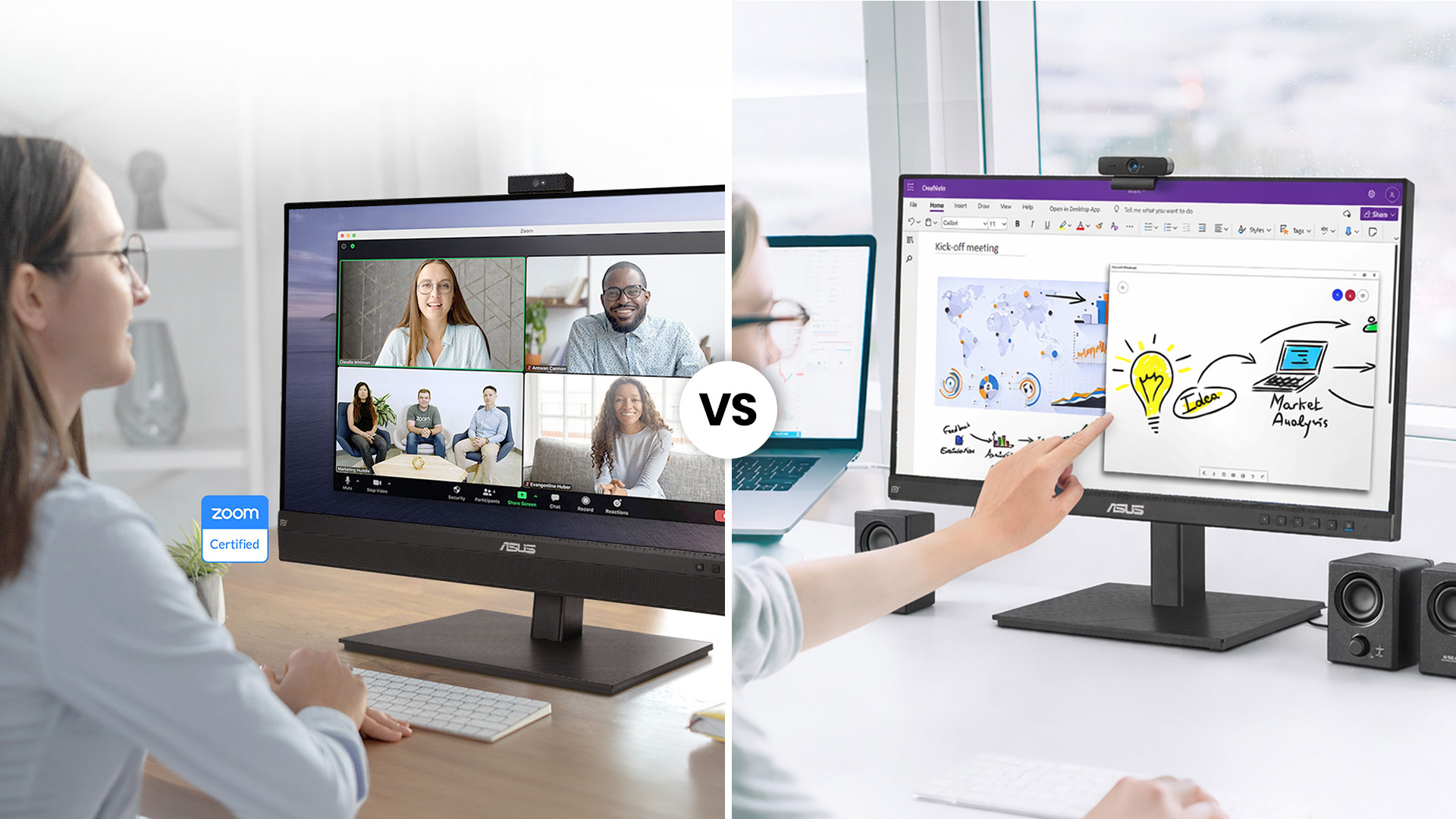
Traditional meeting rooms often accumulate unnecessary hardware: external webcams, speakerphones, separate microphones, and long cable runs. This adds cost, complexity, and potential points of failure.
Monitors with built-in webcams for offices eliminate much of that clutter. For smaller rooms, integrated components are often more than sufficient. The camera is positioned at eye level, the speakers are tuned for voice clarity, and the microphone array captures participants within close range. An ASUS monitor with webcam makes the most sense in:
- Huddle rooms with 1–4 participants
- Executive offices
- Interview rooms
- Hybrid collaboration desks
In these environments, simplicity improves reliability. Less equipment means fewer technical issues during meetings.
Key Features to Look for in an ASUS Conferencing Monitor
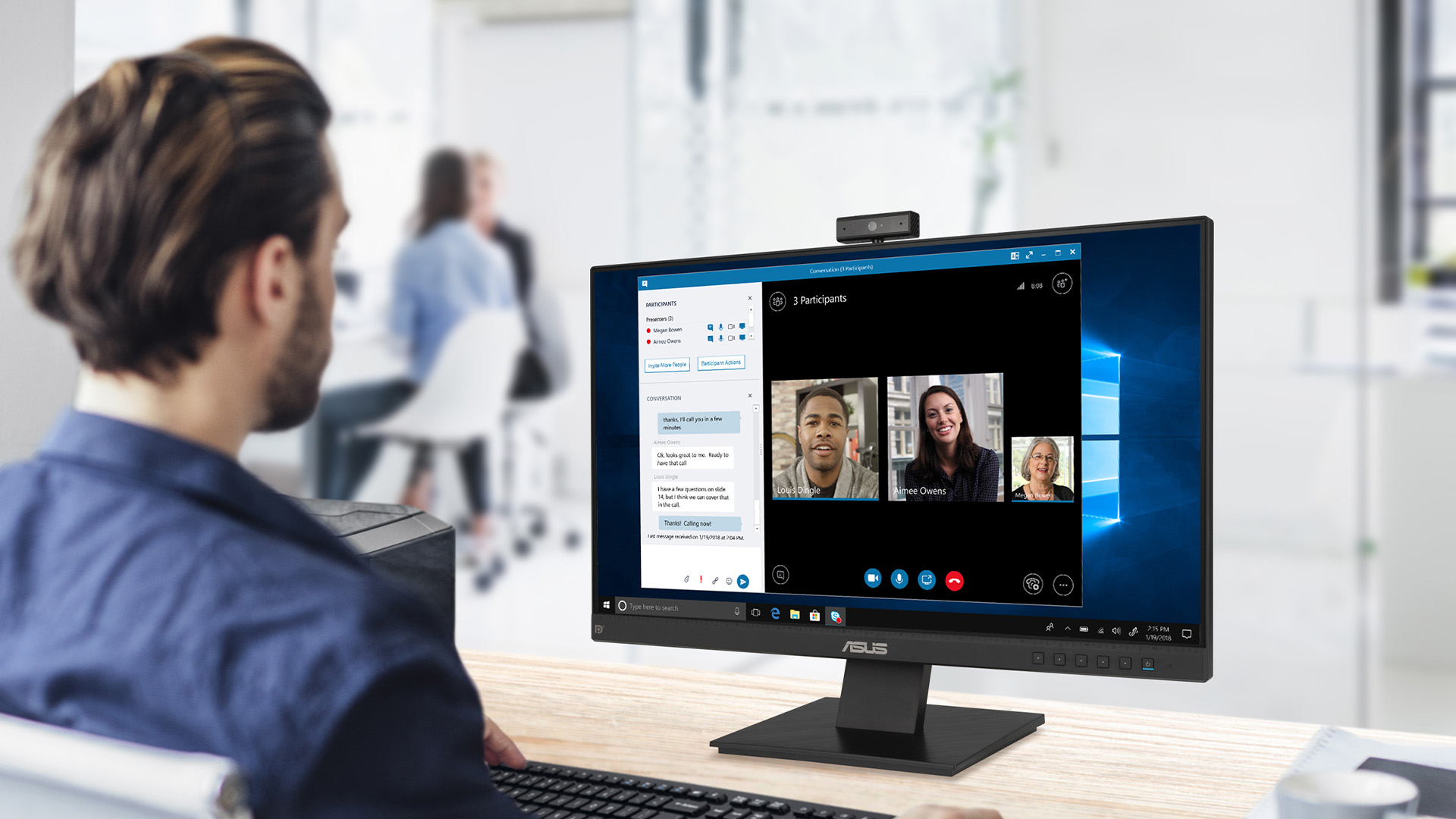
Not every business display is optimised for conferencing. When evaluating ASUS business monitors, there are a few core elements to prioritise.
Webcam Quality and Mic Array
A professional ASUS monitor with webcam should include at least a 1080p Full HD camera. For standard Teams and Zoom meetings, this resolution provides clear video without requiring excessive bandwidth.
Microphone quality is equally important. Integrated mic arrays are typically tuned for near-field voice capture, which works well in smaller rooms. Many ASUS models also include a physical privacy shutter, a small but important feature for office environments. If your organisation relies heavily on facial recognition login, check whether Windows Hello support is included.
Speaker Performance
An ASUS business monitor with speakers is designed primarily for voice clarity rather than cinematic sound. In small meeting rooms, integrated 2W speakers are usually adequate for conversations and presentations.
However, for larger conference rooms, you may find that a dedicated speaker system provides better room coverage. Understanding room size is key when choosing between integrated audio and external solutions.
USB-C Docking and Connectivity
Modern offices increasingly rely on single-cable setups. Some ASUS monitors for video conferencing include USB-C connectivity with power delivery, allowing a laptop to connect, charge, and access all peripherals through one cable.
This feature is especially useful in flexible meeting spaces and hot desks. It reduces cable clutter and speeds up meeting start times. When evaluating an ASUS Teams room monitor, consider whether USB-C docking is essential for your environment.
If you’re planning a multi-monitor setup for meeting rooms or hot desks? Our guide on How Many ASUS USB-C Monitors Can You Run from a Single Dock? breaks down bandwidth limits, daisy chaining, and real-world IT deployment considerations.
Eye-Care and Ergonomics
Long video meetings demand comfortable viewing. ASUS business displays often feature flicker-free technology and low blue light certification to reduce eye strain. Adjustable stands with height, tilt, and swivel functionality also improve usability in shared meeting rooms. These ergonomic details may not be the headline feature, but they matter in daily office use.
Top Models Available at Laptop Outlet
1. ASUS BE24EQK 23.8" 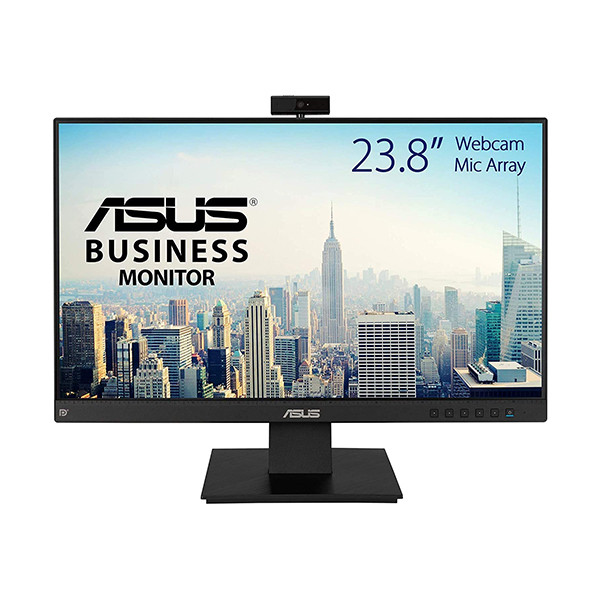
The ASUS BE24EQK is a purpose-built ASUS monitor with webcam designed specifically for business communication and video conferencing. Featuring a 23.8-inch Full HD IPS panel with a 16:9 aspect ratio and 5ms response time, it delivers clear visuals for daily meetings and presentations. What sets this model apart is its integrated 1080p adjustable webcam, built-in microphone array, and dual speakers, making it an excellent choice for Teams and Zoom environments. With HDMI, VGA, and DisplayPort connectivity, plus ergonomic height adjustment, the BE24EQK is one of the most practical ASUS business monitors for small meeting rooms and hybrid office setups.
2. ASUS ProArt OLED PA32DC 31.5"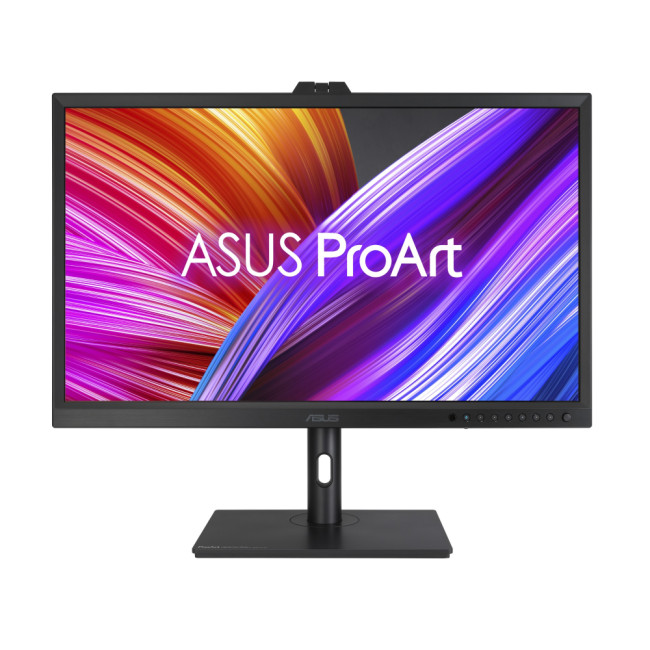
The ASUS ProArt OLED PA32DC is a premium 31.5-inch 4K Ultra HD display built for professionals who demand exceptional colour accuracy and image precision. With OLED technology, a 0.1 ms response time, and height adjustability, this monitor delivers stunning contrast and true blacks, making it ideal for creative studios and high-end executive workspaces. While it includes built-in speakers, its primary strength lies in visual performance rather than conferencing integration. For organisations that prioritise 4K clarity for presentations, design reviews, or content production, the ProArt PA32DC represents a high-performance addition to modern business environments.
3. ASUS BE24EQSK 24"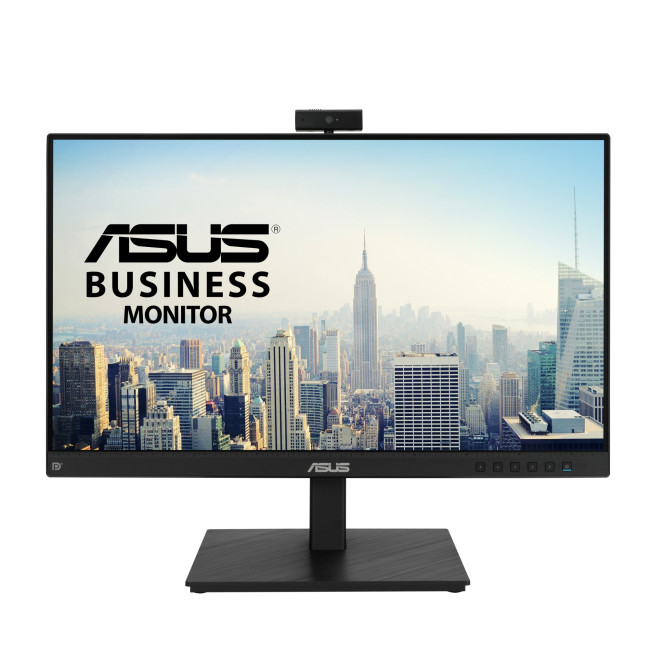
The ASUS BE24EQSK is a versatile 24-inch Full HD IPS display designed for everyday office productivity and professional communication. With a 1920 x 1080 resolution, 5ms response time, and height-adjustable stand, it provides comfortable viewing for extended work sessions. Integrated speakers enhance convenience by reducing the need for external audio devices, making it suitable for video conferencing when paired with a webcam. As part of the ASUS business monitors range, the BE24EQSK offers reliable performance and flexible connectivity, making it a strong choice for corporate desktops and small office setups.
4. ASUS VA249QG 23.8"
The ASUS VA249QG combines smooth performance with business-friendly functionality. Its 23.8-inch Full HD IPS panel supports a 120 Hz refresh rate and 1 ms response time, delivering sharper motion clarity than standard office monitors. Built-in speakers provide convenient audio for meetings and media playback, while the slim design fits well into compact workspaces. Although it does not include a built-in webcam, it remains a capable option among ASUS monitors for video conferencing when used with an external camera, particularly in environments that value smoother on-screen motion and responsiveness.
5. ASUS VA27DQFS 27"
The ASUS VA27DQFS offers a larger 27-inch Full HD IPS display with a 100 Hz refresh rate and 1 ms response time, delivering crisp visuals and fluid performance for office and collaborative work. Its height-adjustable stand improves ergonomic comfort, while built-in speakers simplify desk setups by eliminating external audio equipment. This model works well in executive offices and small meeting rooms where a bigger screen enhances visibility during presentations. As part of the broader ASUS business monitors lineup, it balances screen size, performance, and practicality for modern workplaces.
6. ASUS VP32UQ 31.5"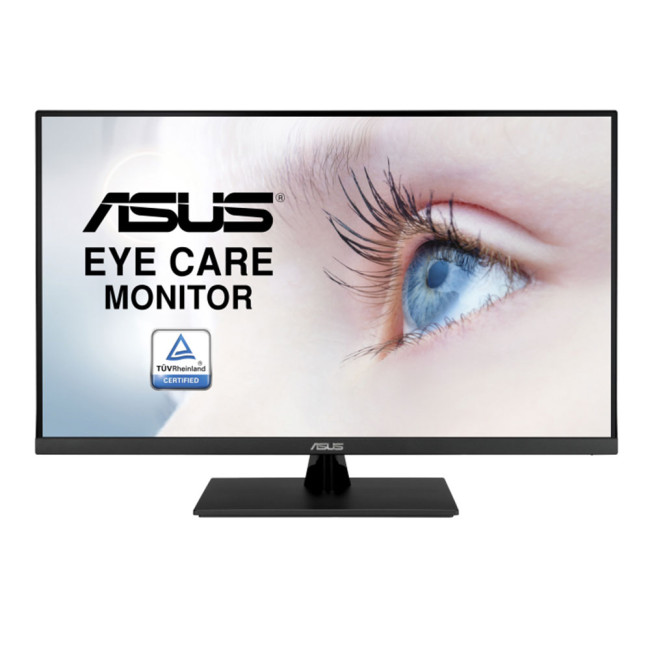
The ASUS VP32UQ is a 31.5-inch 4K Ultra HD IPS monitor designed for professionals who require expansive screen space and sharp image detail. Its large display and high resolution make it ideal for boardrooms, data-heavy presentations, and multitasking environments. Built-in speakers add convenience for general office use, reducing the need for additional audio hardware. While it is not an integrated conferencing display like an ASUS monitor with webcam, it pairs effectively with external video equipment to create a powerful meeting room solution with impressive visual clarity.
Want a deeper understanding of how ASUS structures its monitor lineup? Read ASUS Monitors Explained: Brand Overview, Ranges & Best Uses in 2026 to see how business, ProArt, VA, and enterprise models compare.
All-in-One ASUS Monitor vs Certified Microsoft Teams Rooms System
When planning a meeting room upgrade, businesses often face a key decision: should you deploy an integrated ASUS monitor with webcam, or invest in a fully certified Microsoft Teams Rooms system?
The right answer depends on room size, collaboration needs, and budget.
Option 1: ASUS Monitor with Webcam (Best for Small Rooms & Hybrid Spaces)
An all-in-one ASUS Teams room monitor combines display, camera, microphone, and speakers into a single device. This approach works particularly well in huddle rooms, executive offices, and small collaboration spaces where up to four people typically join meetings.
The advantages are simplicity and cost efficiency. There are fewer cables to manage, installation is straightforward, and there’s no need to purchase separate cameras or speaker systems. Models like the ASUS BE24EQK provide professional 1080p video, integrated audio, and business-grade reliability, making them among the most practical ASUS monitors for video conferencing in smaller environments.
For organisations rolling out multiple small meeting spaces, standardising on an ASUS business monitor with speakers and built-in webcam can significantly reduce deployment complexity. However, integrated monitors are best suited to compact rooms. As room size increases, audio coverage and camera range can become limiting factors.
Option 2: Yealink MVC S60 – Certified Microsoft Teams Rooms System (Best for Medium Rooms)
For medium-sized conference rooms that host six or more participants, a certified Microsoft Teams Rooms system like the Yealink MVC S60 may be the better choice.
The Yealink MVC S60 is a native Microsoft Teams Rooms solution designed specifically for medium meeting spaces. It includes an intelligent SmartVision 60 camera with multi-stream capability, built-in speaker and microphone array, a dedicated Teams Rooms compute unit, and a touch control panel. Unlike an ASUS monitor with webcam, which functions as a display with integrated peripherals, the MVC S60 is a complete room system engineered for enterprise collaboration.
Its advanced AI-driven features, such as auto-framing and active speaker tracking, provide broader coverage and more dynamic meeting experiences. This makes it ideal for boardrooms, client-facing spaces, and environments where meeting quality must remain consistently high.
When paired with a large display such as an ASUS business monitor, the MVC S60 creates a fully certified, enterprise-grade Teams Rooms environment.
Which Should You Choose?
If you are equipping small rooms and prioritising ease of installation, an ASUS monitor with webcam offers an efficient and budget-friendly solution. For medium rooms that require enhanced audio pickup, wider camera coverage, and full Microsoft certification, a system like the Yealink MVC S60 delivers greater scalability and advanced collaboration features.
In many organisations, a hybrid strategy works best, using integrated ASUS monitors for smaller spaces and certified Teams Rooms systems for larger conference rooms.
If you’re looking to evaluate ASUS business monitors beyond conferencing use cases? Explore our complete guide to ASUS Monitors for Business & Enterprise: The Complete Buying Framework to compare features, performance tiers, and deployment strategies for modern workplaces.

Final Thoughts
An ASUS monitor with webcam offers a practical and professional solution for modern hybrid workplaces. For smaller Teams room monitors and office conferencing setups, integrated displays simplify installation, reduce equipment costs, and maintain a clean aesthetic.
Whether you’re equipping a single executive office or rolling out hardware across multiple meeting spaces, selecting the right ASUS monitors for video conferencing can enhance collaboration without adding unnecessary complexity.

ASUS Teams Room Monitors Queries
Do ASUS monitors work with Microsoft Teams Rooms?
Yes, when paired with a compatible Teams-enabled PC. The monitor acts as the display and conferencing endpoint.
Are ASUS monitors suitable for Zoom as well?
Absolutely. Any ASUS monitor with webcam that connects via USB functions with Zoom, Teams, and other major platforms.
Are built-in speakers sufficient for meetings?
For small rooms, integrated speakers in an ASUS business monitor with speakers are typically adequate. Larger rooms may require additional audio support.
What makes a good ASUS Teams room monitor?
Reliable webcam quality, clear microphones, appropriate screen size, and suitable connectivity options define the best solution.
Related Articles

Last Updated: September 01, 2026
If you're looking to unlock true next-gen performance on your Xbox Series X without stretching your budget, you’re in the right place. The console is capable of extraordinary visuals, which includes from razor-sharp 4K resolution and buttery-smooth 120Hz gameplay to HDR brilliance and ultra-low latency. But to experience these features properly, you need the right display. That’s why we’ve curated a detailed guide to the best budget-friendly 4K monitors for Xbox Series X, helping you choose a display that enhances every moment of your gaming while keeping your wallet happy.
Why a 4K Monitor is Ideal for Xbox Series X
The Xbox Series X was built for 4K gaming. While you can play on lower resolutions, a monitor that fully supports the console’s capabilities will significantly improve your experience. Here’s why a 4K monitor for next-gen consoles is the perfect match:
True 4K Resolution
With a 4K monitor, you get four times the pixel density of 1080p, giving you:
- Sharper textures
- Improved

Last Updated: August 28, 2026
Gaming has changed forever. If you are still using an old LCD screen, you are missing out on the best visuals possible. In 2026, the best OLED gaming monitors have become the gold standard for every serious player. Whether you want a competitive edge in shooters or deep immersion in RPGs, OLED is the answer.
But why is everyone switching? It comes down to speed and colour. OLED panels offer near-instant response times. They also provide "true blacks" that no other screen can match. In this guide, we will look at the top OLED gaming screens available. We will also explain what to look for so you can find the perfect match for your PC or console.
1. AOC Gaming Q27G41ZDF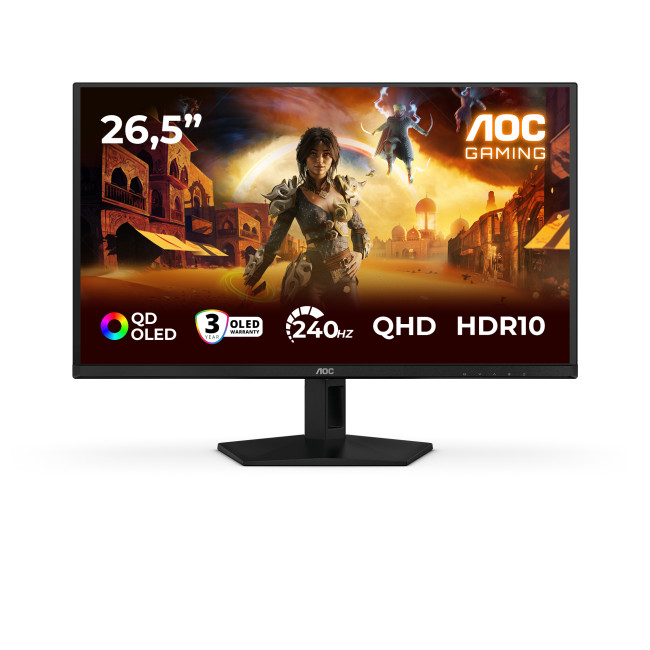
Key Specifications:
- Screen Size: 26.5-inch
- Panel Type: QD OLED
- Resolution: 2560 x 1440 (QHD)
- Refresh Rate: 240Hz
- Response Time: 0.03ms
- Aspect Ratio: 16:9
- Screen Shape: Flat
- Sync Technology: G-SYNC Compatible, Adaptive Sync
- Low Blue Light Technology: Yes
- HDR Standards: HDR10
Last Updated: August 28, 2026
Gaming has changed rapidly over the last few years. In 2026, players demand more than just a clear picture. They want fluid movement, deep colours, and hardware that looks as good as the game itself. This is where Philips Evnia monitors come into play.
The Evnia range was designed to break the "typical gamer" stereotype. These screens combine high-end performance with a sleek, modern aesthetic. Whether you are a competitive esports player or a casual console gamer, there is a model tailored for you.
Finding the right display can be tricky. You have to balance refresh rates, resolution, and panel types. In this guide, we break down the five best Philips monitors for gaming to help you level up your setup.
1. Philips Evnia 24M2N3201A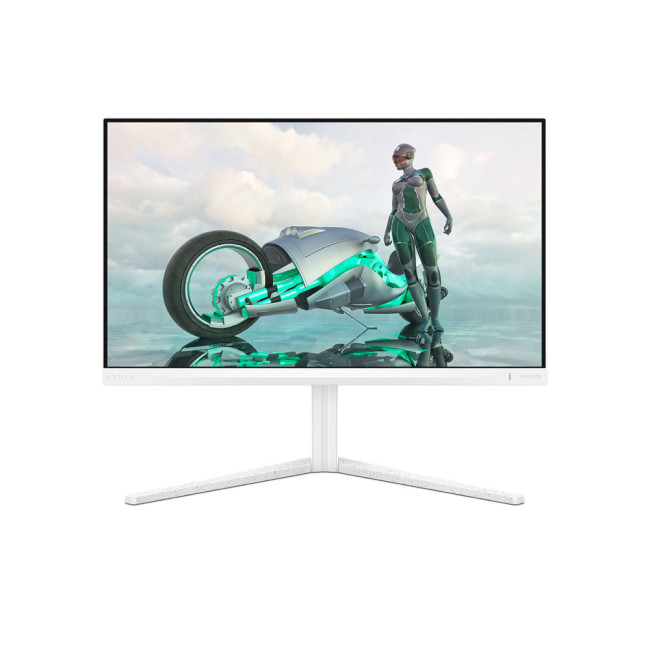
Key Specifications:
- Screen Size: 23.8 Inches
- Panel Type: Fast IPS
- Resolution: Full HD (1920 x 1080)
- Refresh Rate: 180Hz
- Response Time: 1ms (GtG)
- Aspect Ratio: 16:9
- Screen Shape: Flat
- Connectivity: 2x HDMI 2.0, 1x DisplayPort 1.4
- Features: Adaptive Sync,
Last Updated: December 31, 2025
Upgrading your display is one of the smartest ways to refresh your setup for the year ahead. A better monitor can make work feel smoother, games look sharper, and day-to-day browsing far more comfortable, without needing a whole new PC. The good news? You don’t have to pay full retail to get a premium panel. Choosing refurbished is a practical way to access higher specs (4K, OLED, high refresh rates, USB-C portability) for less, while keeping perfectly usable tech in circulation for longer. That’s especially true during New Year promotions, when clearance pricing and seasonal offers often collide. You’ll see everything from portable screens for hybrid work to big-format displays built for entertainment and collaborative spaces.
Classroom-Ready 4K Touch: Refurbished BenQ Education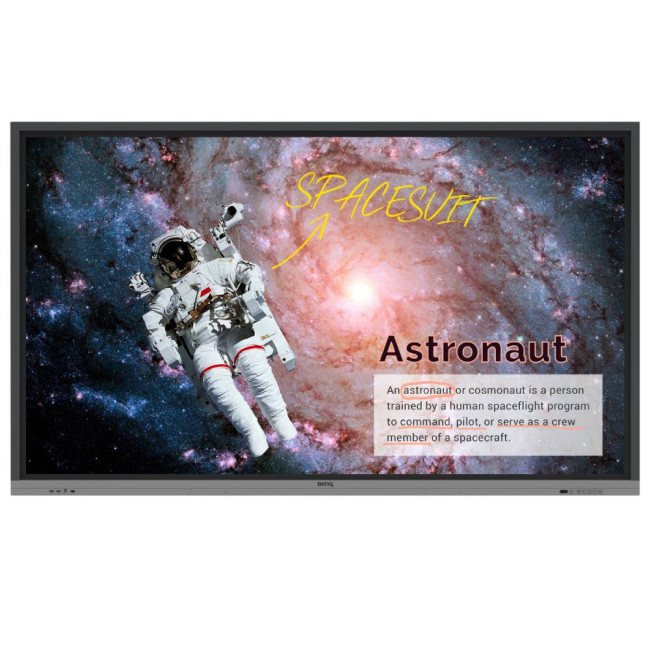
If you’re upgrading a classroom, meeting room, training space, or collaborative studio, the BenQ RE8601 is a standout. At 86 inches with 4K clarity and interactive touch, it’s built for hands-on presentations,
Last Updated: December 31, 2025
If your setup is still running on an older 60–75Hz display (or a basic office screen), 2026 is the year to change that. The jump to a modern gaming monitor can be instantly noticeable: smoother camera movement, clearer motion in fast fights, and a more responsive “feel” when you aim, flick, track, or even just pan across open-world scenery. That’s why New Year gaming monitor deals are such a popular time to upgrade, stock is refreshed, prices tend to be competitive, and you can often find the exact spec combination you’ve been waiting for without paying peak-season prices.
Laptop Outlet makes this easier because there’s a wide range of gaming monitors in one place, so you can compare size, resolution, refresh rate and panel tech without bouncing between stores. A good starting point is the main gaming monitors category (it’s perfect for filtering by what matters most). And if you’re shopping across more than just monitors, it’s also worth keeping an eye on the wider promotions to save big
Last Updated: July 10, 2026
Gaming is about to get a whole lot better. If you are looking for a screen upgrade, now is the perfect time. MSI is currently offering a deal that is hard to ignore. When you buy a selected MSI QD-OLED monitor, you can get Resident Evil Requiem free.
This latest title usually costs £51.99. However, for a limited time, you can add it to your library without spending an extra penny. Combining the terrifying visuals of Resident Evil with the ground-breaking technology of QD-OLED is a match made in heaven.
In this guide, we will look at the best MSI gaming monitors included in this deal.
Why This Gaming Deal Matters
Gaming hardware is expensive. Getting a £51.99 game for free helps offset the cost of your new screen. But beyond the money, it is about the experience. MSI QD-OLED monitors are currently the pinnacle of display technology.
They offer:
- Perfect Blacks: No "halo" effect around bright objects.
- Vivid Colours: Quantum Dots provide a wider colour gamut.
- Instant Response: 0.03 ms is
Last Updated: June 15, 2026
If you run an esports arena, gaming cafe, university esports lab, or content studio, your monitor choice is not a background decision. It directly affects performance, player satisfaction, brand perception, and long-term ROI. Competitive players notice the refresh rate instantly. Streamers notice colour accuracy. Venue owners notice durability. And everyone notices screen quality.
That’s why ASUS gaming monitors have become a staple across esports stages and gaming venues in the UK. From ultra-premium ASUS ROG gaming monitors built for tournament environments to scalable ASUS TUF gaming monitor options designed for multi-station rollouts, ASUS covers every level of competitive deployment.
If you're building or upgrading a gaming business, here’s what you need to know.
Why Esports & Gaming Businesses Choose ASUS
A single hardware issue during a tournament can damage a reputation fast. ASUS has built a strong position in esports by delivering consistency under pressure.
Brand Reputation
Last Updated: March 13, 2026
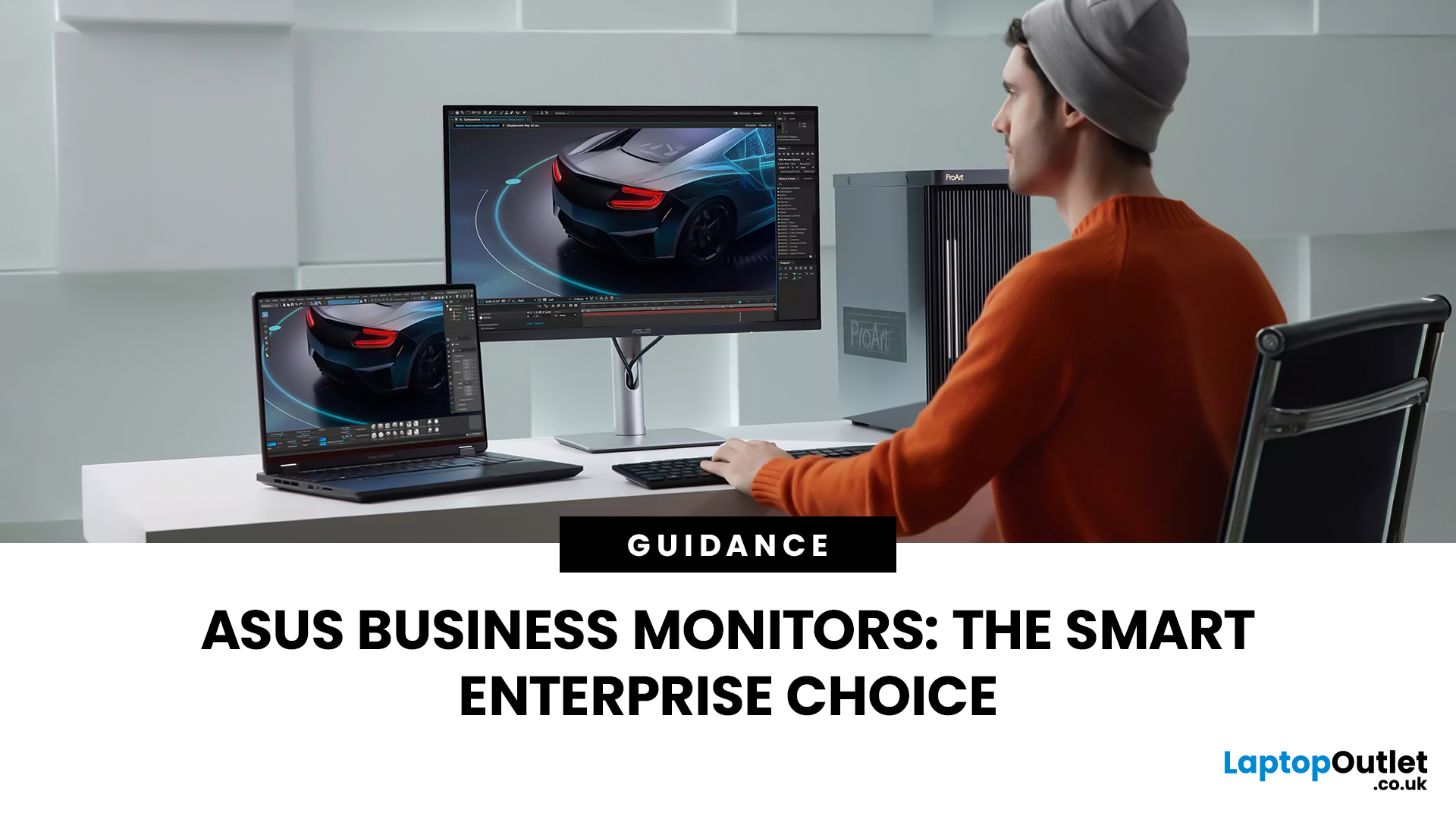
Modern workplaces are more screen-based than ever and in the UK, the average office employee now spends over 6 hours a day looking at a monitor. For businesses, that makes display choice more than just a tech detail; it’s a productivity and wellbeing decision.
The right ASUS business monitors can improve workflow efficiency, reduce eye strain, and support hybrid teams with flexible connectivity like USB-C docking. Whether you’re equipping a corporate office, a call centre, or a growing enterprise rolling out hundreds of workstations, choosing the right monitor spec matters.
In this buying framework, we’ll break down what UK organisations should prioritise, from screen size and ergonomics to ASUS Eye Care features, bulk purchasing, and the best monitor options for business use in 2026.
Why ASUS Monitors Work Well for Modern Workplaces

In today’s business environment, monitors are no longer just office accessories, they’re core productivity tools. From finance teams working across spreadsheets
Last Updated: March 13, 2026
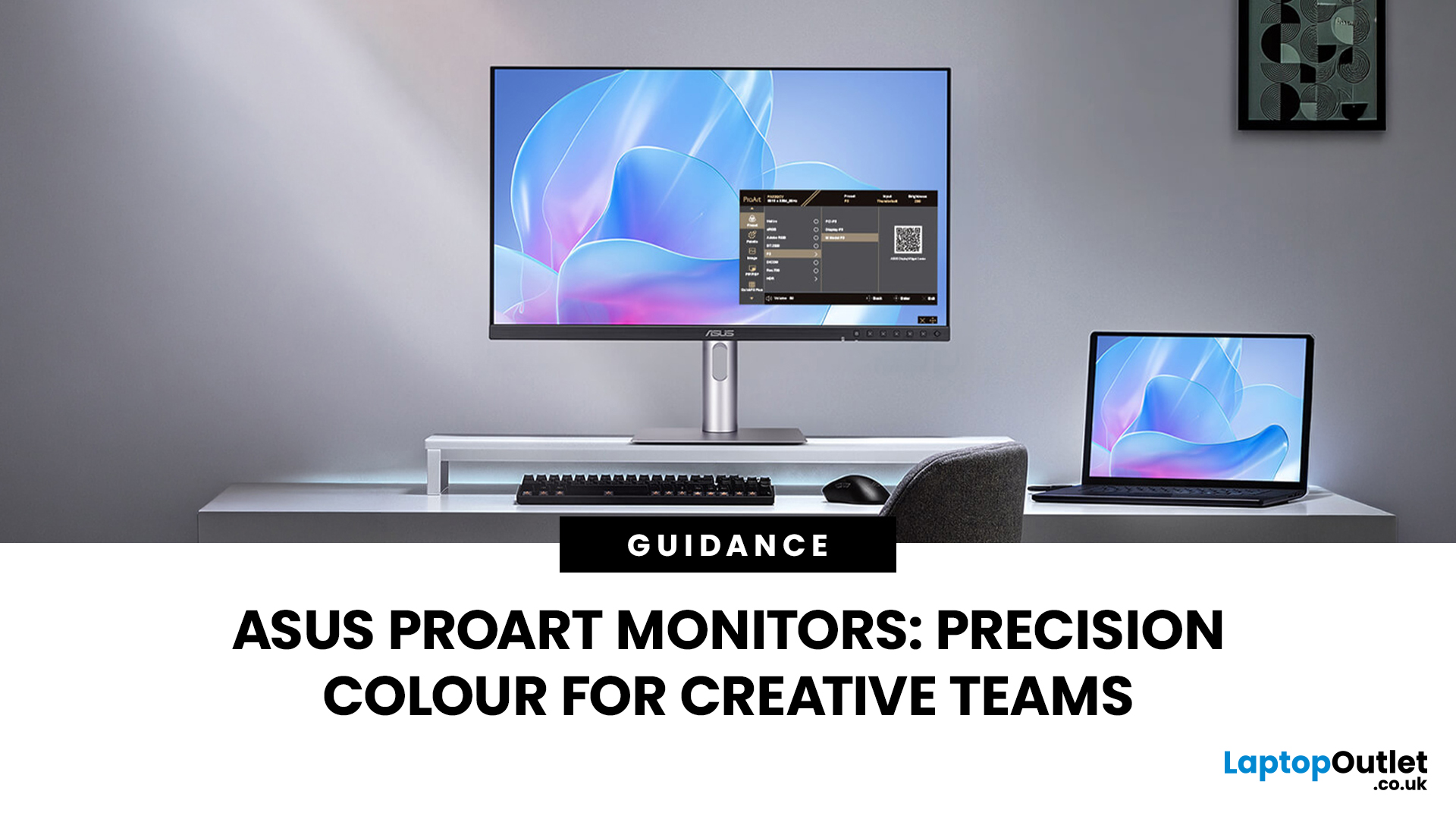
Creative work is more colour-critical than ever and studies show the average designer spends over 7 hours a day staring at a screen. That means your monitor isn’t just a display… it’s basically your studio. If colours are even slightly off, edits don’t match, prints come out wrong, and client work gets messy fast.
That’s where ASUS ProArt monitors come in. Built specifically for creators, they deliver factory-calibrated accuracy, wide colour coverage, and crisp 4K detail that makes photo editing, graphic design, and video workflows feel effortless. Whether you’re running a creative agency, an in-house design team, or a full studio setup, ProArt screens help you work with confidence, not guesswork.
Let’s break down what makes them worth it.
What Creative Teams Need from a Monitor
Not all monitors are built the same and creative teams feel that difference immediately. A standard office screen might be fine for spreadsheets, but when you’re adjusting skin tones, matching brand colours, or
Last Updated: August 28, 2026
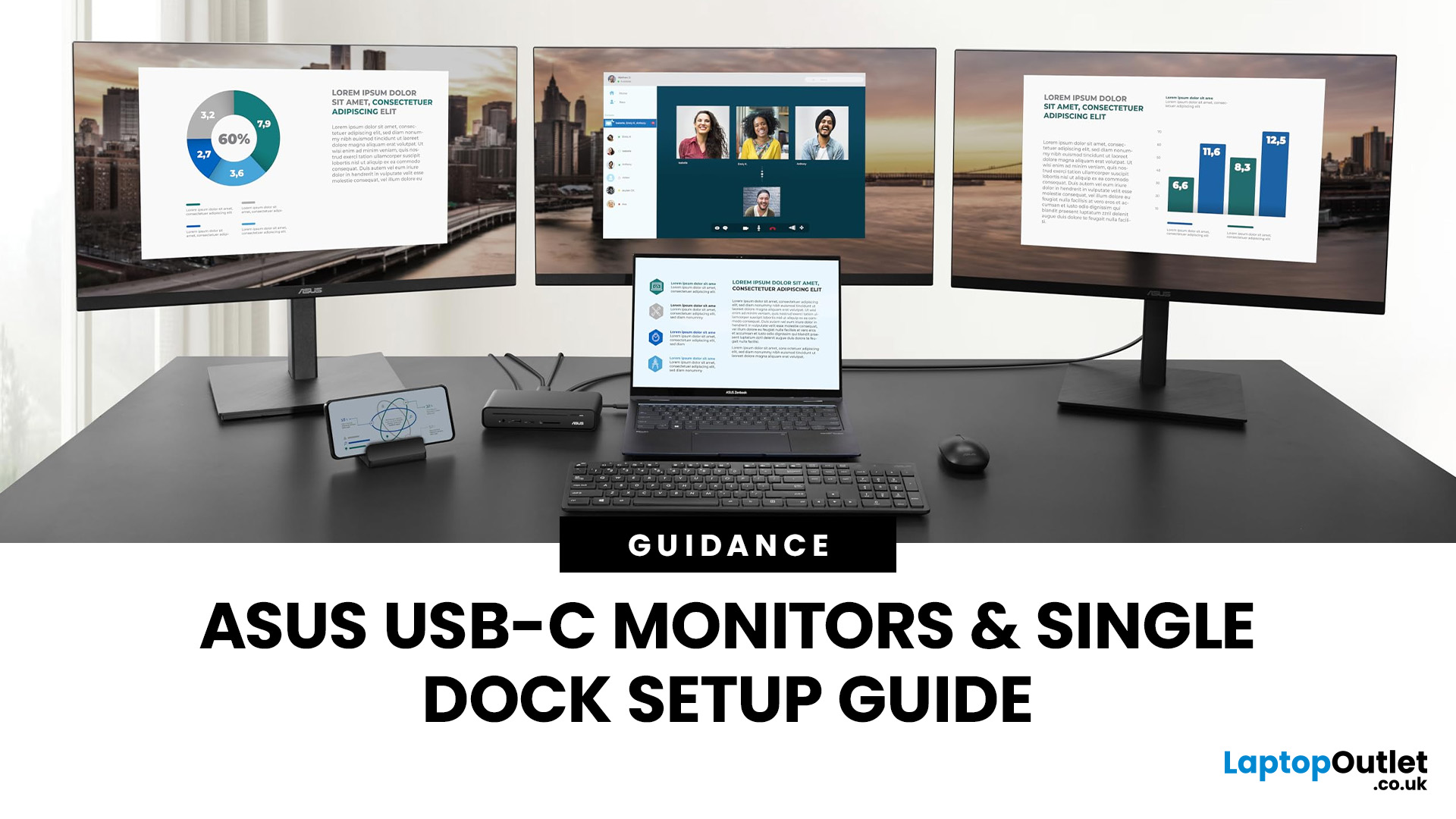
If you’re planning a desk refresh, rolling out new workstations, or managing a hot-desking environment, one question always comes up: how many ASUS USB-C monitors can you realistically run from a single dock? The short answer? It depends.
The long answer? It depends on your laptop’s GPU, the dock’s bandwidth, the monitor resolutions, and whether you’re daisy-chaining or using multiple video outputs.
In this practical IT deployment guide, we’ll break down exactly how ASUS USB-C monitors behave in real-world setups, what limits your configuration, and how to plan a reliable multi-monitor rollout without unpleasant surprises.
How USB-C Video and Power Actually Work
USB-C looks simple. One cable. Power. Video. Data. Done.
But behind that clean setup, there’s a lot happening.
USB-C monitors rely on a feature called DisplayPort Alt Mode. This allows the USB-C cable to carry video signals from your laptop’s GPU directly to the monitor. Many modern docks also use DisplayLink technology, which

