



How Many ASUS USB-C Monitors Can You Run from a Single Dock
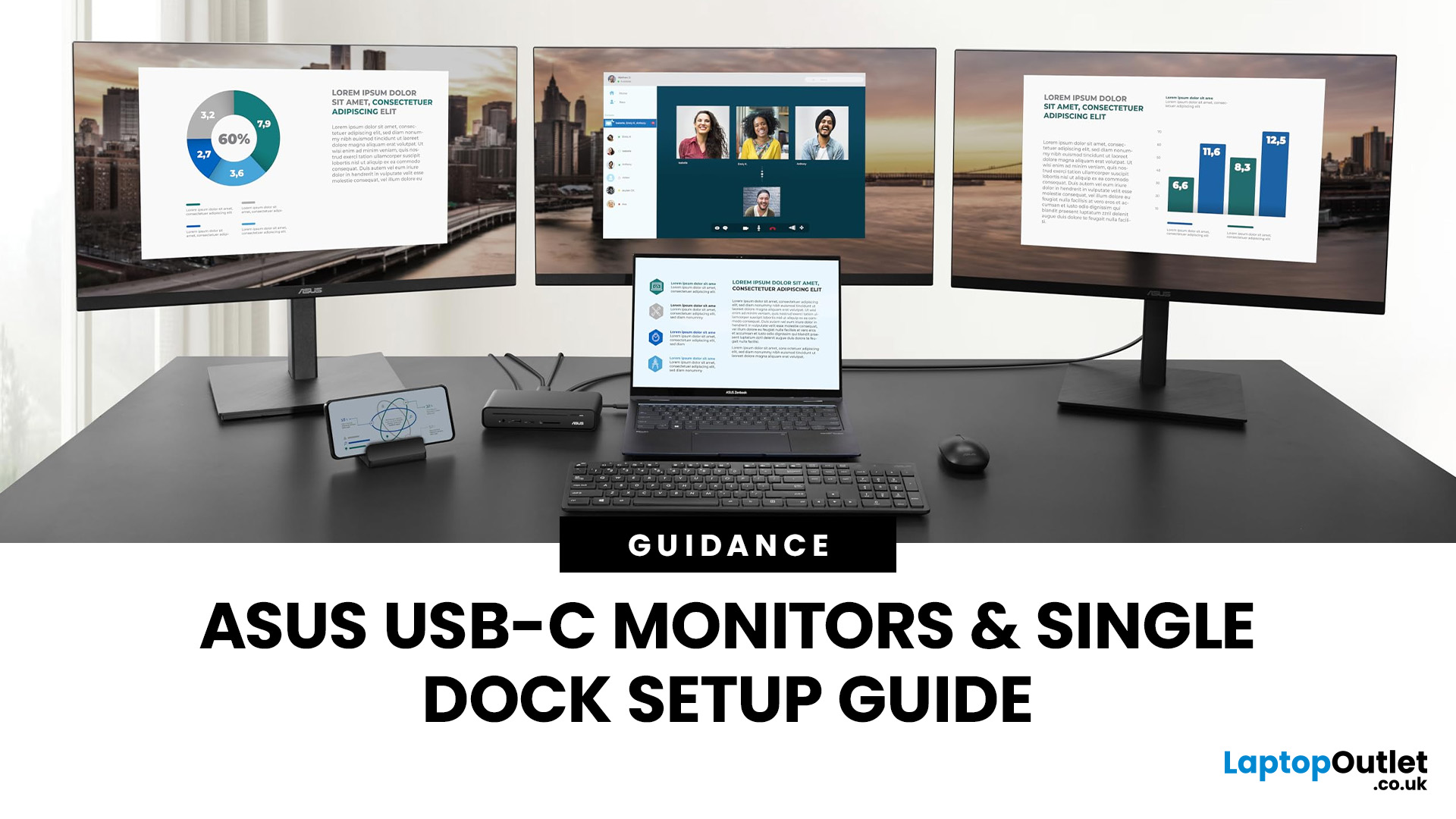
If you’re planning a desk refresh, rolling out new workstations, or managing a hot-desking environment, one question always comes up: how many ASUS USB-C monitors can you realistically run from a single dock? The short answer? It depends.
The long answer? It depends on your laptop’s GPU, the dock’s bandwidth, the monitor resolutions, and whether you’re daisy-chaining or using multiple video outputs.
In this practical IT deployment guide, we’ll break down exactly how ASUS USB-C monitors behave in real-world setups, what limits your configuration, and how to plan a reliable multi-monitor rollout without unpleasant surprises.
How USB-C Video and Power Actually Work
USB-C looks simple. One cable. Power. Video. Data. Done.
But behind that clean setup, there’s a lot happening.
USB-C monitors rely on a feature called DisplayPort Alt Mode. This allows the USB-C cable to carry video signals from your laptop’s GPU directly to the monitor. Many modern docks also use DisplayLink technology, which compresses video over USB data lanes to expand monitor support.
Here’s what typically flows through a single USB-C cable:
- Video signal (DisplayPort Alt Mode or DisplayLink)
- Power delivery (up to 65W, 90W or even 100W)
- USB data (for peripherals plugged into the monitor)
- Ethernet (if routed via a dock)
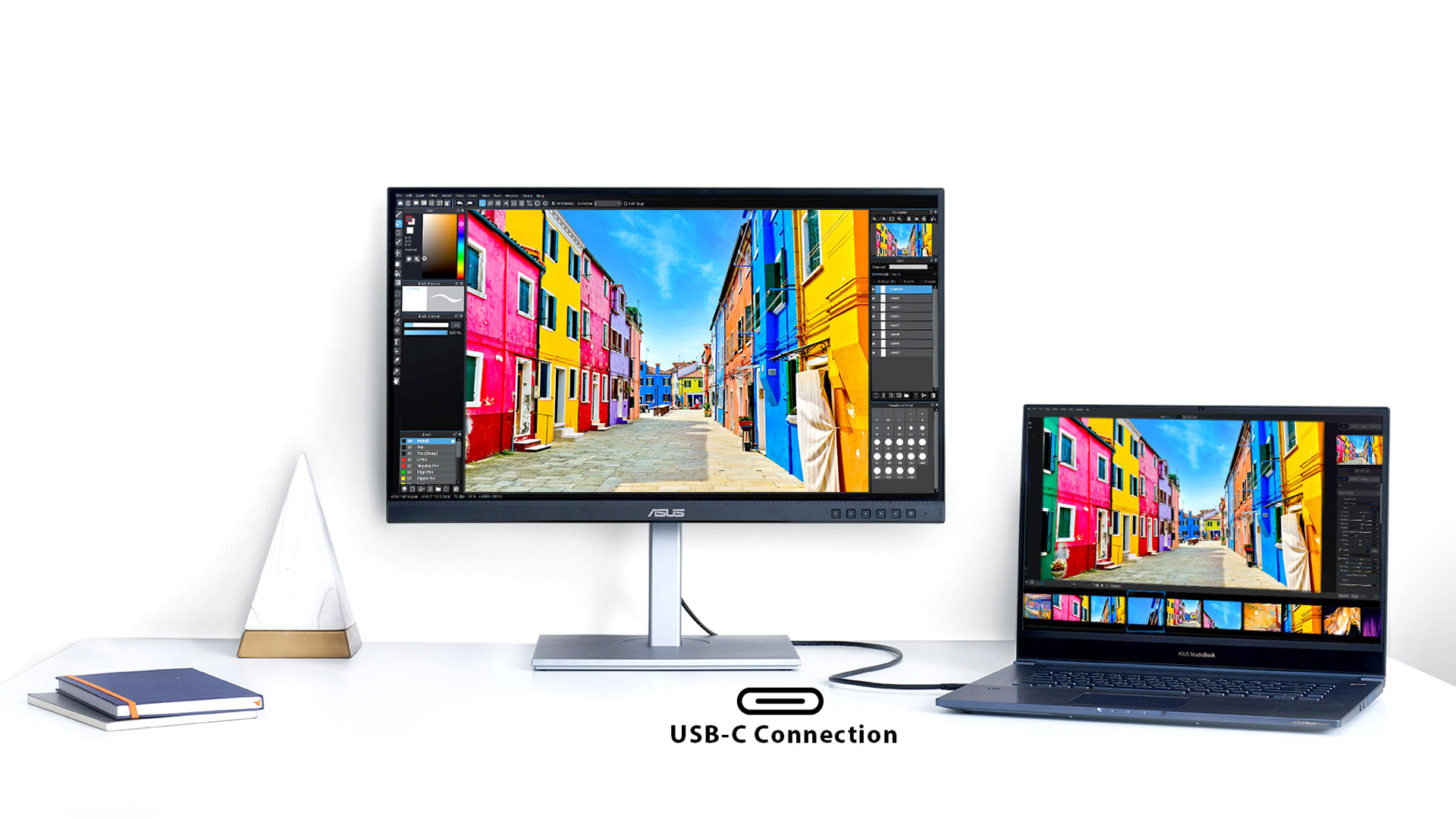
This is what makes a multi monitor USB-C setup so appealing. One cable connects everything. However, the total bandwidth available through that single connection is limited. That’s where your monitor count starts to get restricted.
Factors That Limit How Many ASUS Monitors You Can Run
Before deciding how many ASUS USB-C monitors to deploy per workstation, you need to consider two main constraints.
GPU and Dock Bandwidth
Your laptop’s GPU determines how many displays it can drive natively. Even if your dock has four display outputs, your GPU might only support two external monitors.
Key considerations:
- Integrated GPUs (Intel Iris Xe, AMD Radeon integrated) usually support 2–3 displays total (including the laptop screen).
- Dedicated GPUs can handle more.
- Some USB-C docks split DisplayPort bandwidth across multiple outputs.
- DisplayLink docks can support more monitors, but rely on driver-based compression.
For example:
- A basic USB-C dock with DisplayPort Alt Mode may support two 1080p monitors.
- A DisplayLink dock could support three or four, depending on resolution.
When clients ask, “how many monitors from one dock?”, the honest answer is: check the dock specification and GPU limits together. One without the other tells you nothing. Bandwidth also gets divided between displays. The higher the resolution and refresh rate, the more bandwidth each screen consumes.
Resolution and Refresh Rate Trade-Offs
Resolution matters more than monitor count. A single 4K monitor at 60Hz consumes far more bandwidth than a 1080p display. Add two 4K panels, and many USB-C connections will hit their limit.
Typical bandwidth comparisons:
- 1080p at 60Hz – low bandwidth demand
- 1440p at 60Hz – moderate
- 4K at 60Hz – high
- 4K at 120Hz – very high
If you’re designing a multi-monitor ASUS USB-C setup, you may need to make trade-offs:
- Lower refresh rate
- Drop one monitor’s resolution
- Disable the laptop’s internal display
- Use a higher-spec Thunderbolt dock
For office deployments, dual 1080p or dual 1440p is often the most stable and cost-effective choice.
Typical Real-World ASUS USB-C Monitor Setups
Let’s move from theory to practical deployment. Here are the most common configurations we see with ASUS USB-C monitors in business and home office environments.
One 4K + One 1080p
This is common for finance, design, and data-heavy roles.
Configuration:
- 1x 4K ASUS USB-C monitor (primary display)
- 1x 1080p ASUS USB-C monitor (secondary)
- USB-C dock with dual video output
This setup usually works comfortably on modern Intel 11th/12th/13th Gen laptops or AMD Ryzen equivalents.
Why it works:
- The 1080p screen consumes less bandwidth.
- The 4K monitor gets priority as the main workspace.
- Most decent docks can handle this combination without issue.
If users complain about instability, reducing the 4K refresh rate from 60Hz to 30Hz can free bandwidth, though that’s rarely ideal for productivity.
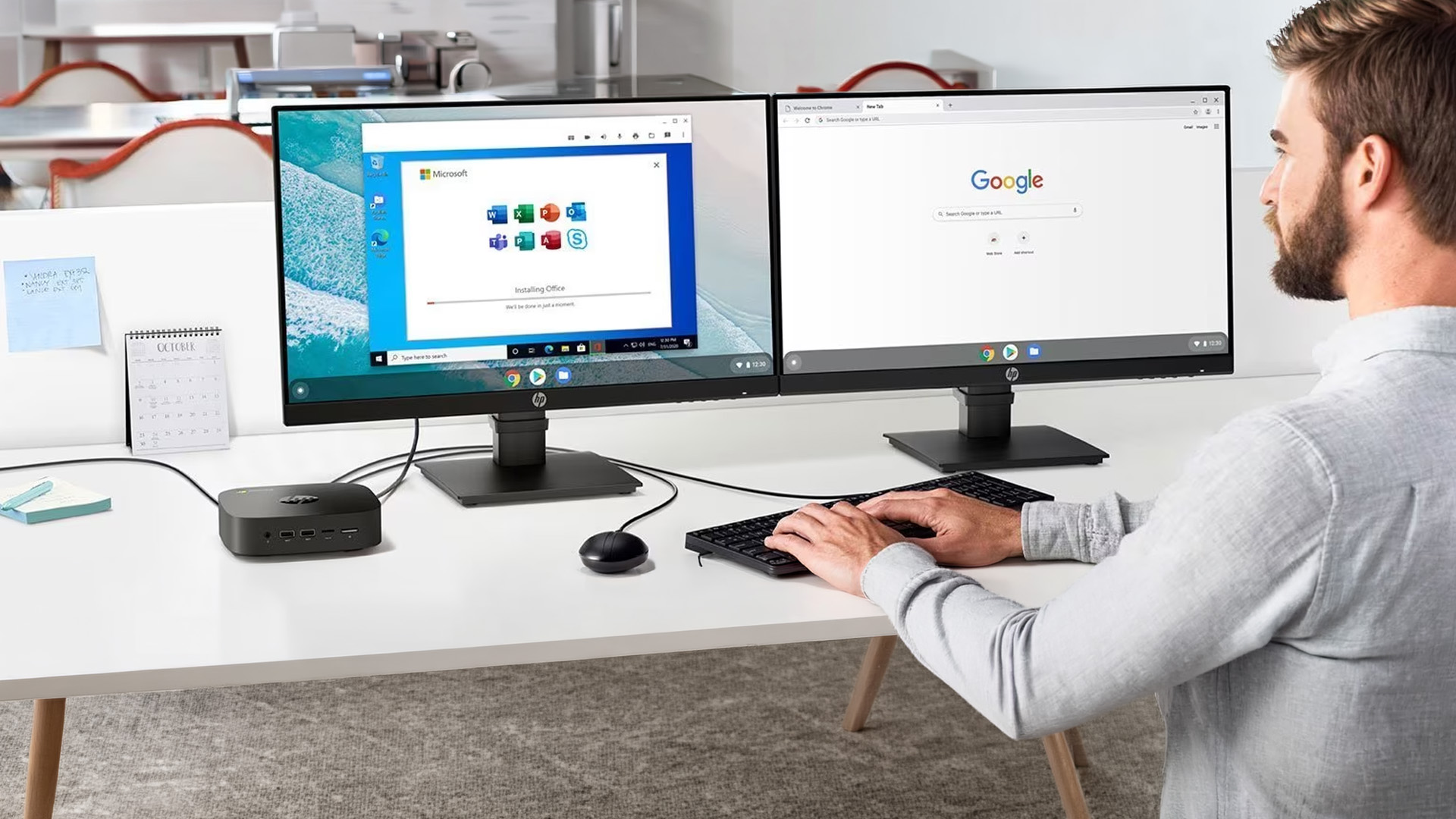
Two or Three 1080p Screens
For call centres, admin teams, and operational roles, triple 1080p is common.
Configuration:
- 2–3 Full HD ASUS USB-C monitors
- DisplayLink-enabled dock
This is one of the most stable deployments when done correctly.
With DisplayLink:
- The GPU load is partially offloaded.
- Bandwidth is managed via compression.
- Three 1080p displays are typically achievable.
Without DisplayLink:
- Most native USB-C Alt Mode docks will stop at two external displays.
If you’re planning a large rollout, always confirm whether your dock is pure Alt Mode or DisplayLink-based before committing.
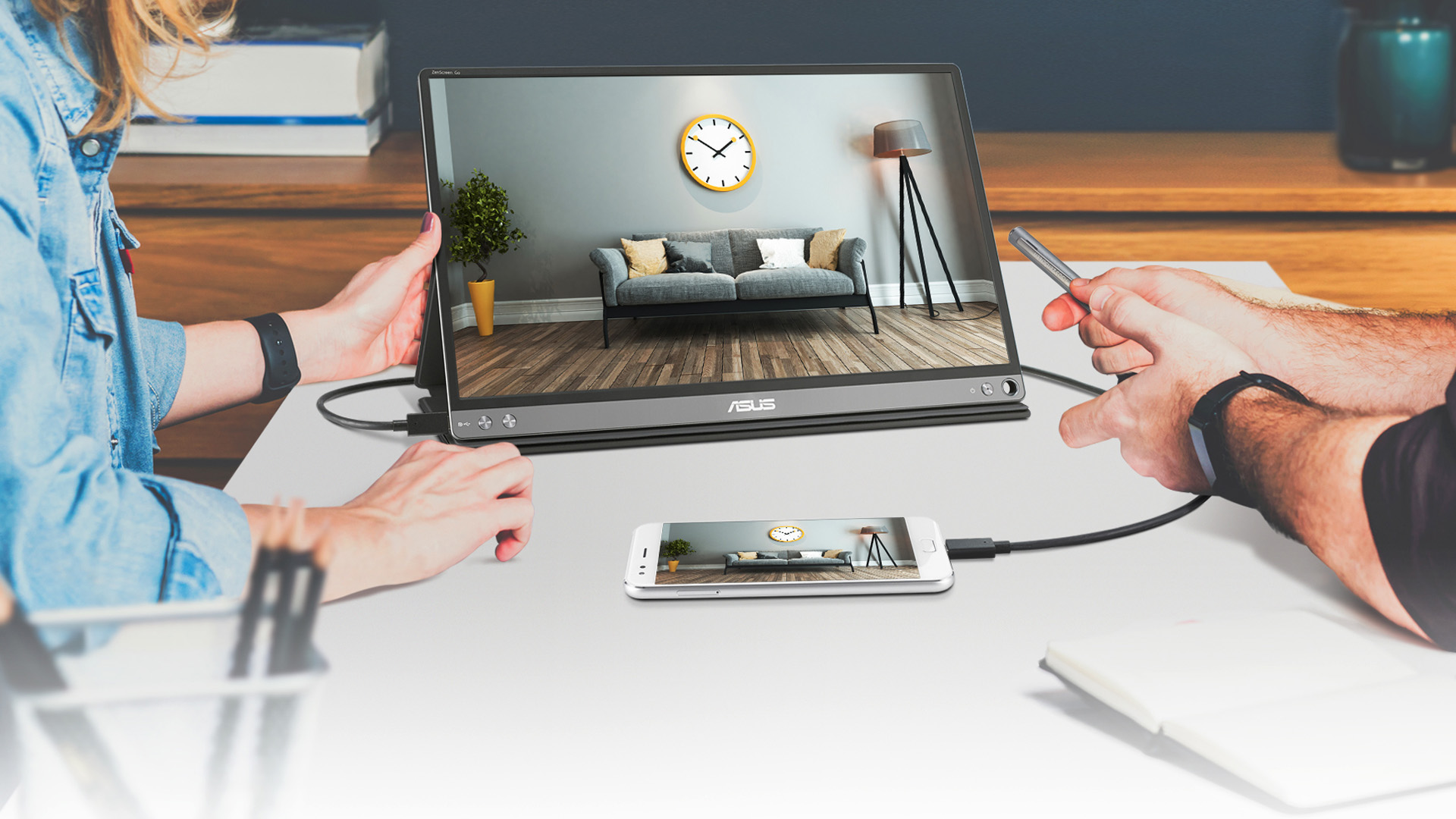
Adding a Portable ZenScreen
Portable displays are increasingly popular in flexible and hybrid environments. An ASUS ZenScreen USB-C monitor adds an extra layer of flexibility. These lightweight displays often draw power directly from the laptop via USB-C and are ideal for:
- Temporary overflow workspace
- Hot-desking environments
- Field engineers
- Sales teams
Because a portable screen like an ASUS portable USB-C monitor typically runs at 1080p and lower brightness, it consumes minimal bandwidth. In many cases, users can run:
- 2x desk monitors via dock
- 1x ZenScreen directly from laptop
However, again, the GPU limit applies. If the laptop only supports three displays total, you may need to disable the internal screen. For businesses implementing a hot-desk USB-C monitor setup, ZenScreen adds agility without permanent hardware expansion.
USB-C Monitor Daisy-Chaining vs Docking
Another frequent question is whether to use USB-C monitor daisy-chain functionality instead of a dock. Daisy-chaining works using DisplayPort Multi-Stream Transport (MST). One monitor connects to the laptop, and the second connects to the first monitor.
Advantages:
- Fewer cables
- No dock required (in simple setups)
- Clean desk aesthetic
Limitations:
- Bandwidth is still shared
- Requires monitors with MST support
- macOS does not support MST for extended displays
For most corporate deployments, a dock-based solution is more flexible and easier to manage centrally. If you’re scaling a multi-monitor ASUS USB-C setup across multiple departments, a standardised dock simplifies troubleshooting and device swaps. If your workflow involves photo, video, or design projects, explore our detailed overview of ASUS ProArt creator monitors.
Troubleshooting Common Multi-Monitor USB-C Issues
Even well-planned deployments hit occasional problems. Here are the most common ones and what they usually mean.
Monitors Flicker or Drop Out
Possible causes:
- Insufficient dock power delivery
- Bandwidth saturation
- Poor-quality USB-C cable
- Outdated GPU drivers
- Firmware mismatch on dock
First steps:
- Check dock wattage (65W vs 90W matters)
- Lower refresh rate
- Update GPU drivers
- Replace USB-C cable with certified high-speed cable
If users report that their ASUS USB-C monitors flicker only when both are connected, you’re likely hitting bandwidth limits.
Only One Monitor Detected
Common causes:
- GPU limitation
- Dock without MST or DisplayLink
- Incorrect BIOS settings
- Disabled DisplayPort Alt Mode
Always verify:
- Laptop GPU display support
- Dock specifications
- BIOS graphics configuration
Laptop Not Charging Through Dock
This usually means:
- Dock wattage too low
- High-performance laptop exceeding power delivery
- Non-compatible cable
For modern business laptops, aim for 90W power delivery to avoid performance throttling. If you're buying displays for a team or office, check out our complete ASUS business monitor buying framework.
Recommended ASUS USB-C Monitors for Dock-Based Workspaces
When choosing ASUS USB-C monitors for deployment, look for:
- Reliable USB-C with power delivery
- IPS panels for consistent colour
- Slim bezels for multi-monitor alignment
- Height-adjustable stands for ergonomic compliance
For structured office environments, business-focused ASUS models provide stable USB-C connectivity and daisy-chain support where required. Likewise, for agile teams and hot-desking, lightweight portable models like the ASUS ZenScreen USB-C range offer flexibility without heavy infrastructure.
Furthermore, if you’re building a scalable solution using ASUS monitors for hot-desking, standardising on USB-C power delivery simplifies desk turnover and reduces cable clutter. When sourcing ASUS USB-C monitors, ensure consistency across departments to avoid mixed compatibility and dock issues.
Planning a Reliable Multi-Monitor Deployment
Never assume that because a dock has four ports, it can drive four 4K screens. If you’re responsible for IT procurement or office setup, follow this checklist:
- Confirm GPU display limit.
- Check dock video output type (Alt Mode vs DisplayLink).
- Match monitor resolution to bandwidth.
- Standardise cables.
- Test a pilot configuration before full rollout.
For a deeper look at ASUS’s display lineup, read our guide on ASUS monitors, their ranges, and best uses in 2026.

Final Thoughts
Running multiple ASUS USB-C monitors from a single dock is entirely achievable, but only when you match the dock, GPU and resolution requirements correctly. For most business users:
- Dual 1080p is simple and stable.
- 4K + 1080p works with modern hardware.
- Triple monitors require careful dock selection.
- Portable screens like ASUS ZenScreen USB-C add flexibility with minimal overhead.
If you’re designing a hot-desk USB-C monitor setup or expanding a multi-monitor ASUS USB-C setup, planning around bandwidth and power delivery ensures a smooth deployment from day one.

Are You Still Wondering?
Can I run three ASUS USB-C monitors from one laptop?
Yes, but only if your laptop GPU and dock support three external displays. Many integrated GPUs support up to three displays total, including the internal screen. You may need a DisplayLink-enabled dock and potentially disable the laptop display to achieve three external ASUS USB-C monitors reliably.
Do all ASUS monitors support USB-C?
No. Not every ASUS monitor includes USB-C connectivity or power delivery. Some models offer HDMI and DisplayPort only. If you’re planning a dock-based setup, confirm the monitor specifically includes USB-C with DisplayPort Alt Mode and power delivery support before purchasing ASUS USB-C monitors.
Is daisy-chaining better than using a dock?
It depends on the environment. USB-C monitor daisy-chain setups can reduce cable clutter, but they rely on MST support and have bandwidth limitations. For larger deployments or mixed laptop fleets, a dock is typically more flexible and easier to standardise.
Why do my ASUS monitors flicker or drop out on USB-C?
The most common cause is bandwidth overload or insufficient power delivery. Lowering resolution or refresh rate, upgrading the dock, or replacing the cable usually resolves instability with ASUS USB-C monitors.
Can I use ASUS USB-C monitors in a hot-desking office setup?
Yes, ASUS USB-C monitors are an excellent choice for hot-desking environments because they simplify connectivity down to a single cable for video, power, and peripherals.
Related Articles

Last Updated: August 24, 2026
Choosing between dual-mode and standard gaming monitors is becoming a key decision for gamers seeking better speed, visuals, and flexibility. As display technology advances, players now expect sharper colour, higher refresh rates, smoother motion, and features that adapt to different gaming styles.
Dual-mode monitors add a new option by offering two performance profiles in one screen, while standard gaming monitors remain popular for their simplicity and value. So, which is right for you? This guide compares their features, performance, benefits, and real-world uses to help you choose confidently, whether you play competitive shooters or immersive story-driven games at home.
Understanding the Basics: What are Dual Mode Gaming Monitors?
Dual mode gaming monitors are a relatively new category that provide two optimised display profiles within the same screen. These modes usually include:
1. A High-Resolution Mode
This mode might support 4K displays for gamers, or QHD resolution, higher brightness,

Last Updated: December 05, 2025
Portable monitors have completely changed the way we work, game, and watch media on the move. They offer a much larger display than your smartphone, transforming your pocket-sized device into a mini-desktop or a fully immersive entertainment system.
If you want to connect smartphone to a portable monitor for work or play, you've come to the right place. This complete guide will walk you through every possible connection method, covering both Android and iPhone devices, as well as essential tips for a seamless setup.
What You Need to Connect Smartphone to a Portable Monitor
Before we dive into 'how to use phone with portable monitor, you need to check a few things. Having the right kit is essential for a successful smartphone to portable monitor setup.

1. The Right Portable Monitor
Your monitor needs to have the correct input ports. The best portable monitors for phones feature a dual-connection design, offering both USB-C (for single-cable power and video) and Mini-HDMI ports (for universal
Published: November 24, 2025
The gaming landscape in 2025 is more advanced than ever, and at the centre of every elite gaming setup lies one essential component, the monitor. Performance-focused gamers now have new demands: adaptability, fluid responsiveness, and pinpoint accuracy tailored to various game genres. This is where dual mode gaming monitors stand out. Designed to deliver extraordinary flexibility, they allow you to switch between ultra-high-resolution visuals and lightning-fast frame rates depending on your playstyle.
What Are Dual Mode Gaming Monitors?
Dual mode gaming monitors are cutting-edge displays with the ability to switch between two distinct performance profiles:
- High-resolution mode – ideal for immersive open-world titles, with sharp visuals and cinematic detail.
- High refresh rate mode – optimised for competitive and fast-paced gameplay, where responsiveness and precision are key.
This new category bridges the gap between high-resolution gaming monitors for sharp visuals and high refresh rate
Last Updated: June 15, 2026
One monitor, two personalities; perfectly tuned for any game.
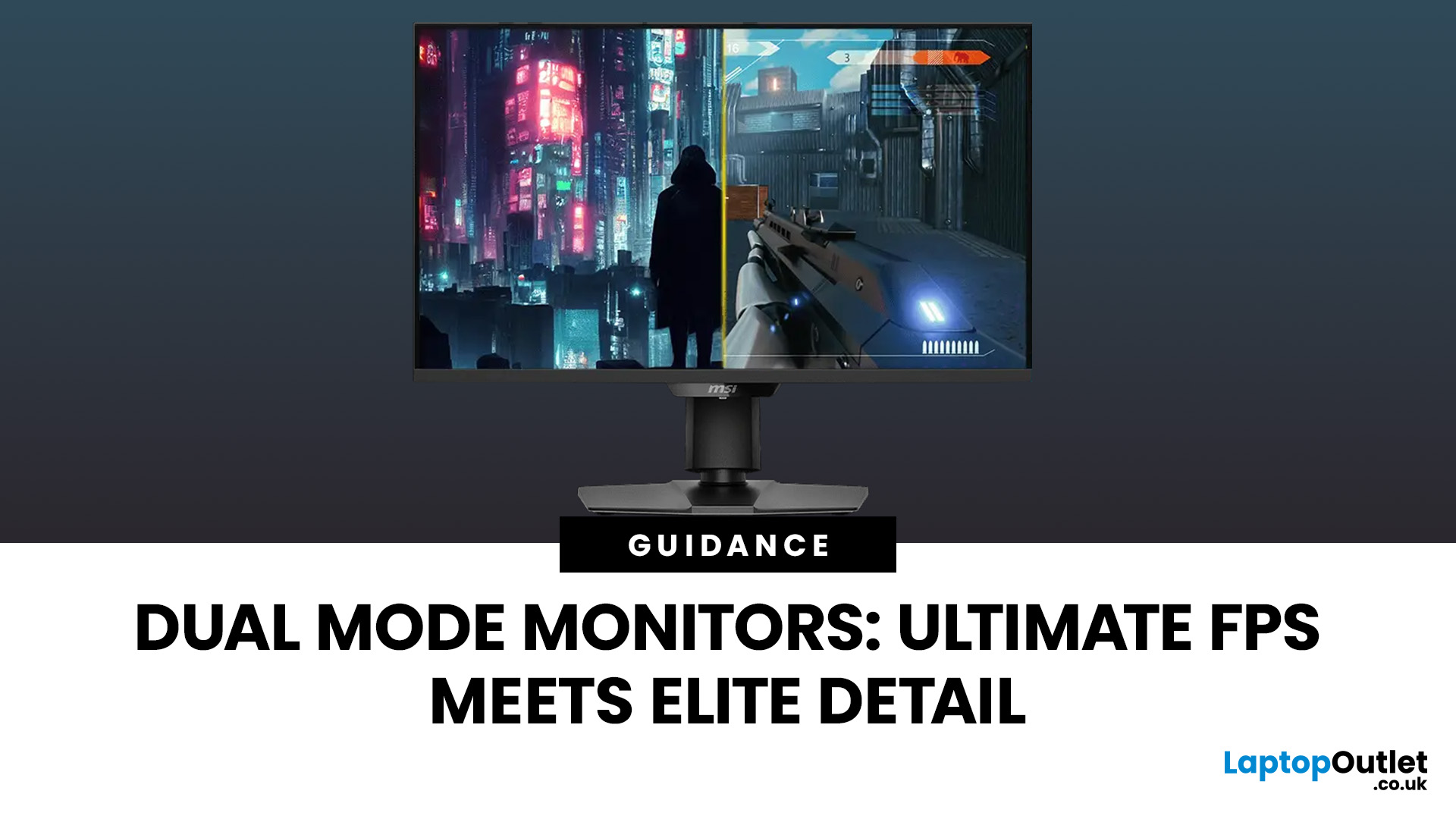
For years, gamers have faced a tough choice: do you pick a monitor with crystal-clear display and high resolution, or one with fast refresh rates for maximum speed? Trying to achieve both usually meant compromising on one side. That compromise is now a thing of the past, thanks to the dual mode gaming monitor.
This cutting-edge technology gives you the power to switch instantly between two different display modes, each optimised for a specific type of gaming. This simple switch can genuinely help improve FPS and dramatically enhance your overall visual quality.
If you want to know how dual mode gaming monitors improve FPS & visual quality, read on.
What Exactly are Dual Mode Gaming Monitors?
Before we get to the nuts and bolts of why dual mode monitor performance is so remarkable, let's nail down what they are.
A dual mode gaming monitor is a single display that has the unique, built-in ability to switch between two distinctly
Last Updated: August 12, 2026
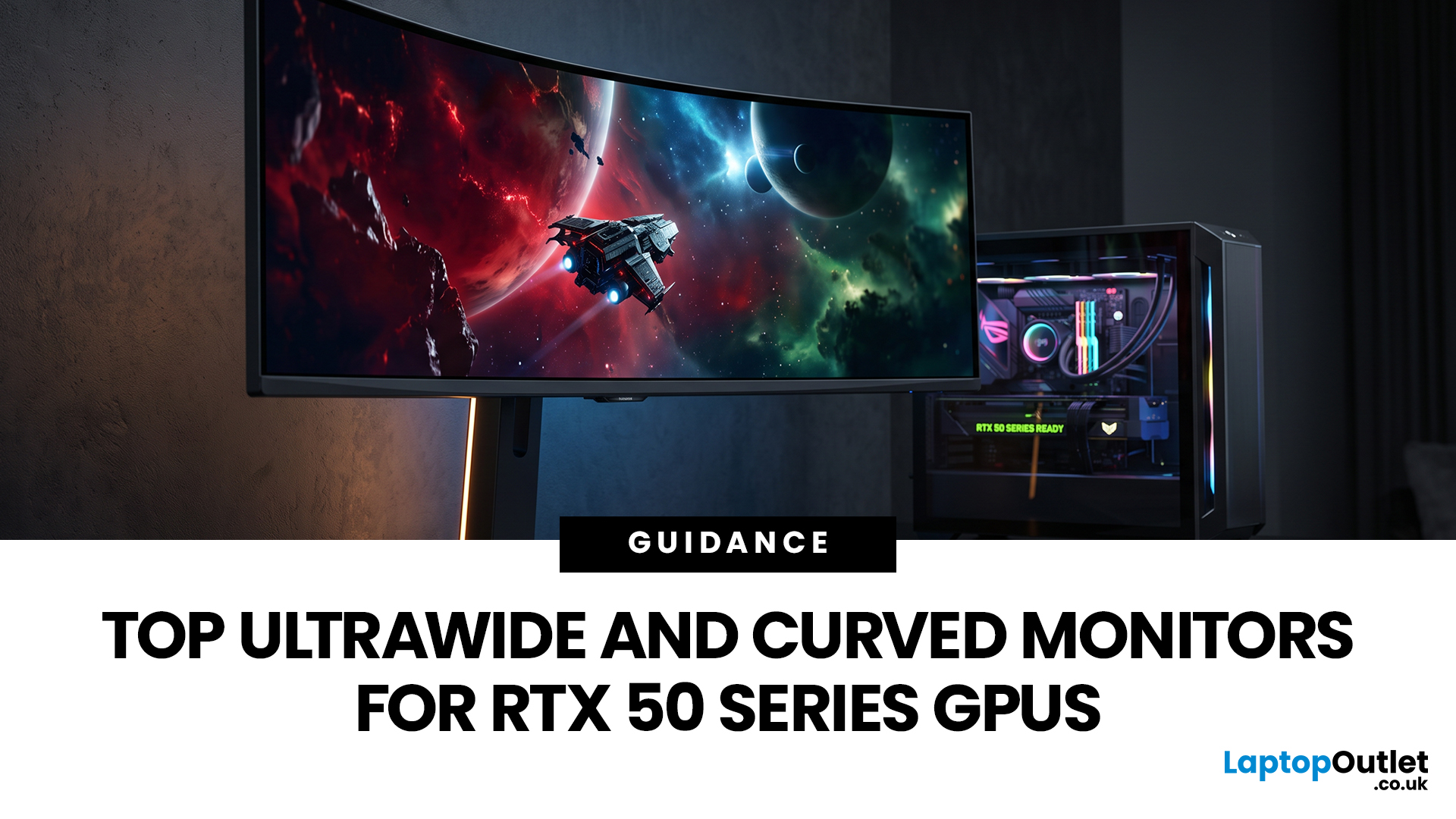
Picking a monitor for an RTX 50 Series GPU isn’t just about chasing the highest refresh rate, it’s about getting the right vibe for your setup. Think resolution, panel type and aspect ratio that actually match how you game, how powerful your RTX 5080 or RTX 5070 Ti is, and how much space you’ve got on your desk.
If you’re on an RTX 5080, a massive 49-inch 5120 × 1440 ultrawide hits different for immersive racing, sim and open-world gameplay. The RTX 5070 Ti feels right at home on a 34-inch 3440 × 1440 ultrawide, while a compact QHD curved monitor is perfect if you want smooth, high-refresh gaming on a budget.
Quick Comparison
| Best For | Monitor | Screen and Resolution | Refresh Rate | Panel | Main Strength | Consider Before Buying |
| RTX 5080 | Philips Evnia 49M2C8900 | 48.9-inch, 5120 × 1440, 32:9 | 240Hz | QD-OLED | Maximum immersion with OLED picture quality | Requires substantial desk space and strong GPU performance |
| RTX 5070 Ti | AOC G4 CU34G4Z | 34-inch, 3440 × 1440, 21:9 | 240Hz | Fast VA | Strong balance of speed, |
Last Updated: September 01, 2026
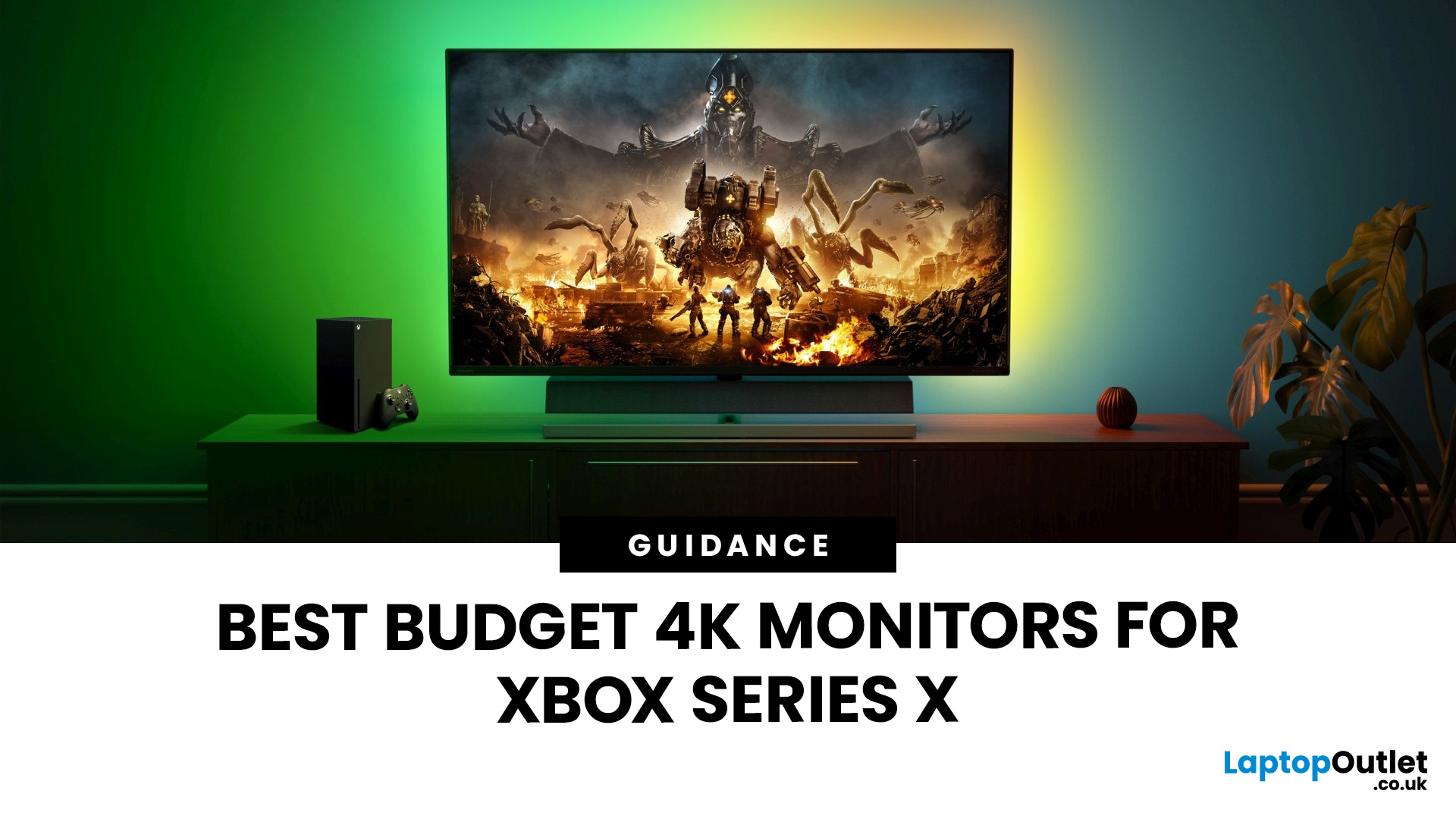
If you're looking to unlock true next-gen performance on your Xbox Series X without stretching your budget, you’re in the right place. The console is capable of extraordinary visuals, which includes from razor-sharp 4K resolution and buttery-smooth 120Hz gameplay to HDR brilliance and ultra-low latency. But to experience these features properly, you need the right display. That’s why we’ve curated a detailed guide to the best budget-friendly 4K monitors for Xbox Series X, helping you choose a display that enhances every moment of your gaming while keeping your wallet happy.
Why a 4K Monitor is Ideal for Xbox Series X
The Xbox Series X was built for 4K gaming. While you can play on lower resolutions, a monitor that fully supports the console’s capabilities will significantly improve your experience. Here’s why a 4K monitor for next-gen consoles is the perfect match:
True 4K Resolution
With a 4K monitor, you get four times the pixel density of 1080p, giving you:
- Sharper textures
- Improved

Last Updated: August 28, 2026
Gaming has changed forever. If you are still using an old LCD screen, you are missing out on the best visuals possible. In 2026, the best OLED gaming monitors have become the gold standard for every serious player. Whether you want a competitive edge in shooters or deep immersion in RPGs, OLED is the answer.
But why is everyone switching? It comes down to speed and colour. OLED panels offer near-instant response times. They also provide "true blacks" that no other screen can match. In this guide, we will look at the top OLED gaming screens available. We will also explain what to look for so you can find the perfect match for your PC or console.
1. AOC Gaming Q27G41ZDF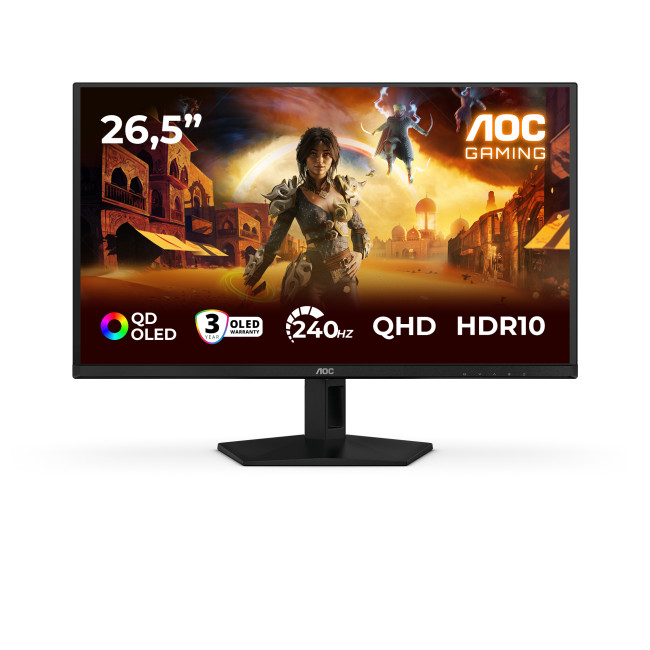
Key Specifications:
- Screen Size: 26.5-inch
- Panel Type: QD OLED
- Resolution: 2560 x 1440 (QHD)
- Refresh Rate: 240Hz
- Response Time: 0.03ms
- Aspect Ratio: 16:9
- Screen Shape: Flat
- Sync Technology: G-SYNC Compatible, Adaptive Sync
- Low Blue Light Technology: Yes
- HDR Standards: HDR10
Last Updated: August 28, 2026
Gaming has changed rapidly over the last few years. In 2026, players demand more than just a clear picture. They want fluid movement, deep colours, and hardware that looks as good as the game itself. This is where Philips Evnia monitors come into play.
The Evnia range was designed to break the "typical gamer" stereotype. These screens combine high-end performance with a sleek, modern aesthetic. Whether you are a competitive esports player or a casual console gamer, there is a model tailored for you.
Finding the right display can be tricky. You have to balance refresh rates, resolution, and panel types. In this guide, we break down the five best Philips monitors for gaming to help you level up your setup.
1. Philips Evnia 24M2N3201A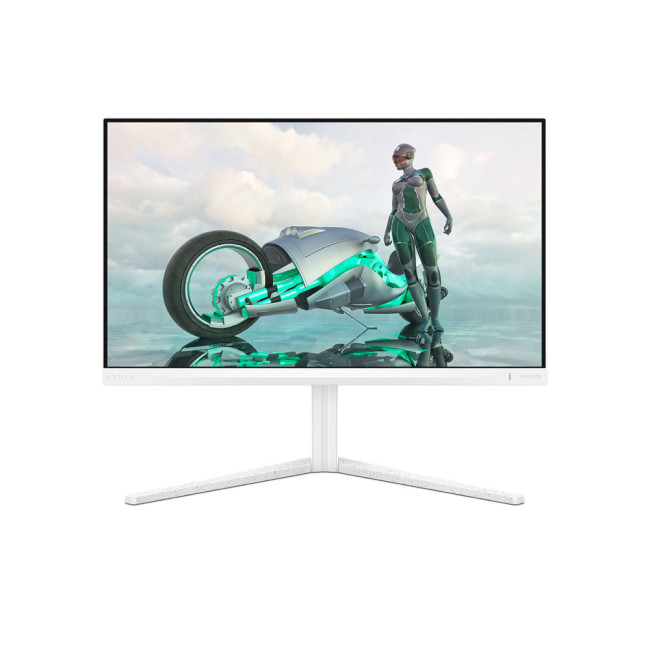
Key Specifications:
- Screen Size: 23.8 Inches
- Panel Type: Fast IPS
- Resolution: Full HD (1920 x 1080)
- Refresh Rate: 180Hz
- Response Time: 1ms (GtG)
- Aspect Ratio: 16:9
- Screen Shape: Flat
- Connectivity: 2x HDMI 2.0, 1x DisplayPort 1.4
- Features: Adaptive Sync,
Last Updated: December 31, 2025
If your setup is still running on an older 60–75Hz display (or a basic office screen), 2026 is the year to change that. The jump to a modern gaming monitor can be instantly noticeable: smoother camera movement, clearer motion in fast fights, and a more responsive “feel” when you aim, flick, track, or even just pan across open-world scenery. That’s why New Year gaming monitor deals are such a popular time to upgrade, stock is refreshed, prices tend to be competitive, and you can often find the exact spec combination you’ve been waiting for without paying peak-season prices.
Laptop Outlet makes this easier because there’s a wide range of gaming monitors in one place, so you can compare size, resolution, refresh rate and panel tech without bouncing between stores. A good starting point is the main gaming monitors category (it’s perfect for filtering by what matters most). And if you’re shopping across more than just monitors, it’s also worth keeping an eye on the wider promotions to save big
Last Updated: July 10, 2026
Gaming is about to get a whole lot better. If you are looking for a screen upgrade, now is the perfect time. MSI is currently offering a deal that is hard to ignore. When you buy a selected MSI QD-OLED monitor, you can get Resident Evil Requiem free.
This latest title usually costs £51.99. However, for a limited time, you can add it to your library without spending an extra penny. Combining the terrifying visuals of Resident Evil with the ground-breaking technology of QD-OLED is a match made in heaven.
In this guide, we will look at the best MSI gaming monitors included in this deal.
Why This Gaming Deal Matters
Gaming hardware is expensive. Getting a £51.99 game for free helps offset the cost of your new screen. But beyond the money, it is about the experience. MSI QD-OLED monitors are currently the pinnacle of display technology.
They offer:
- Perfect Blacks: No "halo" effect around bright objects.
- Vivid Colours: Quantum Dots provide a wider colour gamut.
- Instant Response: 0.03 ms is

