



Wired vs Wireless Gaming Mice: Which is Best for Gaming?
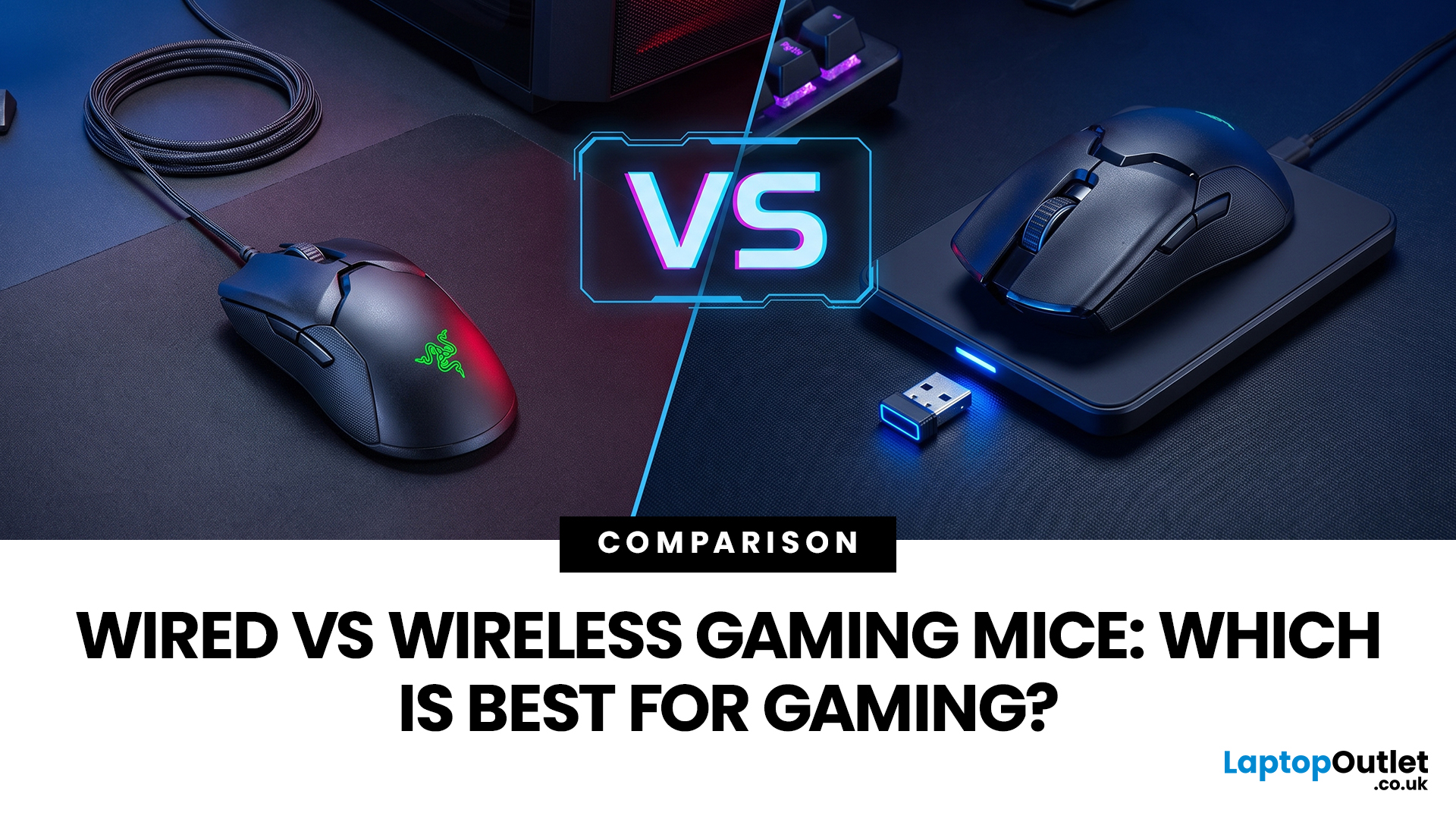
A gaming mouse with a 1,000Hz polling rate can report position every millisecond, and both wired and modern wireless models achieve this performance.
Wired gaming mice offer reliable plug-and-play use, lower cost, and no charging, while 2.4GHz wireless mice provide cable-free comfort and portability. Both can be low-latency for gaming, though Bluetooth is usually slower than a dedicated receiver. Choose wired for value and consistency, or wireless for freedom and convenience.
Wireless technology has advanced significantly. Gaming-grade 2.4GHz connections deliver low latency, lightweight wireless designs are common, and many mice can be used while charging. Wired mice offer lower cost, constant connection, and no battery concerns. Gamers must weigh latency, cable drag, weight, reliability, charging, and value.
This guide compares wired vs wireless gaming mice , explains 2.4GHz vs Bluetooth, helping you choose the best option.
Wired vs Wireless Gaming Mice: Quick Comparison
|
Feature |
Wired Gaming Mouse |
Wireless Gaming Mouse |
|
Connection |
USB cable |
2.4GHz receiver, Bluetooth or both |
|
Input latency |
Consistently low |
Very low on quality 2.4GHz models |
|
Reliability |
Stable physical connection |
Depends on receiver, signal and battery |
|
Battery |
Not required |
Rechargeable or replaceable battery |
|
Movement |
Cable may create drag |
Unrestricted movement |
|
Weight |
Often lighter at lower prices |
Varies depending on battery and design |
|
Setup |
Plug in and play |
Requires pairing or a USB receiver |
|
Portability |
Cable must be carried |
Easier to use across multiple devices |
|
Cost |
Usually more affordable |
Premium models can cost more |
|
Best for |
Value, reliability and fixed setups |
Clean desks, travel and free movement |
Quick verdict: A modern 2.4GHz wireless gaming mouse can provide highly responsive performance without cable drag. Wired is still the safer budget choice, while Bluetooth is generally better for everyday convenience than latency-sensitive competitive gaming.
What is the Difference Between Wired and Wireless Mouse Technology?
A wired gaming mouse connects directly to a laptop or desktop PC through a USB cable. The cable supplies power and carries movement, button and scroll-wheel data to the computer. There is no battery to charge, receiver to position or wireless connection to manage.
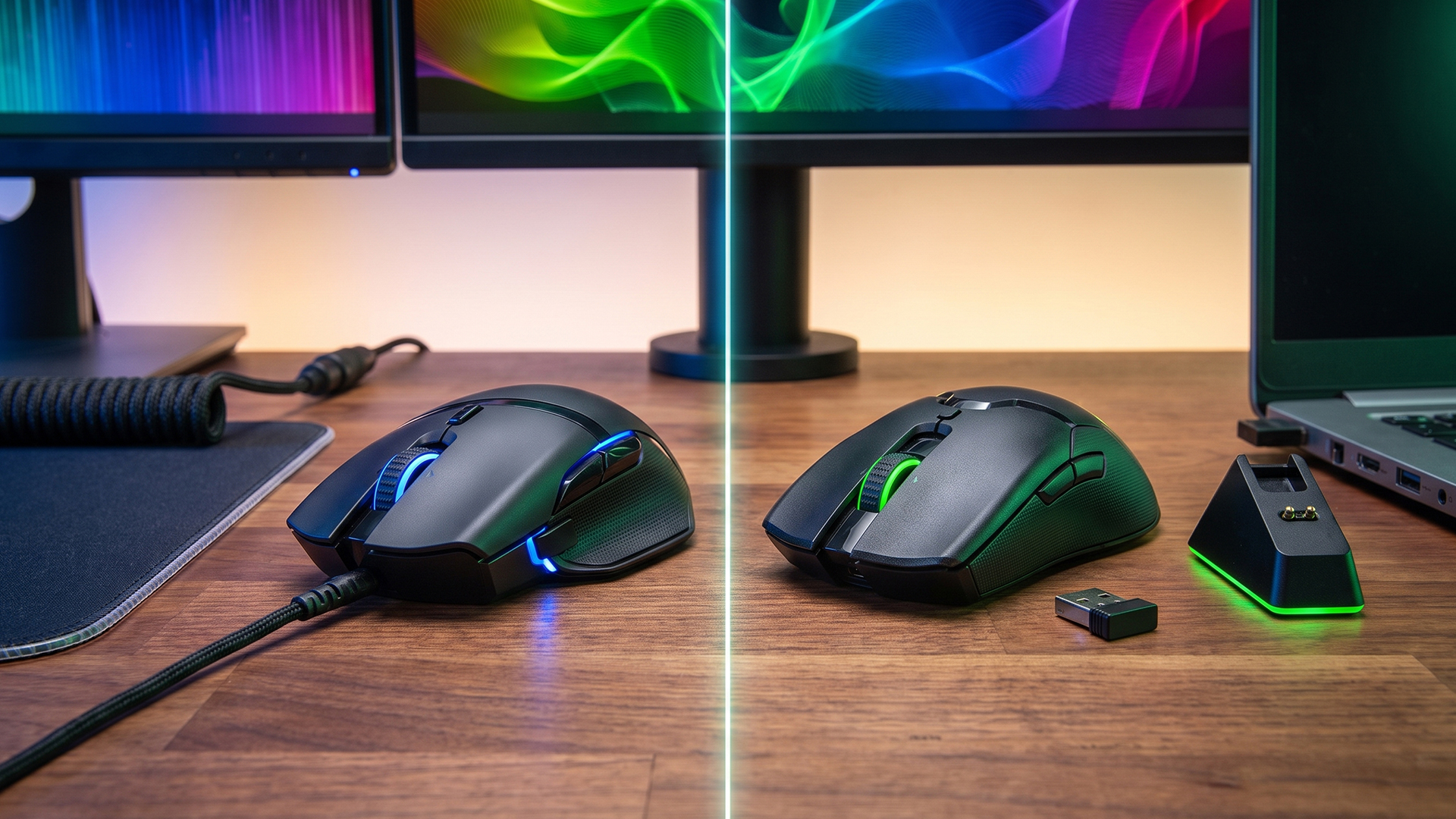
A wireless mouse sends the same inputs without a permanent cable. Gaming models generally use one or more of the following connection types:
- 2.4GHz wireless: Uses a dedicated USB receiver and is designed for fast, stable gaming performance.
- Bluetooth: Connects without a dedicated receiver on compatible devices, but is normally more suitable for everyday use and less demanding games.
- Hybrid or tri-mode: Supports 2.4GHz wireless, Bluetooth and a wired USB connection.
The type of wireless connection matters. It is not accurate to group Bluetooth and dedicated gaming wireless technology together. Logitech describes LIGHTSPEED as a low-latency gaming connection, while Corsair claims sub-1ms transmission for its SLIPSTREAM wireless technology. These performance claims are attached to the manufacturers’ dedicated gaming connections rather than ordinary Bluetooth.
Is Wired or Wireless Mouse Better for Gaming?
Neither connection is automatically better for every player. The right choice depends on the quality of the mouse, your preferred games, your budget and how you use your setup.
|
Wired Gaming Mouse Preference |
Wireless Mouse Preference |
|
Choose wired gaming mouse |
Choose wireless mouse |
|
Want reliable plug-and-play performance |
Want unrestricted hand and arm movement |
|
Do not want to manage batteries or charging |
Use a low mouse sensitivity and make wide movements |
|
Have a limited budget |
Prefer a clean, cable-free desk |
|
Mainly play at one desk |
Move between different computers or gaming locations |
|
Do not mind using a cable or mouse bungee |
Are willing to pay more for a quality 2.4GHz connection |
For many gamers, shape, weight, sensor quality and comfort have a greater effect on the experience than the connection alone. A comfortable wireless mouse with a reliable sensor may be a better choice than an unsuitable wired model, and the same applies in reverse.
Do Wireless Gaming Mice Have More Input Lag?
Input lag was once one of the clearest disadvantages of a wireless mouse. Older wireless devices could feel less responsive because of slower transmission, unstable connections or power-saving behaviour.
That gap has narrowed considerably. Modern gaming-grade wireless systems are designed to send mouse inputs quickly and consistently. Logitech G positions LIGHTSPEED as a low-latency gaming solution, while Corsair advertises latency as low as sub-1ms for compatible SLIPSTREAM peripherals.
However, performance still depends on several factors:
- The mouse model and sensor
- Whether it uses 2.4GHz or Bluetooth
- The selected polling rate
- The distance between the mouse and receiver
- Wireless interference from nearby equipment
- Battery level and power-saving settings
- USB port and system configuration
For competitive gaming, connect through the supplied 2.4GHz receiver rather than Bluetooth. Position the receiver close to the mouse using an extension cable or desktop adaptor where possible. Avoid placing it behind a metal PC case or next to equipment that may interfere with the signal.
A poor wireless mouse can still introduce delay or connection problems, but a quality gaming model should not feel noticeably slower during normal play.
What is Polling Rate and Why Does it Matter?
Polling rate is the frequency at which a mouse reports its position and inputs to the computer. It is measured in hertz.
Common polling rates include:
- 125Hz: One report approximately every 8 milliseconds
- 500Hz: One report approximately every 2 milliseconds
- 1,000Hz: One report approximately every 1 millisecond
- 4,000Hz: Up to four reports per millisecond
- 8,000Hz: Up to eight reports per millisecond
A higher polling rate can deliver more frequent cursor updates. The difference is most relevant when playing at high frame rates on a high-refresh display. Razer explains that higher polling sends data more frequently and offers compatible wireless hardware with polling rates of up to 8,000Hz.
That does not mean every gamer needs an 8,000Hz mouse. A 1,000Hz polling rate remains suitable for most players. Higher settings can use more battery on wireless models and may place additional demand on the processor in some games.
Your monitor also affects how clearly you can see rapid movement. Pairing a responsive mouse with affordable monitors for gaming can provide a more noticeable improvement than focusing on mouse specifications alone.
Advantages of a Wired Mouse
The advantages of wired mouse designs continue to make them popular among casual, competitive and budget-conscious gamers.
Stable Connection
A wired mouse has a direct physical connection to the computer. It is not affected by receiver placement, wireless congestion or pairing problems.
This makes wired models useful for gaming events, shared computers and setups where dependable connectivity matters more than a cable-free appearance.
No Battery or Charging
Wired mice draw power through the USB connection. You never need to check the battery, replace an AA cell or stop playing to recharge.
This is particularly useful during long gaming sessions. There is also less chance of the mouse entering a power-saving state after being left unused.
Better Value at Entry Level
A wired mouse is often more affordable than a wireless model with a similar sensor, shape and button layout. The manufacturer does not need to include a battery, receiver or wireless transmitter.
This can make the best wired mouse for gaming a sensible choice for beginners who want accurate tracking and programmable buttons without paying for premium connectivity.
Potentially Lower Weight for the Price
Wireless esports mice can now be very light, but affordable wireless models may still carry extra weight from batteries and internal components.
A simple wired design can offer a low weight at a lower price, although the cable itself may affect movement.
Disadvantages of a Wired Gaming Mouse
Cable Drag
Cable drag is the main disadvantage. The cable may rub against the edge of the desk, catch on other equipment or create resistance during fast movements.
A flexible cable and a mouse bungee can reduce this problem. The cable should have enough slack for movement without forming large loops across the desk.
More Desk Clutter
A wired mouse adds another visible cable to the setup. This may not affect gaming performance, but it can make cable management more difficult when combined with a keyboard, headset and other peripherals.
Limited Portability
You must carry and manage the attached cable whenever you move the mouse between locations. The connection may also be less convenient for a laptop positioned further away or connected to a television.
Cable Wear
Repeated bending near the mouse or USB connector can eventually damage a cable. Braided or reinforced cables may improve durability, but they can also feel stiffer depending on the design.
Advantages of a Wireless Gaming Mouse
Greater Freedom of Movement
The clearest benefit is the absence of cable drag. You can make wide, fast movements without feeling resistance from a cable.
This is particularly useful for players who use low DPI settings in FPS and battle royale games. Low-sensitivity aiming often requires more physical movement across the mouse mat.
Cleaner Gaming Setup
A wireless mouse reduces visible cables and makes cable management easier. It works particularly well in compact setups or rooms where the gaming PC is not positioned directly next to the mouse.
You can combine it with mouse mats, charging docks and other gaming setup accessories to create a more organised desk.
Better Portability
Wireless mice are easier to move between a gaming desktop, laptop and other compatible devices. Some models include storage for the USB receiver, reducing the chance of it being lost during travel.
Bluetooth support can also be useful for connecting to a work laptop or tablet without occupying a USB port. You can then switch back to the 2.4GHz receiver when gaming.
Flexible Wired and Wireless Use
Many rechargeable gaming mice can operate through their USB cable while charging. This gives you wireless movement most of the time and a wired backup when the battery runs low.
Tri-mode models offer even more flexibility by supporting wired USB, 2.4GHz wireless and Bluetooth connections.
Disadvantages of a Wireless Gaming Mouse
Battery Management
A wireless mouse needs either a rechargeable battery or replaceable cells. Battery life varies according to:
- Polling rate
- RGB lighting
- Connection mode
- Battery capacity
- Power-saving settings
- Daily usage
High polling settings and lighting can reduce the time between charges. Look for a clear battery indicator and check whether the mouse supports use while charging.
Higher Price
A good wireless mouse may cost more than a comparable wired model. You are paying for the wireless transmitter, receiver, battery and charging hardware as well as the sensor and switches.
Affordable wireless mice are available but check that they use a gaming-grade 2.4GHz connection rather than relying only on Bluetooth.
Possible Signal Interference
Wireless performance may be affected by receiver placement, distance or nearby devices. Most users will not experience frequent issues with a correctly configured mouse, but a wired connection removes this variable entirely.
Most connection and performance issues can be avoided with proper receiver placement, charging habits, and software settings. Our guide to common wireless gaming mouse problems and how to fix them covers quick checks for lag, disconnections, and other issues.
Battery Ageing
Rechargeable batteries gradually lose capacity through repeated use. A mouse may still work for years, but it might require more frequent charging as the battery ages.
Models using replaceable batteries avoid this problem, although the batteries add weight and create an ongoing replacement cost.
Wireless Mouse vs Wired Mouse for Different Games
The wireless mouse vs wired mouse gaming decision can also depend on what you play.
Competitive FPS and Battle Royale Games
A lightweight 2.4GHz wireless mouse is an excellent choice for fast aiming because there is no cable drag. A well-designed wired mouse remains equally suitable if the cable is flexible and properly managed.
Prioritise:
- Low weight
- Comfortable shape
- Reliable sensor
- 1,000Hz or higher polling
- Low click latency
- Secure 2.4GHz or wired connection
MOBA and MMO Games
Connection type is less important than button placement, comfort and software support. Extra side buttons can provide faster access to abilities, items and macros.
Wireless models give you a cleaner setup, while wired options avoid battery concerns during long sessions.
Strategy and Simulation Games
Comfort, precision and programmable controls are usually more valuable than extremely high polling rates. Both wired and wireless mice work well.
A Bluetooth connection may be acceptable for slower-paced titles, although 2.4GHz remains preferable when the mouse supports it.
Casual and Single-Player Gaming
Choose whichever connection best fits your budget and desk. The practical difference between a quality wired and wireless mouse is unlikely to determine the outcome of a slower-paced single-player game.
What Should You Look for in Wired and Wireless Mice?
Connection is only one part of choosing a mouse. Compare the following features before buying.
Shape and Grip Style
The mouse should fit your hand and preferred grip:
- Palm grip: Usually suits larger, ergonomic shapes
- Claw grip: Often works well with medium-sized mice and a raised rear section
- Fingertip grip: Commonly suits smaller and lighter designs
A technically impressive mouse can still be uncomfortable if its shape does not suit your hand. Because comfort depends heavily on how you hold the mouse, our guide to choosing the right gaming mouse for your grip style can help you match palm, claw or fingertip grip with a suitable shape and size.
Weight
Lightweight mice are popular for FPS gaming because they require less effort to move quickly. Heavier mice can feel more controlled and may include more buttons, larger batteries or adjustable weights.
There is no single ideal figure. Choose a weight that feels comfortable rather than selecting the lightest model automatically.
Sensor and DPI
DPI controls how far the cursor moves in response to physical mouse movement. A high maximum DPI does not automatically make a mouse more accurate.
Look for:
- Smooth tracking
- Adjustable DPI stages
- No unwanted acceleration
- Consistent lift-off behaviour
- Software for saving preferred settings
Buttons and Software
Extra buttons can be useful for shortcuts, push-to-talk, weapon switching and macros. Check whether the software allows you to remap buttons, adjust polling rate and save settings to onboard memory.
Battery and Charging
For wireless models, compare:
- Expected battery life
- USB charging connection
- Replaceable or built-in battery
- Charging-dock support
- Ability to play while charging
- Battery indicator
Complete System Performance
A responsive mouse cannot compensate for low frame rates, heavy system stutter or a slow display. Input response depends on the whole setup, including the mouse, game engine, processor, graphics card and monitor.
Laptop Outlet Picks: Best Wired Gaming Mice
Wired gaming mice remain a strong choice for reliable performance, uninterrupted power and better value. These Laptop Outlet picks cover everything from competitive FPS gaming to affordable everyday play.
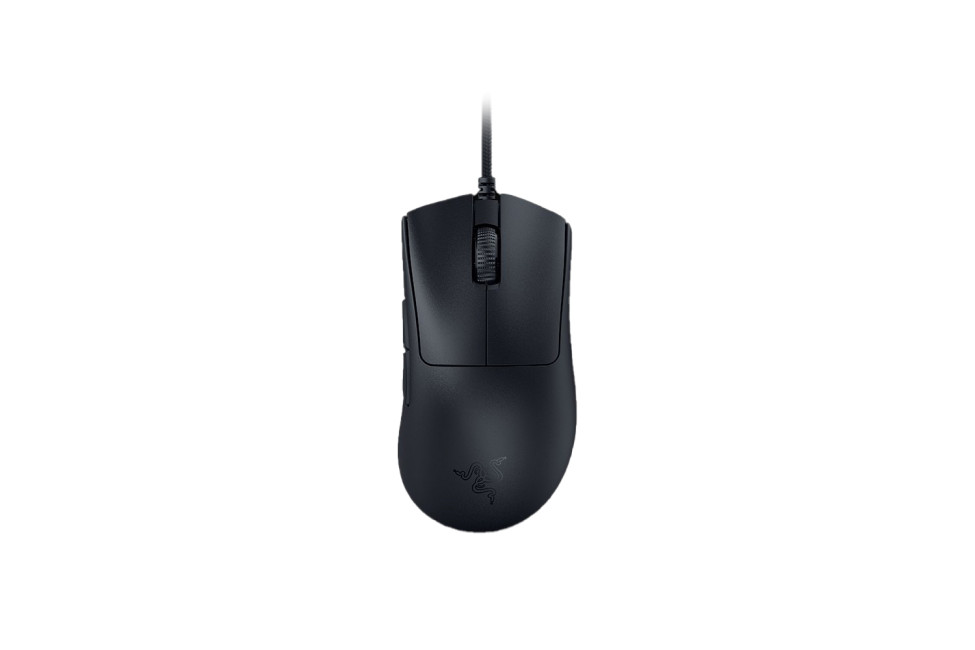
Razer DeathAdder V3 Wired Gaming Mouse
|
|
Highlights:
|
Best for ergonomic FPS gaming
The Razer DeathAdder V3 combines an ultra-light construction with an ergonomic shape designed for controlled, fast-paced movement. Its responsive tracking makes it a strong option for competitive FPS players who want precision without managing batteries or wireless receivers.
ASUS TUF Gaming M4 Air Wired Gaming Mouse
|
|
Highlights:
|
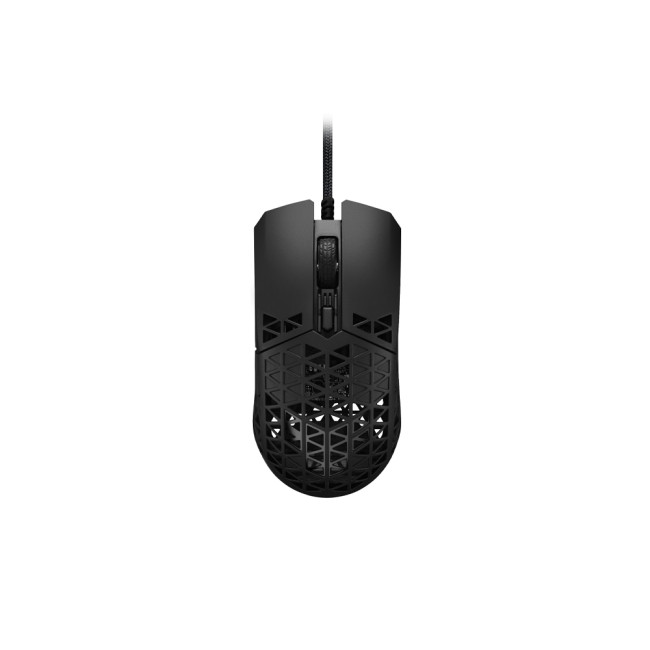
Best for lightweight control
Built with an Air Shell design, the ASUS TUF Gaming M4 Air keeps weight low while maintaining the control needed for rapid flicks and wide movements. It is particularly well suited to low-sensitivity players and longer sessions where reducing hand fatigue matters.
Lenovo Legion M300s Wired Gaming Mouse
|
|
Highlights:
|
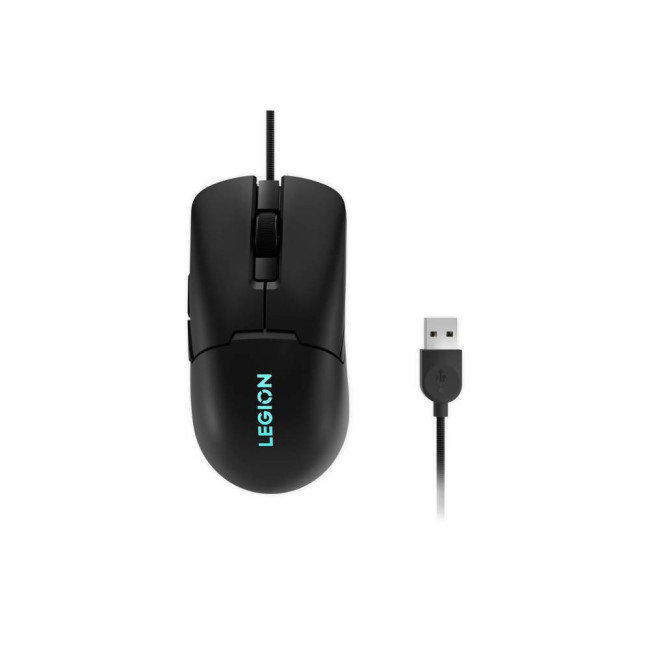
Best affordable wired option
The Lenovo Legion M300s offers dependable tracking, responsive controls and a straightforward lightweight design. It is a practical choice for new PC gamers or anyone looking for everyday gaming performance without paying for unnecessary premium features.
ASUS TUF Gaming M3 Gen II Wired Gaming Mouse
|
|
Highlights:
|
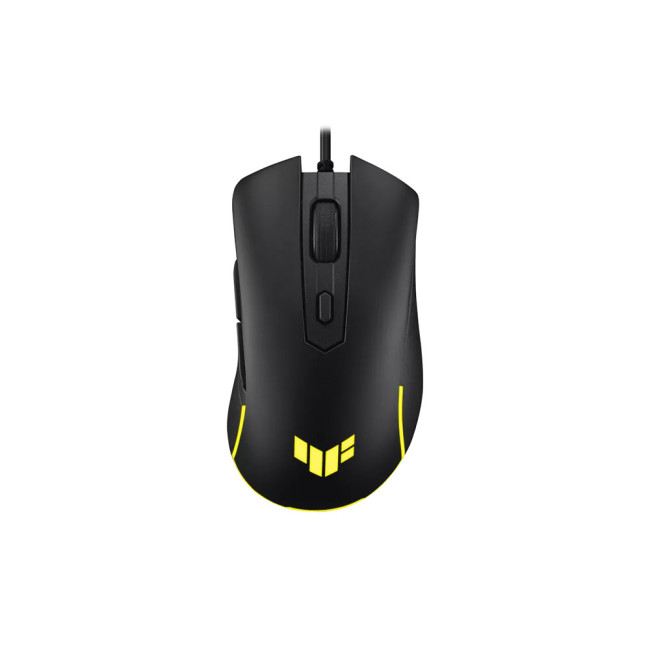
Best for everyday durability
Designed for regular gaming use, the ASUS TUF Gaming M3 Gen II balances responsive control with a durable, comfortable build. Its versatile design works well across shooters, strategy games, MOBAs and general desktop use.
Razer Cobra Wired Gaming Mouse – Pokémon Edition
|
|
Highlights:
|
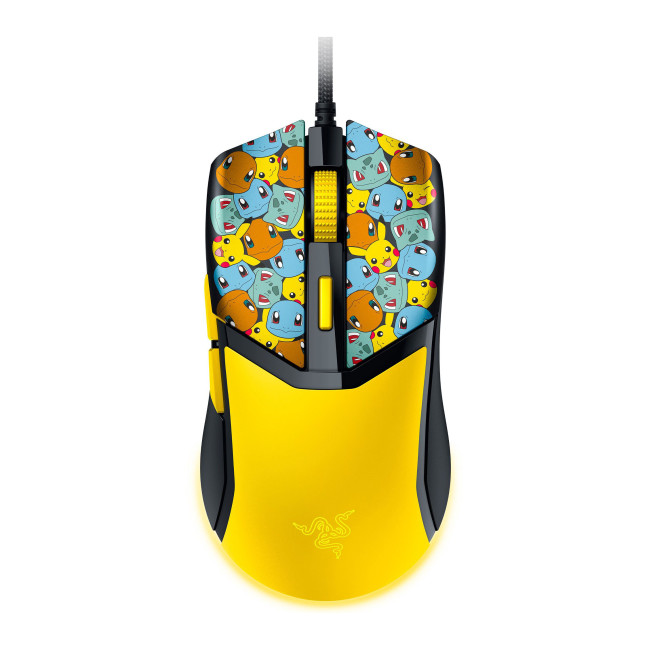
Best themed gaming mouse
The Razer Cobra Pokémon Edition combines a lightweight gaming design with distinctive collector-focused styling. It is ideal for players who want accurate, responsive control while adding more personality to their gaming setup.
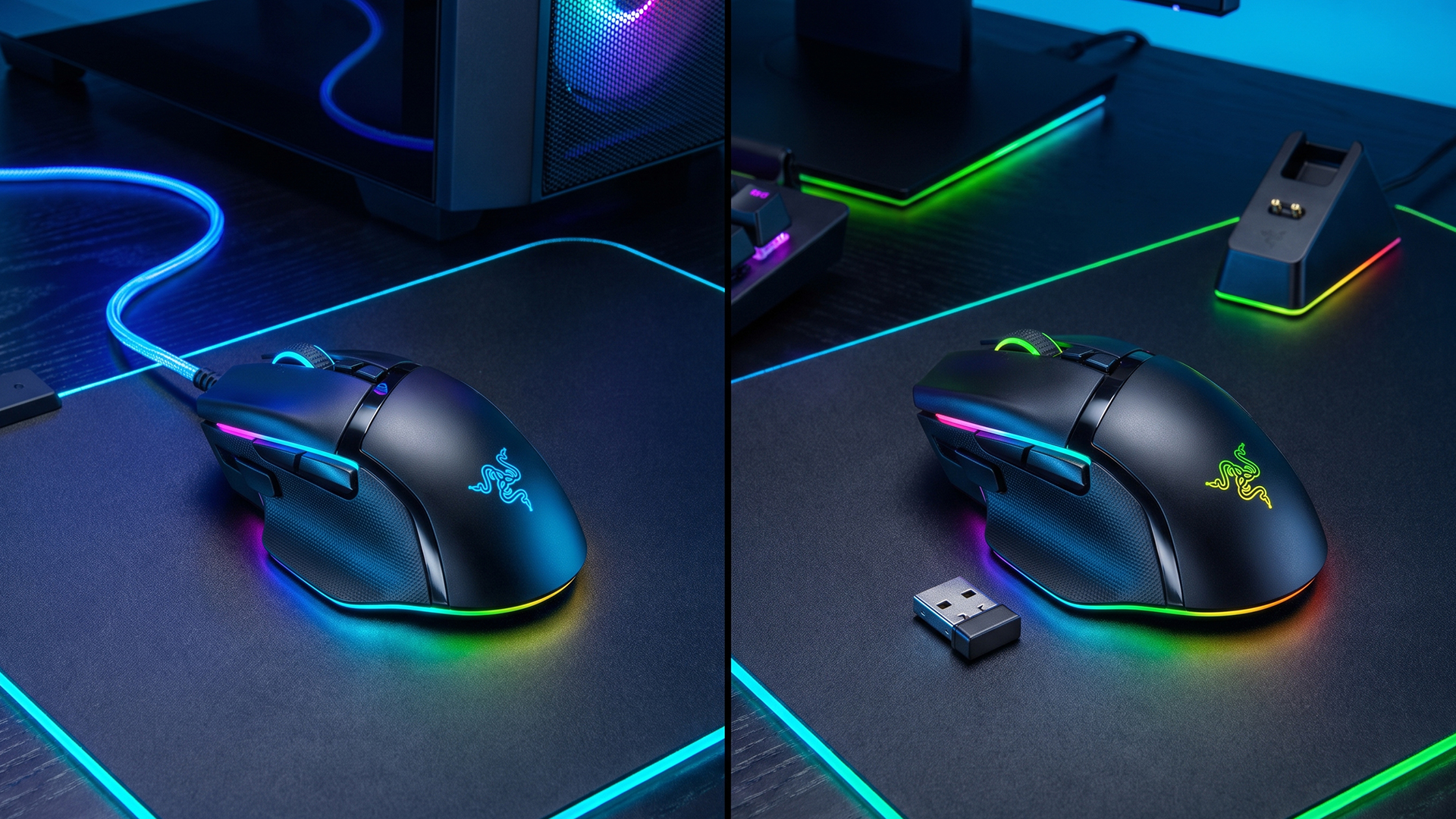
Laptop Outlet Picks: Best Wireless Gaming Mice
The best wireless gaming mice combine freedom of movement with fast 2.4GHz connectivity. These options are suited to competitive gaming, flexible setups and players who want to remove cable drag from their desk.
Razer Viper V3 Pro Wireless Gaming Mouse
|
|
Highlights:
|
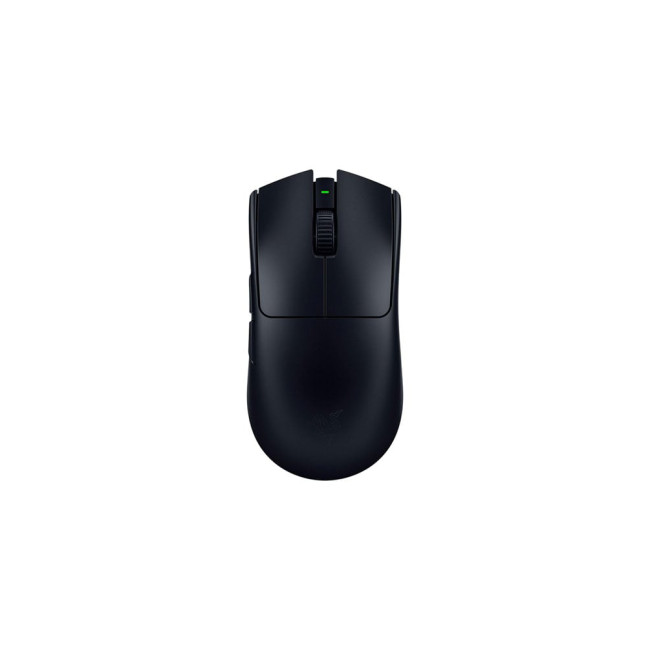
Best for competitive esports
The Razer Viper V3 Pro is built for speed, with an ultra-light design that supports rapid aiming and controlled tracking; that’s why we put it into our best wireless mouse list. Its responsive wireless connection makes it particularly suitable for competitive FPS and esports players.
ASUS ROG Harpe II Ace Wireless Gaming Mouse
|
|
Highlights:
|
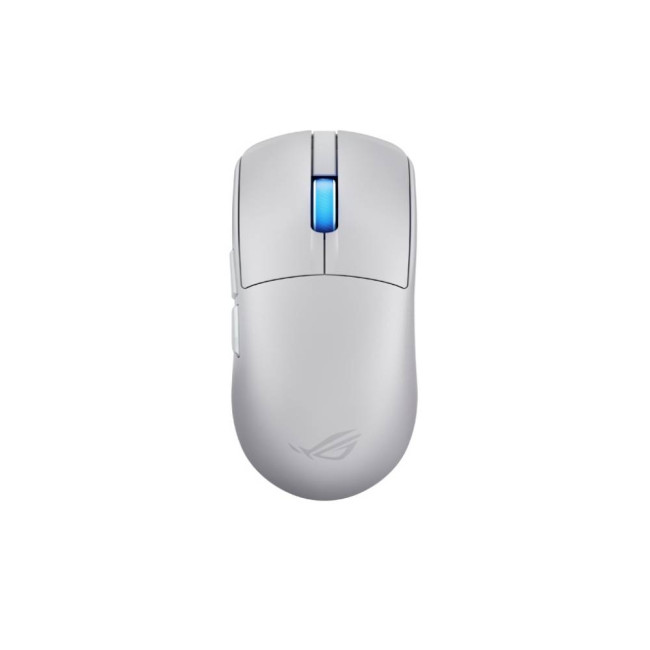
Best for balanced competitive control
The ASUS ROG Harpe II Ace combines a carefully balanced shape with precise tracking and responsive wireless performance. It suits competitive players who want a lightweight mouse without compromising comfort or control during longer sessions.
ASUS ROG Keris II Wireless Ace Gaming Mouse
|
|
Highlights:
|
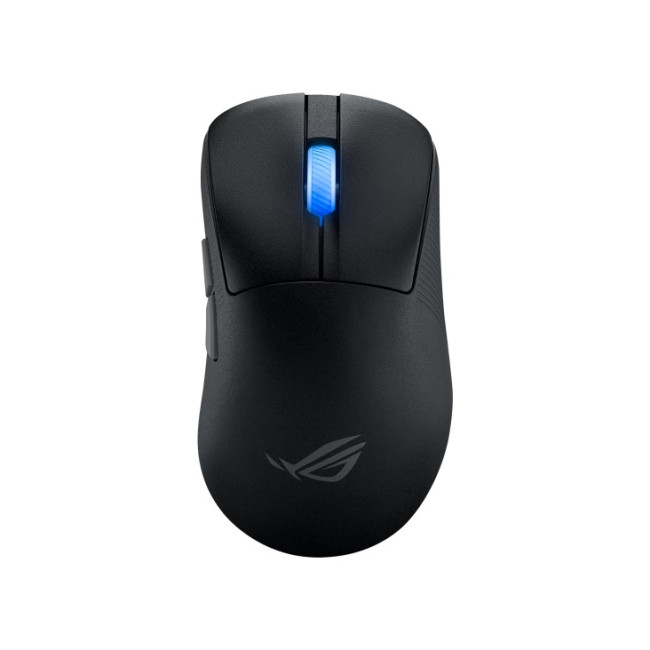
Best for ergonomic customisation
Designed around a lightweight ergonomic shape, the ASUS ROG Keris II Wireless Ace provides stable wireless performance and a comfortable feel for extended play. It is a strong choice for gamers who value precision, flexibility and a more personalised setup.
ASUS ROG Strix Impact III Wireless Gaming Mouse
|
|
Highlights:
|

Best compact wireless option
The ASUS ROG Strix Impact III Wireless offers a compact, versatile shape that works across multiple grip styles and gaming genres. Its dependable wireless connection makes it suitable for both everyday gaming and portable laptop setups.
Razer Viper V3 HyperSpeed Wireless Gaming Mouse
|
|
Highlights:
|
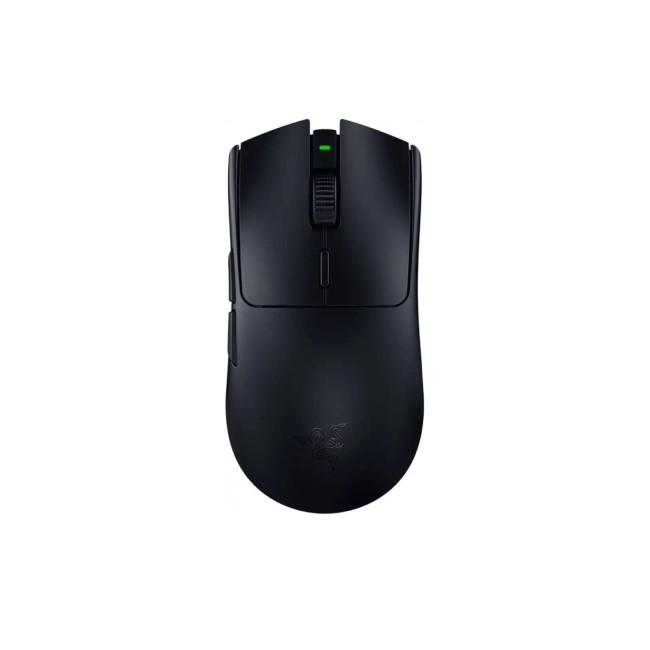
Best for wireless performance and value
The Razer Viper V3 HyperSpeed delivers fast 2.4GHz responsiveness in a lightweight design made for smooth, precise movement. It is a compelling option for competitive players who want capable wireless performance without moving to the highest price tier.
If you are upgrading more than the mouse, our guide to choosing the best gaming keyboard and mouse explains how to build a responsive wireless setup without adding unnecessary cables or compromising everyday comfort.

Final Verdict: Wired or Wireless Mouse for Gaming?
The wired vs wireless gaming mice debate no longer has a universal winner.
Wired gaming mice remain the best-value choice for reliable, plug-and-play performance with no charging required. They’re ideal for beginners, fixed desktop setups and budget-focused gamers.
Modern 2.4GHz wireless gaming mice offer low-latency performance with added freedom of movement and cleaner desk setups, though they typically cost more and require charging. Bluetooth is best for convenience and multi-device use, not competitive play.
For most users, choose wired for value and consistency, or 2.4GHz wireless for flexibility and a cleaner setup. Explore the best gaming mouse option to find the right fit for your playstyle.

Frequently Asked Questions
Do wireless gaming mice have input lag?
All mice have some level of input latency, but a quality 2.4GHz wireless gaming mouse should feel highly responsive during normal play. Dedicated gaming connections are generally faster and more suitable for competitive gaming than Bluetooth. Performance can also depend on receiver placement, interference, polling rate and the individual mouse.
Which gaming mouse lasts longer, wired or wireless?
Both types can last for several years when built well. A wired mouse may develop cable wear, while a wireless mouse’s rechargeable battery can lose capacity over time. Switch quality, build materials and usage are usually more important than the connection type when judging overall lifespan.
Is it worth upgrading from wired to wireless gaming mouse?
It is worth upgrading if cable drag restricts your movement, you want a cleaner setup or you regularly move between devices. Do not expect wireless connectivity alone to improve your aim. Shape, weight, sensor performance and comfort should also be better than your current mouse.
Is 2.4GHz better than Bluetooth for gaming?
A dedicated 2.4GHz connection is usually the better option for gaming because manufacturers design it for faster and more consistent input transmission. Bluetooth is useful for saving USB ports, extending battery life and connecting to several types of device, but it is less suitable for latency-sensitive competitive play.
Can you use a wireless gaming mouse while charging?
Many rechargeable gaming mice can operate through a USB cable while charging, effectively working as wired mice until disconnected. Check the product specifications because some charging cables supply power only, while others support both charging and data transmission.
Is wired or wireless better for competitive gaming?
Both can be suitable. A quality 2.4GHz wireless mouse offers unrestricted movement and removes cable drag, while a wired model provides continuous power and a stable physical connection. Competitive players should prioritise shape, weight, sensor consistency, click response and polling rate rather than connection type alone.
| Read More: |
| How to Choose the Right Gaming Mouse for Your Grip Style |
| Top 5 Gaming Wireless Mouse Problems and How to Fix Them |
| Which Gaming Keyboard and Mouse Are the Best? Enjoy Wireless Gaming |
Related Articles


Last Updated: December 19, 2025
Emojis have become a language of their own, especially for the Gen Z and Alphas. You’re replying to an email, chatting on WhatsApp Web, creating social posts, or even completing work messages with a little personality, being able to type emojis using your keyboard saves time and makes communication more expressive.
Let’s learn the easiest ways to type emojis on Windows, Mac, Chromebooks, and even mobile keyboards. No more copy-and-paste from emoji websites, you’ll be able to insert any emojy in seconds.
Why Use Keyboard Emojis?
Before we get into shortcuts, here’s why knowing them matters:
- Fast: Add emojis without switching tabs or using your mouse.
- Professional + fun: Modern workplaces increasingly accept emojis for clarity and tone.
- Easy to remember: Once you learn shortcuts, they feel natural.
- Universal: Works across apps - Word, Slack, Teams, Gmail, Instagram, web browsers, and more.
Now let’s jump into the shortcuts for every device. If you enjoy adding creativity to your messages,

Last Updated: February 13, 2026
Because nothing kills the vibe faster than a laptop, that suddenly decides your fingers are irrelevant.
You sit down. You open your laptop. You’re mentally prepared to be productive (or at least pretend). And then .....boom... your laptop touchpad is not working. Or your laptop keyboard is not working. Or worse… both.
At this point, your laptop isn’t broken; it’s personally offended by you.
Before you rage-buy a new device or spiral into tech despair, here’s the good news: most laptop keyboard problems and touchpad issues are completely fixable. And no, you don’t need a computer science degree or a sacrifice to the tech gods.
This guide is not one of those vague “restart your device” articles and call it a day. This is a deep-dive, all-reasons, all-solutions, no-BS troubleshooting guide, written in human language, with enough detail to actually solve the problem.
We’ll cover:
- Software vs hardware problems (and how to tell the difference)
- Every common and uncommon reason your laptop input
Last Updated: April 22, 2026
Stop reaching for the mouse every five seconds. Windows keyboard shortcuts are one of the fastest, simplest ways to boost your daily output - whether you're writing reports, navigating spreadsheets, or juggling a dozen open tabs at once.
This complete guide covers every shortcut worth knowing across Windows 10 and Windows 11, from the basics to the more advanced tricks that most people never discover.
Why Keyboard Shortcuts Are Worth Learning
Most people pick up one or two shortcuts by accident and never go any further. Yet the productivity gap between someone who relies on a mouse and someone genuinely fluent in shortcuts is striking - you spend less time clicking, less time searching, and considerably more time actually doing the work.
Here's what mastering shortcuts gives you:
- Speed: Tasks that take three clicks happen in milliseconds
- Concentration: Your hands stay on the keyboard, your eyes on the screen
- Less strain: Reduced repetitive mouse movement means fewer aches over a long
Last Updated: May 06, 2026
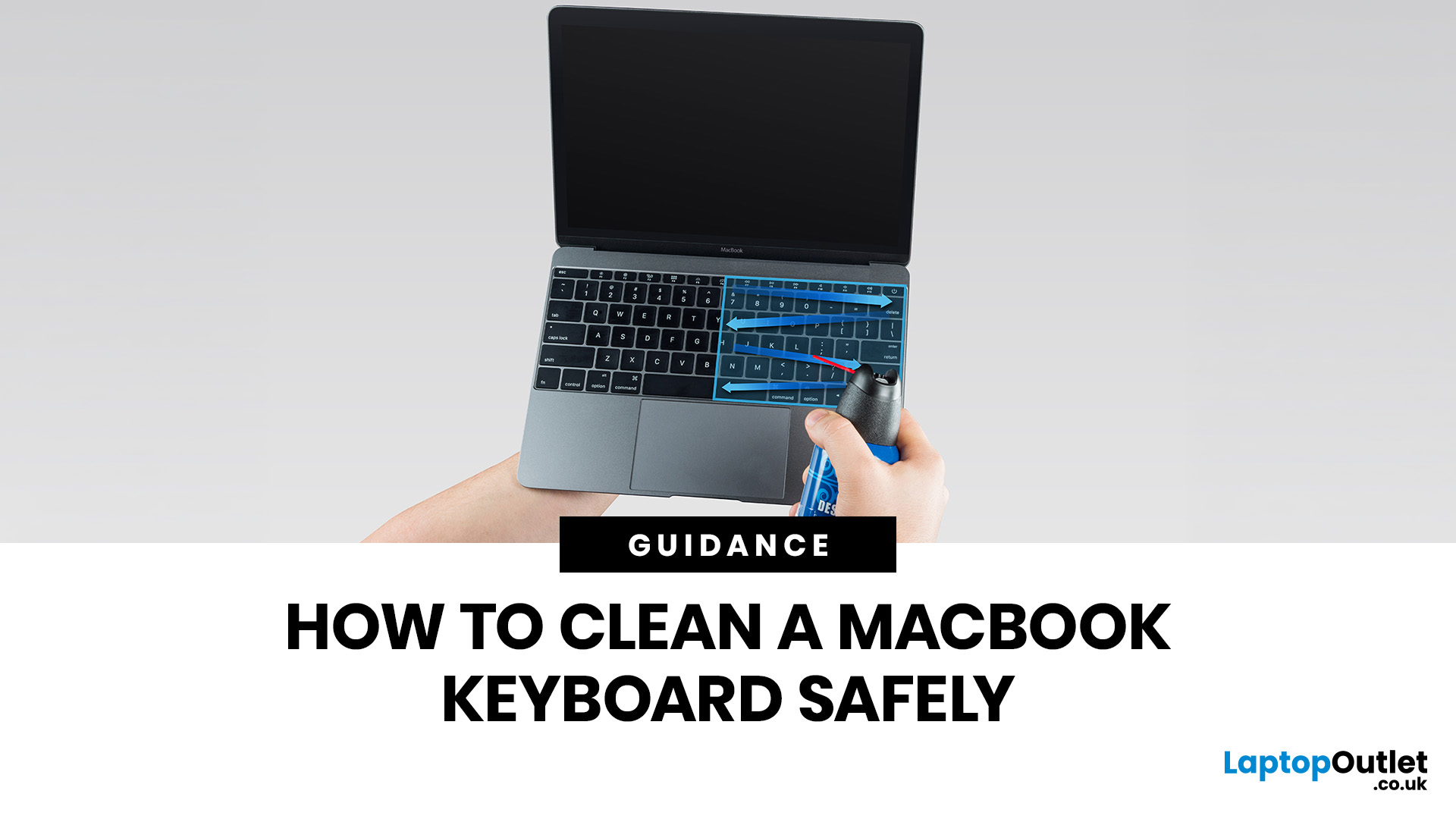
MacBook keyboard cleaning is simple when you do it the Apple-safe way: shut the laptop down, unplug it, use a soft lint-free cloth, keep moisture out of the openings, and never spray cleaner directly onto the keyboard. If you need to disinfect the surface, Apple says you can gently wipe off the hard, non-porous exterior, including the keyboard, with a 70 per cent isopropyl alcohol wipe, a 75 per cent ethyl alcohol wipe, or a disinfectant wipe.
That is the short version. The longer version matters because MacBook keyboards are not built for chaotic cleaning energy. Too much liquid, the wrong cleaner, or one “quick” spray straight onto the keys can turn a dusty keyboard into an expensive repair story. We will discuss today how to clean a Mac keyboard properly, how to remove dirt from MacBook keys, when compressed air makes sense, what not to use, and when a keyboard issue is no longer a cleaning job.
Quick Answer: How Can We Clean a MacBook Keyboard Safely?
The safest way to clean a MacBook
Last Updated: June 10, 2026
Mac keyboard shortcuts help you copy, paste, search, switch apps, manage files, take screenshots, and control system features faster from the keyboard. This 2026 guide explains the essential shortcuts, the meaning of Apple's modifier keys, practical shortcuts for everyday work, and the easiest ways to customise them for a smoother workflow.
What Are Mac Keyboard Shortcuts, And Why Should You Use Them?

Mac keyboard shortcuts are key combinations that carry out actions you would otherwise do with a mouse or trackpad. Apple notes that these shortcuts can save time, but also points out that some shortcuts vary by app, keyboard layout, and language.
For most people, the biggest benefit is speed. Copying text, opening Spotlight, closing tabs, switching apps, and locking the screen all feel quicker when your hands stay on the keyboard.
The same core shortcuts work across modern Macs, including MacBook, iMac, and Mac mini, as long as the keyboard layout matches.
If you are also comparing machines

Last Updated: October 12, 2026
Last Updated: June 11, 2026
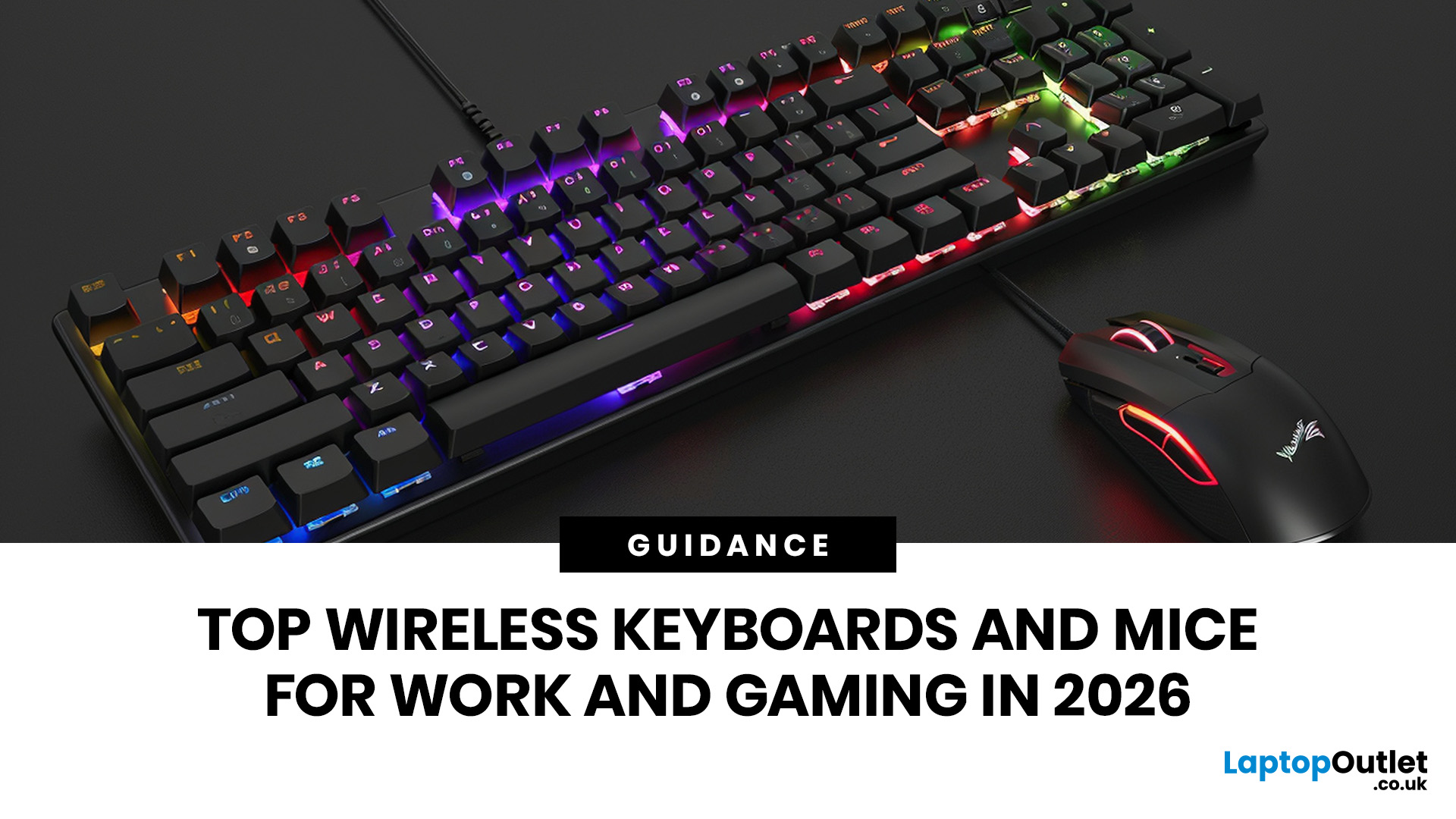
For a clean and minimalist look of your working or gaming setup, choosing the right wireless mouse and keyboard can make a bigger difference than you think.
If you're on a budget, the Logitech Wireless Mouse M235 is a reliable and affordable option.
For UK shoppers in 2026, the best setup is for comfort, connectivity, battery life, accuracy, layout, and daily usability. Some people need a simple keyboard mouse combo for emails and spreadsheets. Others want fast switches, RGB lighting, ultra-light mouse movement, and reliable wireless performance for gaming.
This guide breaks down the best wireless keyboard mouse UK options from Laptop Outlet, covering work-friendly sets, Bluetooth-ready mice, premium

Last Updated: June 22, 2026
The right VR accessories depend on which headset you own and how you use it. For most users, the highest-impact upgrades are a comfort head strap with a battery pack, a silicone face cover for hygiene, and an audio solution. If you wear glasses, prescription lens inserts are well worth the investment.
The best approach is not to buy every accessory at once. Start with the one or two upgrades that fix your biggest pain points, then build your setup around how you actually play, watch, exercise or socialise in VR.
This guide explains how to choose VR accessories by headset type, play style, comfort needs and budget.
Why VR Accessories Make a Real Difference
Even the best VR headsets ship with compromises. Manufacturers keep costs down by including basic foam facial interfaces, lightweight straps that can feel unbalanced, and built-in audio that rarely matches a dedicated headset. The right virtual reality accessories address exactly those shortcomings without requiring you to buy an entirely
Published: July 01, 2026
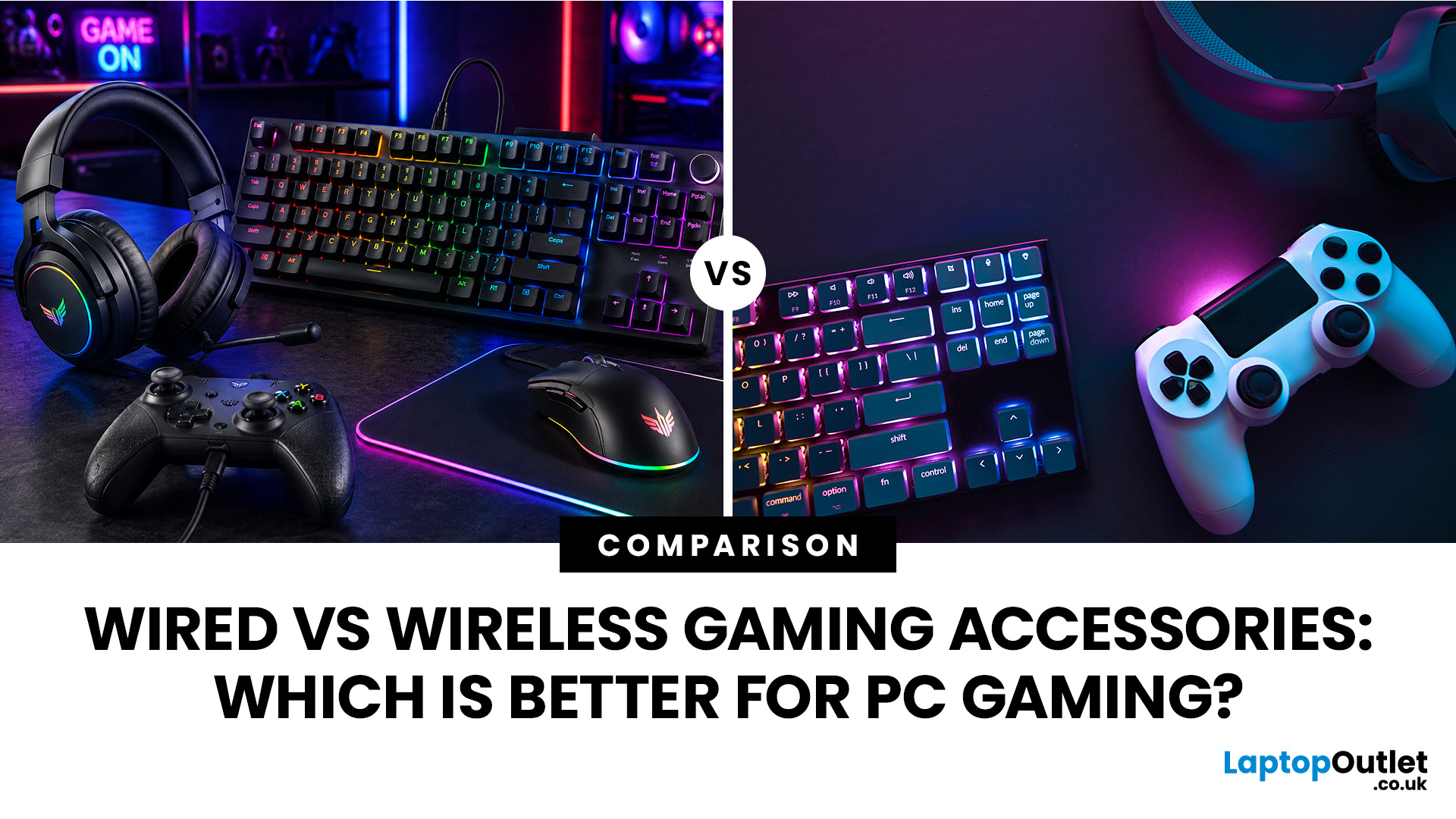
When building a PC gaming setup, choosing the right accessories matters just as much as choosing the right system. Your keyboard, mouse, headset, controller, and display all affect how comfortable, responsive, and enjoyable your games feel.
Many gamers compare wired vs wireless gaming accessories before upgrading their setup. Wired options are known for reliable performance and no battery concerns, while wireless models offer cleaner desks and more freedom of movement. Some players need speed and stability. Others want comfort, flexibility, and fewer cables. The right choice depends on what you play, how often you play, and how you use your desk.
What are Wired Gaming Accessories?
Wired gaming accessories connect directly to your PC using a cable, usually through USB or a 3.5mm audio port. Common examples include wired keyboards, mice, headsets, controllers, and charging docks.
The main appeal is consistency. You do not need to worry about charging, Bluetooth pairing, signal drops, or battery
Last Updated: September 03, 2026
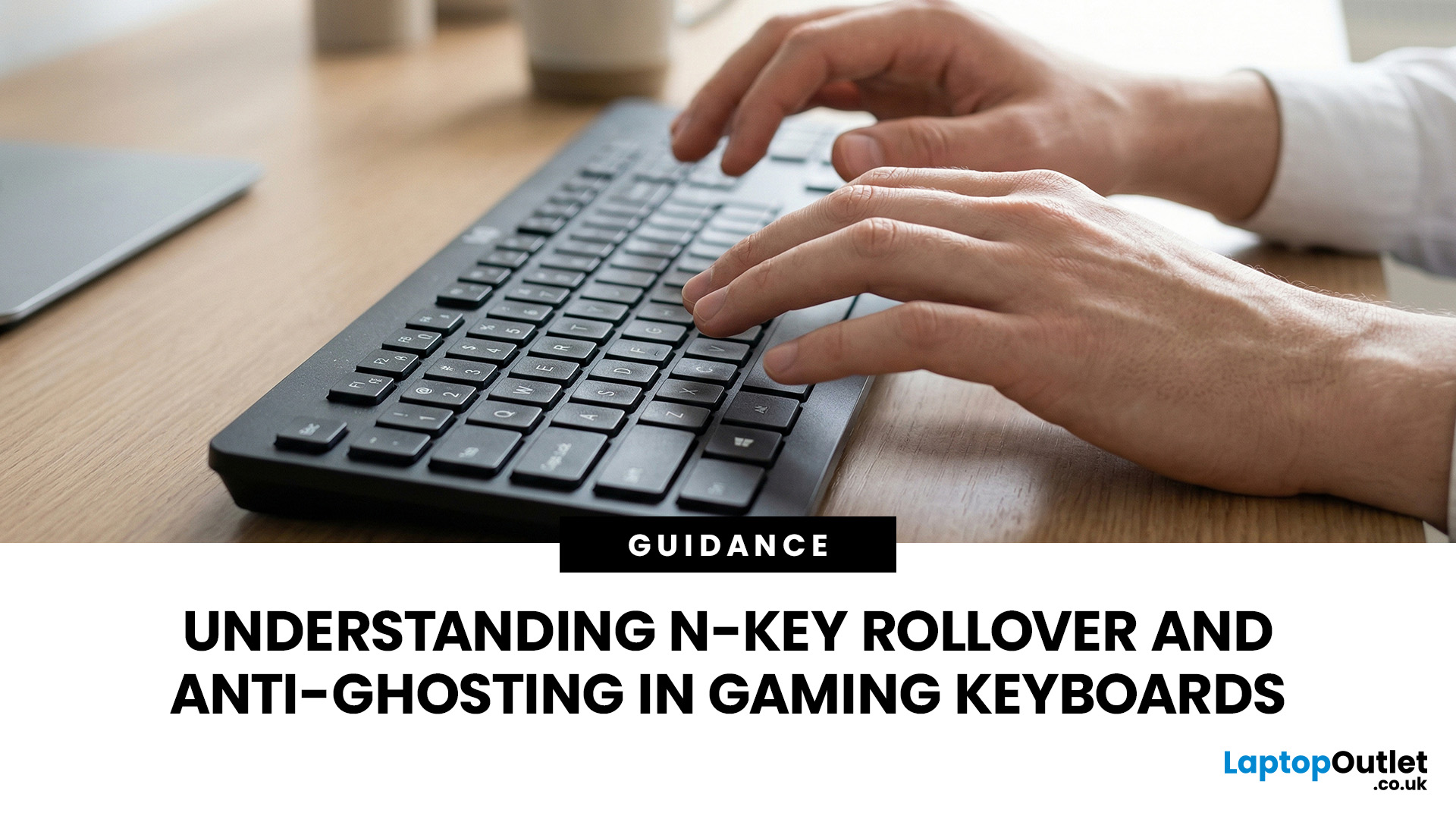
N-Key Rollover (NKRO) means a keyboard registers every key pressed simultaneously, with no inputs dropped or missed. Anti-ghosting prevents phantom keypresses from being falsely reported to your system. Both features work together on gaming keyboards to deliver accurate, reliable input during fast or complex gameplay. NKRO addresses missed real inputs; anti-ghosting eliminates false ones. Together, they ensure every command lands exactly as intended.
If you have ever been mid-battle, pressed three keys at once, and watched your character fail to jump, sprint, or reload, you have experienced the real-world impact of keyboard input limitations. This is not a game bug or a connection issue. The culprit is almost always your keyboard.
Modern gaming keyboards handle simultaneous key presses differently, and two features stand out: N-Key Rollover and anti-ghosting. Together, they are the reason a dedicated N Rollover keyboard feels so much more dependable in fast-paced games than a standard office

