



Top 5 Gaming Wireless Mouse Problems and How to Fix Them
Five of the most common wireless mouse problems are: cursor lag, random disconnections, double-clicking, DPI inconsistency, and tracking failures on certain surfaces. Most of these can be fixed by updating firmware, repositioning the USB receiver, cleaning the sensor, adjusting polling rate, or replacing worn-out switches. For persistent hardware faults, replacing the mouse is often the most practical solution.
This guide walks you through the top five gaming mouse issues, what causes them, and exactly how to sort them out. Let’s get started.
Problem 01 – Cursor Lag and Input Delay
Gaming mouse input lag is one of the most frustrating issues you can face. It appears as a noticeable delay between your physical hand movement and what you see on screen. In fast-paced games like Valorant or Call of Duty, even a few milliseconds can cost you a round.
What Causes It?
Input lag in a gaming wireless mouse typically comes from a combination of factors rather than one single issue. The most common culprits are a low polling rate, USB 3.0 interference, an underpowered battery, outdated firmware, or background system processes stealing CPU cycles.
|
Worth Knowing: USB 3.0 ports are known to emit radio frequency noise in the 2.4GHz range, the same band used by most wireless mice. This can cause stuttering and added latency that is often mistaken for a mouse hardware fault. |
How to Fix Gaming Mouse Latency
- Move your USB receiver to a USB 2.0 port. If none are available, use the USB extension cable that came in the box to position the receiver within 20cm of your mouse.
- Open your mouse companion software (such as Logitech G HUB or Razer Synapse) and check the polling rate. For most gamers, 500Hz to 1000Hz offers the best balance of stability and low latency. Higher polling rates like 4000Hz or 8000Hz demand more from your CPU and may worsen performance on older systems.
- Charge or replace the battery. A wireless mouse running below 20% charge can exhibit sluggish or erratic behaviour that mimics lag.
- Update your mouse firmware and drivers from the manufacturer's official website. Outdated firmware is a surprisingly common cause of gaming mouse latency.
- Close unnecessary background applications while gaming. High CPU usage causes the system to delay processing HID (mouse) input alongside everything else.
- In Windows settings, go to Mouse Properties and make sure "Enhance Pointer Precision" (mouse acceleration) is switched off. This setting can make your cursor movement feel inconsistent and laggy.
|
Quick Tip: If you are running a 240Hz display, make sure your in-game frame rate is stable and V-Sync is disabled. What feels like mouse lag is often just frame pacing caused by the GPU struggling to keep up. |
If your wireless mouse still feels delayed after these fixes, our wired vs wireless gaming mice guide can help you decide whether switching connection type is worthwhile.
Problem 02 – Random Disconnections
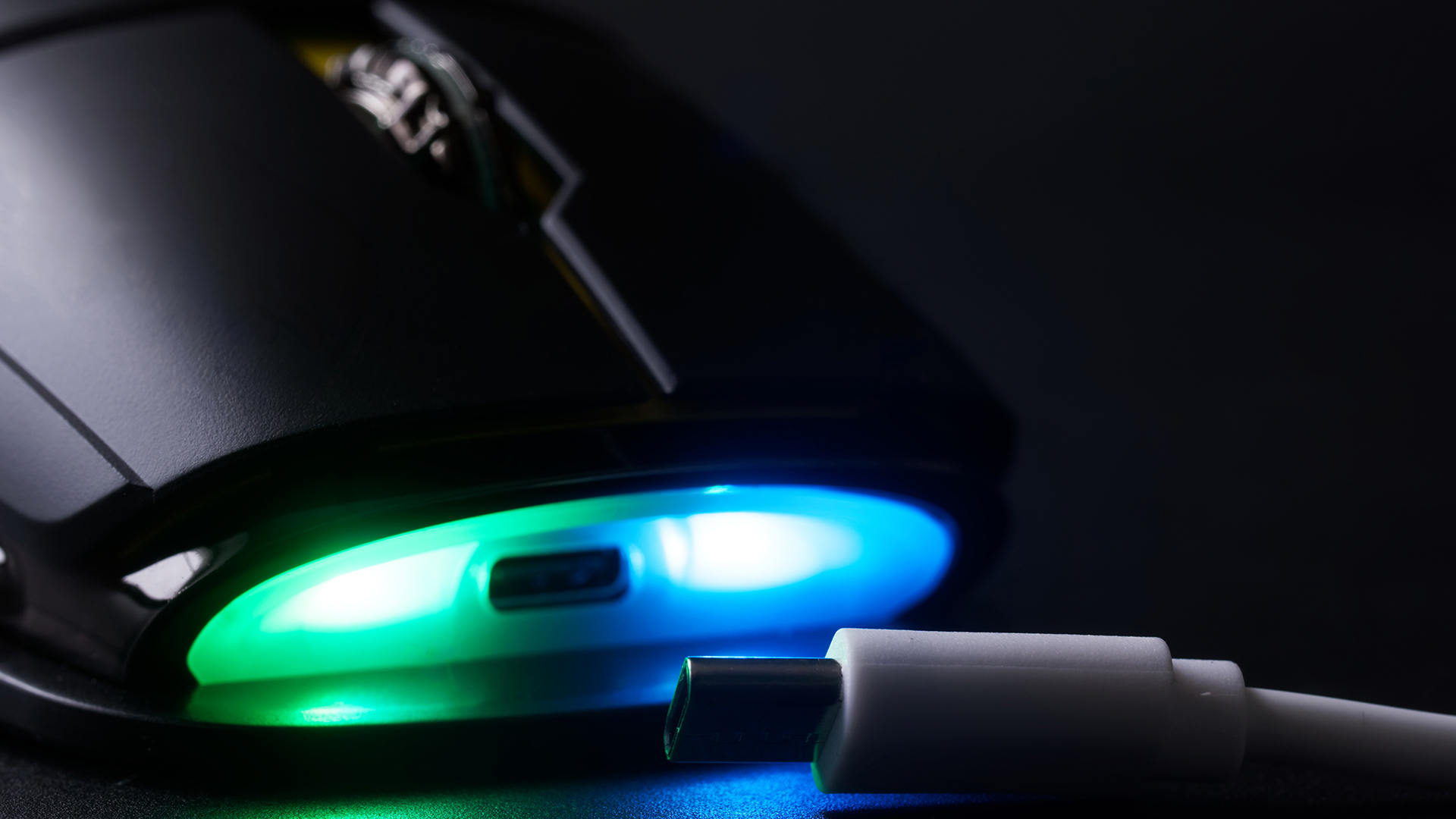
Your gaming mouse keeps disconnecting mid-game with no warning. It is a classic wireless mouse problem that tends to appear gradually, happening once in a while before becoming a regular interruption.
What Causes It?
Random disconnections are usually down to signal interference, a low or failing battery, a faulty or incorrectly positioned USB receiver, or occasionally outdated firmware that has a known power management bug.
How to Fix It
- Re-pair the mouse with its USB receiver. Follow your brand’s pairing utility or manual; some models have a pairing button, while others require software.
- Move potential sources of interference away from your desk. Wi-Fi routers, cordless phones, and even nearby microwave ovens all operate on the 2.4GHz band and can disrupt your mouse signal.
- Plug the USB receiver into a different port, ideally one on the back panel of your PC rather than a front panel extension. Front USB ports are often further from the main board and more prone to power fluctuations.
- Check Windows Power Management. Go to Device Manager, find your mouse under "Mice and other pointing devices," right-click, select Properties, go to the Power Management tab, and uncheck "Allow the computer to turn off this device to save power."
- Fully charge the battery or swap in a fresh set of AA/AAA cells. Voltage instability from a low battery is a very common and easily overlooked cause of disconnection.
- Check for and install the latest firmware update from the manufacturer. Some disconnection bugs have been fixed in firmware patches released after the mouse launched.
|
Worth Knowing: If your mouse disconnects only when you move it quickly or in certain directions, this may point to a hardware fault in the wireless module rather than interference. |
Still getting lag after fixing your mouse? Display latency may also be part of the problem. Explore our best monitors for gaming setups and reduce display-side latency too.
Problem 03 – Unintentional Double-Clicking
The double click issue is one of the most common gaming mouse errors reported by UK gamers. A single click registers as two, causing dropped items in games, accidental file opens, and missed shots.
What Causes It?
The root cause is almost always mechanical wear in the mouse switches. Most gaming mice use Omron mechanical microswitches. Over time, the internal metal spring loses tension and no longer makes clean contact, so one press registers as two quick signals. This is a hardware issue, not a software one, although software workarounds can buy you time.
Low battery voltage in a wireless mouse can also cause erratic click registration that looks identical to double-clicking, so always rule that out first.
How to Fix the Double Click Issue
- Start simple: charge or replace the battery and test again. Many reported double-click cases are actually caused by voltage instability from a low battery.
- Go to Windows Settings > Bluetooth & devices > Mouse > Additional mouse settings. Under the Buttons tab, adjust the double-click speed and test the result. This may reduce accidental double-click behaviour, but it will not permanently fix a worn switch.
- Check whether your mouse software (such as Logitech G HUB) has a debounce time setting. Increasing the debounce delay prevents the switch from registering a second signal too quickly after the first.
- Test the mouse on another PC. If double-clicking occurs there too, it is a hardware fault in the switch itself, not a Windows or driver issue.
- For those comfortable with DIY repairs: the switch can be replaced. Optical switches do not suffer from the same metal fatigue and can extend the mouse's lifespan considerably.
|
Quick Tip: Before any repair, search YouTube for "[your mouse model] switch replacement." There are step-by-step video guides for most popular mice. Watching the process on your exact model makes it far less daunting. |
Problem 04 – DPI Inconsistency and Erratic Sensitivity
One minute your aim feels sharp, the next your crosshair is drifting unpredictably. DPI inconsistency is a subtle but damaging wireless mouse problem that often gets blamed on "bad aim" rather than the mouse itself. It is especially noticeable in competitive FPS titles where your sensitivity baseline needs to stay rock solid.
What Causes It?
Inconsistent DPI can stem from several sources: conflicting software profiles, Windows mouse acceleration being active, outdated firmware, interference affecting the wireless signal quality, or contamination on the optical sensor lens. In wireless mice specifically, a low battery can cause the sensor to under-report movement data, making your DPI feel lower than the setting suggests.
How to Fix DPI Inconsistency
- Open your mouse companion software and reset all profiles to default. Conflicting or corrupted DPI profiles are a surprisingly common source of erratic sensitivity.
- Go to Windows Settings > Bluetooth & devices > Mouse > Additional mouse settings > Pointer Options and disable "Enhance Pointer Precision." This is mouse acceleration, and it will make your DPI feel different depending on how fast you move, ruining consistency.
- Update firmware via the manufacturer's official app. Firmware patches often include improvements to sensor calibration and DPI reporting accuracy.
- Run the surface calibration tool available in Logitech G HUB, Razer Synapse, or Corsair iCUE. This optimises the sensor's tracking for your specific mousepad material and texture.
- Keep your DPI setting between 800 and 1600 for day-to-day competitive gaming. Extremely high DPI values can amplify micro-movements and make your aim feel unpredictable.
- Charge or replace the battery. Wireless mice running at low charge often show reduced tracking fidelity that mimics DPI drift.
|
Worth Knowing: If you are running multiple software applications simultaneously (for example, both Logitech G HUB and a third-party RGB tool), they can conflict and apply competing DPI profiles. Always close any third-party peripheral software that is not essential. |
DPI Settings at a Glance
|
DPI RANGE |
BEST FOR |
NOTES |
|---|---|---|
|
400–800 DPI |
Slow, precise sniping; low sensitivity play |
Requires large desk space and sweeping arm movements |
|
800–1600 DPI |
FPS gaming, everyday use |
Sweet spot for most competitive players |
|
1600–3200 DPI |
High-refresh monitors, fast flick shots |
Pair with lower in-game sensitivity to compensate |
|
3200+ DPI |
Specific hardware configurations only |
Can introduce jitter; rarely beneficial for aim |
Communication is part of gaming too. Check out our high-quality gaming headsets to complete your setup while you sort the mouse situation.
Problem 05 – Tracking Failures and Sensor Issues
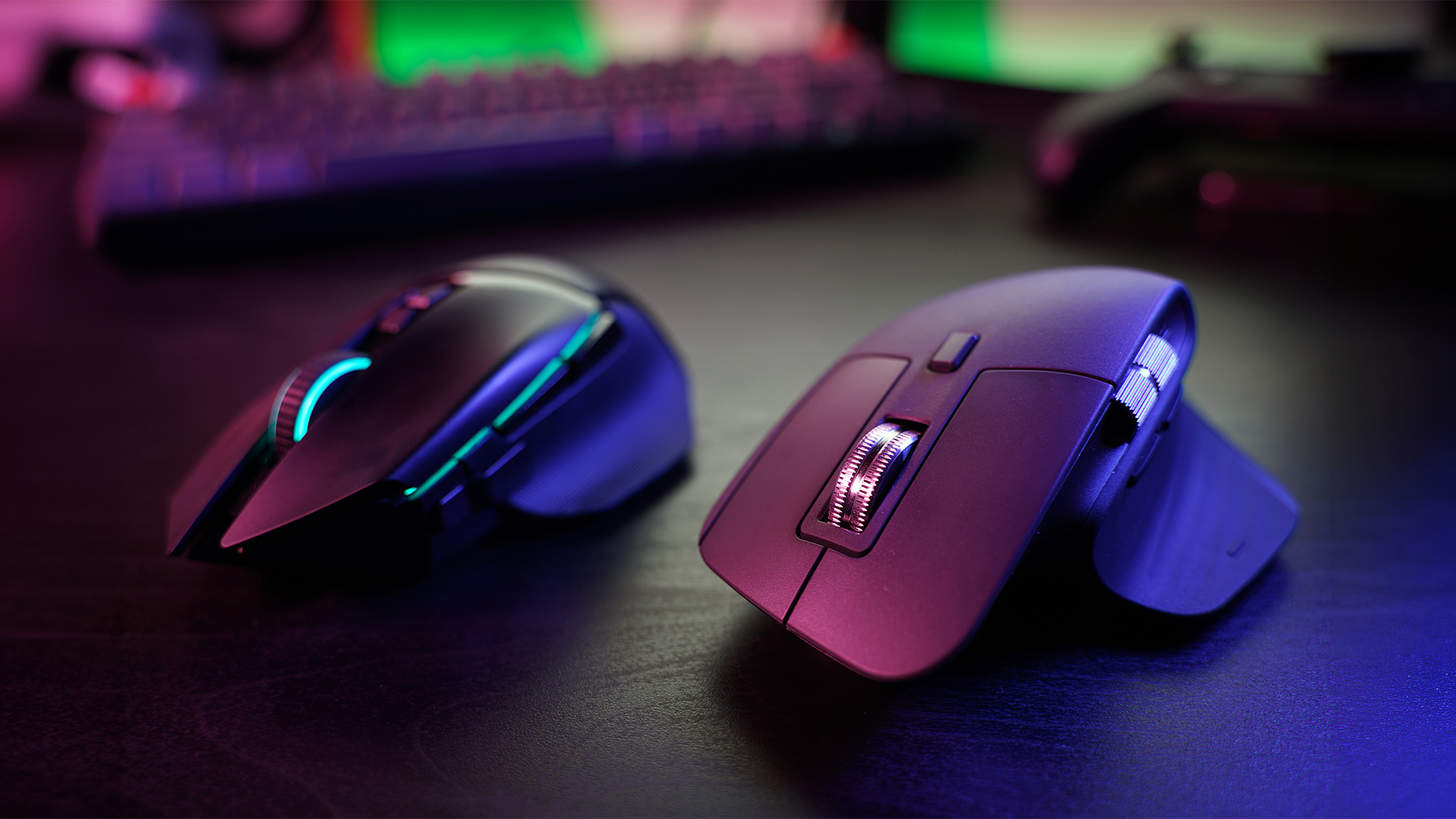
If your cursor is jumping around erratically, skipping, freezing mid-movement, or simply not tracking your hand at all, you are likely dealing with a sensor-related problem. This is one of the most common gaming mice problems, but it is often simpler to fix than it appears.
What Causes It?
The optical or laser sensor on the underside of your mouse reads the surface beneath it hundreds of times per second. If that lens is dirty, if the surface is reflective or glass-like, or if the mousepad is worn and inconsistent, the sensor struggles to interpret movement. In some cases, the sensor itself may be physically degraded after years of use.
How to Fix Tracking Problems
- Clean the sensor lens. Use a lint-free microfibre cloth lightly dampened with 70% isopropyl alcohol. Wipe gently and leave it to dry for at least 90 seconds before use. Never blow air directly onto the lens, as this can introduce moisture.
- Clean your mousepad or switch to a different surface. Dust, crumbs, and skin oils on your pad can block the sensor's view. Wipe fabric pads with a damp cloth and allow them to dry fully. If you are using a glass or highly reflective surface, switch to a cloth or hard plastic pad with a consistent matte texture.
- Lower the lift-off distance (LOD) setting in your mouse software if you frequently lift and replace the mouse. A high LOD causes the cursor to continue moving slightly after you pick the mouse up, which can feel like tracking errors.
- Update firmware. Manufacturers often release firmware updates specifically to improve sensor performance on particular surface types.
- Run the surface calibration tool in Logitech G HUB, Razer Synapse, or your equivalent software. This recalibrates the sensor's response to your exact mousepad material.
- Test on a plain white A4 sheet of paper. This eliminates surface variables entirely and helps you identify whether the fault is in the mouse hardware or the surface it is tracking on.
|
Can a gaming mouse sensor stop working entirely? Yes. Sensors can degrade over time, particularly on budget mice with lower-grade optical components. If your mouse still fails to track after cleaning and a surface change, and it is more than three to four years old with heavy daily use, the sensor may have reached the end of its serviceable life. At that point, gaming mouse repair may not be cost-effective compared to a replacement. |
Surfaces That Can Cause Sensor Problems
- Glass desks or glass mouse mats (most optical sensors cannot track reliably on these)
- Highly reflective or glossy surfaces
- Worn or heavily pilled fabric mousepads with inconsistent texture
- Bare wooden desks with grain patterns that confuse the sensor
- Very dark or very light single-colour surfaces with no texture variation
Quick-Reference: Common Gaming Mouse Fixes at a Glance
|
PROBLEM |
MOST LIKELY CAUSE |
FIRST FIX TO TRY |
DIFFICULTY |
|---|---|---|---|
|
Cursor lag / input delay |
USB 3.0 interference or low polling rate |
Move receiver to USB 2.0 port; set polling to 1000Hz |
Easy |
|
Random disconnections |
Low battery, interference, or power management |
Charge battery; disable USB power saving in Device Manager |
Easy |
|
Double-clicking |
Worn Omron microswitch |
Reduce double-click speed in Windows; increase debounce time in software |
Easy (software); Moderate (hardware repair) |
|
DPI inconsistency |
Mouse acceleration active or software conflict |
Disable "Enhance Pointer Precision"; reset software profiles |
Easy |
|
Tracking failure |
Dirty sensor or unsuitable surface |
Clean sensor with isopropyl alcohol; switch to cloth mousepad |
Easy |
Once your wireless mouse problems are fixed, comfort still matters. Use our gaming mouse grip style guide to choose a model that fits your hand properly.
When Should You Replace Your Gaming Mouse?
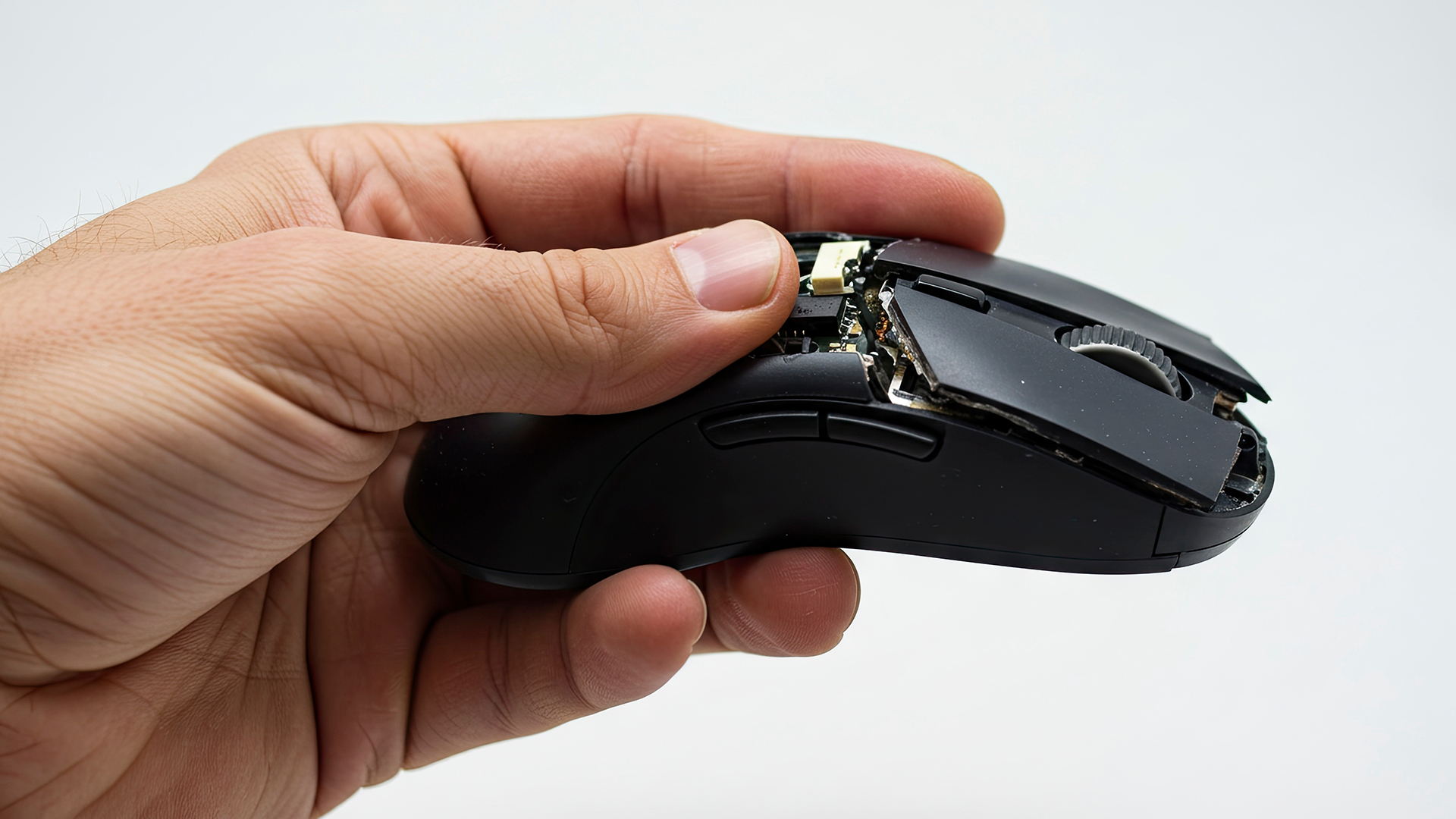
Not all wireless mouse problems can be fixed through software tweaks or cleaning. There are situations where gaming mouse repair is simply not worth the time or effort, and a replacement makes more practical sense.
- The mouse is more than four to five years old and has seen heavy daily use.
- The sensor fails on multiple clean surfaces after thorough cleaning.
- The double-click issue persists after switch replacement (pointing to deeper PCB-level faults).
- The wireless connection drops even after re-pairing, firmware updates, and battery replacement.
- The battery no longer holds charge adequately and there is no user-replaceable option.
- Physical damage is visible around the scroll wheel, buttons, or underside glide pads.
If any of the above apply to you, it may be worth exploring what current gaming mice have to offer. Wireless technology in the sub-£80 bracket has improved remarkably in the past two years, with many models now offering sub-1ms latency at 2.4GHz alongside battery lives exceeding 70 hours.
After a smoother, lag-free experience? Browse our range of top-rated gaming mice, chosen for low latency and competitive-grade sensors.
Also, pair your new mouse with a capable machine. Browse our range of reliable laptops and PCs for gaming, from mid-range builds to high-end rigs.

Getting Your Mouse Back on Track
Wireless mouse problems are common, but the vast majority are fixable. Whether you are dealing with gaming mouse input lag, sudden disconnections, the dreaded double-click issue, erratic DPI, or sensor tracking failures, working through a structured set of fixes will resolve the problem in most cases.
Start with the simplest solutions first: charge the battery, clean the sensor, and reposition the receiver. From there, move on to firmware updates, software resets, and Windows settings adjustments. If all else fails, it may be time to browse for a replacement.
At Laptop Outlet, we stock a wide range of gaming setup accessories, including wired and wireless mice, to suit every budget and playstyle. Browse today.

Let’s Clear a Few Things Up...
How do I fix a gaming mouse that keeps disconnecting?
Re-pair the receiver, move it to a USB 2.0 port, charge the battery fully, and disable USB power management in Device Manager. If issues continue, a firmware update often resolves known disconnection bugs.
Why is my gaming mouse cursor lagging?
Cursor lag is usually caused by USB 3.0 interference, a low polling rate, or a depleted battery. Move the receiver to a USB 2.0 port and set polling rate to 1000Hz in your mouse software to resolve it quickly.
Can a gaming mouse sensor stop working?
Yes. After extended heavy use, optical sensors can degrade or fail entirely. Cleaning the lens with isopropyl alcohol and switching mousepad surfaces resolves most sensor issues; persistent failure likely requires a replacement mouse.
Why does my gaming mouse double-click unexpectedly?
Unintentional double-clicking is almost always caused by a worn microswitch inside the mouse. Temporarily reduce the double-click speed in Windows settings; for a permanent fix, the switch will need replacing or the mouse should be replaced under warranty.
How do I stop my wireless mouse from losing battery so quickly?
Lower the DPI and polling rate, switch off RGB lighting, use the 2.4GHz receiver instead of Bluetooth where possible, and keep firmware updated to improve battery life.
| Read More |
| How To Unlock Mouse on Laptop: Ways to Unfreeze a Mouse |
| Which Gaming Keyboard and Mouse Are the Best? Enjoy Wireless Gaming |
| How Do You Connect a Wireless Mouse? |
Related Articles

Last Updated: July 14, 2026
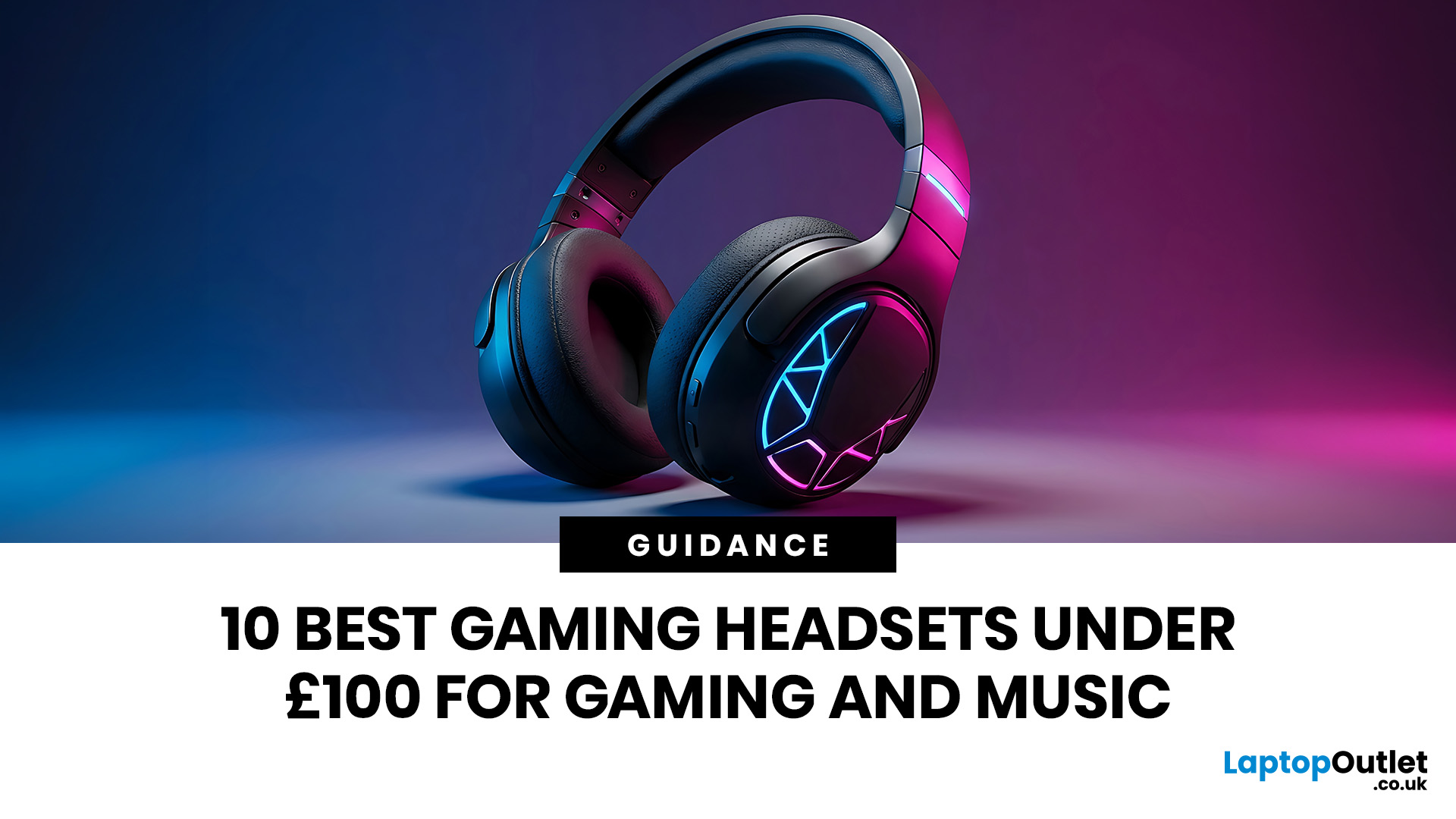
Finding the best gaming headsets UK players can actually rely on should not feel like a side quest with impossible difficulty. Whether you are grinding ranked matches, jumping into weekend co-op, streaming with friends, or just vibing to your favourite playlist, the right headset can completely change the experience.
A good headset is not only about loud audio. It is about clean sound, clear voice chat, comfort during long sessions, and solid value for money. That is why a budget gaming headset can still be a total win when it gets the basics right. You do not always need a super-premium setup to hear footsteps, enjoy cinematic soundtracks, or keep your squad comms crisp.
In this guide, we have rounded up 10 strong picks for gamers who want quality without overspending. Most of these are good gaming headsets under 100, while a few premium “stretch picks” are included because they are worth watching when deals drop. Prices can change, so it is always smart to check the latest offer before
Published: June 11, 2026
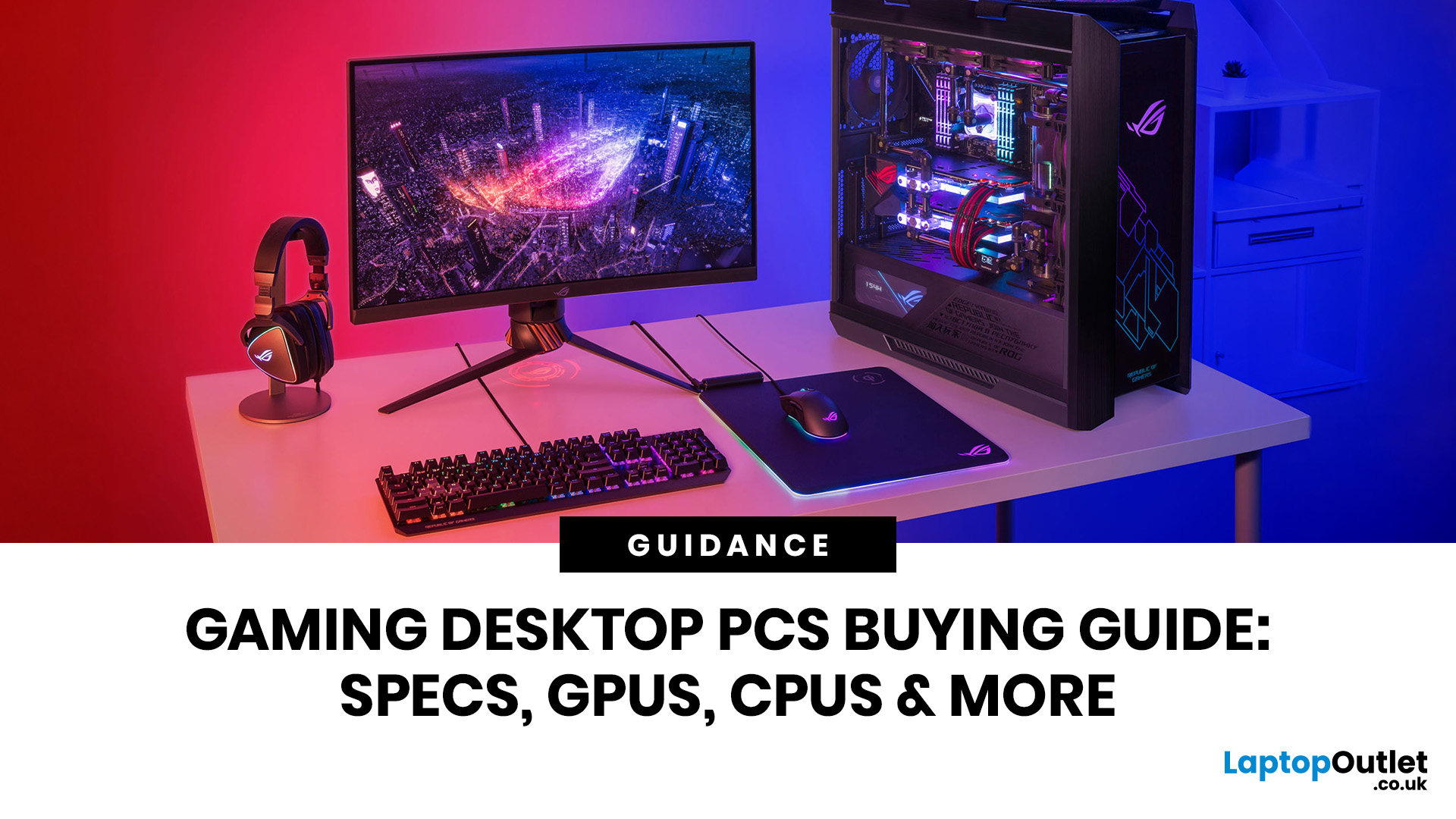
Choosing the right gaming desktop can be the difference between smooth, immersive gameplay and a system that struggles within a year. This gaming PC buying guide explains the key components that affect gaming performance, future-proofing, and value for money, so you can buy with confidence rather than guessing from confusing spec sheets.
A good gaming PC is not just about the most expensive graphics card. It is about balance. The CPU, GPU, RAM, storage, cooling, power supply, motherboard, and case all work together. Whether you play competitive esports, cinematic single-player titles, open-world RPGs, racing games or VR, understanding the right configuration helps you avoid overspending and choose a desktop that lasts.
This article is designed as a practical gaming PC specs guide for beginners, but it also includes up-to-date 2026 advice for buyers comparing modern RTX, Radeon, Intel, and AMD-powered systems.
Why Buy a Gaming Desktop PC?
A gaming desktop PC remains one of the best choices
Last Updated: June 11, 2026
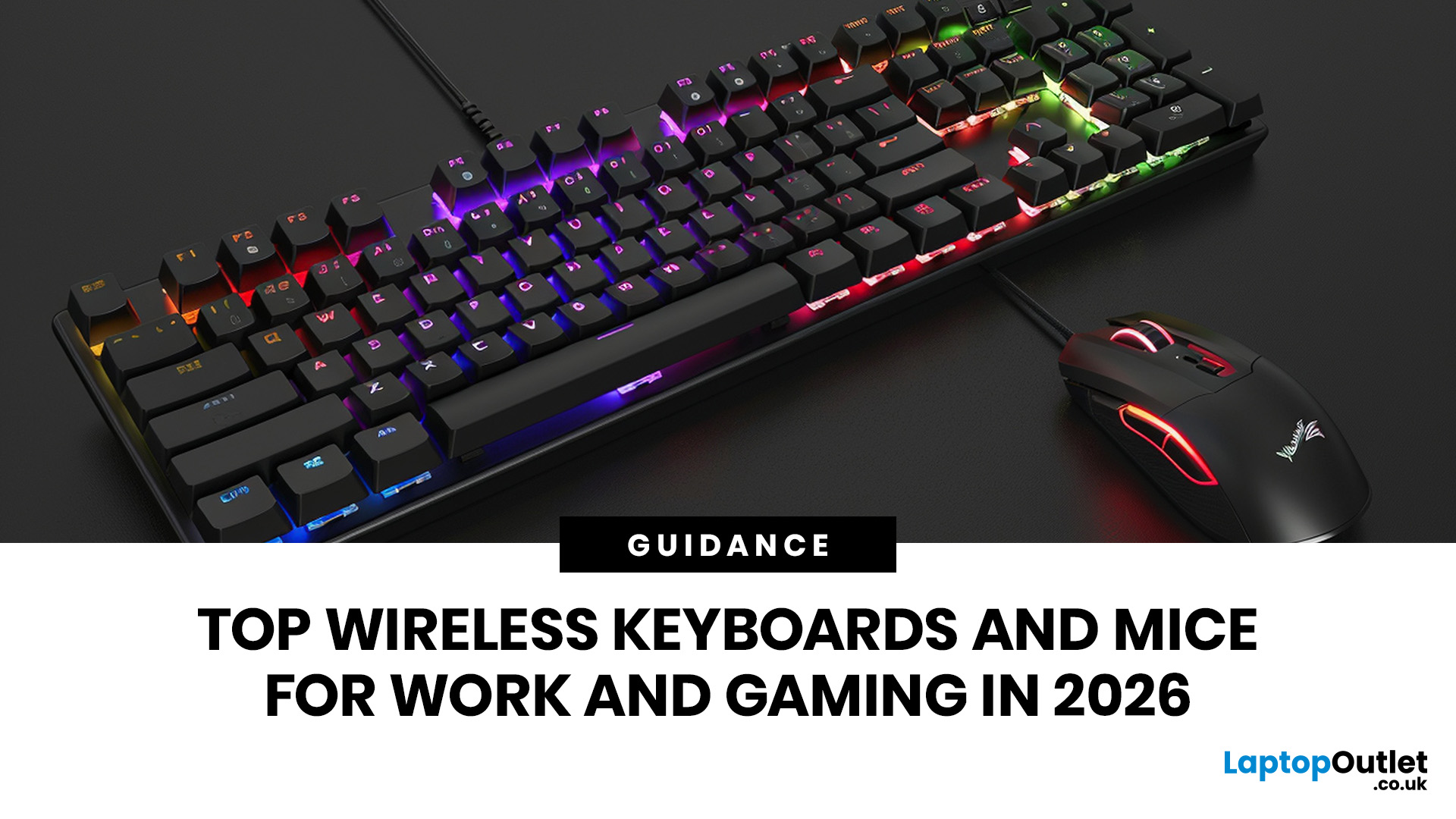
For a clean and minimalist look of your working or gaming setup, choosing the right wireless mouse and keyboard can make a bigger difference than you think.
If you're on a budget, the Logitech Wireless Mouse M235 is a reliable and affordable option.
For UK shoppers in 2026, the best setup is for comfort, connectivity, battery life, accuracy, layout, and daily usability. Some people need a simple keyboard mouse combo for emails and spreadsheets. Others want fast switches, RGB lighting, ultra-light mouse movement, and reliable wireless performance for gaming.
This guide breaks down the best wireless keyboard mouse UK options from Laptop Outlet, covering work-friendly sets, Bluetooth-ready mice, premium
Last Updated: June 15, 2026
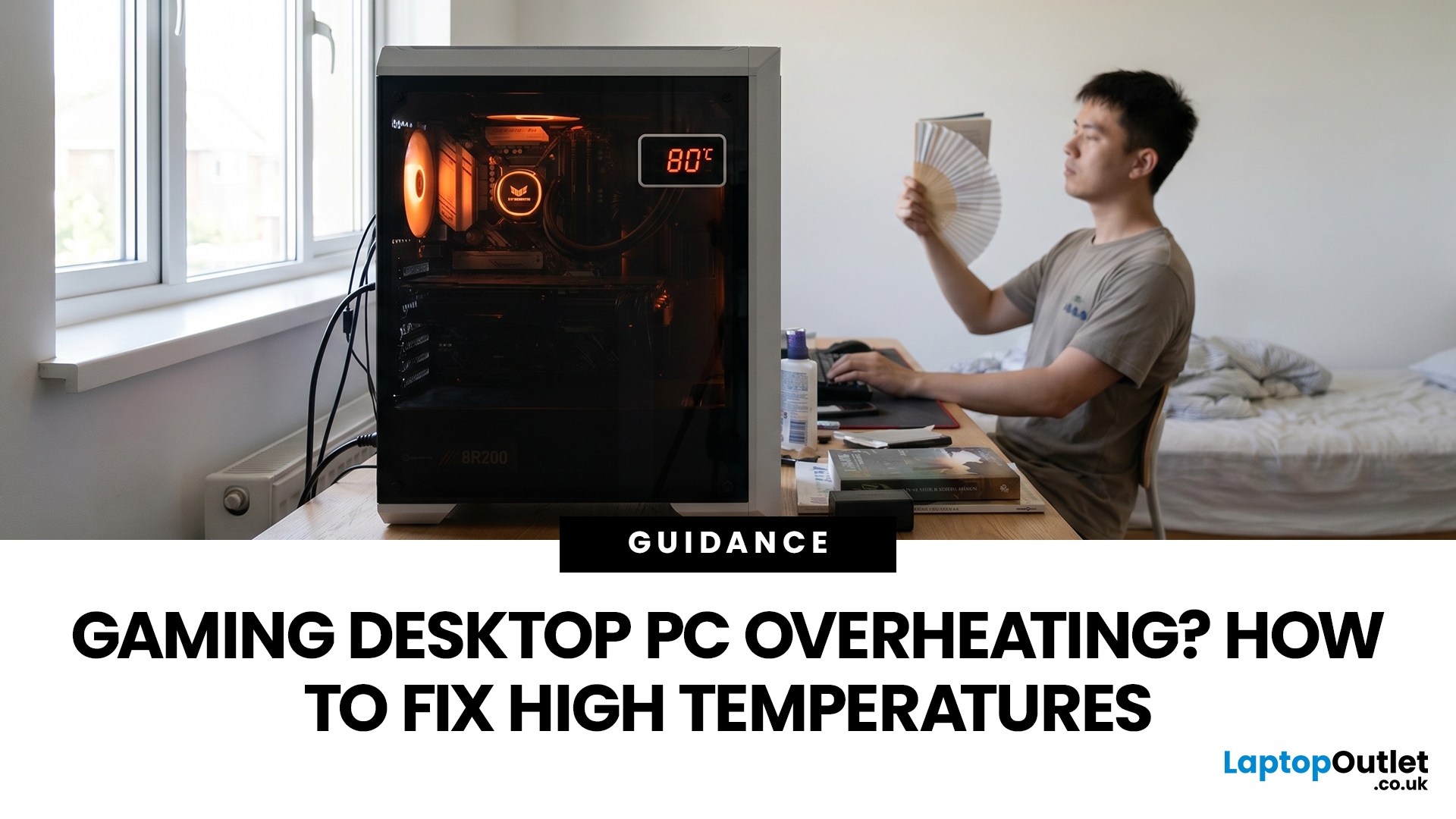
A gaming PC overheating usually comes down to one of five things: blocked airflow, dust build-up, weak cooling, aggressive game settings, or poor contact between the CPU/GPU and its cooler.
| Here is the fast version:
|
Gaming PC Overheating: What It Means and Why It Matters
You’re mid-match. Your FPS is smooth. Then suddenly, the game stutters, the fans sound like a jet engine, and your PC feels like it could toast bread.
That is not “just gaming PC life”.
A hot gaming desktop is normal. An overheating

Last Updated: June 22, 2026
The right VR accessories depend on which headset you own and how you use it. For most users, the highest-impact upgrades are a comfort head strap with a battery pack, a silicone face cover for hygiene, and an audio solution. If you wear glasses, prescription lens inserts are well worth the investment.
The best approach is not to buy every accessory at once. Start with the one or two upgrades that fix your biggest pain points, then build your setup around how you actually play, watch, exercise or socialise in VR.
This guide explains how to choose VR accessories by headset type, play style, comfort needs and budget.
Why VR Accessories Make a Real Difference
Even the best VR headsets ship with compromises. Manufacturers keep costs down by including basic foam facial interfaces, lightweight straps that can feel unbalanced, and built-in audio that rarely matches a dedicated headset. The right virtual reality accessories address exactly those shortcomings without requiring you to buy an entirely
Last Updated: June 25, 2026
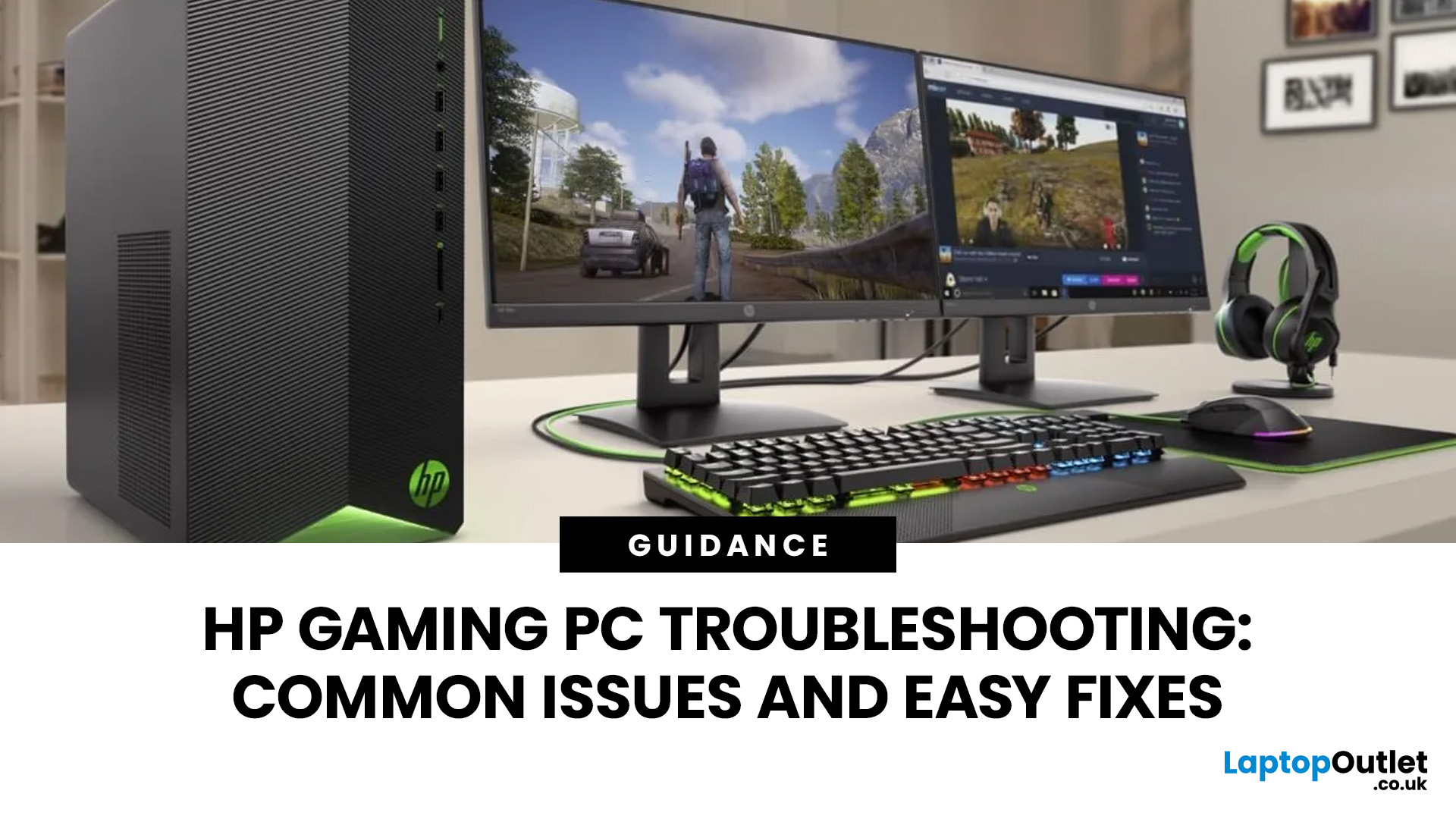
Your HP gaming PC should not feel like a boss fight before the game even loads.
HP gaming PC problems include black screens, overheating, lag, crashes, fan noise, slow performance, and startup failures. Most can be fixed by updating drivers, cleaning dust, improving airflow, freeing storage, and checking power or display connections.
You will also learn when a repair is worth it, when an upgrade makes more sense, and when it might be time to compare newer HP desktop PCs for gaming.
What Are the Most Common HP Gaming PC Problems?
Published: July 01, 2026
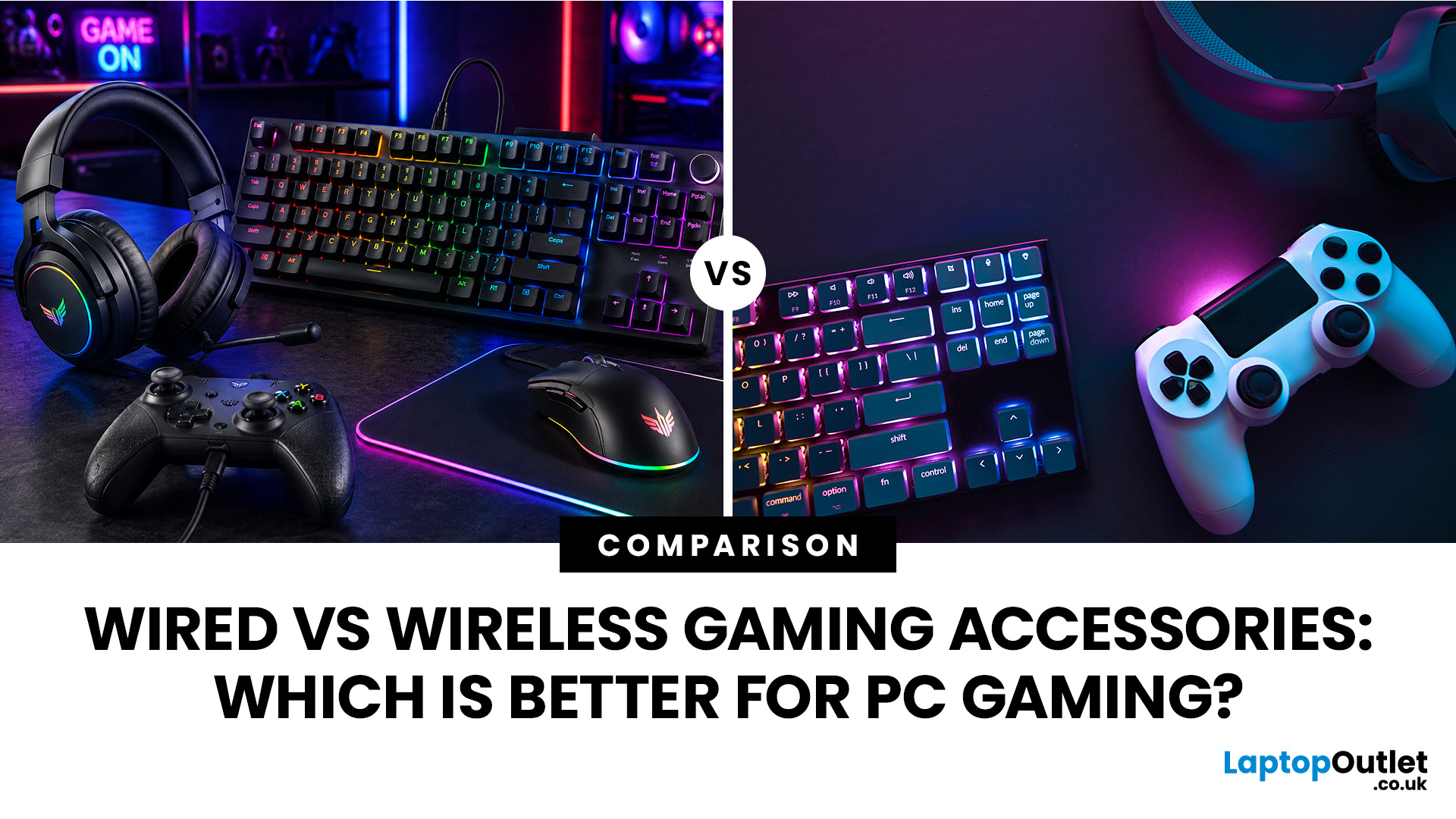
When building a PC gaming setup, choosing the right accessories matters just as much as choosing the right system. Your keyboard, mouse, headset, controller, and display all affect how comfortable, responsive, and enjoyable your games feel.
Many gamers compare wired vs wireless gaming accessories before upgrading their setup. Wired options are known for reliable performance and no battery concerns, while wireless models offer cleaner desks and more freedom of movement. Some players need speed and stability. Others want comfort, flexibility, and fewer cables. The right choice depends on what you play, how often you play, and how you use your desk.
What are Wired Gaming Accessories?
Wired gaming accessories connect directly to your PC using a cable, usually through USB or a 3.5mm audio port. Common examples include wired keyboards, mice, headsets, controllers, and charging docks.
The main appeal is consistency. You do not need to worry about charging, Bluetooth pairing, signal drops, or battery
Last Updated: July 03, 2026
Last Updated: August 25, 2026
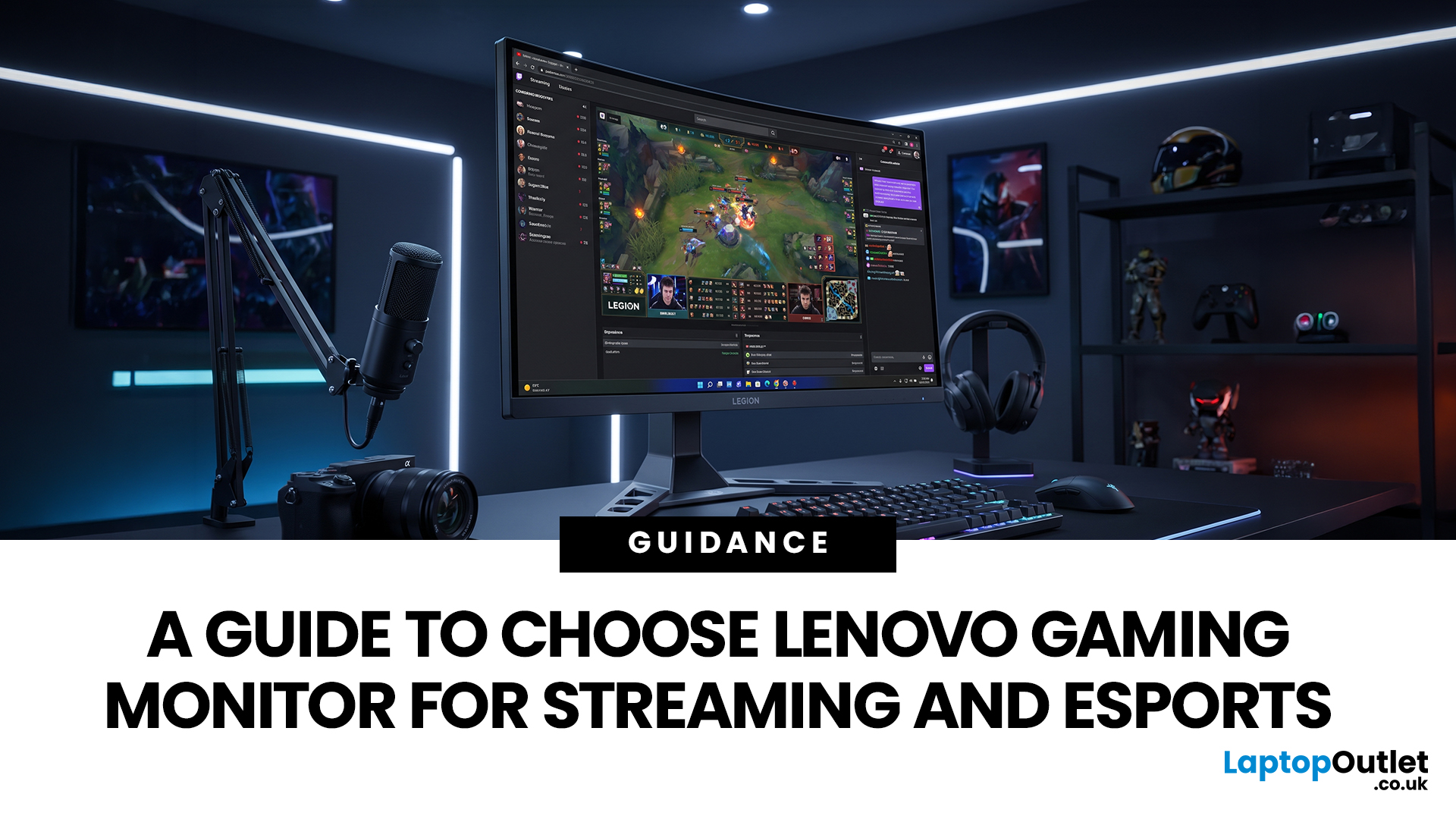
Quick answer: The best Lenovo gaming monitor for streaming and esports is the one your PC can drive consistently at its native resolution while it also handles your broadcast workflow. For many mixed-use setups, a 27-inch QHD display at 165Hz to 180Hz is the balanced choice. A 24.5-inch or 27-inch Full HD screen at 240Hz or above prioritises competitive speed, while a 34-inch UWQHD display at 165Hz to 180Hz provides more room for a single-screen streaming workspace.
Those are useful profiles, not universal rules. Your real decision depends on sustained frame rate, encoder load, game genre, desk space and whether OBS, chat and alerts live on the same display. A monitor does not encode the stream, and a 240Hz panel does not make viewers receive a 240fps broadcast. It changes the experience in front of you, which can still matter greatly during competitive play.
Last Updated: July 07, 2026
Wired gaming headsets offer near zero latency, lower prices, and no battery to manage, making them better for competitive play. Wireless gaming headsets offer freedom of movement, modern 2.4GHz low latency tech, and longer comfort, making them better for casual and everyday gaming. Your choice depends on priorities, not a single right answer.
If you are looking for advice on whether to go wired or wireless, this gaming headset comparison guide will help you. We will walk through every aspect that matters for gaming, including sound quality, latency, comfort, battery life, mic performance, and price. By the end, you will know exactly which type suits the way you play, plus a few specific headsets worth shortlisting.
Wired vs Wireless Gaming Headsets: An Overview
A wired gaming headset connects directly to your PC, console, or controller via a 3.5mm jack or USB cable. There is no signal compression, no battery to worry about, and latency is as close to zero as physically possible. That

