



How to Type Emojis Using Your Keyboard

Emojis have become a language of their own, especially for the Gen Z and Alphas. You’re replying to an email, chatting on WhatsApp Web, creating social posts, or even completing work messages with a little personality, being able to type emojis using your keyboard saves time and makes communication more expressive.
Let’s learn the easiest ways to type emojis on Windows, Mac, Chromebooks, and even mobile keyboards. No more copy-and-paste from emoji websites, you’ll be able to insert any emojy in seconds.
Why Use Keyboard Emojis?
Before we get into shortcuts, here’s why knowing them matters:
- Fast: Add emojis without switching tabs or using your mouse.
- Professional + fun: Modern workplaces increasingly accept emojis for clarity and tone.
- Easy to remember: Once you learn shortcuts, they feel natural.
- Universal: Works across apps - Word, Slack, Teams, Gmail, Instagram, web browsers, and more.
Now let’s jump into the shortcuts for every device. If you enjoy adding creativity to your messages, you might also love this guide exploring how modern laptops support creators and digital communication: Mid-Range Gaming Laptops – Balance Between Price & Performance
How to Type Emojis on Windows (Windows 10 & 11)

Windows has a built-in emoji keyboard and it’s surprisingly powerful.
Shortcut:
Press Windows Key + . (period)
or
Press Windows Key + ; (semicolon)
This instantly opens the emoji panel.
What you can do with it:
- Search emojis by name (e.g., type happy, heart, star, food)
- Insert kaomoji (cute Japanese-style emojis, e.g., ¯\(ツ)/¯ )
- Access symbols (arrows, currency, math symbols)
- Use GIFs (Windows 11 only)
How to Type Emojis on Mac
Mac keyboards also have a built-in emoji viewer.
Shortcut:
Press Control + Command + Space
This opens the emoji pop-up panel.
Features include:
- Emoji categories (Smileys, People, Animals, Food, etc.)
- Skin tone modifiers
- Search bar for quick access
- Symbols and special characters
Since emojis are widely used in gaming chats and streaming, this breakdown of high-end gaming laptops is helpful for users who message and multitask heavily: High-End Gaming Laptops – For Hardcore & Professional Gamers
How to Type Emoji with Text Replacements (Windows & Mac)
If you type certain emojis often, you can set text shortcuts that automatically turn text into emojis.
For Mac:
Go to:
System Settings → Keyboard → Text Replacements
For Windows:
Use apps like PowerToys (Text Expander) or your software’s built-in expansions (e.g., Slack, Teams, Notion all support them).
If you’re using emojis during online gaming or social chatting, this guide explains what gaming features matter most for smooth, expressive communication: Gaming Laptop Features & Optimisation
How to Type Emojis on Chromebooks
Chromebooks also include an easy emoji keyboard.
Shortcut:
Press Search + Shift + Space
This opens the emoji selector.
Alternatively:
- Right-click in any text box
- Choose Emoji
Chromebooks also support emoji suggestions in the on-screen keyboard. If you are interested in upgrading to a device with better keyboard shortcuts and emoji compatibility, this intro guide is a great reference: Introduction to Gaming Laptops: Evolution, Market Trends & Key Innovations
How to Type Emojis on Mobile Keyboards (iPhone & Android)
Even though this guide focuses on keyboard emojis, mobile devices use keyboard shortcuts too.
Android Emoji Keyboard Shortcuts

Most Android phones use Gboard.
Emoji shortcuts include:
- Long-press keys to reveal emoji options
- Search bar at top of keyboard
- Auto-suggest emojis after keywords
- Create emoji stickers by combining two emojis
Additional Emoji Tricks You’ll Love
✔ Change skin tones
Most emoji keyboards allow a long-press on people/hand emojis.
✔ Use Windows Clipboard History
Press:
Windows + V
→ quickly reinsert your most used emojis.
✔ Use browser extensions
Tools like Emoji Keyboard for Chrome give even faster access.
If your device struggles with emoji panels or keyboard responsiveness, this comparison of laptop tiers can help you choose a smoother-performing model: Gaming Laptop Comparisons: Entry-Level, Mid-Range & High-End Options
Emoji Keyboard Shortcut Cheat Sheet (2025 Edition)
Windows Emoji Shortcuts
|
Action |
Shortcut |
|
Open Emoji Keyboard |
Windows Key + . (period) |
|
Open Emoji Keyboard |
Windows Key + ; (semicolon) |
|
Open Clipboard History (recent emojis) |
Windows Key + V |
|
Search emojis |
Start typing inside emoji panel |
|
Access kaomoji |
Emoji panel → Kaomoji tab (e.g., ¯\(ツ)/¯ ) |
Mac Emoji Shortcuts
|
Action |
Shortcut |
|
Open Emoji Panel |
Control + Command + Space |
|
Search emojis |
Use search box inside panel |
|
Change skin tones |
Long-press people/hand emojis |
|
Autocomplete emoji by name |
Type “emoji name” → suggestions (macOS Sonoma+) |
Chromebook Emoji Shortcuts
|
Action |
Shortcut |
|
Open Emoji Picker |
Search + Shift + Space |
|
Open via mouse |
Right-click → Emoji |
|
Auto-suggest emojis |
Appears when typing keywords |
Android (Gboard) Emoji Shortcuts
|
Action |
Shortcut |
|
Open Emoji Panel |
Tap Emoji icon on keyboard |
|
Search emojis |
Type keywords (“happy”, “cat”, “fire”) |
|
Emoji Kitchen |
Combine two emojis for custom stickers |
Classic ASCII Emoji Shortcuts (Work Everywhere)

Popular Quick Emoji Keywords
Type these keywords in emoji panels to find emojis instantly:

Emojis Are Easier Than Ever to Type in 2025
Typing emojis with your keyboard is no longer a hidden trick, it’s a built-in feature across Windows, Mac, Chromebooks, iPhones, and Android devices. Whether you’re sending a work message, chatting with friends, or spicing up social posts, knowing these shortcuts helps you communicate faster, clearer, and with a lot more personality.
From simple shortcuts like Win + . or Control + Command + Space to advanced tricks like text replacements, ASCII emojis, and predictive emoji tools, you now have everything you need to emoji-type like a pro.
Typing Emojis Using Your Keyboard
Why isn’t my emoji keyboard opening on Windows?
This usually happens if your Windows language settings or keyboard layout are outdated.
Try these steps:
- Update Windows
- Enable the Touch Keyboard and Handwriting Panel Service
- Press Windows + . again
In most cases, a quick restart solves it.
Do emoji keyboard shortcuts work in every app?
Yes - most shortcuts work across apps like Word, Chrome, Teams, Slack, Outlook, WhatsApp Web, and social media platforms.
Some older programs may not support colour emojis, but they’ll still show the black-and-white Unicode version.
Can I type emojis using only text symbols, without an emoji panel?
Absolutely! Classic ASCII shortcuts like :), <3, :D, and ;) still work in many apps. These are great when using older software or when emojis don't render properly.
How do I change emoji skin tones using the keyboard?
On Windows and Mac, hold or click-and-hold people or hand emojis in the emoji panel to reveal skin tone variations.
For mobile, simply long-press the emoji.
Can I disable emoji suggestions if I find them distracting?
Yes.
- On Windows: Settings → Personalisation → Text Input → Turn off emoji suggestions
- On Mac: System Settings → Keyboard → Text Input
- On phones: Turn off "Predictive Text" or "Emoji Suggestions" in keyboard settings
| Read More: |
| What to Look for When Buying a Refurbished Keyboard? |
| Which Gaming Keyboard and Mouse Are the Best? Enjoy Wireless Gaming |
| Best Keyboards for Gaming! |
Related Articles

Last Updated: September 03, 2026
There are many solutions of instantly fixing mouse problems on laptops. Whether it’s the crashing app issue, mouse driver problem or system being stuck, we got you with all the troubleshooting steps.
Last Updated: December 15, 2025
Gaming has evolved beyond just powerful PCs and sharp monitors. Now, your keyboard and mouse can make or break your gameplay. With modern wireless gaming technology, lag-free performance and ultra-fast response times are no longer exclusive to wired setups.
In this guide, we’ll help you discover the best wireless gaming keyboards and mice available right now; the perfect mix of speed, comfort, and freedom.
Whether you’re a casual player, a competitive esports enthusiast, or someone who just hates cable clutter, we’ve rounded up the top wireless setups that deliver professional-grade precision and style.
5 Best Wireless Gaming Keyboards
These five wireless gaming keyboards cover everything from compact esports layouts to premium custom-style boards.
1. ASUS ROG Falchion RX Low Profile Wired/Wireless RGB Gaming Keyboard – White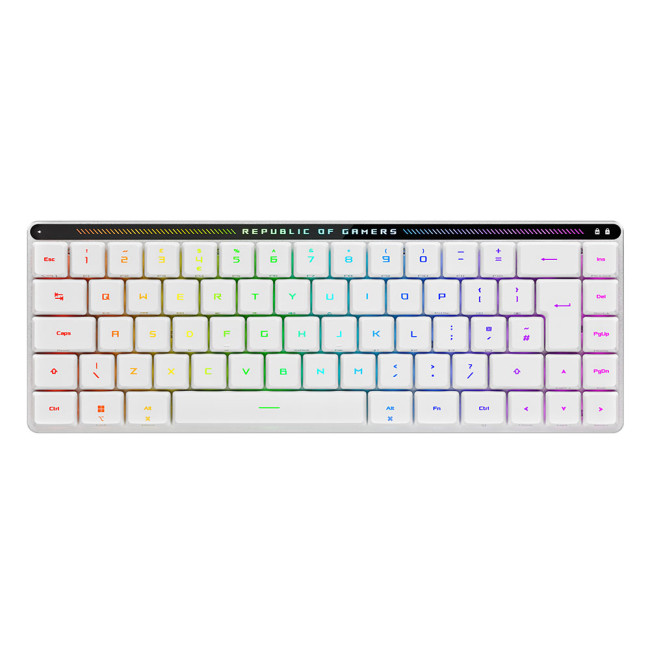
A slim 65% gaming keyboard that gives you full-size power in a backpack-friendly footprint.
Specifications
- Form Factor: 65% compact layout
- Switches: ROG
Last Updated: August 28, 2026
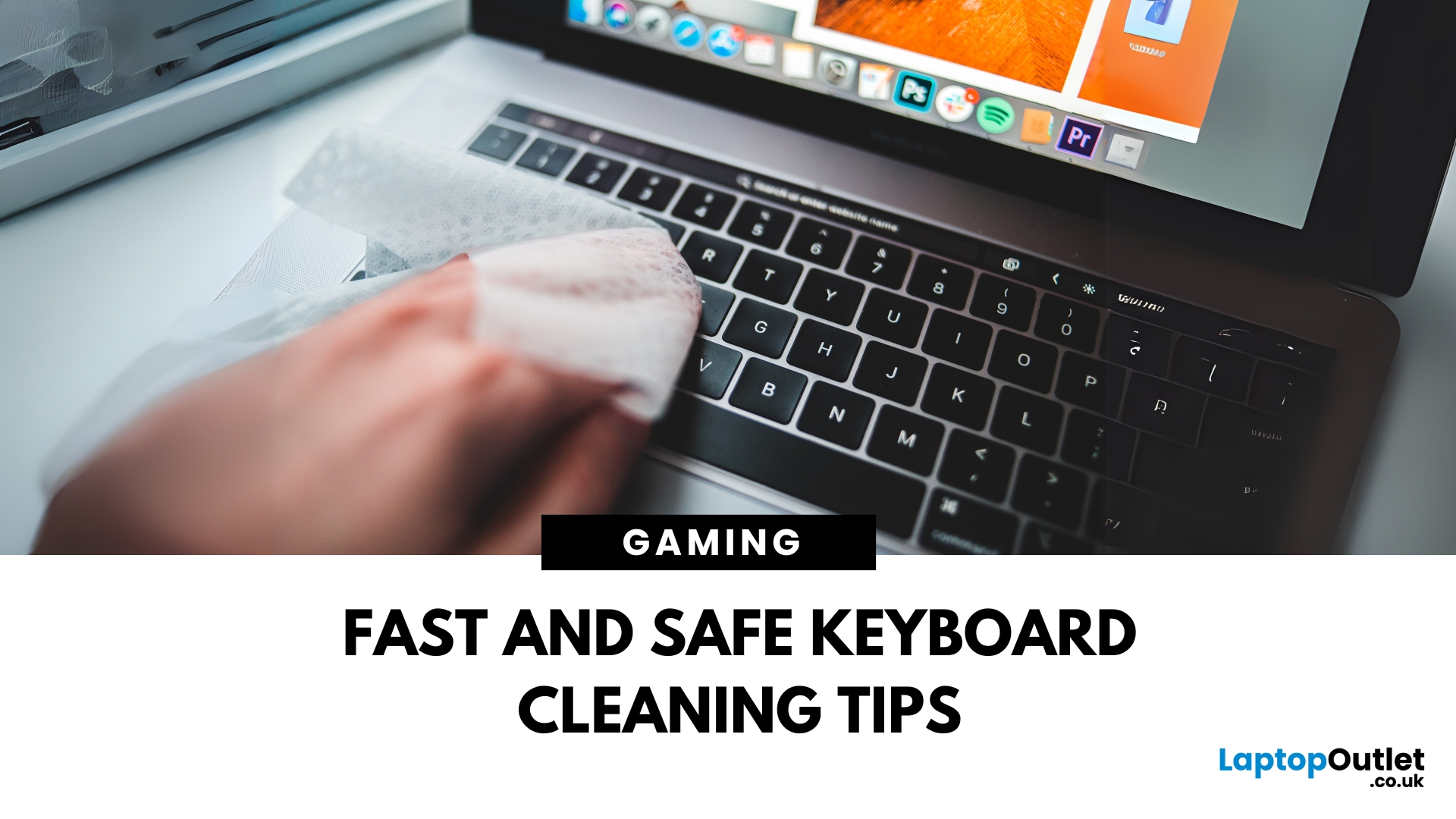
Dust, crumbs, skin oils, and drink residue can make a laptop keyboard look grubby or leave keys slow and sticky. Cleaning it correctly takes only a few minutes, but excess liquid or unsuitable products can damage the key coating and electronics.
How to Clean a Keyboard Safely: Quick Answer
Shut down and unplug the laptop. Remove loose debris with short bursts of compressed air, then wipe the keys with a soft microfibre cloth lightly dampened with 70% isopropyl alcohol. Never spray liquid directly onto the keyboard and let it dry fully before switching it on.
What You Will Need
- Soft microfibre cloth
- Compressed air
- Cotton buds or a soft brush
- 70% isopropyl alcohol
How to Clean a Laptop Keyboard Step by Step
1. Turn Off and Unplug the Laptop
Save your work, shut the laptop down and disconnect the charger and accessories. Cleaning
Last Updated: September 09, 2025
Go Cord-Free in Minutes
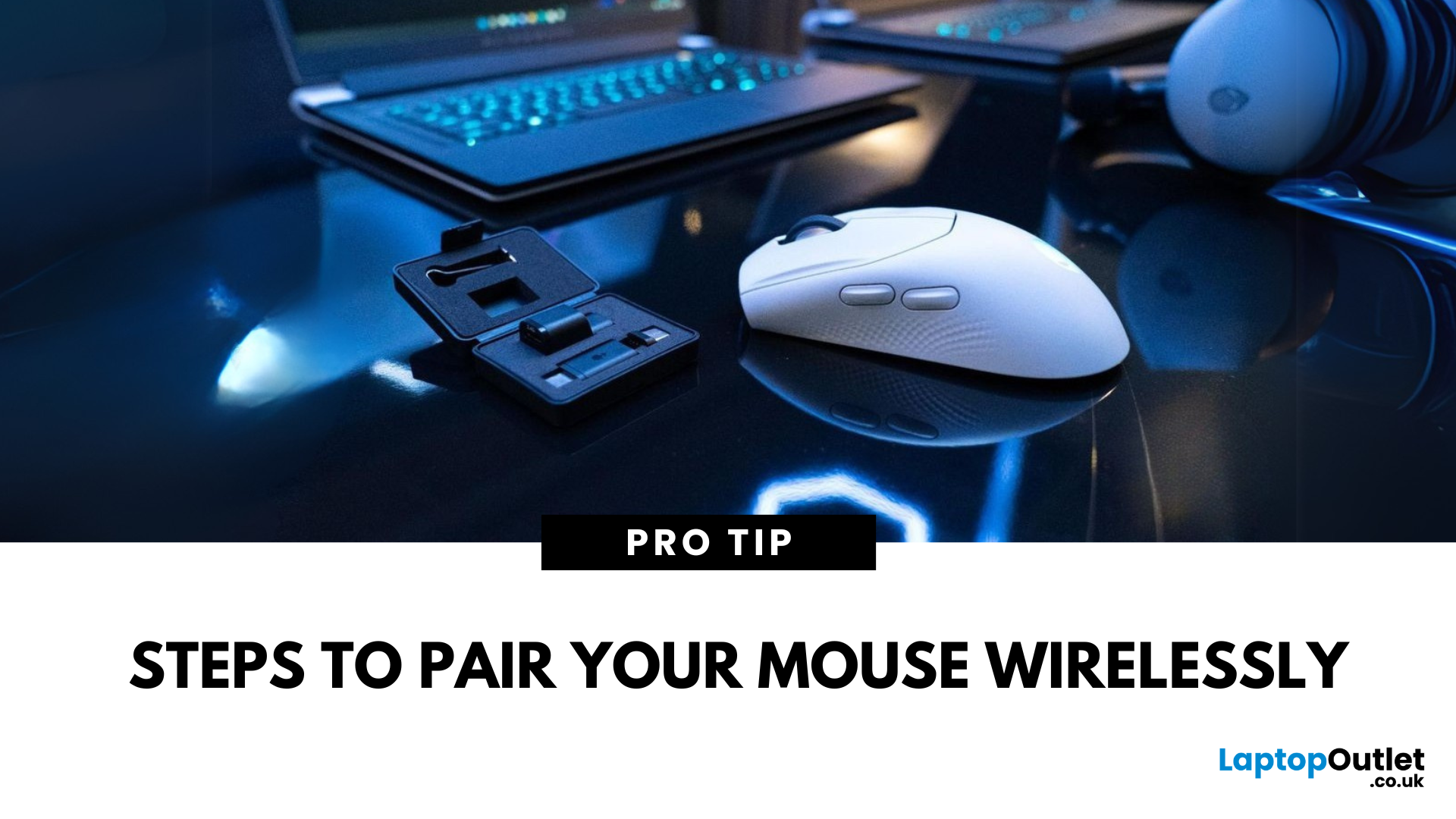
Tired of tangled cords? A wireless mouse gives you freedom and a clutter-free workspace. Whether you’re using a USB dongle or Bluetooth, here’s exactly how to connect your wireless mouse to your device.
1. Types of Wireless Mice
- USB Receiver (RF): Comes with a small USB dongle you plug into your computer
- Bluetooth: Connects directly to your device’s built-in Bluetooth—no dongle needed
2. How to Connect a Wireless Mouse with USB Receiver
Steps:
- Plug the USB dongle into an available USB port
- Turn on the mouse using its switch (usually on the bottom)
- Wait a few seconds—your computer should automatically recognise and connect
No additional software is usually needed on Windows or macOS
3. How to Connect a Bluetooth Wireless Mouse
Steps:
- Turn on the mouse and enable pairing mode (usually by holding a button)
- On your device, go to Settings > Bluetooth
- Wait for the mouse to appear in the device list
- Select the mouse and tap Pair
Make sure your device’s
Last Updated: August 11, 2026
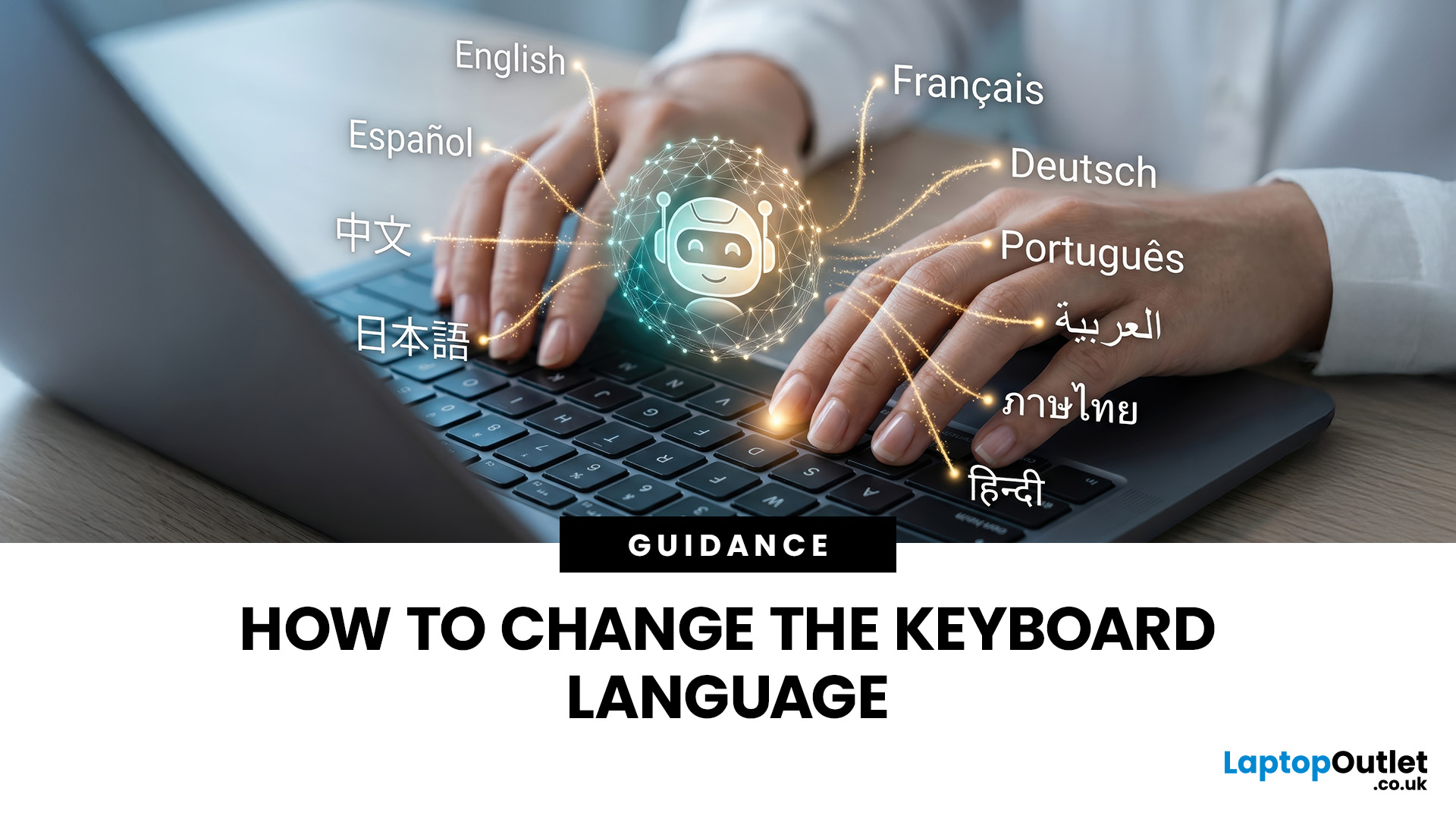
Changing your keyboard language lets you type in different languages, access regional characters, and use a layout that matches your physical keyboard. It is also one of the quickest ways to fix keys that produce the wrong symbols.
The process varies slightly between Windows, macOS, ChromeOS, Android, and iOS. This guide explains how to switch keyboard language on each platform, change a keyboard from US to UK and stop the layout from changing unexpectedly.
Quick Answer: How Do You Switch Keyboard Language?
On Windows, press Windows key + Spacebar. On a Mac, press Control + Spacebar. Chromebook users can press Ctrl + Shift + Space, while phone and tablet users can select the globe or language icon on the on-screen keyboard. These shortcuts only work when more than one keyboard language or layout has been added to the device.
Keyboard Language vs Keyboard Layout
A keyboard language controls features such as autocorrect, spelling suggestions and predictive text. A keyboard layout determines
Last Updated: October 03, 2025
Level Up Your Gameplay
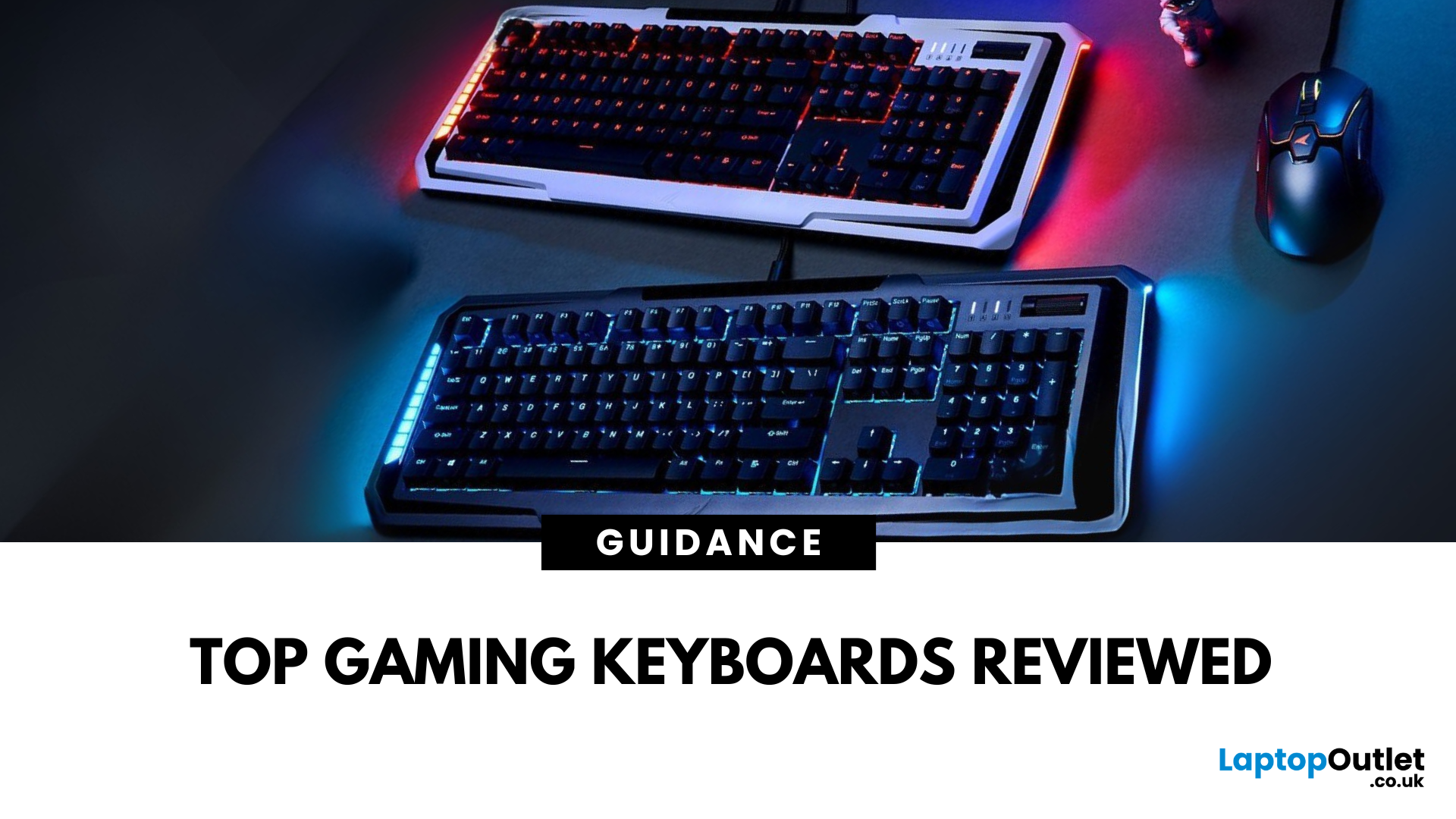
In fast-paced gaming, your keyboard can make or break your performance. But what makes a keyboard truly gaming-ready? Here’s a guide to help you find the best keyboard for gaming, focusing on key features instead of specific products.
Why Your Gaming Keyboard Matters
A good gaming keyboard offers:
Faster response times
Customisable keys for complex commands
Enhanced durability for intense sessions
Mechanical vs Membrane Keyboards
Mechanical Keyboards
Preferred for gaming due to:
Tactile feedback
Faster actuation
Longer lifespan (50M+ keystrokes)
Membrane Keyboards
Budget-friendly and quieter but:
Less responsive for competitive gaming
Shorter lifespan
Tip: Mechanical keyboards with red or silver switches are ideal for fast-paced FPS and MOBA games.
Key Features to Look For in a Gaming Keyboard
1. Switch Type
- Linear switches (Red): Smooth, fast keypresses
- Tactile switches (Brown): Feedback without loud clicks
- Clicky switches
Last Updated: June 16, 2026
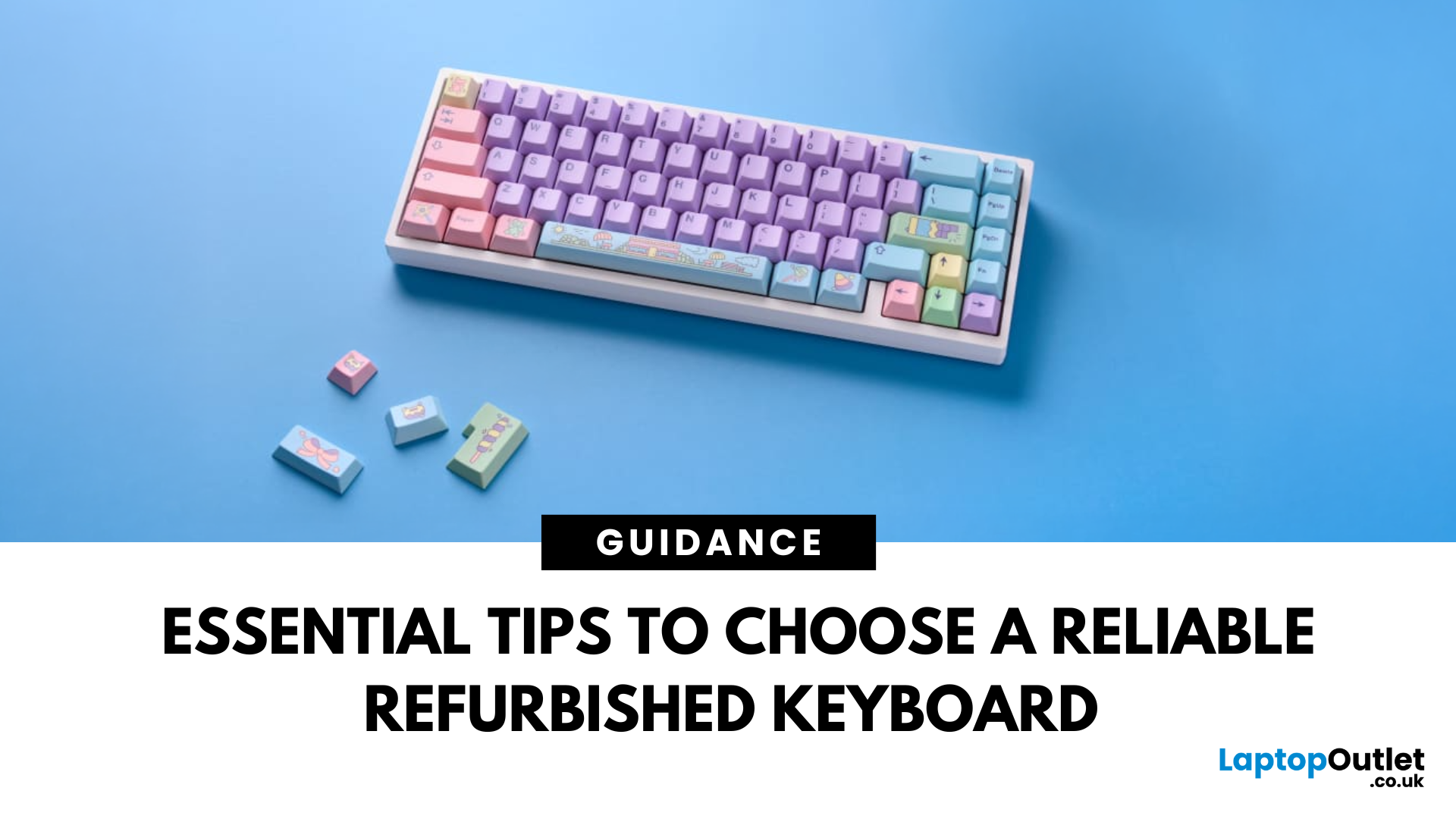
In today’s world of work, study, and gaming, the keyboard has become an essential tool for almost every digital task. But finding the right keyboard, one that feels good to type on, lasts for years, and fits your budget can be a challenge, especially with premium models commanding high prices. That’s why many smart buyers are turning to refurbished keyboards as a practical way to enjoy top-quality performance at a fraction of the cost.
Yet, like any piece of refurbished tech, a second-hand keyboard needs careful consideration before you buy. It’s not just about making sure it works; it’s about finding the right type, switch feel, layout, and condition that suits your daily needs.
This guide will walk you through everything you should look for when buying a refurbished keyboard.
So, let’s get into it!
Understand Your Keyboard Needs Before You Buy
Before diving into specifications and price comparisons, it’s important to identify what you actually need from a keyboard.
Are You a Heavy Typist

