



Speed Up Your PC with Windows Keyboard Shortcuts Guide
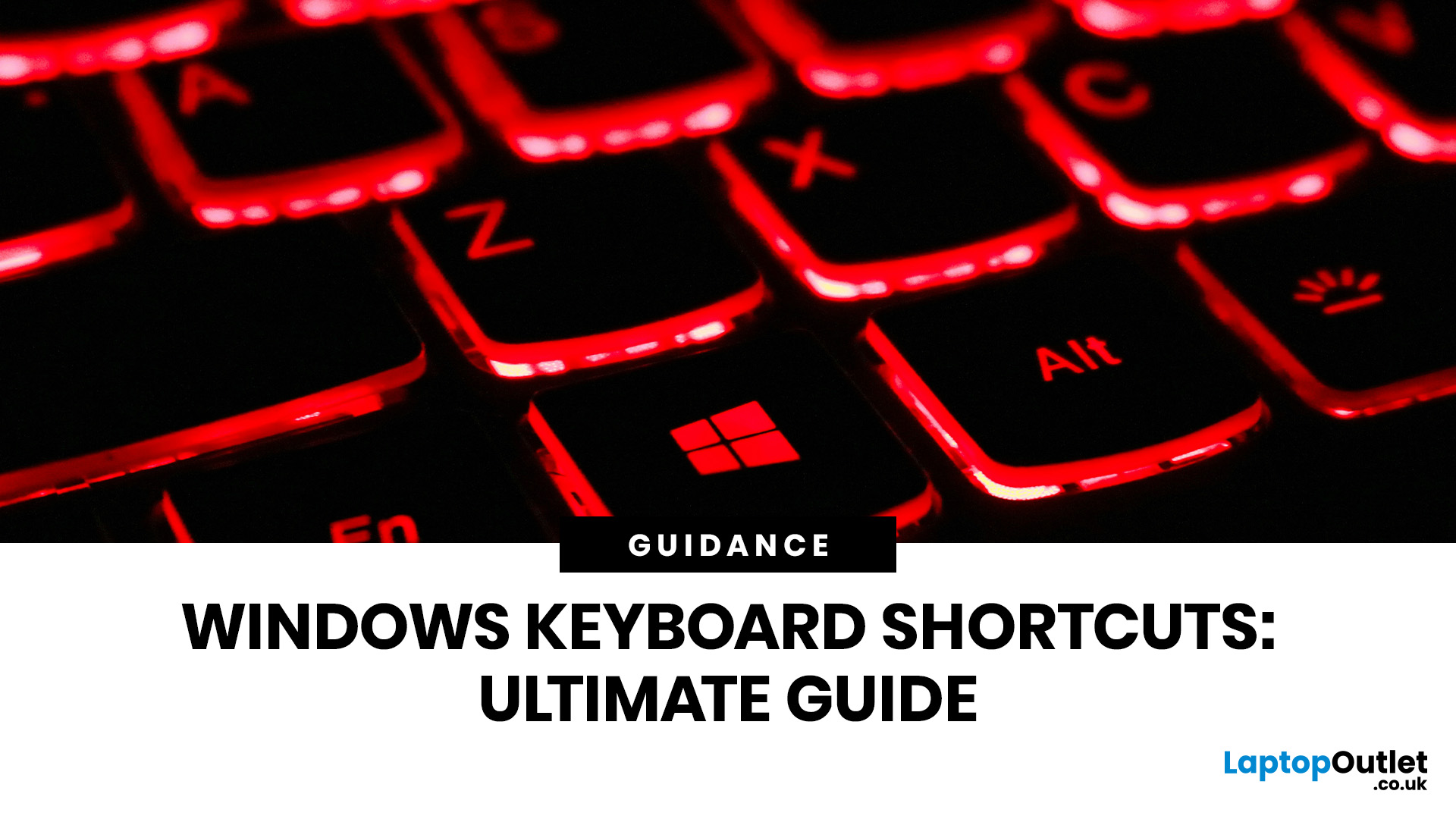
Stop reaching for the mouse every five seconds. Windows keyboard shortcuts are one of the fastest, simplest ways to boost your daily output - whether you're writing reports, navigating spreadsheets, or juggling a dozen open tabs at once.
This complete guide covers every shortcut worth knowing across Windows 10 and Windows 11, from the basics to the more advanced tricks that most people never discover.
Why Keyboard Shortcuts Are Worth Learning
Most people pick up one or two shortcuts by accident and never go any further. Yet the productivity gap between someone who relies on a mouse and someone genuinely fluent in shortcuts is striking - you spend less time clicking, less time searching, and considerably more time actually doing the work.
Here's what mastering shortcuts gives you:
- Speed: Tasks that take three clicks happen in milliseconds
- Concentration: Your hands stay on the keyboard, your eyes on the screen
- Less strain: Reduced repetitive mouse movement means fewer aches over a long working day
Who Gets the Most Out of This Guide?
This guide is useful for virtually everyone who uses a Windows PC regularly. That said, certain types of users will see the biggest gains:
- Office workers writing documents, sending emails, and managing files all day
- Students juggling research, notes, and multiple browser tabs
- Freelancers who bill by the hour and need to work efficiently
- Gamers who want faster access to system tools between sessions
Essential Windows Key Shortcuts for Daily Use

The Windows key (sometimes called the Windows button keyboard key) sits between Ctrl and Alt on the bottom-left of most keyboards. It is one of the most powerful keys on the entire board. Every combination it is paired with triggers something genuinely useful.
Getting to grips with these daily-use commands is the single highest-return action you can take for your productivity. The table below covers the most important ones.
Core Windows Key Commands
These are the Windows key commands used by power users every single day:
|
Shortcut |
What It Does |
|
Win |
Open or close the Start menu |
|
Win + D |
Show or hide the desktop |
|
Win + E |
Open File Explorer |
|
Win + I |
Open Settings |
|
Win + L |
Lock your PC |
|
Win + S |
Open Search |
|
Win + R |
Open the Run dialogue box |
|
Win + V |
Open Clipboard history |
|
Win + X |
Open the Quick Link (Power User) menu |
|
Win + Tab |
Open Task View |
|
Win + , (comma) |
Temporarily peek at the desktop |
|
Win + . or Win + ; |
Open the emoji panel |
|
Win + PrtScn |
Save a full-screen screenshot to Pictures folder |
|
Win + Shift + S |
Open Snipping Tool to capture a selected area |
|
Win + H |
Open Voice Dictation |
|
Win + Pause |
Open the System About page |
Window Snapping and Layout Shortcuts
Snapping windows into place with the keyboard is far faster than dragging them with your mouse. These are the shortcuts in Windows that make multi-monitor and split-screen working feel effortless:
|
Shortcut |
What It Does |
|
Win + Left Arrow |
Snap window to the left half |
|
Win + Right Arrow |
Snap window to the right half |
|
Win + Up Arrow |
Maximise the active window |
|
Win + Down Arrow |
Minimise the active window |
|
Win + Shift + Up Arrow |
Stretch window to top and bottom |
|
Win + Home |
Minimise all except the active window |
|
Win + Shift + Left/Right |
Move window to another monitor |
|
Win + Z |
Open Snap Layouts overlay (Windows 11) |
Text Editing Shortcuts That Save Clicks Every Day
Text editing shortcuts are the most universally useful because they work in virtually every app on your machine. Whether you are writing a report in Word, composing an email in Outlook, or filling out a form in your browser, these commands will serve you well. They are the foundation of a fast, mouse-free workflow.
Selection and Formatting Shortcuts
|
Shortcut |
What It Does |
|
Ctrl + A |
Select all text or items |
|
Ctrl + C |
Copy selected text |
|
Ctrl + X |
Cut selected text |
|
Ctrl + V |
Paste |
|
Ctrl + Shift + V |
Paste as plain text (strips formatting) |
|
Ctrl + Z |
Undo last action |
|
Ctrl + Y |
Redo undone action |
|
Ctrl + B |
Bold selected text |
|
Ctrl + I |
Italicise selected text |
|
Ctrl + U |
Underline selected text |
|
Ctrl + F |
Open Find dialogue |
|
Ctrl + H |
Find and Replace |
|
Shift + F10 |
Open the right-click context menu |
Word-by-Word Navigation
These shortcuts let you move through text quickly without reaching for the mouse:
- Ctrl + Left/Right Arrow: Jump one word at a time
- Ctrl + Shift + Left/Right: Select one word at a time
- Shift + Home: Select from cursor to start of line
- Shift + End: Select from cursor to end of line
- Ctrl + Home: Jump to the top of the document
- Ctrl + End: Jump to the bottom of the document
- Ctrl + Shift + Home/End: Select everything from cursor to start or end
Task Manager Shortcut and System Tools
Every Windows user should know how to access system tools quickly, and the Task Manager keyboard shortcut is arguably the most important one in this category. When an app freezes or your desktop PC slows to a crawl, you want to get to Task Manager in one keystroke, not after clicking through three menus.
Knowing these Microsoft Windows hotkeys for system tools will also help you troubleshoot faster and manage your machine more confidently.
Open System Tools in One Keystroke
|
Shortcut |
What It Does |
|
Ctrl + Shift + Esc |
Open Task Manager directly |
|
Ctrl + Alt + Del |
Security screen (access Task Manager, lock, sign out) |
|
Win + X |
Quick Link menu (Device Manager, PowerShell, etc.) |
|
Win + Pause |
Open System About page |
|
Win + Ctrl + Q |
Open Quick Assist (remote help tool) |
|
Win + G |
Open the Game Bar |
|
Win + Ctrl + F |
Search for devices on a network |
The quickest way to open Task Manager is Ctrl + Shift + Esc. It takes you straight there, bypassing the Ctrl + Alt + Del screen entirely. This is the shortcut to reach for first when something is not responding.
Win + X is another underrated shortcut. It opens the Power User menu, giving you fast access to Disk Management, Device Manager, Event Viewer, PowerShell, and more.
Screenshot and Screen Recording Shortcuts
|
Shortcut |
What It Does |
|
Win + Shift + S |
Snipping Tool: capture a selected area |
|
Win + PrtScn |
Full-screen screenshot saved to Pictures folder |
|
Alt + PrtScn |
Capture the active window to the clipboard |
|
Win + Shift + R |
Start screen recording with Snipping Tool (Windows 11) |
|
PrtScn |
Screenshot copied to clipboard |
File Explorer Shortcuts for Faster Navigation
File Explorer has a surprisingly comprehensive set of shortcuts on Windows that most people never discover. Rather than clicking your way through folders, you can navigate the entire file system with your keyboard. These shortcuts make managing files genuinely fast, particularly on a capable machine.
Navigating in File Explorer
|
Shortcut |
What It Does |
|
Win + E |
Open File Explorer |
|
Alt + Left Arrow |
Go back to the previous folder |
|
Alt + Right Arrow |
Go forward |
|
Alt + Up Arrow |
Go up one folder level |
|
F2 |
Rename the selected file or folder |
|
F5 |
Refresh the File Explorer window |
|
Ctrl + N |
Open a new File Explorer window |
|
Ctrl + W |
Close the current window or tab |
|
Ctrl + T |
Open a new tab (Windows 11) |
|
Ctrl + Shift + N |
Create a new folder |
|
Alt + P |
Show or hide the preview pane |
|
Alt + Enter |
Open Properties for the selected item |
File Management Shortcuts
Quick actions that make file handling much faster:
- Delete: Move selected item to the Recycle Bin
- Shift + Delete: Permanently delete without sending to Recycle Bin
- Ctrl + Z: Undo the last file action (rename, move, delete)
- Ctrl + A: Select all files in a folder
- Ctrl + Shift + E: Expand all folders in the navigation pane
- Ctrl + Mouse Scroll: Change the size of icons in the folder view
- F3 or Ctrl + F: Activate the search box in File Explorer
Virtual Desktops and Multitasking Like a Pro
Virtual desktops are one of the most powerful yet underused features in Windows 10 and 11. Once you start using Windows keyboard shortcuts to create and switch between separate desktops, you will wonder how you ever managed without them. They let you keep a work desktop, a personal desktop, and a creative workspace all running at once, without cluttering your taskbar.
Think of each virtual desktop as a clean slate. You can have your spreadsheets and emails on one, your browser research on another, and your project tools on a third.
Virtual Desktop Shortcuts
|
Shortcut |
What It Does |
|
Win + Tab |
Open Task View (see all desktops and windows) |
|
Win + Ctrl + D |
Create a new virtual desktop |
|
Win + Ctrl + Right Arrow |
Switch to the desktop on the right |
|
Win + Ctrl + Left Arrow |
Switch to the desktop on the left |
|
Win + Ctrl + F4 |
Close the current virtual desktop |
App Switching Shortcuts
|
Shortcut |
What It Does |
|
Alt + Tab |
Switch between open apps |
|
Alt + Esc |
Cycle through open apps in the order they were opened |
|
Win + T |
Cycle through apps on the Taskbar |
|
Ctrl + Alt + Tab |
View all open apps; navigate with arrow keys |
Windows 11-Specific Shortcuts to Know in 2026

Windows 11 introduced a number of new features, and with them came brand new keyboard shortcuts. If you have upgraded recently or picked up a new laptop/PC, these shortcuts unlock the operating system's full potential. They work only on Windows 11 and are not available in Windows 10.
Several of these shortcuts reflect significant changes to how Windows 11 organises its interface, including the separation of Quick Settings and Notifications, and the addition of the Widgets panel.
Shortcuts Unique to Windows 11
|
Shortcut |
What It Does |
|
Win + Z |
Open Snap Layouts overlay |
|
Win + A |
Open Quick Settings (Wi-Fi, Bluetooth, brightness) |
|
Win + N |
Open Notifications Centre and calendar |
|
Win + W |
Open Widgets panel (news, weather, calendar) |
|
Win + C |
Open Microsoft Copilot |
|
Win + J |
Open Recall (on supported devices) |
|
Win + H |
Open Voice Dictation |
|
Win + Shift + R |
Start screen recording (Snipping Tool) |
Win + A vs Win + N: In Windows 10, Win + A opened the Action Centre which combined both notifications and quick settings. In Windows 11, Microsoft split these into two separate panels. Use Win + A for Quick Settings and Win + N for Notifications.
Win + Z (Snap Layouts): Press this shortcut and Windows 11 displays a grid of layout options above the active window. Press the number shown on your preferred layout and your window snaps into position instantly. It is a brilliant feature for productivity on larger screens.
Universal Browser Shortcuts for Windows
If you spend a significant portion of your day in a web browser, knowing these shortcuts gives you a near-seamless, mouse-free browsing experience. These commands are standardized across Chrome, Microsoft Edge, Firefox, and Brave, making them essential tools for any Windows user.
Tab and Navigation Management
|
Shortcut |
What It Does |
|
Ctrl + T |
Open a new tab |
|
Ctrl + W |
Close the current tab |
|
Ctrl + Shift + T |
Reopen the last closed tab (a lifesaver!) |
|
Ctrl + Shift + W |
Close all tabs and the current browser window |
|
Ctrl + Tab |
Switch to the next tab (right) |
|
Ctrl + Shift + Tab |
Switch to the previous tab (left) |
|
Ctrl + 1 to 8 |
Jump to a specific tab by its position |
|
Ctrl + 9 |
Jump to the very last tab |
Page Control and Searching
|
Shortcut |
What It Does |
|
Ctrl + L or F6 |
Focus the address bar to type a new URL or search |
|
Ctrl + R or F5 |
Refresh the current page |
|
Alt + Left Arrow |
Go back a page |
|
Alt + Right Arrow |
Go forward a page |
|
Ctrl + D |
Bookmark the current page |
|
Ctrl + Shift + B |
Toggle the bookmarks bar (show/hide) |
|
Ctrl + F |
Open the "Find" bar to search for text on the page |
|
Ctrl + Shift + A |
Open Tab Search (Available in Chrome, Edge, and Brave) |
Pro Tip: If you accidentally close your entire browser window, pressing Ctrl + Shift + T immediately after reopening the browser will usually restore your entire previous session, including all open tabs.
Windows 10 vs Windows 11: Shortcut Differences
If you use both Windows 10 and Windows 11 machines, it helps to know where the keyboard shortcuts experience differs. The good news is that the vast majority of shortcuts carry over unchanged. The differences are targeted and mostly relate to Windows 11's redesigned interface.
Here is a clear side-by-side comparison of the shortcuts that have changed or been added:
|
Shortcut |
Windows 10 |
Windows 11 |
|
Win + A |
Opens Action Centre (Quick Settings + Notifications) |
Opens Quick Settings panel only |
|
Win + N |
Not available as a standalone shortcut |
Opens Notifications Centre and Calendar |
|
Win + W |
Not available (or opens Whiteboard on some builds) |
Opens Widgets panel |
|
Win + Z |
Shows commands in full-screen apps |
Opens Snap Layouts overlay |
|
Win + C |
Opens Cortana in listening mode |
Opens Microsoft Copilot |
|
Win + J |
Not available |
Opens Recall (supported devices only) |
|
Win + Tab |
Opens Task View |
Opens Task View (updated UI) |
Everything else, including Win + D, Win + E, Win + L, Ctrl + Shift + Esc, and Alt + Tab, remains exactly the same across both versions.
Accessibility Shortcuts Worth Knowing
Windows has a robust set of hotkeys designed for accessibility. These are worth knowing even if you do not personally need them, because they are easy to trigger accidentally and can be confusing to undo if you do not know what has happened.
|
Shortcut |
What It Does |
|
Win + U |
Open Accessibility settings |
|
Win + + (Plus key) |
Zoom in with Magnifier |
|
Win + - (Minus key) |
Zoom out with Magnifier |
|
Win + Esc |
Close Magnifier |
|
Win + Ctrl + Enter |
Turn on Narrator (screen reader) |
|
Shift (5 times) |
Toggle Sticky Keys on or off |
|
Right Shift held for 8 seconds |
Toggle Filter Keys |
|
Alt + Shift + Print Screen |
Toggle High Contrast mode |
If you ever accidentally trigger Sticky Keys or Narrator, you now know exactly how to turn it back off.
Dialogue Box and Settings Shortcuts
When working with dialogue boxes, system alerts, and the Settings app, these Windows shortcut keys let you navigate without ever touching your mouse. This is especially handy on a laptop with a touchpad you would rather avoid.
|
Shortcut |
What It Does |
|
Win + I |
Open Settings |
|
Tab |
Move forward through options in a dialogue |
|
Shift + Tab |
Move backward through options |
|
Ctrl + Tab |
Move forward through tabs in a dialogue box |
|
Ctrl + Shift + Tab |
Move backward through tabs |
|
Spacebar |
Select or clear an active checkbox |
|
Enter |
Confirm the highlighted option |
|
Esc |
Cancel or close the dialogue |
|
Backspace |
Navigate back in Settings |
Building the Habit: Make Shortcuts Stick
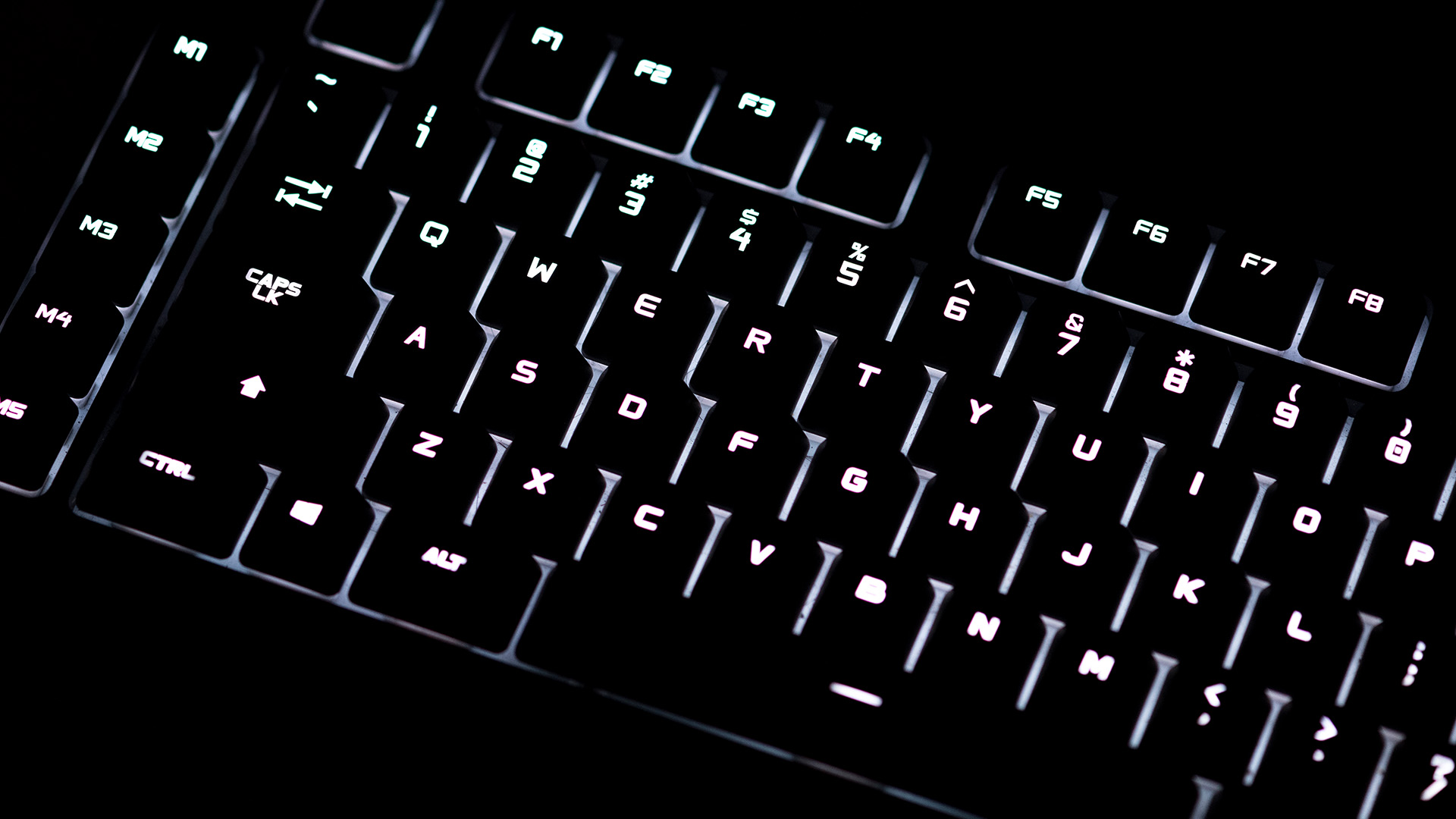
Knowing a shortcut and actually using it are two completely different things. The real trick is treating each Windows keystroke as a deliberate physical skill - something that needs conscious repetition before it becomes an automatic reflex.
Pick five shortcuts this week. Use them every time instead of the mouse, even when it feels slower at first. By Friday, they'll feel natural. Add five more the following week. After a month, your hands will be moving ahead of your thoughts.
Upgrade Your Machine to Match Your Pace
Even the best Windows shortcuts can only go so far if your laptop is sluggish, cramped, or unresponsive. The right hardware turns shortcuts from helpful to genuinely seamless - and it makes every workflow faster across the board.
Explore the full range of Windows 11 laptops for everyday use at Laptop Outlet. Quality refurbished machines, A-grade condition, competitive prices, and all running Windows 11 out of the box.

Start Using Shortcuts Today
From snapping Windows and navigating virtual desktops to managing browser tabs and controlling File Explorer hands-free, mastering Windows keyboard shortcuts is one of the highest-return investments you can make in your daily productivity. The commands are already built in - all you have to do is use them.
Start with five. Build from there. Within weeks, the mouse will feel like the slow option.
For more expert advice, check out our comprehensive guide on Windows setup, updates, and troubleshooting.

Just In Case You Were Wondering...
Is there a faster way to open Task Manager in Windows?
Yes. Press Ctrl + Shift + Esc to open Task Manager directly, bypassing the security screen entirely. It is the quickest route available on any Windows device.
What is the close tab shortcut in Chrome?
Press Ctrl + W to close the current tab. Press Ctrl + Shift + T immediately after to reopen a tab you have accidentally closed.
How do I take a screenshot on Windows?
Press Win + Shift + S to open the Snipping Tool and capture a selected area. Press Win + PrtScn to save a full-screen screenshot automatically to your Pictures folder.
Do Windows keyboard shortcuts work the same across all PCs?
Most Windows keyboard shortcuts are universal across all devices. Some compact laptops require the Fn key to activate certain shortcut combinations not labelled on individual keys.
Can I create my own custom keyboard shortcuts in Windows?
Yes. Right-click any desktop shortcut, select Properties, and assign a key combination in the Shortcut Key field. The shortcut activates immediately after clicking Apply.
| Read More: |
| How To Uninstall Apps on Windows 10 & 11? |
| How To Use Bitlocker and Find Your Recovery Key |
| How To Activate Windows and Microsoft Office |
Related Articles

Last Updated: June 18, 2026
If you are searching for Core i5 Lenovo laptops, you are likely looking for a balance of performance, price, and reliability. And that is exactly where Lenovo stands out in 2026. From affordable everyday machines to durable business devices, Lenovo’s Core i5 lineup covers a wide range of use cases. Whether you need a laptop for work, study, or general productivity, there is a model that fits without pushing into premium pricing.
This guide breaks down the best options available right now, with a focus on real-world usability, value, and what each model is good for.
Why Choose a Lenovo Core i5 Laptop in 2026?
Lenovo continues to be one of the most consistent brands when it comes to mid-range laptops. Its Core i5 models are particularly popular because they offer:
- Reliable everyday performance
- Strong build quality across price ranges
- Good keyboard and typing experience
- Wide choice across business and budget segments
For most users, a Core i5 processor is more than enough for:
- Office work

Last Updated: May 01, 2026
Streaming accounted for over 38% of total TV and video consumption globally last year, overtaking traditional viewing for the first time. That means more people are now watching films on laptops, tablets, and personal screens than ever before, not TVs.
But here’s the problem: most laptops aren’t actually built for a good viewing experience.
You can open the same film on two different laptops and get completely different results. On one, colours look rich, scenes feel immersive, and everything flows smoothly. On another, the image feels dull, brightness struggles in daylight, and the whole experience falls flat - even if the specs look similar on paper.
That’s where most buyers get caught out. Terms like “Full HD,” “OLED,” or “high brightness” sound impressive, but they don’t always translate into a better streaming experience. Many people end up choosing based on performance or price, while overlooking what actually matters for watching films.
This guide breaks that down clearly - focusing
Last Updated: May 01, 2026
By the end of 2025, buying a laptop had become a bigger decision than ever. Global PC shipments climbed to more than 270 million units in 2025, with the final quarter alone reaching 71.5 million units.
On the surface, that sounds like good news: more innovation, more models, more choice. But for buyers, it also means more noise. Bigger spec sheets, bolder marketing claims, AI-ready labels everywhere, and a growing chance of paying for power you do not need or missing the features you actually do.
That is what makes choosing a laptop in 2026 tricky. The best option is not always the most expensive, the most powerful, or the newest on the page. It is the one that fits the way you work, study, stream, create, or game without compromise.
This guide cuts through the clutter and helps you choose with confidence. So, get yourself ready to buy the laptop you are looking for.
How to Choose the Right Laptop in 2026
If you want the quick answer, here’s how to choose the right laptop without overthinking
Last Updated: June 11, 2026
Choosing the best laptops for teachers in the UK is not about chasing the highest specs or the most expensive model. It is about finding a device that aligns with the realities of teaching. That means smooth multitasking for lesson planning, marking, presentations, browser-based platforms, video calls, and the everyday admin that comes with school life. A good teacher's laptop should feel reliable from the first lesson of the day to the last task in the evening.
In 2026, teachers need more from their laptops than ever. Hybrid working, online meetings, digital classroom tools, and resource-heavy workflows have made performance, portability, and practicality far more important than they used to be. For most buyers, the right choice comes down to a balance of speed, battery life, screen size, webcam quality, and the ports that still matter in real classrooms.
This guide focuses on laptops that make sense for teachers in the UK today. Whether you need a lightweight everyday device for commuting,
Last Updated: May 19, 2026
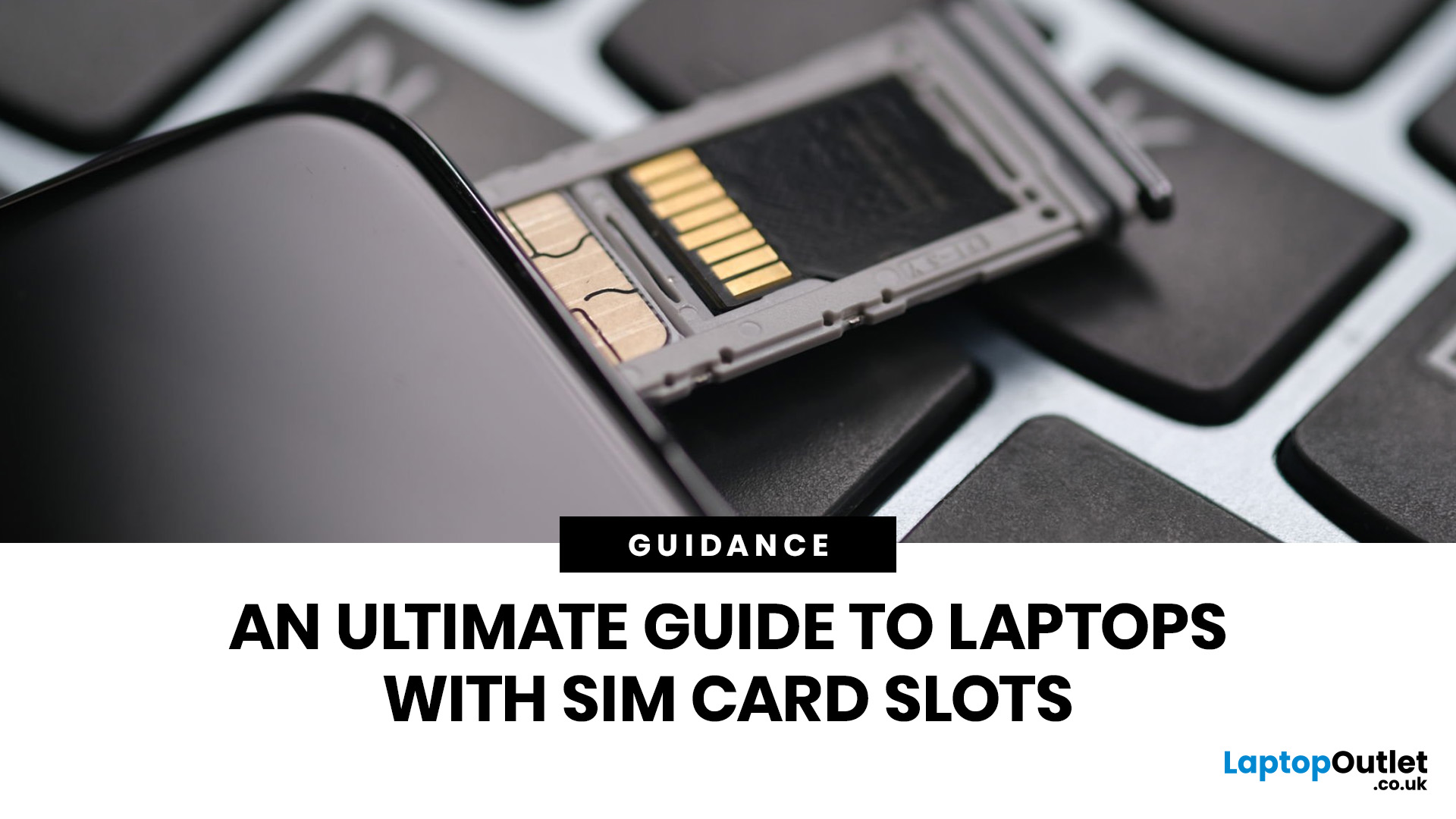
Staying connected wherever you go is no longer a luxury, it’s a necessity. Whether you’re working remotely, travelling frequently, or simply want a more reliable connection than public Wi-Fi, laptops with sim card slot capabilities are becoming an increasingly popular choice in 2026. If you’re considering making the switch to a laptop with built-in mobile internet, this guide will walk you through everything you need to know, from how they work to the key differences between 4G and 5G models, and who should be using them.
What are Laptops with SIM Card Slots?
A laptop with sim card functionality allows you to insert a SIM card directly into your device, giving you access to mobile data networks, just like your smartphone. These are often referred to as laptops with built-in mobile internet or cellular laptops.
Instead of relying solely on Wi-Fi, these devices connect to 4G LTE or 5G networks, ensuring you stay online wherever there’s mobile coverage. You’ll commonly find this feature

Last Updated: October 16, 2026
The best laptops for AutoCAD in 2026 need the right balance of processing power, RAM, graphics performance and storage. However, the ideal specifications depend on whether you're creating simple 2D drawings, developing detailed 3D models or working with complex engineering projects.
You don't necessarily need an expensive workstation for basic drafting. Equally, a standard everyday laptop may struggle with demanding architectural designs and larger CAD files.
We've selected 10 laptops for CAD and AutoCAD, covering different performance levels, working requirements and budgets to help you make an informed decision.
What Laptop Specs Do You Need for AutoCAD in 2026?
Autodesk recommends 32GB RAM and an 8GB graphics card for AutoCAD 2026 on Windows, although lighter tasks can run on less powerful hardware. For larger datasets, point clouds and advanced 3D modelling, requirements can increase further.
Here are the main specifications to consider:
- Processor (CPU): Strong single-core performance
Published: April 14, 2026
Remote work is no longer a temporary perk. In 2026, it has become a steady work pattern for many UK employees, and the laptop has effectively turned into the main workplace tool, meeting room, and travel companion rolled into one.
That shift is changing what people prioritise when they buy. Price still matters, but buyers are more likely to pay for reliability, better video-call hardware, stronger security, and a setup that works just as well at home as on the train.
Hybrid Work is Pushing Standards Up, Not Down
UK hybrid working is best understood as a long-term rebalancing rather than a short-lived trend. In Great Britain, the Office for National Statistics has shown how hybrid working varies across demographic groups, reinforcing that it is embedded unevenly but persistently across the workforce rather than disappearing.
Employer practice points in the same direction. The CIPD’s research on flexible and hybrid working practices reports that a large share of organisations have hybrid
Last Updated: July 03, 2026
For most developers, the best machine is not necessarily the most expensive one. It is the one that keeps up with your workflow, feels comfortable to use for hours at a time, and still makes sense a few years down the line.
That matters even more in 2026. Modern development work is heavier than it used to be. A typical day might include an IDE, a browser with far too many tabs open, Docker, a local database, Slack, video calls, design files, and maybe a virtual machine or AI-assisted tools running in the background. A laptop that feels fine on paper can start to struggle surprisingly quickly once real work begins.
This guide is designed for a UK audience looking for a dependable laptop for software development, whether you are a student, a junior developer, a freelancer, or a full-time engineer replacing an ageing machine. Given below are top 10 laptops for programming and coding 2026:
1. ASUS Zenbook 14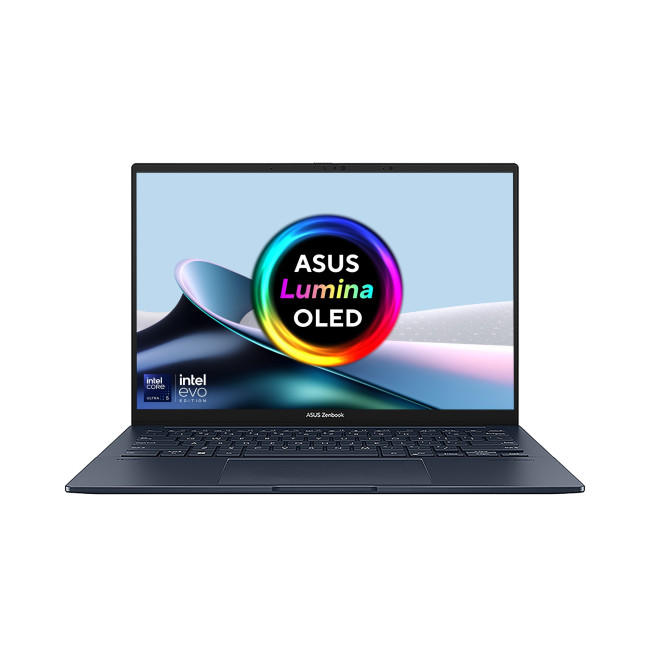
Technical Specs:
- Intel Core Ultra 5 225H 14-Core Processor
- AI Ready Laptop
Last Updated: September 24, 2026
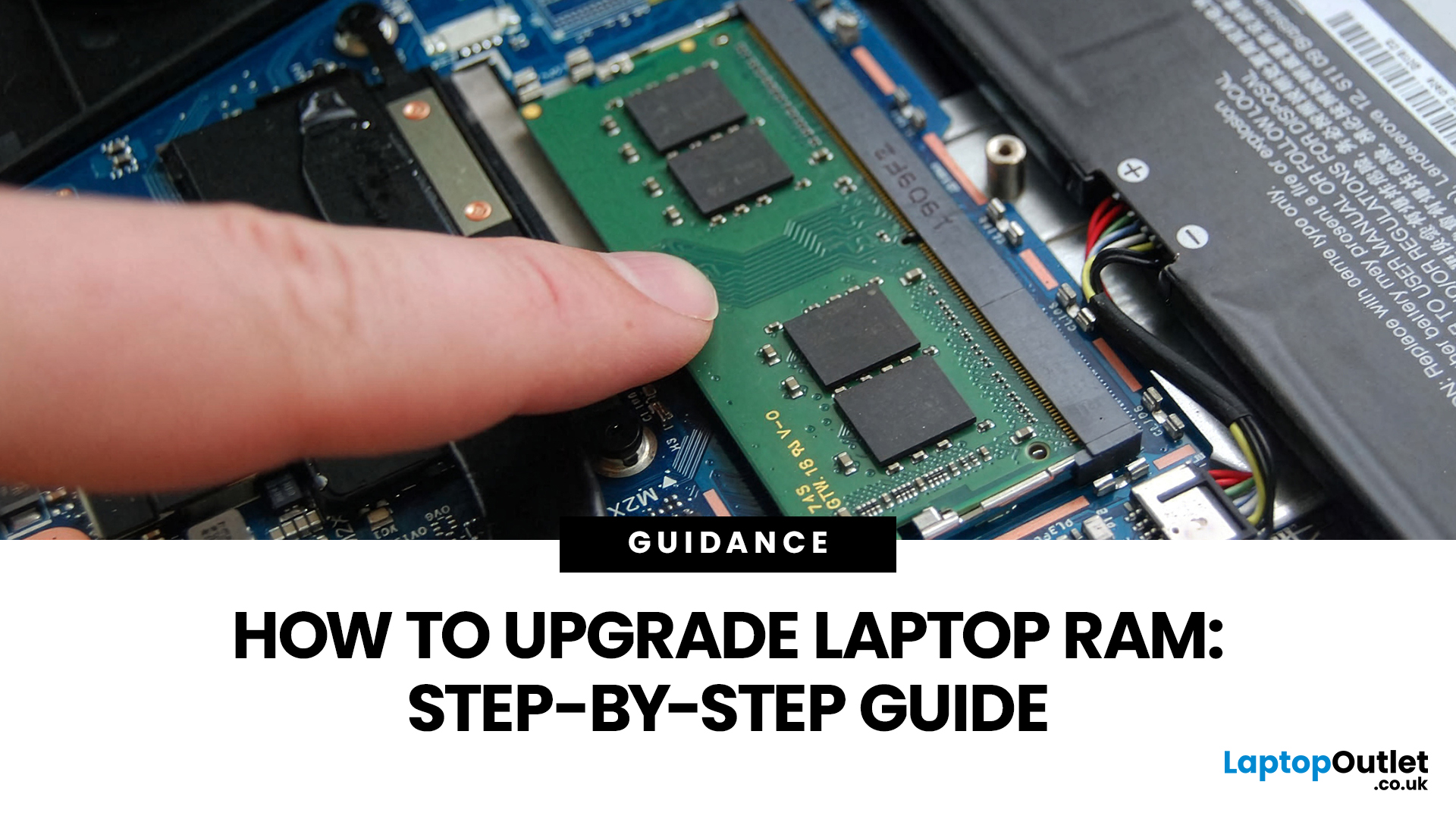
Upgrading laptop RAM is one of the simplest ways to make an older machine feel faster and more capable again, but only if the compatibility side is right from the start. That is the part many quick guides skip. Before buying anything, we always recommend checking whether the laptop has upgradeable memory, what RAM standard it uses, how much it supports, and whether upgrading means adding another module or replacing the existing setup.
To upgrade laptop RAM, first check whether your model has upgradeable SO-DIMM slots, the supported DDR generation, maximum capacity and current memory configuration. Buy compatible RAM, shut the laptop down, disconnect power, open the service panel, remove or add the module, then reassemble and boot up. Finally, confirm the new memory is recognised and test system performance for improved multitasking.
For UK shoppers, that matters because a RAM upgrade can be a much smarter option than replacing a laptop too early. If a system slows down with lots of browser
Last Updated: May 01, 2026
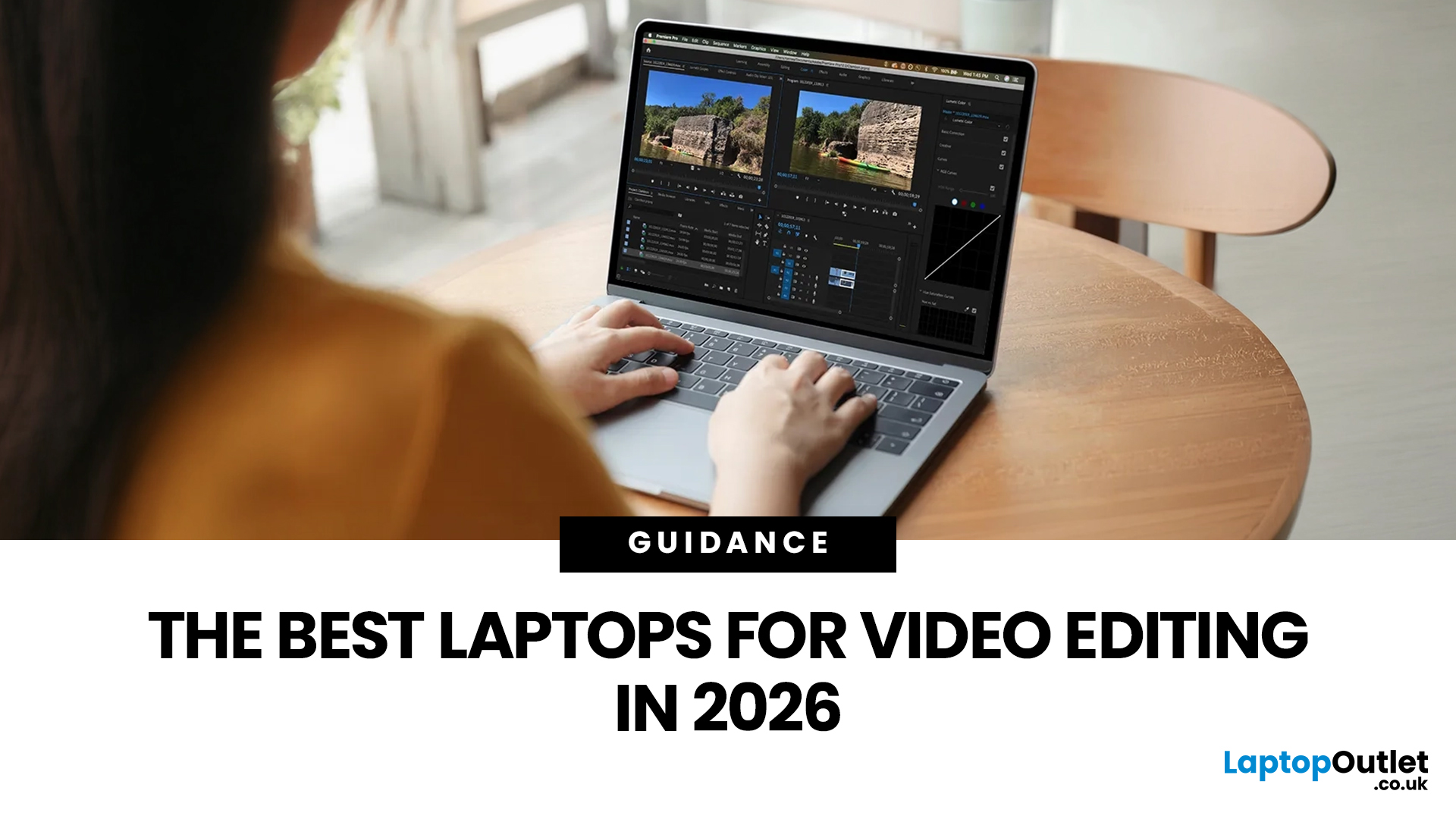
Video editing has become one of the most demanding everyday laptop workloads. Even relatively simple projects can involve high-resolution footage, multiple layers, colour work, motion graphics, audio cleanup, and export-heavy timelines. That means the best laptop for video editing is not just the one with the biggest headline spec. It is the one that fits the kind of editing you do, whether that is short-form social content, YouTube videos, client work, documentary edits, or more advanced professional production.
This guide includes mainstream creator laptops, premium ASUS ProArt models, mobile workstations, and a few higher-powered gaming machines that are relevant because video editing often benefits from the same strengths: strong sustained performance, capable graphics, fast storage, and displays built for visual work.
What Makes a Good Video Editing Laptop in 2026?
A good video editing laptop needs to do three things well:
- Handle demanding timelines smoothly,
- Stay responsive under

