



A Complete Guide to Mac Keyboard Shortcuts
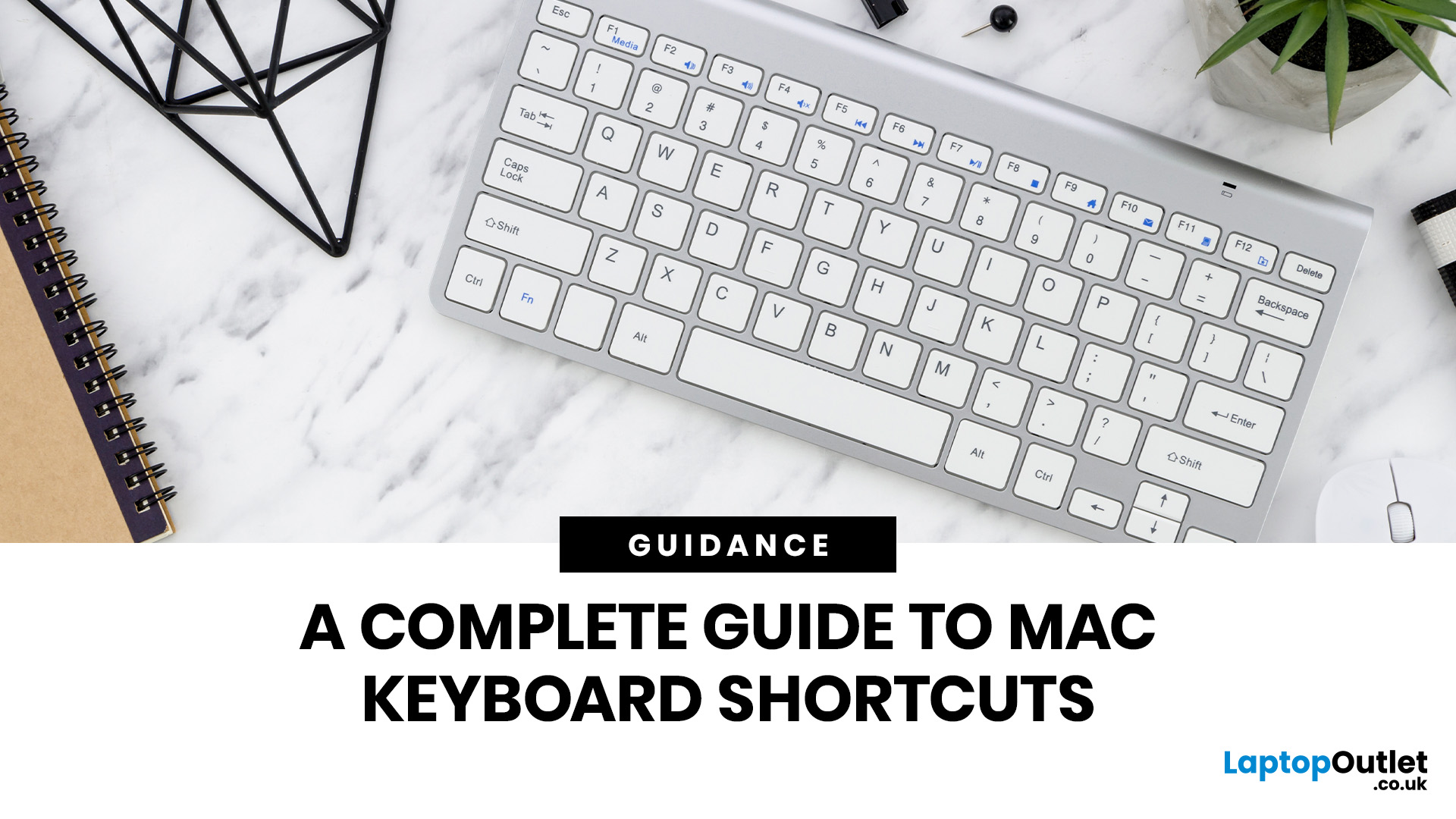
Mac keyboard shortcuts help you copy, paste, search, switch apps, manage files, take screenshots, and control system features faster from the keyboard. This 2026 guide explains the essential shortcuts, the meaning of Apple's modifier keys, practical shortcuts for everyday work, and the easiest ways to customise them for a smoother workflow.
What Are Mac Keyboard Shortcuts, And Why Should You Use Them?

Mac keyboard shortcuts are key combinations that carry out actions you would otherwise do with a mouse or trackpad. Apple notes that these shortcuts can save time, but also points out that some shortcuts vary by app, keyboard layout, and language.
For most people, the biggest benefit is speed. Copying text, opening Spotlight, closing tabs, switching apps, and locking the screen all feel quicker when your hands stay on the keyboard.
The same core shortcuts work across modern Macs, including MacBook, iMac, and Mac mini, as long as the keyboard layout matches.
If you are also comparing machines before upgrading, you can browse the best laptops for a wider shortlist.
Which Keys and Symbols Do You Need to Recognise First?
Apple keyboard shortcuts usually combine one or more modifier keys with another key. Before you learn the shortcuts, it helps to recognise the keyboard symbols shown in Mac menus and Apple support pages.
|
Key |
Symbol |
What it means |
|
Command |
⌘ |
Main shortcut key for actions like copy, save, and switching apps |
|
Option |
⌥ |
Alternate actions, advanced navigation, and special functions |
|
Shift |
⇧ |
Changes behaviour, extends selections, and modifies other shortcuts |
|
Control |
⌃ |
System controls, menu access, and extra commands |
|
Fn / Globe |
fn |
Works with function keys, emoji, dictation, and other keyboard options |
|
Caps Lock |
⇪ |
Capital letters and, in some setups, remapped functions |
|
Delete |
⌫ |
Deletes backwards |
|
Return |
⏎ |
Confirms an action or starts a new line |
Apple also explains that the Option key may be labelled Alt on some non-Apple keyboards, which is useful if you connect a Windows keyboard to a Mac.
If you want an Apple-first device for these layouts and labels, you can buy Apple laptops. If you are comparing platforms before buying, the Microsoft laptop range is worth a look too.
Which Everyday Apple Key Commands Should You Learn First?
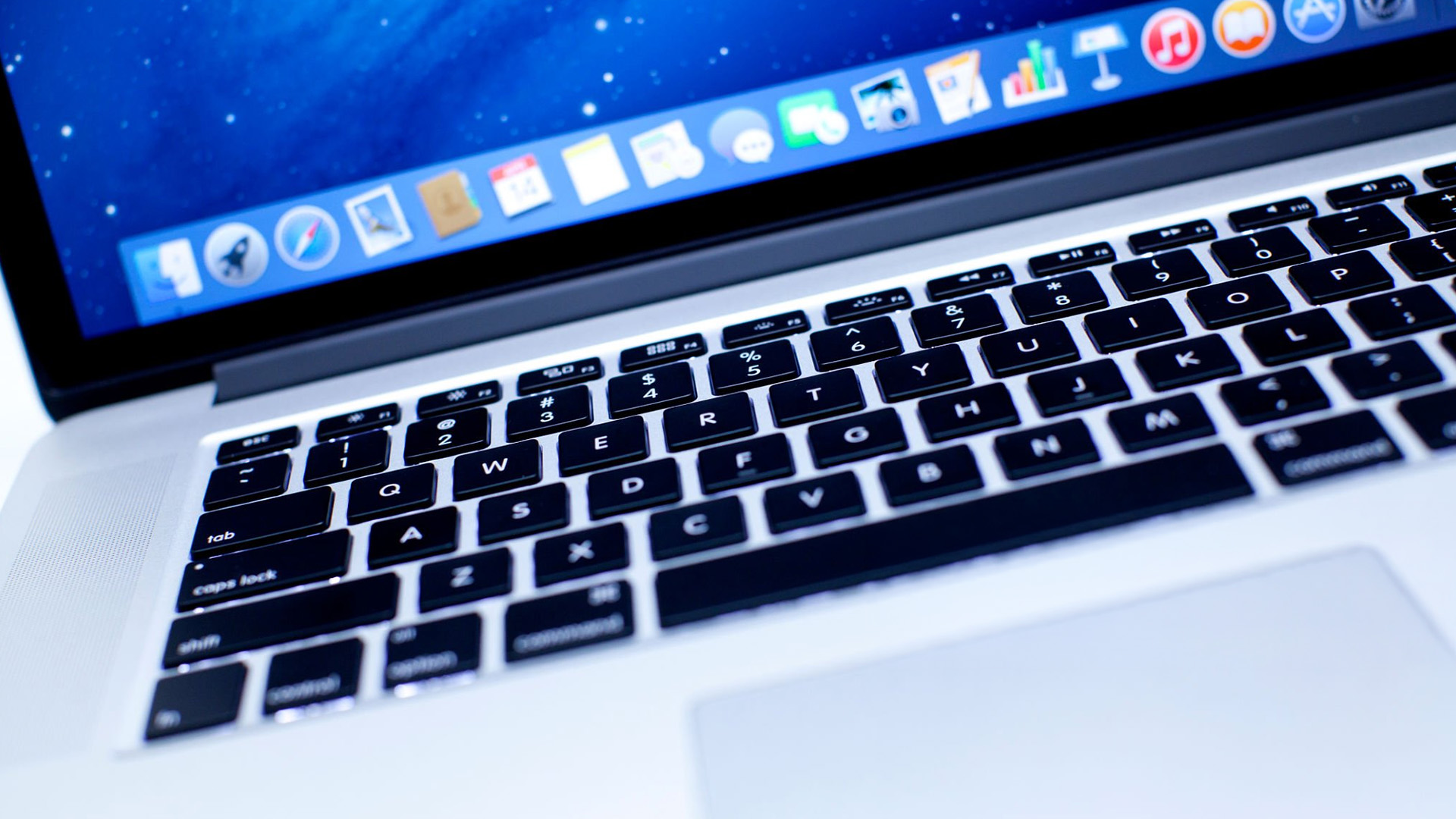
The quickest way to improve daily productivity is to learn the core Apple key commands that work across macOS. Apple's current shortcut list puts the following combinations among the most useful for routine work.
|
Shortcut |
What it does |
Why it matters |
|
Command-C |
Copy |
Reuse text, files, images, and links |
|
Command-V |
Paste |
Insert copied content |
|
Command-X |
Cut |
Move selected content |
|
Command-Z |
Undo |
Reverse the last action |
|
Shift-Command-Z |
Redo |
Restore an undone action |
|
Command-A |
Select all |
Highlight everything quickly |
|
Command-F |
Find |
Search within apps, documents, and webpages |
|
Command-S |
Save |
Save changes quickly |
|
Command-W |
Close window or tab |
Reduce clutter without quitting the app |
|
Command-Q |
Quit app |
Fully close the current application |
|
Option-Command-Esc |
Force Quit |
Exit a frozen app |
|
Command-Tab |
Switch apps |
Move between open apps quickly |
|
Command-` |
Switch windows in one app |
Move between multiple windows in the same app |
These shortcuts are worth learning first because they apply to writing, browsing, studying, admin tasks, and file handling. Once these feel natural, the rest of the shortcut system becomes much easier to remember.
Which Finder and System Shortcuts Save The Most Time?
Apple's Finder and system shortcuts are especially useful for file-heavy tasks. They help you create folders, open key locations, preview files, empty the Bin, and lock your screen without breaking focus.
|
Shortcut |
What it does |
|
Command-N |
Open a new Finder window |
|
Shift-Command-N |
Create a new folder |
|
Shift-Command-G |
Open Go to Folder |
|
Shift-Command-D |
Open the Desktop |
|
Shift-Command-H |
Open the Home folder |
|
Option-Command-L |
Open the Downloads folder |
|
Shift-Command-U |
Open Utilities |
|
Command-Y |
Quick Look the selected file |
|
Command-Delete |
Move the selected item to the Bin |
|
Shift-Command-Delete |
Empty the Bin |
|
Control-Command-Q |
Lock the screen |
These MacBook shortcuts are especially handy when you organise downloads, check documents quickly with Quick Look, or move between folders without touching the trackpad. Apple also notes that some shutdown and log out shortcuts need a slightly longer press to avoid accidental use.
Which Text-Editing Shortcuts Make Writing Easier?
Text-editing shortcuts are among the most practical Mac keyboard shortcuts because they speed up writing, editing, and formatting in documents, emails, and notes. Apple includes both formatting shortcuts and navigation shortcuts in its current guidance.
|
Shortcut |
What it does |
|
Command-B |
Bold selected text |
|
Command-I |
Italicise selected text |
|
Command-U |
Underline selected text |
|
Command-K |
Insert a web link |
|
Option-Left Arrow |
Move to the previous word |
|
Option-Right Arrow |
Move to the next word |
|
Command-Left Arrow |
Move to the start of the line |
|
Command-Right Arrow |
Move to the end of the line |
|
Command-Up Arrow |
Move to the start of the document |
|
Command-Down Arrow |
Move to the end of the document |
|
Fn-Delete |
Delete forwards |
|
Option-Shift-Command-V |
Paste and match style |
One overlooked detail is the shift key on Mac. Apple uses Shift to extend selections, modify other commands, and access variants such as Shift-Command-4 for area screenshots or Shift-Command-Z for redo.
How Do Screenshot and Screen-Recording Shortcuts Work?
Screenshot tools are among the most useful MacBook hotkeys because they are quick, visual, and built into macOS. Apple's current screenshot documentation highlights three main commands that most users should remember.
|
Shortcut |
What it does |
|
Shift-Command-3 |
Capture the entire screen |
|
Shift-Command-4 |
Capture a selected area |
|
Shift-Command-5 |
Open screenshot and screen recording controls |
Apple also explains that adding Control to a screenshot shortcut copies the capture to the Clipboard instead of saving it as a file. The Screenshot controls opened by Shift-Command-5 also let you choose options such as save location, timer, pointer visibility, and screen recording settings.
Which Safari and Spotlight Shortcuts Improve Browsing and Search?
A Mac shortcut that deserves instant use is Command-Space bar, which opens Spotlight. Apple's current Mac help pages show that Spotlight can search files, apps, contacts, settings, and more.
Safari also includes strong built-in shortcuts for browsing. Apple's Safari guide lists several that are useful for research, tab management, and online shopping.
|
Shortcut |
What it does |
|
Command-L |
Select the address bar |
|
Command-F |
Find on the current page |
|
Command-[ |
Go back |
|
Command-] |
Go forward |
|
Shift-Command-T |
Reopen the last closed tab |
|
Control-Tab |
Move to the next tab |
|
Control-Shift-Tab |
Move to the previous tab |
|
Command-1 to Command-8 |
Jump to one of the first eight tabs |
|
Command-9 |
Jump to the final tab |
Apple also says Spotlight actions can be narrowed with Command-3, and suggested quick keys may be assigned automatically after you use an action once. That makes Spotlight more than a search tool. It becomes a keyboard-first launcher for everyday tasks.
If you are choosing a study machine where efficient browsing matters, it is worth checking affordable student laptops.
Can Accessibility Shortcuts Make a Mac Easier to Use?
Yes, and this matters for both comfort and control. Apple says Option-Command-F5 opens the Accessibility Shortcuts panel, and on supported Macs or Magic Keyboards with Touch ID, you can also press Touch ID three times.
Apple also documents features such as Full Keyboard Access, Sticky Keys, Slow Keys, and the Accessibility Keyboard. These settings are especially helpful if you want to rely less on the trackpad or make multi-key combinations easier to press.
Can You Customise Shortcuts and Fix Problems When They Stop Working?
Yes. Apple says you can create custom shortcuts for menu commands by going to System Settings > Keyboard > Keyboard Shortcuts > App Shortcuts. This is particularly useful when a global shortcut clashes with one used in a specific app.
You can also change modifier key behaviour in Modifier Keys settings. Apple explains that you can remap keys such as Control, Option, Caps Lock, and Command if you are used to another keyboard layout.
Some people search for Mac shortcuts keys, but Apple organises these controls under Keyboard Shortcuts, Modifier Keys, and Keyboard Viewer. If a shortcut does not work, Apple recommends checking the app menu bar and using Keyboard Viewer to confirm the active input source and layout.
How Should You PractiCe Mac Keyboard Shortcuts Without Getting Overwhelmed?

The easiest method is to learn in layers. Start with copy, paste, undo, app switching, search, screenshots, and save, then add Finder shortcuts, browser shortcuts, and text navigation once the basics feel automatic.
A good target is ten shortcuts for your daily routine. Use them repeatedly for a week, then add another five. This keeps Mac keyboard shortcuts useful rather than overwhelming.
If you want a device suited to browsing, writing, admin, and day-to-day work, you can also view laptops for daily use.

Start Small and Get Faster with Mac Keyboard Shortcuts
Mac keyboard shortcuts are one of the simplest ways to make a Mac feel faster, easier, and more organised. Apple's current 2026 support documentation shows that the biggest gains come from mastering core shortcuts first, then adding Finder, Safari, screenshot, Spotlight, and accessibility commands that fit your routine.
Start with the combinations you will use every day, not the biggest list you can find. Once the essentials become automatic, Mac keyboard shortcuts save time on almost every task, from writing and studying to browsing and file management.
You can also read our complete MacBook guide for details on the latest models, practical tips, and troubleshooting help.

A Few Quick Answers Before You Go...
Which is Option button on Mac?
The Option button is marked ⌥ and is usually labelled Option. On some non-Apple keyboards, Apple says it may appear as Alt instead.
What is the shift key on a MacBook?
The Shift key is marked ⇧ and is used for capitals, symbols, selections, and modified shortcuts such as Shift-Command-4 or Shift-Command-Z.
Alt keyboard MacBook, what does Alt mean?
On a MacBook, Alt usually means the Option key. Apple treats Option and Alt as the same modifier on many non-Apple keyboards.
What is the shortcut for screenshot on a Mac?
Use Shift-Command-3 for the full screen, Shift-Command-4 for a selected area, and Shift-Command-5 for screenshot and recording controls.
How do I force quit an app on Mac?
Press Option-Command-Escape to open Force Quit, select the frozen app, then confirm. It is the quickest keyboard method for an unresponsive application.
Can I create custom keyboard shortcuts on Mac?
Yes. Apple says you can create custom shortcuts for app menu commands in System Settings, under Keyboard Shortcuts, then App Shortcuts.
Why are my Mac keyboard shortcuts not working?
Apple says shortcut issues often come from app-specific commands, language or layout differences, remapped modifier keys, or input-source settings shown in Keyboard Viewer.
| Read More: |
| How to Force Quit on Mac: A Step-by-Step Guid |
| How to Uninstall Apps on Mac: Every Method Explained |
| MacBook Not Turning On or Charging? Here’s How to Fix It |
Related Articles

Last Updated: May 30, 2025
Make Your Desktop Work Smarter
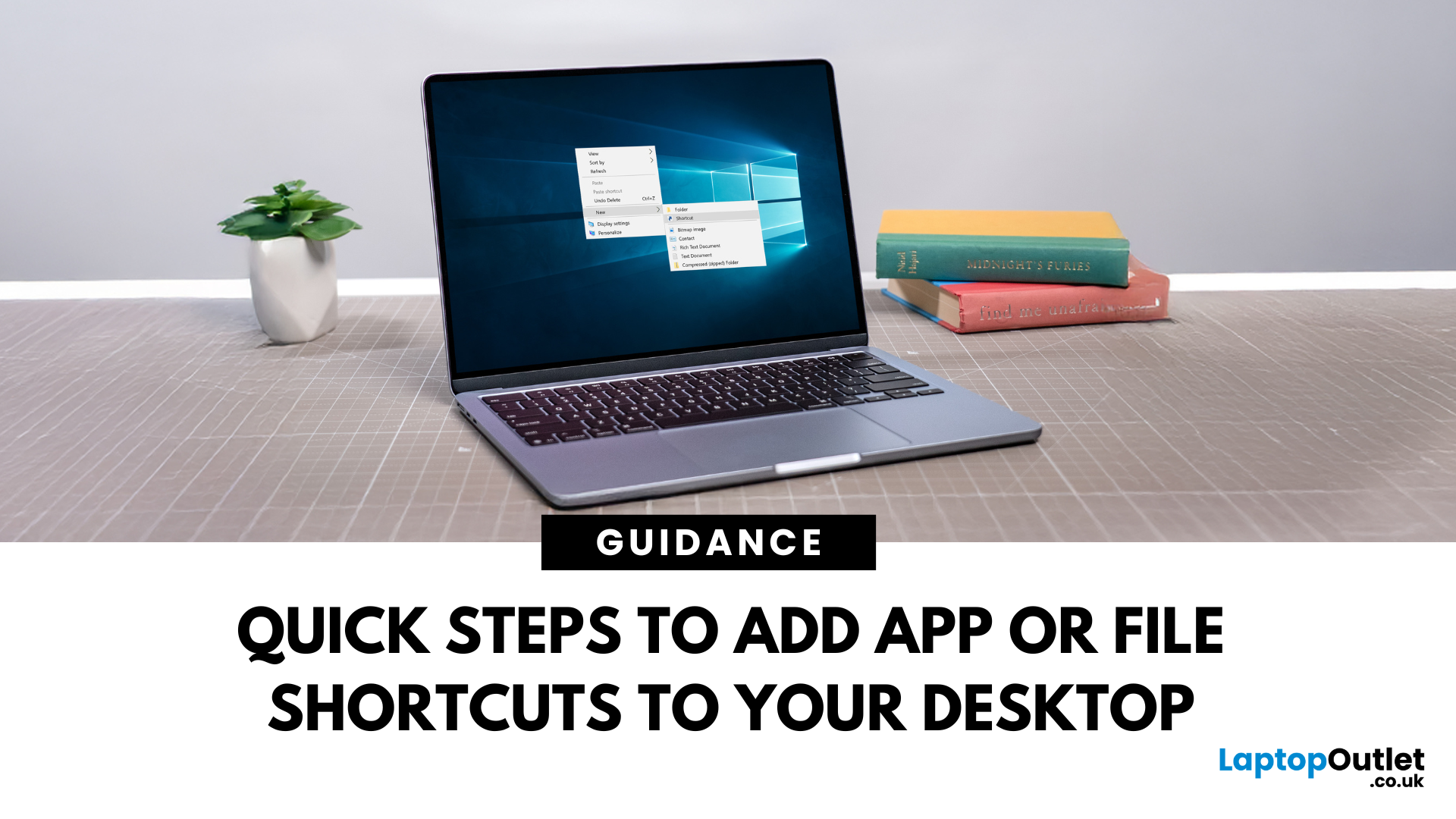
Tired of digging through folders to open your favourite apps or files? A desktop shortcut can save you time by placing what you need right where you can see it. Here’s how to create a desktop shortcut in Windows and macOS.
1. How to Create a Shortcut on Windows (10 & 11)
For Applications:
- Click the Start Menu
- Find your app and right-click it
- Select More > Open File Location
- Right-click the app’s icon and choose Send to > Desktop (create shortcut)
For Files or Folders:
- Locate the file or folder in File Explorer
- Right-click > Send to > Desktop (create shortcut)
You can also drag and drop while holding the Alt key to create a shortcut
2. How to Create a Shortcut on Mac (macOS Sonoma, Ventura, Monterey)
For Applications or Files:
- Open Finder and locate the file, app, or folder
- Right-click and select Make Alias
- Drag the alias to your desktop
Alternatively, hold Command + Option and drag the item to the desktop to create a shortcut

Last Updated: December 19, 2025
Emojis have become a language of their own, especially for the Gen Z and Alphas. You’re replying to an email, chatting on WhatsApp Web, creating social posts, or even completing work messages with a little personality, being able to type emojis using your keyboard saves time and makes communication more expressive.
Let’s learn the easiest ways to type emojis on Windows, Mac, Chromebooks, and even mobile keyboards. No more copy-and-paste from emoji websites, you’ll be able to insert any emojy in seconds.
Why Use Keyboard Emojis?
Before we get into shortcuts, here’s why knowing them matters:
- Fast: Add emojis without switching tabs or using your mouse.
- Professional + fun: Modern workplaces increasingly accept emojis for clarity and tone.
- Easy to remember: Once you learn shortcuts, they feel natural.
- Universal: Works across apps - Word, Slack, Teams, Gmail, Instagram, web browsers, and more.
Now let’s jump into the shortcuts for every device. If you enjoy adding creativity to your messages,

Last Updated: February 13, 2026
Because nothing kills the vibe faster than a laptop, that suddenly decides your fingers are irrelevant.
You sit down. You open your laptop. You’re mentally prepared to be productive (or at least pretend). And then .....boom... your laptop touchpad is not working. Or your laptop keyboard is not working. Or worse… both.
At this point, your laptop isn’t broken; it’s personally offended by you.
Before you rage-buy a new device or spiral into tech despair, here’s the good news: most laptop keyboard problems and touchpad issues are completely fixable. And no, you don’t need a computer science degree or a sacrifice to the tech gods.
This guide is not one of those vague “restart your device” articles and call it a day. This is a deep-dive, all-reasons, all-solutions, no-BS troubleshooting guide, written in human language, with enough detail to actually solve the problem.
We’ll cover:
- Software vs hardware problems (and how to tell the difference)
- Every common and uncommon reason your laptop input
Last Updated: March 09, 2026
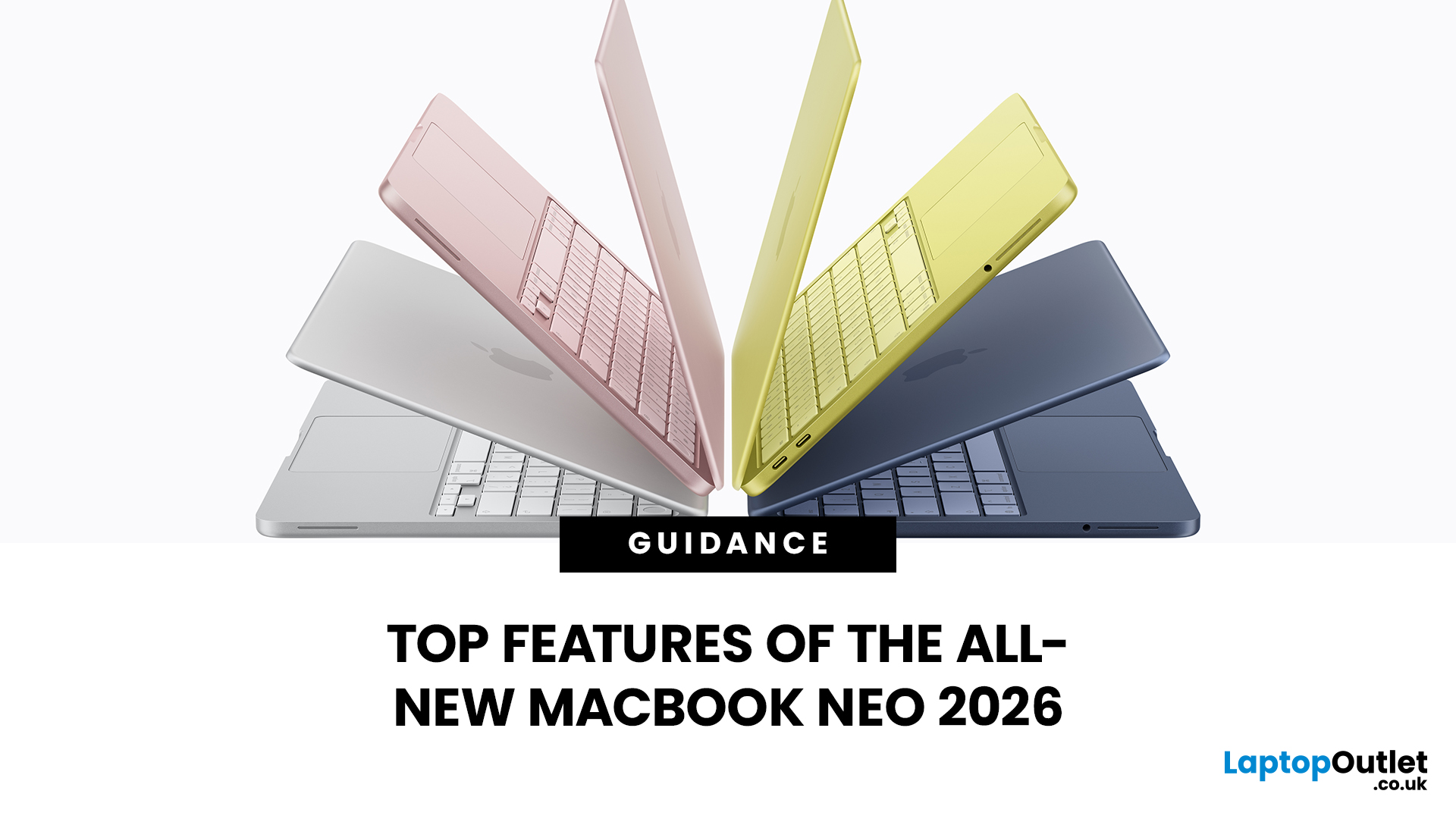
Apple has done something it has not done in years. It has built a MacBook that almost anyone can actually afford.
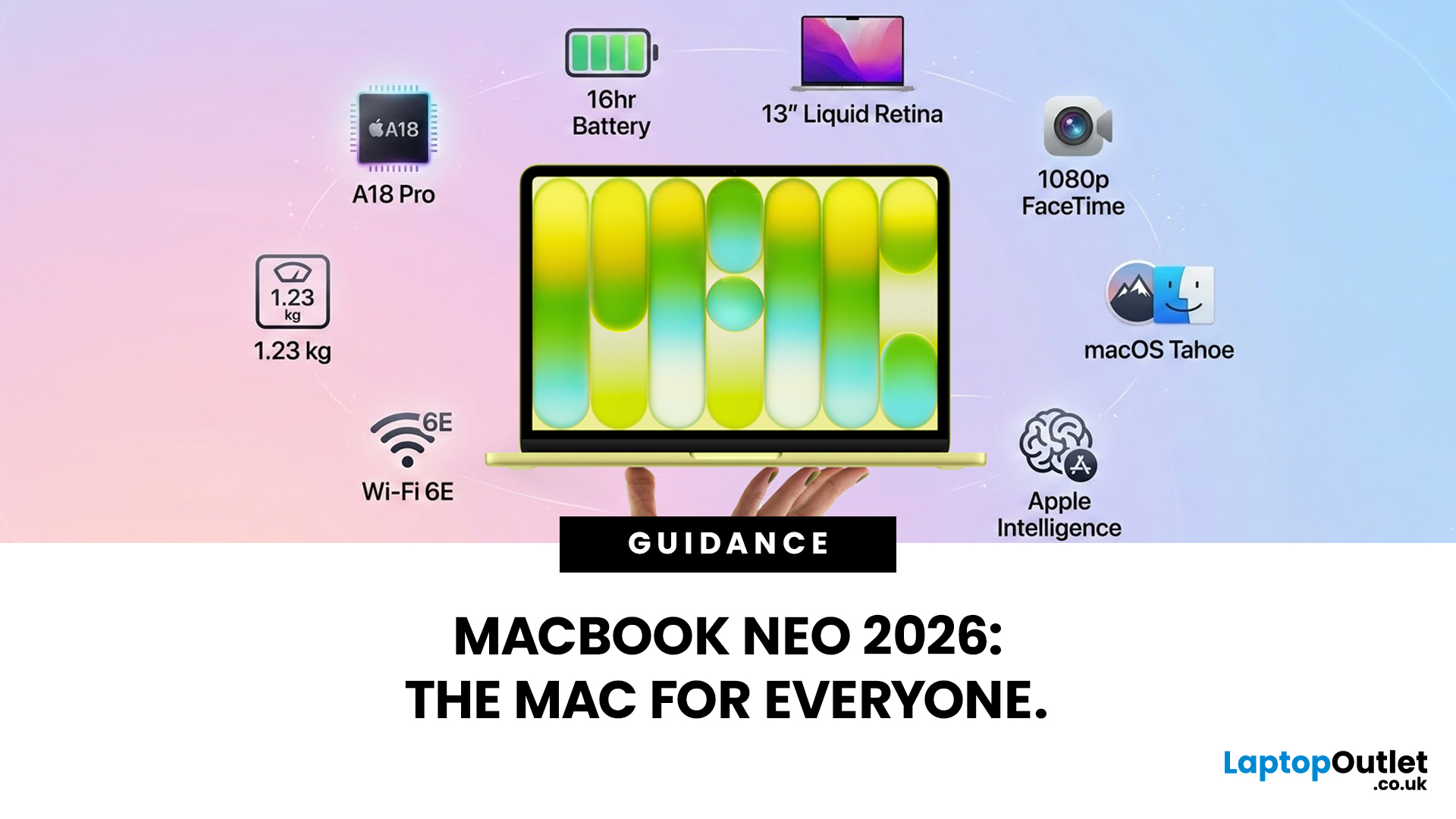
The MacBook Neo 2026 was announced on 4th March 2026 and went on sale from 11th March 2026. Starting at just £599, it is the most affordable Mac laptop Apple has ever made. That is a bold statement. And this time, Apple means it.
So, what exactly is the MacBook Neo, what can it do, and is it worth buying? Let us break it all down.
What Is the MacBook Neo 2026?
The MacBook Neo is Apple's brand new entry-level laptop. It sits below the MacBook Air and MacBook Pro in the lineup. Think of it as a proper Mac for everyone.
For years, the cheapest way into the Mac world was the MacBook Air at £999. That was too steep for many students and first-time buyers. The MacBook Neo changes that. It brings macOS, Apple silicon, and the full Mac experience to people who want a quality laptop without paying a premium price.
It is not a watered-down product. It is simply a smarter, more accessible
Last Updated: March 09, 2026
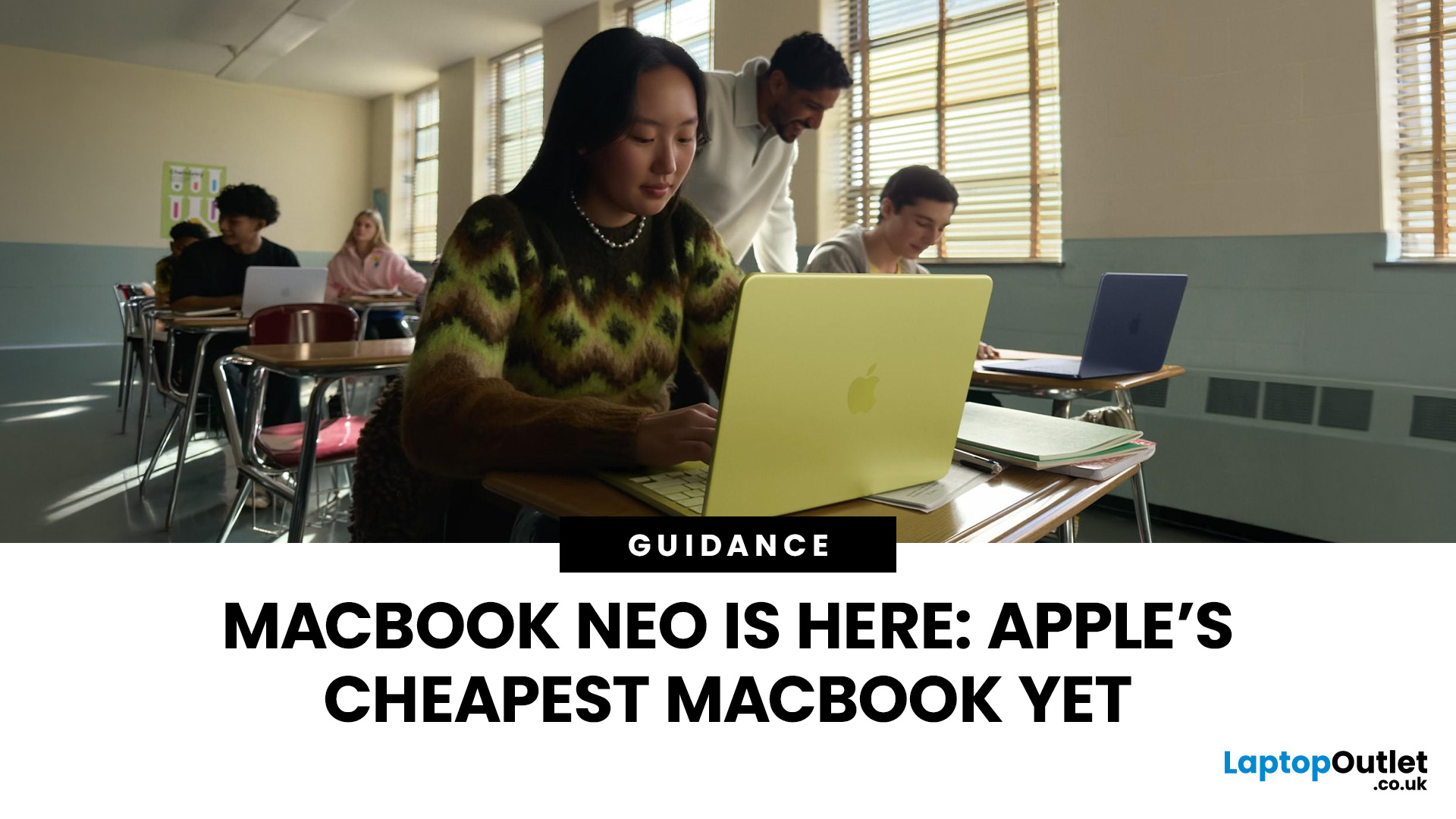
Apple has done something surprising. In March 2026, the company unveiled its most affordable laptop ever: the MacBook Neo.
Starting at just £599, it brings the full Mac experience to a much wider audience: students, first-time buyers, and budget-conscious shoppers who have long been priced out of the Apple ecosystem.
This is not just a stripped-down machine. The MacBook Neo features a beautiful aluminium design, a sharp Liquid Retina display, the A18 Pro chip, and up to 16 hours of battery life. In short, it packs a serious punch for its price.
So, what exactly makes this laptop worth your attention? Let us walk through every key MacBook Neo feature in detail.
MacBook Neo: Full Specs at a Glance
Before diving deep, here is a quick overview of everything the MacBook Neo brings to the table.
| Specification | Details |
| Processor | Apple A18 Pro (6-core CPU, 5-core GPU, 16-core Neural Engine) |
| Display | 13-inch Liquid Retina, 2408 x 1506 resolution, 500 nits |
| Memory | 8GB unified memory |
Last Updated: March 09, 2026
If you have been waiting for a proper budget Mac, it is finally here. MacBook Neo launched as Apple’s most affordable laptop ever, and it is clearly built for students, first-time Mac buyers, and anyone who just needs a reliable everyday laptop for browsing, documents, streaming, and calls. The big headline is the price. In the UK, MacBook Neo starts at £599, with £499 education pricing, and it goes on sale on Wednesday, March 11, 2026. Pre-orders are open now.
This guide breaks down what MacBook Neo is, who it is for, what you get for the money, and the trade-offs you should know before ordering.
Want to Buy a MacBook Neo? Quick Verdict
Buy MacBook Neo If You Want the Cheapest New Mac
MacBook Neo makes sense if your daily laptop life looks like this:
- Browsing and web apps
- Word, PowerPoint, Google Docs
- Email and admin
- Zoom or FaceTime calls
- School work and research
- Light photo editing and creative hobbies
It is designed to feel like a real MacBook, just at a lower cost.
Skip MacBook

Last Updated: March 09, 2026
Apple laptops have never really been known for being “cheap.” For years, the entry point into the MacBook world started at around £999 or more. But that has finally changed.
In March 2026, Apple unveiled something unexpected: MacBook Neo, the company’s most affordable MacBook ever. Designed for students, casual users, and first-time Mac buyers, the Neo brings the macOS experience to a much lower price point than previous Apple laptops.
So how much does it cost in the UK? What specs do you get? And is it worth buying?
Let’s break it all down.
MacBook Neo Price UK
The MacBook Neo price in the UK starts at around £599 for the base configuration.
That makes it the cheapest MacBook Apple has ever released, significantly undercutting the MacBook Air, which currently starts at around £1,099 in the UK.
Here’s a quick breakdown of expected pricing tiers:
| Model | Storage | Expected UK Price |
| MacBook Neo (Base) | 256GB SSD | ~£599 |
| MacBook Neo | 512GB SSD | ~£699 |
| Education pricing | 256GB SSD | ~£499 (students/educators) |
Last Updated: March 09, 2026
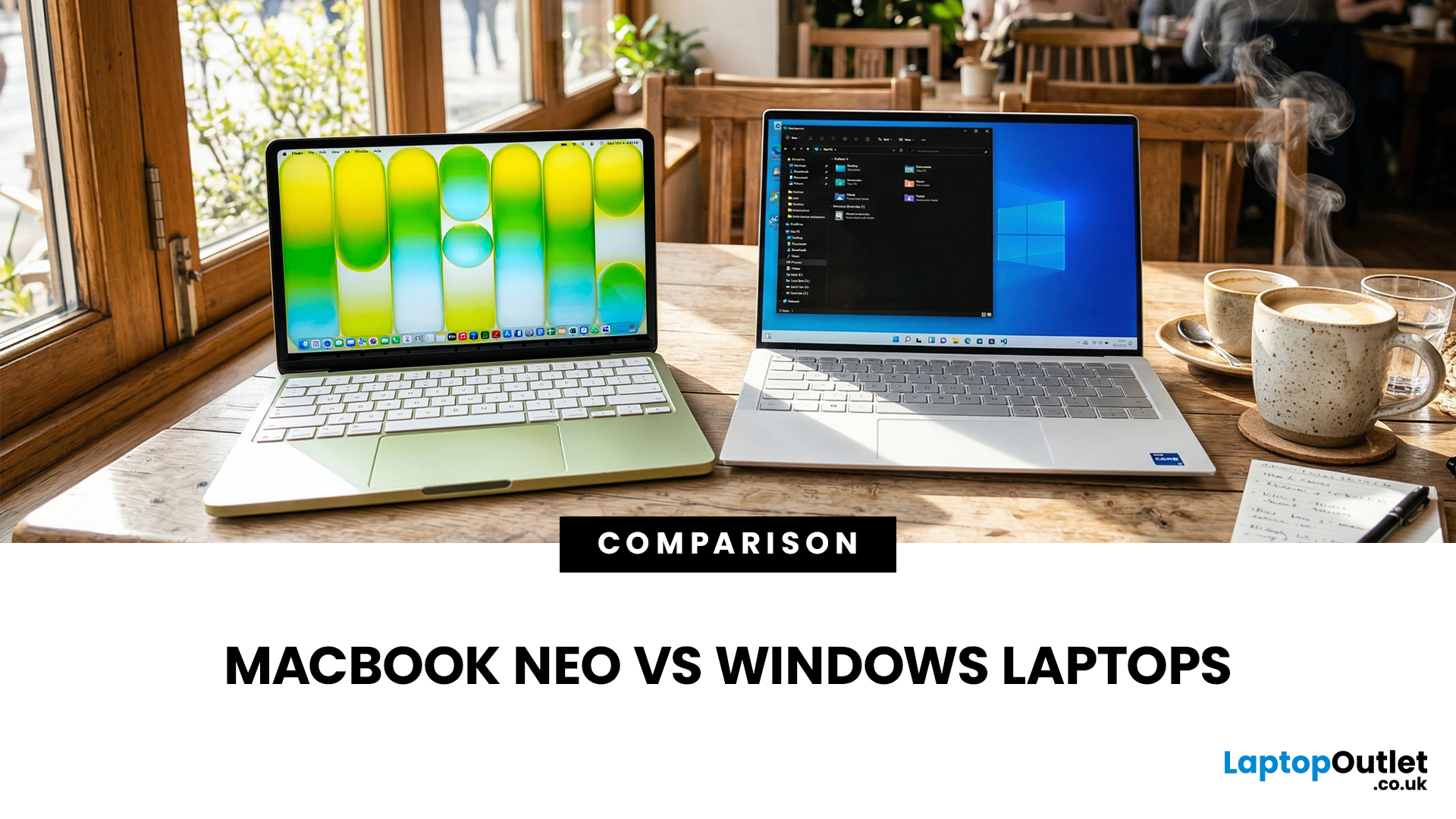
If you are comparing MacBook Neo vs Windows laptops, you are really asking one question: should you buy Apple’s cheapest Mac, or get a budget Windows laptop with more ports and more choice?
MacBook Neo is new, starts at £599, and is designed to be a simple, premium-feeling everyday laptop with macOS, long battery life, and strong call quality.
Budget Windows laptops can offer more screen sizes, more ports, and sometimes better upgrade options. But quality is inconsistent in this price range, and that’s where Neo tries to win.
Below is the practical, buyer-focused breakdown.
10-Second Answer Box
Choose MacBook Neo if
- You want the cleanest everyday experience for browsing, school, docs, and calls
- You value build quality and trackpad feel
- You want a laptop that stays fast and quiet for years, without tweaking settings
Choose a budget Windows laptop if
- You want more ports like HDMI and USB-A built in
- You need a bigger screen for the money
- You want the flexibility of Windows software and lots

Last Updated: April 28, 2026
Apple’s Studio Display and Pro Display XDR are among the most advanced monitors available for professionals. With ultra-sharp 5K and 6K resolutions, these displays are designed for creatives who need exceptional colour accuracy, brightness, and detail.
However, to get the best experience, you need a powerful MacBook with strong graphics performance and Thunderbolt connectivity. Apple’s latest MacBooks powered by M3, M4, M5, M5 Pro, and M5 Max chips bring major improvements in performance, AI capabilities, and external display support.
Can MacBooks Support the Studio Display or Pro Display XDR?
Yes. Most modern Apple Silicon MacBooks can connect to these displays.
Studio Display
- Resolution: 5K (5120 × 2880)
- Thunderbolt / USB-C connection
- Works with most Apple Silicon Macs
Pro Display XDR
- Resolution: 6K (6016 × 3384)
- Requires high bandwidth Thunderbolt connection
- Best paired with MacBook Pro models
Modern MacBooks with Thunderbolt ports and Apple Silicon chips can drive high-resolution
Published: March 13, 2026
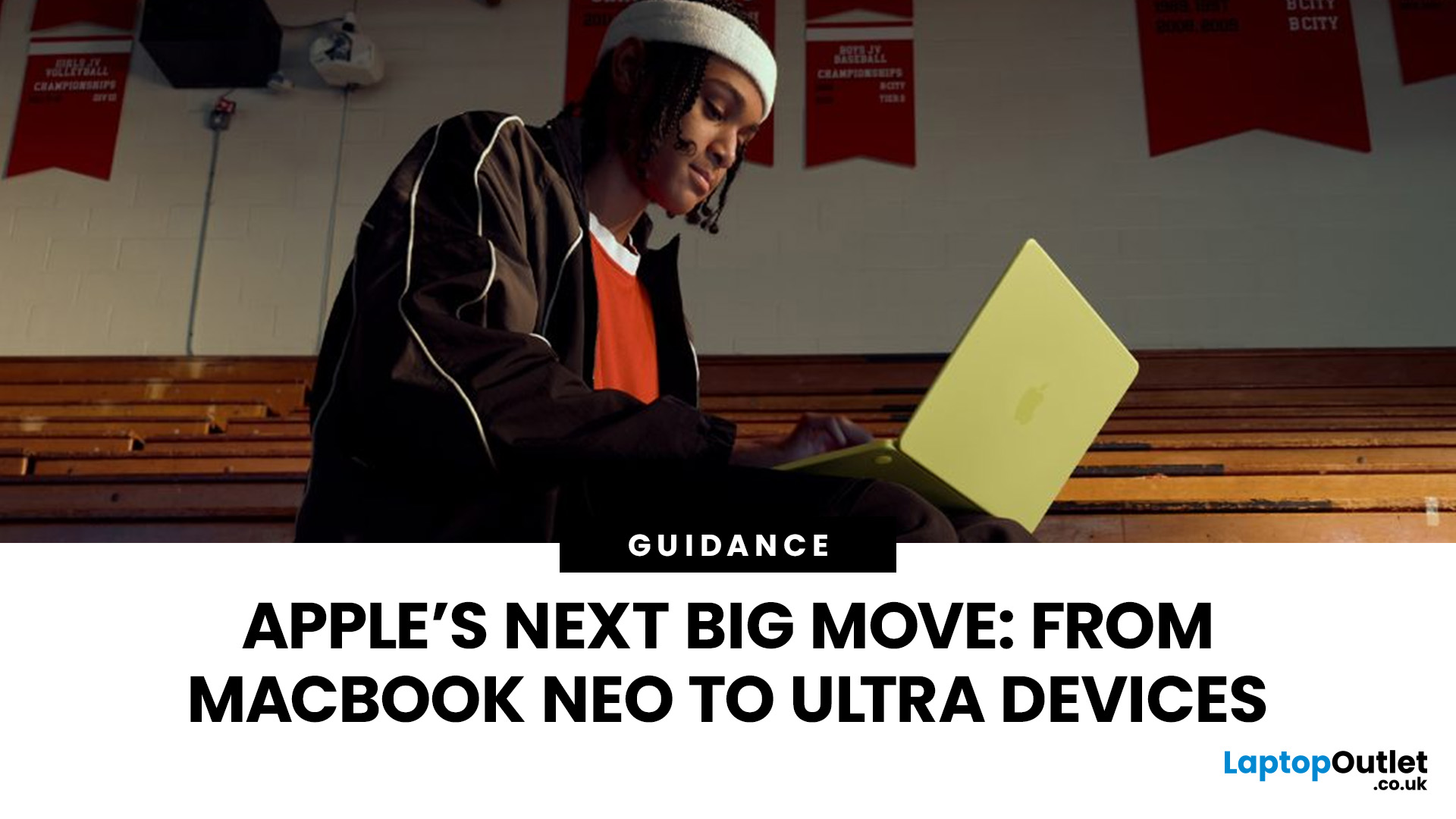
Apple is entering a new era of product strategy. For years, the company has dominated the premium tech market with devices like the iPhone Pro and MacBook Pro. But now Apple appears to be expanding its ecosystem in two directions at once: more affordable devices and ultra-premium hardware.
The recent MacBook Neo release indicates that Apple has a budget-friendly laptop to attract students and first-time Mac users. At the same time, industry reports indicate Apple is building a lineup of Ultra devices that will sit above its current Pro models.
This shift highlights what many analysts now call the Apple Ultra strategy, a long-term plan to stretch Apple’s ecosystem from entry-level devices all the way to cutting-edge luxury hardware. From the MacBook Neo at the affordable end to devices like iPhone Ultra, MacBook Ultra, and AirPods Ultra, Apple’s premium device roadmap is becoming more ambitious than ever.
MacBook Neo: Apple’s New Entry-Level Laptop
The MacBook Neo is expected to become

