



How to Choose the Right Gaming Mouse for Your Grip Style
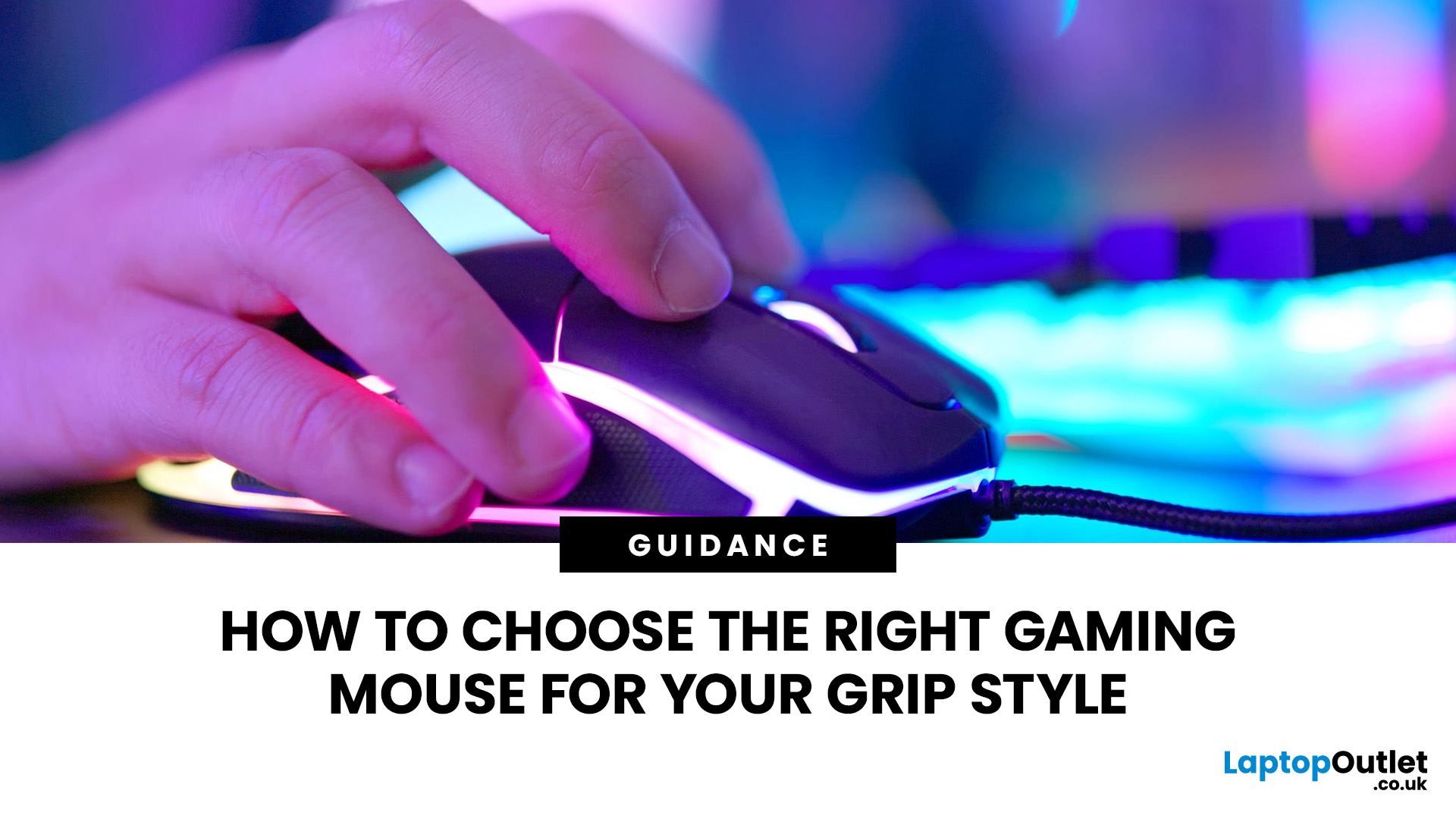
To choose the right gaming mouse for your grip style, first identify whether you use a palm, claw, or fingertip grip by placing your hand naturally on your current mouse. Palm grip players need a larger, fuller-bodied mouse; claw grip suits a mid-size mouse with a defined rear hump; and fingertip grip calls for a compact, lightweight mouse under 65g. Your grip style mouse choice affects comfort, control, and long-term wrist health, so getting the shape right matters more than any spec on the box.
This guide explains how to choose gaming mouse for your grip style. We will cover everything from identifying your grip and measuring your hand to understanding which shapes, weights, and features actually suit you.
The Three Main Gaming Mouse Grip Styles Explained<
Before you look at a single product listing, you need to know which of the three core grip styles you actually use. Most people have a natural default they've never consciously thought about. There's no objectively best mouse grip style, but each one has distinct traits that influence which mouse will suit you.
| Palm Grip Style | Claw Grip Style | Fingertip Grip Style |
|---|---|---|
| Your entire hand rests flat on the mouse, from the heel of your palm to your fingertips. Maximum contact, maximum stability. | Your lower palm sits on the rear of the mouse, but your fingers arch upward so only your fingertips touch the buttons. A mix of speed and control. | Only your fingertips contact the mouse. Your palm stays lifted entirely off the shell. Maximum agility, highest skill ceiling. |
Palm Grip: What It Is and What Mouse to Look For
Full-hand contact • Arm-driven movement • Most stable
The palm grip is the most common. Your full hand rests on the mouse, with your fingers lying relatively flat across the buttons and your thumb along the side. Movement comes primarily from your arm and shoulder, not your wrist or fingers. Because every part of your hand is supported, fatigue tends to build more slowly over long sessions.
It's generally considered the most comfortable grip for extended play, and it offers excellent tracking stability because the mouse moves as one solid unit with your hand. The main trade-off is reaction speed: because your whole hand moves together, making rapid independent clicks or sharp micro-adjustments takes slightly more effort than with a claw or fingertip style.
Pros and Cons
|
PROS OF PALM GRIP STYLE |
CONS OF PALM GRIP STYLE |
|---|---|
|
|
Mouse Shape Traits for Palm Grip
- Size: Larger is better. Aim for a mouse lengthroughly 60–70% of your hand length to allow full palm contact without your fingers overhanging the front.
- Height: A taller, pronounced rear hump gives the base of your palm somewhere to rest naturally. Flat-profiled mice tend to force the palm into an uncomfortable arch.
- Shape: Ergonomic, right-handed mice with side contouring suit palm grip well. Ambidextrous shapes work too, providedthey'relong and wide enough.
- Weight: Palm grip can tolerate heavier mice (75–90g) because the arm does most of the work. That said, keeping under 80g is sensible for longer sessions.
| Best Examples | Razer DeathAdder V4 Pro | Logitech G PRO X Superlight 2 DEX | Zowie EC2-DW |
Claw Grip: What It Is and What Mouse to Look For

Arched fingers • Wrist-driven • Speed and stability combined
The claw grip sits between palm and fingertip. The lower portion of your palm rests on the rear of the mouse for stability, but your fingers arch upward so only the fingertips press the buttons. This creates a spring-like tension that allows fast, snappy clicks and quick micro-adjustments without sacrificing the grounding that palm contact provides.
This is arguably the most popular grip in competitive gaming, particularly for FPS titles. The arched finger position puts your fingertips in a naturally primed state for faster actuation, while the rear palm contact keeps things steady enough for precise tracking. It's the claw style mouse that you'll find used most often by professional players in CS2, Valorant, and similar titles.
Pros and Cons
|
PROS OF CLAW GRIP STYLE |
CONS OF CLAW GRIP STYLE |
|---|---|
|
|
Mouse Shape Traits for Claw Grip
- Hump placement: A defined rear hump is essential. It needs to sit far enough back to support the lower palm while leaving space for your arched fingers. If the hump is too far forward, it forces your palm flat.
- Width: The waist of the mouse (where your thumb and pinky grip the sides) should be narrow enough to hold comfortably without splaying your fingers. If it's too wide, you'll tire faster.
- Length: Claw grip tends to suit medium-length mice, roughly 118–128mm. Very long mice force the fingers into an overstretched position.
- Weight: Lighter is better for claw grip. Staying in the 55–75g range helps reduce finger fatigue. Best gaming mice for claw grip in 2026 often land right in this window.
| Best Examples | Logitech G PRO X Superlight 2 | Endgame Gear OP1 8K V2 | Pulsar X2H |
Fingertip Grip: What It Is and What Mouse to Look For
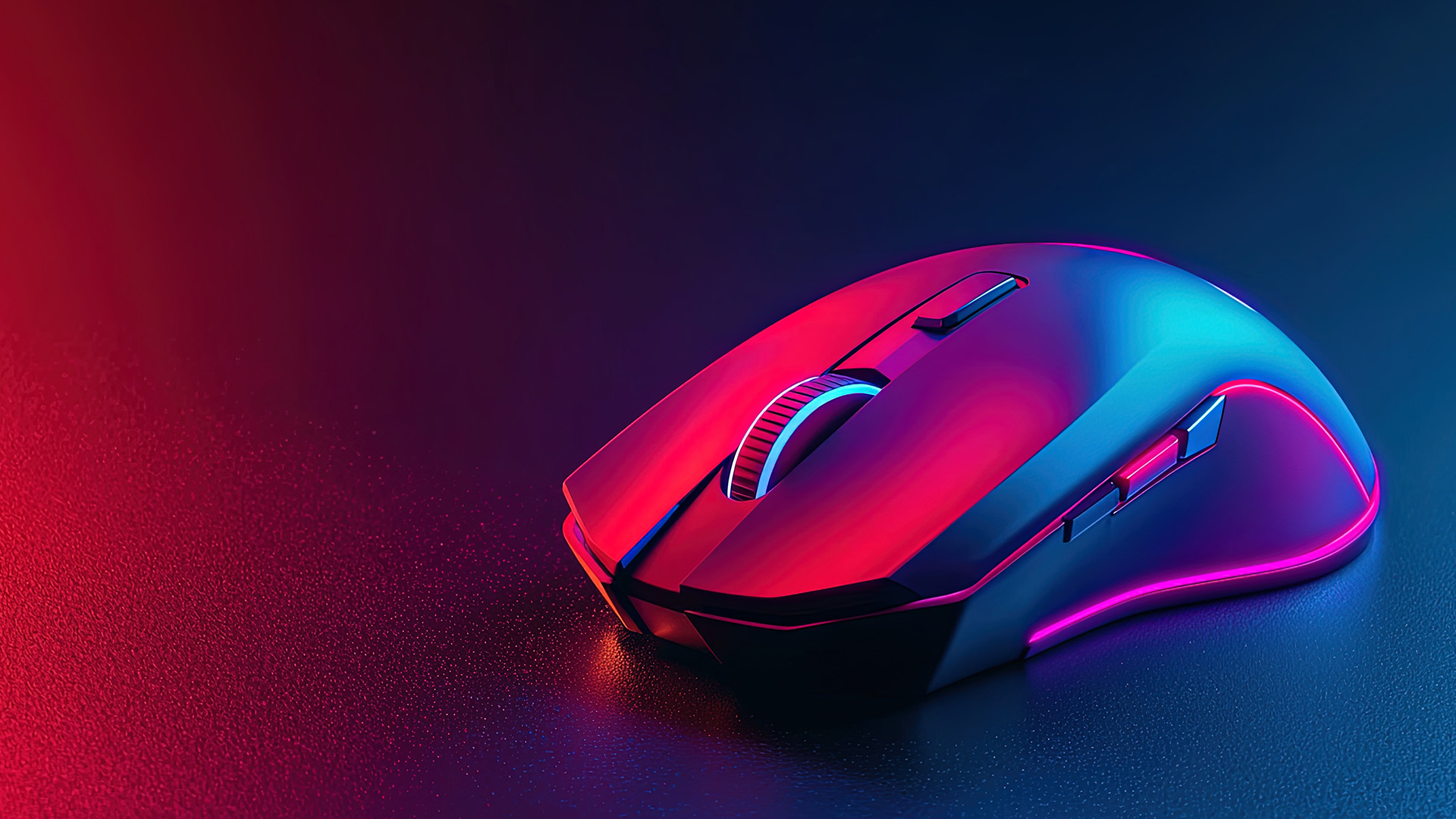
Palm-off • Finger-only contact • Maximum precision ceiling
With the fingertip grip, only the very tips of your fingers contact the mouse. Your palm stays fully lifted, either hovering just behind the mouse or resting on the desk with the mouse out in front. All control comes from your fingers, guided by fine wrist and small forearm movements.
This is the least common grip and the hardest to master. But the pay-off for those who nail it is high: a gaming mouse for fingertip grip allows for near-instant direction changes because only the fingers move, reducing the inertia involved in each adjustment. The reduced contact area means a fingertip gaming mouse must be appropriately sized and, above all, light.
|
PROS OF FINGERTIP GRIP STYLE |
CONS OF FINGERTIP GRIP STYLE |
|---|---|
|
|
Mouse Shape Traits for Fingertip Grip
- Size: Compact is key. A fingertip grip mouse generally works best under 125mm in length, with a low profile (under 39mm tall). A tall rear hump causes the palm to accidentally make contact, breaking the grip entirely.
- Weight: Weight is arguably the most critical factor for fingertip gaming mouse players. Every extra gram directly increases the effort needed for micro-corrections. Most players find anything over 75g begins to feel sluggish. Many top fingertip grip mice in 2026 sit under 60g, with some going below 50g.
- Shape: Symmetrical or near-symmetrical shapes tend to suit fingertip grip well, giving equal finger contact on each side without favouring a particular hand position.
- Mouse feet: Because the mouse moves with relatively light contact, smooth PTFE feet make a noticeable difference to feel and consistency.
| Best Examples | Pulsar X2V2 Mini | Pulsar X2H Mini | Fnatic x LAMZU MAYA 8K |
Palm vs Claw vs Fingertip: At a Glance
Here's a summary of how the three grip styles compare across the factors that matter most when choosing a gaming mouse. Use this as a quick reference once you've identified your grip. Keep in mind that the grip style you naturally default to is always the right starting point.
|
Factor |
Palm Grip |
Claw Grip |
Fingertip Grip |
|
Contact area |
Full palm + all fingers |
Lower palm + fingertips |
Fingertips only |
|
Primary movement |
Arm and shoulder |
Arm and wrist |
Wrist and fingers |
|
Click speed |
Moderate |
Fast |
Fastest |
|
Tracking stability |
Highest |
Good |
Lower |
|
Long-session comfort |
Best |
Good |
Most tiring |
|
Ideal mouse size |
Large |
Medium |
Compact |
|
Ideal mouse weight |
75–90g is fine |
55–75g preferred |
Under 65g essential |
|
Mouse shape |
Ergonomic, tall hump |
Defined rear hump, narrow waist |
Low-profile, symmetrical |
|
DPI range |
400–800 DPI common |
800–1,600 DPI common |
1,200–3,200 DPI common |
|
Best for |
MMO, FPS, casual gaming |
FPS, competitive esports |
MOBA, MMO, high-sens FPS |
Does Hand Size Matter When Choosing a Gaming Mouse?
It absolutely does, and it's one of the most overlooked factors in buying a gaming mouse. Grip style tells you which shape to look for. Hand size tells you which dimensions are right. A claw grip player with small hands needs a different mouse to a claw grip player with large hands, even if the shape category is the same.
How to Measure Your Hand
- Place your hand flat on a desk, fingers straight but relaxed.
- Measure length from the first wrist crease (at the heel of your hand) to the tip of your middle finger. Use centimetres.
- Measure width across your knuckles from your index finger knuckle to your pinky knuckle, excluding your thumb.
|
Small
Under 17cm
Compact mice under 120mm. Claw and fingertip players especially benefit from smaller shells.
|
Medium
17–19cm
The broadest range. Most gaming mice are designed with this size in mind. Mid-size shapes work for all grips.
|
Large
Over 19cm
Longer mice (125mm+) for palm grip. Claw and fingertip players with large hands can go slightly smaller.
|
A Practical Rule of Thumb
For a generally well-fitted mouse, aim for a length that's around 60% of your hand length. Palm grip users can go up to 70%. For claw and fingertip grips, staying closer to 50–60% keeps the mouse from restricting agile movement. If your fingers overhang the front edge of the mouse at rest, it's probably too short. If you're constantly stretching to reach the buttons, it's too long.
Mouse Shape: Symmetrical vs Ergonomic
Once you know your grip and approximate size range, the next decision is mouse shape. This usually comes down to symmetrical vs ergonomic design, and both have their place depending on your grip and gaming habits.
|
Shape Type |
Description |
Best For |
Watch Out For |
|
Ergonomic (right-handed) |
Contoured shape for the right hand, raised left side for thumb, sculpted finger rests |
Palm and relaxed claw grip; right-handed players who want natural contouring |
Left-handed players, fingertip grip (too much contact) |
|
Symmetrical / Ambidextrous |
Equal shape on both sides, no side bias |
Fingertip and claw grip, left-handed players, players who switch hands |
Palm grip with large hands may feel less supported on the sides |
Most fingertip grip mice are symmetrical by design because an even surface gives your fingertips equal purchase. Many claw grip mice can be either, though ergonomic designs tend to fit the natural arch of the right hand nicely. Palm grip players often benefit most from a sculpted ergonomic shape with a prominent rear hump.
Gaming Mouse Weight: How Much Does It Actually Matter?
Weight used to be an afterthought. These days it's front and centre, with a wave of ultralight designs under 60g changing expectations across all grip styles. Here's how mouse weight tends to play out in practice, and how it interacts with grip style.
|
Under 55g
Ultralight. Best for fingertip and claw at low sensitivity. Can feel "floaty" if you're used to heavier mice.
|
|
55–70g
The competitive sweet spot. Suits claw and fingertip grip well. Also manageable for palm grip.
|
|
70–85g
Balanced. Good for mixed gaming, palm grip, and players who prefer a planted feel.
|
|
85g+
Heavier territory. Fine for palm grip and casual play; less ideal for claw or fingertip at competitive level.
|
The important thing is matching weight to your grip and sensitivity. Claw and fingertip grip players using low sensitivity settings tend to benefit most from lighter mice, because more hand movement is required and extra weight amplifies fatigue. Palm grip players using arm-driven movement can comfortably handle heavier builds, though modern ultralight options are available for all grip types.
Sensor, DPI, and Polling Rate: What Matters Per Grip Style
Modern optical sensors from PixArt, Logitech, and Razer are excellent across the board. For most buyers in 2026, sensor quality is not a meaningful differentiator unless you're going for the cheapest budget options. What does matter is understanding how DPI and polling rate interact with your grip style.
DPI and Grip Style
DPI (dots per inch) controls how far your cursor moves per centimetre of physical mouse movement. The common misconception is that higher DPI is always better. In practice, the right DPI depends on your grip and how your arm, wrist, or fingers generate movement.
|
Grip Style |
Typical DPI Range |
Why |
|
Palm grip |
400–800 DPI |
Large arm movements translate to big cursor motion even at lower DPI. Higher values can feel twitchy and uncontrolled. |
|
Claw grip |
800–1,600 DPI |
Mixed arm and wrist movement benefits from mid-range sensitivity. Rewards both wide sweeps and sharp micro-corrections. |
|
Fingertip grip |
1,200–3,200 DPI |
Short range of motion from fingers alone requires higher DPI to translate small movements into useful cursor travel. |
These are starting ranges, not strict rules. Experimentation matters, and many players run settings outside these windows comfortably. The key principle is that low DPI favours large movements and high DPI favours small ones, so align it with how much physical motion your grip generates.
Polling Rate
Polling rate is how many times per second the mouse reports its position to your PC. The standard for gaming is 1,000Hz (once per millisecond). For most players, 1,000Hz is perfectly sufficient. Higher rates (4,000Hz, 8,000Hz) exist on flagship models and can reduce perceived latency on very high refresh rate monitors, but they also place extra load on your CPU and demand strong single-core performance to deliver any benefit. If you're on a 144Hz monitor with a mid-range CPU, chasing 8,000Hz polling is unlikely to help you.
Wired vs Wireless: Which Works Best for Your Grip Style?
The short version: in 2026, the performance difference between wired and high-quality 2.4GHz wireless is negligible for the vast majority of players. Modern wireless mice using proprietary 2.4GHz connections can match wired latency in real-world use, and many professional esports players have switched to wireless. However, connection type does interact with grip style in a few practical ways.
- Fingertip grip and claw grip players make faster, smaller movements, and cable drag can genuinely interrupt micro-corrections. A wireless mouse or a braided lightweight cable with a mouse bungee removes this friction entirely.
- Palm grip players making larger arm-driven movements are generally less affected by cable drag, making wired a more viable option at any budget level.
- Budget considerations: At the same price, a wired mouse typically gets you a better sensor and build quality than a wireless equivalent. If budget is tight and you use palm grip, wired is the smarter choice.
- Avoid Bluetooth for gaming. Bluetooth wireless introduces significantly higher latency (8–20ms) and limited polling rates, making it unsuitable for any form of competitive or fast-paced gaming.
Weighing up the cable question? Our dedicated wireless vs wired gaming mouse guide goes deeper on latency, battery life, pricing, and which type suits different setups.
Mouse Feet, Surface, and Grip Tape: Smaller Details That Add Up
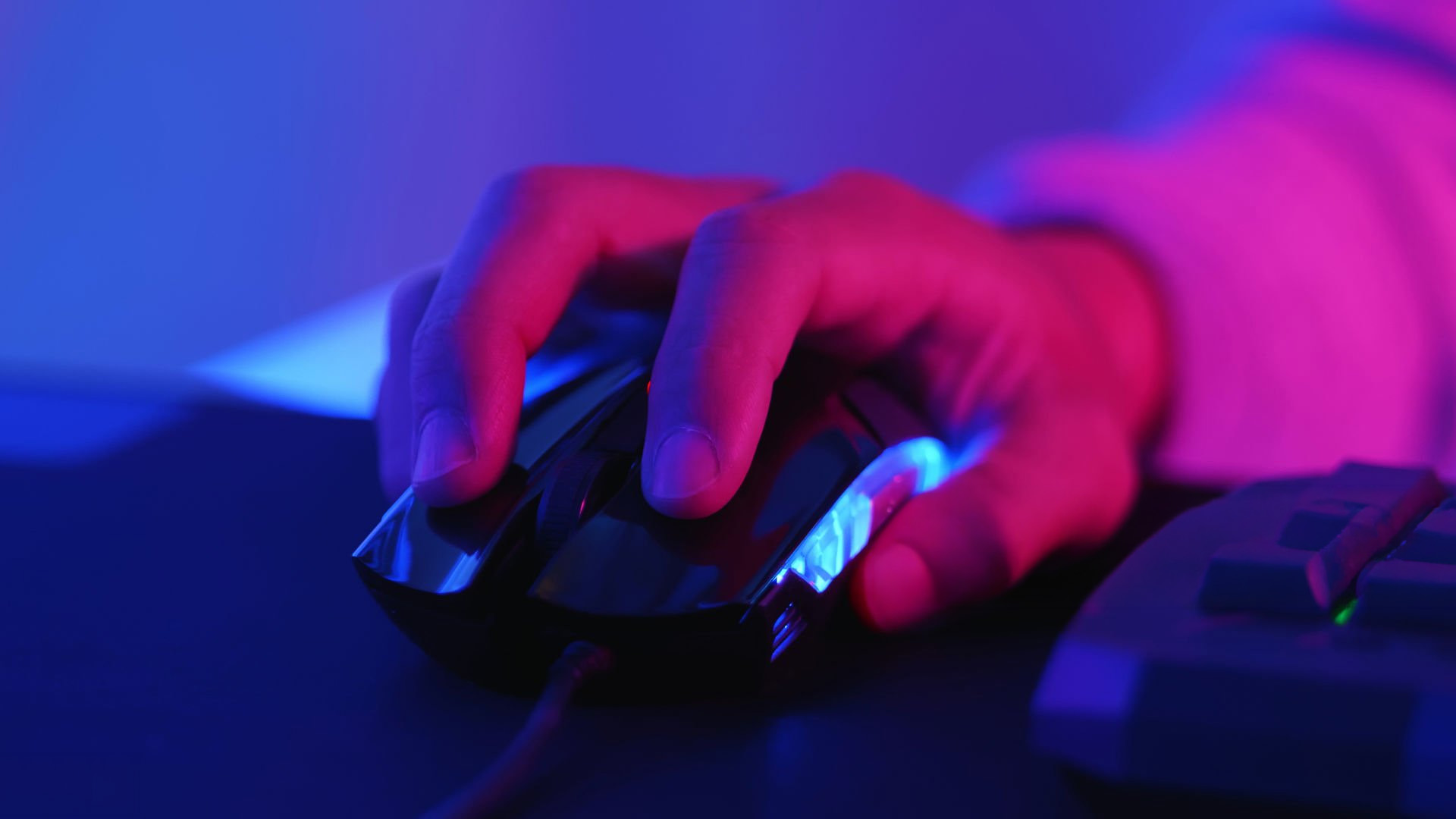
These aren't the headline specs, but they influence how your mouse actually feels in day-to-day use, especially for claw and fingertip grip players who are more sensitive to tracking feel.
Mouse Feet (Skates)
Most gaming mice ship with PTFE (polytetrafluoroethylene) feet, which offer a smooth, low-friction glide. Higher-quality PTFE feet reduce drag and allow more consistent movement across your mousepad. Fingertip grip players in particular tend to notice the difference between cheap and good-quality feet because their lighter touch puts less weight through the contact points.
Mousepad Surface
A control-surface (higher friction) mousepad suits palm grip players who need stopping power after large movements. Speed-surface (lower friction) pads suit claw and fingertip players who need fast, easy repositioning. Pairing the wrong surface with your grip can lead to over-gripping, which is one of the main causes of wrist strain during long gaming sessions. If you're developing tension in your hand, it's worth experimenting with your mousepad as well as your mouse.
Grip Tape
Some players add grip tape to their mouse, particularly if their hands sweat during play or if they feel the shell is too slippery for confident control. This tends to matter more for claw and fingertip grip players, who rely on a secure hold with fewer contact points. Many gaming mice also come with textured side panels or rubberised coatings that serve the same purpose.
Ergonomics and Long-Term Wrist Health
Gaming peripherals rarely come with health warnings, but grip style genuinely affects musculoskeletal load during long sessions. This doesn't mean certain grips are dangerous, but it does mean that the way you hold your mouse should be matched to a setup that supports your hand position.
- Palm grip is the most supportive for wrist and finger health during extended use. Because the hand rests supported on the mouse, there's minimal isolated tension in the finger tendons.
- Claw grip places the most tension in the arched finger position. If you're clawing for multiple hours daily, regular short breaks and simple finger-stretching exercises between sessions are advisable.
- Fingertip grip keeps the palm elevated for long periods, which can create forearm fatigue if the mouse is too heavy or the desk height isn't right. Resting your forearm on the desk at a neutral angle helps reduce strain.
- Mouse arm resting position: Regardless of grip, resting your forearm on the desk at roughly elbow height reduces the load on your wrist and shoulder. Gaming chairs and desks that allow adjustment help here.
Choosing Your Grip Style Mouse by Game Type
While your natural grip should always be the starting point, different genres do tend to reward different grip styles. Here's a quick breakdown to help you think through whether your current setup is a good match for how you play.
|
Game Genre |
Best Grip(s) |
Why |
|
Competitive FPS (CS2, Valorant, Apex) |
Claw, Palm |
Claw offers fast clicks and micro-corrections; palm provides arm-driven tracking stability at lower sensitivity |
|
Battle Royale (Fortnite, Warzone) |
Claw, Palm |
Both work well; claw helps with faster building inputs where applicable |
|
MOBA (LoL, Dota 2) |
Fingertip, Claw |
Rapid cursor movement across the screen benefits from the agility of fingertip or claw |
|
MMO (WoW, FFXIV) |
Palm, Claw |
Long sessions favour the comfort of palm; claw works well for hybrid button and movement control |
|
RTS (StarCraft, Age of Empires) |
Fingertip, Claw |
High APM and fast cursor repositioning suit lighter, more agile grips |
|
Third-Person Action (Dark Souls, Elden Ring) |
Palm |
Comfortable tracking over long sessions; not typically a high-sensitivity genre |
It's worth noting that many top competitive players use hybrid grips that blend elements of two styles. If your natural grip sits somewhere between claw and palm, for instance, don't feel pressured to force yourself into one category. Find a mouse shape that accommodates your natural position comfortably.
Quick Mouse-Buying Checklist by Grip Style
Use this as a final reference before you buy. Work through each column for your grip style and confirm your chosen mouse ticks the key boxes.
|
What to Check |
Palm Grip |
Claw Grip |
Fingertip Grip |
|
Mouse length |
60–70% of hand length |
118–128mm for most hands |
Under 125mm preferred |
|
Rear hump |
Prominent and high |
Defined, positioned toward the rear |
Low or minimal |
|
Width at waist |
Wider is fine |
Narrower waist prevents finger splay |
Slim and even |
|
Target weight |
Under 90g |
Under 75g |
Under 65g |
|
Shape preference |
Ergonomic or ambidextrous |
Either works; check the hump position |
Symmetrical preferred |
|
DPI starting point |
400–800 |
800–1,600 |
1,200–3,200 |
|
Wired vs wireless |
Either; wired fine at lower budget |
Wireless removes cable drag for flicks |
Wireless strongly preferred; check weight |
|
Polling rate |
1,000Hz is plenty |
1,000Hz minimum; 4,000Hz+ if budget allows |
1,000Hz minimum; higher helps micro-corrections |
So, are you ready to compare current models by weight, shape, and connectivity side by side? Explore gaming mouse options to find the right fit for your grip. You may also want to pair your new mouse with one of the gaming keyboards for competitive gamers stocked at Laptop Outlet.
Setting Up the Rest of Your Desk
It is a familiar story: someone finds a mouse that matches their grip perfectly, then wonders why their aim still feels inconsistent. Often the mouse is not the problem. The screen, the system behind it, or the device you game on can quietly limit what a good grip match is capable of.
Claw and fingertip grips earn their advantage through small, fast corrections, and those only count if you can see them clearly. Where an older screen is the bottleneck, an immersive gaming display with a higher refresh rate closes the gap between what your hand does and what shows up on screen.
Inconsistent frame rates can also mimic symptoms people blame on their mouse: drifting tracking, mistimed flicks, a lag before a click registers. If a performance dip is the real culprit, the fix sits inside the case rather than in your hand, which is where comparing gaming PC solutions built to sustain high frame rates makes more difference than another peripheral.
This is not desktop-only advice. Plenty of players game entirely on a laptop, and the same logic applies. A well-chosen grip cannot rescue a machine already struggling to hold a steady frame rate, so rule that out first. Laptop Outlet's range of laptops for gaming spans most budgets for anyone whose laptop has quietly become the weak link.

Lock In Your Ideal Grip
Choosing the right grip style mouse comes down to three things: knowing how you naturally hold a mouse, finding a shape and size that fits your hand, and matching the rest of the specs to support your grip.
- Palm grip players need a larger, ergonomic mouse with a high hump and comfortable weight.
- Claw grip benefits most from a mid-size design with a defined rear hump and a lighter build.
- Fingertip grip demands a compact, low-profile mouse under 65g where weight is the priority above almost everything else.
Once you've matched your grip style to the right shape, features like DPI, polling rate, and wired vs wireless become far easier to navigate because you're comparing compatible options rather than picking blindly. Start with fit, then refine with specs, and you'll almost certainly end up with a mouse that feels natural, performs reliably, and keeps your hands comfortable session after session.

Let’s Clear a Few Things Up...
What gaming mouse grip style is best for FPS games?
Claw grip is widely used in competitive FPS due to its balance of fast clicks and stability. Palm grip works well for arm-driven tracking at lower sensitivity. The best grip style mouse for FPS ultimately comes down to your natural hold.
How do I know if I use a palm, claw, or fingertip grip?
Place your hand on your mouse naturally without thinking. Full palm contact means palm grip; palm at the rear with arched fingers means claw grip; only fingertips touching and palm fully lifted means fingertip grip.
Does hand size matter when choosing a gaming mouse?
Yes. Measure hand length from wrist crease to middle finger tip. Under 17cm suits smaller mice; 17–19cm suits medium; over 19cm suits larger designs. Palm grip players should size up, while fingertip grip players can size down.
Are lightweight gaming mice better for all grip styles?
Not necessarily. Lightweight mice under 60g are most beneficial for claw grip mice and fingertip gaming mouse users who make fast, small movements. Palm grip players can comfortably use heavier mice without performance loss, though lighter options still suit them.
Can I switch grip styles to improve my performance?
Switching grips rarely improves performance quickly and often disrupts consistency during the adjustment period. Your natural grip style is your best starting point. Improving your mouse fit within that style delivers faster, more reliable gains.
Read More
Top 5 Gaming Wireless Mouse Problems and How to Fix Them
Which Gaming Keyboard and Mouse Are the Best? Enjoy Wireless Gaming
Related Articles

Last Updated: September 09, 2025
Go Cord-Free in Minutes
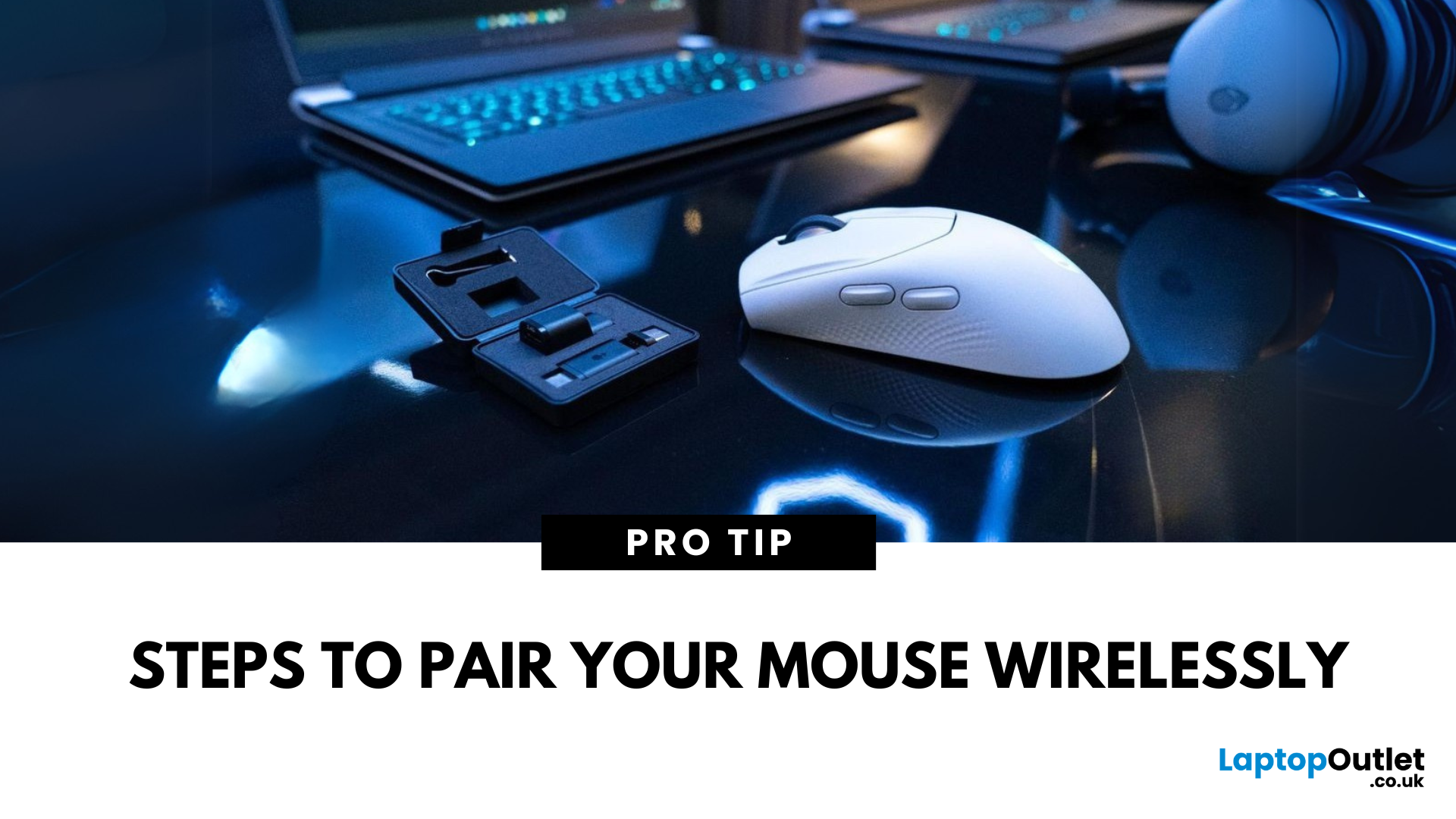
Tired of tangled cords? A wireless mouse gives you freedom and a clutter-free workspace. Whether you’re using a USB dongle or Bluetooth, here’s exactly how to connect your wireless mouse to your device.
1. Types of Wireless Mice
- USB Receiver (RF): Comes with a small USB dongle you plug into your computer
- Bluetooth: Connects directly to your device’s built-in Bluetooth—no dongle needed
2. How to Connect a Wireless Mouse with USB Receiver
Steps:
- Plug the USB dongle into an available USB port
- Turn on the mouse using its switch (usually on the bottom)
- Wait a few seconds—your computer should automatically recognise and connect
No additional software is usually needed on Windows or macOS
3. How to Connect a Bluetooth Wireless Mouse
Steps:
- Turn on the mouse and enable pairing mode (usually by holding a button)
- On your device, go to Settings > Bluetooth
- Wait for the mouse to appear in the device list
- Select the mouse and tap Pair
Make sure your device’s
Last Updated: October 03, 2025
Level Up Your Gameplay
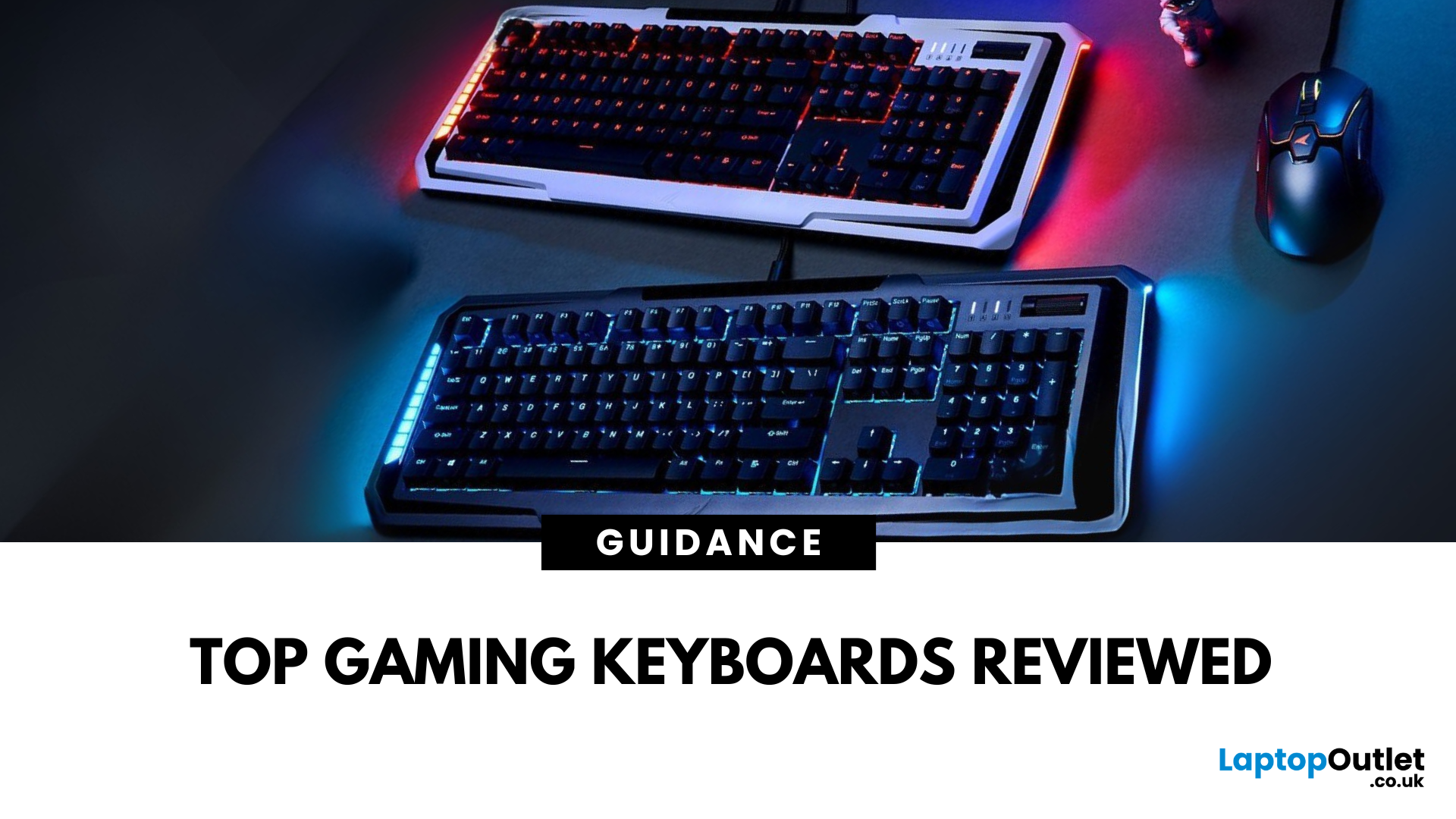
In fast-paced gaming, your keyboard can make or break your performance. But what makes a keyboard truly gaming-ready? Here’s a guide to help you find the best keyboard for gaming, focusing on key features instead of specific products.
Why Your Gaming Keyboard Matters
A good gaming keyboard offers:
Faster response times
Customisable keys for complex commands
Enhanced durability for intense sessions
Mechanical vs Membrane Keyboards
Mechanical Keyboards
Preferred for gaming due to:
Tactile feedback
Faster actuation
Longer lifespan (50M+ keystrokes)
Membrane Keyboards
Budget-friendly and quieter but:
Less responsive for competitive gaming
Shorter lifespan
Tip: Mechanical keyboards with red or silver switches are ideal for fast-paced FPS and MOBA games.
Key Features to Look For in a Gaming Keyboard
1. Switch Type
- Linear switches (Red): Smooth, fast keypresses
- Tactile switches (Brown): Feedback without loud clicks
- Clicky switches
Last Updated: June 16, 2026
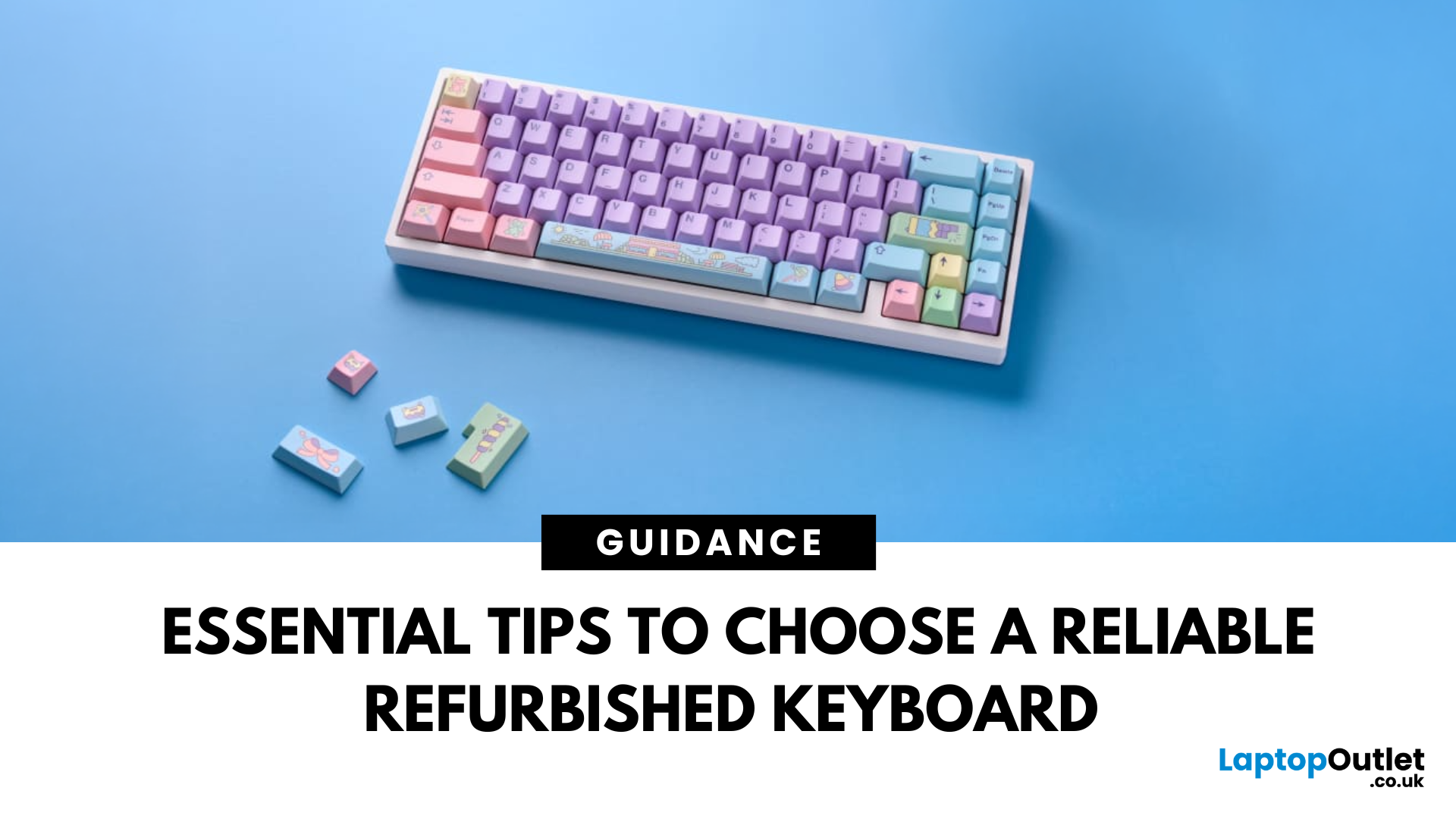
In today’s world of work, study, and gaming, the keyboard has become an essential tool for almost every digital task. But finding the right keyboard, one that feels good to type on, lasts for years, and fits your budget can be a challenge, especially with premium models commanding high prices. That’s why many smart buyers are turning to refurbished keyboards as a practical way to enjoy top-quality performance at a fraction of the cost.
Yet, like any piece of refurbished tech, a second-hand keyboard needs careful consideration before you buy. It’s not just about making sure it works; it’s about finding the right type, switch feel, layout, and condition that suits your daily needs.
This guide will walk you through everything you should look for when buying a refurbished keyboard.
So, let’s get into it!
Understand Your Keyboard Needs Before You Buy
Before diving into specifications and price comparisons, it’s important to identify what you actually need from a keyboard.
Are You a Heavy Typist

Last Updated: December 19, 2025
Emojis have become a language of their own, especially for the Gen Z and Alphas. You’re replying to an email, chatting on WhatsApp Web, creating social posts, or even completing work messages with a little personality, being able to type emojis using your keyboard saves time and makes communication more expressive.
Let’s learn the easiest ways to type emojis on Windows, Mac, Chromebooks, and even mobile keyboards. No more copy-and-paste from emoji websites, you’ll be able to insert any emojy in seconds.
Why Use Keyboard Emojis?
Before we get into shortcuts, here’s why knowing them matters:
- Fast: Add emojis without switching tabs or using your mouse.
- Professional + fun: Modern workplaces increasingly accept emojis for clarity and tone.
- Easy to remember: Once you learn shortcuts, they feel natural.
- Universal: Works across apps - Word, Slack, Teams, Gmail, Instagram, web browsers, and more.
Now let’s jump into the shortcuts for every device. If you enjoy adding creativity to your messages,

Last Updated: February 13, 2026
Because nothing kills the vibe faster than a laptop, that suddenly decides your fingers are irrelevant.
You sit down. You open your laptop. You’re mentally prepared to be productive (or at least pretend). And then .....boom... your laptop touchpad is not working. Or your laptop keyboard is not working. Or worse… both.
At this point, your laptop isn’t broken; it’s personally offended by you.
Before you rage-buy a new device or spiral into tech despair, here’s the good news: most laptop keyboard problems and touchpad issues are completely fixable. And no, you don’t need a computer science degree or a sacrifice to the tech gods.
This guide is not one of those vague “restart your device” articles and call it a day. This is a deep-dive, all-reasons, all-solutions, no-BS troubleshooting guide, written in human language, with enough detail to actually solve the problem.
We’ll cover:
- Software vs hardware problems (and how to tell the difference)
- Every common and uncommon reason your laptop input
Last Updated: April 22, 2026
Stop reaching for the mouse every five seconds. Windows keyboard shortcuts are one of the fastest, simplest ways to boost your daily output - whether you're writing reports, navigating spreadsheets, or juggling a dozen open tabs at once.
This complete guide covers every shortcut worth knowing across Windows 10 and Windows 11, from the basics to the more advanced tricks that most people never discover.
Why Keyboard Shortcuts Are Worth Learning
Most people pick up one or two shortcuts by accident and never go any further. Yet the productivity gap between someone who relies on a mouse and someone genuinely fluent in shortcuts is striking - you spend less time clicking, less time searching, and considerably more time actually doing the work.
Here's what mastering shortcuts gives you:
- Speed: Tasks that take three clicks happen in milliseconds
- Concentration: Your hands stay on the keyboard, your eyes on the screen
- Less strain: Reduced repetitive mouse movement means fewer aches over a long
Last Updated: May 06, 2026
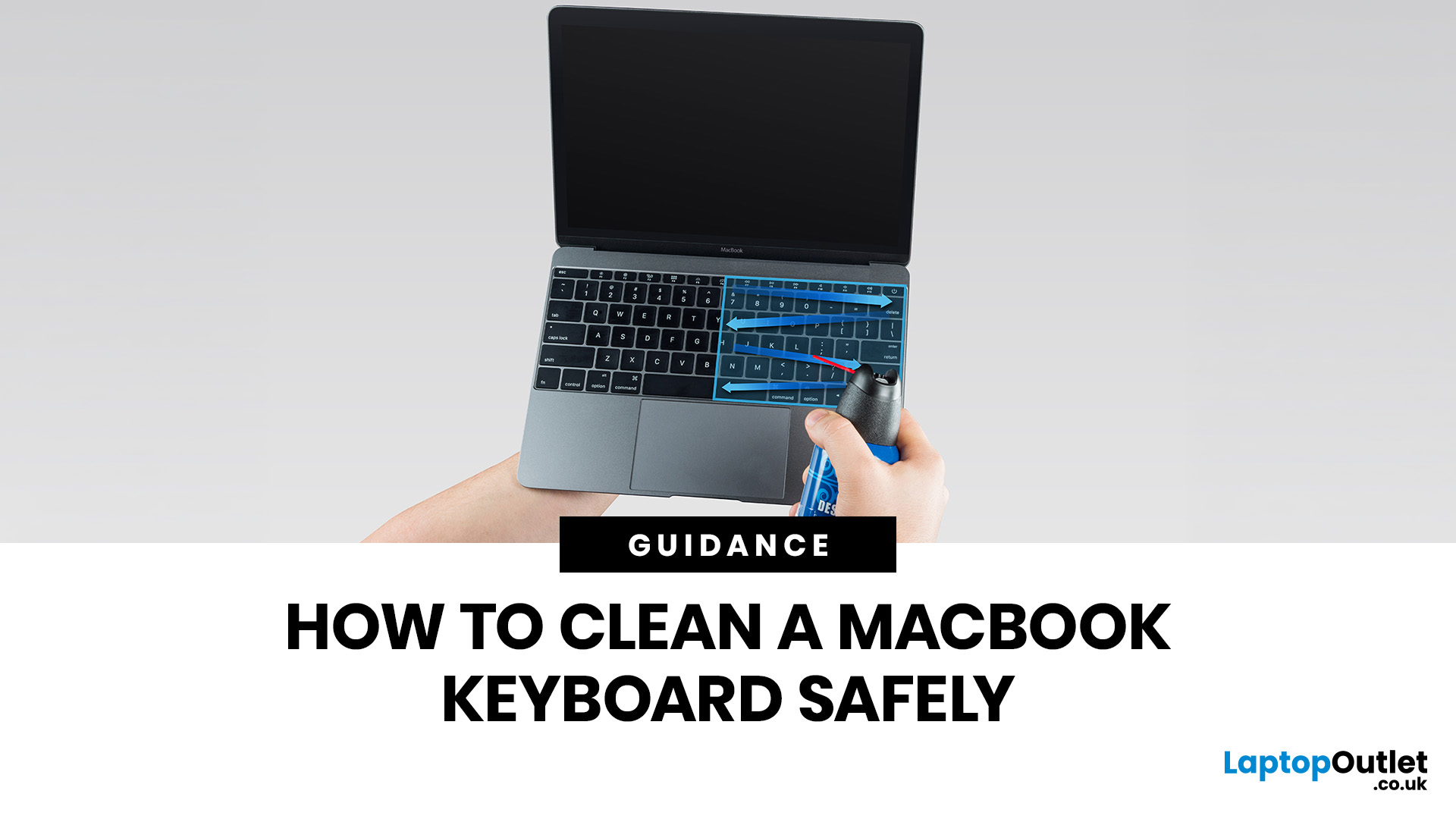
MacBook keyboard cleaning is simple when you do it the Apple-safe way: shut the laptop down, unplug it, use a soft lint-free cloth, keep moisture out of the openings, and never spray cleaner directly onto the keyboard. If you need to disinfect the surface, Apple says you can gently wipe off the hard, non-porous exterior, including the keyboard, with a 70 per cent isopropyl alcohol wipe, a 75 per cent ethyl alcohol wipe, or a disinfectant wipe.
That is the short version. The longer version matters because MacBook keyboards are not built for chaotic cleaning energy. Too much liquid, the wrong cleaner, or one “quick” spray straight onto the keys can turn a dusty keyboard into an expensive repair story. We will discuss today how to clean a Mac keyboard properly, how to remove dirt from MacBook keys, when compressed air makes sense, what not to use, and when a keyboard issue is no longer a cleaning job.
Quick Answer: How Can We Clean a MacBook Keyboard Safely?
The safest way to clean a MacBook
Last Updated: June 10, 2026
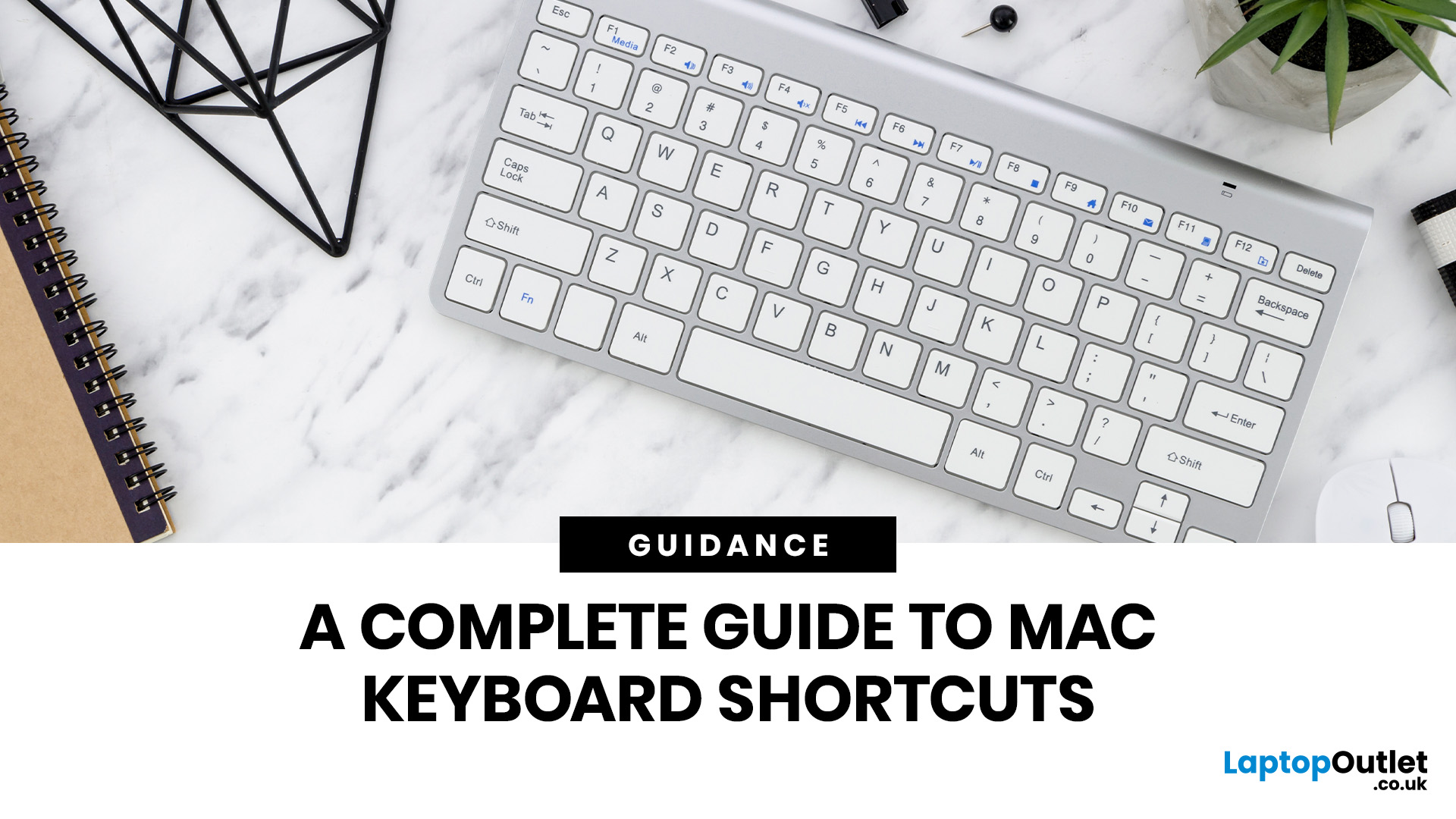
Mac keyboard shortcuts help you copy, paste, search, switch apps, manage files, take screenshots, and control system features faster from the keyboard. This 2026 guide explains the essential shortcuts, the meaning of Apple's modifier keys, practical shortcuts for everyday work, and the easiest ways to customise them for a smoother workflow.
What Are Mac Keyboard Shortcuts, And Why Should You Use Them?
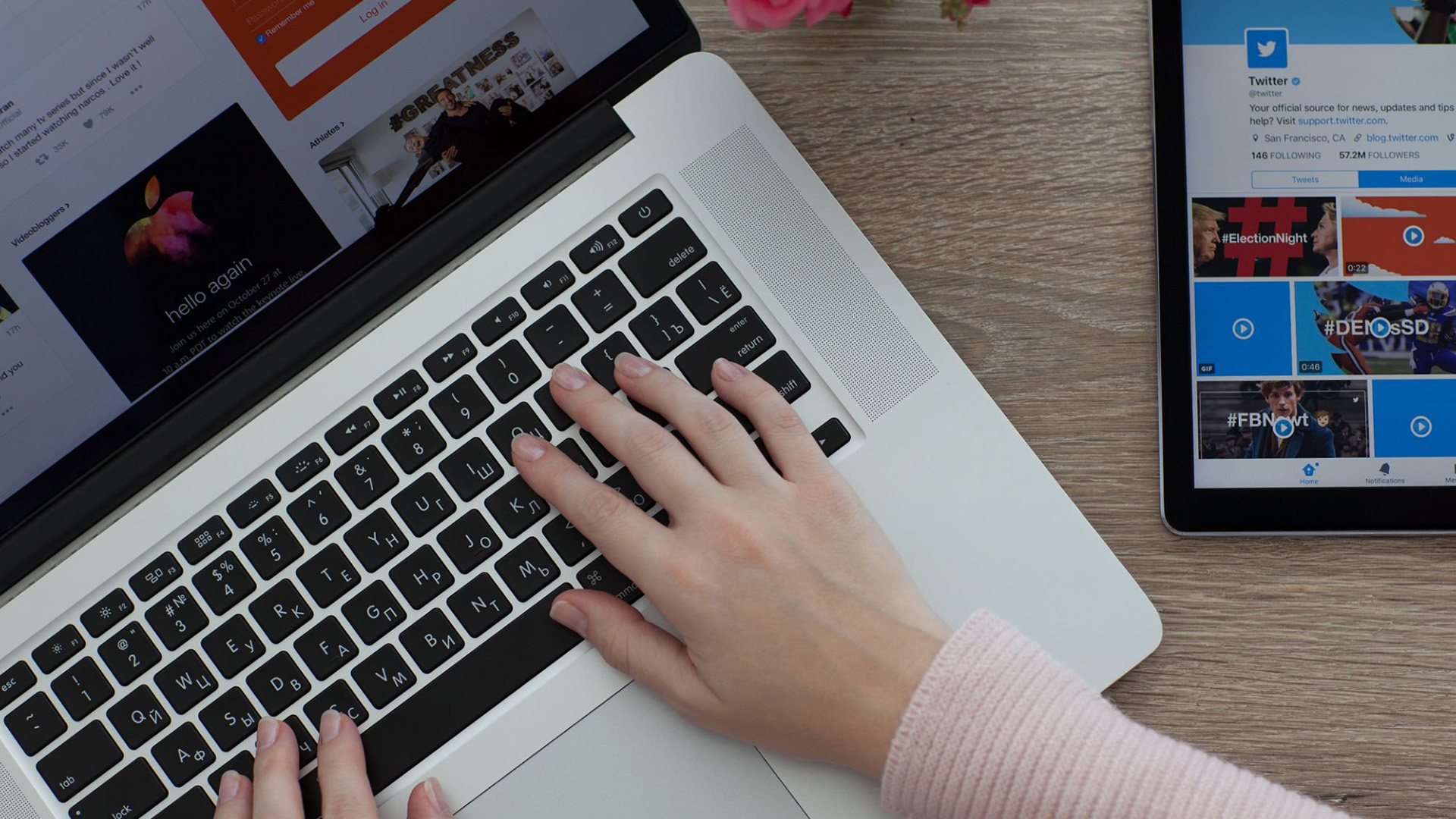
Mac keyboard shortcuts are key combinations that carry out actions you would otherwise do with a mouse or trackpad. Apple notes that these shortcuts can save time, but also points out that some shortcuts vary by app, keyboard layout, and language.
For most people, the biggest benefit is speed. Copying text, opening Spotlight, closing tabs, switching apps, and locking the screen all feel quicker when your hands stay on the keyboard.
The same core shortcuts work across modern Macs, including MacBook, iMac, and Mac mini, as long as the keyboard layout matches.
If you are also comparing machines
Last Updated: July 07, 2026
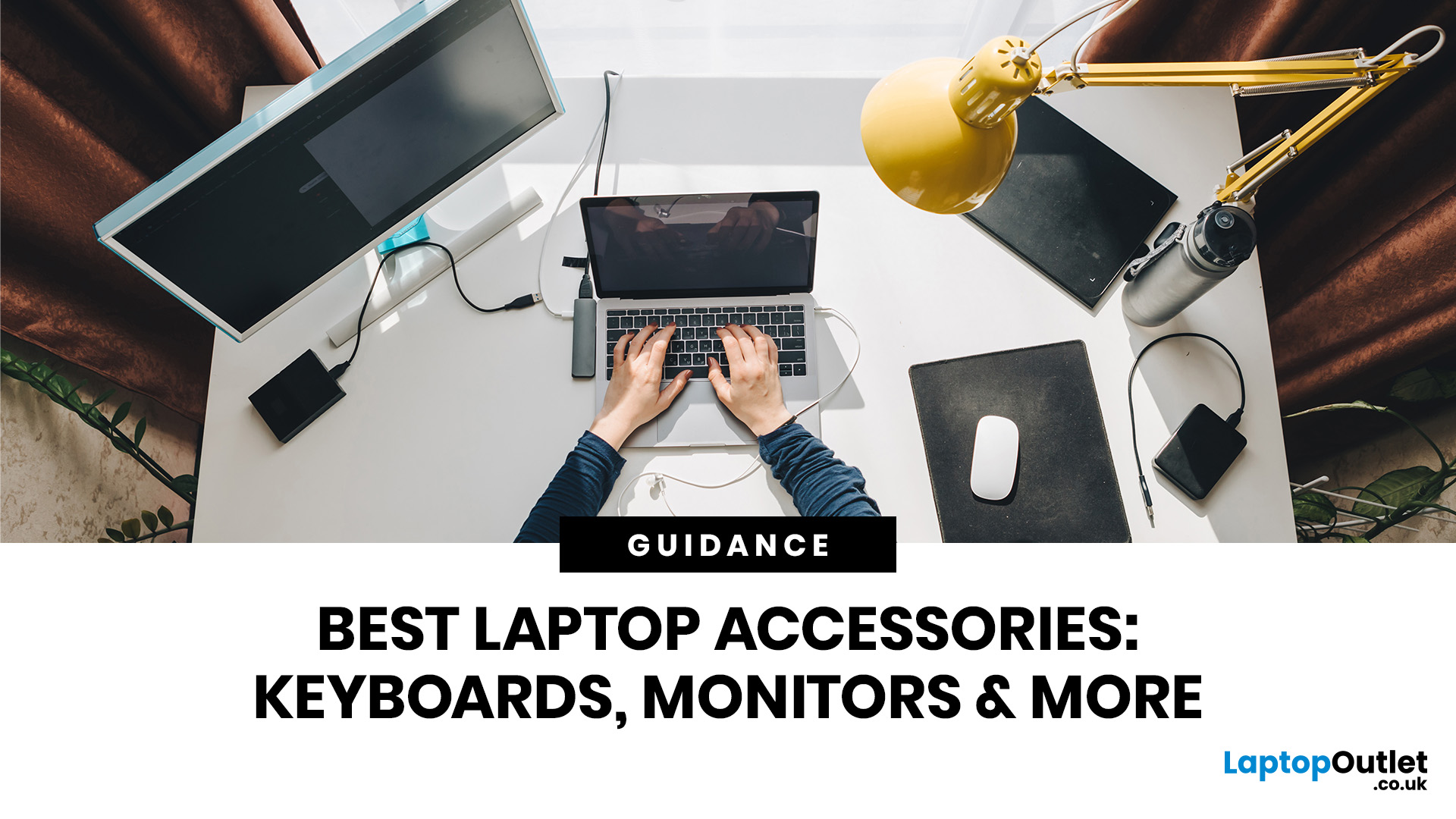
Laptops are powerful enough to handle work, study, streaming, gaming and creative tasks, but the right accessories can make a big difference to how comfortable and productive your setup feels. From keyboards and monitors to laptop bags, hubs and stands, choosing the best accessories helps you get more from your device every day.
| The best laptop accessories in 2026 are the ones that make your device more comfortable, productive, portable and easier to use every day. Essential picks include a wireless keyboard and mouse, external monitor, USB-C hub, laptop stand, protective sleeve, mouse pad, webcam, headphones, cooling pad and external storage. Whether you use your laptop for work, study, gaming or travel, the right accessories can turn a basic setup into a more efficient workspace. |
In 2026, laptop users are not just looking for basic add-ons. They want accessories that improve posture, speed up multitasking, protect their devices and create a cleaner desk setup. Whether you are building
Last Updated: June 11, 2026
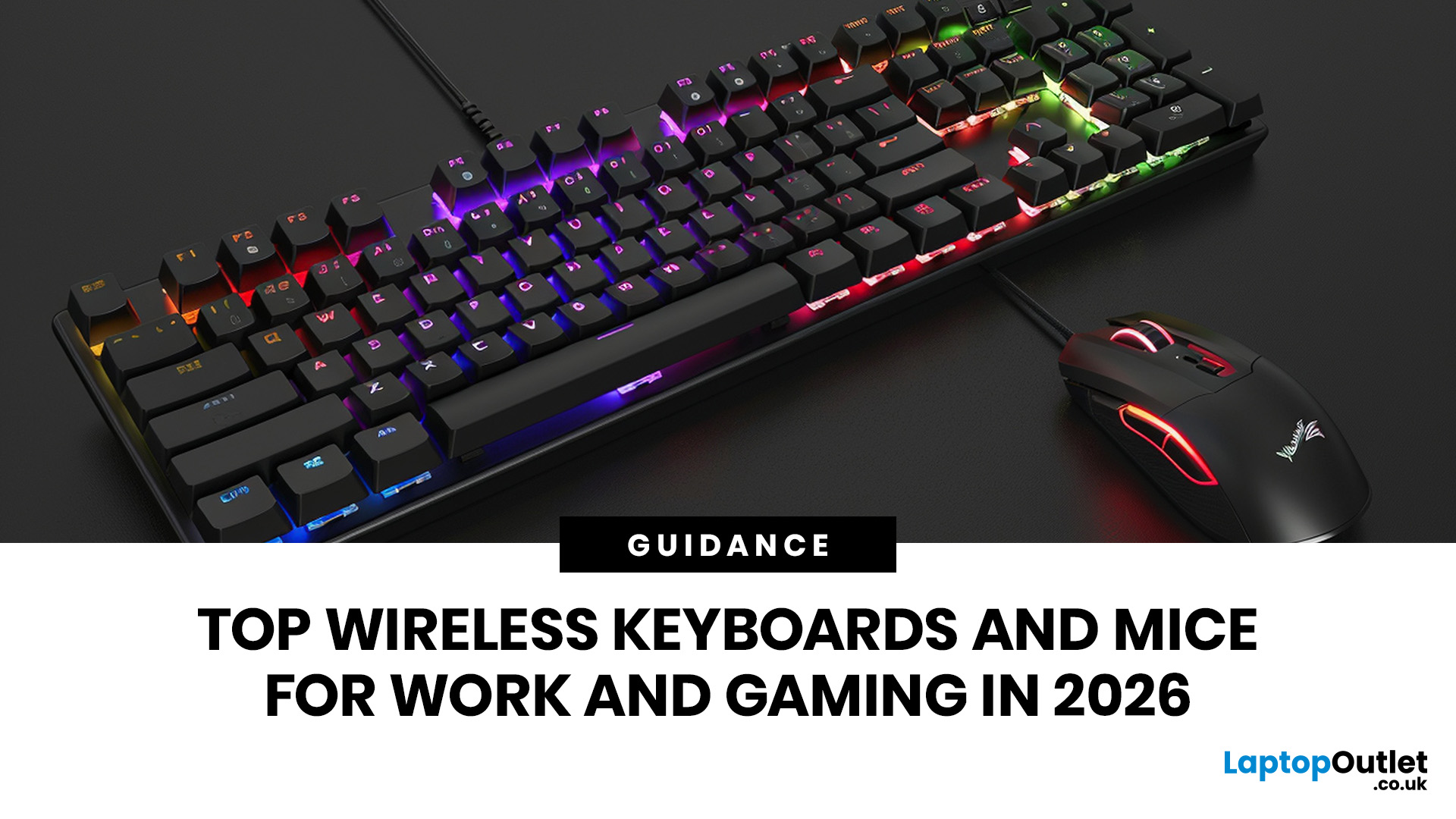
For a clean and minimalist look of your working or gaming setup, choosing the right wireless mouse and keyboard can make a bigger difference than you think.
If you're on a budget, the Logitech Wireless Mouse M235 is a reliable and affordable option.
For UK shoppers in 2026, the best setup is for comfort, connectivity, battery life, accuracy, layout, and daily usability. Some people need a simple keyboard mouse combo for emails and spreadsheets. Others want fast switches, RGB lighting, ultra-light mouse movement, and reliable wireless performance for gaming.
This guide breaks down the best wireless keyboard mouse UK options from Laptop Outlet, covering work-friendly sets, Bluetooth-ready mice, premium

