



How to Clean a MacBook Keyboard Safely
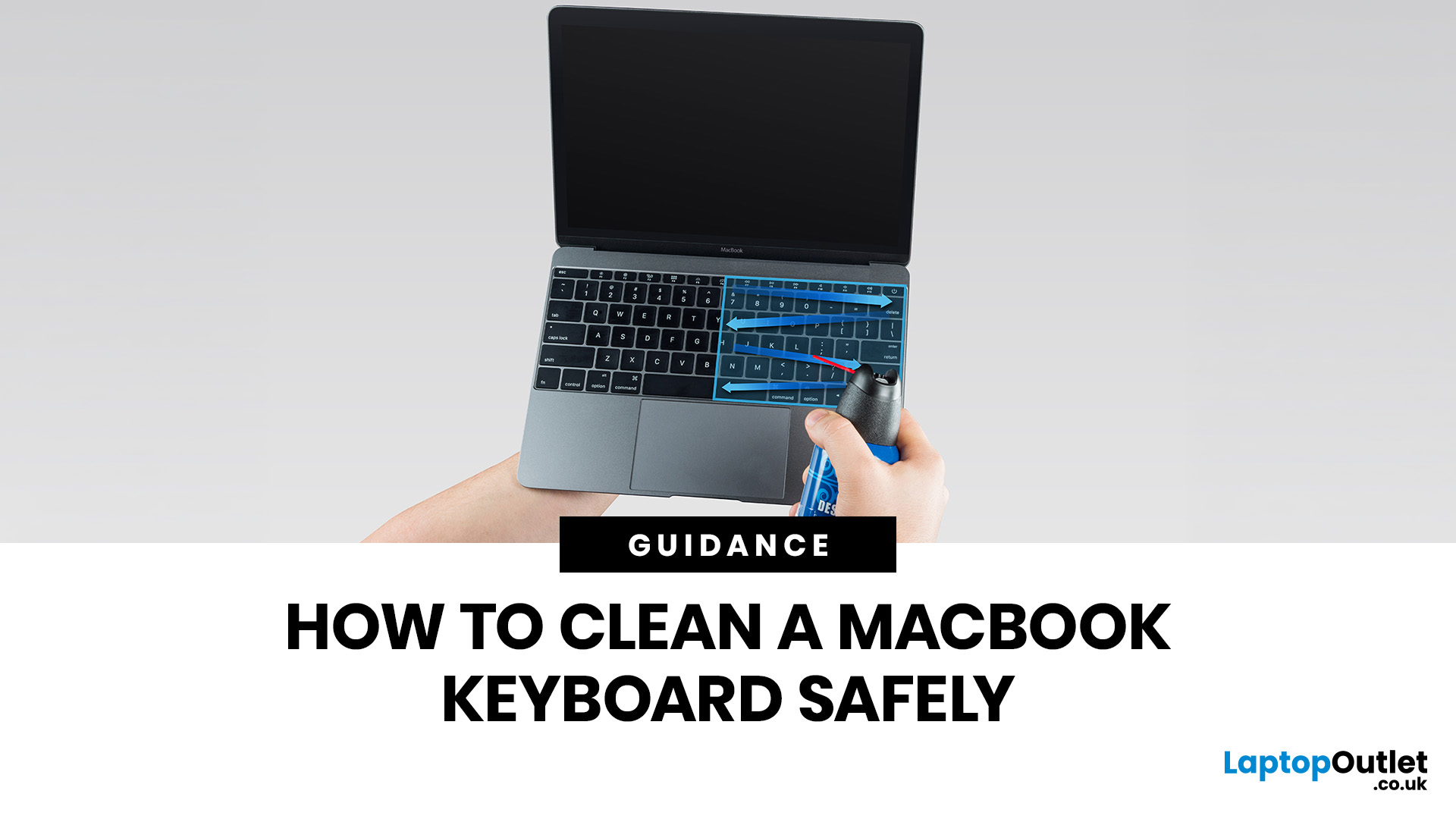
MacBook keyboard cleaning is simple when you do it the Apple-safe way: shut the laptop down, unplug it, use a soft lint-free cloth, keep moisture out of the openings, and never spray cleaner directly onto the keyboard. If you need to disinfect the surface, Apple says you can gently wipe off the hard, non-porous exterior, including the keyboard, with a 70 per cent isopropyl alcohol wipe, a 75 per cent ethyl alcohol wipe, or a disinfectant wipe.
That is the short version. The longer version matters because MacBook keyboards are not built for chaotic cleaning energy. Too much liquid, the wrong cleaner, or one “quick” spray straight onto the keys can turn a dusty keyboard into an expensive repair story. We will discuss today how to clean a Mac keyboard properly, how to remove dirt from MacBook keys, when compressed air makes sense, what not to use, and when a keyboard issue is no longer a cleaning job.
Quick Answer: How Can We Clean a MacBook Keyboard Safely?
The safest way to clean a MacBook keyboard is to:
- shut down the MacBook and unplug the charger
- use a soft, lint-free cloth
- keep liquids away from openings
- never spray cleaning product directly onto the keyboard
- avoid aerosol sprays, bleach, abrasives, and cleaners containing hydrogen peroxide
- use a disinfectant wipe only gently on the hard, non-porous exterior if needed
- clean Touch ID with water only on a soft lint-free cloth, not alcohol.
If a key feel stuck or unresponsive, Apple has a separate compressed-air method for certain MacBook and MacBook Pro models. That is not the same thing as routine weekly cleaning. It is more of a “crumb under the mechanism, please leave immediately” fix.
What You Need Before You Start
MacBook maintenance and cleaning works best when you keep the tool list boring. That is a compliment.
Safe tools
- a clean microfiber or other soft, lint-free cloth
- a second dry lint-free cloth
- a little water for light dampening
- optional 70 per cent isopropyl alcohol wipe, 75 per cent ethyl alcohol wipe, or disinfectant wipe for the hard exterior surfaces
- optional compressed air for stuck or unresponsive keys, using Apple’s method.
Things to avoid
- kitchen roll or abrasive cloths
- bleach
- hydrogen peroxide cleaners
- aerosol sprays
- soaking wet cloths
- spraying any liquid directly onto the MacBook
- forcing moisture into gaps around keys
- randomly popping keycaps off because one forum said, “trust the process”.
Safe vs Unsafe MacBook Keyboard Cleaning Tools
|
Safe to use |
Avoid using |
|
Soft lint-free cloth |
Kitchen roll or rough paper towels |
|
Slightly damp cloth |
Very wet cloth |
|
70% isopropyl alcohol wipe on hard non-porous exterior |
Bleach or hydrogen peroxide cleaners |
|
75% ethyl alcohol wipe |
Abrasive cleaners |
|
Disinfectant wipe used gently |
Spraying cleaner directly onto the keyboard |
|
Compressed air for stuck keys, following Apple’s method |
Inverting the compressed-air can |
How to Clean a MacBook Keyboard Step by Step
If you have ever typed through a layer of biscuit dust and called it “fine”, this section is for you.
1. Shut the MacBook down properly
Before you clean anything, power the MacBook off and unplug the power adapter and any connected accessories. Apple’s general Mac laptop cleaning guidance starts there for a reason. Cleaning while the keyboard is active is annoying, and cleaning while it is connected to power is even less smart.
2. Open the lid and inspect the keyboard first
Take ten seconds to look at what you are dealing with.
There are usually three kinds of keyboard mess:
- light dust and skin oil
- crumbs or grit sitting between keys
- sticky marks or grime around key edges
If it is just surface dirt, you do not need fancy tools. A careful wipe is enough. If something feels lodged under a key, skip ahead to the compressed-air section rather than attacking the keyboard like it owes you money.
3. Remove loose dust gently
Use a dry, soft, lint-free cloth first to lift loose dust from the keyboard and mouse area. We like doing this before any damp wiping because it stops you turning dry debris into keyboard paste. That is not an official Apple term, but it should be.
Keep the motion light. MacBook keyboards do not need aggressive scrubbing.
4. Wipe the key surfaces with a slightly damp cloth
For routine MacBook keyboard cleaning, lightly dampen a lint-free cloth and wipe the key surfaces gently. Apple says to use a damp, soft, lint-free cloth for the exterior of Mac laptops, to avoid getting moisture into any openings, and not to spray liquid directly onto the device.
The cloth should not feel wet enough to leave drops behind. If it does, it is too wet.
5. Disinfect only when youactually needto
If the keyboard needs disinfection, Apple says you may gently wipe off the hard, non-porous surfaces of the product, including the keyboard, with a 70 per cent isopropyl alcohol wipe, 75 per cent ethyl alcohol wipe, or a disinfectant wipe. Apple also says not to use bleach or hydrogen peroxide products, not to submerge the device, and not to let moisture get into openings.
This is useful after shared use, travel, office hot-desking, or flu-season chaos. It is not something you need to overdo daily.
6. Let the keyboard dry fully before carrying on
Once the keyboard is wiped down, let any remaining surface moisture disappear before closing the lid or using the machine again. The goal is a clean keyboard, not a damp surprise under the screen.
How Do You Clean a Mac Keyboard if Dirt Is Stuck Under the Keys?
If you are asking “how do you clean a Mac keyboard?” Because one key feels weird, sticky, or less responsive than the rest, simple surface wiping may not be enough.
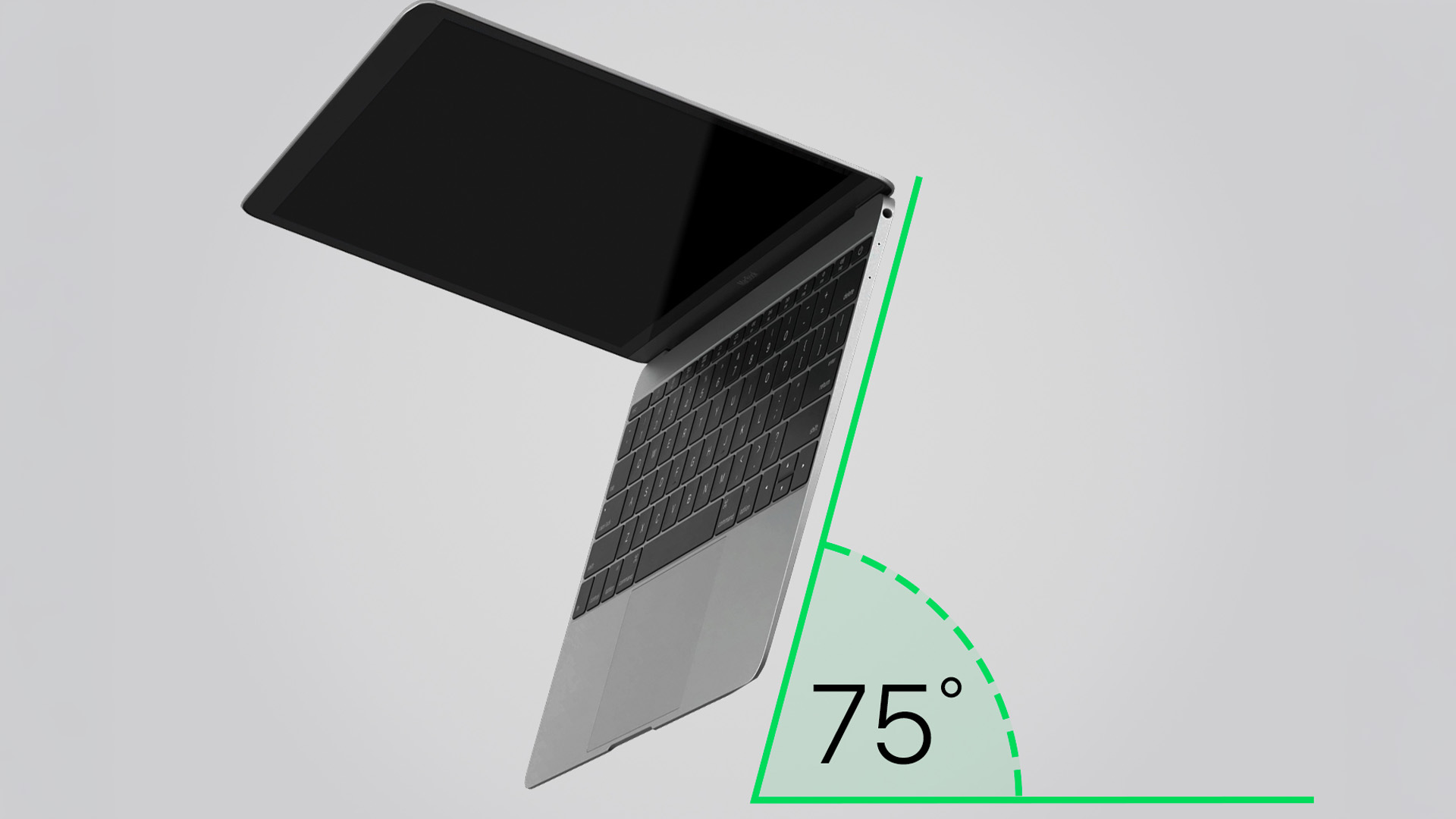
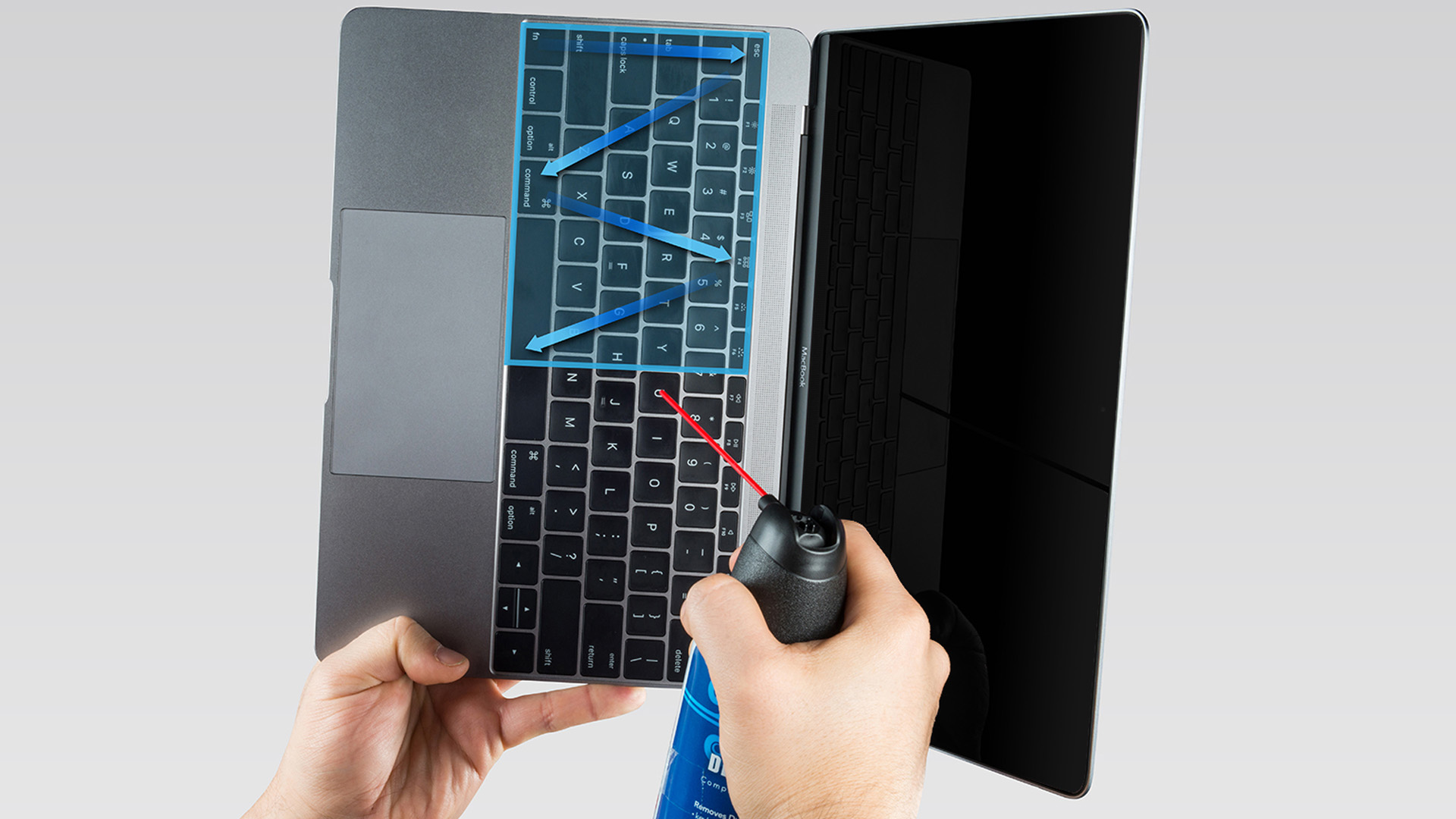
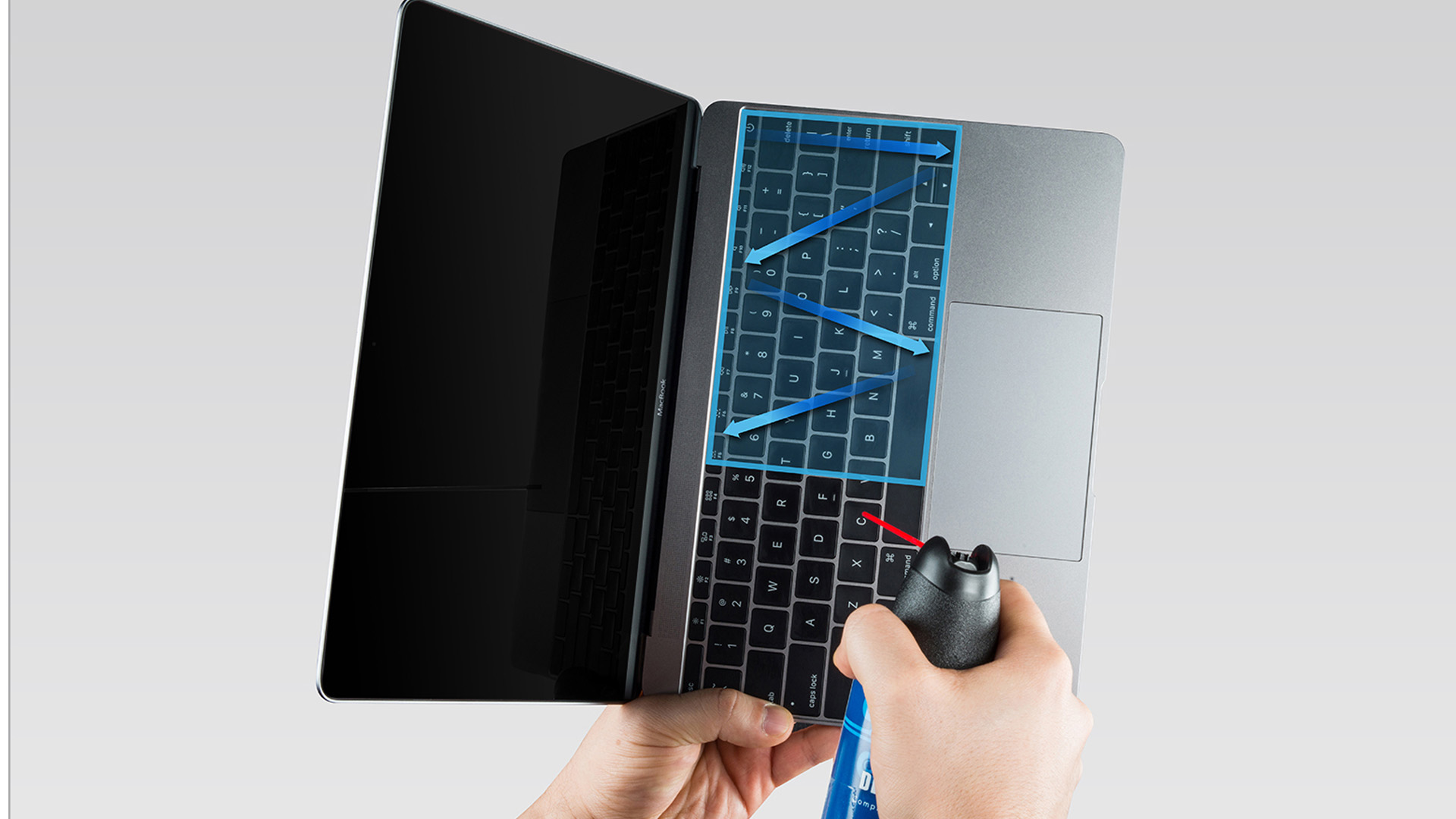
Apple has a specific compressed-air method for MacBook (2015 and later) and MacBook Pro (2016 and later) when a key is unresponsive or feels different to the others. Apple says to use the straw on the compressed-air can, keep the end of the straw about half an inch from the keyboard, and not invert the can while spraying. Then hold the Mac notebook at a 75-degree angle, spray left to right, rotate it to the right side and spray again left to right, then repeat with the notebook rotated to the left side.
Apple’s compressed-air method in plain English
- Shut the MacBook down and unplug it.
- Hold it at about a 75-degree angle, so it is not fully vertical.
- Use compressed air across the keyboard in a left-to-right motion.
- Rotate to one side and repeat.
- Rotate to the other side and repeat.
This method is specifically useful for dislodging debris under or around keys. It is not a replacement for regular surface cleaning, and it is definitely not an invitation to blast the keyboard from every angle like you are pressure-washing a patio. Check out our best ASUS laptops at a good price as well.
How to Clean Touch ID on a MacBook
Touch ID needs more care than the rest of the keyboard.
Apple says MacBook Pro models with Touch Bar and Touch ID should have the Touch Bar and Touch ID cleaned the same way as the display: shut down the Mac, unplug the power adapter, then use a soft lint-free cloth dampened with water only. Apple’s current Mac guidance also says that if Touch ID is not working as expected, both your finger and the Touch ID sensor should be clean and dry.
So, if you are cleaning a MacBook keyboard and the power button doubles as Touch ID:
- use water only on that sensor area
- do not use alcohol directly on the Touch ID key
- make sure the sensor is dry before testing it again.
What Not to Do When You Clean a Mac Keyboard
This part matters as much as the actual cleaning steps.
Do not spray anything directly onto the keyboard
Apple explicitly says not to spray cleaning products directly onto the item and not to spray liquid directly onto the computer.
Do not soak the cloth
Moisture and keyboard openings are bad combos. Apple repeatedly warns against getting moisture into openings.
Do not use bleach or hydrogen peroxide cleaners
Apple says not to use products containing bleach or hydrogen peroxide on the product surfaces.
Do not use abrasive cloths
Kitchen rolls, rough paper towels, or harsh clothes can be more damaging than people expect. Apple specifically says to use a soft, lint-free cloth and to avoid abrasive cloths or similar items.
Do not ignore liquid that gets inside
Apple says if liquid makes its way inside the product, get help from an Apple Authorised Service Provider or Apple Store as soon as possible. Apple also notes that liquid damage is not covered under the standard Apple product warranty or AppleCare Protection Plans, though UK consumer law rights may still apply.
Common MacBook Keyboard Cleaning Mistakes
Most keyboard-cleaning disasters are not caused by dirt. They are caused by impatience.
Mistake 1: cleaning only when the keyboard already feels grim
Light, regular cleaning is easier and safer than waiting until the keyboard looks like it survived a three-month snack marathon.
Mistake 2: using too much pressure
You are wiping keys, not sanding a garden fence.
Mistake 3: using the wrong “safe” cleaner
A lot of generic laptop advice says “just use screen cleaner” or “just use household wipes”. Apple is much narrower than that, and that is the safer standard to follow.
Mistake 4: treating a stuck key like a surface issue
If a key is physically behaving differently, surface wiping often will not solve it. That is when the compressed air method matters, or when you need service instead. Apple says to seek service if keys are still unresponsive after the compressed-air steps.
How Often Should We Clean a MacBook Keyboard?
For most people, a light cleans every one to two weeks is enough, with a more careful disinfecting wipe-down when needed. If the MacBook travels in a backpack daily, gets used for commuting, sits in shared workspaces, or lives dangerously close to snacks; weekly cleaning makes more sense.
A good rule is this:
- light dust wipe: weekly
- slightly damp cloth clean: every couple of weeks
- disinfecting wipe: only when needed
- compressed air: only for trapped debris or keys that feel off
This keeps the keyboard clean without over-cleaning it.
MacBook Maintenance and Cleaning Tips That Actually Help
MacBook keyboard cleaning gets easier when you stop the mess building up in the first place.
Keep food away from the keyboard
Crumbs remain undefeated.
Wash or dry hands before typing
This cuts down key shine, grease, and the sort of mysterious smudge layer that appears out of nowhere.
Store the MacBook in a sleeve
A sleeve will not make the device spotless, but it does reduce dust, lint, and random bag fluff.
Do quick cleans instead of waiting for a “deep clean day”
Five minutes now is better than a dramatic restoration project later.
Use a proper desk setup
Dusty soft furnishings, blankets, and cluttered surfaces are elite producers of fluff and grit.
If you are maintaining an older device and already thinking about a replacement, this is a good point to browse best laptops or explore our MacBook collection rather than waiting for a minor issue to become a major one.
How to Clean a Keyboard on a Laptop vs a MacBook
If someone searches “how to clean a keyboard” or “how to clean a computer keyboard laptop”, the broad advice is similar: power it down, use a lint-free cloth, avoid liquid in the openings, and use the right cleaner. What changes with a MacBook is the need to follow Apple’s more specific product guidance, especially around disinfectant wipes, Touch ID, and the compressed-air method for stuck keys.
That specificity is what keeps a MacBook cleaning guide useful. Generic laptop cleaning articles often skip the parts that matter most:
- what Apple actually permits
- what not to spray
- how to treat Touch ID
- when compressed air is appropriate
- when to stop cleaning and get support
When Cleaning Is Not Enough
A clean Mac keyboard should feel normal. If it still does not, the issue may not be dirt.
Signs you may need support instead of more cleaning
- a key stay unresponsive after Apple’s compressed-air method
- a key feels structurally different every time you press it
- the keyboard had a liquid spill
- Touch ID still fails after cleaning and drying
- multiple keys behave oddly at once.
Apple’s support guidance is clear that if keys remain unresponsive after the compressed air steps, service is the next step. Apple also says liquid inside the device should be dealt with quickly via authorised support.
At that point, cleaning harder is not the hero's movement. It is usually the plot twist that makes things worse.
Should You Clean or Replace?
For most readers, the answer is clean first, replace later.
Clean the keyboard if:
- the issue is dust, light grime, fingerprints, or a slightly sticky surface
- one key feels odd and you have not tried the compressed-air method yet
- Touch ID seems greasy rather than faulty
Think about replacing the laptop instead of babysitting it if:
- the keyboard problem is one of several age-related issues
- the battery, ports, performance, and keyboard all feel tired
- you were already considering an upgrade for work, study, or gaming
That is where it makes sense to compare professional laptops for work, look at the latest Dell laptops, or jump to best laptops for gaming if the MacBook was never really the right machine for your setup in the first place.

The Safe Move Most People Should Make
If you just want the safest default answer for MacBook keyboard cleaning, here it is.
Shut the MacBook down. Unplug it. Use a soft lint-free cloth. Slightly damp is fine. Soaking is not. If you need to disinfect, use an approved wipe gently on the hard non-porous surfaces. Never spray the cleaner directly onto the keyboard. Keep moisture out of the openings. Use water only on Touch ID. If a key is physically acting up, use Apple’s compressed-air method before doing anything more dramatic.
That solves the problem for most people without turning routine maintenance into accidental self-sabotage.

FAQs
How do you clean a Mac keyboard safely?
Shut the MacBook down, unplug it, and wipe the keyboard gently with a soft lint-free cloth. Do not spray the cleaner directly onto the keyboard.
How can I clean my Mac keyboard if it is greasy?
Use a soft lint-free cloth for routine cleaning or gently use an approved disinfectant wipe on the hard non-porous keyboard surface if needed.
Can you use alcohol wipes on a MacBook keyboard?
Yes, Apple says you may gently use a 70 per cent isopropyl alcohol wipe, 75 per cent ethyl alcohol wipe, or disinfectant wipe on hard non-porous surfaces such as the keyboard.
Can I spray cleaner straight onto my MacBook keys?
No. Apple says not to spray cleaning products directly onto the item or directly onto the computer.
What should I use to remove dirt from MacBook keys?
For surface dirt, use a soft lint-free cloth. For trapped debris causing key issues, Apple recommends a specific compressed-air method on certain MacBook models.
How do you clean Touch ID on a MacBook?
Apple says to clean Touch ID the same way as the display, using a soft lint-free cloth dampened with water only.
How often should you clean a MacBook keyboard?
A light cleans every one to two weeks is sensible for most users, with disinfecting only when needed. That schedule is practical guidance rather than an Apple-set interval.
What if a key is still not working after cleaning?
If the key is still unresponsive after Apple’s compressed-air steps, Apple says seek service.
| Read More: |
| PC vs Mac in 2026: Which One Is Right for You? |
| MacBook Not Turning On or Charging? Here’s How to Fix It |
| How to Check CPU Usage on a Mac Step-by-Step Guide |
Related Articles
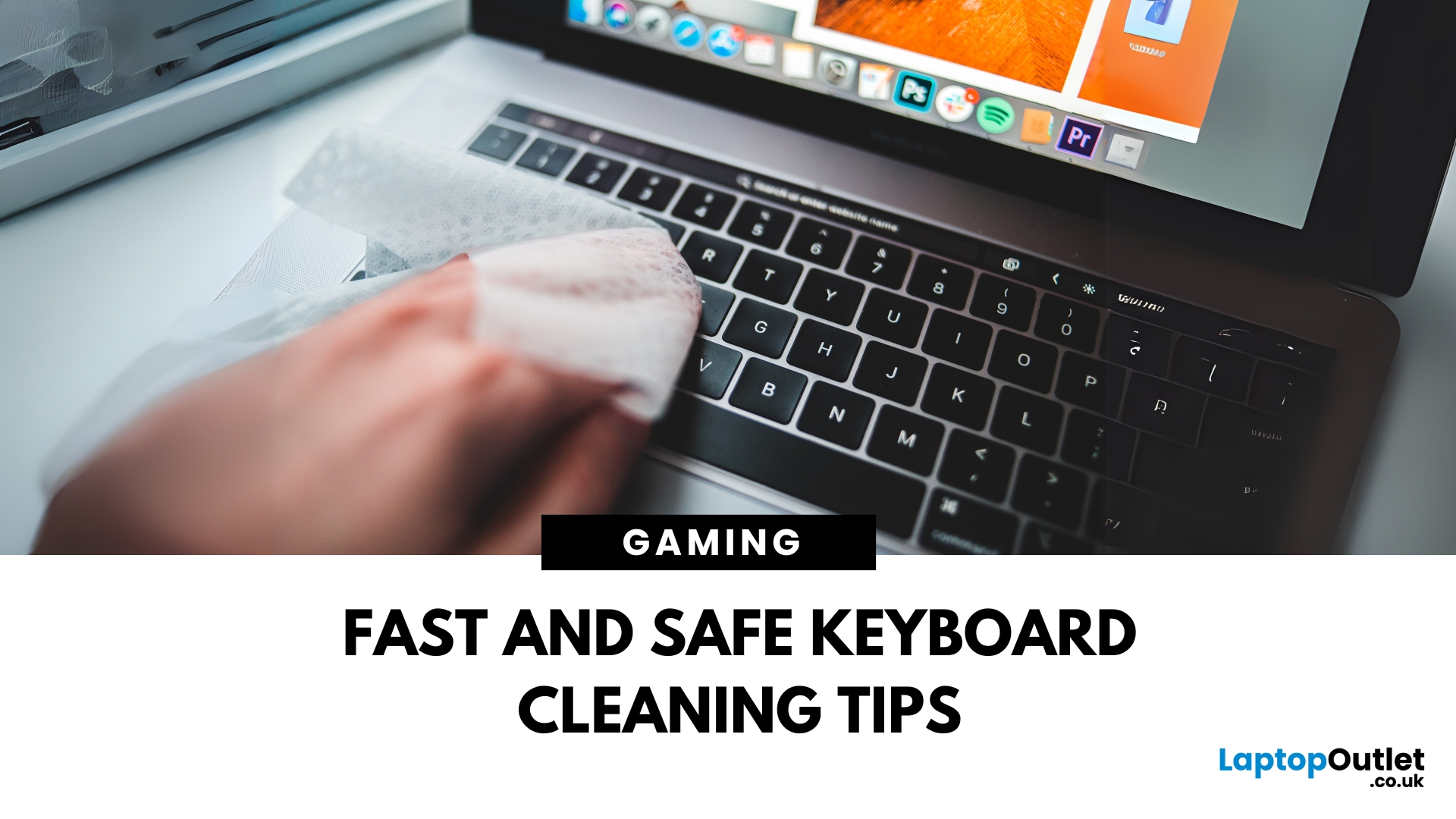

Last Updated: August 28, 2026
Dust, crumbs, skin oils, and drink residue can make a laptop keyboard look grubby or leave keys slow and sticky. Cleaning it correctly takes only a few minutes, but excess liquid or unsuitable products can damage the key coating and electronics.
How to Clean a Keyboard Safely: Quick Answer
Shut down and unplug the laptop. Remove loose debris with short bursts of compressed air, then wipe the keys with a soft microfibre cloth lightly dampened with 70% isopropyl alcohol. Never spray liquid directly onto the keyboard and let it dry fully before switching it on.
What You Will Need
- Soft microfibre cloth
- Compressed air
- Cotton buds or a soft brush
- 70% isopropyl alcohol
How to Clean a Laptop Keyboard Step by Step
1. Turn Off and Unplug the Laptop
Save your work, shut the laptop down and disconnect the charger and accessories. Cleaning
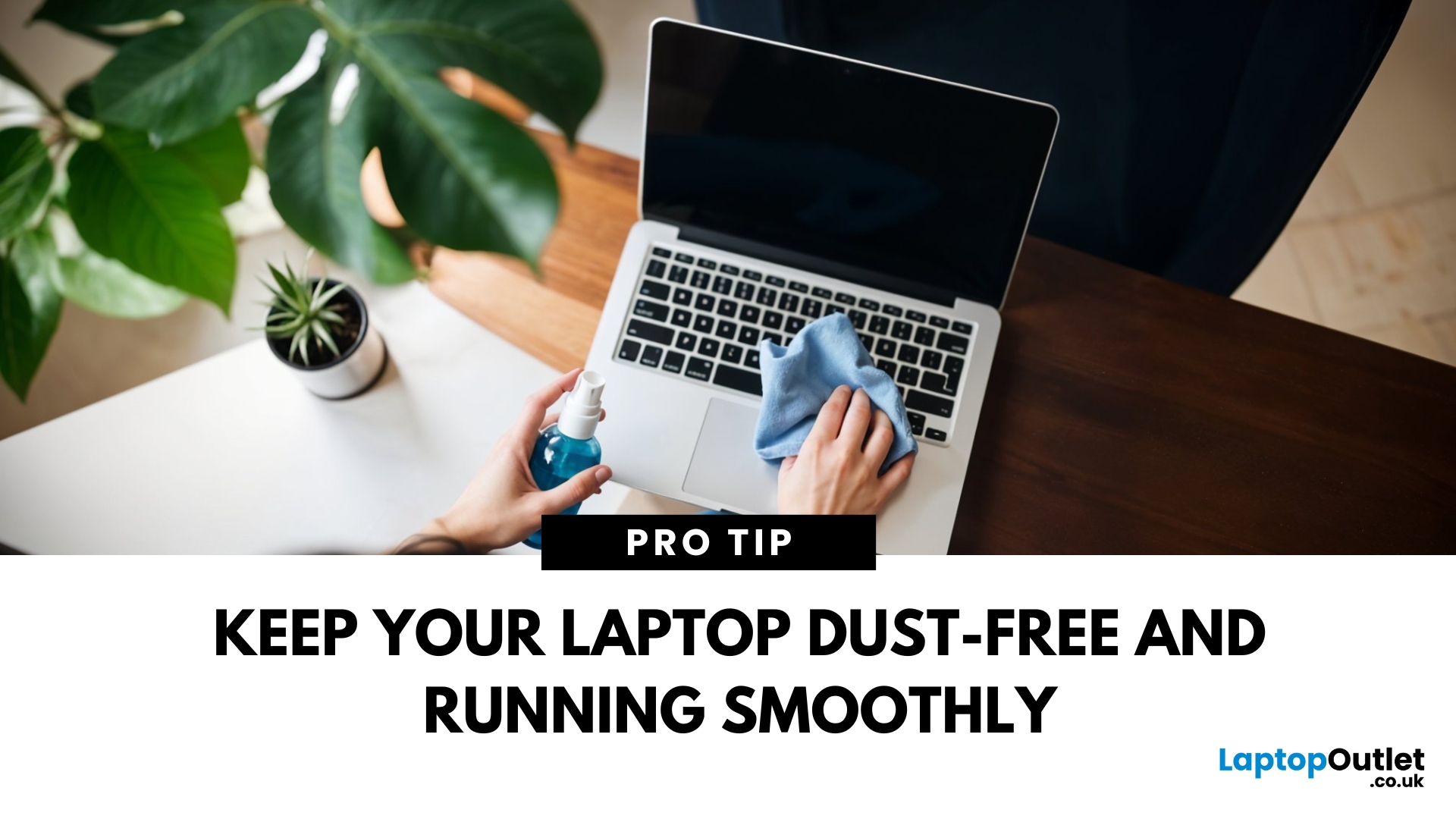
Last Updated: September 24, 2026

Last Updated: December 19, 2025
Emojis have become a language of their own, especially for the Gen Z and Alphas. You’re replying to an email, chatting on WhatsApp Web, creating social posts, or even completing work messages with a little personality, being able to type emojis using your keyboard saves time and makes communication more expressive.
Let’s learn the easiest ways to type emojis on Windows, Mac, Chromebooks, and even mobile keyboards. No more copy-and-paste from emoji websites, you’ll be able to insert any emojy in seconds.
Why Use Keyboard Emojis?
Before we get into shortcuts, here’s why knowing them matters:
- Fast: Add emojis without switching tabs or using your mouse.
- Professional + fun: Modern workplaces increasingly accept emojis for clarity and tone.
- Easy to remember: Once you learn shortcuts, they feel natural.
- Universal: Works across apps - Word, Slack, Teams, Gmail, Instagram, web browsers, and more.
Now let’s jump into the shortcuts for every device. If you enjoy adding creativity to your messages,

Last Updated: February 13, 2026
Because nothing kills the vibe faster than a laptop, that suddenly decides your fingers are irrelevant.
You sit down. You open your laptop. You’re mentally prepared to be productive (or at least pretend). And then .....boom... your laptop touchpad is not working. Or your laptop keyboard is not working. Or worse… both.
At this point, your laptop isn’t broken; it’s personally offended by you.
Before you rage-buy a new device or spiral into tech despair, here’s the good news: most laptop keyboard problems and touchpad issues are completely fixable. And no, you don’t need a computer science degree or a sacrifice to the tech gods.
This guide is not one of those vague “restart your device” articles and call it a day. This is a deep-dive, all-reasons, all-solutions, no-BS troubleshooting guide, written in human language, with enough detail to actually solve the problem.
We’ll cover:
- Software vs hardware problems (and how to tell the difference)
- Every common and uncommon reason your laptop input
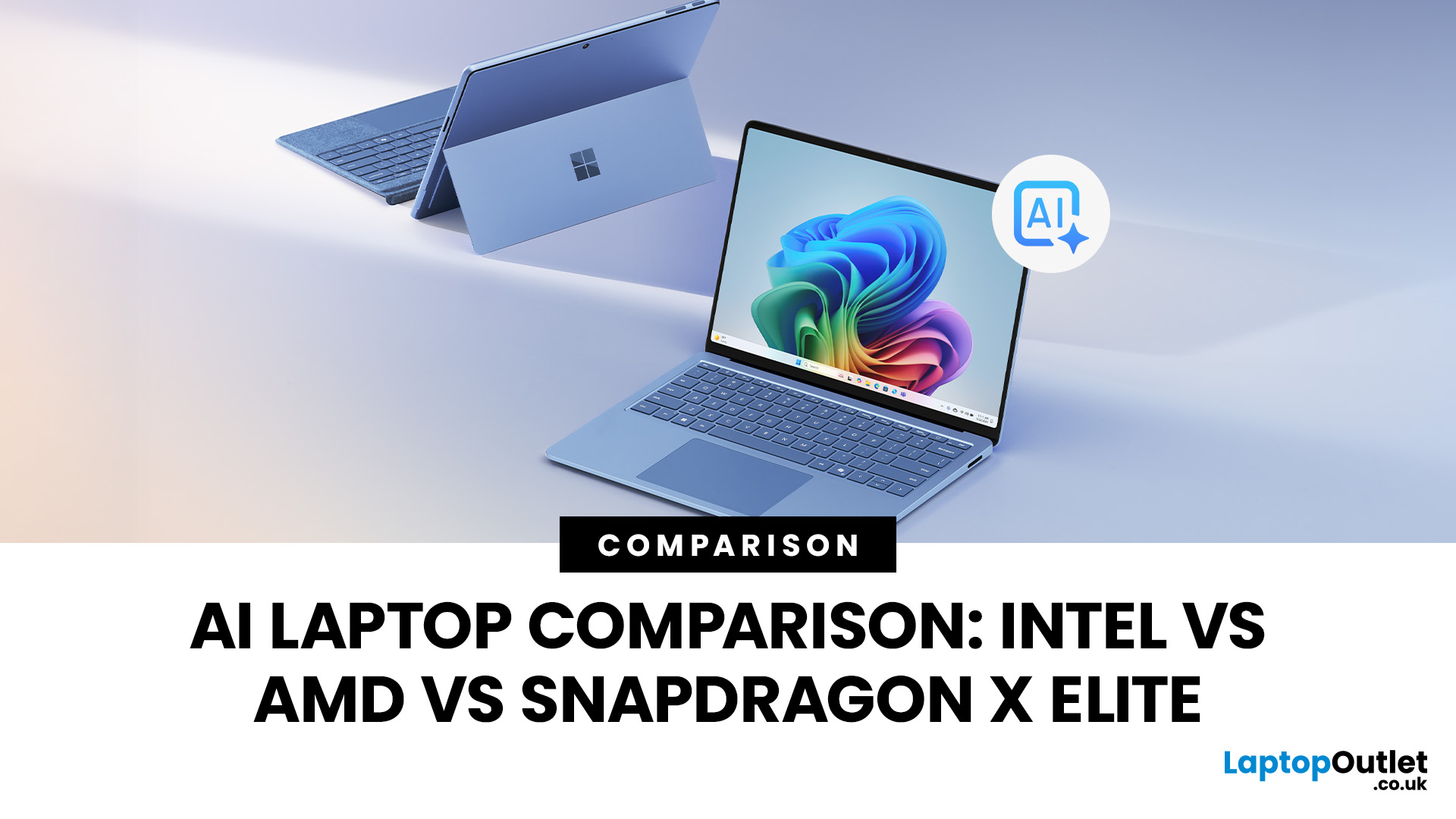
Last Updated: April 07, 2026
Buying an AI laptop in 2026 should be a quick decision. You pick a size, set a budget, and choose the “best” chip, right? In reality, the AI label is doing far too much work. Two laptops can sit side by side, both advertised as “AI-powered”, yet behave completely differently once you start writing documents, editing photos, joining video calls, or trying the latest Windows features.
That confusion usually comes down to one thing: people treat “AI laptop” as a single spec, when it’s really a mix of three engines working together.
- CPU: the general performance engine for everything you already do
- GPU: the visual and creative engine, also used for some AI workloads
- NPU: the efficiency engine for AI tasks that are built to run locally
This guide compares the 3 platforms shoppers are most likely to cross-shop when searching for an AI laptop today: Intel Core Ultra 200V (Lunar Lake), AMD Ryzen AI 300 (XDNA 2), and Qualcomm Snapdragon X Elite. We’ll keep it practical, explain the specs, and help

Last Updated: March 09, 2026
If you have been waiting for a proper budget Mac, it is finally here. MacBook Neo launched as Apple’s most affordable laptop ever, and it is clearly built for students, first-time Mac buyers, and anyone who just needs a reliable everyday laptop for browsing, documents, streaming, and calls. The big headline is the price. In the UK, MacBook Neo starts at £599, with £499 education pricing, and it goes on sale on Wednesday, March 11, 2026. Pre-orders are open now.
This guide breaks down what MacBook Neo is, who it is for, what you get for the money, and the trade-offs you should know before ordering.
Want to Buy a MacBook Neo? Quick Verdict
Buy MacBook Neo If You Want the Cheapest New Mac
MacBook Neo makes sense if your daily laptop life looks like this:
- Browsing and web apps
- Word, PowerPoint, Google Docs
- Email and admin
- Zoom or FaceTime calls
- School work and research
- Light photo editing and creative hobbies
It is designed to feel like a real MacBook, just at a lower cost.
Skip MacBook
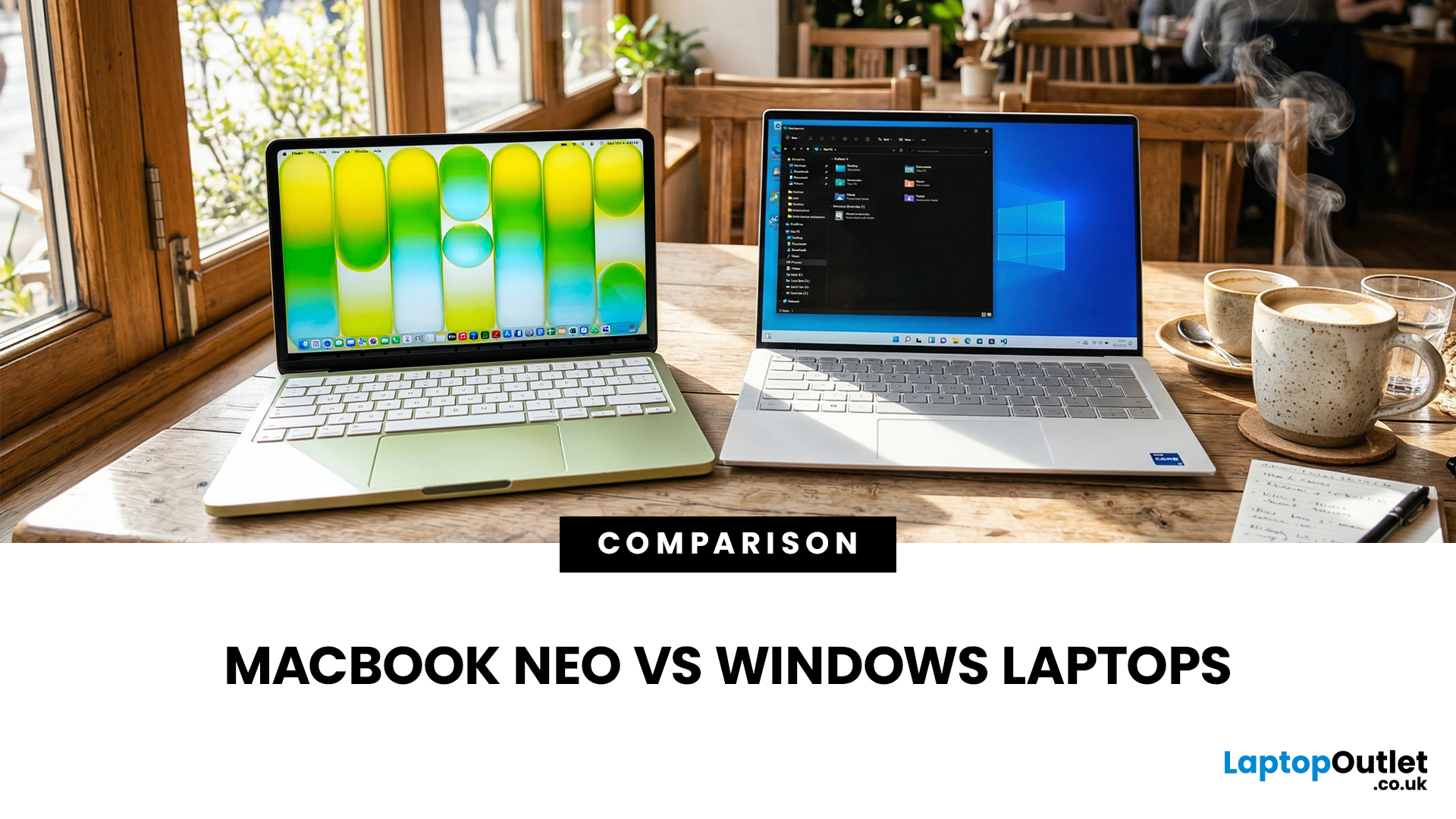
Last Updated: March 09, 2026
If you are comparing MacBook Neo vs Windows laptops, you are really asking one question: should you buy Apple’s cheapest Mac, or get a budget Windows laptop with more ports and more choice?
MacBook Neo is new, starts at £599, and is designed to be a simple, premium-feeling everyday laptop with macOS, long battery life, and strong call quality.
Budget Windows laptops can offer more screen sizes, more ports, and sometimes better upgrade options. But quality is inconsistent in this price range, and that’s where Neo tries to win.
Below is the practical, buyer-focused breakdown.
10-Second Answer Box
Choose MacBook Neo if
- You want the cleanest everyday experience for browsing, school, docs, and calls
- You value build quality and trackpad feel
- You want a laptop that stays fast and quiet for years, without tweaking settings
Choose a budget Windows laptop if
- You want more ports like HDMI and USB-A built in
- You need a bigger screen for the money
- You want the flexibility of Windows software and lots
Last Updated: June 05, 2026
Choosing the right laptops for video editing can feel far more complicated than it should. Some brands focus on AI features; others push gaming specs, and many guides make it sound as though you need a studio-grade machine just to edit a few clips.
In reality, the best laptop depends on the type of editing you do.
A beginner creating YouTube videos, reels, or student projects will not need the same machine as someone working on commercial edits, colour grading in DaVinci Resolve, or handling large 4K client timelines. That is why this guide breaks down the best laptops for video editing by editing level, workflow, and real-world use case.
Whether you need a machine for social content, advanced post-production, or portable editing on the move, these are the options worth considering.
If your creative work also includes Photoshop, Illustrator, or wider Adobe software, it is worth reading our guide to the best laptops for Adobe Creative Cloud apps as well.
What to Look for in Laptops for Video

Last Updated: May 01, 2026
Streaming accounted for over 38% of total TV and video consumption globally last year, overtaking traditional viewing for the first time. That means more people are now watching films on laptops, tablets, and personal screens than ever before, not TVs.
But here’s the problem: most laptops aren’t actually built for a good viewing experience.
You can open the same film on two different laptops and get completely different results. On one, colours look rich, scenes feel immersive, and everything flows smoothly. On another, the image feels dull, brightness struggles in daylight, and the whole experience falls flat - even if the specs look similar on paper.
That’s where most buyers get caught out. Terms like “Full HD,” “OLED,” or “high brightness” sound impressive, but they don’t always translate into a better streaming experience. Many people end up choosing based on performance or price, while overlooking what actually matters for watching films.
This guide breaks that down clearly - focusing

Last Updated: May 01, 2026
By the end of 2025, buying a laptop had become a bigger decision than ever. Global PC shipments climbed to more than 270 million units in 2025, with the final quarter alone reaching 71.5 million units.
On the surface, that sounds like good news: more innovation, more models, more choice. But for buyers, it also means more noise. Bigger spec sheets, bolder marketing claims, AI-ready labels everywhere, and a growing chance of paying for power you do not need or missing the features you actually do.
That is what makes choosing a laptop in 2026 tricky. The best option is not always the most expensive, the most powerful, or the newest on the page. It is the one that fits the way you work, study, stream, create, or game without compromise.
This guide cuts through the clutter and helps you choose with confidence. So, get yourself ready to buy the laptop you are looking for.
How to Choose the Right Laptop in 2026
If you want the quick answer, here’s how to choose the right laptop without overthinking

