



What is IPS Glow? 5 Effective Ways to Reduce It
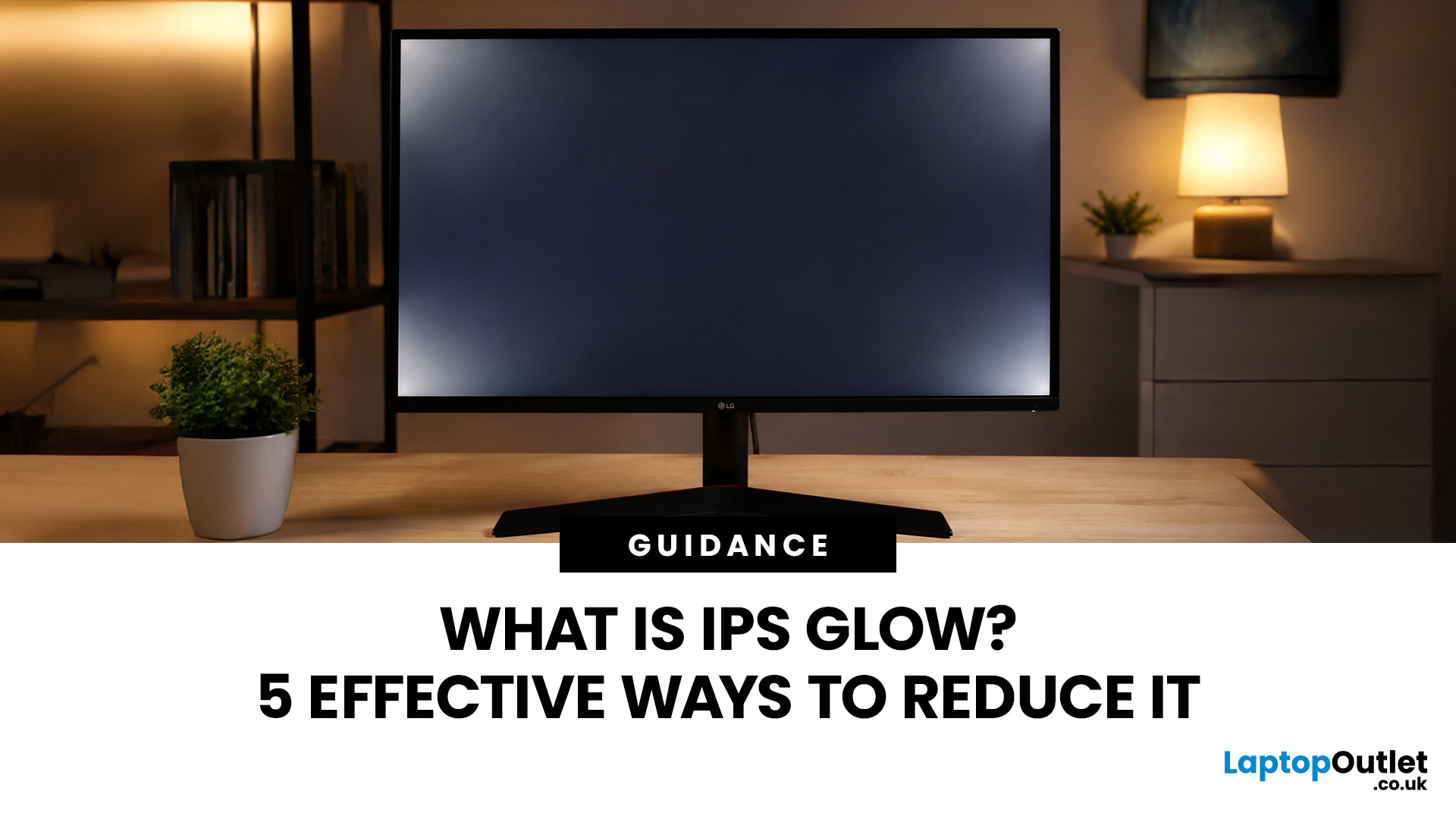
IPS glow is a faint patch of light that can appear near the edges or corners of an IPS display, particularly when the screen shows black or very dark content. It may look white, silver, grey, blue or slightly yellow, depending on the panel and your viewing position.
A small amount of glow is a normal characteristic of IPS technology rather than an automatic sign of damage. However, high brightness, a dark room, an unsuitable viewing angle and sitting too close to the screen can make it far more noticeable.
There is no permanent IPS glow fix because the effect is linked to the physical design of the panel. You can, however, make it considerably less distracting by adjusting your monitor, seating position and room lighting.
What Is IPS Glow?
IPS glow is an angle-dependent light haze visible around the corners or edges of an IPS display during dark scenes. It changes when you move your head, alter the monitor angle or increase your viewing distance.
It cannot normally be removed completely, but lowering brightness, improving your viewing position, adding ambient light and adjusting display settings can reduce its visibility. BenQ describes it as a technology-related characteristic that cannot be entirely prevented or eliminated.
What Causes IPS Glow?
IPS stands for In-Plane Switching, a type of LCD panel technology. IPS displays are popular because they generally provide wide viewing angles, consistent image quality and strong colour accuracy.
Like other LCD monitors, an IPS monitor uses a backlight behind its liquid-crystal layer. When the screen displays dark content, the pixels reduce the amount of backlight passing through them.
The panel cannot block this light perfectly from every viewing position. When light passes through the panel at an angle, it can create the pale haze known as IPS panel glow.
The effect is therefore influenced by your position relative to the screen. It may appear strong from one angle but become much weaker when you move your head or change the display’s tilt.
What Does IPS Glow Look Like?
IPS glow usually appears as a soft, cloud-like patch rather than a sharply defined bright spot. It is most commonly visible near one or more corners of the panel.
An IPS white glow may look silver or grey on some displays. Other panels can produce a warmer yellow or amber tint, especially when viewed from below or from an off-centre position.
You may also notice IPS screen glow in corners when:
- Viewing a black or dark grey image
- Playing games with dimly lit environments
- Watching films with black borders
- Using the monitor in a dark room
- Looking at a large screen from a short distance
- Running the display at a high brightness level
The location and intensity can change when you move. This angle-dependent behaviour is one of the most useful signs that the effect is IPS glow rather than a fixed panel fault.
Why Is IPS Glow More Noticeable in Dark Scenes?
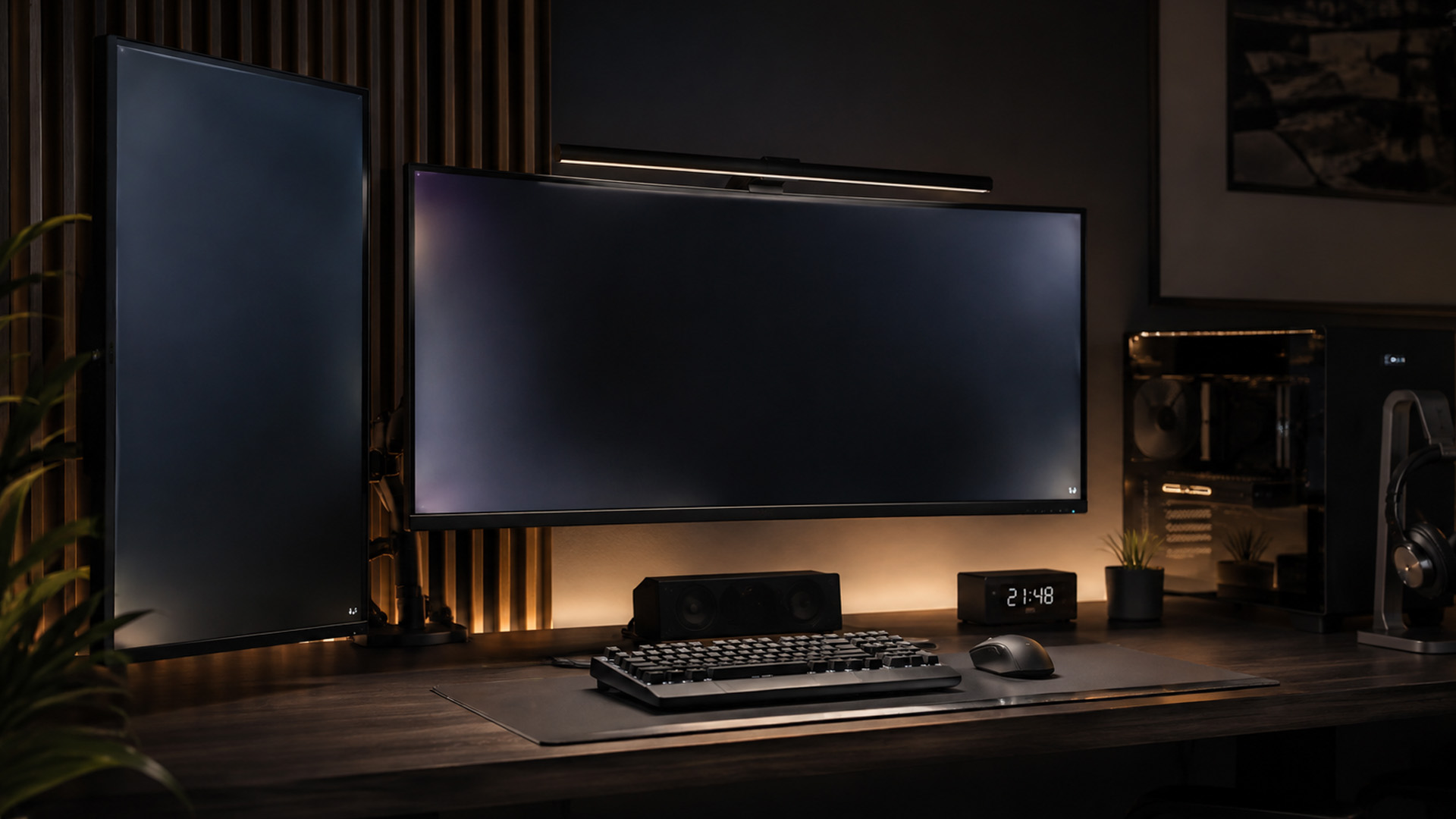
IPS glow in dark scenes is easier to detect because the bright haze contrasts strongly with the surrounding black image. It may be barely visible on websites, documents and colourful games but distracting during horror games, space scenes or dark films.
The effect can also look stronger when the room is completely dark. Your eyes adapt to the low light, making small variations in panel brightness easier to see.
High monitor brightness increases the amount of light produced by the backlight. More light can therefore remain visible around the edges when the panel displays dark content.
Large displays can make the effect more noticeable because the corners sit at a greater angle from your eyes. This is particularly relevant when using monitors with wide screens on a shallow desk.
If screen width, desk depth and viewing distance are also influencing your choice, our guide to whether ultrawide monitors are worth buying explains the practical benefits and limitations of this format.
Is IPS Glow the Same as Backlight Bleed?
IPS glow and backlight bleed are not the same problem, although both can create bright areas on a dark screen.
IPS glow changes according to your viewing position. Backlight bleed usually remains in the same location, even when you move your head or adjust your distance from the screen.
|
Characteristic |
IPS Glow |
Backlight Bleed |
|
Main cause |
Viewing-angle behaviour of IPS technology |
Uneven backlight distribution or light escaping around the panel |
|
Common location |
Corners and outer edges |
Fixed areas along an edge or part of the frame |
|
Changes when you move |
Yes |
Usually not |
|
Affected by viewing distance |
Yes |
Usually very little |
|
Most visible during |
Dark content in a dim room |
Black screens and dark content |
|
Considered a defect |
Usually no |
Possibly, when severe |
|
Can settings remove it? |
No, but they can reduce its visibility |
No, although lower brightness may make it less noticeable |
Dell identifies IPS glow as an inherent panel characteristic that appears around screen edges from certain angles. It describes light leakage as uneven backlight distribution that may be considered a fault when it significantly affects normal viewing.
A Simple Way to Tell the Difference
Display a dark image and move your head slowly from side to side.
If the bright patch changes shape, intensity or position, it is probably IPS glow. If the patch remains fixed in exactly the same place, it may be backlight bleed or another screen-uniformity issue.
How to Test IPS Glow Properly
A completely dark room and maximum screen brightness can make almost any LCD uniformity issue look worse than it does during normal use. Test the display under realistic conditions before deciding that it is faulty.
Follow these steps:
- Allow the monitor to operate for several minutes.
- Reset any unusually bright gaming or vivid picture preset.
- Choose the brightness level you normally use.
- Leave a small amount of room lighting switched on.
- Display a dark grey image or a dark scene from a film or game.
- Sit in your normal working or gaming position.
- Move your head gently from side to side and slightly farther back.
- Check whether the bright areas change with your position.
Avoid relying only on a smartphone photograph. Automatic exposure and night modes brighten dark areas, which can make mild IPS monitor glow look much worse than it appears to your eyes.
5 Effective Ways to Reduce IPS Glow
You cannot change the physical construction of the panel through software or monitor settings. These five adjustments instead address the conditions that make the effect more visible.
1. Lower the Monitor Brightness
The most effective first step is to reduce screen brightness through the monitor’s on-screen display menu.
Many monitors arrive with brightness set too high for an ordinary bedroom, home office or gaming setup. Excessive brightness makes the screen look punchy in a shop, but it also makes glow and uneven black levels easier to notice.
Lower the brightness gradually until white content remains clear without looking harsh. Do not copy an exact percentage from another user because brightness levels vary significantly between monitor models.
BenQ specifically recommends lowering the brightness through the on-screen display to make IPS glow less visible. EIZO also advises matching monitor brightness to the surrounding light rather than operating the screen at an unnecessarily high level.
2. Correct the Viewing Angle and Monitor Height
You should face the centre of the display as directly as possible. Looking sharply down at the screen, up from below it or across it from one side can increase visible glow.
Use the stand to adjust viewing angle, height and tilt. The upper edge of the display should generally sit around eye level or slightly below it, while the centre of the panel should face your seated position.
Make small adjustments while displaying a dark image. Even a slight change in tilt can reduce the glow in one or more corners.
Laptop users should also check the screen angle. Raising the laptop on a stand and tilting its display towards your face can reduce an IPS glow on monitor or laptop screen that is being viewed from too far above.
3. Increase Your Viewing Distance
Sitting very close to a monitor makes each corner appear at a more extreme angle from your eyes. Moving farther back creates a more direct and consistent viewing angle across the panel.
Increase the distance gradually and check whether the bright corners become less obvious. BenQ recommends placing the monitor slightly farther from the seating position as one way to reduce IPS glow.
This adjustment is particularly useful for 32-inch and ultrawide displays. These monitors need more desk depth than smaller models to provide a comfortable viewing position.
A 24 inch display range may be more suitable for a compact desk because the edges remain closer to your central line of sight.
4. Add Ambient or Bias Lighting
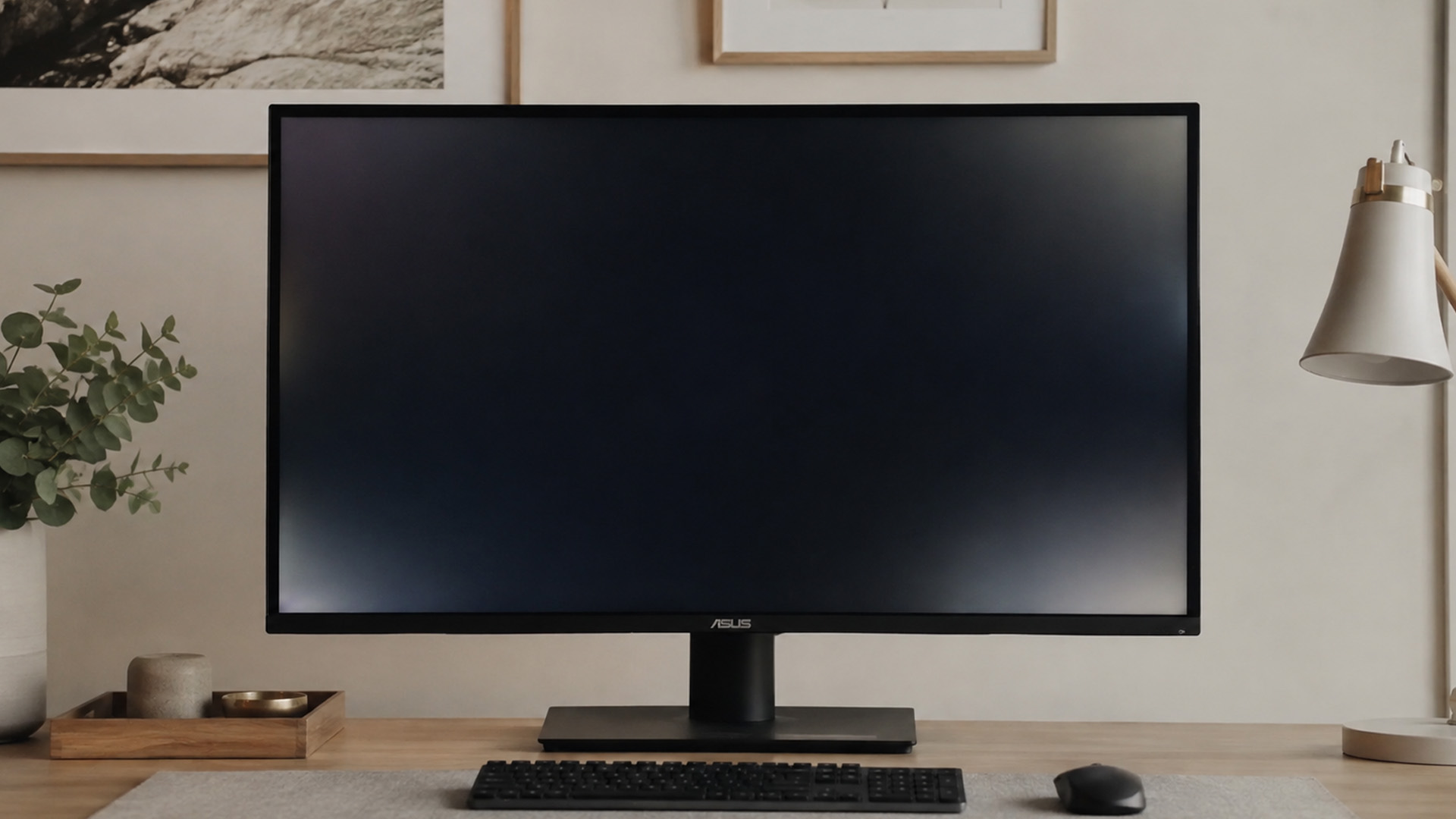
Using an IPS display in complete darkness creates a strong contrast between the monitor and the surrounding room. This makes small differences in black levels and edge brightness much easier to see.
Add soft ambient lighting to the room rather than playing or watching films in total darkness. The light should illuminate the surrounding space without shining directly onto the screen.
You can also install bias lighting behind the monitor. A low-intensity, neutral light on the wall behind the display reduces the perceived contrast between the screen and its surroundings.
Avoid pointing a bright lamp at the panel because this can create glare and reflections. The goal is to introduce gentle background light, not to flood the screen with direct illumination.
BenQ recommends increasing room lighting to make IPS glow less visible.
5. Calibrate the Picture Settings
Basic display calibration cannot remove the physical cause of IPS glow. It can, however, stop poor picture settings from making dark areas look unnecessarily bright or uneven.
Begin with a neutral picture preset such as Standard, Custom or sRGB. Vivid, FPS and showroom modes often increase brightness or lift dark areas to make details easier to see.
Check the following controls:
- Brightness
- Black level
- Gamma
- Contrast
- HDR mode
- Dynamic contrast
- Shadow enhancement
- Black equaliser
Review the gamma settings if dark greys appear washed out. A poorly selected gamma mode can raise shadow detail excessively, making the glow more apparent across dark scenes.
Be careful with contrast settings. The contrast control is not a substitute for backlight brightness, and reducing it aggressively can flatten the picture without addressing the actual source of the glow.
HDR can also make the issue more noticeable because some monitors increase their backlight output when HDR mode is active. Use an appropriate SDR preset for normal desktop work if HDR is forcing the screen to remain unnecessarily bright.
Players using fast refresh gaming monitors should check their picture preset separately from the refresh-rate setting. Reducing brightness does not require lowering the monitor’s refresh rate.
Can Software Completely Fix IPS Glow?
Software cannot provide a permanent fix because the effect is produced by the physical behaviour of the panel. A monitor driver, colour profile or Windows setting cannot alter the way light travels through the LCD layers.
Calibration tools can improve image accuracy and stop unsuitable settings from exaggerating the issue. This may reduce IPS glow visually, but it does not remove the underlying panel characteristic.
Online videos may suggest pressing, rubbing or massaging the affected corner. Do not follow this advice. Pressure can damage the panel, create permanent marks or make uniformity problems worse.
You should also avoid loosening screws or opening the monitor casing. Doing so can damage internal components and may invalidate the warranty.
Does Every IPS Monitor Have the Same Amount of Glow?
No. The visibility of IPS glow can vary between monitor models and even between individual units of the same model.
Several factors affect how much you notice:
- Panel size and construction
- Backlight brightness
- Anti-glare coating
- Manufacturing tolerances
- Monitor angle and height
- Viewing distance
- Room lighting
- Type of content displayed
A higher price does not guarantee a completely glow-free IPS display. Premium monitors may provide better brightness uniformity and quality control, but the angle-dependent characteristic can still be present.
This does not remove the main benefits of IPS technology. IPS panels remain popular because of their strong colour consistency, wide viewing angles and balanced performance for gaming, content creation and everyday work.
Panel shape and screen layout can also affect everyday comfort, particularly on specialist designs such as LG UltraWide and DualUp monitors for productivity, coding and creative work.
Does IPS Glow Get Worse Over Time?
Normal IPS glow should remain relatively consistent throughout the life of the monitor. It does not usually spread or intensify simply because the display has been used for several months.
You may notice it more after changing your room lighting, increasing screen brightness, moving closer to the display or switching to content with darker scenes.
A bright area that suddenly appears, becomes fixed or grows substantially could indicate a different issue. Check for physical pressure, frame damage, backlight leakage or another panel-uniformity problem.
Gamers who prioritise deeper blacks and stronger dark-scene performance may also want to compare IPS models with the best OLED gaming monitors, although OLED displays have their own benefits, limitations and care requirements.
When Should You Return an IPS Monitor?
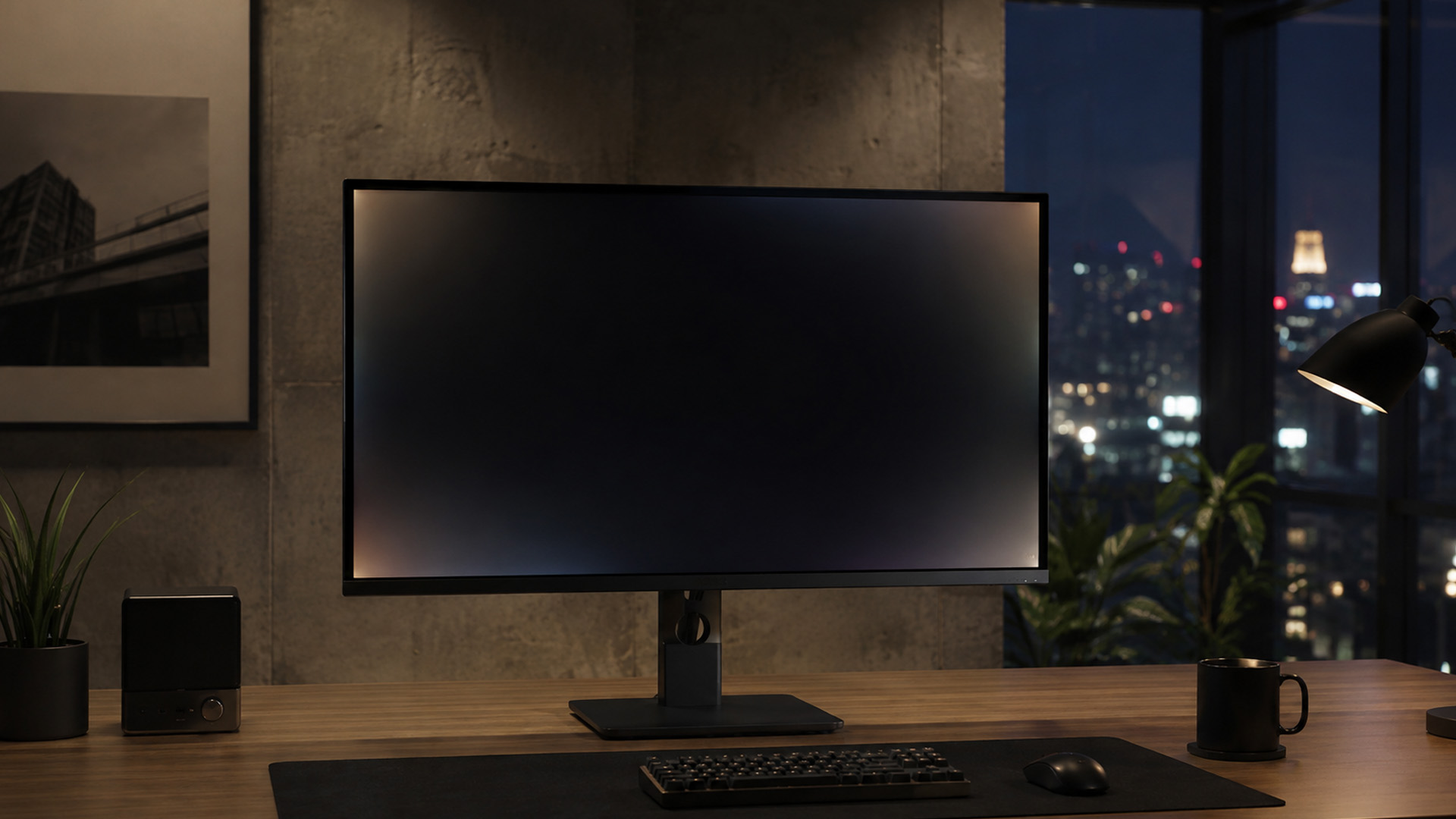
A mild glow visible only on a black test screen in a dark room is not normally enough to prove that the panel is defective.
Consider contacting the retailer or manufacturer when the bright area:
- Remains obvious in a normally lit room
- Is distracting during ordinary games, films or desktop work
- Covers a large part of the screen
- Does not change when you move your head
- Appears as a sharply defined patch
- Is accompanied by flickering or discolouration
- Becomes noticeably worse during the return period
- Prevents you from viewing dark content comfortably
Test the screen at a sensible brightness and from your normal seated position. If you take photographs, disable night mode and avoid automatic exposure settings that exaggerate the brightness.
Keep the original packaging until you are satisfied with the panel. This makes a return or exchange easier if the problem significantly affects everyday use.

Conclusion
IPS glow is an angle-dependent light haze that can appear around the edges or corners of an IPS display. A mild amount is normal, particularly during dark scenes in a dim room, and does not automatically indicate a defective monitor.
Lowering brightness, correcting the viewing angle, increasing your distance, adding ambient light and calibrating picture settings can make it far less distracting. Unlike IPS glow, backlight bleed usually remains fixed when you change position. Test your display under realistic conditions before requesting a return, but contact the retailer if a bright patch remains visible and disruptive throughout normal everyday use.

Still Have Some Questions?
Is IPS glow normal on a new monitor?
Yes. Mild IPS glow that changes with your viewing angle is normal. A fixed, severe bright patch affecting everyday content may require further inspection or replacement.
Does IPS glow get worse over time?
It does not normally worsen with age. A sudden or growing bright area may indicate pressure, panel damage or backlight leakage rather than normal IPS behaviour.
Can IPS glow be completely removed?
No. It is related to panel construction, so it cannot be entirely removed. Lower brightness, better positioning and suitable room lighting can minimise its visibility.
Can monitor calibration reduce IPS glow?
Calibration cannot alter the panel physically, but suitable brightness, gamma and black-level settings can prevent dark scenes from looking washed out and reduce perceived glow.
| Read More: |
| Are Ultrawide Monitors Worth Buying in 2026? A Complete Guide |
| LG UltraWide & DualUp Monitors for Productivity, Coding & Creation |
| Best OLED Gaming Monitors to Buy in 2026 |
Related Articles

Last Updated: July 16, 2026
Last Updated: September 24, 2026
Last Updated: July 30, 2026
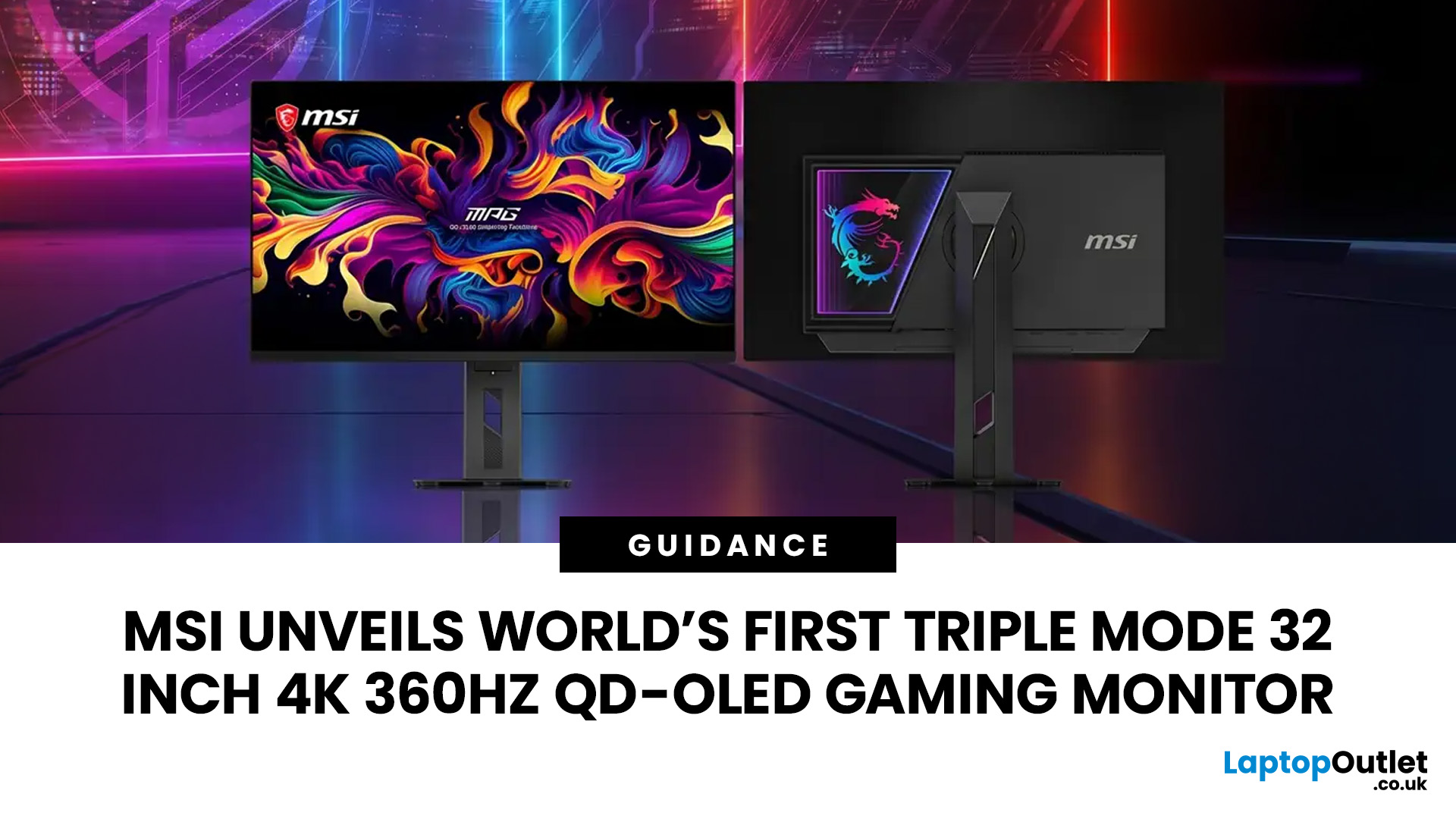
MSI has revealed a gaming monitor that sounds almost unreal on paper: a 32 inch 4K monitor with a 360Hz refresh rate, QD-OLED visuals, and a Triple Mode feature that lets gamers switch between different resolution and speed settings. Officially known as the MSI MPG OLED 322URDX36 (MSI lists the panel at 31.5 inches, though it's widely rounded to 32 inches), this display was unveiled ahead of COMPUTEX 2026 and is designed for players who want sharp 4K detail, ultra-smooth motion, and flexible performance in one premium screen.
For years, gamers had to choose between resolution and speed. A 4K monitor gave better image quality, while a lower-resolution, high-refresh-rate screen gave smoother competitive gameplay. MSI's new Triple Mode gaming monitor aims to close that gap, letting users move between 4K 360Hz, 1440p 520Hz, and Full HD 680Hz depending on the game, their hardware, and personal preference.
That makes it one of the most interesting display announcements for serious PC gamers,
Last Updated: August 11, 2026
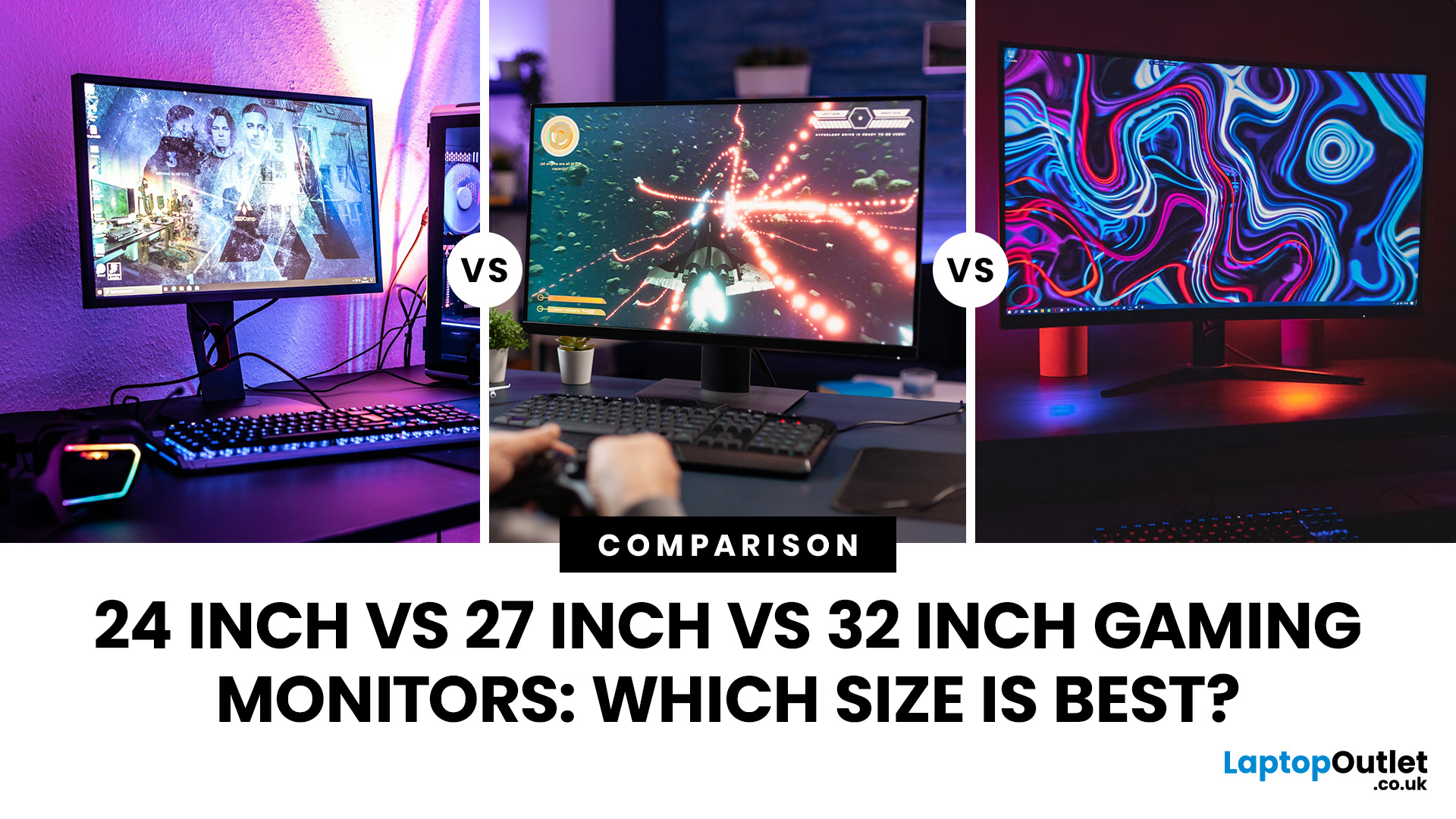
Picking the best gaming monitor size isn’t just about going big or going home. Your screen size actually changes how your games look, feel, and perform. A 24-inch setup is clutch for competitive play, a 27-inch hits that sweet spot between clarity and immersion, and a 32-inch screen? That’s where things get seriously cinematic.
Size alone isn’t the whole story. Resolution, desk space, refresh rate, and what you actually play all matter. This gaming monitor size comparison breaks down 24, 27, and 32-inch displays so you can find your perfect match.
24 Inch vs 27 Inch vs 32 Inch Gaming Monitors: Quick Comparison
The following table provides a quick overview of how the three most popular gaming monitor sizes compare.
| Feature | 24-Inch Monitor | 27-Inch Monitor | 32-Inch Monitor |
| Recommended resolution | 1920 × 1080 | 2560 × 1440 | 2560 × 1440 or 3840 × 2160 |
| Best suited to | Competitive gaming | Mixed gaming and everyday use | Immersive and cinematic gaming |
| Typical desk requirement | Small | Medium | Large |
| Graphics |
Last Updated: October 26, 2026
Last Updated: September 03, 2026
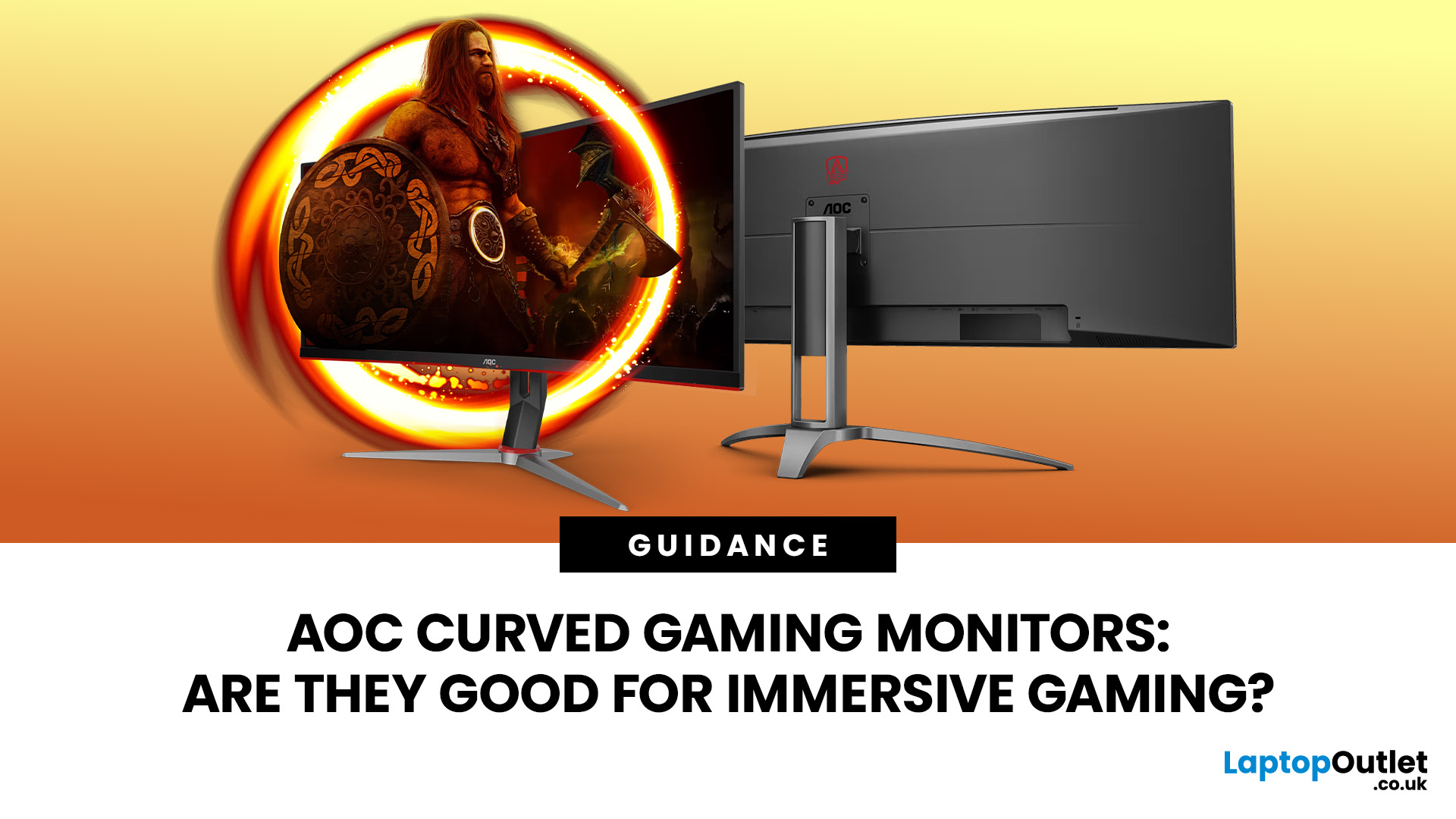
An AOC curved gaming monitor can be a strong choice for immersive gaming, especially if you play racing, simulation, RPG, open-world or cinematic single-player games. The curved screen helps draw more of the display into your natural field of view, which can make gameplay feel more engaging on larger panels. For many PC gamers, the sweet spot is a 27-inch or 32-inch high-resolution QHD monitors. For maximum immersion, an AOC 34 curved gaming monitor or another ultrawide curved gaming monitor can offer a wider, more cinematic view.
Are AOC Curved Gaming Monitors Good for Immersive Gaming?
Yes, AOC curved gaming monitors can be good for immersive gaming, but the experience depends on three things:
- Screen size
- Resolution
- Refresh rate
A curved display is most effective when the screen is large enough for the curve to matter. On a 24-inch screen, the curve may feel subtle. On a 32-inch or 34-inch screen, it becomes much more noticeable because the edges of the panel sit further into your peripheral
Published: July 27, 2026
Last Updated: September 03, 2026
Last Updated: August 11, 2026
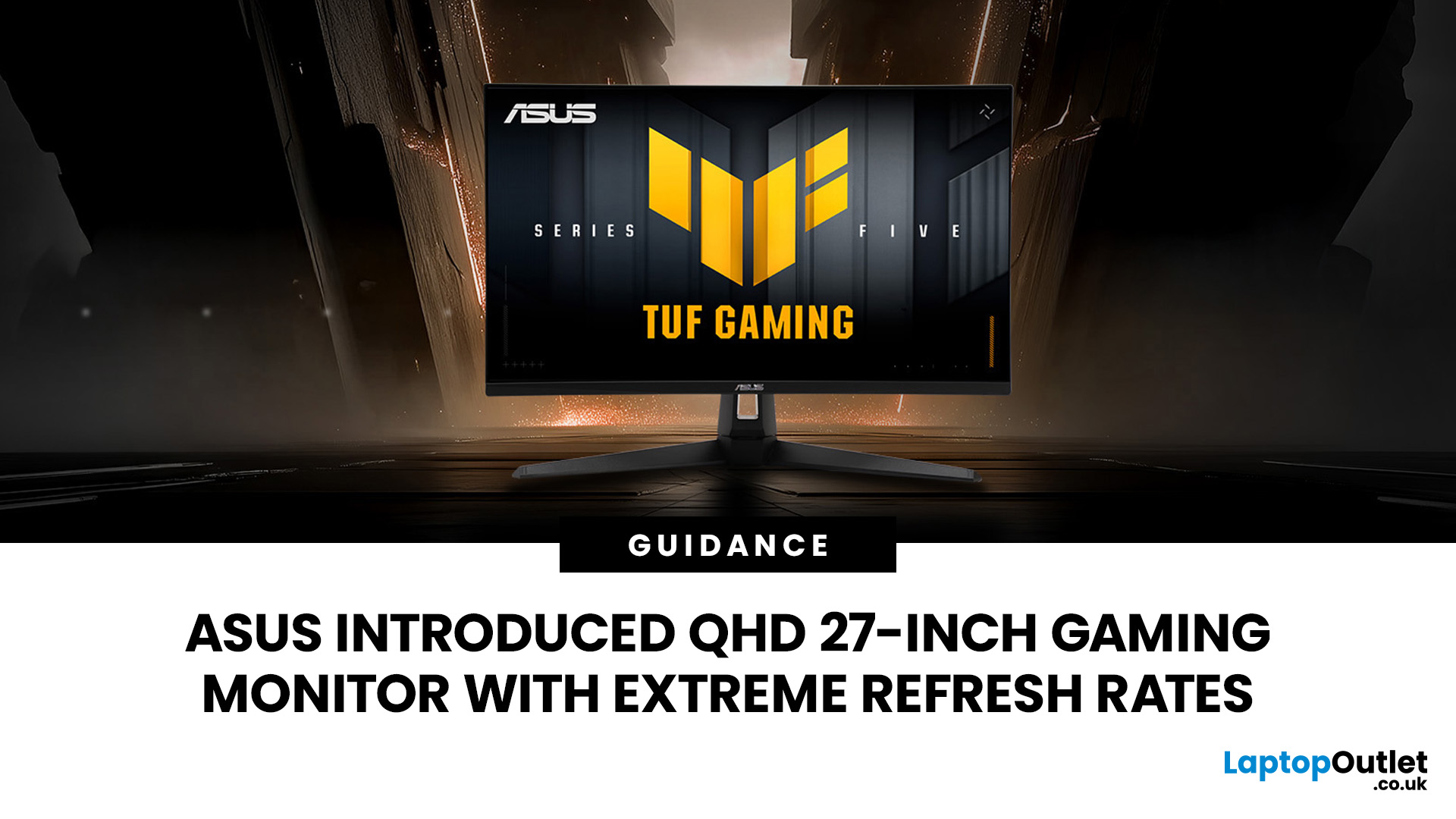
The ASUS VG27AQM5F is a 27 inch QHD gaming monitor built primarily for competitive PC players who want a higher refresh rate without dropping to Full HD resolution. As an ASUS QHD monitor, it combines a 2560 x 1440 Fast IPS panel with a maximum 320Hz refresh rate, adaptive-sync support and ASUS ELMB Sync. This ASUS new gaming display launch is aimed at players seeking smoother competitive gameplay, although its tilt-only stand, basic HDR capability and service-only USB-C port remain important limitations.
ASUS VG27AQM5F Quick Answer
| Question | Answer |
| Best suited to | Competitive PC gamers who regularly play above 200fps and still want QHD detail |
| Main strengths | 320Hz refresh rate, Fast IPS panel, 95% DCI-P3 coverage and broad adaptive-sync support |
| Main limitations | Tilt-only stand, modest 300cd/m² brightness, basic HDR10 support and no functional USB-C display input |
| Testing status | Specification-based assessment, not a hands-on review |
| UK availability | Available through UK retail channels, but not |
Last Updated: August 13, 2026
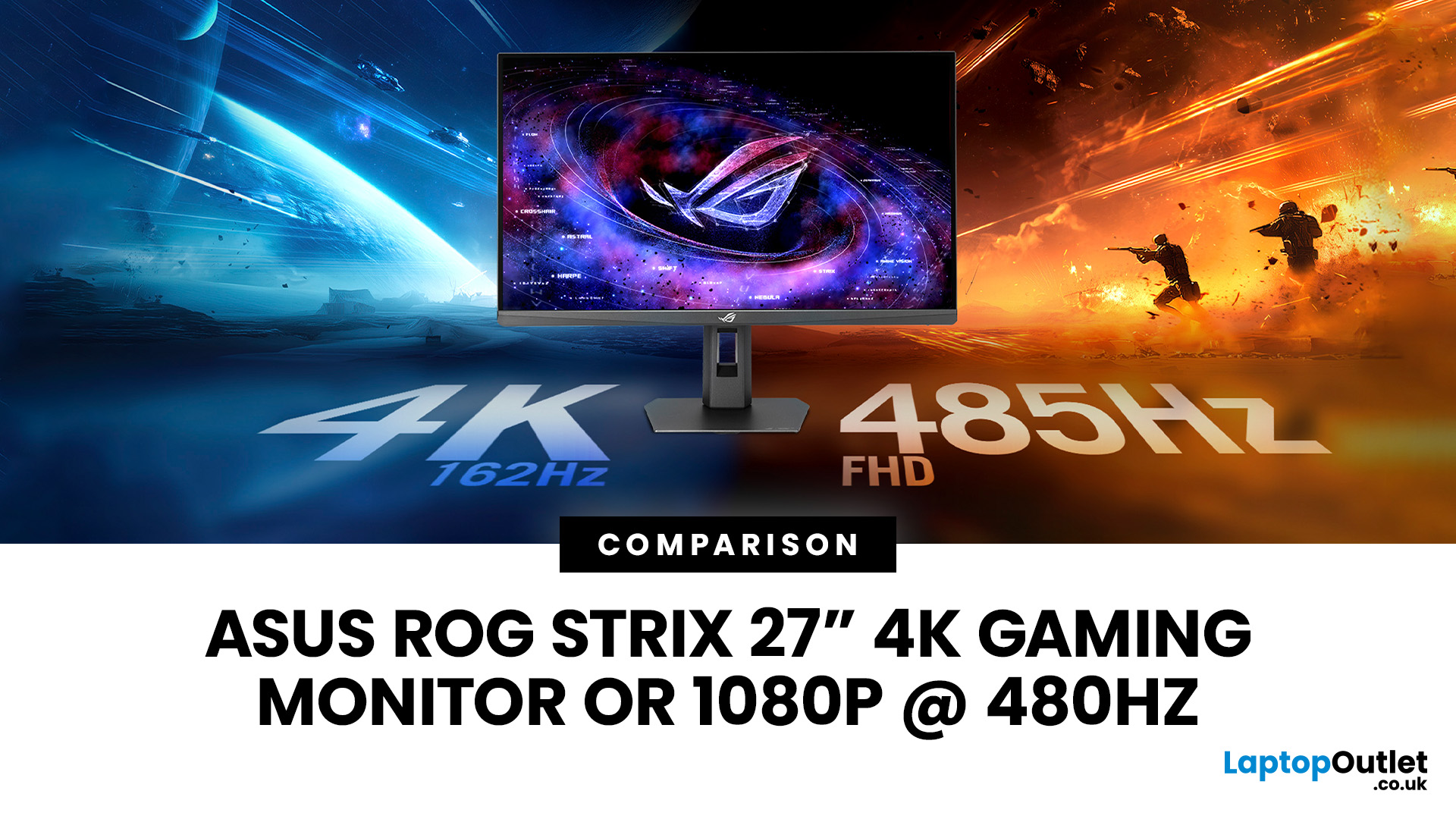
The ASUS ROG Strix XG27UCGR Gen2 is a 27 inch 4K gaming monitor that runs at up to 162Hz in 4K and switches to Full HD at 485Hz for esports. It succeeds the original XG27UCG’s 160Hz and 320Hz dual mode, adding a much faster competitive setting, Smart Pixel processing and a lower quoted minimum response time.
Most gaming monitors make you choose between resolution and refresh rate. A sharp 4K screen suits visually detailed games, while an ultra-fast Full HD display is usually better suited to competitive titles where responsiveness matters more than image detail.
The ASUS ROG Strix XG27UCGR Gen2 attempts to cover both uses. Its native mode delivers 3840 x 2160 resolution at up to 162Hz. Activating Frame Rate Boost changes the monitor to 1920 x 1080 and raises the refresh rate to 485Hz. ASUS confirms both modes for the XG27UCGR, alongside a Fast IPS panel, Smart Pixel processing and a manufacturer-rated minimum response time of 0.3ms.
ASUS ROG Strix XG27UCGR Specifications
The XG27UCGR Gen2

